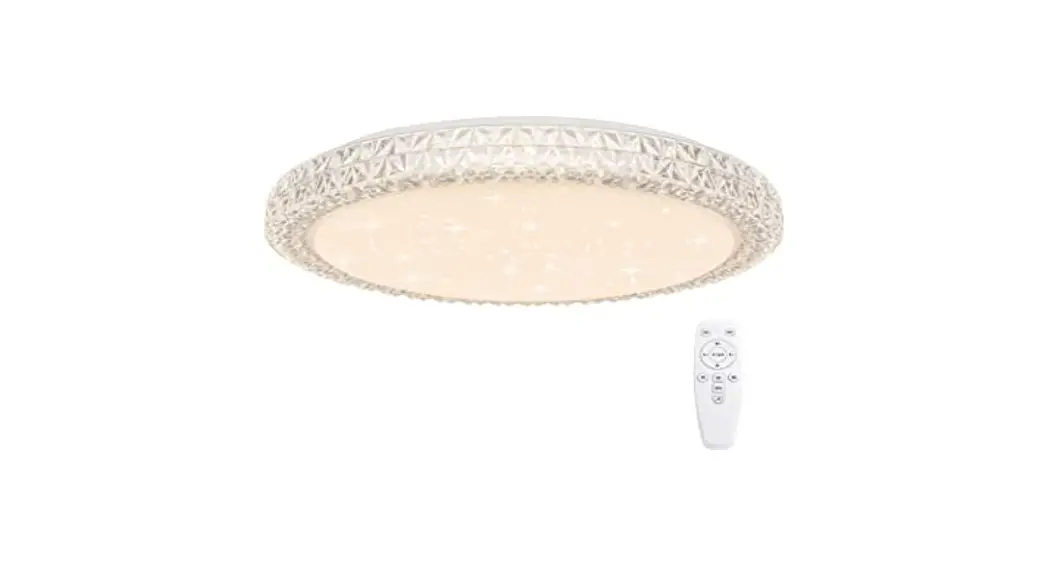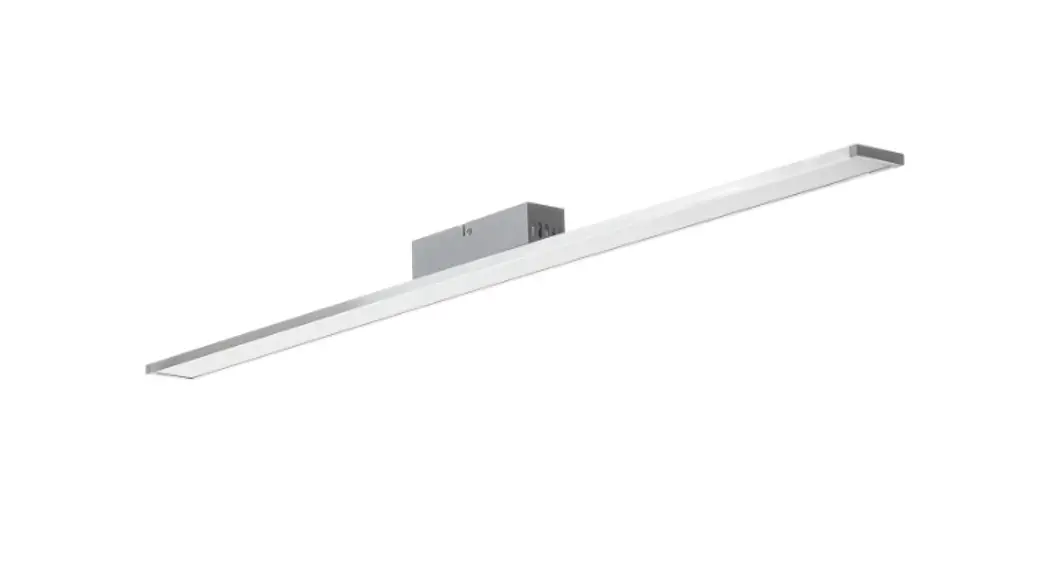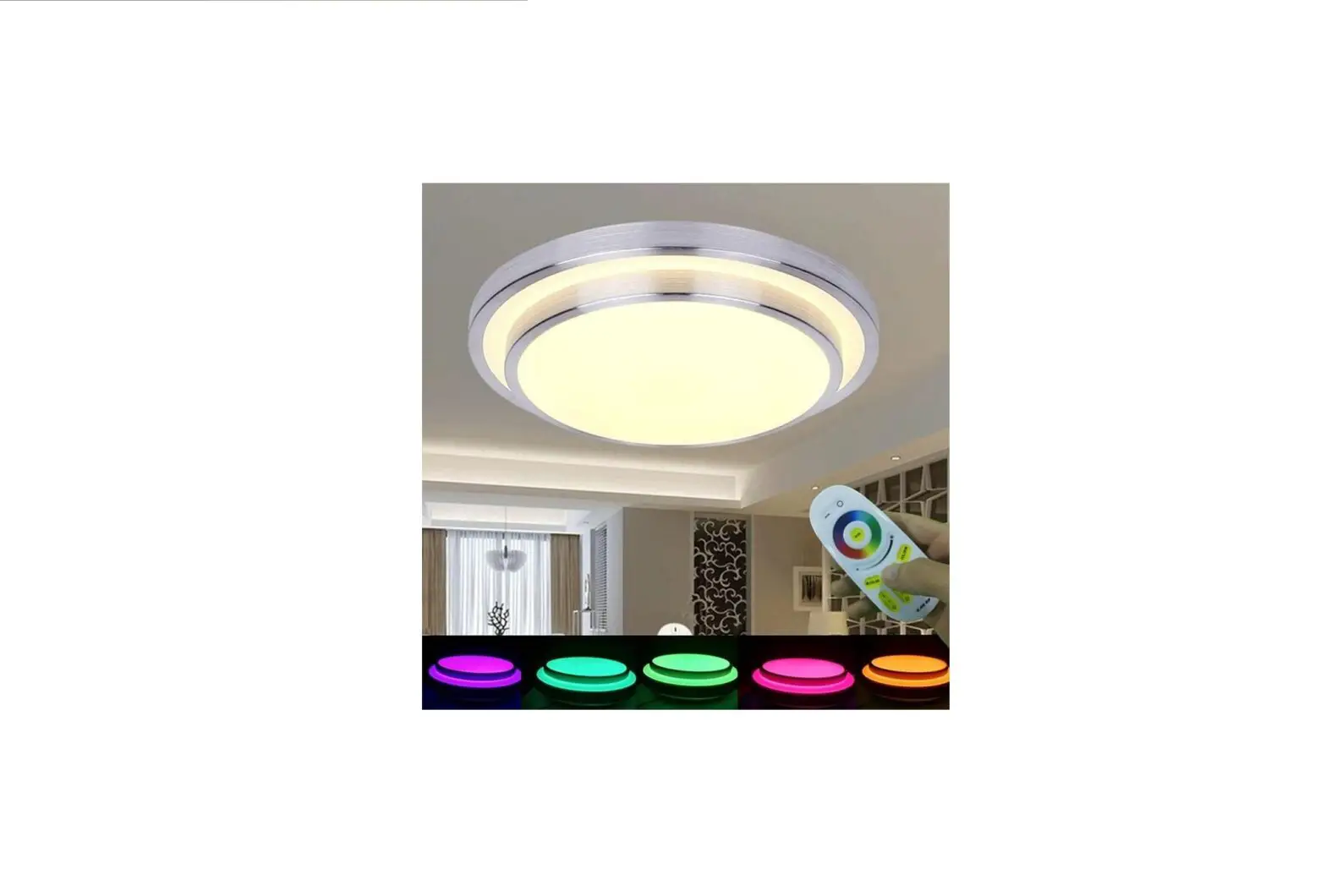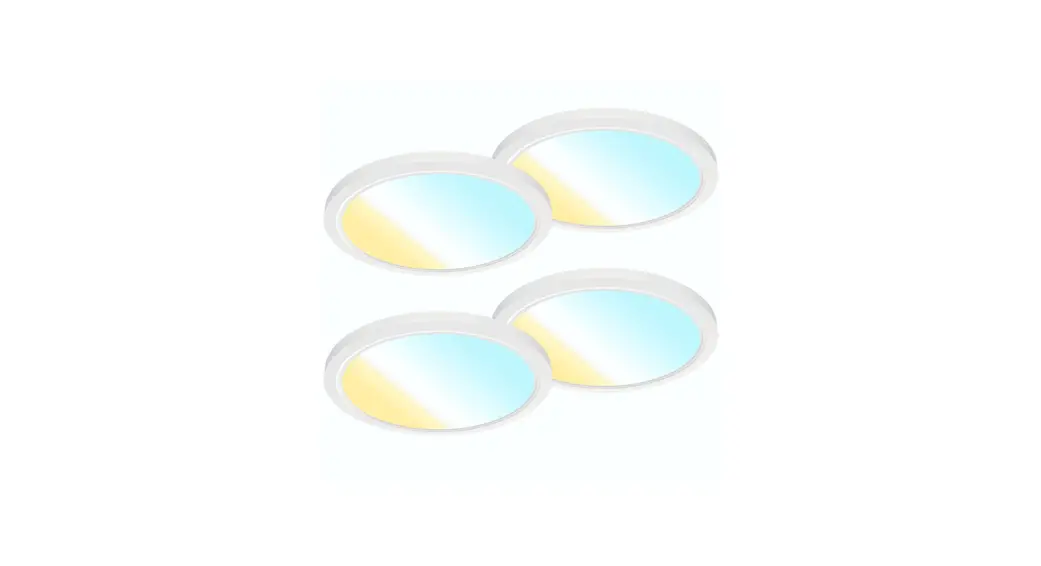


If you require any assistance, you can speak to our customer service team directly via phone on 1300 552 255 (AU) or 0800 003 329 (NZ), or via email at [email protected]
You can also visit ikuu.com.au to access troubleshooting guides and advice on how to get the most from your ikuu products, such as guides on scenes and automation.
Set Up the App
- Download the Ikuü app.
- Tap ‘create new account’ or ‘log in to account’.
- Follow the in-app prompts and tap ‘OK’.
Connect to the App
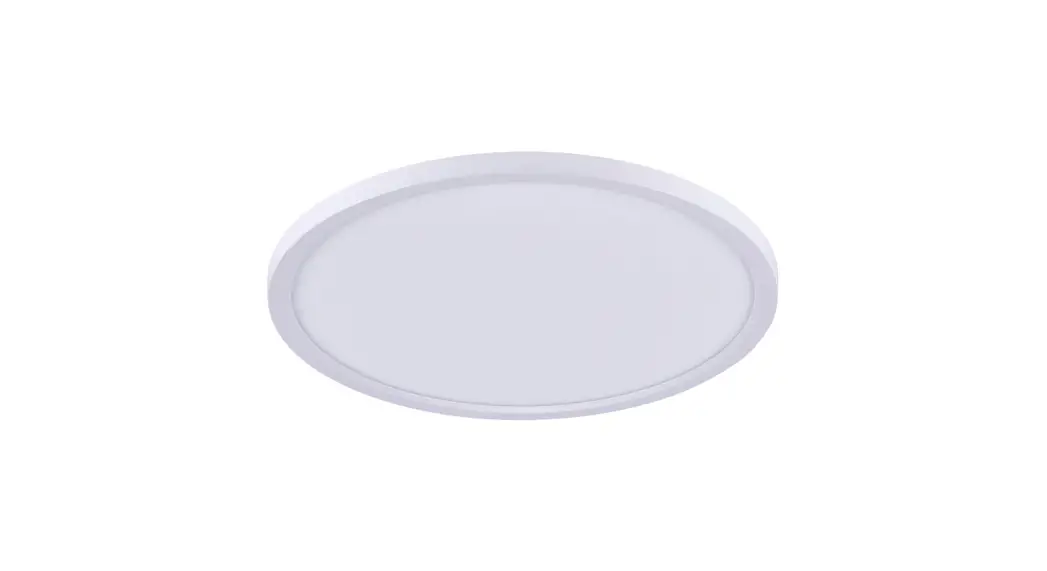
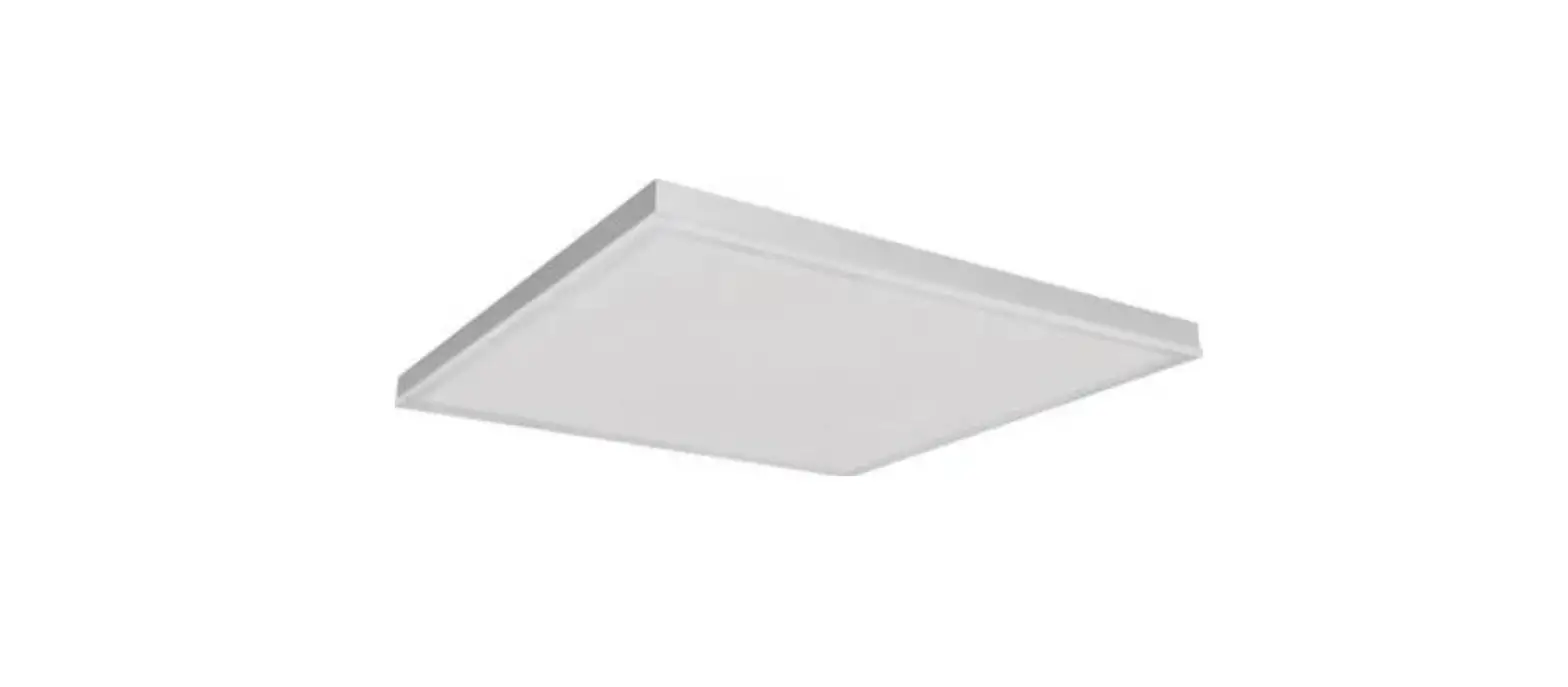
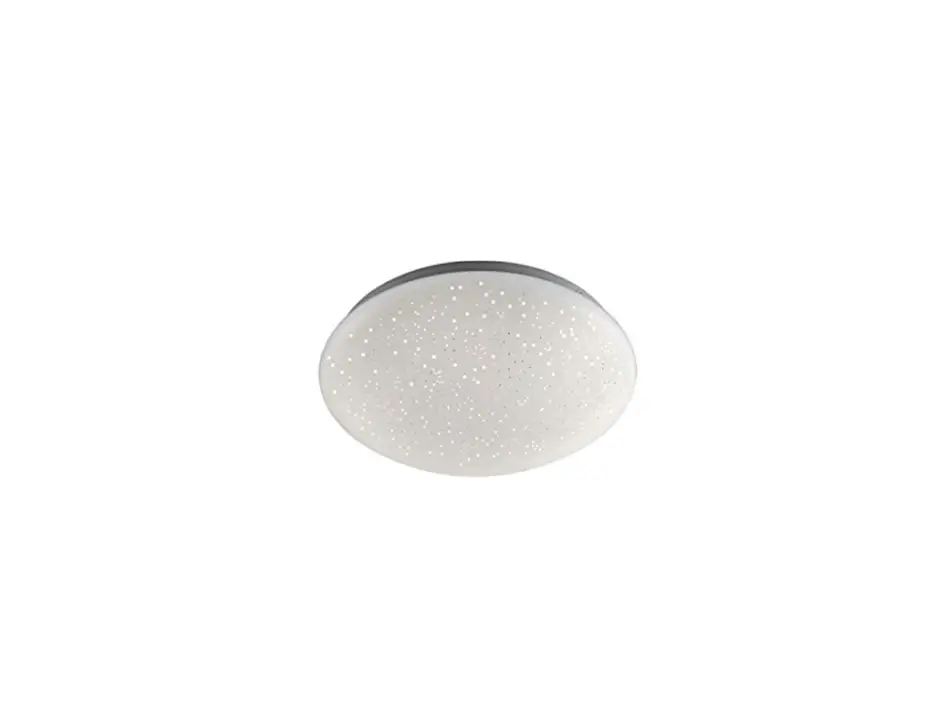
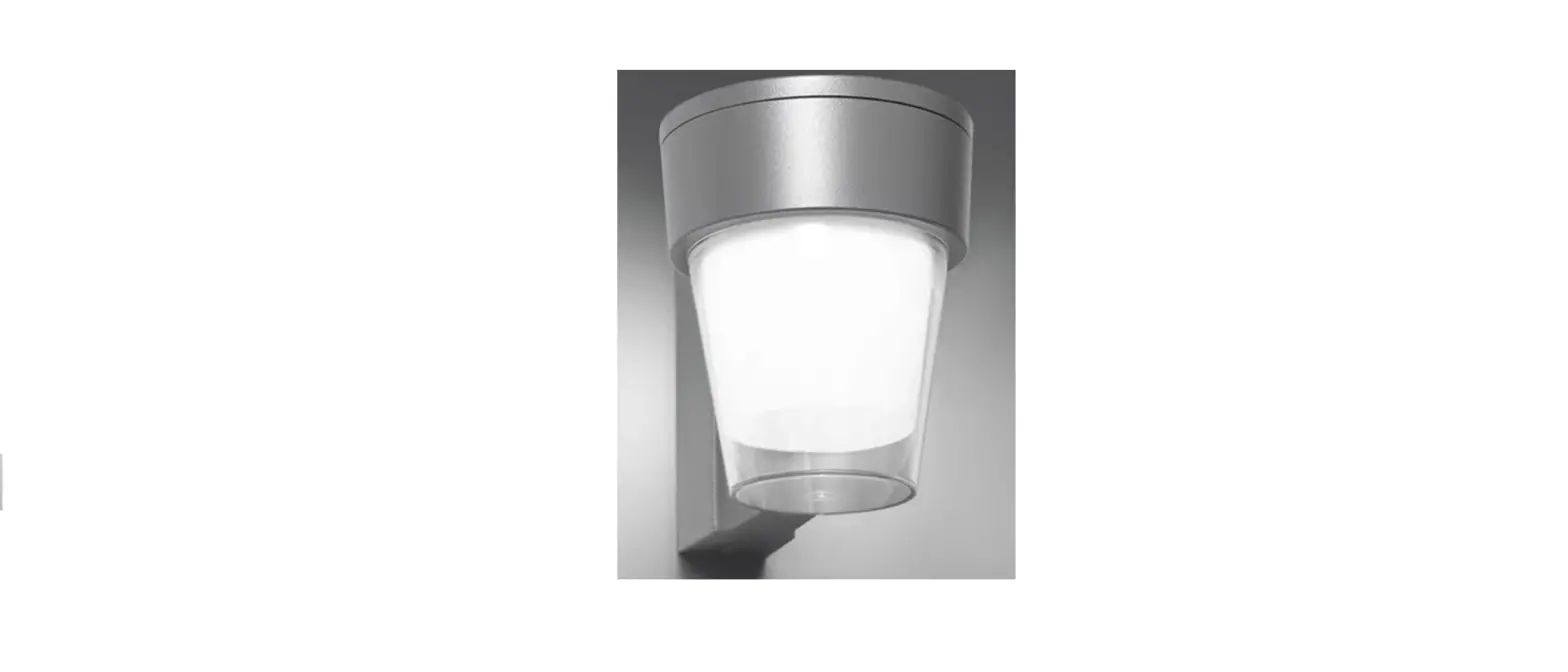
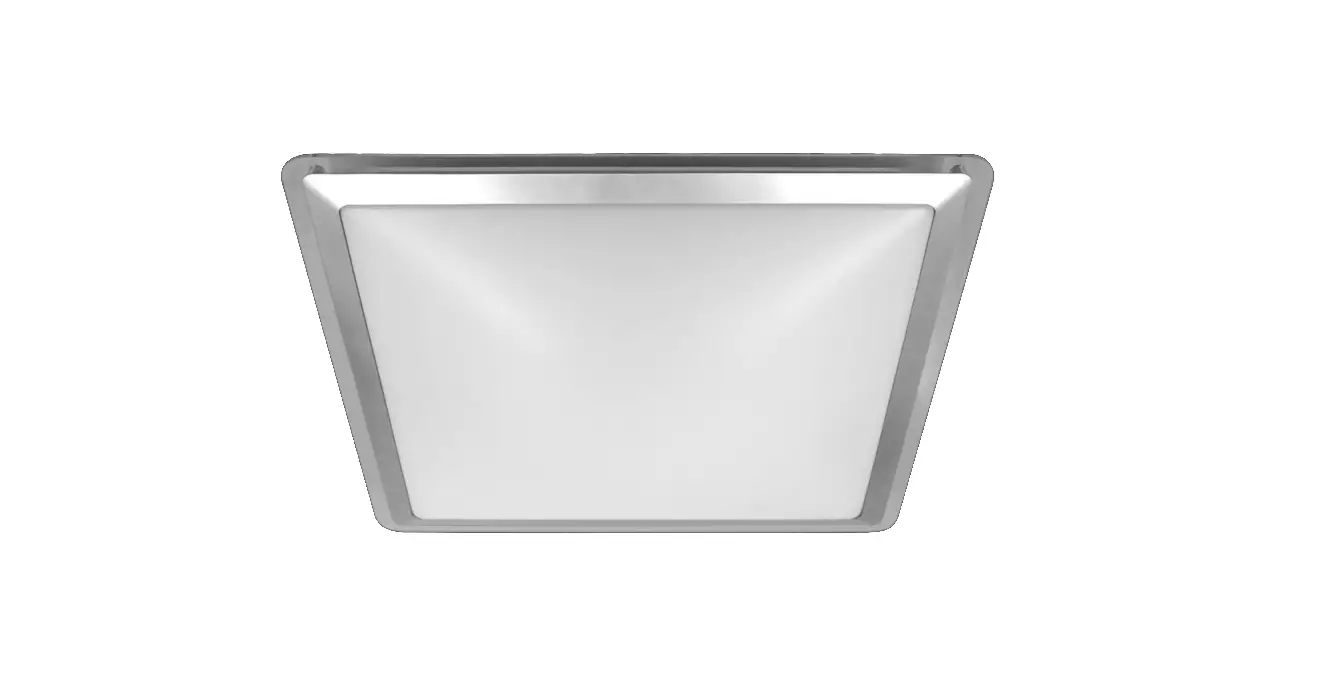
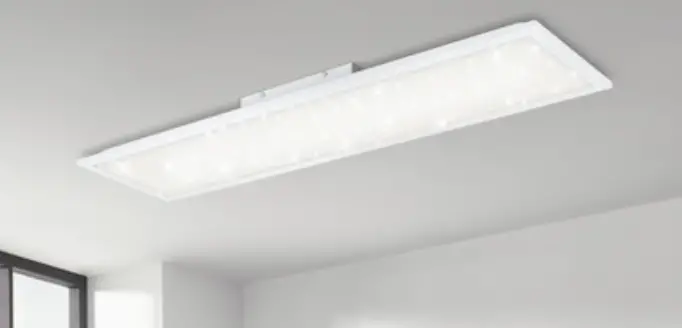
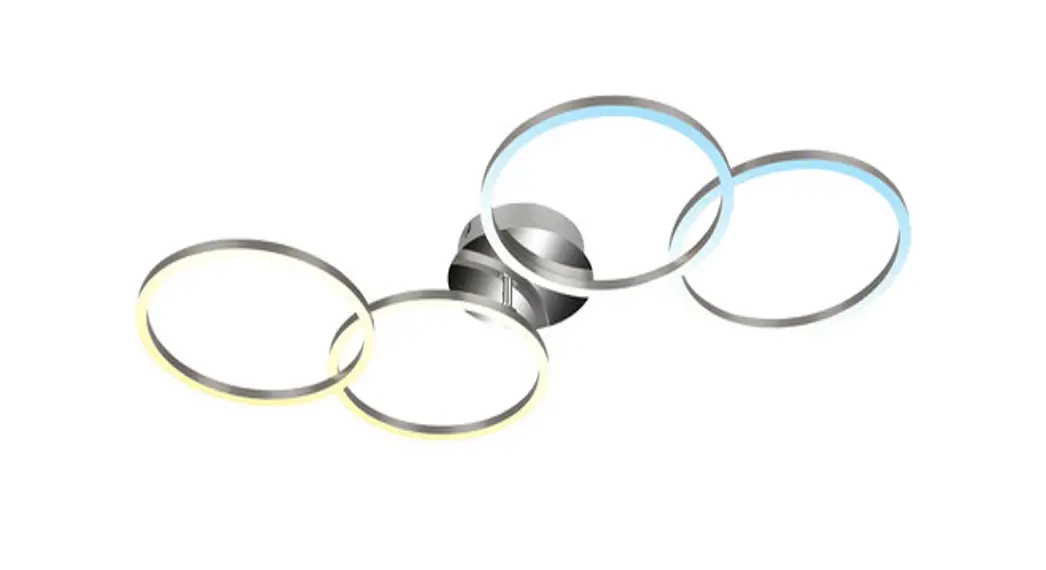
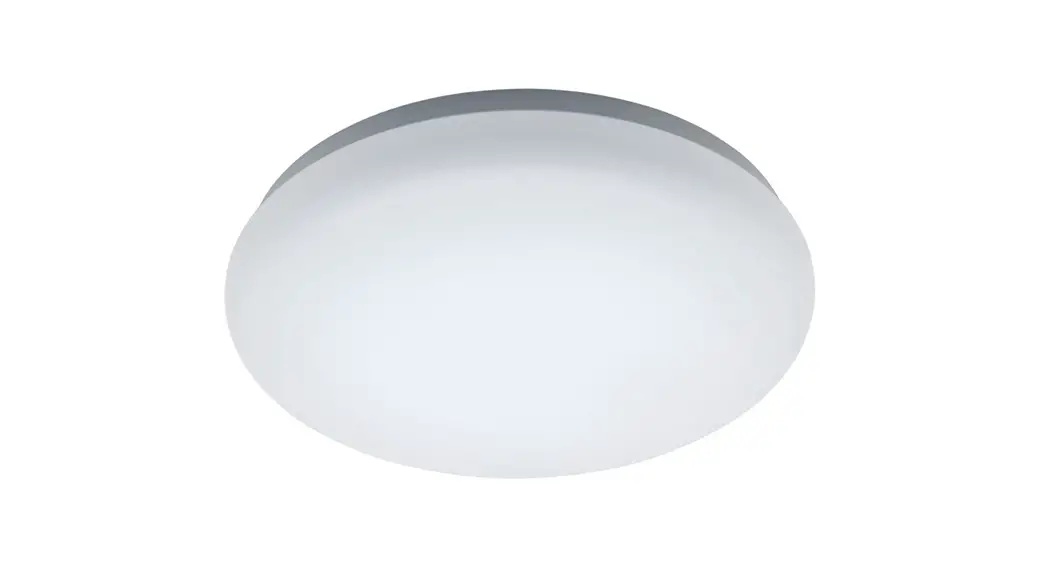
To connect your ceiling light to the app, you must first enter pairing mode. All Ikuü Wi-Fi products require a 2.4GHz Wi-Fi network.
This fixture must be installed only by a licensed electrician and in accordance with requirements of AS/NZS 3000.
Activate Pairing Mode:
Turn the ceiling light on and off at the power switch 5 times in quick succession. The ceiling light will start to blink rapidly (approx. 8 times every 5 seconds).
Pairing Your Ceiling Light:
- Open the Ikuü app.
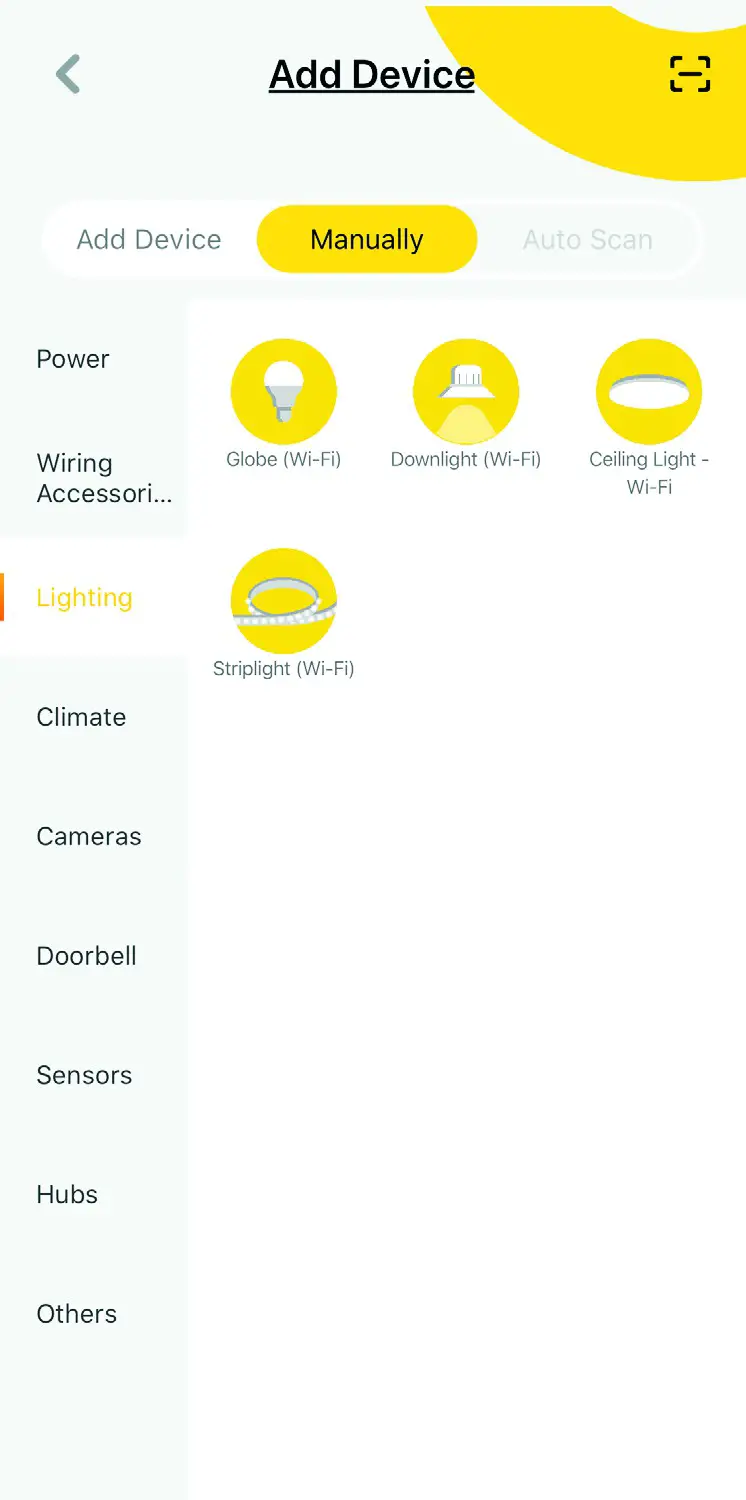
- Tap + > Add Device > Lighting, and then select your ceiling light.
- When the ceiling light is blinking, tap ‘indicator is rapidly blinking’. The pairing process will start, which will add your ceiling light to the app.
- Once pairing is complete, you can edit your ceiling light’s name or assign it to a room. (optional)
- To finish the pairing process, tap ‘complete’.
Note: If the pairing process doesn’t work, and you are certain that the password for your 2.4GHz Wi-Fi network is correct, try pairing in AP mode. Refer to our website for details.
Voice Assistant Setup (Optional)
Google Assistant
- Open the google home app and sign in to your google account.
- Tap + and select Set Up Device > Have Something Already Set Up?
- Select Ikuü from the list or type Ikuu in the search bar.
- Type in your Ikuü login details.
- Tap Link Now > Authorise.
Amazon Alexa
- Open the Amazon Alexa app and sign in to your Alexa account.
- Tap Menu > Skills & Games.
- Search for Ikuü and tap ‘enable’.
- Enter your Ikuü account details and tap ‘link now’.
Want more Ikuu? Visit ikuu.com.au to explore our whole range of smart products!

Want more from your products? The Ikuü app can help you to customise your smart products any way you like. Detailed guides on these features can be found at
www.ikuu.com.au.
 Rooms
Rooms
Separate your products within the app for easy control based on their location.
Scenes
Control multiple products from any room at the same time.
Automation
Create triggers that allow products to complete actions automatically. These triggers can be based on time, sensors, or even other products.
Routines
Use Ikuü with other household products to create simple voice commands that trigger customised actions based on your daily activities.
Timers
Use a range of a scheduling and countdown timers that trigger actions.
Alerts
Manage the kinds of alerts you receive from your products (e.g. security products).
Sharing
Share access of your products with others.
In-App Customer Service
Talk to our customer service team directly through the app if you have any issues.
For guides on using these features in the app and to see our broad range of smart products, visit www.ikuu.com.au
You can speak to our customer service team directly via phone on 1300 552 255 (AU) or 0800 003 329 (NZ), or via email at [email protected]
MRIN005235