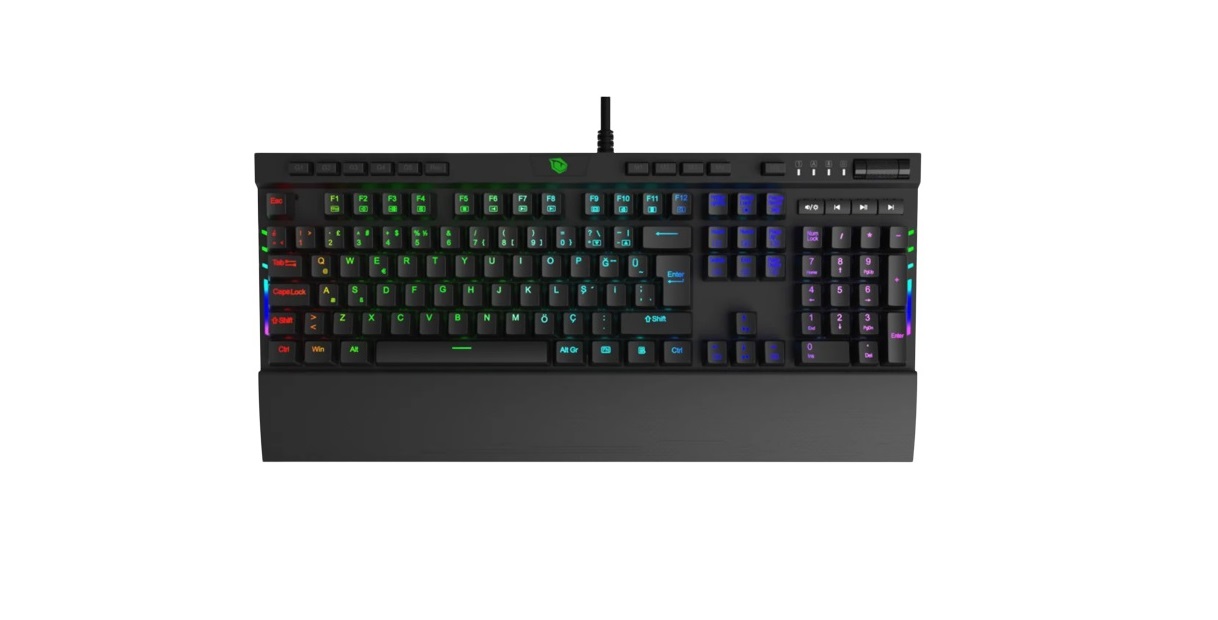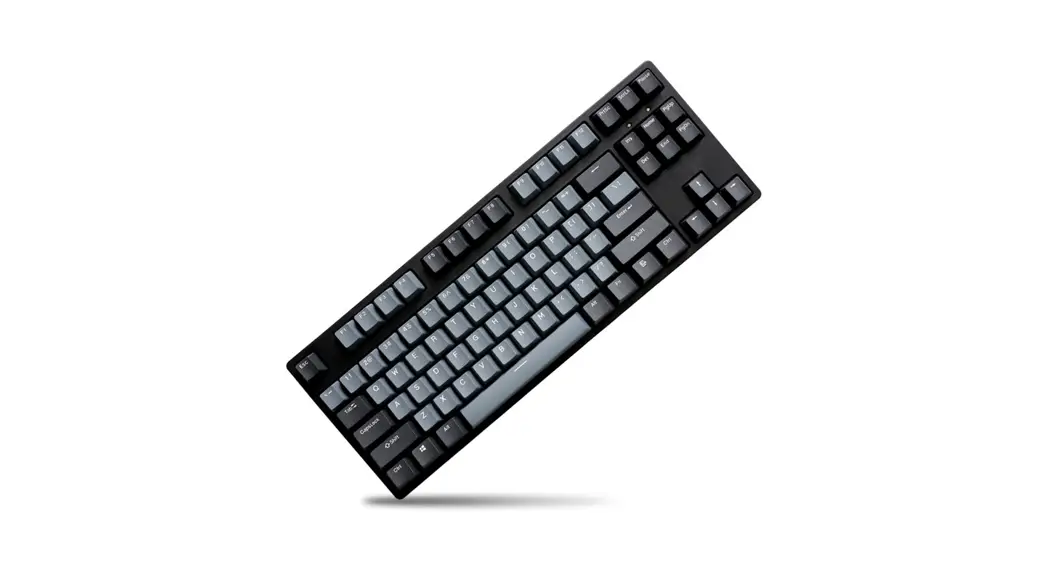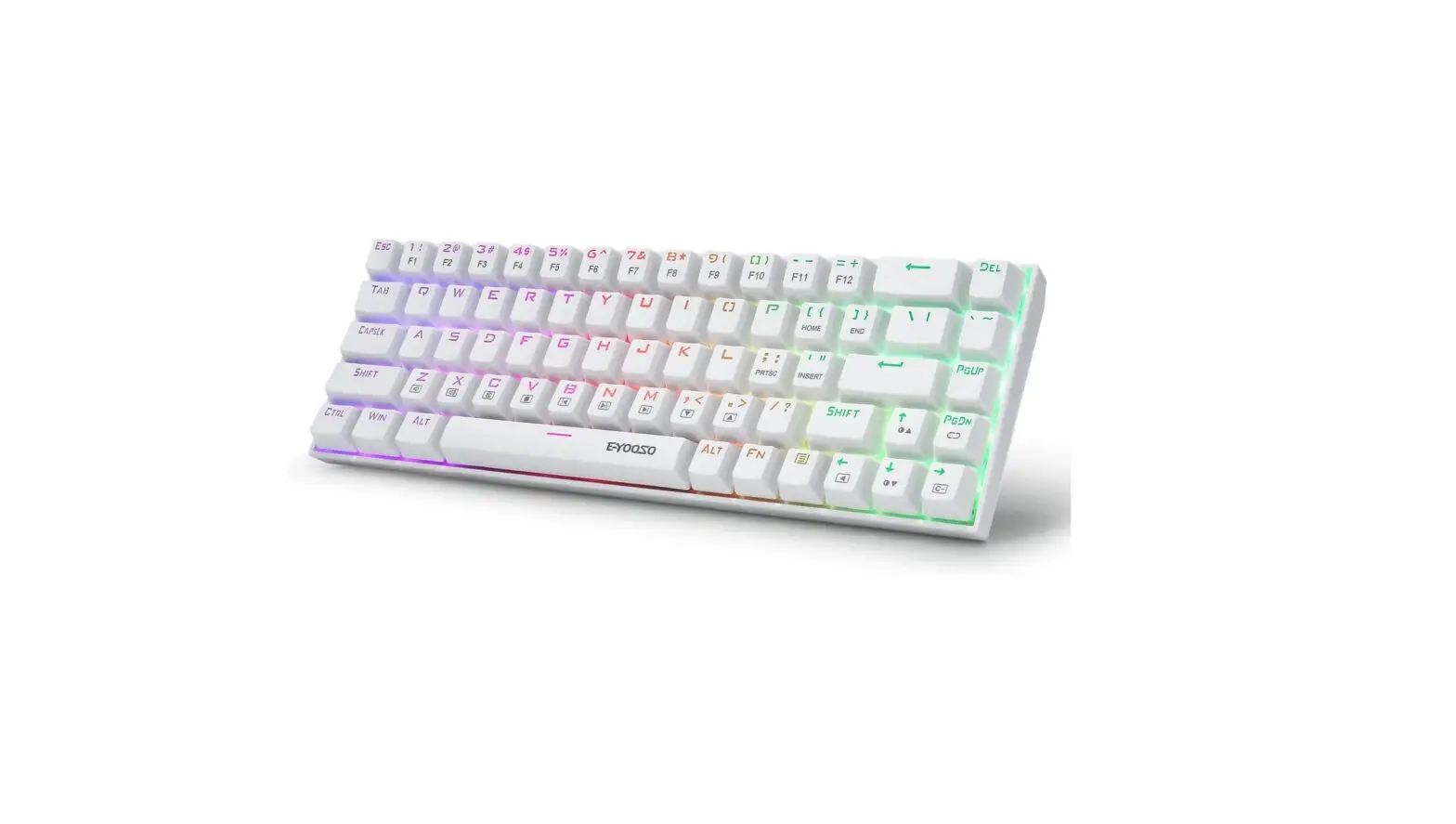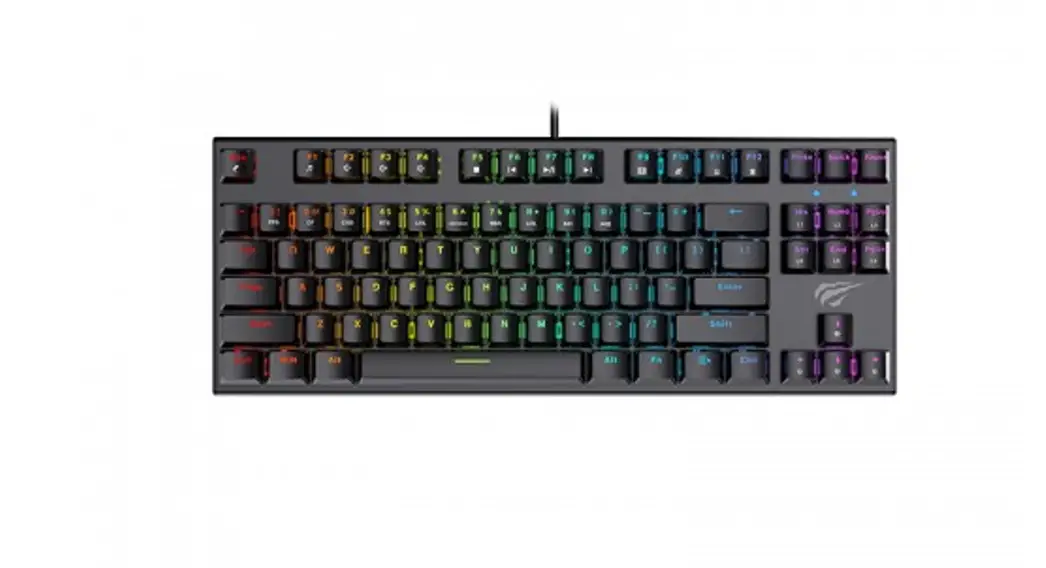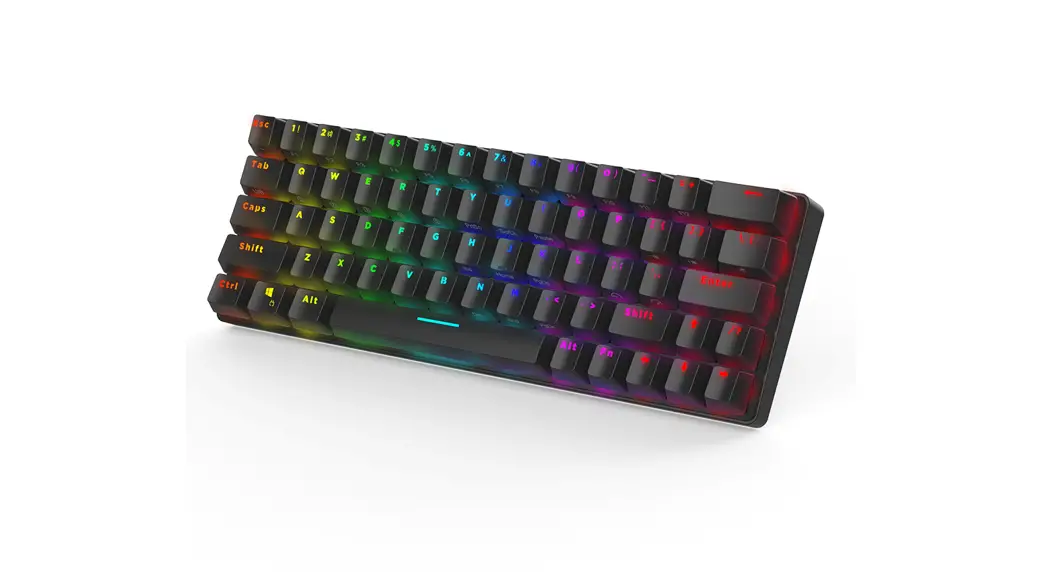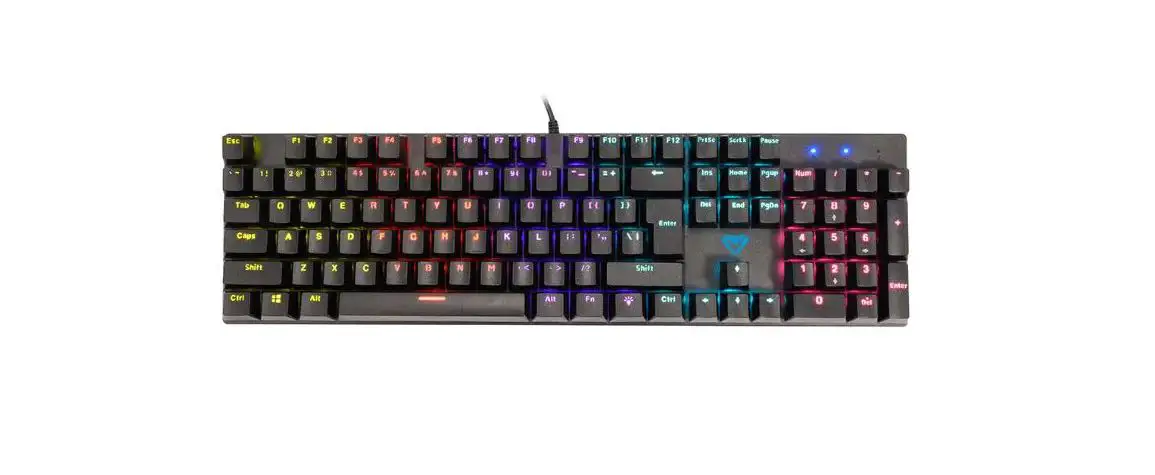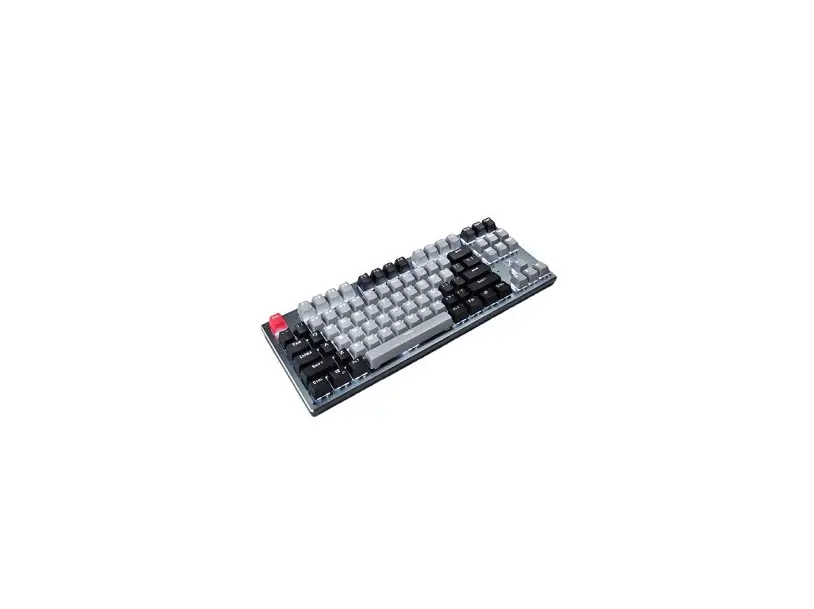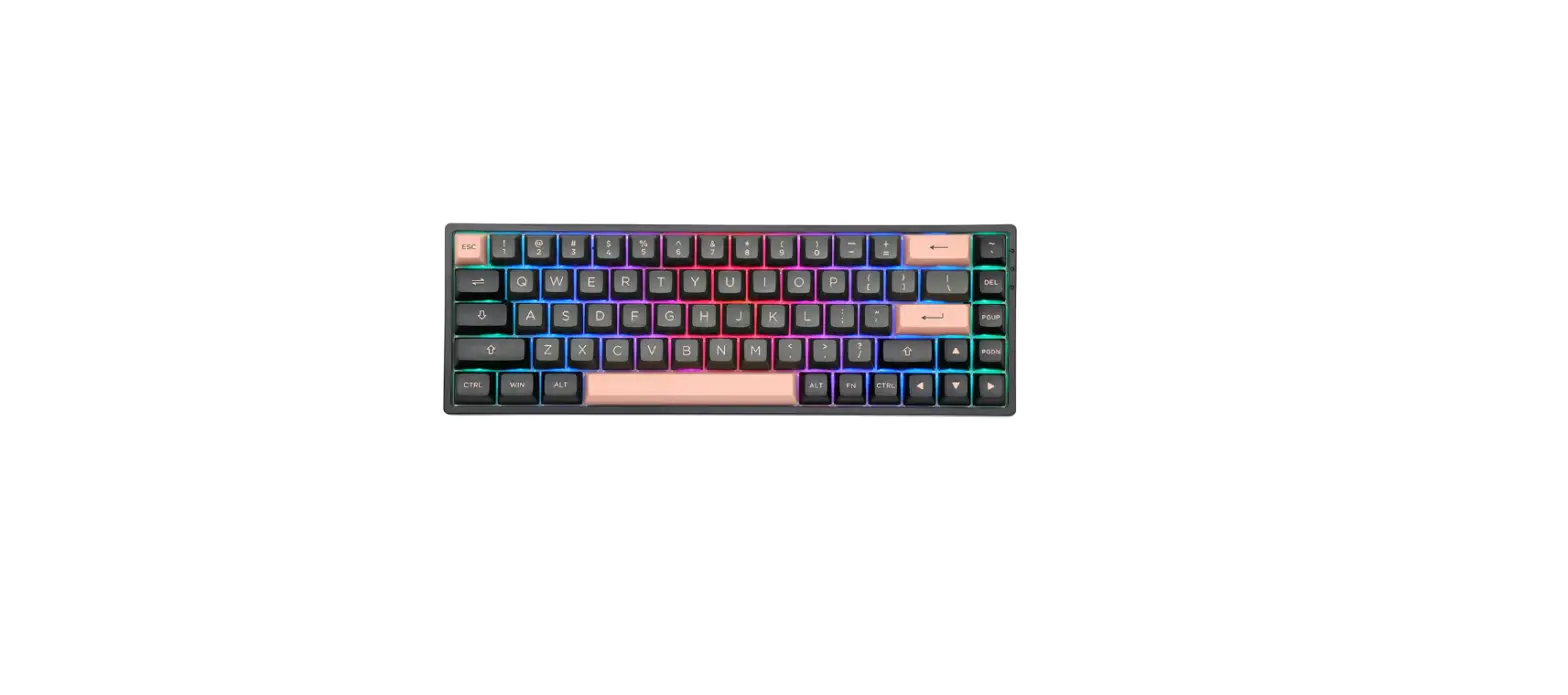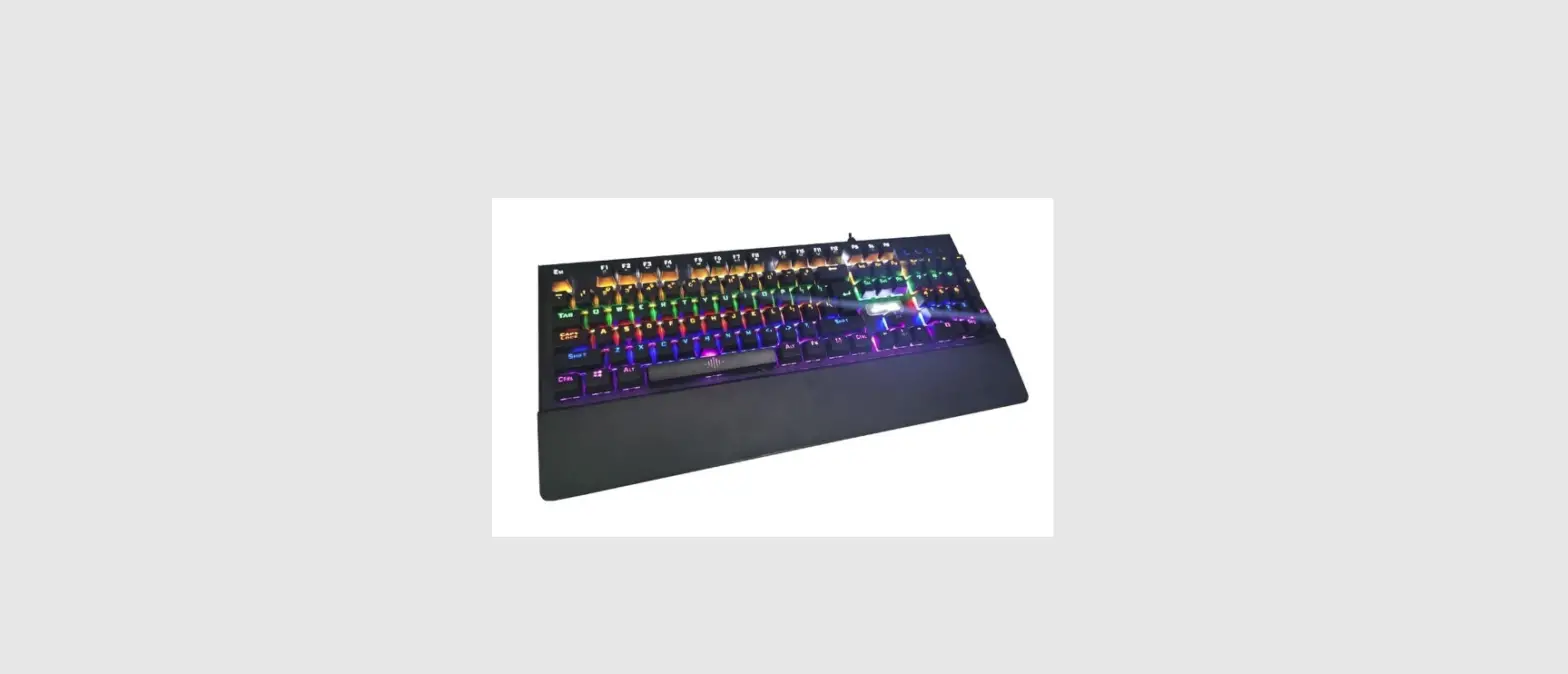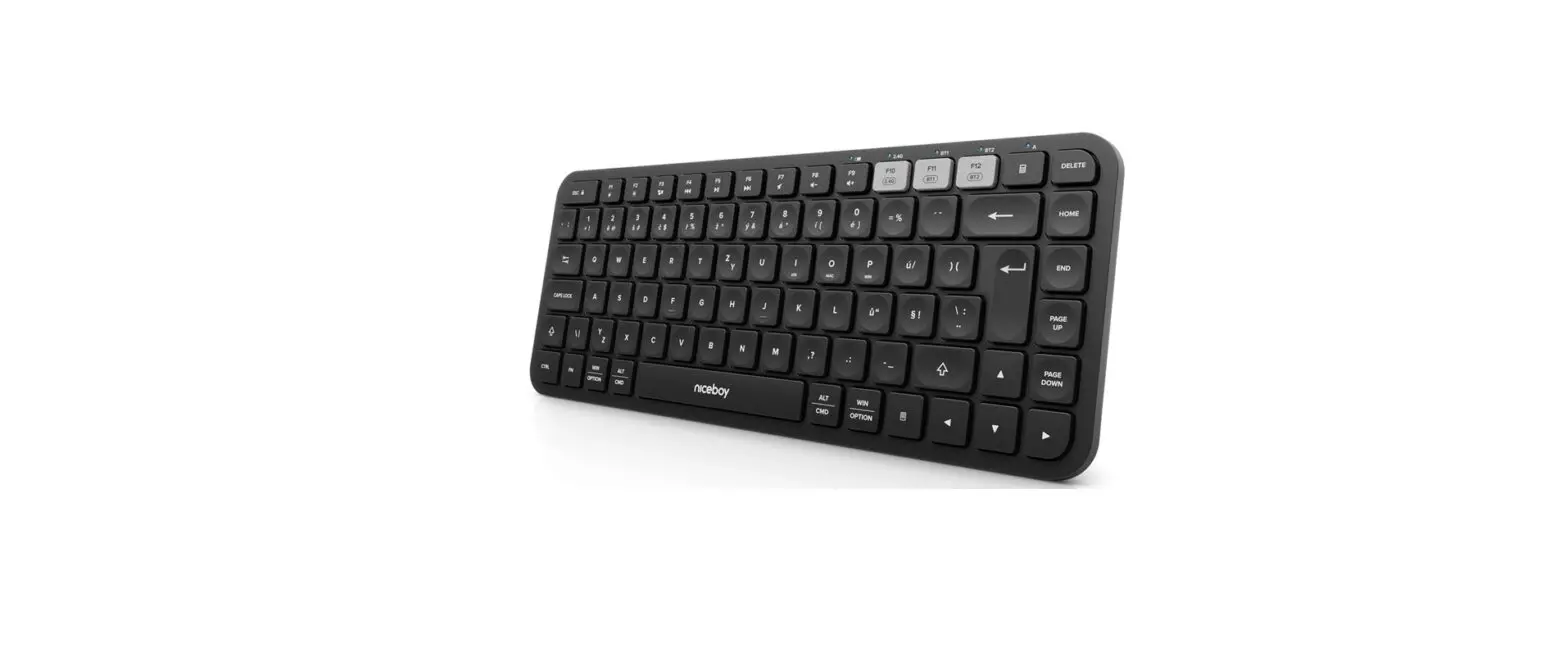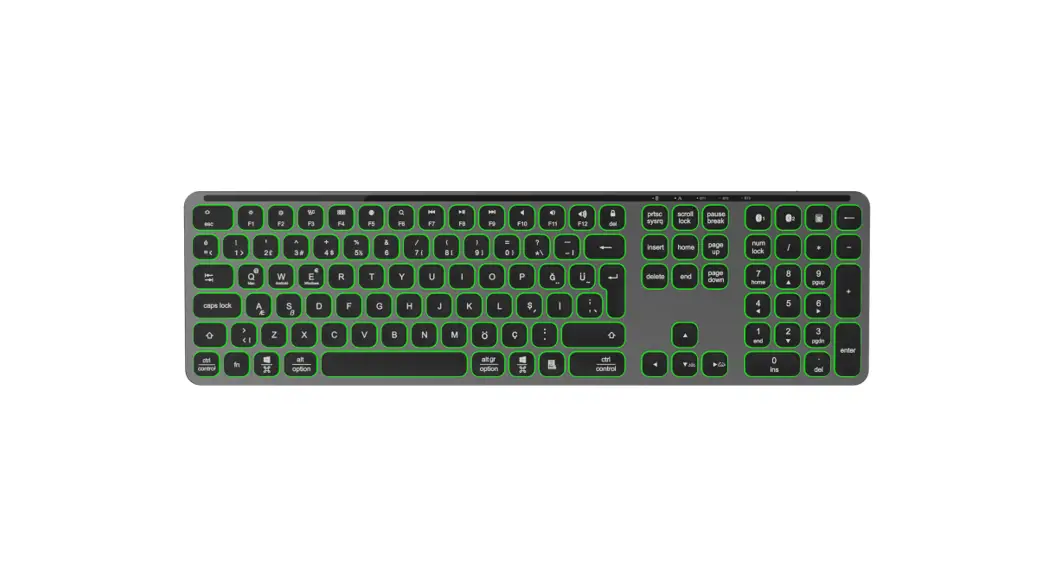
 BUSINESS PRO STEEL KEYBOARD
USER MANUAL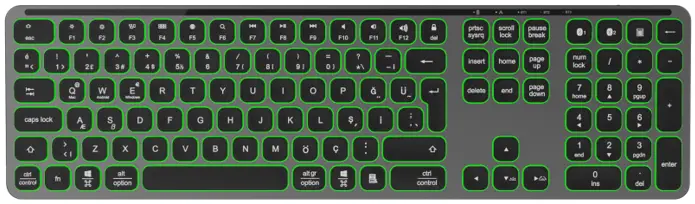
Pusat Business Pro Steel Keyboard Spec
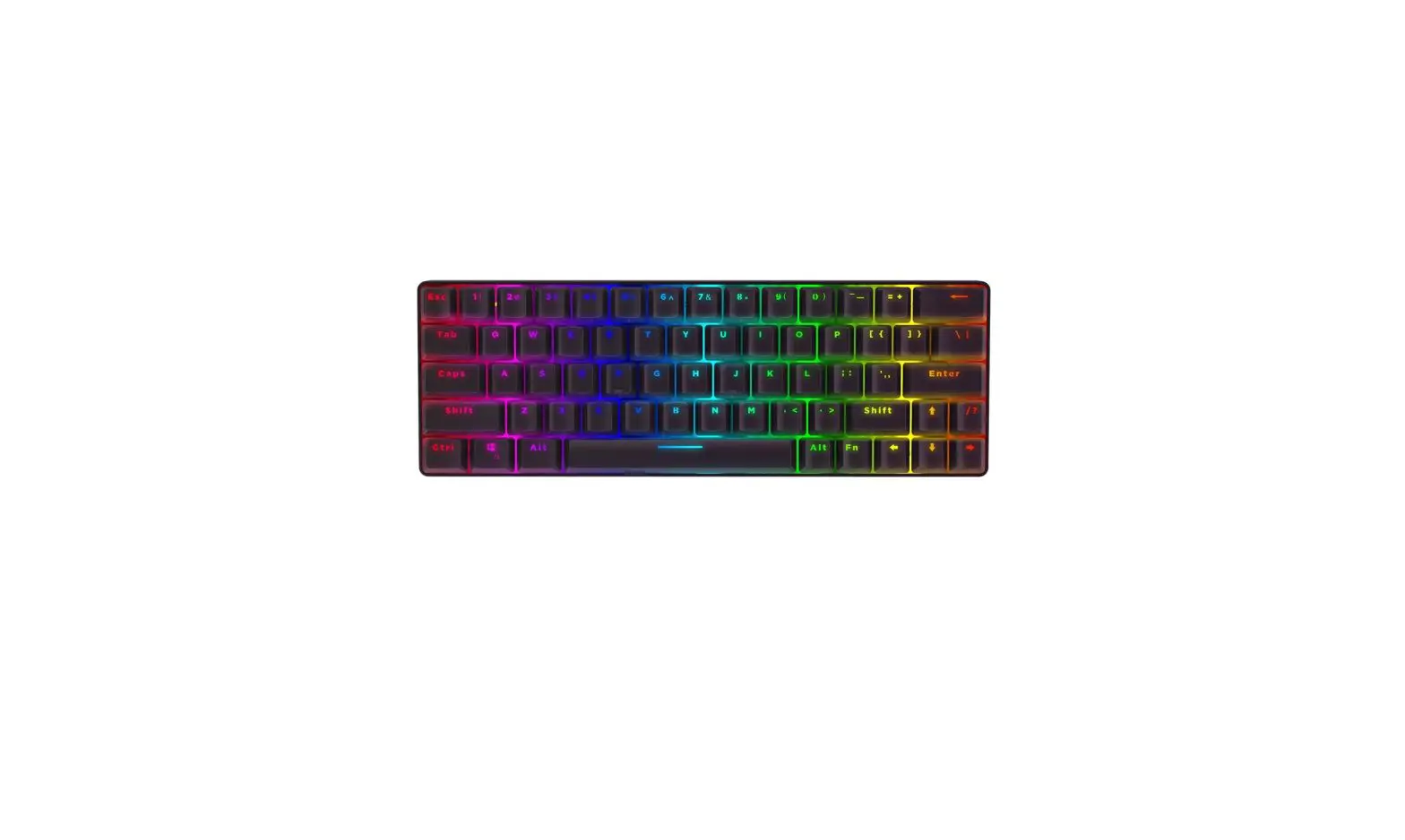
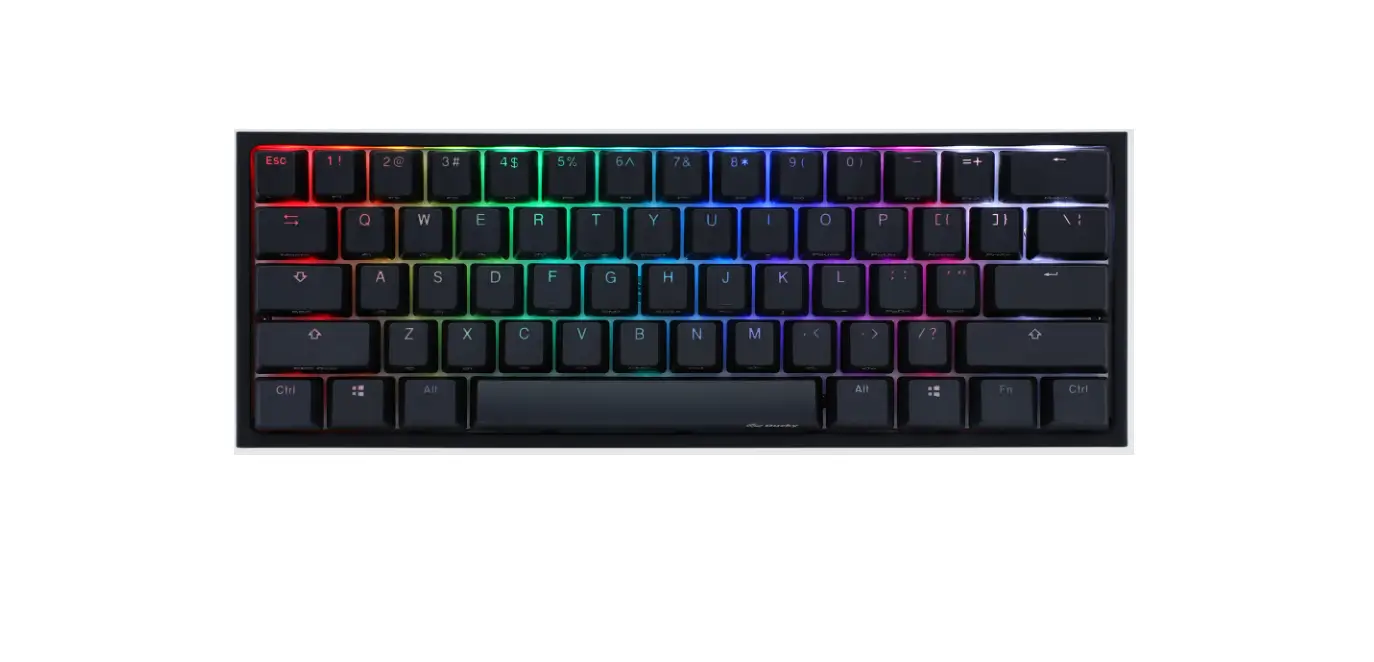
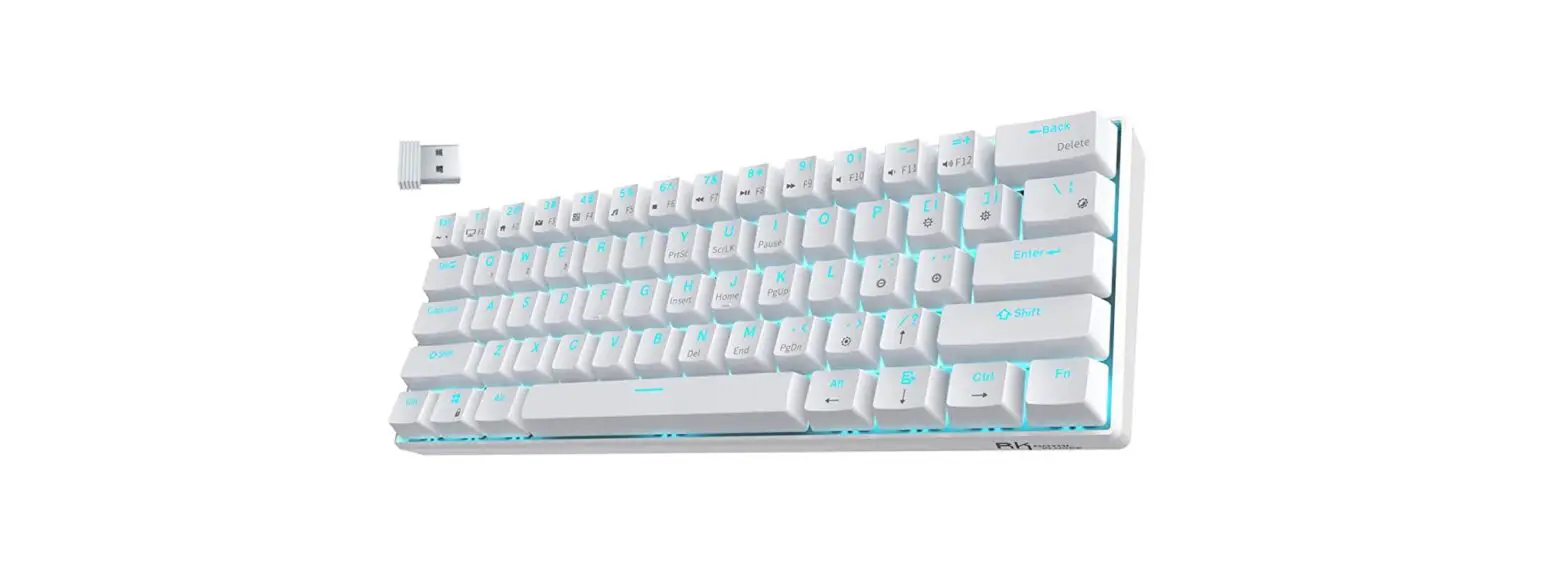
Aluminum Quiet Slim wireless Bluetooth keyboard for your PC, laptop, tablet & smartphone
Specifications
Products Dimensions: 433.1*122.8*13.1mm
Operation Range: 10m
Operation Voltage: 3.3-4.2V
Operation Current: 0.2-0.8mA
Lifespan: 5 million clicks
Key features
- Quite Slim and lightweight design
- Double pairing: connect up to 2 devices and simply switch between them
- Low profile isolated keys, with a great response (scissor type)
- Up to 12 multimedia function keys
- Bluetooth 5.1, up to 10m wireless range
- On-off switch
- 2000mA li battery
System requirements
- PC, Laptop, tablet, or smartphone with Bluetooth support
- Windows 10
- Android version 6.0 or higher
- IOS 9.0 or higher
7 color backlight
- Red/ Yellow/Blue/Light Blue/Purple/White/Green
Product Overview
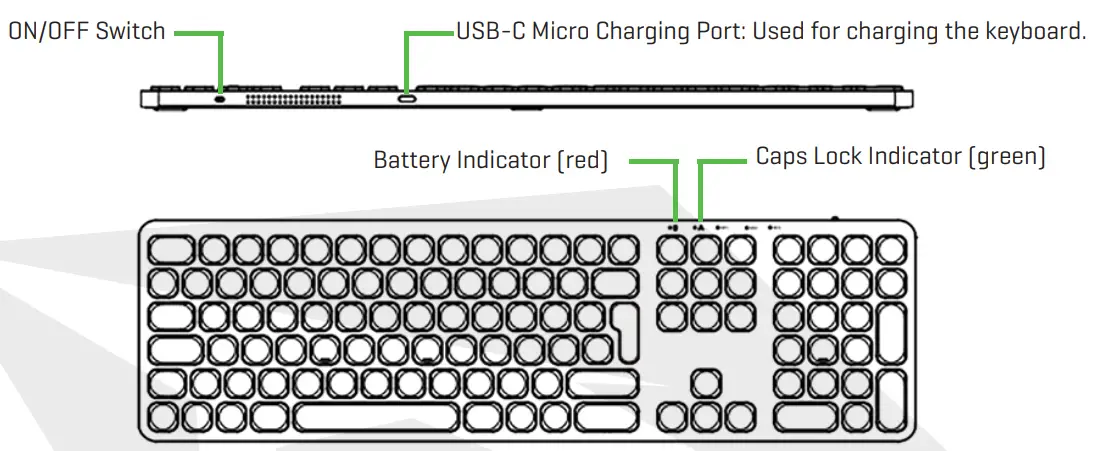
LED lights
- When Battery is low, the red color indicator will flash
- The battery indicator light flashes red during charging, when the keyboard is fully charged, the red light will turn off automatically.
- Caps lock is activated when the indicator light is green.
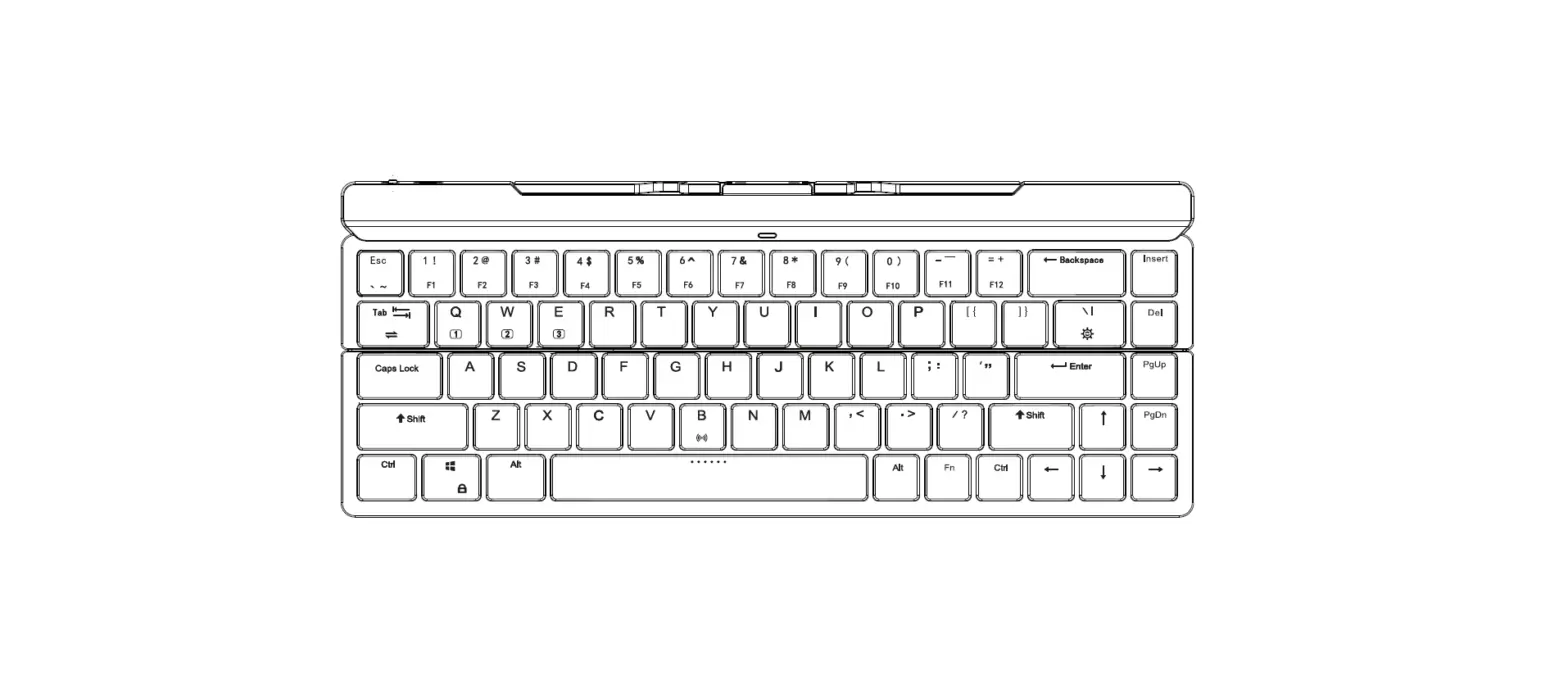
Hot Keys and Media Keys
 | Escape |  | Play/Pause |
 | Decrease Brightness |  | Next Track |
 | Increase Brightness |  | Mute |
 | Open Mission Control |  | Decrease Volume |
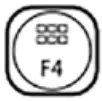 | Open Launchpad |  | Increase Volume |
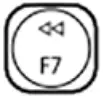 | Prev Track |  | Lock Key |
 | € | ||
Pairing
- Turn on the keyboard
- Press Fn+
 to enter pairing mode, Fox example, press Fn + BT 1 to enter the pairing mode for Channel BT1.
 - Press and hold BT1 for 5 seconds, wait until you see the BT1 blue light flashes.
- Turn on the Bluetooth of your Mac to automatically search for remote devices.
- Tap” PUSAT B.PRO.KB’ to start pairing.
- Once the pairing is completed, the blue LED light will stop flashing (It works the same for BT2)
- You can switch Bluetooth Channels by pressing Fn+ BT1/BT2, after paired.
 to enter pairing mode, Fox example, press Fn + BT 1 to enter the pairing mode for Channel BT1.
Power Management
Power Saving Mode
The keyboard will automatically go to sleep when not in use for 15 Minutes, press any button and wait 3 seconds to reactivate it.
Auto-Reconnect
If you turn off the keyboard and turn it back on, the keyboard will be automatically connected to device it paired with last time, which means if you use BT1 and connect to device 1 before you turn it off, it will attempt to reconnect to device 1 through the channel BT1after you turn it on.
Charging
- Use the included USB-C cable for charging, connect one end to a USB-C adapter and the other to the keyboard (a USB-C adapter is not included)
- During the charging process, the power switch indicator will turn red, when the electricity is full, the light goes off. Generally.It takes approximately 9 hours for a full charge.
Noted: You can use the keyboard while it is being charged, but we don’t suggest such an operation, as this may damage the built-in battery to a certain extent.
Troubleshooting
If you cannot connect the Bluetooth keyboard to your device, or if the keyboard is not working, please try the following:
- Ensure your Mac has Bluetooth and Bluetooth is enabled.
- Restart the Mac and try to pair again.
- Cancel the Bluetooth connection with other devices, and try to pair again.
- Make sure the Bluetooth keyboard is within 10m of your device.