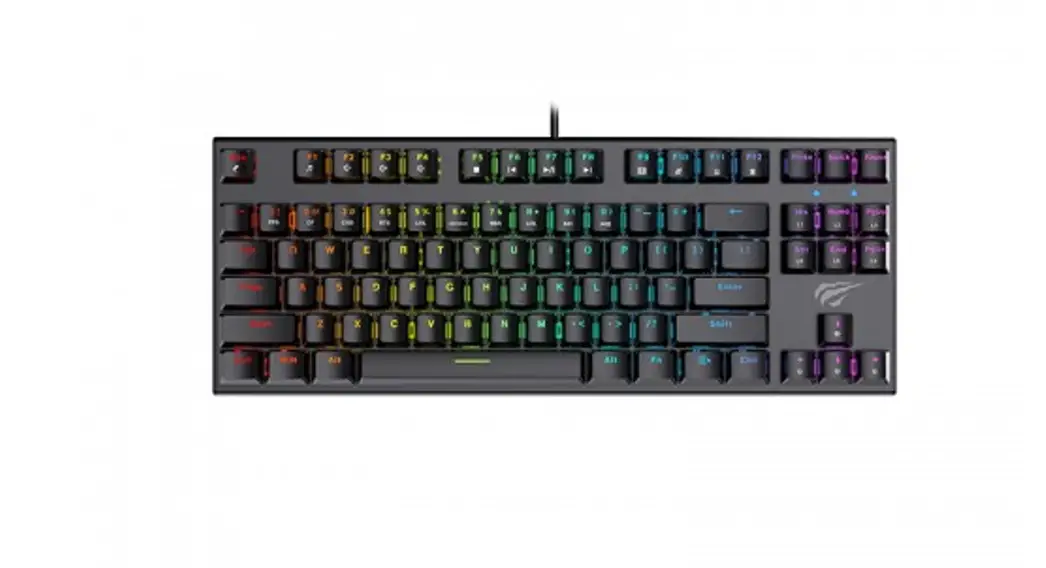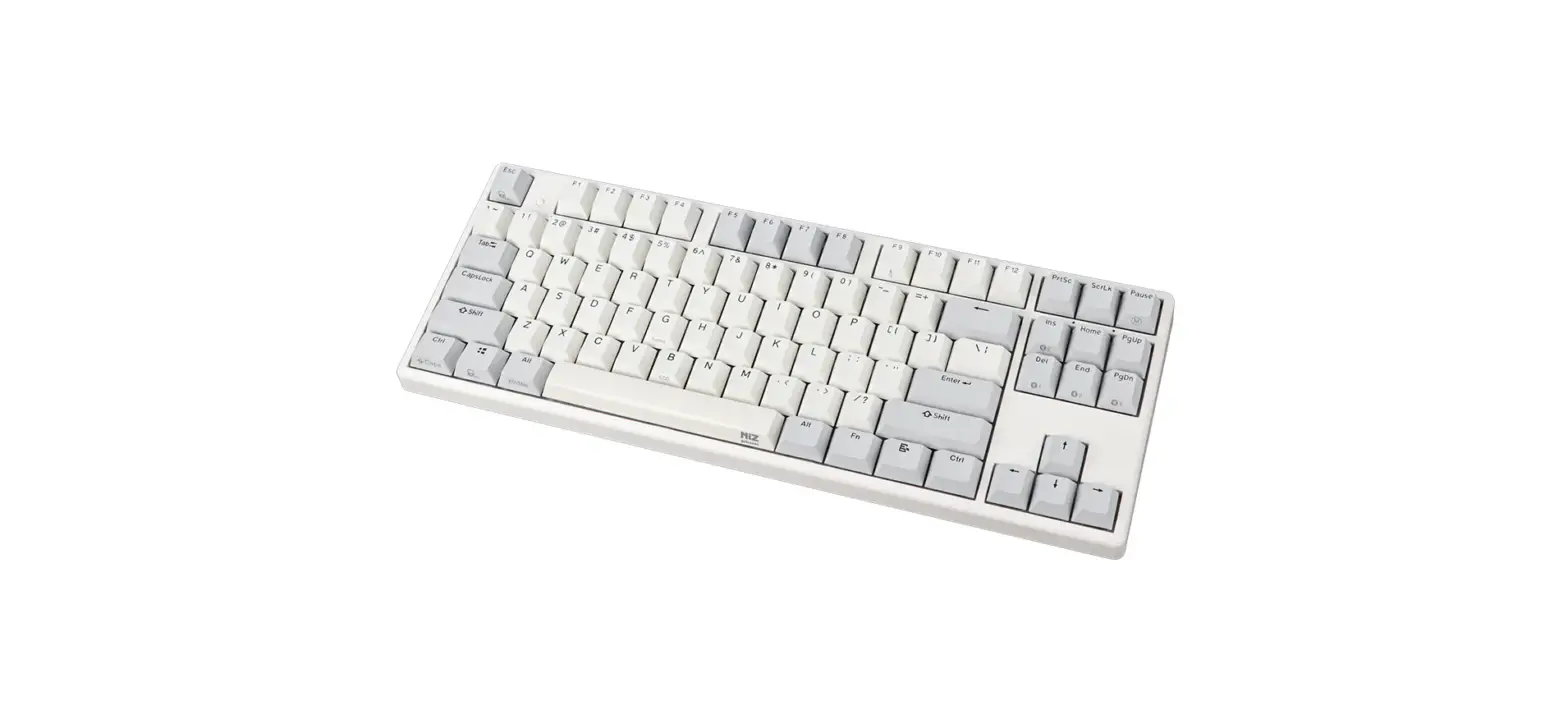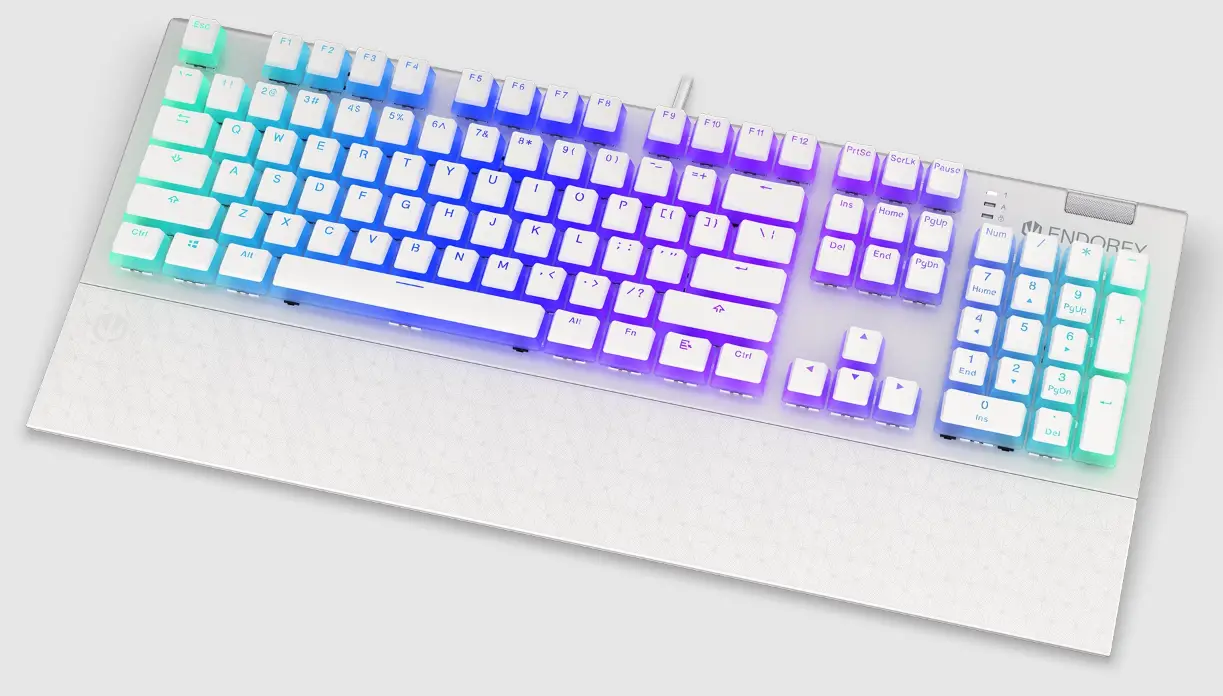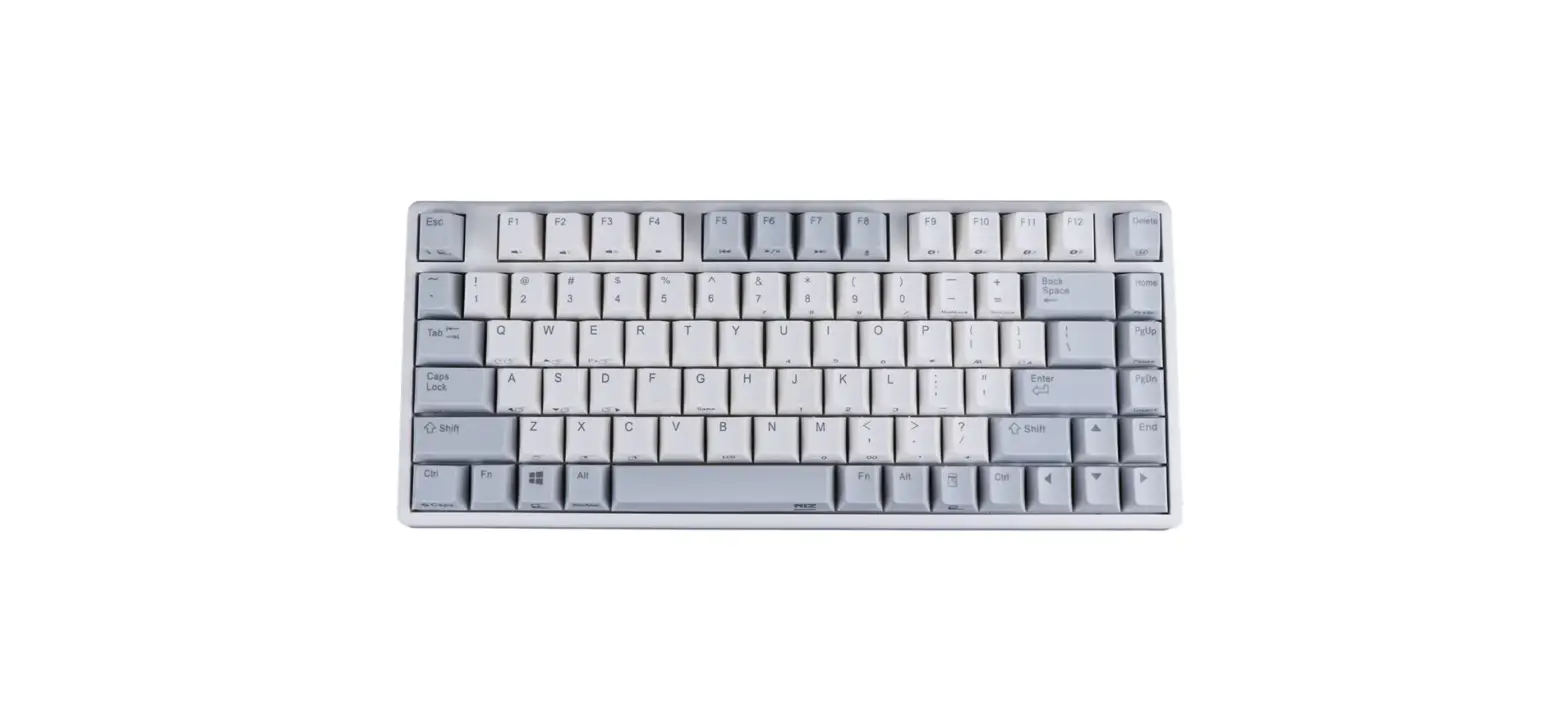
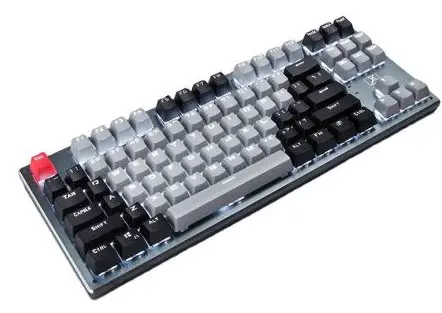
TYPEONE Aluminum Gaming Keyboard User Manual

Product warranty scope and content
- Use genuine accessories, and be careful not to damage the USB cable, etc.
- In case of initial defect within 7 days from the date of purchase, we will exchange it for a new product.
- Free repairs are available in case of a breakdown under normal use within one year from the date of purchase.
- Please attach purchase details for product AS. Please note that paid repairs or repairs may not be possible in the following cases.
– If the product is arbitrarily disassembled or repaired, or if the product is damaged due to the negligence of the consumer
– Failure due to use of abnormal methods
– Failure due to natural disasters- When the product warranty sticker and sealing sticker are damaged
– When the product warranty period has elapsed- If the product warranty is forged or damaged. - Consumables such as keycaps and cables are not covered under warranty. We will bear the cost of round-trip transportation for initial defective products within 7 days of purchase.
- If the product is defective during use and requires repair, please contact the customer support center directly or receive it by courier.
- During the warranty period (1 year), when repairing using a courier service, in principle, the transportation cost is borne on a 1:1 basis, and the consumer must pay the transportation cost when the item is received, and the company pays the delivery cost when the product is shipped.
- In principle, the transportation cost for the goods received/delivered under warranty shall be paid in advance regardless of payment/free processing.
- Please note that damage caused by poor packaging during delivery will be charged a repair fee even within the warranty period.
TYPONE MECHANICAL KEYBOARD (main function)

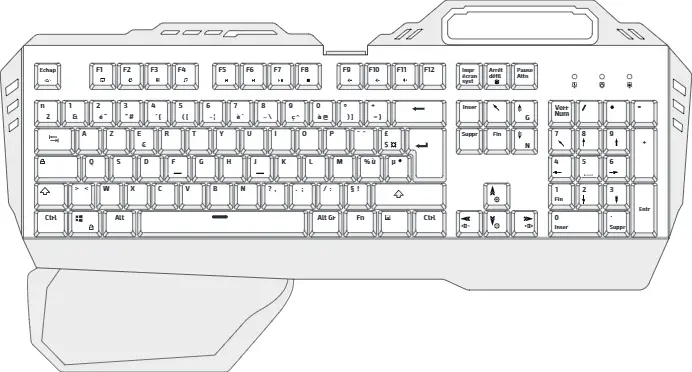
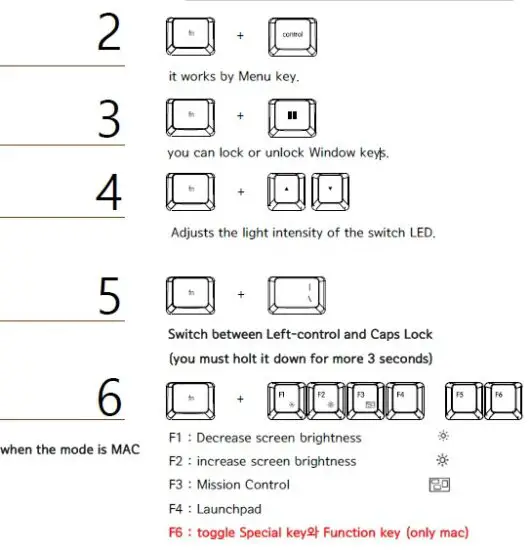
Press and hold Fn + esc for 2 seconds to switch between Windows and Mac modes. At this time, the ESC LED is the default mode in window mode, and the LED turns purple when in Mac mode.
- Function key is the default when in window mode in Mac mode, a special key works by default. like mac keyboard.
- When converting to Mac mode, the window key and alt key are swapped, the right key works as a command key..
6-1
Set up Mission Control on Mac computer
Select settings > keyboard
Change the shortcut to Control + ↑ in Mission Control.
6-2
Set up Launchpad on Mac
Select Settings > Keyboard
Click Shortcut > Launchpad and Dock
If you click F4 in Mac mode in Lanchpad view, F4 works as a launchpad after that.
7 
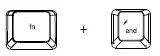
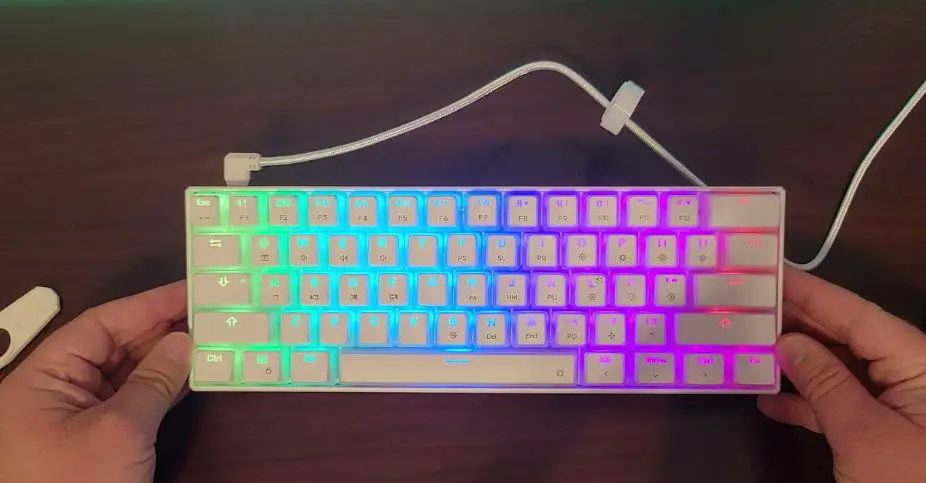
Change the LED mode. The modes are as follows. (The default is RGB mode.)
- Color change in single LED mode (Fn + →) , (Fn + ←)
8 
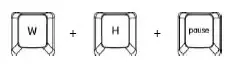
Sleep mode: Press and hold the W, H, or pause keys for 2 seconds to operate sleep mode in which the LED turns off after 10 minutes. Press
and hold W, H, pause again to turn sleep mode off.
9 
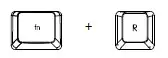
Returns to factory defaults. Press and hold Fn + R for 5 seconds, the
LED will blink and the factory default will be set.
Keyboard Macro
1.Macro setting
The macro is a hardware macro method, and the setting method is as follows.
(Macro available keys are F1~F12 scroll, pause only)
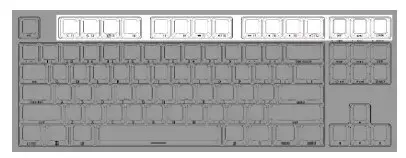
- Press Fn + macro to enter programming mode. (At this time, the macro LED blinks)
- Among the above macro-enabled keys, press the key for which you want to set a macro. (At this time, the macro LED blinks quickly)
- To enter the first macro, enter the key combination you want to perform in order. Press macro to save. (important!)
- Enter the second macro the same as above. Similarly, press macro to save.
- When you have entered all the macros, press Fn + macro again to finish entering the final macro.
2 perform macro
- If you press Macro + (set key), the set macro is executed
3 
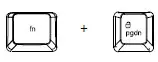
You can fix or un-fix macros.
In the default mode, press the macro key to execute a macro.
In fixed mode, you do not need to press the macro key
performed.(When macro is fixed, the macro LED is lit, and when fixed is off, the LED is off. * Macro input is not available in macro fixed mode.)