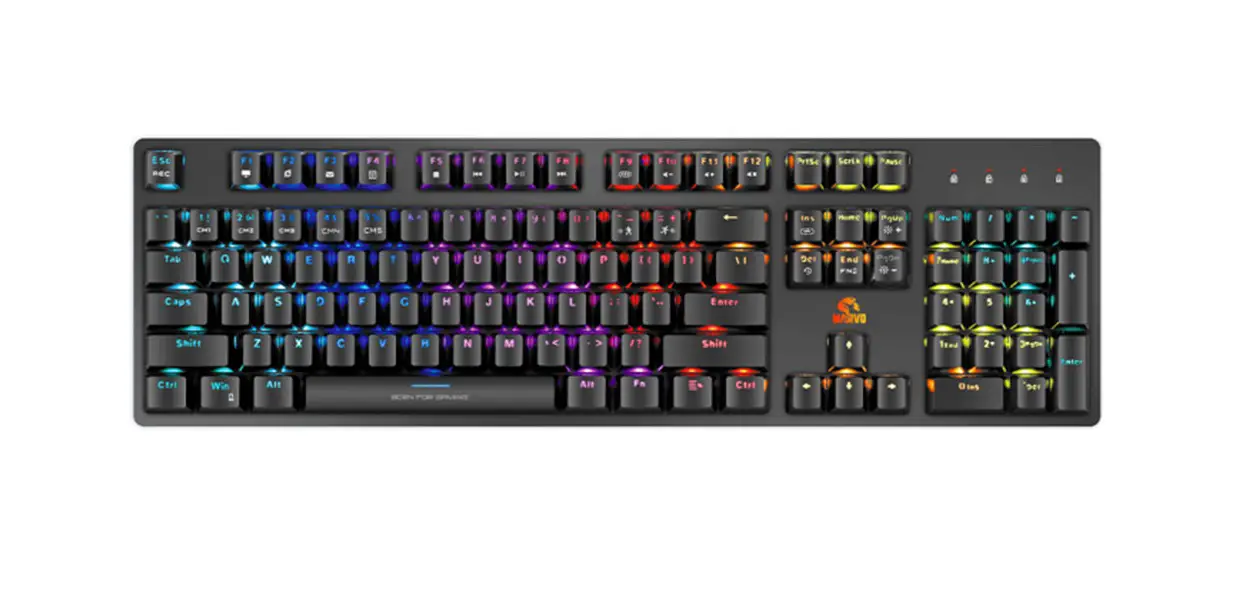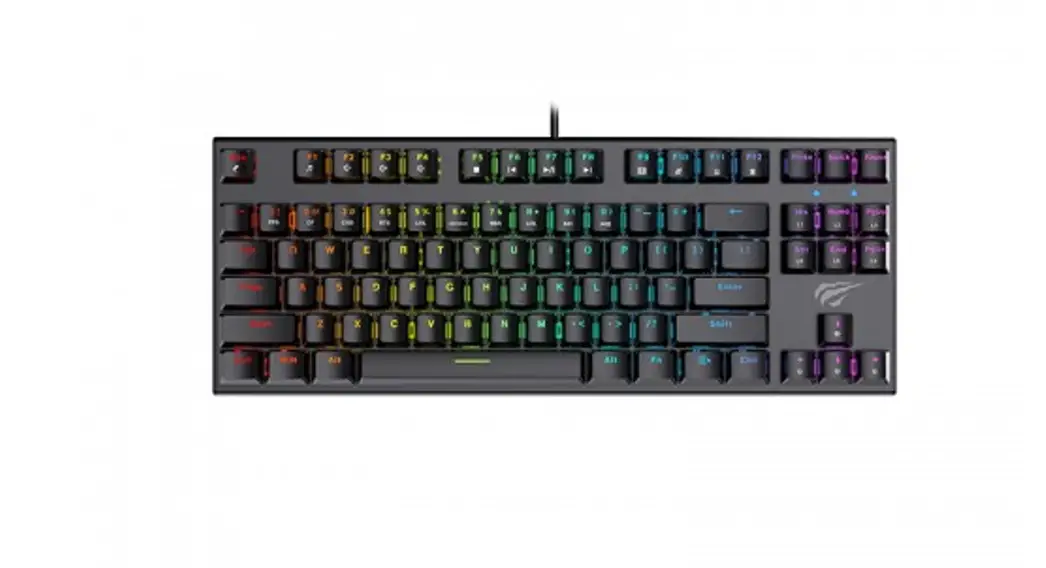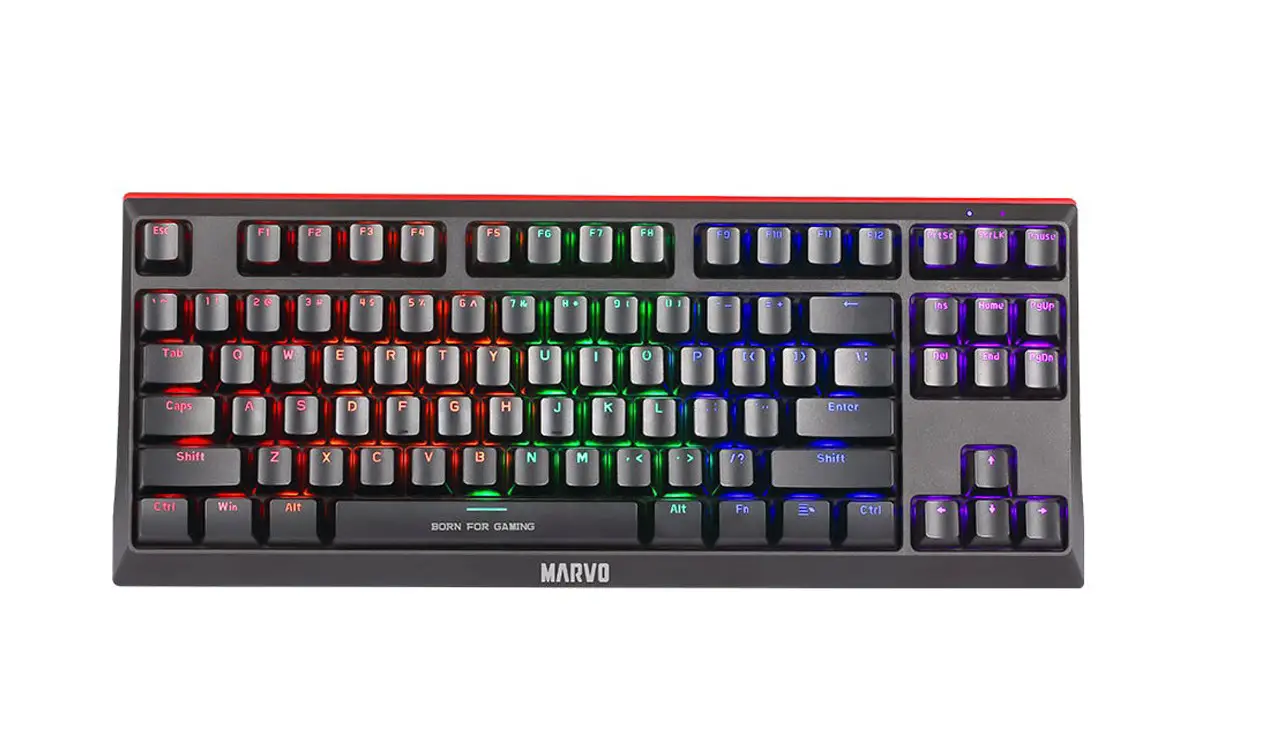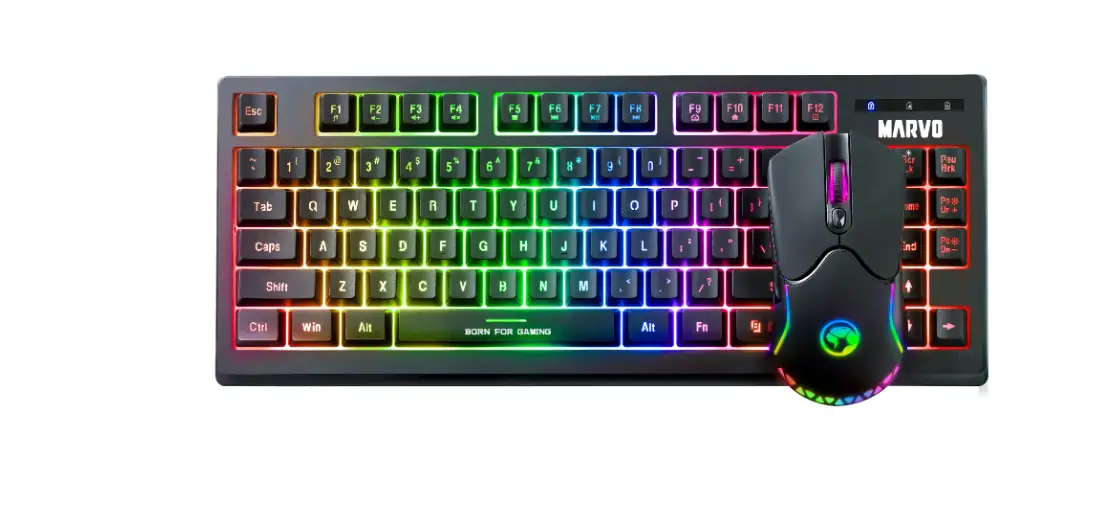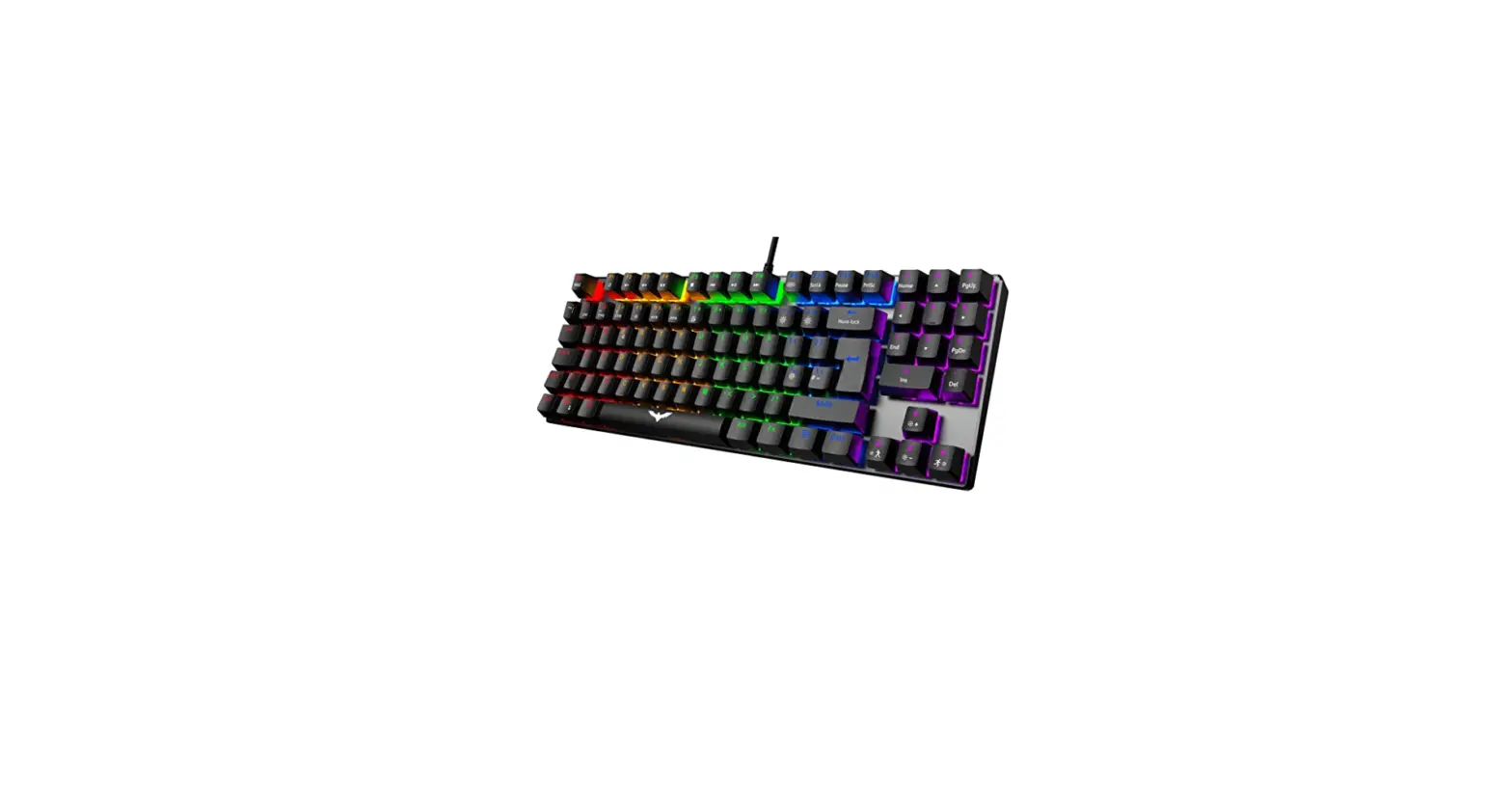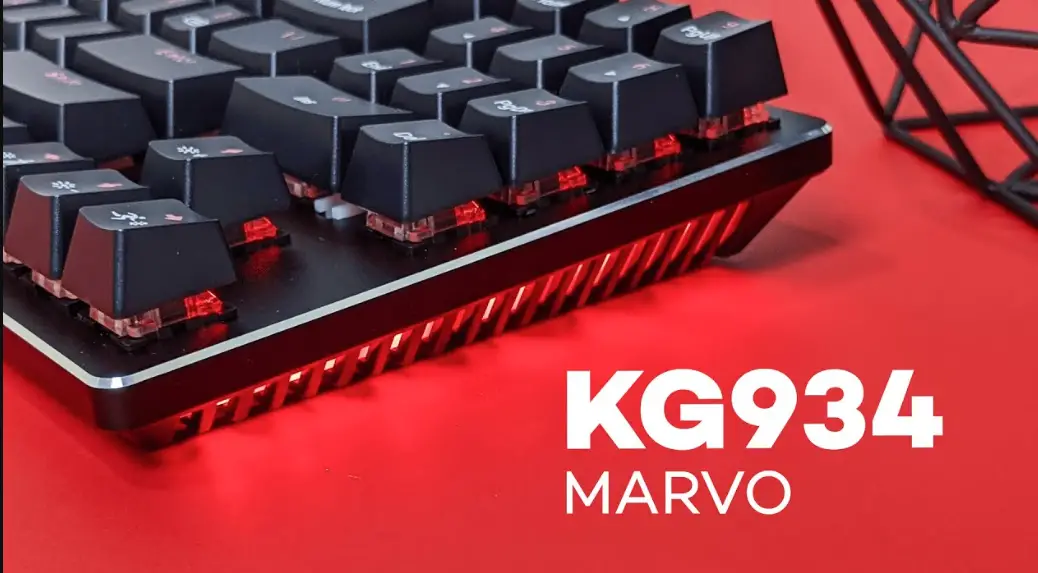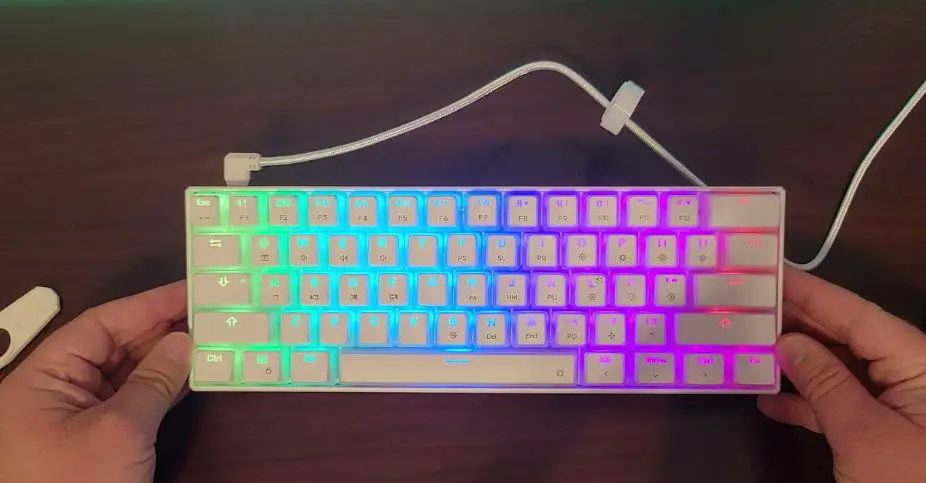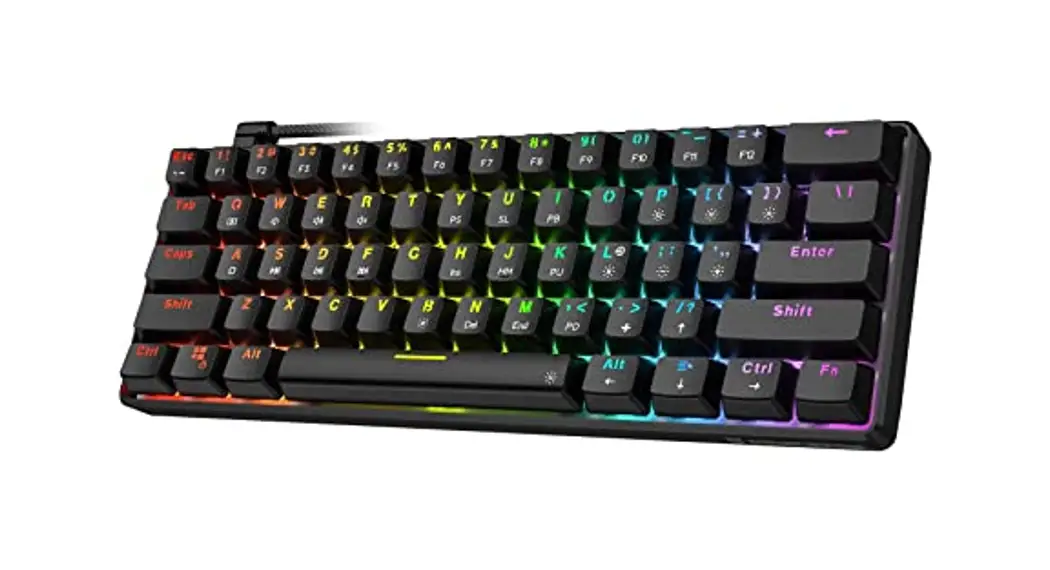
MARVO KG901 TKL Mechanical Gaming Keyboard User Manual
TECH SPECS
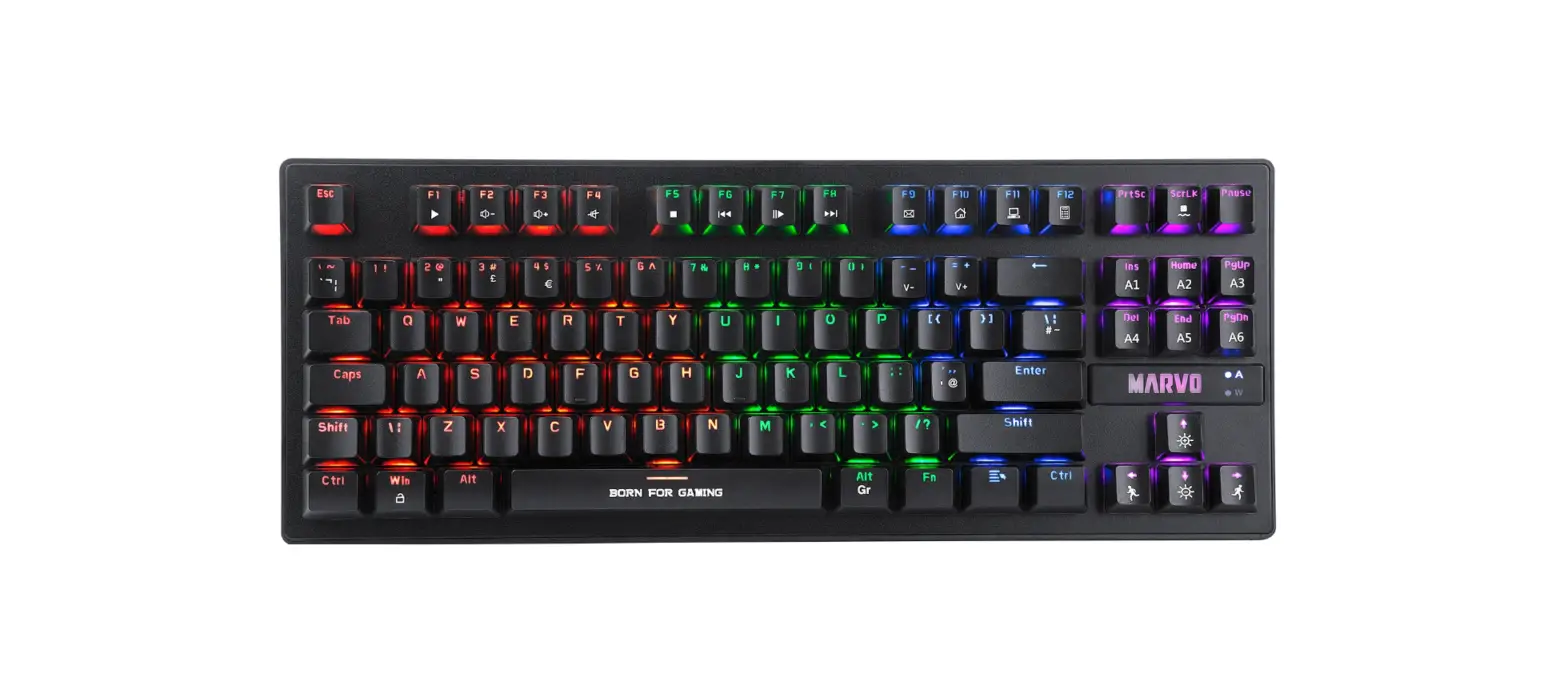
Keys: 87
Switch type: mechanical (Blue)
Switch rating: ≥ 50 million presses
Key route: 3.8 ± 0.4 mm
Operating force: 60 ± 10 g
Backlight: 6-color Rainbow
Interface: USB 2.0
Cable length: 1.5 m
PRODUCT PRESENTATION
FEATURES
- Compact design with a slim frame and TKL layout
- Full anti-ghosting: N-key rollover support
- 20+ selectable lighting schemes
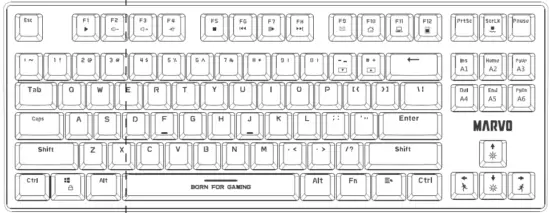
- Five macro keys programmable without driver (No.1 to No.5)
- Heavy-duty design: metal-made front plate and high-quality ABS
- Advanced customization software
SYSTEM REQUIREMENTS
PC system or compatible with one USB port available;
Windows 7 or newer operating system.

SAFETY NOTES
- Keep the equipment dry. Keep away from Precipitation, humidity and all types of liquids or condensation may contain minerals that corrode electronic circuits.
- Never use the product with wet hands.
- Do not use or store the equipment in dusty or dirty areas. Do not store the equipment under high temperature conditions (this may damage it).
- Do not store the equipment under low temperature conditions (when it returns to normal temperature, condensation may form inside it which may damage the equipment).
- Do not drop, knock or shake the equipment (use may result in breakage).
INSTALLATION
Connect the keyboard to the available USB port on your computer;
if the peripherals are used for the first time wait approx. 15 seconds to install the generic driver.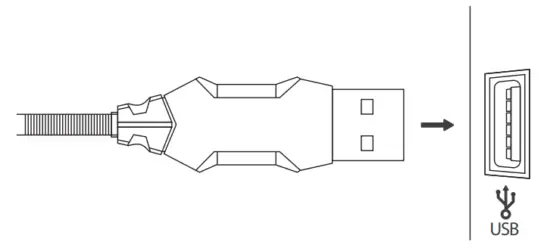
For advanced keyboard configuration, please download and install the
specialized driver at www.marvo-tech.hk (an Internet connection is required):
- Download the driver and double-click the executable file;
- Follow the on-screen instructions and install the application;
- After installing the application successfully, an icon will be displayed in the taskbar;
- Double-click this icon to launch the application.
USE
Configuring the keyboard and using the special functions is done by using the various key combinations detailed below.
D.1 Multimedia and oce functions
 + +  | play |
+ | decrease audio volume |
+ | increase audio volume |
+ | mute |
+ | stop media le playback |
+ | previous track |
+ | play / pause |
+ | next track |
+ | open the e-mail client |
+ | open the Internet browser |
+ | open my computer |
+ | open the Calculator |
D.2 Key lock functions
FN +Win: enable / disable the Windows key
D.3 Backlight control functions
Press FN+↑↓key to change the brightness
Press FN+←/→ key to change the backlight direction
Macro recording mode
Step1: Press FN + \: key to enter the macro mode (First time to enter, (1.2.3.4.5 digital area) keys backlight ashing. (1.2.3.4.5 digital area) keys up to support 5 groups of macro recording)
Step2: Press (1.2.3.4.5 digital area) keys to select a group and enter the macro recording state
Step3: Chose the key you want to record
Step4: Press FN + \: key to save record
When macro mode is turned on again the macro keys that had been recorded is normally on
Press FN + (1.2.3.4.5 digital area) to apply the mode you had recorded
Long press FN + ESC + F1 + F3 + F5 to reset
Optically controlled
Press FN+INSERT/DELET/HOME/END/PGUP/PGDN/SCROLL key to change the backlight mode.
Press FN+PU key to increase the brightness under the condition of long and bright light
Press FN+PD key reduces the brightness
Keyboard driver use
Backlight setting
Click “Light” and select the lighting scheme you want, and then adjust the parameter at area below.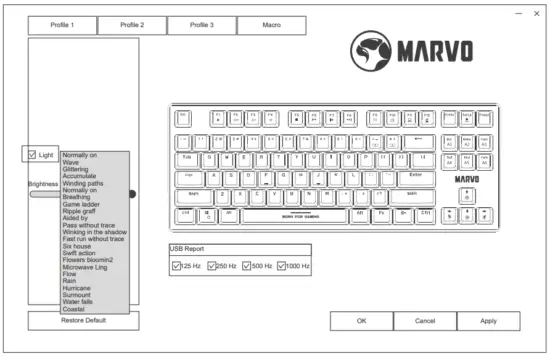
Macro setting and using
Click key on the right keyboard you want to set macro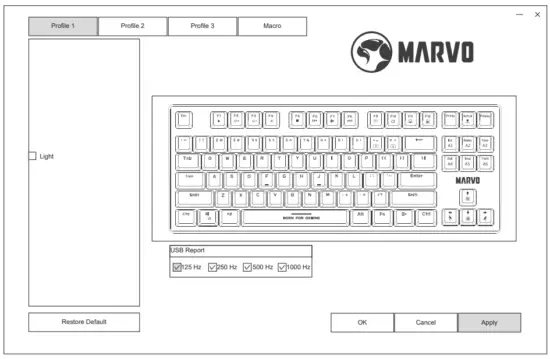
click “macro setting”and click the “+” to create new macro.
After creating a new macro, click “Record” to record keys,
after complete recording, click “Stop Record” and click “Apply” to save.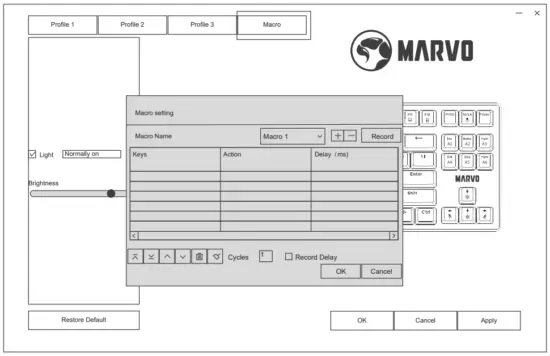
TROUBLESHOOTING
In case of incorrect operation follow the steps below:
- Check the integrity of the connectors;
- Check the connection to the computer correctly;
- Check the correctness of your computer settings;
- Disconnect and reconnect the equipment; restart the computer.
If the problem persists, please contact your local seller.
GENERAL INFORMATION
- Unauthorized repairs or disassembly of the product will void the warranty and cause damage.
- The product is safe, according to EU requirements.
- This product is manufactured in accordance with the European RoHS standard.
This standard was introduced to reduce the amount of electrical and electronic waste emitted into the atmosphere. - Using the WEEE symbol (pub with an X) indicates that this product is not household waste. When recycling waste properly protect the environment.
Warranty Card
Product Model:_______________________________________________
Product Serial No:_____________________________________________
Date of Purchase:______________________________________________
Customer Name:______________________________________________
TEL:_______________________________________________________
Address:_____________________________________________________
Distributor Name:_____________________________________________
TEL:_______________________________________________________
Warranty Card is the important certificate for
after-sale service of Marvo products, please keep it safe.