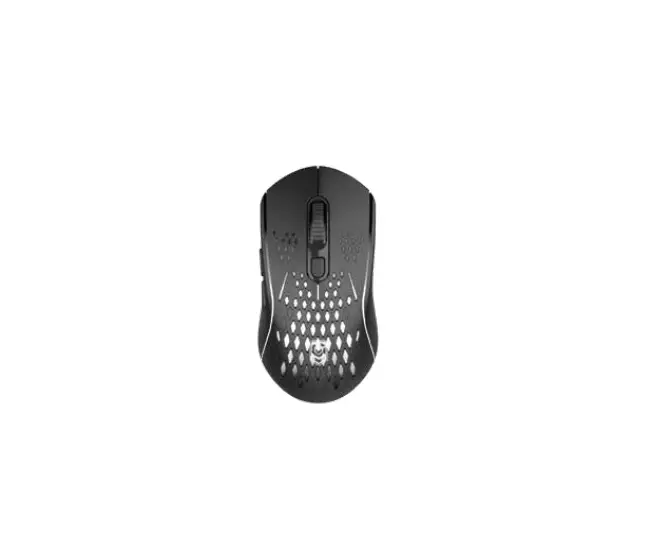
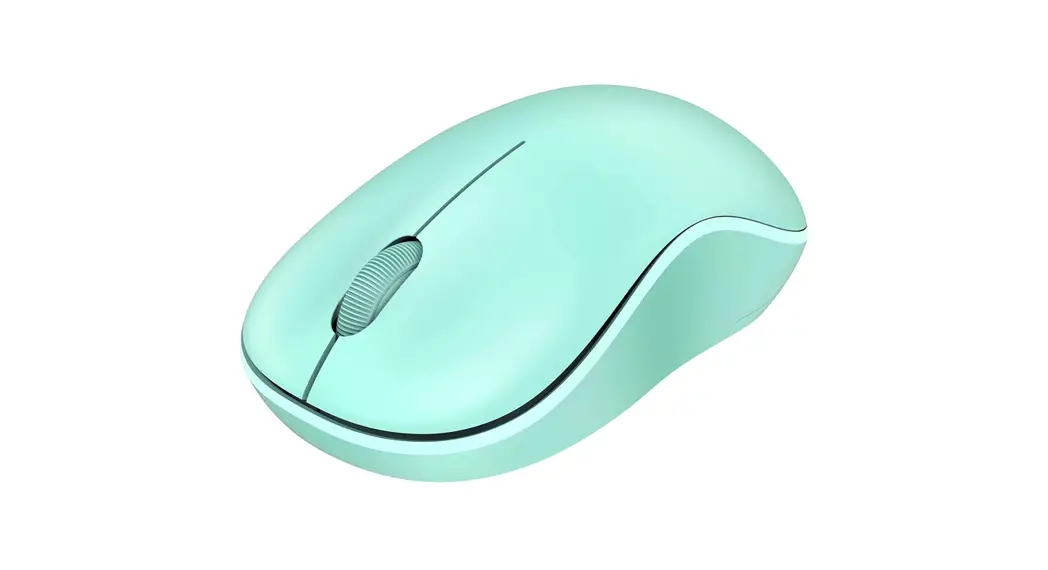
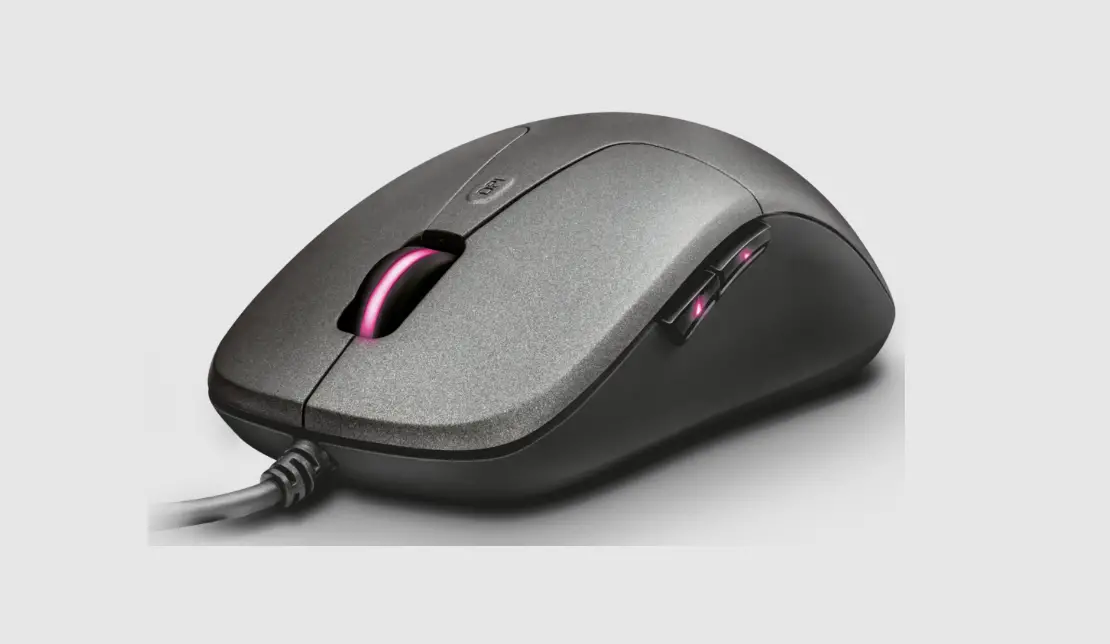
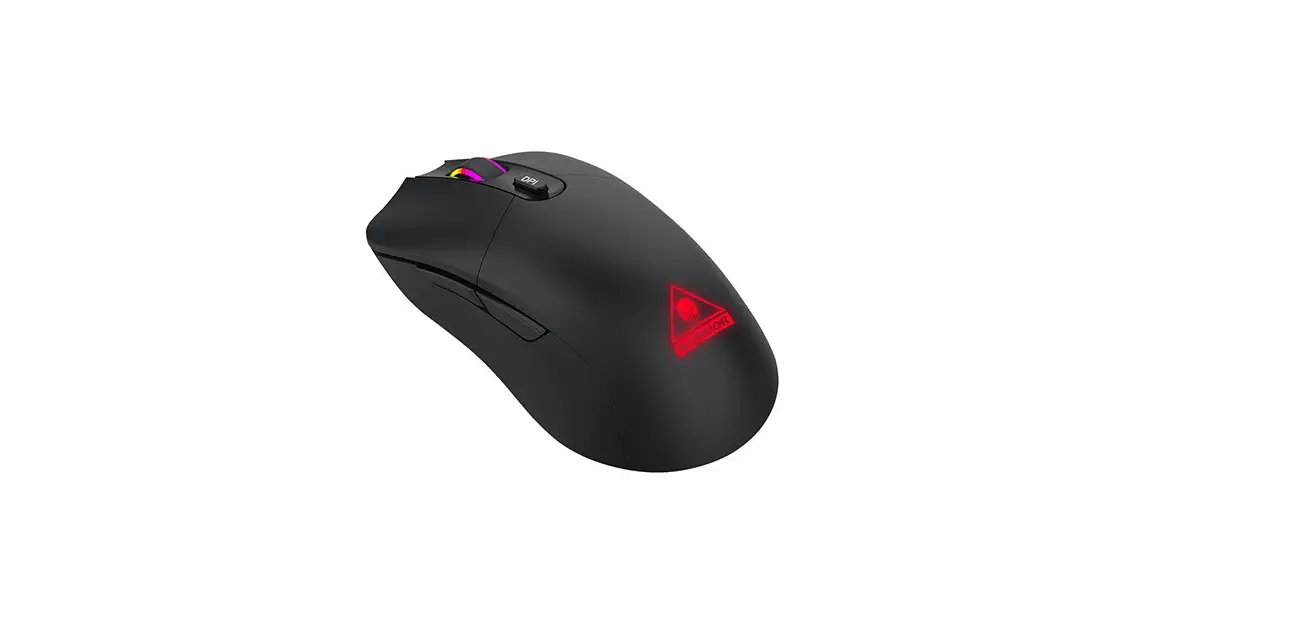
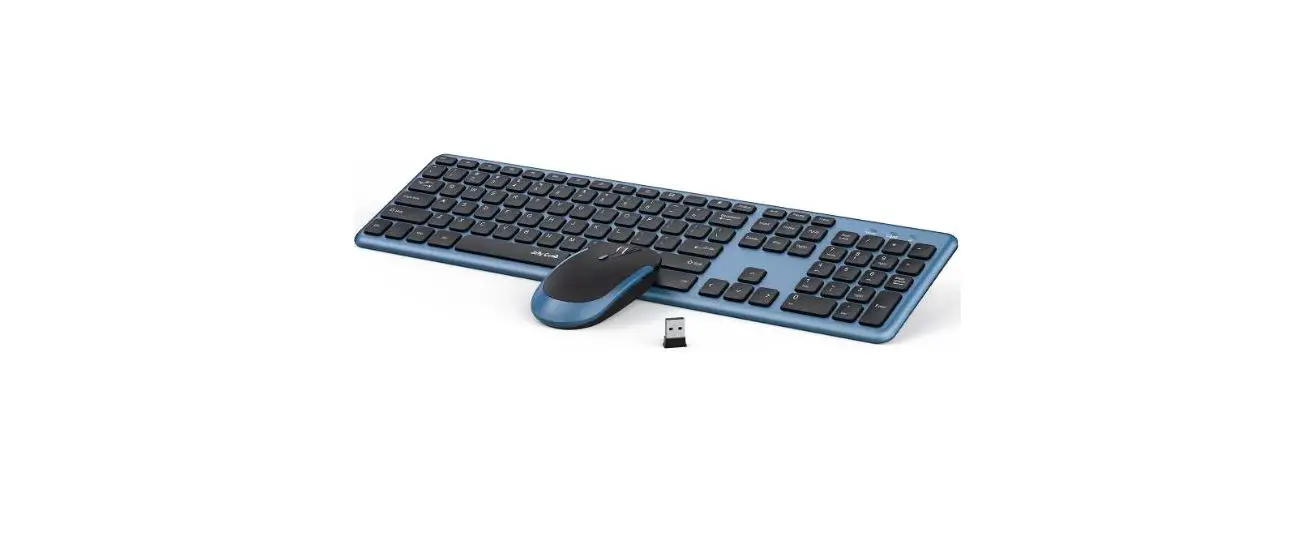
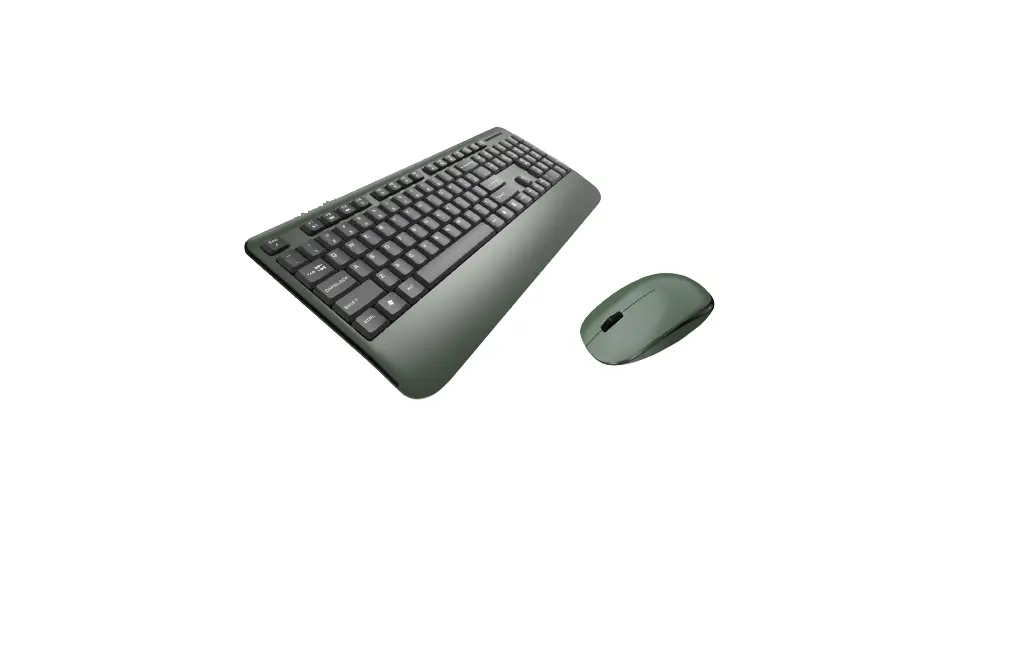
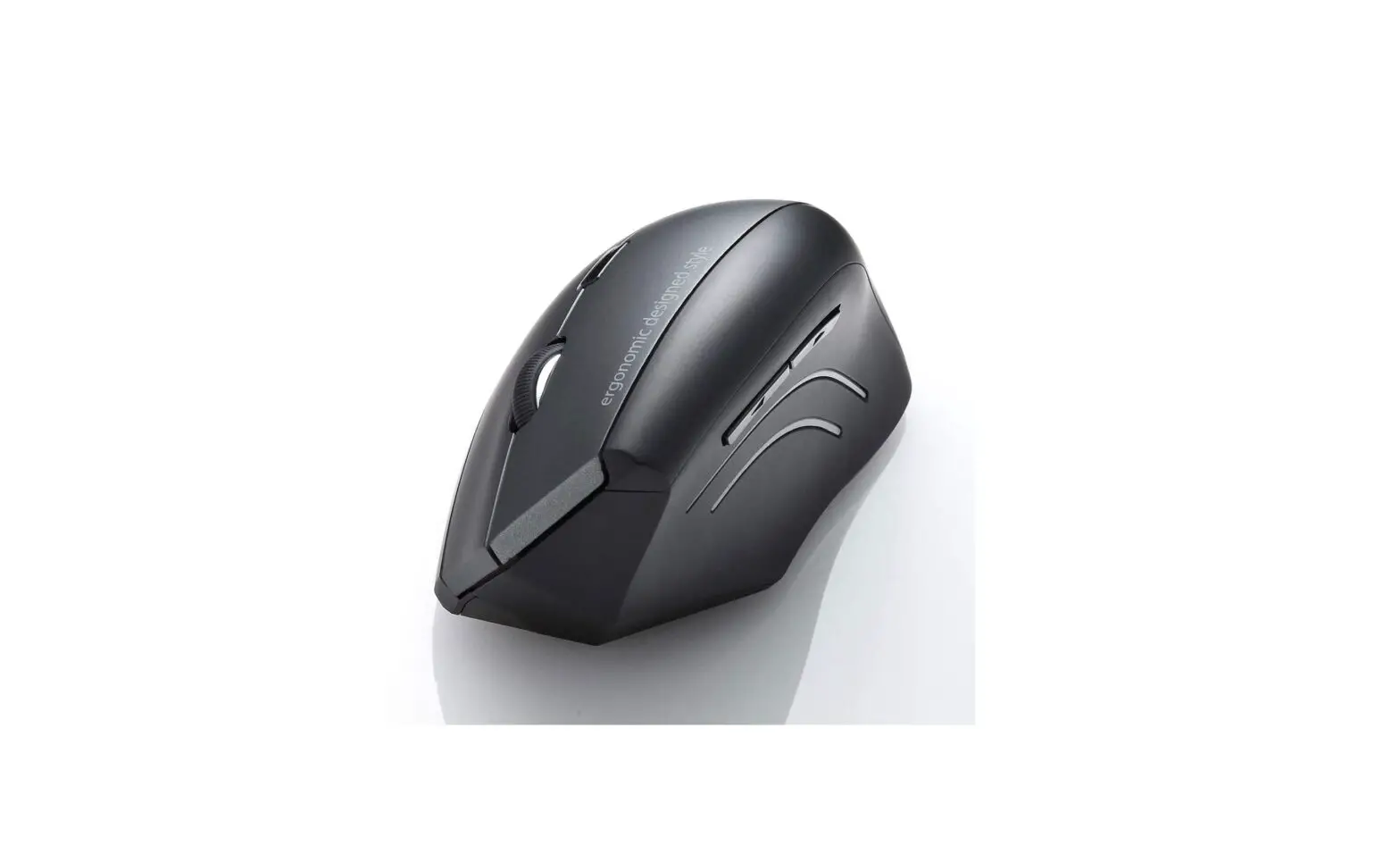
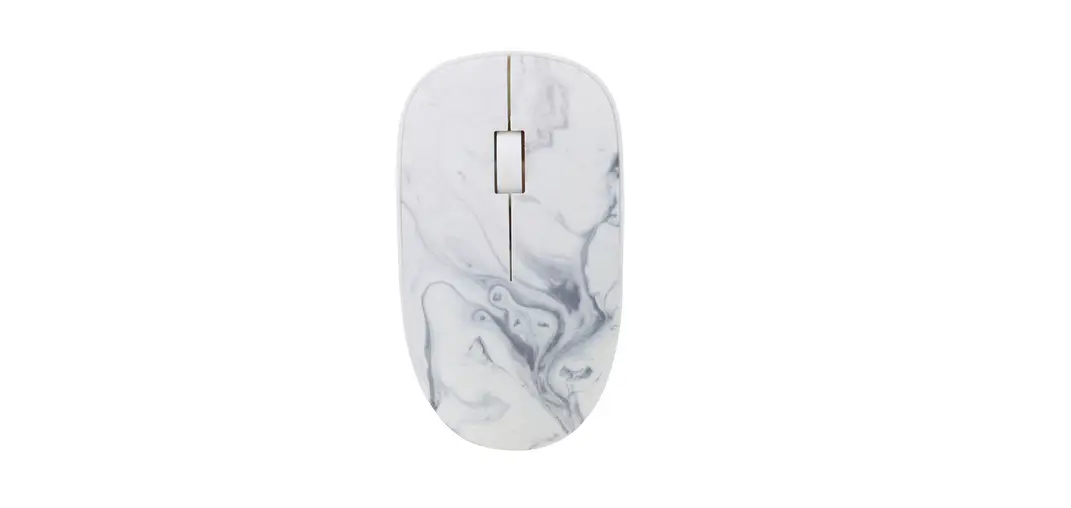
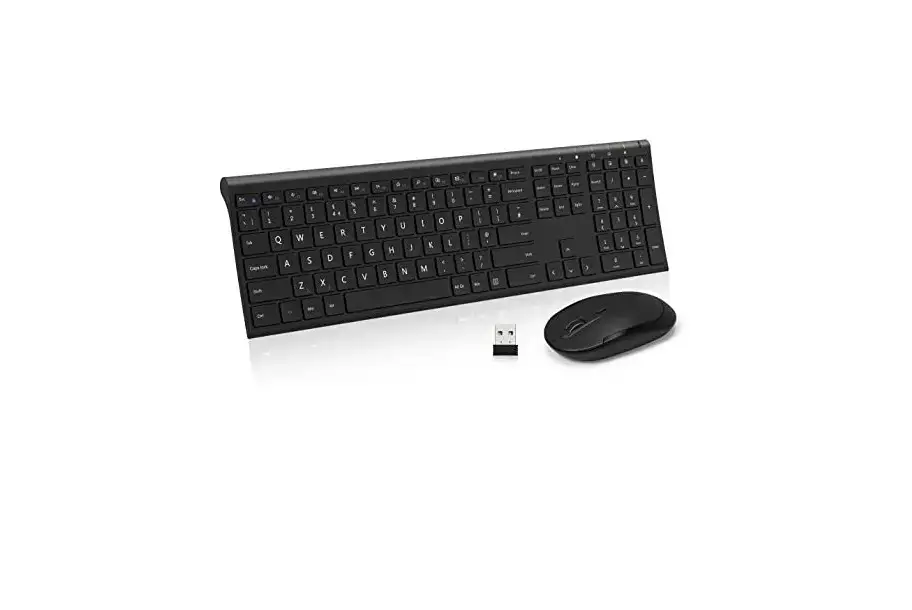
KMB-501 Dual Mode Wireless Mouse
Product Information
The KMB-501 is a dual-mode wireless mouse that operates on the
2.4GHz frequency. It is designed to provide an advanced wireless
experience.
Product Components
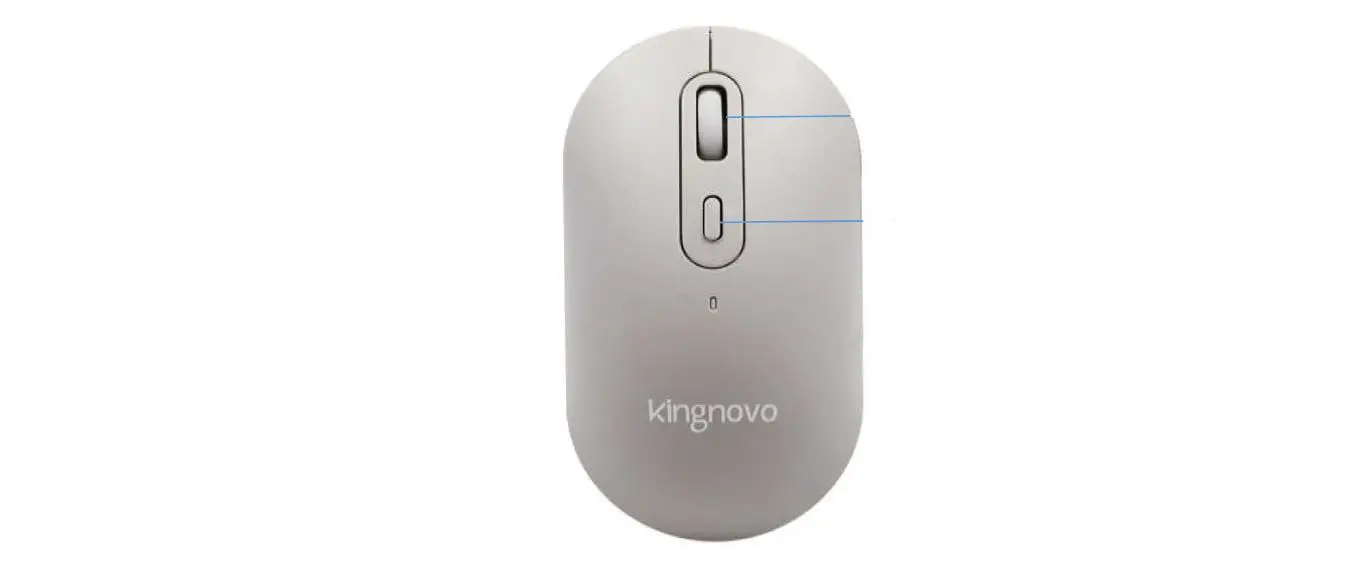
- 1. On/Off and dual-mode switch
- 2. Left-click button
- 3. Right-click button
- 4. Scroll wheel
- 5. 2.4GHz LED indicator
- 6. Pairing button
- 7. Battery compartment
- 8. USB receiver
- 9. DPI adjustment button
Specifications
- Type: Dual-mode wireless mouse
- Technology: 2.4GHz
- CPI resolution: Adjustable
- Micro switch life cycle: Yes
- Interface: USB
- Battery: One AA battery (included)
- Compatibility: Windows, macOS, and Android versions
- Material: Metal
- Dimensions: 43.7×27.5×15.3in
- Weight: 2.9oz
- Warranty: One year
Product Usage Instructions
Basic Operation
To use the KMB-501 wireless mouse, follow these steps:
- Turn on the mouse using the On/Off switch.
- Move the mouse to control the cursor on your computer
screen. - Click the left-click button to perform a left-click
action. - Click the right-click button to perform a right-click
action. - Use the scroll wheel to scroll up or down on web pages or
documents.
Using the Mouse with 2.4GHz Connection
To use the mouse with the 2.4GHz connection, follow these
steps:
- Make sure the 2.4GHz red LED light is on for about 3
seconds. - The mouse is now ready to use in the 2.4GHz band.
Pairing the Mouse with Your Computer/Laptop
To pair the mouse with your computer or laptop, follow these
steps:
- Ensure that your device is in pairing mode.
- Press and hold the pairing button on the mouse for a few
seconds. - When the device asks if you want to pair the mouse with it,
click Yes or OK to accept. - The mouse will be successfully paired with your device.
Note: You only need to pair the mouse with your device once, as
it will automatically reconnect with memorized devices.
Precautions
When using the KMB-501 wireless mouse, please keep the following
precautions in mind:
- Ensure that the battery is properly inserted in the battery
compartment. - Do not expose the mouse to excessive heat or direct
sunlight. - Keep the mouse away from liquids and moisture.
- Avoid dropping the mouse or subjecting it to physical
impact.
For more information, visit www.klipXtreme.com
Duotrak
Dual-mode wireless mouse, 2.4GHz
and Bluetooth® compatible
KMB-501
English
I. Introduction
Thank you for purchasing the KMB-501 dual-mode wireless mouse. We encourage you to read this quick installation guide thoroughly to get the most out of this advanced wireless device.
Main features · Dual-mode connection via Bluetooth® v5.0 compatible or 2.4GHz that deliver
excellent wireless connection and save battery life · 6-button wireless mouse with adjustable settings of 800/1200/1600dpi to match
your resolution needs · Ergonomic for greater comfort and less stress on the hand and wrist · Modern design for a global minded lifestyle · Included AA battery may last up to 12 months1
¹ Estimated battery life may change depending on usage and computer conditions.
Package content · Dual-mode wireless mouse · One AA battery · Quick installation guide
II. Product components
7
1
8
9 6
2
3
5
4
1. On/off and dual mode switch 2. Bluetooth® button 3. Magnetic base 4. Scrolling wheel 5. Left button
6. Right button 7. DPI button 8. Bluetooth® LED light 9. 2.4GHz LED light
III. Basic operation
· The mouse has 800/1200/1600dpi. Configure the DPI resolution by pressing the DPI button.
· Press any button to activate the mouse after it goes into sleep mode.
Important: Must be used with a device with Bluetooth® compatible connection or with a Bluetooth® adapter (not included).
Note: Bluetooth® mode and 2.4GHz mode cannot be used simultaneously.
IV. Using the mouse with 2.4GHz connection
1. Turn on the mouse switch. 2. Open the magnetic base and take out the USB nano receiver. 3. Plug the USB nano receiver into the USB port of your computer or laptop. 4. Choose the 2.4GHz option by pressing the Bluetooth® button, make sure the
2.4GHz red LED light is on for about 3 seconds. 5. The mouse is ready to use in the 2.4GHz band.
V. Pairing the mouse with your computer/laptop
1. Turn on the mouse switch. 2. Press and hold the Bluetooth® button for 2 seconds, move the switch in the
mouse between BT3.0 and BT5.0. When the Bluetooth® LED light starts blinking the mouse is ready for pairing. 3. Next, set your device to “discover’ the wireless mouse. 4. Place the mouse and your device not more than three feet from each other.
5. On your computer/laptop, select the newly discovered device (KMB-501) being displayed in the Bluetooth® list.
6. When the device asks if you want to pair the mouse with it, click Yes or OK to accept.
7. You only need to pair the mouse with your device once, as it will reconnect with memorized devices automatically.
Precautions
· Clean the mouse with a dry, soft cloth. · Avoid using the mouse on extremely uneven or reflective surfaces. · Do NOT disassemble the mouse.
Specifications
Type
Technology CPI resolution Micro switch life cycle Interface
Connection
Bluetooth® range Power Operating voltage Power saving mode On/Off switch Battery type Additional information Status indicator OS compatibility Scrolling wheel material type Dimensions Size (LxDxH) Weight Warranty
KMB-501 6-button 3D dual-mode Bluetooth® compatible or 2.4GHz mouse Optical sensor 800/1200/1600dpi 4 million Two modes: USB 2.0 (nano receiver)** or Bluetooth® v5.0* (without nano receiver) Dual Bluetooth® v5.0 backward, Bluetooth® v3.0 compatible, or 2.4GHz 33ft
1.2-1.5V Yes Yes One AA battery (included)
Yes Windows, macOS and Android versions Metal
43.7×27.5×15.3in 2.9oz One year
Español
I. Introducción
Gracias por adquirir el mouse inalámbrico de modo dual KMB-501. Le recomendamos leer detenidamente esta guía de instalación rápida para aprovechar al máximo este dispositivo inalámbrico avanzado.
Características principales · Conexión de modo dual compatible con Bluetooth® v5.0 o mediante 2.4GHz
que brinda excelente conexión inalámbrica y ahorra vida de la batería · Mouse inalámbrico de 6 botones con configuración ajustable de
800/1200/1600dpi para satisfacer sus necesidades de resolución · Ergonómico para mayor bienestar y menos estrés en la mano y la muñeca · Diseño moderno para un estilo de vida global · 1 batería AA incluida que puede durar hasta 12 meses1
¹ El estimado de duración de la batería puede variar de acuerdo con el uso y las condiciones de la computadora.
Contenido del empaque · Mouse inalámbrico de modo dual · Una batería AA · Guía de instalación rápida
II. Componentes del producto
7
1
8
9 6
2
3
5
4
1. Interruptor de encendido/apagado y modo dual
2. Botón Bluetooth® 3. Base magnética 4. Rueda de desplazamiento
5. Botón izquierdo 6. Botón derecho 7. Botón DPI 8. Luz LED de Bluetooth® 9. Luz LED de 2.4GHz
III. Funcionamiento básico
· El mouse tiene una resolución de 800/1200/1600dpi. Configure la resolución presionando el botón DPI.
· Presione cualquier botón para activar el mouse cuando está en modo de pausa.
Importante: El mouse debe usarse con un dispositivo que cuente con conexión compatible con Bluetooth® o con un adaptador Bluetooth® (no incluido).
Nota: El modo Bluetooth® y 2.4GHz no se pueden utilizar al mismo tiempo.
IV. Usando el mouse con la conexión de 2.4GHz
1. Mueva el interruptor del mouse a encendido. 2. Remueva la base magnética y saque el nano receptor USB. 3. Conecte el nano receptor USB al puerto USB de su computadora de
escritorio o portátil. 4. Escoja 2.4GHz presionando el botón de Bluetooth® y cerciórese de que la luz
LED roja está encendida por alrededor de 3 segundos. 5. El mouse está listo para utilizarse en la banda de 2.4GHz.
V. Cómo emparejar el mouse con la computadora de escritorio o portátil
1. Encienda el mouse con el interruptor. 2. Mantenga presionado el botón Bluetooth® por 2 segundos, mueva el
interruptor a BT3.0 o BT5.0. Cuando la luz LED Bluetooth® empieza a parpadear el mouse está listo para emparejarse.
3. Luego, configure su dispositivo para “descubrir” el mouse inalámbrico. 4. Ubique el mouse y su dispositivo a una distancia de menos de un metro entre sí. 5. En su computadora de escritorio o portátil seleccione el mouse recién
descubierto (KMB-501) que aparece en la lista de Bluetooth® 6. Si el dispositivo le pregunta si quiere emparejarlo con el mouse, oprima en Sí
u OK para aceptar. 7. Solo necesita emparejar el mouse con su dispositivo una vez pues se
reconecta automáticamente con los dispositivos memorizados.
Precauciones
· Limpie el mouse con un paño seco y suave. · Evite utilizar el mouse en superficies extremadamente irregulares o reflectivas. · NO desarme el mouse.
Especificaciones
Tipo
Tecnología Resolución CPI Ciclo de vida del interruptor Interfaz
Conexión
Alcance Bluetooth® Alimentación Voltaje de funcionamiento Modo de ahorro de energía Interruptor de encendido/apagado Tipo de batería Información adicional Indicador de estado Compatibilidad con sistemas operativos Material de la rueda de desplazamiento Dimensiones Tamaño (LaxPrxAl) Peso Garantía
KMB-501 Mouse 3D de 6 botones de modo dual compatible con Bluetooth® o 2.4GHz Sensor óptico 800/1200/1600dpi 4 millones Dos modos: USB 2.0 (nano receptor)* o Bluetooth® v5.0 (sin nano receptor) Dual, Bluetooth® v5.0 compatible con versiones anteriores o 2.4GHz 10m
1.2-1.5V Sí Sí Una batería AA (incluída)
Sí Versiones de Windows, macOS y Android Metal
11,1x7x3,9cm 83g Un año
KlipXtreme® is a registered trademark. All rights reserved. The Bluetooth® brand is a registered trademark owned by Bluetooth SIG, Inc. All other brand names and trademarks are the property of their respective owners. Any mention of such is only intended for identification purposes, and therefore shall not be construed as a claim to any or all rights pertaining to those brands. Made in China.
KlipXtreme® es marca registrada. Todos los derechos reservados. El logograma Bluetooth® es propiedad de Bluetooth SIG, Inc. Todas las demás marcas y nombres comerciales son propiedad de sus respectivos dueños. Cualquier mención de los mismos es por motivo de identificación solamente y por ende, no constituye reclamo alguno a uno o a todos los derechos pertenecientes a tales marcas. Fabricado en China.
www.klipXtreme.com
 Home - Klip Xtreme