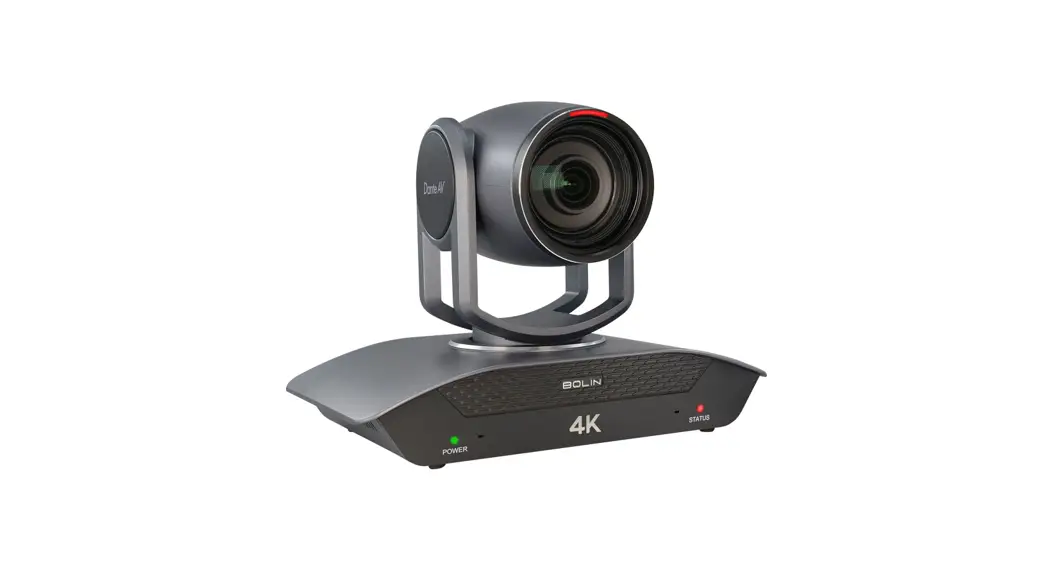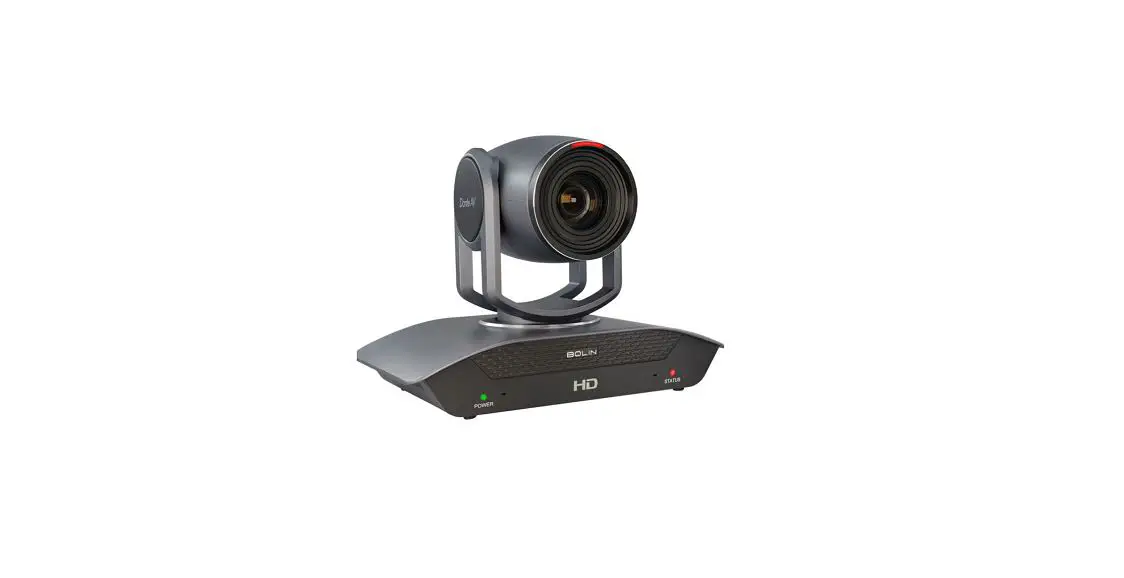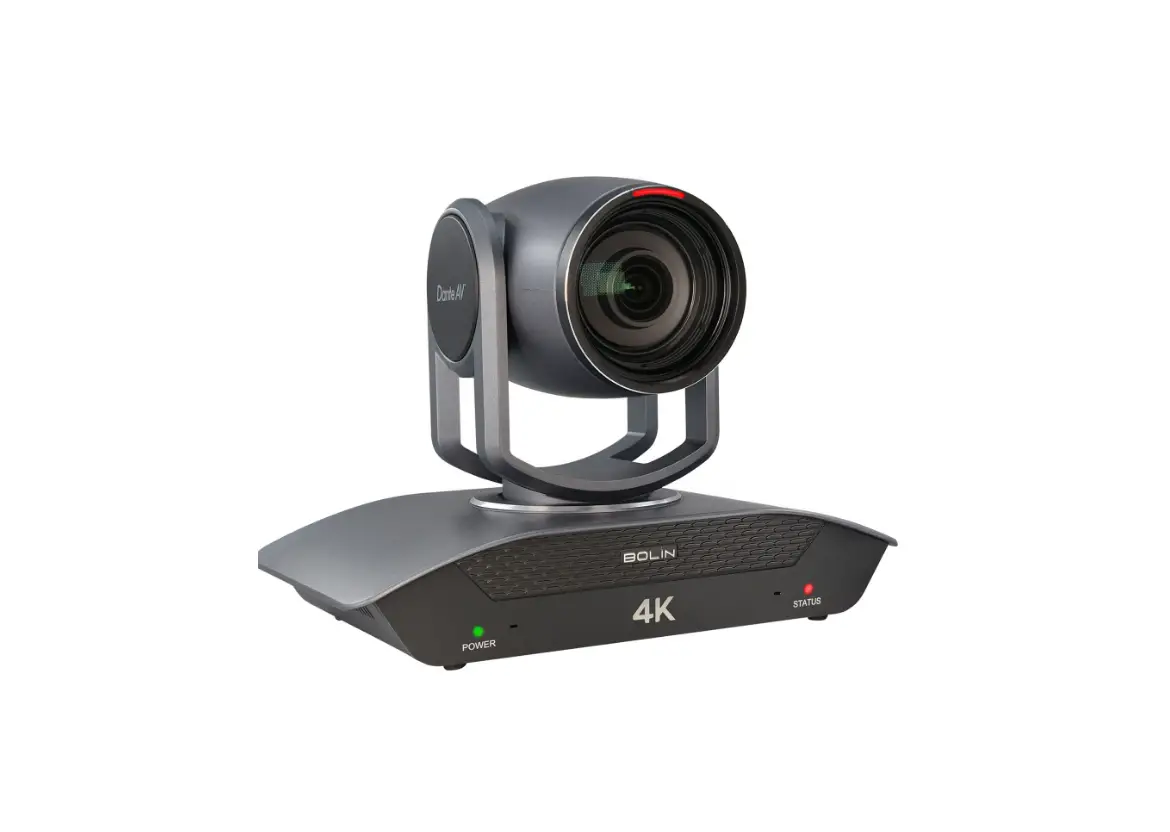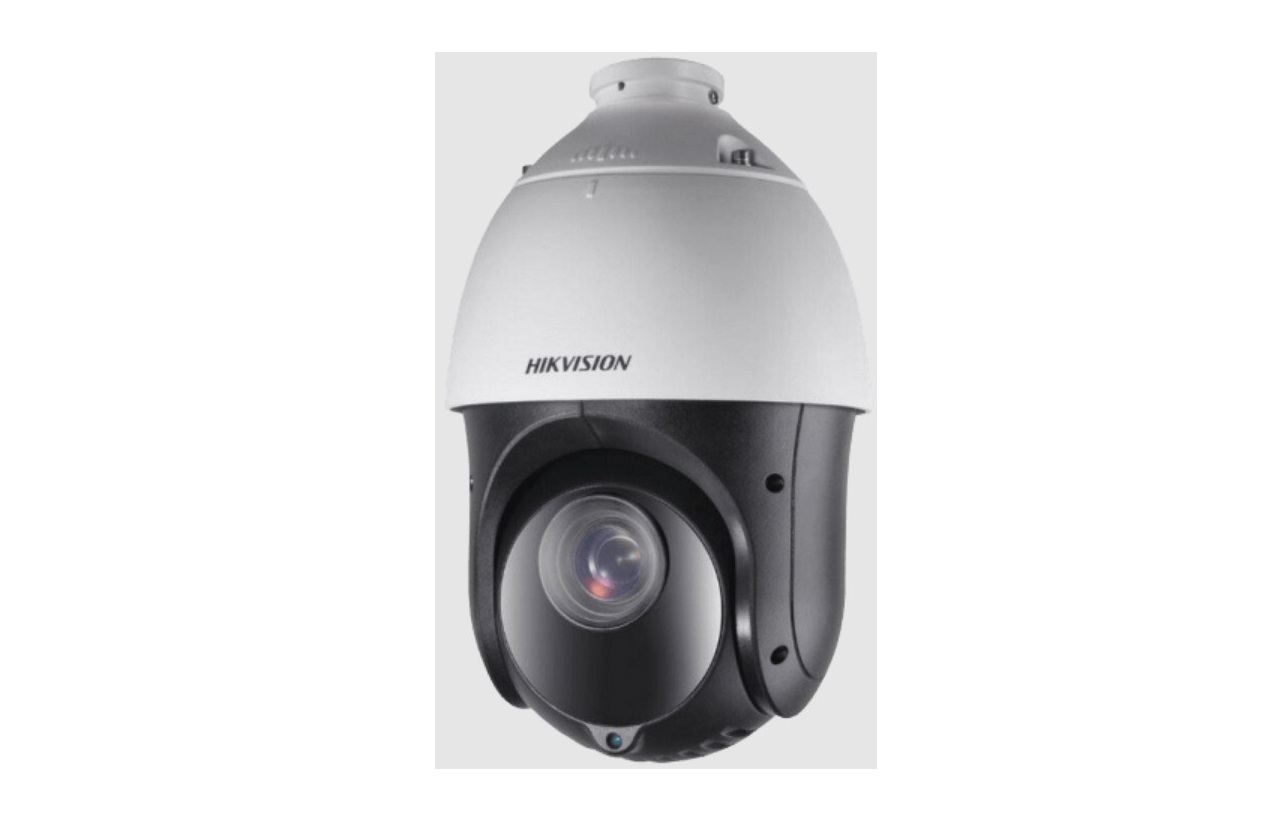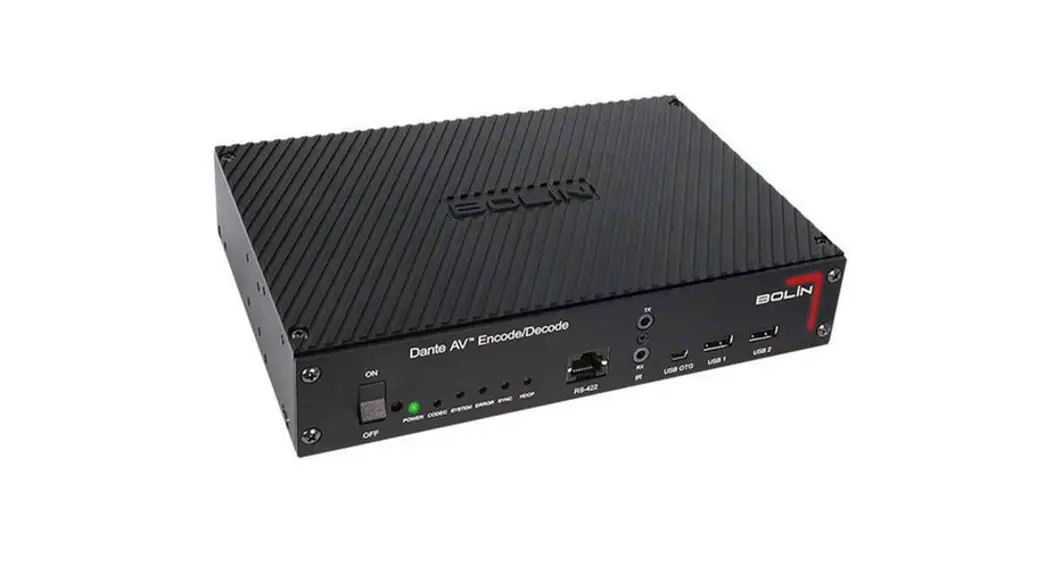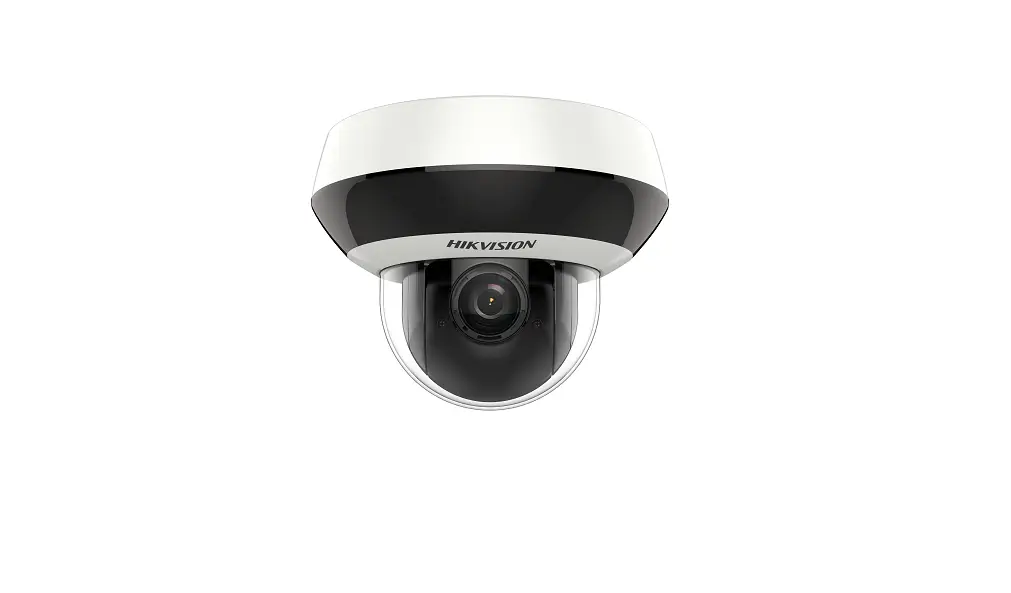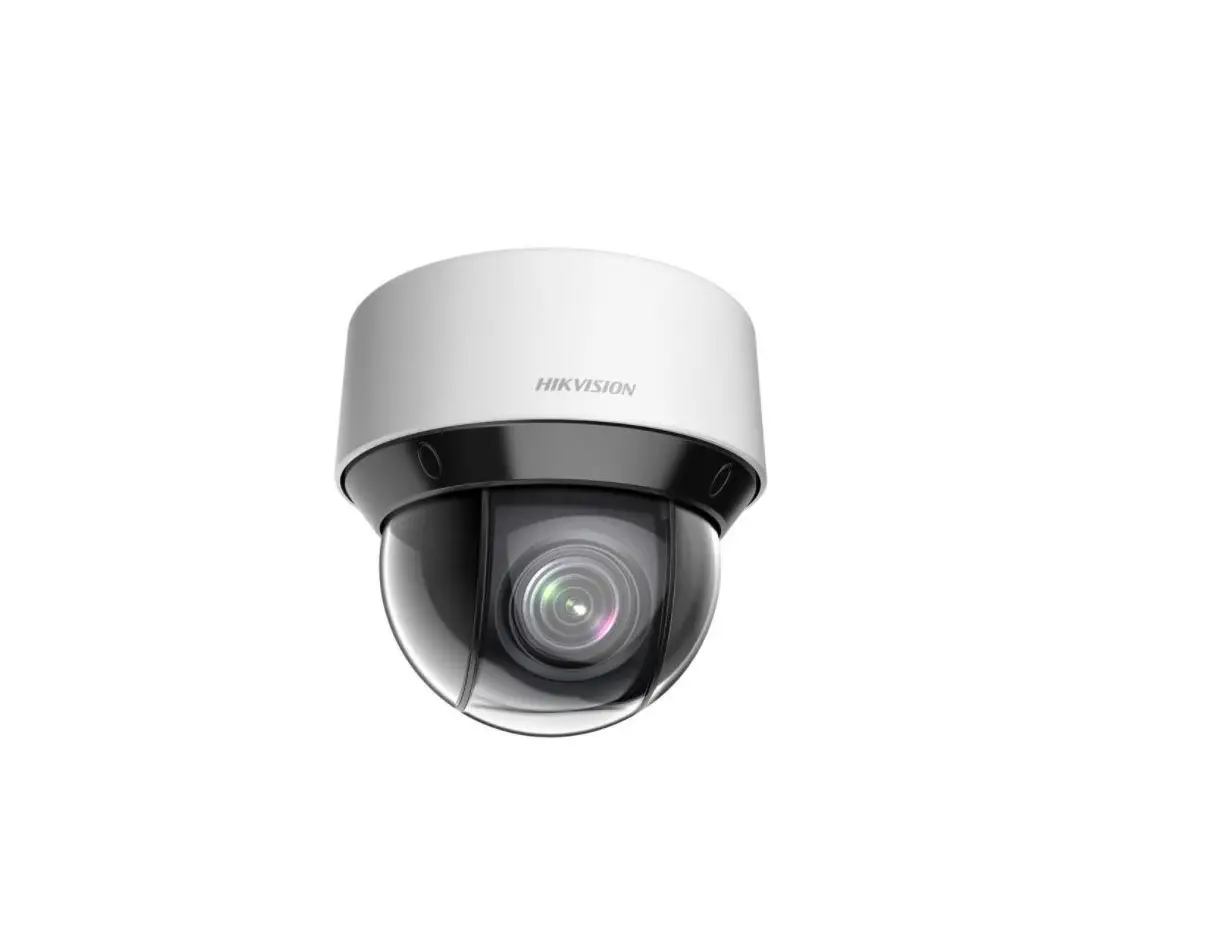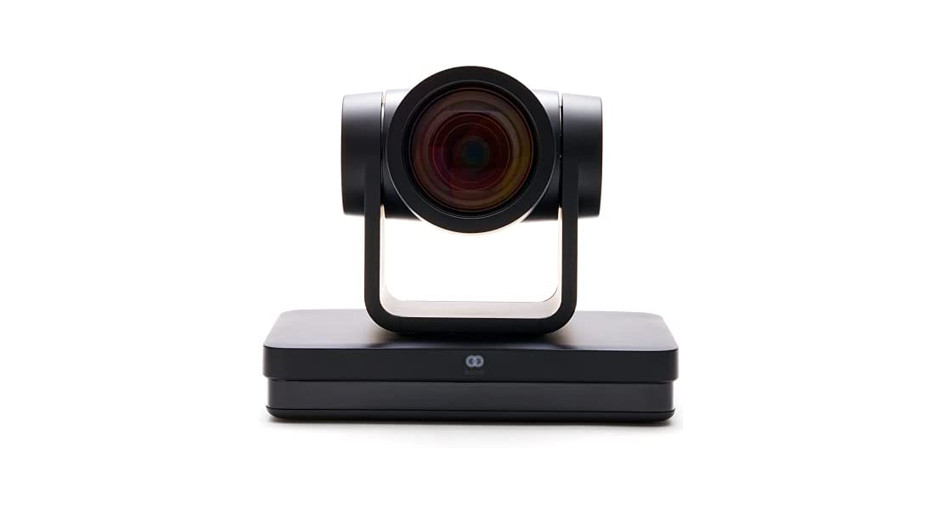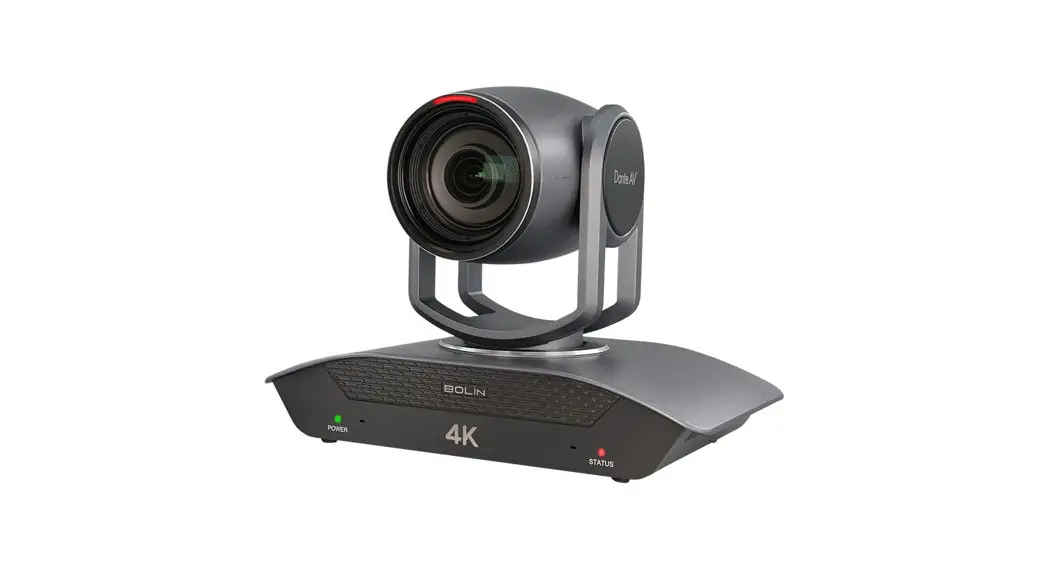
 D412 Dante AV Ultra PTZ Camera and Decoder
Quick Start Guide
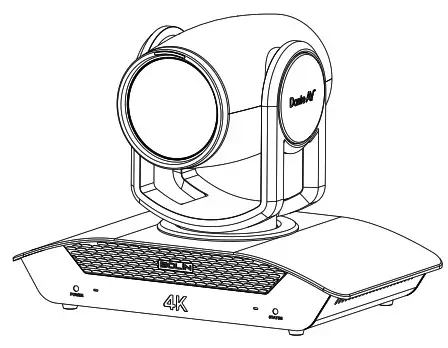
D412 Dante AV Ultra PTZ Camera and Decoder
This quick start guide applies to D412, D220, D20H, D20S
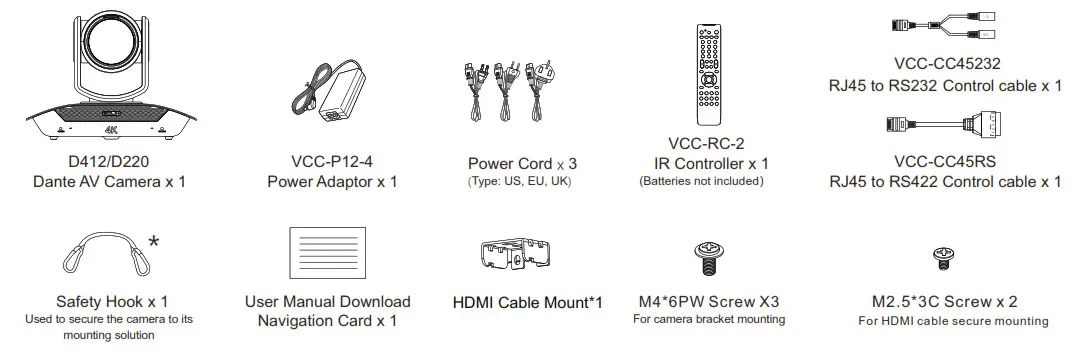
Items included in the camera box
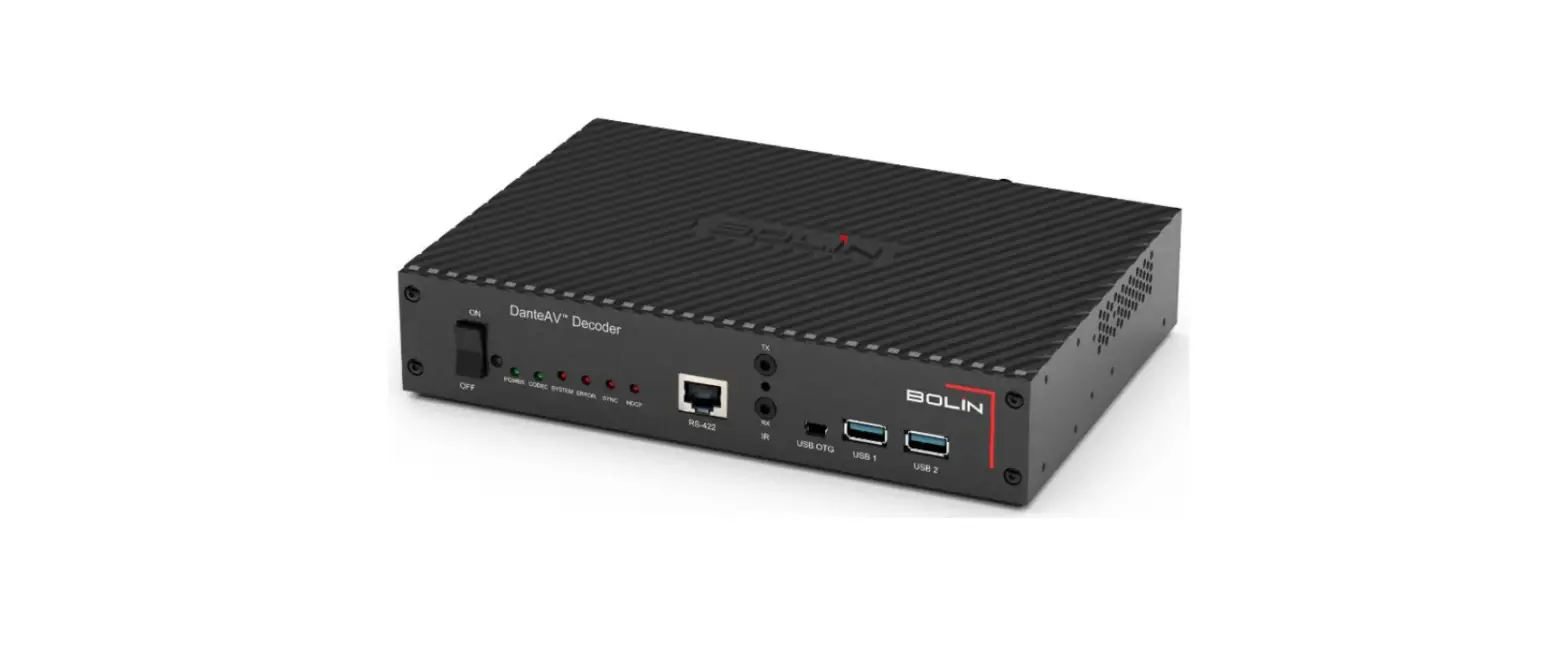
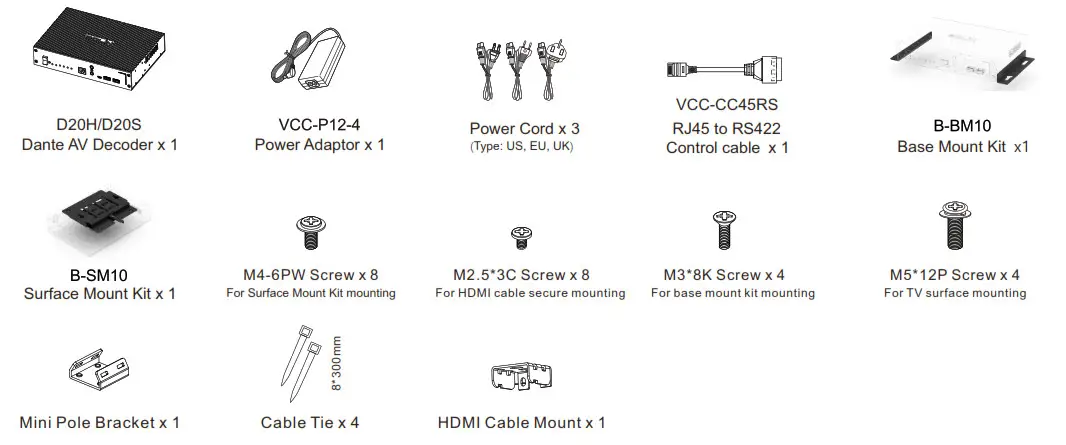
Items included in the decoder box
Note:
The Dante AV Decoder is mandatory for Dante AV video output.
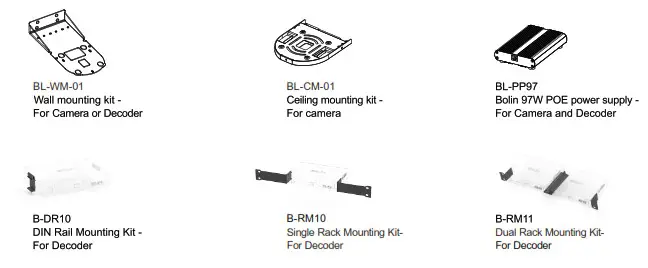
Optional Accessories
Camera HDMI Output Setup
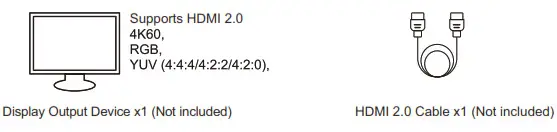
- Item List

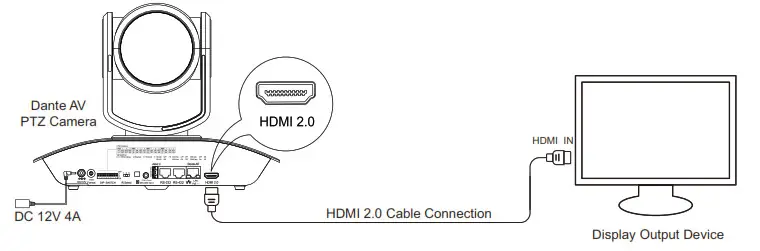
- Connection Diagram

- Resolution Configuration
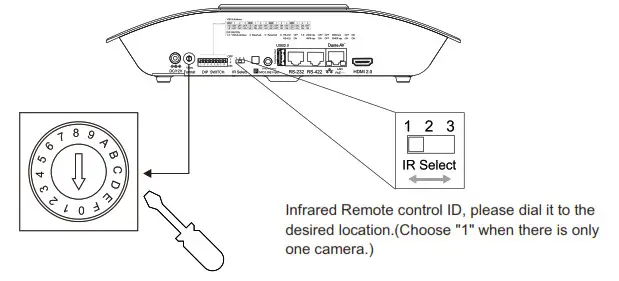
Use a flat screwdriver to set the circular speed dial to the desired resolution. The table below indicates the video formats the camera supports. Choose 1,2,or 3 on the IR Select to control the camera.NO Video Format 0 720p50 1 720p60 2 1080p23.98 3 1080p25 4 1080p29.97 5 1080p30 6 1080p50 7 1080p59.94 8 1080p60 9 2160p23.98 A 2160p25 B 2160p29.97 C 2160p30 D 2160p50 E 2160p59.94 F 2160p60  Note:
Note:
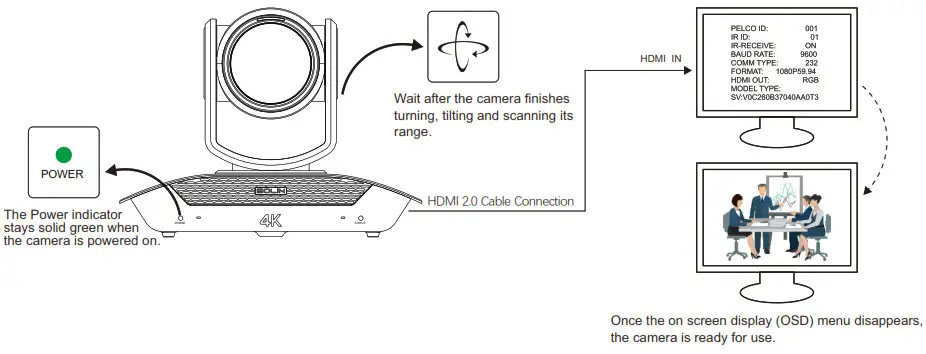
Power off the camera prior to changing dial settings. Resolution can also be changed via OSD menu once the camera is powered on. Camera will follow the latest configured resolution. Refer to the camera manual for further detail. - Power the Camera
When powering via both DC 12V and POE , DC 12V takes precedence. Using only one powering method to power the camera is highly recommended.- Power Adaptor (DC 12V 4A) to power the camera.
- When using POE , use IEEE802.3bt certified switch to power the camera.

- Dante AV Camera Startup

- Camera Control via IR Remote

 Note:
Note: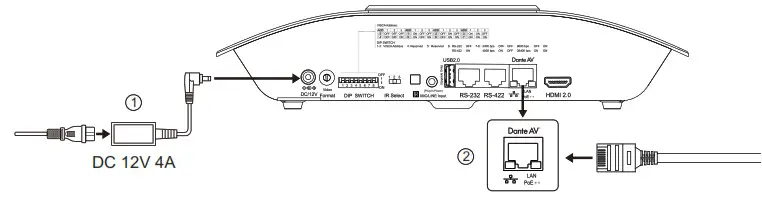

 | Camera OSD menu |  | For slow zooming |
 | Direction control | 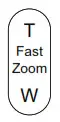 | For fast zooming |
Dante AV Video Output Setup
- Item List

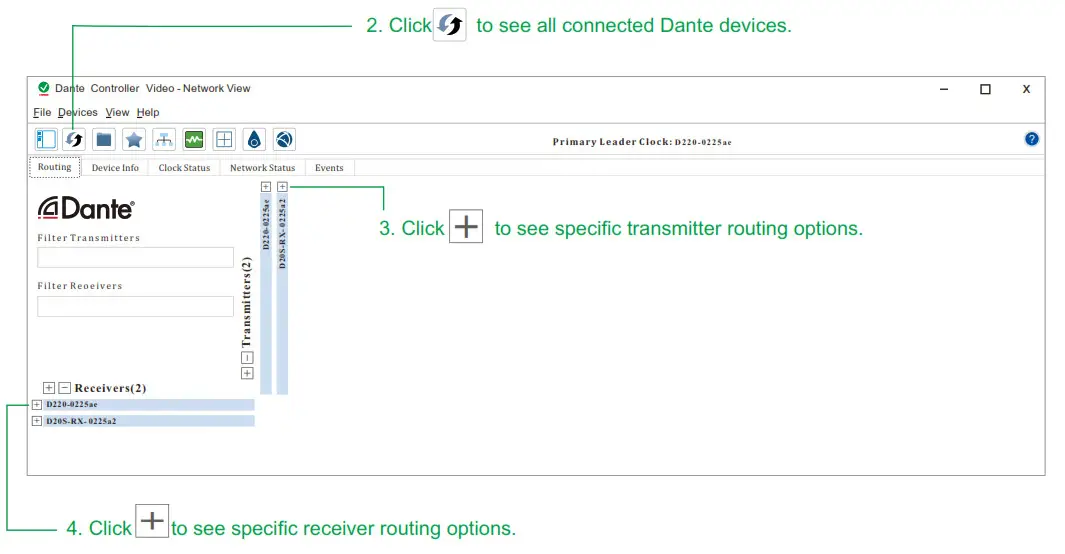
- Install Dante Controller Software
Dante Controller Download URL: https://my.audinate.com/support/downloads/download-latest-dante-software?lang=zh-hans
Dante Controller Hardware Requirements:
• CPU: Minimum of 1GHz processor
• Storage: At least 512MB
• Network Card: Ethernet connectivity pod (1000 Mbps)
Dante Controller OS Requirements:
• Windows: Windows 7/8/10
• Mac OSX: 10.13.6 / 10.14.6 / 10.15 Note: Does not support PPC. - Connection Diagram
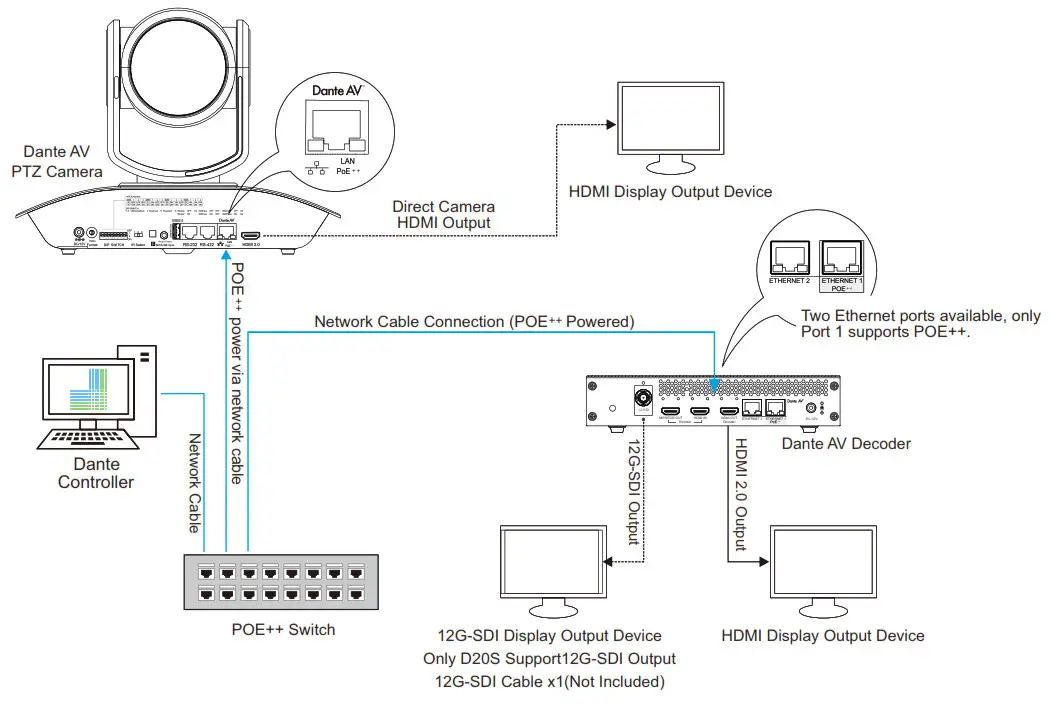
 Note:
Note:
①. DHCP network configuration is recommended.
② If network does not support DHCP, please manually configure IP details on the camera and decoder to match the same gateway.
③ Switch Requirement:
• Nonblocking Layer 2
• Green Ethernet must be OFF (Recommend not using Green Ethernet capable switches)
• Use reputable “Managed” switches
• Support QoS with strict priority and 4 queues
• IGMP Snooping ON
• Please refer to product manual at www.bolintechnology.com for IP configuration instructions - Power on the Decoder
Both DC12V and POE are workable, when powering the camera, DC 12V preferably.
①. Power Adaptor (DC 12V 4A) to power the decoder.
②.When using POE ++ , use IEEE802.3bt certified switch to power this decoder Note:
Note:
For Dante AV camera startup tips, please refer to its respective diagram. - Dante AV Decoder Startup
 Note:
Note:
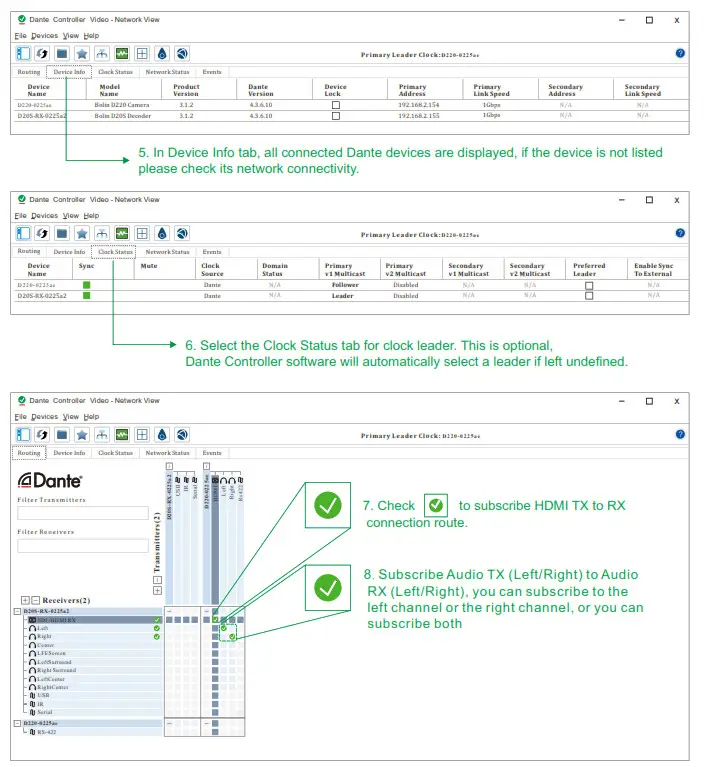
For Dante AV camera startup tips, please refer to its respective diagram. - Display Camera Video via Decoder


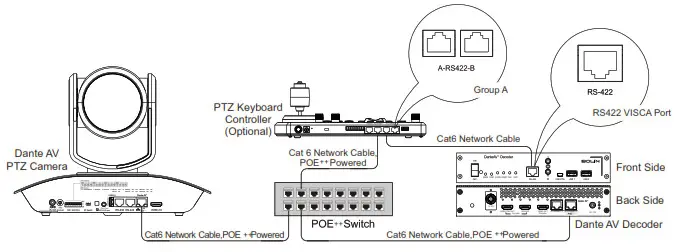
- Camera Remote Control Setup
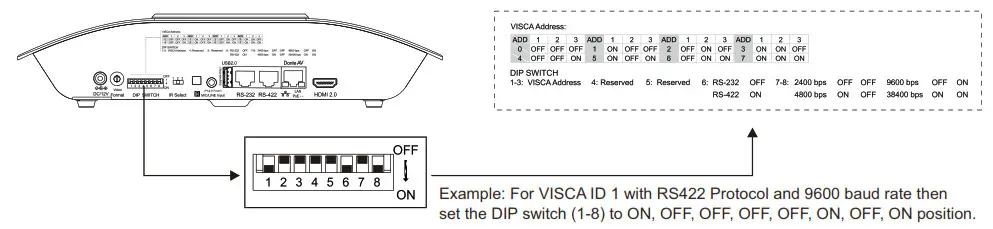
① Connection Diagram ② Camera VISCA Address, Communication Protocol, and Baud Rate Settings
 Note:
Note:
The camera should be powered off prior to changing the DIP switch setting. When there are multiple Danita cameras involved, refer to the table above for unique VISCA address to each camera. Up to seven unique address can be assigned to cameras at any given time.
③ Subscribe RS-422 Channel on Dante Controller

 Note:
Note: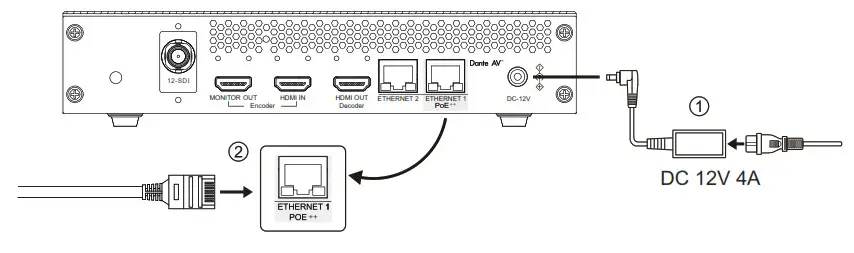 Note:
Note: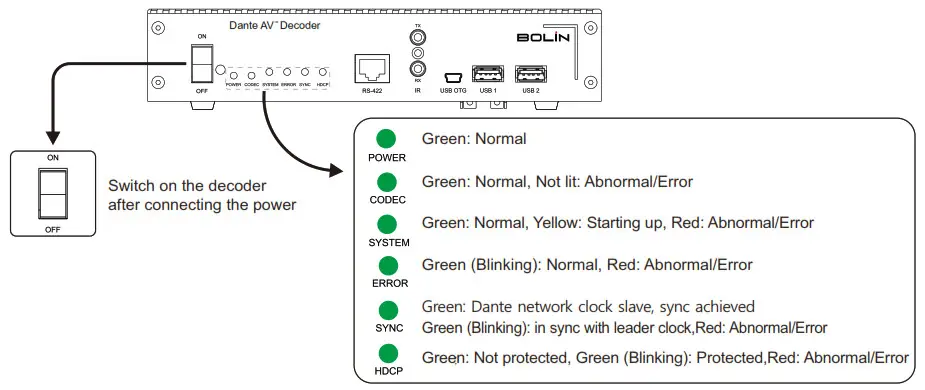 Note:
Note: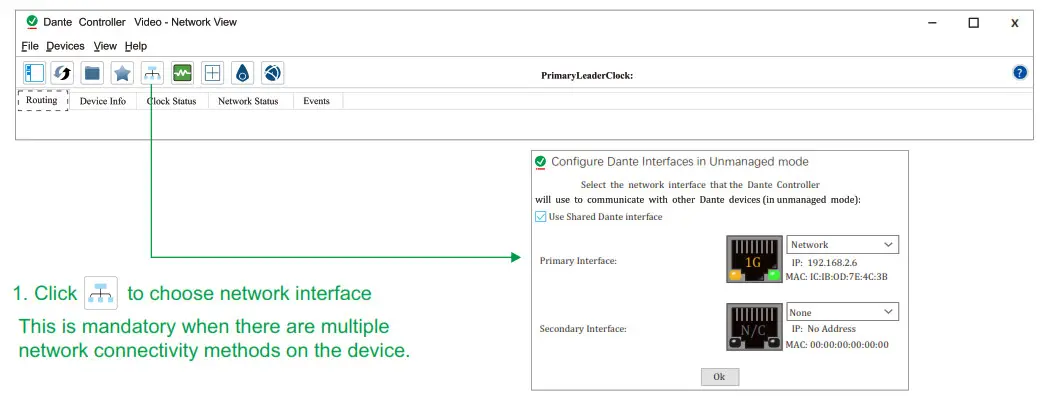
 ② Camera VISCA Address, Communication Protocol, and Baud Rate Settings
 Note:
Note: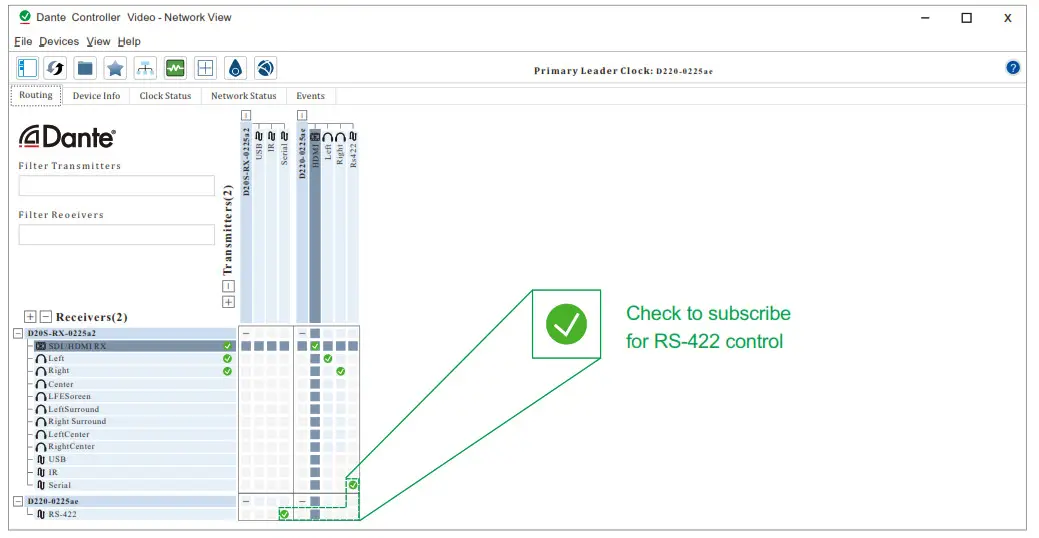
Note:
Rs422 channel needs to be subscribed in the Dante controller for remote control. Please refer to the keyboard controller’s product manual for detail.
You can also use the infrared remote control to remotely control the camera through the Danita decoder. For detailed IR remote operation instruction, please refer to camera product manual.
www.bolintechnology.com
MOV WITH YOU
2082 TECHNOLOGY LLC dba
BOLIN TECHNOLOGY
 Download Latest Dante Software | Audinate