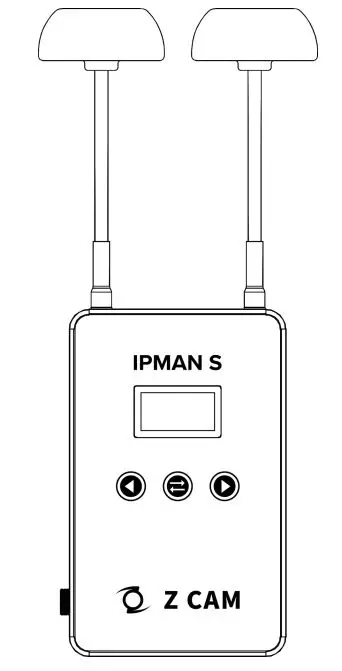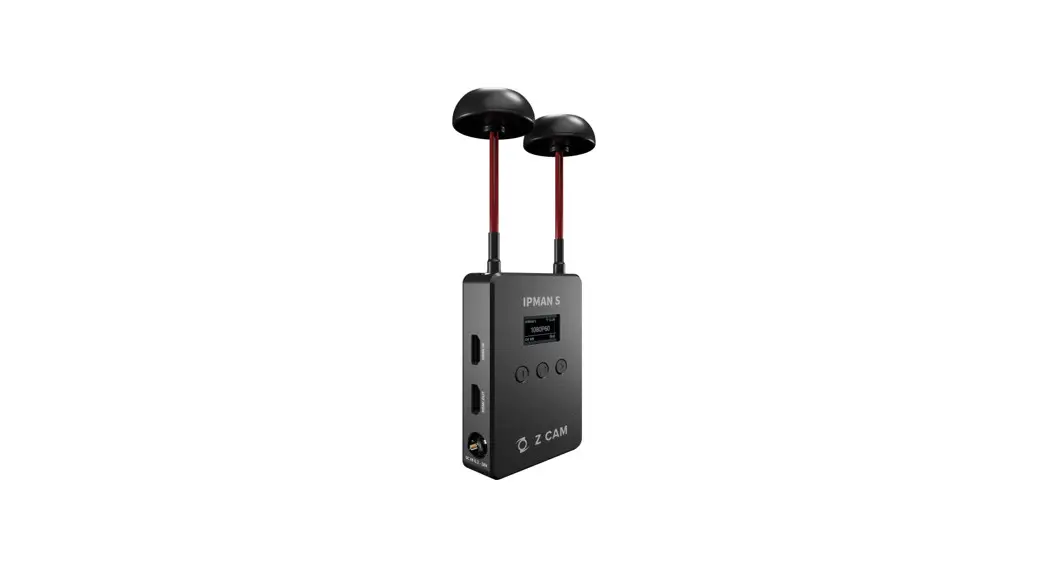

Z CAM IPMAN S Wireless Video Streaming Device – Quick User Guide
What is in the box?
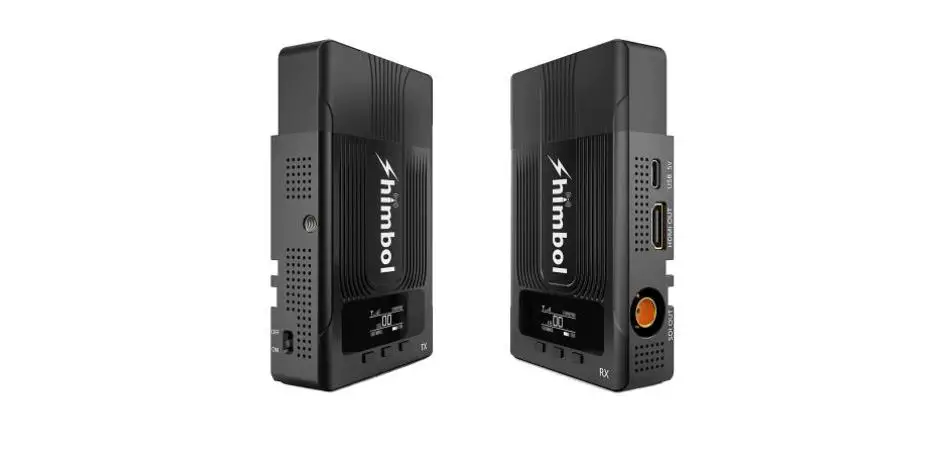
- Z CAM IPMAN S main unit x 1.
- Wi-Fi antenna x 2.
How to power up Z CAM IPMAN S?
- Mount NP-F battery onto the rear socket of the main unit.
- Press and hold the release button next to the socket to unmount the battery.
- For external power supply, connect the DC plug to the power socket (6.2’18V) on the side.
How to switch on Z CAM IPMAN S?
- Ensure that power is connected.
- Push power switches upward to ON position to switch on.
- Push power switches downward to OFF position to switch off.
How to feed a video signal to the HDMI input of Z CAM IPMAN S?
- Connect HDMI output of the camera or other equipment to HDMI IN of the main unit.
How to get a video signal from the HDMI output of Z CAM IPMAN S?
- Connect HDMI input of a monitor or other equipment to HDMI OUT of the main unit.
How to install a WiFi antenna?
- Align the bottom of the antenna and the antenna port on top of the main unit.
- Screw-in the antenna clockwise until it is fixed in position.
- Both antennas need to be installed.
How to switch the operating mode of Z CAM IPMAN S?
- Mode selector on the side of the main unit set to Rx, the status display will change to RX.
- Mode selector on the side of the main unit set to M, status display will change to M.
- Mode selector on the side of the main unit set to Tx, status display will change to TX.
How to use wireless video monitoring feature?
- Camera HDMI output signal must be 1080p60 or below (1080i is not supported).
- Connect camera HDMI output to HDMI IN of the main unit, set to TX mode.
- Set another main unit to RX mode, connect HDMI OUT to monitor input.
- Press and hold the function button in the middle for two seconds until the pairing icon shows up.
- Release the function button and wait for auto-pairing.
- Channel number on both units should be the same once pairing is successful. • Once there is a camera HDMI signal output it will be streamed to the RX connected monitor.
- Repeat the above procedure to add RX main unit up to a maximum of four.
How to use mobile devices for video monitoring?
- Download and install “The z CAM Monitor” app on iOS devices. (use Z Camera app on Android devices)
- Camera HDMI output signal must be 1080p60 or below (1080i not supported).
- Connect camera HDMI output to HDMI IN of the main unit, set to TX mode.
- Note the SSID on the top left corner of the main unit display. ft%
- Open the “Z CAM Monitor” app, click the bottom right wireless hotspot icon,
 enter SSID and tap the arrow sign to connect.
 - Once there is a camera HDMI signal output it will be streamed to the “Z CAM Monitor” app.
- Repeat the above procedure to add mobile devices up to a maximum of four.
 enter SSID and tap the arrow sign to connect.
How to conned to a wireless router?
- Select M mode on the main unit.
- Connect the iOS device to the main unit using USB-C to Lightning cable.
- Turn on the main unit and iOS device, open the Z CAM Monitor app.
- Tap the bottom right wireless network icon
 . Available wireless networks will be shown.
 - Select the wireless network, enter the password and tap the arrow sign to connect.
- Connected WiFi SSID and IP address will be shown on the main unit display.
 . Available wireless networks will be shown.
Please visit www.z-cam.com for the latest product information and user guide.
Hereby, Shenzhen ImagineVision Technology Limited, declares that this Z CAM IPMAN $ is in compliance with the essential requirements and other relevant provisions of RE Directive 2014/53/EU. The declaration of conformity may be consulted at www.z-com.com/euro-compliance.
Disclaimer: All product features and technical specifications stated are subjected to the sole interpretation and explanation of Shenzhen ImogineVision Technology Limited.