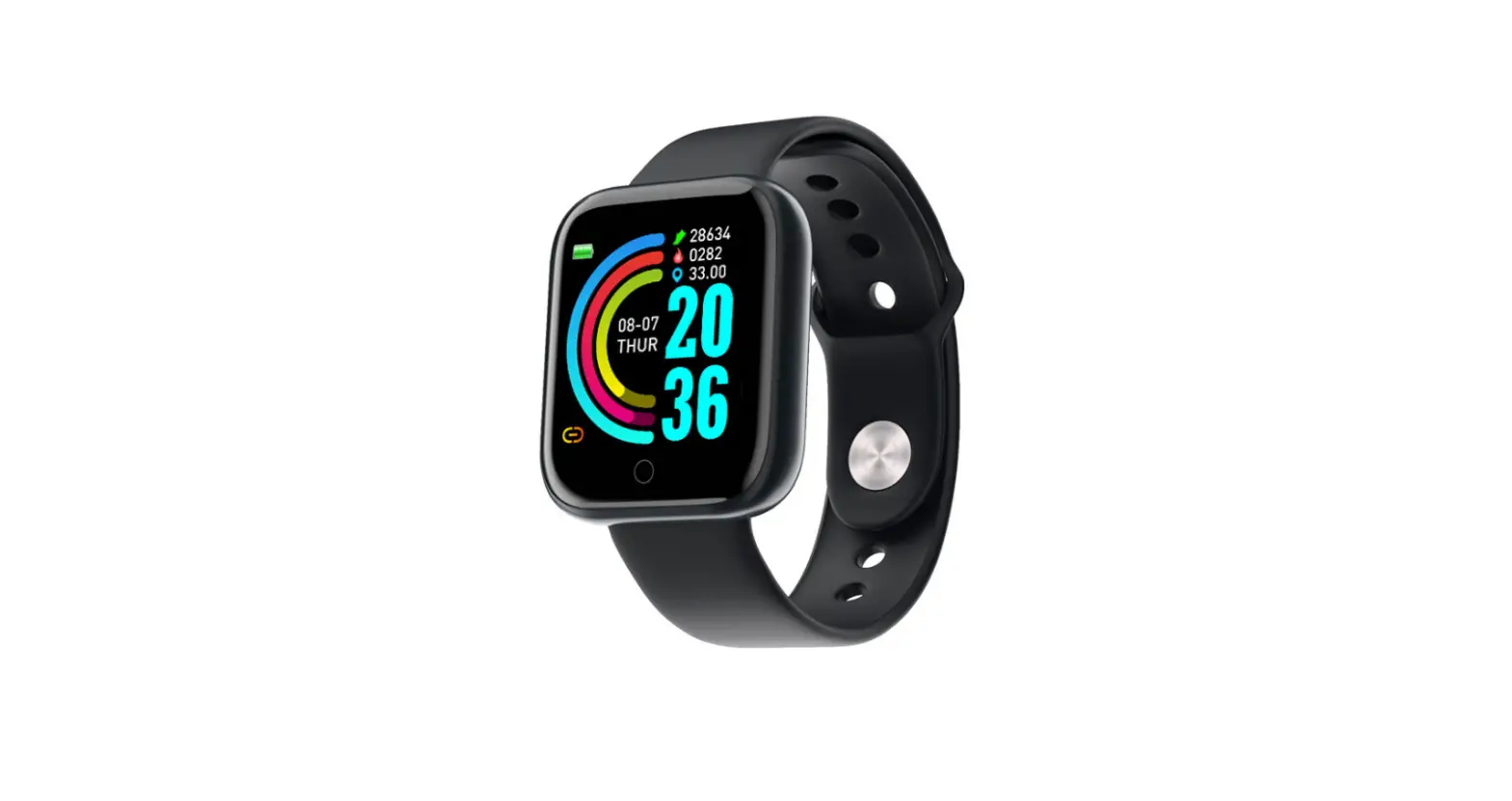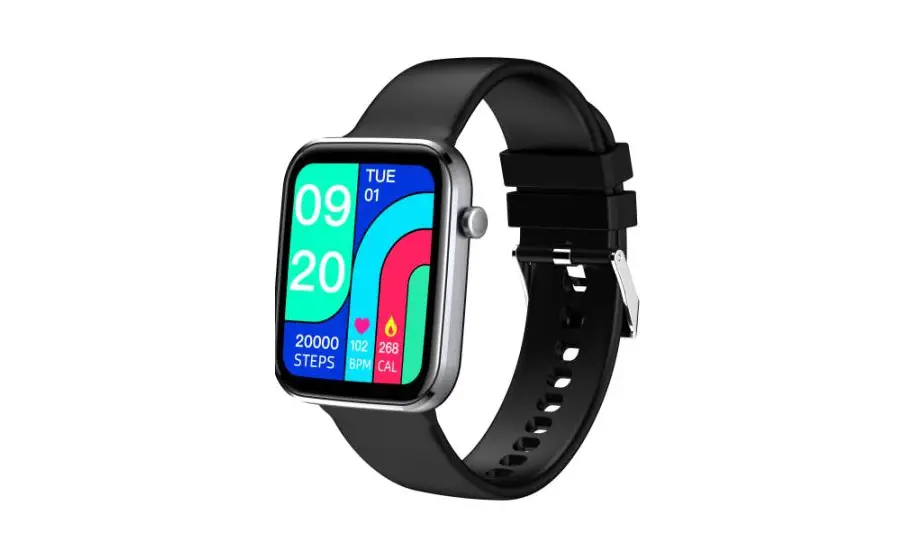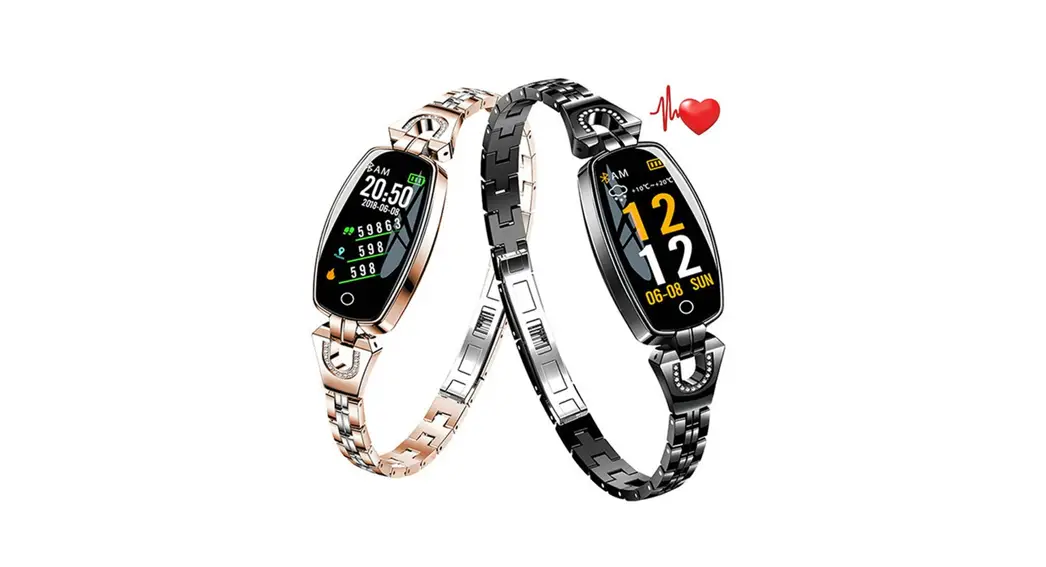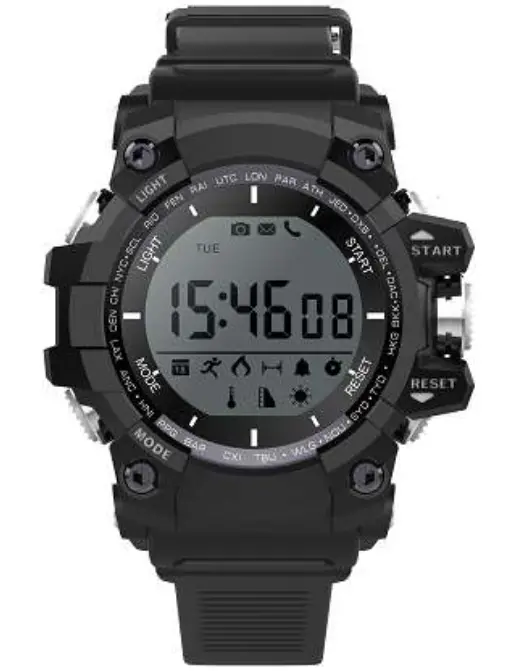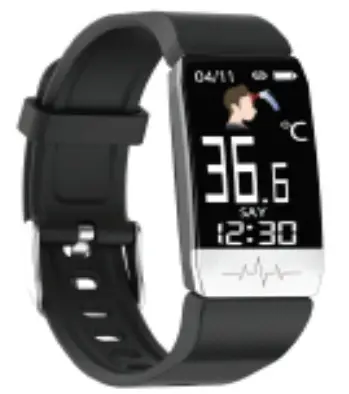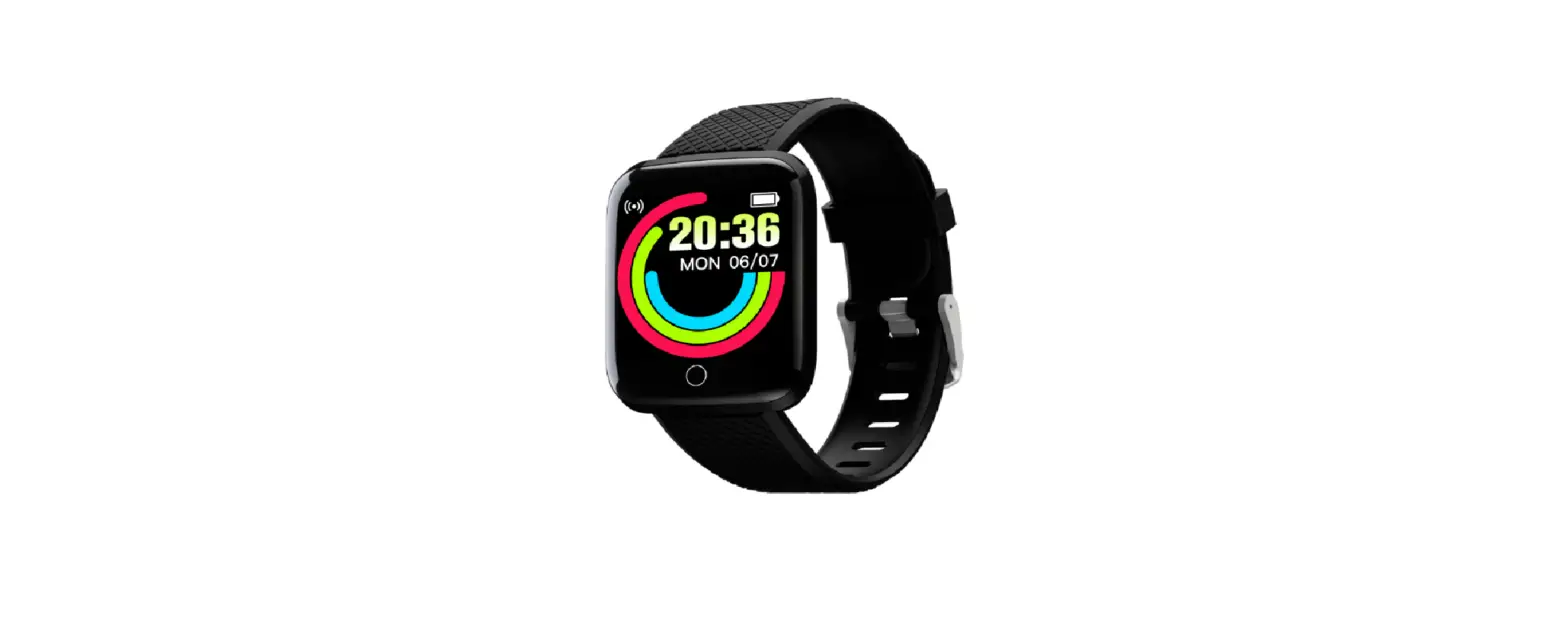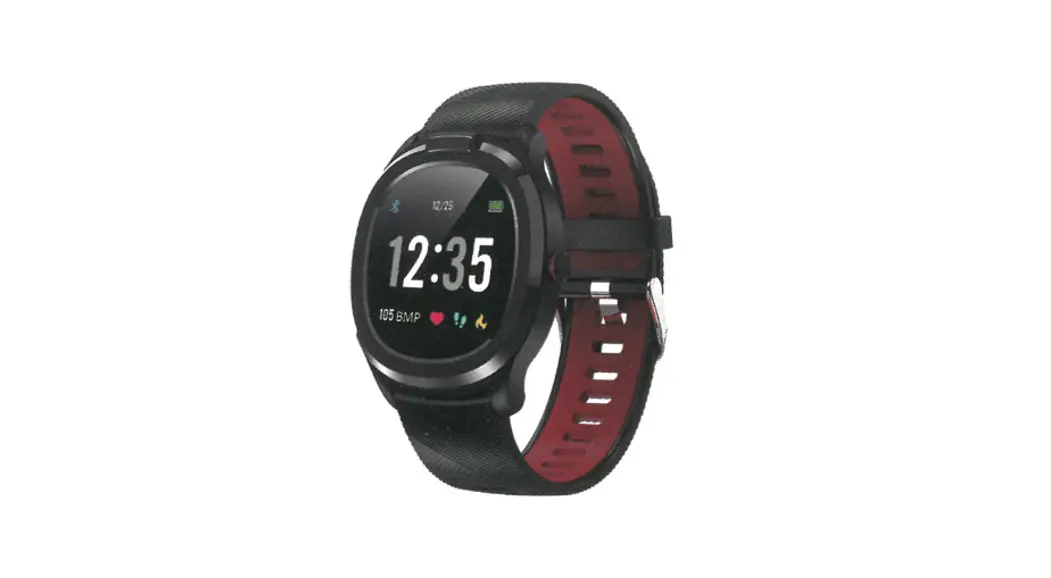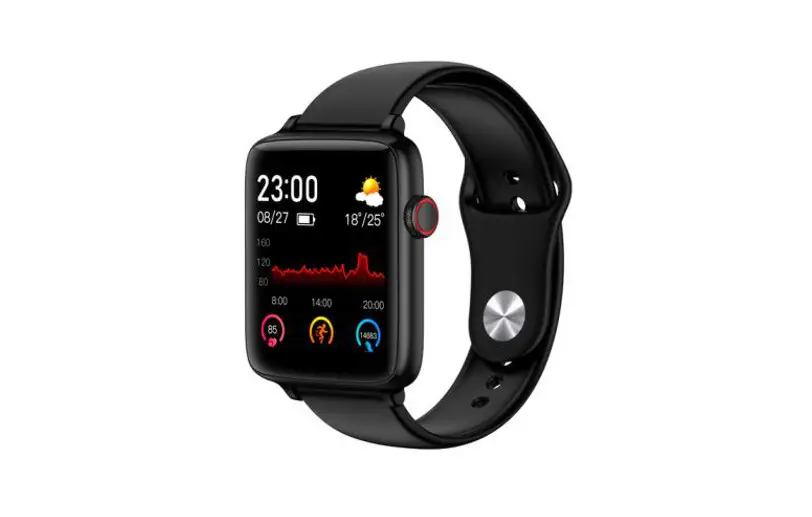

User Manual of Smartwatch
Please read the user manual carefully before use
Notice for Use
- Smartwatch can detect real-time and dynamic heart rate and blood pressure, but it can’t be used for any medical function;
- Charging: please charge the smartwatch before use and ensure that its fully charged. Please confirm that 2 vibrating needles of magnetic-type charger align with 2 charging contacts of host or insert charging clip to USB adapter (adapter 5V 500mA). Please ensure that there is no dirt, oxidization and impurities on metal contacts. There will be a charging icon on the screen of the smartwatch while being charged. If not using the smartwatch for a long time, please charge it every three months.
- Please do not charge with a power adapter with an output current exceeding 2A; otherwise, the smartwatch will be damaged.
- Please do not shower the smartwatch with hot water or put the smartwatch under high temperature; otherwise, it will damage the water-proof performance of the smartwatch.
- Please do not charge under the condition of humidity or being stained with water.
Operation Diagram
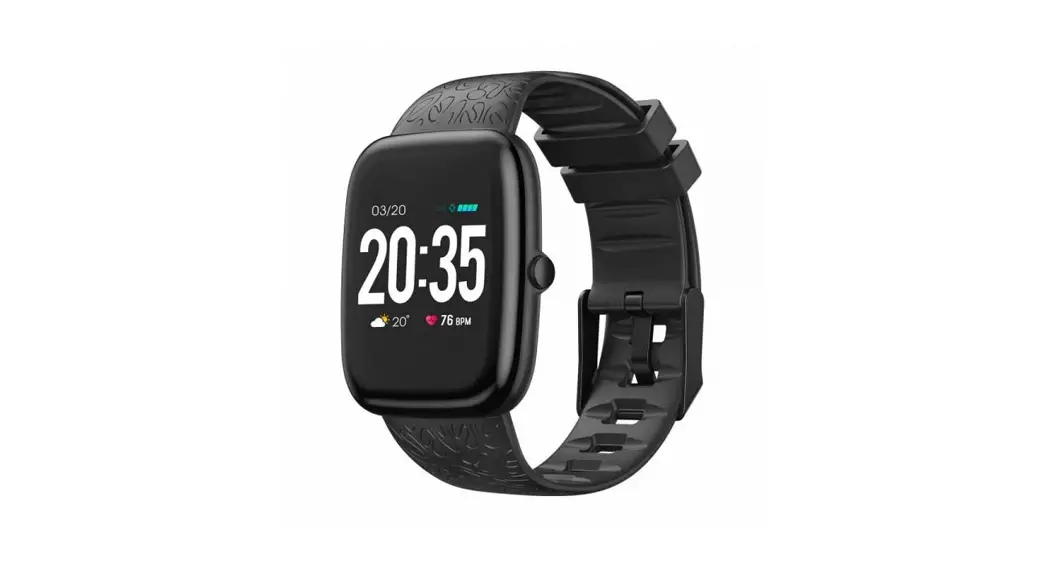
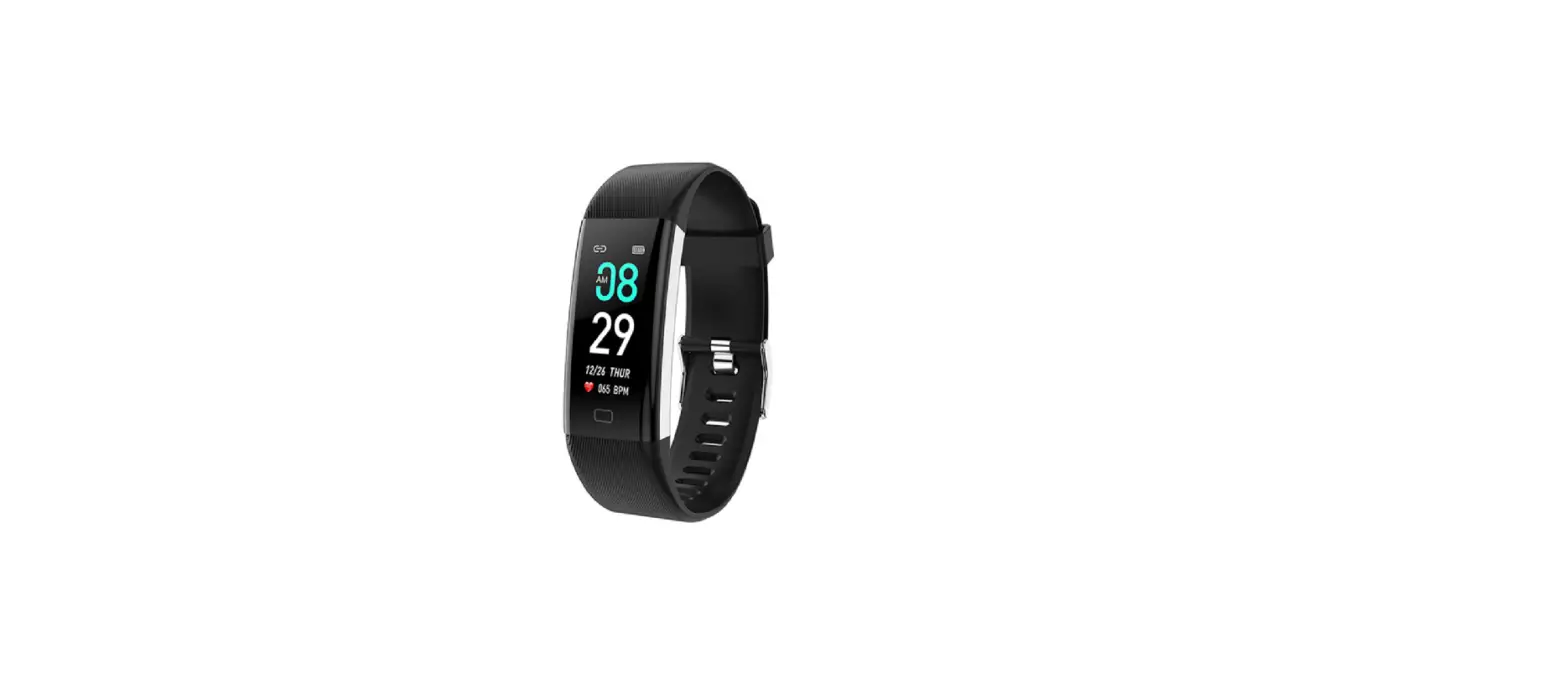
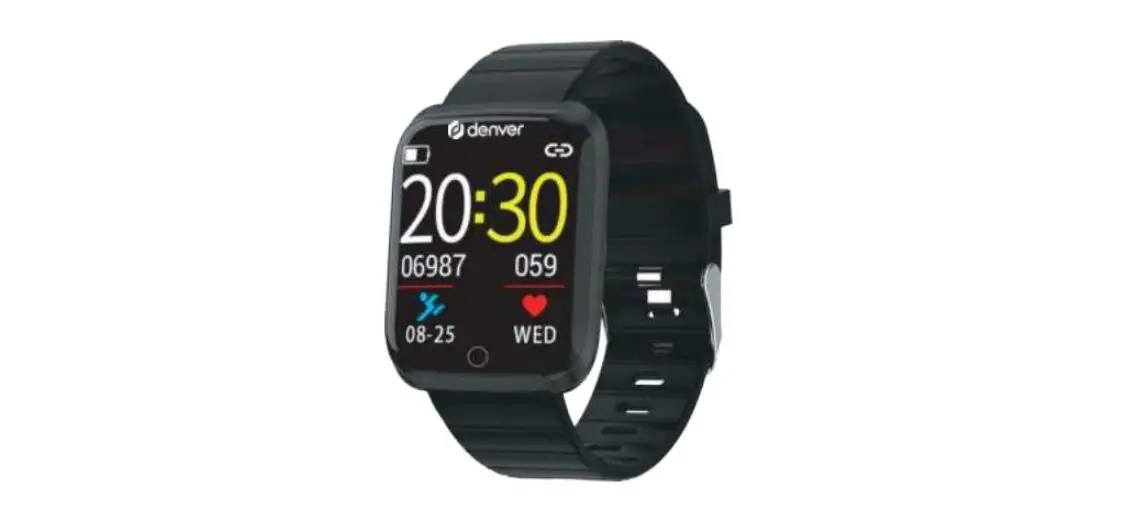
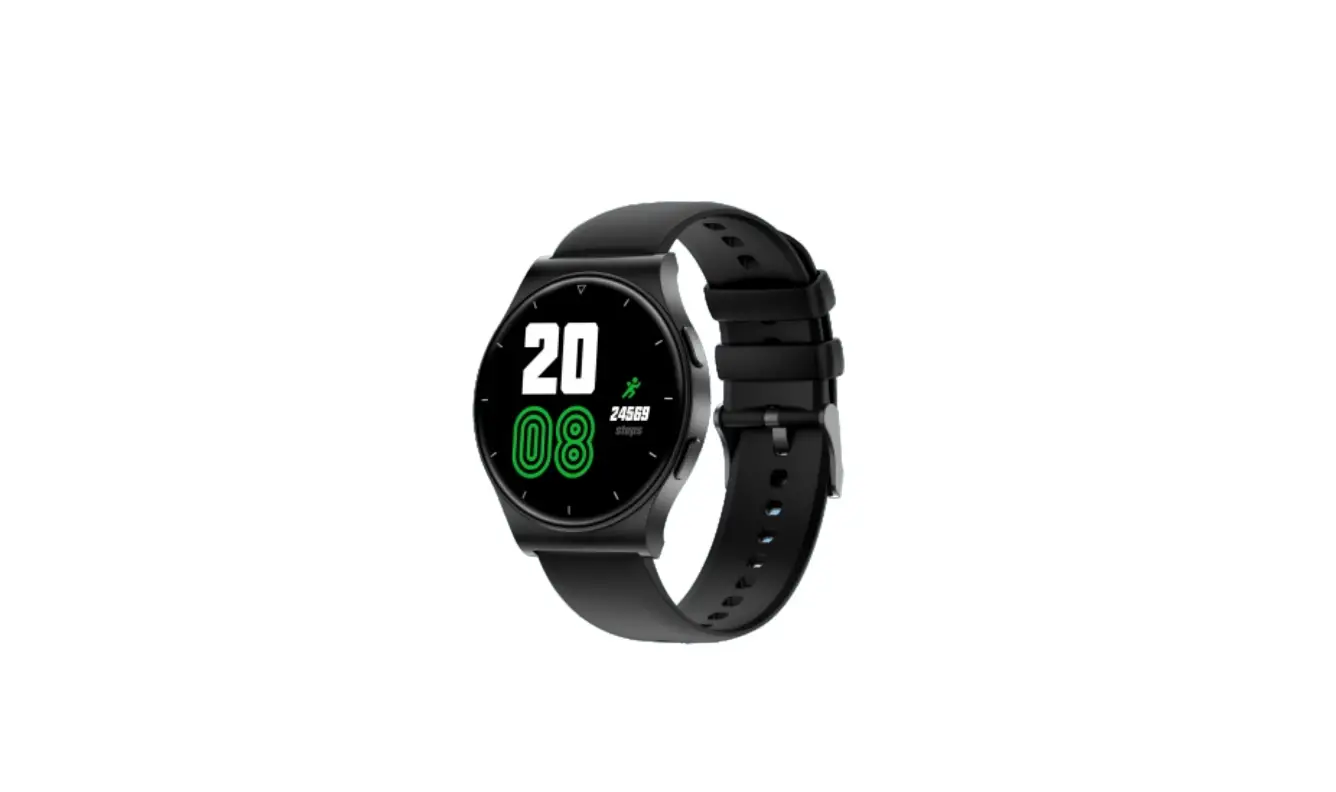
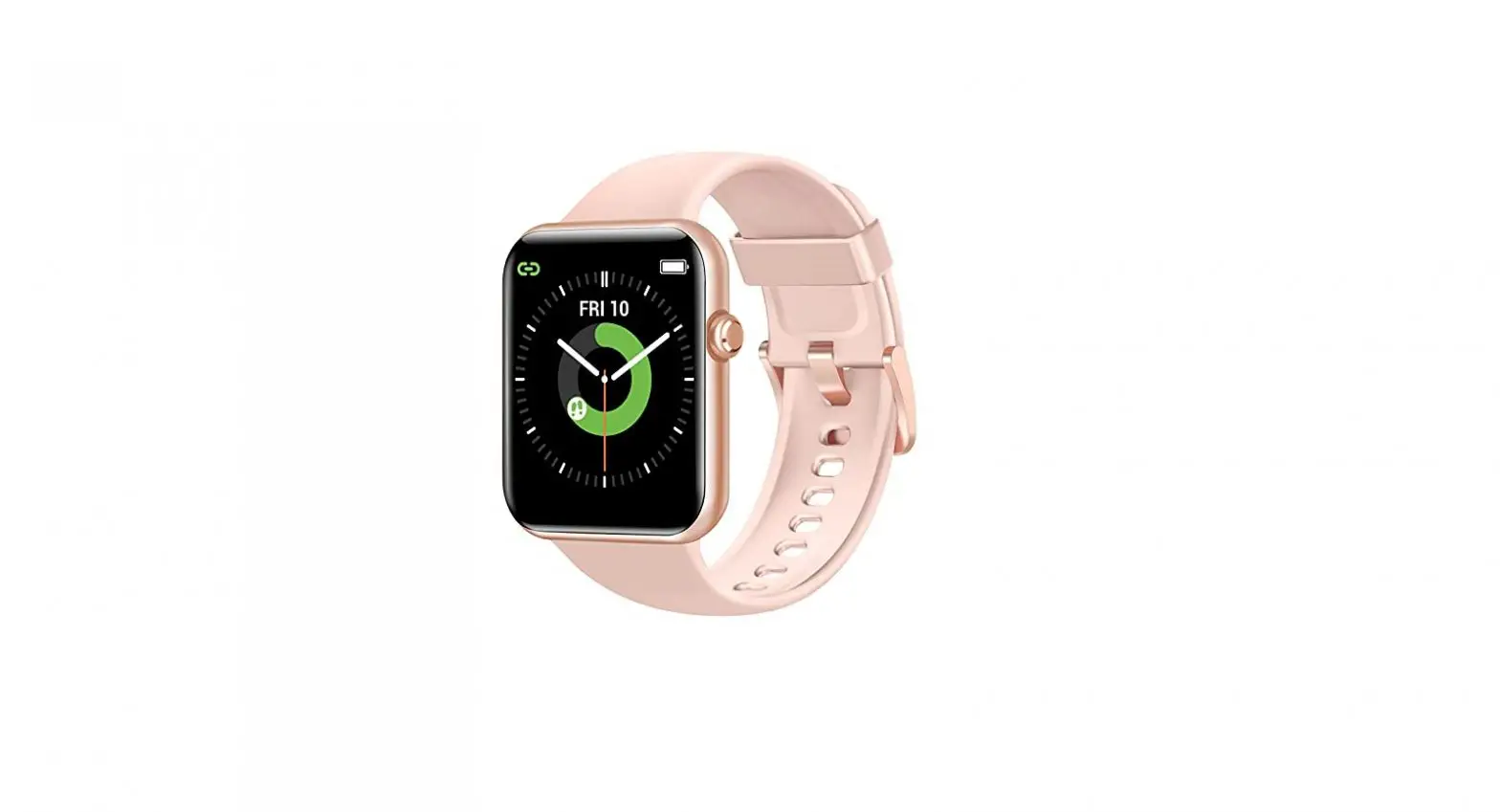
- Smartwatch

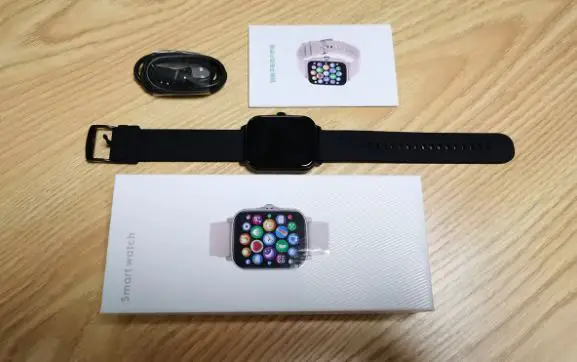
- Packing list
a. Smartwatchi1 c. User manual*1
b. Packing box’) d. Charging base*1
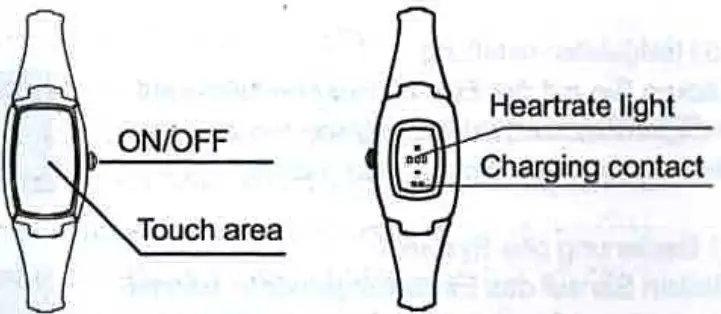
Note: the product supports full-screen touch operation and operation is shown as an above diagram;
Key: a. long press for ON/OFF b. short press to extinguish/awaken the screen
APP Installation & Bluetooth Connection
Please search “F Fit in Myapp and Google Play on Android mobile or APP Store on iPhone; or scan below QR code to download and install App.
Note: Android supports 4.4 and above; IOS supports 8.0 and above; Bluetooth hardware 4.0 and above. Bind smartwatch. Click selection of binding device and find out the device to be connected. If there are several devices nearby, select the MAC address of your own smartwatch to bind. If the smartwatch binds with mobile successfully, there will be a Bluetooth icon on top of the smartwatch.
 | 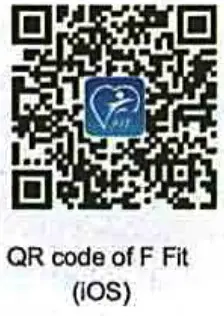 |  |
| https://play.google.com/store/apps/details?id=com.zjw.ffit | https://itunes.apple.com/app/id1466929052 | http://android.myapp.com/myapp/detail.htm?apkName=com.zjw.ffit |
Product Parameters
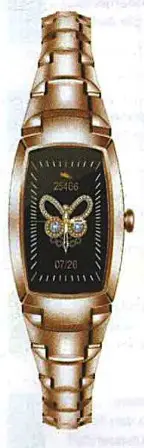
Bottom case: IML
Bluetooth: BLE 5.1 Main control chip: dialog14695
Screen size: 1.08 inches, IPS color screen
Battery capacity: 100mAh
Battery type: polymer lithium battery
Service time: 10-15 days
Waterproof level: IP67
Charging way: magnetic
charging base Working temperature: 0-40C
Compatibility
Above IOS 8.0
Android 4.4 and above
Apply to most mobiles on the market
Function Introductions
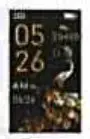
- Switch main interface Slide down to settings interface, click to enter, and then switch the main interface.

- Status Slide down to status interface, click to enter, and then view current steps, calorie, and distance.

- Heartrate Slide down to the heartrate interface, click to start the test and then view heartrate data.

- Blood pressure Slide down to the blood pressure interface, click to start the test and then view blood pressure data.

- Blood oxygen Slide down to the blood oxygen interface, click to start the test, and then view blood oxygen data.

- Exercise Slide down to exercise interface, click to enter, and select different exercises such as running. mountaineering, walking, cycling, football, basketball, table tennis and badminton, etc. Click certain exercises to test sports data.

Function Introductions - Information Slide down to the information interface, click to enter, and then view an unread message.

- Sleep Slide down to sleep interface, click to enter, and then view sleep score on the previous night. If there is no sleep record, it will prompt “no sleep data”. Remark: sleep record is from 18:00 to 10:00.

- Settings Slide down to settings interface, click to enter, and view different functions such as dial switch, brightness adjustment, system operation and about, etc.

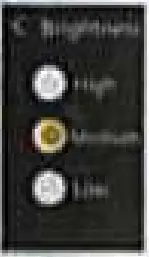
- Brightness adjustment On the settings interface, click brightness adjustment and select three brightness levels: “high, middle, low”.

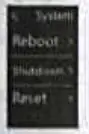
- System operation Click settings menu, slide down to enter system operation, including restart, shutdown and factory reset, etc. Function Introductions

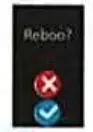
- Restart Click settings menu, slide down to enter system operation. Click restart and the system will prompt if restart interface. Click”N” to restart and “x” to exit the prompt interface and return to the main interface

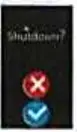
- Shutdown Click settings menu, slide down to enter system operation. Click shutdown and the system will prompt if shutdown. Click “.I” to shut down and “x” to exit the shutdown interface and return to the main interface.

- Factory reset Click settings menu, slide down to enter system operation. Click factory reset and the system will prompt if restore factory setting. Click “Ni” to restore the factory setting and “x” to exit the factory reset interface and return to the main interface. Remark: click factory reset to clear data and settings.Function Introductions

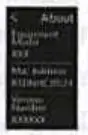
- About Click settings menu, slide down to enter system operation. Click about to view the device name, MAC address, and version number.

- Tool Slide down to tool interface and click to enter different functions such as music control, stopwatch, timer and find mobile, etc
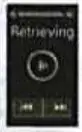
- Music control Click tool icon and then music control icon to enter music interface for previous song, stop/play, next song. Slide volume control bar to control volume. Remark: to control music on mobile, APP shall connect with mobile normally.

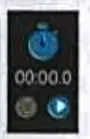
- Stopwatch Click tool icon and then stopwatch icon to enter timer interface. Click the start icon to start timekeeping and click the stop icon to stop the current record time.
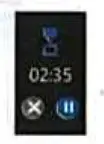
Function Introductions - 11mer Click tool icon and then timer icon to view required countdown or customize countdown.

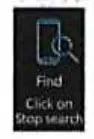
- .Find mobile Click the tool icon and slide down to click find mobile, then the mobile will vibrate. Remark: APP shall connect with mobile normally..

- .QR code: slide down to QR code interface click to enter, including QR code for 10S, Myapp and Google Play, scan QR code to download “F FIT”.