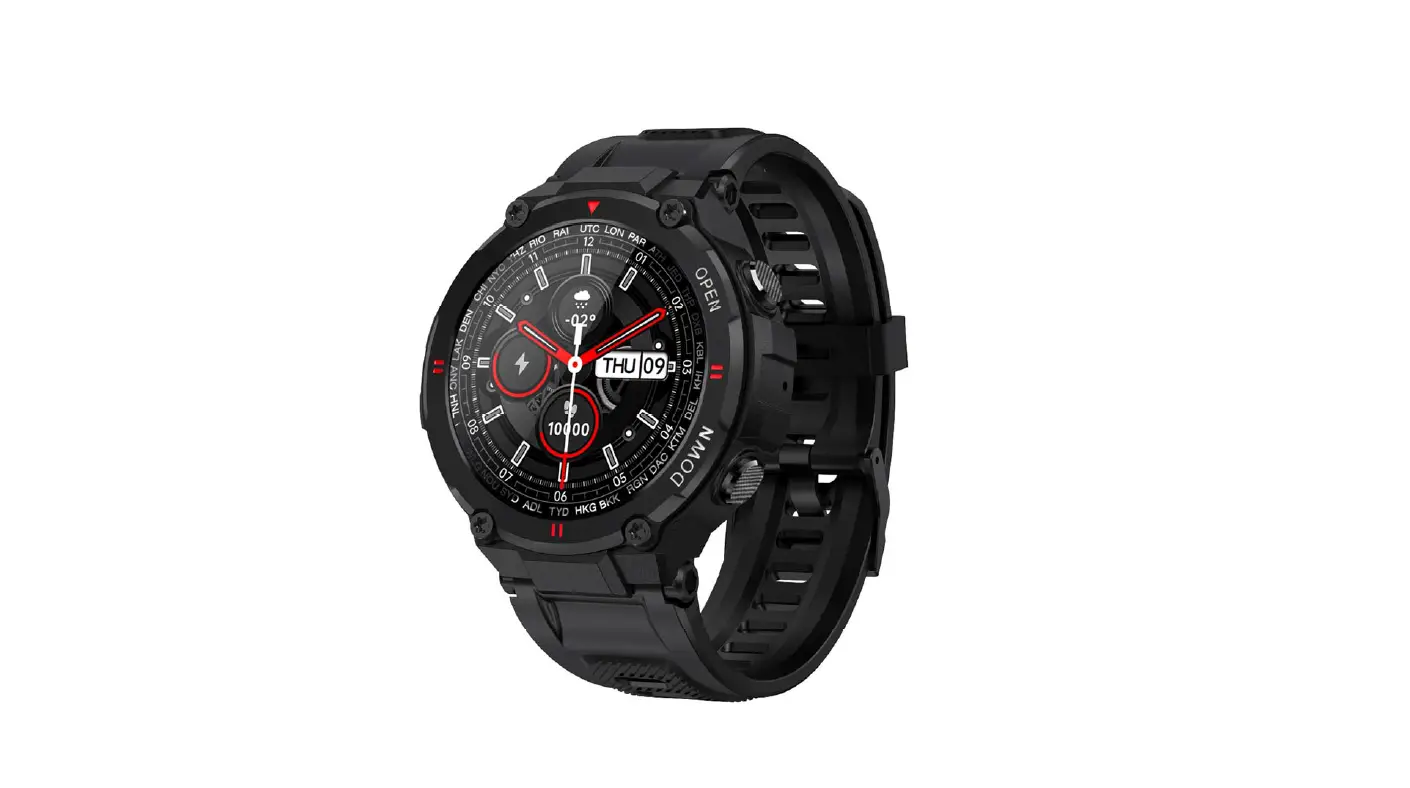
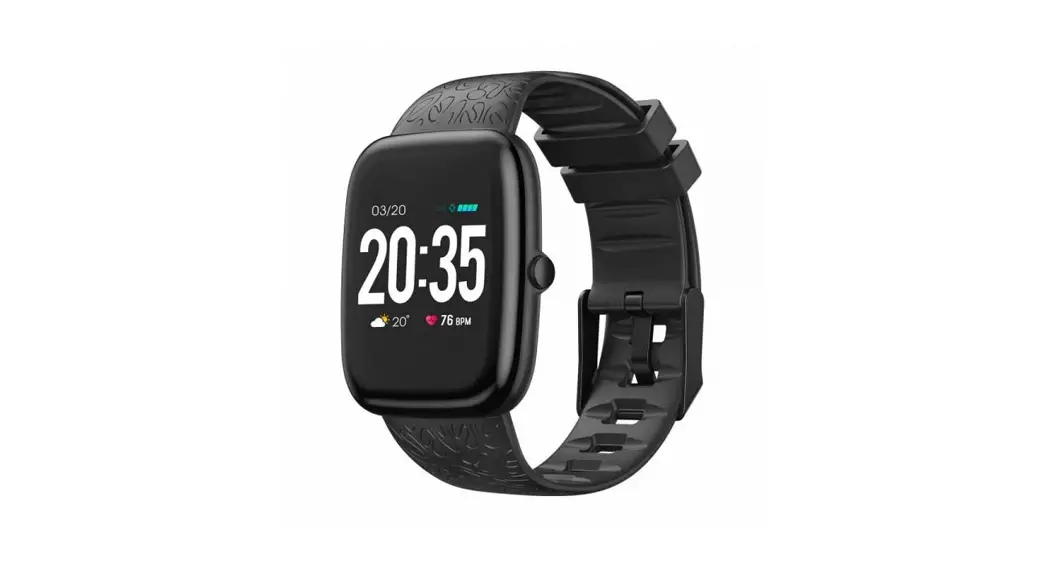
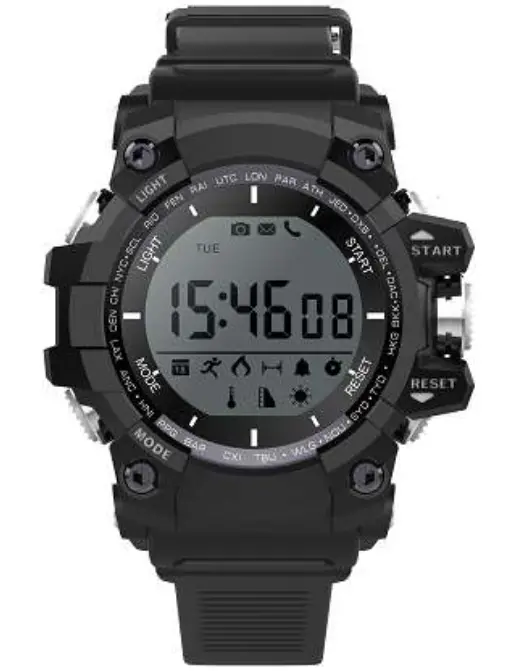
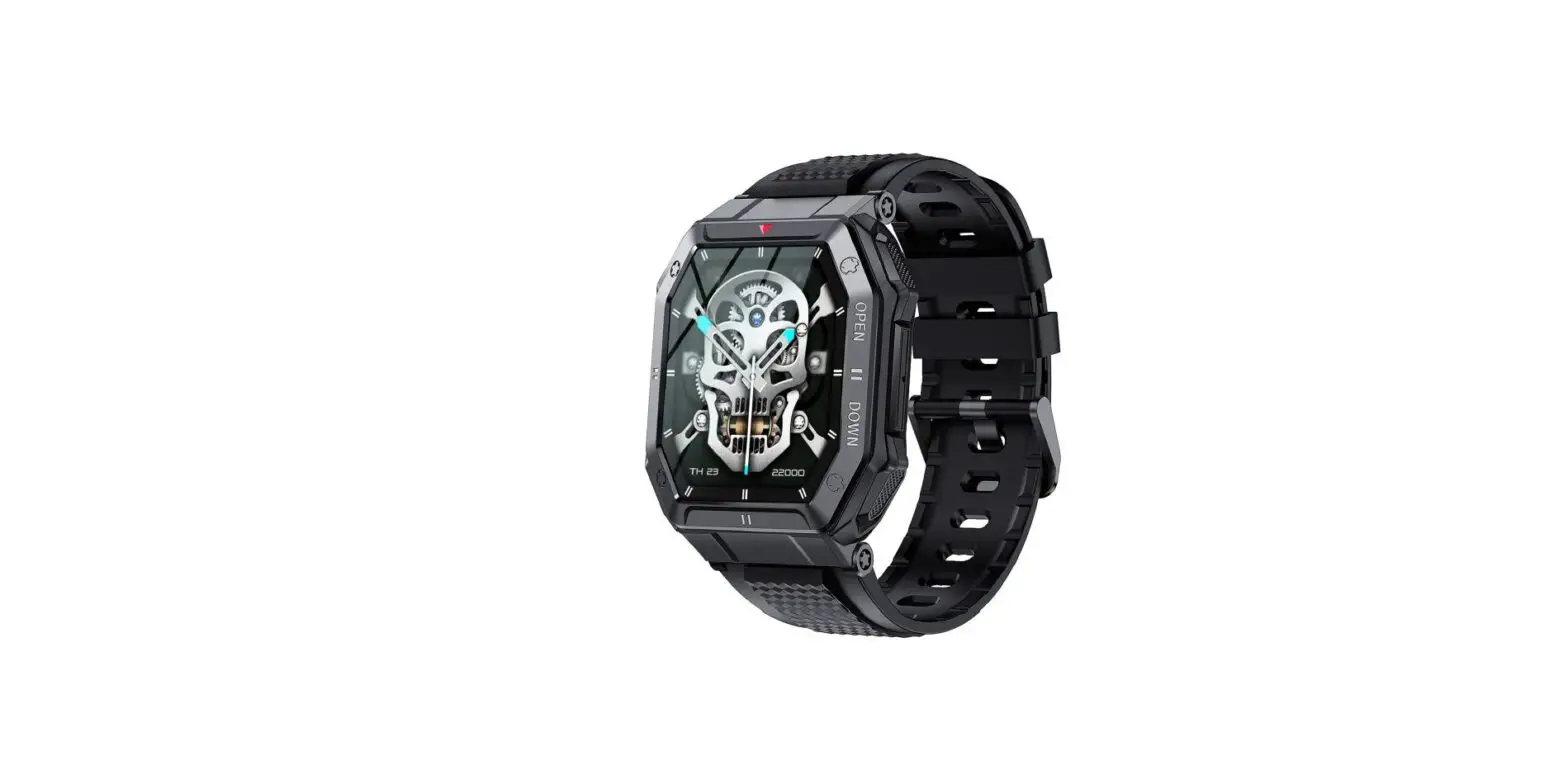
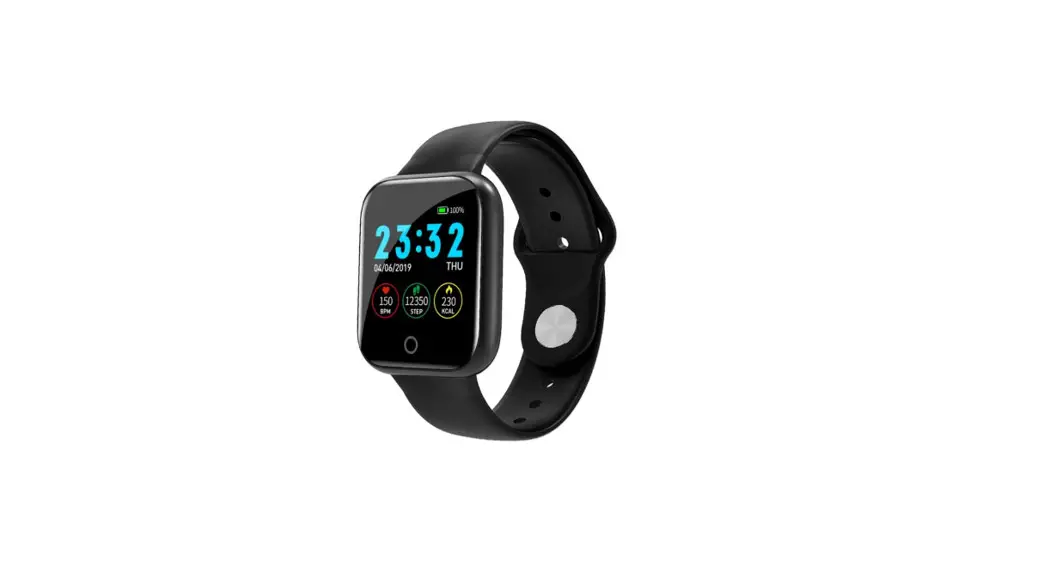
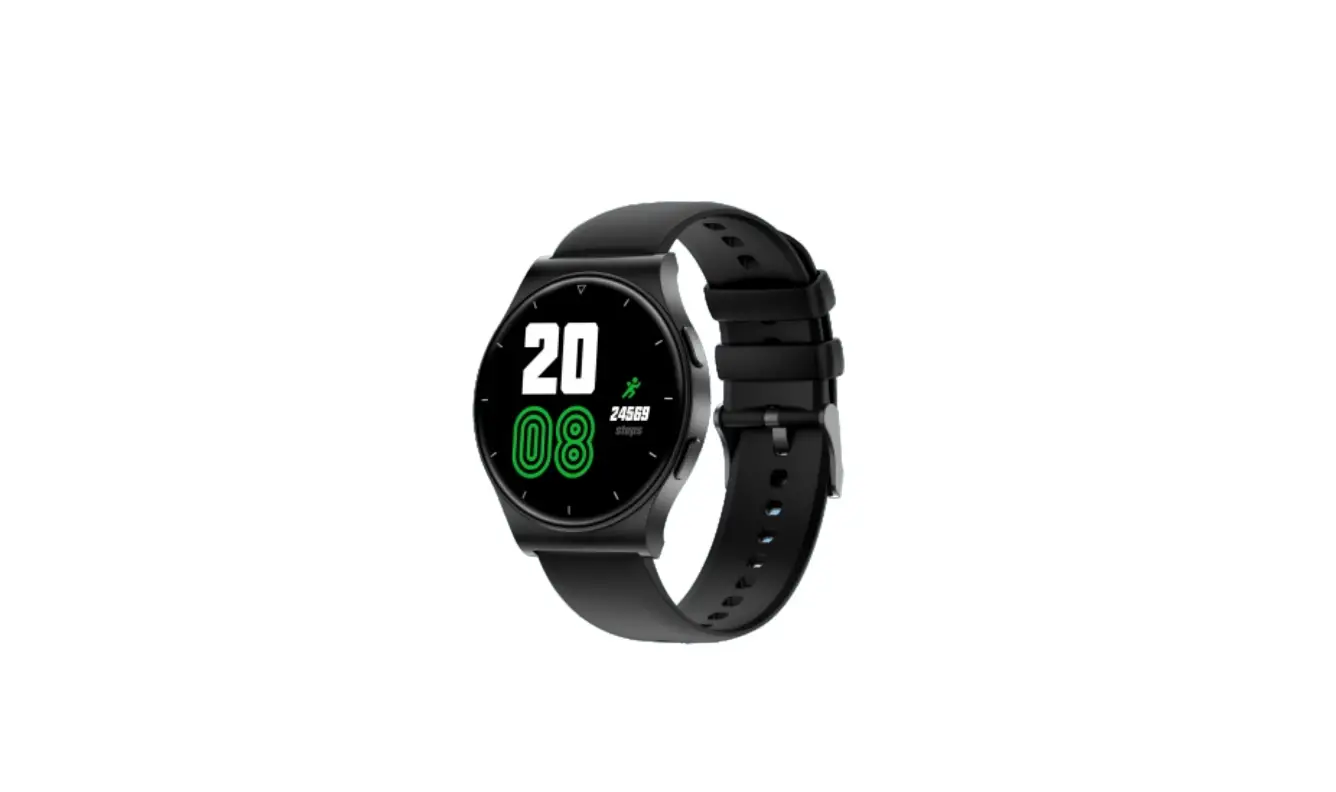
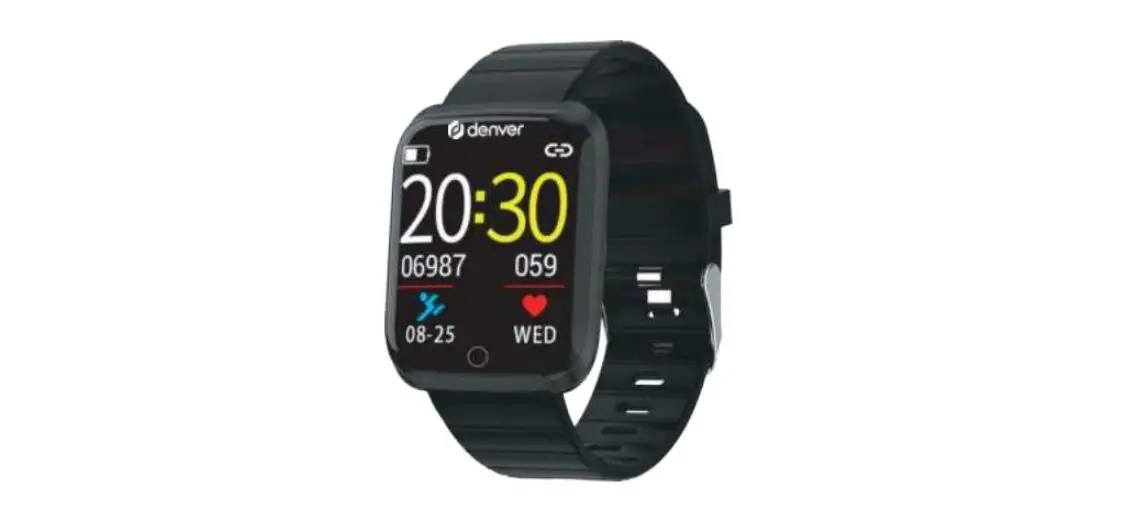
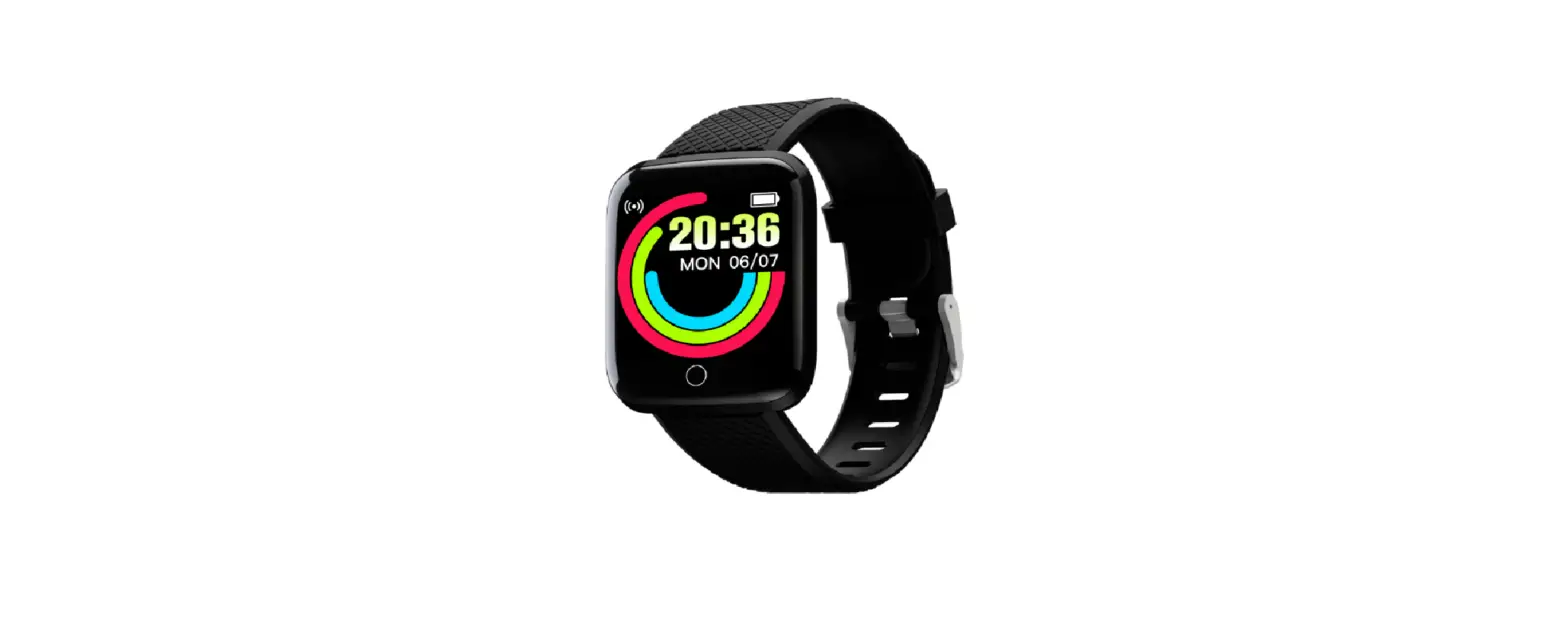
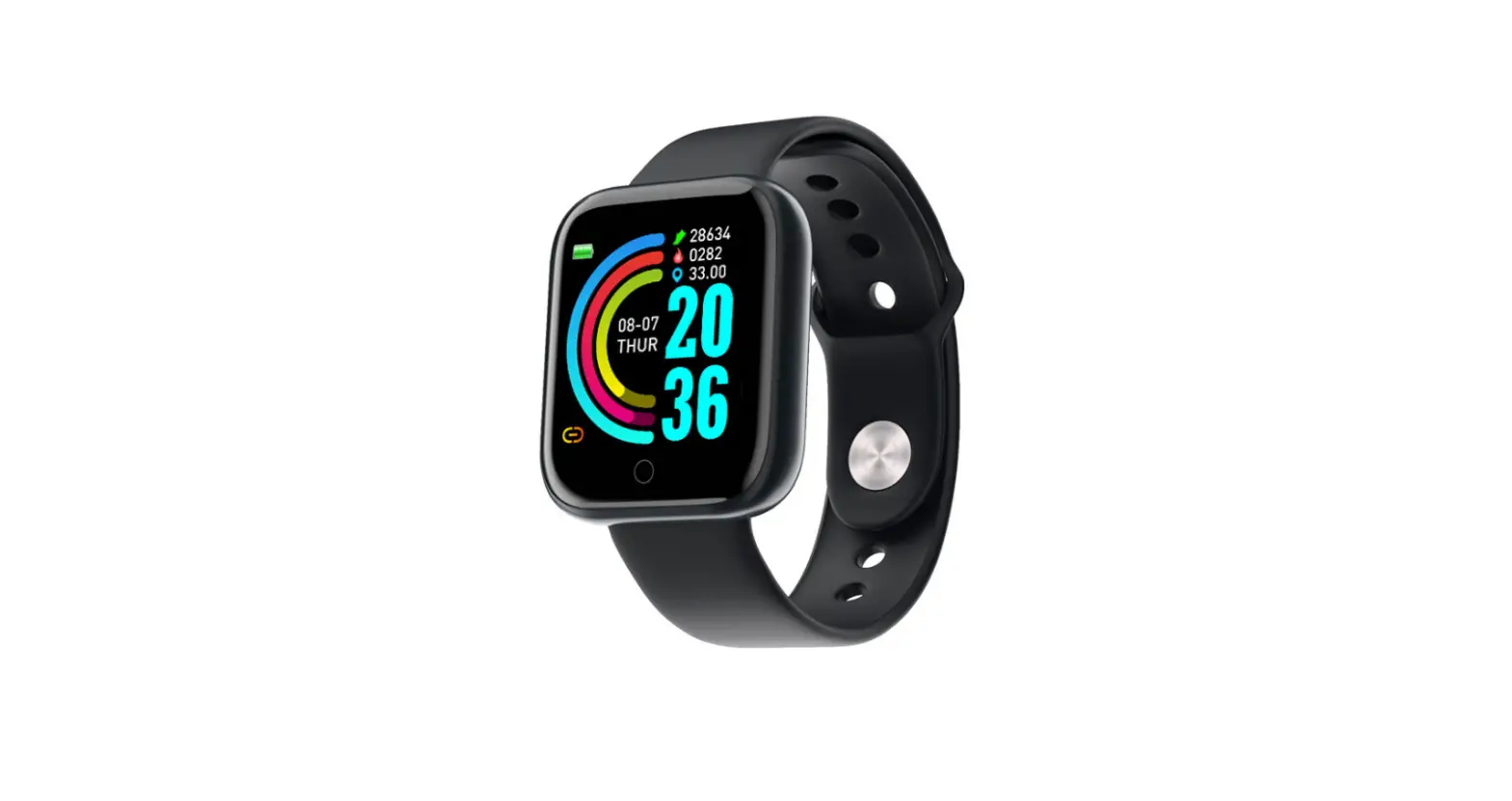
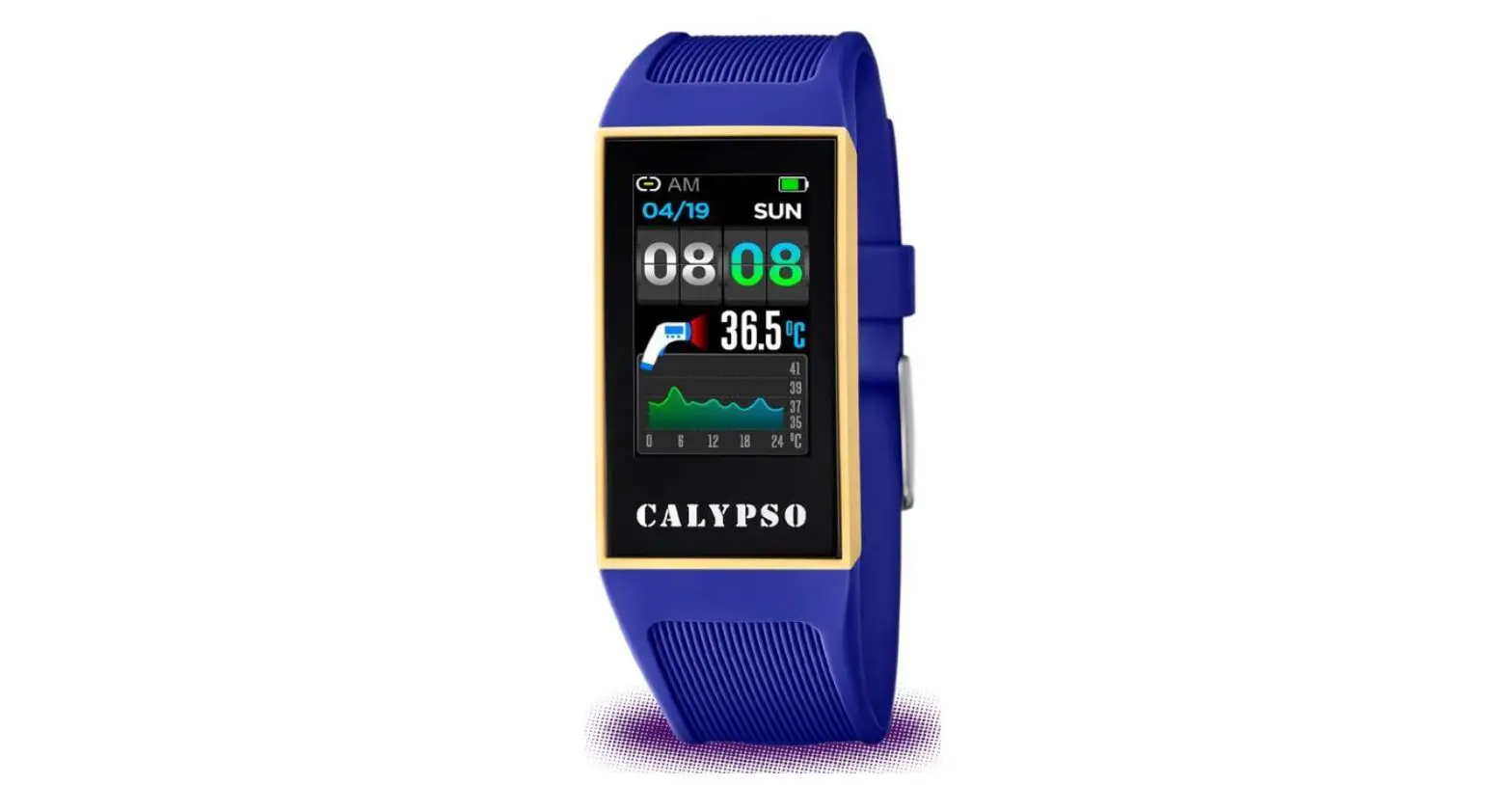
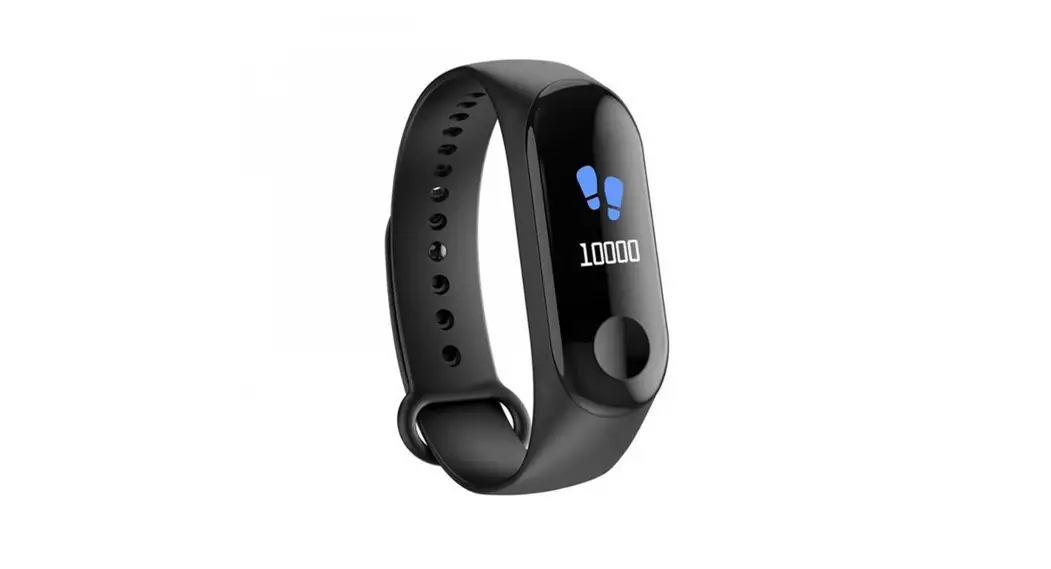
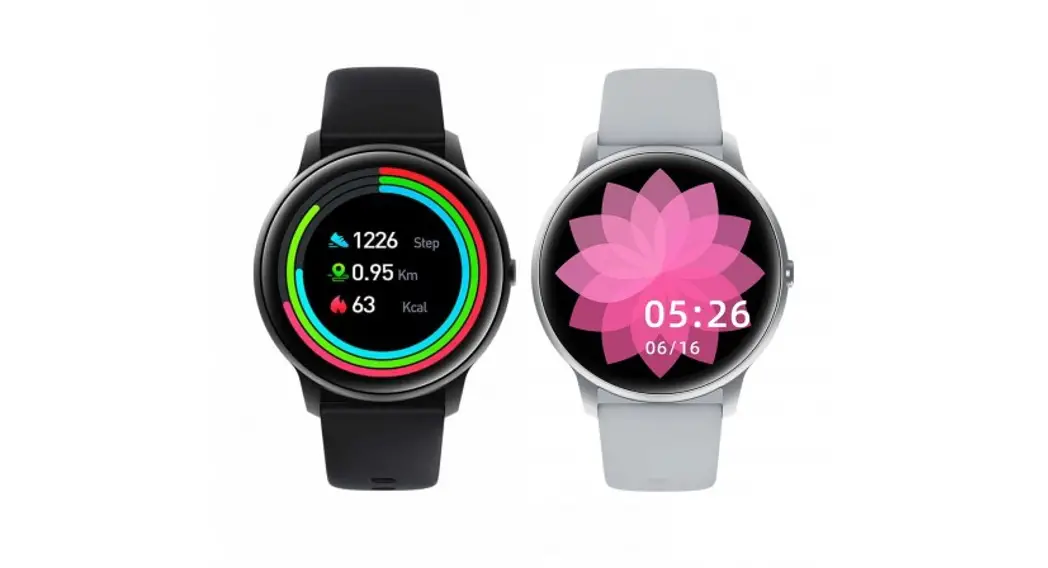
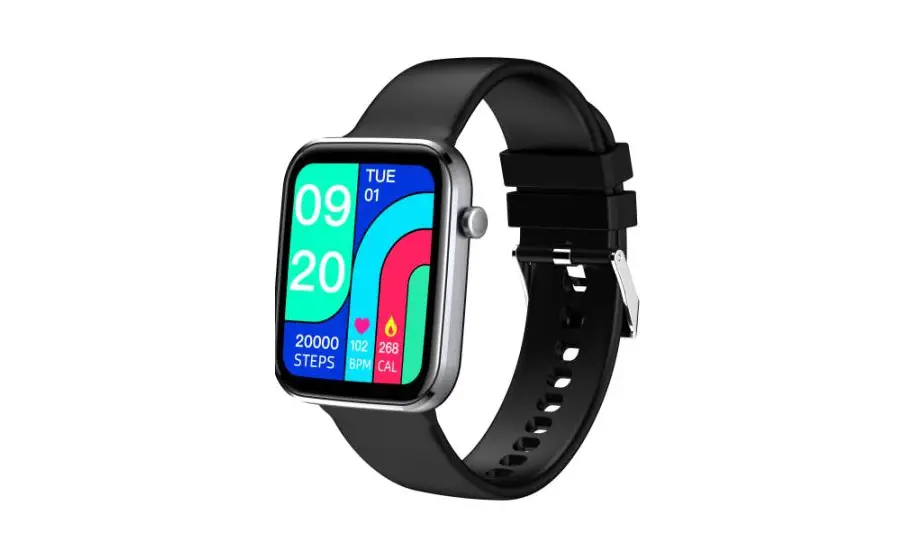
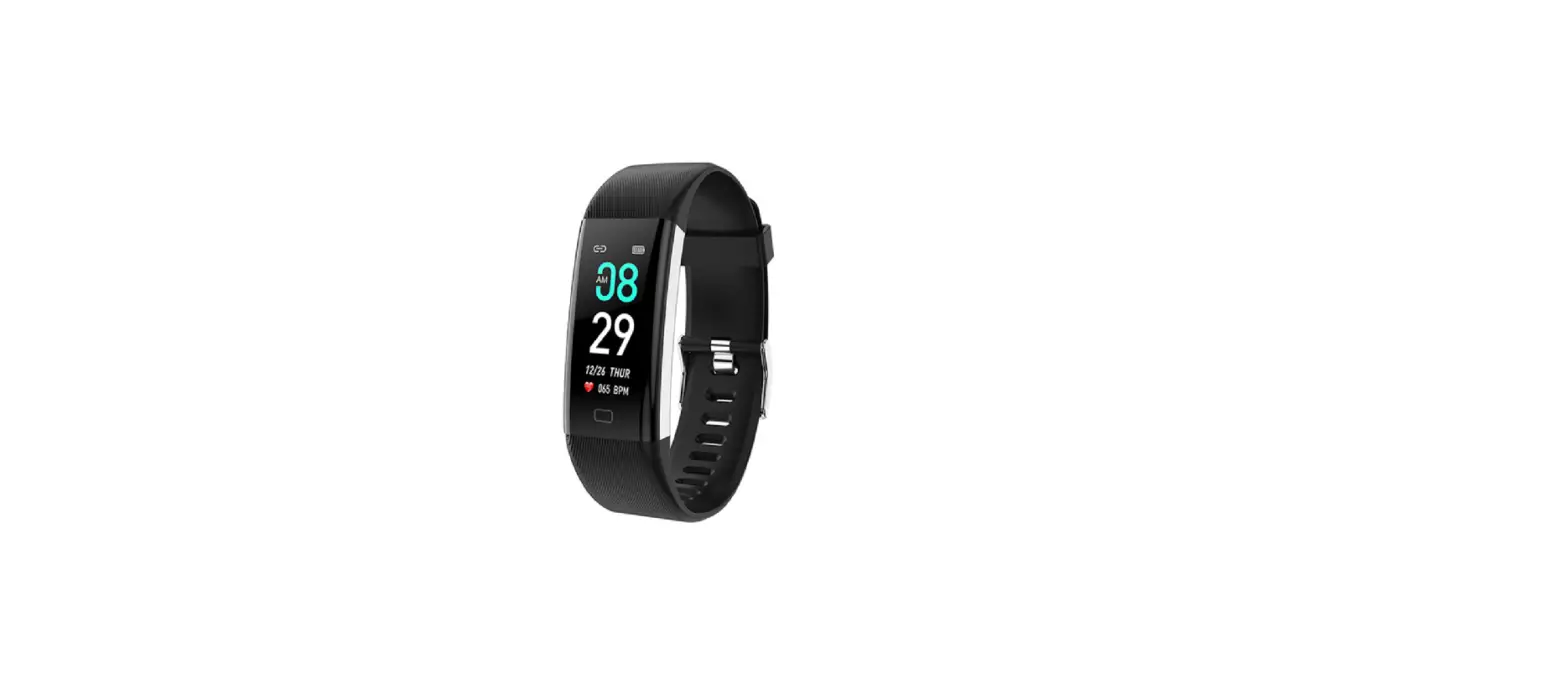
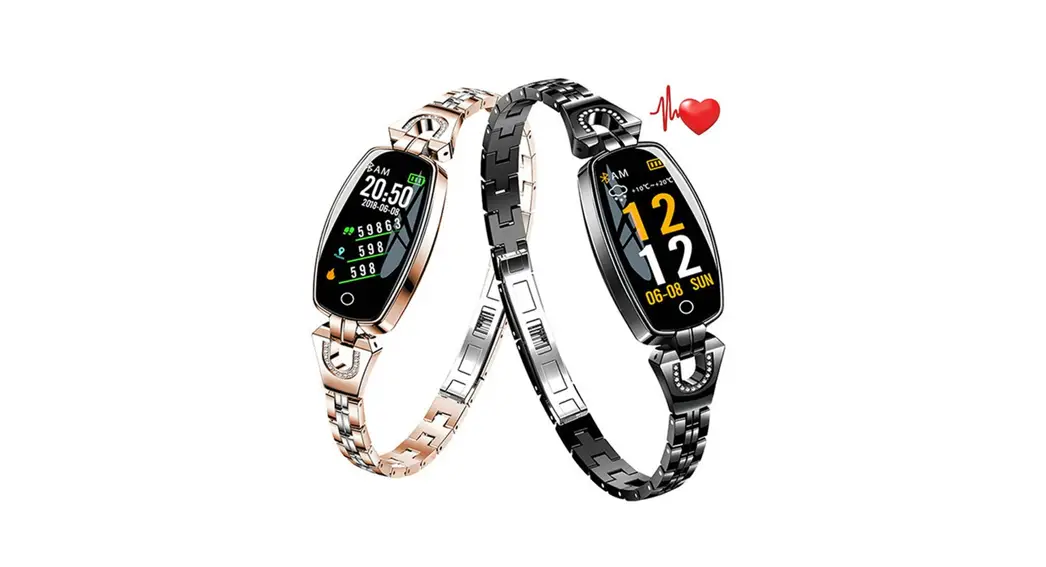
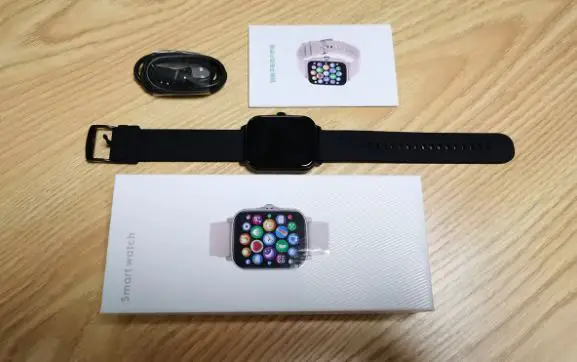
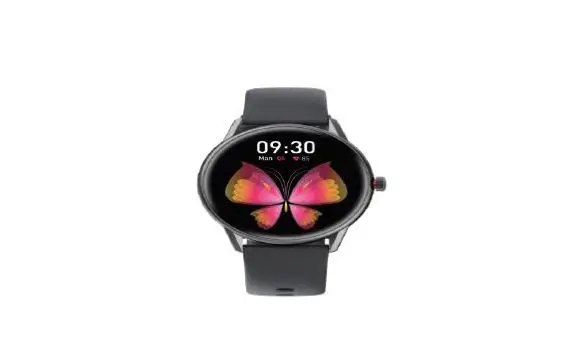
K57 Pro Smart Bracelet Watch
Product Information:
The Smart Bracelet is a wearable device that tracks various
health and fitness metrics. It is compatible with Android 4.4 and
above, as well as iOS 8.0 and above. The device can be connected to
a mobile phone via Bluetooth and controlled through the FitCloudPro
app.
Smart Bracelet Functions:
- Time Interface: The device displays the time and can be turned
on/off by pressing the home key. - Switch Watch Face: The user can choose from four interface
options and even replace the dial with user-defined pictures or
photos through the FitCloudPro app. - Activity Records: The device can track steps and other
activity-related data. - Sleep Monitor: The device can monitor sleep patterns between
20:00PM and 10:00AM. - Exercise: The device can track exercise sessions.
- Heart Rate Monitor: The device can measure heart rate.
- Blood Pressure Detection: The device can measure blood
pressure. - Blood Oxygen Detection: The device can measure blood oxygen
levels. - Weather: The user can check the weather information for the
current week by sliding up the screen. - Player: The user can control music playback on their mobile
phone through the device. - Notifications Push: The user can receive notifications from
social apps like Facebook, Twitter, Skype, etc. (Note: Android
users need to enable notifications for the FitCloudPro app in their
phone settings).
The device has a pop-up menu that can be accessed by sliding
down the screen from the main watch dial. It includes options such
as Phone, About, Menu View, Vibration or Mute Mode, Brightness
Adjustment, and Setting.
Functions on FitCloudPro App:
- Data Sync: All measured data from the smart bracelet will be
synced to the mobile phone through the FitCloudPro app. - Smart Bracelet Connection Interface: Users can manually replace
user-defined pictures or photos for the watch faces through the
app. - Notifications: Users can enable push notifications for social
apps like WeChat, Facebook, WhatsApp, Twitter, etc. - Alarms: Users can set alarms through the app.
- Shutter: Users can control the camera shutter on their mobile
phone through the app. - Others: The app offers additional features such as finding the
smart bracelet, setting time formats, enabling sedentary reminders,
full-day heart-rate monitoring, quick view screen, weather display,
drink water reminder, and physiological cycle reminder.
Product Usage Instructions:
- Before using the Smart Bracelet, make sure to fully charge
it. - Download and install the FitCloudPro app by scanning the
provided QR code or searching for it on the App Store (for iOS) or
Google Play Store (for Android). - To turn on the device, long-press the home key.
- Enable Bluetooth on your mobile phone.
- Open the FitCloudPro app and tap “Add a device” to
connect. - On the watch, go to the phone menu and check the MAC address’s
last four numbers (e.g., 6326). - In your mobile phone’s Bluetooth settings, search for the
Bluetooth name that matches the last four numbers of the MAC
address (e.g., 6326) and connect to it. - After successful Bluetooth connection, you can access various
functions of the Smart Bracelet. - To turn off the device, go to the time interface and press the
side button for 3 seconds, then click the power icon. - To switch watch faces, long-press the screen when on the main
watch face. - Use the FitCloudPro app to customize settings, sync data,
enable notifications, set alarms, control the camera shutter, and
access additional features.
Note: Make sure to activate and save the related setup for the
functions to work properly. For Android users, enable notifications
for the FitCloudPro app in your phone’s settings.
Smart Bracelet User Manual
Please make a full charge before use it. APP: FitCloudPro
Download APP
1.1 Long press home key to turn on. 1.2 Scan below QR code to install FitCloudPro APP,Or download”FitCloudPro”from App Store, Google Player then install it.
Compatible System: Android4.4 and above iOS 8.0 and above
BT Calling Version connecting
Step1Turn on mobile phone Bluetooth Step2Open”FitCloudPro”APPTap”Add a device”to connect . Step3 : Turn on phone menu on the watch.
Step4: Check watch menu”about”MAC address last four number like “6326”, then go mobile phone “setting-bluetooth” to search the same bluetooth name with last 4 numbers “6326”to finish BT connection as below operation.
2.Smart bracelet Functions 2.1.Time Interface 2.1.1 Power on Long press OPEN key for 3 seconds. 2.2.2 Power offOn the time interfacepress “OPEN”side button for 3 seconds, then click” ” icon to turn off 2.2.3 Switch watch faceLong press the screen
based on main watch face,4 interface options,and the 4th dial can manually replace user-defined pictures or photos on the APP 2.2.Functions menu 2.2.1.Activity recordsStep records) 2.2.2.Sleep monitor Sleep monitor period: 20:00PM to 10:00AM Pls make sure weared the bracelet device
2.2.3.Exercise
2.2.4.Heart Rate monitor 2.2.5.Blood Pressure Detection 2.2.6.Blood Oxygen Detection
2.2.7.WeatherSlide up screen can check this week weather information)
2.2.8.Player Enter BT music,click middle icon to pause or continue tap left icon to play last songtap right icon to play next song
2.2.9.Notifications pushTurn on FitCloudPro app”Notifications” social app like Facebook,Twitter,Skype etc, Pay attention on Android mobile phone setup: FitCloudPro app/Notification/Accessibility to turn on”FitCloudPro”
3.Pop-up menu Slide down screen from main watch dial
3.1. Phone 3.2. About 3.3. Menu view 3.4. Vibration or mute mode 3.5. Brightness adjustment 3.6 Setting
4.Functions on FitCloudPro App 4.1.Data sync All measured data from smart bracelet will be sync on mobile phone FitCloudPro app eg: step,sleep monitor,heart rate,blood pressure,blood oxygen and other data as below Pic. 4.2.smart bracelet connection interface 4.2.1 Watch Faces users can manually replace user-defined pictures or photos)
4.2.2 NotificationsTurn on social apps message push like We Chat, Facebook, Whats’App, Twitter etc) 4.2.3.Alarms 3 options
4.2.4.Shutter
4.2.5.Others Find my smart bracelet, Time
formats, Setting time of no disturbing,
Sedentary
reminder,Full-day
hear-rate
monitor Quick View screen, Weather,Drink
Water reminder,Physiological cycle reminder
A. Power on “Find my bracelet” mode,the bracelet will vibrate when the Bluetooth is connected successfully between mobile phone and smart bracelet. B.Time format 2 options of 12&24hours system C.Time format 2 options of 12&24hours system D.Setting mode of no disturbing E.Sedentary reminder(Valid period 10:00AM-22:00PM) F.Full day heart-rate monitor( Turn on it can detect your whole day heart-rate G. Quick view screen: wake up screenturn on
it and choose valid time period) H.Drink Water Reminder I.Weather Turn on the weather,choose the city you want or automatic location the band will show the located city’s weather ) J.Physiological cycle reminder NotesPlease kindly note above functions are working based on activated and saved the related setup 5Warm notes 5.1 Connect Bluetooth
5.1.1 Please power on your phone Bluetooth and turn on smart bracelet Bluetooth before connecting; 5.1.2 Please ensure your smart bracelet didn’t connect with other phone before connecting 5.1.3 Please keep close to you smart bracelet when you are connecting. 5.2 Please turn on mobile phone notifications and allow permissions to run in the background if your Mobile has installed ” Mobile manager ” or other similar Apps, otherwise you will not receive the messages. 5.3 Battery Recharge:Power adaptor : 5V 0.5~1A
Disclaimer
Warning: This product is not a medical device. The smart band and its applications should not be used in diagnosis, treatment or as a preventive treatment for diseases and sickness. Please consult medical professionals before changing exercise habit or sleep habit to avoid serious injuries. The manufacturer reserves the right to modify and improve any functions description in this user guide and continuous
update of the new content without further notice. This user guide is for reference only, the smart band for selling is subject to the final product.
Warning
This device complies with part 15 of the FCC Rules. Operation is subject to the following two conditions: (1) this device may not cause harmful interference, and
(2) This device must accept any interference received, including interference that may cause undesired operation.
Changes or modifications not expressly approved by the party responsible for compliance could void the user’s authority to operate the equipment. This equipment has been tested and found to comply with the limits for a Class B digital device, pursuant to Part 15 of the FCC Rules. These limits are designed to provide reasonable protection against harmful interference in a residential installation. This equipment generates uses and can radiate radio
frequency energy and, if not installed and used in accordance with the instructions, may cause harmful interference to radio communications. However, there is no guarantee that interference will not occur in a particular installation. If this equipment does cause harmful interference to radio or television reception, which can be determined by turning the equipment off and on, the user is encouraged to try to correct the interference by one or more of the following measures:
— Reorient or relocate the receiving antenna.
— Increase the separation between the equipment and receiver.
–Connect the equipment into an outlet on a circuit different from that to which the receiver is connected.
— Consult the dealer or an experienced radio/TV technician for help.ct.
The device has been evaluated to meet general RF exposure requirement.