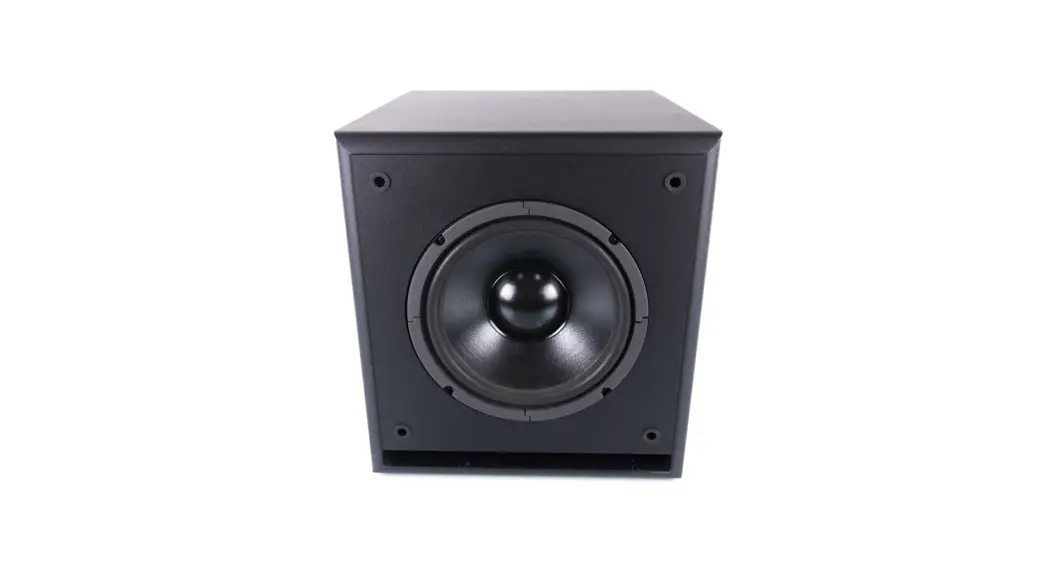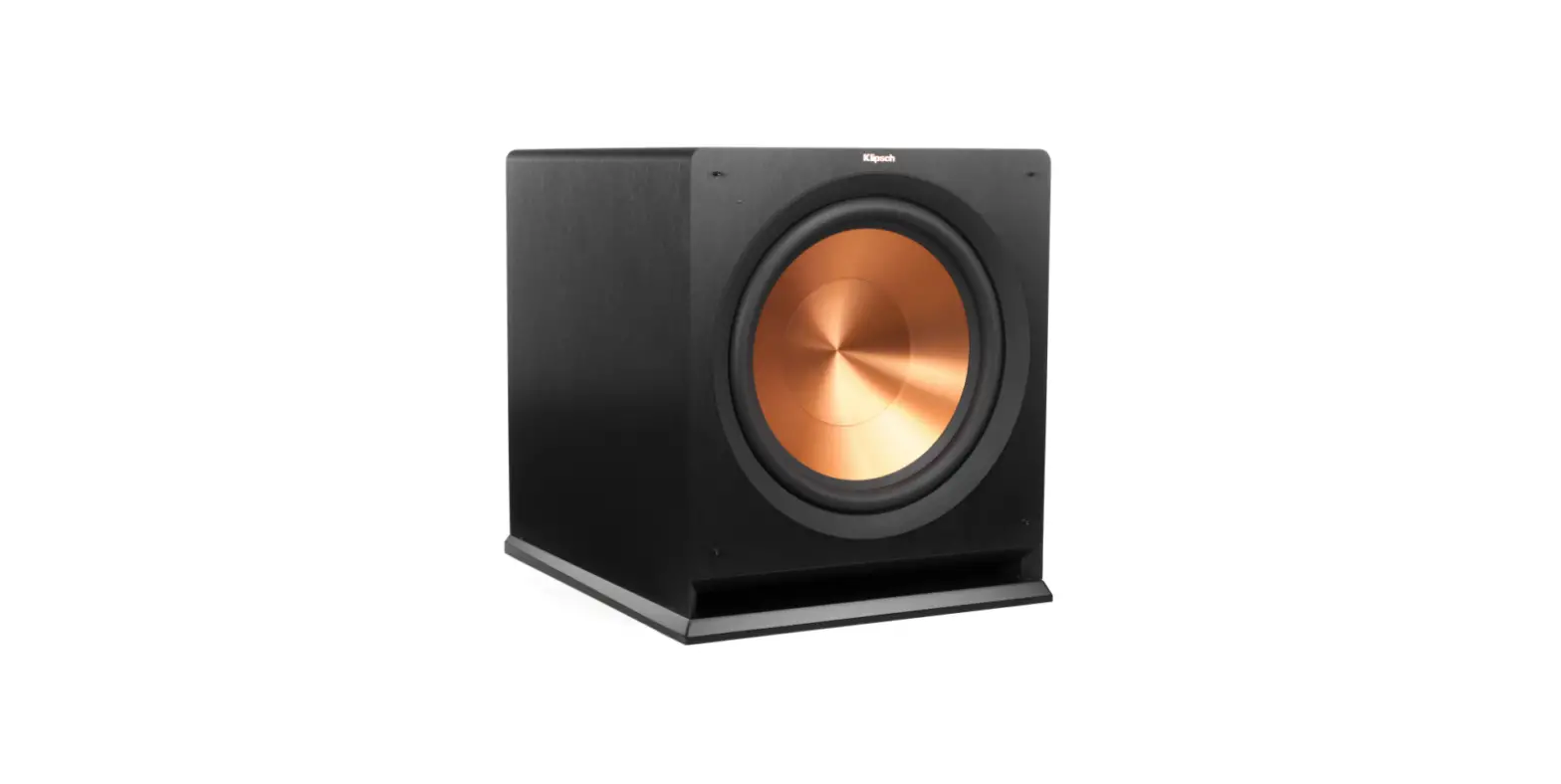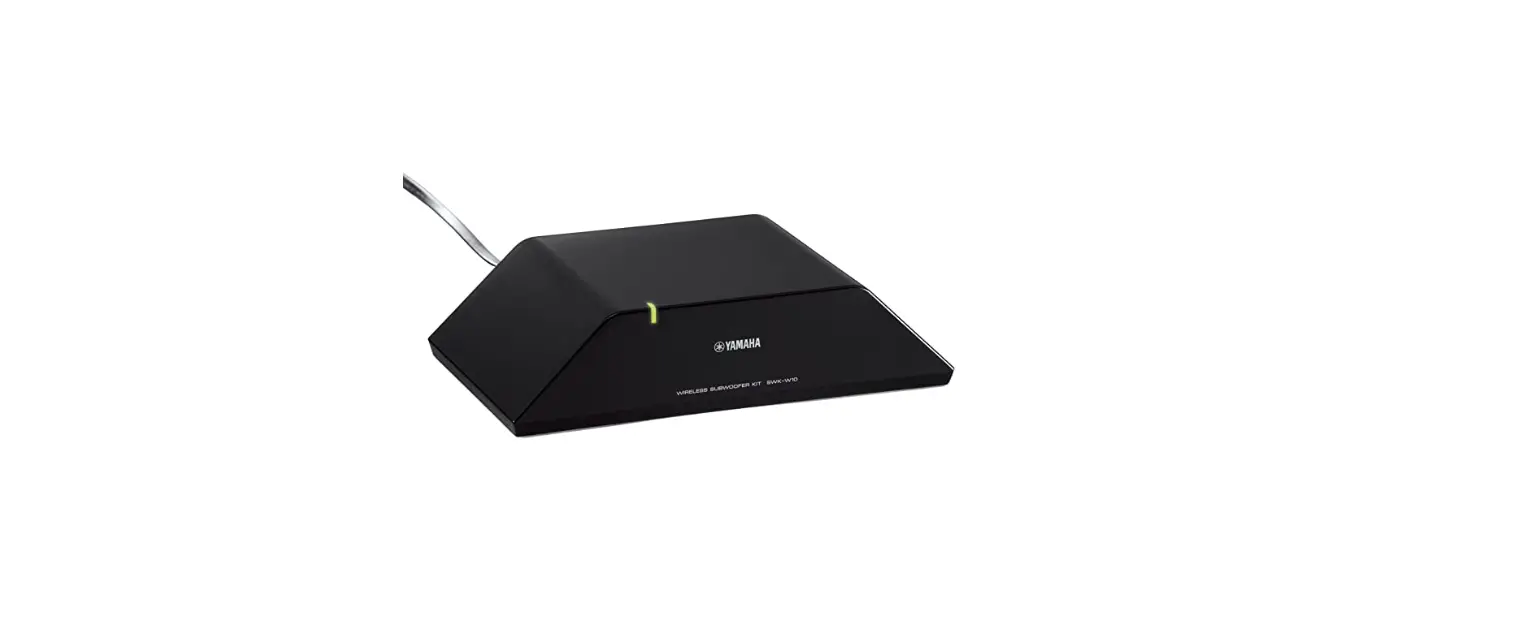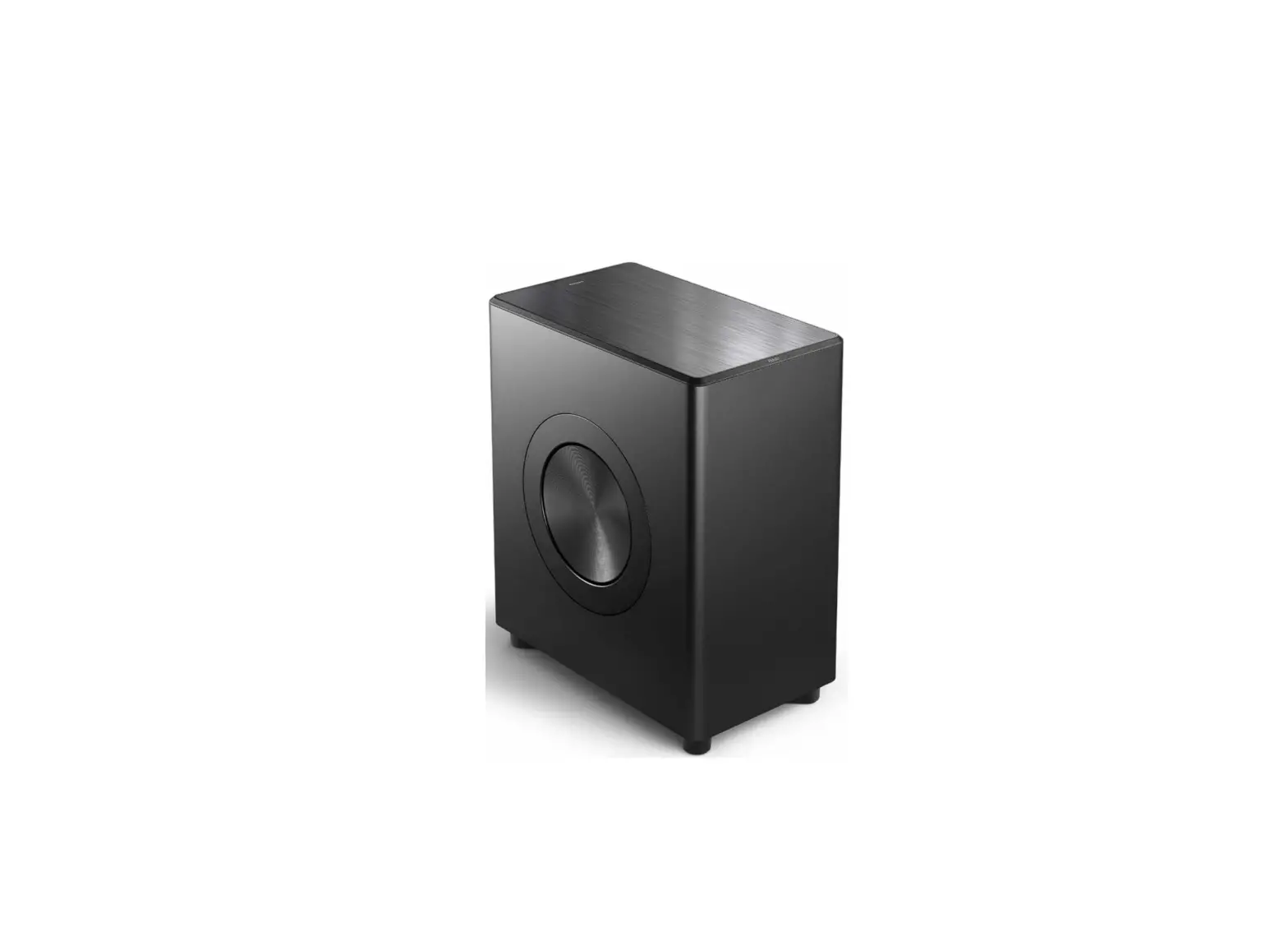
 Velodyne Wi-Q 10 12-Inch Wireless Subwoofer
 Velodyne Wi-Q 10 12-Inch Wireless Subwoofer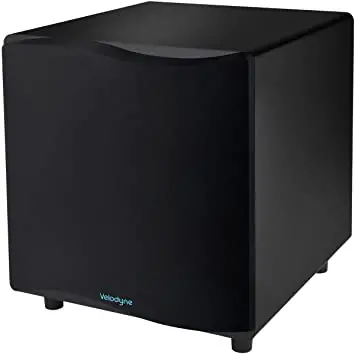
IMPORTANT SAFETY INSTRUCTION
CAUTION
To reduce the risk of electric shock, do not remove cover (or back). No user-serviceable parts inside. Refer servicing to qualified service personnel.
The lightning flash with arrowhead symbol is intended to alert the user to the presence of uninsulated “dangerous voltage†within the product’s enclosure that may be of sufficient magnitude to constitute a risk of electric shock to persons.
The exclamation point symbol is intended to alert the user to the presence of important operating and maintenance (servicing) instructions in the literature accompanying the subwoofer.
- Read Instructions: All safety and operating instructions should be read before the product is operated.
- Retain Instructions: The safety and operating instructions should be retained for future reference.
- Heed Warnings: All warnings on the product and in the operating instructions should be adhered to.
- Follow Instructions: All operating and use instructions should be followed.
- Water and Moisture: To reduce the risk of fire or electric shock, do not expose the product to rain or moisture. The product should not be used near water — for example, near a bathtub, washbowl, kitchen sink, laundry tub, in a wet basement, near a swimming pool or the like. Do not expose the product to dripping or splashing fluids, and do not place objects filed with liquids, such as vases, on the product.
- Carts and Stands: The product should be used only with a cart or stand recommended by the manufacturer, or sold with the product. When using a cart, use caution when moving the cart/product combination to avoid injury from tipping-over.
- Wall or Ceiling Mounting: The product should be mounted to a wall or ceiling only as recommended by the manufacturer.
- Ventilation: Do not block any ventilation openings. Install in accordance with the manufacturer’s instructions.The product should be situated so that its location or position does not interfere with its proper ventilation. For example, the product should not be situated on a bed, sofa, rug, or similar surface that may block the ventilation openings; or placed in a built-in installation such as a bookcase or cabinet that may impede the flow of air through the ventilation openings.
- Heat: Do not install near any heat sources such as radiators, heat registers, stoves, or other apparatus (including amplifiers) that produce heat.
- Power Sources: The product should be connected to a power supply only of the type described in the operating instructions or as marked on the product.
- Grounding or Polarization: Do not defeat the safety purpose of the polarized or grounding-type plug. A polarized plug has two blades with one wider than the other. A grounding-type plug has two blades and a third grounding prong. The wide blade or the third prong are provided for your safety. When the provided plug does not fit into your outlet, consult an electrician for replacement of the obsolete outlet.
CAUTION
To prevent electrical shock, match wide blade of plug to wide slot, fully inserted. - Power-Cord Protection: Power-supply cords should be routed so that they are not likely to be walked on or pinched by items placed upon or against them, paying particular attention to cords at plugs, convenience receptacles, and the point at which they exit from the product.
- Cleaning: Clean only with a dry cloth.
- Nonuse Periods: The power cord of the product should be unplugged from the outlet when left unused for a long period of time.
- Object and Liquid Entry: Care should be taken so that objects do not fall and liquids are not spilled onto the enclosure.
- Damage Requiring Service: Refer all servicing to qualified service personnel. Servicing is required when the product has been damaged in any way, such as:
- The power-supply cord or plug has been damaged.
- Objects have fallen or liquid has been spilled into the product.
- The product has been exposed to rain or moisture.
- The product does not appear to operate normally or exhibits a marked change in performance.
- The product has been dropped or damaged.
- Lightning: For added protection for the product during a lightning storm or when it is left unattended and unused for long periods of time, unplug it from the wall outlet.
- Overloading: Do not overload wall outlets, extension cords or integral convenience receptacles as this can result in a risk of fire or electric shock.
- Attachments: Only use attachments and accessories specified by the manufacturer.
- Voltage: Insure that the product is only connected to the rated source voltage. Failure to do so will result in damage to the product and possible injury to the user.
- Mains Plug/Appliance Coupler: The mains plug/appliance coupler is used as a disconnect device. Always keep this feature readily operable for quick disconnect for safety.
- Double-Instulated:This equipment is a Class II, or double-insulated electrical appliance. It has been designed in such a way that it does not require a safety connection to electrical earth.
- Flame Source: No naked flame source, such as lighted candles, should be placed on the product.
- Battery: The battery (battery or batteries or battery pack) shall not be exposed to excessive heat such as resulting from exposure to sunshine, fire, or the like.
Danger of explosion if battery is incorrectly replaced. Replace only with the same or equivalent battery type.
Product Features
- DSP-controlled
- Integral 2.4 GHz wireless receiver
- 10″ long-throw woofer (Wi-Q10BV/Wi-Q10BVE)
- 12″ long-throw woofer (Wi-Q12BV/Wi-Q12BVE)
- Built-in Class D power amplifier
- Downward-firing port design
- Front-mounted, 7-segment LED display
- One-touch, 5-band graphic equalizer with microphone included
- 4 selectable presets for customized listening mode
- Night-mode setting
- Mute control
- Adjustable (40 to 135 Hz) low-pass crossover with Subwoofer Direct setting
- Speaker-level inputs
- Line-level inputs
- Switchable standby mode that activates when signal is absent
- Variable volume control with digital LED readout
- Selectable phase control (0, 90, 180, or 270 degrees)
- Dual staggered low-pass crossover; 12 db/octave initial, 24 db/octave ultimate
- Anti-clipping circuit
- Over-excursion protection
Setup
Your Wi-Q subwoofer is easy to set up. Once you finish setting up, use the remote control to operate the subwoofer. Below is an overview of the setup steps. The rest of this section provides details on these steps.
- Unpack the box.
- Set up the WiConnect System Transmitter.
- Mount the WiConnect System Transmitter to the wall (optional).
- Set the audio receiver options.
- Place and connect the subwoofer.
- Run the automatic equalizer.
- Set the phase.
Unpack Box
- Unpack the system using caution when lifting and moving to avoid injury.
- Save the carton and packing materials for future use.
Note: Use this packaging if you ever need to move or ship the subwoofer to Velodyne for service. Using other packaging may result in severe damage. To save storage space, flatten the box and place the other packing material in a plastic bag. - Record the serial number in the space provided on page 28.
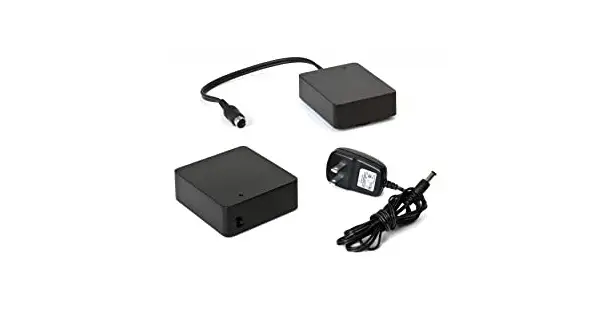
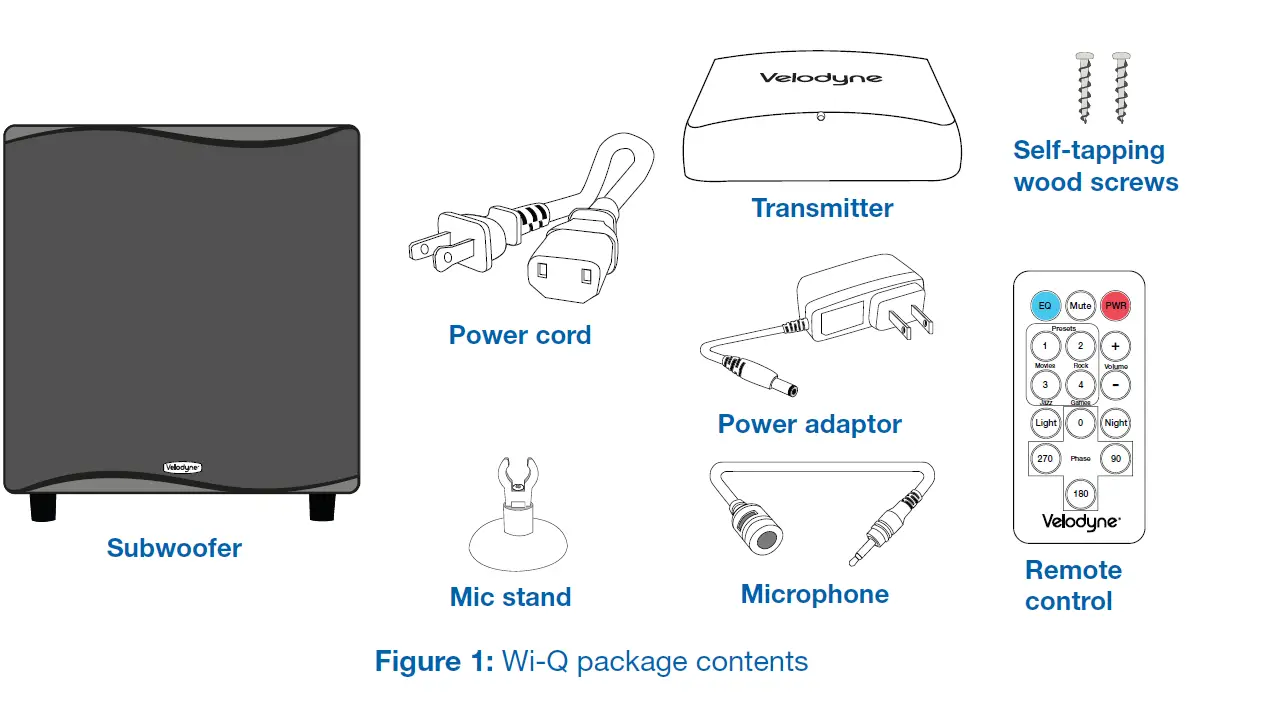
- Make sure you have all the items shown in Figure 1. If any items are missing or damaged, contact the retailer where you purchased this subwoofer.

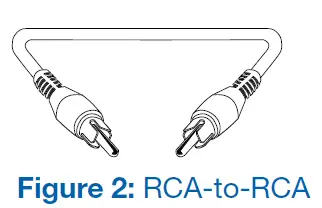
- Make sure you also have an RCA-to-RCA (male-male) cable, so you can connect the transmitter to your audio system.

Set Up WiConnect System Transmitter
Note: The Wi-Q transmitter model is the WiConnect System Transmitter. The Wi-Q subwoofer must be within 50 feet (15 meters) of the transmitter to be able to receive the wireless signal. Also, make sure that the same CHANNEL is selected on both the transmitter and the subwoofer.
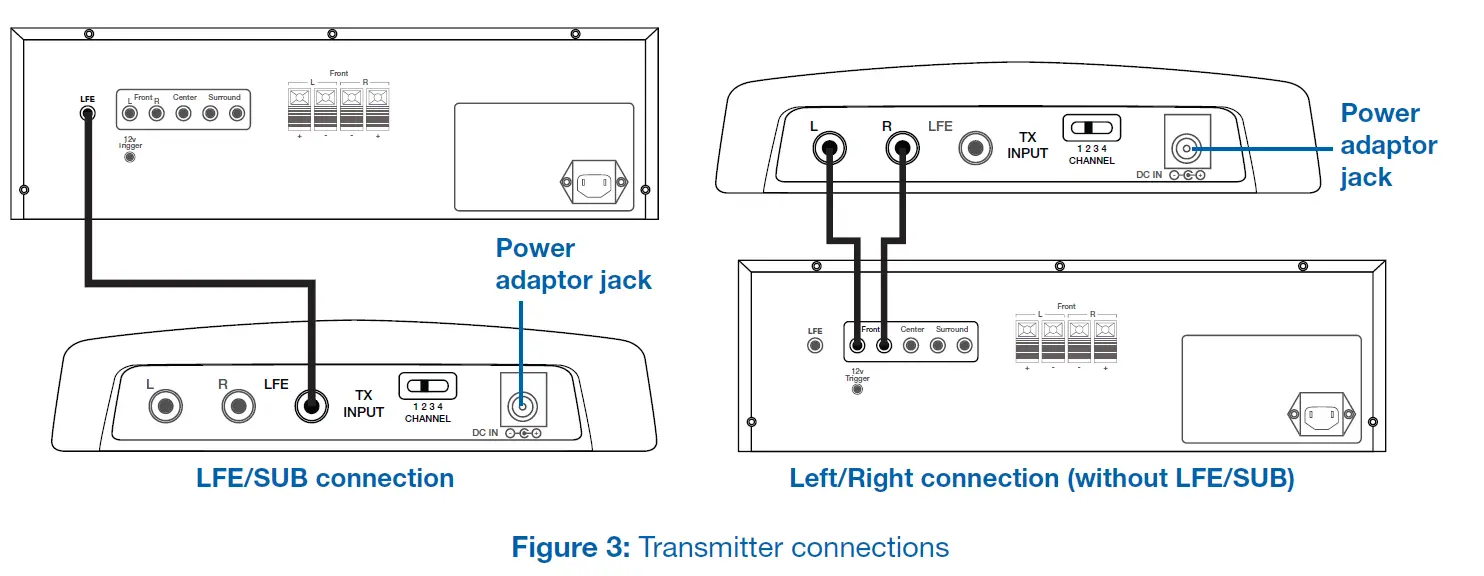
- Do one of the following to connect the transmitter to your audio receiver.
- For Audio Receivers with LFE/SUB Output (most common): This setup requires one RCA cable. Plug one end of the RCA cable into the LFE input on the transmitter and plug the other end into the LFE or SUB output on your audio receiver.
- For Audio Receivers or Zones without LFE/SUB Output or Connection (less common): This setup uses one stereo RCA cable. Plug one channel of the RCA cable into the R input on the transmitter and the R output on your audio receiver. Plug the other channel of the RCA cable into the L input on the transmitter and the L output on your audio receiver.

- Plug the power adapter into the back of the transmitter. Plug the other end of the adapter into a power outlet.
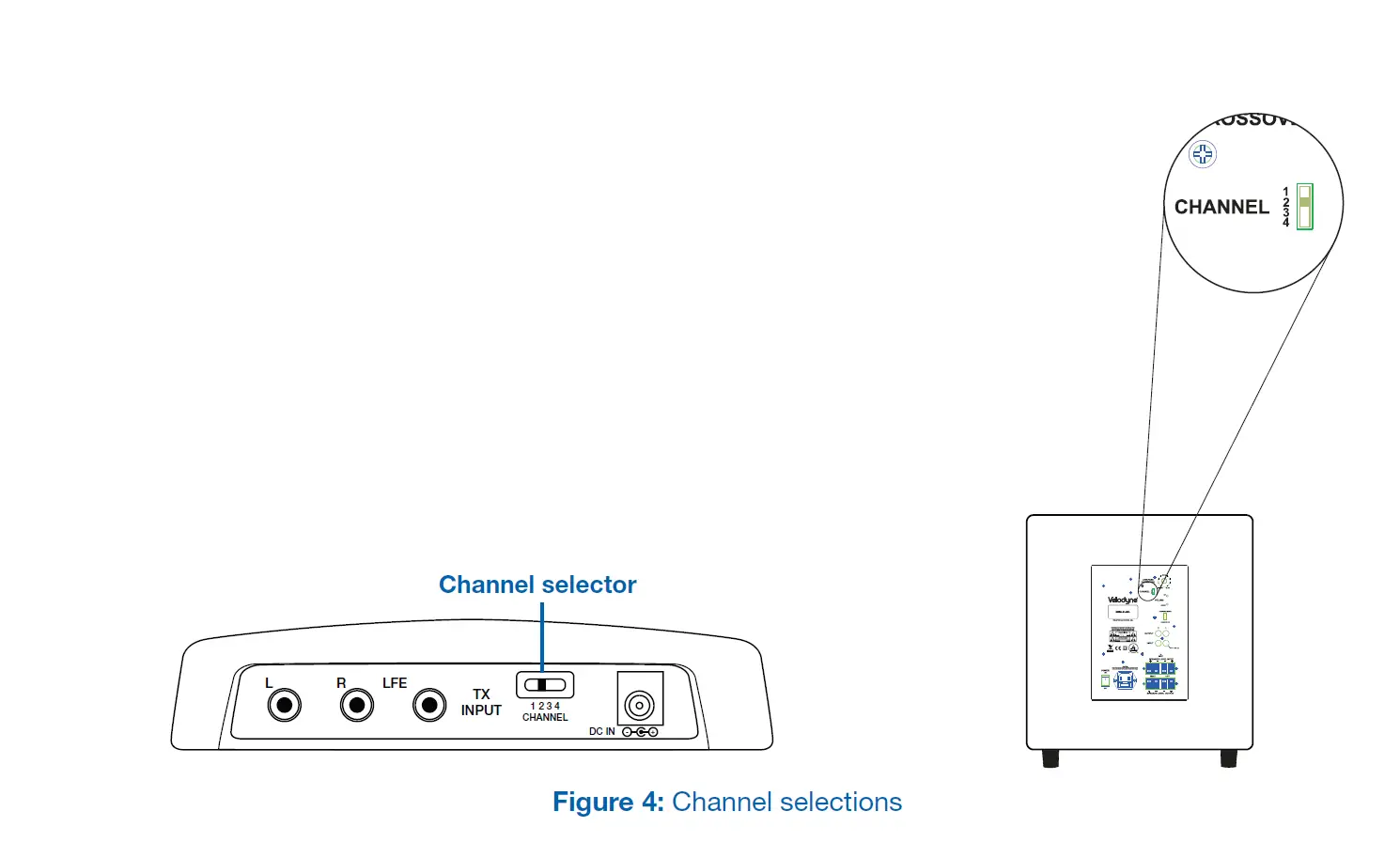
- Make sure the CHANNEL setting on the transmitter matches the CHANNEL setting on the back of the subwoofer. For example, choose CHANNEL 2 in both places. You have four channels to choose from.

Mount WiConnect System Transmitter to Wall (Optional)
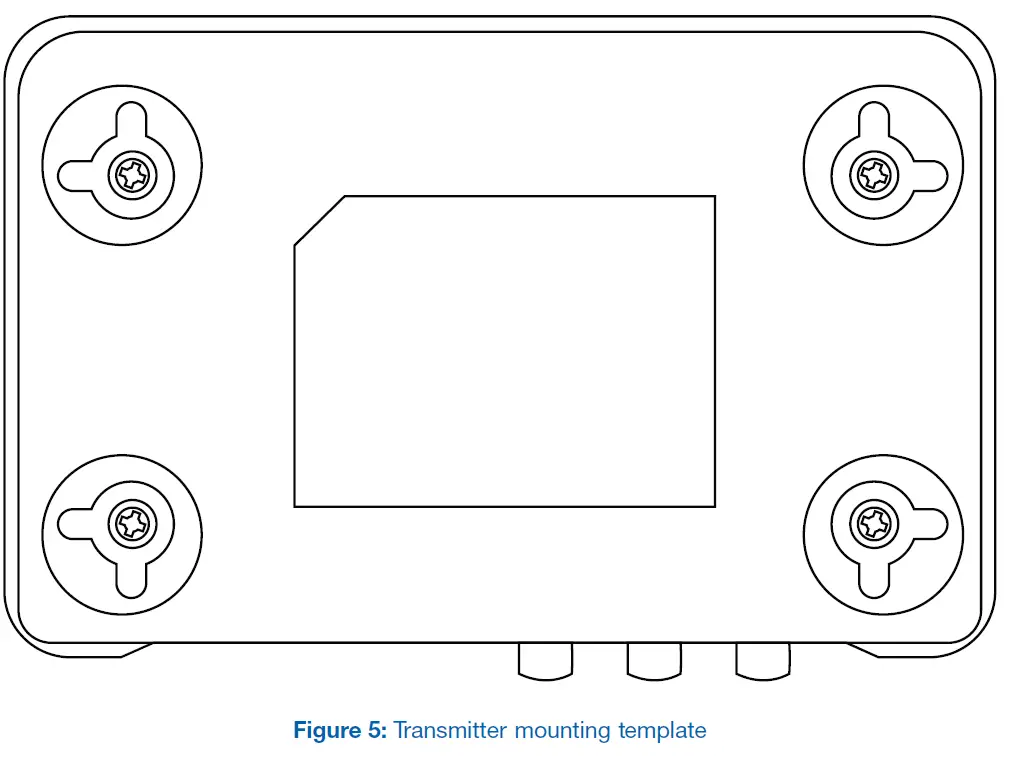
You can mount the transmitter on the wall or place it with your other audio components. The transmitter can be mounted in a vertical or horizontal orientation, and the Wi-Q system doesn’t need to be visible to function properly.
- Use the template below to mark the mounting locations on the wall.
- Mark the two screw locations for either the horizontal or vertical mounting orientation.
- Hand turn each of the included self-tapping wood screws into each marked location. Tighten the screws until about 1/8” (3.17mm) of the screw shank is exposed.
Note: The provided wood screws aren’t suitable for stone or other hard wall surfaces. If you can’t hand drive the screws, you may need to drill holes and provide other wall anchors. - Hook two of the slotted holes on back of the transmitter onto the two screws.

Set Audio Receiver Options
It is important to set up the audio receiver to work in concert with the subwoofer. To set up the audio receiver refer to its instruction manual and use one of the following options:
| Audio Receiver Options | Option #1 (Most Common) | Option# 2 (Less Common) | Option# 3 (Less Common) |
| Audio receiver has LFE or SUB output | Yes | Yes | No |
| Use audio receiver’s LFE or SUB output as subwoofer’s input | Yes | No | No |
| Use audio receiver’s full bandwidth R and L outputs as subwoofer’s inputs | No.
This setup uses the audio receiver’s low-pass crossover filter instead of your subwoofer’s filter. | Yes.
This setup uses your subwoofer’s low-pass crossover filter instead of the audio receiver’s filter. | Yes.
This setup uses your subwoofer’s low-pass crossover filter instead of the audio receiver’s filter. |
- Audio Receiver Option #1
The audio receiver’s LFE or SUB output is the input to the subwoofer (most common case). Use the audio receiver’s speaker menu and set as follows:- Select that you have a subwoofer.
- Select the number of speakers.
- Select the speaker size as small.
- If you don’t know the low frequency limit of your main speakers, use 80 Hz as the crossover point. The lower limit of the main speaker’s frequency response is usually listed in the speaker specifications. For example, the specs might include an entry similar to the following: “3 dB down at 45 Hz.”
In this example, double the 45 Hz value and use the 90 Hz doubled-value as the crossover frequency. - Adjust the LFE /SUB output level to 0 dB.
- Audio Receiver Option #2
The audio receiver’s full bandwidth R and L output channels are the input to the subwoofer (less common case). Use the audio receiver’s speaker menu and set as follows:- Select that you have no subwoofer.
- Select the number of speakers.
- Select the speaker size as large.
- Audio Receiver Option #3
The audio receiver has no LFE or SUB output. You don’t need to make any selections in the audio receiver’s speaker menu.
Place/Connect Subwoofer
Subwoofer Placement
True subwoofers operate at extremely low frequencies which are primarily omni-directional. Depending on the acoustic properties of the listening room, placement can drastically influence your subwoofer’s frequency response and output levels.
Use the following guidelines to find the optimal location for your subwoofer:
- For highest output, place the subwoofer within one foot of a corner; this location offers the greatest output levels.
- for smoother response, but less output, place your subwoofer along a wall.
- The worst location for a subwoofer is away from any walls, close to the center of a room, or close to a doorway or opening to another room. Avoid these locations when possible.
- When using a pair of Velodyne subwoofers in stereo, feed each subwoofer with one channel and place each subwoofer near the satellite of the same channel. You can also place one mid-way along a wall and the other in a corner for a very smooth, deep response.
- Depending on the size and type of furnishings in the room, you may not be able to achieve perfect placement. We suggest that you experiment with the location during setup to find what sounds best when seated in your typical listening position.
- For more information on placement, see Velodyne’s Subwoofer Placement Recommendations Guide (http://velodyne.com/support/faq#sub).
- Regardless of where you install your Velodyne subwoofer, it must remain in an upright position (woofer facing forward). Do not use, ship, or store the subwoofer in any other position for an extended period of time; this may damage the unit and this type of damage is not covered by the warranty.
- The subwoofer is NOT magnetically shielded. If you use it with an older CRT monitor or TV, keep it at least two feet from the monitor. Experiment for correct minimum distance by minimizing distortion of the picture and colors.
Caution
This subwoofer has electronics built into the cabinet. Do not place the cabinet next to sources of heat such as direct sunlight, furnace registers, radiators, etc. Do not place the unit near sources of excessive moisture such as high humidity environments, evaporative coolers, humidifiers, etc. The power cord should be routed in such a way that it will not be walked on, pinched or compressed in any way that could result in damage to the insulation or wire.
Warning
To prevent fire or shock hazard, do not expose this product to rain or moisture. To avoid electrical shock, do not open the speaker enclosure or amp chassis cover. Please observe all warnings on the equipment itself. There are no user serviceable parts inside. Refer all service questions to your authorized Velodyne dealer.
Connect Subwoofer
- Determine optimal placement as described in the previous section.
- Connect the female end of the power cable to the back of the subwoofer and the male end to a power outlet.
- Press the POWER button on the back of the subwoofer, so that it is in the ON position.
Run Auto-EQ
The automatic equalizer adjusts the subwoofer’s sound to best suit its position in the room.
- Remove the grille from the front of the subwoofer.
- insert the supplied mic into the supplied mic stand.
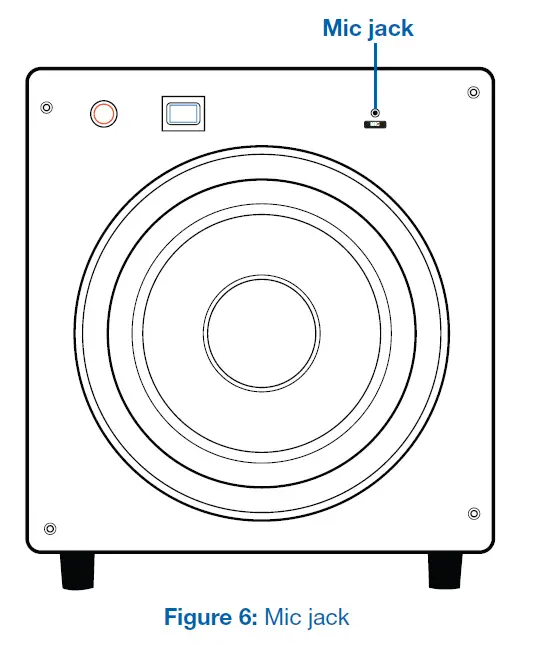
- Plug the mic into the Mic jack on the front of the subwoofer.
- Place the mic in your preferred listening position.
- On the remote, press EQ for about 2-3 seconds. The subwoofer emits sweep tones that span frequencies between 20 and 150 Hz. While making the frequency sweeps, the LED displays “AU” and the system adjusts fixed-frequency graphic EQ filters for the flattest response at the mic. When the sweeps are done, the unit saves the settings and returns to normal operation.
- To prevent accidentally activating Auto-EQ, remove the mic from the Mic jack.

Set the Phase
The Phase setting optimizes the transition from the subwoofer to the satellite speakers based on your listening position. You can adjust the phase of the subwoofer’s output signal to correct any mismatch and the resulting cancellation between the subwoofer and your main speakers/amplifier.
- While listening to music, press each of the four PHASE buttons on the remote control. The phase setting shows on the LED as “PH” followed by the phase number: 0, 90, 180 or 270.
- Listen to the mid-bass transition for a few moments, and then press the next PHASE button.
- Select the PHASE button that provides the smoothest transition between the subwoofer and the satellite speakers, without peaks or dips. If the settings sound similar, use the “0” position.
Subwoofer Controls/Connections/Features
Front Panel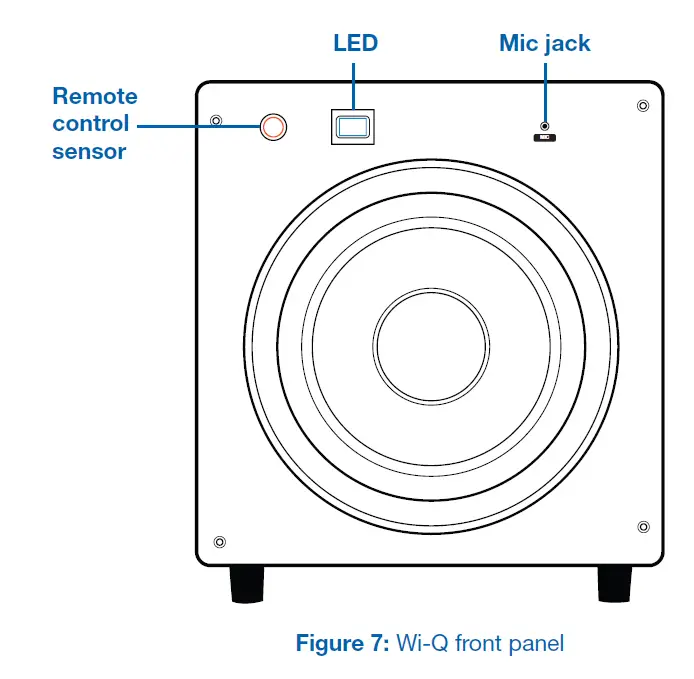
Following are descriptions of the controls and connections shown in Figure 7.
Remote Control Sensor: IR sensor window receives a signal from the included remote control.
LED: 2.5 digit, seven segment LED readout displays volume, phase and Auto-EQ.
Mic Jack: Connector for the supplied microphone to use during the Auto-EQ process.
Rear Panel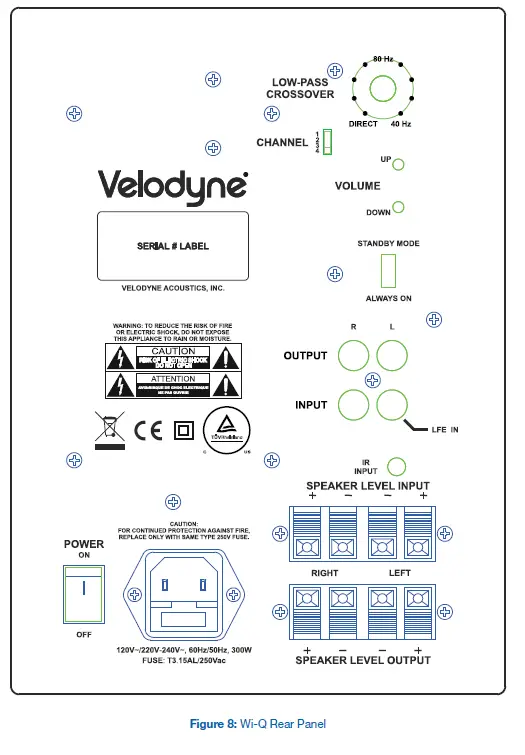 Following are descriptions of the controls and connections shown in Figure 8.
- Power: Turns the subwoofer on/off. Even if you are using the Auto on/off feature, this switch must be in the ON position for the subwoofer to receive power.
- Power Connector/Fuse Drawer: Connects the subwoofer to a wall outlet so that it can receive power. The fuse drawer is located at the bottom of the power connector.
- Speaker Level Input: If you’re not using the transmitter, you can connect these input terminals to the speaker output terminals on your amplifier or receiver. For this connection method, go to your receiver’s Speaker Setup menu and select the Large speaker option.
- Speaker Level Output: If you’re using speaker-level inputs, you can use these terminals to send a crossed-over speaker-level signal to the front speakers. See Low-Pass
- Crossover: for details on this crossover.
- IR Input: This connection supports third-party infrared remote sensors, such as Elan or Xantech, for placement closer to your other remote controlled equipment. Use this feature to avoid awkward angles when using the remote control.
- Line Output: If you’re using line-level inputs, you can connect these jacks to the LINE IN input on your preamp. With this connection method, you use the Wi-Q’s internal high-pass crossover, which rolls off below 80 Hz.
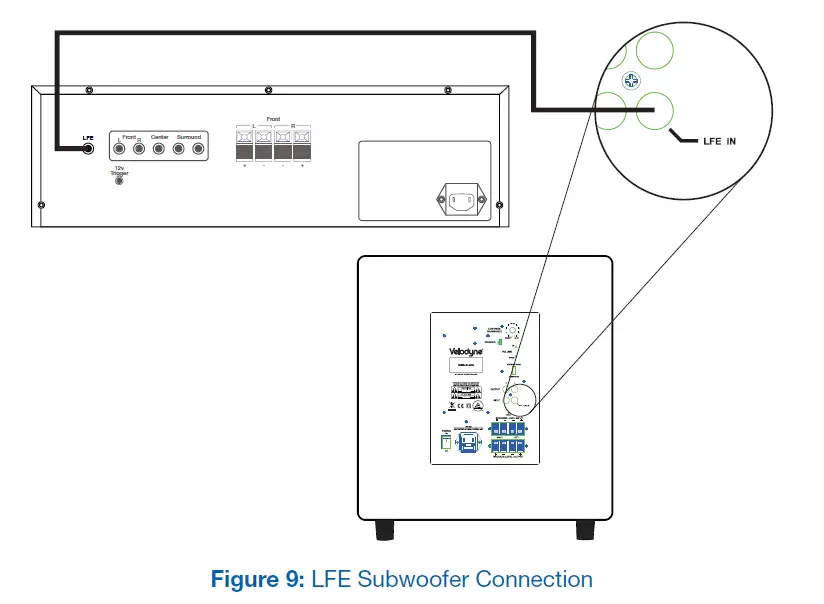
- Line Input/LFE: If you’re not using the transmitter, you can connect these jacks to one of the following:
- LINE OUT output on your preamp
- LFE on your receiver/processor
- Subwoofer output on your receiver/processor
Note: When using the LFE output, plug a single cable into the L – LFE input, or for more signal, use a “Y” connector (not included) and feed the signal into both R and L inputs.
- Stand By Mode/Always On: When this switch is in the STANDBY MODE position, the subwoofer automatically turns itself on when an audio signal is present. If there’s no signal for about thirteen minutes, the unit switches to standby mode (blank LED), which draws minimal power. The default setting for this switch is ALWAYS ON. To activate the Auto on/off feature, slide this switch to the STANDBY MODE position.
warning
If the signal level from your receiver’s Sub-out channel is weak, the subwoofer shuts off while you are listening to it. To correct this issue, see the next section, Volume Up/Down:
Volume Up/Down: Use these controls to achieve balanced volume levels between your main speakers and the subwoofer. When you press Volume Up/Down, the LED displays the current volume setting. You can also adjust subwoofer volume with the remote control. The default volume setting is 30 out of 80.
warning
Some receivers are preset with the Sub-out channel set at a minimum level. If your receiver Sub-out channel is too low, the subwoofer may have weak output, sound noisy or distorted, and the Auto on/off feature may not operate properly.
To avoid these issues, make sure that your receiver’s Sub-out channel is set to the same output level as your front right and left channels. Refer to your receiver’s manual for details on adjusting the individual channel levels.
Channel: This control sets the channel used for wireless communication between the subwoofer and the transmitter. Make sure that the channel selection is the same on both the subwoofer and transmitter.
Low-Pass Crossover: Use this knob to select the frequency above which you wish to cut off the signal to the subwoofer. When the knob is turned all the way to the left, the Subwoofer Direct feature is invoked and the subwoofer plays all frequencies up to 135 Hz.
Low-pass Crossover – 40 to 135 Hz
The crossover control allows you to adjust the upper limit of the subwoofer’s frequency response from 40 to 135 Hz. The subwoofer’s response begins rolling off above the frequency at which you set this control. Set the crossover frequency to obtain a smooth and seamless transition from the subwoofer to the main speakers in your system. The default crossover setting is 80 Hz. If your main speakers are small with limited low frequency output, choose a higher frequency (such as 100 – 120 Hz). For larger speakers which have greater low frequency output, choose a lower number (such as 70 Hz).
Note: The subwoofer sums the left and right channels and passes the combined signal through an adjustable low-pass crossover before sending it to the amplifier.
Subwoofer Direct
Use this setting on the low-pass crossover knob to allow frequencies up to 135 Hz into the subwoofer. See the next section, Receiver/Processor Subwoofer Outputs for more about this feature.
Receiver/Processor Subwoofer Outputs
Your Velodyne subwoofer is designed to operate using the full-range audio signal for input when using our built-in crossover. Many home theater processors/receivers (Dolby Digital™, DTS™, THX™) have a “subwoofer out” jack (sometimes labeled “LFE”) that is internally filtered, settable at the receiver/processor, and designed to be used with a powered subwoofer. In some installations, it is beneficial to use BOTH the Velodyne crossover and the receiver/processor crossover, to achieve a steeper crossover slope. In rare cases, combining an external crossover with the subwoofer’s internal crossover may result in low output and increased noise. In these installations you may need to bypass the crossover in either the processor or subwoofer, or simply set one crossover to a higher frequency (such as 120 Hz) to restore maximum performance.
Alternate Connections
Your Wi-Q subwoofer uses modern 2.4 GHz wireless technology, so in most cases you can establish the audio connection simply by connecting the transmitter to your audio receiver. In some situations, however, you may need to connect RCA or speaker cables to your audio receiver. For these situations, your subwoofer includes both line-level (RCA-type) and high-level (5-way binding post-type) connectors.
Note: Do not use both the RCA/Phono INPUT and SPEAKER LEVEL INPUT connections simultaneously.
Line-Level Connections
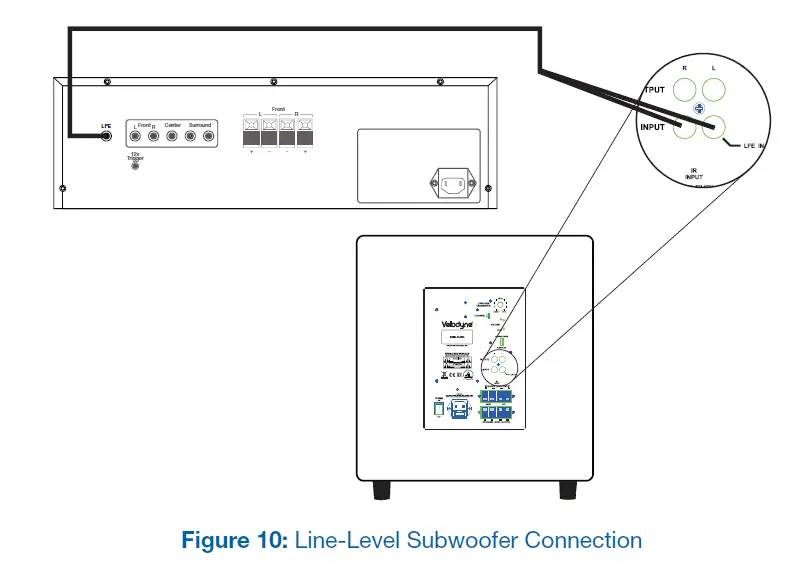
Use the line-level jacks to connect your subwoofer to a pre-amp, a signal processor (with LFE out or Sub-out), a line-level crossover, or a receiver with pre-amp level outputs. With line-level connections, always use shielded phono cables, and to avoid potential noise problems, use the shortest cables possible.
When using the line-level jacks, some receivers may not provide enough signal for the unit’s Auto-On/Off feature to operate properly. Additionally, this lack of signal may also cause the subwoofer to produce less output than it is capable of. To alleviate this condition, we recommend the following:
- When using a receiver with LFE out, be sure the LFE channel sends an adequate signal to the subwoofer. The subwoofer’s default volume setting is 30 out of 80. See your receiver’s manual to adjust the LFE channel on your receiver or processor to achieve the desired bass output.

- When using line-level jacks, use both the Left and Right inputs as shown in Figure 10—never use just the Left or Right input. If using line-level connections from a preamp or signal processor, use both Left and Right inputs from your preprocessor or preamp and connect them to the Left and Right inputs on your subwoofer.

Speaker-Level Connections
Use the speaker-level jacks to connect the subwoofer directly to the speaker outputs of an integrated amplifier or receiver. Your amplifier bears no additional load when you use these high-impedance inputs.
With speaker-level connections, use a high-quality speaker cable that mates well with the connectors. Be very careful to avoid any loose strands or frayed wires that may result in a short and damage your equipment. Cables of extremely large size are not required due to the low current draw of this type of connection. Extremely large gauge wire may not properly fit in the terminals and may result in a poor connection or short circuit.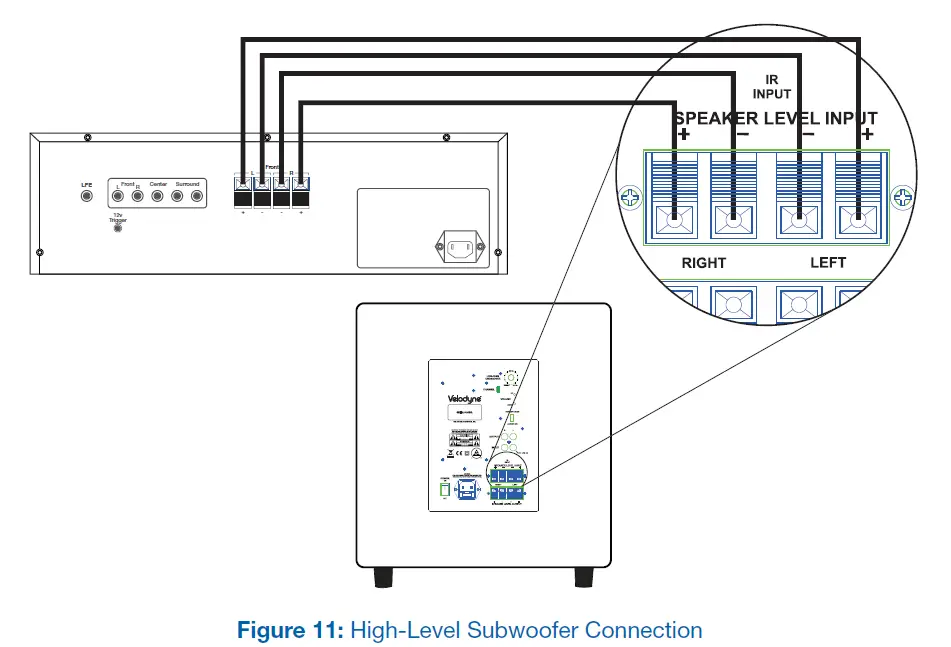
Remote Control
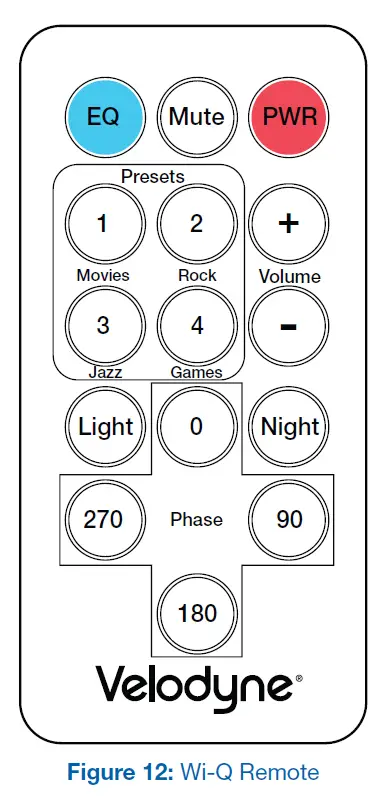
This section describes how to use your Wi-Q subwoofer remote control.
- Power: Puts your subwoofer in reduced-power mode, which stops play and turns off the display. Press this button again to return to full operation. This function is subordinate to the standby mode on the rear panel, and you must restart the subwoofer if that feature has triggered. To fully turn off the subwoofer, press the POWER switch on the back of the subwoofer.
Mute: Silences the subwoofer’s output and the LED on the sub shows 00. To unmute the subwoofer, press the MUTE button again and the original volume setting shows on the LED. - EQ: Runs the automatic equalizer, so your Wi-Q subwoofer sounds best for its position in the room. See Step 6: Run Auto-EQ for details on using this feature.
- Phase: Optimizes the subwoofer’s bass performance relative to the speakers and your listening position. This control changes the phase of the subwoofer’s output signal to correct mismatches and resulting cancellation between the subwoofer and your main speakers/amplifier. The phase setting shows on the LED as “PH” followed by the phase number: 0, 90, 180 or 270. See Step 7: Set the Phase for details on using this feature.
- Light: Turns the numeric LED on your subwoofer off. To reactivate the LED, press the LIGHT button again. When the LED is off, it lights only when you make adjustments to the subwoofer controls and then turns off again.
- Night: Limits the maximum dynamic output of the subwoofer for late night listening or considering close neighbors at any time. Press the NIGHT button to turn night mode on/off. When you activate night mode, the LED briefly displays “n.” When you deactivate night mode, the LED shows “n off” and then returns to normal function.
- Volume Control: Balances the output from the subwoofer to the main speakers in your system. Use this control to achieve similar volume levels from both the main speakers and subwoofer. When pressing volume up or down, the LED displays the volume level.
Note: The remote control included with your specific subwoofer may not look the same as the remote control shown in the illustration, but the functions and performance are identical to those described here.
WARNING
Some receivers are preset with the Sub-out channel set at a minimum level. If your receiver Sub-out channel is too low, the subwoofer may have weak output, sound noisy or distorted, and the Auto on/off feature may not operate properly.
To avoid these issues, make sure that your receiver’s Sub-out channel is set to the same output level as your front right and left channels. Refer to your receiver’s manual for details on adjusting the individual channel levels.
Note: You can also adjust the subwoofer’s volume with the Volume buttons on the back of the subwoofer. These buttons have the same effect as pressing the up and down volume buttons on your remote. The default volume setting is 30 out of 80. - Presets: Switches between four preset bass modes that offer the following characteristics:
- Movies: Maximum output and impact for explosions and other action adventure movie content.
- R&B/Rock: Driving bass found in today’s rock music.
- Jazz/Classical: The tightest, cleanest, lowest distortion bass. The flattest frequency response of the four presets.
- Games: Maximum loudness available for video games impact.
Note: The presets simply provide different sound characteristics. You can use any of the presets for any type of listening based on your sonic preference.
The following table lists the preset characteristics and musical style recommendations for each preset.Preset
Subsonic Filter Frequency EQ Frequency
EQ Level
Volume Differential Musical Style Recommendations Movies 25 Hz 37 Hz +3 db +5 db Action Adventure Movies R&B – Rock 28 Hz 50 Hz +3 db +1 db Country – Rock Indie Music Pop Rock Classic Rock Dance and DJ
Hard Rock/Heavy Metal Latin Music
R&B
Rap and Hip-Hop Soundtracks
Jazz – Classical (Reference) 15 Hz N/A N/A N/A Country – Soft Folk Alternative Rock Blues
Broadway and Vocalists Children’s Music Christian and Gospel Classical
Miscellaneous
Movies – Non-Action Adventure New Age
Opera and Vocal Soundtracks
Games 34 Hz 60 Hz +3 db +4 db Video Games
Restoring Defaults
You can restore the factory default settings for your Wi-Q subwoofer by pressing PRESET buttons on the remote in EXACTLY the following order:
- Preset 1: Movies
- Preset 2: R&B – Rock
- Preset 3: Jazz – Classical
- Preset 4: Games
- Preset 4: Games
- Preset 3: Jazz – Classical
- Preset 2: R&B – Rock
- Preset 1: Movies
When you press the presets in the above order, the front LED displays “P3” to indicate that you restored the factory defaults—including resetting the volume level to 30 out of 80.
Maintain
Check/Replace Fuse
Your Velodyne Wi-Q subwoofer works in regions using 120V or 230V mains voltage. The unit switches itself for use with either voltage level.
To replace the fuse, follow these steps: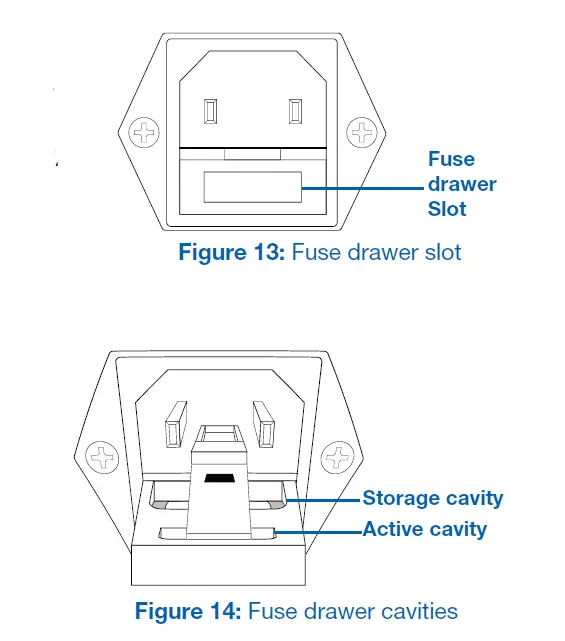
- On the back of the subwoofer, locate the fuse drawer slot at the base of the power cord connector.
- Insert a flat-blade screwdriver in the fuse drawer slot and tilt the handle towards the subwoofer to open the fuse drawer. (Do not attempt to detach the drawer from the subwoofer.) The drawer contains two fuses – an active fuse and a replacement fuse.
- Carefully remove the active fuse. Hold it up to a light source and see if the conductor in the glass tube is still continuous from end to end. You can also compare it to the replacement fuse. If the active fuse looks in any way bad, move the replacement fuse into the active cavity. There is no fuse polarity, so it doesn’t matter which way it is inserted.
- Push the fuse drawer into the back of the subwoofer until it clicks into place.
Note: If a fuse burns out or becomes damaged, you must replace the fuse with the same size and value of fuse.
Protect Subwoofer from Damage
DO NOT PUT HEAVY OBJECTS ON TOP of the subwoofer cabinet or transmitter that could scratch or dent the cabinet or case.
DO NOT ALLOW OBJECTS TO FALL INTO OR LIQUIDS TO SPILL ON THE SUBWOOFER ENCLOSURE OR TRANSMITTER CASE. DO NOT EXPOSE SUBWOOFER OR TRANSMITTER TO DRIPPING OR SPLASHING FROM LIQUIDS.
DO NOT PLACE LIQUID-FILLED OBJECTS ON OR NEAR THE SUBWOOFER OR TRANSMITTER. Examples of liquid-filled objects include flower vases, beverages and liquid-fueled lamps.
DO NOT PUSH OBJECTS OF ANY KIND into the subwoofer or transmitter.
DO NOT PLACE BURNING CANDLES, INCENSE, OR SMOKING PRODUCTS ON TOP OF OR NEAR THE SUBWOOFER OR TRANSMITTER.
DO NOT PLACE A LAPTOP COMPUTER ON TOP OF THE SUBWOOFER OR TRANSMITTER. Damage could occur to either the laptop hardware or the subwoofer finish.
Clean
USE A CLEAN, SOFT DRY CLOTH to remove dust or fingerprints from the subwoofer cabinet. Unplug the subwoofer power cord from the power outlet before cleaning to prevent static electricity from damaging the subwoofer during cleaning.
DO NOT CLEAN THE SUBWOOFER CABINET OR TRANSMITTER CASE with detergents, soaps, abrasives, aerosol sprays, chemical solvents, alcohol, or other cleaning solutions.
Troubleshoot
Subwoofers blue display light (on front panel) doesnt light up
- Verify that the subwoofer is plugged into a live power outlet.
- Verify that the subwoofer power switch (on the back of the subwoofer) is in the ON position.
- Verify that the power cord is not damaged. If damaged, replace the cord.
- Press the LIGHT button on the remote to verify that the subwoofer isn’t in LED-off mode.
Subwoofer isn’t producing sound and blue display light (on front panel) is on
- Verify that the transmitter is plugged into a live power outlet.
- Verify that the transmitter’s inputs are connected to the audio receiver’s output. This wire may have become accidentally disconnected.
- Increase the subwoofer’s VOLUME level.
- Increase the receiver’s LFE or SUB OUT volume level, if it’s adjustable.
- If your receiver has a switch or menu to enable its LFE or SUB OUT, make sure this switch or menu is set to ON or YES.
- Verify that the transmitter’s light is on solid. If the transmitter’s light isn’t on solid and the same CHANNEL is selected on both the transmitter and receiver, select another matching CHANNEL for the transmitter and receiver.
- Verify that your audio receiver or processor is in a bass management surround mode/input, and that the LFE or SUB terminals are producing output. Typically “Direct” surround connections/modes bypass this and there will be no output at these terminals.
- Verify that the subwoofer is not in mute mode by pressing the MUTE button on the remote control.
Bass doesn’t sound loud enough
- increase the subwoofer’s VOLUME level.
- Increase the receiver’s LFE or SUB OUT volume level, if it’s adjustable.
- Put the subwoofer closer to a corner of your room.
Subwoofer output is distorted, intermittent or stops:
- The subwoofer may have shut down due to the protection circuitry.
- Reduce the volume setting; or
- Shut the subwoofer off until normal operating conditions return.
- The transmitter and audio receiver may have lost their broadcast connection.
- Turn off power to the subwoofer, transmitter, and audio receiver.
- Turn power back on to the transmitter, then the audio receiver, and then the subwoofer.
- If cycling the power doesn’t re-establish the broadcast connection, select another matching CHANNEL for the transmitter and subwoofer.
- If selecting another CHANNEL doesn’t re-establish the broadcast connection, decrease the distance between the subwoofer and the transmitter to increase the broadcast signal strength between them.
- Verify that the transmitter and subwoofer aren’t in close proximity to other electronic devices that could interfere with wireless transmission and reception. Turn all devices off except for the Wi-Q transmitter, the audio receiver, and the subwoofer. Next, turn each of the other devices on/off until you find the interfering device, and then increase the distance between the interfering device and the audio system.
Protection Circuitry
The subwoofer is equipped with protection circuitry to provide maximum performance and reliability. The subwoofer is protected against:
- Overdriving the speaker
- Overdriving the amplifier
- Overheating the amplifier
- Excessive drop in power line voltage
If the protection circuitry is active, the unit may cycle on and off until operating parameters return to normal. Under more serious conditions, the unit may shut off completely. Normal operation should return upon cooling, but you may need to turn the power off and then on again to reset the unit.
The overdrive protection circuitry operates constantly without being audible under most situations.
If the subwoofer shuts down, reduce the volume setting and turn the subwoofer off until it cools down. The time the subwoofer takes to cool down depends on the ambient room temperature, but typically it takes at least 10 minutes for the subwoofer to cool down and recover from a thermal shutdown.
Also, plug the unit into a different wall socket. Overloaded sockets or damaged home wiring circuits can cause power voltage drops while the subwoofer is drawing high power levels. This condition can result in the subwoofer shutting down intermittently.
Service
DO NOT ATTEMPT TO SERVICE THE SUBWOOFER OR TRANSMITTER YOURSELF beyond what is described in this owner’s manual.
ONLY USE QUALIFIED SERVICE TECHNICIANS TO REPAIR DAMAGED PARTS. Service the subwoofer or transmitter using qualified service technicians when:
- A power cord or plug is damaged
- The power socket on the subwoofer or transmitter is damaged
- Objects have fallen or liquid has spilled into the subwoofer or transmitter
- The subwoofer or transmitter was rained on or has become partially or fully submerged in water
- The subwoofer does not operate normally or exhibits a marked change in performance
- The cabinet has been dropped or is damaged
- The subwoofer driver’s cone and/or suspension is physically damaged
Specifications
|
Preset | Subsonic Filter Frequency | EQ
Frequency |
EQ Level | Volume Differential | Musical Style Recommendations |
| Movies | 25 Hz | 37 Hz | +3 db | +5 db | Action Adventure Movies |
| R&B – Rock | 28 Hz | 50 Hz | +3 db | +1 db | Country – Rock Indie Music Pop
Rock Classic Rock Dance and DJ Hard Rock/Heavy Metal Latin Music R&B Rap and Hip-Hop Soundtracks |
| Jazz – Classical (Reference) | 15 Hz | N/A | N/A | N/A | Country – Soft Folk
Alternative Rock Blues Broadway and Vocalists Children’s Music Christian and Gospel Classical Miscellaneous Movies – Non-Action Adventure New Age Opera and Vocal Soundtracks |
| Games | 34 Hz | 60 Hz | +3 db | +4 db | Video Games |
Note: Varying speaker and amplifier input load impedances may cause the high-pass crossover frequency to slightly vary. The transmitter range stated above is under ideal conditions. Specifications are subject to change without notice.
Regulatory Information
FCC Compliance Statement
- This device complies with Part 15 of the FCC Rules. Operation is subject to the following two conditions:
- This device may not cause harmful interference.
- This device must accept any interference received, including interference that may cause undesired operation.
- Changes or modifications not expressly approved by the party responsible for compliance could void the user’s authority to operate the equipment.
- This equipment has been tested and found to comply with the limits for a Class B digital device, pursuant to Part 15 of the FCC Rules.
These limits are designed to provide reasonable protection against harmful interference in a residential installation.
NOTE: This equipment generates, uses, and can radiate radio frequency energy and, if not installed and used in accordance with the instructions, may cause harmful interference to radio communications. However, there is no guarantee that interference will not occur in a particular installation. If this equipment does cause harmful interference to radio or television reception, which can be determined by turning the equipment off and on, the user is encouraged to try to correct the interference by one or more of the following measures:
- Reorient or relocate the receiving antenna.
- Increase the separation between the equipment and receiver.
- Connect the equipment into an outlet on a circuit different from that to which the receiver is connected.
- Consult the dealer or an experienced radio/TV technician for help.
FCC Radiation Exposure Statement
This equipment complies with FCC radiation exposure limits set forth for an uncontrolled environment. This equipment should be installed
and operated with minimum distance 20cm between the radiator & your body.
IC warning
This device complies with Industry Canada licence-exempt RSS standard(s). Operation is subject to the following two conditions:
- This device may not cause interference, and
- This device must accept any interference, including interference that may cause undesired operation of the device.
Changes or modifications not expressly approved by the party responsible for compliance could void the user’s authority to operate the equipment.
European Union (EU) Declaration of Conformity
This product complies with the requirements and other relevant provisions of the R&TTE Directive as well as CE-LVD (Safety) and CE-EMC (Emissions & Immunity).
Radio Frequency Exposure Limit Requirements
Keep a minimum separation of 8 inches (20 cm) between the transmitter and any person to comply with FCC and EU exposure limit requirements.
Listen Responsibly
REFRAIN FROM LISTENING TO MUSIC AT HIGH VOLUMES for long periods of time to protect you from permanent hearing damage. The United States’ Occupational Health and Safety Administration (OSHA) standards recommend not listening to sound levels of 85 dB for more than 8 hours and to wear hearing protection if sound levels exceed 85 dB. Refer to the OSHA website for more information and updated recommendations about sound levels and hearing damage:
www.osha.gov/dts/osta/otm/noise/standards_more.html
Legal Notice
Subwoofer Recycling
These products should not be treated as household waste. Instead, the subwoofer and transmitter should be taken to a certified collection point so that the electrical and electronic components can be recycled. By recycling these products through a certified collection point, you prevent potential environmental damage and help to conserve natural resources used in these products. Certain international, national and/or local laws and/or regulations may also apply regarding the disposal of this subwoofer. For further information, contact your local waste disposal service, your local city government office, or the retailer where you purchased this subwoofer.
Trademarks
The Velodyne logo is a trademark of Velodyne Acoustics, Inc. All other trademarks are the property of their respective owners.
For Your Records. . .
| Date Purchased | |
| Dealer | |
| Serial # |
Note: If you need to file a warranty claim for your product, you still need to submit either of the following to Velodyne:
- Original sales invoice
- Other proof of ownership and date of purchase
Please validate your product warranty by completing the online registration within 30 days: http://velodyne.com/warranty-page
For detailed warranty information, visit us online: http://velodyne.com/warranty-page
The warranty information indicated above refers to products purchased in the United States and Canada only. If you purchased your product outside of the United States or Canada, consult your local authorized Velodyne dealer for warranty registration and information.
63-WIQ Rev A Jun13 Velodyne Acoustics, Inc.
345 Digital Drive Morgan Hill, CA 95037
www.velodyne.com
Voice: 408.465.2800
Fax: 408.779.9227
Service fax: 408.779.9208
Service e-mail: [email protected]
General e-mail: [email protected]
FAQS
Yes it does
It comes with a wireless audio sender which connects to your receiver and the sender connects wirelessly to the sub
Just to clarify something a previous reviewer stated:
“Note: If you are using a Sub out/LFE connection from your receiver turns the Low Pass all the way up. “
This does not apply to receivers with which you can specify the low-pass cutover frequency. For example, my modest Onkyo receiver has cutover settings of 80/100/120 HZ for the LFE/Sub output. If you have this option, you should consult your main speaker’s manual for suggested low-pass settings or simply tune them by ear. For my setup, 120 HZ was both the recommended and best-sounding cutover frequency. 160 HZ was a little muddy 🙂
Yes this speaker comes with a front grill Cover.
You’re going to have to determine what is connected on the other end of those wires, then assign each color wire to the corresponding positive right channel, negative right channel, positive left channel and negative left channel. Think of the subwoofer connections exactly as if you were connecting another pair of speakers to your receiver.
It has speaker wire connector and plug inouts – to use my receiver’s subwoofer out put and connect it, I had to get a Y connector and then connect it to one plug input – worked fine
no
It’s in the description, 50 watts continuous, 100 peak.
No- this one does not. However, you can purchase the amplifier upgrade for this speaker, seperately, to match the sound output. https://www.amazon.com/Bluetooth-Amplifier-Receiver-Integrated-Audio/dp/B07L3F5QQ7
It is to compensate for differences in distances between the listener and the front speakers and the listener and the subwoofer. If the subwoofer is placed in the same general area as the front speakers set the control to the “0” position. If the subwoofer is close to the listener place the control in the “180” position.
Bluetooth
Keep in mind the sub only powers itself not any external speakers.
Yes.
The exterior appears to be wood.
Yes
You can but it’s a low pass input and you will lose half of your signal.