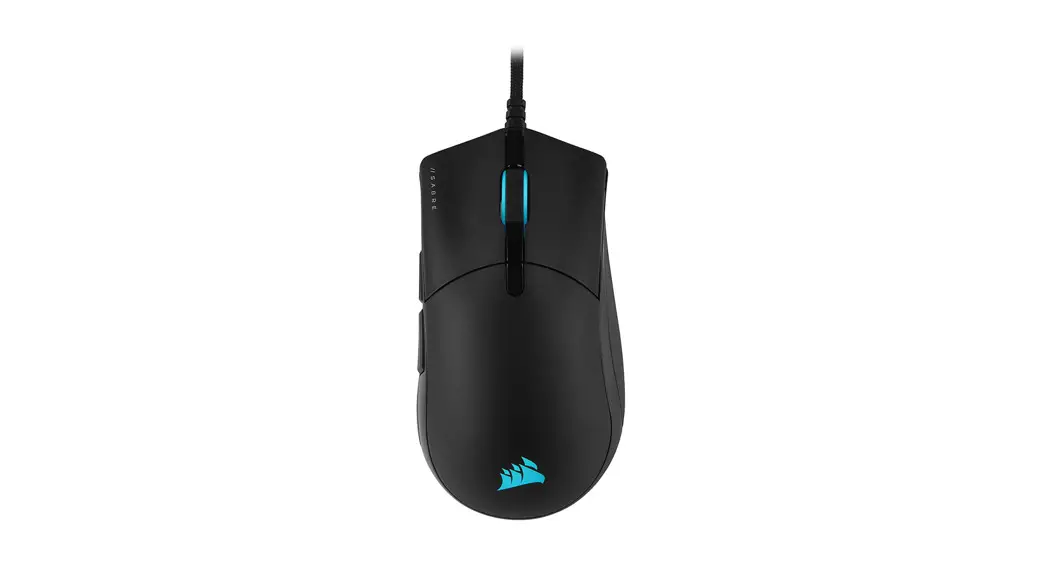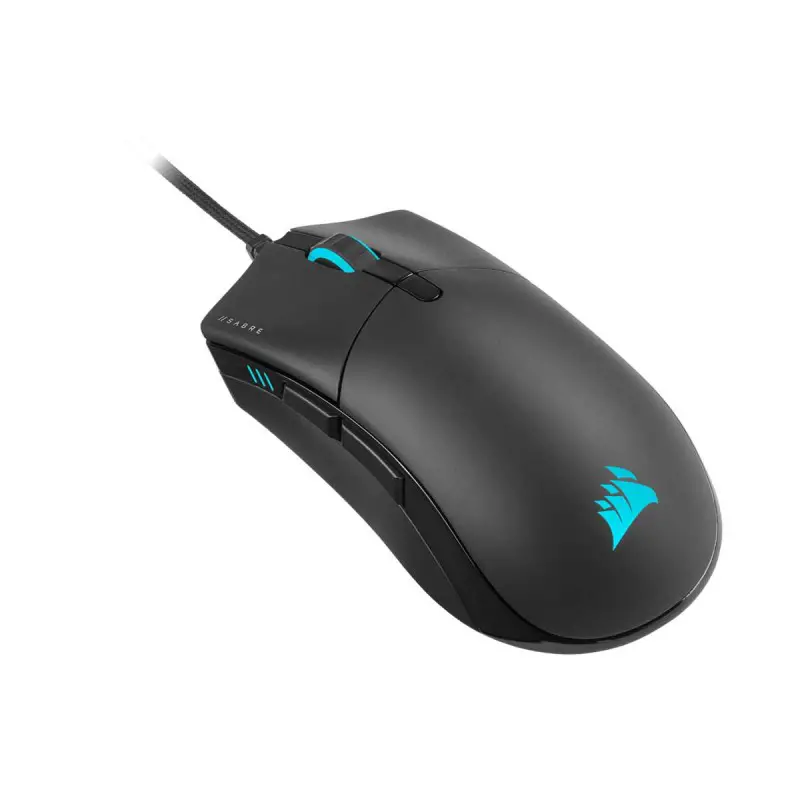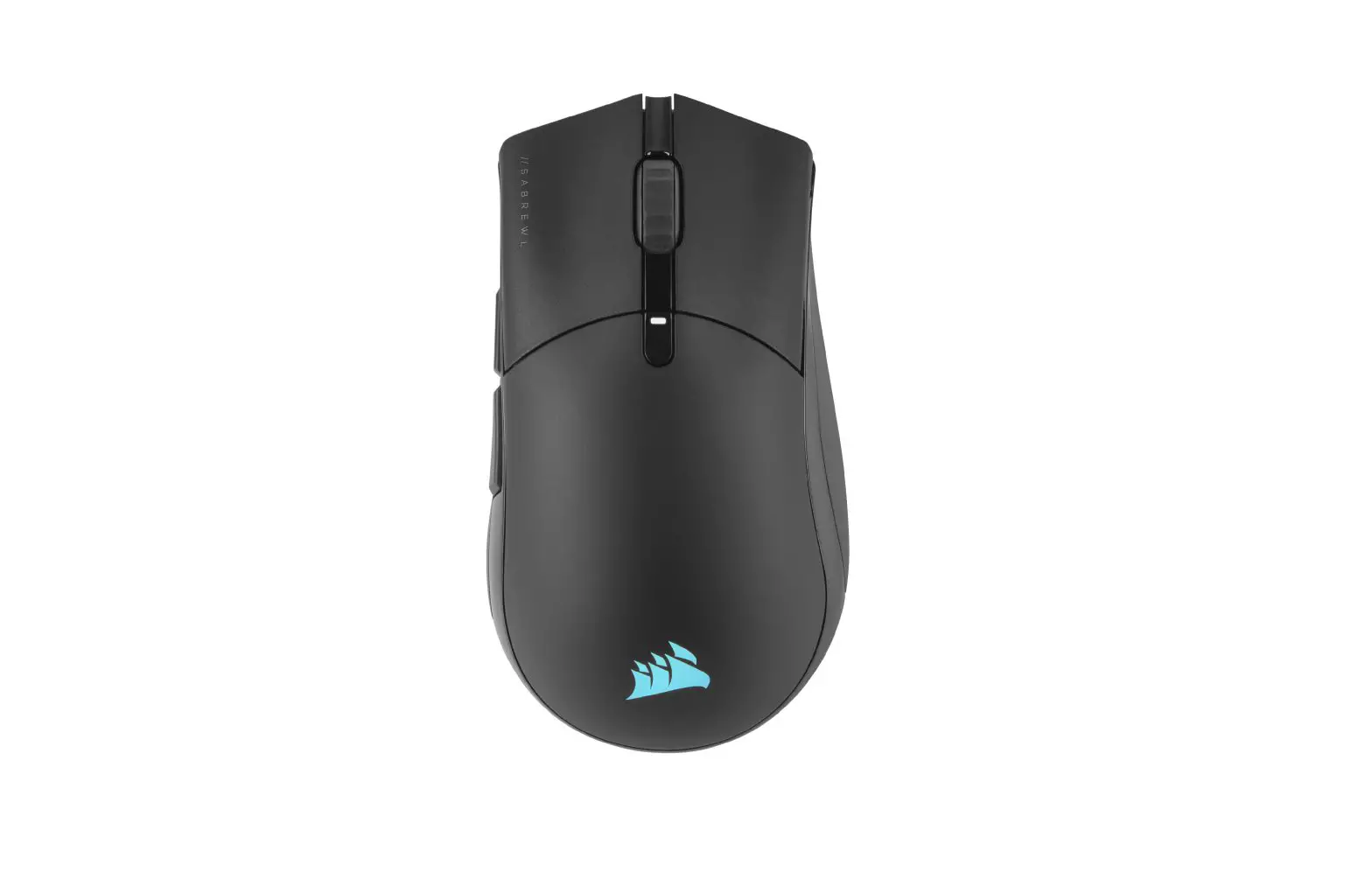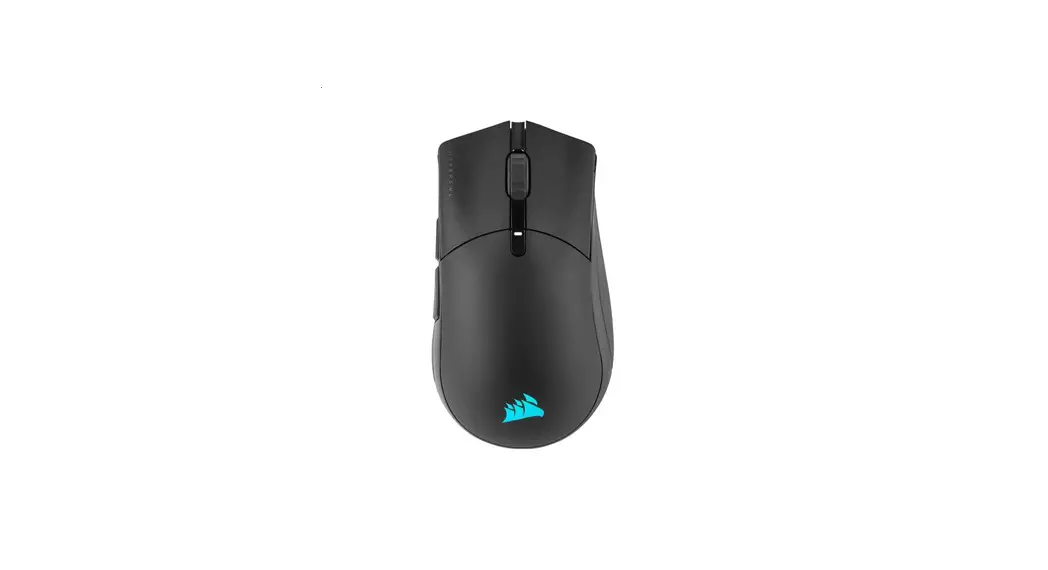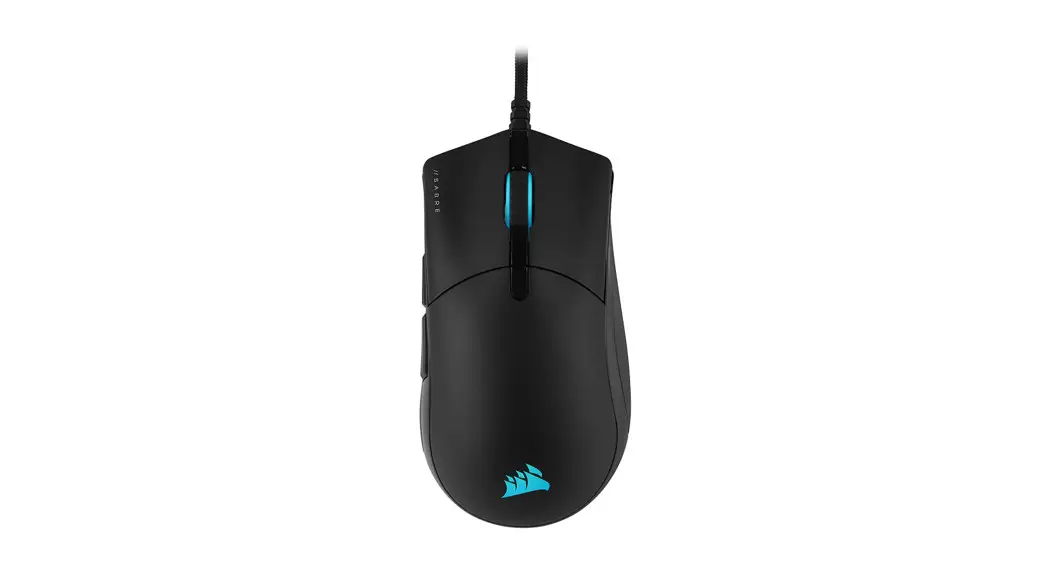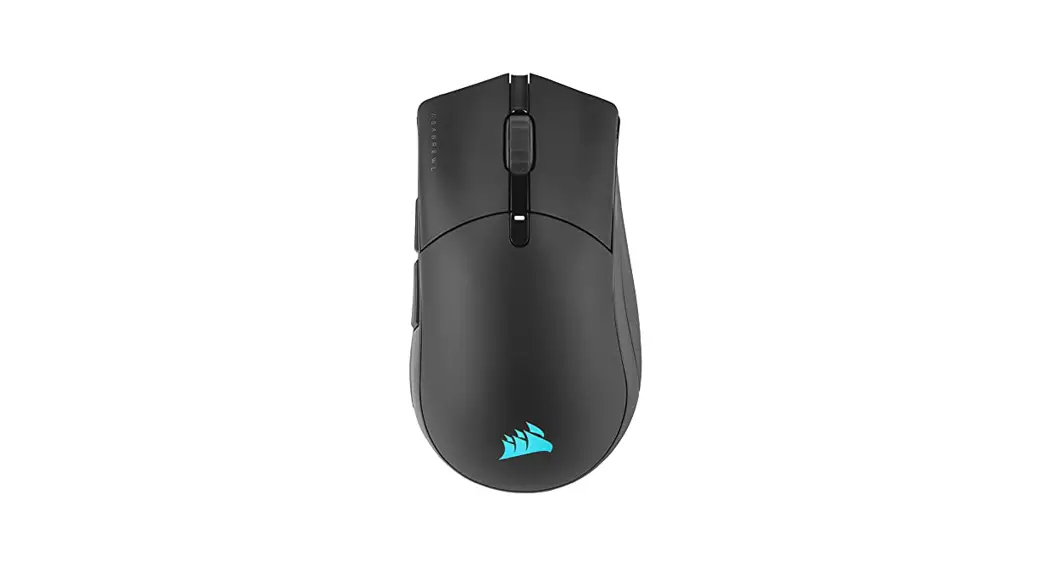

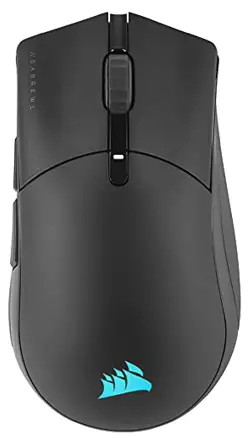
SABRE RGB PRO WIRELESS FPS/MOBA
FPS/MOBA Wireless Gaming Mouse


CHARGING THE MOUSE
IMPORTANT: The SABRE RGB PRO WIRELESS mouse must be fully charged before its first use.
Connect the mouse to an available USB 2.0 or 3.0 port on your PC with the USB charging/data cable.
The battery / wireless status LED indicator on the mouse will begin pulsing green to denote battery charging and will turn solid when charging is complete.
GETTING TO KNOW YOUR MOUSE
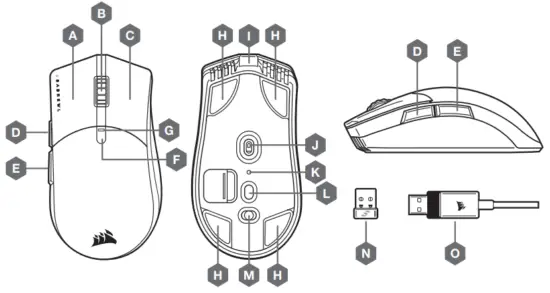
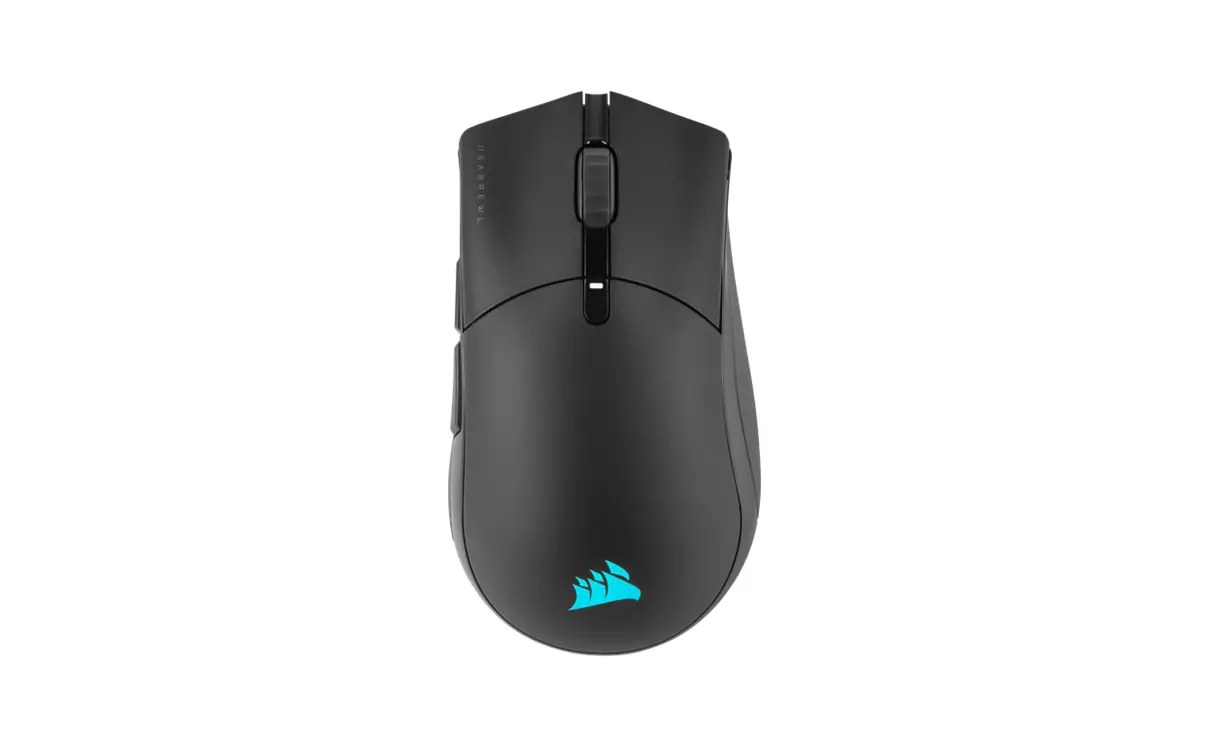
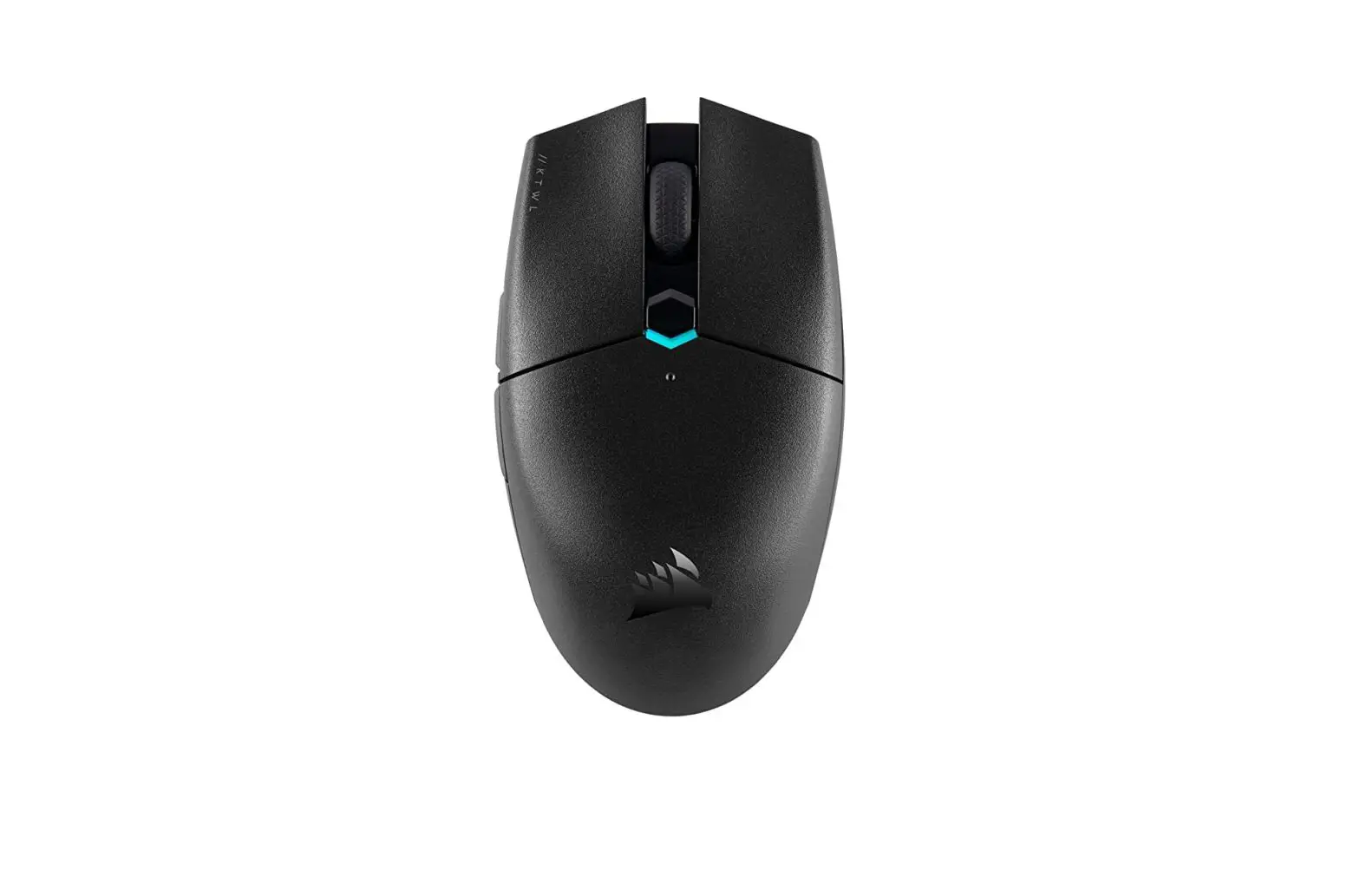
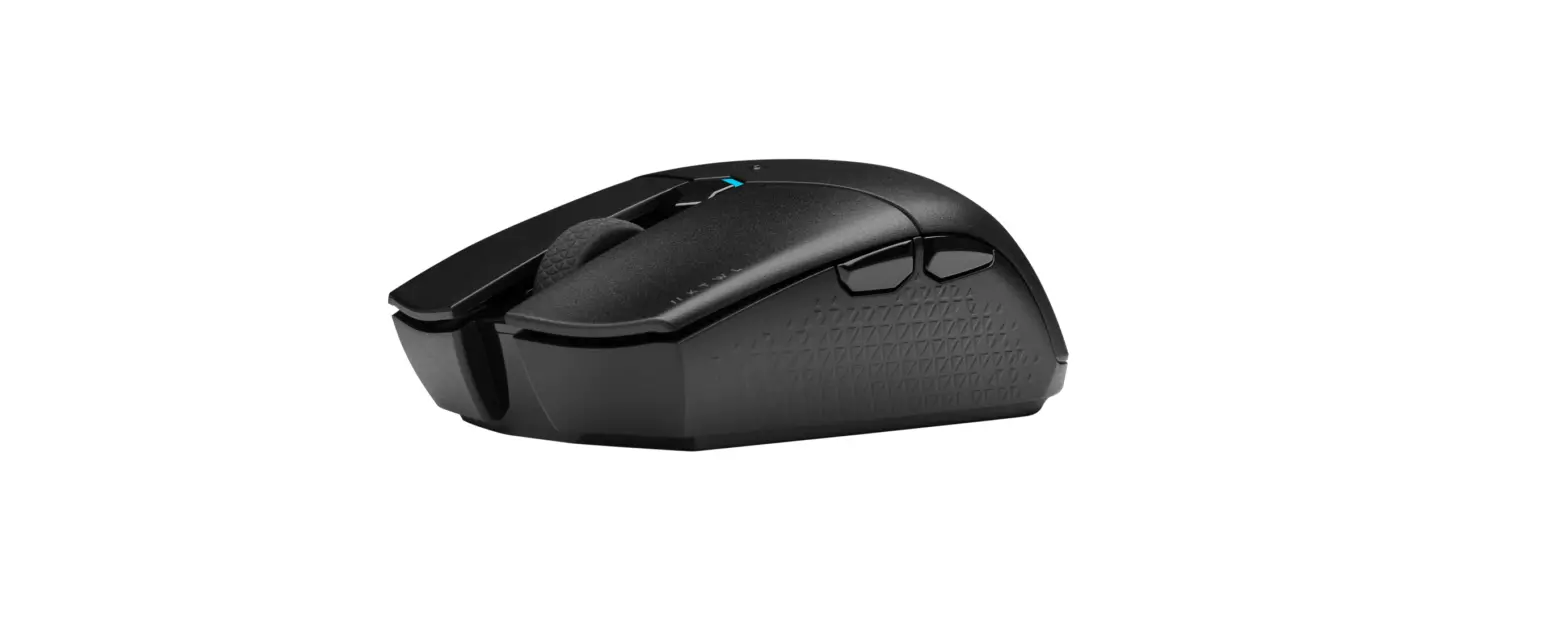
| A — QUICKSTRIKE LEFT-CLICK BUTTON B — MIDDLE CLICK BUTTON / SCROLL WHEEL C — QUICKSTRIKE RIGHT-CLICK BUTTON D — FORWARD BUTTON E — BACK BUTTON F — DPI CYCLE BUTTON G — MULTI-PURPOSE LED INDICATOR H — REPLACEABLE PTFE GLIDE PADS* | I — USB CHARGING / DATA PORT J — OPTICAL GAMING SENSOR K — PROFILE STATUS LED INDICATOR L — PROFILE SWITCH BUTTON M — POWER / WIRELESS MODE SWITCH N — USB WIRELESS RECEIVER O — USB CHARGING / DATA CABLE |
SETTING UP 2.4GHz SLIPSTREAM WIRELESS
Hyper-fast sub-1ms wireless connection is designed for no-compromise gaming-grade performance.
> Toggle power / wireless mode switch to the “2.4GHz” position to turn on your mouse.
> Connect the USB wireless receiver to an available USB 2.0 or 3. x port located on the front panel of your PC or nearby USB port (e.g. on CORSAIR MM700, MM800, MM1000 mousepads).
> The battery/wireless LED indicator will turn solid white when connected.
> Download the iCUE software from www.corsair.com/downloads.
> Run the installer program and follow instructions for installation.
If reconnection is required, initiate USB wireless receiver pairing via the iCUE software settings menu.
SETTING UP BLUETOOTH ® WIRELESS
Bluetooth wireless is best for everyday computing tasks, productivity, and office applications.
> Initiate Bluetooth pairing on your Bluetooth 4.0 or higher-enabled device.
> Press and hold the DPI CYCLE button.
> Toggle power / wireless mode switch to the “BT” position to turn on your mouse.
> Follow the instructions to successfully connect your device.
> The battery/wireless LED indicator will turn solid blue when connected.
ON-THE-FLY DPI TUNING
The mouse has a unique feature where you can adjust the current onboard DPI stage setting in 50 DPI increments
without the software, so you can jump right into the action while you find the perfect sensitivity setting.
| FUNCTION | SHORTCUT | UPI INDICATOR |
| INCREASE DPI BV 50 | HOLD DPI CYCLE BUTTON (F) AND PRESS THE FORWARD BUTTON (DI | BUNKS GREEN |
| DECREASE DPI BY 50 | HOLD DPI CYCLE BUTTON (F) AND PRESS BACK BUTTON (E) | BLINKS RED |
| RESET DPI STAGE | HOLD DPI CYCLE BUTTON (F) THEN BOTH FORWARD OD) AND BACK BUTTONS (12) FOR 2 SECONDS | BUNKS YELLOW |
On-the-fly DPI changes are saved to the onboard memory and can be further adjusted in granular 1 DPI steps in iCUE. If iCUE is running, then changes are saved to the software profile directly.
MOUSE STATUS LED INDICATORS
Various aspects of mouse operation are communicated through the status LED indicators located behind the scroll wheel and the bottom of the mouse.
| BATTERY STATUS | MULTI-PURPOSE LED INDICATOR |
| BATTERY CHARGING | PULSING GREEN |
| BATTERY CRITICAL RECHARGE REQUIRED | PULSING RED |
| BATTERY LOW, RECHARGE SOON | BLINKING RED |
| BATTERY MEDIUM | BLINKING AMBER |
| BATTERY HIGH | BLINKING GREEN |
| BATTERY CHARGED | GREEN |
| WIRELESS STATUS | |
| 2.4G Hz WIRELESS MODE – PAIRING | BLINKING WHITE |
| 2.4GHz WIRELESS MODE – PAIRED | WHITE |
| 2.4GHz WIRELESS MODE – PAIRING FAILED | PULSING WHITE |
| BT WIRELESS MODE – PAIRING | BLINKING BLUE |
| BT WIRELESS MODE – PAIRED | BLUE |
| BT WIRELESS MODE – PAIRING FAILED | PULSING BLUE |
| DPI STAGE STATUS | |
| STAGE #1- 400 DPI | RED |
| STAGE N2- 800 DPI | WHITE |
| STAGE #3 -1200 DPI | GREEN |
| STAGE N4 -1600 DPI | PURPLE |
| STAGE #5- 3200 DPI | CAPRI |
| ONBOARD PROFILE STATUS | PROFILE LED INDICATOR |
| PROFILE #1 | RED |
| PROFILE #2 | GREEN |
| PROFILE #3 | BLUE |
corsair.com/blog
forum.corsair.com
CorsairRMA
 PC Components | Gaming Gear | CORSAIR
 Home - Corsair Community
 corsair.com