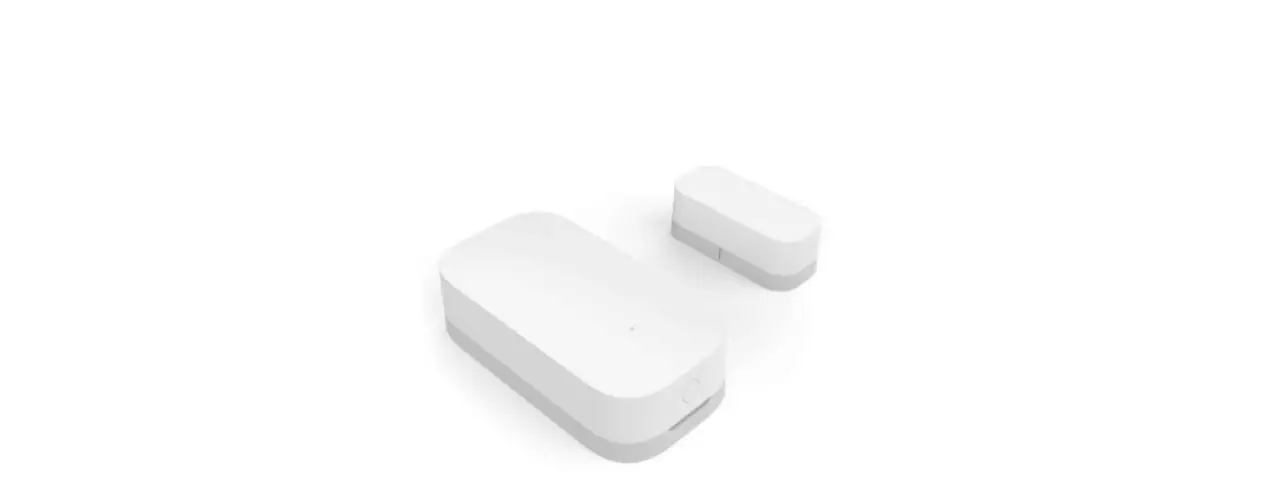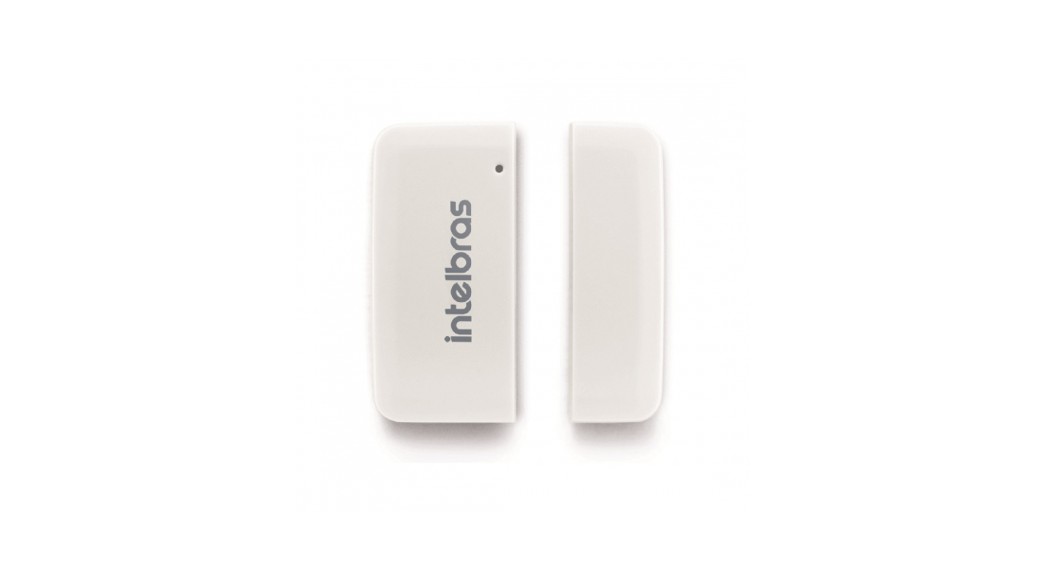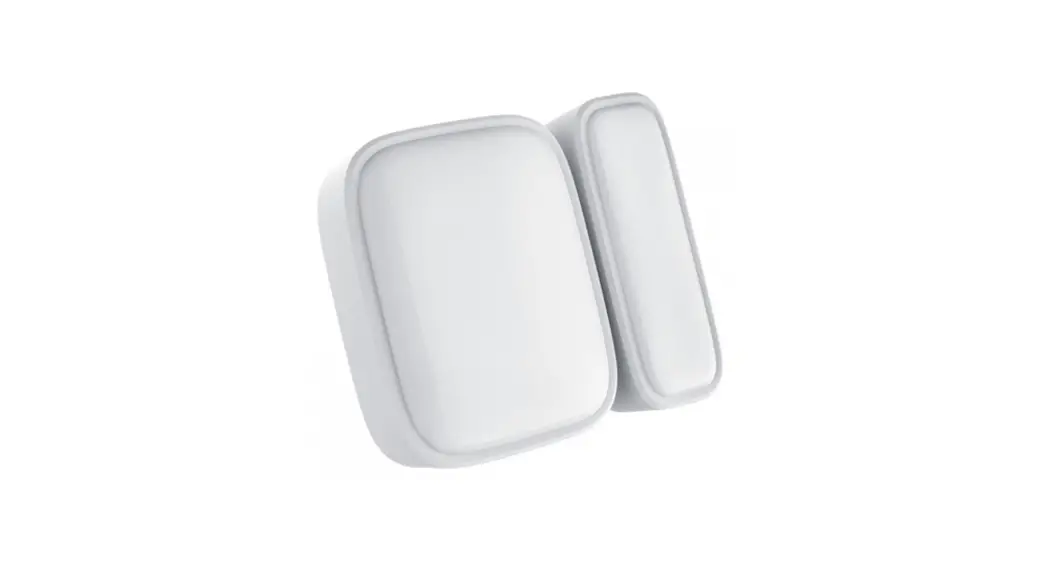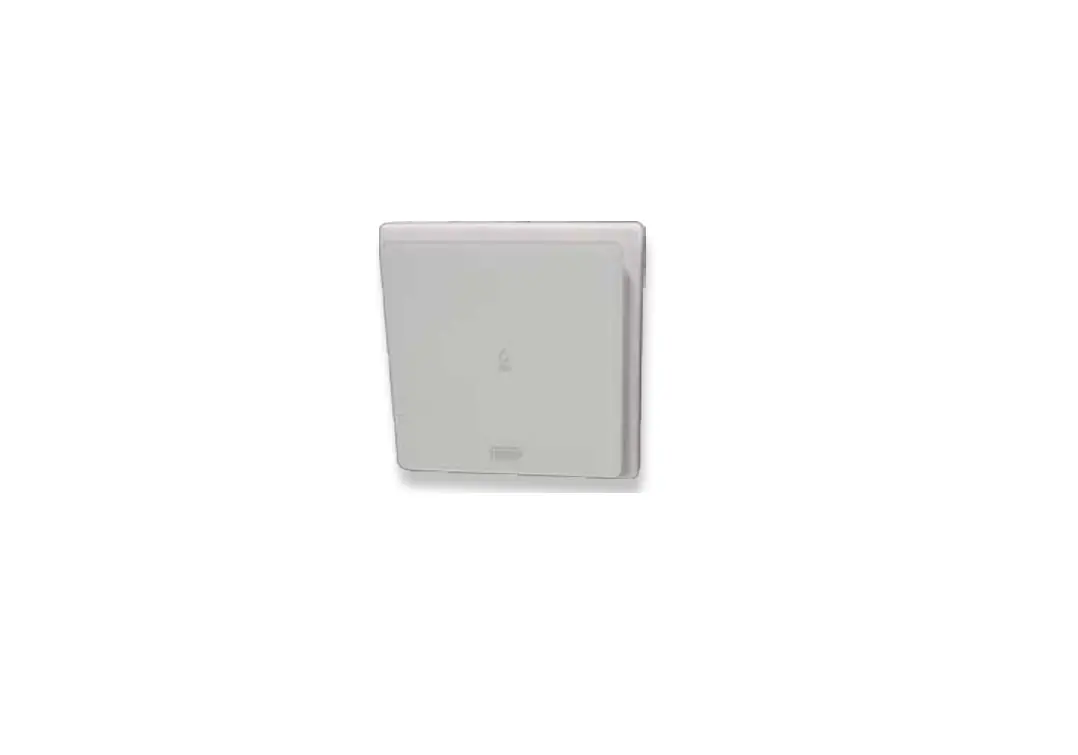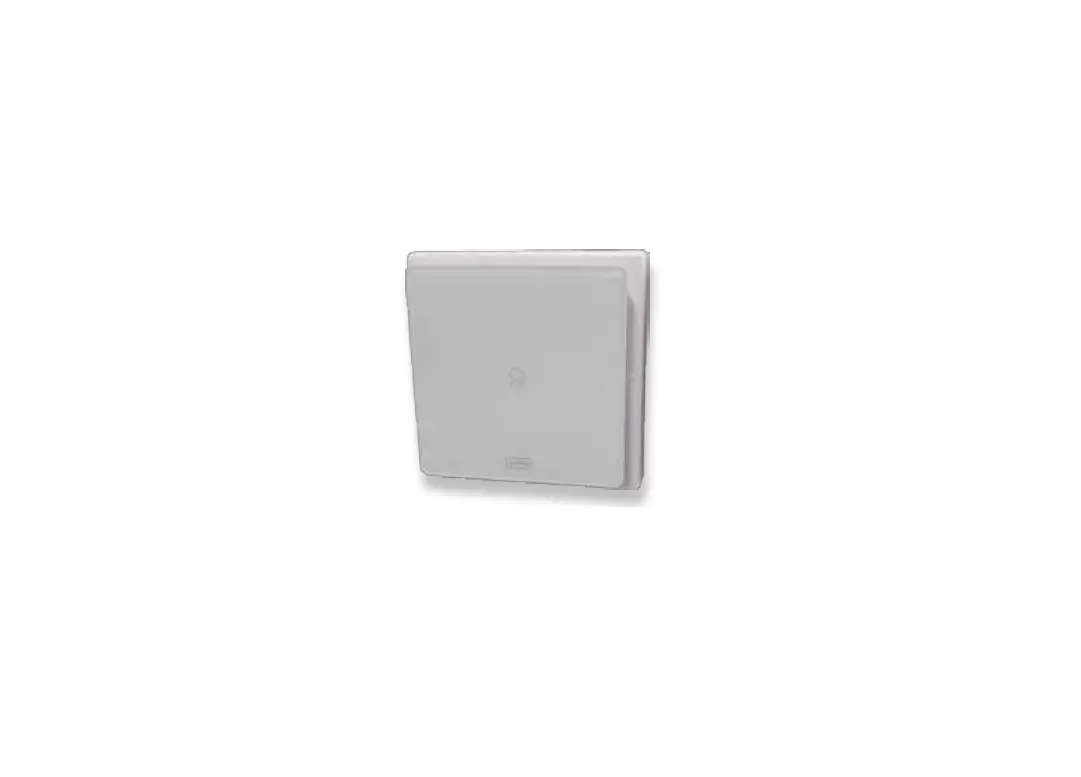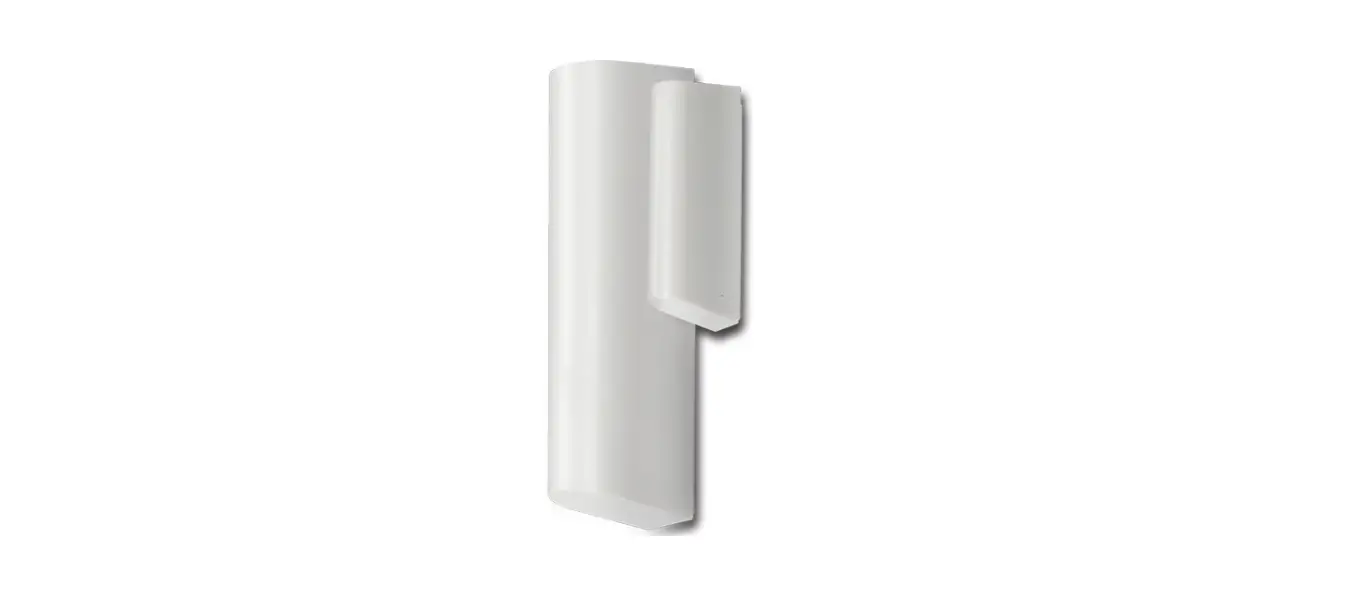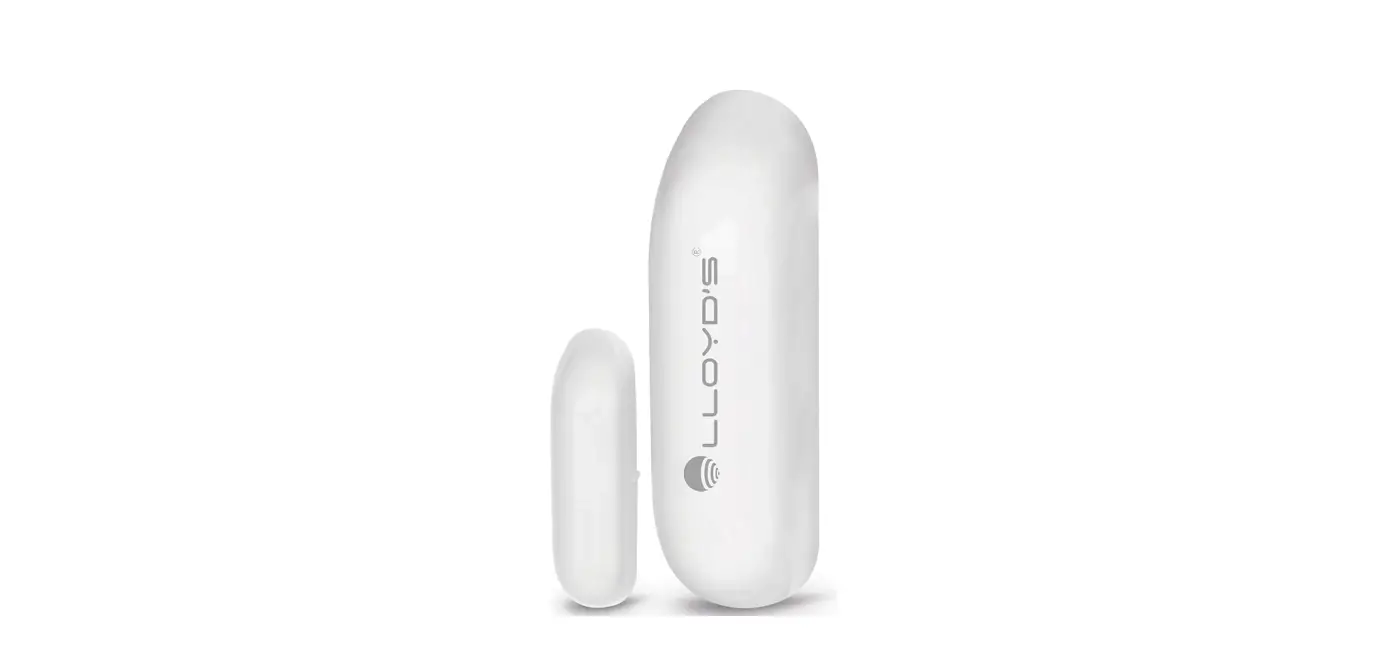

LLOYD S LC-1196 Magnetic Sensor
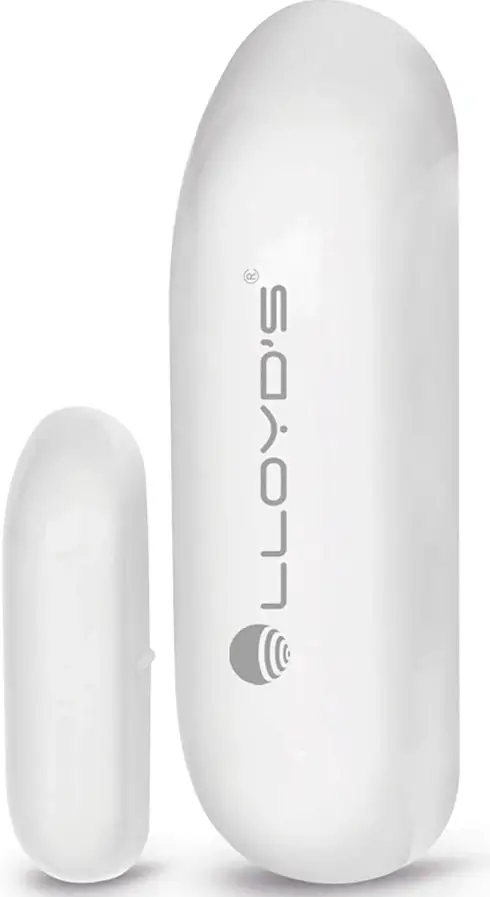
Characteristics
- Monitor the magnetic sensor’s status through the app from anywhere
- Receive notifications and review the opening and closing history
- Check the doors / windows status (open or closed) in the app
- Battery life: supports up to 2500 detonations (1year if activated 7 times a day and up to 2 years if activated 3 times a day)
- Electric power in standby mode: 13 mA / Electric power in alarm mode: 75 mA – 95 mA
- Operating temperature: 0°C ~ 40°C (32°F ~ 104°F) / Operating humidity: 20% ~ 85% / Storage temperature: 0°C ~ 60°C (32°F ~ 140°F) / Storage humidity: 0% ~ 90%
- No HUB required
- Built-in LED indicator
- Multi-user
- Create routines that trigger actions in other Lloyd’s smart products
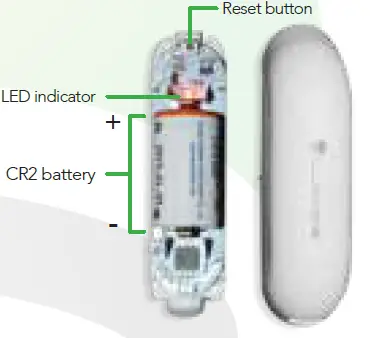
Diagram
Before getting started
Make sure your smartphone has iOS 10.0 or higher or Android™ 4.4 or higher. Check your network and make sure you are connected to a 2.4 GHz Wi Fi channel.
Download the Lloyds Smart app from the App Store or on Google Play or scan the following QR code with your smartphone.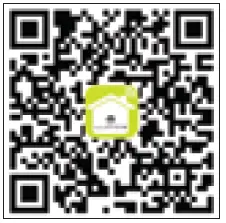
Registration and access
Launch the Lloyds Smart app. To register, click “Sign Up” (1), to continue, click “Agree”, choose your country and enter an email address, then click “Get Verification Code” (2).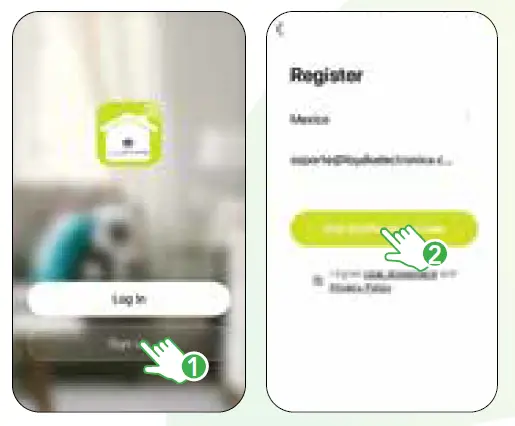
Enter the code sent to your email (check inbox or spam) (3). Set a password and click “Done” (4). Or log in directly if you already have an account.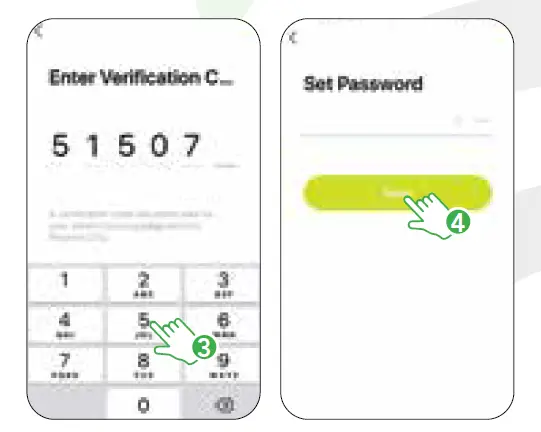
Add device
Open the Lloyds Smart app, select “+” (upper right corner) (1), choose the type of device you want to add, in this case, go to “Security” (2), then click “Alarm system” (3).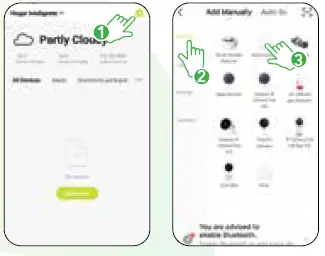
Enter your Wi Fi network information and password, click “Next” (4). Open the sensor cover and remove the insulating plastic to activate the battery, then press the reset button for 5 seconds. When the LED light blinks rapidly, confirm in the app (5), then click “Next” (6).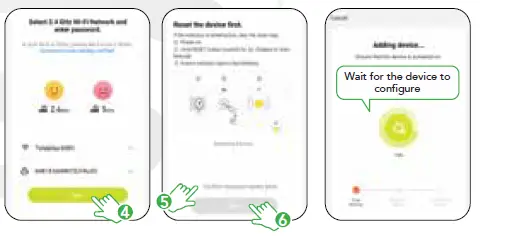
Once the device is configured, you can change the name (7) and finally click on “Done” (8).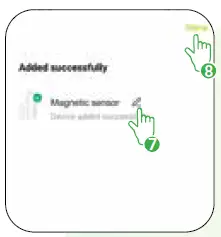
Note
Make sure the Wi Fi password you enter is correct and the device is close to the modem during the process.
After completing the setup, find and select the device in the list (9) to monitor it through the app from wherever you are. Only internet connection is required.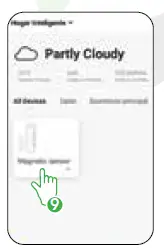
Device control
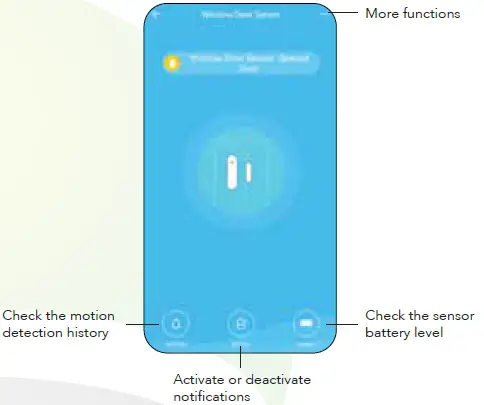
In “More functions” (upper right corner) you can change the name of the device, share control with family members and acquaintances, access information, update the firmware or delete the device.
Scene creation
With the creation of scenes and/or automation, you will be able to perform certain actions of your devices under different conditions and/or events. In the “Smart” interface (1), click Automation (2). Set a condition for the magnetic sensor that will trigger an action on another smart device, click “Save“ (3). For example, opening the door or window where the sensor is installed will trigger the siren or turn on the Lloyd’s smart bulb.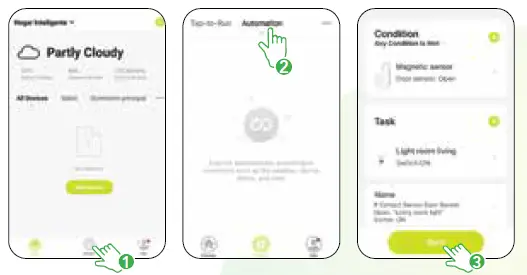
Electrical specifications
Power supply: 3 Vdc (1 3 Vdc CR battery included)
This device works with the following apps: