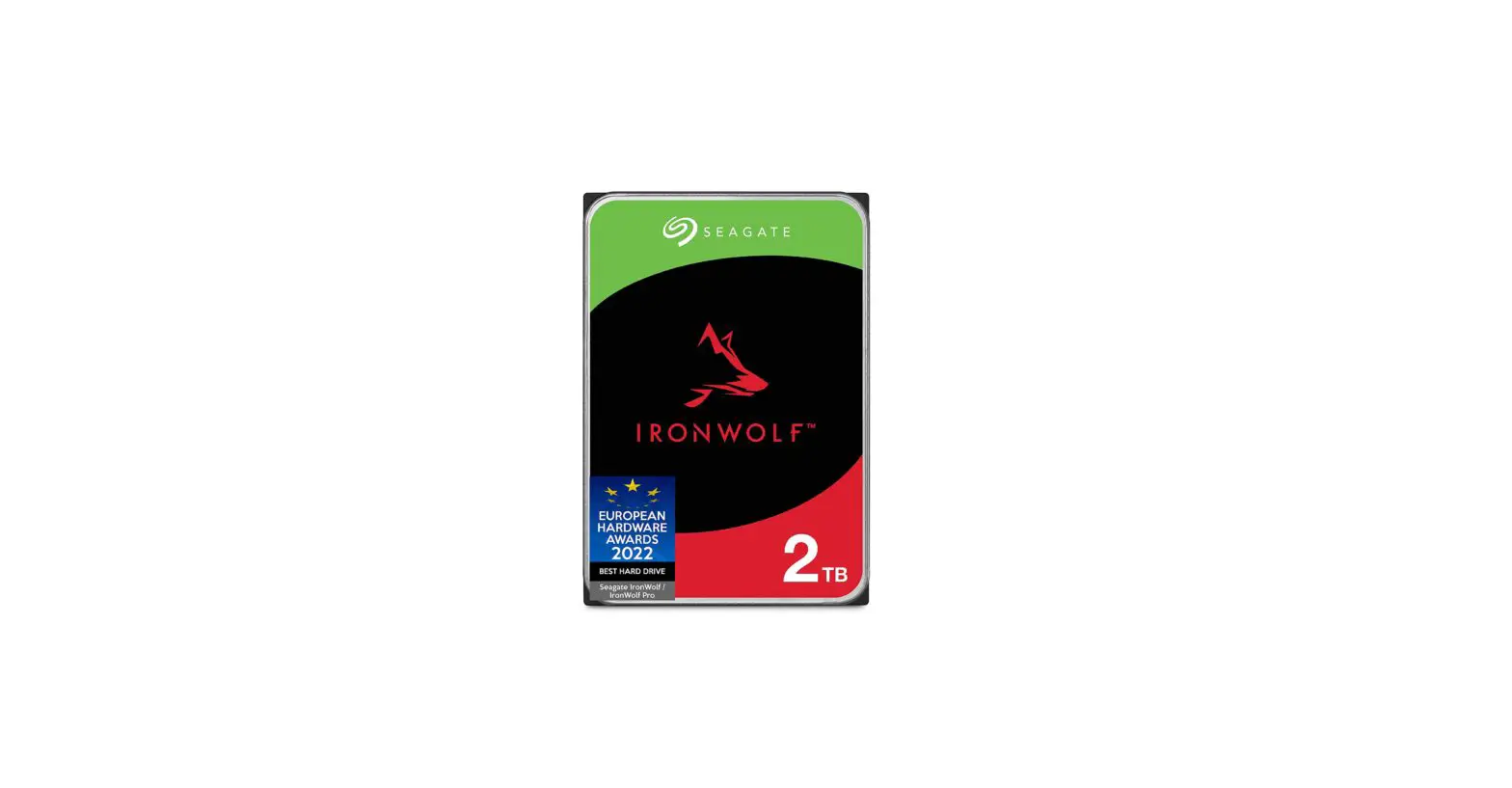
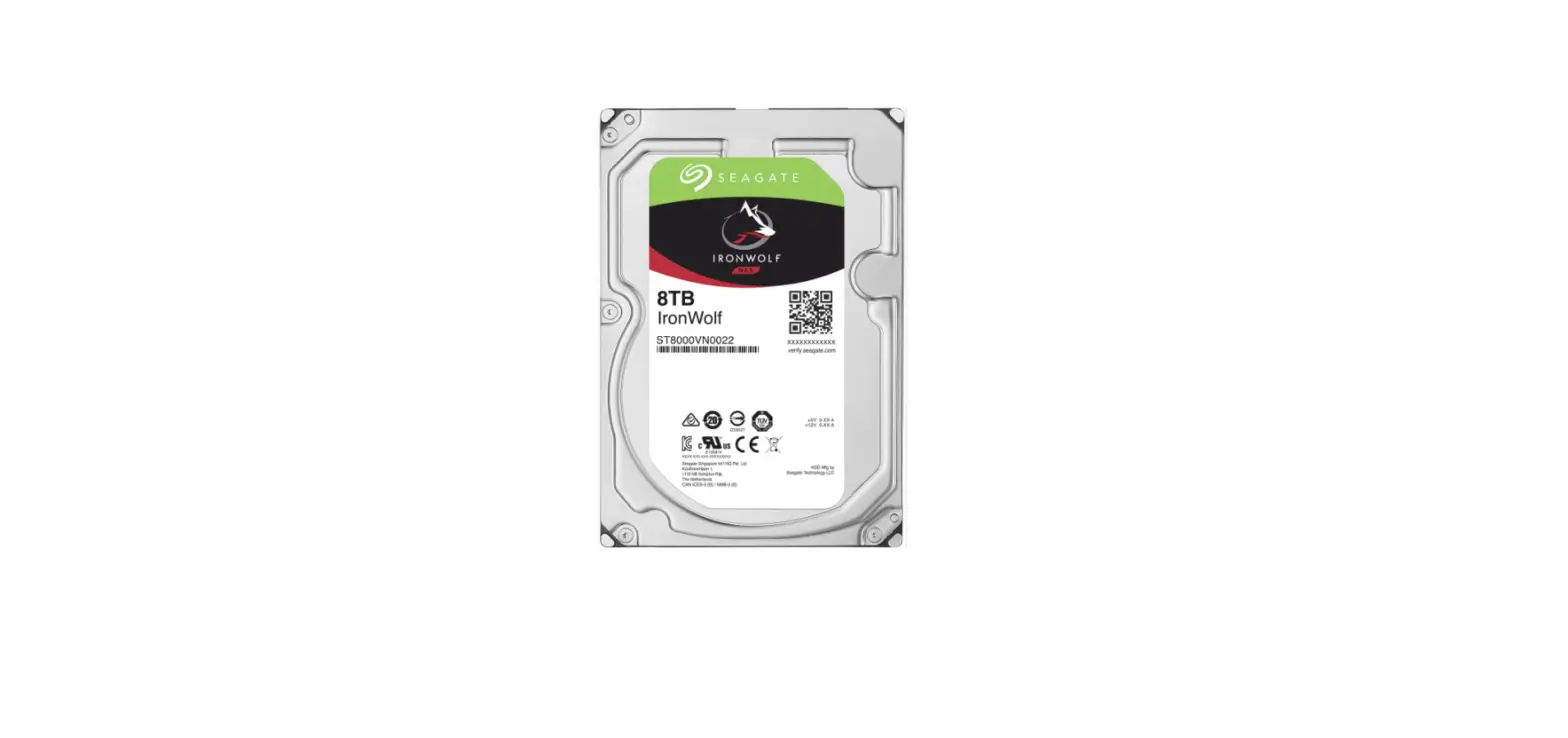
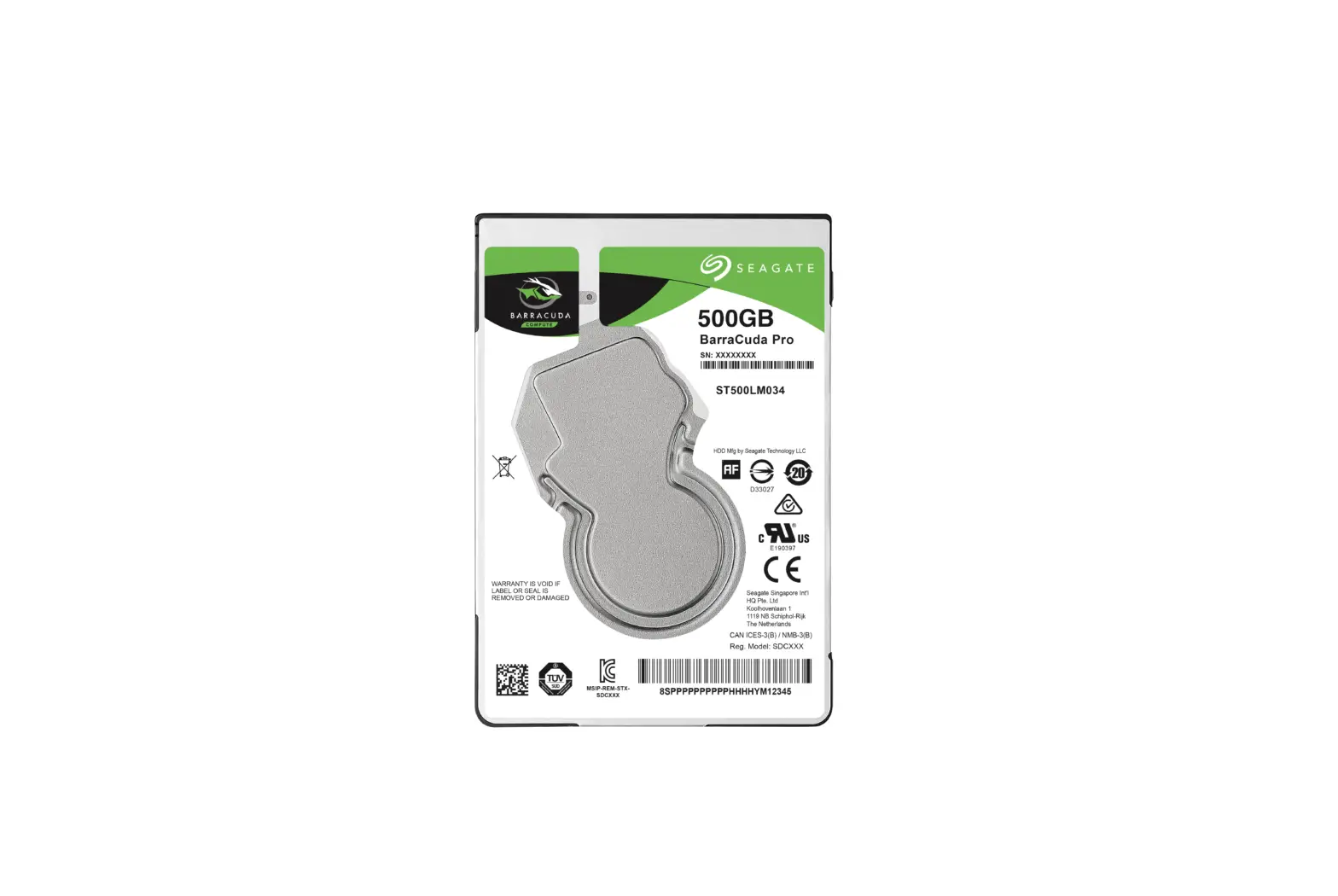
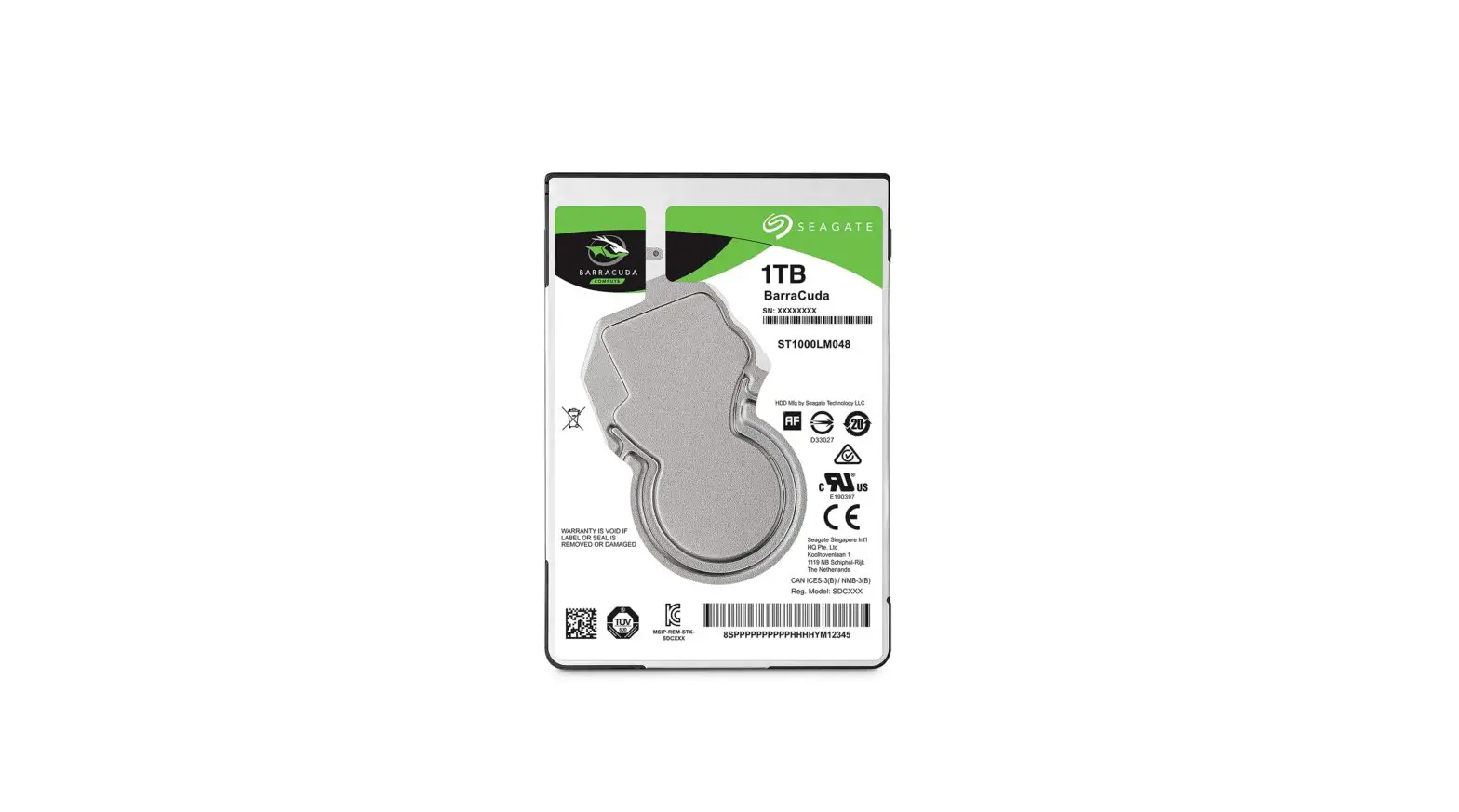
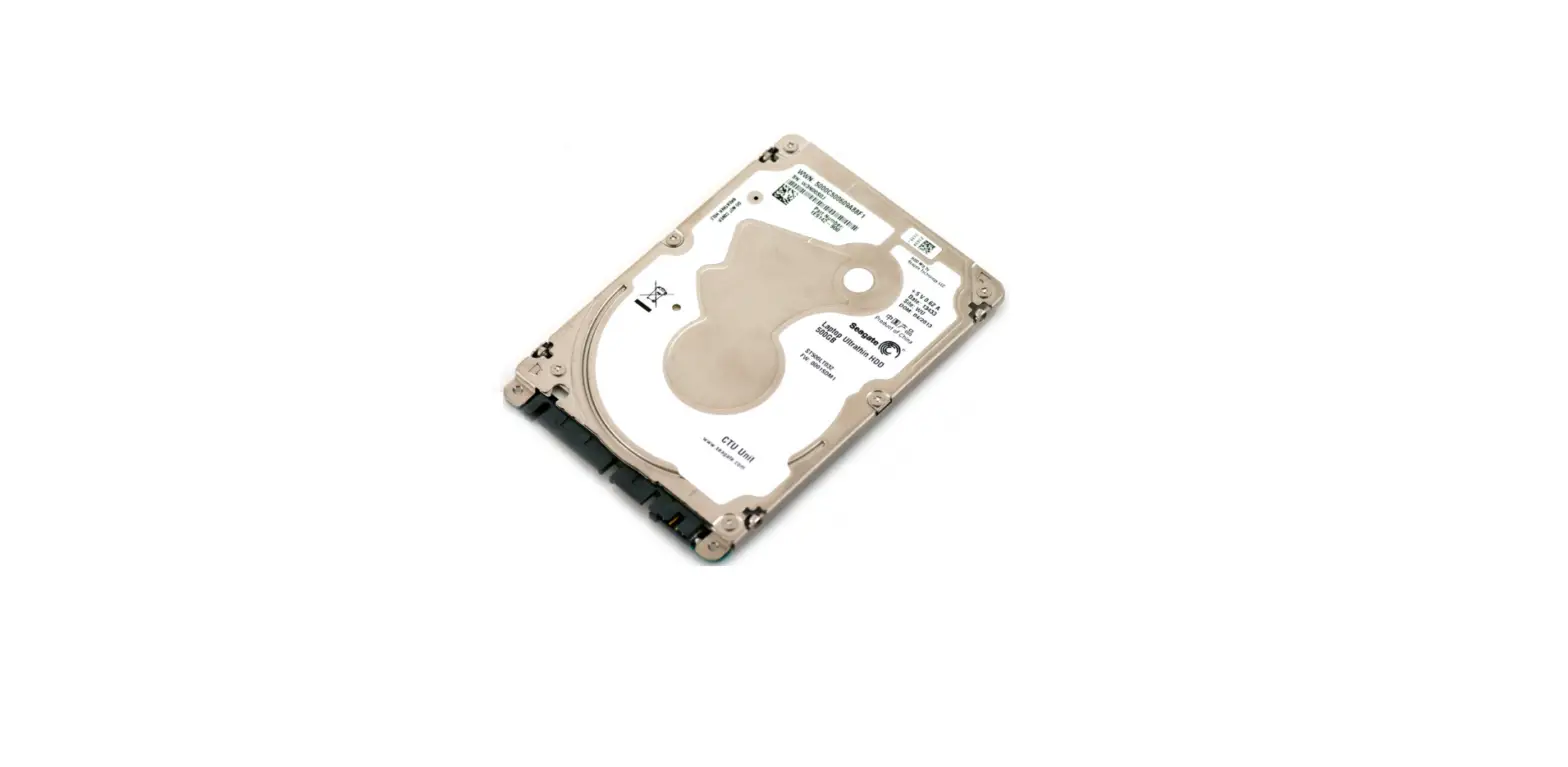
B0837R8R56 Hard Drive Caddy
Product Information
Congratulations on the purchase of your new WORKDONE Hard Drive
Caddy. This non-OEM/non-original accessory part is designed to
provide additional storage capacity for your DELL PowerEdge server.
The quick start installation manual provides basic installation
instructions, and for further information and guidance, you can
visit our support portal. The product model number is
B0837R8R56.
Compatibility
Before installation, please ensure the following:
- Your DELL PowerEdge server has a 3.5-inch Drive Bay.
- You have checked the DELL PowerEdge model compatibility
sheet. - Your DELL PowerEdge server has a Hot-Plug backplane.
Drive Bay Sizes
The same server model is delivered with two different drive bay
sizes. Verify whether your server model has a bigger 4.2-inch /
10.7 cm drive bay size for 3.5-inch hard drives. Please refer to
the Dell PowerEdge Front Drive Bay sizes table on page 3 of the
manual for specific measurements.
Product Usage Instructions
Installing a 3.5 Hard-Drive Into a 3.5 Hard-Drive Carrier
- Insert the hard drive into the carrier with the SATA/SAS
connector end facing the back. - Align the screw holes on the hard drive with the back set of
holes on the carrier. Ensure the back of the hard drive is flush
with the carrier. - Secure the hard drive to the carrier using the provided screws
(4pcs).
Installing a Hot-Swap Hard Drive
- Remove any installed hard-drive blank from the slot.
- Press the release button (1) and open the carrier handle
(2). - Slide the carrier into the slot until it connects with the
backplane. Close the handle (2) to lock the hard drive in
place.
Hard-Drive Indicator Codes
Each hard drive carrier has an activity LED indicator and status
LED indicator. The indicators provide information about the current
status of the hard drive. Please refer to page 6 of the manual for
detailed information on the different indicator patterns and their
corresponding conditions (RAID only).
Quick start installation manual
Congratulations on the purchase of your new WORKDONE Hard Drive Caddy.
Our quick guide provides basic installation instructions, and for further information and guidance, visit our support portal.
ENGLISH ESPAÑOL DEUTSCH ITALIANO FRANÇAIS
B0837R8R56
* non-OEM/non-original accessory part
Final checklist before installation:
My DELL
STEP
01
PowerEdge
server has a
3.5-inch Drive
Bay
Drive Bay
I have checked
STEP
02
the DELL PowerEdge model
compatibility
sheet
My DELL
STEP
03
PowerEdge
server has
a Hot-Plug
backplane
I want to add a
04 STEP
big 3.5-inch Hard Drive to my DELL
PowerEdge server
Page 2 of 36
B0837R8R56
Drive Bay
The same server model is delivered with two different drive bay sizes. Verify whether your server model has a bigger 4.2-inch / 10.7 cm drive bay size for 3.5-inch hard drives.
Page 3 of 36
B0837R8R56
Dell PowerEdge Front Drive Bay sizes
Server Generation
Measurement of Hard Drive, wide
Measurement of DriveBay, wide
16th14th
2.8 inch / 7 cm
2.9 inch / 7.4 cm
2.5″
13th11th
2.8 inch / 7 cm
3 inch / 7.7 cm
16th14th
4 inch / 10.2 cm
4.2 inch / 10.6 cm
3.5″
13th11th
4 inch / 10.2 cm
4.2 inch / 10.7 cm
Page 4 of 36
B0837R8R56
Installing a 3.5″ Hard-Drive Into a 3.5″ Hard-Drive Carrier
1. Insert the hard drive into the carrier with the SATA/SAS connector end facing the back.
2. Align the screw holes on the hard drive with the back set of holes on the carrier. Ensure the back of the hard drive is flush with the carrier.
3. Secure the hard drive to the carrier using the provided screws (4pcs).
2
1. Hard-drive carrier 2. Hard-drive 3. Screws (4pcs)
Installing a Hot-
3
Swap Hard Drive:
1. Remove any in-
stalled hard-drive
blank from the slot.
2. Press the release
button (1) and open
the carrier handle
1
(2).
3. Slide the carrier
into the slot until it
connects with the
backplane. Close
the handle (2) to
lock the hard drive in place.
1
Page 5 of 36
2
B0837R8R56
Hard-Drive Indicator Codes
Each hard drive carrier has an activity LED indicator and status LED indicator. The indicators provide information about the current status of the hard drive.
Drive-status indicator pattern Condition (RAID only)
Flashes green twice per second
Identifying drive or preparing for removal
Off
Drive ready for
insertion
or removal
Flashes green, amber, and turns off
Predicted drive failure
Flashes amber four times per Drive failed second
Flashes green slowly
Drive rebuilding
Flashes green for three seconds, amber for three seconds, and turns off after six seconds
Rebuild stopped
Page 6 of 36
B0837R8R56
Manual de instalación rápida
Enhorabuena por la compra de su nuevo soporte para disco duro WORKDONE.
Nuestra guía de inicio rápido proporciona instrucciones básicas de instalación; para más información y orientación visite nuestro portal de servicio.
ESPAÑOL
B0837R8R56
* Piezas no genuinas / Componentes de accesorios no originales
Lista de comprobación final antes
de la instalación:
Alojamiento
de la unidad de disco
Mi servidor
PASO
01
DELL PowerEdge
tiene una bahía
de unidad de 3,5 in
PASO
02
PASO
03 04 PASO
Page 8 of 36
He comprobado la hoja de compatibilidad de los modelos DELL PowerEdge
Mi servidor DELL PowerEdge está equipado con una placa base Hot-Plug
Quiero añadir un disco duro grande de 3,5 in a mi servidor DELL PowerEdge
10,2 cm
B0837R8R56
Alojamiento de la unidad
El mismo modelo de servidor viene con dos diferentes tamaños de bahías de unidad. Compruebe si su modelo de servidor tiene una bahía de unidad de 10,7 cm más grande para discos duros de 3,5 in y un convertidor para discos duros de 2,5 in.
Page 9 of 36
B0837R8R56
Dimensiones del alojamiento frontal de la unidad Dell PowerEdge
Generación Servidor
Dimensión del disco duro, ancho
Dimensión alojamiento de unidad, ancho
16^-14^ 7 cm 2.5″
13^-11^ 7 cm
7,4 cm 7,7 cm
16^-14^ 10,2 cm
10,6 cm
3.5″
13^-11^ 10,2 cm
10,7 cm
Page 10 of 36
B0837R8R56
Instalación de discos duros de 3,5″ en un soporte para discos duros de 3,5″.
1. Insertar el disco duro en el soporte con el extremo del conec-
tor SATA/SAS orientado hacia la parte posterior.
2. Alinear los agujeros de los tornillos del disco duro con los
agujeros posteriores del soporte. Asegúrese de que la parte
posterior del disco duro está alineada con el soporte.
3. Fijar el disco duro al soporte con los tornillos suministrados.
(4pz) 2
10,2 cm
1. Portaunidades de disco duro
3,5″
2. Disco duro
3. Tornillos (4 uds)
Instalar un disco
3
duro HotSwap:
1. Retirar el disco
duro vacío instalado
de la ranura.
2. Presionar el botón
de desbloqueo (1)
y abrir el asa del
1
soporte (2).
3. Deslizar el soporte
en la ranura hasta
que se conecte con
la placa base. Cerrar
el asa (2) para blo-
quear el disco duro en su sitio.
1
Page 11 of 36
10,7 cm
2
B0837R8R56
Códigos Indicadores de la Unidad de Disco Duro
Cada portaunidades dispone de un indicador LED de actividad y otro indicador LED de estado. Los indicadores proporcionan información sobre el estado presente de la unidad de disco duro.
Patrón del indicador de estado del Condición disco (solo RAID)
Luz verde intermitente dos veces por segundo
Identifi cando a la unidad o preparando la unidad para ser expulsada.
Apagado
Unidad lista para ser insertada o removida.
Luz intermitente verde, amarilla, después de lo cual se apaga
Fallo previsto en la unidad
Luz intermitente amarilla cuatro veces por segundo
Unidad fallada.
Luz intermitente verde lenta
Reconstrucción de unidad.
Luz constante verde
Unidad en línea.
Luz intermitente verde por tres segundos, amarilla por tres segundos, después de lo cual se apaga al cabo de los seis segundos
Reconstrucción parada.
Page 12 of 36
B0837R8R56
Schnellstartanleitung
DEUTSCH
Herzlichen Glückwunsch zum Kauf Ihres neuen WORKDONE Hard Drive Caddy.
Unsere Kurzanleitung enthält grundlegende Installationsanweisungen. Weitere Informationen und Anleitungen finden Sie in unserem SupportPortal.
B0837R8R56 * Nicht-OEM / Nicht-Original Zubehörteil
Abschließende Checkliste vor dem Einbau:
SCHRITT
01
Mein DELL PowerEdgeServer hat einen 3,5 ZollLaufwerksschacht
Laufwerksschacht
SCHRITT
02
Ich habe das DELL PowerEdge-Modellkompatibilitätsblatt überprüft
SCHRITT
03 04 SCHRITT
Mein DELL PowerEdgeServer hat eine Hot-PlugBackplane
Ich möchte eine 3,5-ZollFestplatte in meinen DELL PowerEdgeServer einbauen
Page 14 of 36
10,2 cm
B0837R8R56
Laufwerksschacht
Das gleiche Servermodell wird mit zwei verschiedenen Laufwerksschachtgrößen geliefert. Prüfen Sie, ob Ihr Servermodell über einen größeren 10,7 cm großen Laufwerksschacht für 3,5-Zoll-Festplatten verfügt und mit Konverter 2,5-Zoll-Festplatten.
Page 15 of 36
B0837R8R56
Dell PowerEdge Vordere Laufwerksschachtgrößen
ServerGeneration
Abmessung des Festplattenlaufwerks, Breite
Abmessung des Laufwerksschachts, Breite
16. – 14. 2.5″
13. – 11.
7 cm 7 cm
7,4 cm 7,7 cm
16. – 14. 3.5″
13. – 11.
10,2 cm 10,6 cm 10,2 cm 10,6 cm
Page 16 of 36
B0837R8R56
Einbau einer 3,5″-Festplatte in einen 3,5″-Festplattenträger
1. Setzen Sie die Festplatte mit dem SATA/SAS-Anschlussende
nach hinten in den Träger ein.
2. Richten Sie die Schraubenlöcher der Festplatte an den
hinteren Löchern des Trägers aus. Vergewissern Sie sich,
dass die Rückseite der Festplatte bündig mit dem Träger ist.
3. Befestigen Sie die Festplatte mit den mitgelieferten Schrauben
am Träger (4 Stück).
2
10,2 cm
1. Festplattenträger 2. Festplatte
3,5″
3. Schrauben (4 Stück)
Einbau einer HotSwap-Festplatte:
3
1. Entfernen Sie alle
installierten Festplat-
tenrohlinge aus dem
Steckplatz.
2. Drücken Sie den
Entriegelungsknopf
(1) und öffnen Sie den 1
Trägergriff (2).
3. Schieben Sie den
Träger in den Steck-
platz, bis er mit der
Backplane verbunden
ist. Schließen Sie den
Griff (2), um das Laufwerk zu verriegeln.
1
Page 17 of 36
10,7 cm
2
B0837R8R56
Festplatten-Anzeigecodes
Jeder Festplattenträger verfügt über eine Aktivitäts-LED und eine Status-LED. Diese Anzeigen geben Auskunft über den aktuellen Status der Festplatte.
Muster der LaufwerksStatusanzeige (nur RAID)
Zustand
Blinkt zweimal pro Sekunde grün
Laufwerk wird identifi ziert oder das Entfernen wird vorbereitet.
Aus
Laufwerk zum Einsetzen
oder zum Entfernen
bereit.
Blinkt grün und gelb, dann schaltet sich aus
Vorhersehbarer Laufwerkfehler.
Blinkt viermal pro Sekunde gelb
Laufwerk ist ausgefallen.
Blinkt langsam grün
Laufwerk Rebuild ist aktiv.
Grünes Dauerlicht
Laufwerk online.
Blinkt drei Sekunden lang grün, dann drei Sekunden lang gelb und schaltet sich nachher aus
der Rebuild wurde gestoppt.
Page 18 of 36
B0837R8R56
Manuale di installazione rapida
Congratulazioni per l’acquisto del tuo nuovo Hard Drive Caddy WORKDONE.
La nostra guida rapida fornisce istruzioni di base per l’installazione; per ulteriori informazioni e indicazioni, visitate il nostro portale di assistenza.
ITALIANO
B0837R8R56 * Parte accessorio non OEM/non originale
Lista di controllo finale prima dell’installazione:
PASSO
01
Il Server
Alloggiamento unità disco
My DELL
PowerEdge ha un
alloggiamento per
unità da 3,5 pollici
Ho controllato
PASSO
02
la scheda di compatibilità dei
modelli DELL
PowerEdge
Il mio server
PASSO
03
DELL PowerEdge
è dotato di un
backplane
Hot-Plug
Voglio aggiungere
04 PASSO
un grande disco rigido da 3,5 pollici
al mio server DELL
PowerEdge
10,2 cm
Page 20 of 36
B0837R8R56
Alloggiamento uintà disco
Lo stesso modello di server viene fornito con due dimensioni diverse di alloggiamento dell’unità. Controlla se il tuo modello di server abbia un alloggiamento più grande da 10,7 cm per hard drive da 3,5 pollici e con convertitore di dischi rigidi da 2,5.
Page 21 of 36
B0837R8R56
Dimensioni alloggiamento anteriore unità Dell PowerEdge
Generazione Misura Hard
Server
Drive, ampia
Misura Alloggiamento Unità, ampia
16^-14^ 7 cm 2.5″
13^-11^ 7 cm
7,4 cm 7,7 cm
16^-14^ 10,2 cm
10,6 cm
3.5″
13^-11^ 10,2 cm
10,7 cm
Page 22 of 36
B0837R8R56
Installazione Hard Drive da 3,5″ in un Supporto per Hard Drive da 3,5″.
1. Inserire il disco rigido nel supporto con l’estremità del
connettore SATA/SAS rivolta verso il retro.
2. Allineare i fori per le viti del disco rigido con la serie di fori
posteriori del supporto. Assicurarsi che la parte posteriore del
disco rigido sia in linea con il supporto.
3. Fissare il disco rigido al supporto utilizzando le viti in dotazione.
(4pz) 2
10,2 cm
1. Supporto dell’hard disk 3,5″
2. Hard disk 3. Viti (4 pezzi)
Installare un Hard 3
Drive HotSwap:
1. Rimuovere il disco
rigido vuoto installa-
to dallo slot.
2. Premere il pul-
sante di rilascio (1) e
aprire la maniglia del
1
supporto (2).
3. Far scorrere il
supporto nello slot
finché non si collega al backplane. Chiu-
dere la maniglia (2)
per bloccare il disco
rigido in posizione.
1
Page 23 of 36
10,7 cm
2
B0837R8R56
Codici dell’indicatore del disco rigido
Ogni supporto del disco rigido ha un indicatore LED di attività e un indicatore LED di stato. Gli indicatori forniscono informazioni sullo stato attuale del disco rigido.
Pattern di indicatore status del Disco (solo RAID) Luce lampeggiante verde due volte al secondo
Off
Luce lampeggiante verde, ambra e poi si spegne Luce lampeggiante ambra quattro volte al secondo Luce lampeggiante lenta verde Verde fi sso Luce lampeggiante verde per tre secondi, ambra per tre secondi, poi si spegne dopo sei secondi
Condizione
Identifi cazione dell’unità o preparazione per la rimozione. Disco pronto per l’inserimento o la rimozione. Previsto guasto del disco.
Disco guasto.
Ricostruzione del disco. Disco online. Ricostruzione interrotta.
Page 24 of 36
B0837R8R56
Manuel d’installation rapide
Nous vous félicitons pour l’achat de votre nouveau boîtier pour disque dur WORKDONE.
Notre guide rapide fournit des instructions d’installation de base, et pour plus d’informations et de conseils, Rendez-vous sur notre portail d’assistance.
FRANÇAIS
B0837R8R56 * Non-oem/pièces d’accessoires non originaux
Liste de contrôle finale avant l’installation :
Baie de disque
Mon serveur
ÉTAPE
01
DELL PowerEdge
est équipé est
équipé d’une baie de
disque 3,5 pouces.
J’ai vérifié Ia fiche
ÉTAPE
02
de compatibilité pour le modèle
DELL PowerEdge.
ÉTAPE
03 04 ÉTAPE
Page 26 of 36
Mon serveur DELL PowerEdge est équipé d’une carte-mère enfichable à chaud.
Je souhaite ajouter un gros disque dur de 3,5 pouces à mon serveur DELL PowerEdge
10,2 cm
B0837R8R56
Baie de disque
Le même modèle de serveur est livré avec deux tailles de baie différentes. Vérifiez si votre modèle de serveur a une taille de baie plus petite de 10,7 cm pour les disques durs de 3,5 pouces et avec des disques durs de 2,5 pouces convertisseurs.
Page 27 of 36
B0837R8R56
Tailles des baies de disques avant de Dell PowerEdge
Génération du serveur
Dimension du disque dur, en largeur
Dimension de la baie de disque, en largeur
16 ème 14 ème
7 cm
2.5″
13 ème 11 ème
7 cm
7,4 cm 7,7 cm
16 ème 14 ème
10,2 cm
10,6 cm
3.5″
13 ème 11 ème
10,2 cm
10,7 cm
Page 28 of 36
B0837R8R56
Installation d’un disque dur de 3,5 pouces dans un support de disque dur de 3,5 pouces
1. Insérez le disque dur dans le support en orientant l’extrémité
du connecteur SATA/SAS vers l’arrière.
2. Alignez les trous de vis du disque dur avec les trous arrière du
support. Veillez à ce que l’arrière du disque dur soit au même
niveau que le support.
3. Fixez le disque dur au support à l’aide des vis fournies
(4 unités). 2
10,2 cm
1. Boîtier de disque dur 2. Unité de disque dur
3,5″
3. Vis (4 u.)
Installation d’un dis- 3 que dur enfichable à
chaud :
1. Retirez de l’emplace-
ment tout disque dur
vierge qui y est installé.
2. Appuyez sur le bou-
ton de déverrouillage (1) et ouvrez la poign- 1
ée du support (2).
3. Faites glisser le sup-
port dans le logement
jusqu’à ce qu’il soit con-
necté à la carte-mère.
Fermez la poignée (2)
pour verrouiller le disque dur en place.
1
Page 29 of 36
10,7 cm
2
B0837R8R56
Codes de l’Indicateur du Disque Dur
Chaque boîtier d’unité de disque dur est équipé d’un indicateur LED d’activité et d’un indicateur LED d’état. Les indicateurs fournissent de l’informations sur l’état présent de l’unité.
Témoin de statut du disque dur État (RAID uniquement)
Clignote en vert deux fois par seconde
En train de reconnaître l’unité ou de préparer l’unité pour son relèvement.
Éteint
Unité prête à être introduite ou relevée.
Clignote en vert, en jaune et puis s’éteint
Défaillance prévue du lecteur.
Clignote en jaune quatre fois par seconde
Lecteur échoué.
Clignote en vert lentement
Reconstruction du lecteur.
Vert fi xe
Lecteur en linge.
Clignote en vert trois secondes,
Reconstruction arrêtée.
en jaune pour trois secondes et fi
nalement s’éteint après six secondes
Page 30 of 36
B0837R8R56
WE CARE WE SUPPORT
your global support portal:
www.workdone.support
Drive Caddy Configurator · Plenty of Downloads · Product PDF Manuals Compatibility Sheets · Drive Bay Size Tables · Dell Server Naming Dell Caddy Part Numbers · Free eBook Download Support Articles · Installation Diagrams
Copyright © 2018-2023 by WORKDONE. All Rights Reserved.