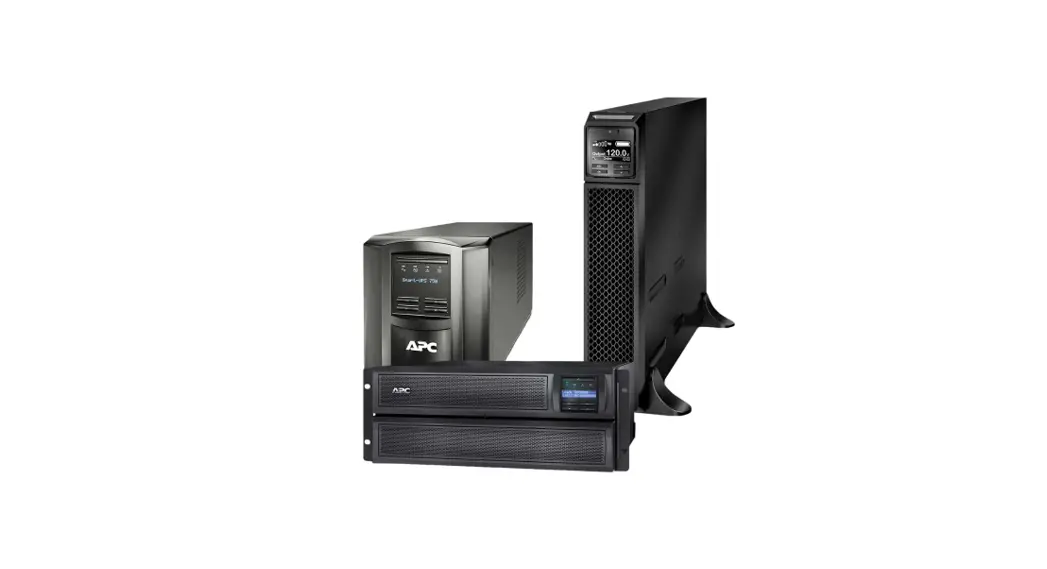
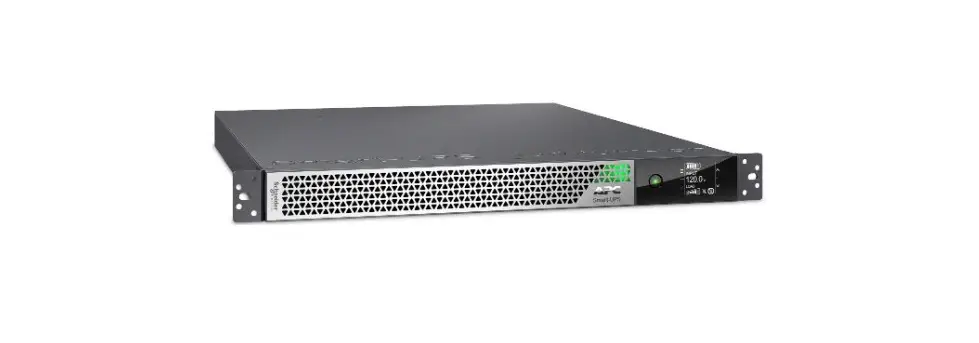
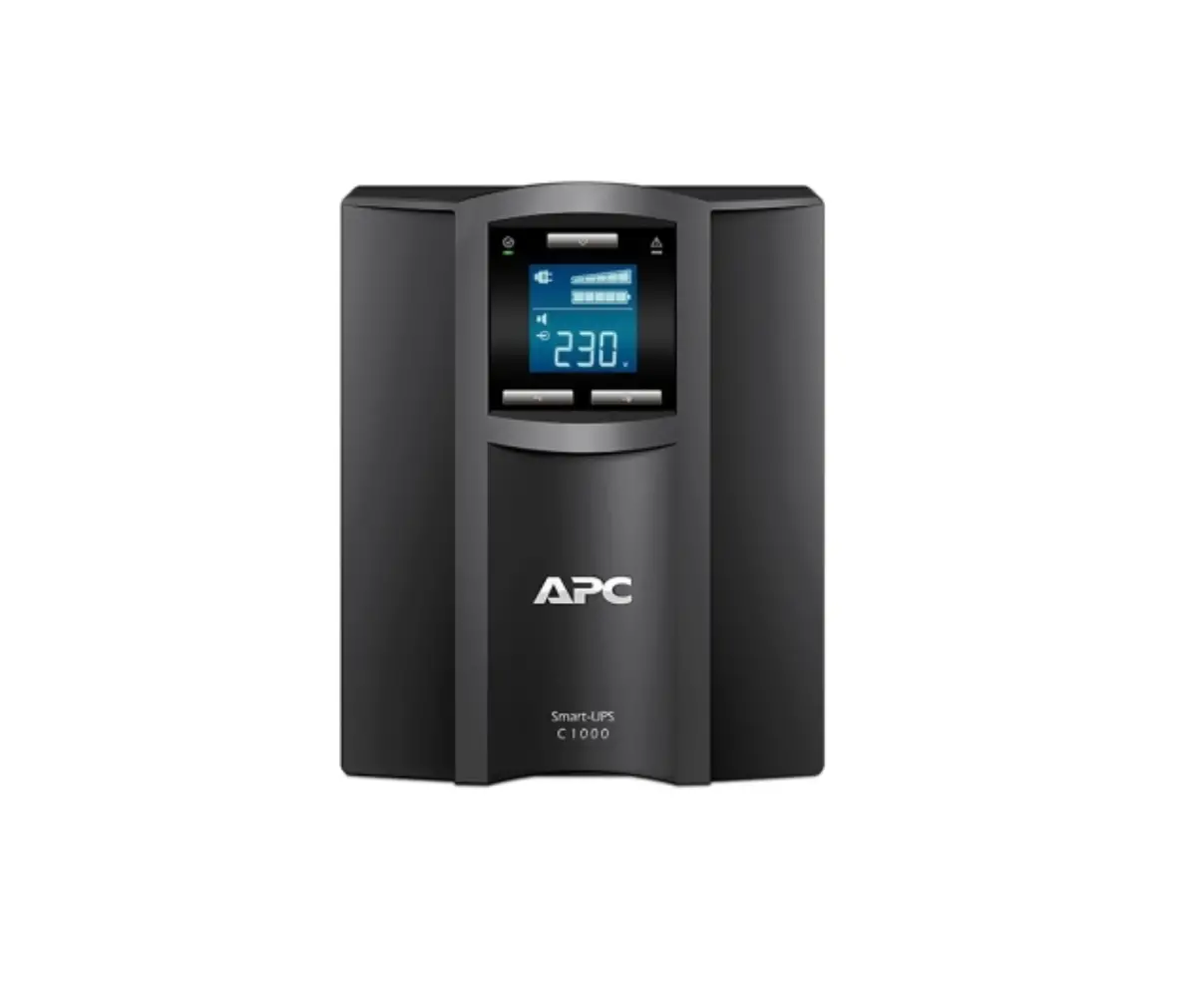
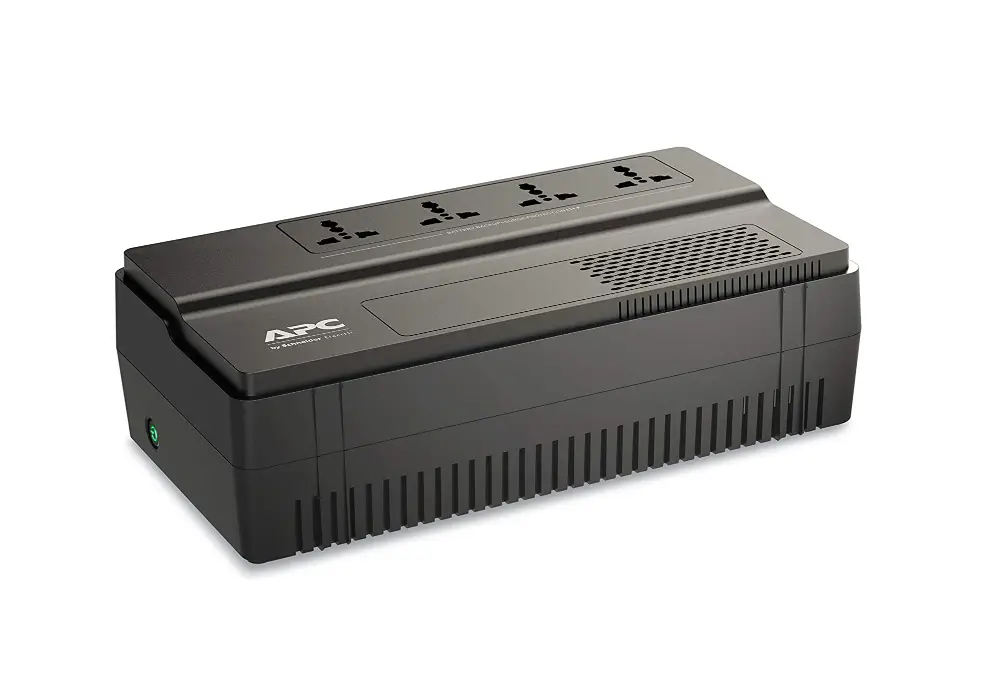
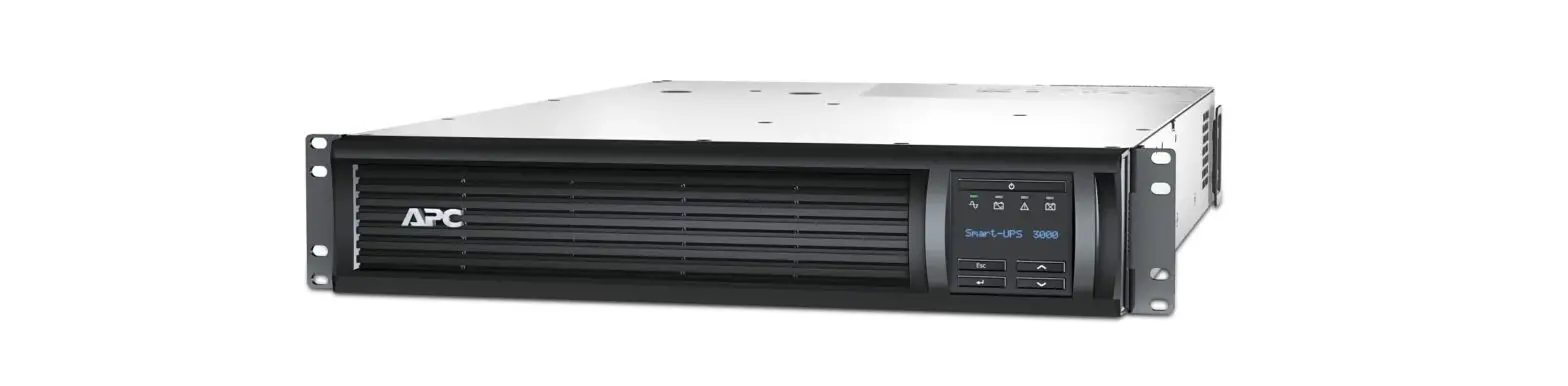
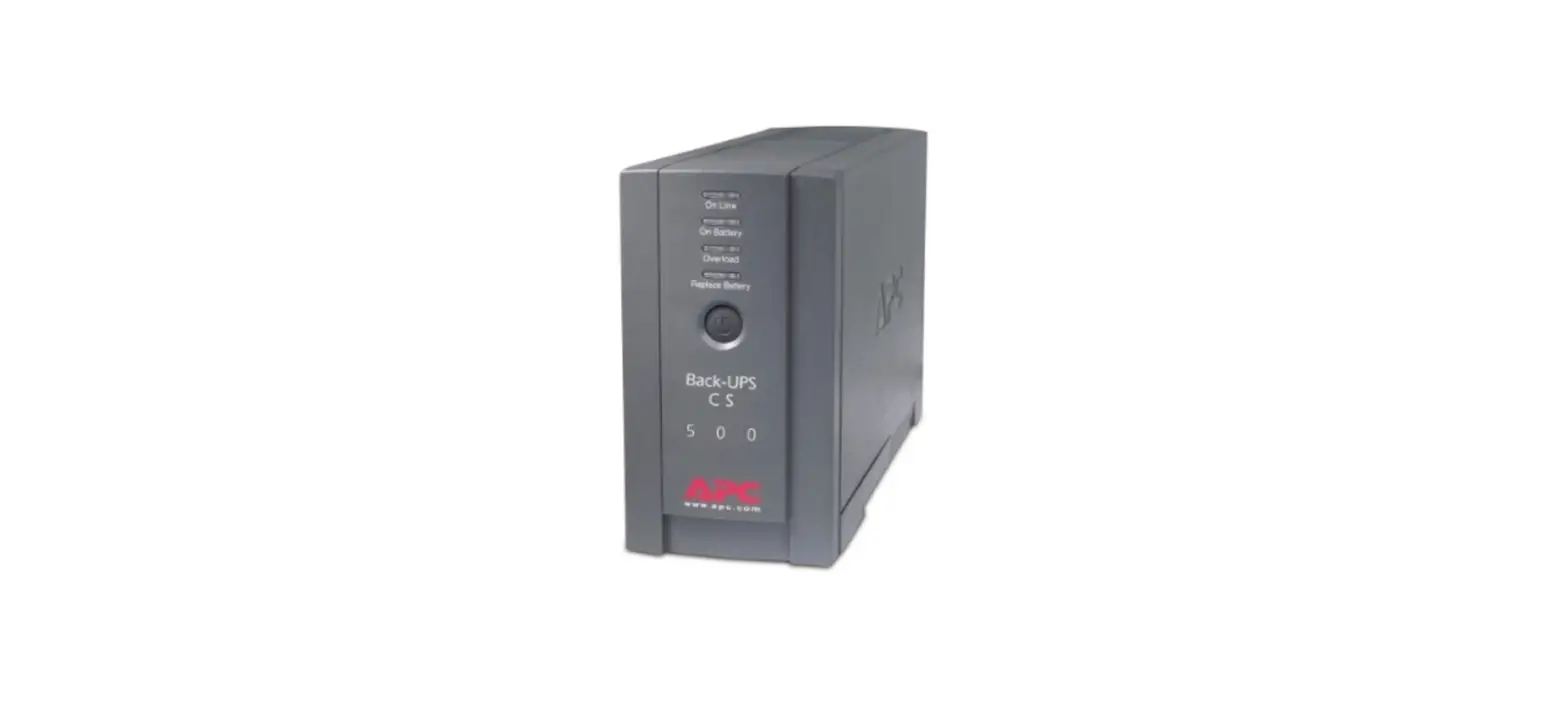
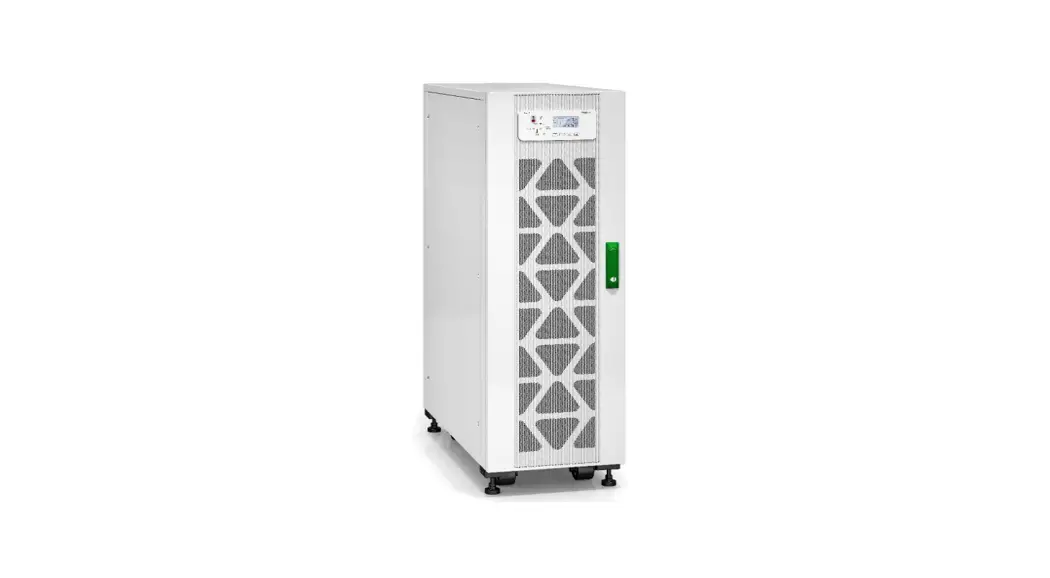
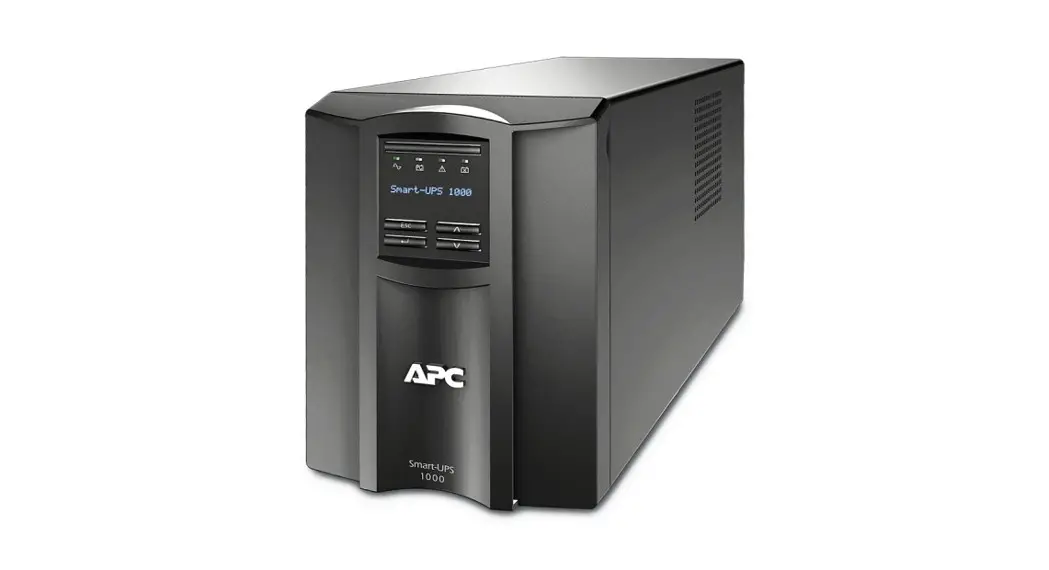
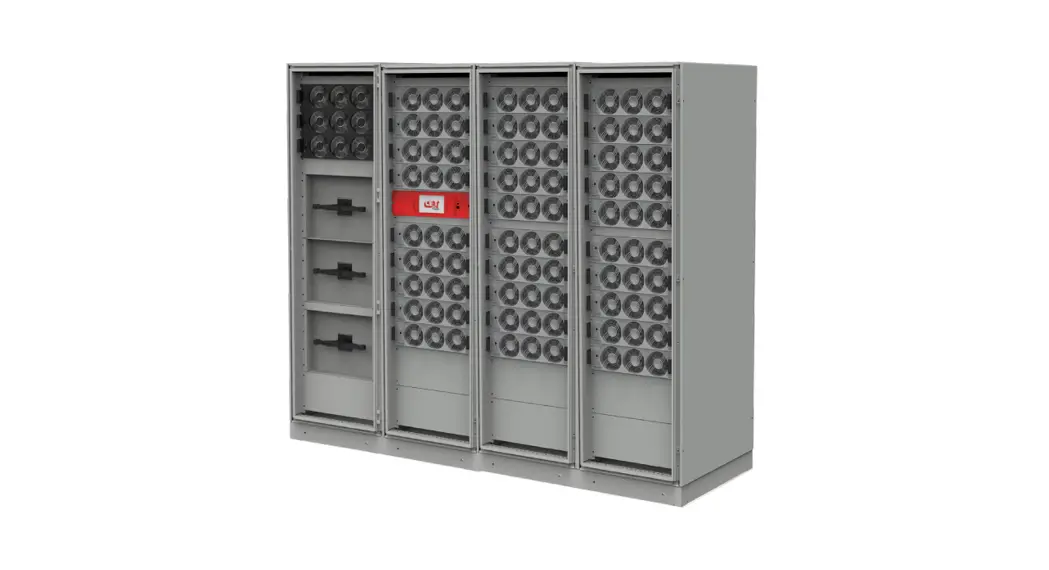
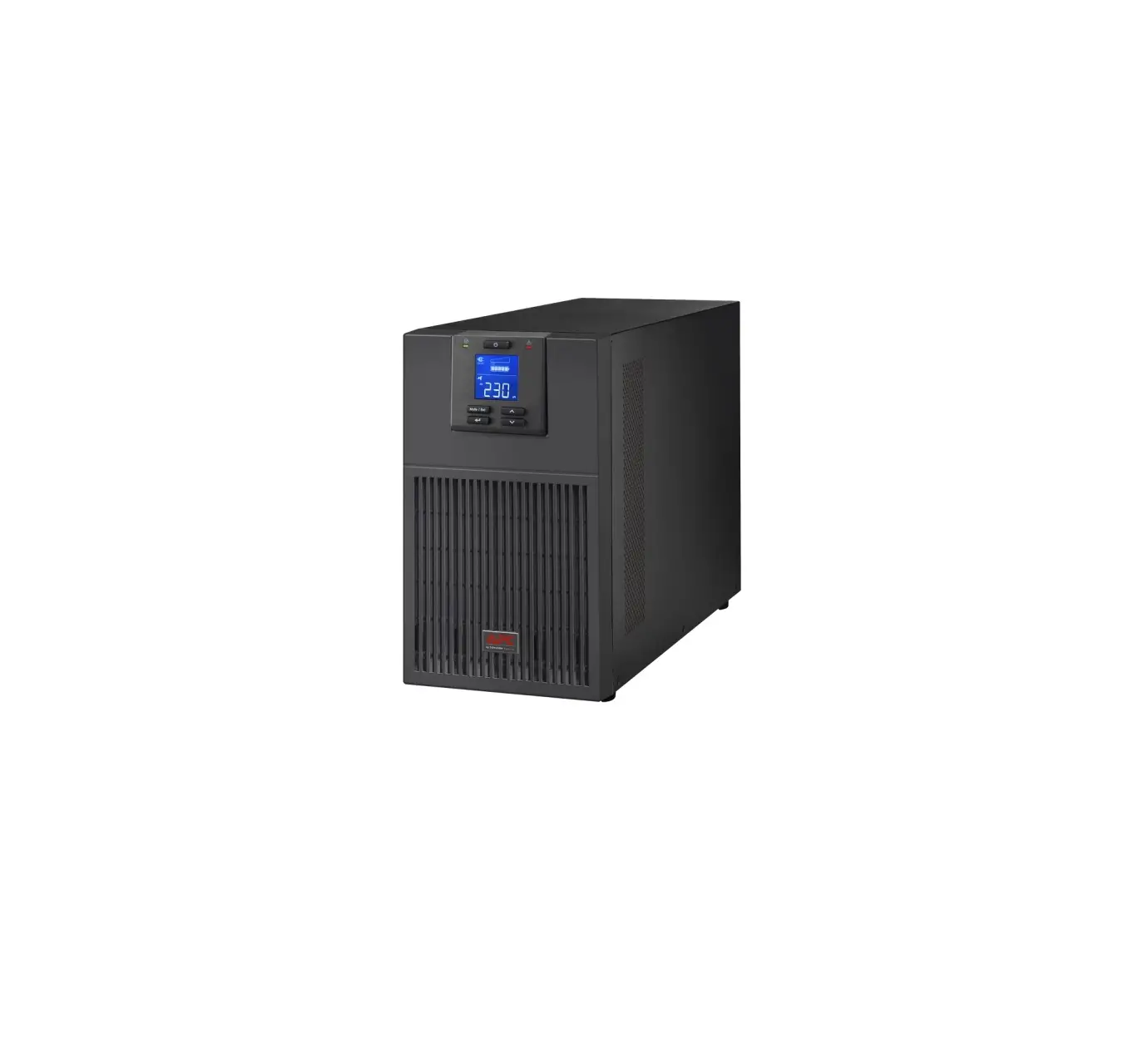
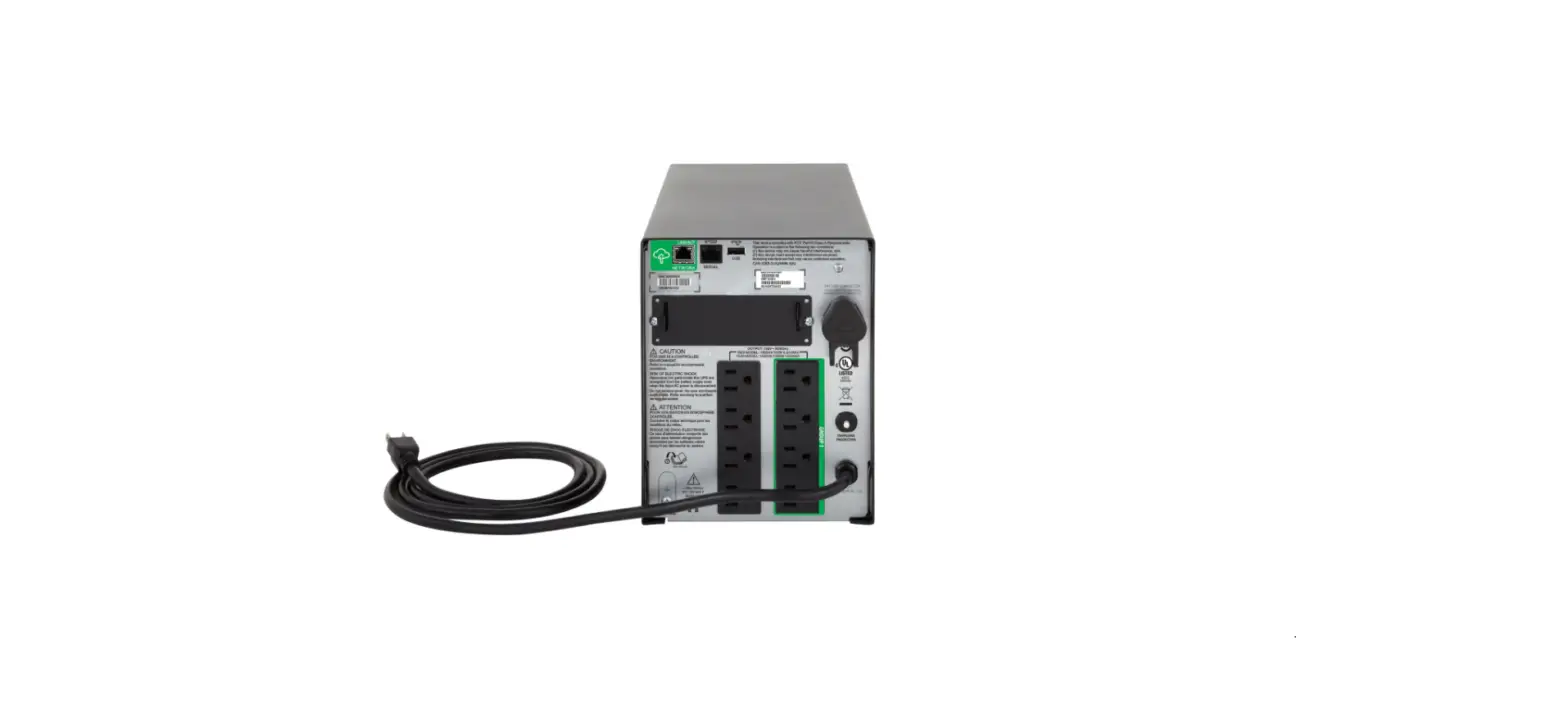
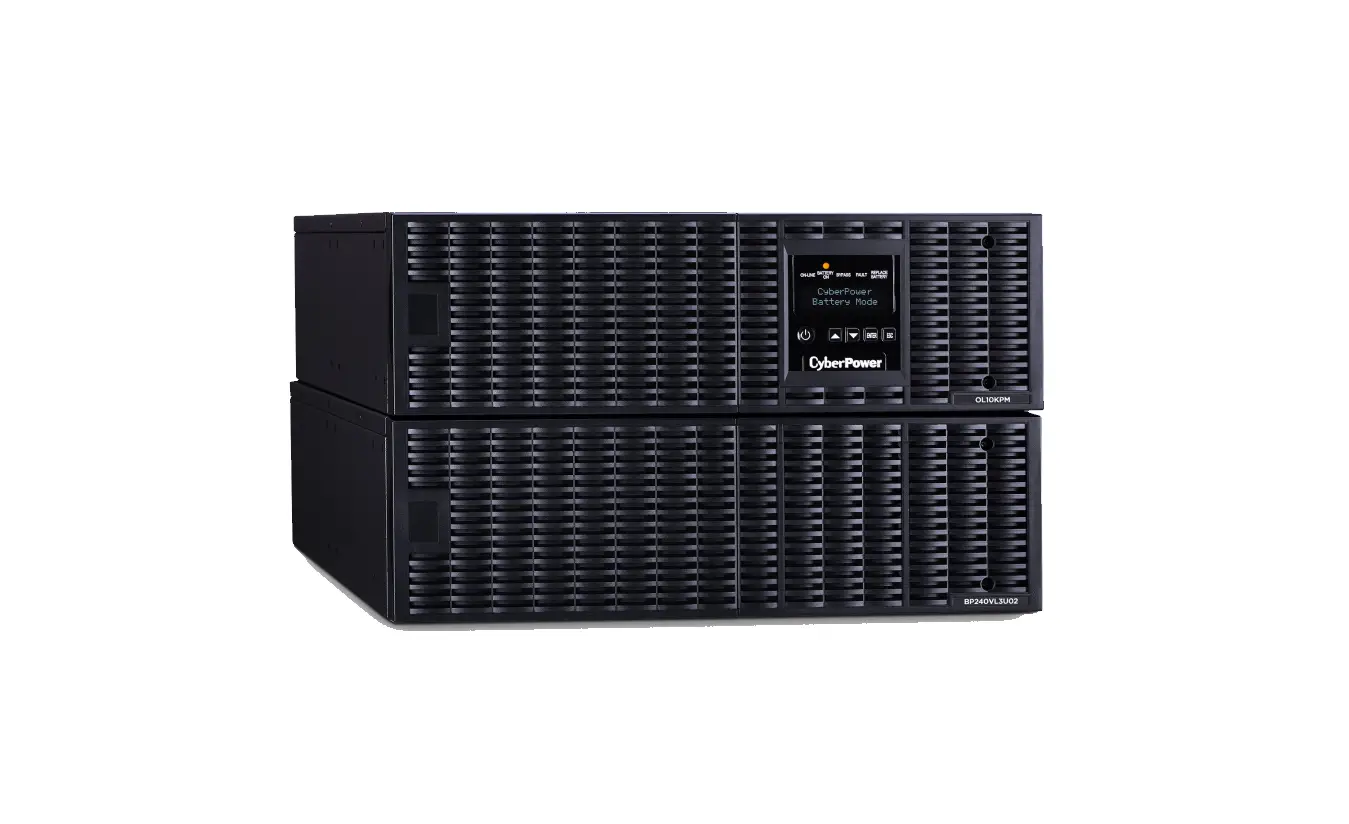
SRT Smart UPS
Product Information
The Smart-UPS Firmware Upgrade Wizard v4.3.5 is a tool that
provides several features for upgrading the firmware on designated
devices. It supports upgrading the firmware on Smart-UPS devices
with SMT, SMX, SMC, SMTL, SRT, SCL, SRTL, XU, XP, and CSH series.
The tool can upgrade the device using a serial connection and
supports automatic filtering of compatible firmware images from a
directory of images. It also includes bug fixes and added
compatibility with more devices. Please note that UPS devices with
a SmartSlot can also be upgraded using a UPS Network Management
Card. Refer to the Upgrading Firmware section of the UPS Network
Management Card 2 User Guide for detailed instructions.
System Requirements
To use the Firmware Upgrade Wizard, you need to connect your
computer to the device being updated using the serial cable
provided with the UPS. The connection should be made via a
DE-9/DB-9 serial communications port. It is important not to use
serial converters or other devices to connect your computer to the
device being updated.
Product Usage Instructions
- Download the Firmware Upgrade Wizard from the appropriate
source. - Extract the tool from the downloaded file.
- Ensure that the extracted application is signed by Schneider
Electric. - Double-click on the LaunchFUW.exe application from the
extracted folder. - Click “Next” to begin the firmware upgrade process.
- Select the “I agree to terms in the License Agreement” checkbox
and click “Next”. - The Firmware Upgrade Wizard will search for the UPS device
connected to the communication ports. Manually select the correct
port if you have set up virtual ports. - Click “Next” to display the current firmware version installed
on the device. - Click “Browse” to select the firmware file appropriate for your
device. You can manually select a different file if needed. - Click “Open” to confirm the selection of the firmware
file. - Follow the on-screen instructions to complete the firmware
upgrade process.
Please note that only authorized personnel should have access to
the Firmware Upgrade Wizard. If you encounter any issues during the
firmware upgrade process, refer to the troubleshooting section in
the user manual for assistance.
Smart-UPS Firmware Upgrade Wizard v4.3.5
User Guide July 2023
990-4395J-001
Firmware Upgrade Wizard v4.3.5
Introduction
The Firmware Upgrade Wizard provides the following features: o It supports upgrading the firmware on designated devices, see Supported Devices. o It can upgrade your device using serial. o It supports automatic filtering of compatible firmware images from a directory of images. o It bundles the latest compatible firmware files for supported devices with the tool. o It includes bug fixes, and has added compatibility with more devices.
Note: For UPS devices with a SmartSlot, UPS firmware upgrades can also be carried out using a UPS Network Management Card. The detailed process is provided in the “Upgrading Firmware” section of the UPS Network Management Card 2 User Guide. The document is located in the documentation tab here.
System Requirements
The system requirements are as follows: o 64-bit operating systems: Windows 7®, Windows 8.1®, Windows 10®, Windows 11® , Windows Server 2016®, Windows Server 2019® and Windows Server 2022®. o Computer screen graphics: Resolution of 800×600 with 16-bit colors (65536 colors) or higher.
Serial Connection Use the serial cable provided along with the UPS to connect the computer to the device being updated, via a DE-9/DB-9 serial communications port.
Note: You should not use serial converters or other devices to connect your computer to the device being updated.
Supported Devices
All Smart-UPS devices with SMT, SMX, SMC, SMTL, SRT, SCL, SRTL, XU, XP, CSH series.
Unsupported SKUs
No SU, SUA, SUM, SURT, SURTD, or SURTA Smart-UPS models are supported. Note: For upgrading the below non-compatible SKUs, please refer to Knowledge Base article FA279197 on the APC website. SRC Family: SRC10KUXI, SRC5KUXI SMT Family: SMT750RMJ1U, SMT2200 SRC Family: SRC5KUXI, SRC10KUXI, SRC1KUXIX828 SMC Family: SMC2200XLI-BR SURT Family: SURTD5000RMXLP3U
Schneider Electric 2
Firmware Upgrade Wizard v4.3.5
Usage
Upgrade Notes
· AC utility power should be supplied to the device and the internal battery should remain connected throughout the firmware upgrade.
· The UPS display serial interface must be enabled before initiating the firmware upgrade. Use the Configuration menu on the UPS display to set FU.1 for SMC devices. For all other supported models, navigate to Configuration, set the Menu Type as “Advanced” and Firmware Upgrade Interface to “Serial: -Enable”.
· Do not remove the serial cable from your device while the upgrade is in progress. If the upgrade is interrupted, the UPS may crash. In this case, contact APC Customer Support.
· It is recommended that the Wizard runs on a laptop or on a power-protected computer. If upgrading a UPS, do not have the UPS supply power to the computer.
· Ensure that the computer does not go to sleep, standby or hibernate due to user inactivity. · While the Wizard allows a downgrade, this is neither recommended nor supported by
Schneider Electric, unless directed by a representative of the company. · Compatible firmware images for various devices are bundled with this software. Only use these
compatible images or any approved firmware upgrade files that were supplied by Schneider Electric. Files received by other means may cause problems with the device, possibly resulting in permanent damage. · Ensure that only one device is connected at a time to the computer for the firmware upgrade.
Notes for UPS Devices only
· SmartSlot cards should be removed from the UPS before a firmware upgrade of your UPS. It is also recommended that any equipment is disconnected from the UPS.
· The UPS should not be performing a runtime calibration during the upgrade.
Troubleshooting
· No software that is communicating with the device being upgraded should be running while using this Firmware Upgrade Wizard. Some software runs as a service on Windows and should be stopped (example: PowerChute Serial Shutdown). To access Windows services, launch “Services” from the Windows Control Panel in Administrative Tools or type “Services.msc” in the command prompt. The PowerChute Serial Shutdown service is called ‘PowerChute Serial Shutdown service’. Stop this service before running the Wizard, and start it again afterward.
· If you have Bluetooth or virtual COM ports, and you want to do the upgrade using your serial port, you should manually select the COM port you want to perform the upgrade with.
· The Firmware Upgrade Wizard is bundled with OpenJDK v17 and uses its 64-bit Java environment. Some operating systems might ask for confirmation to run this Java version.
Schneider Electric 3
Firmware Upgrade Wizard v4.3.5
Firmware Upgrade Process: Step-by-Step Walkthrough
Download the Firmware Upgrade Wizard from the Software / Firmware page on the APC website (select “Software Upgrades Wizards and Configurators” from the drop-down list) or Knowledge Base article FA279197. Double-click the downloaded file, and launch the application.
Step One
NOTE: Only authorized personnel should have access to the Firmware Upgrade Wizard. Once you have downloaded the Firmware Upgrade Wizard, extract the tool as per the screenshot below:
Confirm that the application is signed by Schneider Electric before proceeding.
Schneider Electric 4
Firmware Upgrade Wizard v4.3.5
Step Two
Double-click on the “LaunchFUW.exe” application from the extracted folder “SmartUPS_Firmware_Upgrade_Wizard_v4.3.5”. Validate the process with the below image.
Schneider Electric 5
Step Three
Click “Next” to begin.
Firmware Upgrade Wizard v4.3.5
Schneider Electric 6
Firmware Upgrade Wizard v4.3.5
Step Four
Select the “I agree to terms in the License Agreement” checkbox and click “Next”.
Schneider Electric 7
Step Five
Firmware Upgrade Wizard v4.3.5
The Firmware Upgrade Wizard will now search the communication ports for the UPS. The UPS is referred to as the “device” on the screen. If you have set up virtual ports, it is important to manually select the correct port that the UPS is connected to.
Schneider Electric 8
Firmware Upgrade Wizard v4.3.5 To display the current firmware version installed on the device, click “Next”.
Schneider Electric 9
Step Six
Click “Browse” to select your firmware file.
Firmware Upgrade Wizard v4.3.4
The Wizard will display the Firmware File appropriate for your device. If you want to manually select a different file, you can browse to the appropriate location. Select the file and click “Open”.
Firmware Upgrade Wizard v4.3.5 The Firmware Upgrade Wizard is now ready to begin the upgrade process. The Revision Note will give detailed information on the version of the firmware. Click “Next”.
Schneider Electric 11
Firmware Upgrade Wizard v4.3.5
Step Seven
The first step is sending the upgrade file to the UPS. For some UPS devices, the Wizard may ask you to turnoff the UPS before proceeding with the upgrade, ensure the attached load is correctly shut down. For most UPS devices, the Wizard supports “Firmware Upgrade with Output On”, and the UPS and its connectedload do not need to be turned off.
Click “Next”.
Schneider Electric 12
Firmware Upgrade Wizard v4.3.5
The Firmware Upgrade Wizard will now begin transferring the file to the device. This process will take approximately 5 minutes. Do not turn off power or remove the battery during this process.
Schneider Electric 13
Firmware Upgrade Wizard v4.3.5 The Wizard begins applying the upgrade to the UPS. This process may take a few minutes to complete.
Click “Finish” to exit the upgrade wizard before completion, or wait for the confirmation screen
Schneider Electric 14
Firmware Upgrade Wizard v4.3.5
Step Eight
The firmware upgrade is now complete. You can verify the new updated revision of your device firmware.Click “Finish” and you can put your UPS and attached load back into production.
If the upgrade was unsuccessful
The Firmware Upgrade Wizard is a self-extracting executable file that gets uncompressed to your chosen
folder;
the
default
folder
is
the
Documents
directory,
e.g.
C:UserDocumentsFirmwareUpgradeWizard_v4.3.5 A log file called FUW.log gets created when
the tool is run in the FirmwareUpgradeWizard_v4.3.5 folder. If you have problems with running the wizard,
go to the FirmwareUpgradeWizard_v4.3.5 folder to access the log file, which gives information on what
occurred when the Wizard executed. For security reasons, this log file is encrypted. If problems occurred
while running the Firmware Upgrade Wizard, please contact Customer Support and provide this encrypted
log file to them for processing.
Schneider Electric 15
© 2023 Schneider Electric. All Rights Reserved. Schneider Electric and Smart-UPS are trademarks and the property of Schneider Electric SE, its subsidiaries and affiliated companies.
All other trademarks are property of their respective owners.
References
 APC, a flagship brand of Schneider Electric - APC USA
-
APC, a flagship brand of Schneider Electric - APC USA
-
Frequently Asked Questions - APC
-
How do I update the firmware of my SRT/SMC/XU/XP/SMX/SMT/SCL/SRC/CHS series Smart-UPS using the Firmware Upgrade Wizard? - APC USA
-
Product Support from APC - APC USA
-
Software Firmware Tool
 APC, a flagship brand of Schneider Electric - APC USA