 Energy Connects All
ST 1000 Datalogger Solar Inverter
Installation Guide
Product Introduction
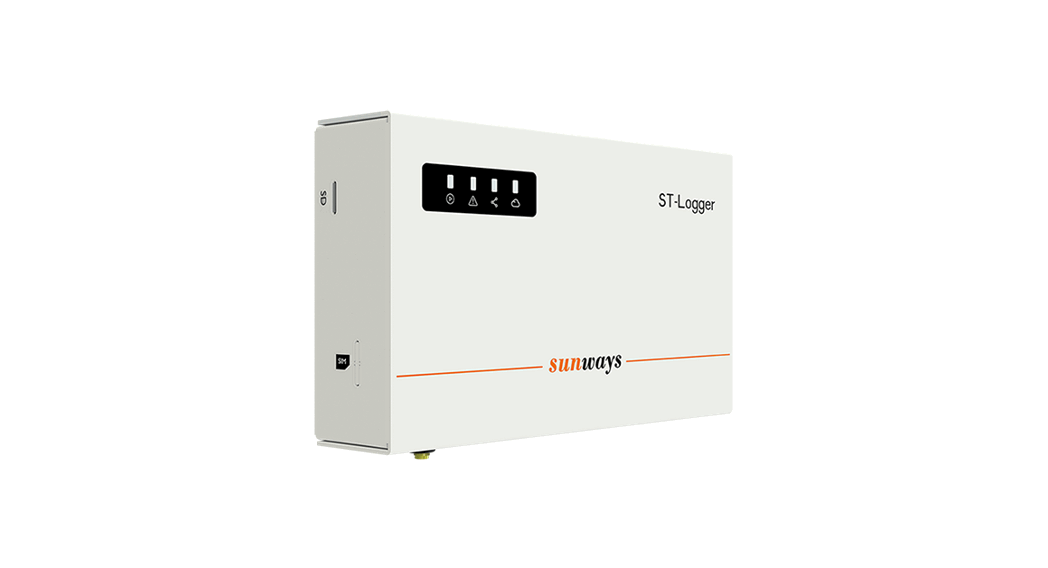
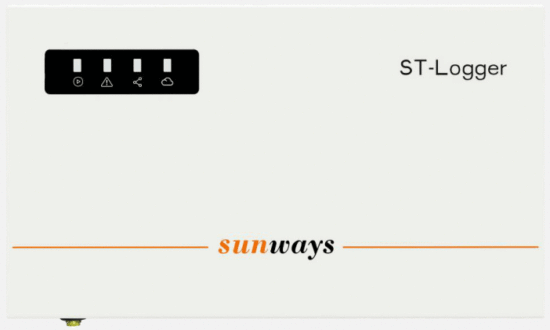
Indicator description
| Indicator | Status | Description |
| operation | Always on | Normal |
| Off | No power | |
| Alarm | Off | Normal |
| Always on | The data logger has a fault | |
| Connection | Always on | All PV inverters connected to the datalogger are online |
| Flash | One or more PV inverters connected to the data logger are offline | |
| Communication | Always on | Communication with the server is normal |
| Slow flash | Datalogger is not connected to the router or not connected to the base station. | |
| Quick flash | Datalogger is connected to the router or connected to the base station but not connected to the server. |
Installation Wiring
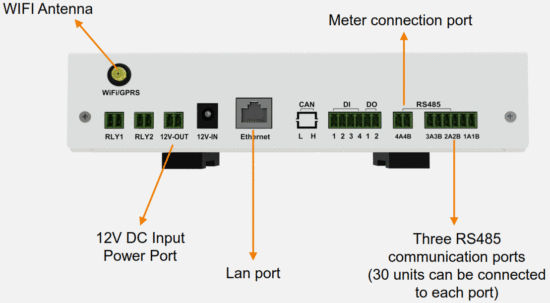
Datalogger Wiring
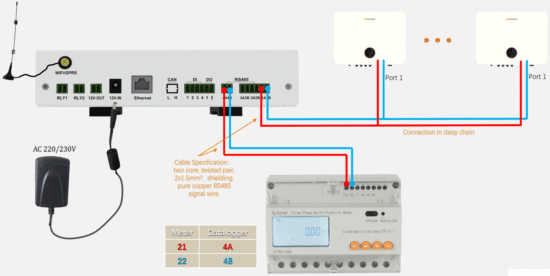
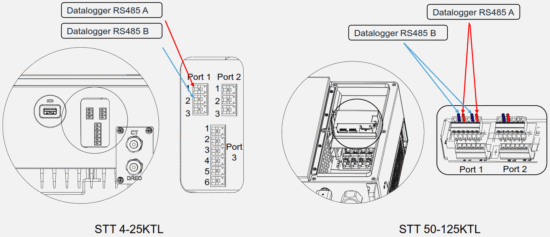
Inverter Wiring
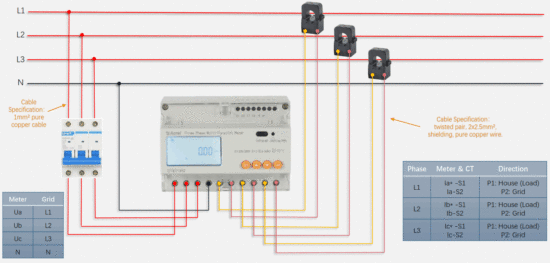
Meter Wiring
RS485 Address Setting
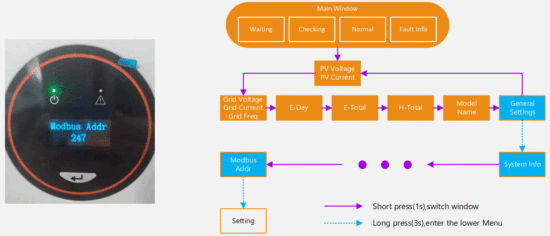
Set the address starting from 1, the recommended maximum value is set to 90.
The default Modbus address is 247.
The set value can’t be repeated.
Meter RS485 Address Checking
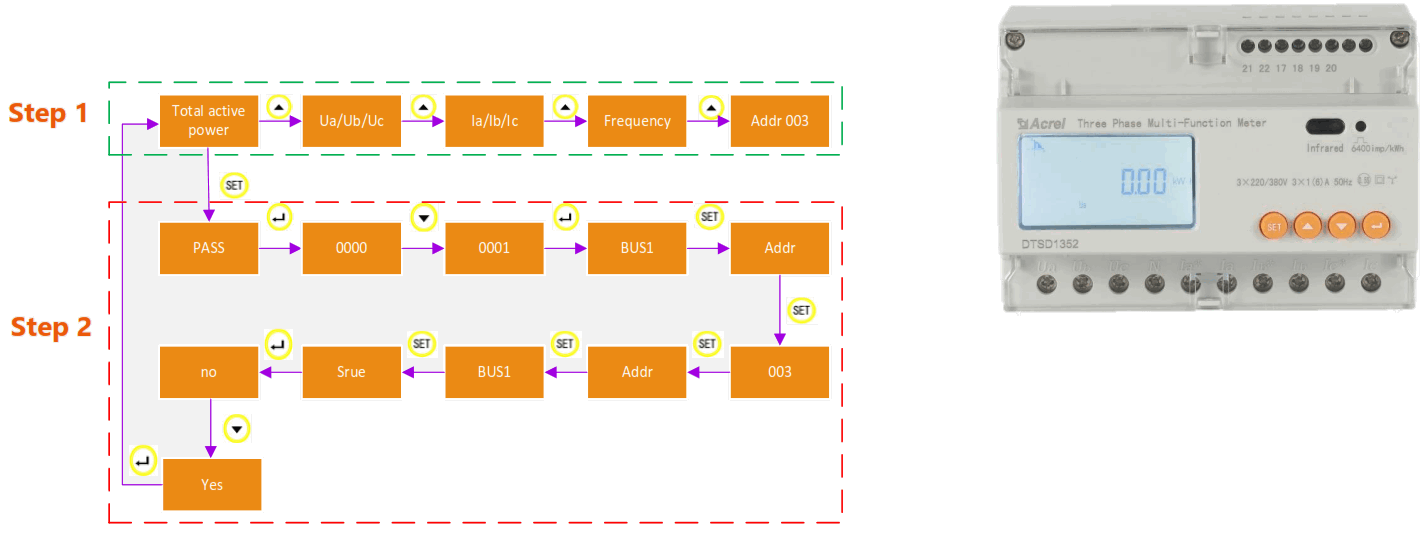
- Follow step 1 to check if the RS485 address setting is correct. The correct address is 003.
- If not, please follow step 2 and change it.
Note:
After confirming the Bus 1 address, don’t change other parameters, otherwise, it will affect the meter accuracy.
Configure Datalogger
Step 1: Connect the inverter to the datalogger through an ethernet cable.
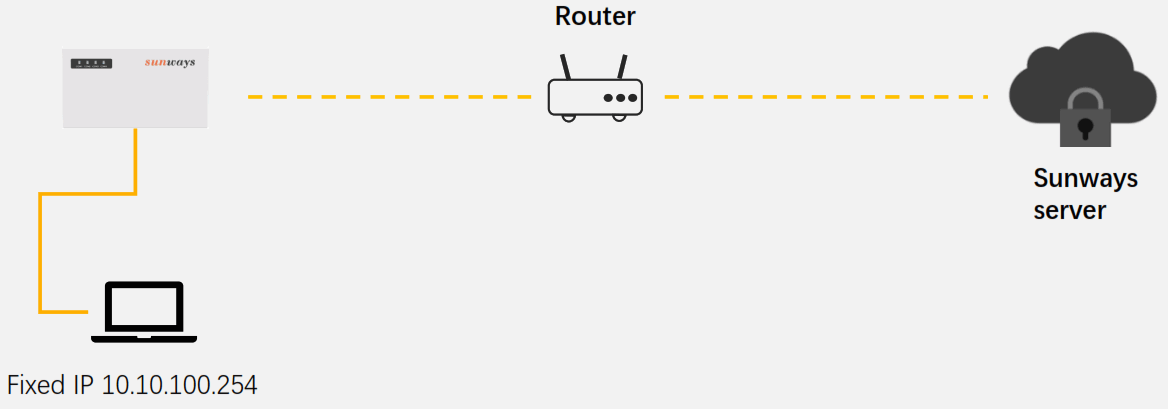
Step 2: Change computer network adapter settings.
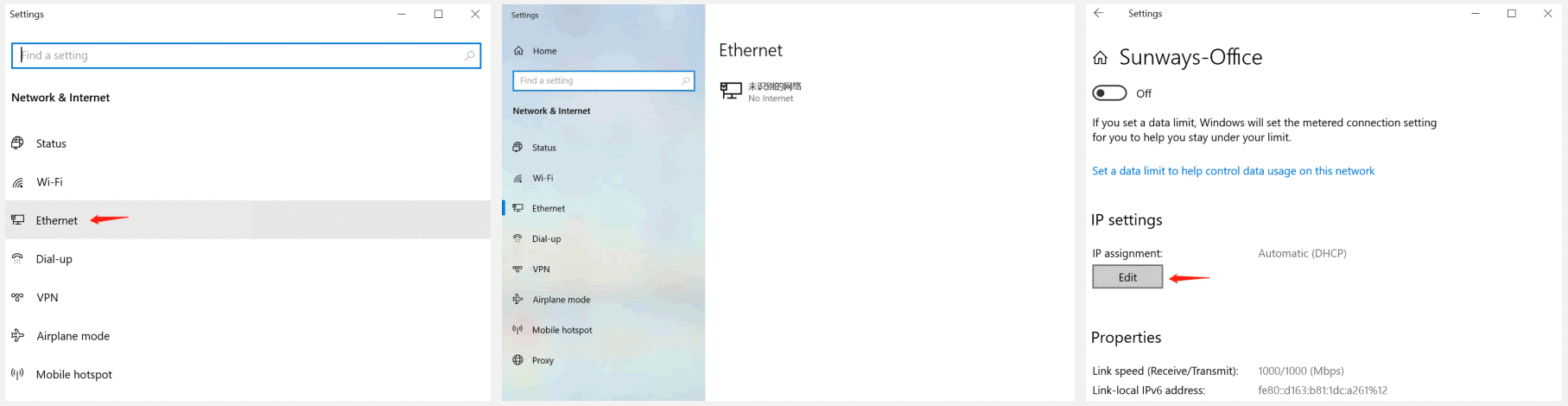
- Open network & internet settings.
- Click ‘Ethernet’ in the network & internet list.
- Double click the ethernet icon.
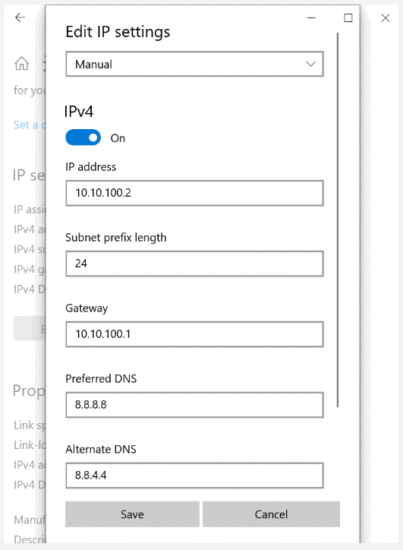
- Find IP settings and click ‘Edit’.
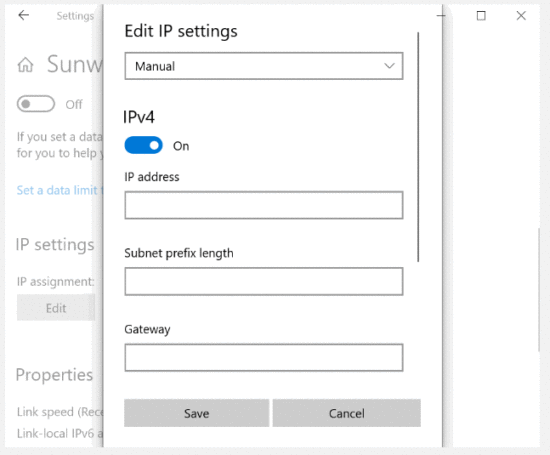
- Choose ‘Manual’ on the Edit IP setting page and open the IPv4 edit button.

- Finally, enter the information as shown.

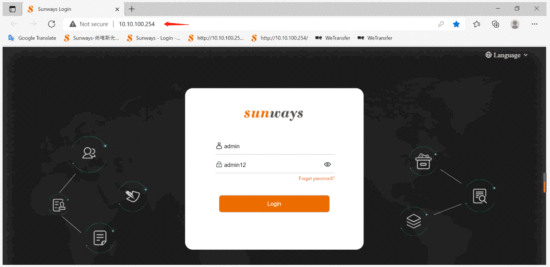
- Open the browser, enter URL 10.10.100.254
- Fill in the account ‘admin’ and the default password ‘admin12’.
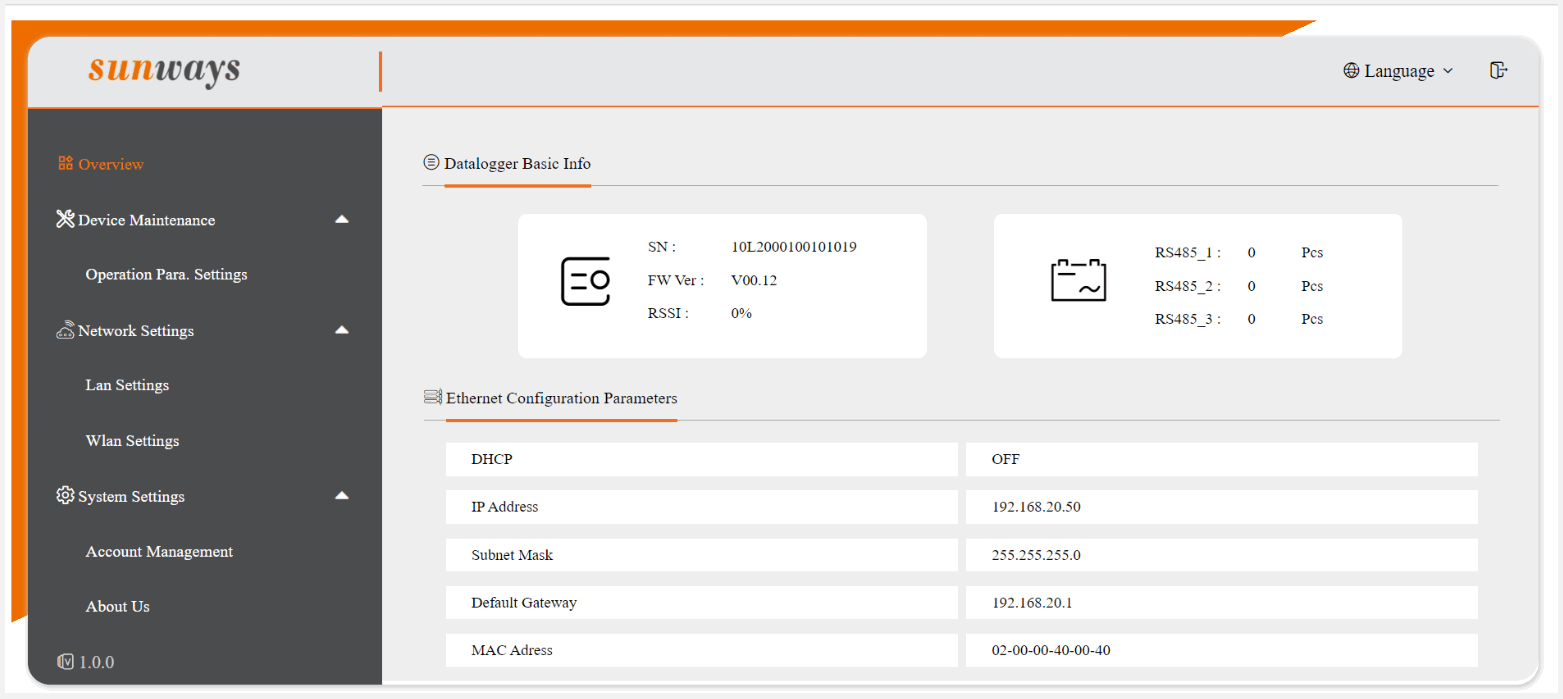
All datalogger information is shown on the overview page.
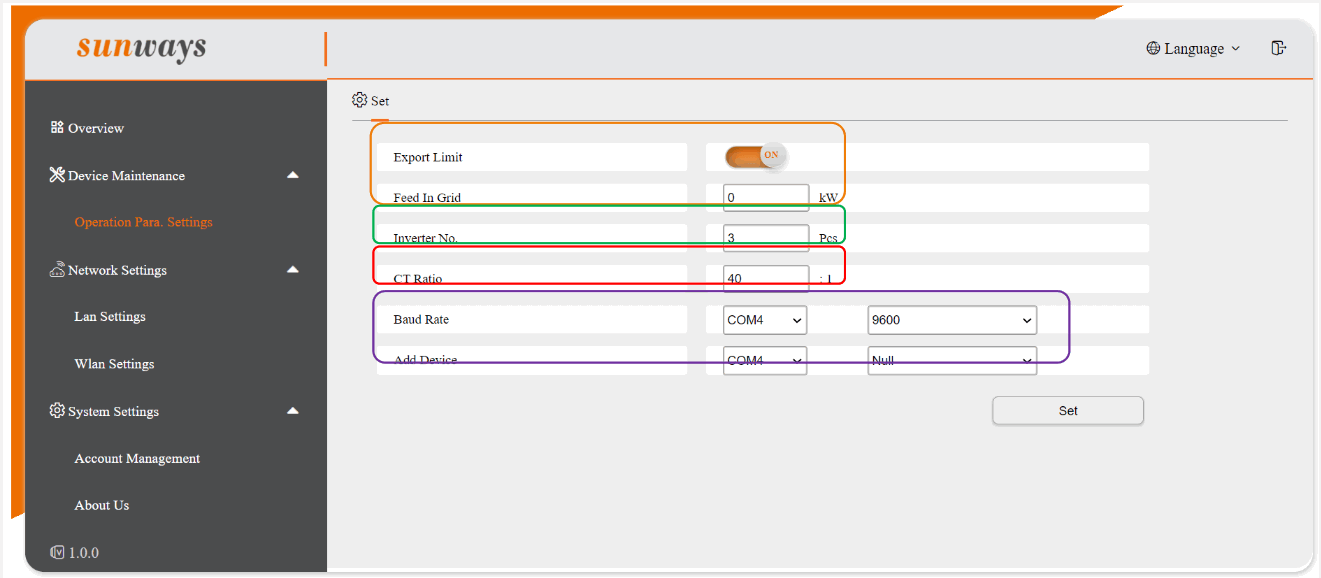
- Enable the Export limit and fill in the Export power value. If fill in the value 0 means zero export.
- Select the total number of inverters connected to the datalogger
- Set the CT ratio, if the nameplate on the CT marked200/5A, the ratio is 40.
- Set the COM4 port according to your needs, if nothing is connected, don’t need to set it.
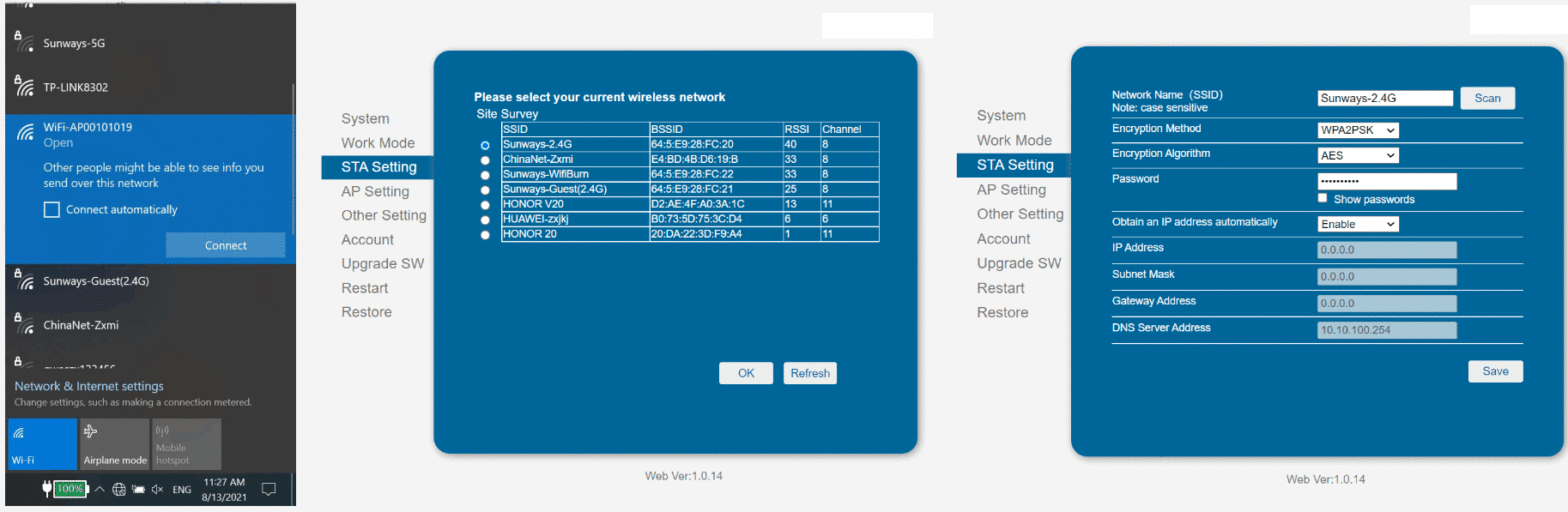
a) Search for the WIFI name “ WIFI-AP********”, which is released by the datalogger and connected to the hotspot.
b) Open the URL 10.10.100.254, and input the username and password “admin”.
c) Click “STA Setting”, then click “Scan”, and you can find the router WIFI signal.
(Note: Only support 2.412GHZ-2.484GHZ router)
a) Finally, input the password in the blank and click “Save”. If the WIFI connection is successful, the indicator on the datalogger will be always on.