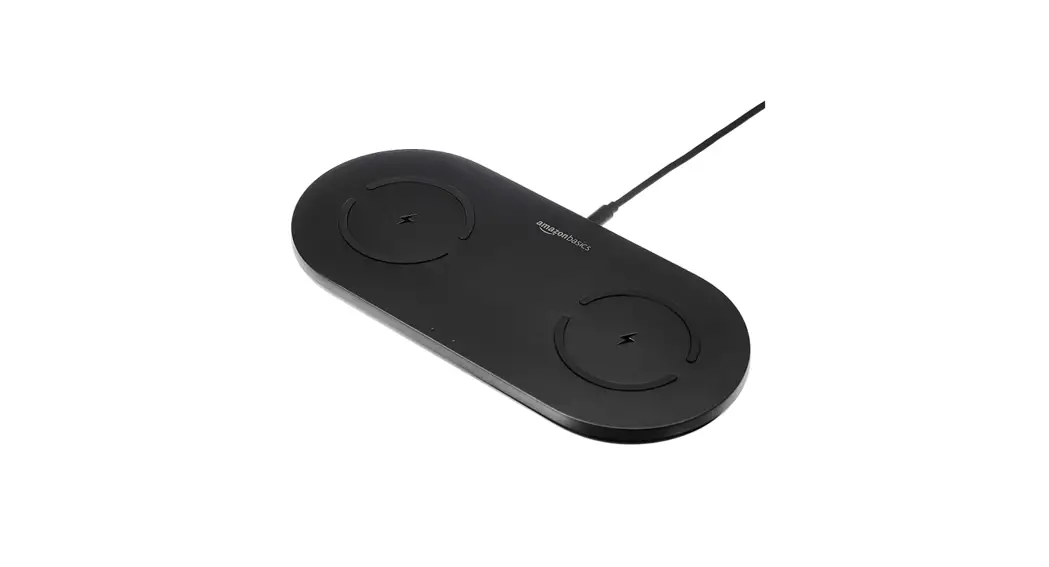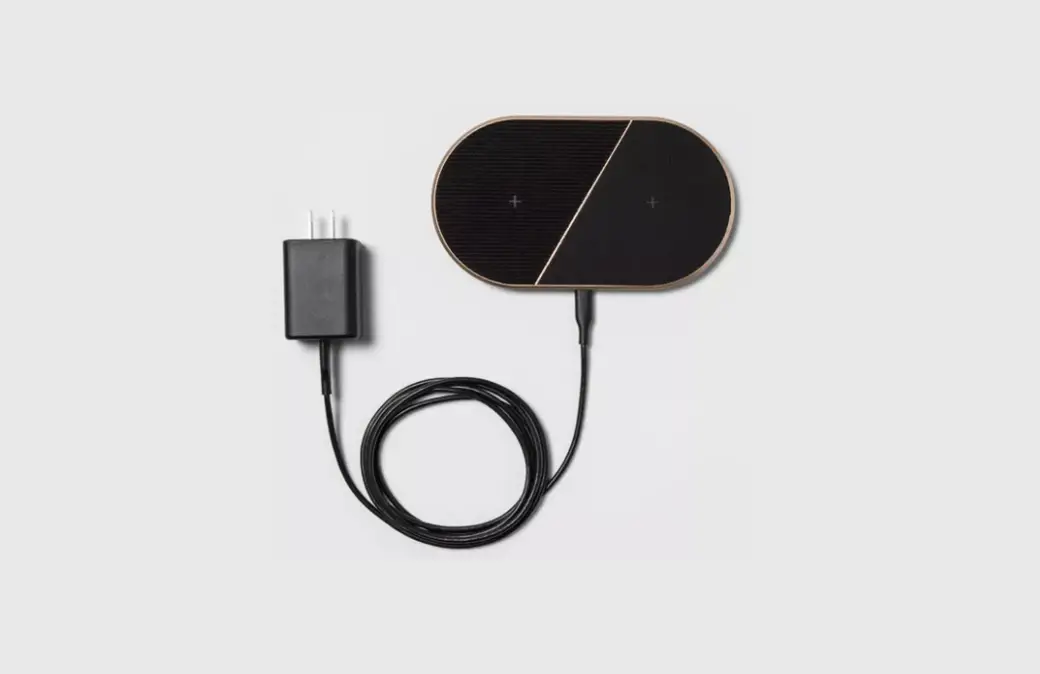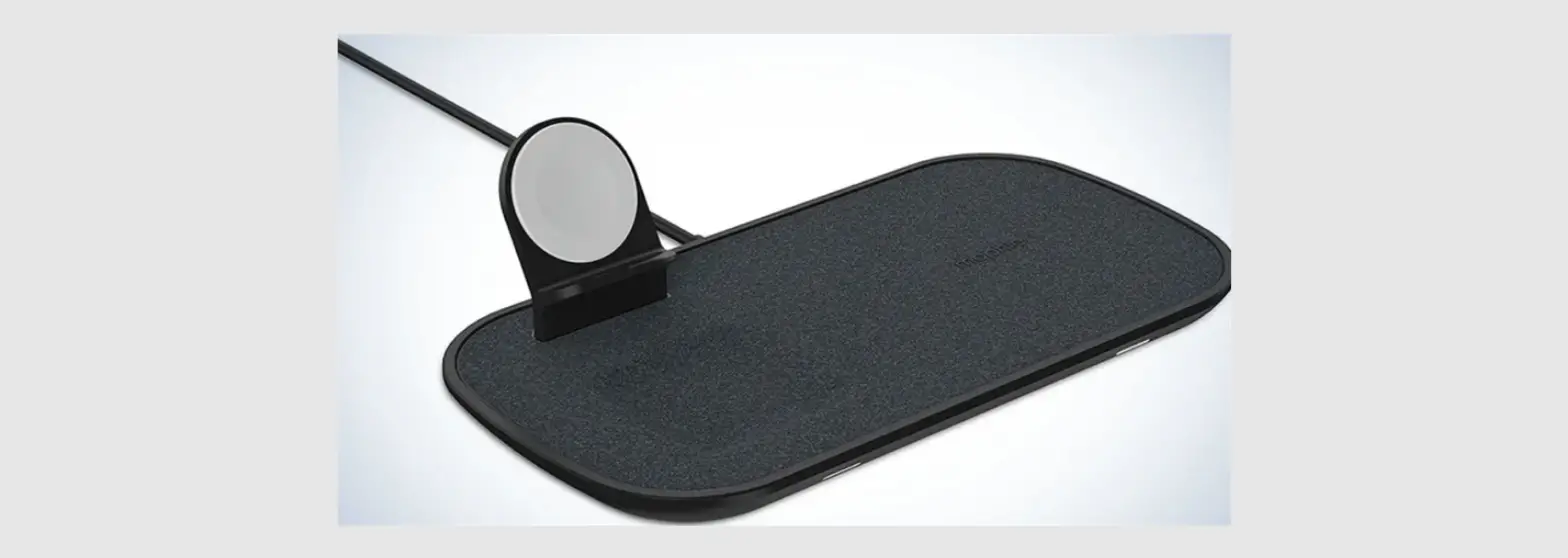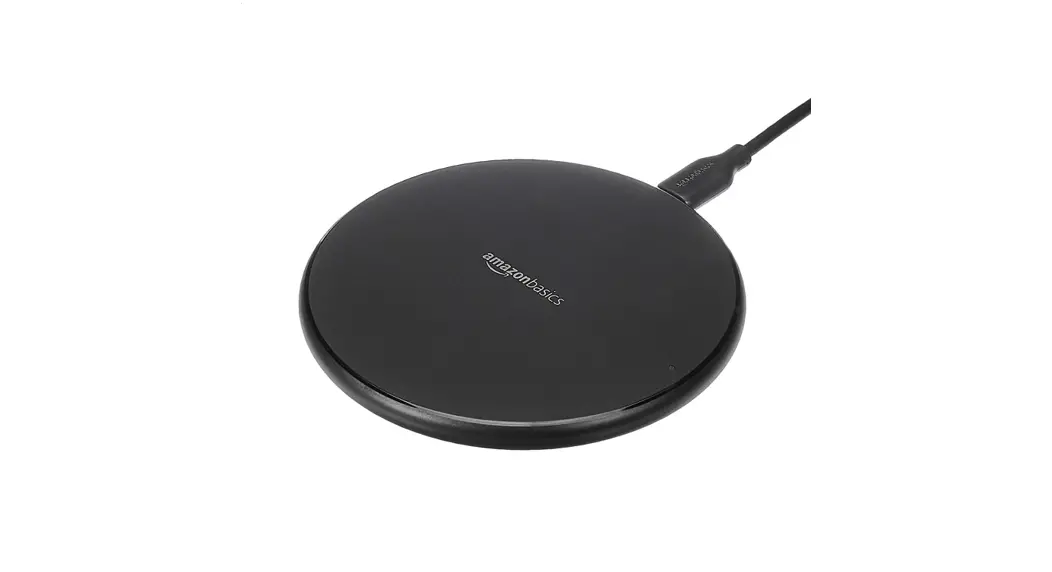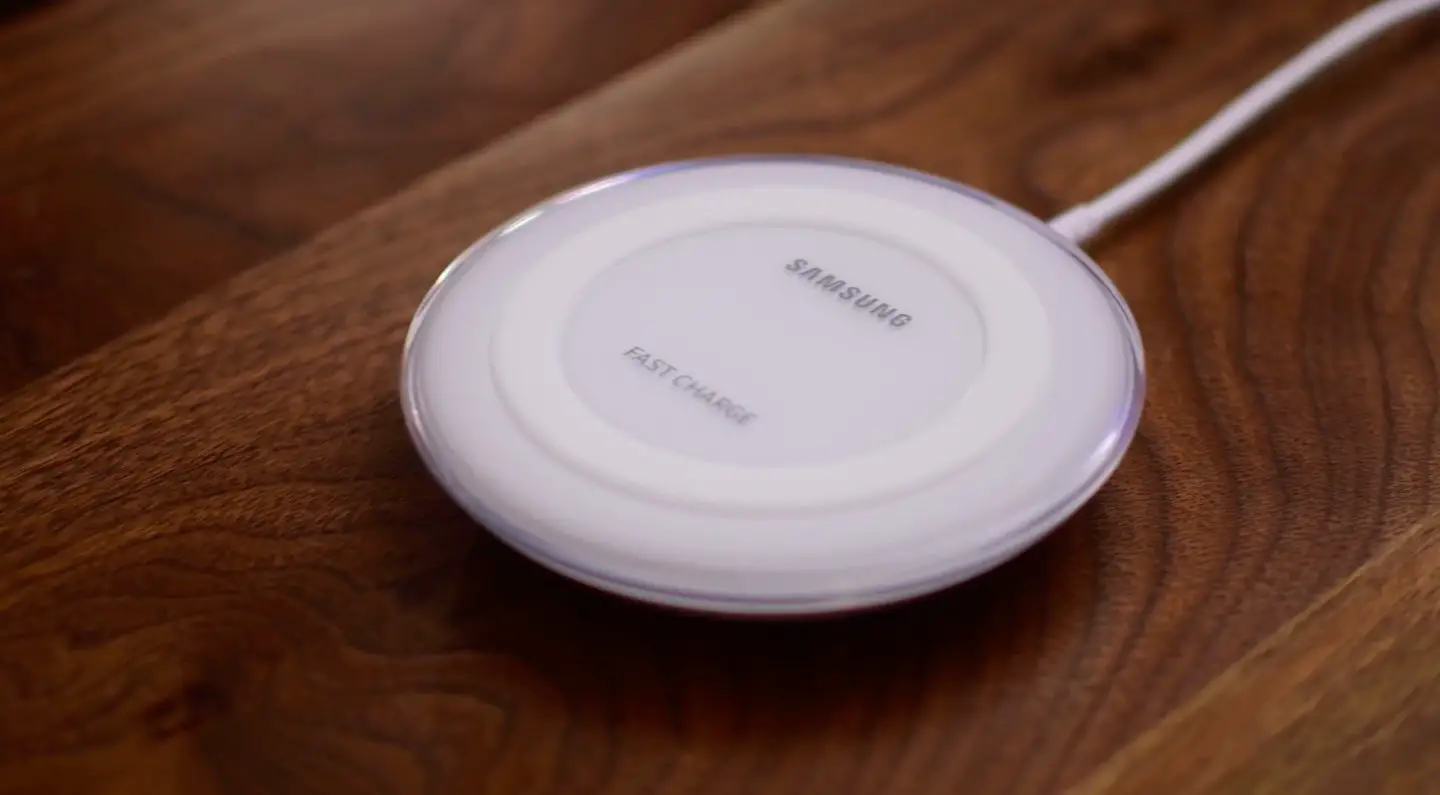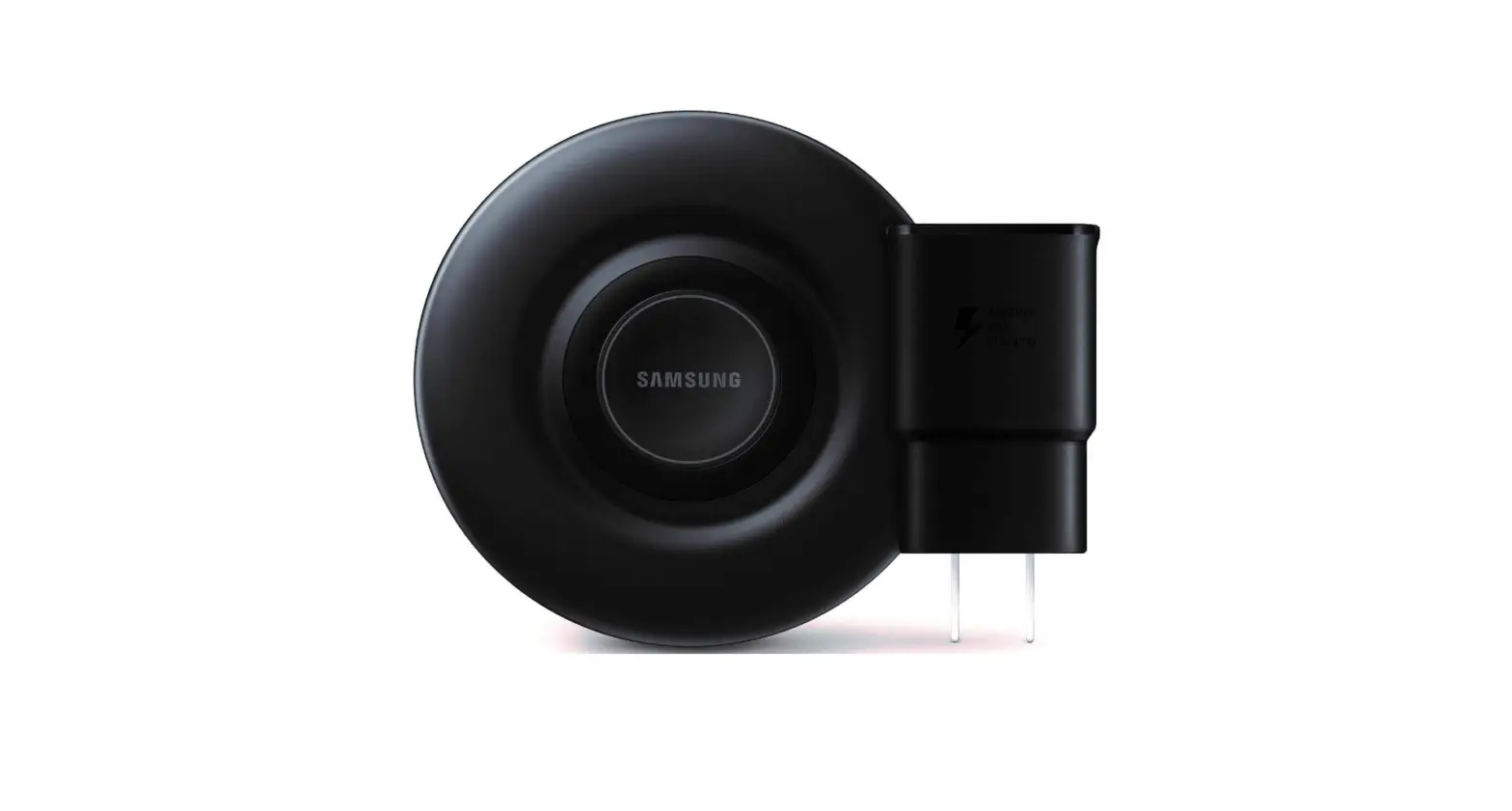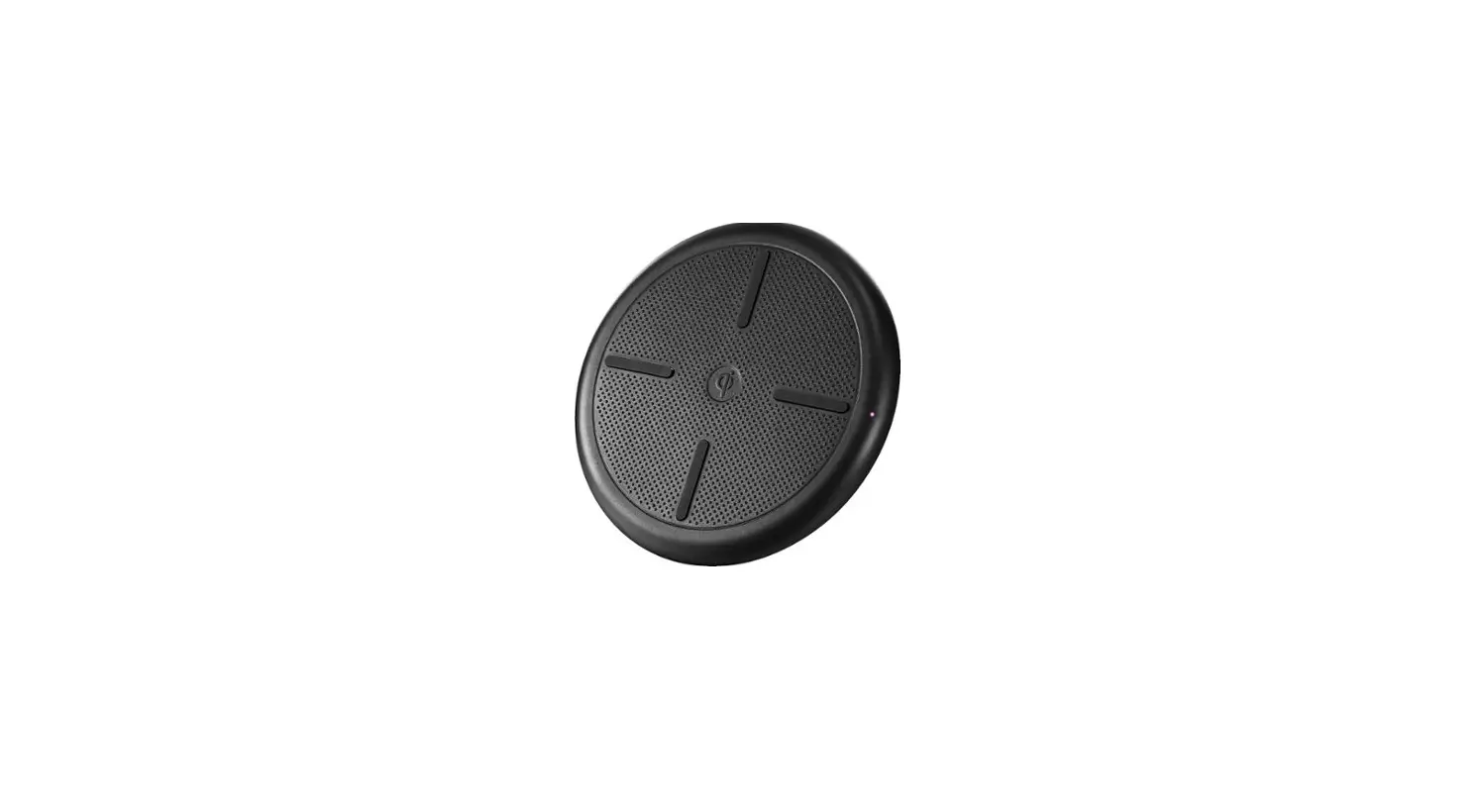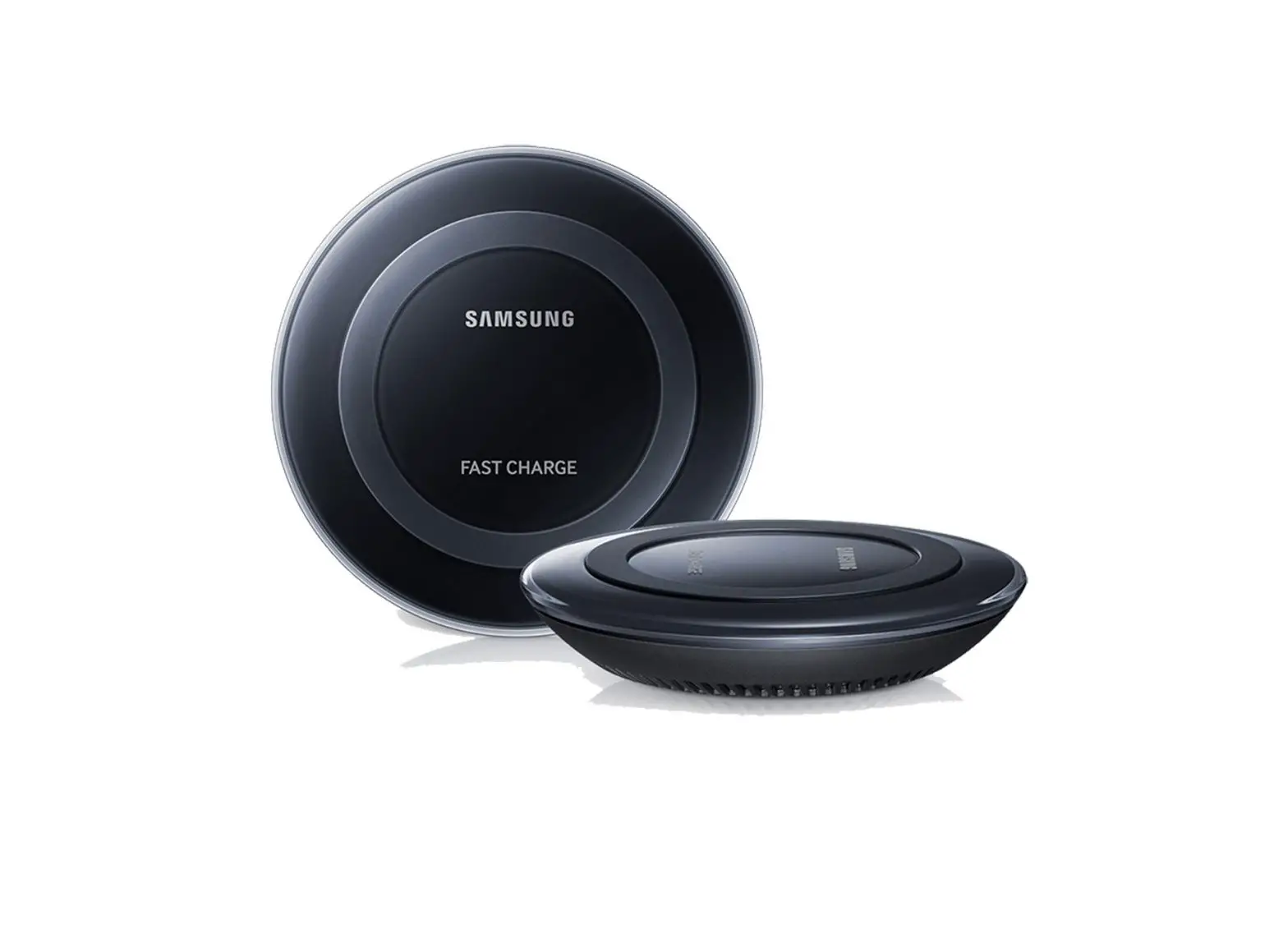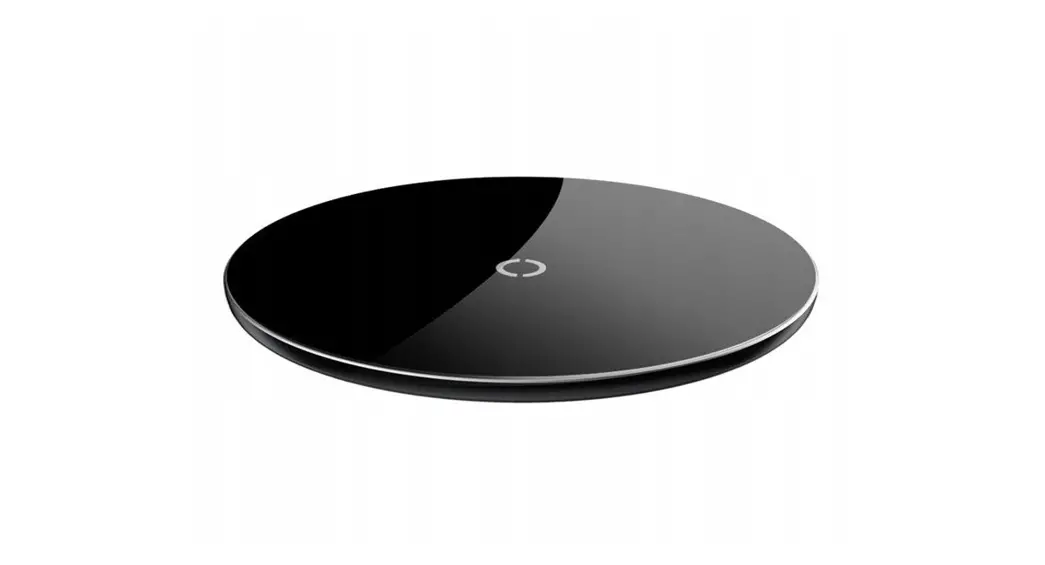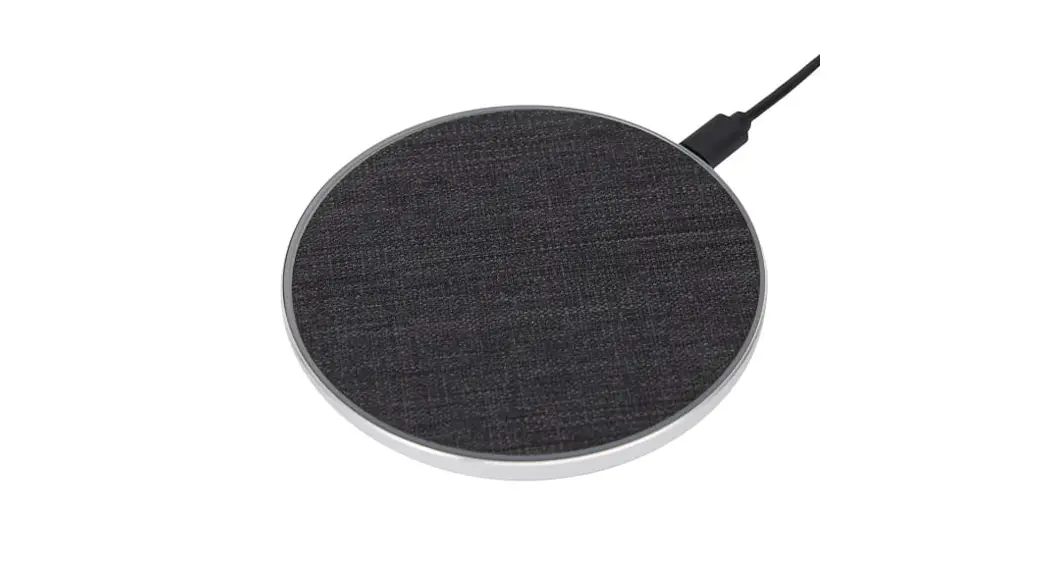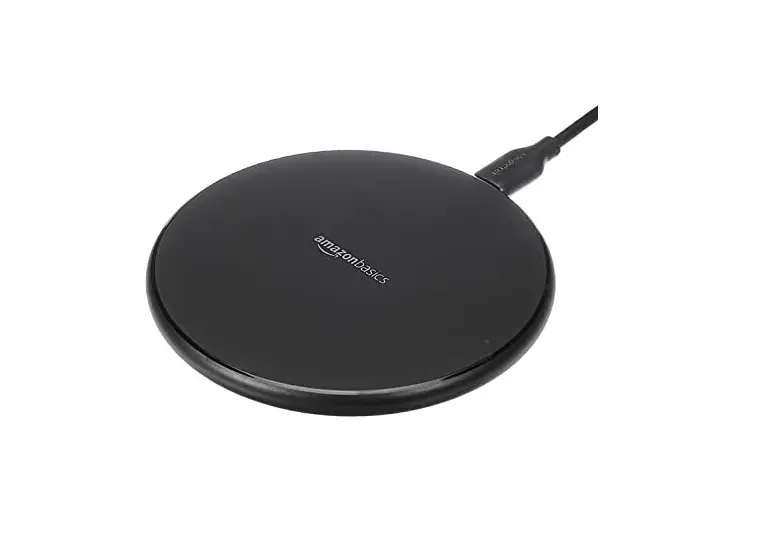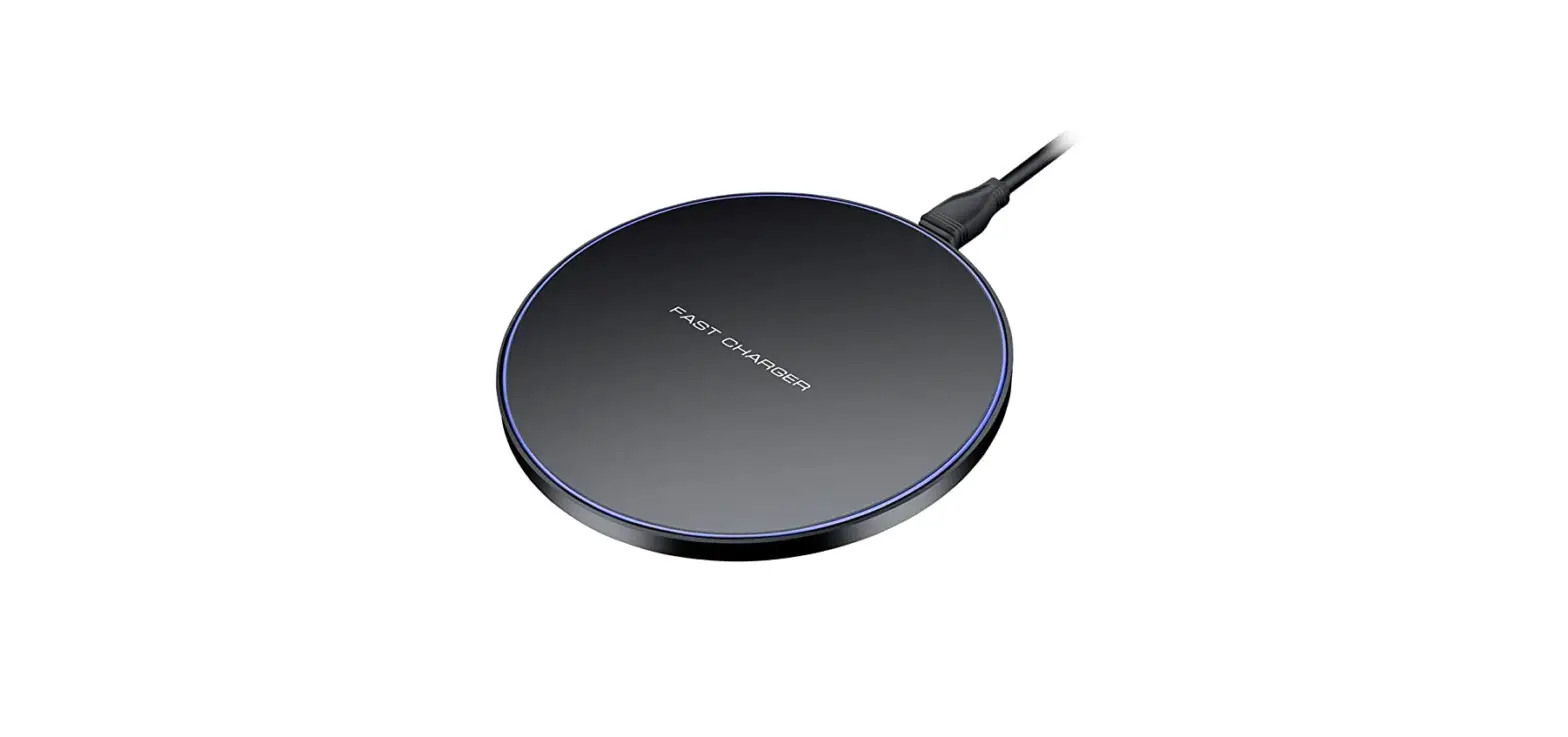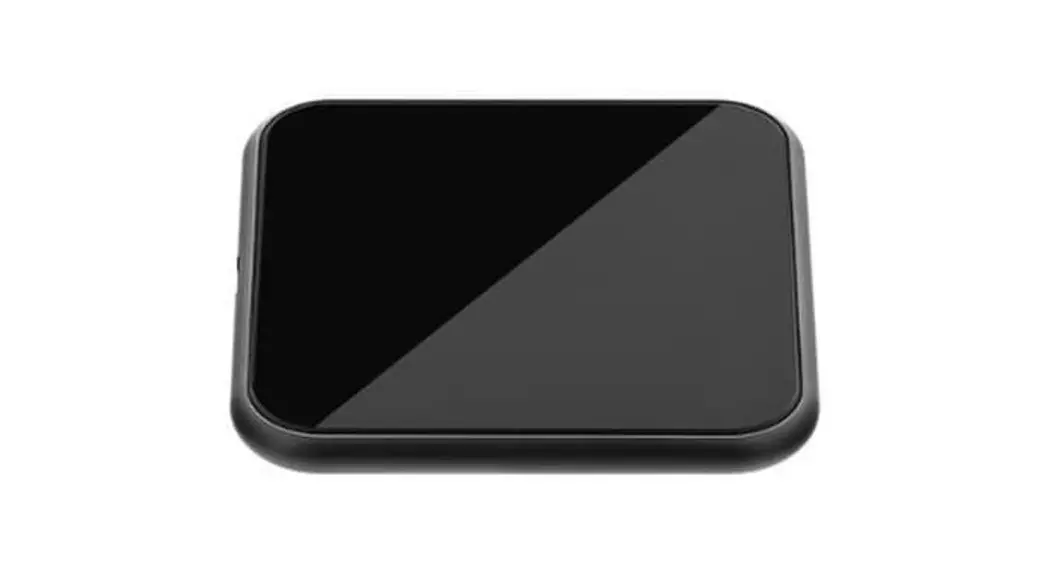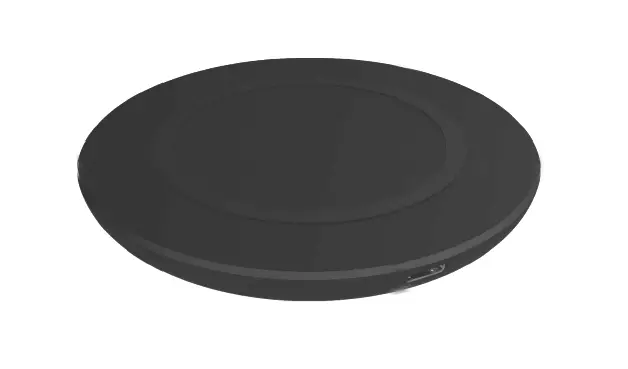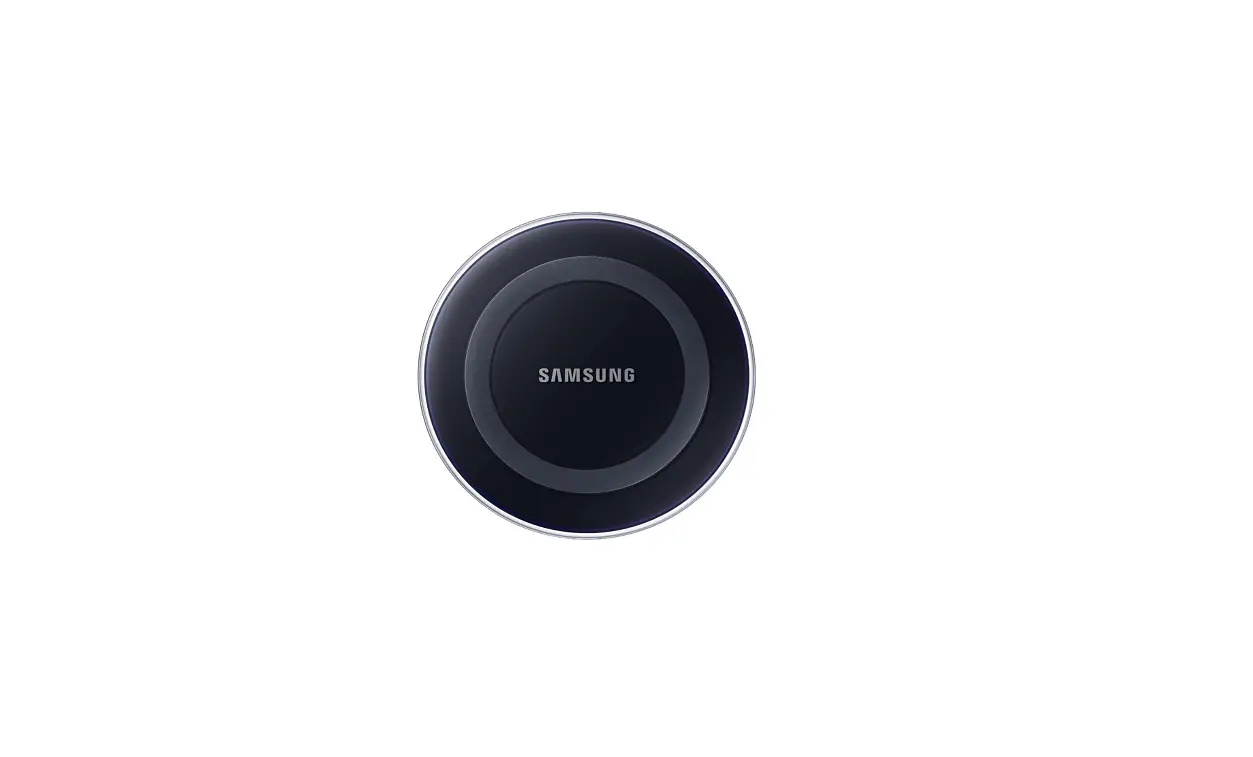

Samsung EP-PG920I Qi Certified Wireless Charging Pad
Read me first
Please read this manual before using the device to ensure safe and proper use.
- Descriptions are based on the device’s default settings.
- Images may differ in appearance from the actual product. Content is subject to change without prior notice.
Instructional icons
- Warning: situations that could cause injury to yourself or others
- Caution: situations that could cause damage to your device or other equipment
- Note: notes, usage tips, or additional information
Getting started
Package contents
Check the product box for the following items:
- Device
- Quick start guide
- Wireless charging cover and travel adaptor sold separately.
- The items supplied with the device and any available accessories may vary depending on the region or service provider.
- The supplied items are designed only for this device and may not be compatible with other devices.
- Appearances and specifications are subject to change without prior notice.
- You can purchase additional accessories from your local Samsung retailer. Make sure they are compatible with the device before purchase.
- Use only Samsung-approved accessories. Using unapproved accessories may cause performance problems and malfunctions that are not covered by the warranty.
- Availability of all accessories is subject to change depending entirely on manufacturing companies. For more information about available accessories, refer to the Samsung website.
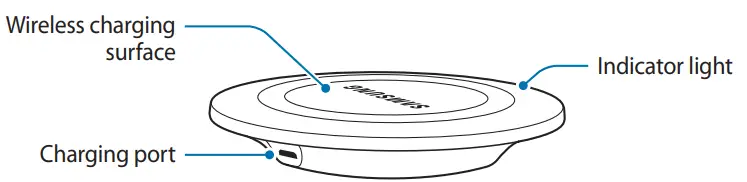
Device layout
Using the device
Using wireless charger
- Connect the wireless charger and a travel adaptor with a charging cable, and plug the travel adaptor into an electric socket. When the wireless charger is connected to the electric socket, the indicator light flashes from blue to green to cyan, and then turns off.
 Warning: Use only Samsung-approved travel adaptors (5 V/2 A). Unauthorized travel adaptors may cause damage or the wireless charger may malfunction.
 - Place a supported mobile device in the center of the charging surface.
 Do not place the wireless charging cover solely on the wireless charger. Doing so may overheat the wireless charger and cause a fire. It may also result in serious burn or device malfunction.
 - When the mobile device is fully charged, remove it from the wireless charger.
- Check the mobile device’s battery status using the charging icon displayed on the screen.
- Do not place any other object between the mobile device and the wireless charger. The mobile device may not charge properly.
- If you connect a travel adaptor to the mobile device during wireless charging, the wireless charging feature is unavailable.
- The wireless charger is compatible with WPC-certified devices.
- To save energy, unplug the travel adaptor when not in use. The travel adaptor does not have a power switch, so you must unplug the travel adaptor from the electric socket when not in use to avoid wasting power. The travel adaptor should remain close to the electric socket and be easily accessible while charging.
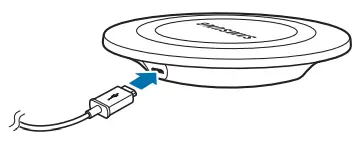 Warning: Use only Samsung-approved travel adaptors (5 V/2 A). Unauthorized travel adaptors may cause damage or the wireless charger may malfunction.
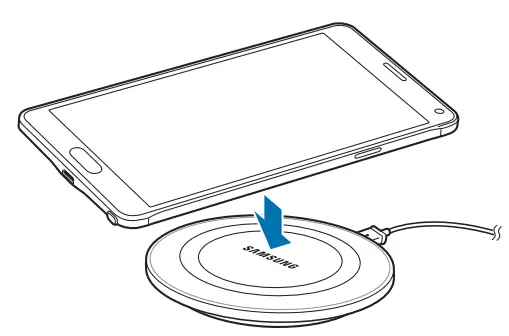 Do not place the wireless charging cover solely on the wireless charger. Doing so may overheat the wireless charger and cause a fire. It may also result in serious burn or device malfunction.
Checking the battery level
You can check the device’s charging status via the notification light.
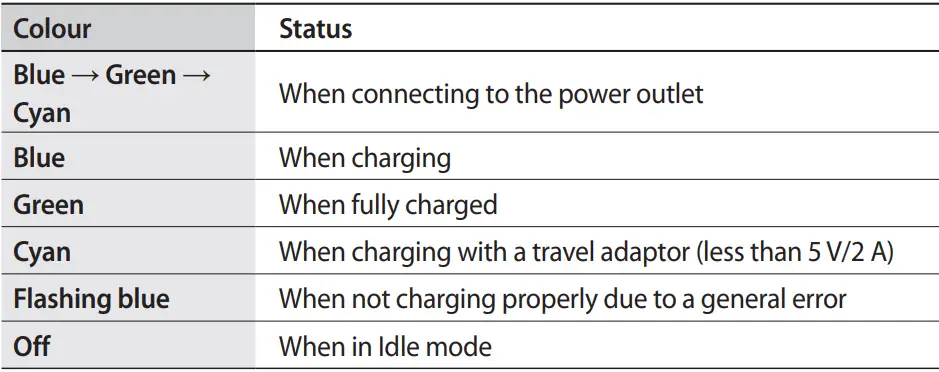
- If the indicator light is not working properly, reconnect the travel adaptor to the wireless charger.
- The indicator light’s color may vary depending on the mobile device or the wireless charging cover.
Copyright
Copyright © 2015 Samsung Electronics
This manual is protected under international copyright laws.
No part of this manual may be reproduced, distributed, translated, or transmitted in any form or by any means, electronic or mechanical, including photocopying, recording, or storing in any information storage and retrieval system, without the prior written permission of Samsung Electronics.
Trademarks
- SAMSUNG and the SAMSUNG logo are registered trademarks of Samsung Electronics.
- All other trademarks and copyrights are the property of their respective owners.
FAQs
You can check the battery level by going to Settings > Battery. If the device’s battery is fully charged, you will see a message saying “Battery is fully charged”. If the battery is low, you will see a message saying “Battery is low. Charge the device”.
The available resolution for each mode varies depending on the product. Available resolutions for each mode are detailed in the user guide.
Rotating the screen prevents accidental input when you move the device around. To disable this feature, go to Settings > Display > Rotation, and then select “Auto rotate screen”.
You can optimize power consumption by adjusting your screen brightness and screen timeout duration. You can also turn off your screen while charging or set up a schedule to turn off your screen at a specific time. For more information, refer to the user guide.
Your device is not waterproof. Keep it away from water as much as possible. Do not put it into or take it out of water. If your device gets wet, immediately turn off the power and remove all cables (including power cable and USB cable). Then, have it checked by a Samsung service center. Do not attempt to disassemble, repair, or modify your device yourself or remove any stickers on your device; otherwise, you may cause electric shock or malfunction of your device.
Even though some wireless chargers include a built-in battery for when you’re on the go, they eventually all need to be plugged into a power source. The distinction is that you do not have to connect your gadget to the charger.
The battery typically needs three hours to charge completely. The actual charging time, however, can change based on the charging environment and device status.
Additionally, all devices can use the worldwide standard—the Qi wireless charging. Therefore, wireless charging for Android devices and iPhones is the same. The same charging mat can be used for all of your gadgets.
Convenience: You can always and anywhere charge your phone. Less cords also imply less clutter on the desk because there is no need to untangle them or find the proper connector. Less cords mean fewer electrical failures, which improves safety and performance.
Samsung and other Android phone manufacturers make the same claim. “Don’t leave your phone plugged in overnight or for extended periods of time.”
Contrary to what many people think, wireless charging is secure. The battery in your smartphone won’t be harmed because it carefully controls the procedure. Yes, wireless phone chargers do produce EMF radiation (electric and magnetic fields), however the amount is fairly little.
The Cota system provides a few watts of power up close, but declines to milliwatts as distance increases and ceases to be useful at about 30 feet.
Yes, in general wireless charging is slower than wired charging, however this is rapidly changing. Wireless charging is inherently less effective than wired charging.
With the additional efficiency of not having to spend time plugging and unplugging the vehicle, wireless charging runs within a narrow range of efficiency (88-93%) that is equivalent to Level 2 plug-in charging.
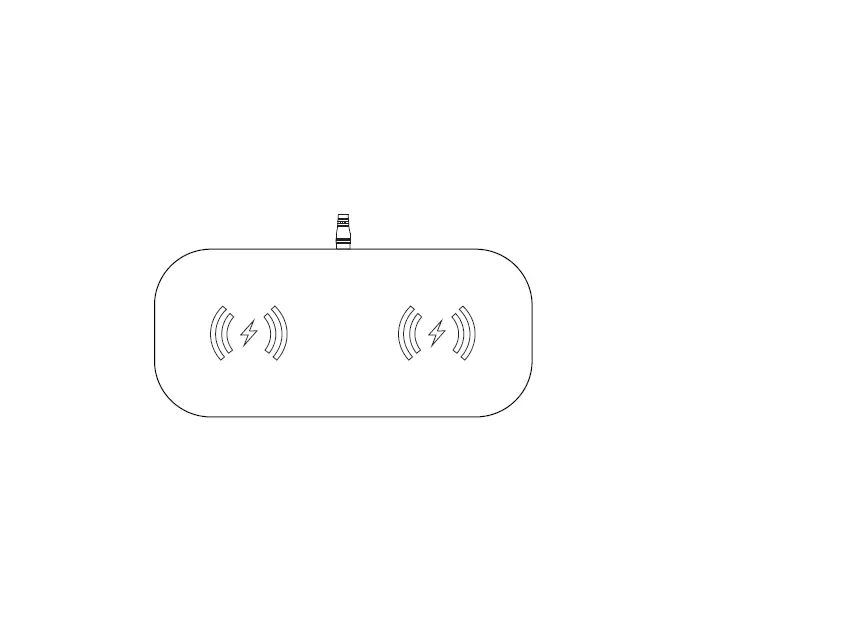
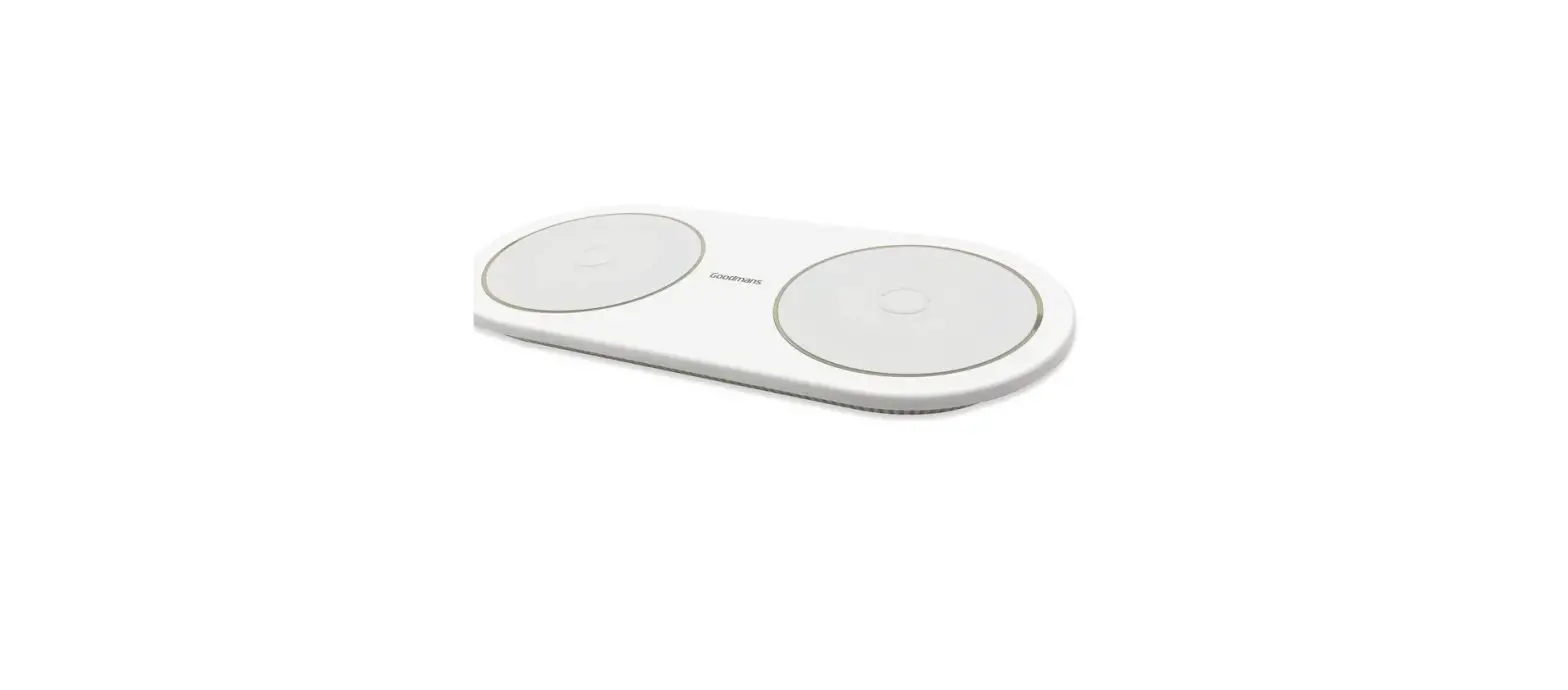
Depending on the model, you can use the dual charging pad to wirelessly charge one or two phones at once by positioning them next to one another.