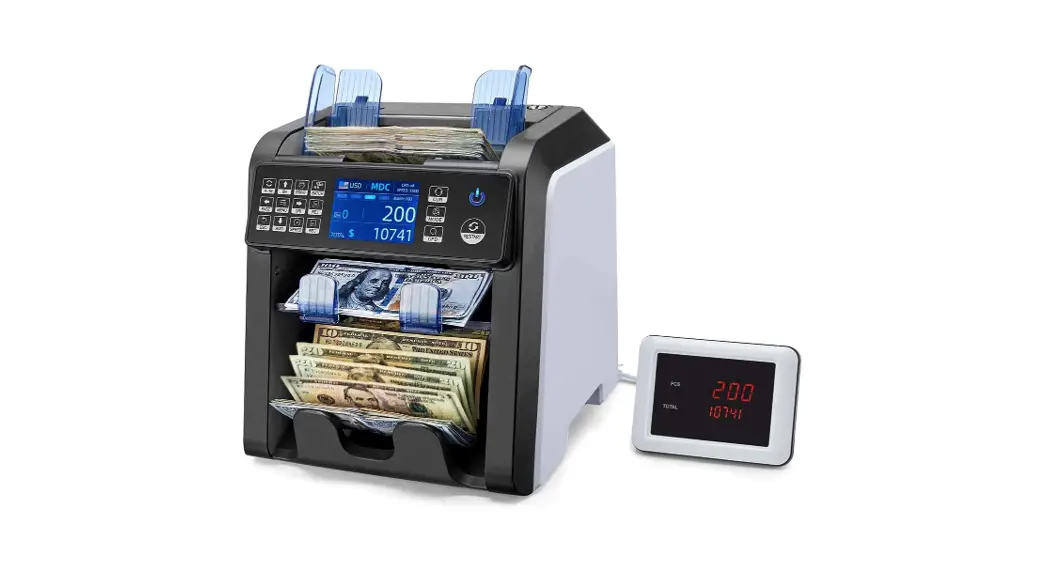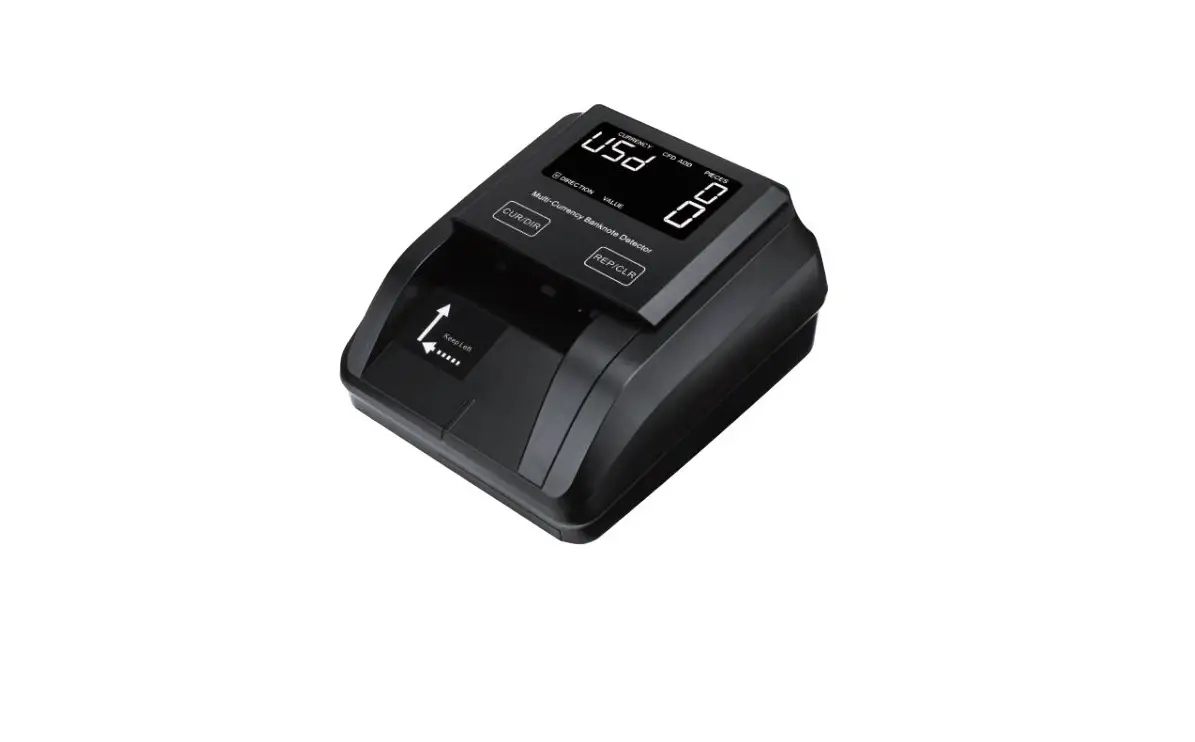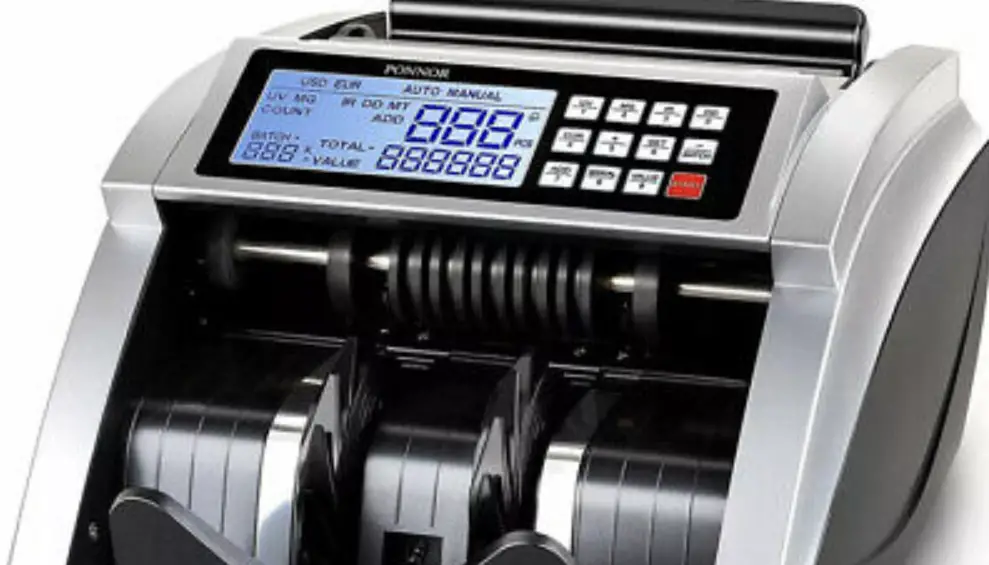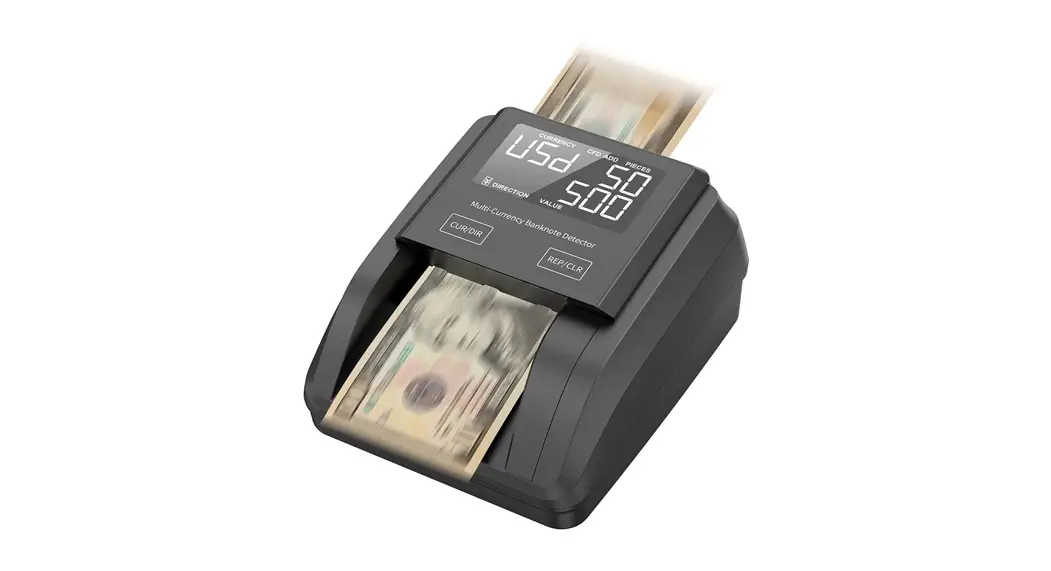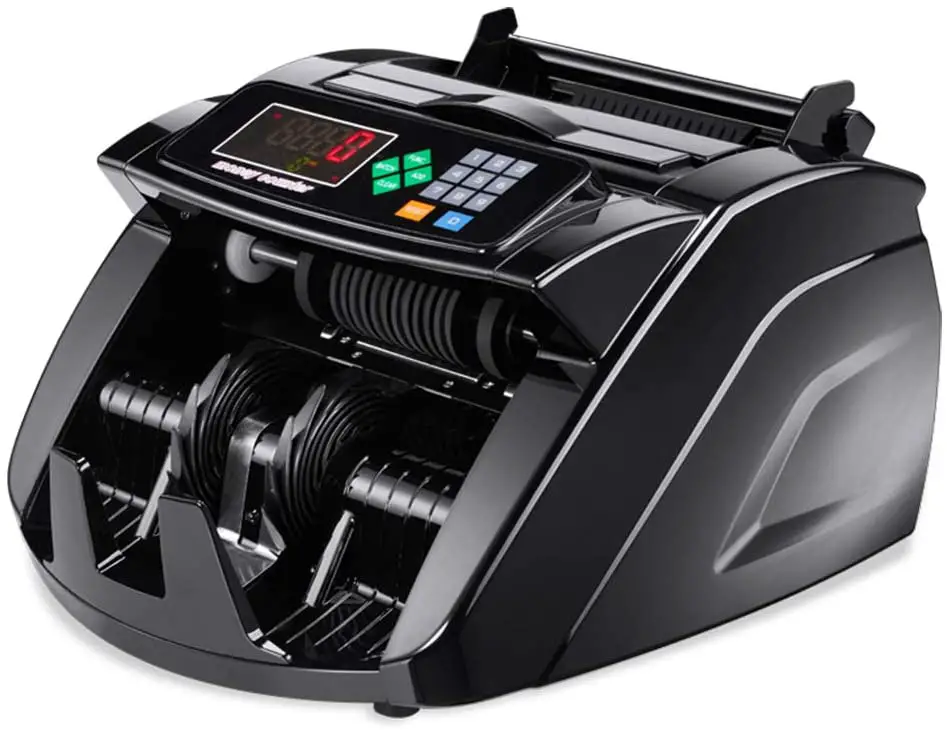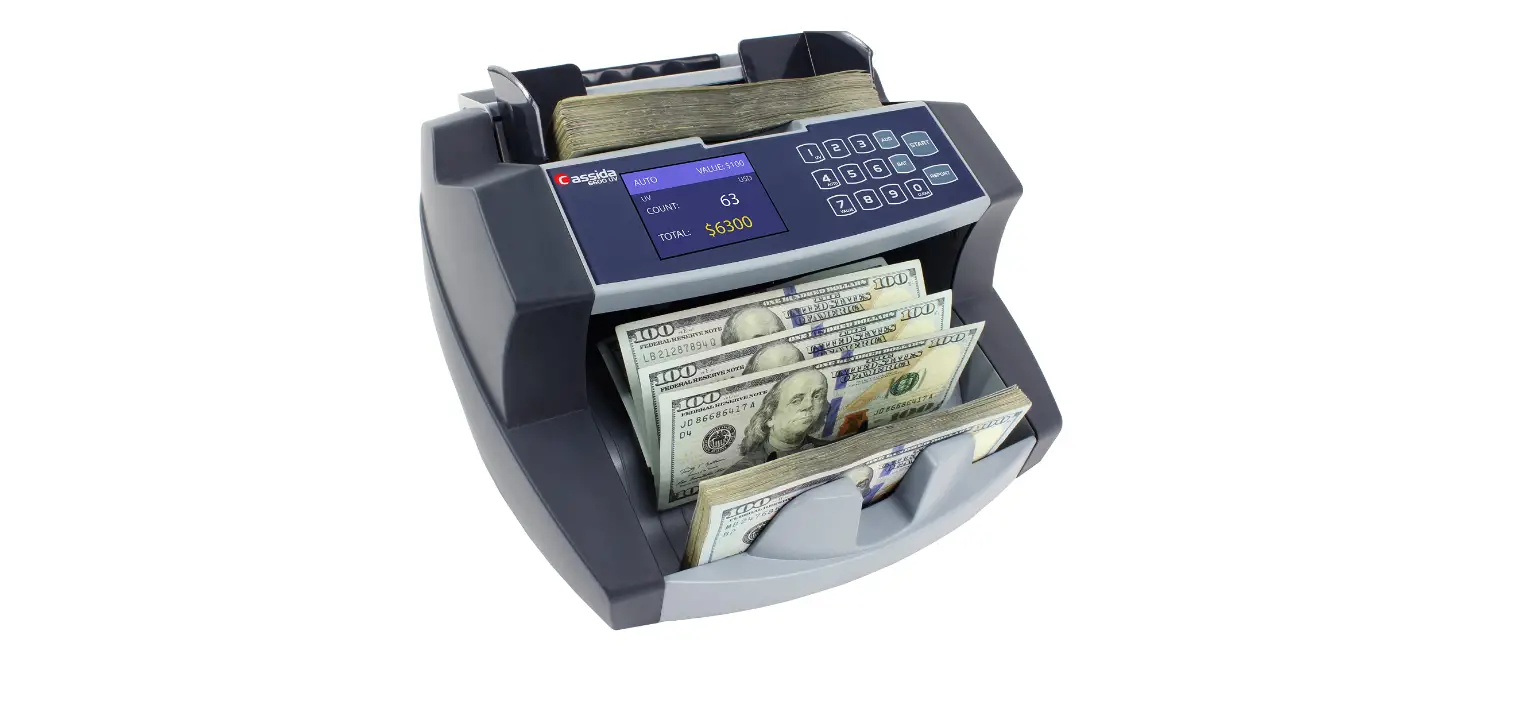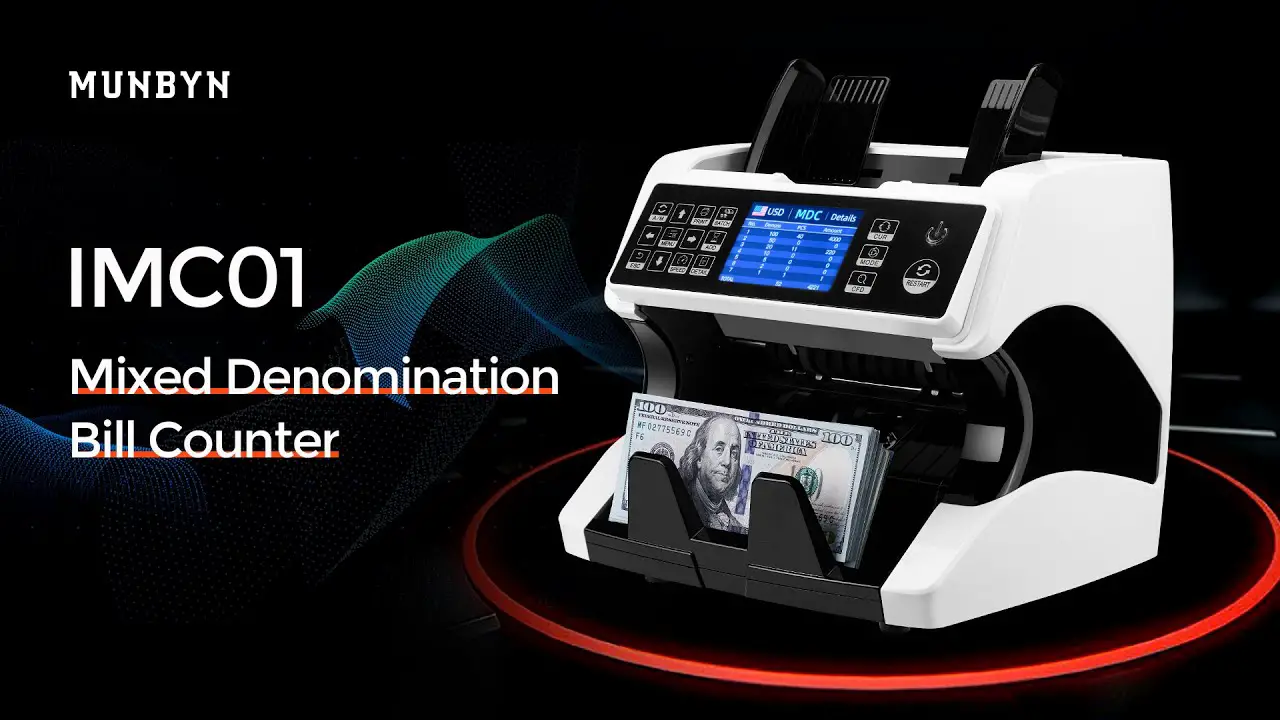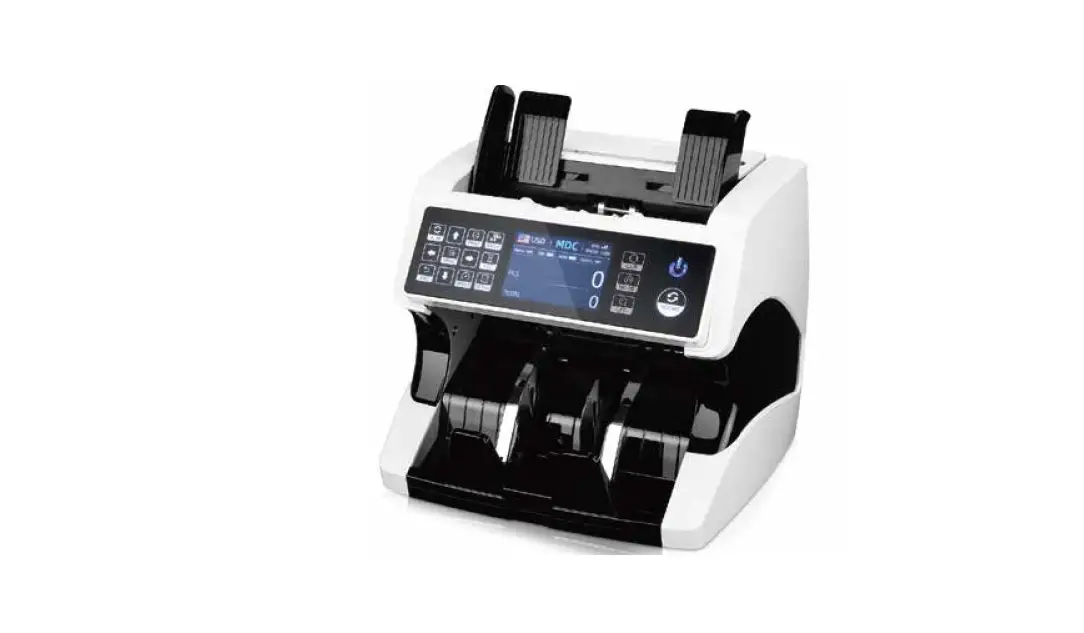

MUNBYN IMC01 Money Counter Machine
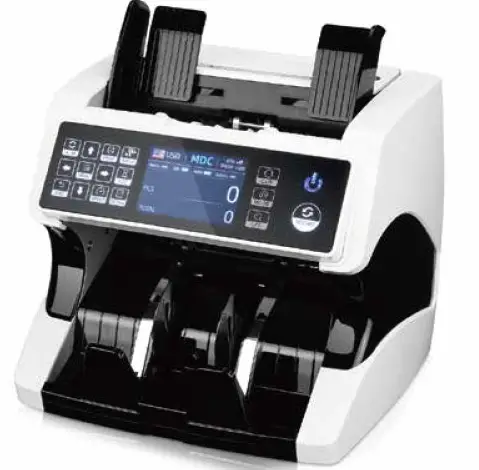
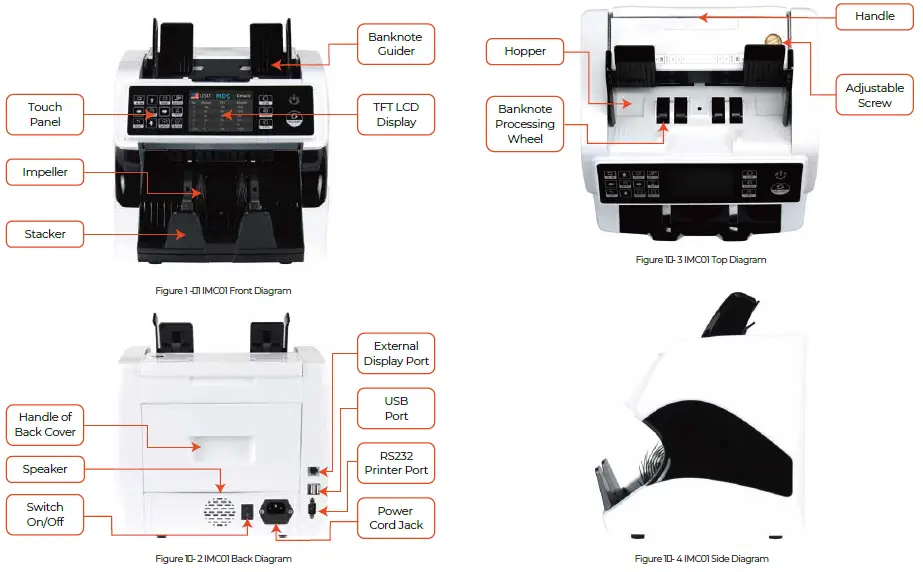
Machine Overview
Packing Open and Installation
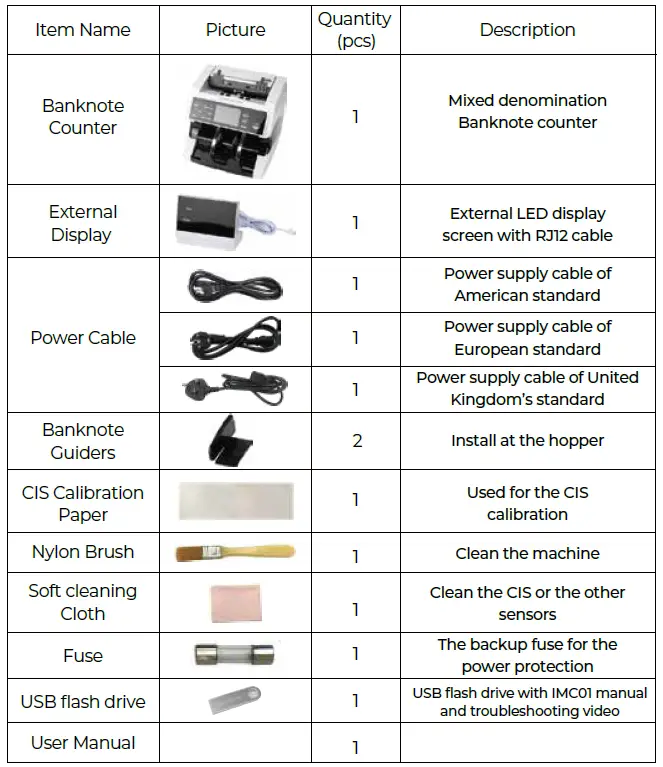
Packing List
When you receive the package, open and check the packing list in the package.
Table 2˜- 1 Packing List
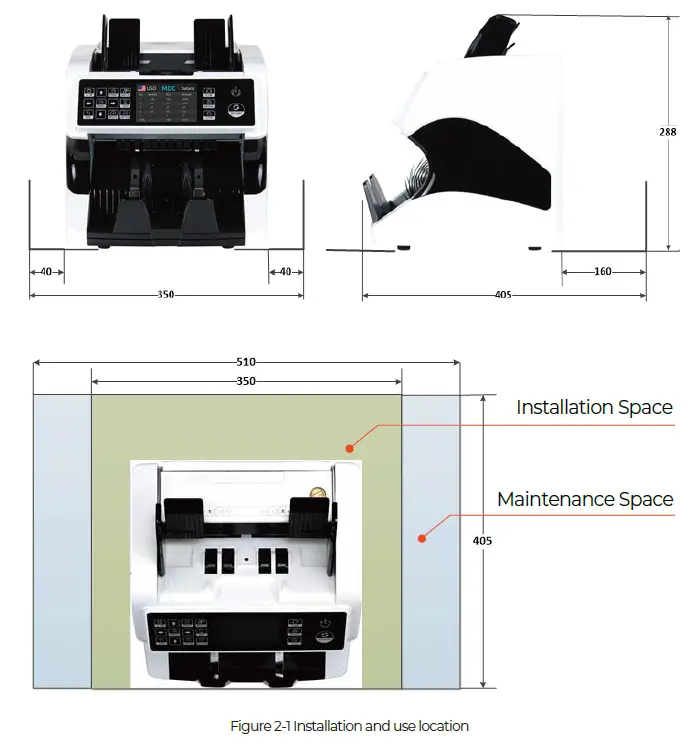
Installation and Use Location
As shown in figure 2-1, please stay away from the surrounding walls and reserve sufficient operation space for placement of banknotes, opening or closing of the cover plate, as well as for maintenance.
Installation Instructions
Installation Warnings
- This machine is specially designed for indoor use. Please do not install or use it outdoors.
- Please do not install it in place that cannot bear the weight of this product or in places that are inclined or uneven.
- Do not use or please combustible materials, inflammables and volatile items such as thinners around/inside this product.
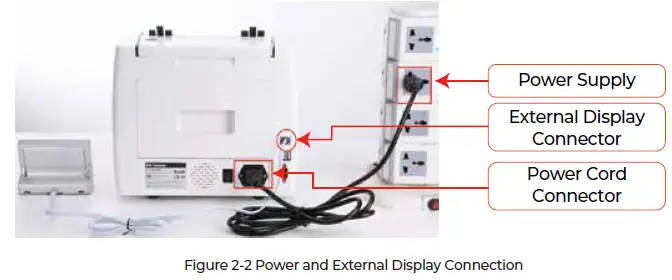
Power Supply Connection
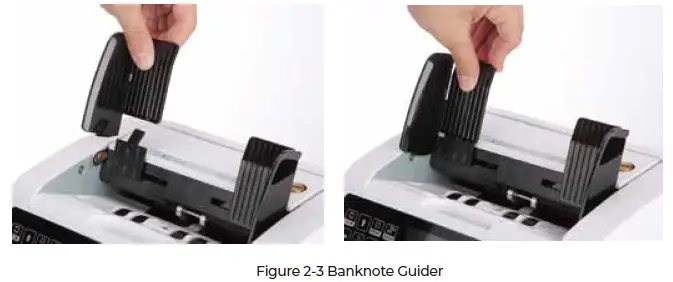
Banknote Guider Installation
Display and Operation Interface
Display Appearance
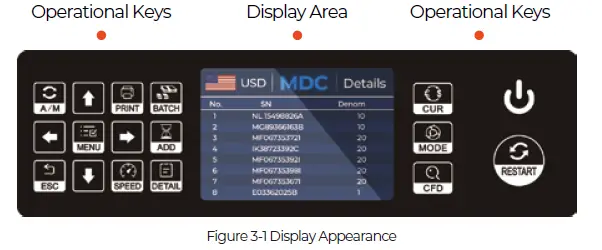
Operational Instructions for Function Keys
Auto on key, to switch on/off the automatic operation. Auto: automatically counting as long as there is a banknote on the hopper. Manual: manually counting by press the restart key.
Direction keys.

 Print key, to print the counted banknotes information.
Batch key, to select the batch number.
Menu key, to enter the menu interface by long pressing the key until a beep sound.
Add key, to switch on/off the accumulation function.
Return key, to return to the previous interface.
Speed key, to select the different available counting speeds.
 Detail key, to check the detail counted information.
Currency key, to select the one of currency, auto recognition or multi-currency mode for counting.
Mode key, to select CNT mode, SDC mode or MDC mode for counting.
CFD level key, to select the Counterfeit Detection Sensitivity level.
Restart key, to start counting, or to start other operations.
Power key, long press to enter the standby mode or resume to the working mode
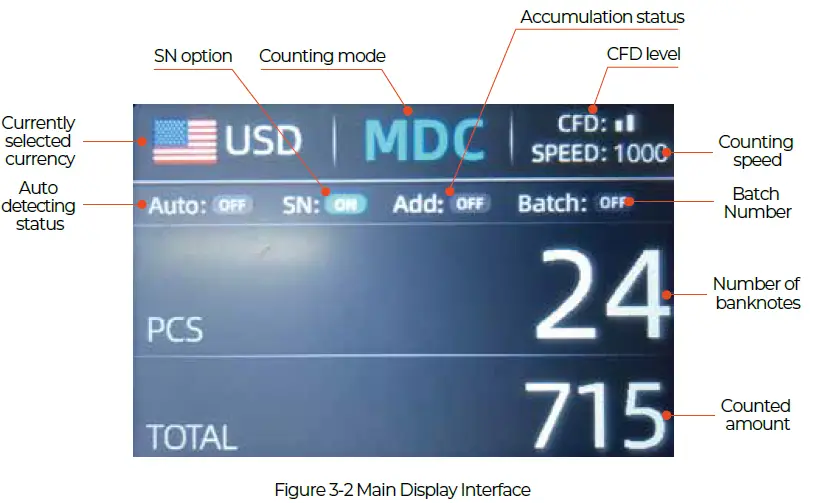
Display Interface
Operating Instructions
Start-up
Turn on the switch after connecting the machine to power supply. First, the machine enters the self-checking interface, as shown in Figure 4-1.
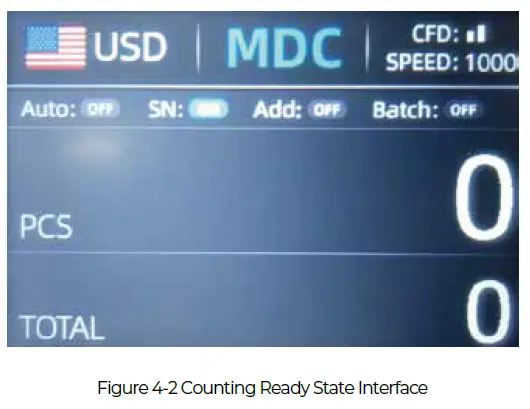
Please wait patiently for about 20 seconds, and the machine will spin the banknote processing wheel several times to conduct a self-check, and then enter the main interface as shown in Figure 4-2.
Selection of Counting Mode
Single Currency Counting Mode
After the machine is turned on, the flag & currency graphic appears in the upper left corner, indicating that the machine is in the current currency count-ing mode.
The default mode is MDC mode. By pressing the key  of the control panel, three counting modes can be cyclically switched, and the 3 counting modes will be cyclically switched according to the MDC-CNT-SDC sequence.
MDC Mode
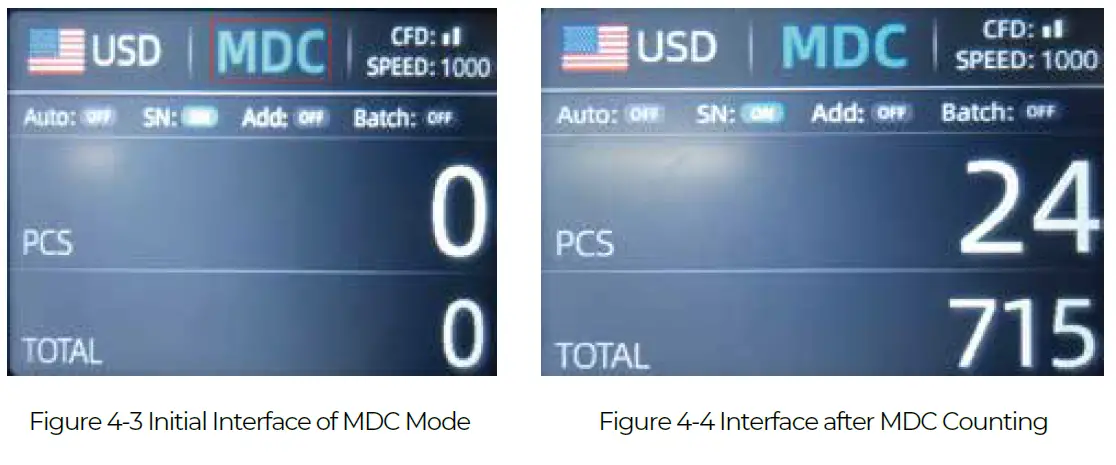
As shown in Figure 4-3, the IMC01 is in MDC mode. In this mode, the IMC01 will count the banknotes of all denominations of the selected currency, and save the detail information of the counted banknotes at the same time, including the total amount and the total number of the banknotes in stack-er, so as to facilitate users to check. In this mode, the IMC01 has 2 counting speed (800/1000 pcs/min) options.
SDC Mode
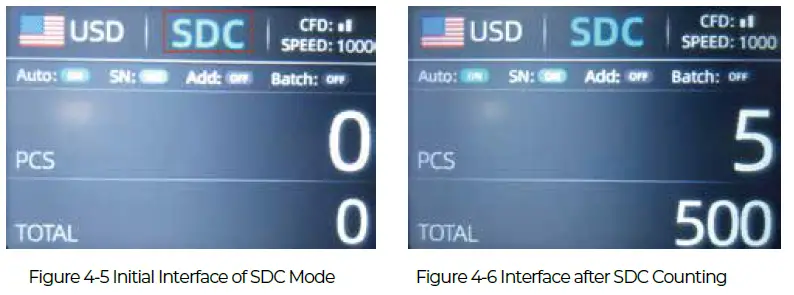
As shown in Figure 4-5, the IMC01 is in SDC mode. In this mode, the IMC01 will count the banknotes of the same denomination of the selected currency with the first banknote counted as a reference, and save the detailed information of the counted banknotes at the same time, including the total amount and the total number of the banknotes in the stacker, so as to facilitate users to check. In this mode, the IMC01 has 2 counting speed (800/1000/min) options.
You can use this function to sort the mixed bill manually.
CNT Mode
As shown in Figure 4-7, the IMC01 is in CNT mode. This mode does not limit the currency, and only count the number of banknotes. It only works with double note detection function and no other counterfeit detection function. In this mode, the IMC01 has 4 counting speed (800/1000/1200/1500 pcs/min) options.
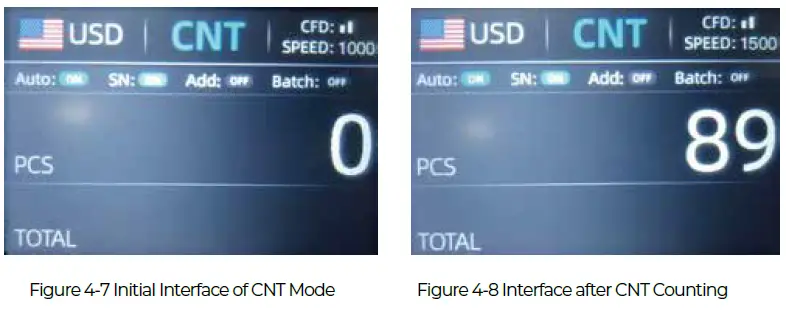
Note: In the MDC and SDC mode, the IMC has the functions of image acquisition, magnetic detection, ultraviolet detection and double note detection. While in the CNT mode, there is only a double note detection function.
Automatic Recognition Mode
In the process of counting banknotes, the IMC01 uses the first banknote passing through the sensor as the judgment rule to recognize the banknotes of all denominations of the same currency. When banknotes of other currencies are recognized, the machine will alarm and stop. At this time, banknotes from other currencies need to be taken out, and the machine will continue counting. The machine can only recognize all of the currencies displayed in the currency selec-tion interface.
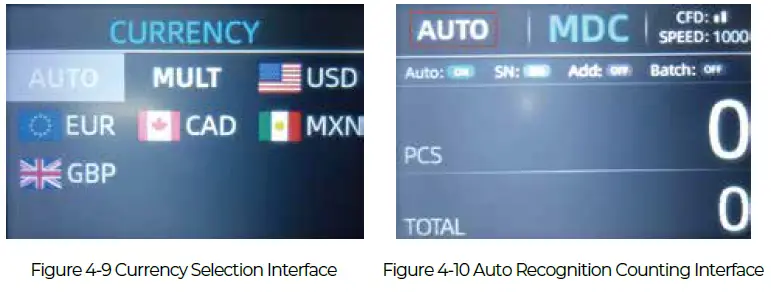
Press the key,  the currency selection interface is shown as Figure 4-9. Move the cursor to ‘AUTO’ by direction key (the default option is ‘AUTO’), and then press the menu key,
 the display screen will be automatically adjusted to the main inter-face, as shown in the Figure 4-10.
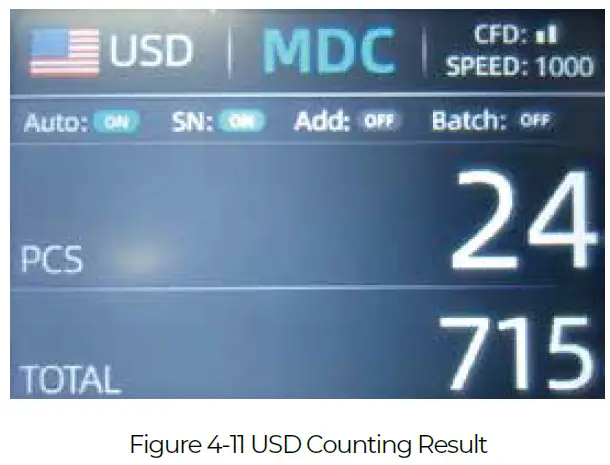
Example: Put a handful of USD into the IMC01 hopper to count. The interface of the IMC01 displays as Figure 4-11 at the end of counting. The currency in the upper left corner is identified as USD.
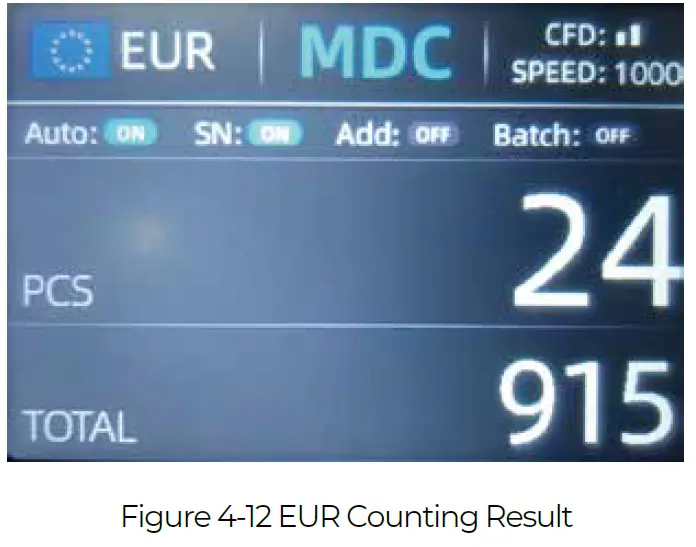
Take out the USD in the stacker, and then put the EUR into the machine to count. The display screen is showed as Figure 4-12.
Multi-currency Counting Mode
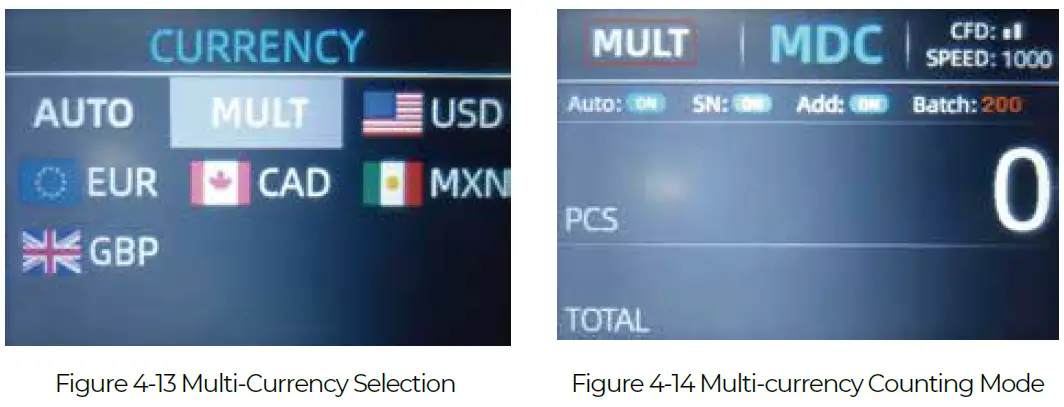
Multi-currency Mix Counting: Banknotes of multiple currencies are mixed together and put into the IMC01 to count. The IMC01 can recognize all the first 4 currencies displayed on the currency selection interface.
As shown in Figure 4-9, press the key  to select ‘MULT’ shown in Figure 4-13, and then press the menu key,
 the display screen will be automatically adjusted to the main interface, as shown in the Figure 4-14.
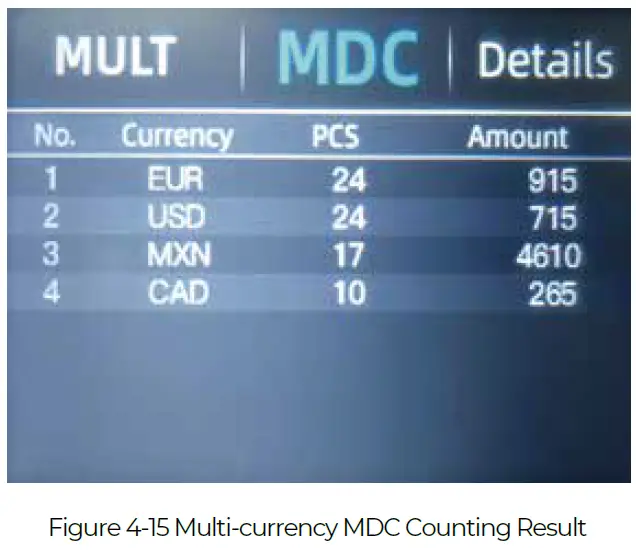
Example: Put a handful of banknotes (including USD, EUR, CAD, MXN) into the IMC01 hopper to count. The interface of the IMC01 displays as Figure 4-15 at the end of counting.
Non-Volatile Memory for Currency Mode
The currency mode setting is non-volatile. For example, if you set multi-currency counting mode before power down the IMC01, next time the IMC01 is in multi-currency counting mode after power on. It is very convenient that you don’t need to reselect the currency every time you power on the IMC01.
Counting Function Options
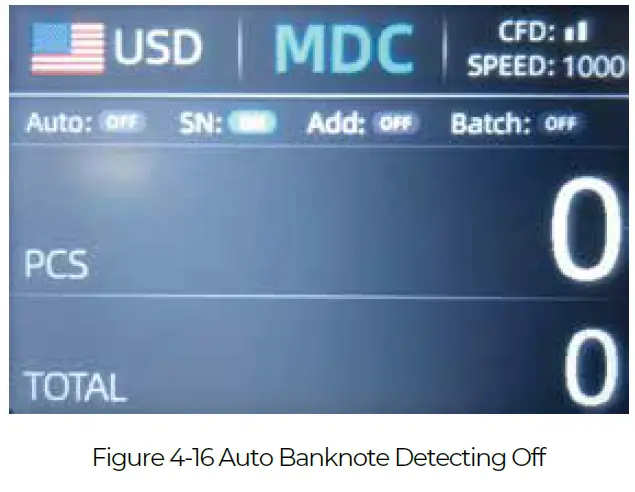
Automatic Banknote Counting
Press the key to enable or disable the automatic banknote counting in the main interface.
The default setting of automatic counting is on. Every time the IMC01 resets, the setting will be reset to be on state.
As shown in Figure 4-16, pressing the  banknotes in the hopper to start counting.
SN Reading
The key is used to enable or disable the SN reading function in the main interface. The default setting of SN reading is on. Every time the IMC01 resets, the setting is reset to be on state.
Batch Setting
Press the key  to select the batch number in the banknote counting interface, the screen display is shown in Figure 4-17. By pressing the key of the control panel, the batch number will be cyclically switched according to the 100-50-0 sequence.
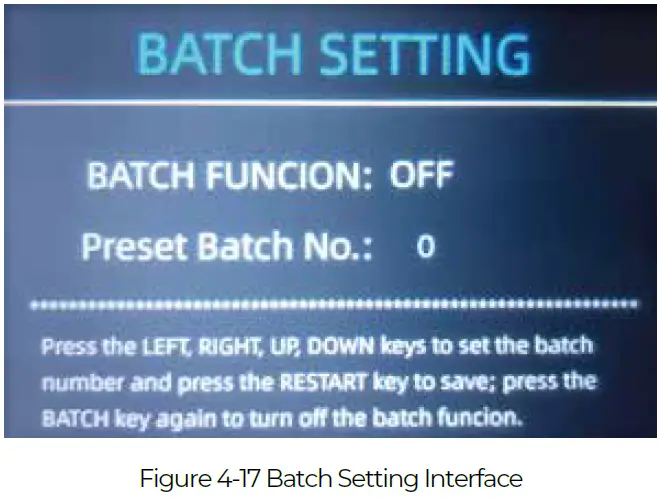
The batch number will be increased by 10 by pressing the key  or decreased by 10 by pressing the key until it becomes 0. And it will be increased by 1 by pressing the key or decreased by pressing the key
 .
.
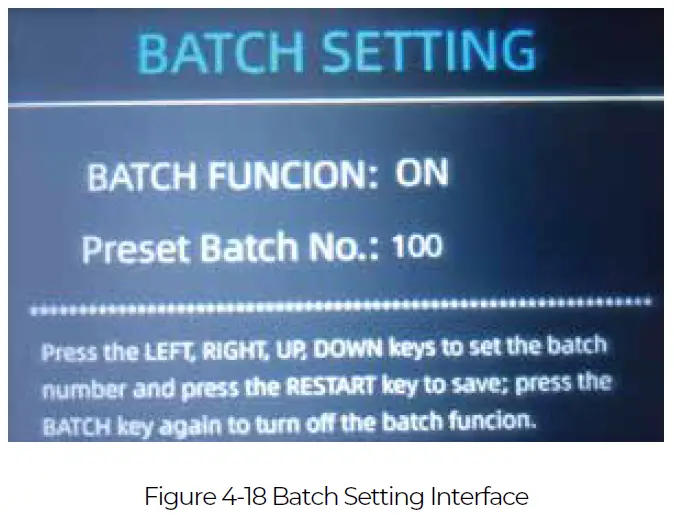
Press the key to return to the main interface if you confirm the batch number.
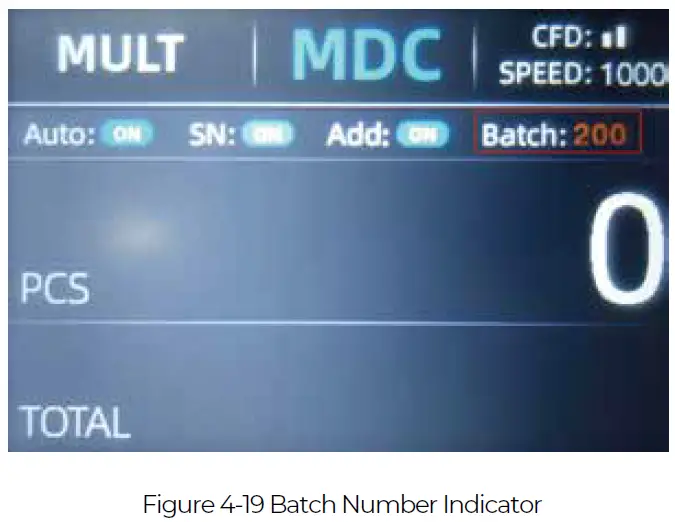
Note: the stacker maximum capacity is 200 bills, so the batch number should be less or equal to 200.
Accumulation
Press to enable the accumulation function.
In any counting mode, the accumulation function of the number of the banknotes can be enabled by pressing the key .
.
Face Function
This function is available by pressing the FACE key in SDC mode until “FACE” is displayed on the main screen.
It allows the user to sort the banknotes based on whether they are loaded into the hopper face up or face down. This first note in the hopper determines the sorting and counting orientation. If the first note through the machine is face up, all notes in the hopper that are face up will end up in the stacker, and the other notes will end up in the reject pocket. Total number and value will be displayed on the main screen.
Orient Function
This function is available by pressing the ORI key in SDC mode until “ORI” is displayed on the main screen. This function allows the user to count and sort the notes by one of 4 orientations. The fist note in the hopper determines the counting orientation. Any time a note passes through the machine and does not conform to the orientation determined by the first note, the machine will reject this note into the reject pocket. Total amount and number of the notes will be displayed on the home screen.
Counting Speed Setting
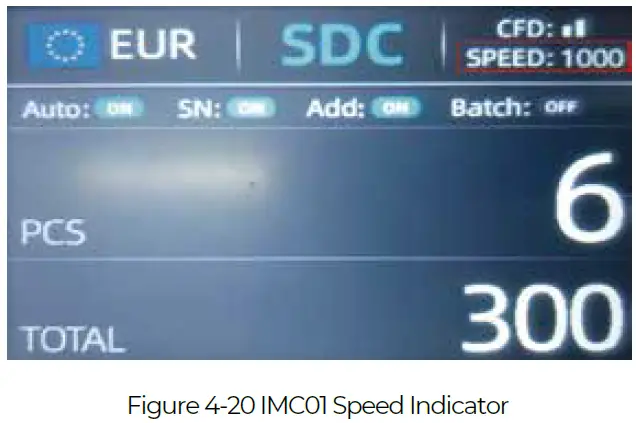
There are four counting speed options: 1500, 1200, 1000 and 800 (Note: 1500 and 1200 are the only optional in CNT mode). The default speed is 1000 in three modes. If setting is required, different counting speed can be switched by pressing the key in any counting mode.
Check Detail of Counting
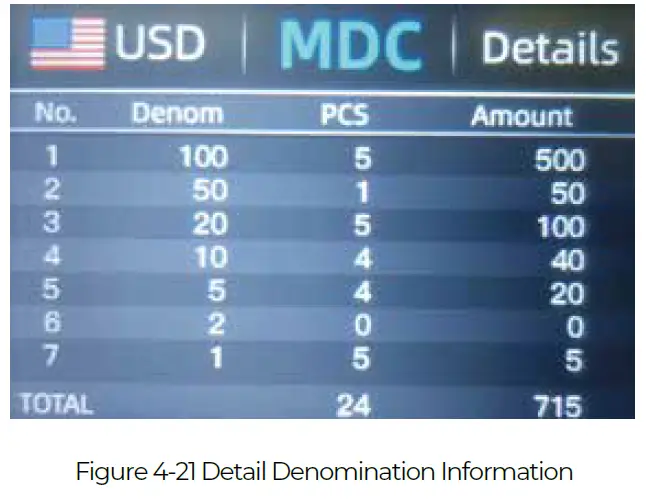
In the MDC or SDC mode, press the key upon the completion of counting to enter the interface shown in the following figure to check the details of counting.
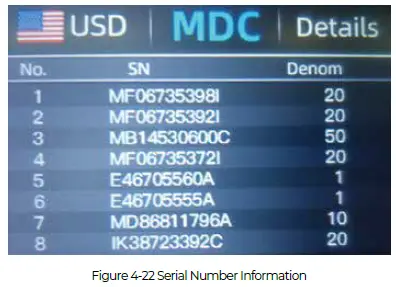
Check the Serial Number
As shown in Figure 4-22, if the SN reading is on, press the key again, the banknote’s serial number will be shown in the following figure.
Print Information
Printer prints banknote data
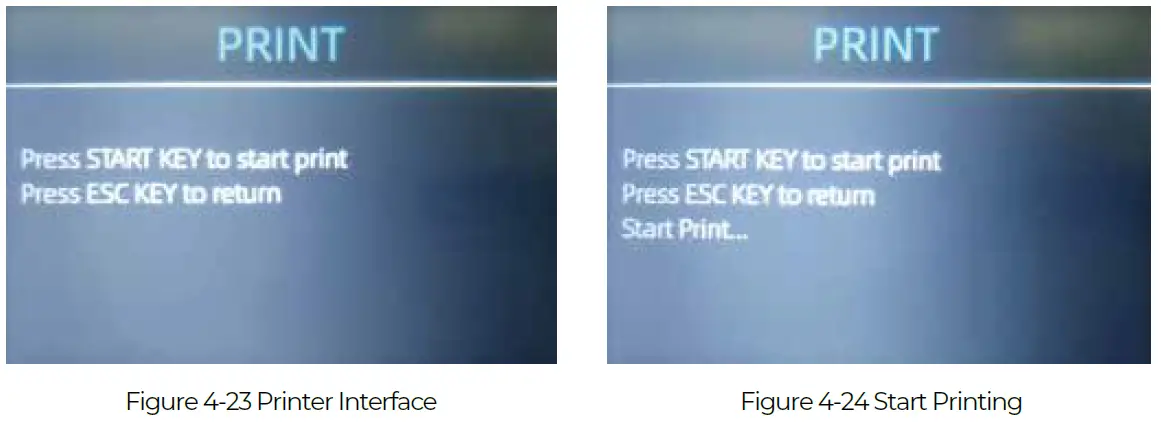
When the external printer has been connected and can be printed, after counting, press the  key to enter the print interface shown in Figure 4-23, and then press the key, the printer starts print.
Data transfer to PC
The data is transmitted to the computer for display through the DB9 serial cable.
- Use the DB9 serial cable to connect the IMC01 to the computer, then turn on the computer.
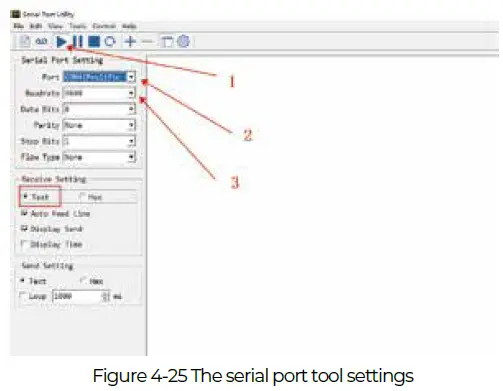
- Open the serial port tool (such as RS232 Hex Com Tool), select the serial port corresponding to the IMC01, and set the baud rate to 9600, as shown in the figure below.

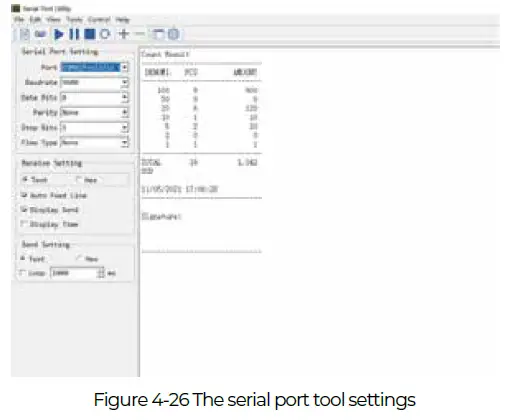
- Click the “PRINT” button of IMC01, and then click the “RESTART” button, IMC01 will transmit the data to the serial port tool, as shown in the figure below.

This is a tutorial video link for transferring IMC01 data to a computer: http://munbyn.biz/DatatransfertoPC
CFD Level
There are 3 adjustable CFD levels. By pressing the  key, the CFD level graphic appearing in the upper right corner will change.
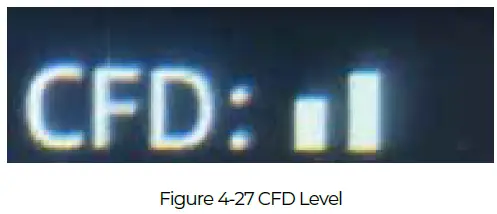
CFD level 0, means no counterfeit detection, the most strictly detection is level 3.
Face Function
To turn on the Face Function by long pressing thekey until a beep sound, as shown in the following figure.
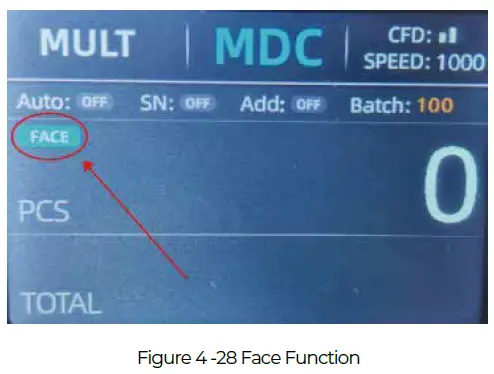
Note: After turning on the “Face” function, the banknote counter will automatically stop and alarm when it detects that the face of the banknote is different from the previous banknote.
ORI Function
To turn on the Face Function by long pressing the key until a beep sound, as shown in the following figure.
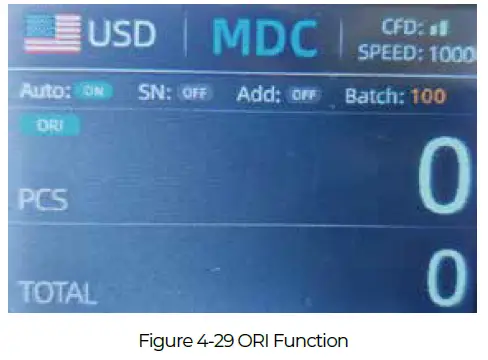
Note: After turning on the “ORI” function, the banknote counter will automatically stop and alarm when it detects that the side of the banknote is different from the previous banknote.
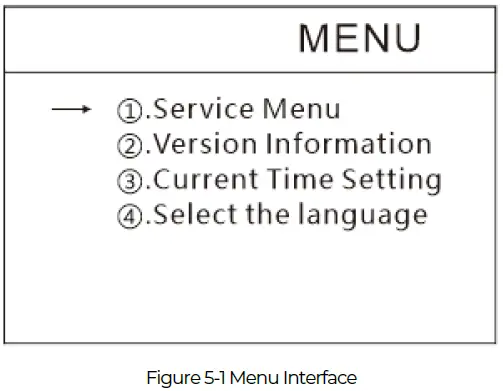
To enter the menu interface by long pressing the key until a beep sound, as shown in the following figure.
Service Menu
Press the key to enter service menu, you will be requested to input a password with the following interface. The default password is 9999.
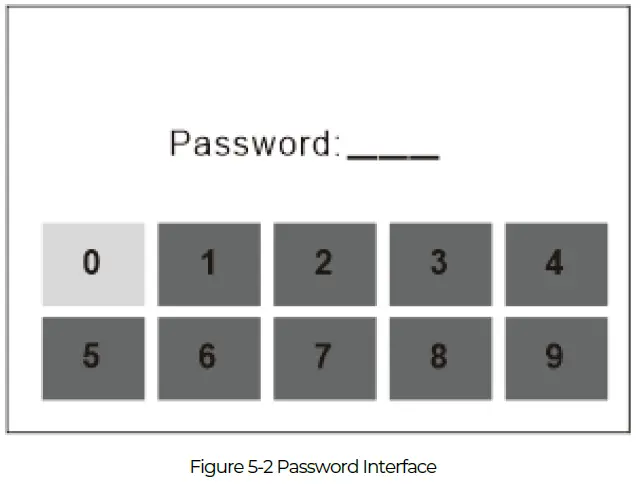
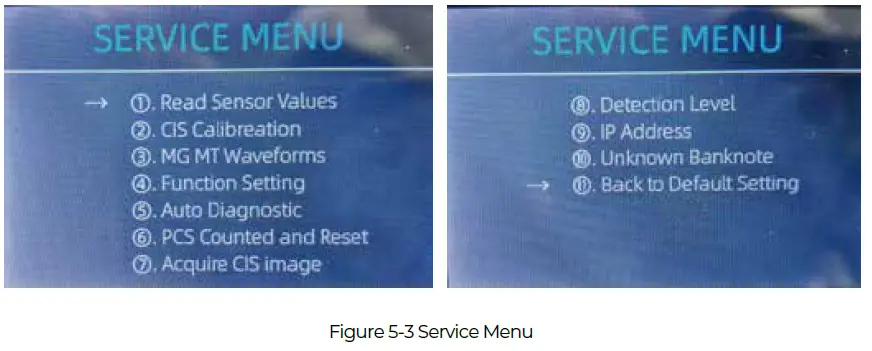
After input the password, the interface showed in Figure 5-3 will be displayed.
Use the cursor to select with sub-menu you want to enter, and press MENU button to confirm, and press ESC button to quit.
Read Sensor Values
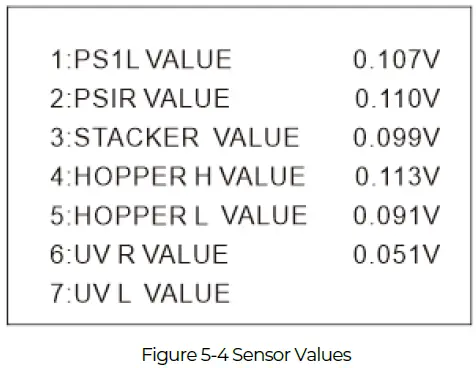
As shown in Figure 5-4, the sensors values are only for engineer to check whether any sensor has a malfunction. If you meet any problem about use, please take a photo of this page and contact us.
CIS Calibration
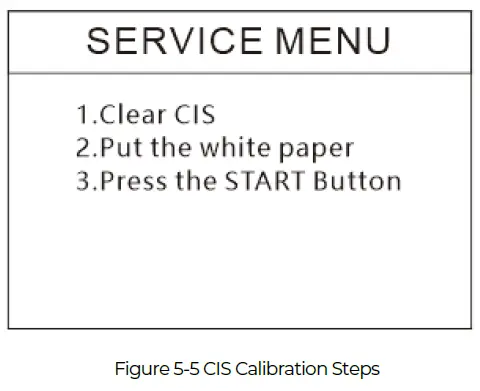
If you meet cases about banknote detection errors, please try to calibrate the CIS. The CIS calibration steps are shown in Figure 5-5. For more detail instruction, we recommend you to see the maintenance manual or watch the video: https://bit.ly/2C17fom.
MG/MT Waveforms
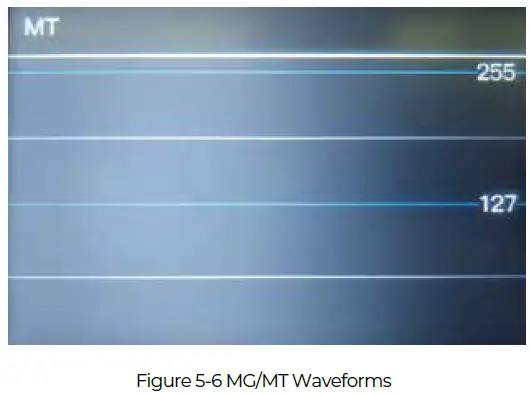
Function Setting
To enter the Function Setting interface by press the key, as shown in the following figure.
Use the cursor to select with sub-menu you want to turn on/off, and press MENU button to confirm, and press ESC button to quit.
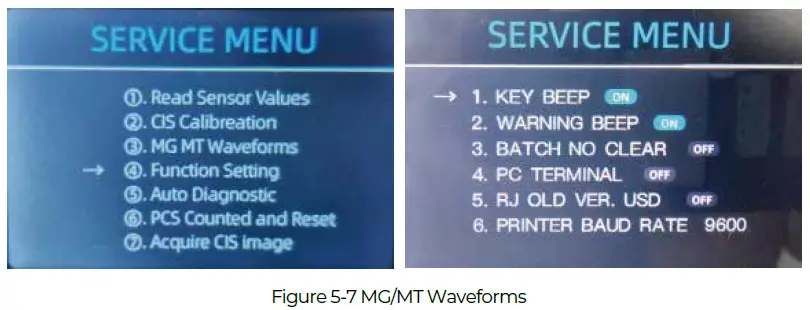
KEY BEEP
Move the cursor to the KEY BEEP option, press the MENU button to turn on or off the key beep.
WARNING BEEP
Move the cursor to the WARNING BEEP option, press the MENU button to turn on or off the warnning beep.
BATCH NO CLEAR
After turning on this setting, the data of the previous batch will not be clear, and will be accumulated to the next batch.
PC TERMINAL
This feature is still in internal testing.
RJ OLD VER. USD
After enabling this function, the old version of banknotes will be rejected and it is not recommended to enable it.
PRINTER BAUD RATE
Switch the baud rate of the IMC01 serial port to 9600 or 115200.
Auto Diagnostic
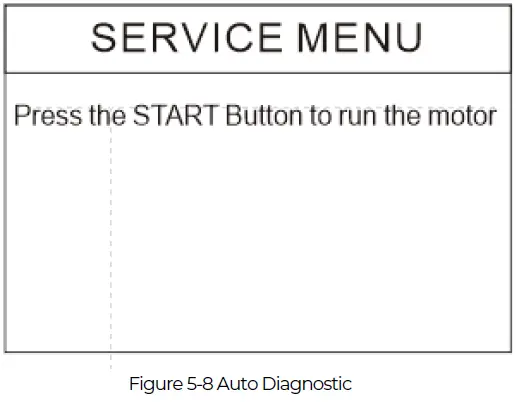
This is for production and professional servicing purpose.
PCS Counted and Reset
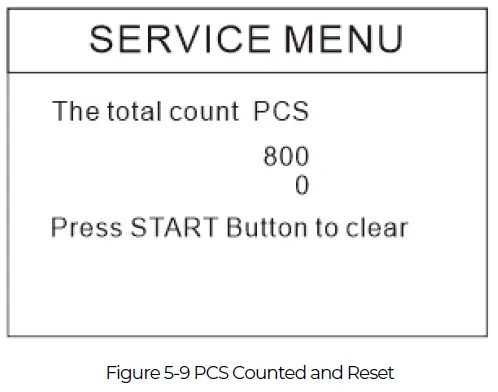
This is to tell you the total quantity of counted bills in this counter since last time clearing to zero.
Acquire CIS image
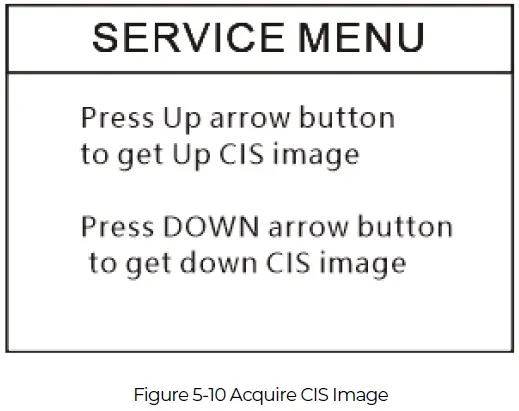
This is for servicing purpose.
Detection Level
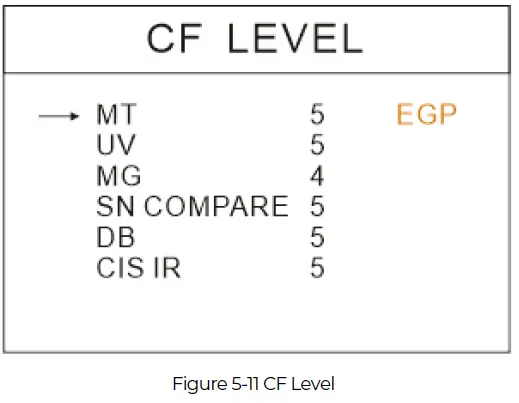
As shown in Figure 5-11, you can use the left and right direction key to select, and up and down direction key to change the sensitivity levels. The currency code in the right part is indicating for which currency you are operating.
Note: Please do not change without communicating with us.
IP Address
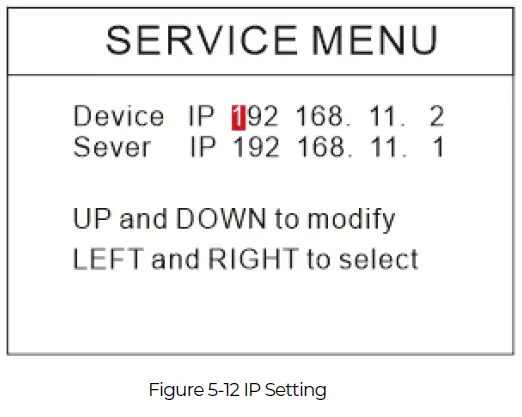
This is only for engineering use.
Unknown banknote
This is for production and professional servicing purpose.
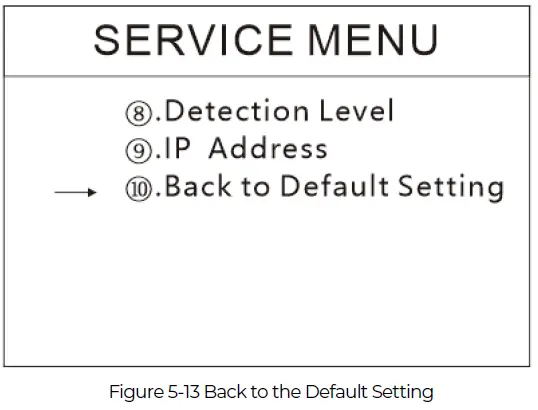
Back to Default setting
As shown in Figure 5-13, press the menu key to reset all of the settings you changed before.
Version Information
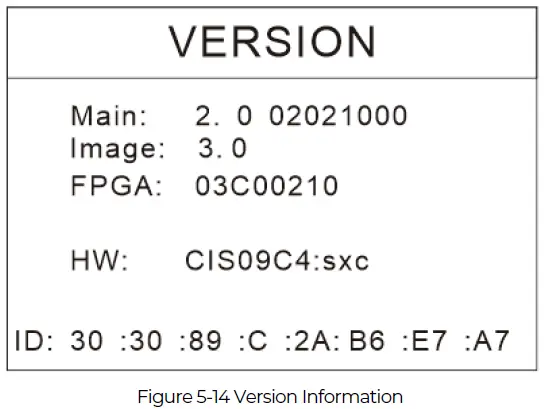
You are available to check the version information.
Time Setting
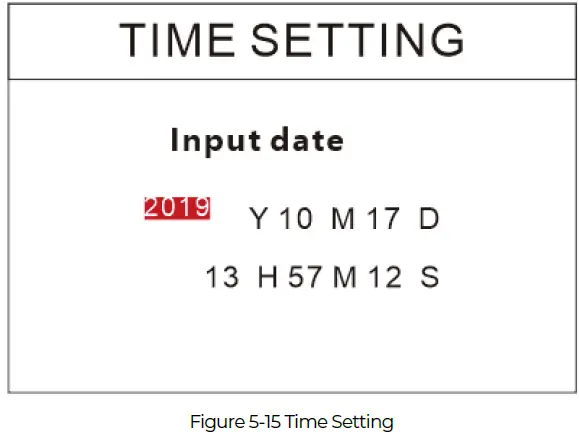
As shown in Figure 5-15, you can set the date or time according to your preference.
Language Selection
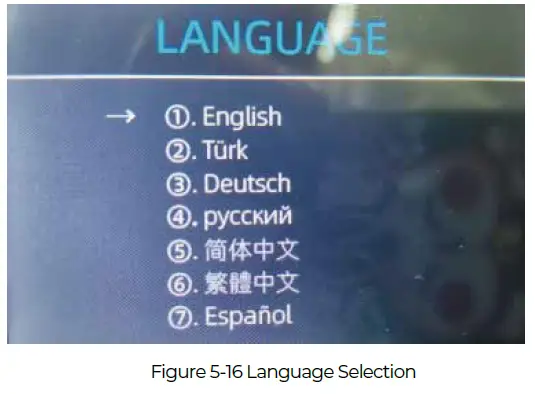
You are available to set the language you like.
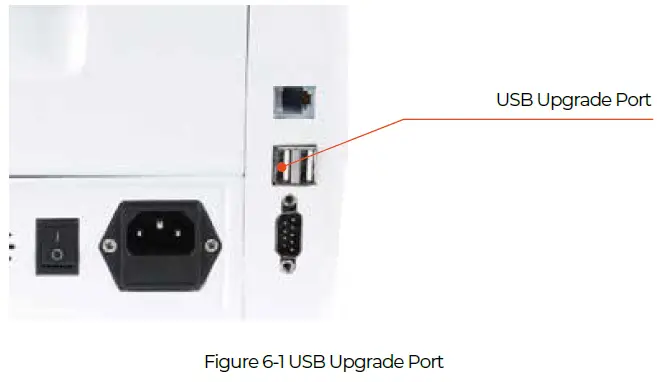
Software Upgrade
USB Flash Drive upgrade method is adopted for the software upgrade of this product. Please upgrade the software according to the following steps.
- The upgrade file needs to be moved to the root directory of the USB Flash Drive. (please do not change the file name or format of the upgrade file, and there cannot be two or more upgrade files in the root directory of the USB Flash Drive)
- Insert the USB Flash Drive into the USB interface at the rear of the machine. Make sure the power is off before insert the USB Flash Drive.

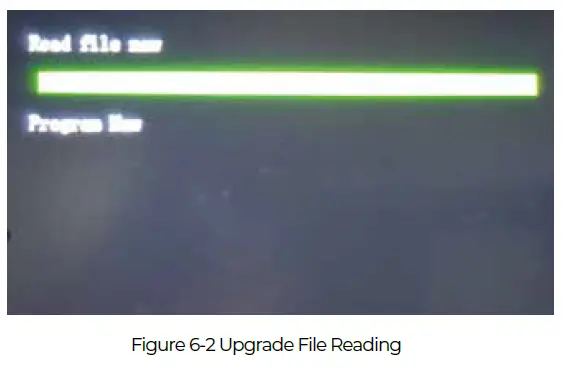
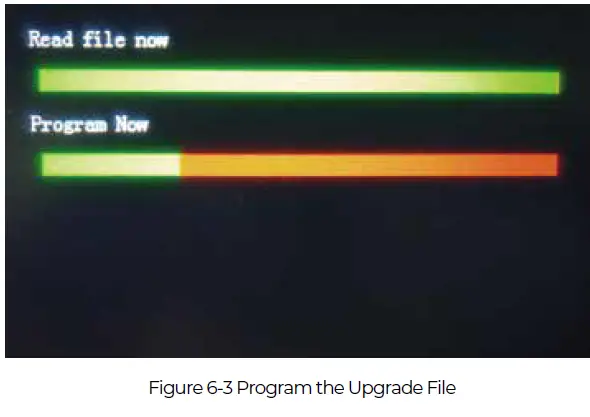
- Turn on the IMC01, and the machine will automatically recognize the upgrade file. Upon successful recognition, the machine will read the file first.

- And program the file to the IMC01.

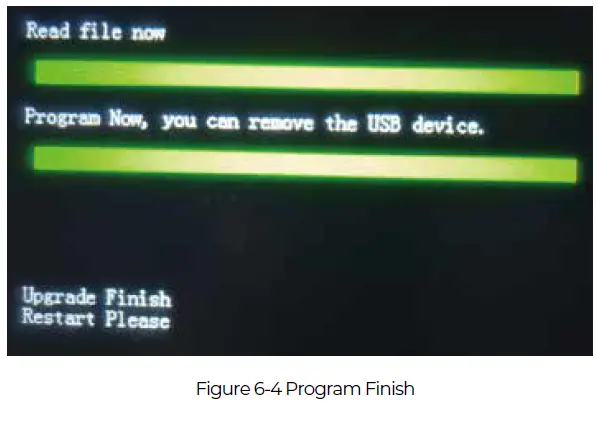
- After finish the programming, unplug the USB Flash Drive and turn off the machine.

- Turn on the machine to enter the main interface. Software upgrade has been finished.
Maintenance
After starting the machine, it will go on self-check automatically. If the preset window shows the error code or tell you to clean the sensors, generally speak-ing, it is because of dust on the surface or sensor blocked by notes. So please clear the dust on the surface with brush or soft cloth, or take the notes away. Then restart the machine.
For more troubleshooting methods, please refer to the IMC01 maintenance manual.
Technical Parameters
| Counterfeit Detection | Image (2 CIS Sensors), Magnetic, Infrared, Ultraviolet |
| Error Detection | Double note detection, half note detection, chain note detection |
| Available currencies | US/CA version: USD, EUR, CAD, MXN, GBP |
| EU/UK version: EUR, USD, GBP, CHF, PLN, SEK, NOK, DKK | |
| Options | Thermal printer connection |
| Interfaces | RS-232, 2 × USB, RJ12 |
| LCD Display | 3.5 inches TFT LCD display, 320×480 |
| Keypad | Touch panel keypad |
| Hopper Capacity | 500 bills |
| Stacker Capacity | 200 bills |
| Counting Speed | 800, 1000 pcs/min (MDC & SDC MODE) |
| 800, 1000, 1200, 1500 pcs/min (CNT MODE only) | |
| Size of Countable Notes | 50×110 ~ 90×190 mm |
| Thickness of Countable Notes | 0.075 ~ 0.15 mm |
| Power Consumption | ≤80W |
| Power Supply | AC 100V-240V,50-60Hz |
| Weight | 6.5 kg |
| Dimension | 270 × 245 × 288 mm |
Scan the QR code for Facebook online chat
Contact us
Email: [email protected] Whatsapp: +86-178 1788 1067 Phone:+1 306227 8206 Skype: live:munbyn
If you meet any problem during using the IMC01, please contact us.
 Transfer the data to PC.mp4 - pCloud
 Instruction Video about CIS.mp4 - pCloud