2A5QJZENONESTU ZEN One Studio
ZEN One Studio Product Information
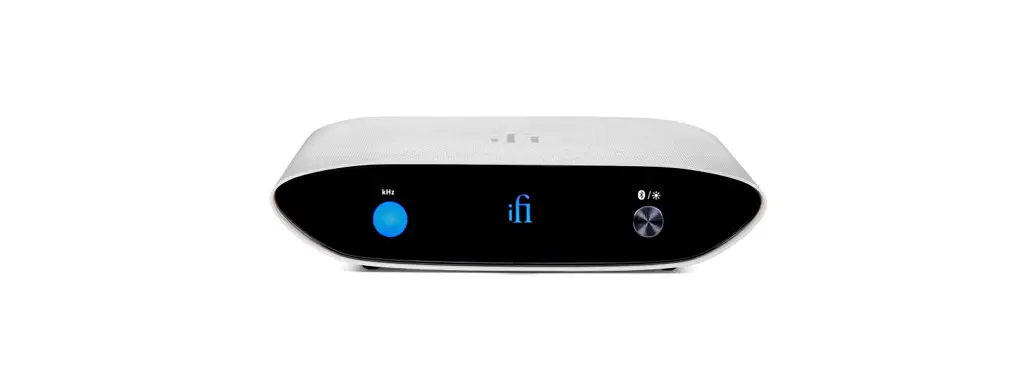
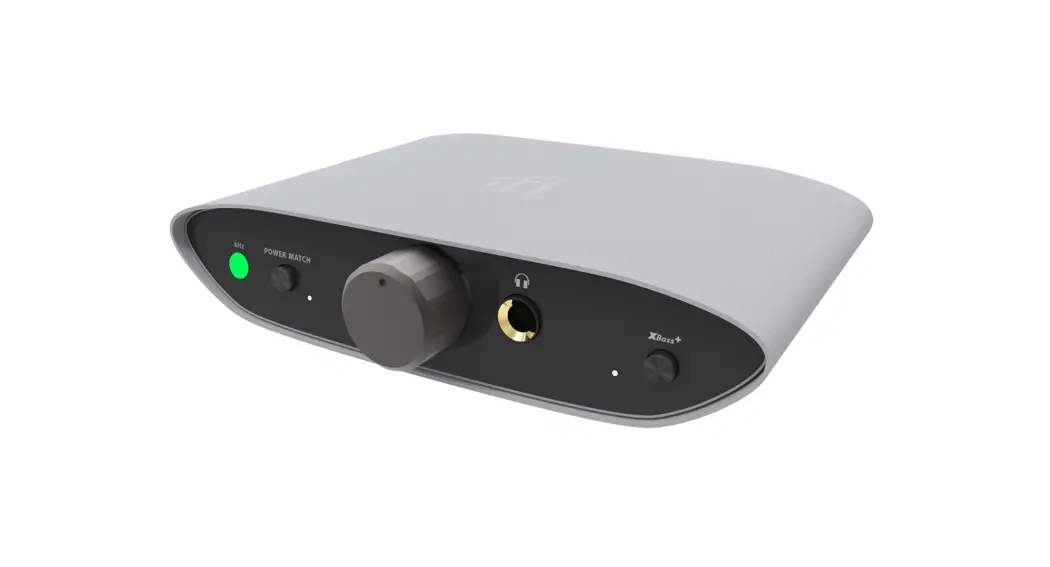
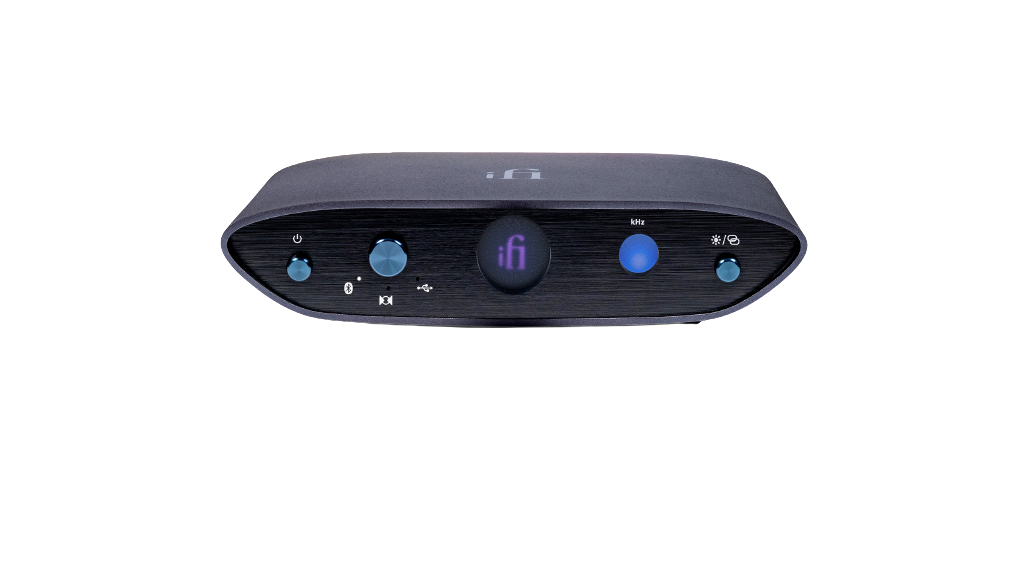
The ZEN One Studio is a versatile audio device that functions as
a Bluetooth, USB, and S/PDIF DAC. It is equipped with both digital
and analog outputs, making it suitable for various audio
setups.
Features:
- Bluetooth connectivity for wireless audio streaming
- USB and S/PDIF inputs for connecting to compatible devices
- Digital and analog outputs for versatile audio output
options - Supports various file formats including PCM, DSD, MQA, aptX,
and more - LED display for easy monitoring of file formats and input
selection - Supports up to 8 paired Bluetooth devices
- Includes a balanced 4.4mm fixed level analogue output
- Equipped with digital coaxial input/output and balanced XLR
analogue output - USB-C input for data transfer
- Includes an antenna for improved signal quality
- Power supply LED indicator
- Comes with a power cable anti-drop pendant for secure power
connection - Requires a 5V power supply
Specifications:
- Digital inputs: USB3.0 Type B (USB2.0 compatible)
ZEN One Studio Product Usage Instructions
Power Switch:
To turn on the ZEN One Studio, short press the power switch. To
turn off the device, long press the power switch.
Input Selector:
Press the input selector button to cycle through the available
inputs. The LED colors indicate the selected input:
- Bluetooth: Blue/Red
- S/PDIF: Green
- USB: Green
Display:
The color of the ‘iFi’ logo on the front display indicates the
file format received. Refer to the user manual for the complete LED
color scheme and corresponding file formats.
Audio Format and Input LED:
The LED color scheme indicates the sampling frequency received
from the music source. Refer to the user manual for the complete
LED color scheme and corresponding sampling frequencies.
Bluetooth Pairing and Display ON/OFF:
- To pair a Bluetooth device, long press the pairing button. The
ZEN One Studio will search for a previously paired device and flash
blue. If no stored device is found, it will enter pairing mode and
flash between blue and red. After 5 minutes of inactivity, the LED
switches to blue flashing, indicating that automatic connection is
disabled. - To enter pairing mode, press the button for 3 seconds until the
light flashes between blue and red. Look for ‘iFi Hi-Res audio’ on
the list of available Bluetooth devices to pair with your phone or
another device. - The ZEN One Studio can store up to 8 paired Bluetooth devices.
If a 9th device is paired, the oldest device in memory will be
deleted. - To turn the display on or off, short press the display ON/OFF
button.
Balanced 4.4mm Fixed Level Analogue Output:
Use the balanced 4.4mm output for connecting to XLR or similarly
balanced interconnects. Do not connect 4.4mm headphones to this
source as it may cause damage to the headphones or hearing due to
the full volume output.
Digital Coaxial Input/Output:
The function of the digital coaxial connector depends on the
selected input. It acts as an output when Bluetooth or USB is
selected and as an input when S/PDIF is selected.
Balanced XLR Analogue Output:
The balanced XLR output provides a balanced analogue audio
signal.
USB-C Input:
The USB-C port is used for data transfer and connects the ZEN
One Studio to the audio source. Please note that drivers may need
to be installed for use with a PC. Visit
www.ifi-audio.com/download-hub/ for firmware and driver
downloads.
Antenna:
Attach the included antenna to ensure the highest signal
quality.
Power Cable Anti-Drop Pendant:
Use the power cable anti-drop pendant to secure the power cable
and prevent it from falling out or coming loose.
Power Supply LED:
When the ZEN One Studio is connected to an external power
supply, the power supply LED will turn green.
DC 5V Power:
Connect the ZEN One Studio to the included power supply. It must
ONLY be powered by 5 volts.
One
Studio
kHz
/
1
2
3
4
5
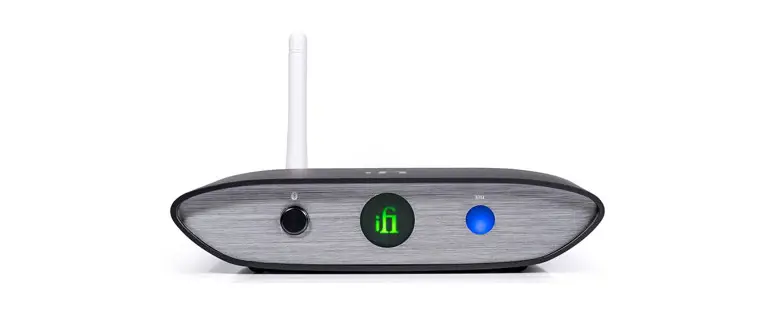
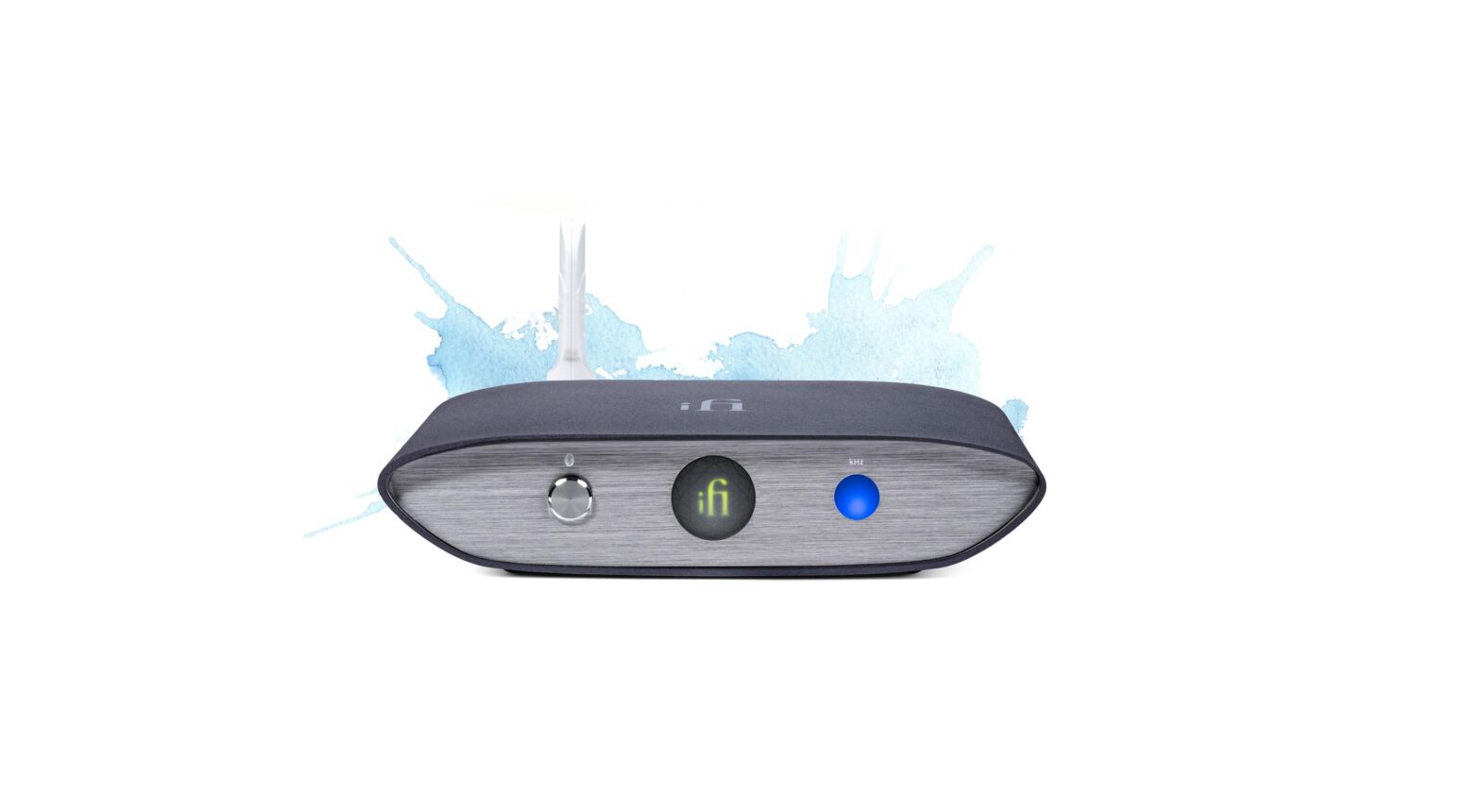
Thank you for purchasing the ZEN One Studio. The ZEN One Studio is a Bluetooth, USB, S/PDIF DAC with digital and analogue outputs.
1. Power switch
Short press to turn on. Long press to turn off.
2. Input selector
This button cycles through 3 inputs, see item 5 for LED colours.
Bluetooth (Blue/Red)
S/PDIF (Green)
USB (Green)
3. Display
The colour of the `iFi’ logo in the center of the front display represents the file format received:
LED
Format (Wired/Wireless)
White Cyan Green Blue Magenta Yellow OFF
*MQB
PCM/HWA(LHDC) DSD/LDAC MQA/aptX Adaptive MQA Studio/aptX Original Sample Rate*/aptX HD AAC SBC
4. Audio format and INPUT LED (kHz)
The LED colour scheme indicates the sampling frequency that the ZEN One Studio receives from the music source.
LED
Mode
Yellow White
PCM 44.1/48kHz PCM 88.2/96/176.4/192/352/384.8kHz
Cyan
DSD 64/128
Red
DSD 256
Flashing LED
See item 5 below
5. Bluetooth pairing and Display ON/OFF
1) Pairing (long press) After power-on, the ZEN One Studio searches for a previously paired device and flashes blue. If a stored device is not found, it automatically enters pairing mode and flashes between blue and red. The LED switches to blue flashing, and the device cannot be connected automatically after a timeout of 5 minutes.
To enter pairing mode, press the button for 3 seconds until the light flashes between blue and red. To pair it with your phone or another device, look for ‘iFi Hi-Res audio` on the list of available Bluetooth devices.
The ZEN One Studio is able to store up to 8 paired Bluetooth devices. When the 9th device is paired, the oldest device in memory will be deleted.
2) Display screen ON/OFF (short press) Turns the display on or off.
R BALANCED
SPDIF IN/OUT
Outputs
L DC 5V One Studio
Technology licensed from AMR-Audio, UK Assembled in China
EXTERNAL POWER
67
8
9 10 11 12 13
6. Balanced 4.4mm fixed level analogue output
For connection of 4.4mm to XLR or similarly balanced interconnects.
Warning: Do not insert 4.4mm headphones to this source as the full volume is likely to damage your headphones or your hearing.
7. Digital coaxial input/output
Input channel selector (item 2) determines the function of digital coaxial connector, which is: a) an output when item 2 is on Bluetooth or USB b) an input when item 2 is on S/PDIF
8. Balanced XLR analogue output
This is a balanced analogue output.
9. USB-C input
This USB-C port is intended for data transfer only, It connects the ZEN One Studio to the audio source.
Tip: For firmware and driver downloads, please visit: www.ifi-audio.com/download-hub/
Note: For use with a PC, it is necessary to install drivers.
10. Antenna
Please attach the enclosed antenna for highest signal quality.
11. Power cable anti-drop pendant
Used to secure the power cable to prevent the power supply from falling out or coming loose.
12. Power supply LED
When connected to an external power supply, the light will turn green.
13. DC 5V power
Please connect the ZEN One Studio to the included power supply. The ZEN One Studio must ONLY be powered by 5 volts.
SPECIFICATIONS:
Digital inputs:
USB3.0 Type B (USB2.0 compatible)
S/PDIF (3.5mm coaxial)
Bluetooth 5.1TM (aptX, aptX HD, aptX Adaptive,
aptX LL, LDAC, LHDC/HWA, AAC and SBC codec)
Formats:
DSD 256 / 11.3MHz
PCM 384kHz
MQA Decoder
Bluetooth 96kHz
Chipset:
Bit-Perfect DSD & DXD DAC by Burr Brown
Qualcomm QCC 5100 Series
Analogue outputs:
Coaxial, Audio XLR L/R
4.4mm Balanced line out
Frequency Response:
5Hz – 80kHz ±3dB
Outputs:
4V / 2V max. (BAL/UnBAL)
Output Impedance:
72/36 (BAL/UnBAL)
SNR:
-105dB(A) @ 0dBFS (BAL/UnBAL)
THD + N:
<0.002% @ 0dBFS(BAL/UnBAL)
Power supply requirement: DC 5V (centre pin +ve)
Power consumption:
No Signal ~0.7W / Max Signal ~1.0W
Dimensions:
158 x 100 x 35 mm (6.2″ x 3.9″ x 1.4″)
Net weight:
500g (1.1 lbs)
Limited Warranty:
12 months
*12 months typical or as permitted/required by local reseller laws.
**Speci cations are subject to change without notice.
ifi-audio.com
Ver1.0
FCC Statement
This equipment has been tested and found to comply with the limits for a Class B digital device, pursuant to Part 15 of the FCC Rules. These limits are designed to provide reasonable protection against harmful interference in a residential installation. This equipment generates uses and can radiate radio frequency energy and, if not installed and used in accordance with the instructions, may cause harmful interference to radio communications. However, there is no guarantee that interference will not occur in a particular installation. If this equipment does cause harmful interference to radio or television reception, which can be determined by turning the equipment off and on, the user is encouraged to try to correct the interference by one or more of the following measures: — Reorient or relocate the receiving antenna. — Increase the separation between the equipment and receiver. — Connect the equipment into an outlet on a circuit different from that to which the receiver is connected. — Consult the dealer or an experienced radio/TV technician for help.
This device complies with part 15 of the FCC Rules. Operation is subject to the following two conditions:(1) This device may not cause harmful interference, and (2) this device must accept any interference received, including interference that may cause undesired operation.
Any Changes or modifications not expressly approved by the party responsible for compliance could void the user’s authority to operate the equipment. This equipment complies with FCC radiation exposure limits set forth for an uncontrolled environment. This equipment should be installed and operated with minimum distance 20cm between the radiator & your body.
 iFi audio | the Award-Winning Audio Technology Company
 Download Hub | Software and firmware for your iFi audio devices