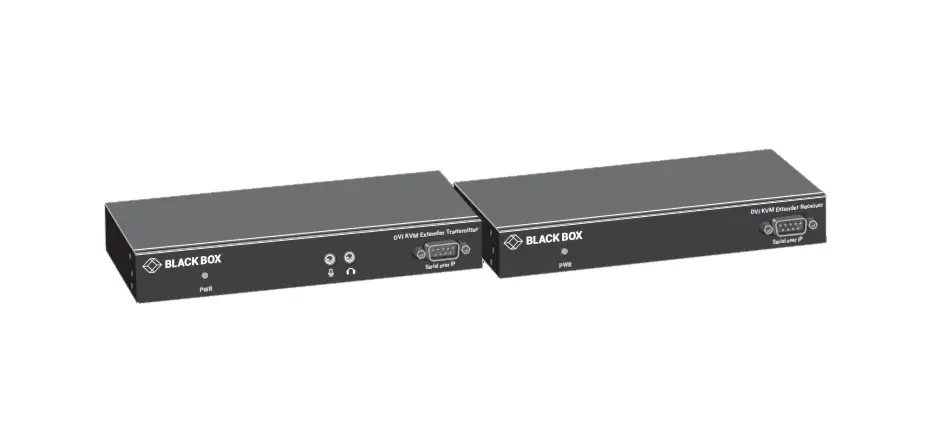
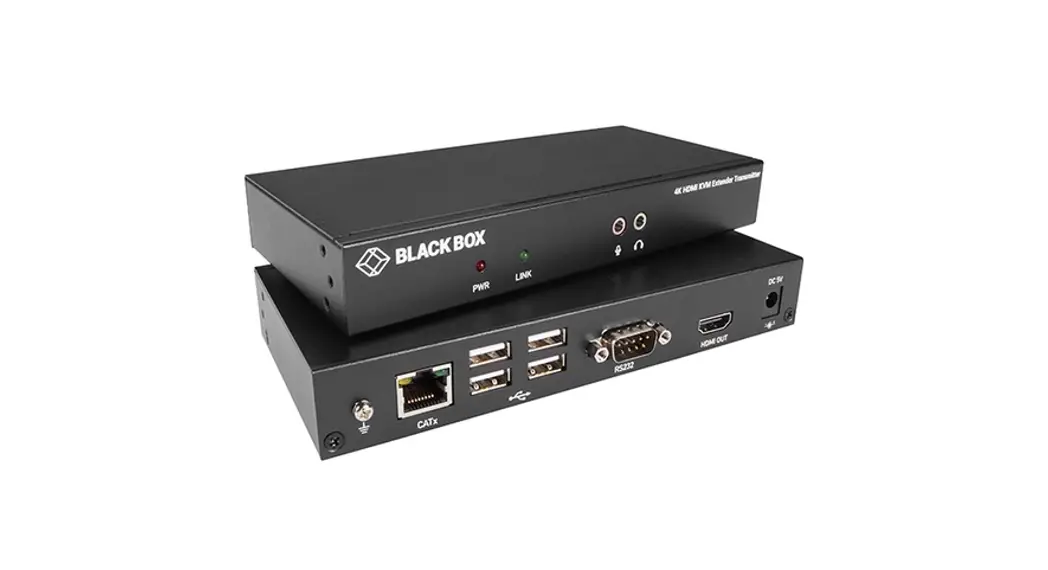
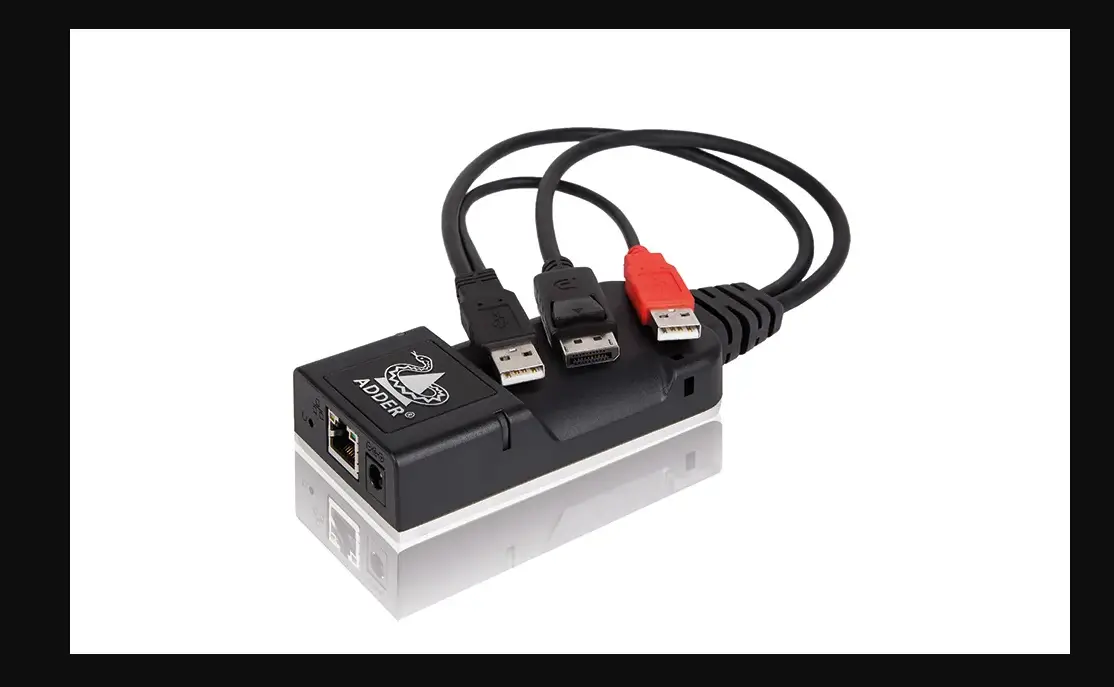
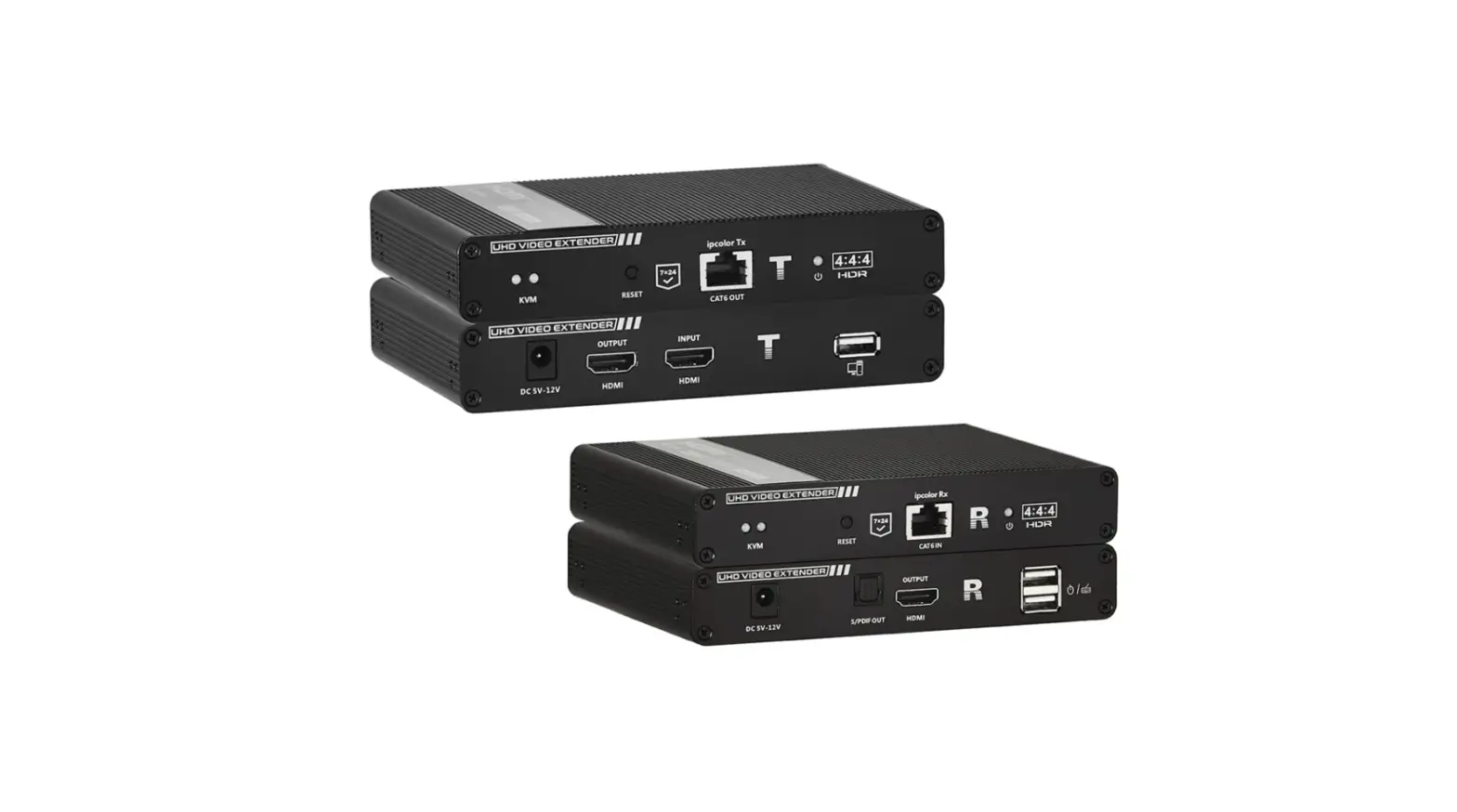
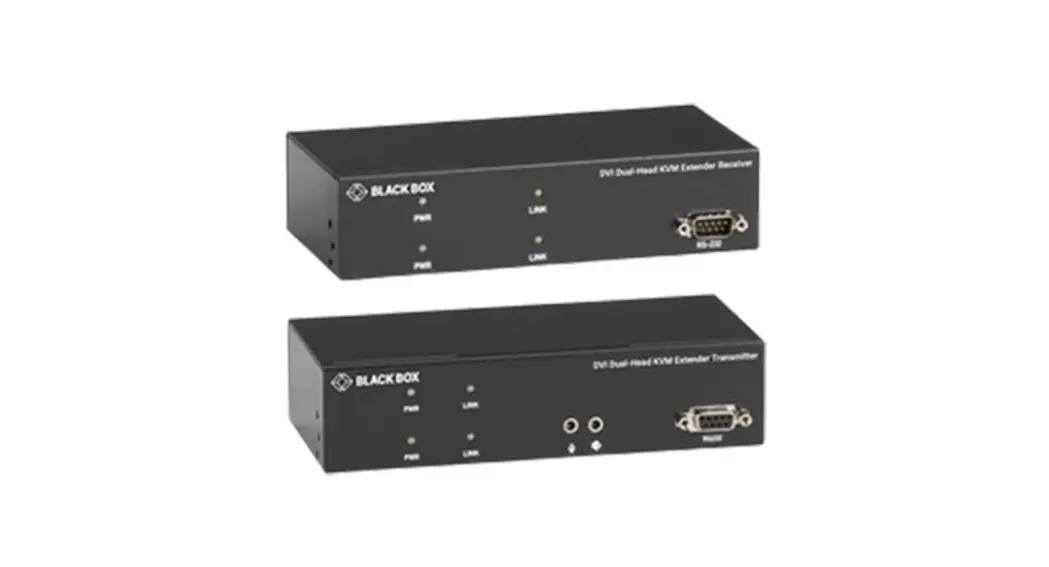
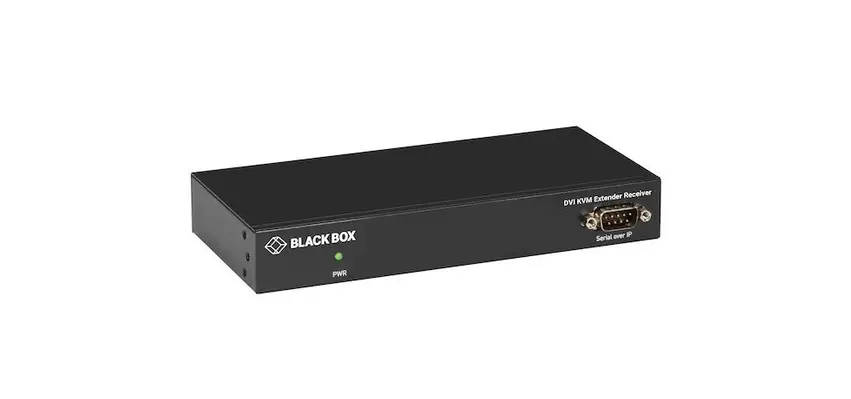
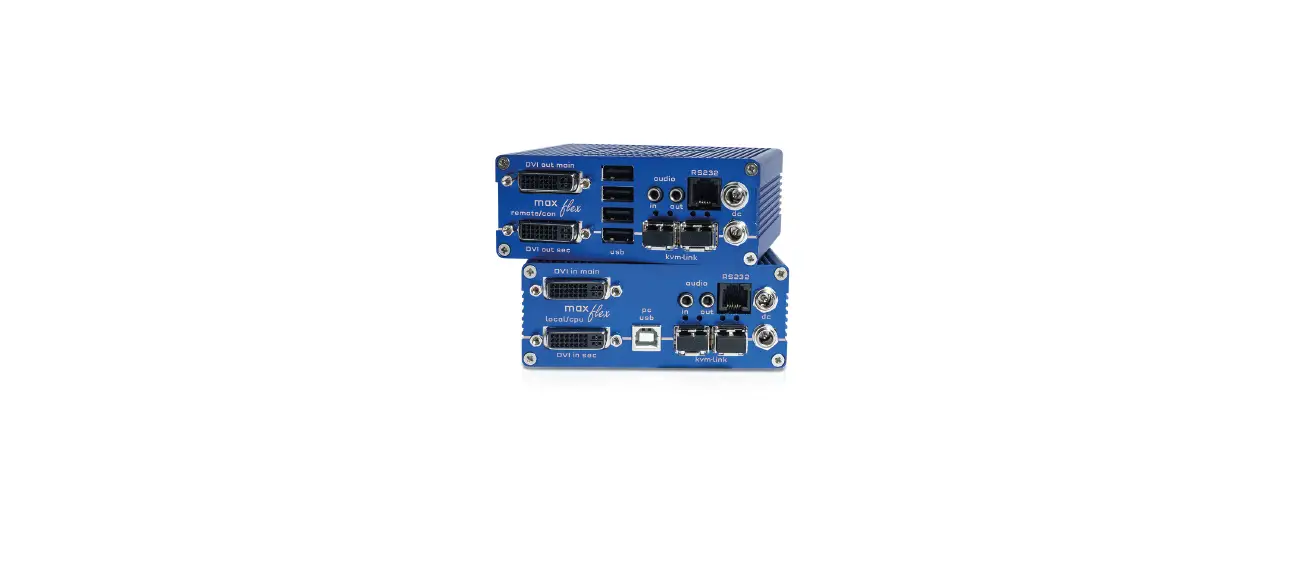
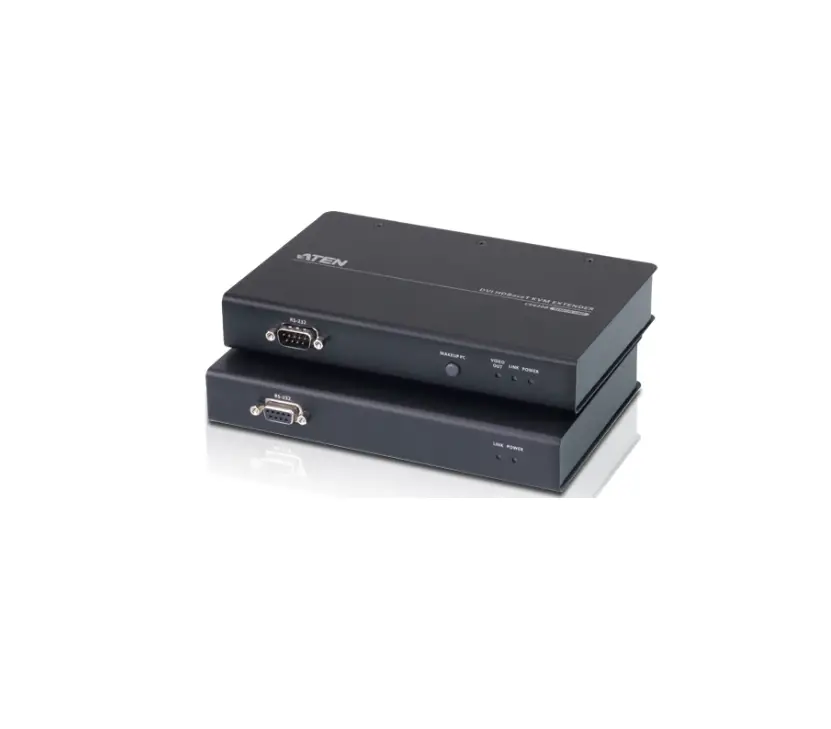
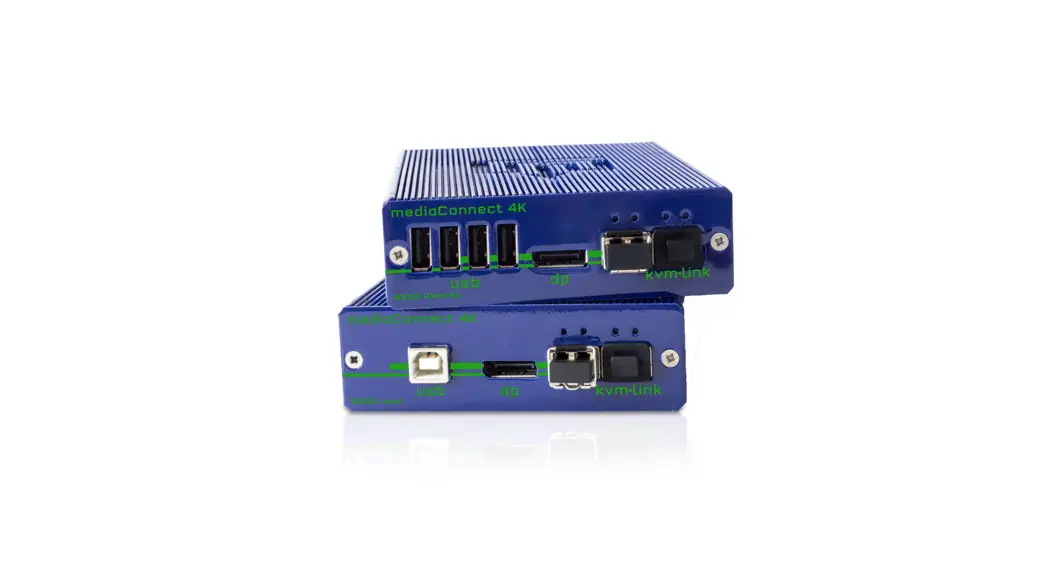
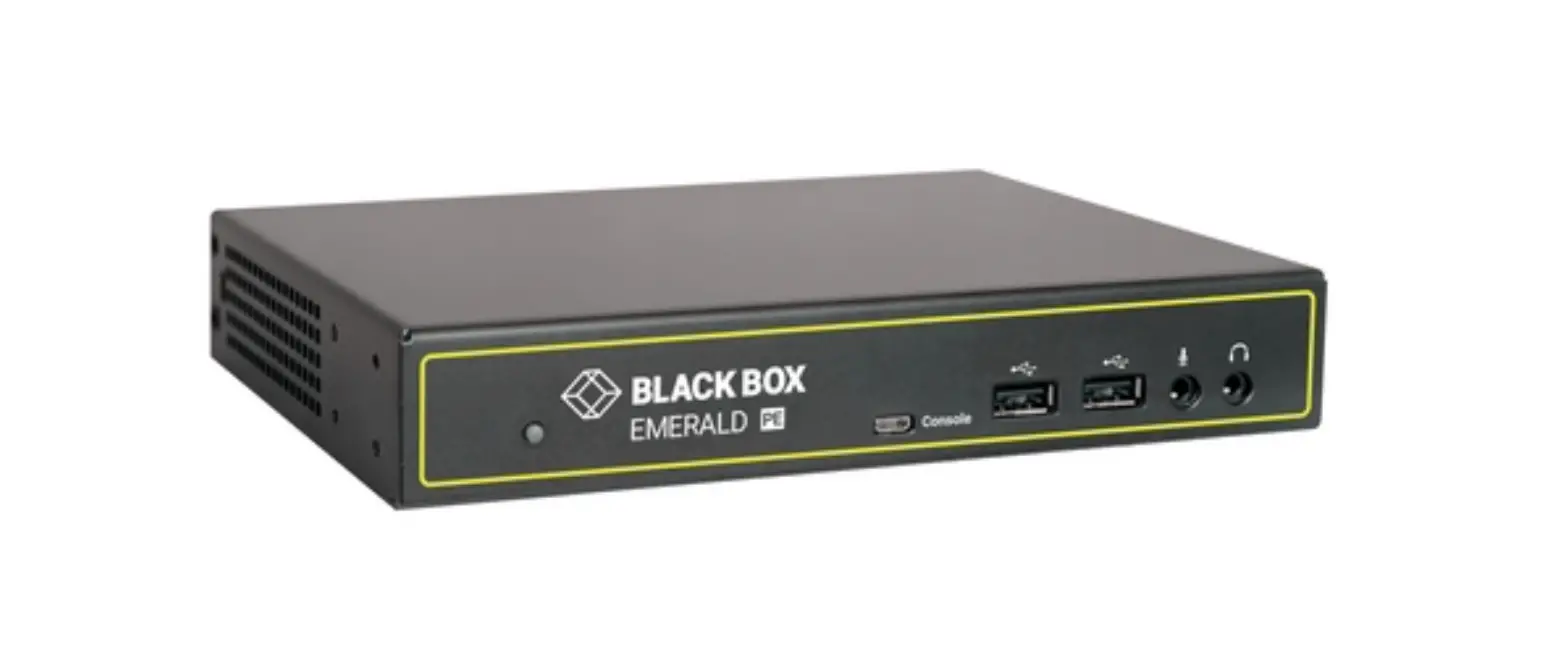
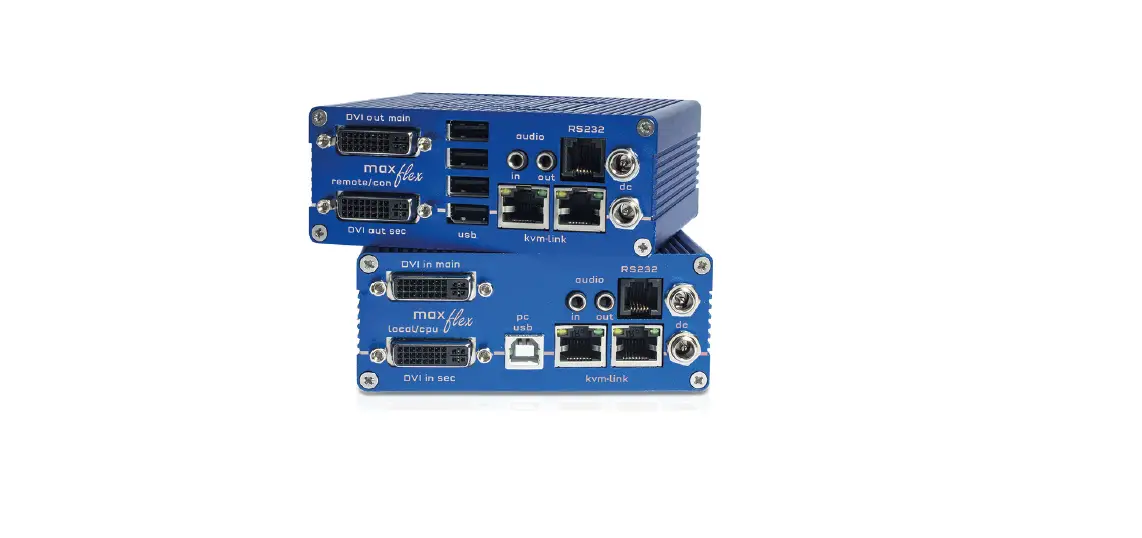
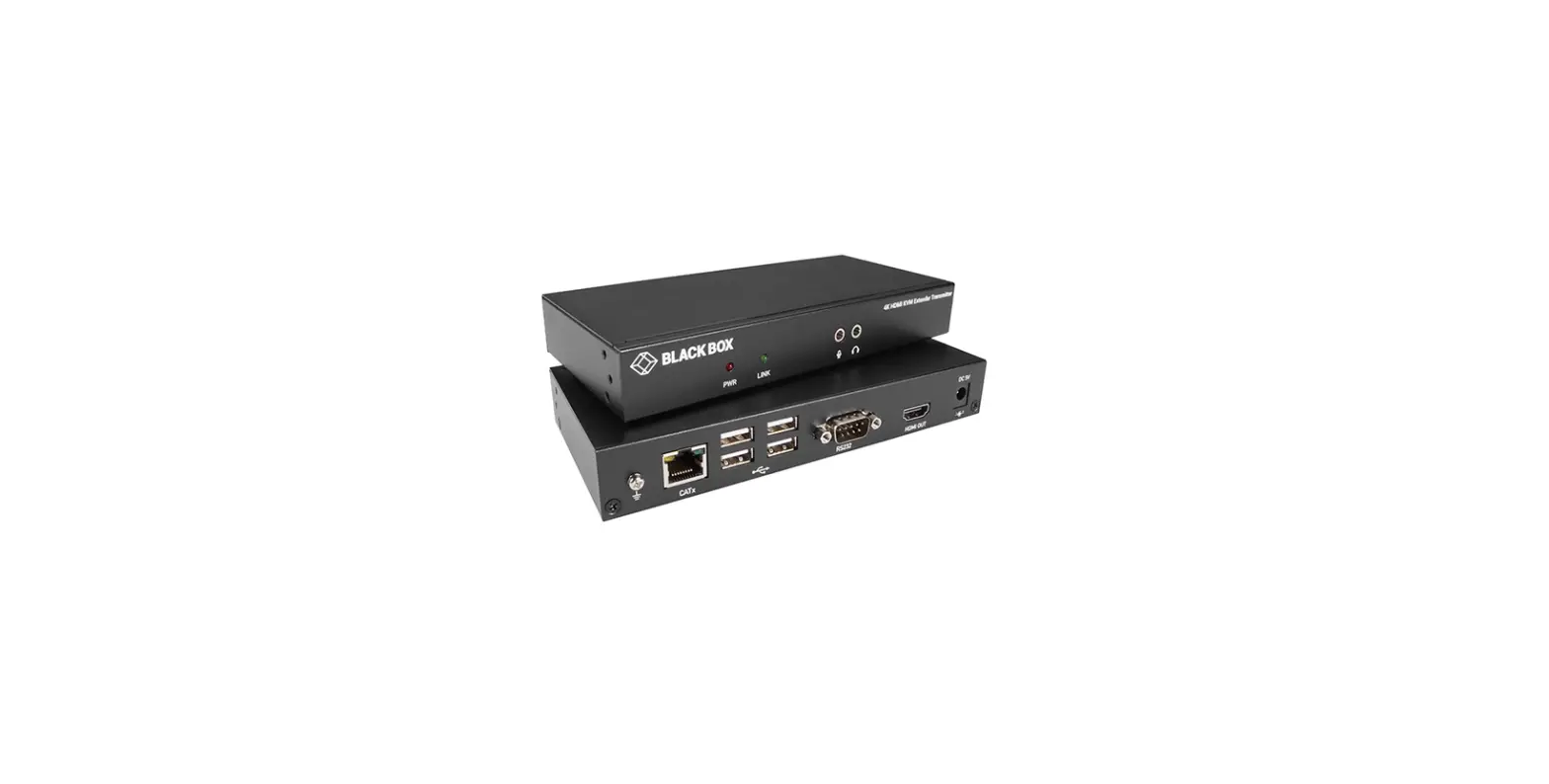
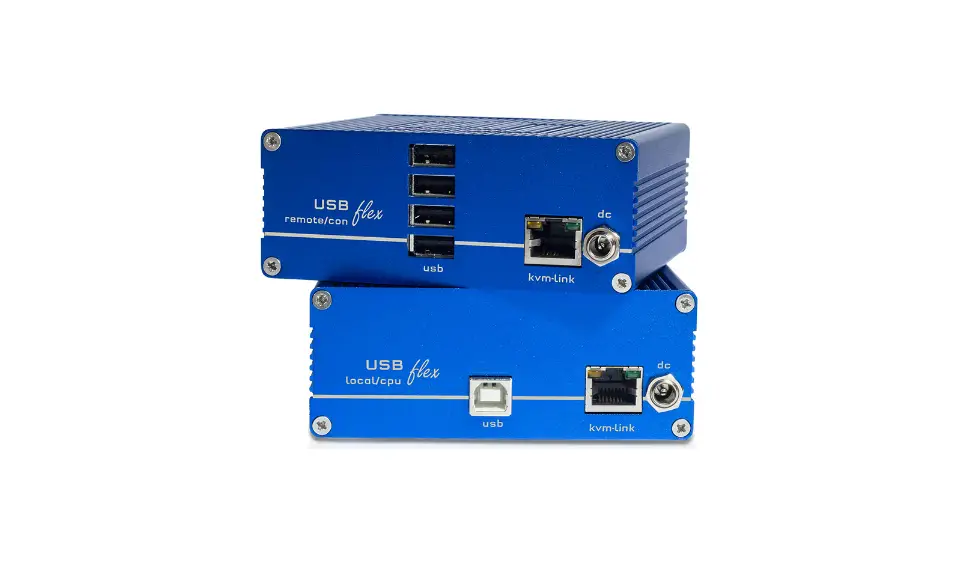
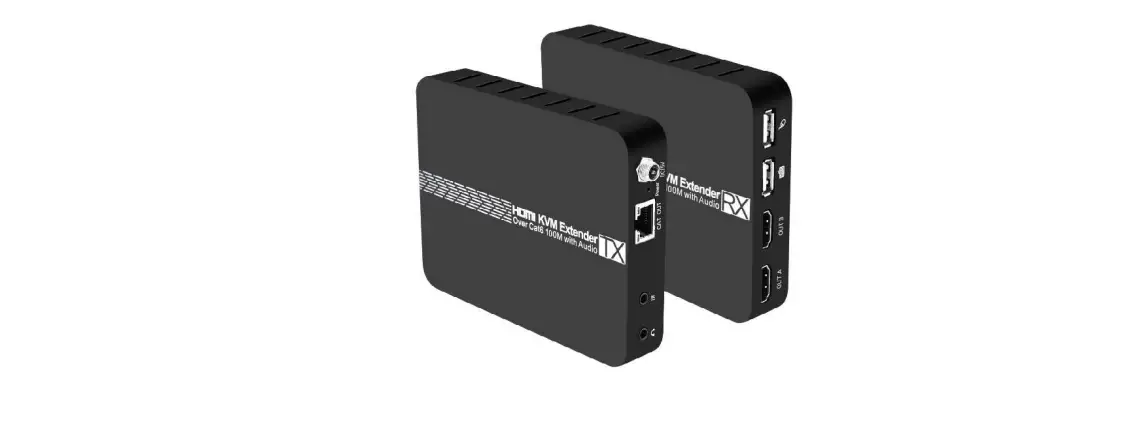
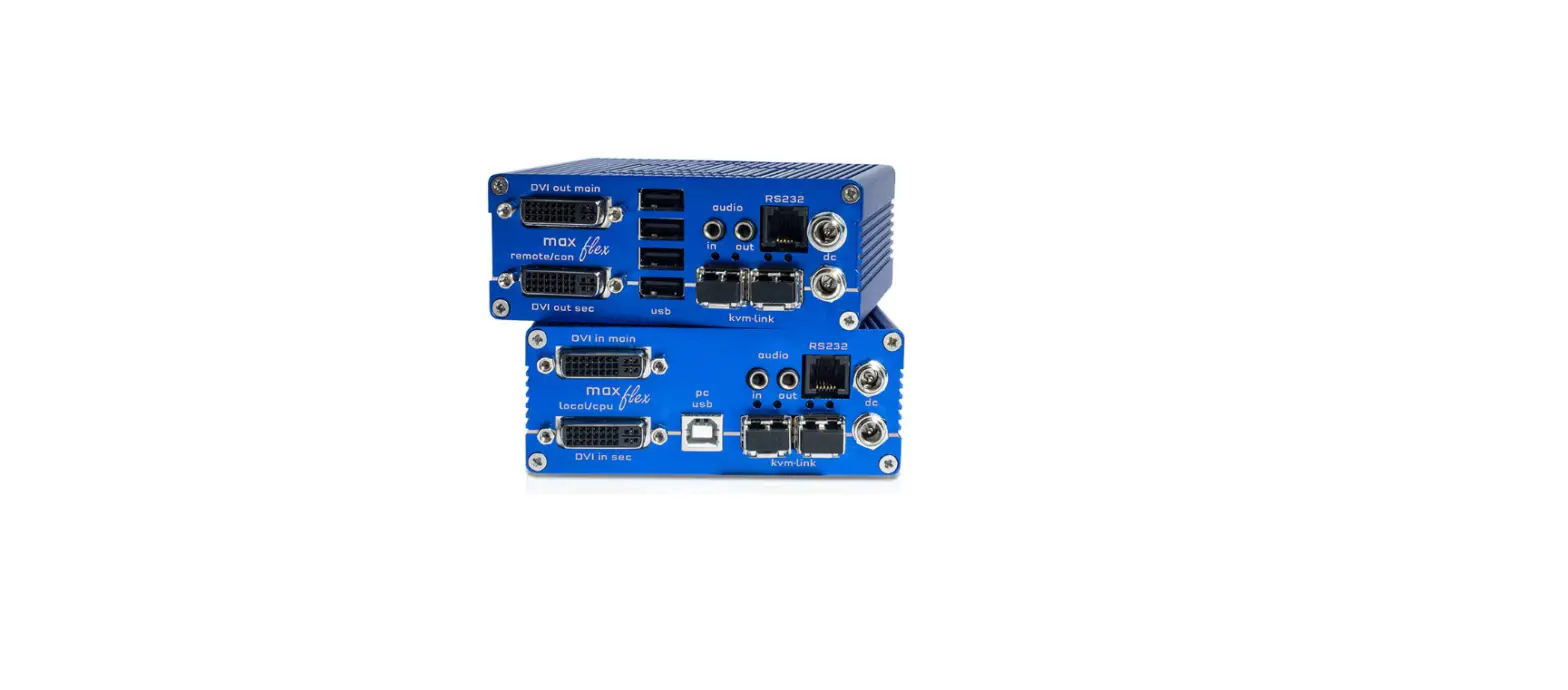
F1DN-KVM-EXTC6 Transmitter Extender-Universal Video
Product Information
The Belkin Extenders Family includes the following models:
- F1DN-KVM-EXTC6: Belkin KVM CAT6 Transmitter Extender-Universal
Video - F1DN-KVM-EXRC6: Belkin KVM CAT6 Receiver Extender-Universal
Video - F1DN-KVM-EXTFI: Belkin Extender KVM Transmitter SFP-Universal
Video - F1DN-KVM-EXRFI: Belkin Extender KVM Receiver SFP-Universal
Video - F1DN-KVM-EXTC6X: Belkin KVM CAT6 Transmitter Extender 4K60
Video - F1DN-KVM-EXRC6X: Belkin KVM CAT6 Receiver Extender 4K60
Video
The Belkin Extenders extend video, audio, and keyboard/mouse
signals up to hundreds of meters. They can be used to extend
signals between a computer and a display or projector.
Product Usage Instructions
Connecting the Belkin Extender’s Receiver and Transmitter
Parts
Connect the Belkin Extender’s Receiver and Transmitter parts and
F1DN-KVM-EXRC6X with a Copper Cable.
Connecting the Belkin Extender Transmitter to the KVM or
PC
- Video connection: For all models, connect the KVM or PC to the
Extender’s Video IN port, using the HDMI or DP video cable. - PC keyboard and mouse connection: For F1DN-KVM-EXTC6,
F1DNKVM-EXTC6X, F1DN-KVM-EXTFI models, connect the KVM or PC to the
Extender using a USB A to USB B cable. Connect the USB A end to the
KVM or PC and the USB B end to the Extender’s KM port.
Connecting the KVM or Peripherals to the Belkin Extender
Receiver
- Video connection: For all models, connect the monitor/projector
cable to the Extender’s Video OUT port. - PC keyboard and mouse connection: For KVM, connect KVM to the
Extender using USB A to USB B cable. Connect USB A end to the
Extender Mouse or KB port and the USB B end to the KVM Host K/M
port. For PC, connect a USB Mouse and Keyboard to the Extender
Receiver’s corresponding Mouse and KB ports.
Powering ON the Extender
- For all models, connect the power adapters on both the Extender
Transmitter and Receiver at the PC side, DC IN port. Power ON the
unit by plugging it into an AC wall outlet. - The PC side Power LED should light continuously. If not, check
the connections.
Make sure the connected PC on the Transmitter side and Display
or Projector on the Receiver side are powered ON.
Note: The product complies with safety and
regulatory standards declared by Belkin International Inc. For more
information visit
https://www.belkin.com/us/support-article?articleNum=316284
F1DN-KVM-EXTC6: Belkin KVM CAT6 Transmitter Extender-Universal Video F1DN-KVM-EXRC6: Belkin KVM CAT6 Receiver Extender-Universal Video F1DN-KVM-EXTFI: Belkin Extender KVM Transmitter SFP-Universal Video F1DN-KVM-EXRFI: Belkin Extender KVM Receiver SFP-Universal Video F1DN-KVM-EXTC6X: Belkin KVM CAT6 Transmitter Extender 4K60 Video F1DN-KVM-EXRC6X: Belkin KVM CAT6 Receiver Extender 4K60 Video
Quick Installation Guide
Copper/Fiber Extenders
Belkin Extenders Family
Belkin Extenders extend video, audio, and keyboard/mouse signals up to hundreds of meters.
Extend Console side
Display or Projector
Video
RC/RCU Video Audio USB KB & Mouse IR
Transmitter
VIDEO IN
Up to 10 km (FIBER)
Up to 100 m (COPPER)
Receiver
Audio USB KB & Mouse RCU IR
Extend Host side
Computer
Video Audio USB KB & Mouse
Transmitter
VIDEO IN
Up to 10 km (FIBER)
Up to 100 m (COPPER)
Receiver
Video Audio USB KB & Mouse
Connect the Belkin Extender’s Receiver and the Transmitter parts
The device’s Receiver and Transmitter may be located in different rooms or even different buildings. Connect the two parts with a suitable cable through the connection port: Models F1DN-KVM-EXTC6, F1DN-KVM-EXRC6, F1DN-KVM-EXTC6X
and F1DN-KVM-EXRC6X with a Copper Cable.
Models F1DN-KVM-EXTFI and F1DN-KVM-EXRFI with Optical Fiber Cable.
Connecting the Belkin Extender Transmitter to the KVM or PC
1. Video connection: For all models, connect the KVM or PC to the Extender’s Video IN port, using the HDMI or DP video cable.
2. PC keyboard and mouse connection: For F1DN-KVM-EXTC6, F1DNKVM-EXTC6X, F1DN-KVM-EXTFI models, connect the KVM or PC to the Extender using a USB A to USB B cable. Connect the USB A end to the KVM or PC and the USB B end to the Extender’s KM port.
Connecting the KVM or peripherals to the Belkin Extender Receiver
1. Video connection: For all models, connect the monitor/projector cable to the Extender’s Video OUT port.
2. PC keyboard and mouse connection: For KVM, connect KVM to the Extender using USB A to USB B cable. Connect USB A end to the Extender Mouse or KB port and the USB B end to the KVM Host K/M port. For PC, connect a USB Mouse and Keyboard to the Extender Receiver’s corresponding Mouse and KB ports.
Power ON the Extender
1. For all models, connect the power adapters on both the Extender Transmitter and Receiver at the PC side, DC IN port. Power ON the unit by plugging it into an AC wall outlet.
2. The PC side Power LED should light continuously. If not, check the connections.
Make sure the connected PC on the Transmitter side and Display or Projector on the Receiver side are powered ON.
IR OUTPUT
Video IN
Audio IN KM USB
Audio OUT
KM USB
IR INPUT
Video OUT
DC IN
Power LED
HDBaseT LINK LED
RC IN
HDBaseT
Rx to Tx Link LEDs
DC IN
Power LED
RC IN
8820-03353 Rev.B00
Safety and Regulatory Statements
We, Belkin International Inc, of 555 S. Aviation Blvd. Suite 180, El Segundo, CA 90245-4852, declare under our sole responsibility that the products described in this carton comply to the declarations found at: https://www.belkin.com/us/support-article?articleNum=316284
8820-03353 Rev.B00
 Belkin Official Support - Belkin Secure KVM Regulatory Information PP4.0