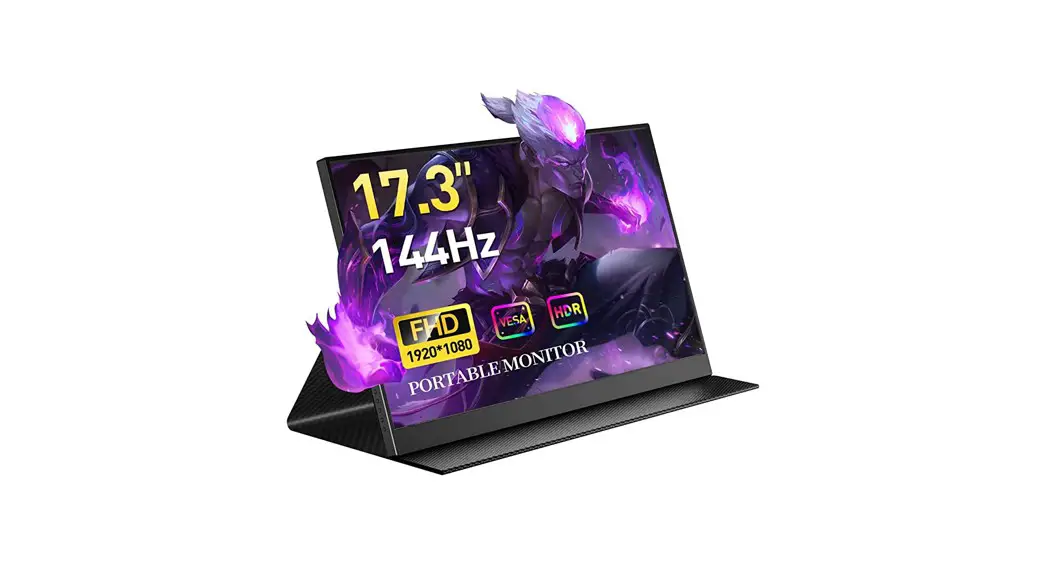

Portable Monitor
Quick Start Guide
P17A18BWG Portable Monitor
Contact us QR code
http://www.cnbanan.com
Full Package List
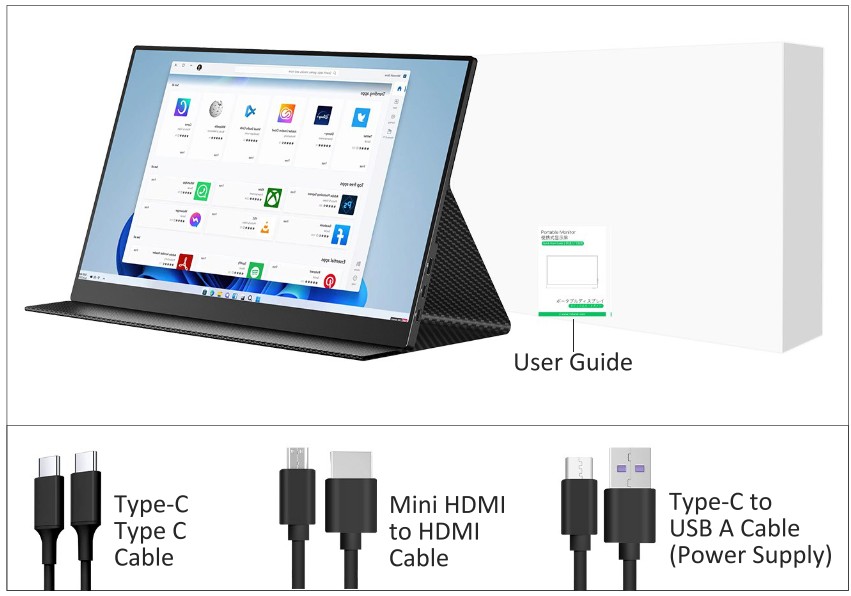
What’s in the box
| 1 x Portable Monitor 1 x Mini HDMI to HDMI Cable 1 x Adapter 1 x Screen Cleaning Cloth | 1 x USB-C to USB-C Cable 1 x USB-C to USB-A Cable 1 x Smart Cover(Some models) 1 x User Guide |
Key Instruction
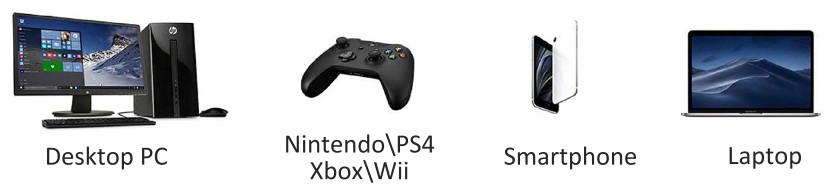
 Universal Combability
Use with all cables, all devices and all system
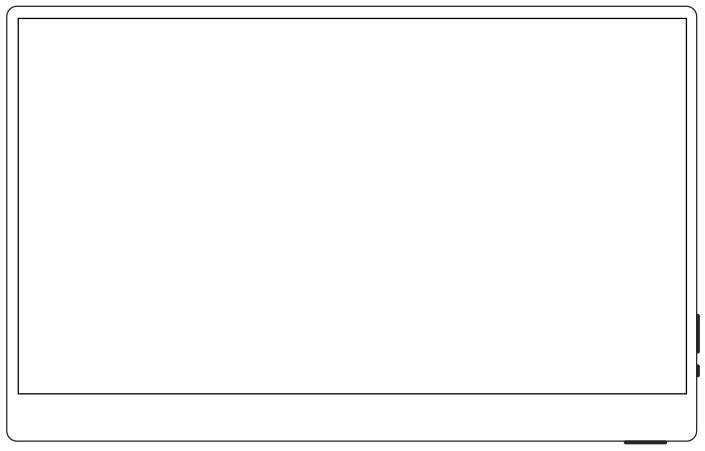
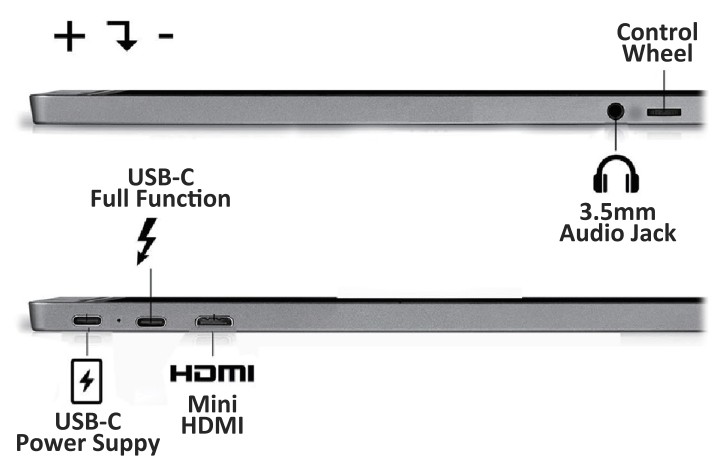
PRODUCT INTRODUCTION
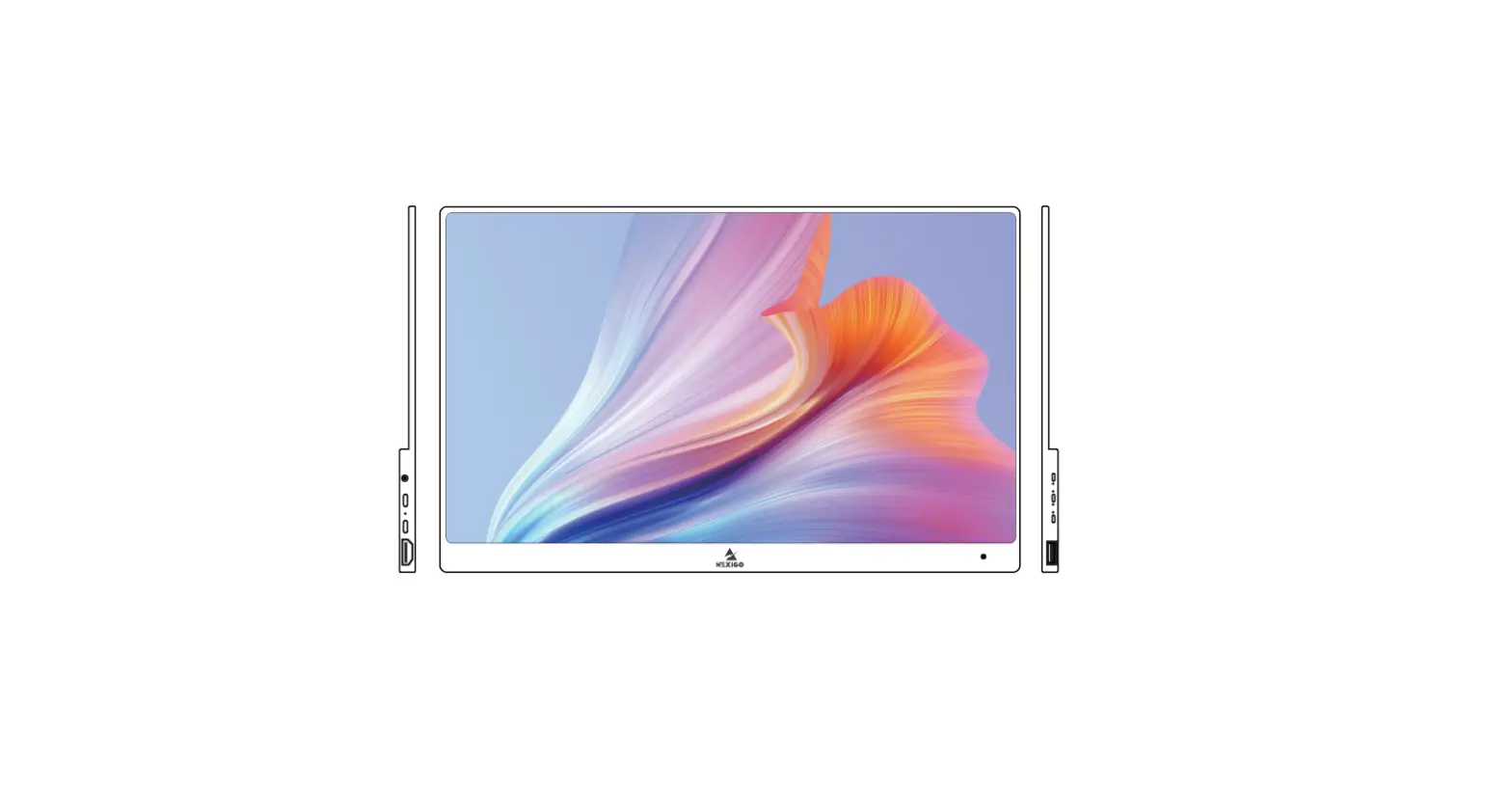
- Display.
- Micro USB port: compatible with other USB peripherals.
- Scroll button: press the scroll button to enter menu settings.
• Scroll to the top / bottom to enter menu selection, and the selected menu icon appear sat the highlight. Press the scroll button to finalize the highlight icon.
• Turn on the volume icon to activate, adjust the volume by turning on / down. :Turn brightness down to activate brightness icon, turn it up / down to adjust brightness.
Note: you can’t adjust the brightness and volume at the Same time, and set it one time. - Signal lamp.
- Return button: if you press the menu screen, it will return. Press 3 seconds to turn the display on / off.
- 3.5mm earphone jack.
- VESA hole: 75 * 75 * M4.(Partial model)
- Mini HDMI port.
- Full featured WS-C port: power supply and audio / video data signal transmission.
- USB USB port: for charging only.
- Speaker: built-in speaker.
- Display stand.
CONNECTION METHOD
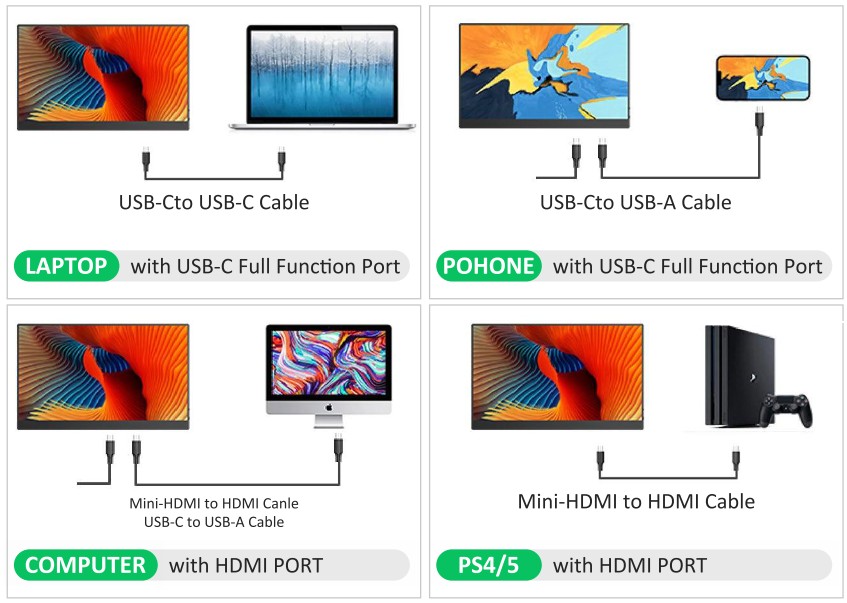
CONNECTION TO VARIOUS DEVICES
First, connect your to a power source. Next, connect it to your desired device.
- LAPTOP( with USB-C)
Compatible with the latest tiptop’s with a full-featured USB- C port.
Note:- lf the monitor does not work properly when you connect it to your laptop using the USBC to C cable, pls use the USB- C to Acable and wall charger at the same time.
- USB-C port functions can vary on laptops. This method may not work on all laptops with a USB-C port Please make sure the monitor is connected to the USB-C port on your laptop that meets or exceeds the USB 3.0 (USB 3.1 Gen 1)
- PC/ LAPTOP (with HDMI Port) Compatible with most ‘PCs/ laptops with an HDMI port.
- LAPTOP( with Mini Display Port) Compatible with laptop models with a Mini Display Port adapter (not included).
- iOS/ Android DEVICES (with Full-featured USB-C Port) Works with compatible Android devices from Samsung, Huawei, OnePlus, Smartian, OPPO, etc.
Note:
USB-C port functions can vary on mobile devices. This method may not work on all smartphones and tablets with a USB-C port. Please make sure your mobile device’s USB-C port meets or exceeds the USB 3.0 (USB 3.1 Gen 1) specification Connecting your iOS device with the monitor requires a Lightning to HDMI adapted (not included).Lightning to HDMI Adapter (not ndluded) - Other Devices Compatible with PS5, PS4, Xbox One, Xbox, Switch, and other devices with a standard HDMI output.
HOW TO SET UP
- Press the Roll Key to enter the Settings menu.
- Scroll the Roll Key up/ down to select a settings option, press the Roll Key aga to confirm.
- Press the Return key to exit
UPPORTED DEVICES MODELS (WITH USB-C)
| Brand | Model |
| Apple | MacBook 12,MacBook Pro 2017/2018/2019/2020, MacBook Air 2018/2019,iPad Pro 2018/2019/2020 |
| Chromebook Pixels, Pixel book, Pen | |
| Microsoft | Surface Book 2 |
| Lenovo | Yoga 5 Pro, Miix 720,ThinkPad X1,Carbon 2017 |
| Huawei | Mate Book X, Mate Book X Pro, Mate Book E, Mate Book |
| Honor | Mate Book |
| Brand | Model |
| ASUS | Zenbook 3/3 Pro,U4100UN,ROG Series,U306, U321 Series |
| Dell | XPS13,XPS15 |
| HP | EliteBook Folio G1,Pavilion X2 |
| Razer | Blade Stealth |
| XIAOMI | Mi Laptop Air 12.5/13.3,Mi Notebook pro, Mi Gaming Laptop |
Laptop/Tablet
Note: Please make sure the monitor is connected to the USB -C port on your laptop/tablet that meets or exceeds the USB 3.0 (USB 3.1 Gen 1) specification
Phone
| Brand | Model |
| Huawei | P30,P30 PRO, P20, P20 Pro, Mate 10, Mate 10 Pro Mate 20, Mate 20X, Mate 20 Pro, Honor Note 10 |
| OPPO | R17 Pro |
| Smartian | R1,Pro2s |
| Samsung | S8+,S9,S9+,Note8,Note9 |
Please make sure your mobile device’s USB-C port meets or exceeds the USB 3.0 (USB 3.1 Gen 1) specification. Mobile phone models will be
If you are not sure if your device will work well with the monitor, feel free to contact us via Amazon Messenger.
FREQUENTLY ASKED QUESTIONS
Q1: Does it support laptop pass-through charging? The display is connected to the laptop with type-c, and the power port is connected to a PD compatible charging adapter. Can the laptop be charged?
A1: lt supports pass-through charging.
If you connect the computer with a USB-C-USB-C cable, and use the PD power adapter to supply power to the display, you can charge the connected computer at the same time. Note that the charging effect will vary depending on the power output of the PD power adapter.
Q2: Why can’t I adjust the brightness sometimes?
A2:Maybe HDR mode is turned on. HDR mode is an automatic brightness mode, so turn it off when you want to adjust the brightness.
Q3: Is the included cover removable?
A3:The attached cover can be removed.
Q4: I’m a Super Smash Bros guy. I want to buy this because the TV has a slight lag. Will this monitor improve the latency of the gaming experience?
A4: For Switch, a refresh rate of 60fps and a response speed of less than 5ms are enough. These few monitors are all 60Hz, 5ms, so I think you can buy without hesitation.
Q5: Can it be used vertically?
A5: On the connected computer, in Display Settings, select the additional display youwant to set to portrait orientation, and then in Screen Orientation, select a portrait display. This way, the screen of the attached monitor is displayed vertically.
Q6: Why does the screen flicker during use?
A6: Screen flickering means this portable monitor cannot receive enough power from your device, you need to plug the provided power supply in the
Q7: Does this portable monitor built-in battery?
A7: No, this portable monitor without battery.
Q8: Doihave to plug the provided power supply in wall outlet to power it during use?
A8: (1.1f you connect this portable monitor with provided USB C cable, you don’t need to plug the provided power supply in the wall outlet to power it. But if this portable monitor flickers suddenly. you need to plug the provided power supply in the wall outlet to power it at this time. (2.1f you connect this portable monitor with provided mini HDMI cable, you need to plug provided power supply in the wall outlet to power it at the same time.
Q9: Is this portable monitor compatible with my device?
A9: If your device has a Full-featured can transmit signal, audio and video) USB C port or HDMI port. it does. If your device has VGA port/ mini display port/ display port, then you could try to use a VGA to HDMI adapter/ mini display port to HDMI adapter/ display port to HDMI adapter to connect this portable monitor.
Q10:How to set up the split screen?
A10:(Windows System)
- Find your computer’s Control Panel/S- ettings and click inside.
- Find the Display/ System option and click to enter.
- Find” Adjust Resolution” on the left and click to enter, and then you can set the split screen in the ” Monitor” option bar, or pull down the right side and find the ” Multi-monitor Settings” option bar to select the split screen
PRODUCT SPECIFICATION
| Model | M133A25 | P161A1OD | P160A17 | P161A1OG | P17A18BWG | P16TA10 |
| Aspect | 16:09 | 16:09 | 3:02 | 16:09 | 16:09 | 16:09 |
| Resolution | 3840*2160 | 1920*1080 | 2520*1680 | 1920*1080 | 1920*1080 | 1920×1080 |
| SRGB | 100% | 100% | 100% | 100% | 72% | 100% |
| Contrast Radio | 1800:1 | 1200:1 | 1500:1 | 1200:1 | 800:1 | 1000:1 |
| Refresh Rate | 60Hz | 60Hz | 60Hz | 144Hz | 144Hz | 60Hz |
| Speaker | Built-in Speaker*2 | Built-in Speaker*2 | Built-in Speaker*2 | Built-in Speaker*2 | Built-in Speaker*2 | Built-in Speaker*2 |
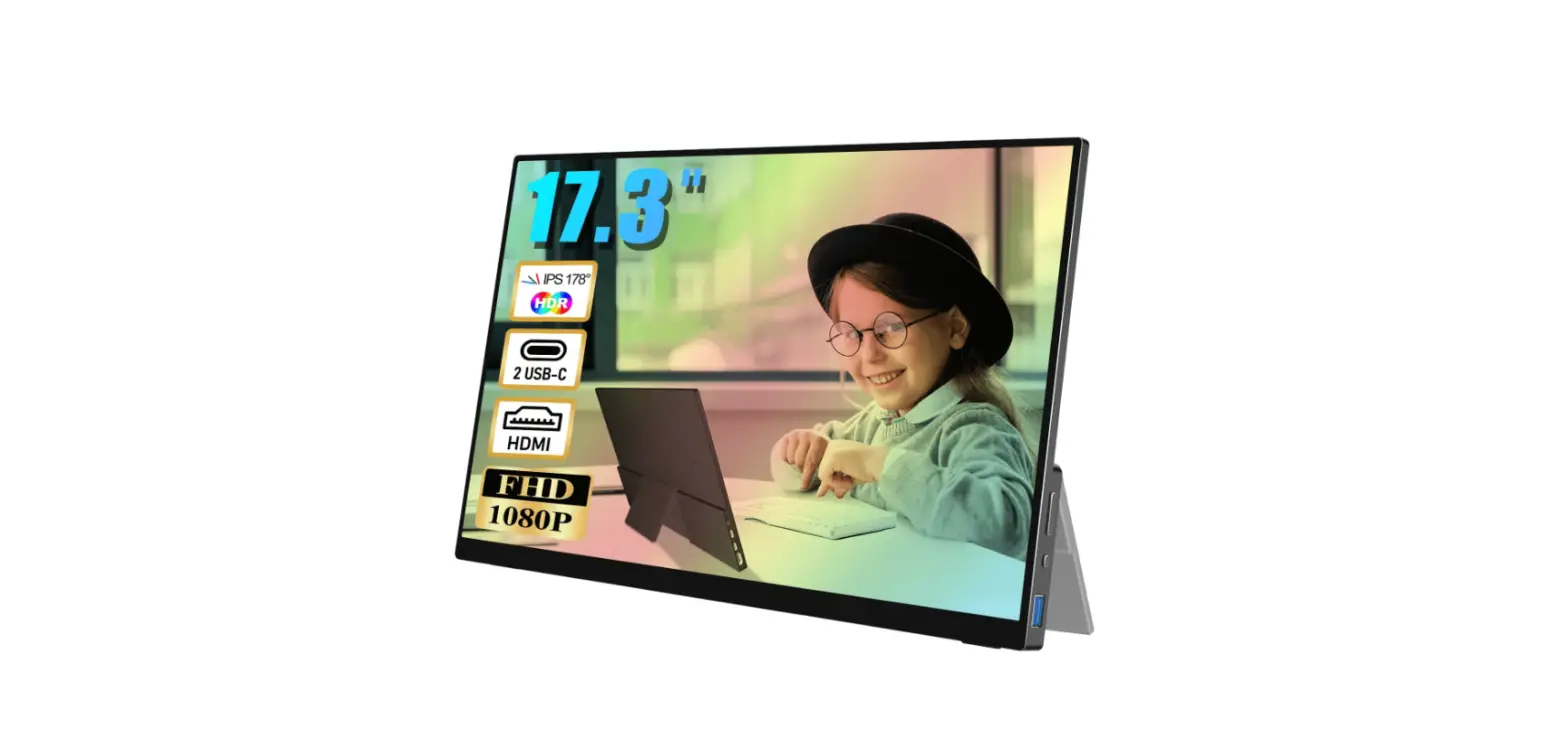
| Inch | 13.3″ | 16.1″ | 16″ | 16.1″ | 17.3″ | 16.1″ |
| Touchscreen | No Support | No Support | No Support | No Support | No Support | Yes |
SAFETY INSTRUCTIONS
- For an IPS panel monitor, the user should consider the placement position of the monitor, otherwise, the panel may reflect the surriounding light and cause interference.
- Please use the original power adapter to avold electrical damage. down immediately and contact us.
- If liquid is dumped on the monitor during use please disconnect the power adapter immediately, If you have any problems, please shut it
 Warning
If the monitor is not used, adjusted or controlled according to the instructions it may cause electric shock. Short circuit or mechanical hazard.

WARRANTY INFORMATION
| ltem | Warranty term |
| Monitor | 1 Years |
| Pane | 1 Years |
1.Service Email:
US: [email protected]
JP: [email protected]
Service Website: http://www.cnbanan.com
2.Contact us QR code
3.This Warranty is not applicable:
- The product is not purchased from an Authorized dealer.
- The product is not used according to Instructions given in the instruction manual.
- Defects caused by improper use as determined by company personnel.
- Modification or alteration of any nature is made in the electrical circuitry/or physical construction of the set.
- Installation/repair work is carried out by persons/agency other than authorized by the company.
- The original serial number is removed, obliterated or altered from the machine or cabinet.
- Accidents. Acts of natural, lightning, water, fire, public disturbances, improper ventilation, voltage fluctuations or any cause beyond the control of brand.
 CNBANAN_www.cnbanan.com