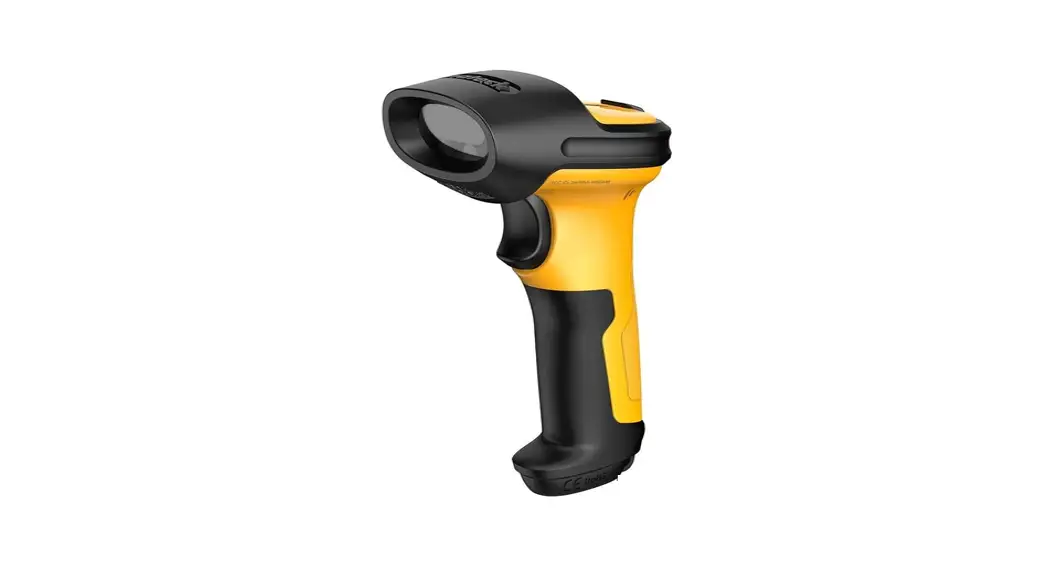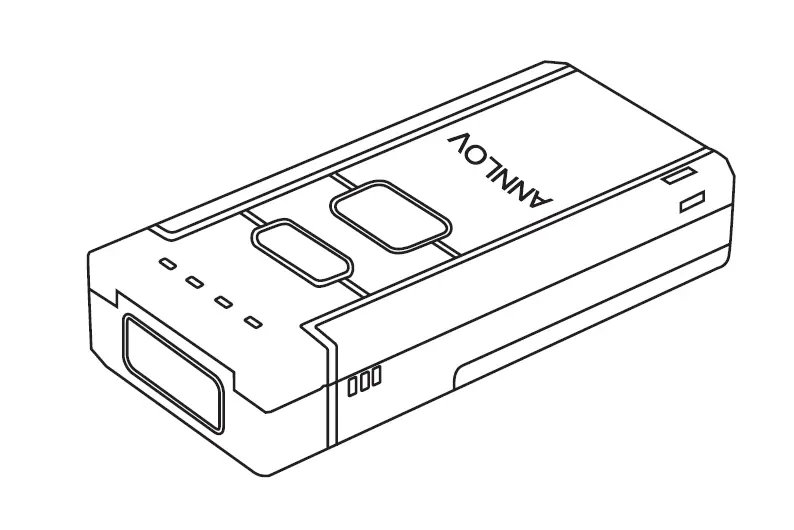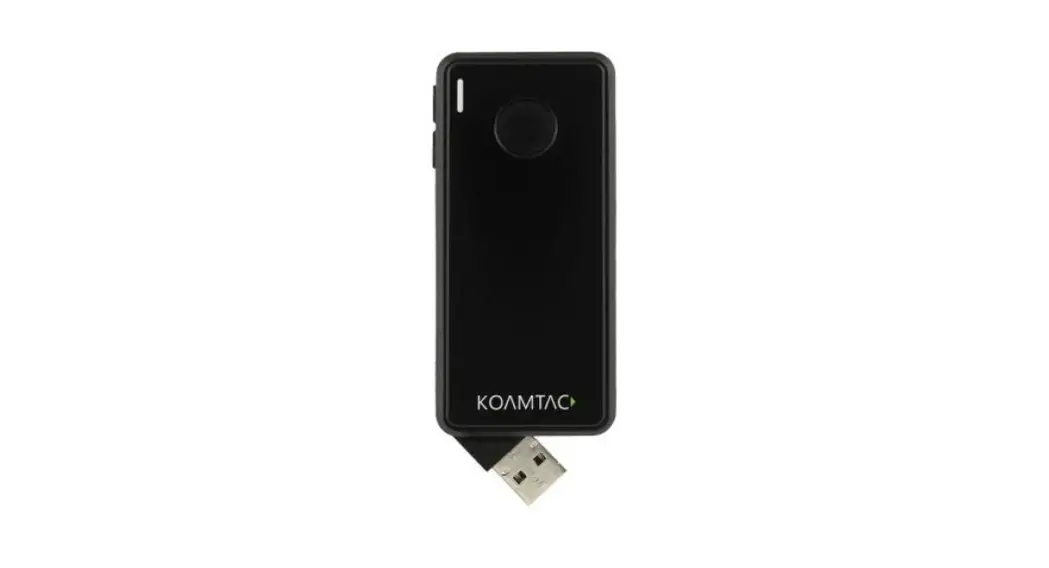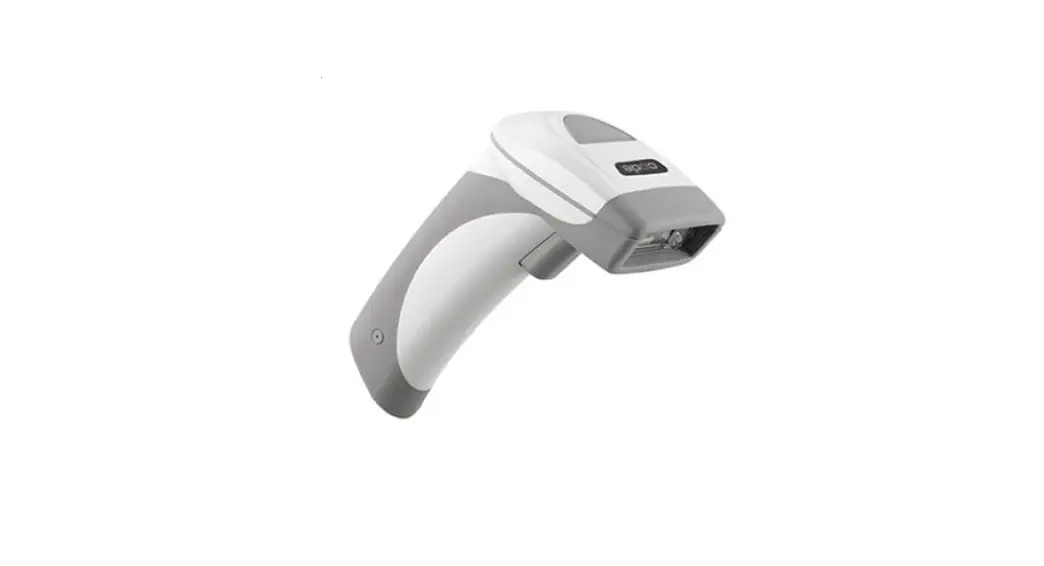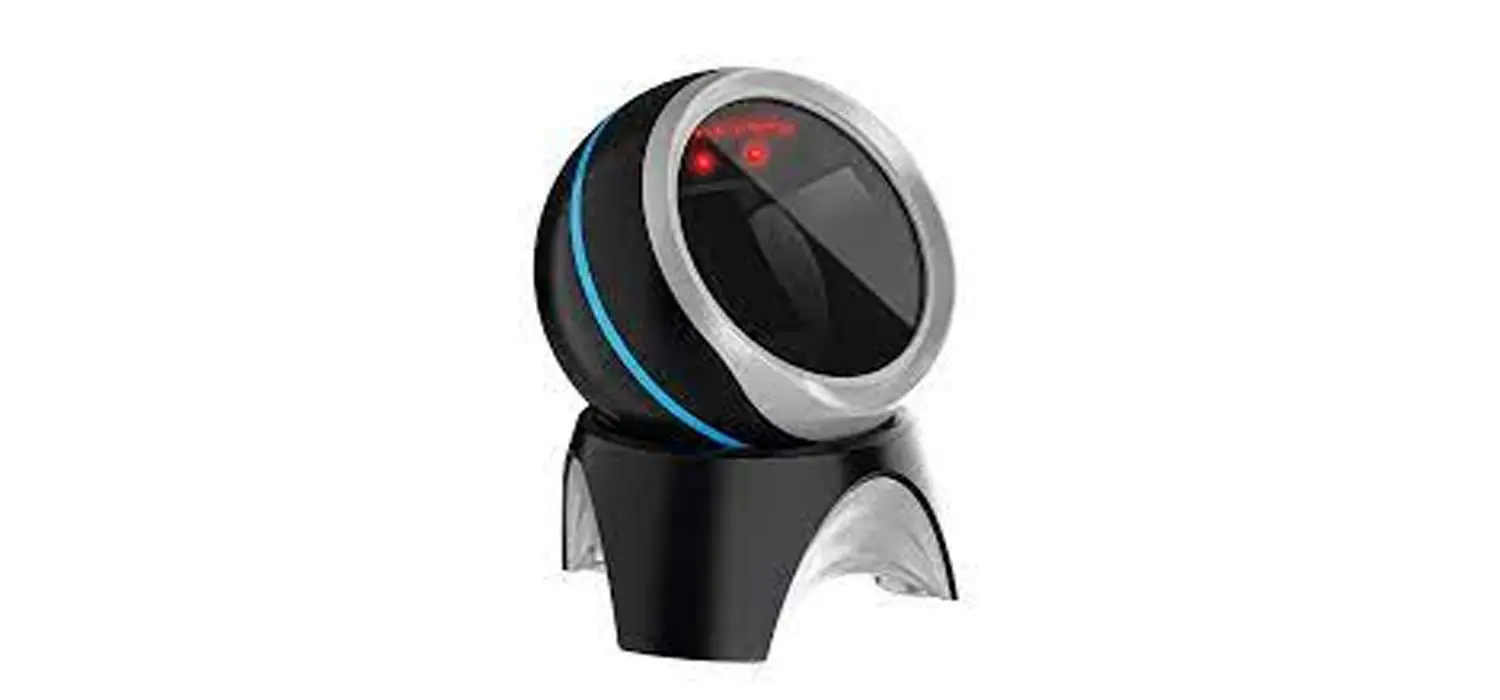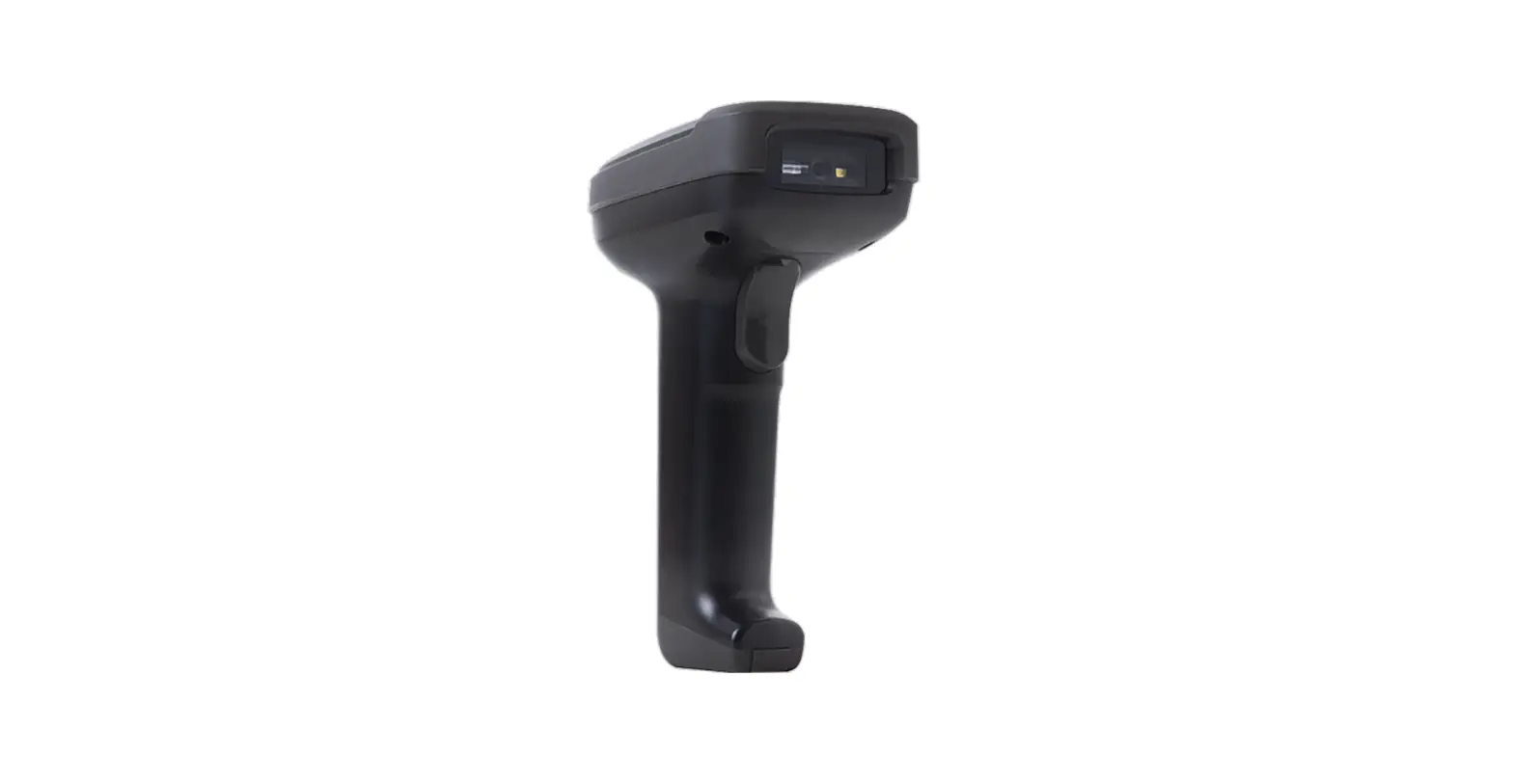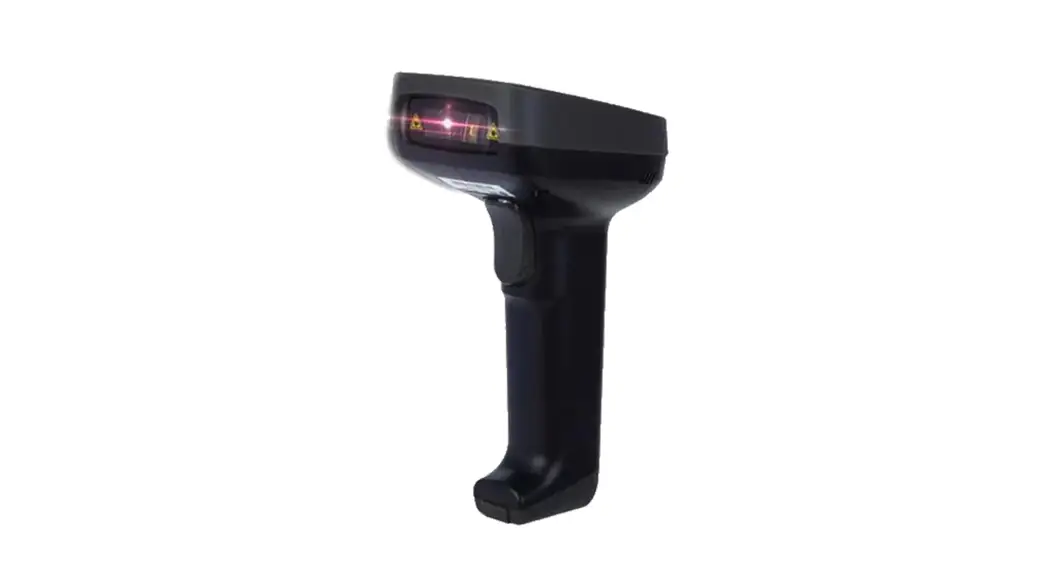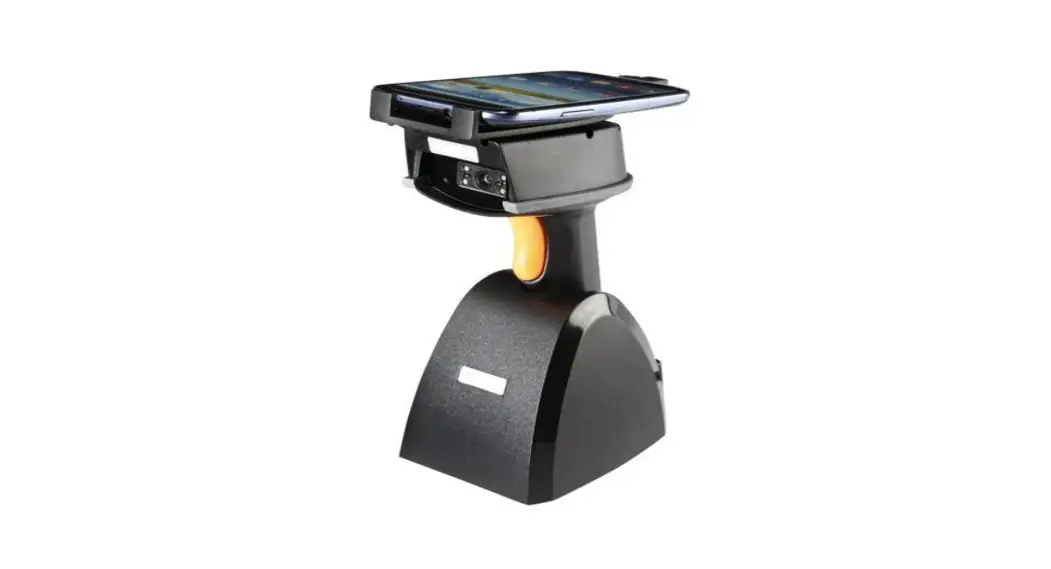
 iCR6307AS Rioscan CCD Barcode Scanner
User Guide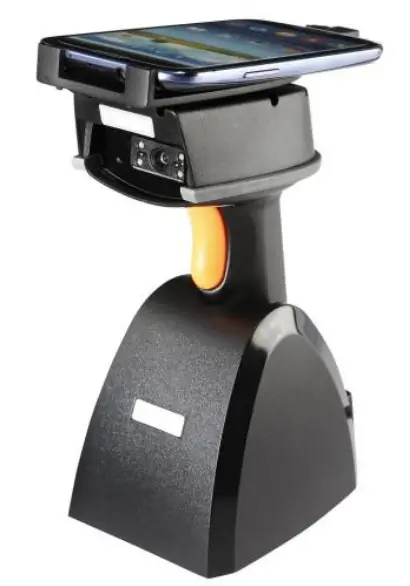 Model no: iCR6307 AS
Introduction
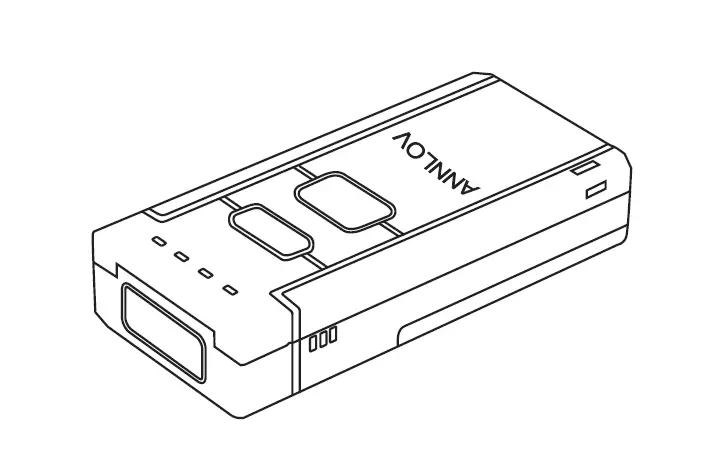
Designed primarily for smartphone, the iCR6307AS is a CCD barcode scanner that allows you to scan various barcoded items and send data to smartphone.
Its in-built excellent CCD engine allows you to reliably read 1D barcodes on various shapes and is a great space-saver for busy or limited workspaces.
It supports not only iOS devices through wireless communication, but also Android OTG devices through USB cable
Technical data
* Light source………………610 ~ 640 nm RED LED
* Depth of field……….…..UPCA (13 mil) 50 ~ 620mm /EAN13 (13 mil) 50 ~ 610mm
* Scan speed……………….300 scans / second
* Best resolution………….4 mil
* Transmission range……BT Class 1 (100m, line of sight)
* Profiles………….………….HID & SPP profile 2.4GHz Wireless
* Memory Capacity………1MB memory inside
* Input voltage…………..5 V/DC
* Rechargeable battery…1.2V x 2 ( 2.4V 2300mAH) NiMH battery
* Operating time………….25,000 readings when full charged
* Operating conditions… 0℃ to 50℃
* Dimensions………………100 x 43 x 24.5mm (L x W x H)
* Symbologies:
EAN-13, EAN-8, UPC-A, UPC-E, ISSN, ISBN, Codabar, Code 128, Code 93, Code 39, Code 11, Interleaved 2 of 5, Industrial 2 of 5, Matrix 2 of 5, GS1 Databar, ITF-6, ITF-14, MSI
Delivery content
* Wireless Barcode scanner x 1
* Charging cradle x 1
* PCB material board+3 screws x 1
* Holder for smartphone x 1
* USB cable x 1
* Quick instructions x 1
Limited Warranty
We provides a one year limited warranty.
This warranty does not cover any product which has been subject to improper use, neglect or unauthorized repair or installation. This warranty does not cover consumable parts. (Cables & batteries are consumables.)
Safety instructions
* Don’t put scanner in places excessively high temperatures, such as expose under direct sunlight
* Don’t use scanner in extremely humid area or drastic temperature change
* The rechargeable battery is permanently built into the product and cannot be replaced.
* Never damage the rechargeable battery. Damaging the casing of the rechargeable battery might cause an explosion or a fire!
Charging:
- Please switch on and charge scanner for 3~4 hours before first use as shown on Fig.2
- When user charge smartphone & scanner, please use smartphone original USB power adapter.
- The cradle functions as a charger for the scanner. Even if the scanner’s battery is full, the cradle will continue to supply power to the scanner. We suggest removing the scanner from the cradle when fully charged.
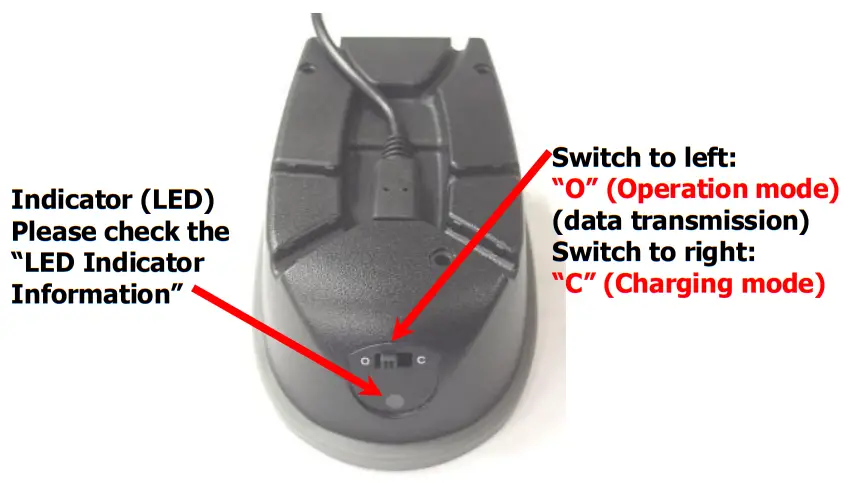
- When you charge scanner & smartphone, please enter Wired OTG mode & switch to “C- Charging mode”.

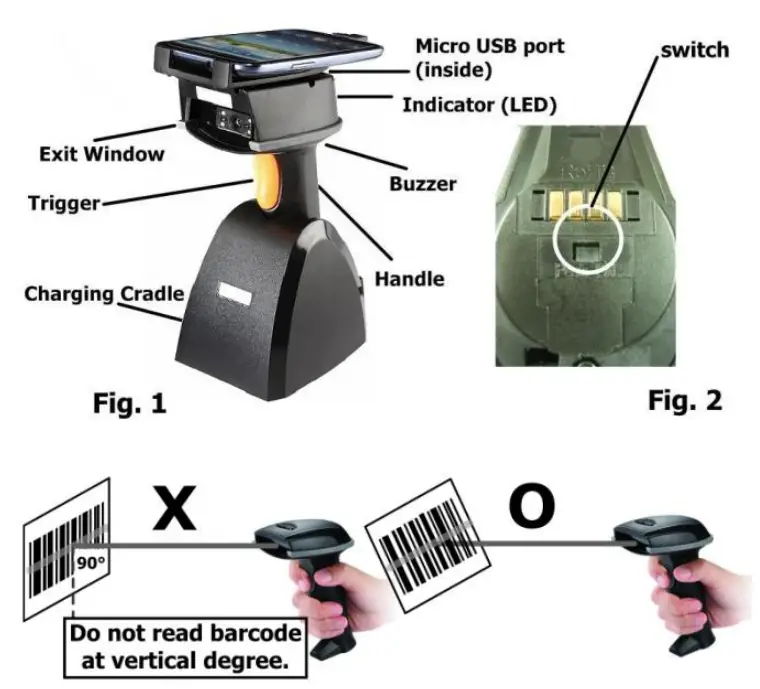
iCR6307AS supports BT communication mode (for iOS & Android devices) and wired OTG communication mode (for Android OTG devices). If you want to switch to another mode, please read the below configuration code first.
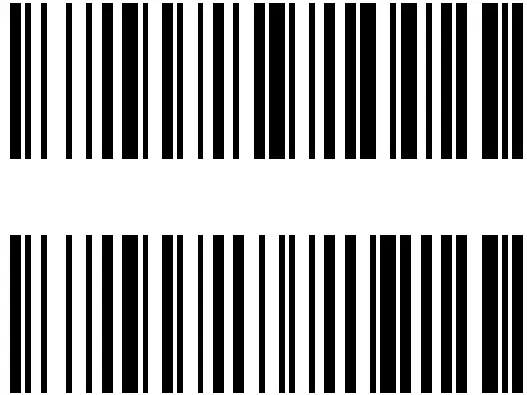 | Wireless BT communication (default) |
| wired OTG communication mode |
Operating elements
* Please switch ON and charge scanner for 3~4 hours at first time before use.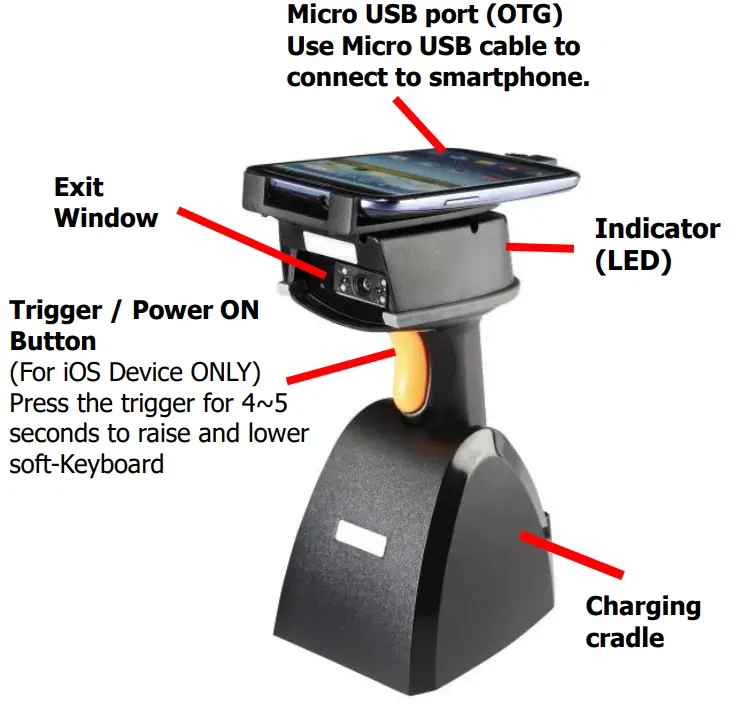
How to Connect to Smartphone via BT
- Make sure the default is BT mode (below right, page #1) & your device supports BT HID or SPP profile
- Turn off Power-Saving mode on your smartphone/tablet
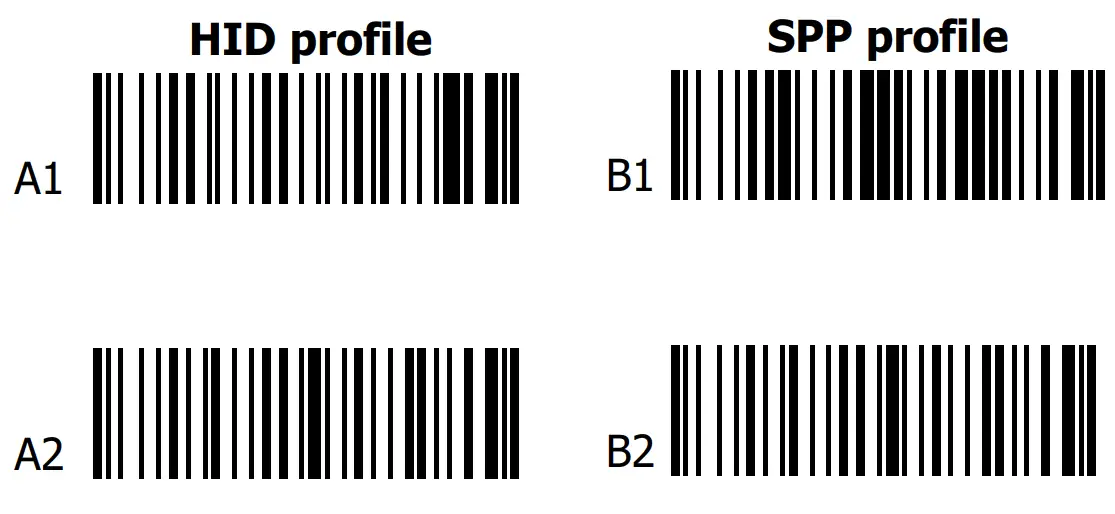
- Then, choose HID or SPP profile and scans the following 2 settings codes before connecting to smartphone/tablet. (A1→ A2 or B1 → B2)
If you don’t know which profile to choose for your device, try HID first, then, SPP.

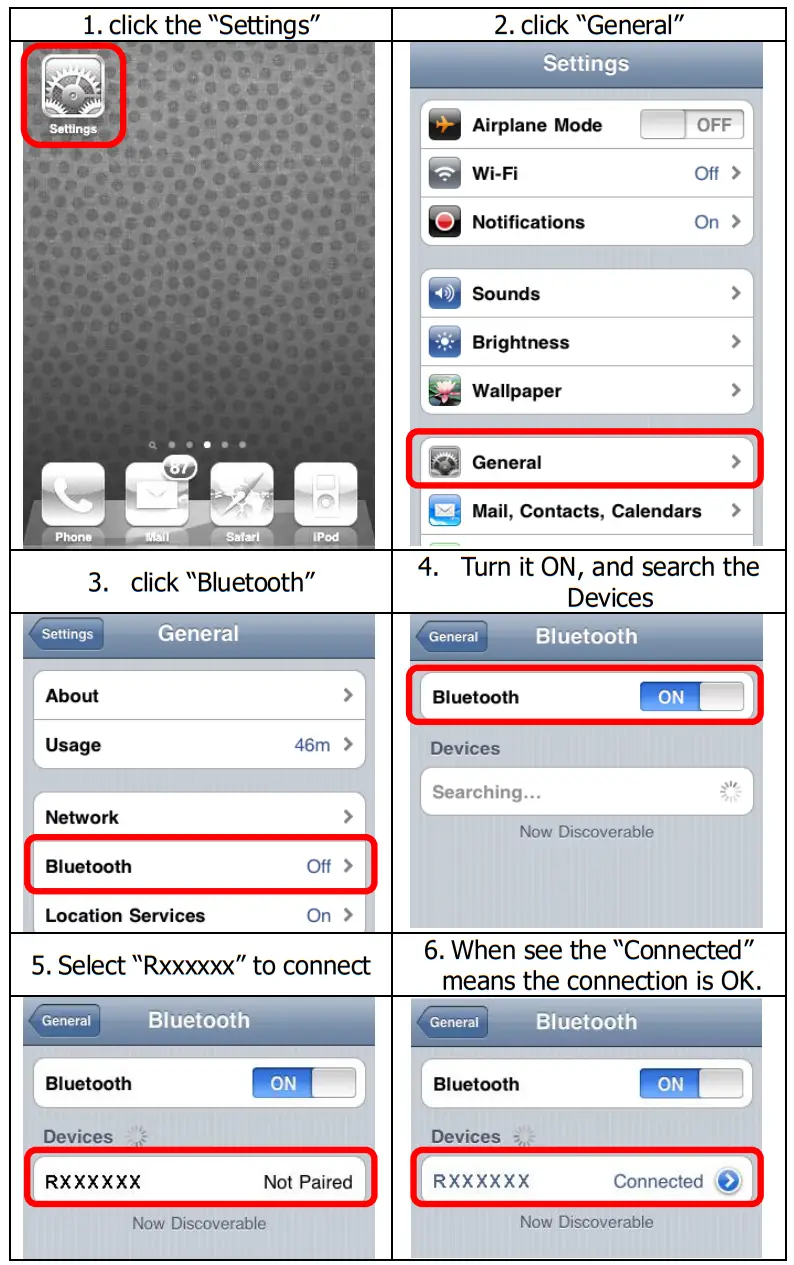
- Please complete the connection procedures as the above photos.
- After the devices are paired, the screen will show “Connected”. (see step #6 above)
- Before using WordPad file or appropriate APP, please set keyboard language of device to US English. Then, scan the barcodes and the barcode data will show on the cursor side. If the data cannot be sent to smartphone/tablet, please scan the “Reset Configuration to Defaults” setting codes (on page #3)..
Notes 1:
* This product complies with Bluetooth standards. This device used with this product must support the same SPP or HID standard. For Bluetooth devices with other profiles we cannot guarantee a connection before the product has been tested.
* The communication speed and range of the product may vary due to obstacles and radio interference between the product and device. Condition on the host device may also effect the communication speed and range of the scanner
Note 2:
* When the battery power is too low, the Orange LED will flash and beep once. Scanner should be charged immediately. If scanner shuts down it is recommended to charge it fully then power it back on.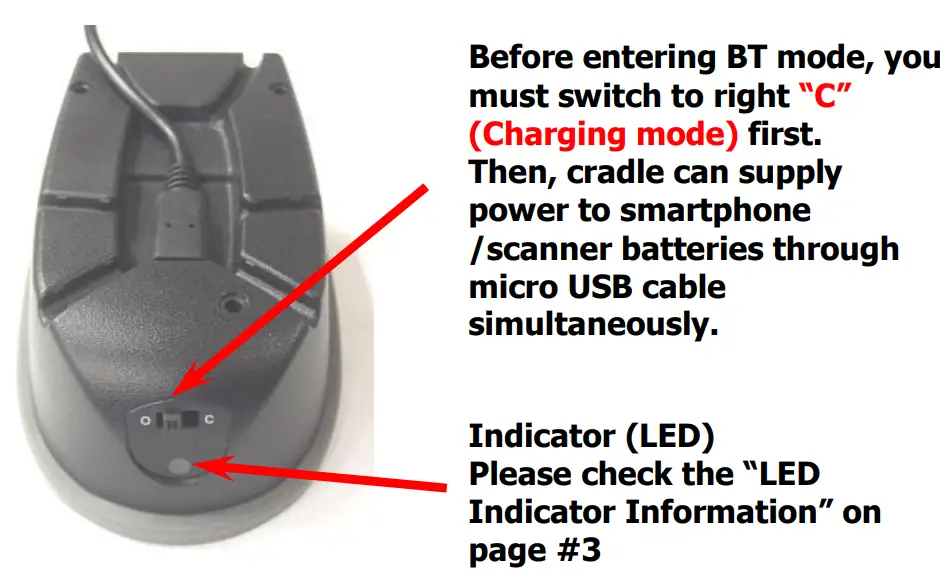 Reset Configuration to Defaults
(scan from A1 to A8 for HID profile or B1 to B8 for SPP profile)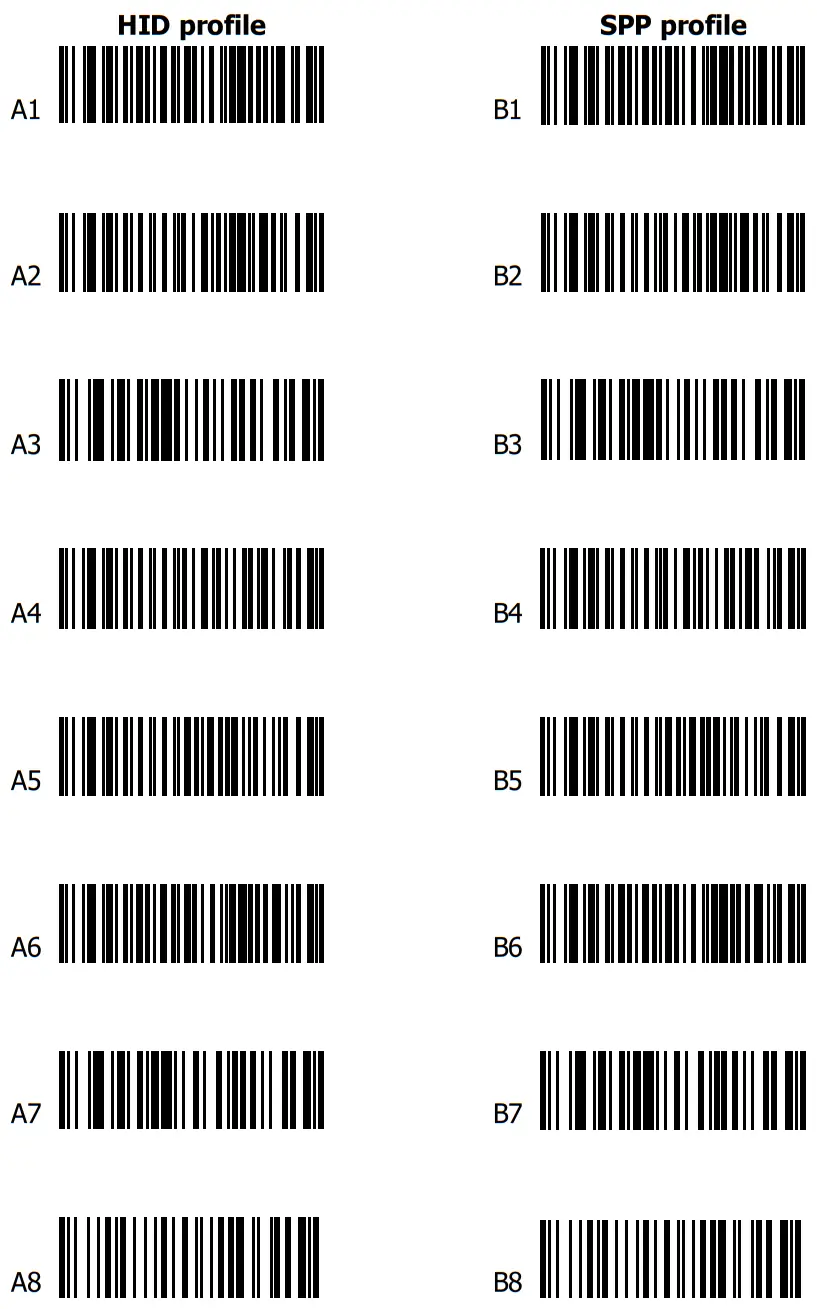 How to Connect to Smartphone via OTG cable
- Make sure you enter wired OTG mode (below right, page #1) and your Android device supports OTG functionality.
- Make sure scanner is in “O” (OPERATION MODE) (see below)
- Connect scanner to Android OTG device through micro USB cable.
- Scan the barcode
- Open app on smartphone/tablet & data will be sent to the app directly

LED Indicator Information
| Orange LED ON | Full charged |
| Orange LED Flashing | Charging / Low battery |
| Red LED ON | Offline / out of service |
| Green LED ON | Good read |
| Orange LED ON | Good read (Batch mode) |
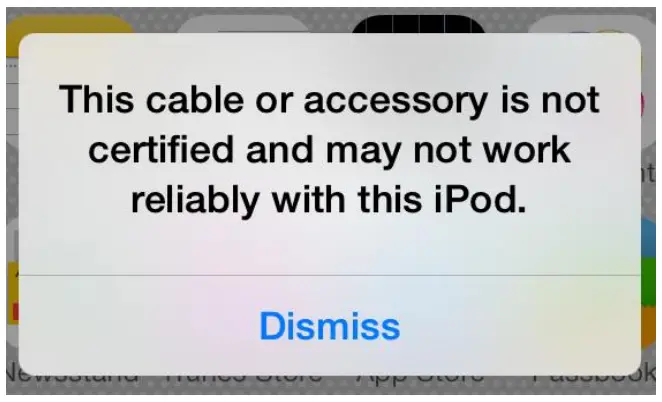 After the scanner connects to your iOS device and is inserted into cradle, it may display the above message.
If this happens, remove and reinsert device into cradle.
Keyboard Country (Wired OTG mode only)
Scan the appropriate country code as below to program the keyboard layout for your country or language. As a general rule, the following characters are supported, but need special care for countries other than the United States: @ | $ # { } [ ] = / ‘ \ < > ~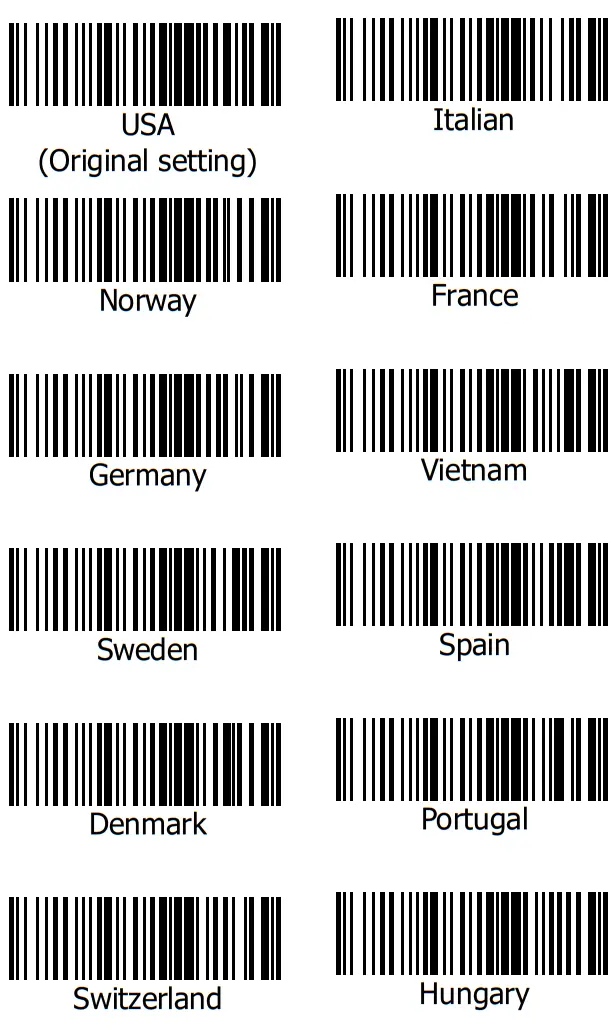
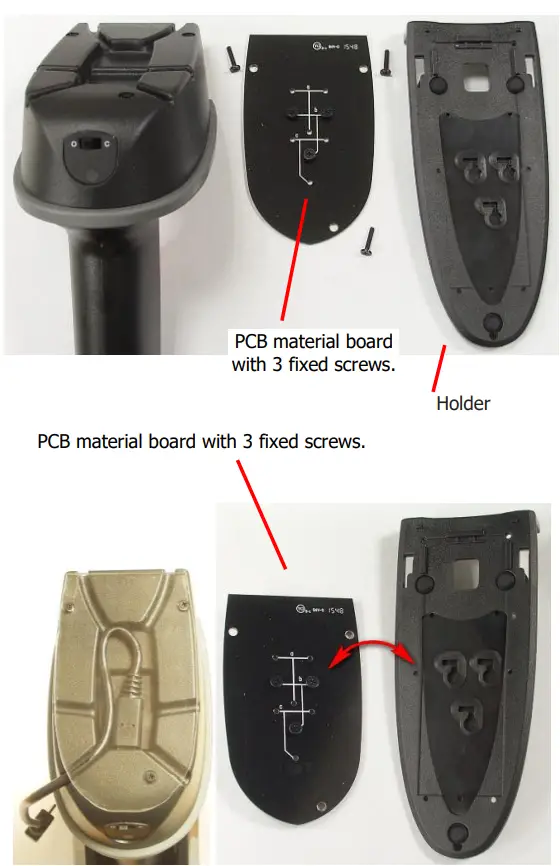
- Make sure your micro USB cable is ready.
User can adjust micro USB cable to the right channel based on the location & direction of micro USB port on the smartphone. - Lock PCB material board on the top cover by 3 screws
- There are another 3 fixed screws on the PCB material board.
Aiming at fixed screws → put holder on them → pull down and left for locking (The transparent acrylic board is for reference only)
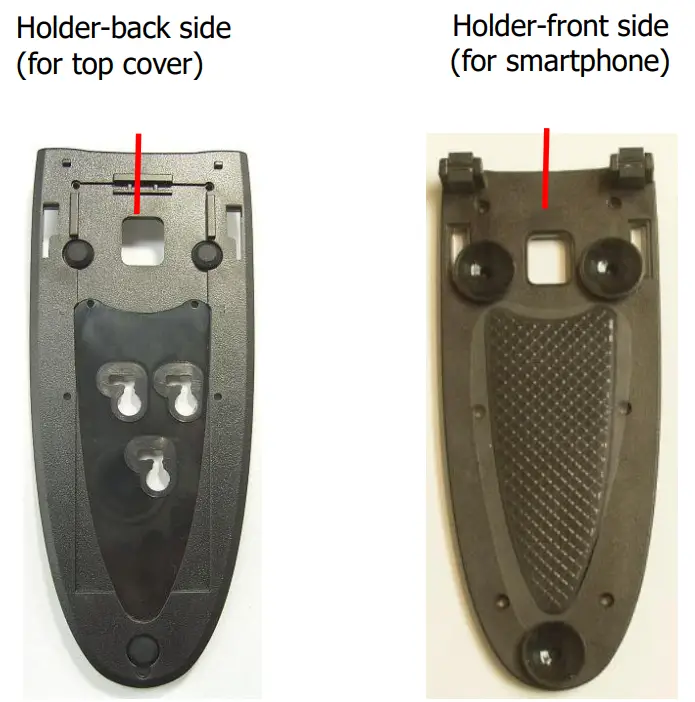
- The holder is stuck on the top cover by 3 fixed screws.
- Put smartphone onto holder. It will use PU glue & suction cup to fix smartphone. And, user can plug micro USB cable to smartphone. Then, user can begin to do the BT pairing or wired connection.
When the pairing is completed, the data you scan will be sent to smartphone easily. 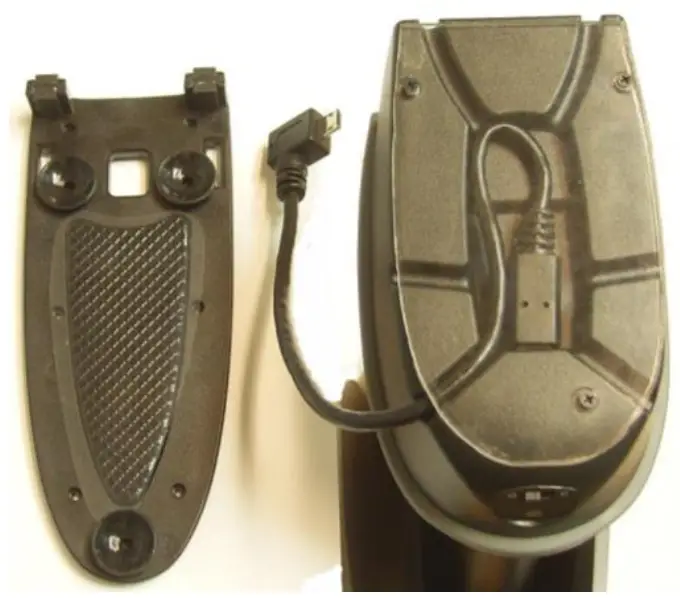
There are two operating modes on the scanner
| 1.Data Transmission mode(Default) | ||
 | ||
| It is a necessary to scan “clean memory data” when switching between these two modes. | ||
| Within 2.4GHz radio range | Be and 2.4GHz radio ran • e | |
| Data read | Transmit data to smartphone/tablet directly | Save data in scanner’s memory, scanner will transmit data to s smartphone/tablet automatically after getting back to 2.4GHz radio ranee. |
| Enter Data Stora • e mode | ||
| LED | Green/ Orange LED flashes, followed by 3 beeps. | |
| 2. Data Storage mode(Batch Mode) | ||
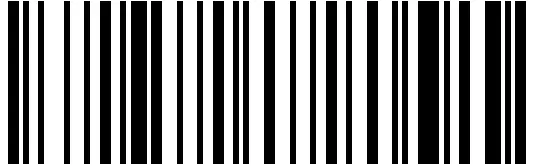 | ||
| It is a necessary to scan “clean memory data” when switching between these two modes. | ||
| Data read | Save data directly to scanner’s memory. It will transmit data to smartphone/tablet after you scan the Transmit memory data code. To delete data, please scan the Clean memory data code. | |
| Enter Data Transmission mode | ||
| LED | Green/ Orange LED flashes followed by 3 beeps. | |
| Always Clean memory data before switching to Data Transmission Mode. Otherwise Red/ Orange LED will flash with one long beep sounds and will not switch modes. | ||
A. Data Transmission mode (Default)
1. When you are out of BT signal range, the data you scan will be saved to memory. Once you are back within range, the data will be sent to smartphone/tablet automatically.
B. Data Storage mode(Batch mode)
- Data Storage mode (Batch mode): When you scan the barcodes, the data will be saved directly to scanner’s memory. After you scan the “Transmit memory data” code (above right), the data will be sent to smartphone/tablet.
- Before you can continue to scan or switch modes, you must first delete the data stored in the memory. To do this, scan the “Clean memory data” code. (below right)
Green/Orange LED flashes followed by 3 beeps 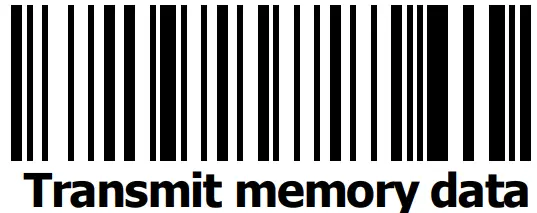 The barcode data which is stored in the memory will be sent to smartphone/tablet directly. (under Batch mode, within Bluetooth service range)
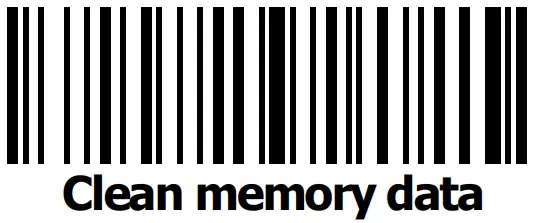 Green/Orange LED flashes followed by 3 beeps.
The barcode data which is stored n the memory will be deleted. You can then switch modes.
Transmission Speed
Transmission speed is dependent on your device.
In order not to lose data, please choose the correct speeMiddle-speed is the Default.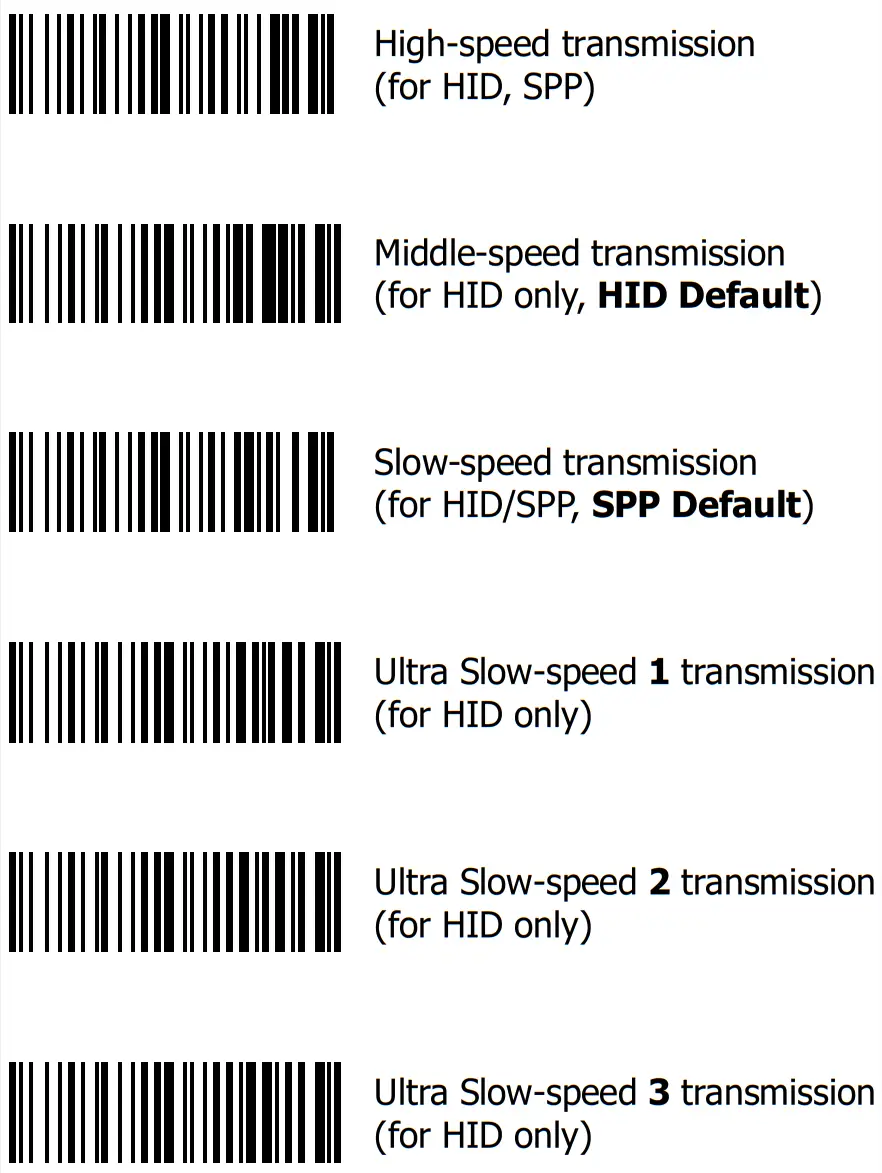 Power-saving Mode
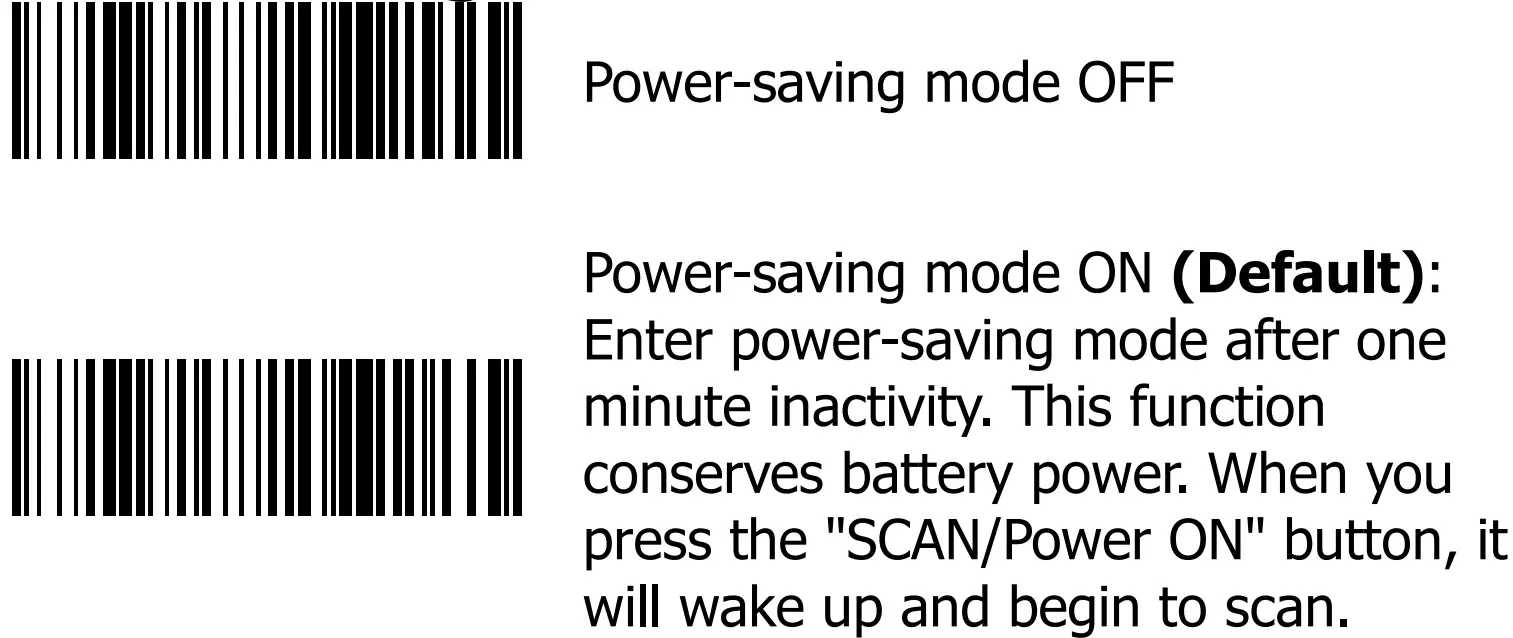 * When charging, the scanner will not enter power-saving mode automatically.
Battery information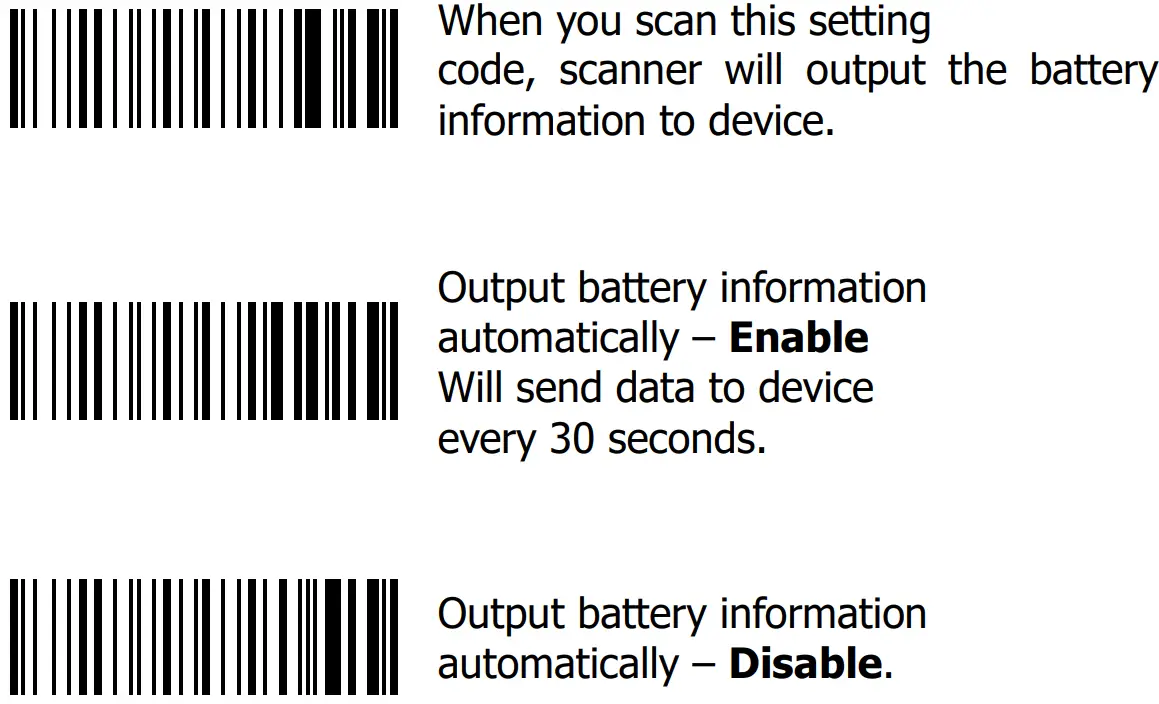 The output format of battery information is as below:
For example: %^4^%
%^NUMBER^% Number is from 0~4.
4 means 80%~100%
3 means 55%~80%
2 means 30%~55%
1 means 10%~30%
0 means under 10%
— When output reads “0”, it means low battery power and device should be charged immediately.
Barcode Configuration Method:
(Flow chart for setup procedure 🙂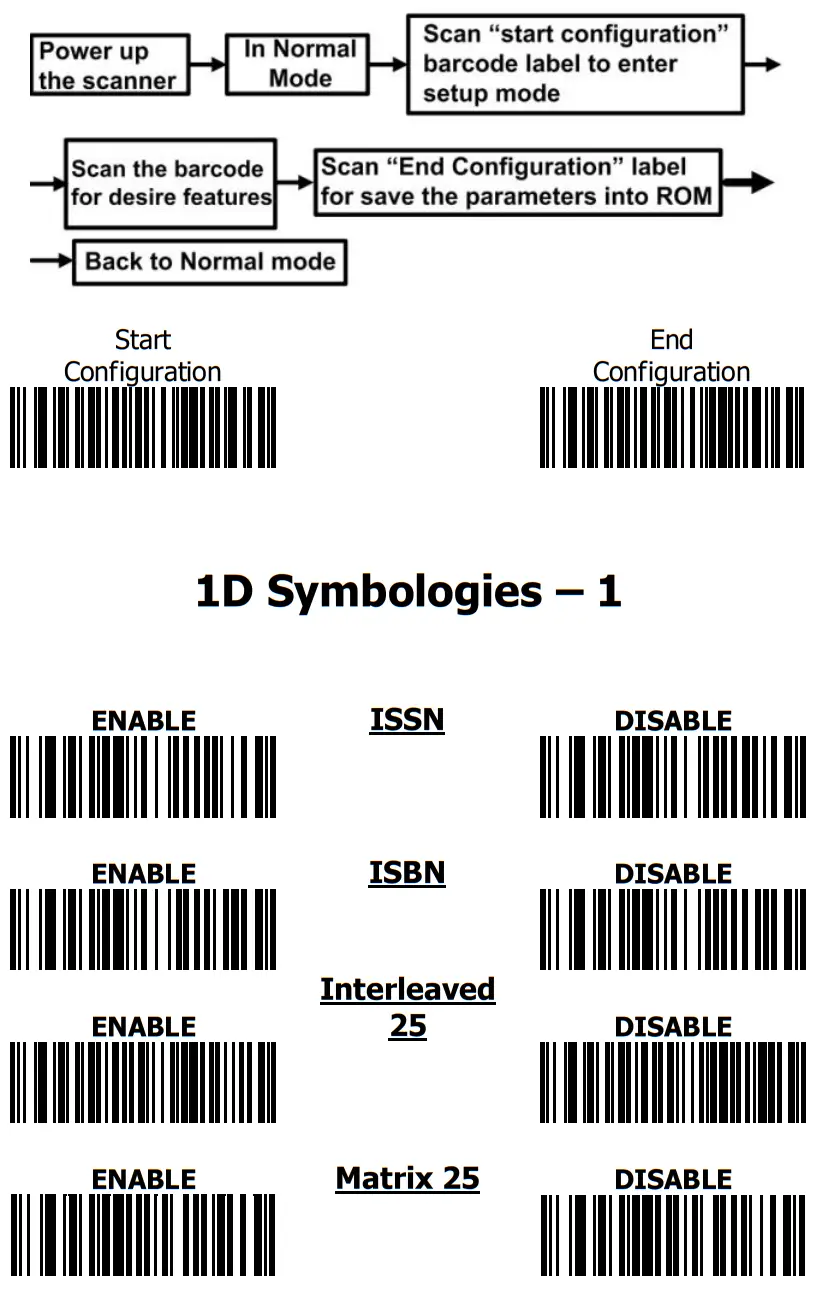 Barcode Configuration Method:
(Flow chart for setup procedure 🙂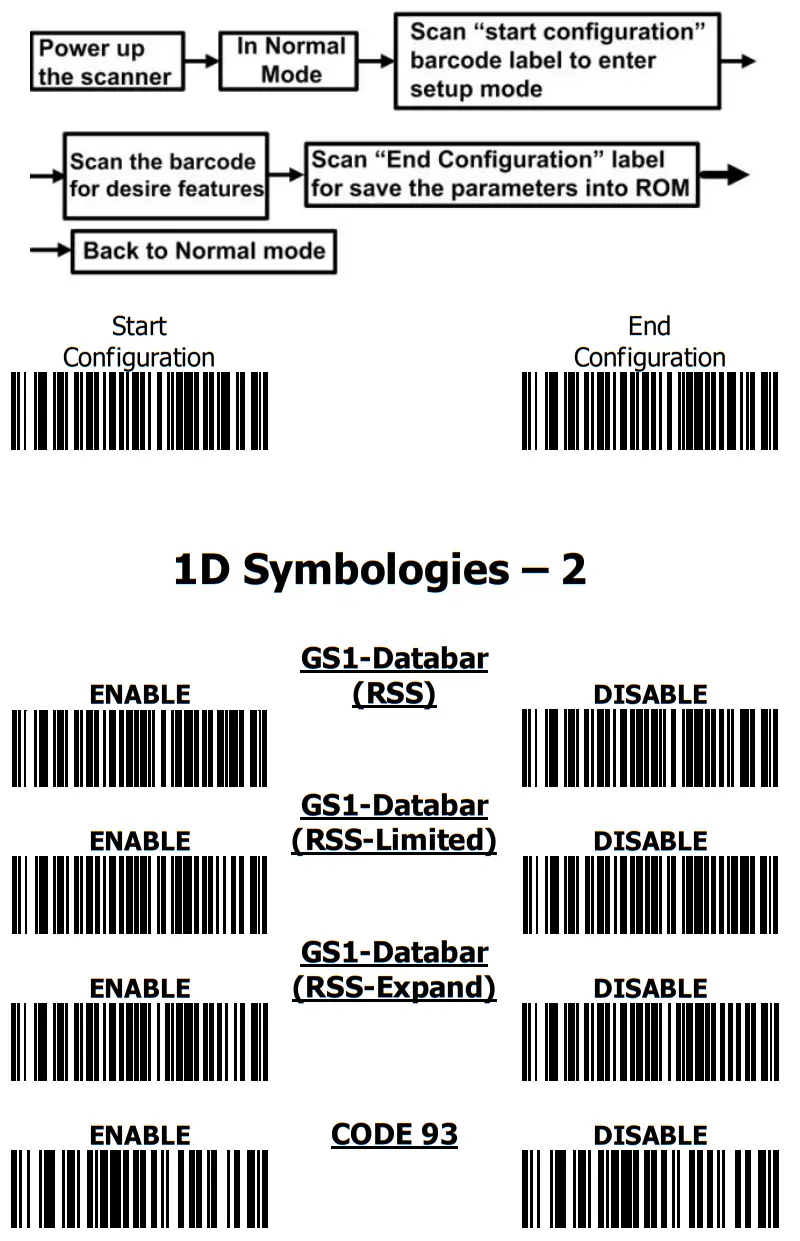 1D Symbologies – 3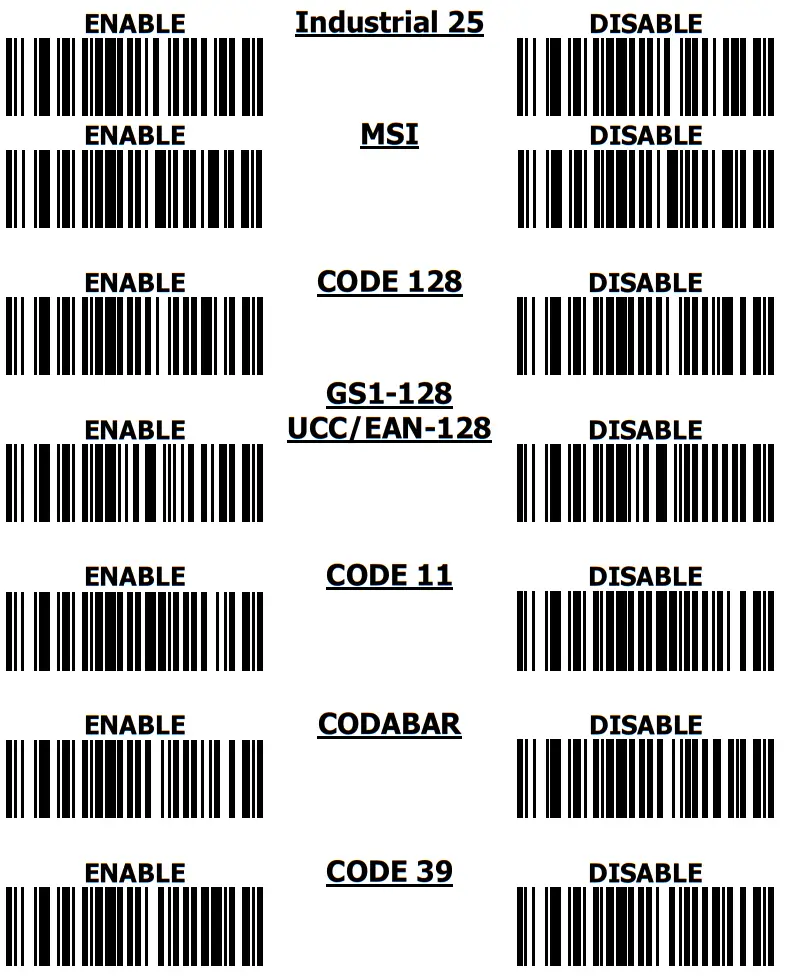
1D Symbologies – 4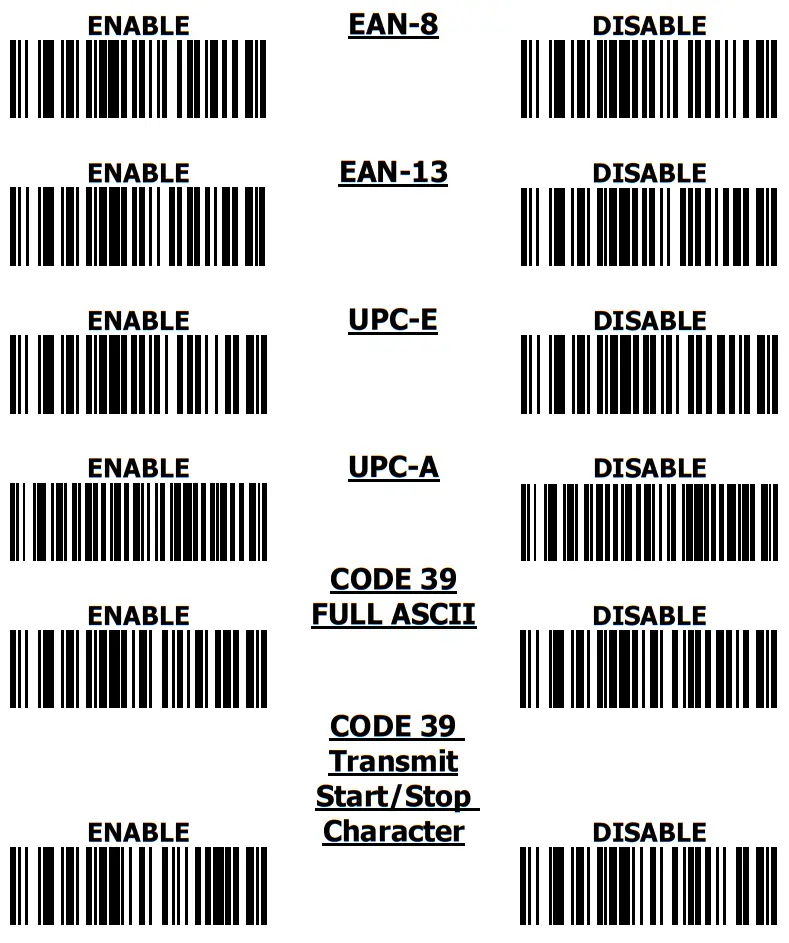
Industrial 2 of 5
Set the Minimum Length to 2 digits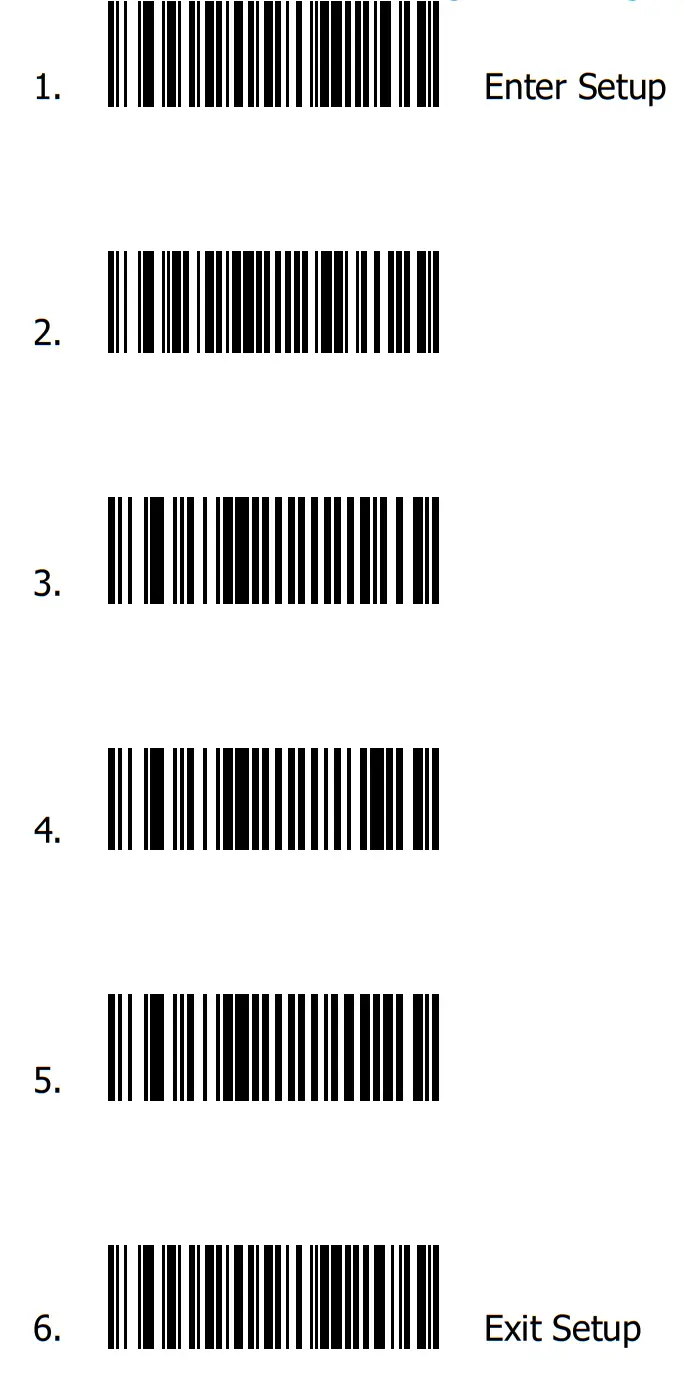
Industrial 2 of 5
Set the Minimum Length to 6 digits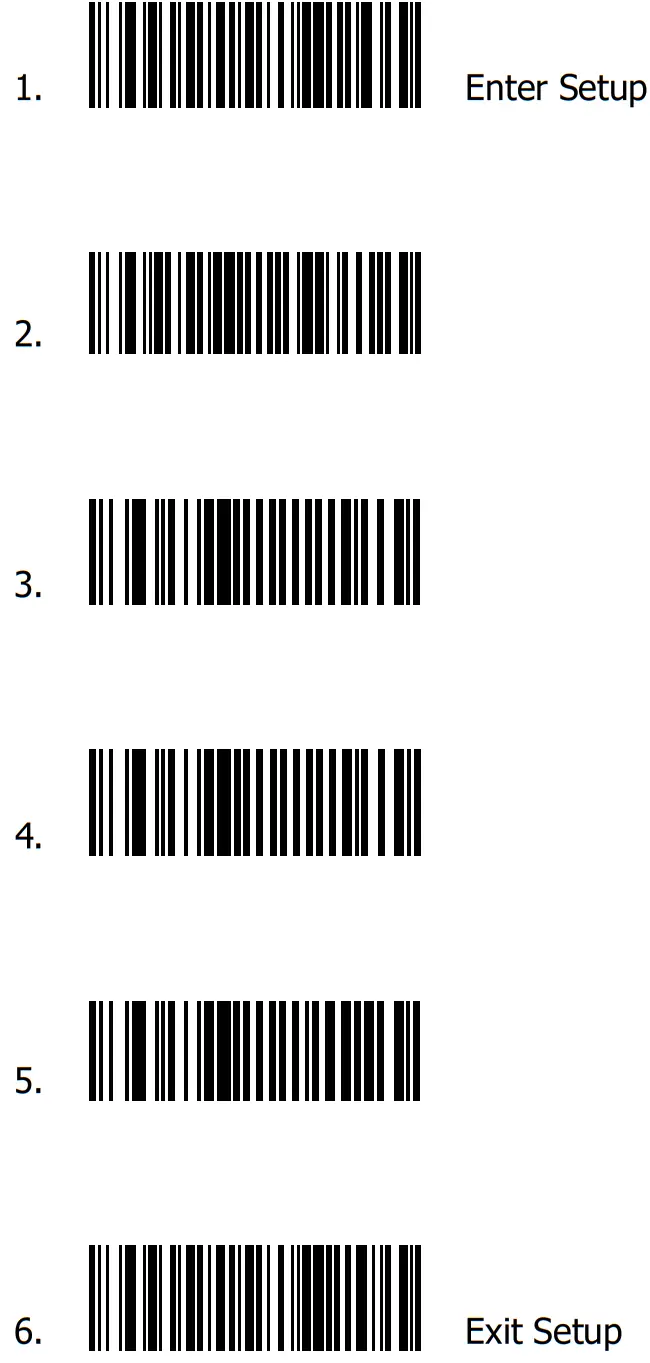 Quick guide is subject to change without notice.