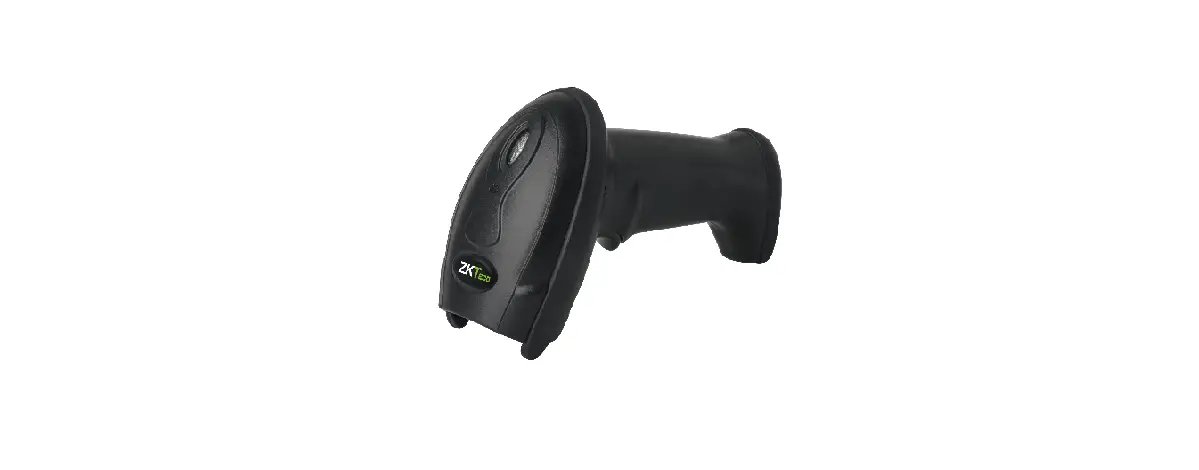
MP719 Barcode Scanner
Product Information:
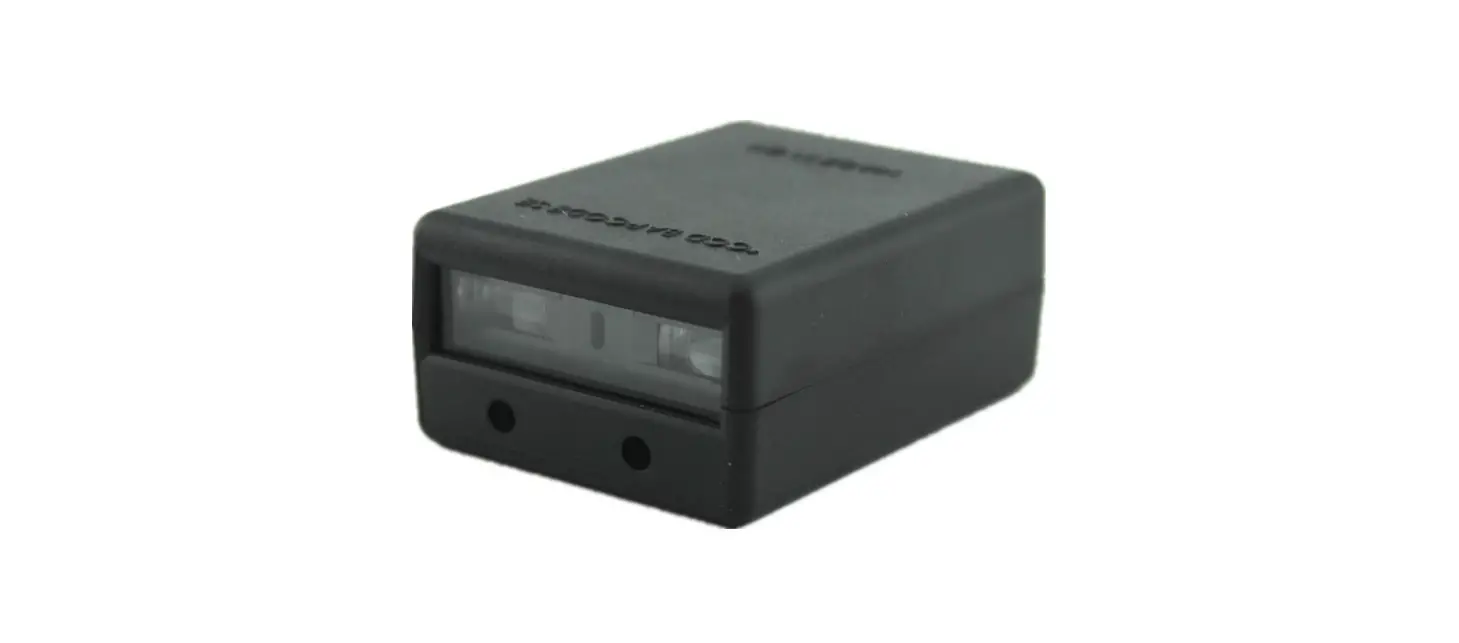
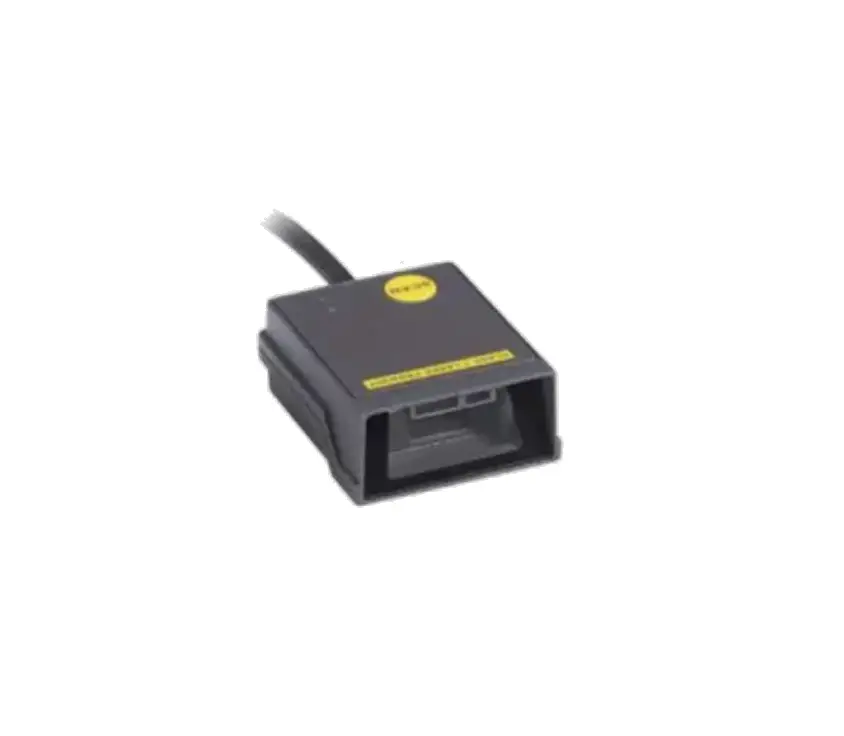
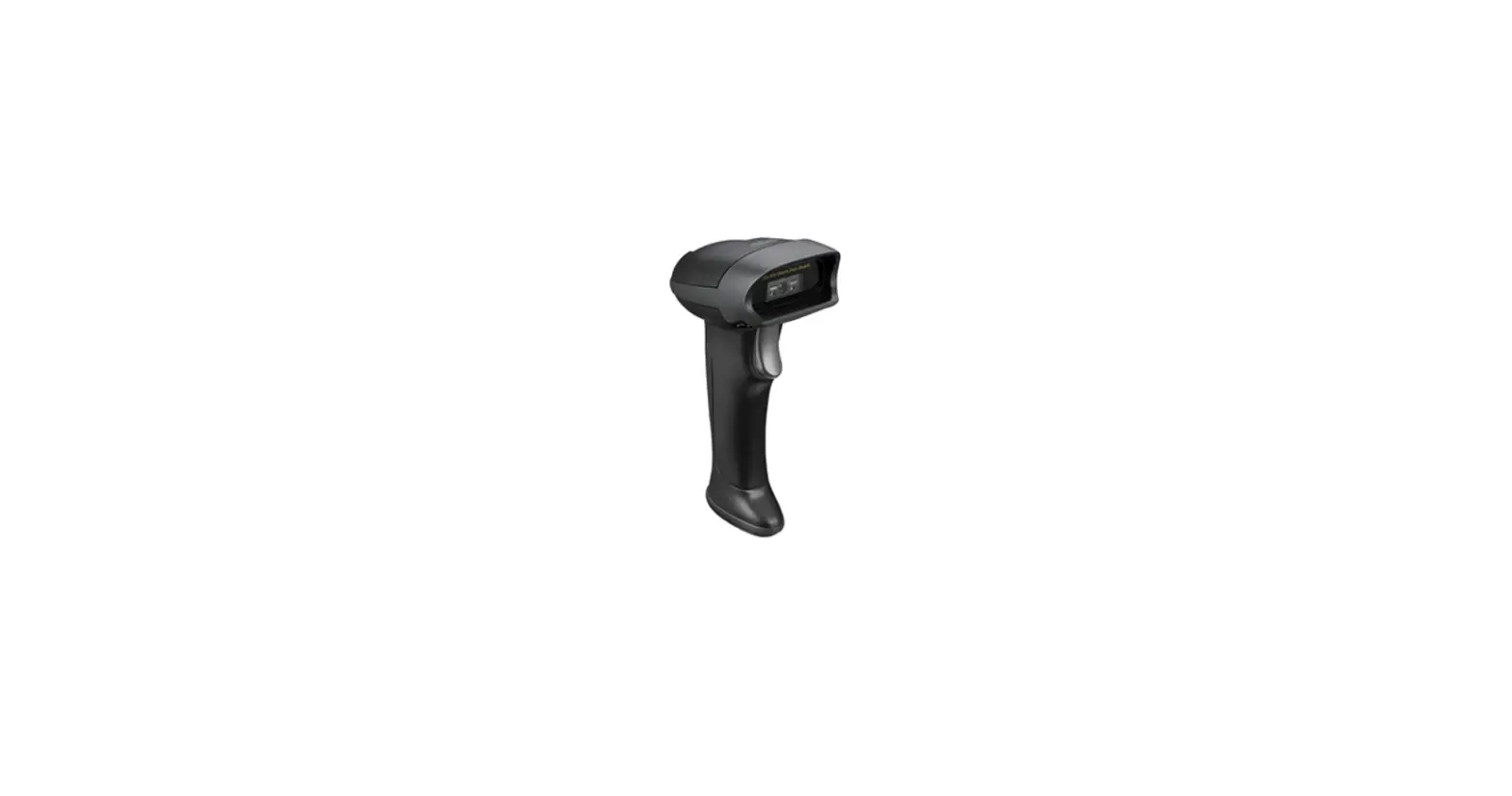
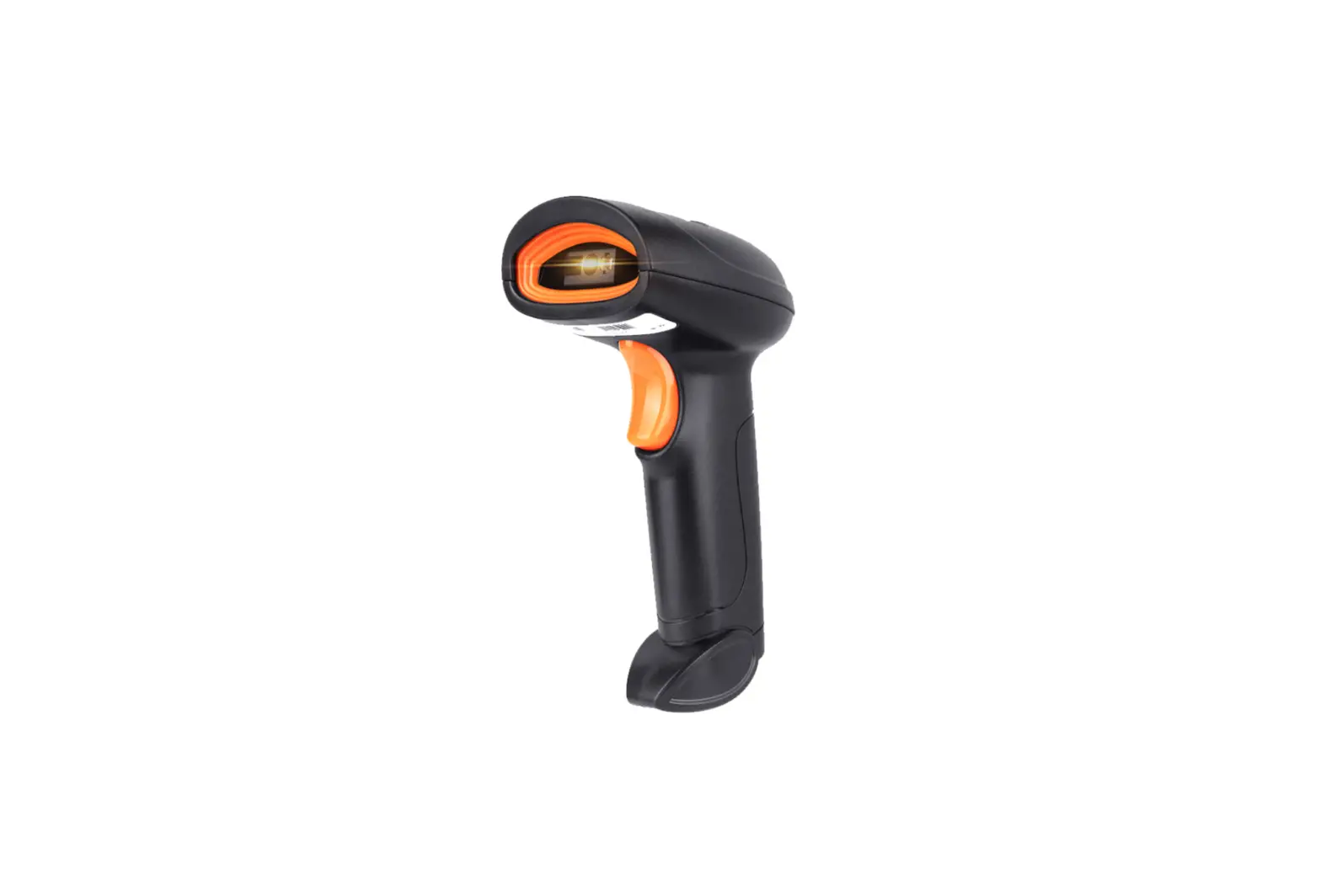
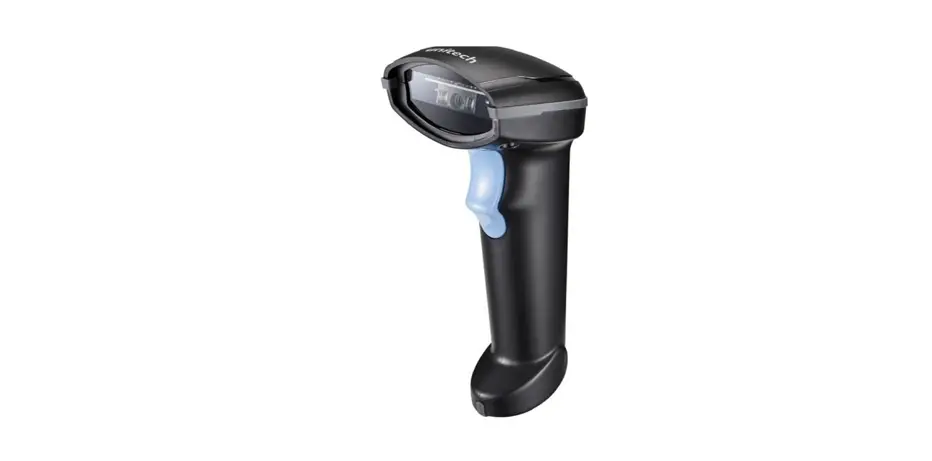
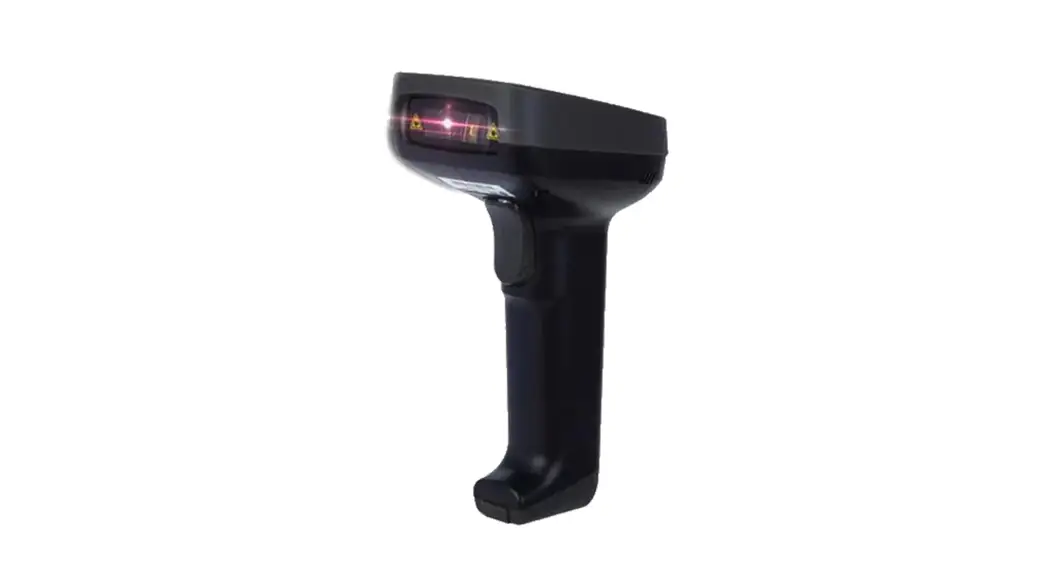
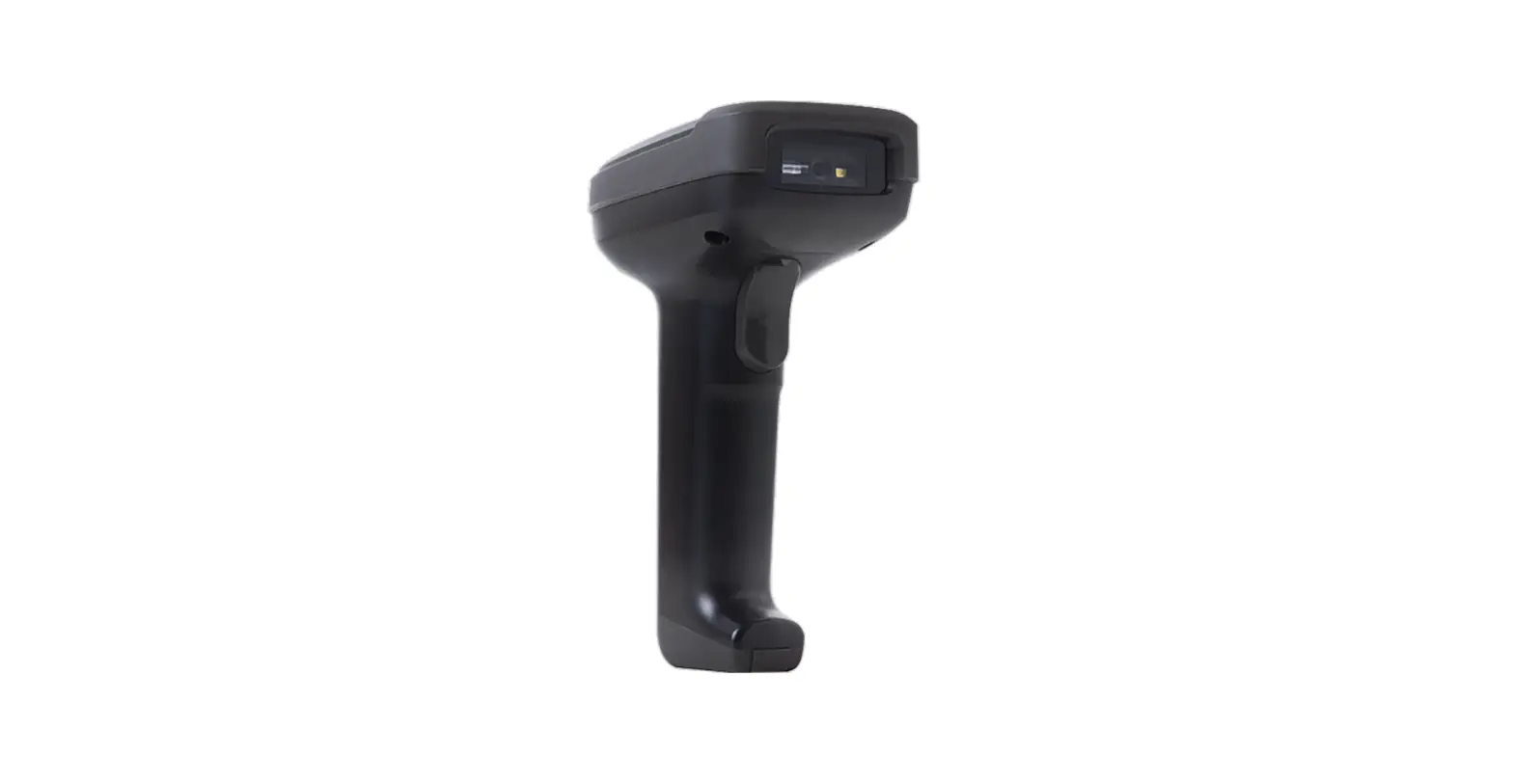
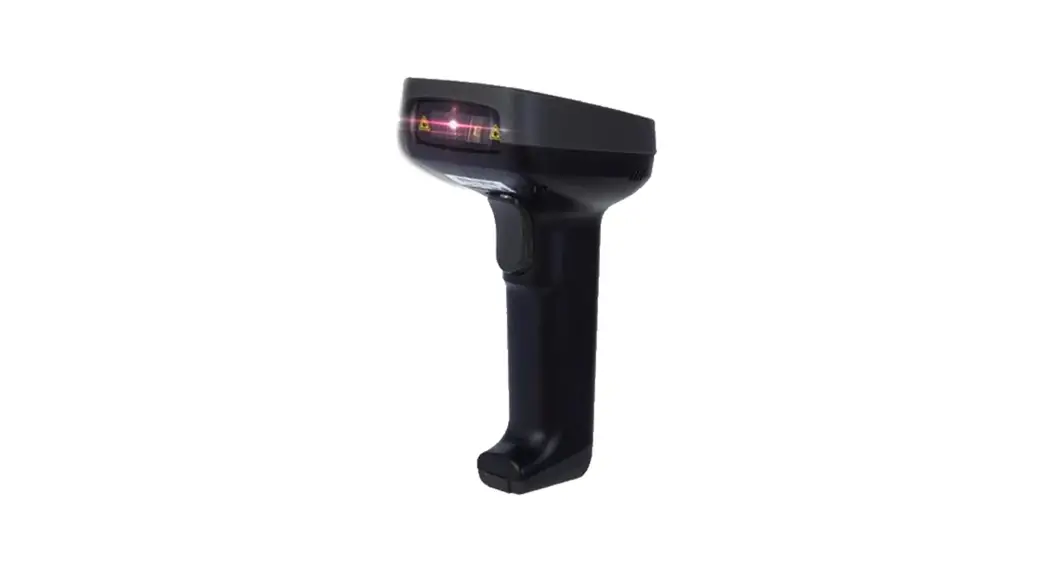
The MP719 Presentation Imager is a high-quality scanning device
designed for efficient barcode scanning. It comes with a standard
packing that includes the imager itself and a USB cable.
Accessories that can be purchased separately include an RS232 cable
and a 5V DC adaptor. The imager should be cleaned using a dry and
soft cloth.
Parts of the Imager:
- Trigger
- Scan window
- Beeper
Product Usage Instructions:
Installing the Cable:
- Refer to the below pictures to connect the host with the imager
based on the type of cable being used. - Ensure that all connections are secure.
- If the installation is successful, the beeper will beep and LED
will light.
RS232 Cable:
(Picture of RS232 cable installation)
USB Cable:
(Picture of USB cable installation)
Return Default Parameters and Version Information:
- Default Value Initialization
- Firmware Version List
Programming Instruction and Example:
Single-scan Setting:
Example: Enable UPC-A.
Multiple-scan Setting:
- Scan Option bar code
- Scan The 1st character of option
- Scan The 2nd character of option
- Scan END
Example: Enable UPC-A.
Reading Techniques:
Note:
- For more details, refer to the User Manual.
- For better readability, please print this document with a laser
printer. - Version: MP719_QG_EN_V1.1
MP719 Presentation Imager Quick Guide
Note
A standard packing includes an imager, a USB cable. Accessories include a RS232 cable, a 5V DC adaptor. Use a piece of dry and soft cloth when cleaning the imager is in need.
Parts of the imager
Trigger
Scan window
Beeper
Installing the cable
1) Refer to the below pictures, connect the host with the imager based on different cables; 2) Ensure that all connections are secure. If the installation is successful, the beeper will beep and LED will light.
RS232 cable
USB cable
Return default parameters and version information
Default value initialization
Firmware version list
Programming instruction and example
Two programming modes have been provided as bellows: Single-scan setting
Example: Enable UPC-A. Multiple-scan setting
Scan “Option bar code”
Scan “The 1st character of option”
Scan “The 2nd character of option”
Scan “END”
Example: Enable UPC-A.
Reading techniques
1) Press and hold the trigger, the imager projects a green LED square which allows positioning the barcode within its field of view, and turns on a white LED for illumination. 2) When reading a barcode, the green LED square will be smaller when the imager is closer to the barcode and larger when it is farther from the barcode. Please hold the imager at an appropriate distance from the barcode, and center the green LED square on the barcode. 3) On a successful barcode reading, the imager will beep once, and the green LED square and white LED will be turned off. Then the imager transmits barcode message to the host.
Note: 1. More details refer to User Manual. 2. For better readability, please print this document with laser printer. 3. Version: MP719_QG_EN_V1.1.