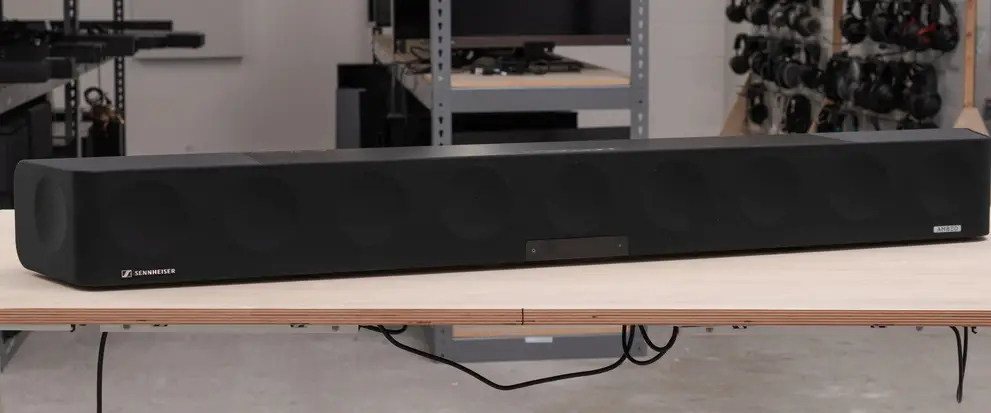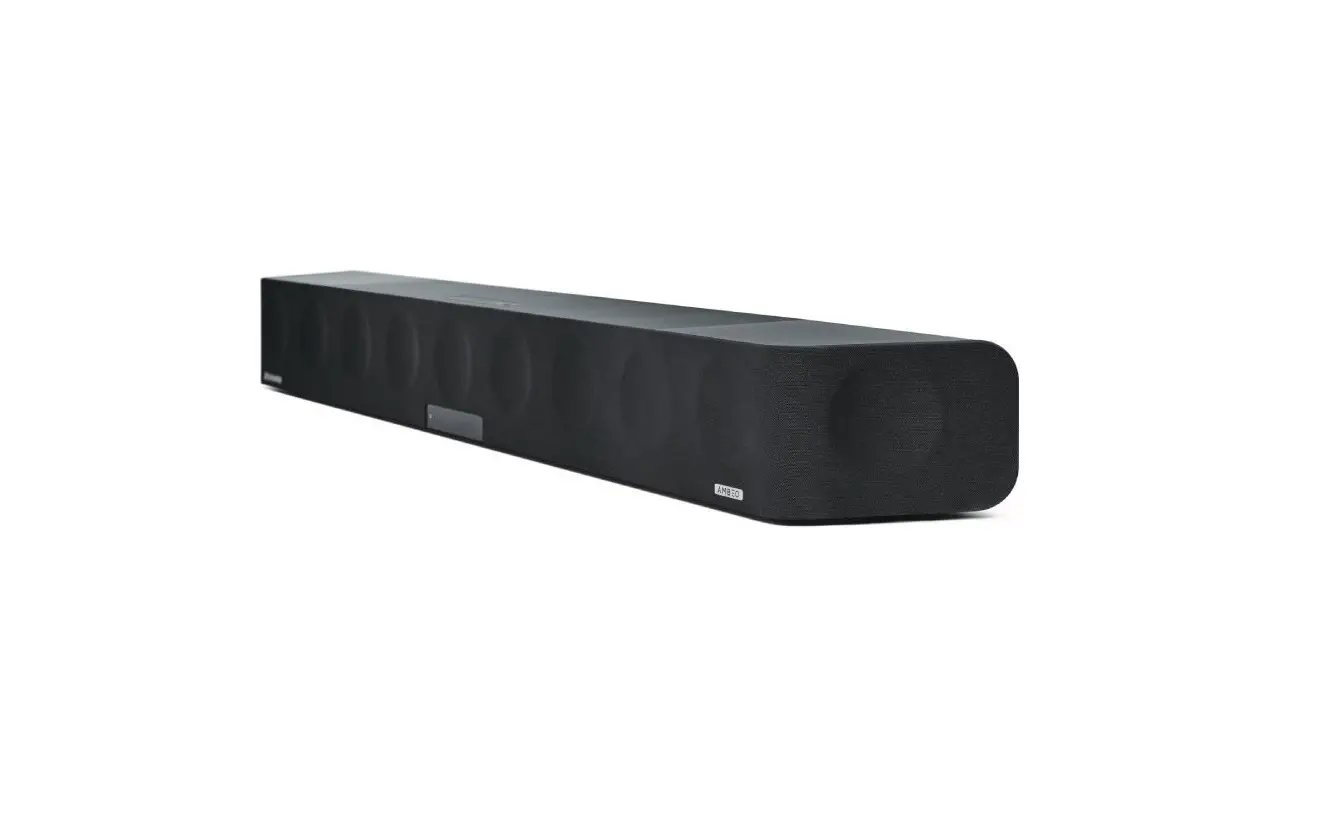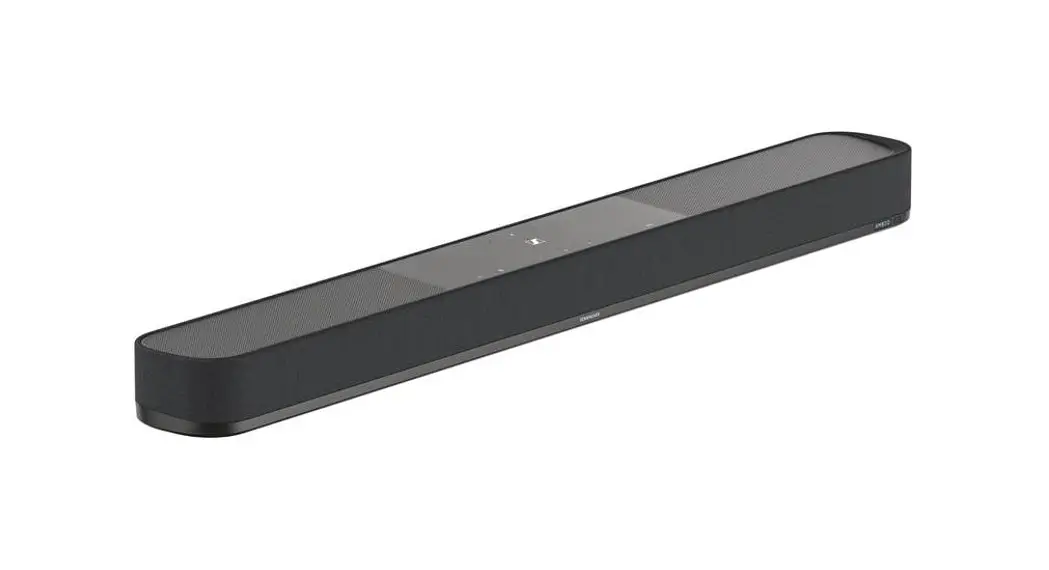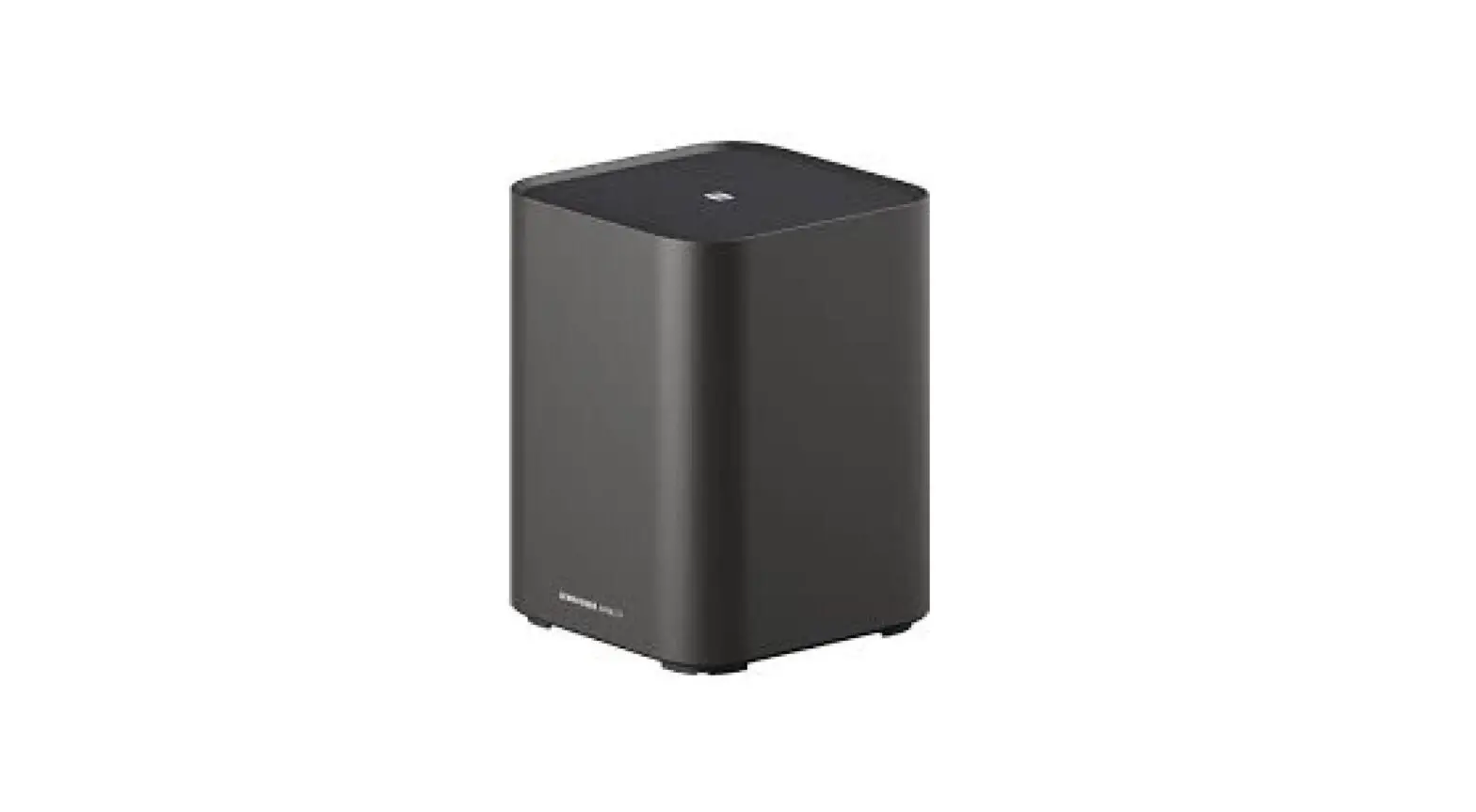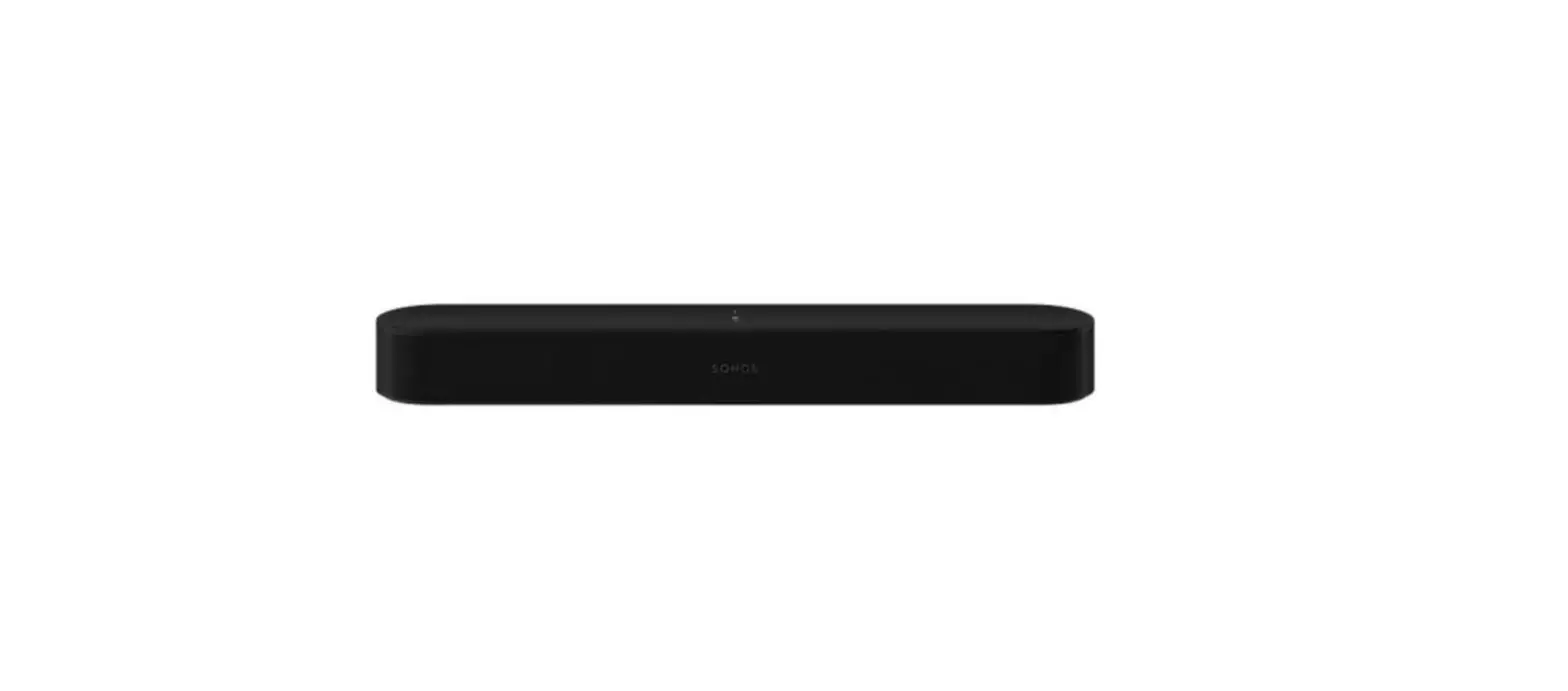

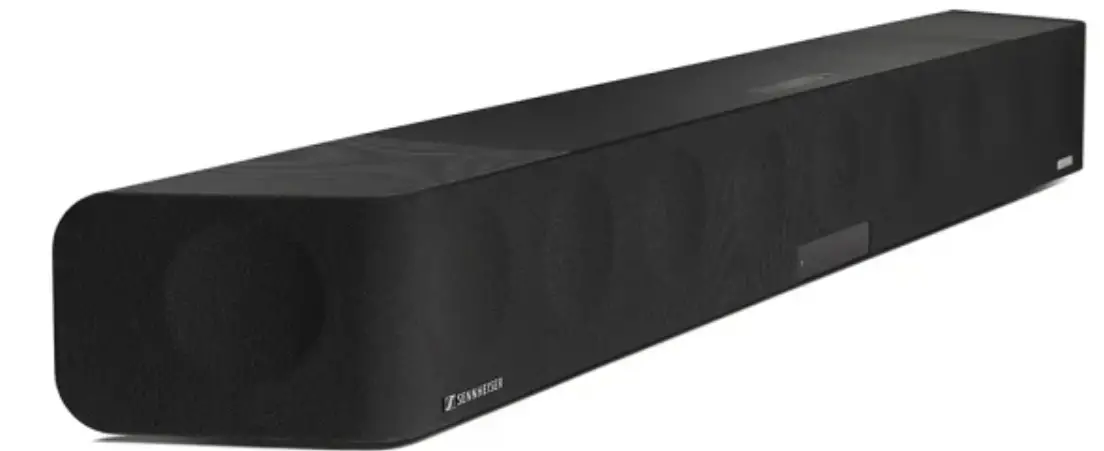
SENNHEISER SB01 Ambeo Soundbar
 We have implemented the following:
Bugfixes
- Corrected top channel routing for DTS:X content
- Resolved calibration data loading bug for certain Subwoofers. In case of incorrect Subwoofer volume level, please once reca lib rate the system with Subwoofer attached.
- Additional bugfixes
Frequently asked questions about AMBEO IOS firmware update
What is required to have this firmware installed?
Your AMBEO Soundbar needs to be connected to a network to be controllable via Smart Control app.
Automatic firmware update (Soundbar connected to the Internet):
To update the firmware automatically (normally during early morning time), the Soundbar must be connected to the Internet via WiFi or Ethernet.
- Download the Sennheiser Smart Control app to your smartphone and follow the instructions to connect your Soundbar to the WiFi. The Soundbar automatically installs the latest firmware update during the setup procedure.
- If your AMBEO Sound bar is connected to the Sennheiser Smart Control app and an update is available, you will be offered the update via the app. The current firmware release status is
displayed under Device Settings in the app. - To use the Smart Control app for updates:
- To update the firmware using the Smart Control app, the Sound bar must be connected to the Internet via WiFi or Ethernet.
Download the app from the App Store or Google Play and install it on your smartphone.
Alternatively, you can use your smartphone to scan the following OR code or to call up the following Internet site: www.sennheiser-hearing.com/smartcontrol.
To display firmware updates:
- Start the Smart Control app on your smartphone.
- The app informs you about available firmware updates and guides you through the installation process. which you can start manually at any time.
I open the Smart Control app, but the app doesn’t find the AMBEO Soundbar.
Please go to the Bluetooth settings of your smartphone and click “Forget This Device” (refers to your Bluetooth name). Retry searching for your again.
If you still don’t see the please reset the app via app settings and search for the device again.
After setup I see the Soundbar in app, but it states, “not found on WiFi scan”.
- If your AMBEO Sound bar appears in the device list with the state “Not found on WiFi scan”, please scan for devices again. If this does not help either, please turn off the WiFi of your phone and turn it on again.
- The Soundbar and your smartphone are connected to different networks. Please connect your smartphone to the same network the Soundbar has been connected to and scan for new devices again.
- Your Soundbar is connected to a guest network which does not allow device communication. Please reset your Sound bar with the reset button on the rear side and setup the sound bar with another network.
What if my Soundbar is not connected to a network?
If your AMBEO Sound bar is not connected to a network and if the Soundbar is not updated to the new firmware, the app cannot be used as it relates to a WiFi/Ethernet connection.
Connect your Sound bar to a network via WiFi or Ethernet using the Google Home app or Smart Control app.
If you don’t have a network to connect your Sound bar, you need to update the Sound bar with a USB stick manually.
Download the firmware from www.sennheiserhearinq.com/download/ and update your Soundbar. Afterwards, you can connect your smartphone to the Sound bars WiFi hotspot. Search for devices and connect to the Sound bar
What if I don’t have a network to connect the Soundbar to?
- If you don’t have a network to connect the Sound bar to, you need to manually install the new firmware to be able to use the new app, as the app now uses WiFi instead of Bluetooth to ensure greater reliability.
- If your Sound bar is updated but not connected to a home network and if you want to use the App, you can connect your smartphone or computer to the Sound bar’s WiFi hotspot. After connecting to the WiFi hotspot “AMBEO Soundbar xyzzy,” you can open the Smart Control App to control the Sound bar.
As your smartphone is connected to the Sound bar, and as it does not have internet, you can only stream locally available content to your Sound bar via Bluetooth.
How do I manually update the Soundbar if my Sound bar is not connected to the internet so that I can use the App?
Required USB flash drive:
- Memory size: minimum 1 GB recommended
- File system: FAT or NTFS
- Download the update file with the file name “image.swu” from the website www.sennheiserhearinq.com/download (search for “AMBEO Sound bar”) and save it on a USB flash drive.
- Do not change the file name!
- Switch the Soundbar on.
- Connect the USB flash drive to the USB socket on the Soundbar.

- Press the SETUP button for 5 seconds.
The display shows “Updating” and the status LED pulses yellow.
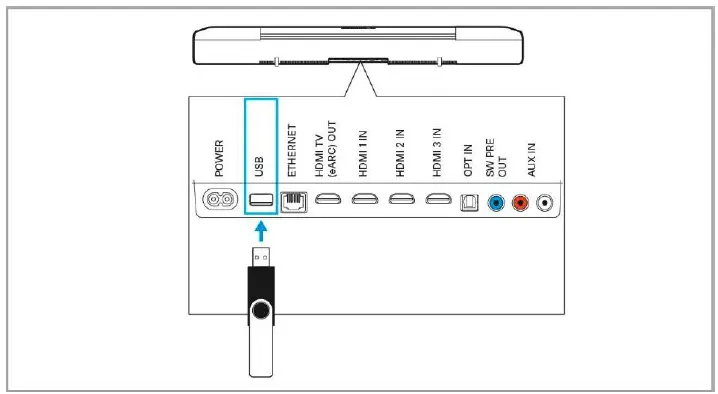
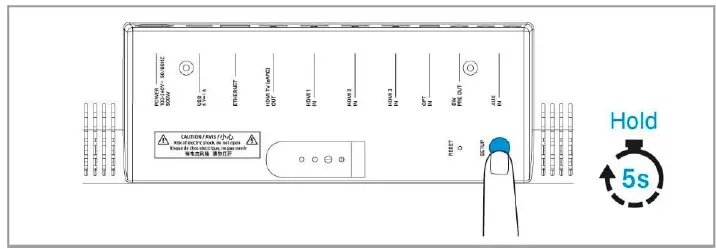
The Soundbar restarts several times during the update. The process can take up to 8 minutes.
If you don’t have a network to connect the Sound bar, you first need to update the Sound bar manually, as described above. Afterwards, you can connect to the Sound bar’s WiFi hotspot to use the Smart Control App (by typing the product’s IP address or http://ambeo into your browser).
How do I stream Dolby Atoms content via TIDAL?
The Sound bar now supports Dolby Atoms Music via TIDAL Connect. Select an Atoms track in your TIDAL app and select the Soundbar via TIDAL Connect. Please note that streaming of Dolby Atoms content is currently not supported via Bluetooth, AirPlay or Chromecast Built-In.
Please note that Sony 360 Reality Audio content is currently not supported for streaming via TIDAL Connect.
Does the Soundbar support Sony 360 Reality Audio via TIDAL Connect?
Sony 360 Reality Audio is currently only supported for music services that allow Sony 360 Reality Audio via Google Chromecast and HDMI.
Until today the music service nuqs.net is the only service supporting 360 Reality Audio via Google Chromecast.
How do I use AirPlay?
- Play music from your favourite app.
- Open Control Center on your iOS device.
- Tap the AirPlay icon from the “Now Playing” panel.
- Choose your Sound bar from the device list in AirPlay to play music to your Sound bar.
My Soundbar is connected to my home network. However, I cannot find the Soundbar via Spotify Connect.
AirPlay, or via the app. What should I do?
Make sure to have your device connected to the same network as your Soundbar.
Make sure to avoid “Guest” networks to allow network communication between devices.
When I open Google Home, I can see the Soundbar, but it fails to connect
Please go to the Bluetooth settings of your smartphone and click “Forget This Device” (refers to your Sound bars Bluetooth name). Retry searching for your Sound bar again.
How can I access my Soundbar from other smart devices?
You can control your Soundbar from any smart device in your home network by typing the product’s IP address or http://ambeo into your browser.
History
Version 1.0.237
Major new features
- Apple AirPlay 2
- TIDAL Connect incl. support for Dolby Atoms Music content
- Spotify Connect
- New app design now accessible via new Sennheiser Smart Control app and from any browser in the network (http://ambeo, or products IP address)
Additional bugfixes and features
- Persistently saved subwoofer setting. If the subwoofer setting is being turned off, it now remains off even when rebooting the device.
- Improved WiFi stability and repeater connectivity
- WiFi localization feature to optimize WiFi performance
- Now you’re able to setup WiFi via Smart Control app
Version 1.0.153
- Updated Google Chromecast firmware
Version 1.0.152
- Bugfix for missing left surround tweeter playback
Version 1.0.150
- Bugfix for Apple TV playback issue, which sometimes resulted in missing center channels.
- Solved HDR10+ compatibility bug for certain TV models
- eARC/ARC CEC improvements for certain TV models
- Updated Google Chromecast firmware version 1.52
- Minor additional bug fixes
Version 1.0.147 .
- New feature
- Support for Sony 360 Reality Audio via Google Chromecast built-in
- Bugfixes
- eARC bugfix for certain TV models
- Pop noise bugfix for certain playback devices
- Minor additional bug fixes
Version 1.0.140
- Updated Chromecast firmware for improved Multi-Room streaming stability
- Improved stability on eARC interface
- Minor additional bug fixes
Version 1.0.23
- Improved Smart Control app and Bluetooth stability for iOS 13.4 devices
- Enabled Pass- Through on Auto-Standby Mode
- Minor bug fixes
Version 1.0.22
- Improved stability on ARC and eARC interfaces
- Improved control stability to the Smart Control app for Android and iOS devices
- Stability improvement for MPEG-H
- Resolved routing bug which caused missing output on certain channels
- Several stability fixes
Version 1.0.19
- Solved bug that Soundbar automatically turned on
- Improved streaming via Google Chromecast built-in
- Improved HDMI CEC compatibility with Sony TVs
- Minor additional bug fixes
Version 1.0.16
- Solved lip-synchronization problems in HDMI ARC input for some TV models
- Solved bug with multi-channel PCM content via Apple TV 4K
- Improved (reduced) processing time for PCM audio signals for all inputs
- Google Chromecast built-in safety update (version 1.40)
- Google Chromecast built-in additional bug fixes
- HDMI eARC and HDMI CEC bug fixes
- Improved connection to the Smart Control app
- Minor additional bug fixes
Version 1.0.13
- Improved 30 sound
- Optional Dolby Virtualize available
- Improved codec buffer time
- Small HDMI bugs fixed (HDMI ARC/CEC problems with some TV models)
- Improved app
- Minor additional bug fixes
Version 1.0.4
- Initial version
 Download | Sennheiser