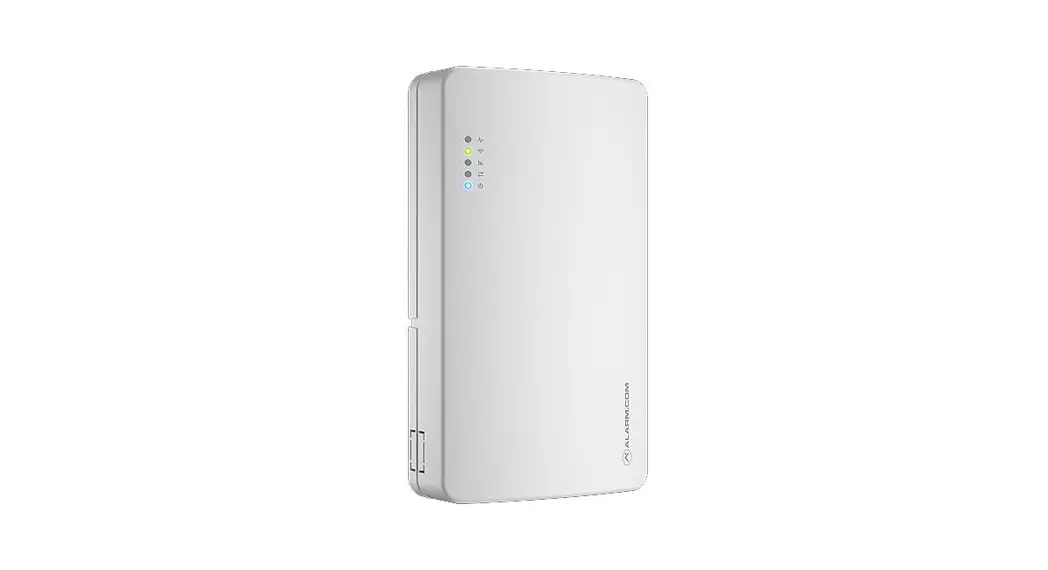
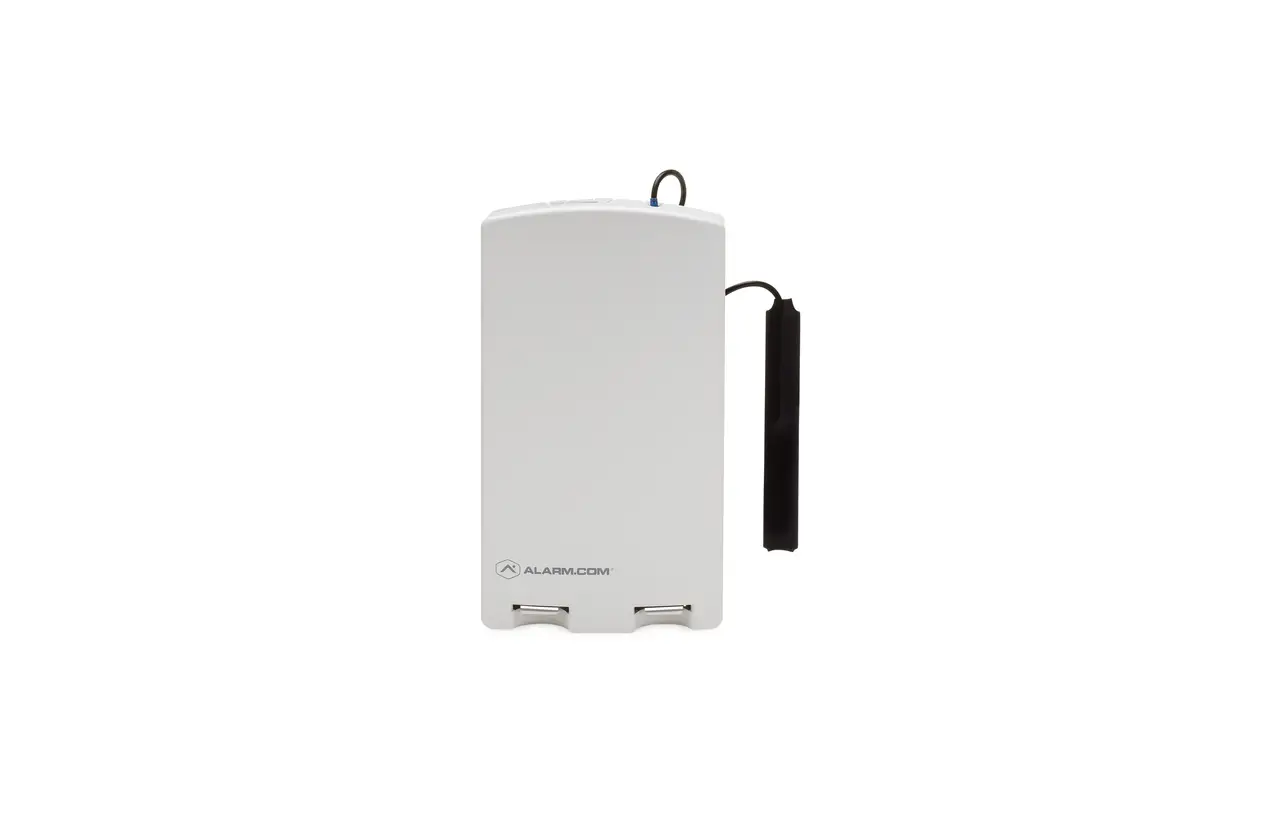
CM4500-LA Alarm Communicator
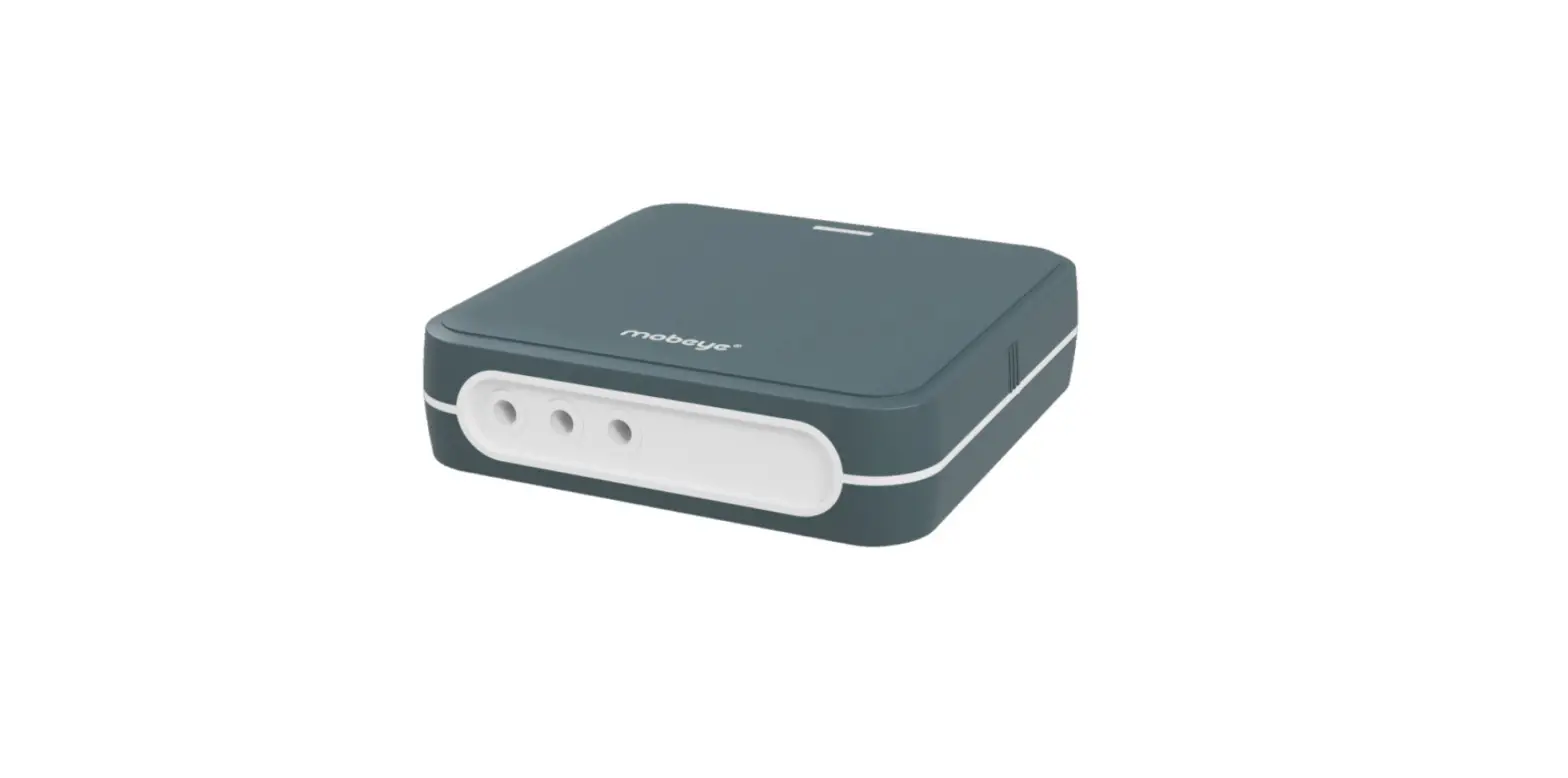
MOBEYE ALARM COMMUNICATOR CM4500-LA
Product Information:
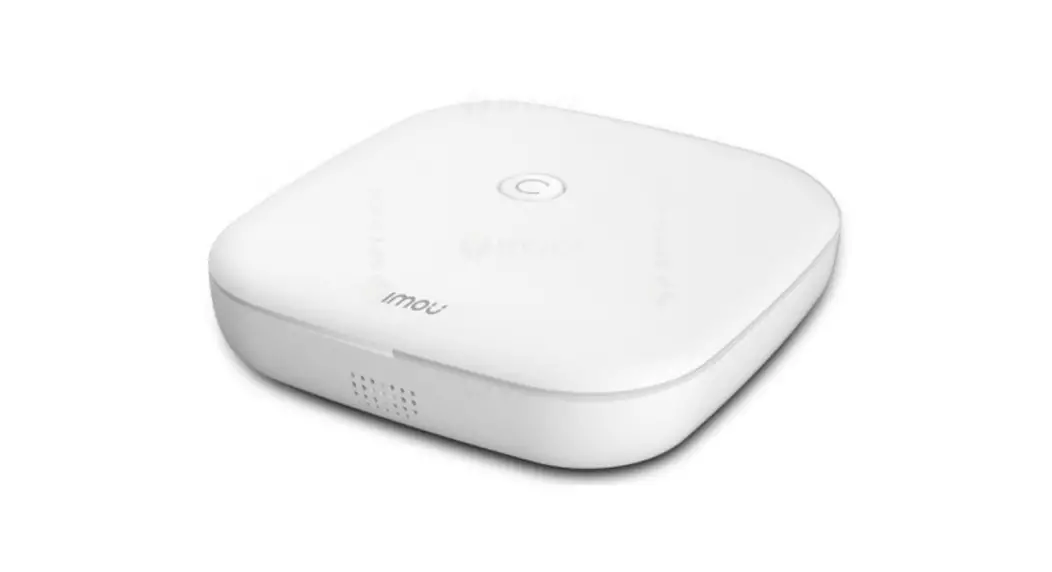
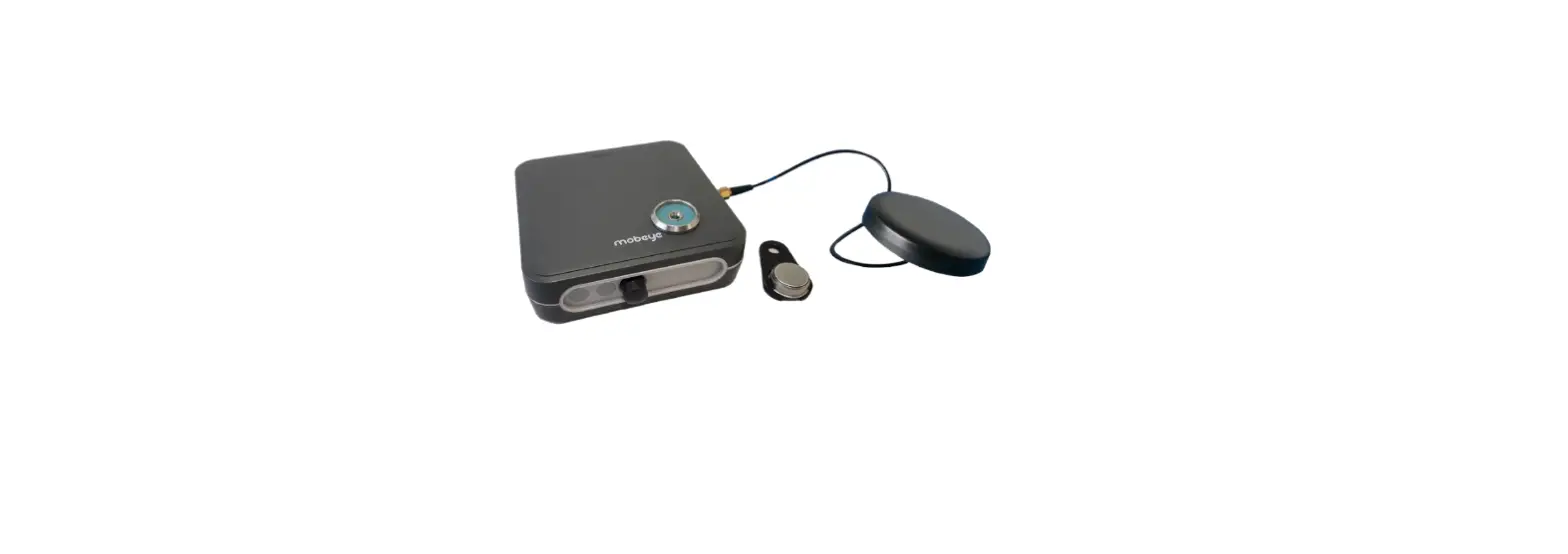
The Mobeye CM4500-LA is an alarm communicator that comes with a
cable to LivAssured Nightwatch, a mains adapter with wall plug, a
SIM card, and a plastic card from which the SIM card has been taken
out. It is a 4G LTE-M alarm communicator that is included with the
NightWatch system. The device has LED lights that show its
connection status to the network.
Product Usage Instructions:
- Sign up in the Mobeye internet portal at www.mymobeye.com and
follow the instructions on the screen. - Connect the alarm communicator to the Nightwatch by plugging
the ‘telephone’ connector into the input of the base station of the
Nightwatch and plugging the black power adapter into a wall socket.
Wait for the LED light on the alarm detector to turn green. - Activate the Mobeye SIM card by typing in the entire SIM card
number or only the last 8 digits on the Add device screen. Choose
NightWatch and the user as name, and address/room number as
location. Install the Mobeye Messages app from the Play Store/App
Store on each contact person’s phone. - In the Mobeye Portal, view the dashboard to check device
settings. The default settings are fit for use with the NightWatch
and do not need to be adjusted. In Contacts for notifications, link
the contact persons who receive alarm and service messages via push
app and call (or text message/e-mail). - Create a test alarm to check if everything was set up
correctly.
QUICK GUIDE
MOBEYE ALARM COMMUNICATOR CM4500-LA
Set-up procedure for NightWatch users
Contents of the CM4500-LA:
– Mobeye CM4500-LA alarm communicator – Cable to LivAssured Nightwatch (attached to CM4500-LA) – Mains adapter with wall plug (attached to CM4500-LA) – Sim card (inserted in the CM4500-LA) – Plastic card from which the SIM card has been taken out – Quick guide and full manual
Dear NightWatch user,
The Mobeye CM4500 is included with your NightWatch system as a 4G LTE-M alarm communicator. It is important that you follow all the steps in this quick guide. In the final step you will create a test alarm to check if everything was set up correctly. For the complete explanation of the alarm communicator, please refer to the enclosed manual.
1. SIGN UP IN THE MOBEYE INTERNET PORTAL Go to www.mymobeye.com and sign up for a new account. Follow the instructions on the screen.
You will receive an email with a link to confirm the account. After confirmation you can log in to the portal.
2. CONNECT THE ALARM COMMUNICATOR TO THE NIGHTWATCH The alarm communicator has two cables:
1. Plug the `telephone’ connector into the input of the base station of the Nightwatch.
2. Plug the black power adapter into a wall socket.
The LED light on the alarm detector will first flash red four times several times, next green/red while searching for a network and then stay on green once the network connection has been established. The first time this could take several minutes.
3. ACTIVATE THE MOBEYE SIM CARD A SIM card is placed in the alarm communicator. This SIM has already been paid for the first year.
In your box you will find the plastic card from which the SIM card has
been taken out. A number is written under the barcode. To activate the
SIM card and assign it to your device, choose
“Activate SIM card” on the “Add device” screen.
Add device
Type in the entire SIM card number, or only the Activate SIM card
last 8 digits.
A pop-up asks for a name and location for your device. You can adjust these fields.
Tip: Enter “NightWatch” and the user as name and address / room number as the location.
(If prompted for a device type or contract type, choose the line that says “CM4500”.)
4. INSTALL THE MOBEYE MESSAGES APP Install the Mobeye Messages app from the Play Store/App Store on each contact person’s phone. The registration code will be sent later.
5. SETTINGS AND CONTACT PERSONS IN THE MOBEYE PORTAL The dashboard in the Mobeye Portal shows various blocks:
Status & History The status block shows values about the status of the unit. A “Synchronized” status stating “No” means that new settings need to be transferred to the device. The history displays all historical events. Click on “all events” to see the list.
Device Settings The default settings are fit for use with the NightWatch. They do not need to be adjusted.
The device data contain the name and location of the device and can be changed here. These texts are mentioned in the spoken and written messages to indicate the device.
Alarm dispatch In the block “Contacts for notifications” you link the contact persons who receive alarm and service messages via push app and call (or text message/e-mail). Service messages can be warnings about missed test messages. To add a contact person, first create a “contact”. This can be done via the + or in the main menu under the blue Contacts tab. Start the number with the country code (+44, +65, etc.) – Select “App message” for a push notification. A contact will then
(once) receive a code via SMS to register in the app. See above (step 4) for the installation of the push messages app. – Optionally select “Voice call” as a fallback: If none of the contacts confirm the app message, a voice call will follow. – If no app message is set for a contact, but call is, this call is always made (also if other contacts receive push notifications). – If SMS and/or email is set up for a contact, this is always sent. – An app message can be sent as a group message (to all contacts at once) or via an escalation plan (where a “confirmation” prevents the app message from being forwarded to a next contact). – When selecting “Escalation”, adjust the order with the and .
Message texts The message texts are the event texts which are, in addition to the name and location, included in the messages. These texts can be customized.
Important: Change the text “Emergency alarm” (push button) to “Manual operation”. Change the text at input 1 to
“Epilepsy alarm”.
6. ALARMING The Mobeye alarm communicator is automatically activated when the NightWatch receives an alarm. In addition, it is activated by pressing the Mobeye button (at the backside) for at least one second. The alarm detector will send the message to the portal from where it is forwarded to the set contact persons. Take care that each call and SMS is deducted from the credit system (app messages and e-mails are unlimited and for free).
7. MONITORING THE TEST MESSAGE Every 7 days a test message (‘keep alive’) is sent to the Mobeye Internet Portal. The portal monitors the receipt of the test messages; if the message is not received in time, it will send an exception message to the “service” contact persons. Please check whether the alarm communicator is still functioning correctly by performing a test.
8. CREATE A TEST ALARM When everything is connected correctly, you can initiate a test alarm to check if everything is set up correctly.
1) Remove the NightWatch bracelet from the charger. The base station and bracelet will now flash red as a sign that a heartbeat has not yet been found.
2) Have a heartbeat read by quietly placing the bracelet on someone’s skin.
3) As soon as the heart rate is read, both the bracelet and the base station will flash green.
4) Take the bracelet in your hand and shake it back and forth very quickly for more than 10 seconds. Thereafter, the NightWatch will give a test alarm and the contact persons will be informed.
9. EXAMPLE SITUATIONS 1) User John presses the panic button at the backside. The contacts
receives following message:
Manual operation of your system NightWatch John on location John’s home.
2) The NightWatch signals an attack. The contacts receive a message containing the following text:
Epilepsy alarm of your system NightWatch John on location John’s home.
3) The app is installed for multiple contacts and set to “escalation”. User John is set as the first contact in the line. The NightWatch signals an attack. First, John receives an app message on his phone. Since it was a false alarm, John acknowledges the alarm by pressing the “confirmation” button in the app on his phone. The other contacts will not receive the notification. If Johan is unable to acknowledge the message, the next contact in line will be notified (and so on).
10. SIM CONTRACT The SIM/Mobeye Portal costs have already been paid for the entire first year. By the end of the year, the administrator will be notified by email. The contract can then be extended (about EUR 4/month) or cancelled. If more credits are needed than initially assigned the administrator receives notification e-mails in between.
We wish you much convenience with your alarm communicator. For questions about the Mobeye alarm device, see www.mobeye.com.
 Mobeye - Security. Anywhere, anytime.
 Mobeye Internet Portal