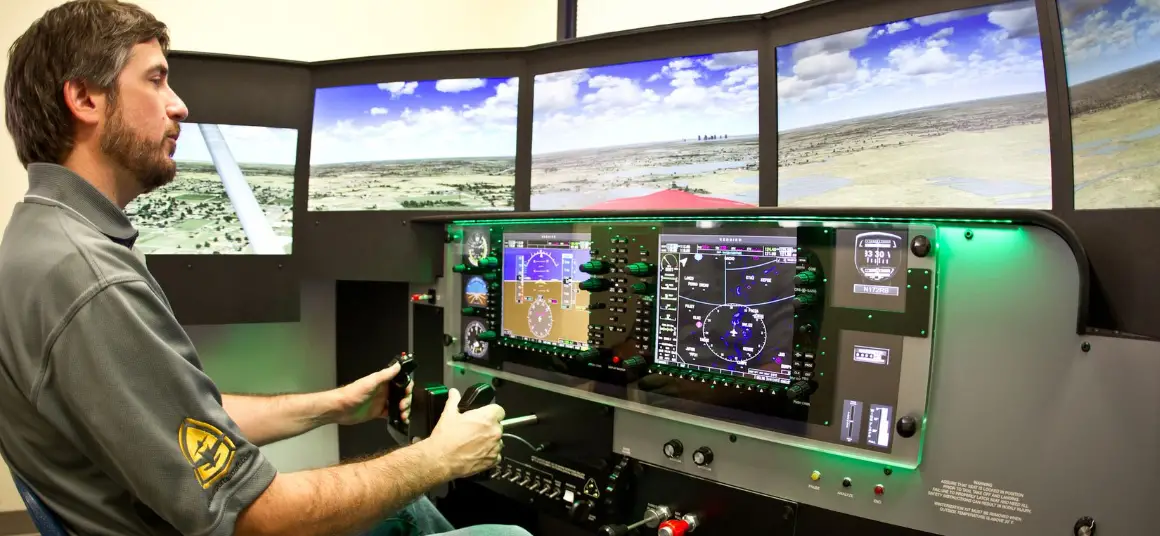
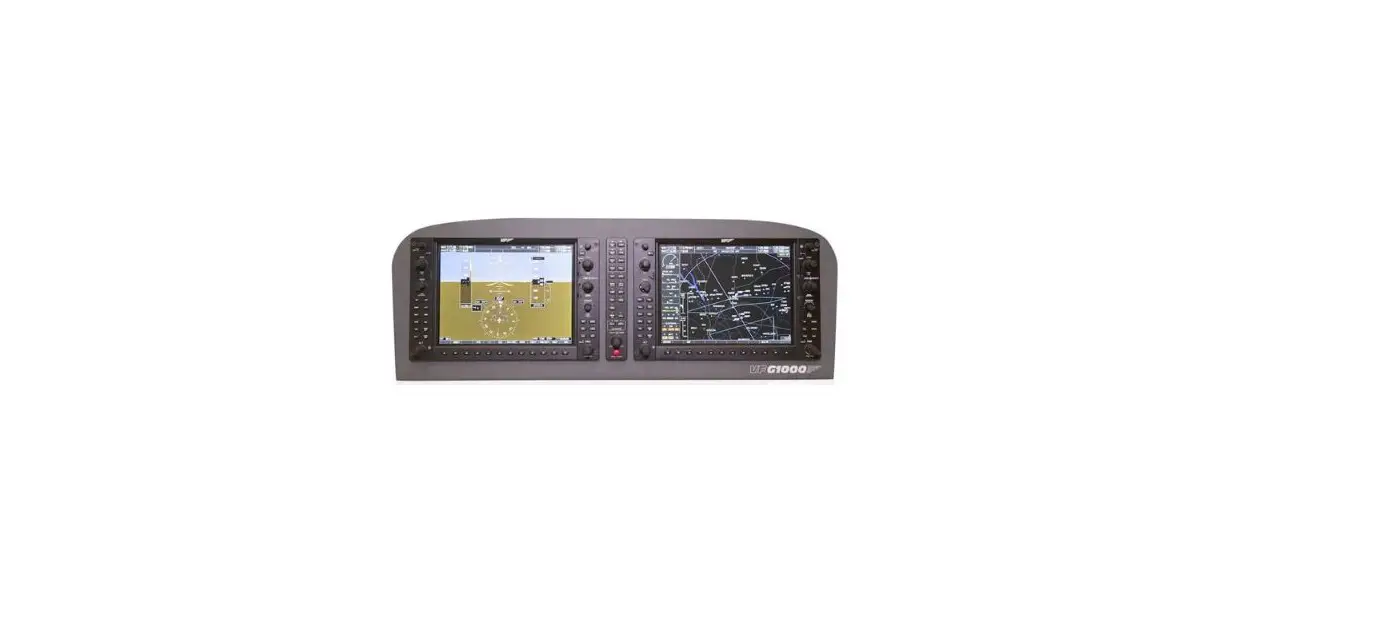
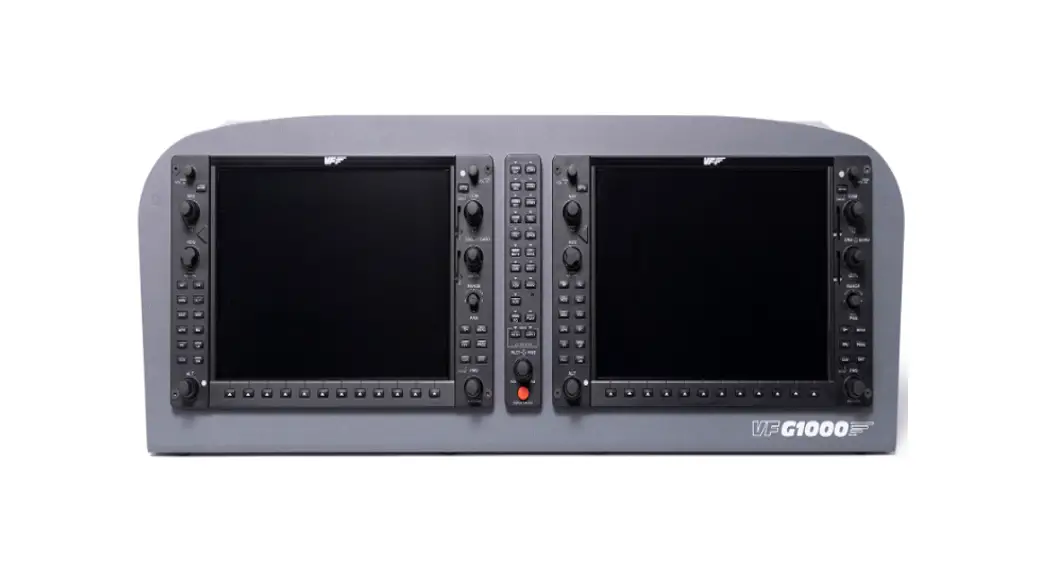
SOLO D4 FAA Approved Training Device
SOLO D4
User’s Manual
Rev. 1.0 – September 2022
For support, contact us at [email protected]
TABLE OF CONTENTS
- IN THE BOX
- HARDWARE SETUP
- CONNECTING TO PC
- SOFTWARE SETUP
- START UP
- ACTIVATING PROCEDURES
- DEACTIVATING PROCEDURES
- TROUBLESHOOTING
- REMOTE ASSISTANCE
- TECHNICAL SPECIFICATIONS
- AIRCRAFT COMPATIBILITY
1. IN THE BOX
- SOLO D4 panel (with incorporated COMPOSS)
- Electrical power cable
- Network cable (Ethernet)
- USB-B to USB-B Cable
- USB memory stick
- SOLO D4 Quick Start Guide
Note: It is important to save all parts you are not going to use
in case you need them in the future.
2. HARDWARE SETUP
The SOLO D4 has been developed to be pluggable to any standard
Windows computer. The SOLO D4 contains 2 important modules which
require cable connections, software installation and
configuration:
OPTION A: LAN Network Connection (Recommended)
An extra Ethernet cable (not included) is required to connect
the internet router and PC.
2.1 CONNECTING TO PC
After placing the panel on the surface it will rest, you must
connect all the modules to the computer running the flight
simulation software. To do so, you have two options:
Option A:
Connect the cables between the back of the panel, router and PC
exactly as indicated in the diagram below. This option enables the
SOLO D4 panel to have an internet connection, which is required if
you schedule a remote connection with Virtual Fly technicians.

Option B:
Connect the cables between the modules and PC as indicated in
the diagram below.
Note: If your main PC is connected to a WIFI internet source,
the connection between the panel and PC can be unstable.

3. SOFTWARE SETUP
To interact with your PC, the SOLO D4 requires installing some
additional software. The SOLO D4 is compatible with Prepar3D.
To set up the SOLO D4 with Prepar3D, you will need to install
VFConnect, the software developed by Virtual Fly to enable
interaction between our flight panels and PCs, and FSUIPC. You can
download these from the following links:
- VFConnect:
https://downloads.virtual-fly.com/software/vfconnect/latest/vfconnect.exe - If you have purchased the Pedestal add-on, you must also check
out the SOFTWARE SETUP of the TQ3 User’s manual:
https://downloads.virtual-fly.
com/docs/tq3+/latest/tq3_tq3+_user’s_manual.pdf
4. START UP
4.1 ACTIVATING PROCEDURES
To activate the SOLO D4, follow these steps:
- Connect the SOLO D4 to your PC.
- Turn on your PC.
- Turn on the SOLO D4 by switching the power cable (B) to the ON
position.
4.2 DEACTIVATING PROCEDURES
To deactivate the SOLO D4, follow these steps:
- Close any open flight simulation software.
- Turn off the SOLO D4 by switching the power cable (B) to the
OFF position. - Turn off your PC.
9. TROUBLESHOOTING
If you experience any issues with your SOLO D4, please contact
[email protected] for assistance.
10. REMOTE ASSISTANCE
If required, Virtual Fly technicians can provide remote
assistance to help troubleshoot any issues with your SOLO D4. To
schedule a remote connection, you must have an internet connection
set up with Option A in the hardware setup section.
11. TECHNICAL SPECIFICATIONS
Please refer to the technical specifications provided in the
product brochure or on the Virtual Fly website for detailed
information about the SOLO D4.
12. AIRCRAFT COMPATIBILITY
The SOLO D4 is compatible with a wide range of aircraft
simulation software. Please check with the software provider for
compatibility information.
SOLO D4
USER’S MANUAL
Rev. 1.0 – September 2022
For support, contact us at [email protected]
© 2022 Virtual Fly, SL All trademarks and brand names are trademarks or registered trademarks of their respective owners. All rights reserved.
C. Maria Aurèlia Capmany, 21 P.I. La Fàbrica 08297 Castellgalí (Spain) Phone: (+34) 938 333 301 https://www.virtual-fly.com
TABLE OF CONTENTS
1. IN THE BOX 2. HARDWARE SETUP
2.1 CONNECTING TO PC 3. SOFTWARE SETUP 4. START UP
4.1 ACTIVATING PROCEDURES 4.2 DEACTIVATING PROCEDURES 9. TROUBLESHOOTING 10. REMOTE ASSISTANCE 11. TECHNICAL SPECIFICATIONS 12. AIRCRAFT COMPATIBILITY
2
SOLO D4 | User’s manual
B
1. IN THE BOX
A) SOLO D4 panel (with incorporated COMPOSS) C
B) Electrical power cable
C) Network cable (Ethernet)
D
D) USB-B to USB-B Cable E) USB memory stick
E
A 1x
F) SOLO D4 Quick Start Guide
F
DO NOT
SCALE
IF IN DOUBT
ASK
UNLESS OTHERWISE STATED
1) MACHINE AT TO 3.2 um Ra MAX 2) TOLERANCE ON MACHINED DIMENSIONS
AS FOLLOWS: 0-500 0.2; 500-1000 0.4
1
2
3
B 1x
LUMED
THE UNIVERSITY OF LEEDS SCHOOL OF MECHANICAL ENGINEERING
4
DATE SCALE
5
TITLE 6
C 1x
DRA BY DRG No 7
D 2x
E 1x
It is important to save all parts you are not going to use in case you need them in the future.
SOLO D4 | User’s manual
F 1x
3
2. HARDWARE SETUP
The SOLO D4 has been developed to be pluggable to any standard Windows computer. The SOLO D4 contains 2 important modules which require cable conections, software installation and configuration:
OPTION A: LAN Network Connection (Recommended)
An extra Ethernet cable (not included) is required to connect the internet router and PC.
· SOLO D4 panel itself
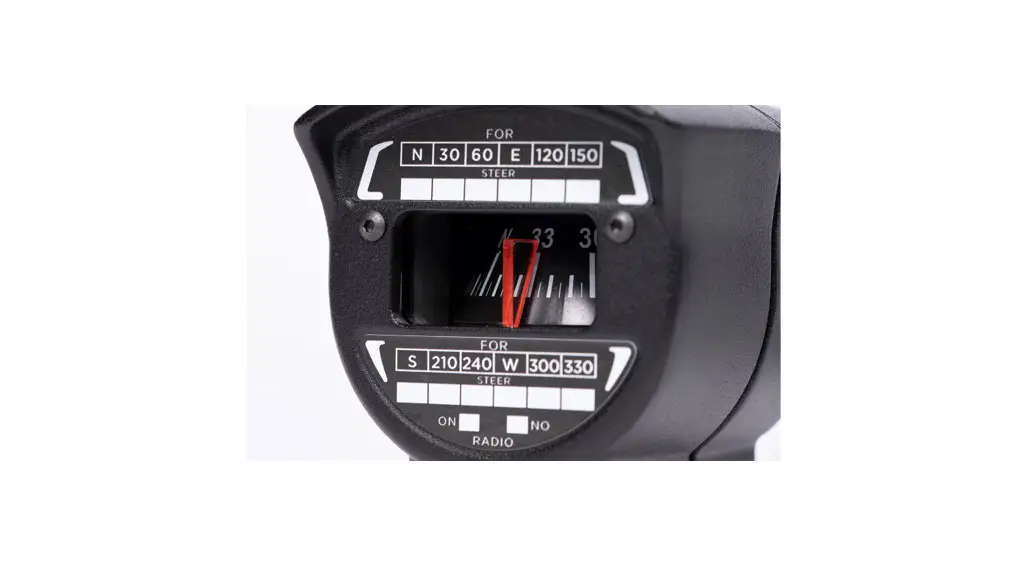
· COMPOSS “The Compass”
· VF-G1000 “Glass Cockpit”
2.1 CONNECTING TO PC
After placing the panel on the surface it will rest, you must connect all the modules to the computer running the flight simulation software. To do so, you have two options
Connect the cables between the back of the panel, router and PC exactly as indicated in the diagram below. This option enables the SOLO D4 panel to have an internet connection, which is required if you schedule a remote connection with Virtual Fly technicians.
Switch OFF Power Cable (B)
· OPTION A: LAN network connection (recommended) · OPTION B: Direct connection
USB Cable (D) USB Cable (D)
Ethernet Cable (C)
The power switch must be in “OFF” position before starting.
Home router
Ethernet Cable (not included)
MFS/P3D computer
You must connect the power cable (B) last.
4
If you do not have the Pedestal add-on mentioned in Section 5, you can use the USB port labeled as “Pedestal” in the picture above as a secondary auxiliary USB port.
SOLO D4 | User’s manual
OPTION B: Direct Connection
Connect the cables between the modules and PC as indicated in the diagram below.
Switch OFF Power Cable (B)
USB Cable (D) USB Cable (D) Ethernet Cable (C)
MFS/P3D computer
If your main PC is connected to a WIFI internet source, the connection between the panel and PC can be unstable.
SOLO D4 | User’s manual
5
3. SOFTWARE SETUP
To interact with your PC, the SOLO D4 requires installing some additional software. The SOLO D4 is compatible with Prepar3D.
To set up the SOLO D4 with Prepar3D, you will need to install VFConnect, the software developed by Virtual Fly to enable interaction between our flight pannels and PCs, and FSUIPC. You can download these from the following links:
· VFConnect:
https://downloads.virtual-fly.com/
software/vfconnect/latest/vfconnect.exe
· FSUIPC: http://www.fsuipc.com/
· G1000 Module: Included in USB memory stick (E).
If you have purchased the Pedestal add-on, you must also check out the “SOFTWARE SETUP” of the TQ3 User’s manual: https://downloads.virtual-fly. com/docs/tq3+/latest/tq3_tq3+_user’s_manual.pdf
DA-40 F1Tech AIRCRAFT INSTALLATION
The SOLO D4 is only compatible with the Diamond DA-40 from F1Tech. Download the required aircraft folder from the provided USB memory stick (E). You must install this aircraft into the PC running Prepar3D following these instructions:
If you already have FSUIPC installed, skip this step. During the installation, a registration window will appear, which you must ignore by selecting “Not Now”. Restart Prepar3D after the install is complete.
To set up the COMPOSS, follow the “SOFTWARE SETUP” section from the COMPOSS’ User’s manual: https://downloads. virtual-fly.com/docs/composs/latest/composs_user’s_manual. pdf
Make sure Prepar3D is closed when doing the following procedure.
1. Locate the Prepar3D installation root folder. By default, this is at: C:Program Files Lockheed Martin Prepar3D v4.
2. Enter the “SimObjects” folder and then the “Airplanes” folder.
3. Place the provided DA40 Aircraft folder inside the “Airplanes” folder.
6
SOLO D4 | User’s manual
G1000 MODULE INSTALLATION
The SOLO D4 requires installing additional software to connect with the G1000 screens. From the provided USB memory stick, open the “G1000 Student” folder. Inside this folder, select the “Network Module” folder and run the “Module installer.exe” program displayed below.
Here, you must enter the Prepar3D installation folder path in your computer in the correct location (depending on your Prepar3D version installed) and press “Install Slight Simulator Module(s)”. For example, if you have Prepar3DV4, the program would look like the image below.
Once the program runs, the following screen below will show up.
Your Prepar3D installation path might vary depending on where you installed Prepar3D, but by default, the installation path is the one depicted above.
SOLO D4 | User’s manual
7
4. START UP
4.1 ACTIVATING PROCEDURES
1. Make sure the BAT switch on the SOLO D4 panel is deactivated.
2. On the PC with Prepar3D installed, run Prepar3D and load your scenario with one of the 3 aircraft installed in Section 3.
3. On the PC running Prepar3D, execute “VFConnect.exe” and “VFHub”.
The SOLO D4 must not be disconnected while the programs are loading. Doing so might cause problems with booting in the future.
6. Wait about 60 seconds until you see the G1000 and analogue gauges in the SOLO D4 as shown below.
Do not execute “VFConnect.exe” before Prepar3D is completely loaded.
4. Activate the Power switch (a) indicated below to power the SOLO D4.
5. Press the push button (b) to activate the operating system of the panel.
ab
If you have Windows Firewall activated, a warning permission to communicate with the network will appear. You must select “Allow Access”.
8
SOLO D4 | User’s manual
The VFConnect software window will look like (a) below if it is not yet connected, and like (b) if a connection has been established succesfully between computer and SOLO D4. The upper box indicates the connection status of the simulation software, and the lower box displays the connection status between the SOLO D4 and the computer.
4.2 DEACTIVATING PROCEDURES
1. Press the push button (b) at the back of te SOLO D4 to stop the “Windows” operating system of the panel.
2. Wait until everything is stopped before switching off the SOLO D4’s power switch (a).
ab
(a) The plugin is searching for P3D and SOLO D4.
(b) The plugin is connected to P3D and SOLO D4.
If you have issues establishing the connection between the SOLO D4 and your computer, please contact Virtual Fly’s Technical support at [email protected].
SOLO D4 | User’s manual
9
5. ADDITIONAL HARDWARE OPTIONS The panel with the add-ons has the following layout:
The SOLO D4 has two main add-ons which enhance its funcionality by incorporating a control joystick and pedestal based on the DA-40 aircraft. The add-ons add the following functionalities: JOYSTICK · Allows elevator and aileron control of the aircraft. · UP/DN Trim, AP disengage, PTT, CWS capability PEDESTAL The pedestal incorporates: · Throttle Quadrant with throttle, propeller and mixture
levers) · Parking brake lever · Fuel selector · Pitch trim wheel · Alternate Air Selector · Cabin Heat lever (decorative) · Defrost Floor lever (decorative)
10
SOLO D4 | User’s manual
To incorporate the joystick and pedestal add-ons, the SOLO D4 panel requires our Flight Deck Structure. This flight deck includes an aeronautical adjustable seat and enables securing the panel, pedestal and joystick into it. The flight deck also has the option to support up to five 32″ monitors and our RUDDO pedals can also be attached to it. Altogether, the setup looks
If you need further information on the characteristics and pricing of the joystick, pedestal, flight deck or flight deck optionals, contact us at [email protected]. For information regarding our RUDDO pedals, check out its User’s manual through the following link: https://downloads.virtual-fly.com/ docs/ruddo+/latest/ruddo_ruddo+_user’s_manual.pdf
SOLO D4 | User’s manual
11
6. TROUBLESHOOTING
Anomaly
Possible Cause
Solution
Network cable nº 3 is not connected. Check connection of network cable nº 3 between SOLO D4nd Prepar3D computer.
Prepar3D is not running.
Execute Prepar3D
FSUIPC is not installed (Prepar3D). Install FSUIPC. See Chapter 2.
Prepar3D does not
connect to the panel.
“VFConnect3.exe” is not executed.
Execute “VFConnect3-Xplane.exe” on the Prepar3D computer.
“VFConnect3.exe” started incorrectly.
Only one of “VFConnect” can be executed at the same time, be sure that you are executed the version that corresponds on your simulation software. “VFConnect” will only work with MFS/P3D and VFConnect-Xplane will only work with X-Plane.
Windows firewall does not allow communication with the SOLO D4.
You will have to add an exception manually to allow communication. For that, follow the steps below: 1. Press combo key Windows + R. 2. Write “firewall.cpl” on the window that has appeared.
12
SOLO D4 | User’s manual
Anomaly
Possible Cause
Solution
1. If you are trying to use one network card to connect to your
router and another one to connect directly to SOLO D4nd it
does not work, try connecting SOLO directly to your router ins-
PC has more than one network tead of connect to the pc.This way, connection will be establis-
card.
hed through the network LAN.
2. If you have connected SOLO directly to your PC and your PC
has the other network sockets free, try connecting SOLO to the
PC using another network card.
Network problems. Prepar3D does not connect to the panel.
If you have connected your PC and SOLO directly (without router), at the beginning you will have to wait some time, even more than a minute, because Windows set IP addresses automatically.
Network Discovery disabled.
Check that in your current network profile (Public / Home or Work ) Network discovery option is turned on. For that, go to: “Control PanelAll Control Panel ItemsNetwork and Sharing CenterAdvanced sharing settings” and turn Discovery Network option on for all profiles available.
Each Antivirus software has their own options and menus. To
Antivirus software is blocking the see if the problem comes from the antivirus, you can deactiva-
connection.
te it completely just for the test. If the connection is stablished
with the antivirus deactivated you should look for an option that
allows any connection for VFConnect3.exe.
SOLO D4 | User’s manual
13
Anomaly
Possible Cause
Solution
Connection goes down, is intermitent or indictors move sharply.
Connection trough Wifi.
Your MFS / P3D / X-Plane PC is executing another program on the background that uses all the bandwidth of the network card.
If you are using a PC which is connected to your network by Wifi, even SOLO is connected by cable, it is possible that due to interference, noise or other electromagnetic signal, connection will not be constant. It is so recommendable using always a network cable to connect SOLO to the router and your PC to the router also, or alternatively a direct cable between your PC and SOLO to enjoy completely of your SOLO.
To guarantee the best perform of the connection, it is recommendable during the session, to close programs which make an intensive use of the network connection or computer processor.
I don’t know how to connect the flight director.
Push on the rotary “A.I. PUSH F/D” located above left of the panel.
14
SOLO D4 | User’s manual
7. REMOTE SUPPORT
In case you need help from Virtual Fly’s technical team, there is the possibility to schedule a remote connection to your flight simulator computer and SOLO D4. For that, you should:
1. Ensure your flight simulator computer and SOLO D4are connected to the internet. For this, you should have a LAN Network connection as described in Section 2.1 “CONNECTING TO PC”
2. Download and run the following software for your PC runnning the flight simulation software: https://downloads. virtual-fly.com/software/VirtualFly_Remote_Support_Tool.exe
3. Take note of the code that appears in your PC screen, as displayed below:
5. Wait until the Anydesk software loads and take note of the ID code that appears on the G1000 screen.
6. Contact Virtual Fly’s technical support team at support@ virtual-fly.com to: · Schedule a remote session. · Provide them with the Anydesk ID codes from your PC and SOLO D4.
4. Turn on your SOLO D4 and turn the BAT and AVIONCS switch off. Turn the HORIZON EMERGENCY switch from OFF to ON.
SOLO D4 | User’s manual
15
8. TECHNICAL SPECIFICATIONS
Power Supply: 115-230 VAC, mono, 50-60 Hz
1
2
3
Nominal intensity: 0,75 A
A
6
7
8
Compatibility: Prepar3D
A
240.50
6
7
8
B
A
240.50
B
413
413
B
C
C
C
TITLE
16
6
118877..1100 33xx99mmmm
D
D
D
E
E
6×240°
DETAIL A SCALE 1 : 1
7
6×240°
E
DRAWN BY DRG No
8
F
F
DO NOT
SCALE
IF IN DOUBT
109
370.39
UNLESS
1) MACHINE AT TO 3.2 um Ra MAX
OTHERWISE 2) TOLERANCE ON MACHINED DIMENSIONS
4
5
6
7
980.50
413
370.39 A
LUMED
THE UNIVERSITY OF LEEDS
DETAIL A
SOLO D4 | User’s manual SCALE 1 : 1
DATE
TITLE
 Cheap Flights: Flights Tickets, Airline Tickets, Search Flights | Fly.com us
 Virtual Fly | Professional Flight Simulators and Controls
 Pete & John Dowson's Software
 Virtual Fly | Professional Flight Simulators and Controls