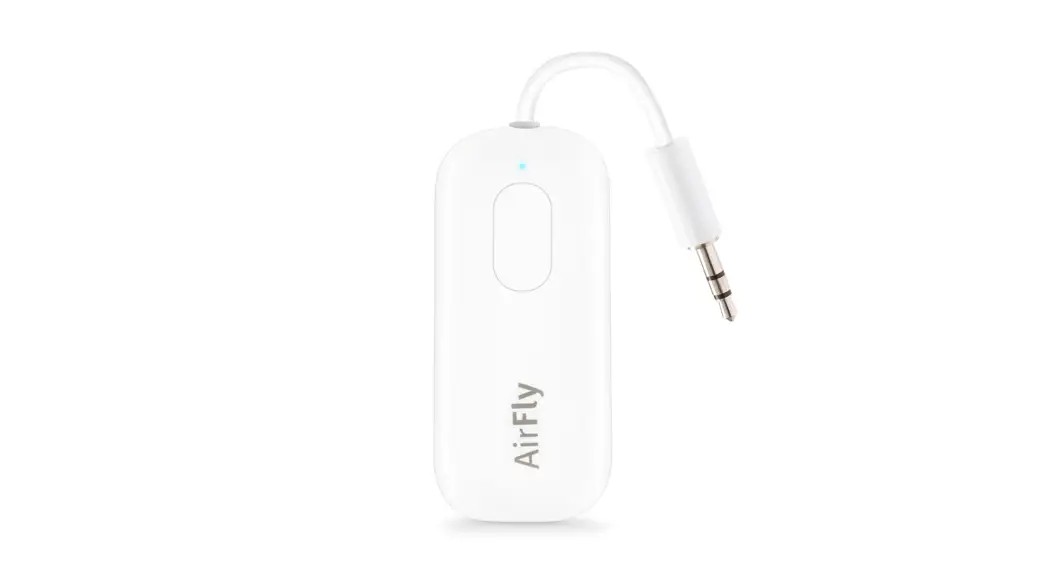
 twelvesouth AirFly Pro User Guide
twelvesouth AirFly Pro User Guide
To Begin, Select Transmit or Receive Mode
Transmit Mode: to connect AirPods or wireless headphones to any headphone jack
Transmit Mode (TX) is used to send audio from a wired headphone jack, such as an airplane TV or treadmill at the gym, to your AirPods or wireless headphones.
Receive Mode: to wirelessly connect the phone to AUX-IN
Receive Mode (RX) is used to receive Bluetooth audio from a device (such as a smartphone or tablet) and send it to the AUX-IN port of a connected stereo (such as in a car, boat, etc).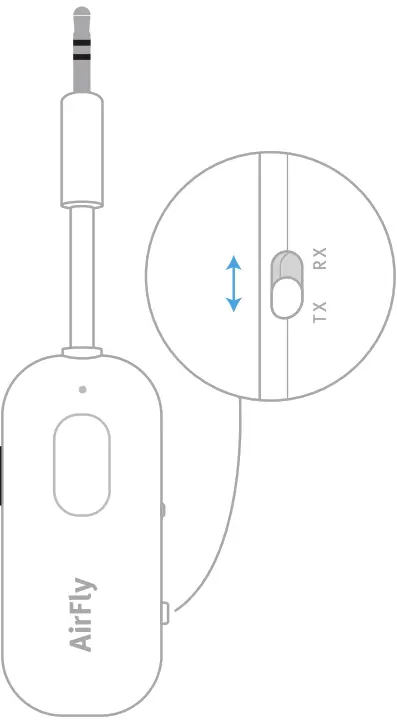
Pairing AirFly Pro with AirPods (Transmit Mode)
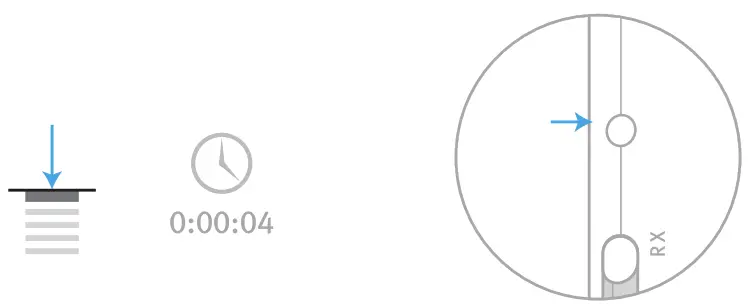
Press and hold the Power Button for 4 seconds to turn on AirFly Pro. AirFly flashes amber and white to indicate that it is in pairing mode.*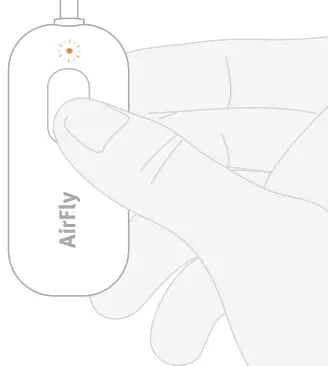
 * If AirFly does not flash amber and white, press the Reset Button on the right side to reset to factory settings.
To enter Pairing Mode on AirPods, first place AirPods inside the charging case. With the lid open, press and hold the button on the back of the Charging Case until the light flashes white.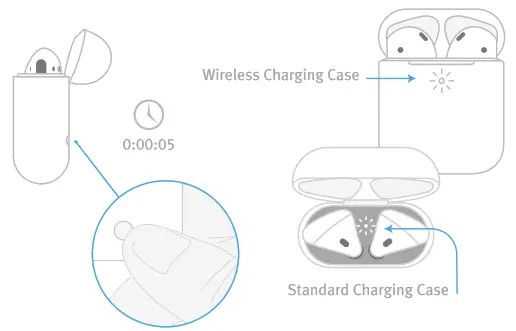
Once successfully connected, the light on your charging case will turn green, and AirFly Pro will illuminate in white and remain on for 10 seconds.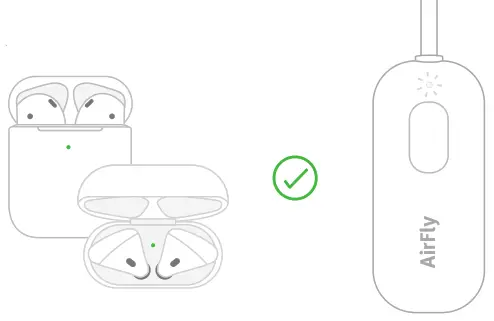 * This can take up to 90 seconds for initial pairing, but AirFly Pro will remember your AirPods when re-connecting in the future.
Connecting AirFly Pro to Headphone Jack (Transmit Mode)
Plug AirFly Pro into the headphone jack of your preferred entertainment system.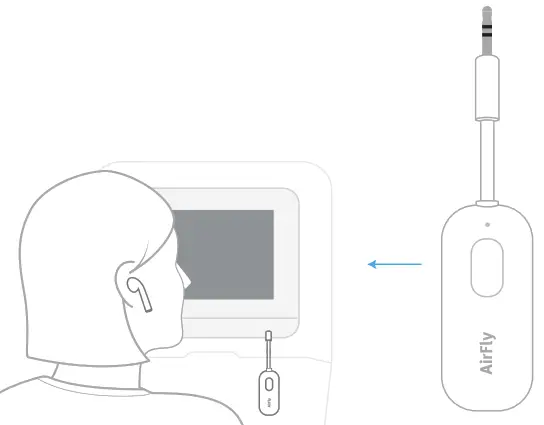
Pairing AirFly Pro with Wireless Headphones (Transmit Mode)
Press and hold the Power Button for 4 seconds to turn on AirFly Pro. AirFly flashes amber and white to indicate that it is in pairing mode.
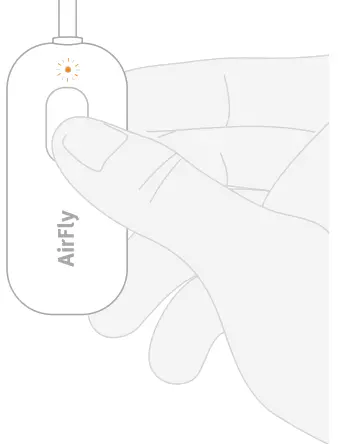
* If AirFly does not flash amber and white, press the Reset button on the right side to reset
Put your headphones into Bluetooth Pairing Mode (refer to your headphone’s owner’s manual for more details).
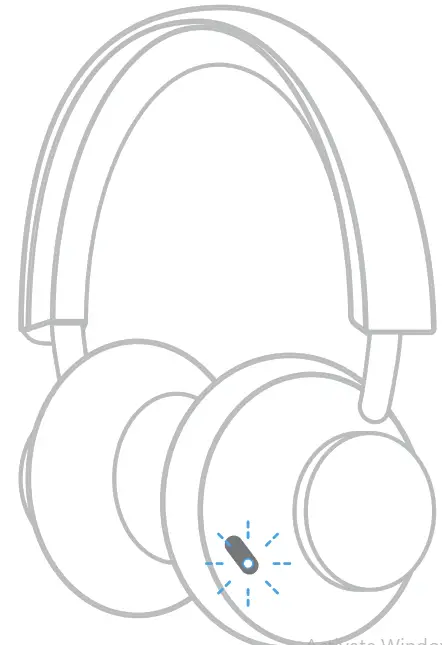
Once successfully connected; AirFly Pro will illuminate in white and remain on for 10 seconds.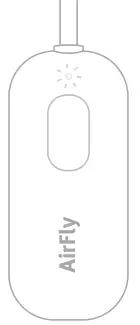 “This can take up to 90 seconds for initial pairing, but AirFly Pro will remember your headphones when reconnecting in the future.
Connecting AirFly Pro to Headphone Jack (Transmit Mode)
Plug AirFly Pro into the headphone jack of your preferred entertainment system.
Pairing with the Second Set of Wireless Headphones
With one set of headphones paired and active, you can then pair the second set of headphones to AirFly Pro. Double press the Power Button to enter Pairing Mode (Note: AirFly must already be on to pair.)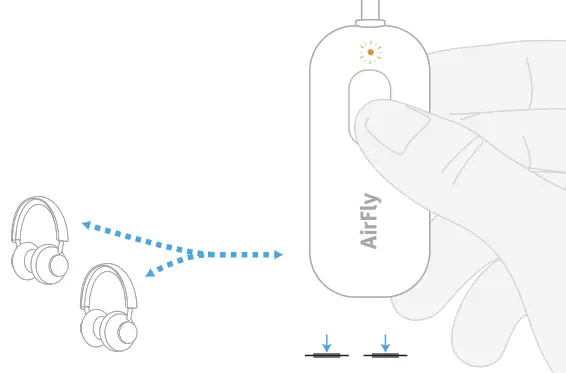
Once successfully connected, AirFly Pro will illuminate in white and remain on for 10 seconds.
Reconnecting AirPods / Headphones to iPhone
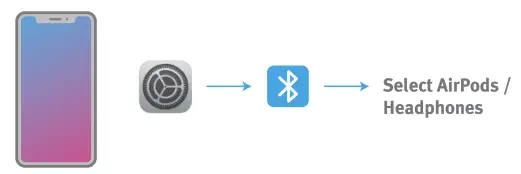
Once paired, AirFly Pro will remember your AirPods / Headphones and switch to them when the unit is turned on. To switch back to using your AirPods / Headphones with your iPhone, first turn off AirFly Pro.
On your iPhone, open Bluetooth Settings, and select your headphones from the list. The status will change from Not Connected to Connected once headphones are successfully paired with your iPhone.
Using AirFly Pro with an AUX-IN Port
(Receive Mode)
Toggle AirFly Pro to Receive Mode (RX). Press and hold the Power Button to turn on AirFly (if it is not already powered on), and AirFly will begin to blink amber and white once in Pairing Mode.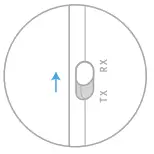
With AirFly Pro in Pairing Mode, open up the Bluetooth settings on your smartphone. Select AirFly Pro from “other devices” to complete pairing.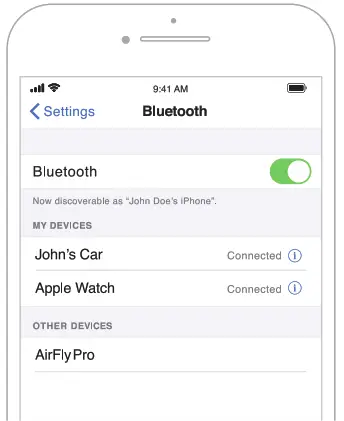
Once your phone is connected, plug AirFly Pro into the AUX-IN port of the desired source.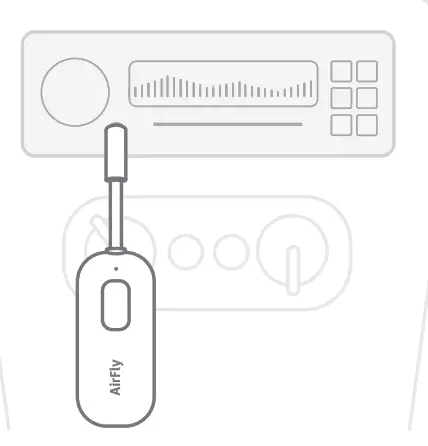
Tips & Tricks
- If only one AirPod seems to be playing audio, turn AirFly Pro off and back on. This will re-sync AirFly Pro and should reconnect both AirPods.
- If you’re having trouble pairing your headphones, make sure that AirFly Pro is switched to Transmit (TX) mode.
- If you want to pair a new set of headphones to AirFly Pro, or clear the pairing list to factory settings, reset AirFly by pressing and holding the Reset button on the side of AirFly for 4 seconds. Once reset, AirFly will blink amber 4 times, and then will go into Pairing Mode.

Charging AirFly Pro
To recharge, simply plug the included USB-C to USB-A charging cable into AirFly Pro, and then into any powered USB port. AirFly Pro is fully charged within 2 hours. The internal battery of AirFly Pro lasts about 16 hours.
We recommend fully charging AirFly Pro before using it for the first time. If your AirFly Pro is low on power, it will flash amber 3 times to alert you that it will need to be charged soon.
While charging, the AirFly Pro will illuminate in amber and stay on. Once fully charged, the amber light will turn off.
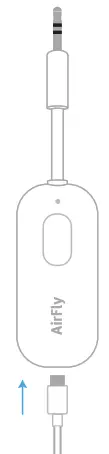
Turning AirFty Pro On & Off
To turn on AirFty Pro, hold down the Power Button for up to 5 seconds until AirFly Pro lights up. To turn off AirFly Pro, hold down the Power Button for 5 seconds. AirFly Pro will blink amber twice and then power off.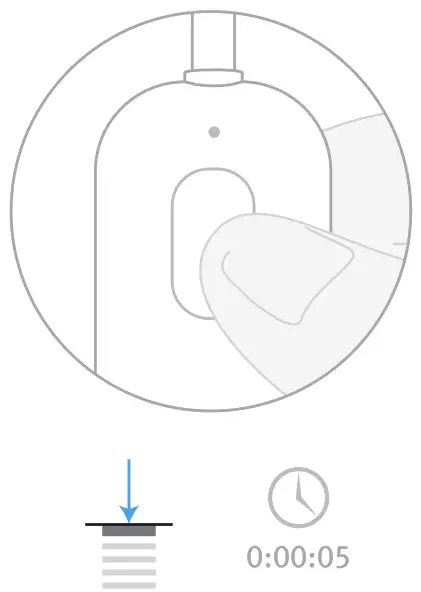
Status Light Guide
 Power On : White LED flashes twice
 Pairing Mode: White & Amber LED flashes alternately
 Unconnected Standby Mode: White LED flashes twice every 5 seconds
 Connected Standby Mode: Solid White LED
 Low Power: Amber LED flashes 3 times
 Charging: Solid Amber
 Fully Charged: Amber LED turns off
FCC Statement
This device complies with Part 15 of the FCC Rules. Operation is subject to the following two conditions: (1) this device may not cause harmful interference, and (2) this device must accept any interference received, including interference that may cause undesired operation.
Warning: Changes or modifications not expressly approved by the party responsible for compliance could void the user’s authority to operate the equipment.
Note: This equipment has been tested and found to comply with the limits for a Class B digital device, pursuant to part 15 of the FCC Rules. These limits are designed to provide reasonable protection against harmful interference in a residential installation. This equipment generates, uses, and can radiate radio frequency energy and, if not installed and used In accordance with the instructions, may cause harmful interference to radio communications. However, there is no guarantee that interference will not occur in a particular installation. If this equipment does cause harmful interference to radio or television reception, which can be determined by turning the equipment off and on, the user is encouraged to try to correct the interference by one or more of the following measures:
– Reorient or relocate the receiving antenna.
– Increase the separation between the equipment and receiver.
– Connect the equipment into an outlet on a circuit different from that to which the receiver is connected.
– Consult the dealer or an experienced radio/TV technician for help.
ISED Statement
This device complies contains a license-exempt transmitter that complies with Innovation Science and Economic Development Canada’s license-exempt RSS(s). Operation is subject to the following two conditions: (1) This device may not cause interference; and (2) This device must accept any interference, including interference that may cause undesired operation of the device.
Safety Statement
– Disposal of a battery into fire or a hot oven, or mechanically crushing or cutting of a batter–% that can result in an explosion;
– Leaving a battery in an extremely high temperature surrounding environment that can result in an explosion or the leakage of flammable liquid or gas;
– A battery subjected to extremely low air pressure may result in an explosion or the leakage
NBTC Statement
This telecommunication equipment conforms to the requirements of the National Telecommunications Commission.
RED
Hereby, Twelve South, LLC, declare that the radio equipment type, Model number 12-1911, is In compliance with Directive 2014/53/EU. The full test of ELI declaration of conformity is available at our website: http://www.twelvesouth.com
Frequency range: 2402 — 2480MHz
Transmission power: 4dBm (conducted)
Have questions?
Visit twelvesouth.com or contact [email protected]
© 2019 Twelve South, LLC. All rights reserved.
FAQS
If you mean using the macbook headphone jack and transmit to BT speakers, it should, but it may depend on the specific speakers. (Assuming your speakers are not supported by the macbooks’ BT natively or is too laggy for your comfort.)
A green light on the right side of AirFly Pro indicates that it is receiving power. A white light on the left side of AirFly Pro indicates that it is connected to Apple Watch via Bluetooth A red light indicates there is no audio signal being received by AirFly Pro
To begin, press and hold the Power Button for 4 seconds until you hear a beep and see a white light illuminate
No, the AirFly does not have a way to see how much battery is left. However, it can be fully charged in 2 hours and once charged, an AirFly Classic will last around 8 hours (AirFly Duo lasts 20+ hours, AirFly Pro lasts 16+ hours). When the power gets low, the light will flash 3 times.
If you’re already using noise cancelling mode – then it follows across.
If the TV has a “speaker” or “audio” out jack then the answer is yes – however, it must be a 3.5mm audio connection, not an RCA jack. I’ve used this when I travel for my wife’s wireless headsets to watch TV while I sleep – as long as there is an “AUX” or audio out 3.5mm jack and you can pair the wireless headset to the Airfly
This works with Bluetooth earbuds and headphones. Very easy to connect.
AirPods have to be inside the case to pair to your other devices as well so not really a design flaw. The pairing process is very quick and simple.
Yes, you will be able to connect two pairs of AirPods to an AirFly and connect to your laptop to hear audio from it.
Yes, it should work with any and all bluetooth headphones, but due to the vast number of bluetooth headphones out there, it has not been tested with all of them. You should not have any issue though, as long as you follow the specific instructions (PDF file) found on the Twelve South support website.
the volume is not controling by the Airfly, you can only adjust from the unit where you put the jack and/or from your bluetooth headset if you have a volume control.
The AirFly Pro receives only audio.
Standard part – definitely sold separately.
AirFly plugs into the 3.5mm audio jack of non-Bluetooth devices (such as a television, treadmill, or airplane entertainment system) and transmits the audio to Bluetooth enabled headphones or earpods. However, it cannot go the other way (i.e. It cannot receive Bluetooth. It can only send it.)
Only one at a time
No. It automatically pairs after manually pairing it the first time.
VIDEO