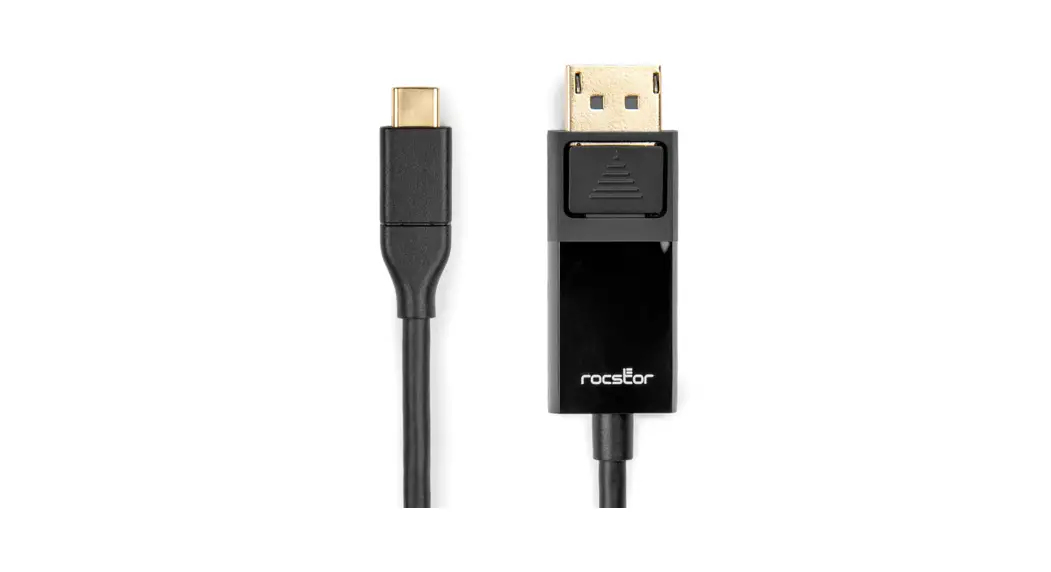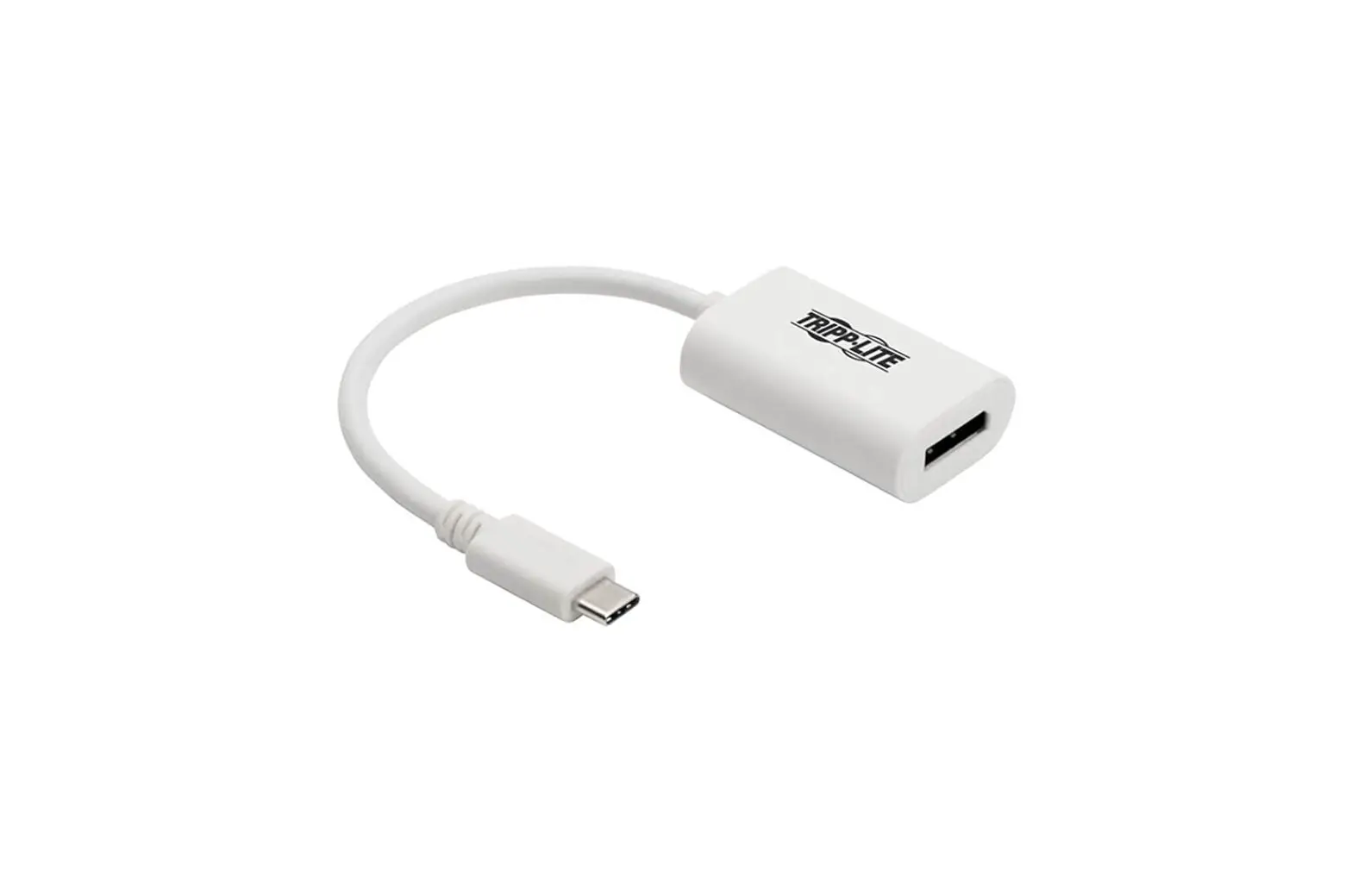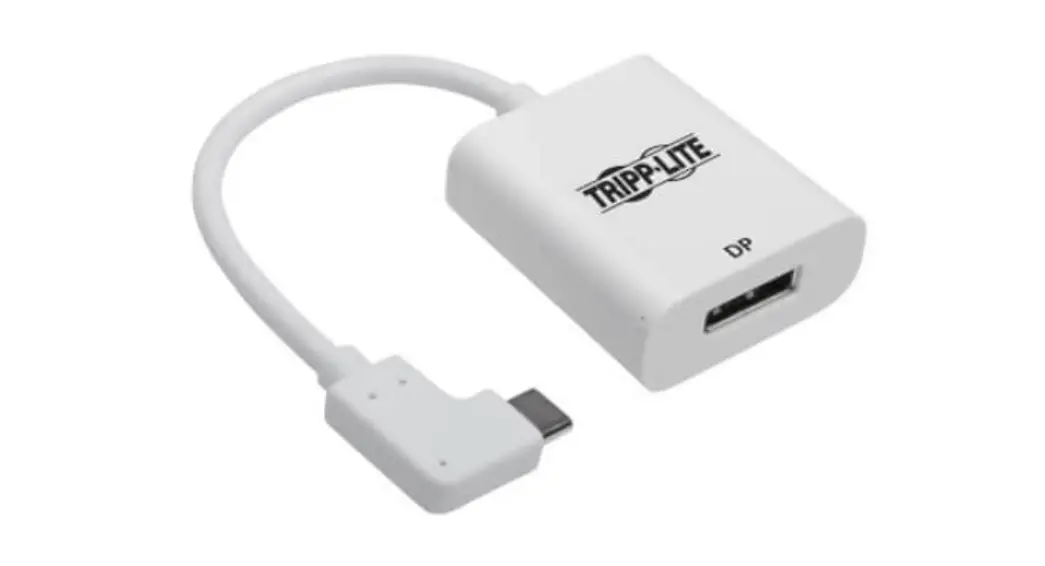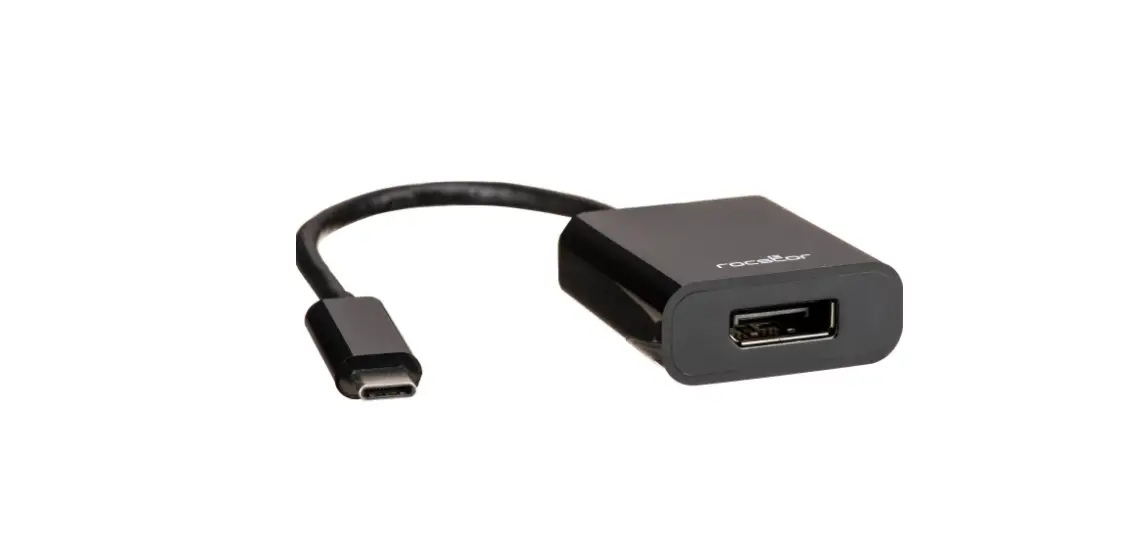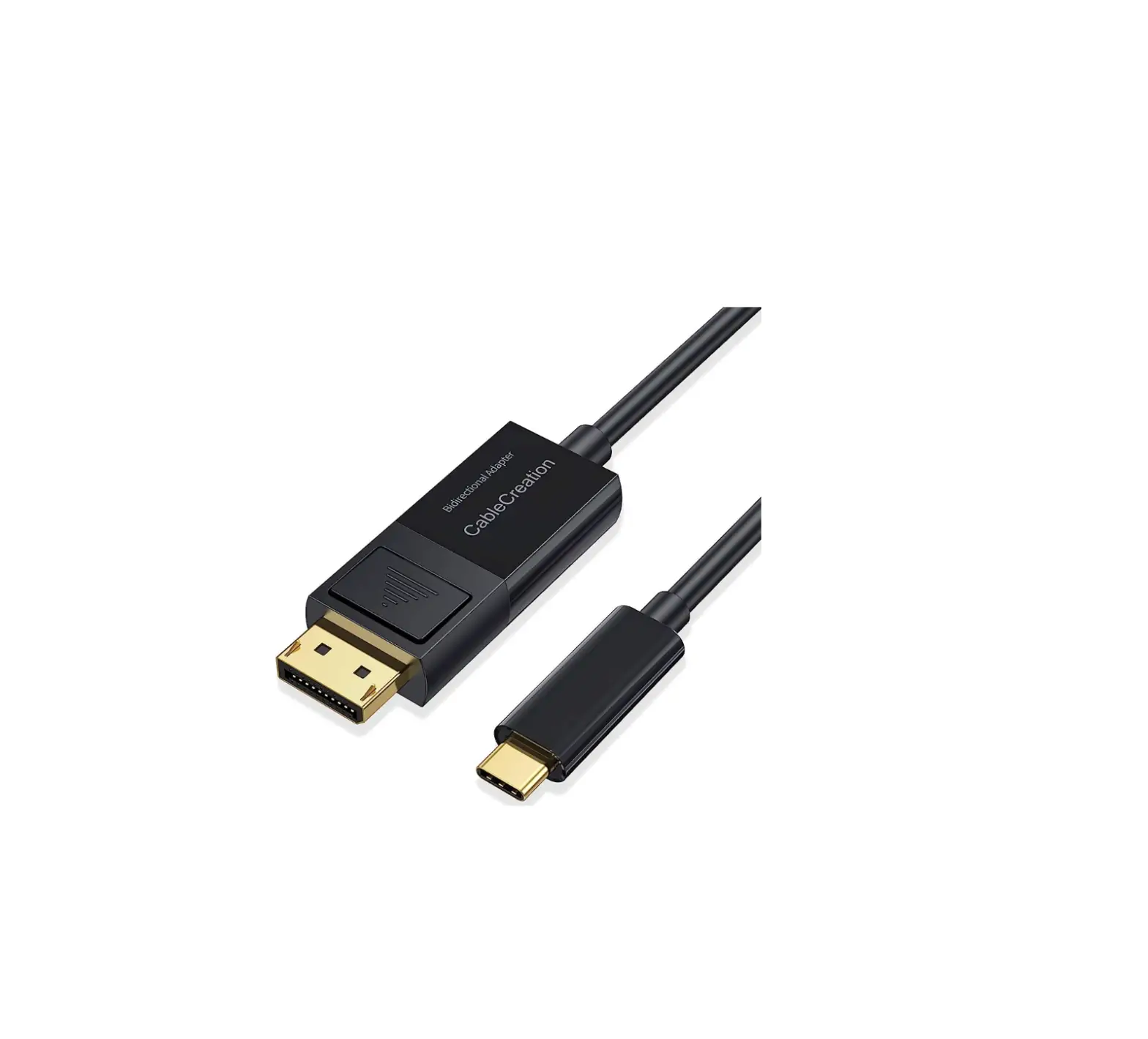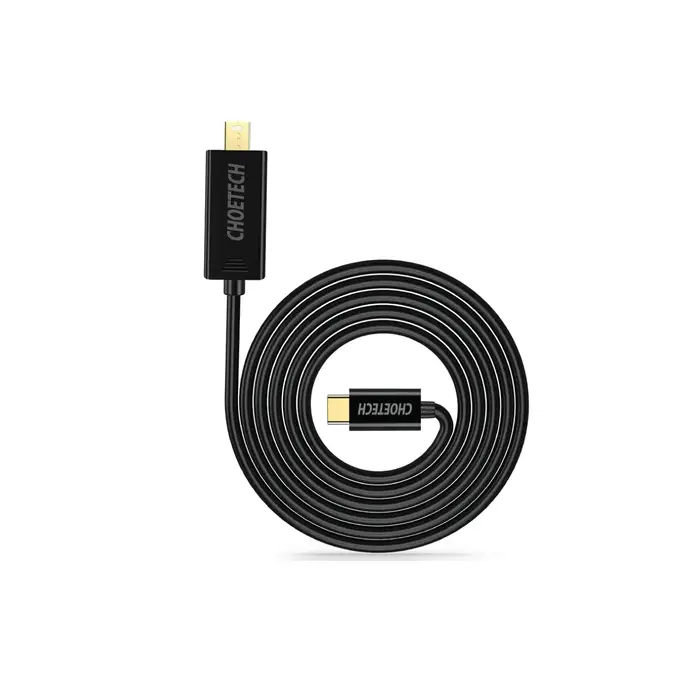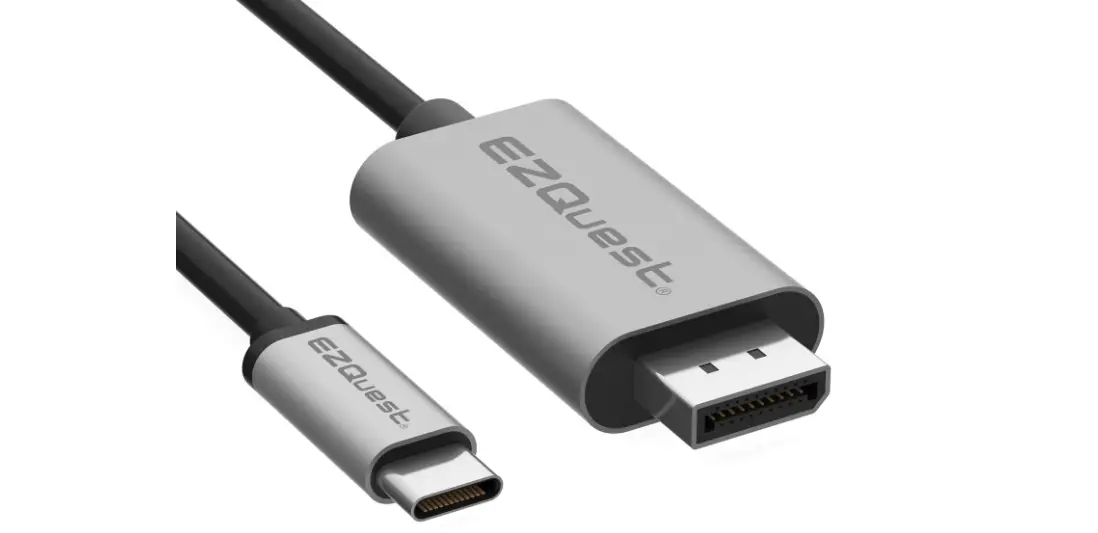

EZQuest X40020 USB-C to DisplayPort 4K 60Hz Cable
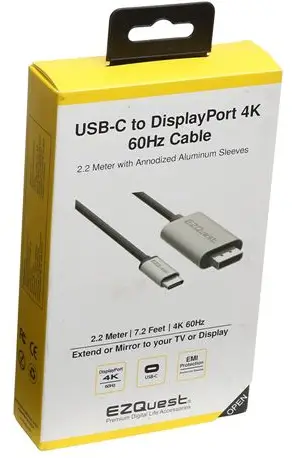
Quick Instruction Manual for DuraGuard” USB-C to DisplayPort 4K 60Hz Cable
Part# X40020
Attention: Please make sure that you select the correct port from your display INPUT so that your computer display can be shown.
Specification
- Part Number, X40020
- UPC Code, 694307400207
- Connectors USB-C (USB Type-CJ to DisplayPort 4K 60Hz Male
- Supports, 1080p at 60Hz or UHD 4K (4096 by 2160 or 3840 by 21601 at 60Hz
- Power: USB-C/USB Type-C
- USB-C/Thunderbolt 3/4 port compatible
- Length, 2.2 Meter (7.2 Foot long)
- Weight: 3 oz
- One (1] year warranty
How to connect to smart phones and tablets
Note: Please make sure that your device has the same type of USB-C connectors. The best way is to compare your charging cable connector that comes with your device to make sure it is a USB-C connector.
Please follow steps below:

- A. Hook up your Display Part end of the cable to your TV or monitor.
- B. Then Hookup the USB-C connector to your phone or tablet.
- C. Restart your smart device
How to connect to computer:
Connect the USB-C connector to your computer USB-C port and the DisplayPort side of the cable to your DisplayPort on your monitor.
 Please make sure that you select the correct port from your projector, TV or your display INPUT so that your computer display can be shown.
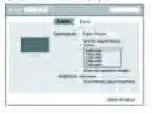
Resolution Setting for Mac
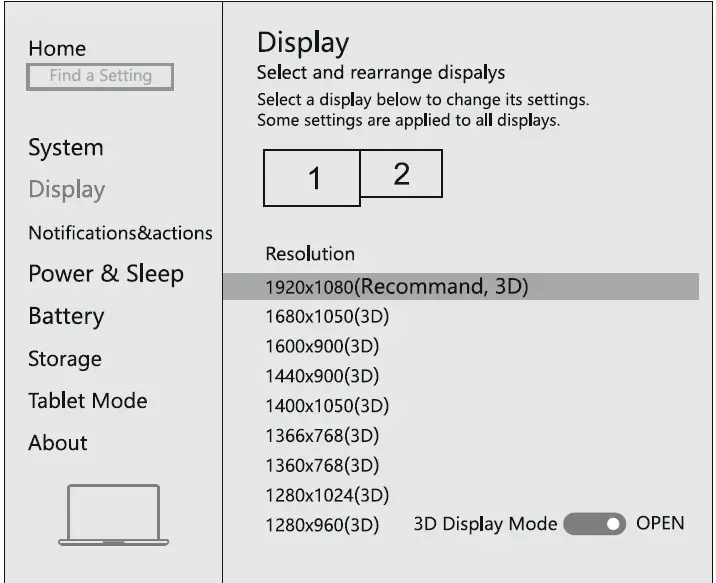
Resolution Setting for Windows
Right click desktop >Display Settings
Graphics Setting for Mac
- Mirror Display


- Extend Display

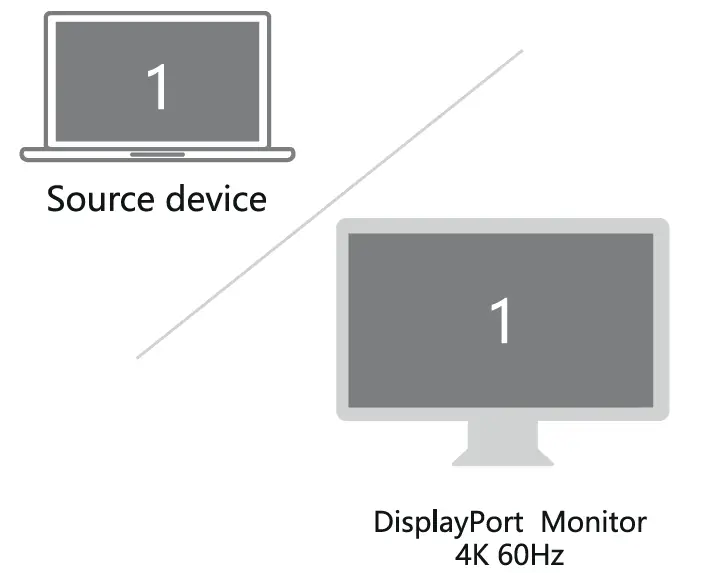
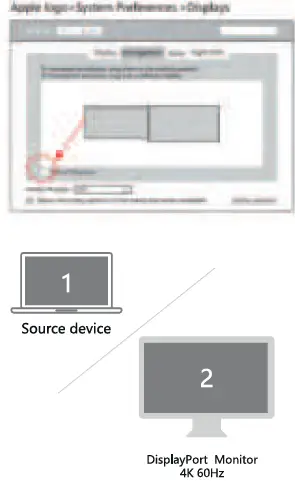
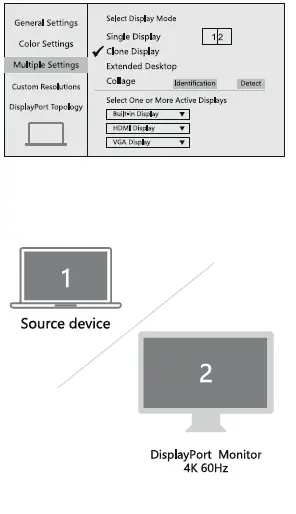
Graphic Settings for Windows
- Clone Mode
Right click desktop >Graphics Settings >Display
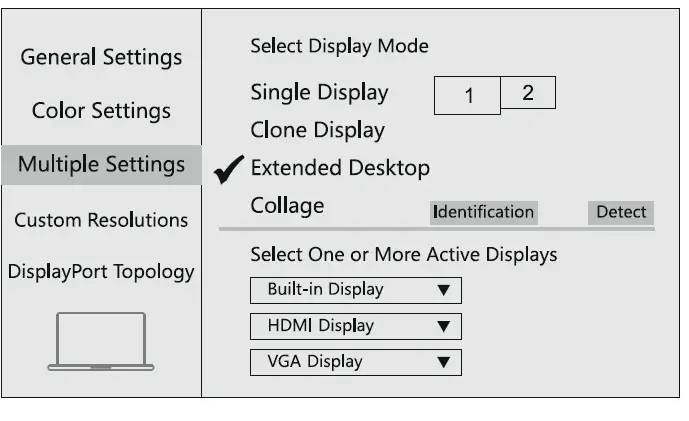
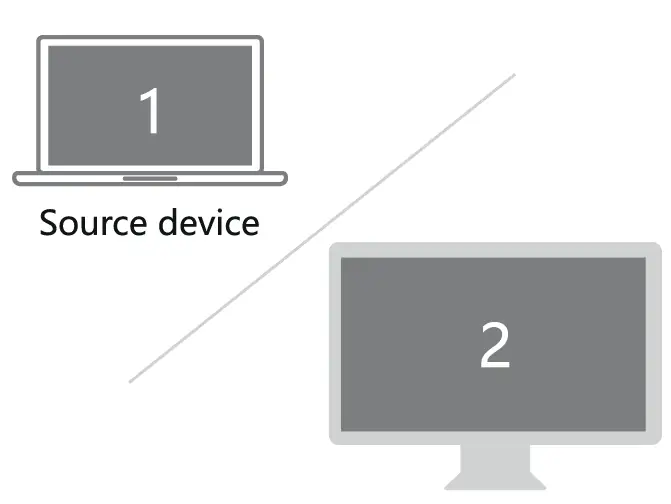
- Extended Display
Right click desktop >Graphics Settings >Display
How to Change the Resolution and Refresh Rate on Mac
System Preferences, Click on Display, Under the Display:
While holding the Option button down, click on “Scale ” twice then you can see the range of resolution
Then click on the “Show low resolution modes” box Then you can choose the Refresh Rate available.
[Mac OS 10.13.6 and lower]
Please email us with any questions or feedback you might have about our products to [email protected].
1 [800) 881 9305