
Premium Digital Life Accessories
Quick Instruction Manual for
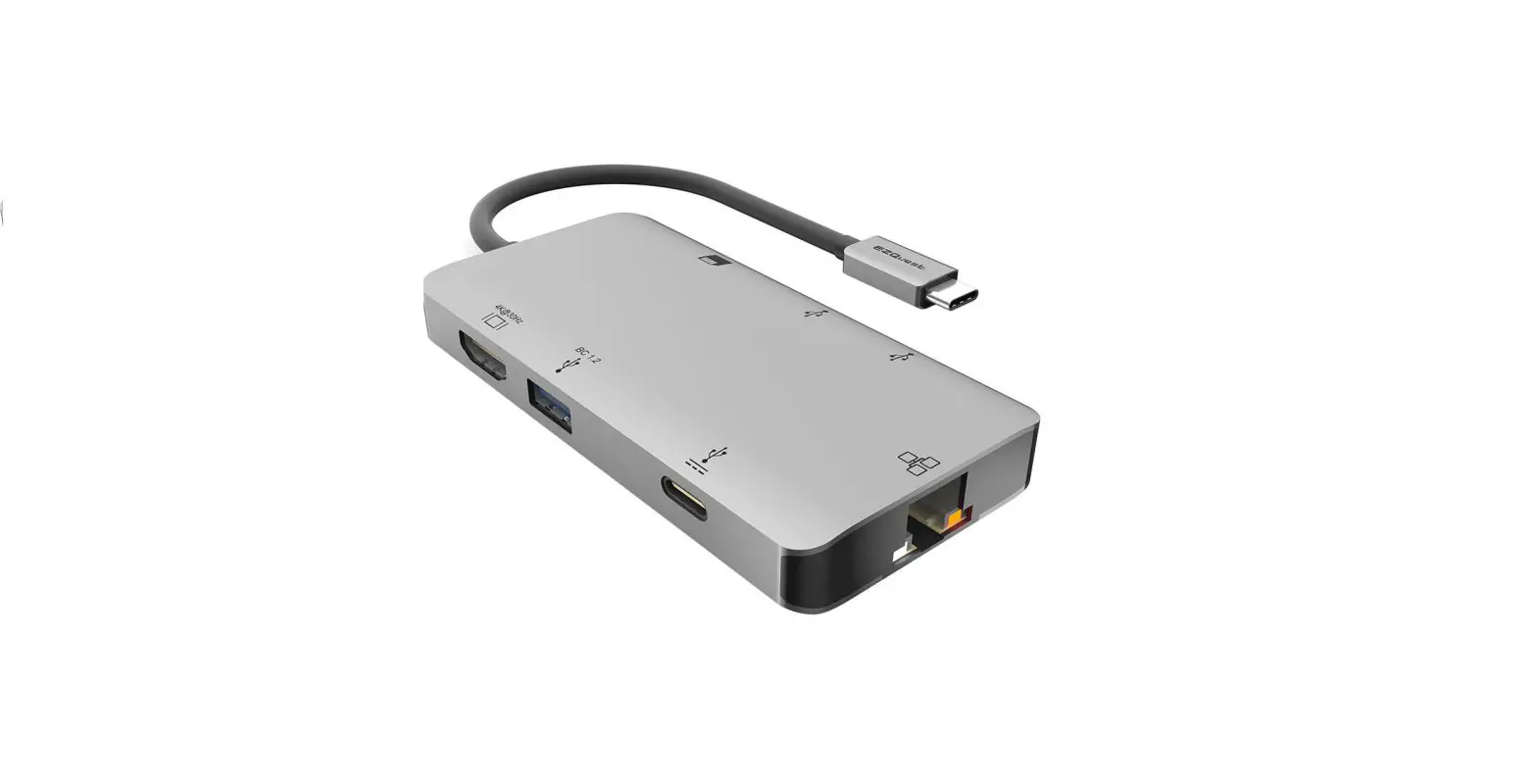
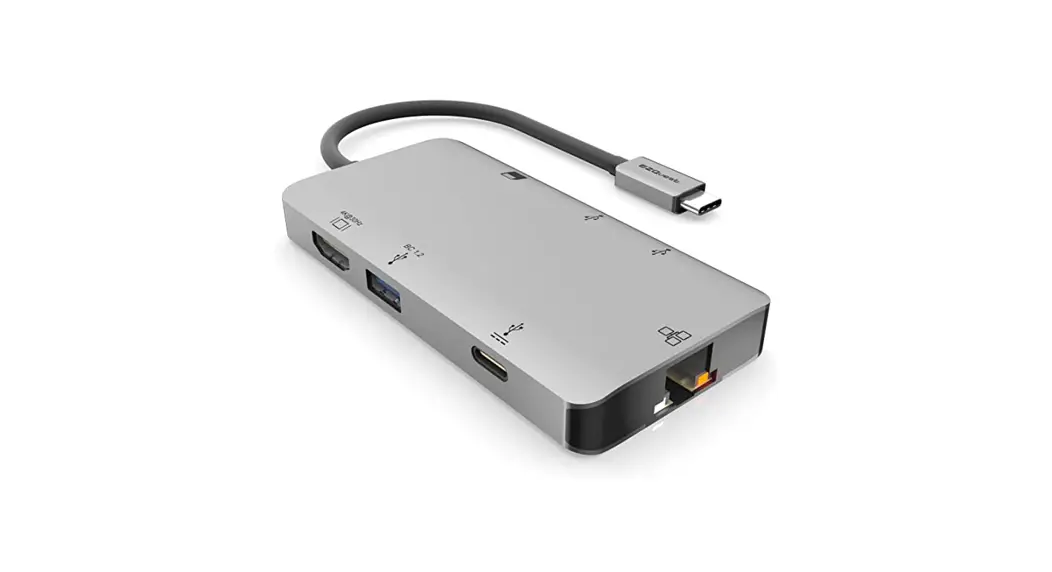
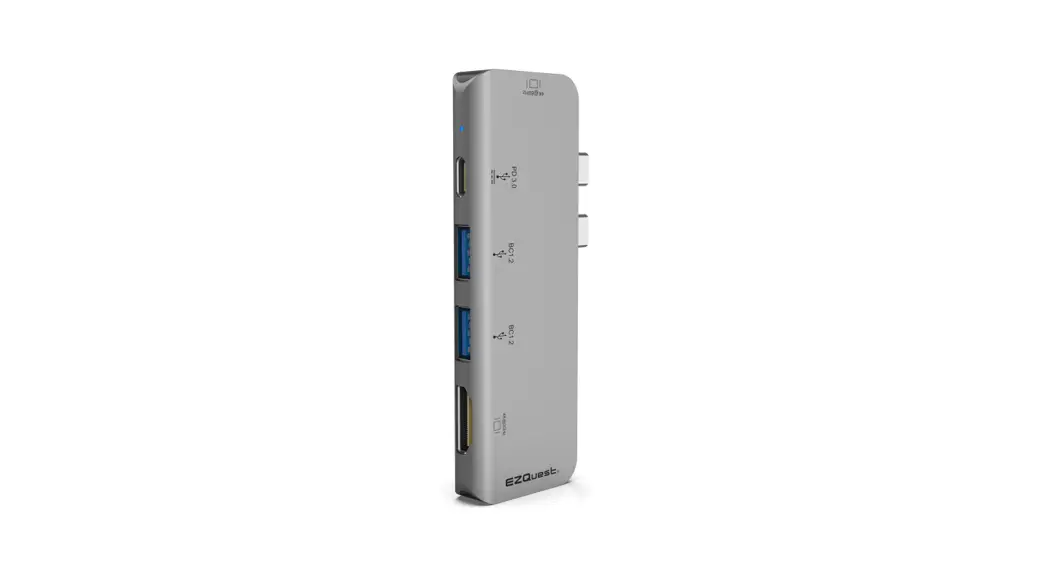
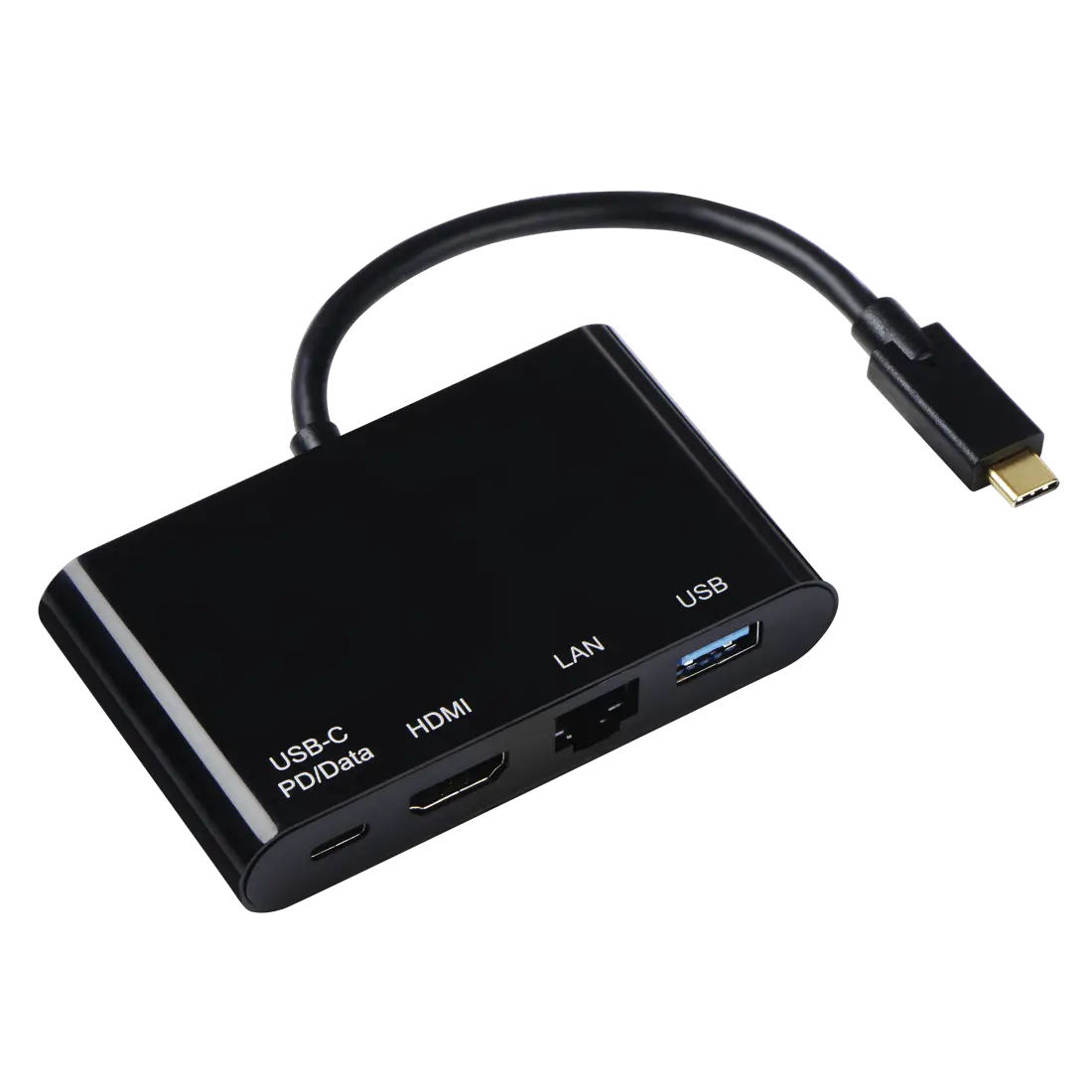
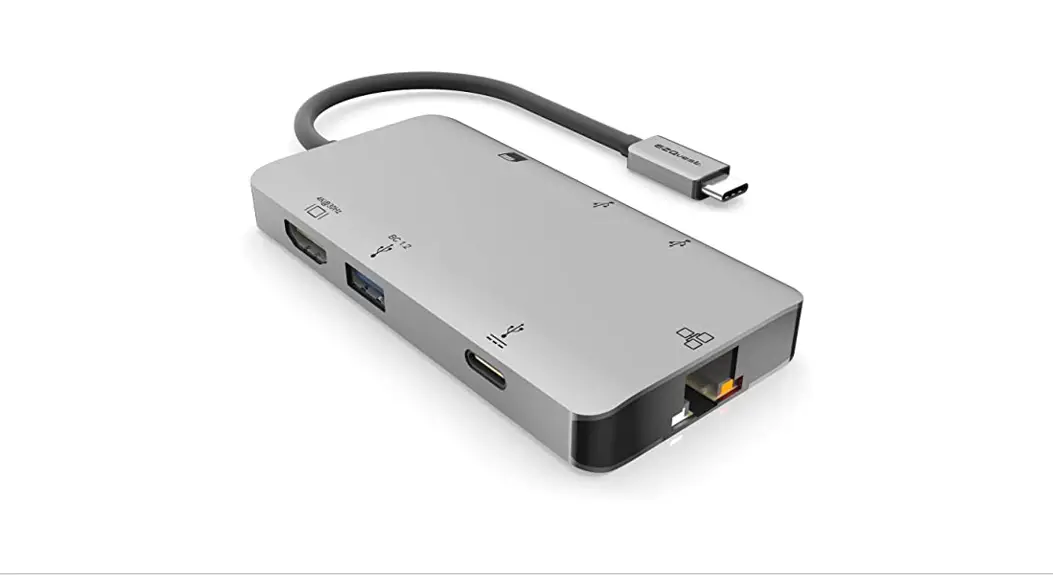
USB-C Multimedia Hub Adapter 8 Ports
Part# X40030
Attention:
- If you like to use your HDMI port for your external display and you like to close your MacBook Pro, you must have the USB-C power cable connected to the hub.
(Closing your laptop without the USB-C power cable connected to the hub, will put your laptop in sleep mode). - Please make sure that you select the correct HDMI port from your TV or your display INPUT so that your computer display can be shown.
Full-Speed Charging Support:
To support full-speed charging for iPad Pro or other mobile devices, please make sure your power adapter is at least 15V (45W).
Power adapter less than 45W will not supply enough power to provide pass-through charging.
Specification:
- Part Number: X40030
- UPC Code: 694307400306
- Input: USB-C / USB Type-C
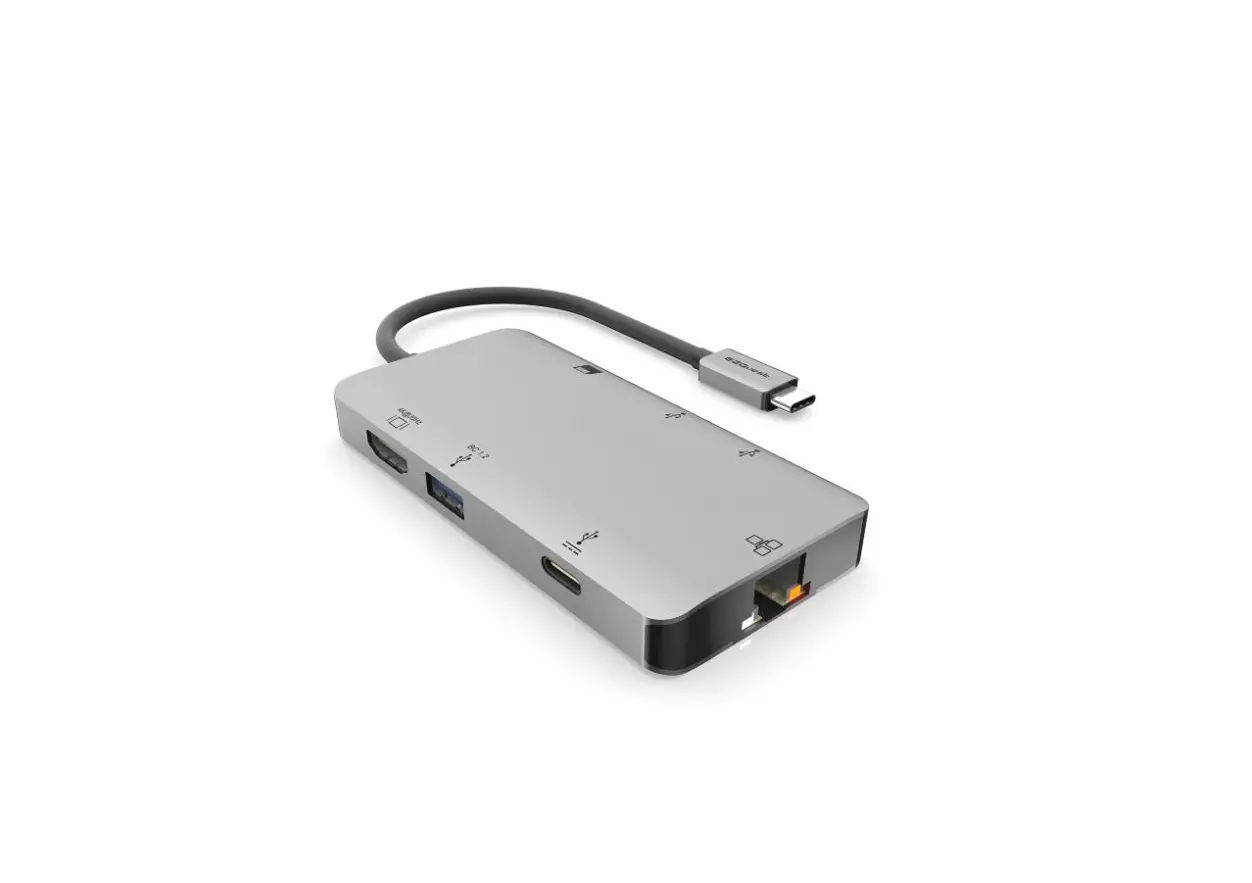
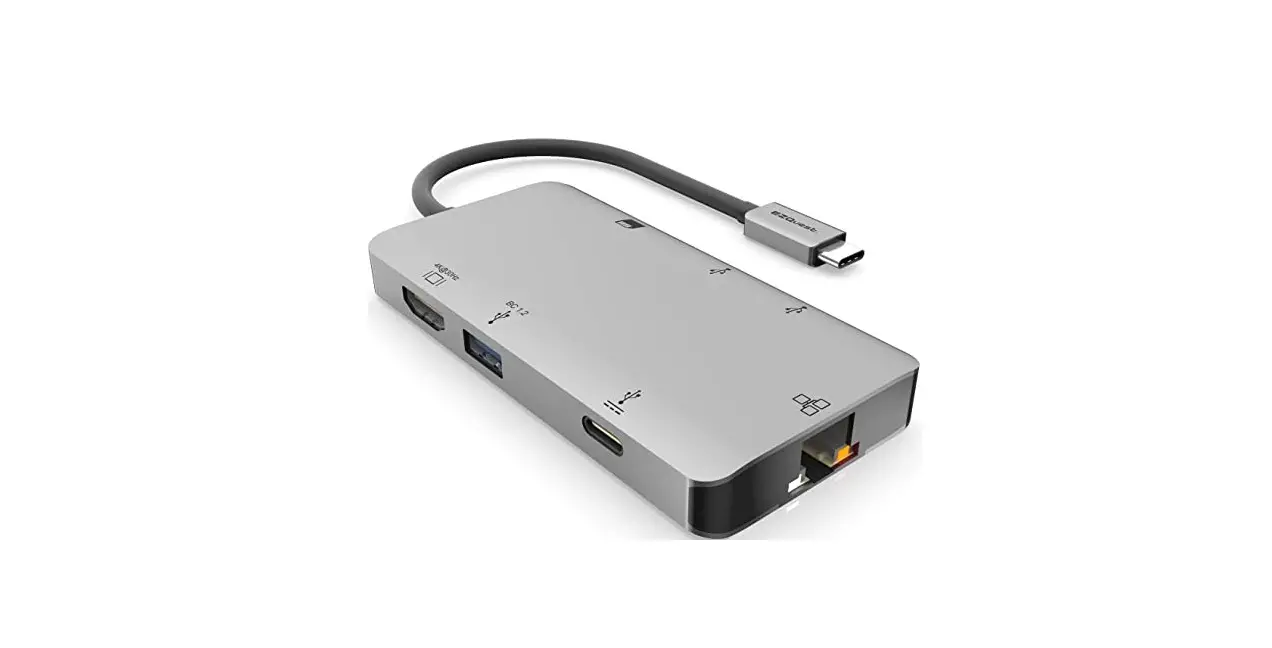
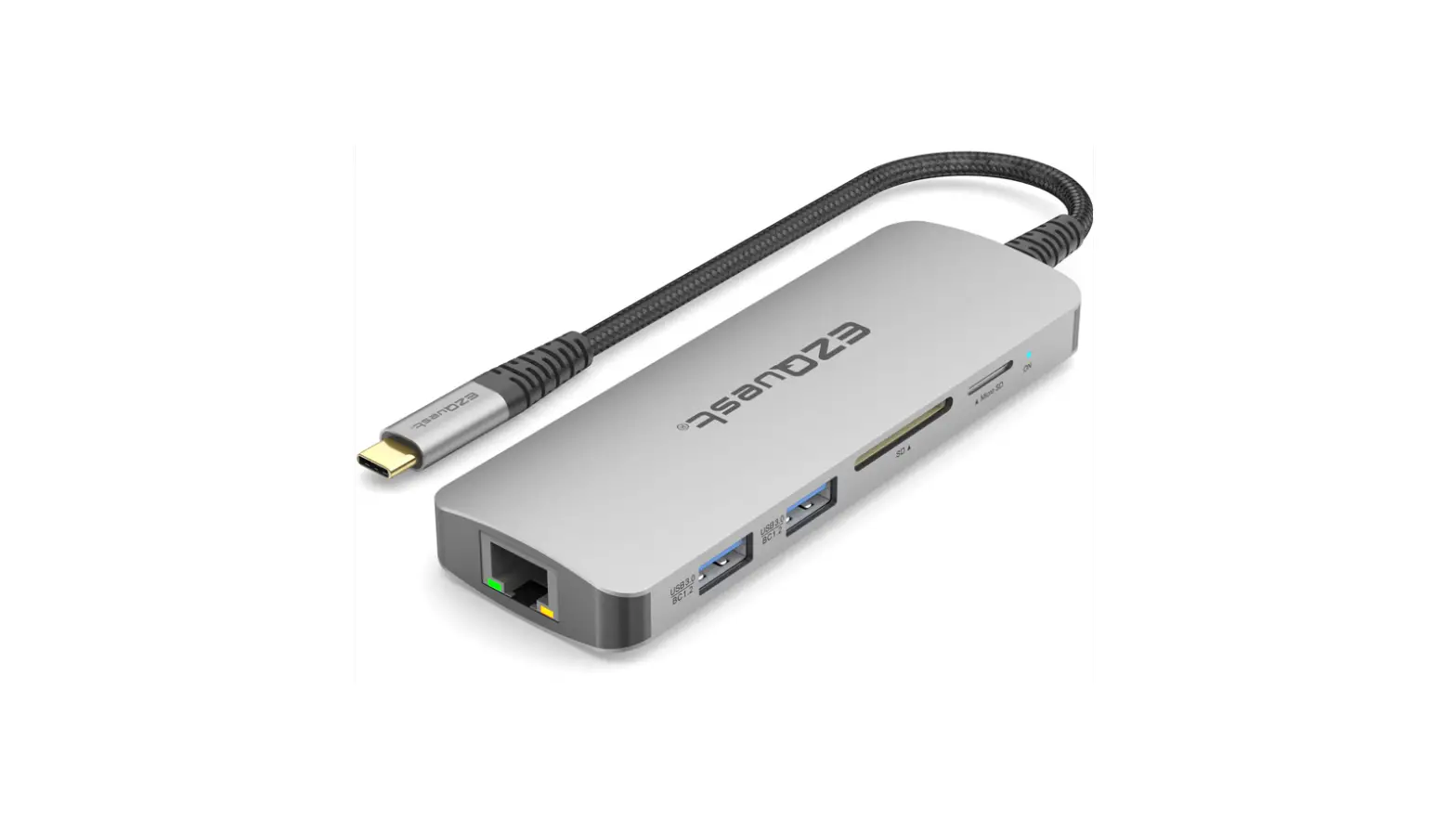
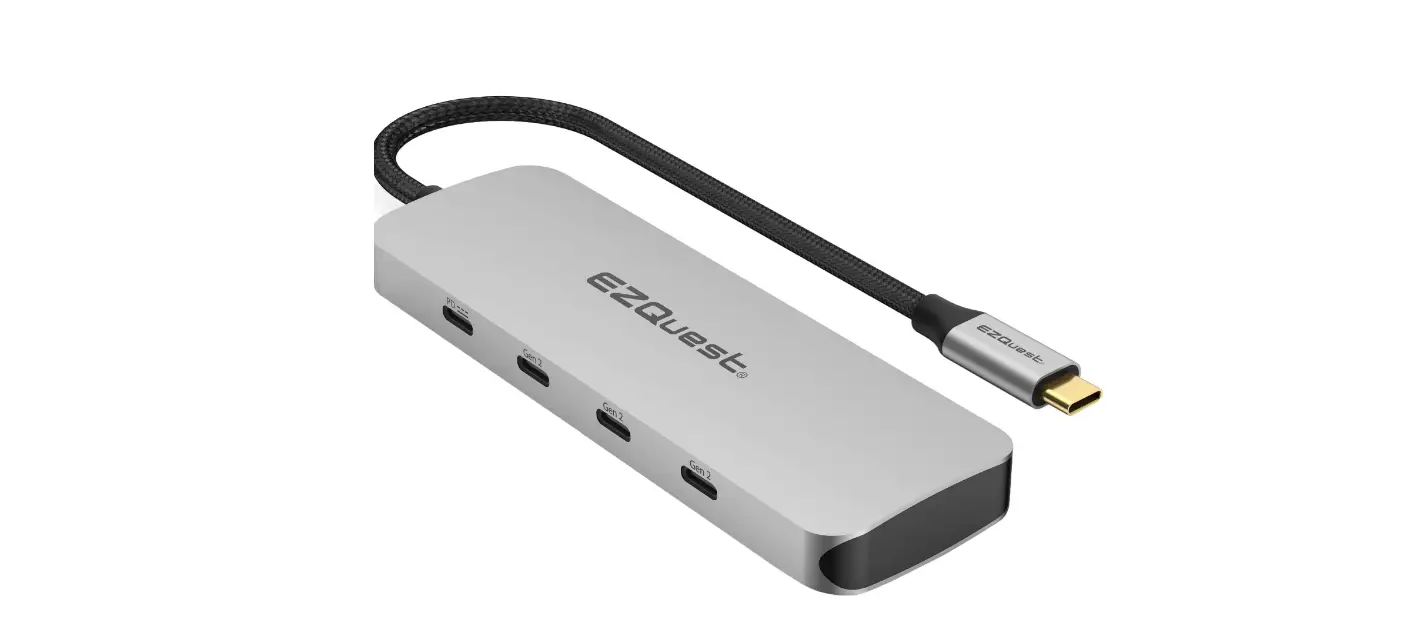
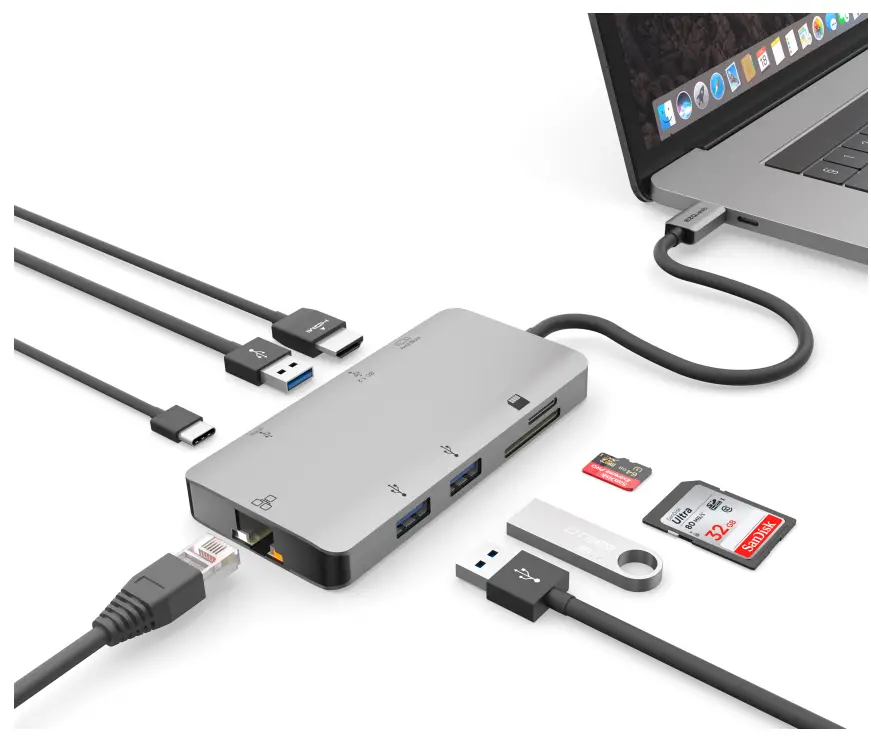
- Output: 1 X HDMI 4K 30Hz
- 1 X 100 Watts USB-C with Power Delivery 3.0
- 1 X RJ45 Gigabit Ethernet with LED indicator
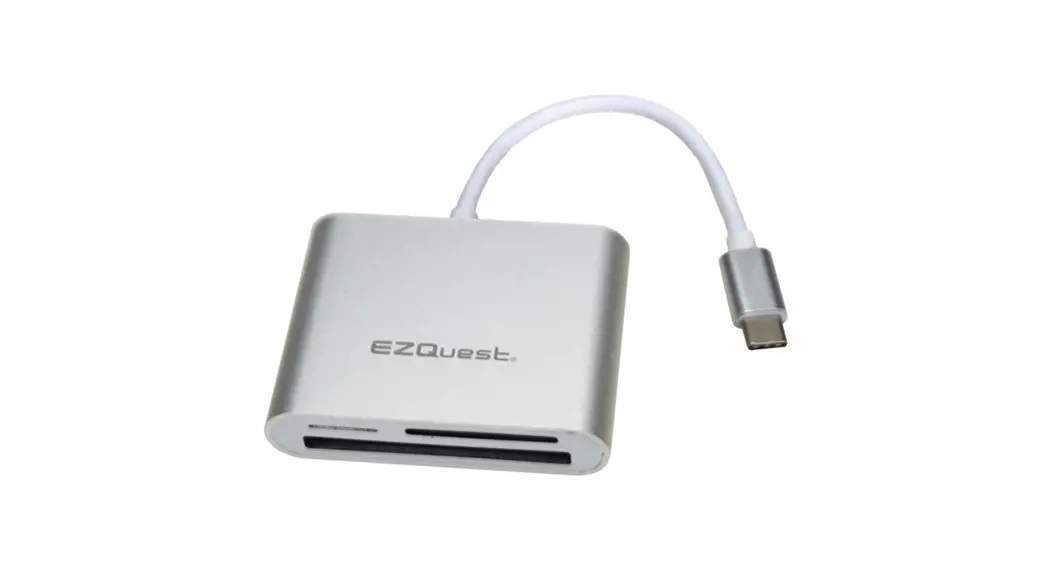
- 1 X SDHC and 1 X Micro SDHC Card Reader
- 3 X 5Gbs USB 3.0 ports with one BC 1.2 capable
- ThunderboltTm 3 Compatible
- Unit Length: 26.5 CM/10.5 Inches
- Dimension: L 52mm X W 105mm X H 13mm
- Weight: 3 oz
- One (1) year limited warranty
Resolution Setting for Mac
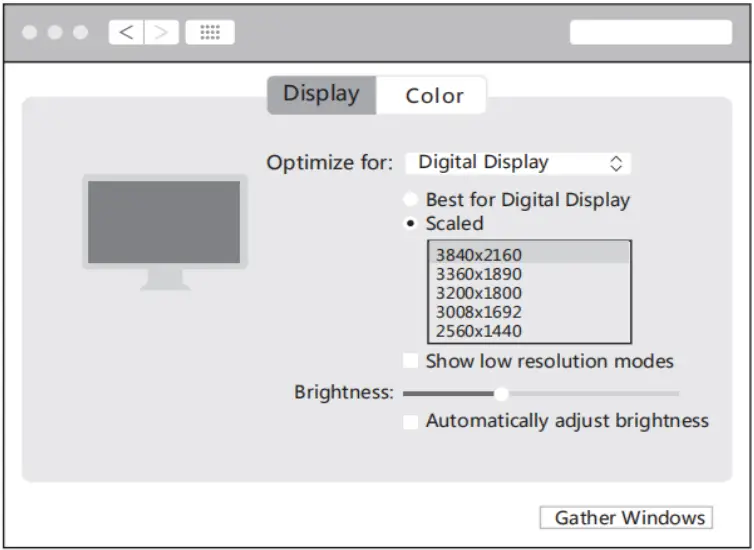
Apple logo>System Preferences> Displays
Resolution Setting for Windows
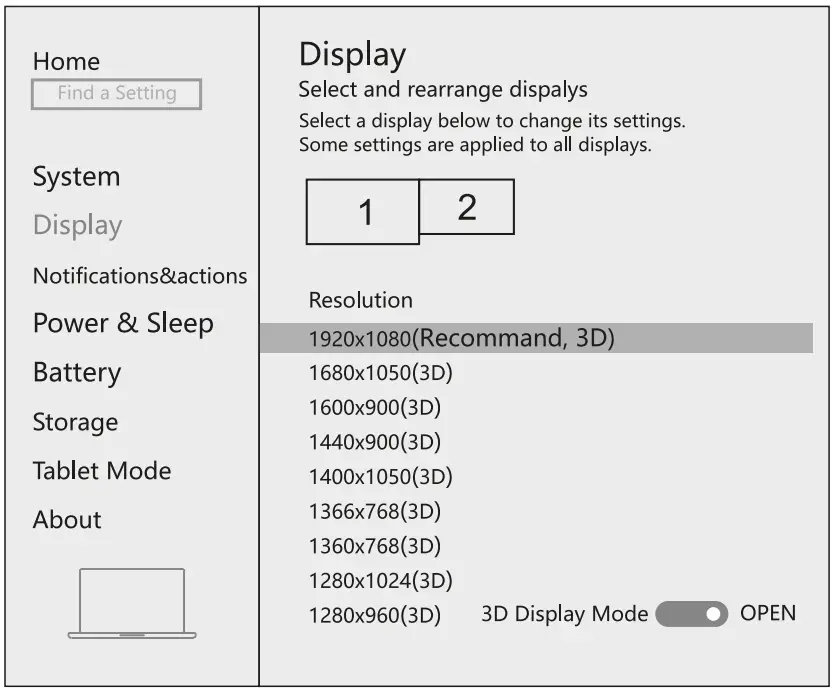
Right-click desktop >Display Settings
Graphics Settings for Mac
Mirror Display
Apple logo>System Preferences >Displays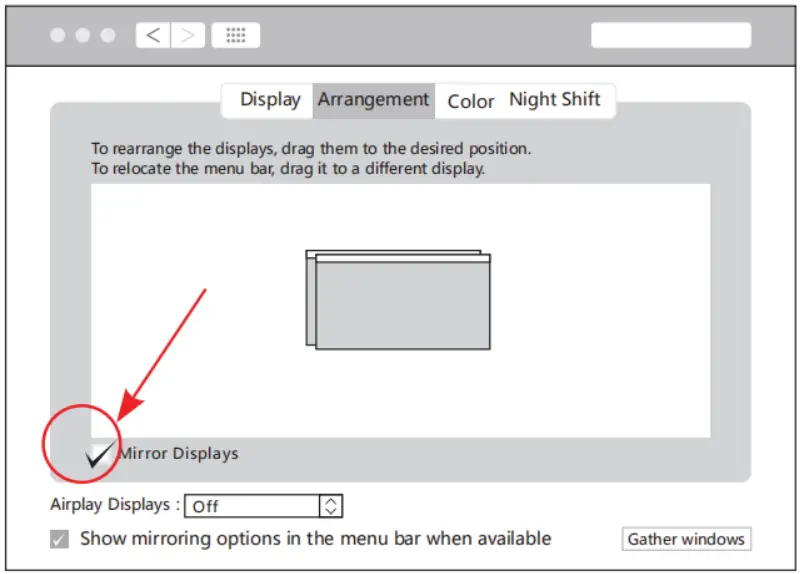
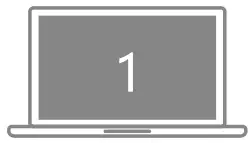 |  |
| Source device | HDMI Display 4K 30Hz |
Extend Display
Apple logo>System Preferences >Displays
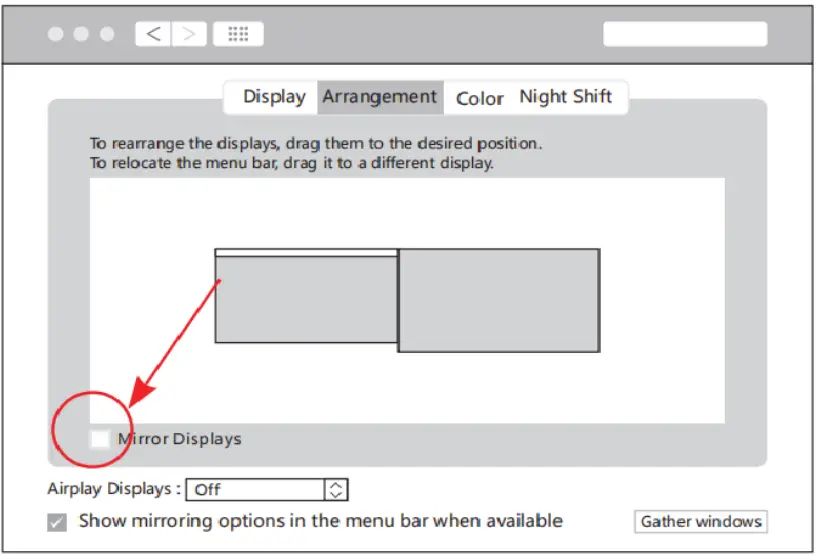
|  |
| Source device | HDMI Display 4K 30Hz |
Graphic Settings for Windows
Clone Mode
Right dick desktop >Graphics Settings >Display
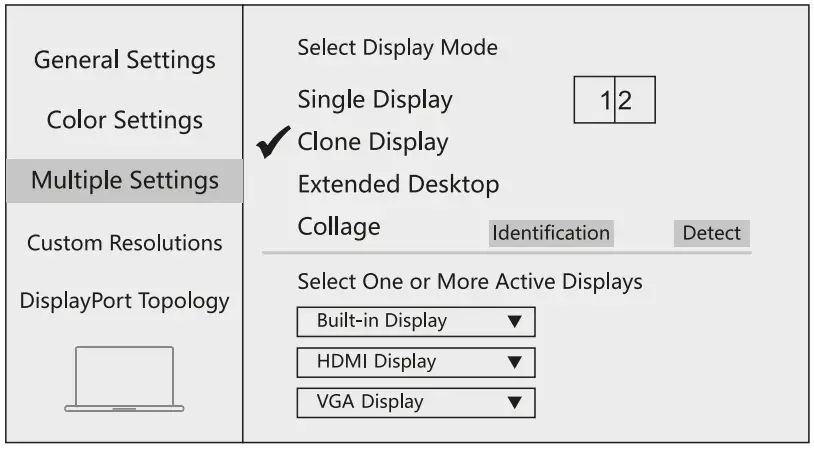
| |
| Source device | HDMI Display 4K 30Hz |
Extended Display
Right click desktop >Graphics Settings >Display 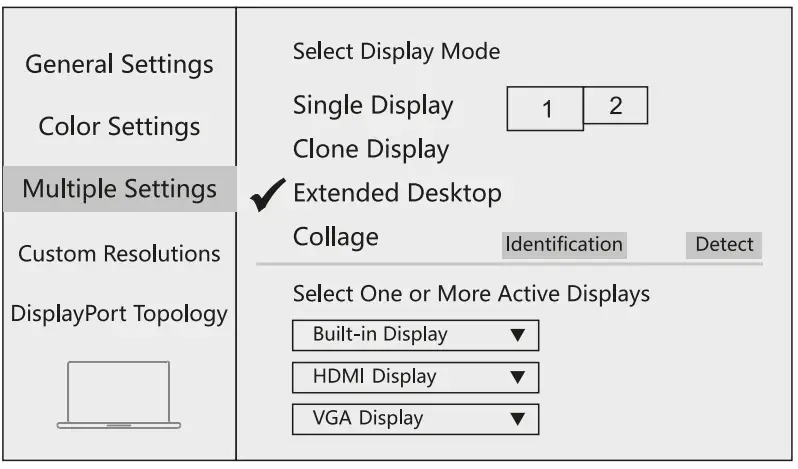
| |
| Source device | HDMI Display 4K 30Hz |
FAQ
A.Why is there no audio output from HDMI?
- Please make sure there’s audio output on the Monitor.
- Please set the external monitor as the default audio output devise.
B. What if the WIFI drops when the hard drive has been connected to the hub?
- 2.4G easily interferes, you can switch to a 5G network, or try to move the hard drive to a suitable place.
C. What if the USB driver can’t be identified?
- Restart the device and connect the hub again.
D. What if the display screen drops after connecting a large current hard drive?
- Please supply power by power adapter.
How to Change the Resolution and Refresh Rate on Mac:
System Preferences, Click on Display, Under the Display:
While holding the Option button down, click on “ Scale n twice then you can see the range of resolution Then click on the di Show low-resolution modes” box Then you can choose the Refresh Rate available
Full-Speed Charging Support:
To support full-speed charging for iPad Pro or other mobile devices, please make sure your power adapter is at least 15V (45W).
Power adapter less than 45W will not supply enough power to provide pass-through charging.
Please email us with any questions or feedback you might have about our products to [email protected].
STOP!
If you have any issues with the product please contact our technical support team before returning it.
TECHNICAL SUPPORT
Technical Support : 1 (800) 881 9305 1 (714) 666 1716X2
Email :[email protected] Service Hours : Mon. – Fri. 08:00 AM – 05:00 PM P.S.T