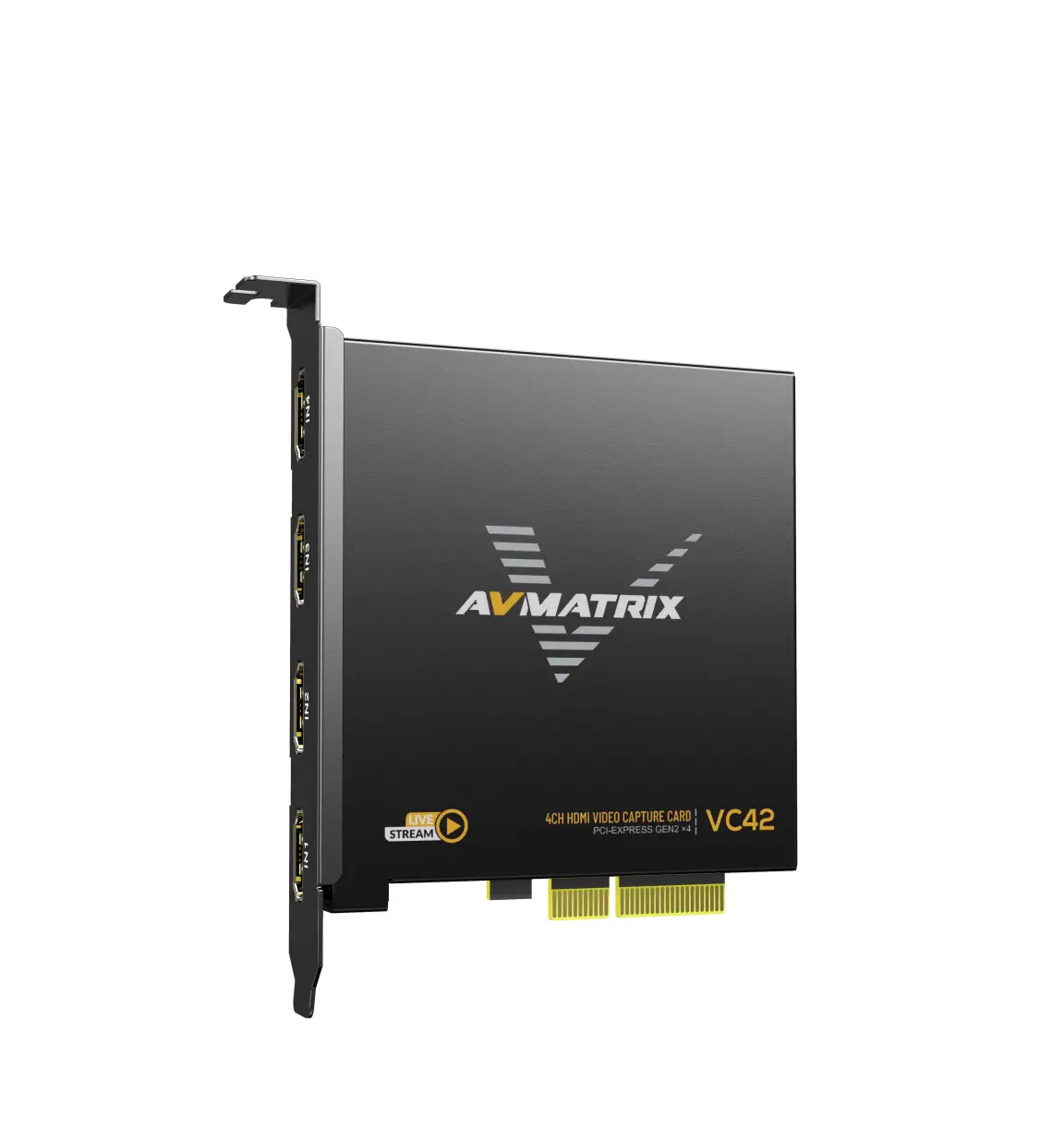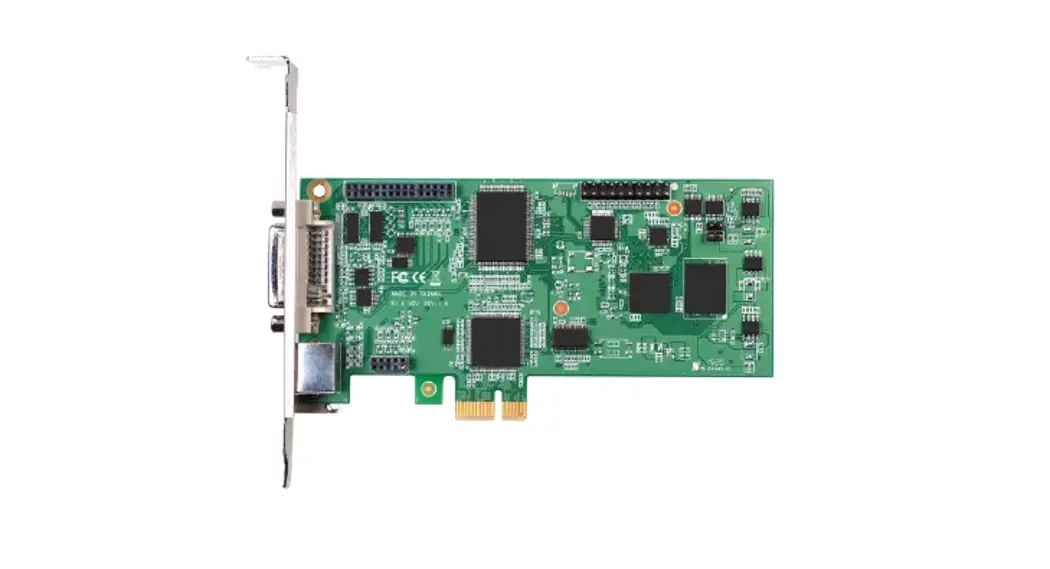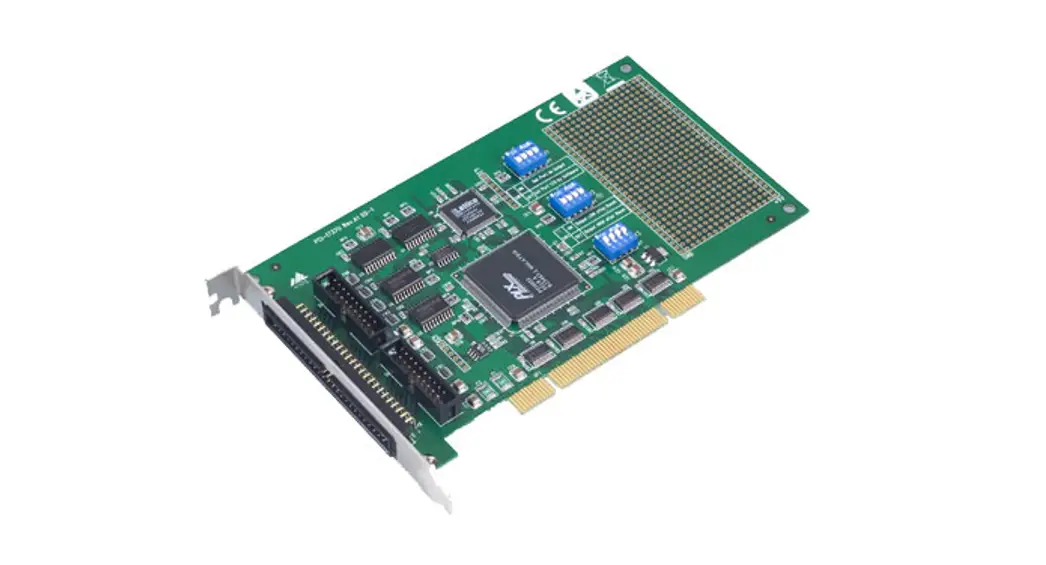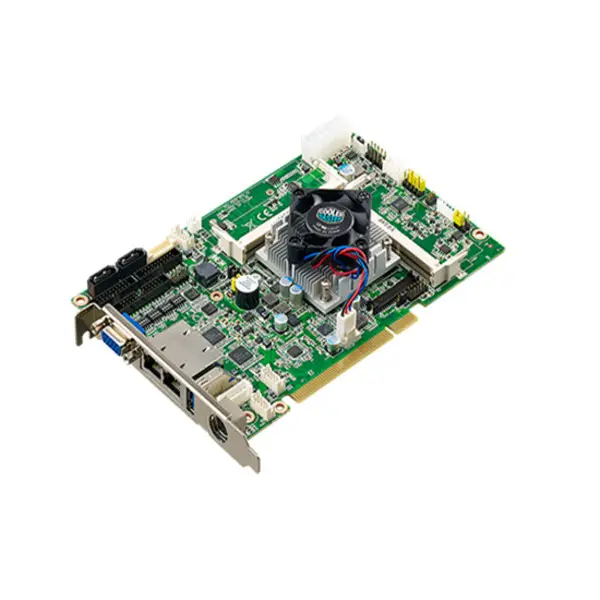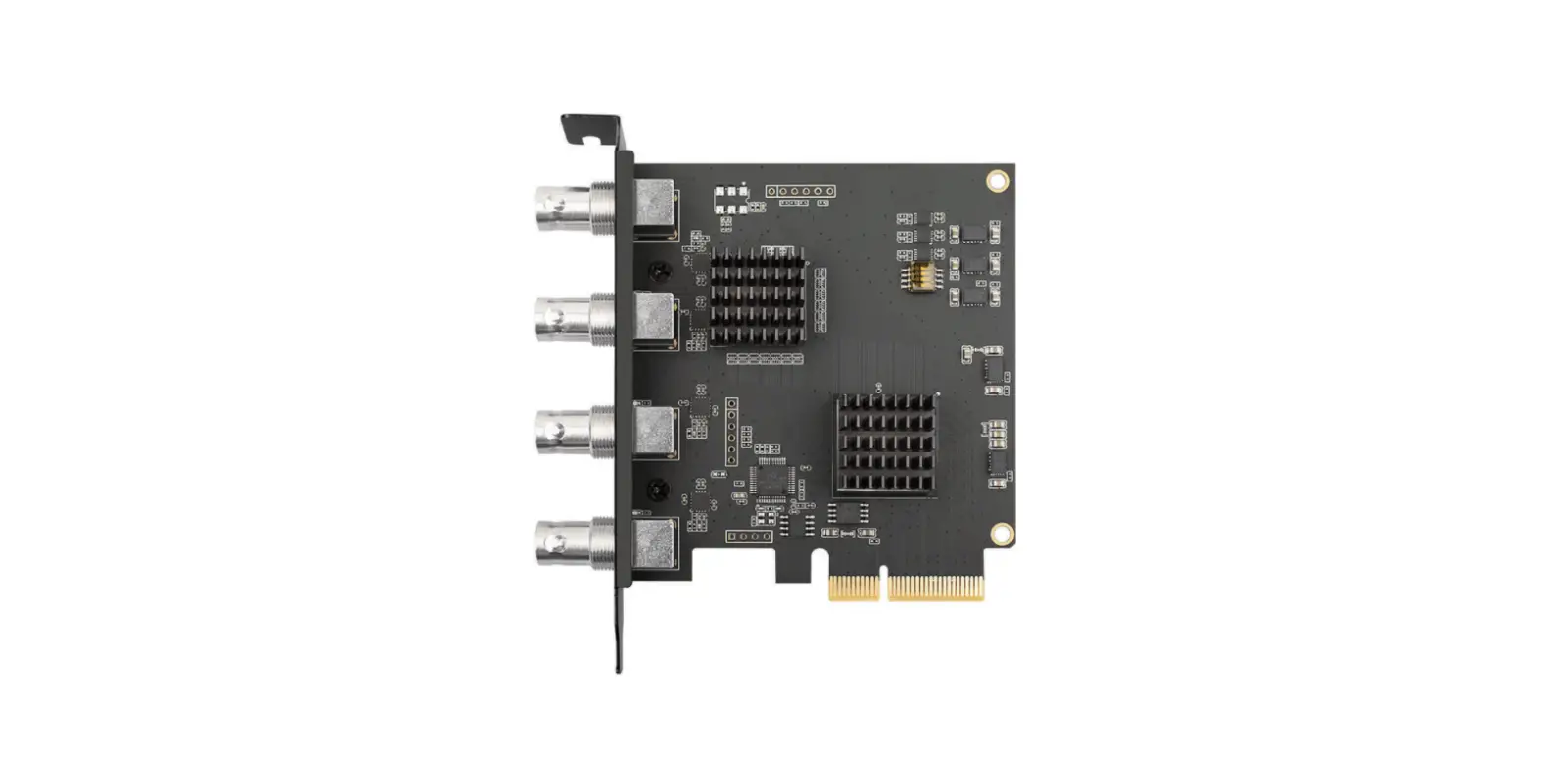

ACASIS AC-4SDI Quad SDI PCIE Video Capture Card
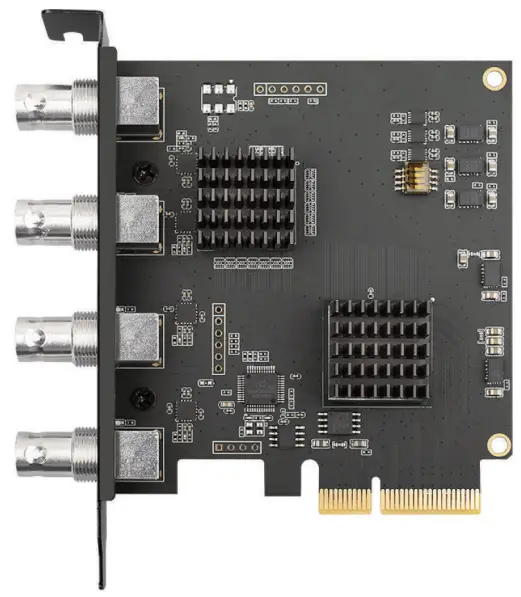
Thank you for choosing ACASIS SDI PCle video capture card. Before installing the video capture card on your host computer, please carefully read the user manual. Please avoid dust, humidity, and extreme temperature. Wish you have a good using experience.
Product Features
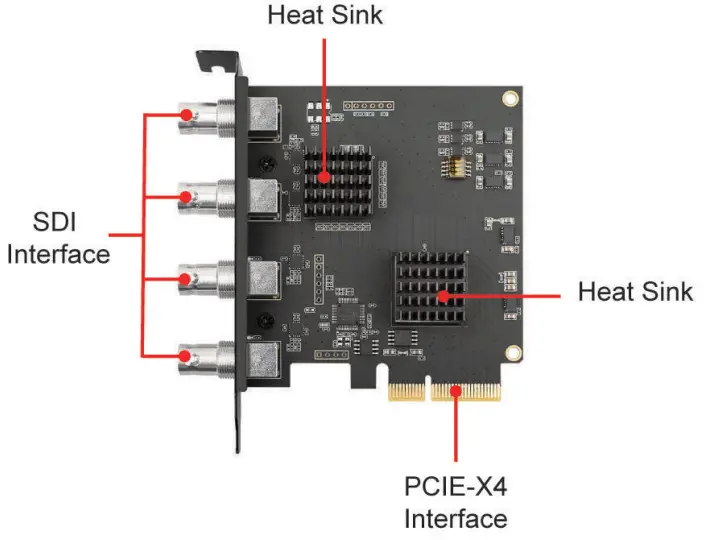
- 4-channel SDI video signal input.
- Support 1080p input video signal (compatible with resolutions below 1080p).
- The transmission bandwidth of PCle 2.0 X4 20GB/s.
- Comform to DerictShow DirectSound , PCM 48K stereo.
- The video processing is completed by the capture card, which does not occupy the CPU of the host computer.
- Automatically detect and inform the input video format.
- Support one machine with multiple capture cards and set channel numbers dynamically.
- Support Windows operating system.

Product Installation
Note: When devices are added to or removed from the system, ensure that the computer is turned off. If possible, disconnect all power cables from the computer before you add a device.
- Insert the PC le capture card into the PCle-X4 Gen2 slot of your host computer (compatible with the interface above the PCle-X4), and make sure it is firmly seated.
- Connect the signal source (SDI interface device) to the PCle card interface. It can connect four SDI interface devices at the same time.
- Reconnect all the power cables to start up the computer, then install the ACASIS PCle capture card driver.
Driver Installation
Supported Operating Systems: Windows XP/7/8.1/10
- Please download the driver from ACASIS website. http://www.acasis.com/download_drivers/
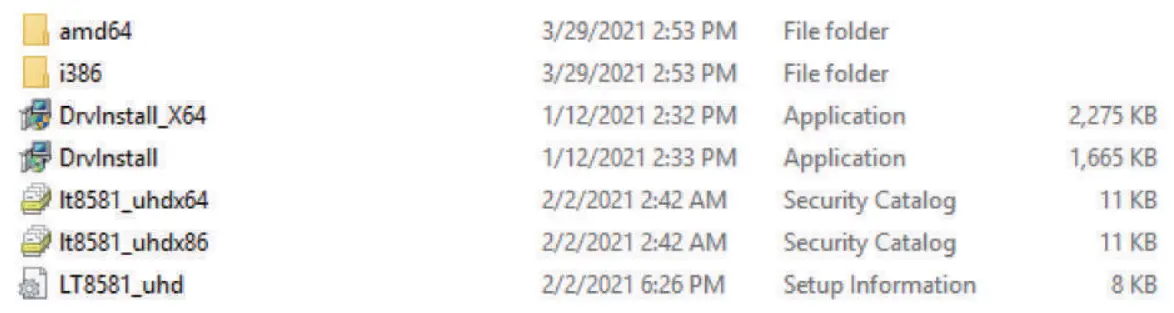
- Open the driver installations source folder and you can find “Drvlnstall_X64″program and double click it.

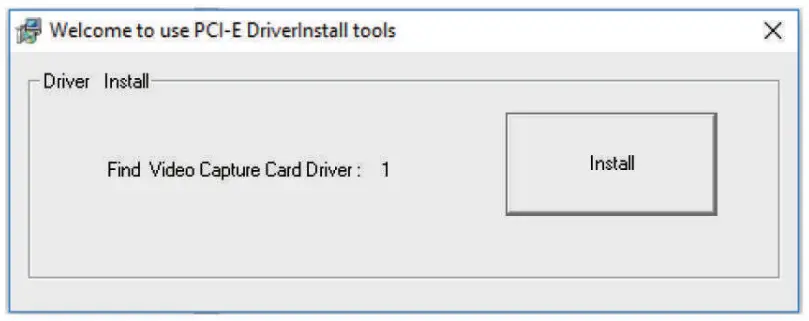
- The pop-up window will show “Find Video Capture Card Driver: 1 “, indicating that one capture card has been recognized(as shown in the figure below).

- Click “Install” . After the installation has finished, a notification will appear to show if the installation is successful, and click “OK” to finish the installation
After installing the capture card driver, please set the third-party software.
OBS Studio Software Settings
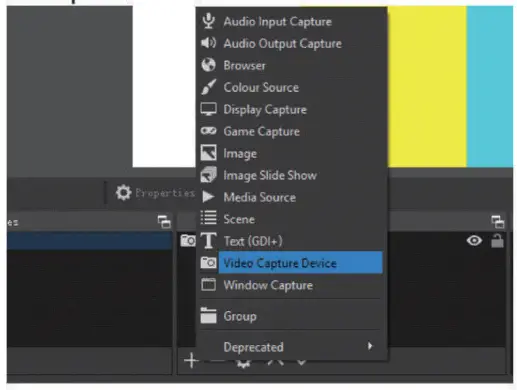
- Open OBS software, click”+” on Sources interface, and then click “Video Capture Device”.

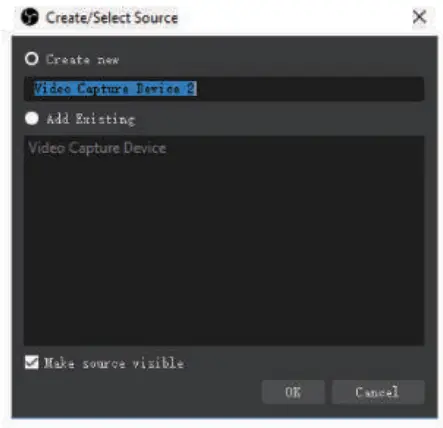
- Customize the name of the signal source, and then click “OK”.

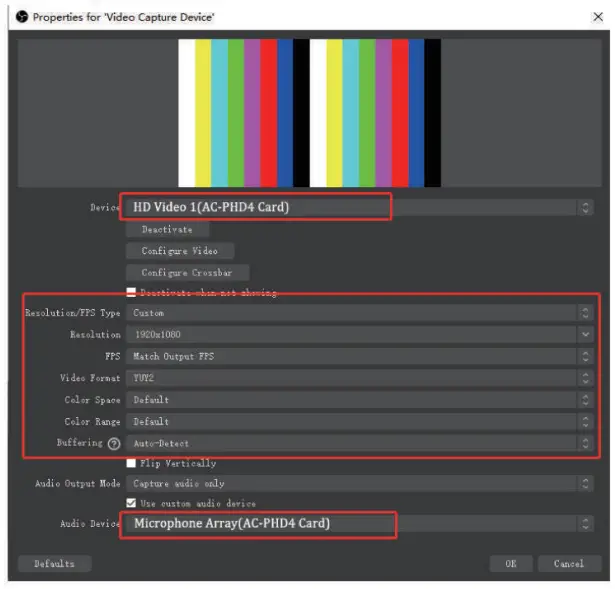
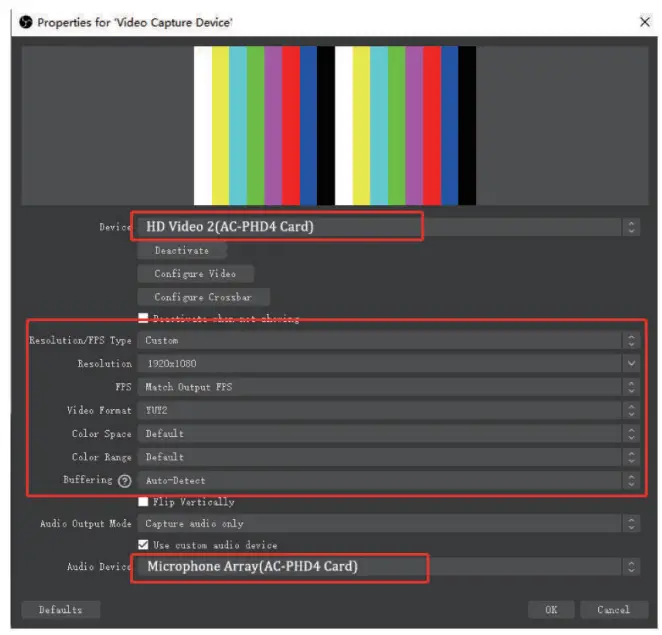
- In the Properties interface, select the signal source in “device”, such as HD video 1 or HD video 2, and set the relevant parameters of the video signal according to the requirements. If you need to add audio, select the corresponding audio in “audio device”. Then click “OK”. Check whether the video image and sound are synchronized.

Switch Input Device Mode:
Click”+” in the scenes to add a scene. After adding a scene, add second input signal source at the “Sources”.
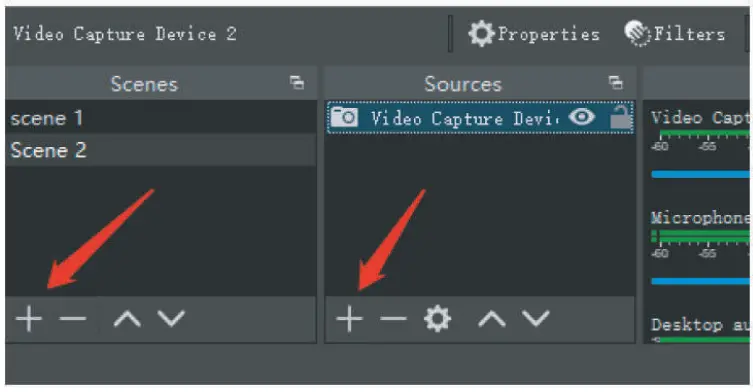
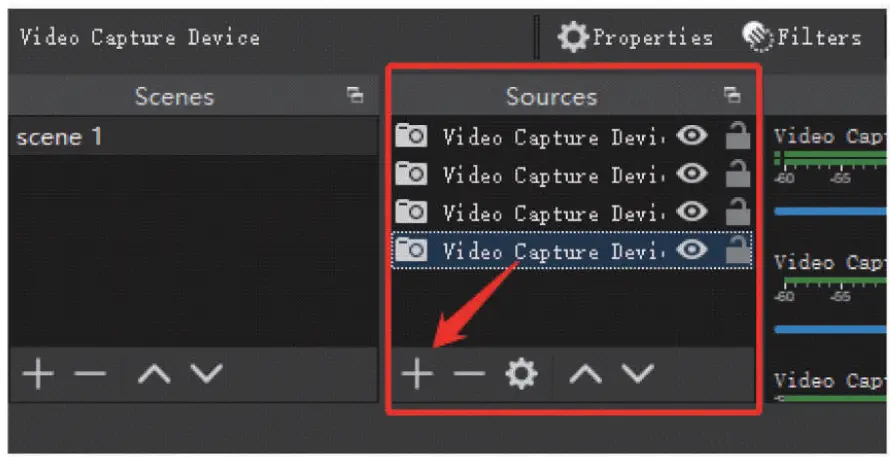
Synchronous Picture-In-Picture Mode:
- Click “+” in “Sources” to add other input signal sources, set the corresponding parameters and audio, and then click “OK”


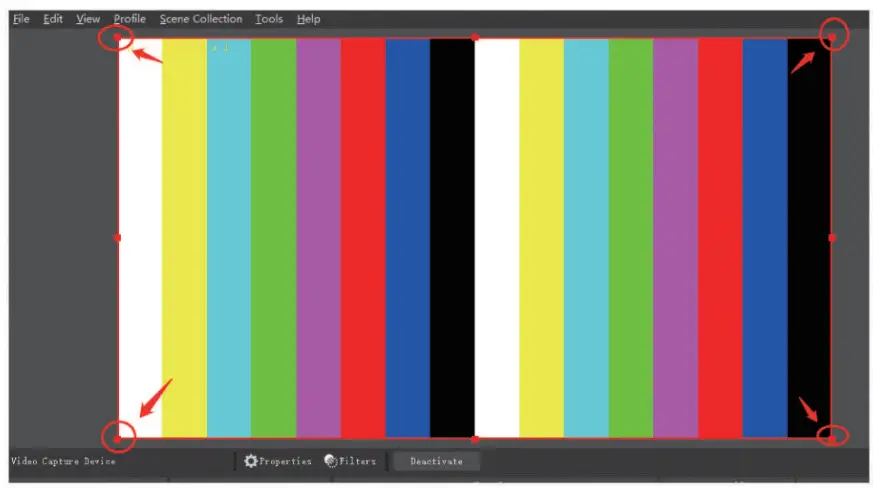
- When the second device’s screen covers the first device’s screen, click the bottom corner to adjust. You can set up multiview according to your own needs, as shown in the figure:

Product Specifications
| Host interface | PCle 2.0 X4 20GB / s transmission bandwidth |
| Video input interface | 4-channel SDI input |
| Audio acquisition | 4-channel SDI embedded audio signal |
| Input format | HD-SDI, 3G-SDI |
| Output color space | YUY2 |
| Input resolution | Any resolutions within 1080p |
| Hardware de-interlacing | Support 1080i hardware de-interlacing, 3D noise reduction algorithm, clearer images |
| Operating system support | Windows XP/7/8.1/10 32bit/64bit |
| Compatible software | Windows Media Encoder, Adobe Flash Media Live Encoder, Real Producer Plus, VLC, Wirecast VMIX,etc |
| Compatible live broadcast platform | OBS, XSplit, YouTube, Twitch and other live broadcast platforms | |
| Compatible development interface | DirectShow (Windows) standard interface | |
| Power dissipation | <= 5.0 W | |
| Operating temperature | 0-85 ° C (32 ‘F-185 ‘F ) | |
| range | ||
| Storage temperature range | -20-70 C | (-4’F-1581′) |
| Storage humidity range | 5%-90°/o | |
Technical Support Email: