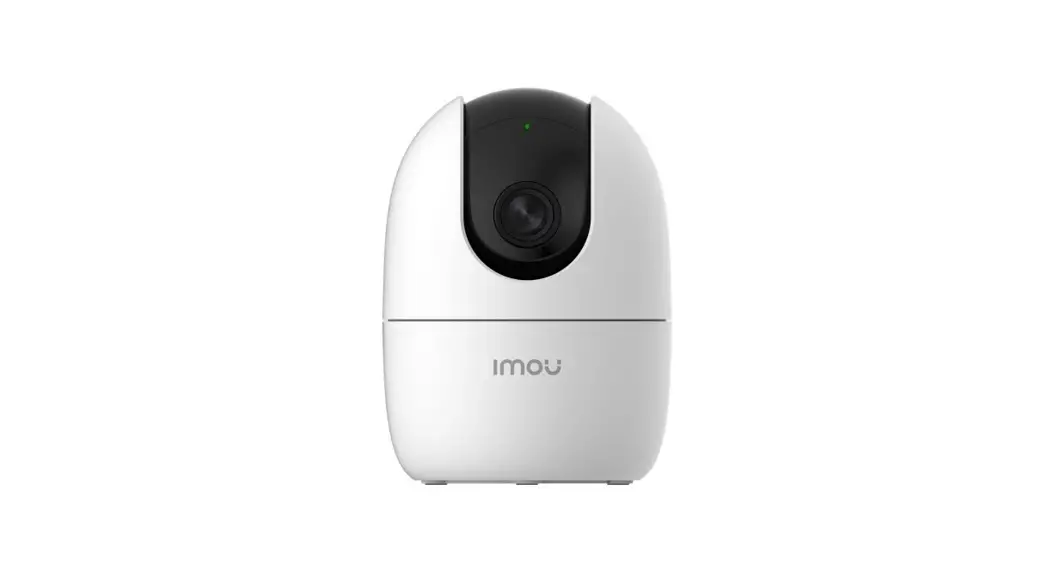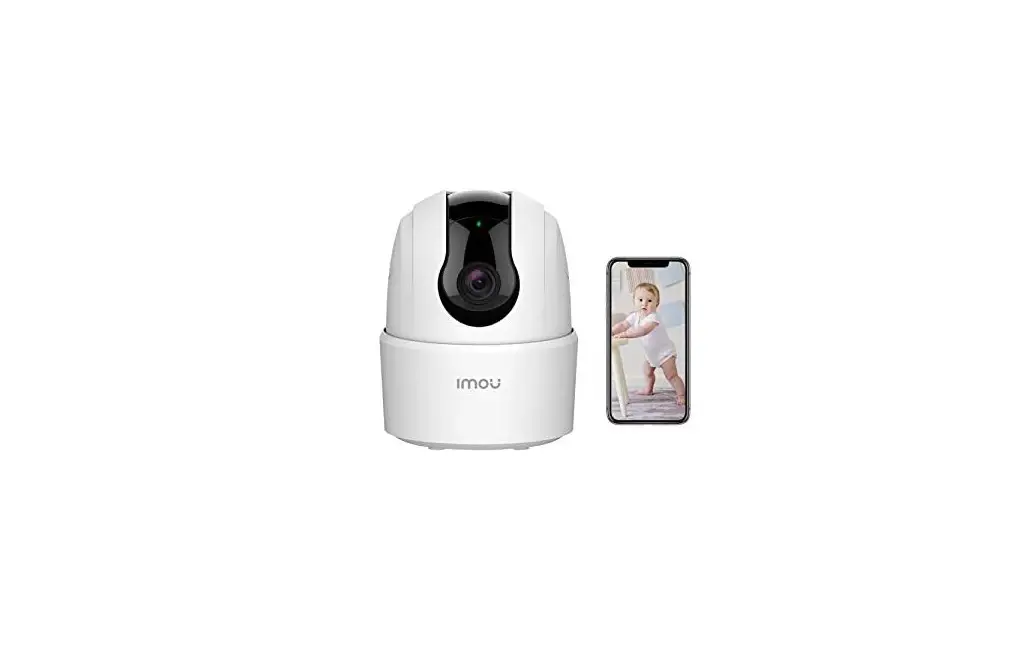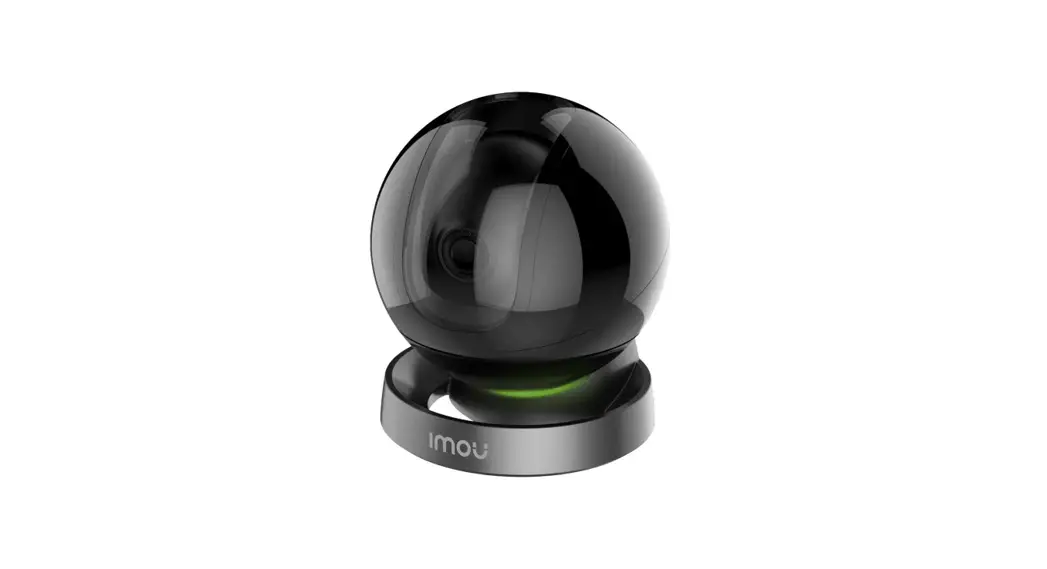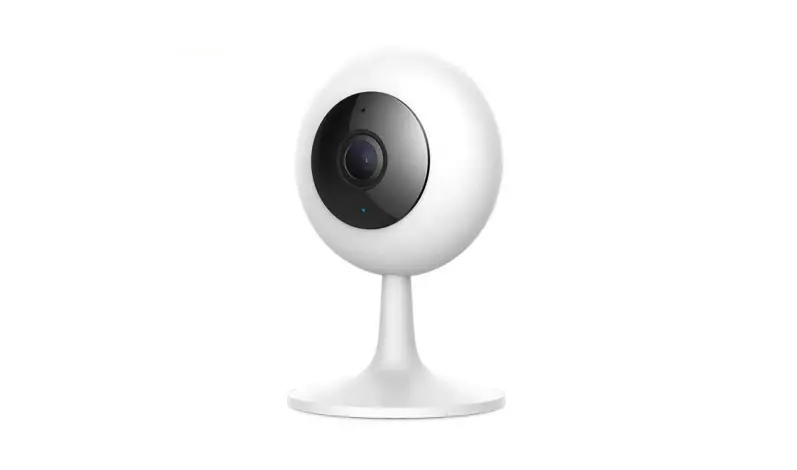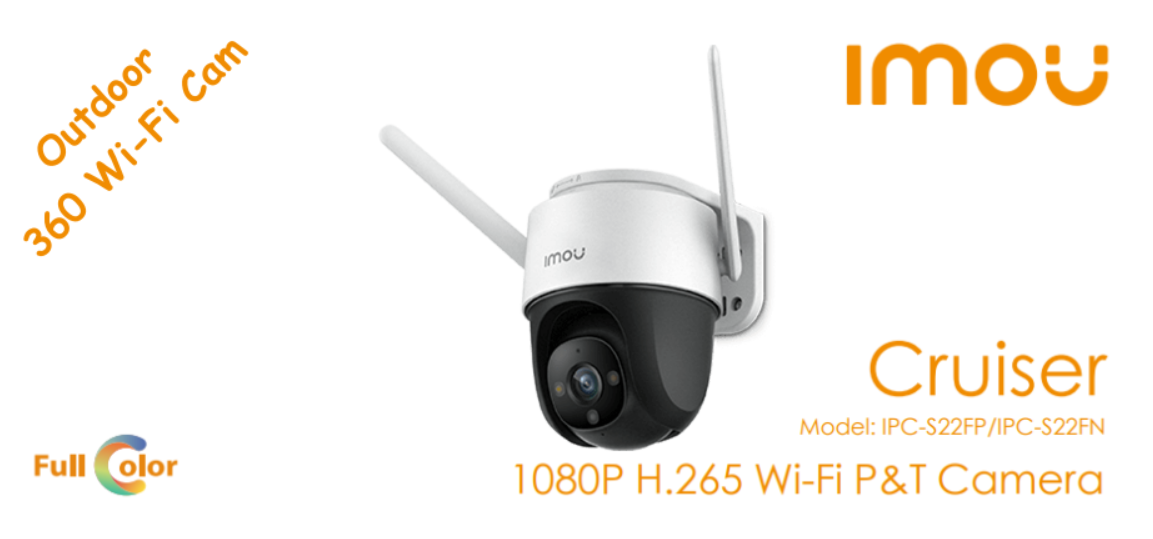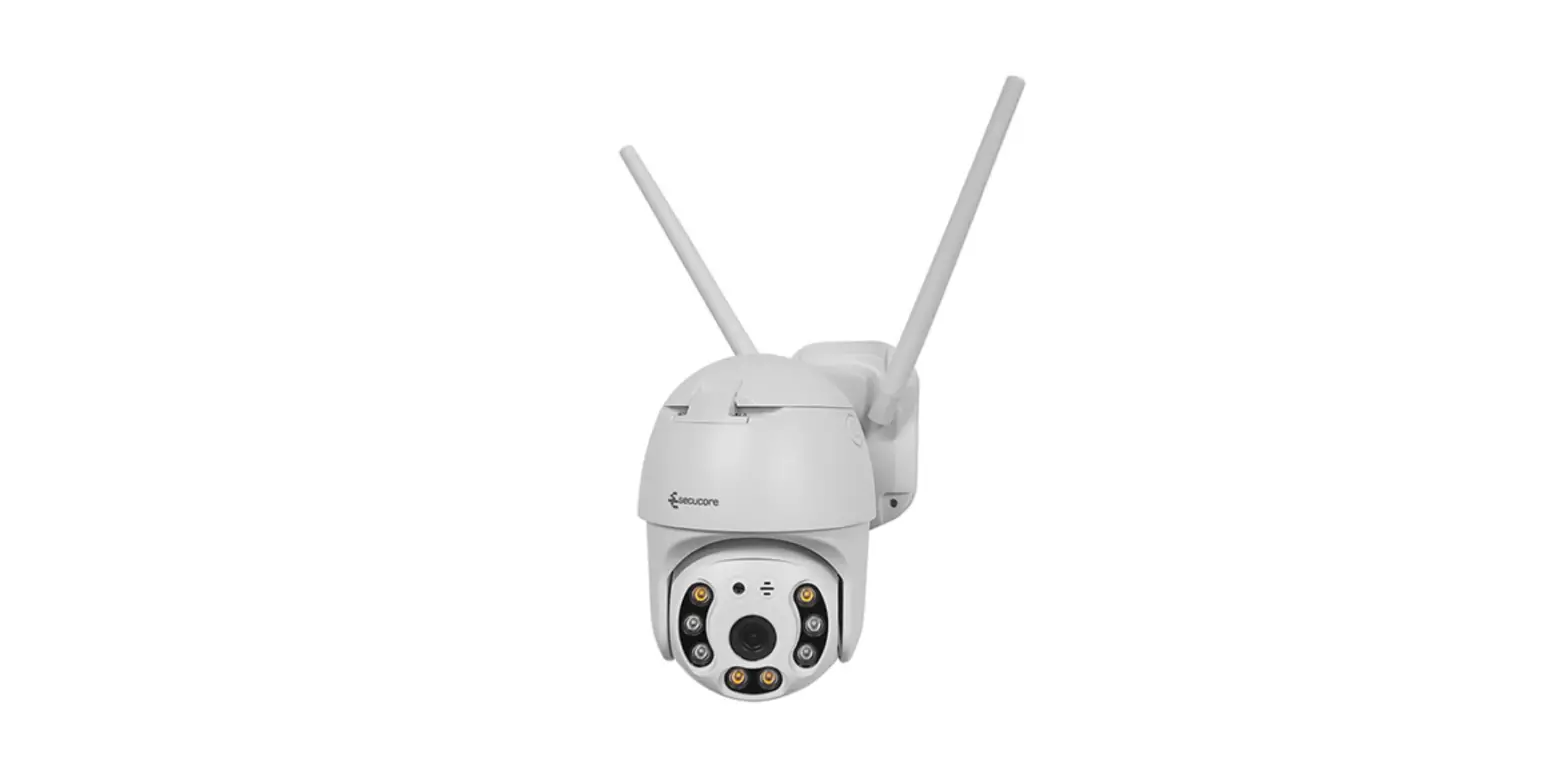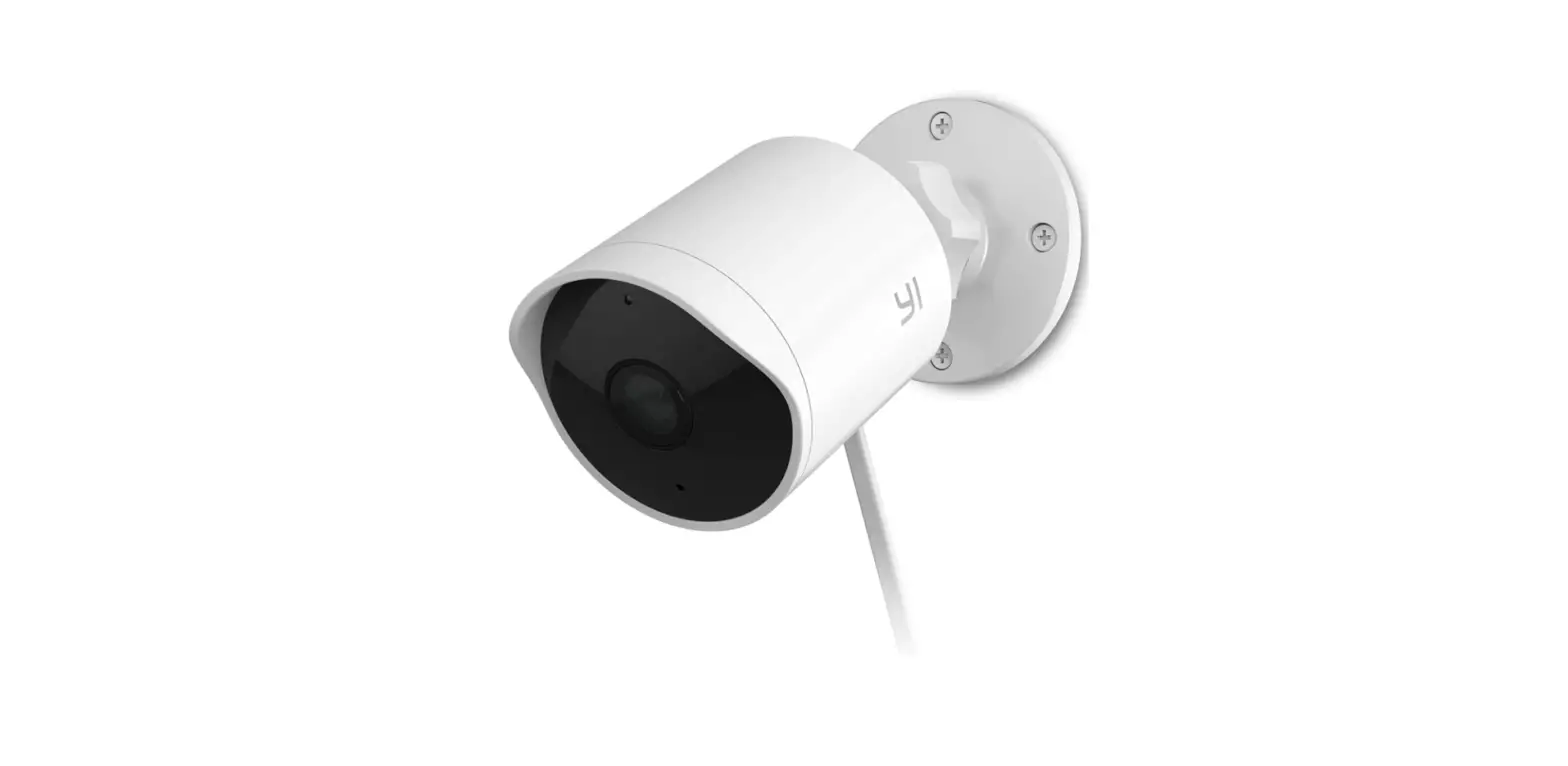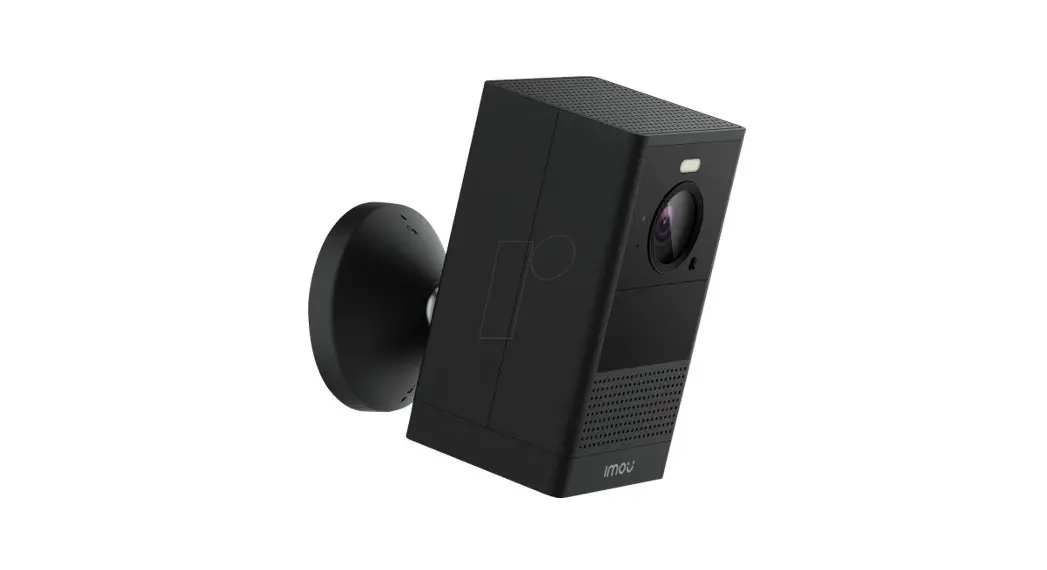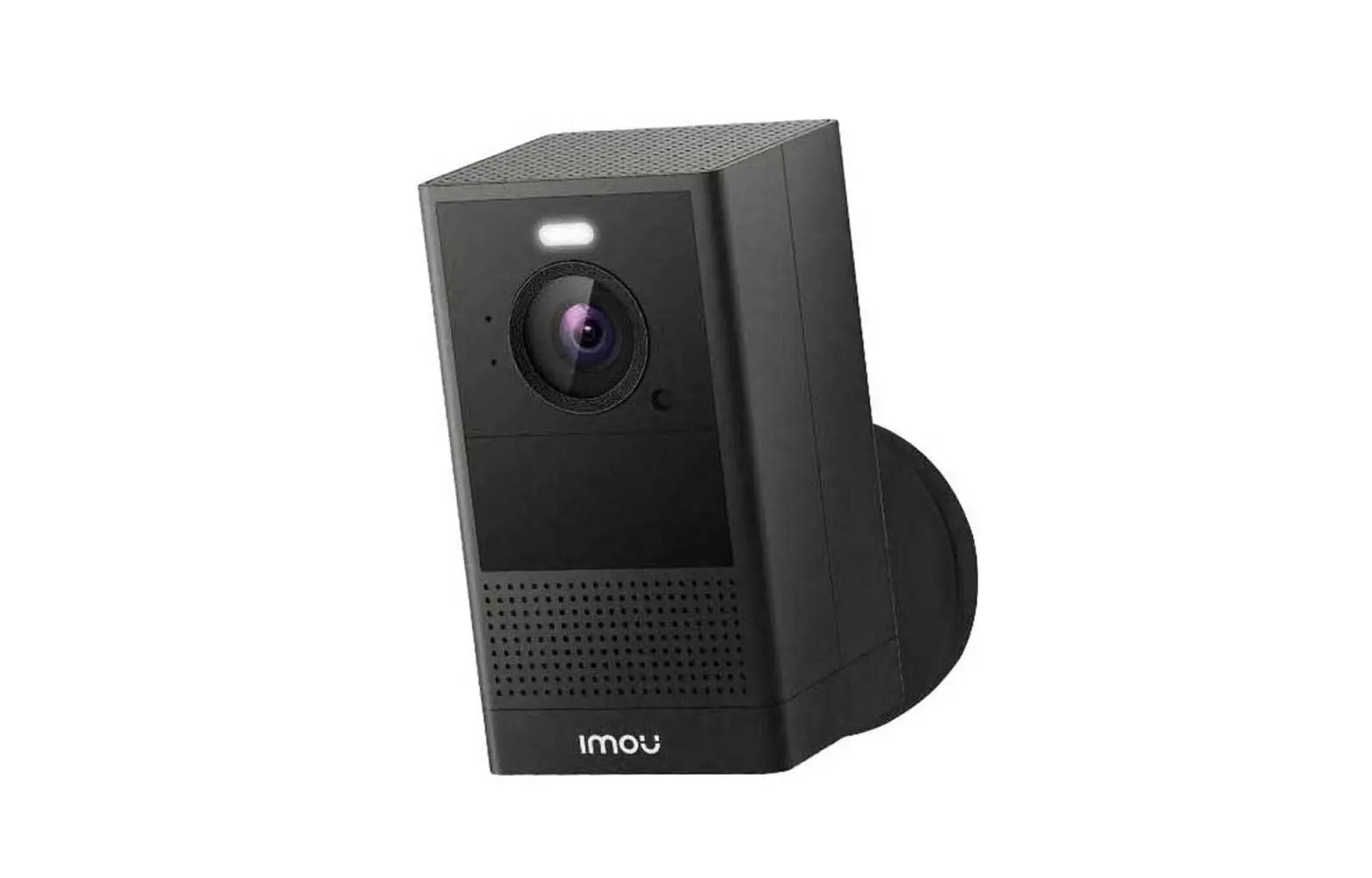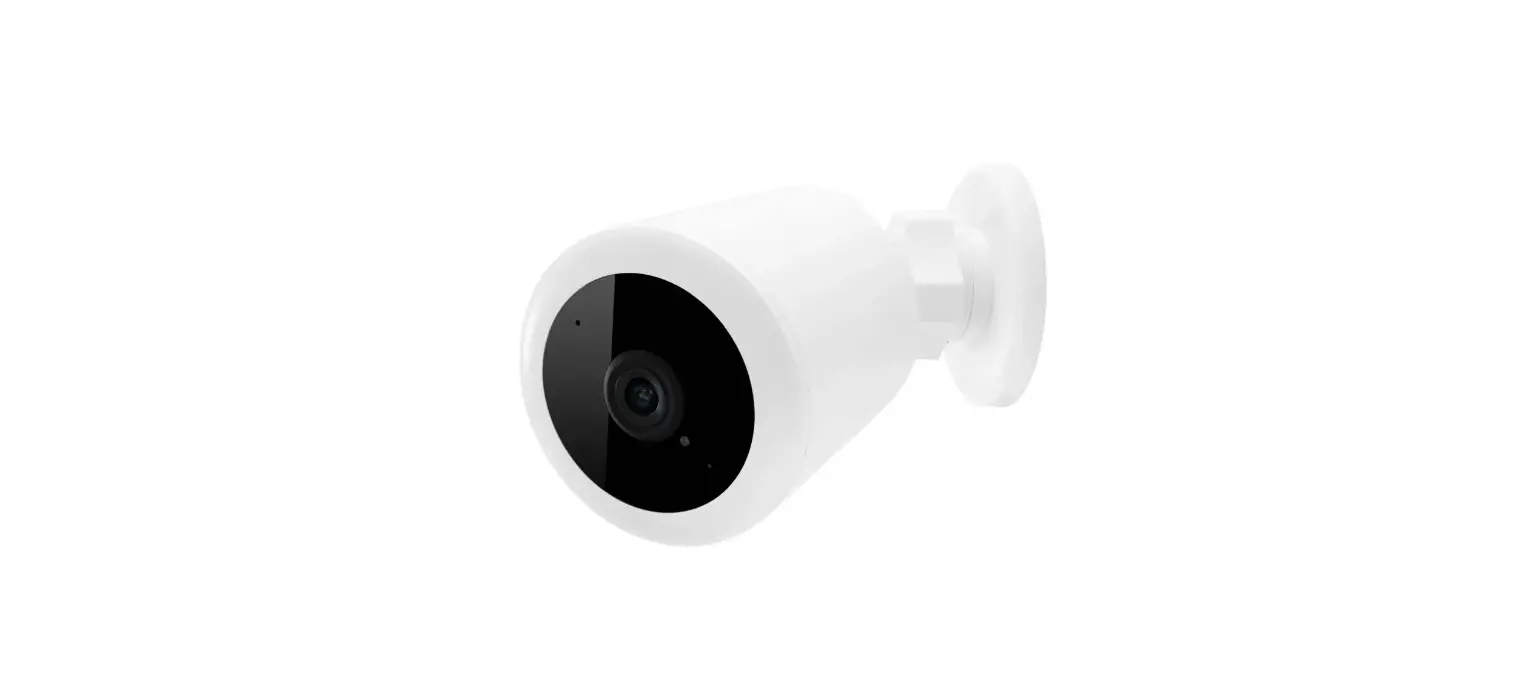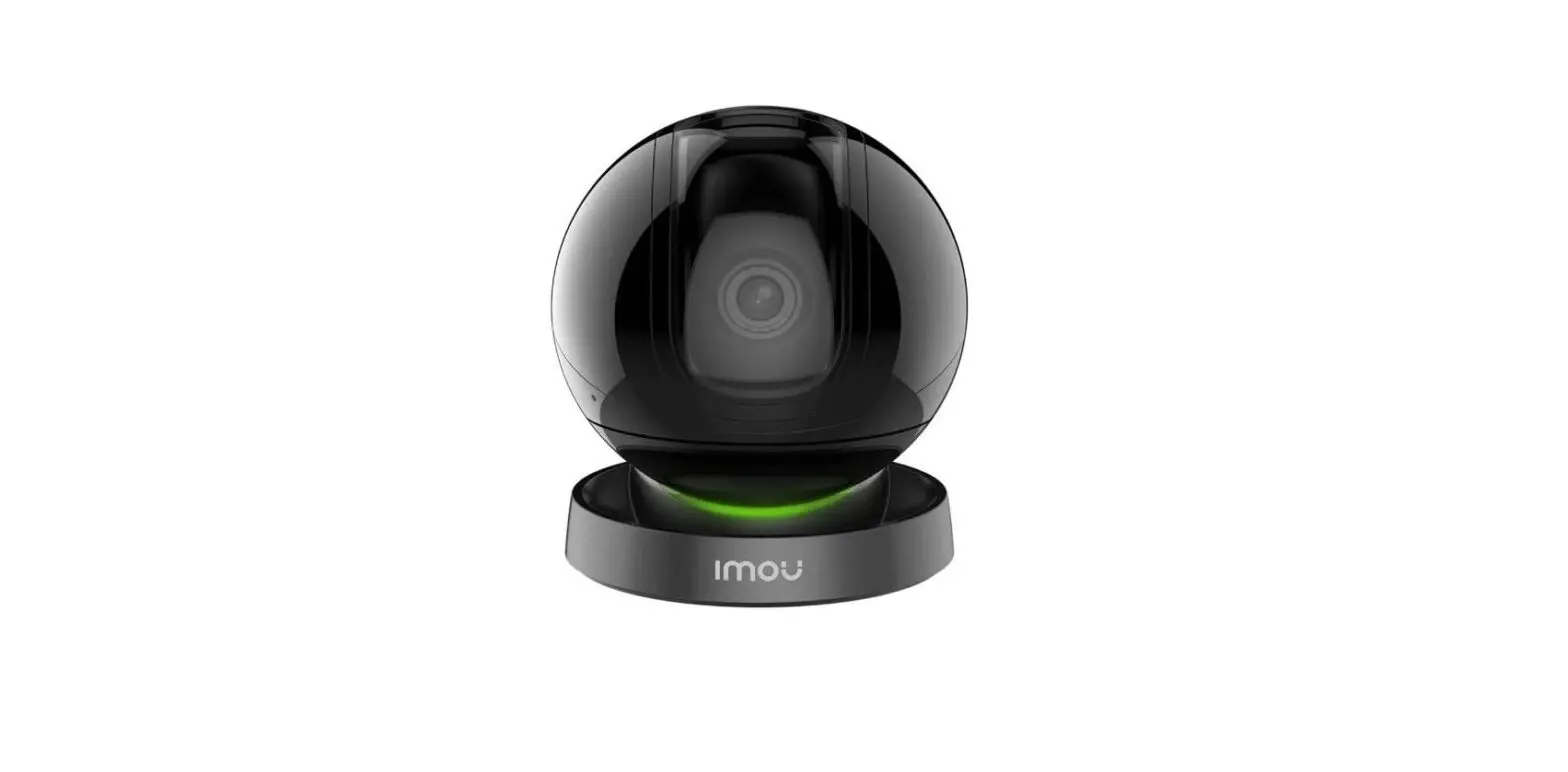

Imou-90 Security Camera
Welcome
Thank you for choosing IMOU.
We are devoted to providing you easy smart home products. If you have problems using the product, please contact our service team at [email protected] before returning your product.
Here’s how to get started.
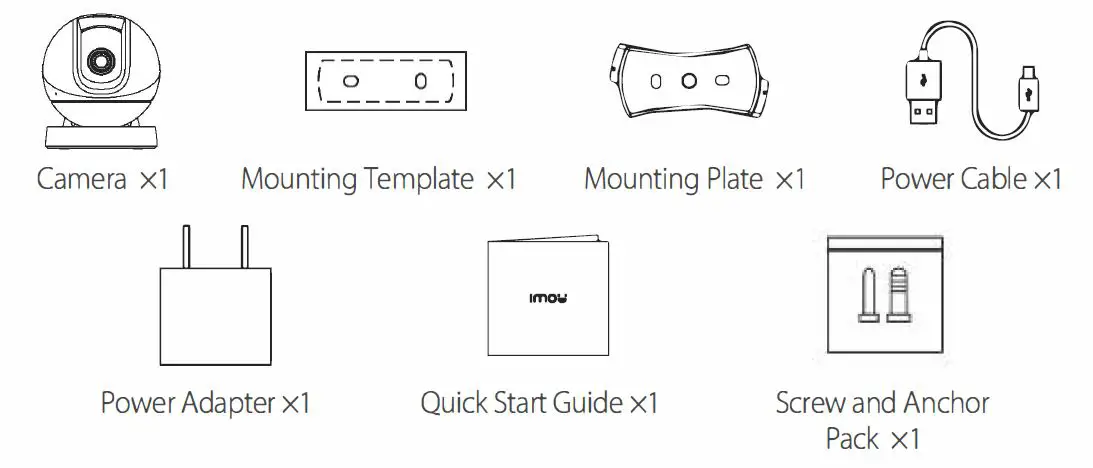
Package Contents
Camera Introduction

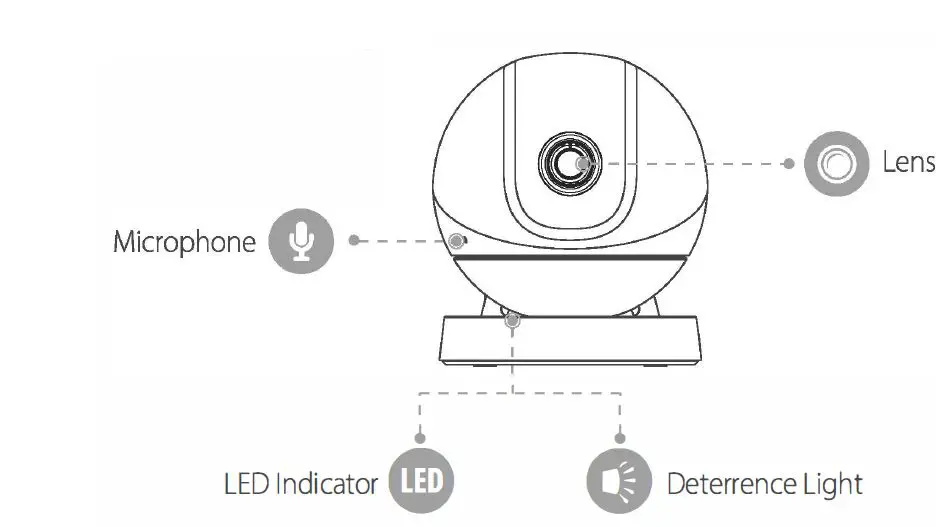
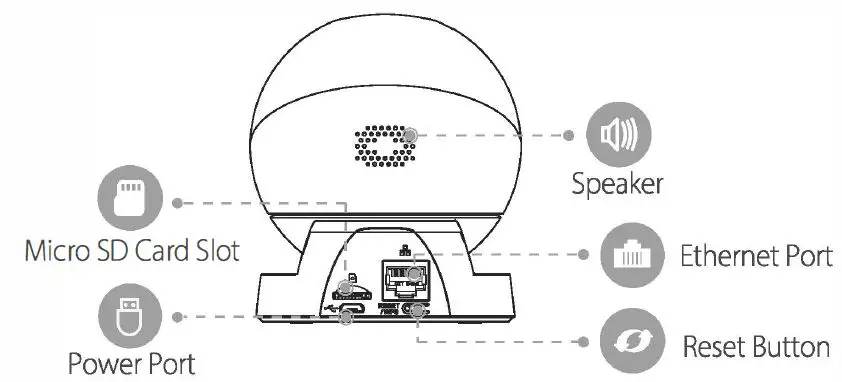
- Press and hold the reset button for 10 s to reset the camera.
- Double-press the reset button to enable the camera’s hotspot.
See the table below for the meanings of the camera’s LED behavior.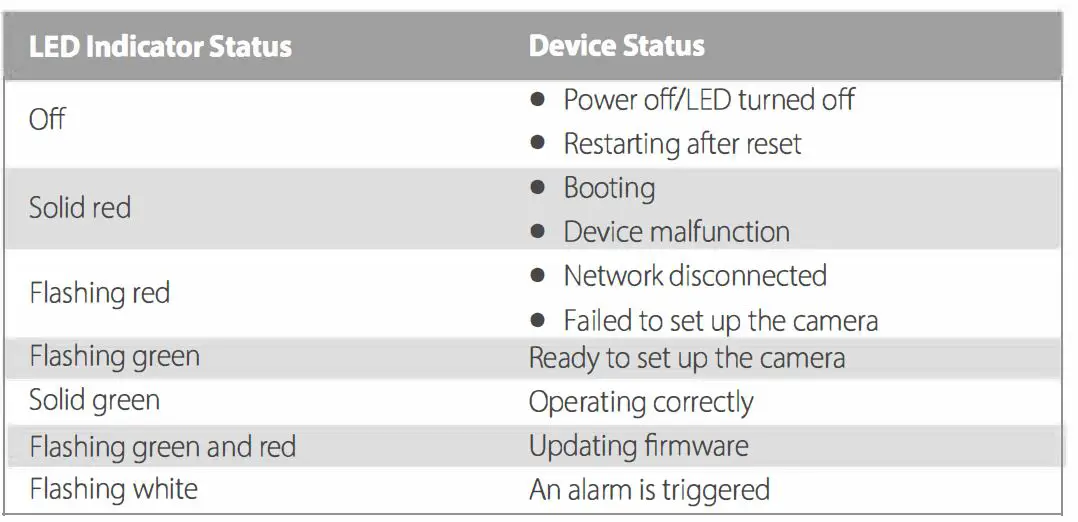
Setting Up the Camera
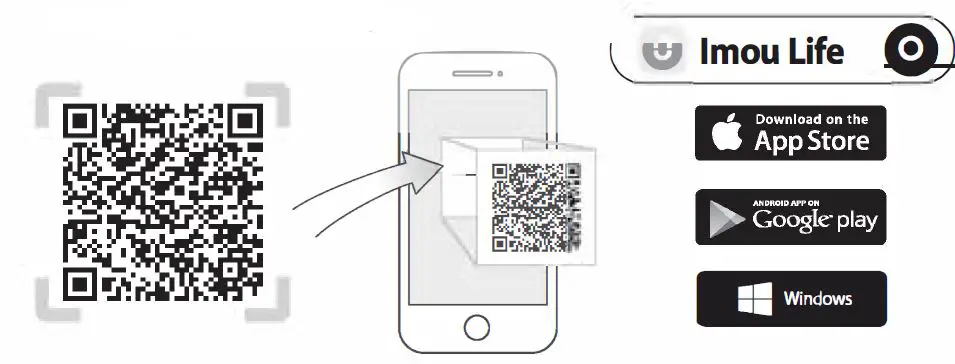
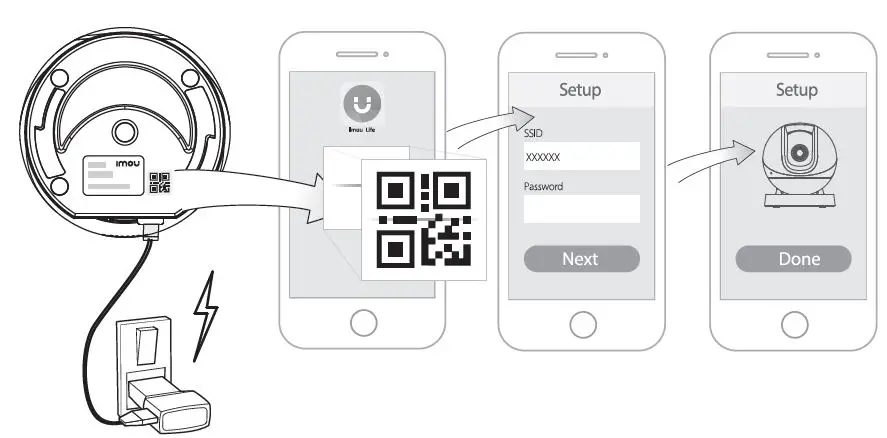
- Step 1 Scan the following QR code or search “Imou Life” in the app store to download and install the app.
 Tips
Tips
To ensure the best possible wireless performance, please make sure there are no obstacles and electromagnetic interference between the camera and router. - Step 2 Launch the app and then create an account if you are a new user.
- Step 3 Connect the camera to the power source with the power adapter.
- Step 4 Follow the on-screen prompts to add the camera. Repeat the adding process if you have multiple cameras.

 Tips
Tips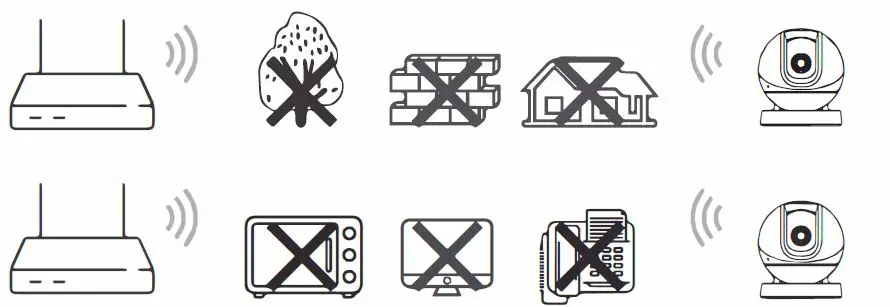
Installing the Camera
Make sure that the mounting surface is strong enough to hold at least three times the weight of the camera and the bracket. 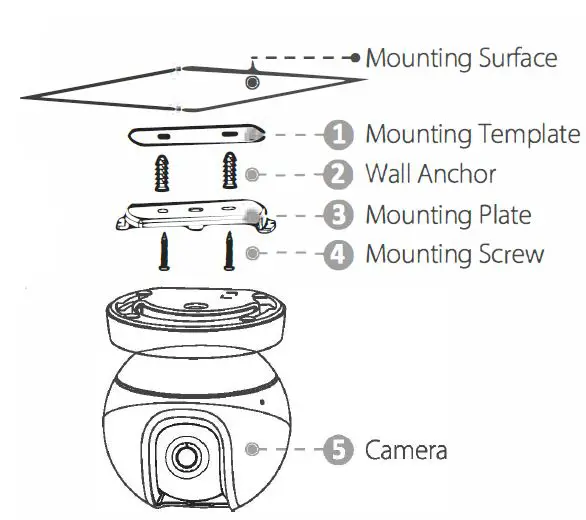
- Step 1 Peel off the mounting template and stick it to the desired installation area.
- Step 2 Drill holes into the mounting surface as the mounting template marks and then insert wall anchors as needed.
- Step 3 Secure the mounting plate to the mounting surface with included mounting screws.
- Step 4 Twist the camera base onto the mounting plate to secure it to the mounting surface.
- Step 5 Power on the camera and then adjust its angle properly.


Troubleshooting
Q: How to restore the camera to factory settings?
Press the reset button for 10 s until the camera restart automatically.
Q: Failed to set up the camera?
- Ensure your smartphone and the camera are within range of your Wi-Fi router.
- Ensure the LED indicator on the camera is flashing green before beginning setup.
- Reset the camera, then set it up again.
- Certain routers offer a dual-band network (2.4 GHz and 5 GHz bands). Connect your phone and device to the 2.4 GHz band only.
Q: How to find the default device password?
The default device password is the safety code on the device label.
Q: No video or the device is offline?
- Check the indicator status:
- Solid green: Check whether the router can connect to the Internet. If the network is connected, restart the camera.
- Flashing red: Reset the camera, and then set up the camera again.
- Solid red: The camera is faulty.
- Ensure that the camera is properly connected to power using the included power adapter.
- Reposition the camera, router or both to improve signal strength.
Q: How to connect the camera to another WI-Fl network?
- If the camera is online, select Device Details> Network Config to change the Wi-Fi connection on the app.
- If the camera is affine, reset the camera, and then set up the camera again.
Q: Video image is not clear?
- Check if the camera lens is clean without dirt, dust or spider webs. If not, use a dry cloth dampened with alcohol and gently wipe away any dust on the lens.
- Remove the vinyl film from the camera lens.
Q: No audio during two-way talk or live view?
- Ensure the Audio Recording is enabled in device settings.
- Turn on the volume by tapping the speaker icon during live view.
Q: Human detection does not work?
- Ensure Human Detection and Motion Detection are both enabled in device settings.
Q: QR code cannot be read by the phone?
- Clean the camera lens of your phone.
- Turn on your phone’s light if you are in a dim environment.
- Do not hold your phone too close to the QR code.
For more questions, please scan the QR code beside or visit: www.imoulife.com/web/support/help