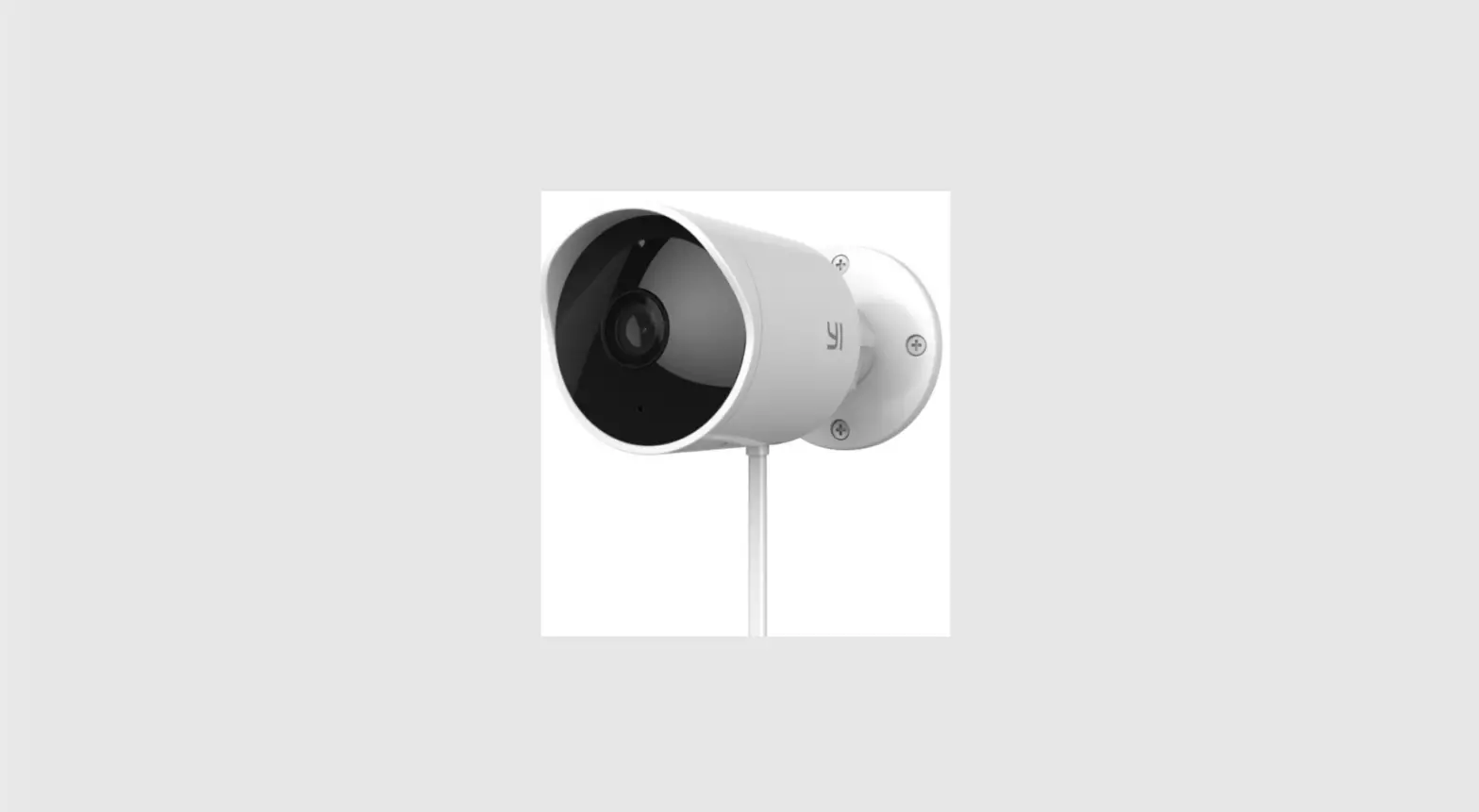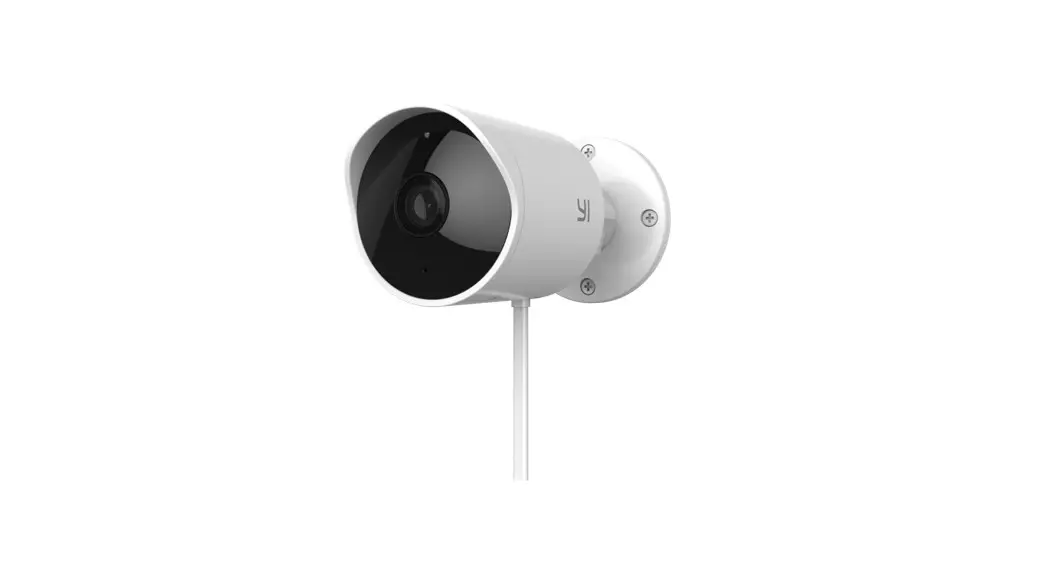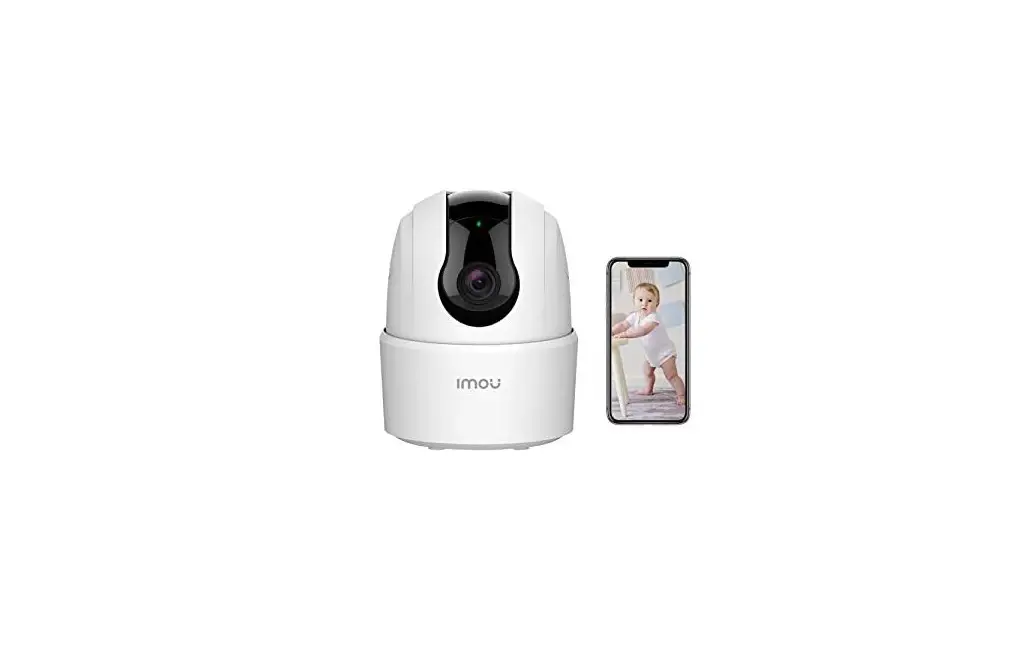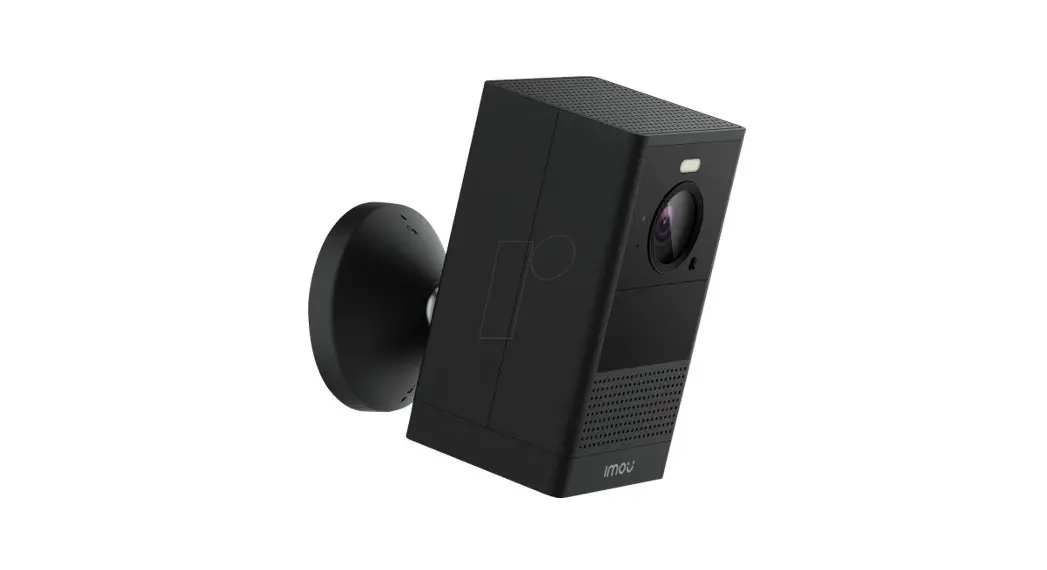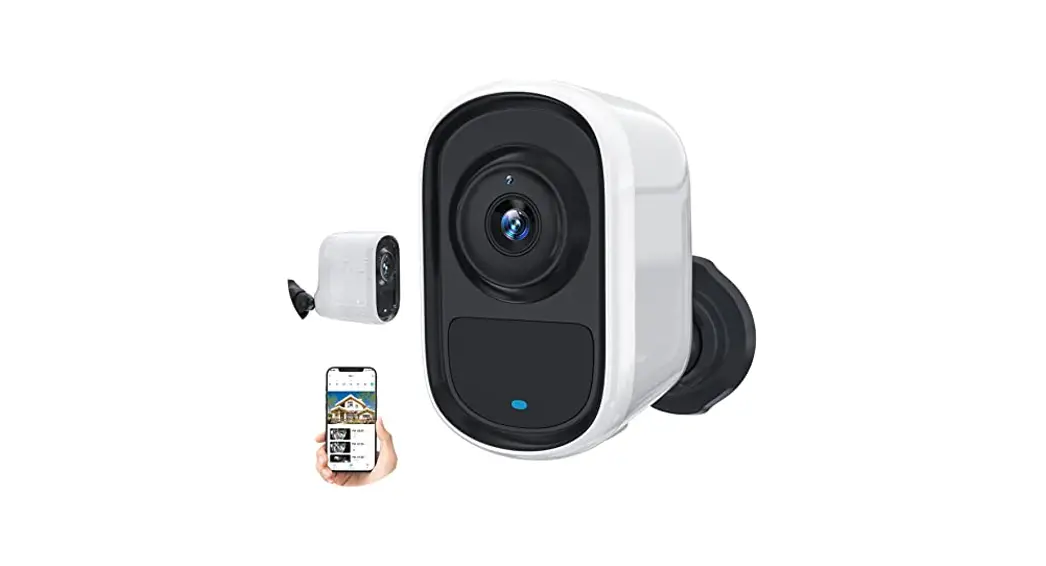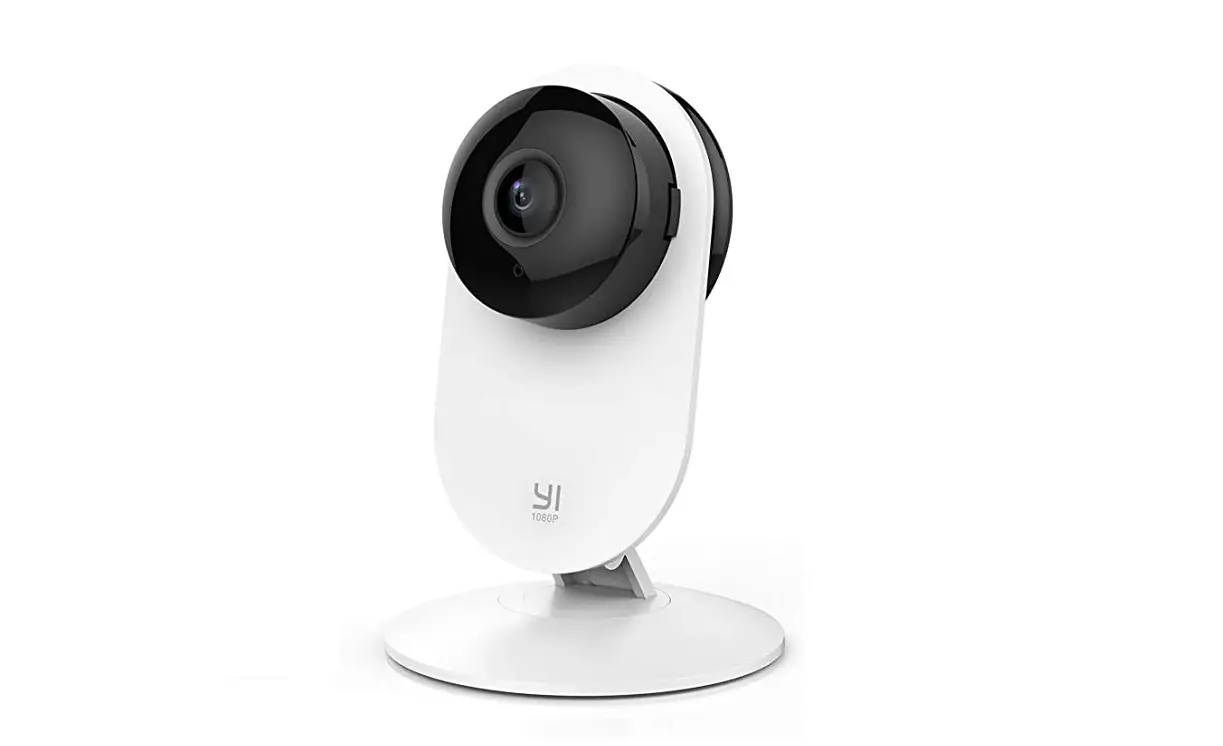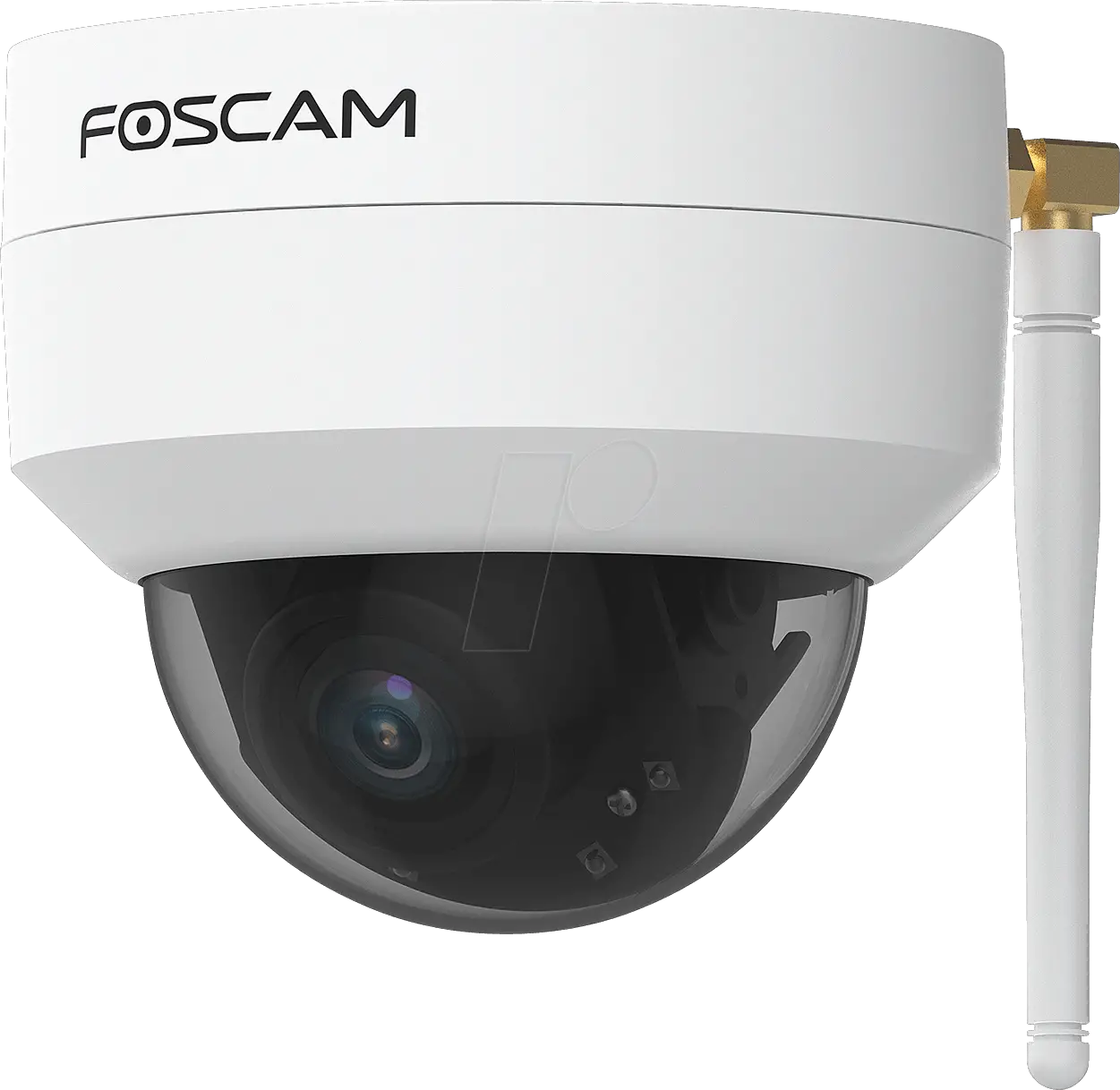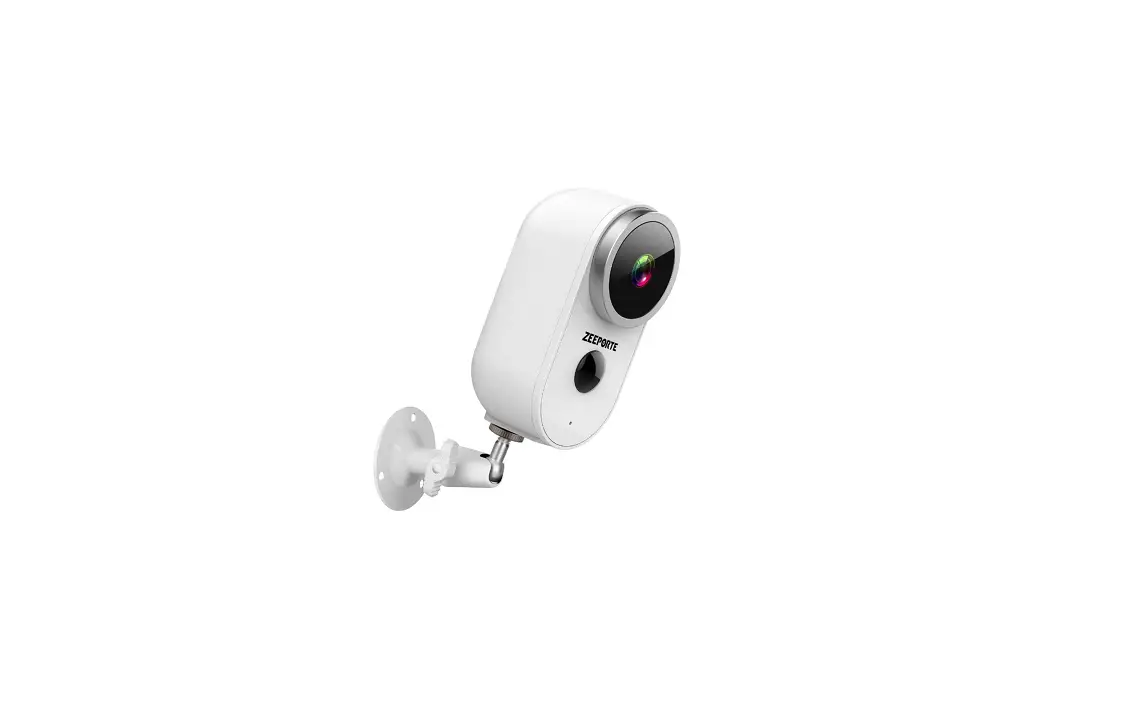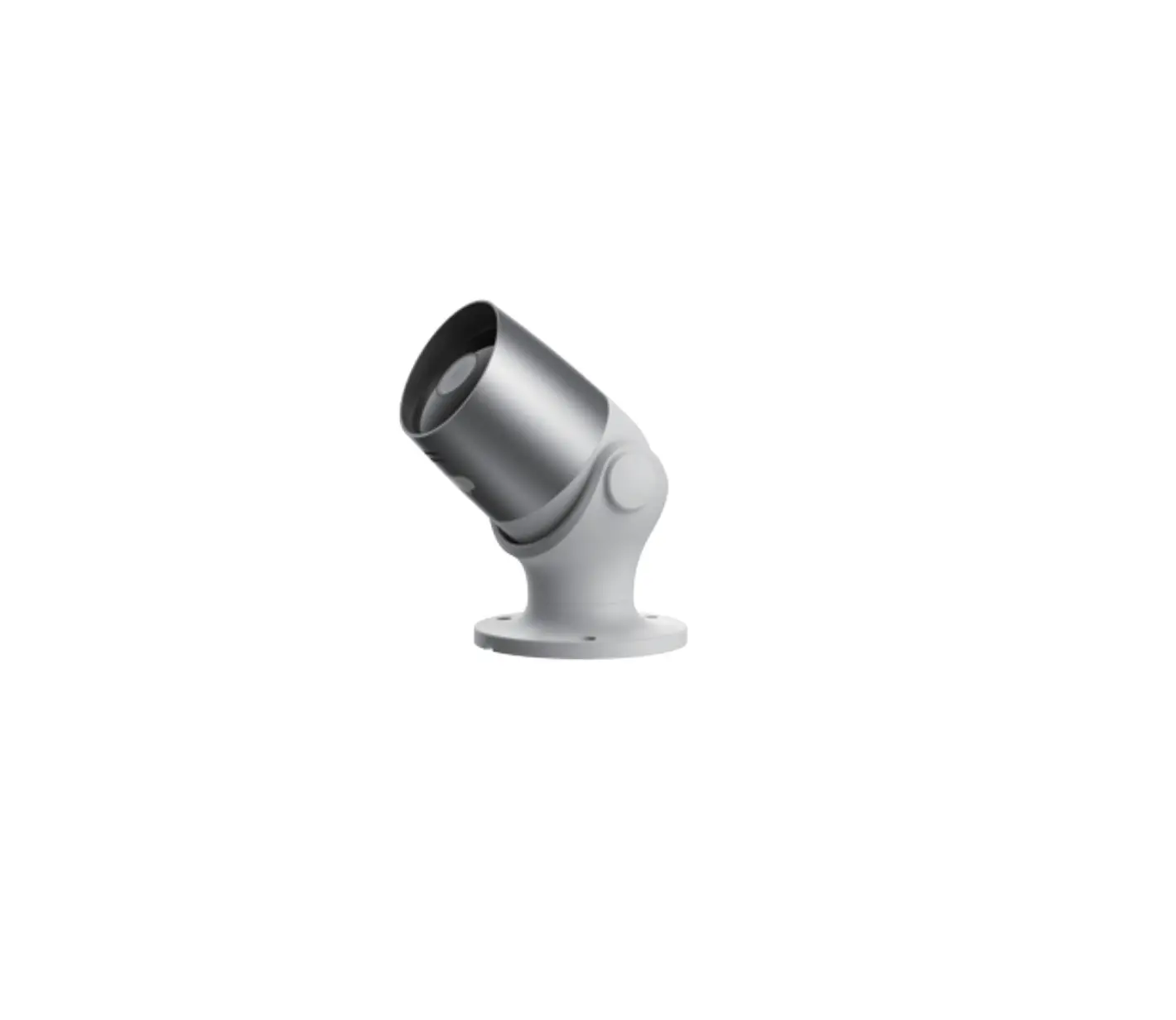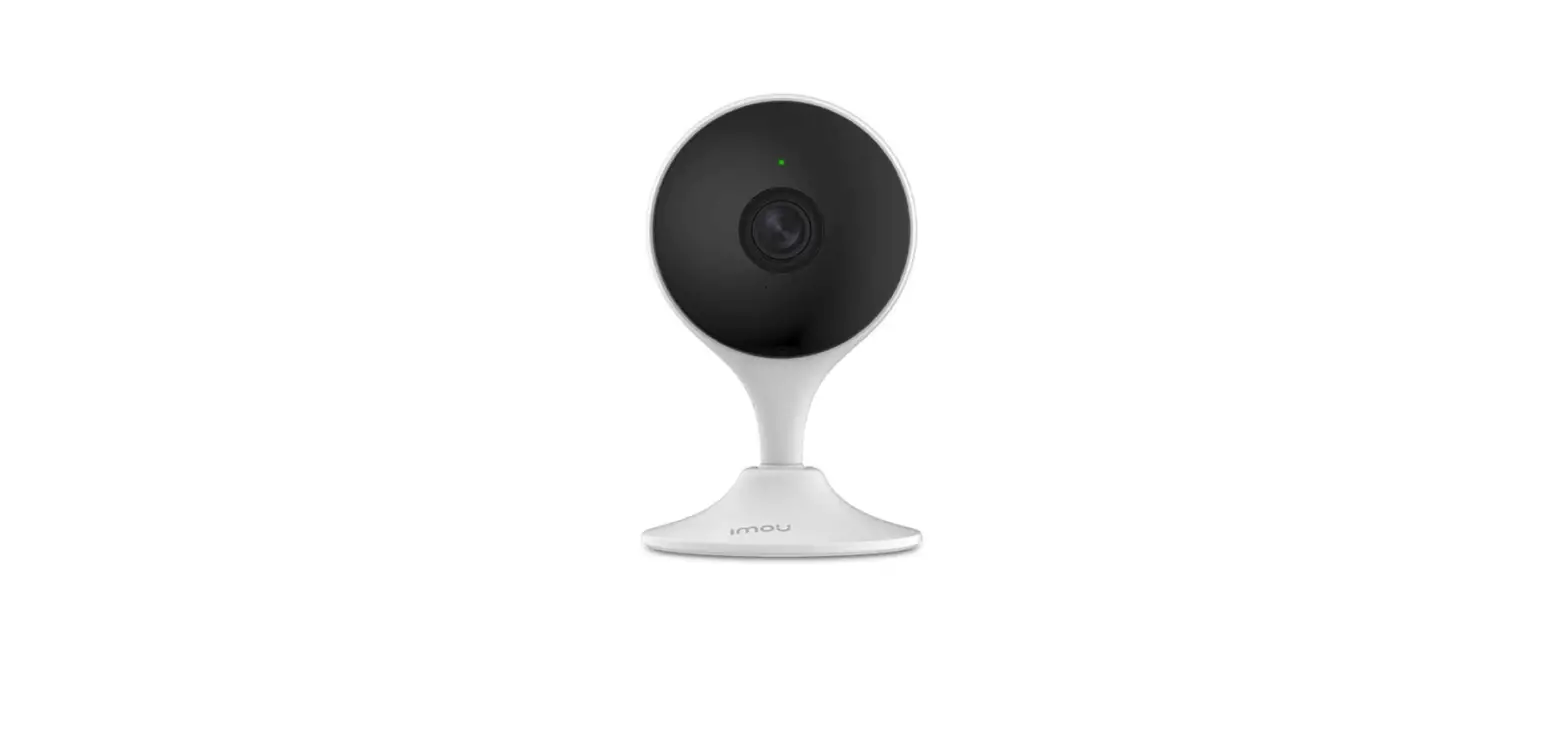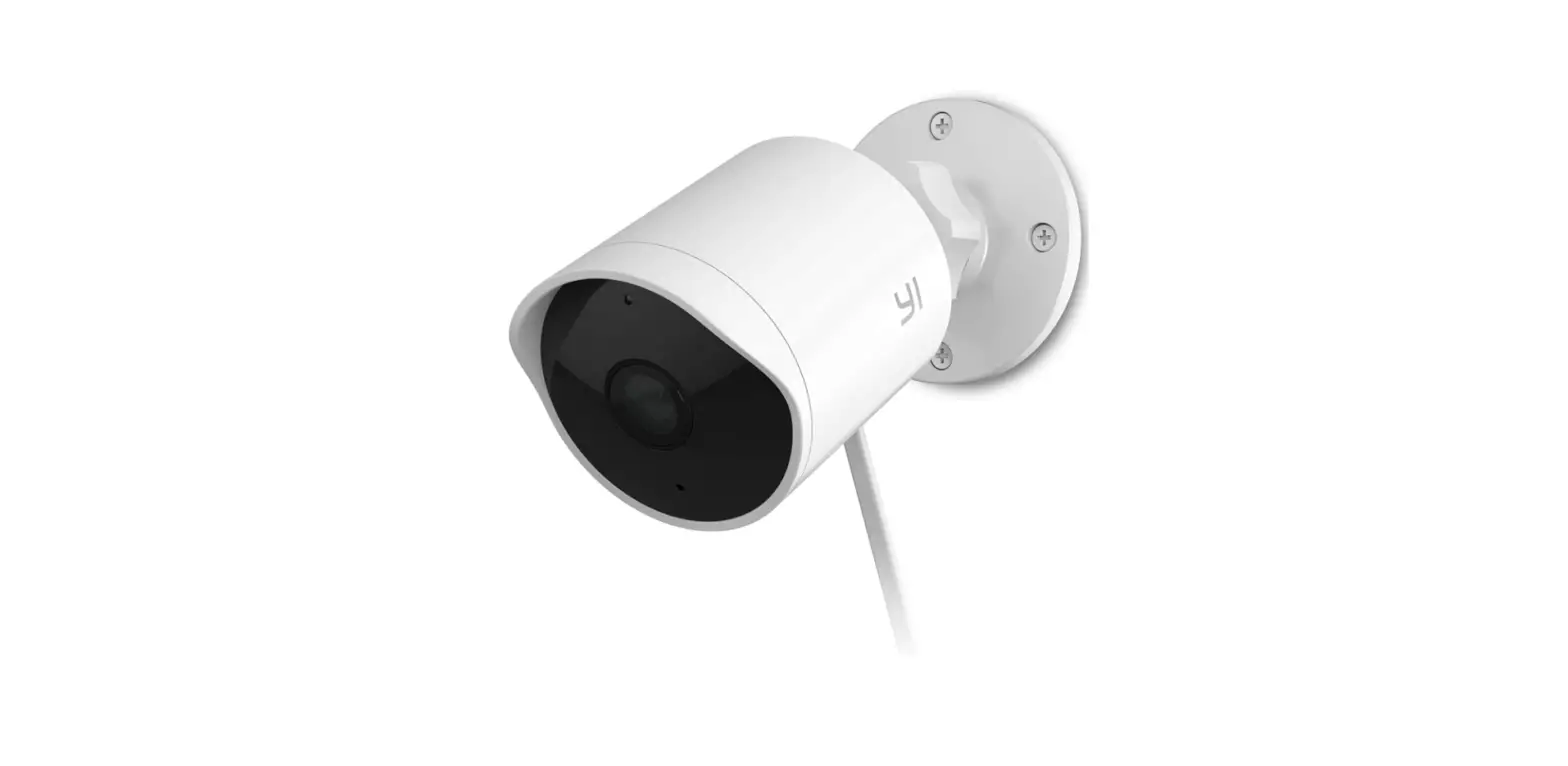
 YI 86002 Security Camera Outdoor
 YI 86002 Security Camera Outdoor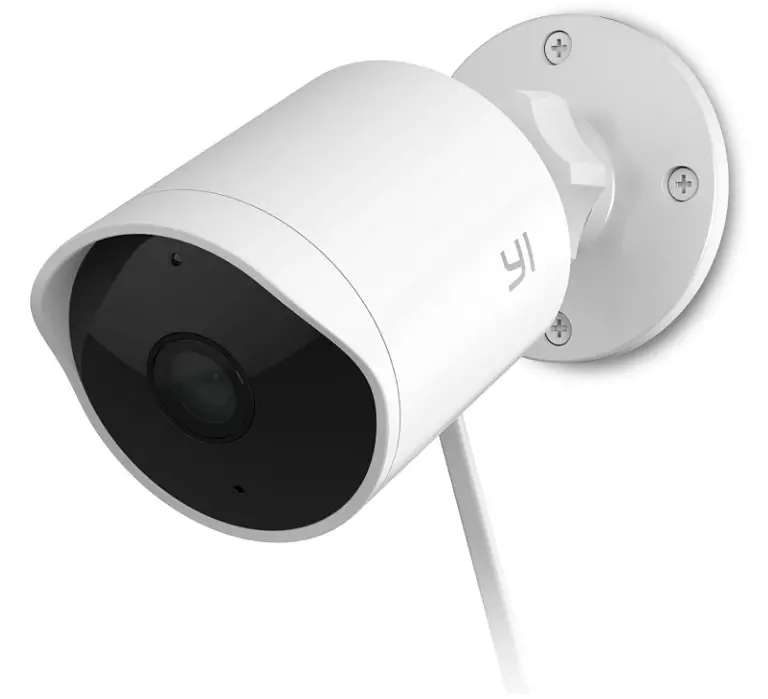
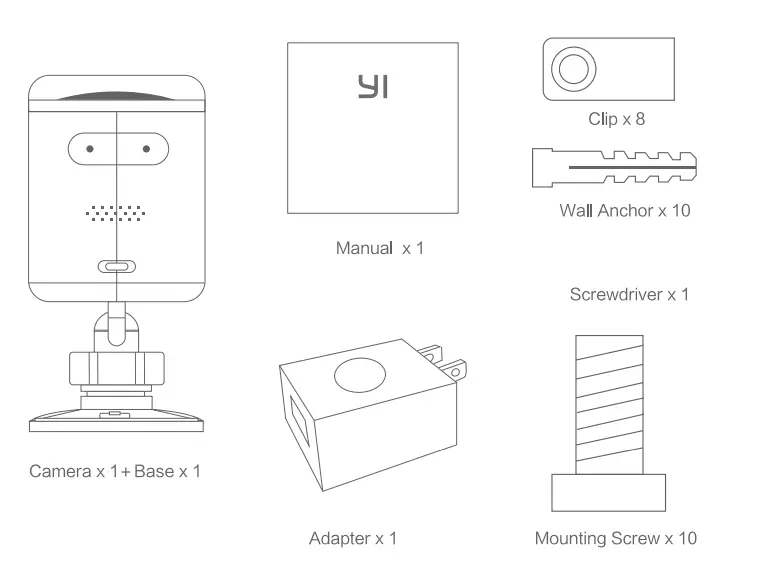
What’s In the Box?
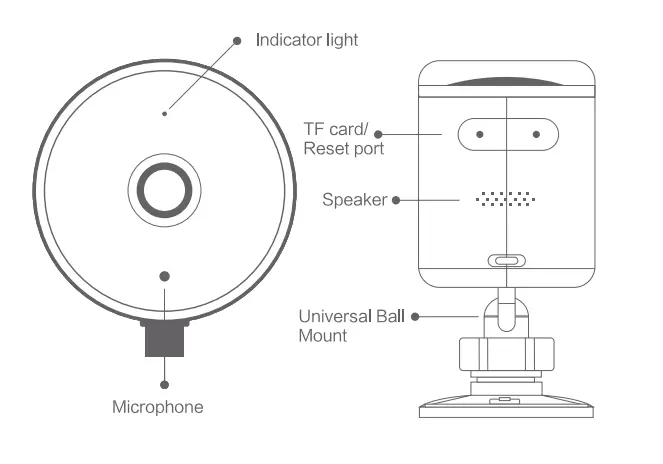
Camera Parts
Basic instructions
- Pair your outdoor camera with the YI Home App.
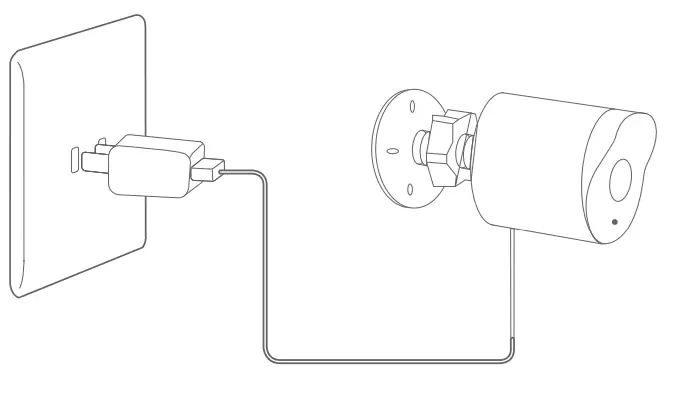
- Before mounting outside, plan the route of the cable from the power outlet to the camera.
- Keep the camera close to the router.

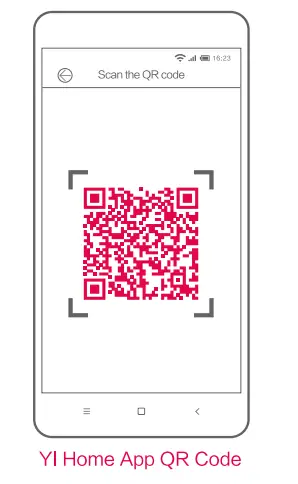
Download YI Home App
- Scan QR code to download YI Home App
- Open the app and register a YI account
- If you already have a YI account, you can log in directly, add the camera according to prompt voice
- Follow the instructions on app interface.

Add YI Outdoor Camera to your YI account
- After you login to the YI Home App, touch the ‘+’ icon on the top right of the screen to add a new device.
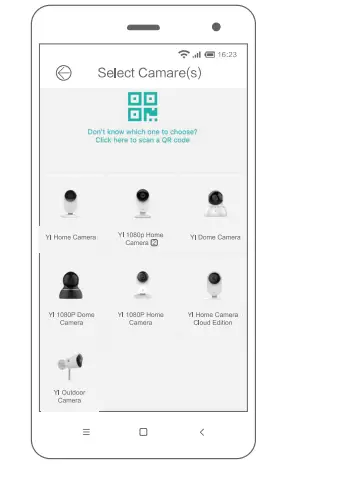
- Select YI Outdoor Camera to begin pairing. When yellow light blinks and “Waiting to connect” is heard, touch “The prompt voice has been heard”.
- Enter SSID and Wi-Fi password, then use your YI Outdoor Camera to scan the QR code.
- When successfully scanned, touch ‘Next Step’ to finish pairing.
- Once you hear “Pairing is successful”, you can begin using your YI Outdoor Camera.

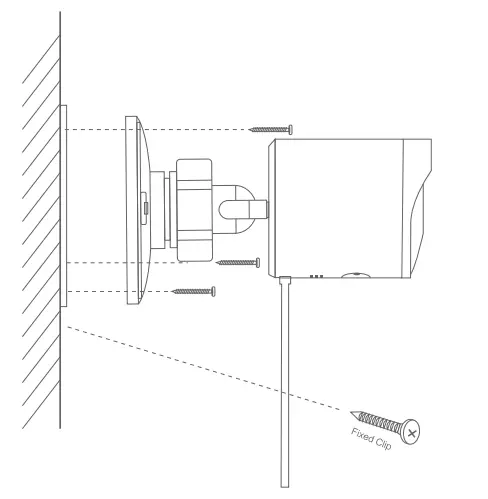
Mount device
- Use the base’s screw holes as a template to mark the drill spots. Remove base and drill holes on the marked spots.
- Align the base and attach using the screws. wall anchors may be required. If you are mounting the device to a wooden wall, you can screw the mount directly to the wall.
- Use the clip to fasten power cords, don’t fasten too tightly.

- Bring your camera to the mounting spot.
- Attach your camera to the mounted base.
- Ensure your camera can connect to the nearest Wi-Fi spot.
- If you’ve already successfully paired your camera with your smartphone, the camera will automatically connect to Wi-Fi when powered on.
- Now you can preview the video on your smartphone, if you are unable to do this it may be caused by poor network, please adjust the router’s position.
- When previewing the feed, you should adjust the camera angle to a suitable position, then tightly lock the universal ball mount.

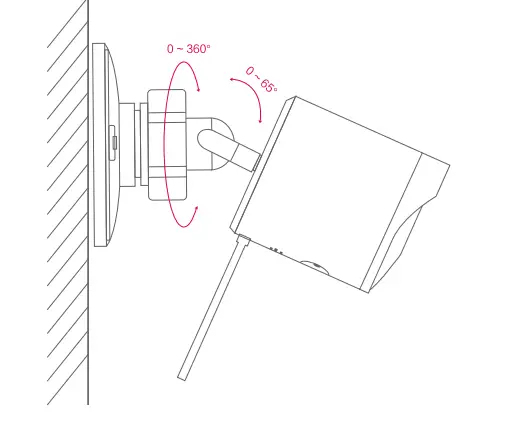
When mounting pay attention to the following
- Avoid direct sunlight
- Mind any plants or objects that may obstruct the view
- We suggest you mount within a 10 meter range of your router
Basic parameters
- Maximum resolution: 1920 x 1080
- Lens: 110° Wide-Angle
- Audio: Built-in Mic/Speaker
- Video compression: H.264 High Profile
- Photographic enhancement: 3D digital noise reduction, distortion correction
- Alert mode: Motion detection
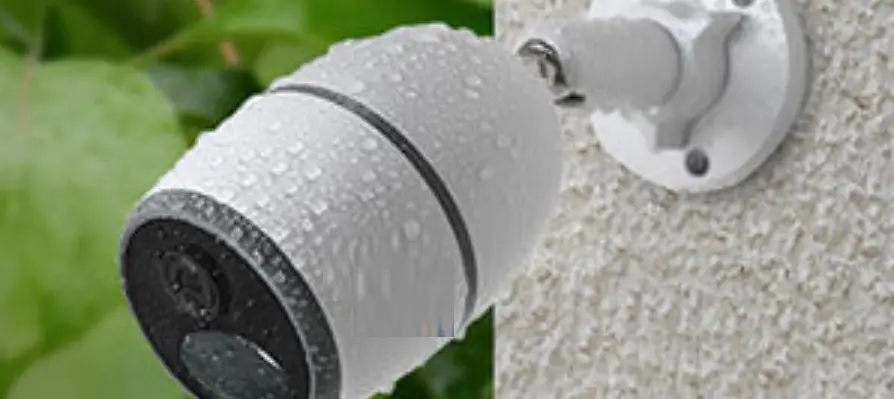
- Waterproof grade: IP65
- Night Vision: IR Cut+ infrared LEDs
- Support platform: Android 4.1/iOS 8.0 or above
- Wireless encryption: WEP/WPA/WPA2
- Length of USB cable: 3 meters
- Power supply: DC5V1A
FCC STATMENT
This device complies with Part 15 of the FCC Rules/ Industry Canada license exempt RSS standard(s). Operation is subject to the following two conditions: (1) this device may not cause harmful interference, and (2) this device must accept any interference received, inducing interference that may cause undesired operation.
Changes or modifications not expressly approved by the party responsible for compliance could void the user’s authority to operate the equipment.
This equipment has been tested and found to comply with the limits for a Class B digital device, pursuant to part 15 of the FCC Rules. These limits are designed to provide reasonable protection against harmful interference in a residential installation. This equipment generates uses and can radiate radio frequency energy and, if not installed and used in accordance with the instructions, may cause harmful interference to radio communications. However, there is no guarantee that interference will not occur in a particular installation. If this equipment does cause harmful interference to radio or television reception, which can be determined by turning the equipment off and on, the user is encouraged to try to correct the interference by one or more of the following measures:
- Reorient or relocate the receiving antenna.
- Increase the separation between the equipment and receiver .
- Connect the equipment into an outlet on a circuit different from that to which the receiver is connected .
- Consult the dealer or an experienced radio/TV technician for help.
Under Industry Canada regulations, this radio transmitter may only operate using an antenna of a type and maximum (or lesser) gain approved for the transmitter by Industry Canada. To reduce potential radio interference to other users, the antenna type and Its gain should be so chosen that the equivalent isotopically radiated power (e.i.r.p.) is not more than that necessary for successful communication.
MPE Requirements
To satisfy FCC / IC RF exposure requirements, a separation distance of 20 cm or more should be maintained between the antenna of this device and persons during device operation. To ensure compliance, operations at doser than this distance is not recommended.
Frequently Asked Questions
What is the 10ft cable for? Do I need a landline to set it up or does it use Wi-Fi?
The 10ft cable is to power the camera. This is not battery operated. It is a Wi-Fi camera.
So its not an actual power cord at the end but a us’ plug? I am assuming it comes with a regular outlet plug that the usb cord goes into right?
At first, I was annoyed that the power was supplied by USB. But I was actually pretty grateful that I could remove the supplied power plug when it came time to fish the USB wire through my eaves and down into my garage. Only a small hole was required. Then I just plugged the USB end back into the power plug once inside my garage.
What does the service cost?
This is to the person who doesn’t see the need for the cloud service. The cloud service lets you view your recordings even if the intruder steals the camera or the SD card. If you use an SD card, then it’s not a good idea as a real security camera. It’s $66 per year for 7 day recording for 5 cameras. The cloud account will also support YI-IOT cameras too.
Why are there no details about the cord? Installation? Power? Data?
It’s a standard USB connector at the end of a long cord and all it does it provide power to the camera.
Does it record audio?
Yes, but the audio is not very good. Every other feature makes up for the lack of good audio.
Is this camera compatible with Alexa (Echo)?
Yes, the YI Outdoor camera is compatible with Alexa Echo.
Can this be used without Cloud Services?
Yes. Cloud services are additional subscription.
What are the dimensions of the usb connector? (not the cable length but the dimensions of the connector in the end of the cable)
It was said the USB connector comes off the cord and can be reattached. Hence allowing for a smaller drilled hole.
Is there a converter to allow use of power supply from older cctv cameras (2.1mm 12v rca)?
The power required for this unit is supplied by a DC5V1A USB adapter, so basically 115v standard plug in and 5v USB plug out. You will not be able to use the stated 2.1mm 12v adapter. However, this unit does come with its own adapter so you really don’t need the 2.1 mm one.
Can I use Amazon Fire to view camera?
The camera can only be watched with YI home app. You can download the software from your phone or computer.
Got it all set up with a memory card in it. But i can’t look at past events like i can on my others.
I have same problem; I get alarm and it shows it but I can’t look back like I do on the yi indoor dome cameras I have. I have a card in it.