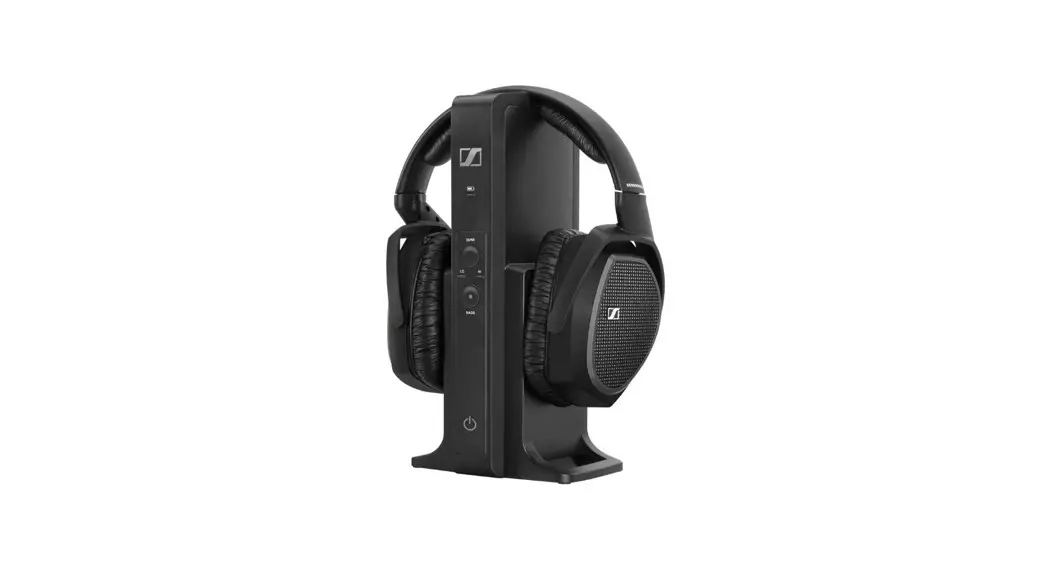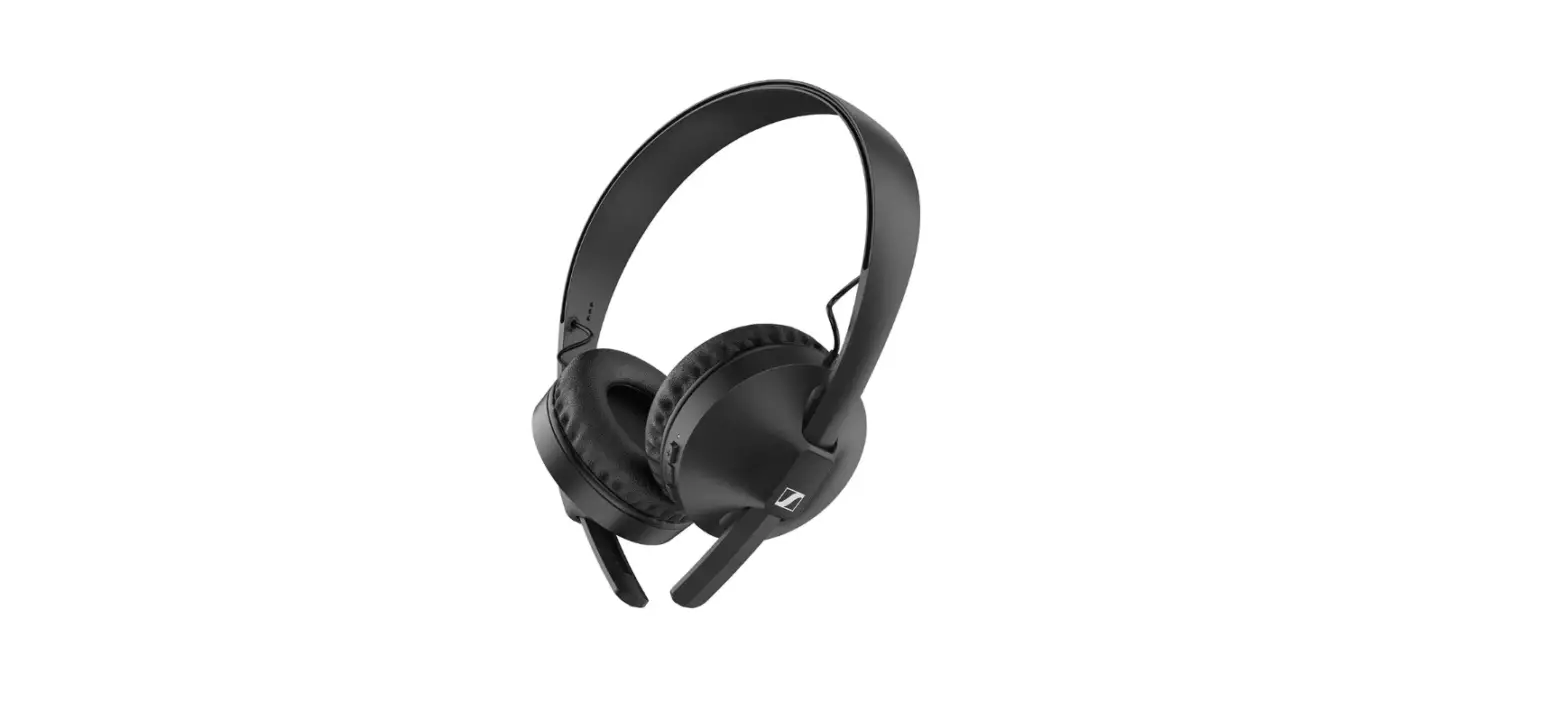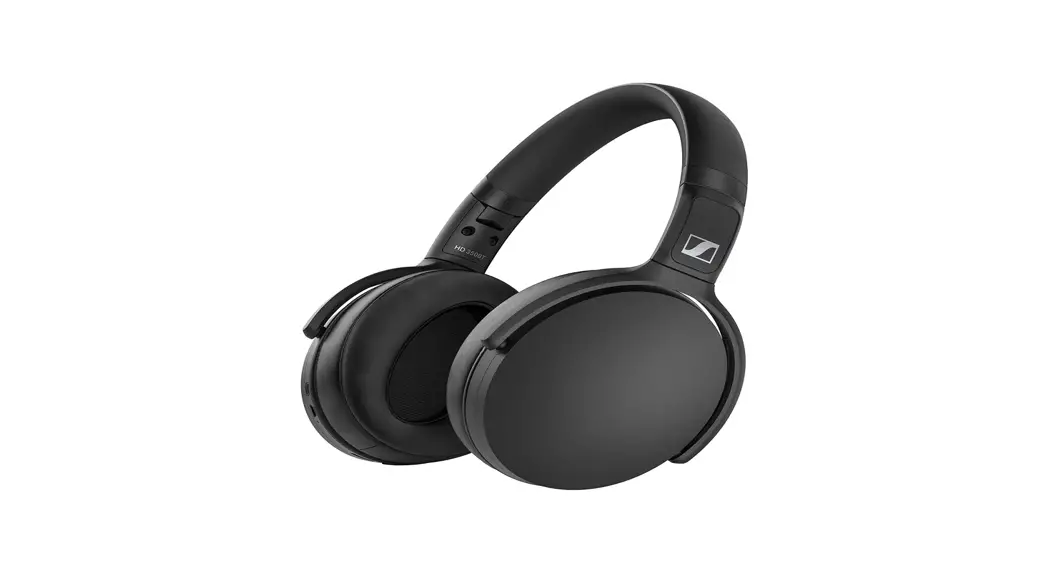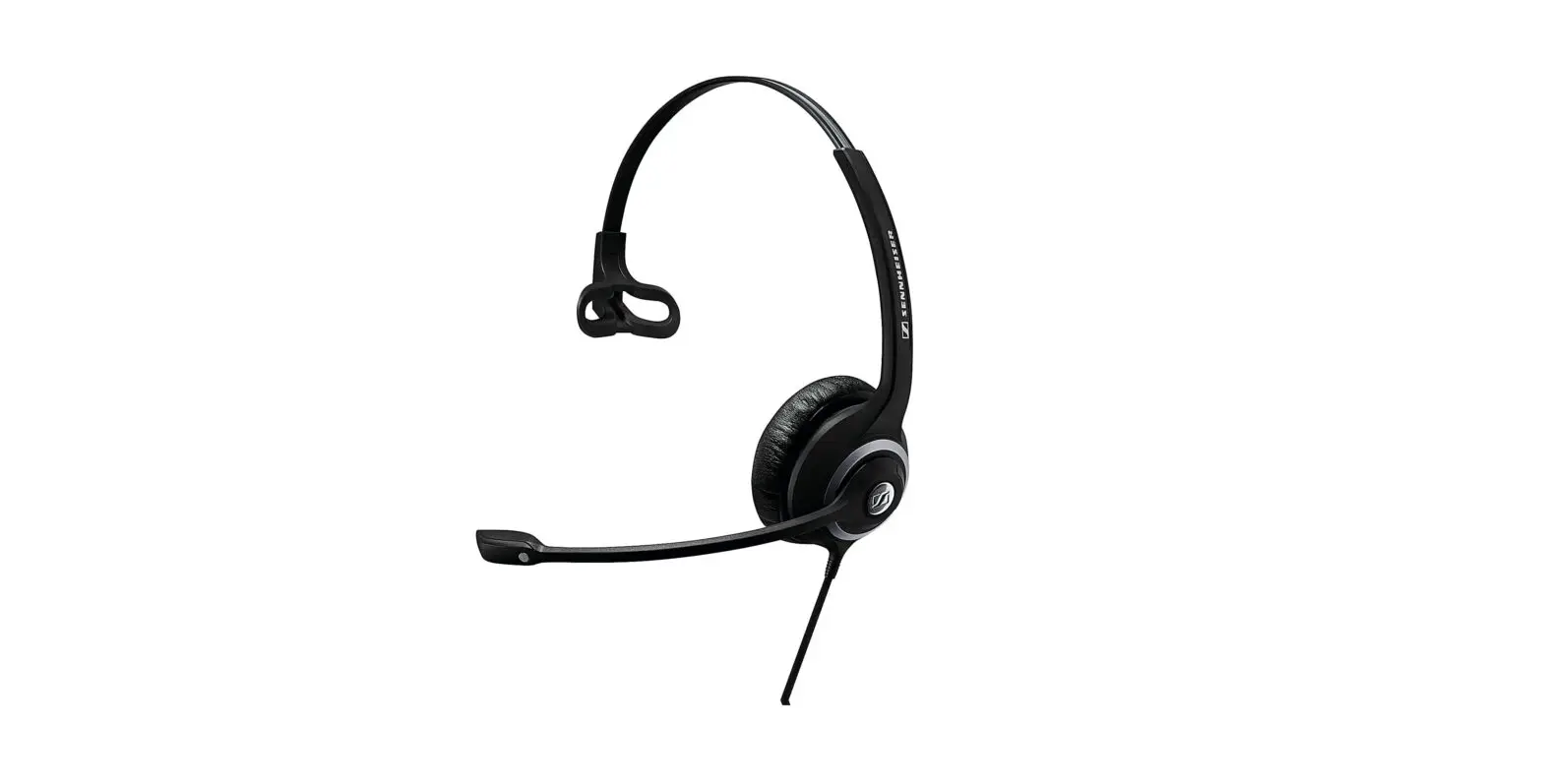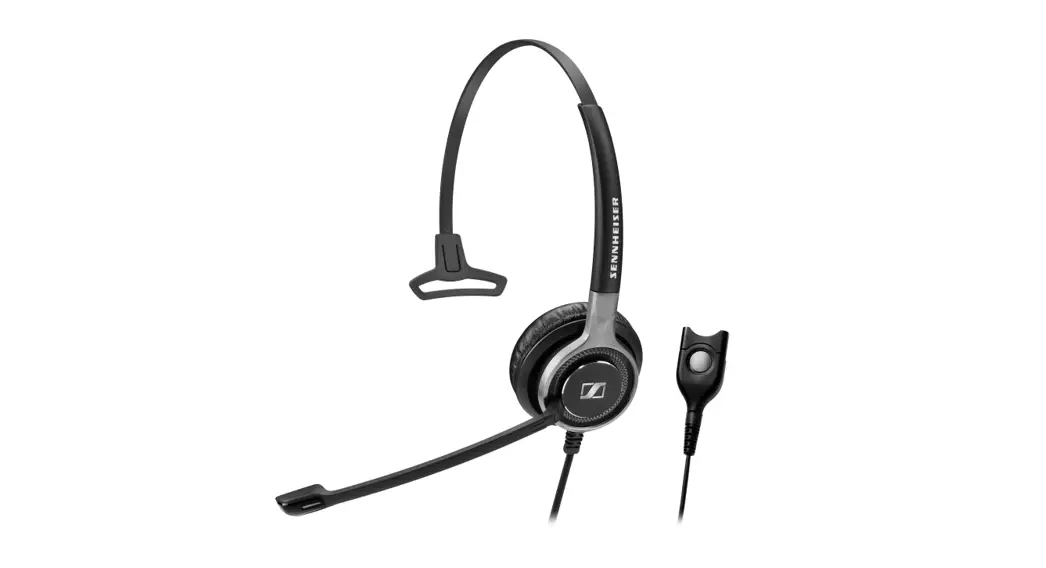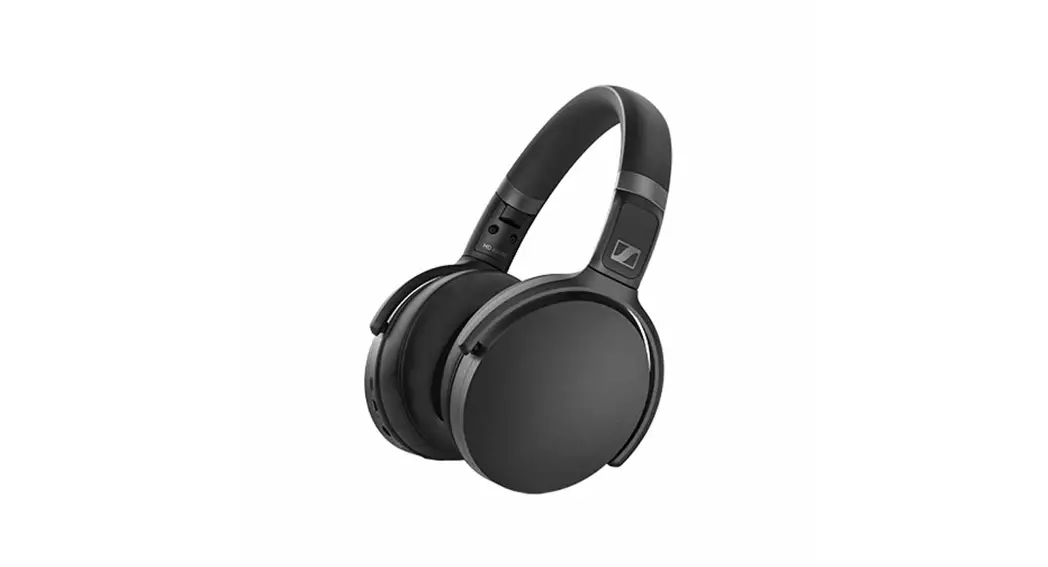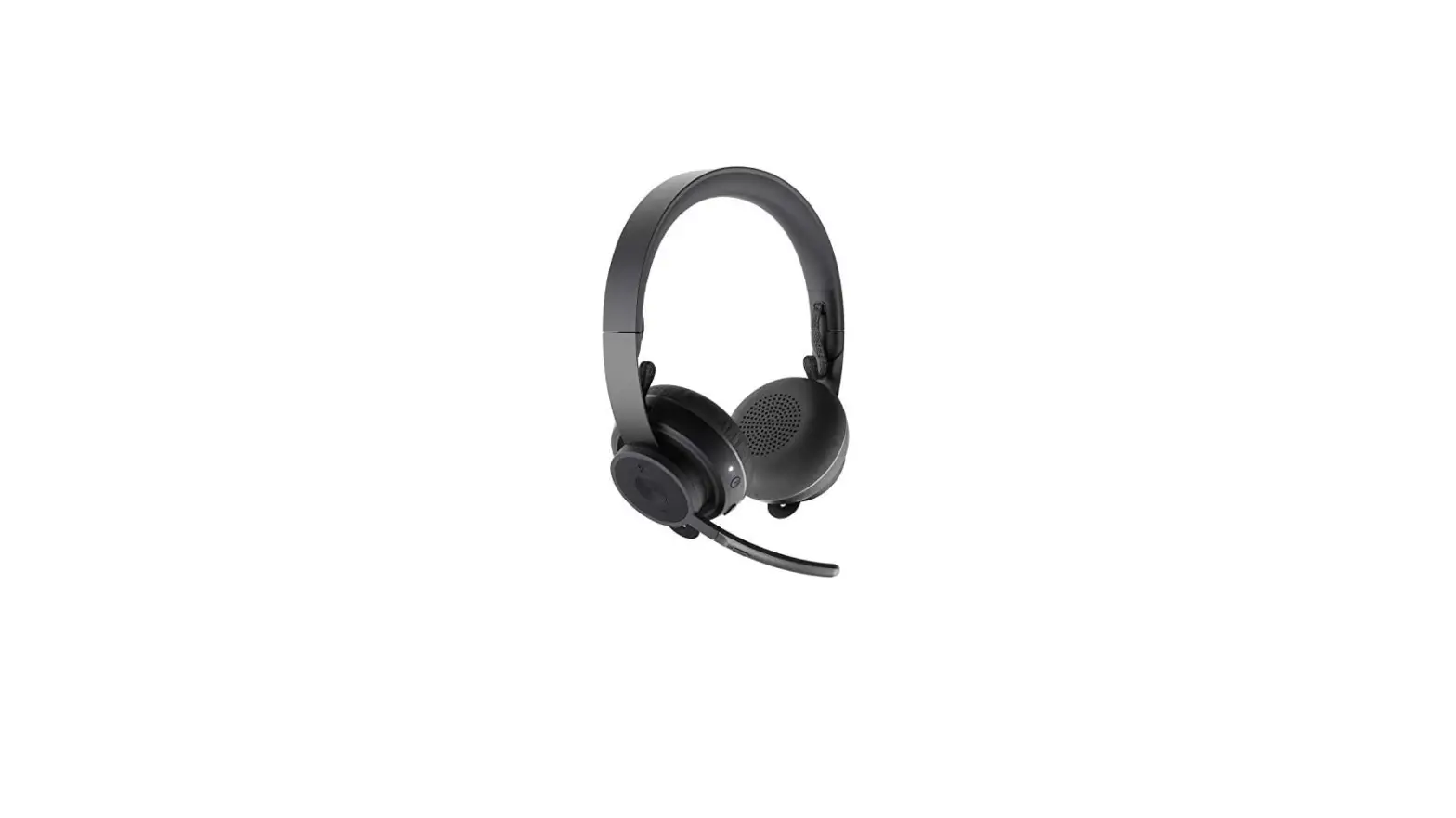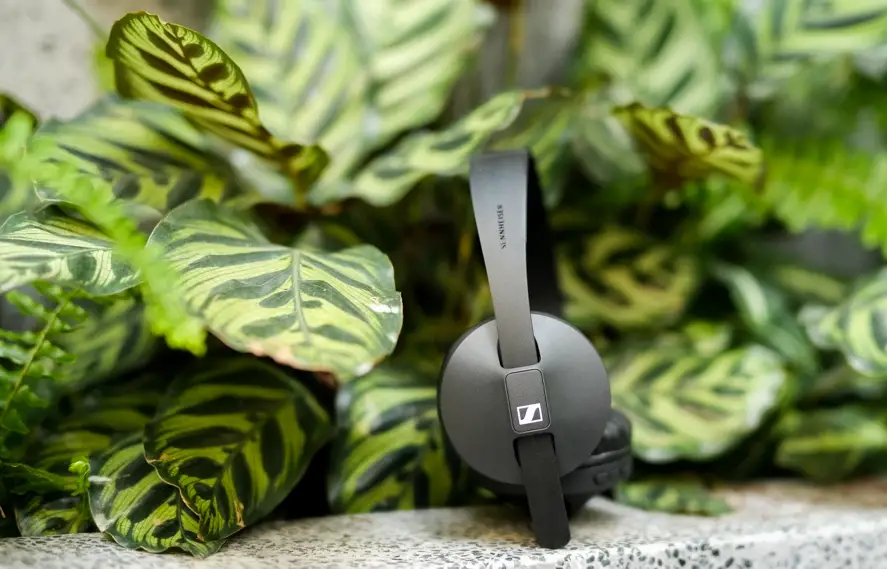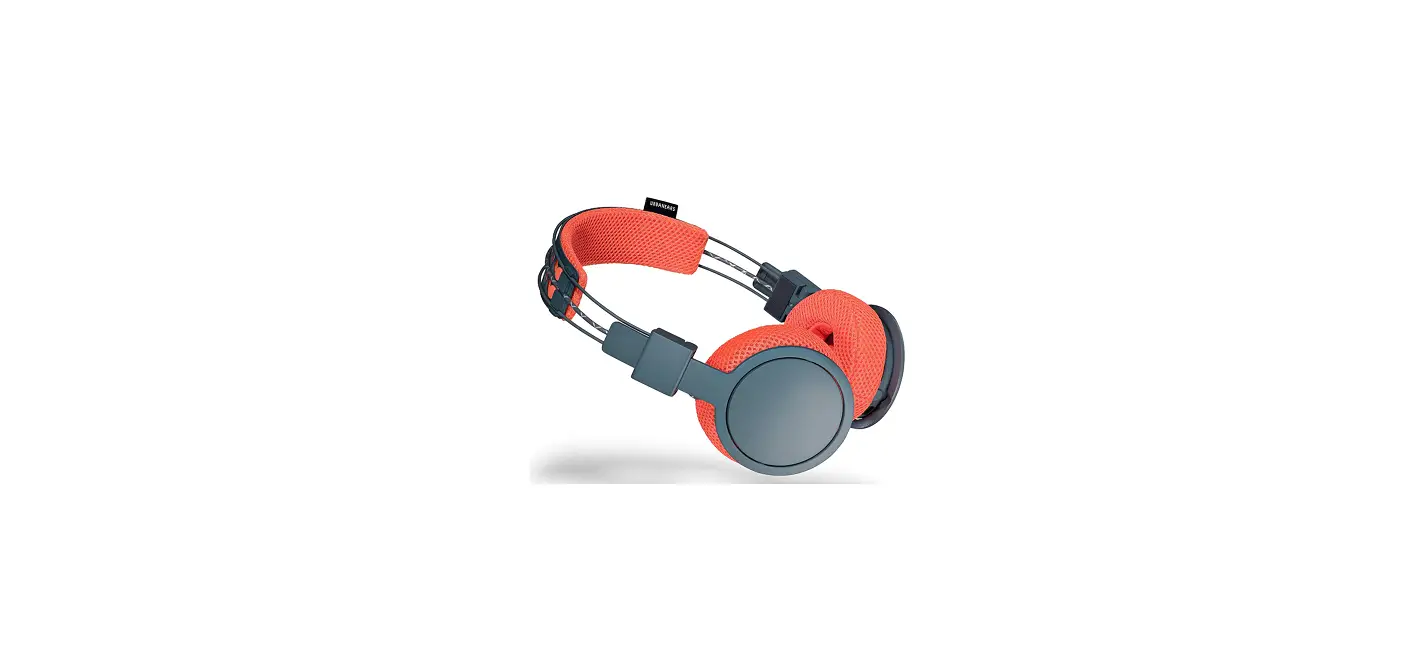

SENNHEISER ADAPT 230 Bluetooth Headset Certified for Microsoft
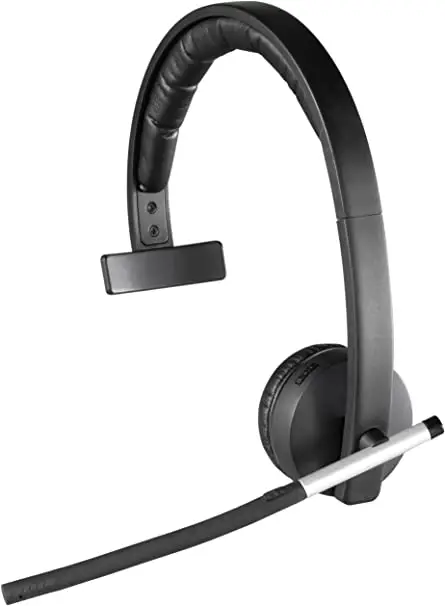
The ADAPT 200 series
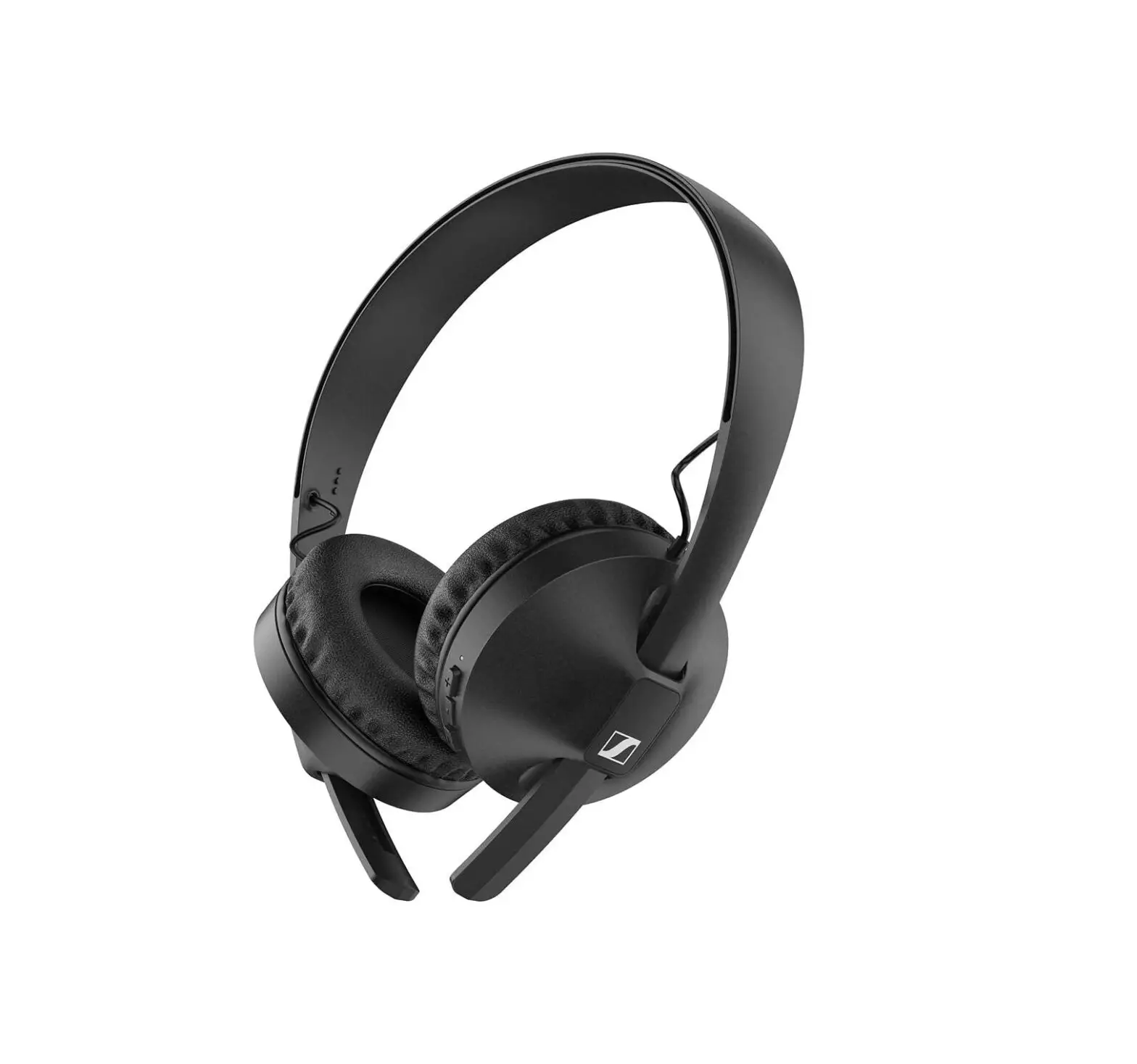
Access peak performance anywhere If work means calls via multiple devices, choose a wireless headset that fits with your dynamic working style in the hybrid workplace. Lightweight, portable and wireless, this flexible audio companion keeps you at peak performance. The boom arm gets you closer to the conversation and folds easily into the headband for a clean, modern look. Focus while listening to music at work with stereo sound and jump straight into virtual meetings via a Microsoft Teams certified or UC optimized solution.
Key benefits & features
Enjoy flexible connectivity and great audio
Connect wirelessly via Bluetooth® to two of your favorite devices simultaneously and enjoy renowned stereo sound
Maximize your comfort and productivity
With thick, soft, on-ear leatherette ear pads, enabling all-day comfort and passive noise damping
Microsoft Teams certified and UC optimized
Certified for Microsoft Teams and optimized for UC for a seamless user experience that boosts your productivity
Stay stylish with sleek design
Look good at work or on-the-go with contemporary design and a boom arm that folds discreetly into the headband
Extremely portable to keep you moving
With a smart fold-flat ear cup design and carry pouch, simply pack up and move on to your next working task.
Additional benefits & features
Up to 27 hours of battery life
Reliable performance wherever and however you work
Jump straight into Teams meetings
Via dedicated Microsoft Teams button
Optimal call clarity
With noise-canceling microphone to filter out ambient noise
Enjoy EPOS Voice™ technology
For a more natural listening experience
Get a personalized fit
With an adjustable, flexible headband
Avoid acoustic shock on calls
With EPOS ActiveGard® technology
Smart noise limiter
Enable noise limitation according to European and Australian standards via EPOS Connect.
 For safety instructions, consult the Safety Guide.
 A list of accessories can be found on the product page at www.eposaudio.com.
Trademarks
The Bluetooth® word mark and logos are registered trademarks owned by Bluetooth SIG, Inc. and any use of such marks by DSEA A/S is under license. USB Type-C® and USB-C® are trademarks of USB Implementers Forum. All other trademarks are the property of their respective owners.
Package contents
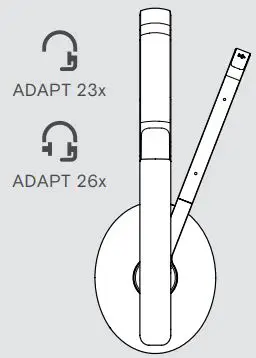
- ADAPT 23x (monaural) or
- ADAPT 26x (binaural)
- Bluetooth headset

Pouch 
BTD 800 USB or BTD 800 USB-C Bluetooth dongle 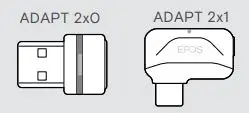
USB cable with USB-C® to USB-A connector 
- Quick Guide
- Safety Guide
- Compliance sheet


Product overview
Overview of the headset 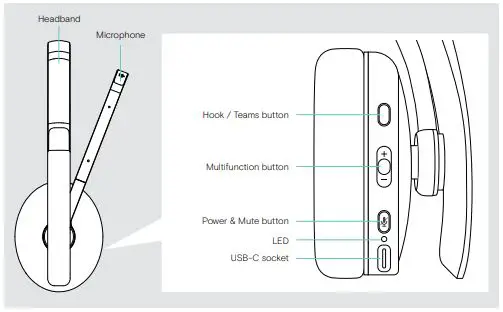
Overview of the headset LED indications 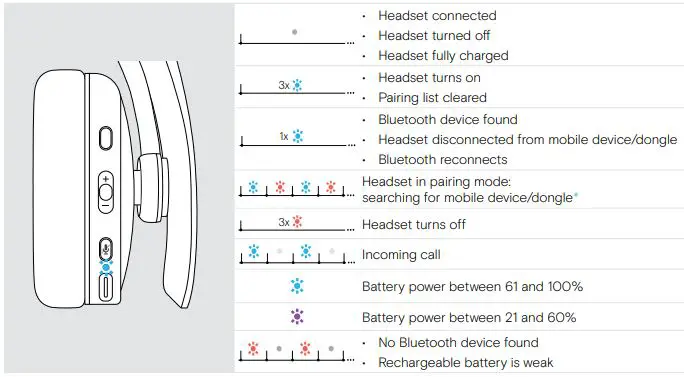
Once the headset is successfully connected, the LED goes off.
Overview of the headset buttons 
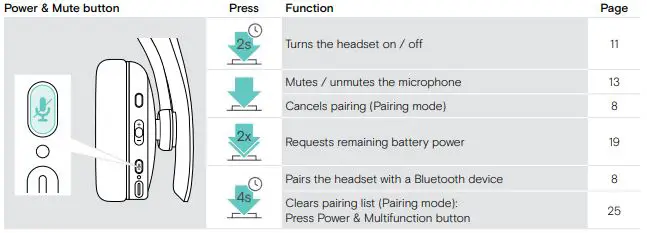
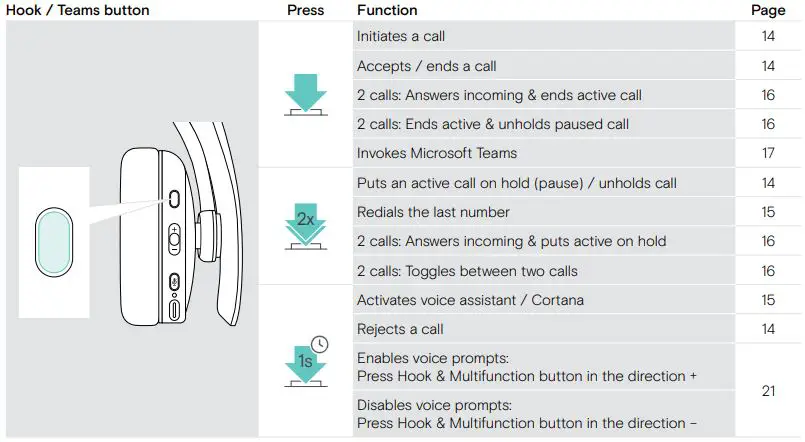
These functions are not supported by all connected Bluetooth devices.
Overview of the icons  Overview of the dongle
  Overview of the dongle LED indications
  Overview of the dongle button
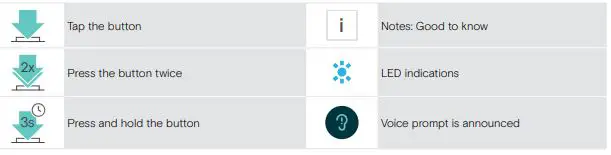 Overview of the dongle
 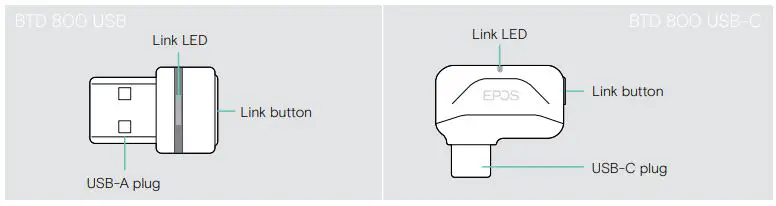 Overview of the dongle LED indications
 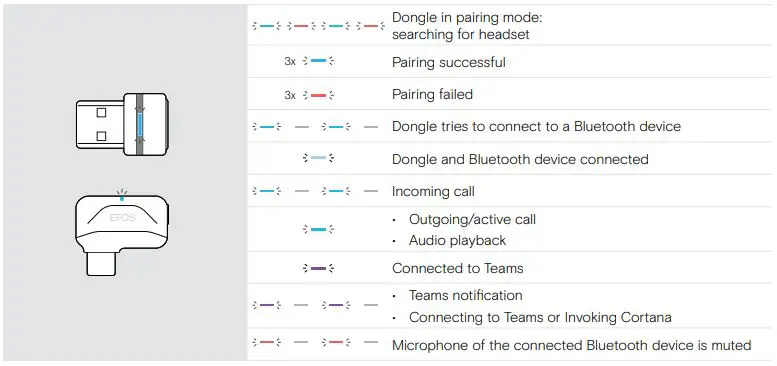 Overview of the dongle button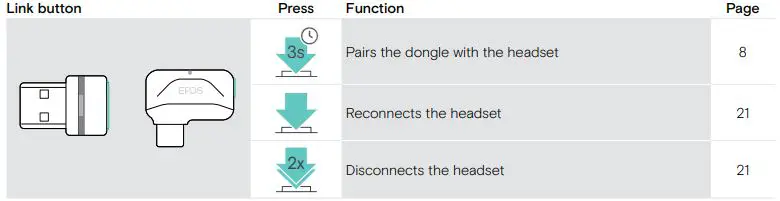
Getting started
Pairing the headset with Bluetooth® devices
CAUTION
Danger of malfunction! The transmitted radio waves of mobile devices can impair the operation of sensitive and unprotected devices.
Only use Bluetooth where it is permitted.
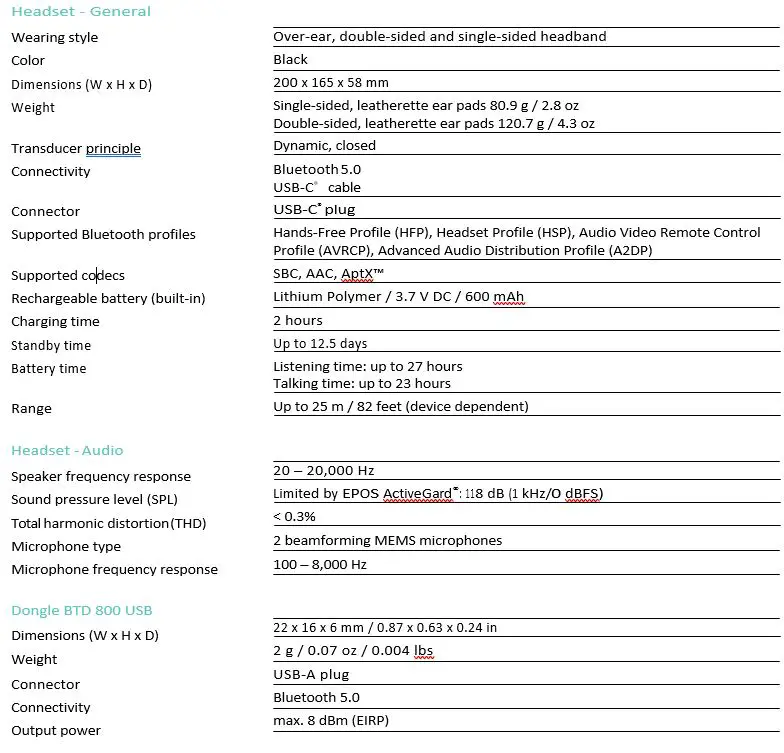
The headset complies with the Bluetooth 5.0 standard. Bluetooth devices need to support the “Hands-Free Profile” (HFP), the “Headset Profile” (HSP), “Audio Video Remote Control Profile” (AVRCP) or the “Advanced Audio Distribution Profile” (A2DP). 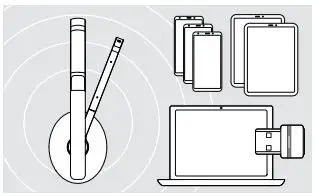
To transmit data via Bluetooth, you first have to pair your headset to a wireless device. The delivered dongle is already paired with the headset. The headset can save up to eight paired devices. If you pair the headset with a ninth device, the device with the oldest activity in the pairing list will be overwritten. If you want to re-establish a connection with this device, you have to pair it again.
The headset can be connected to two of the paired devices at the same time. You can only connect another device by disconnecting one of the already connected devices. To connect the headset wirelessly with a computer, use the BTD 800 USB or BTD 800 USB-C dongle. The dongle and the headset in the bundles are already paired.
- Turn the headset on (see page 11).
- Plug the dongle into the USB port of your computer.
Connecting the headset via the dongle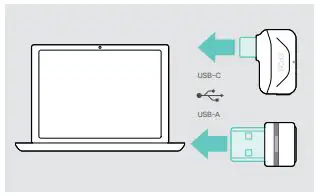
The dongle LED flashes blue while searching and switches to dimmed blue when connected successfully to the headset. If Microsoft Teams is invoked: The dongle connects to Teams and lights up purple instead of blue.
 The dongle shows Teams notifications (see page 17).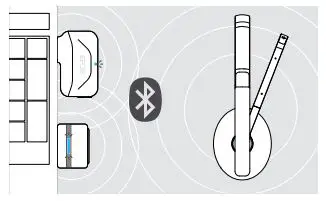
To manually pair the headset and the dongle, activate the pairing mode for both:
Press and hold the headset’s Power button and the dongle’s button until the LEDs alternately flashes blue and red. Once the dongle and the headset are connected, the dongle lights up dimmed blue.
Pairing the headset via Bluetooth with a mobile device 
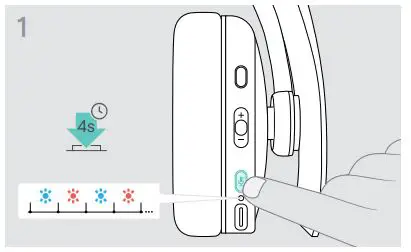
Press and hold the Power button until the LED flashes blue and red.
The headset is in pairing mode. 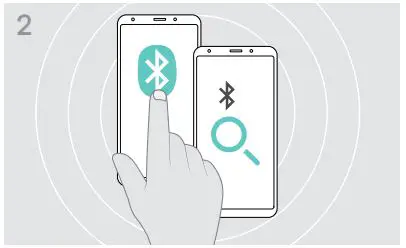 Enable Bluetooth on your mobile device and start the search for Bluetooth devices – see instruction manual of your mobile device.
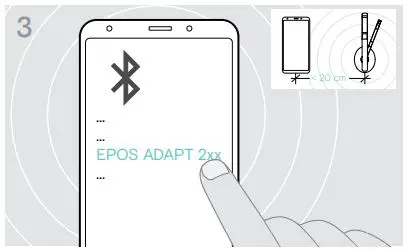 Select “EPOS ADAPT 2xx” to establish a Bluetooth connection to the headset.
 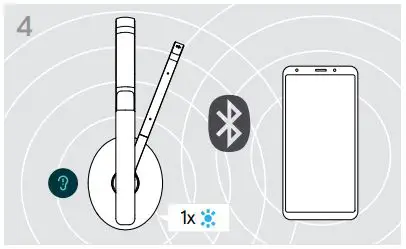 As soon as the headset finds a device to connect to, the LED lights up blue shortly and turns off.
To cancel pairing:
Press the Power button.
Installing the EPOS Connect software 
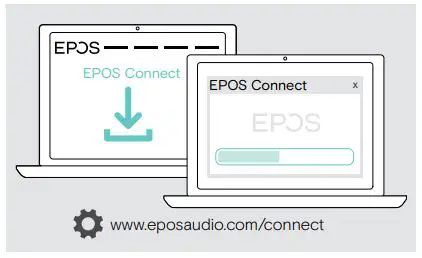
The free EPOS Connect software allows you to configure and update your headset and offers additional settings.
- Download the software from
www.eposaudio.com/connect. - Install the software.
You need administrator rights on your computer – if necessary, contact your IT department.
To make calls via the computer:
Install a softphone (VoIP Software) or ask your admin for support.
Changing Audio settings for the headset – Microsoft® Windows 
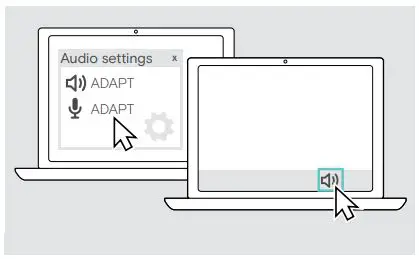
Windows usually changes the Audio settings automatically if you connect a new headset.
If the headset is connected but you hear no sound:
- Right-click the Audio icon.
- Select under output ADAPT 2xx as speaker.
- Select under input ADAPT 2xx as microphone.
Using the headset
CAUTION
Hearing damage due to high volumes! Listening at high volume levels for long periods can lead to permanent hearing defects.
- Set the volume to a low level before putting on the headset.
- Do not continuously expose yourself to high volumes.
Turning the headset on and connecting it 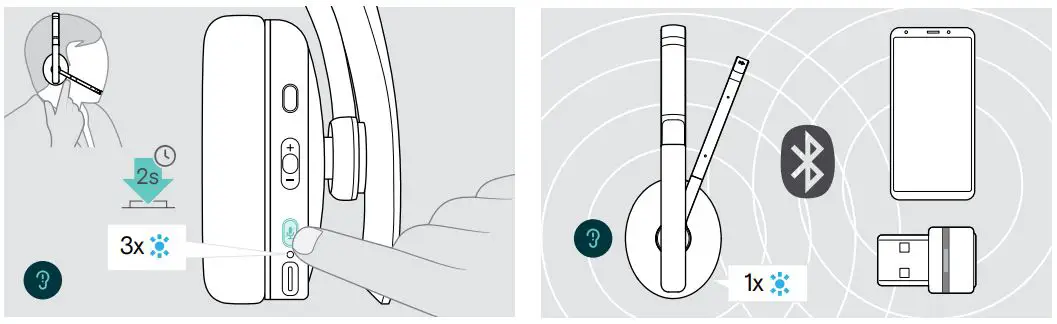
- Press the Power button for 2 seconds.
- The headset turns on. The LED flashes blue shortly.
- The headset automatically tries to connect to available paired Bluetooth devices.
- As soon as the headset finds a device to connect to, the LED lights up blue shortly and turns off.
- If the LED flashes red, no paired device has been found
The search function is deactivated while the audio cable is connected.
Turning the headset off 
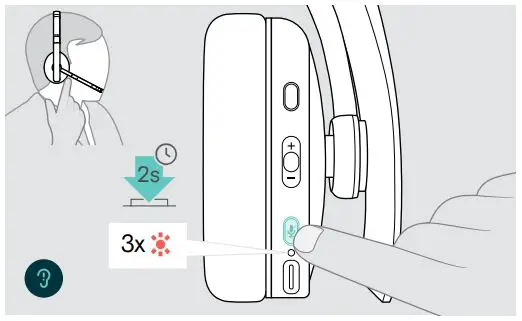
- Press the Power button for 2 seconds. The LED flashes red 3 times and turns off. All volume settings are saved automatically when the headset is turned off.
- Charge the headset (see page 19).
OR - Store the headset (see page 20).
Adjusting and wearing the headset 
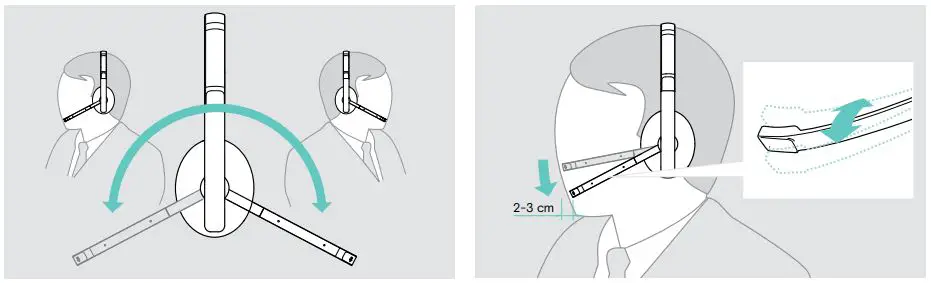
- Rotate the microphone boom.
- Bend the microphone boom so that the microphone is about 0.8” (2 cm) from the corner of your mouth.
- Adjust the headset so that the
• ADAPT 23x:
ear pad rests comfortably on your right or left ear.
• ADAPT 26x:
the ear pads rest comfortably on your ears.
Adjusting the volume 
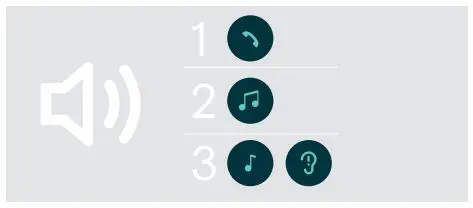
You can adjust three independent volume settings for the headset:
- Call volume: during an active call
- Audio volume: during audio streaming
- Volume for ring tone, tones and voice prompts: in idle mode – no active call or audio streaming.
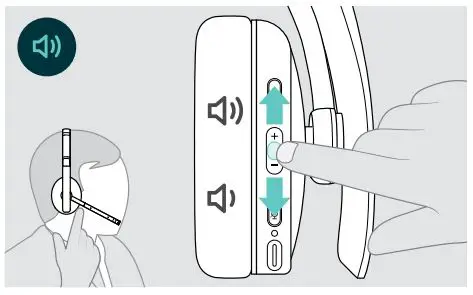
- Press the Volume button to increase or decrease the volume.
- You hear a beep or double beep for maximum or minimum volume.
- Alternatively you can adjust the volume on your connected device.
Adjusting the headset’s microphone volume for softphones 
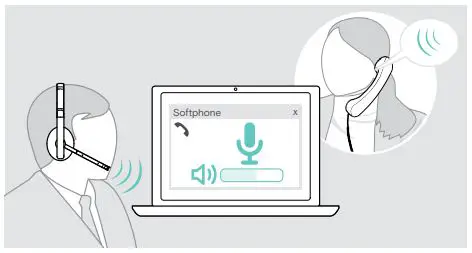
- Initiate a call on your connected device to someone who will help you find the correct volume setting for your microphone.
- Change the microphone volume in your softphone application and/or in your PC audio application.
Muting the microphone 
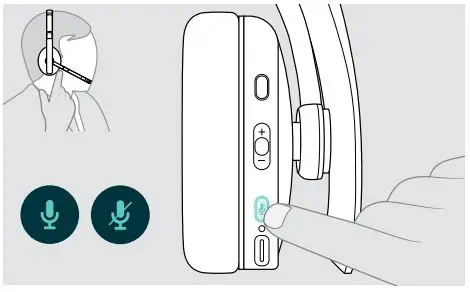
- Press the Mute button to
- mute or
- unmute the microphone.
Making calls using the headset
The following functions depend on the connected device.
Making a call 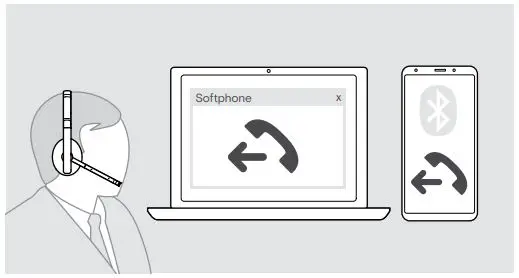
Accepting / rejecting / ending a call
When you receive a call, you hear a ring tone and the LED flashes blue. 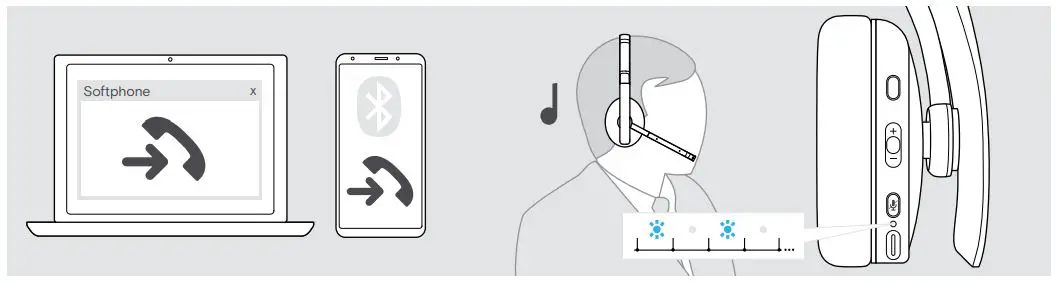
Accept / hold a call 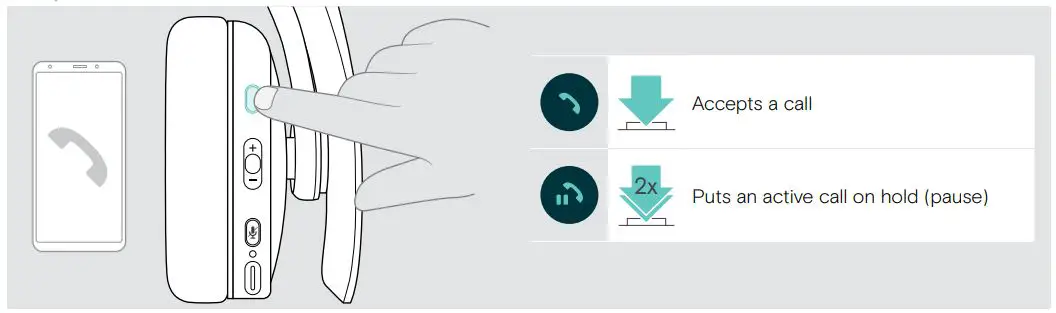 Reject / end a call
 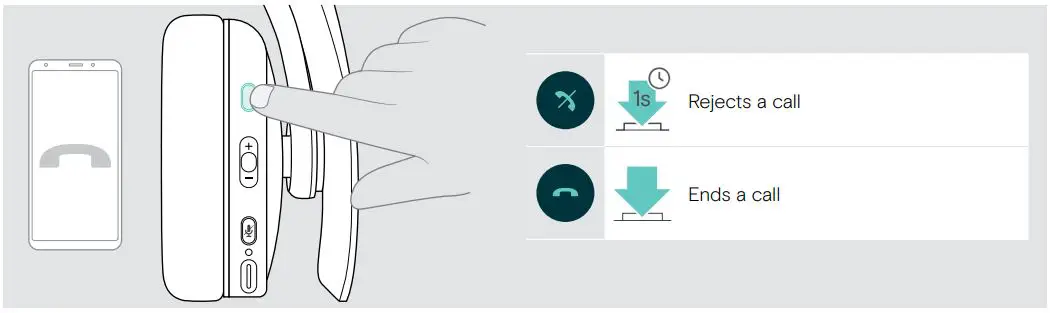 Redialing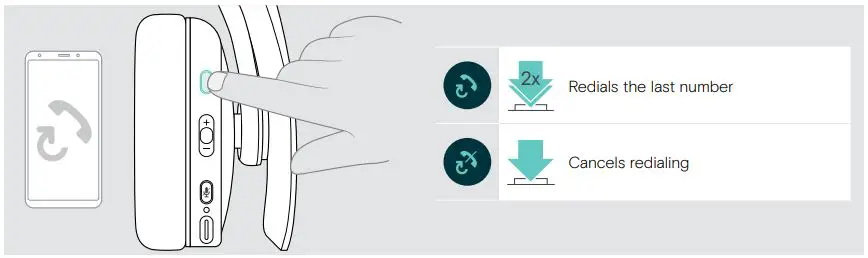
Using the voice assistant / voice dial
The last connected Bluetooth device will be used for voice assistant or voice dial. For Microsoft Cortana: see page 17. 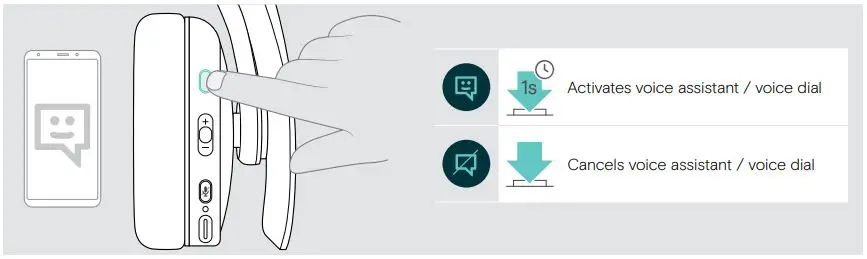
Managing multiple calls 
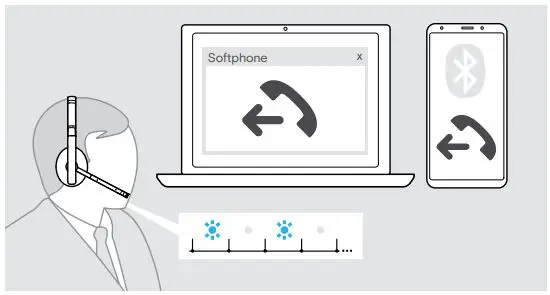
- You can use the Headset with up to two connected
- Bluetooth devices.
- Two calls can be managed simultaneously.
- If you receive a call during an active call, a knock on tone will be played.
Accept / reject second call 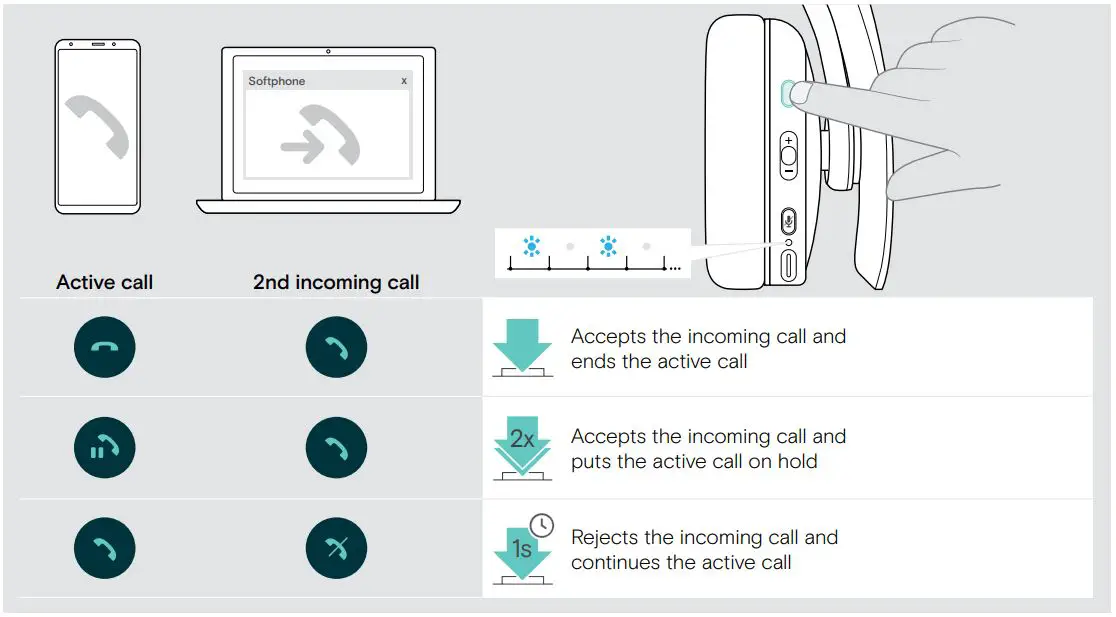
Toggle between calls / end active call 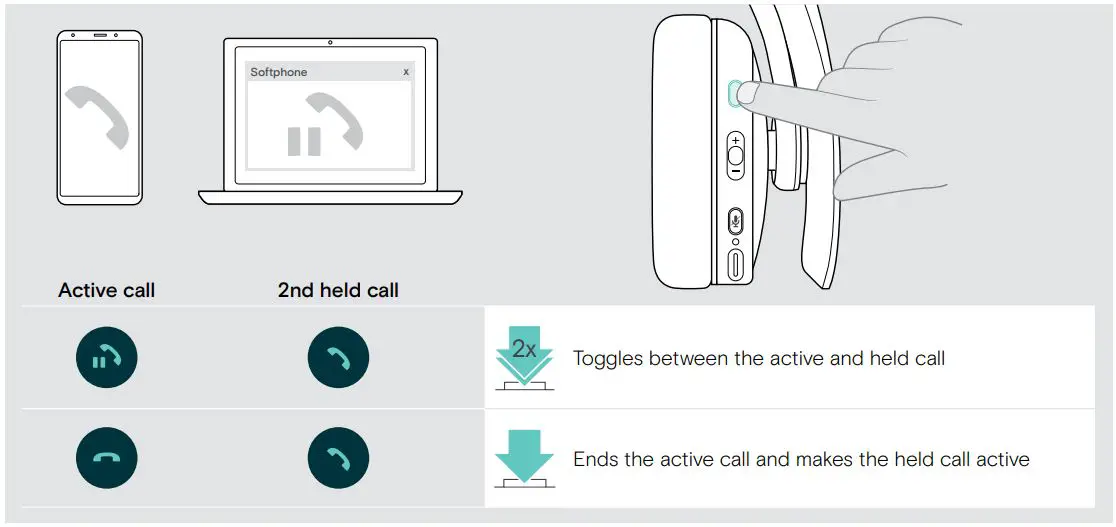
Using headset and dongle with Microsoft® Teams / Cortana 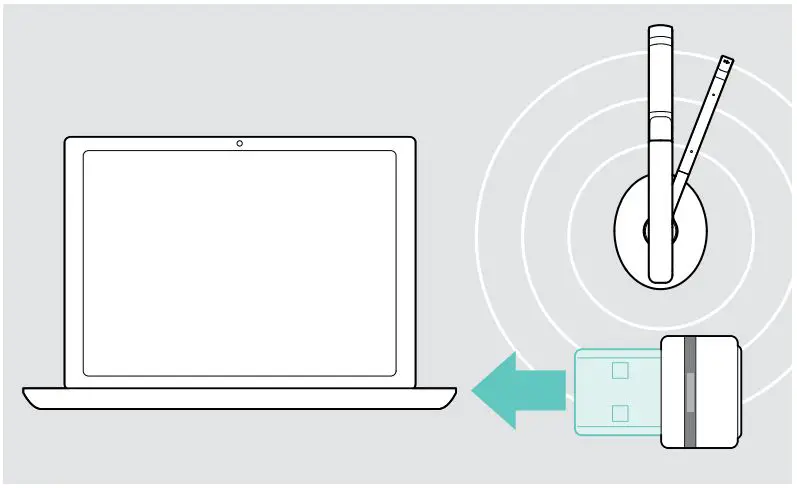
To use Microsoft Teams and Cortana with the headset:
- Plug the dongle into the USB port of your computer – see page 8.
- If Microsoft Teams is already running, the blue LED changes to purple automatically.
Invoking Microsoft® Teams and check notifications 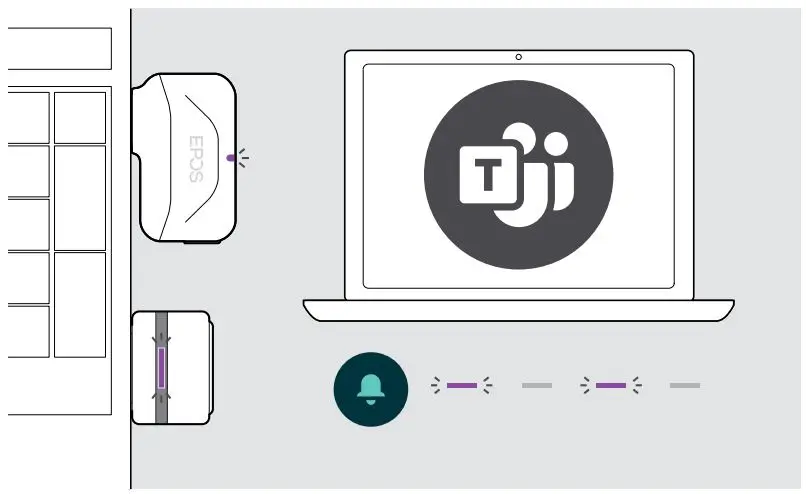
Start Microsoft Teams on your computer. The dongle connects to Microsoft Teams and the LED blue LED changes to purple.
 The LED pulses purple to indicate:
- Meeting Join Notification
- Voice Mail Notification
- Missed Call Notification
To check these Notifications on your screen:
Press the Teams button.
Activating and using Microsoft® Cortana 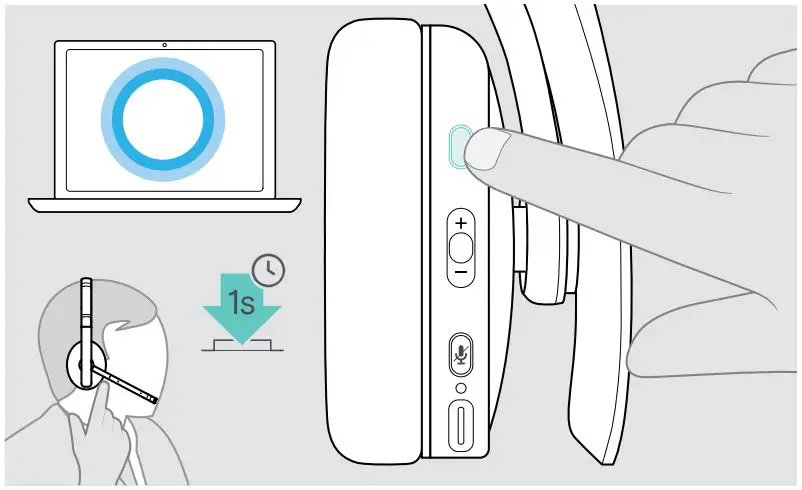
You can activate and use Cortana – Microsoft’s Personal Digital Assistant using Voice command technology – with the headset.
- Press the Hook button.
The Dongle LED flashes purple while activating Cortana. The LED lights up purple and Cortana is ready to use.
 The LED lights up purple and Cortana is ready to use.
Listening to audio using the headset
You can listen to audio via a connected device. The following functions depend on the connected device.
- Play the media on your connected Bluetooth device. The LED on the dongle lights up blue.

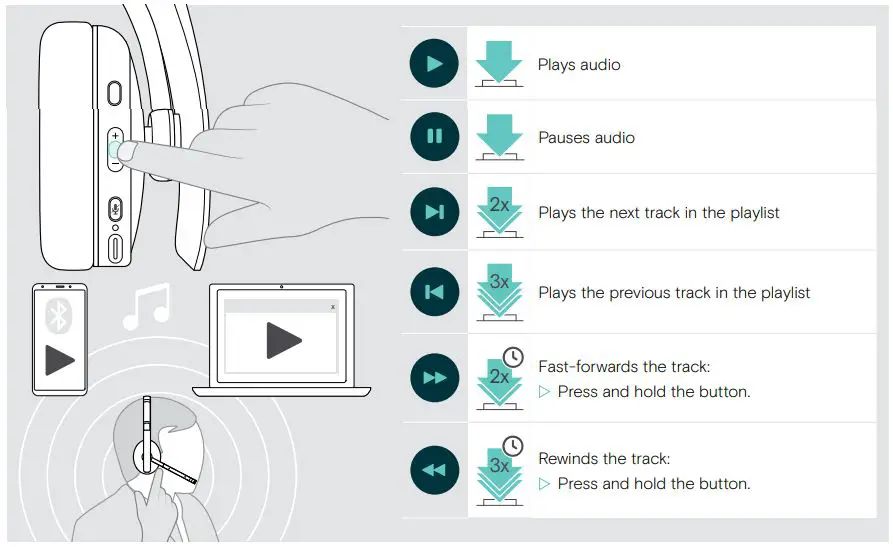
If you receive and accept a call, audio playback is paused and restarts after the call – if supported by the connected device.
Additional functions
Charging the headset battery
Connect the supplied USB cable to the USB socket of the headset and a USB socket of your computer.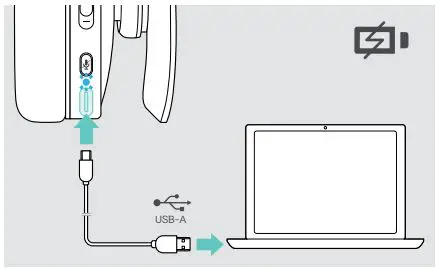 The battery is being charged. The LED lights up depending on the battery status of the headset and turns off when the battery is fully charged.
| 100% – Battery fully charged
more than 61% | |
 | |
 | more than 21% |
 | less than 21% |
To end charging:
Disconnect the USB cable from the headset.
When the battery is flat, the headset turns off automatically.
Verifying remaining battery power 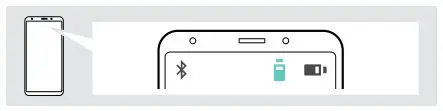
Some mobile devices indicate the battery status of the headset. 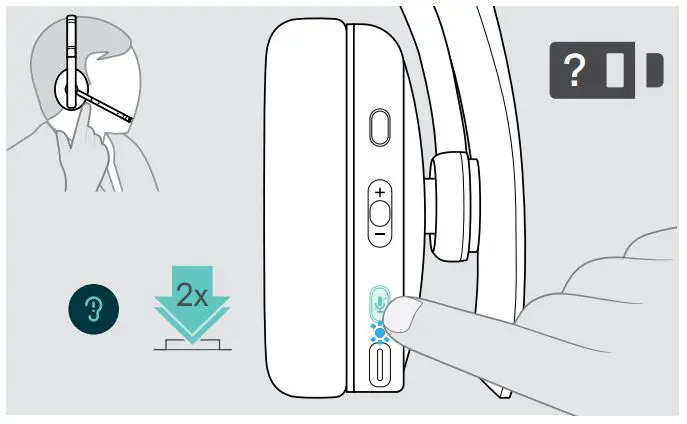
You can retrieve information on the remaining battery power at any time – except while you are in a call:
Press the power button.
The LED flashes shortly and a voice prompt is announced.  When the battery power drops below 21%, the LED flashes red and “Recharge headset” is announced several times.
| more than 61% |
| more than 21%
less than 21% – automatic voice prompt |
|
Storing and transporting the headset
To avoid nicks or scratches on the headset: 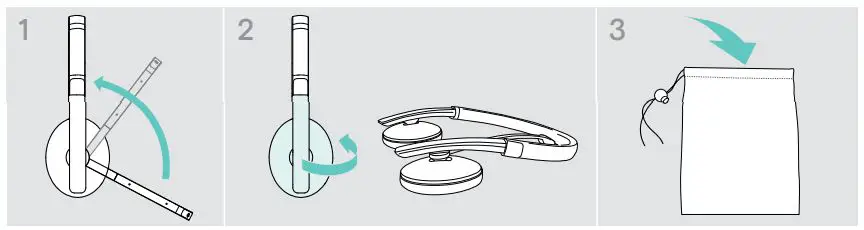
- Rotate the microphone boom so that it disappears underneath the headband.
- Fold the ear cups inwards.
- Store the headset in the pouch when not in use or when carrying it around. Keep it in a clean and dry environment.
If you do not use the headset for extended periods of time: - Charge the built-in rechargeable battery every 3 months for about 1 hour.
If you leave the Bluetooth range
The range between headset and Bluetooth device is device dependent. The transmission range largely depends on environmental conditions such as wall thickness, wall composition etc. With a free line of sight, the transmission range of most Bluetooth devices is up to 25 meters. 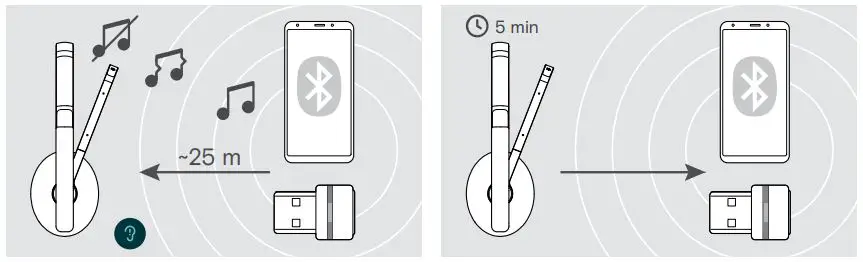
If the audio quality deteriorates e. g. during a call or the link breaks down completely:
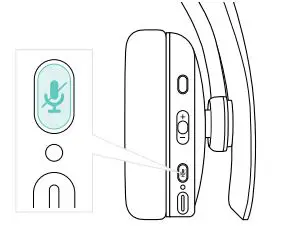
- Re-enter the radio range of the Bluetooth device. If you re-enter the Bluetooth transmission range within 5 minutes, the connection is re-established. After more than 5 minutes the connection breaks down completely and you have to manually re-establish the connection:
- Tap the Power button.

Reconnecting / disconnecting Bluetooth
Reconnecting Bluetooth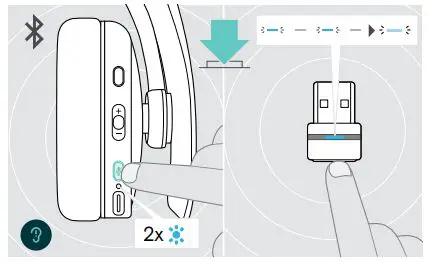
Tap the headset’s Power button or the dongle’s button. The headset flashes 2 times blue as soon as the headset finds a device to connect to. The dongle flashes blue and lights up dimmed blue.
Disconnecting Bluetooth 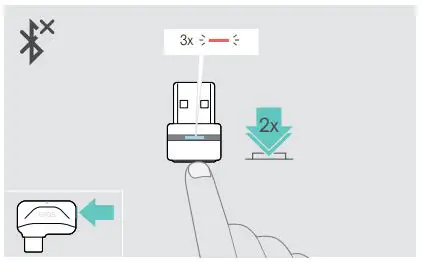
Double tap the dongle’s button. Bluetooth will be disconnected. The LED flashes 3 times red.
Enabling / disabling voice prompts 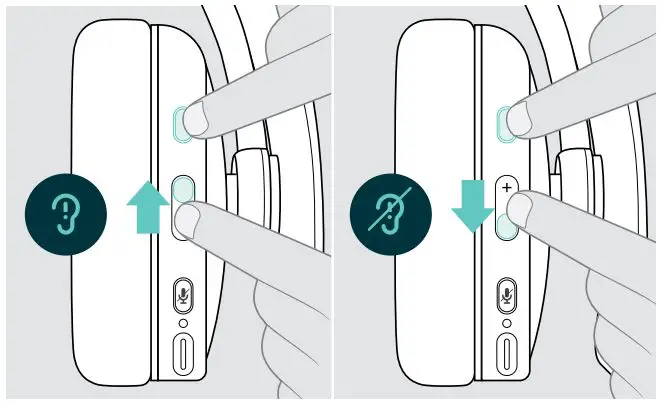
In idle mode (no active call or audio playback):
- Press the Hook & Multifunction button
- in the direction +, to enable or
- in the direction –, to disable the voice prompts.
The corresponding voice prompt is announced.
If the voice prompts are deactivated you hear tones instead.
Maintaining the products and updating the firmware
Cleaning the products 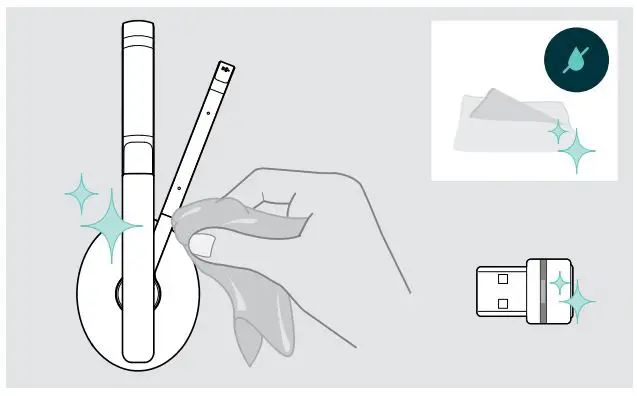
CAUTION
Liquids can damage the electronics of the product!
Liquids entering the housing of the device can cause a short circuit and damage the electronics.
- Keep all liquids far away from the product.
- Do not use any cleansing agents or solvents.
- Only use a dry cloth to clean the product.
Replacing the ear pads
For hygienic reasons, you should replace the ear pads from time to time. Spare ear pads are available from your EPOS partner. 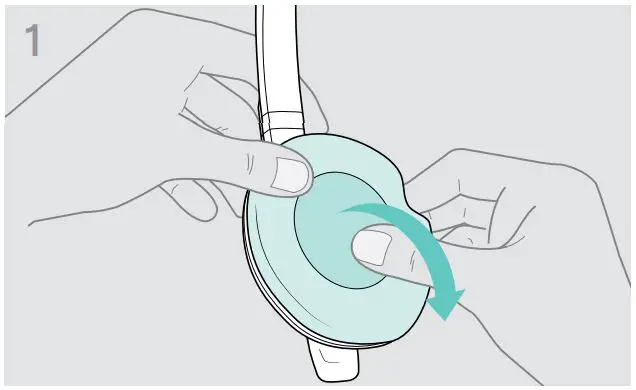 Carefully remove the old ear pad from the ear cup.
 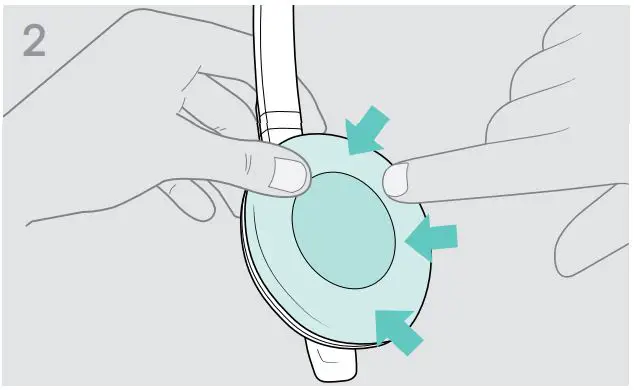 Attach the new ear pad to the ear cup by pressing firmly around the ear pad.
Updating the firmware of the products
To update the installed firmware:
Install the free of charge EPOS Connect software (see page 10).
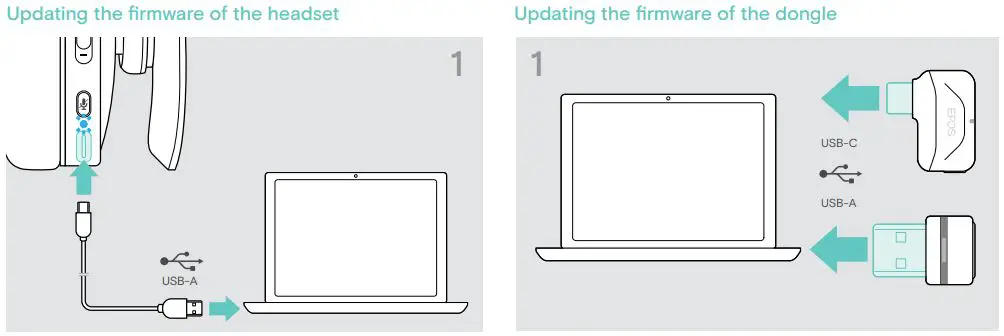
- Connect the USB cable to your headset and your computer.
The LED lights up. - Plug the dongle into the USB port of your computer.
The LED lights up.
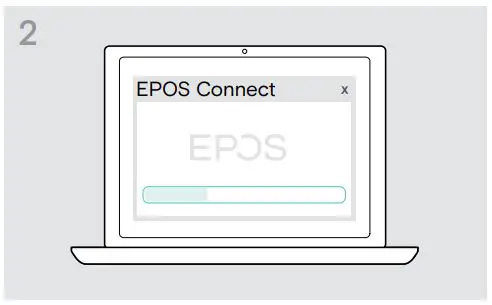
Start EPOS Connect.
If there is a new firmware available the software will guide you through the update process.
If a problem occurs …
| Headset cannot be turned on | Rechargeable battery empty | X Recharge the headset battery. | 19 |
| No audio signal or drop outs | Headset not paired with a Bluetooth device | X Pair the headset. | 8 |
| Volume adjusted too low | X Increase the volume. | 13 | |
| Headset turned off | X Turn the headset on. | 11 | |
| Computer: Headset not selected as audio device | X Change the Audio settings of your computer. | 10 | |
| Headset cannot be connected via Bluetooth | Headset not paired
Bluetooth at mobile device turned off | X Pair the headset with a Bluetooth device (max. 20 cm distance while pairing between devices). | 8 |
| X Check if your Bluetooth device supports the HF or HS profile. | – | ||
| X Turn Bluetooth on. | – | ||
| Dongle not plugged in | X Plug the dongle into the USB port of your Computer. | 8 | |
| Microsoft Teams does not work: LED blue instead of purple | Dongle or Microsoft Teams disturbed | X Unplug and plug the dongle again. | – |
| X Re-start Teams on your device. | – | ||
| Beeps instead of voice prompts | Voice prompts disabled | X Enable the voice prompts. | 21 |
| Headset or dongle does not react to any button press | Software or hardware problems | X Turn the headset off and on again. | 11 |
| X Unplug and plug in the dongle again. | 8 | ||
| X Clear the pairing list of the headset. | 25 | ||
| X Clear the pairing list of the dongle. | 25 |
If a problem occurs that is not listed in the above table or if the problem cannot be solved with the proposed solutions, please contact your local EPOS partner for assistance. To find the EPOS partner in your country, search at www.eposaudio.com
Clearing the pairing list of the headset (Reset) 
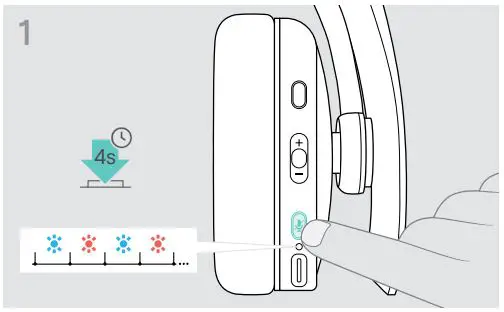
Press and hold the Power button until the LED flashes blue and red. 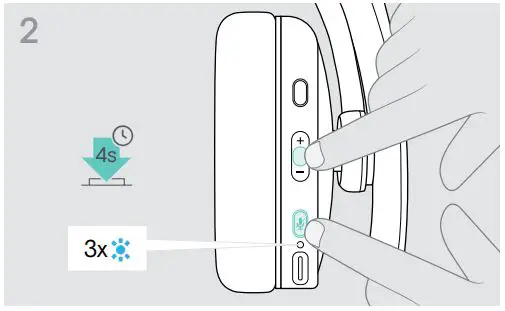
Simultaneously press the Multifunction button and the Power button.
The LED flashes blue 3 times. The pairing list is cleared. The headset searches for Bluetooth devices to pair with.
Clearing the pairing list of the dongle (Reset) 
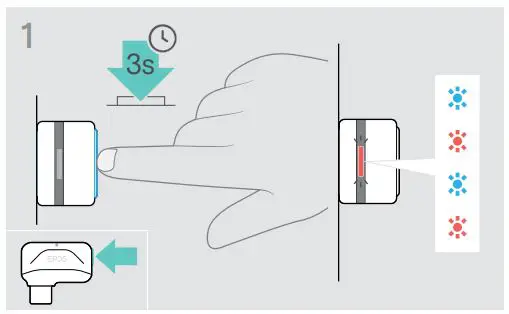
- Plug the dongle into the USB port of your computer.
- Press and hold the button until the LED flashes blue and red.

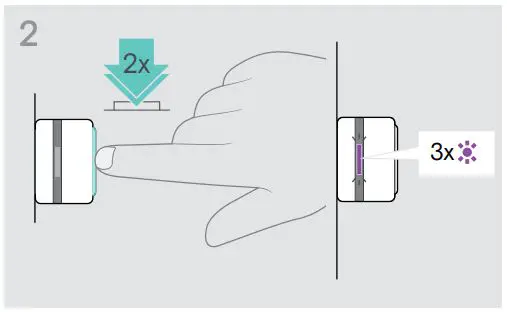
Double press the dongle’s button. The LED flashes purple 3 times. The pairing list is cleared. The dongle searches for Bluetooth devices to pair with – see page 8.

 EPOS delivers high-end audio solutions for enterprise and gaming