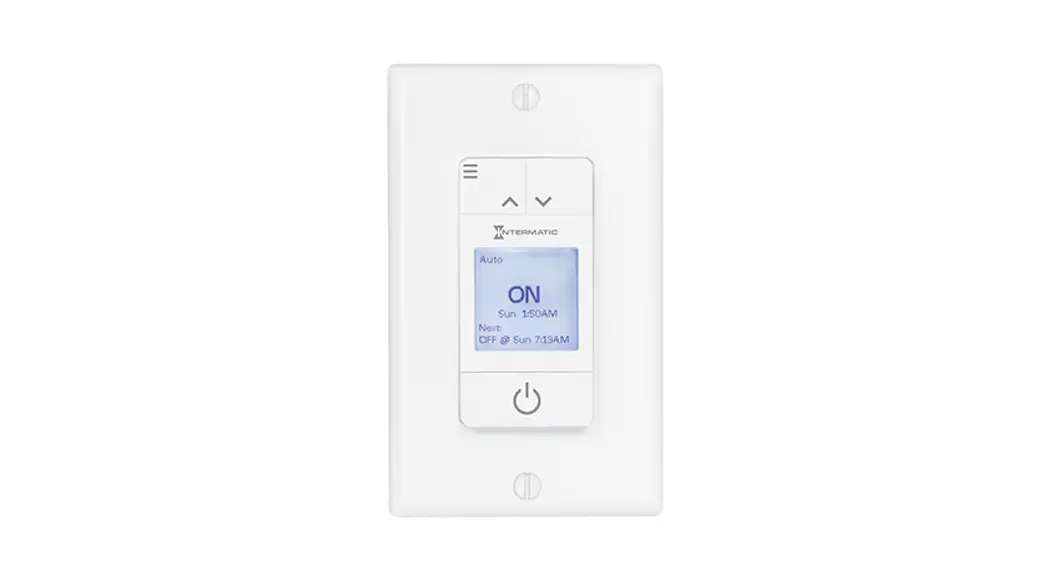
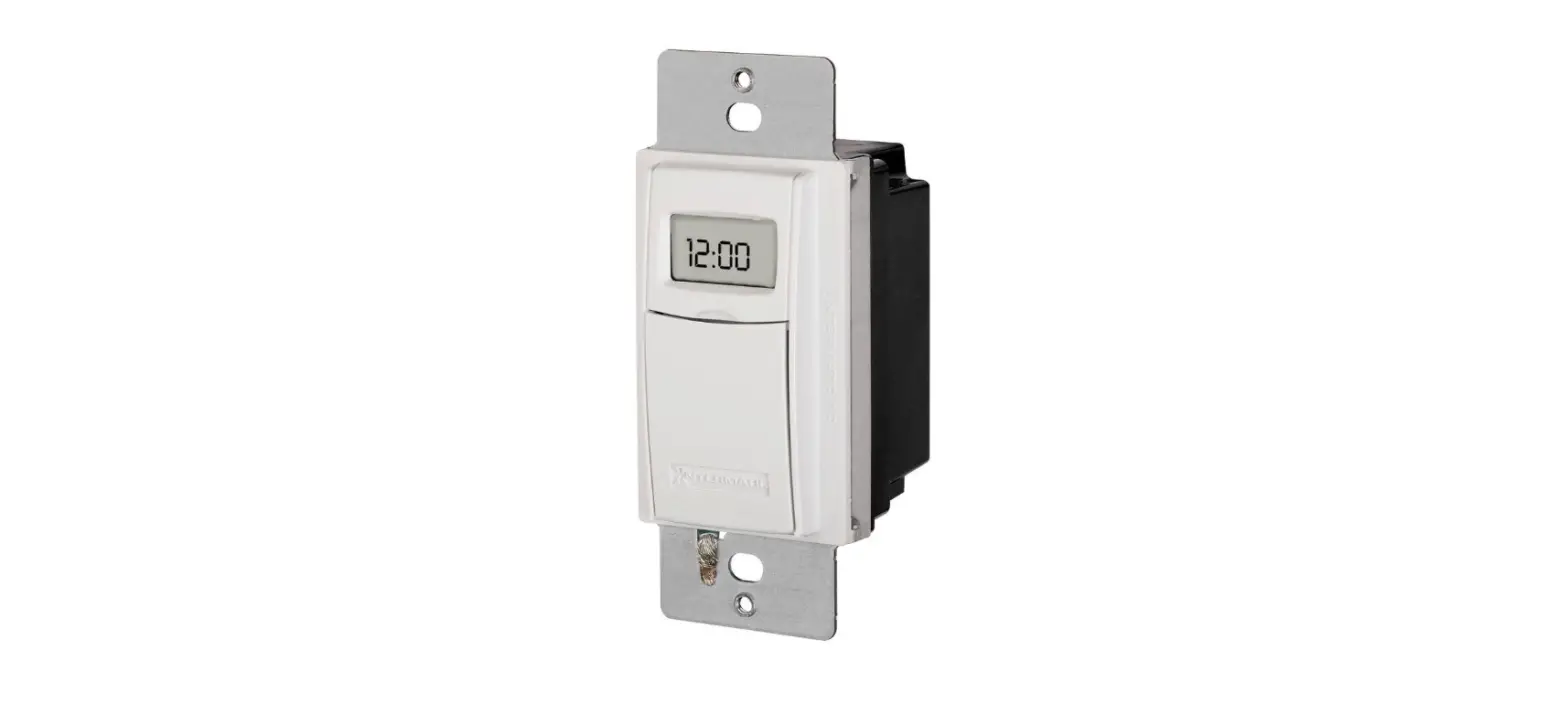
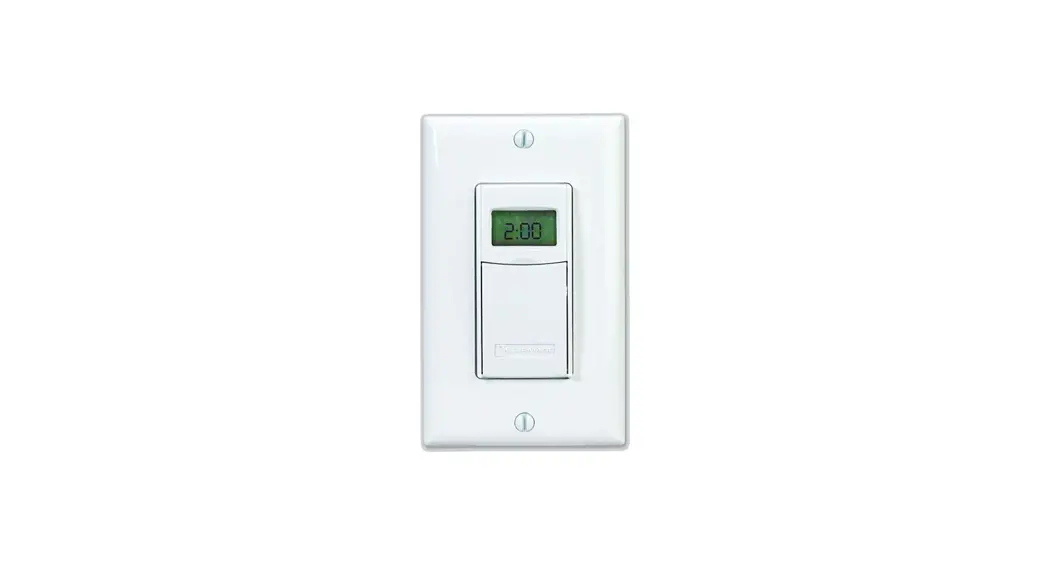
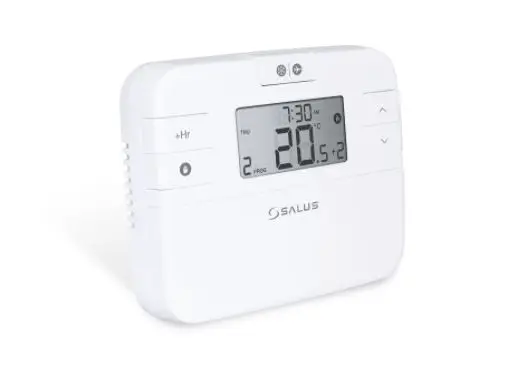
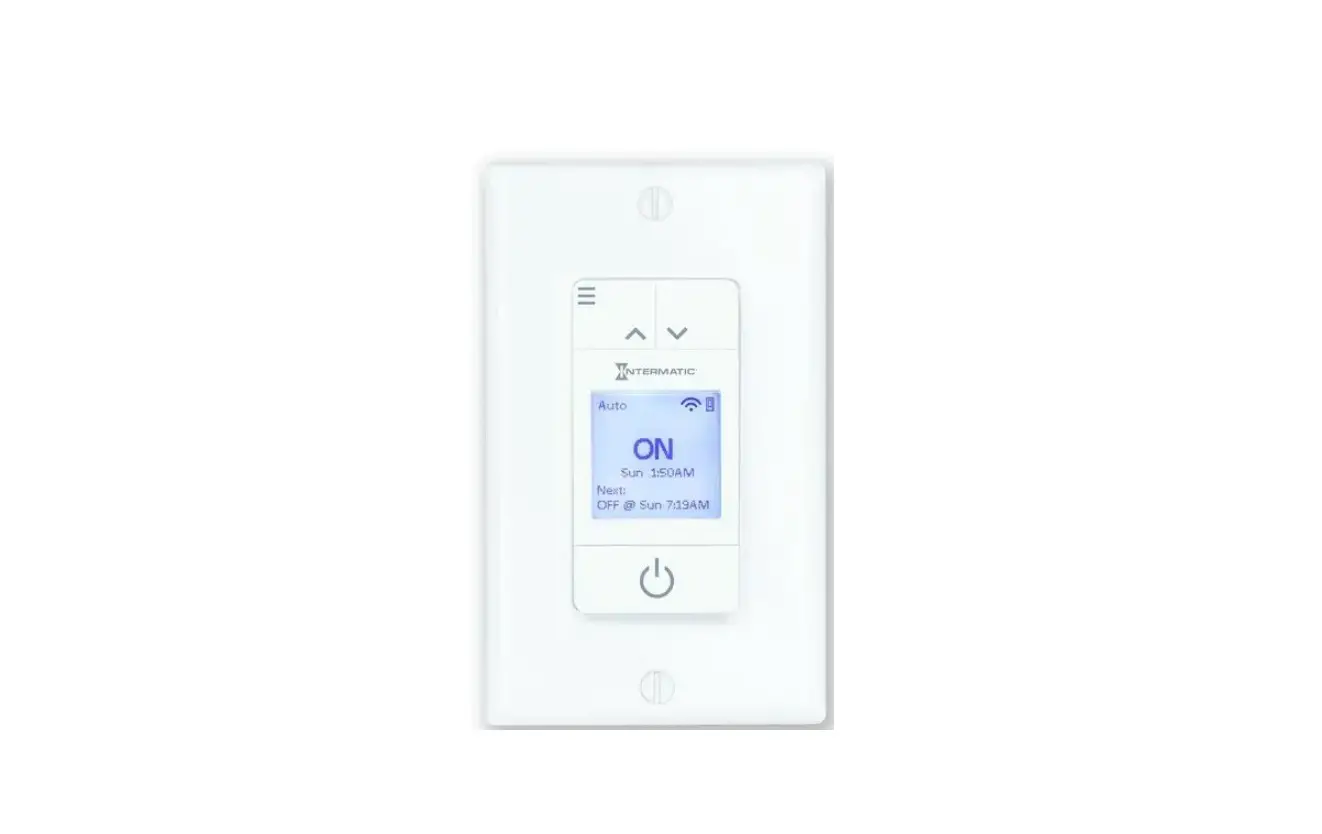
ST01 Heavy-Duty Programmable Timer
Product Information: In-Wall Timer with Astro or Countdown
Feature
The In-Wall Timer with Astro or Countdown Feature is a
programmable timer designed for residential and commercial
applications. It allows you to automate the operation of various
electrical devices based on a pre-set schedule. The timer has
several features, including adjustable timing settings, language
selection, and the ability to program specific events or use
pre-set templates. It is compatible with a wide range of loads,
including resistive, tungsten, ballast, electronic ballast, motor,
and DC loads.
Ratings:
- Operating Voltage: 120-277 VAC, 50/60 Hz
- Resistive (heater): 15 A, 120-277 VAC
- Tungsten (incandescent): 15 A, 120 VAC; 6 A, 208-277 VAC
- Ballast (fluorescent): 8 A, 120 VAC; 4 A, 208-277 VAC
- Electronic Ballast (LED): 5 A 120 VAC; 2 A 277 VAC
- Load Rating (Motor): 1 HP, 120 VAC; 2 HP, 240 VAC
- DC Loads: 4 A, 12 VDC; 2 A, 28 VDC
- Operating Temperature: –
- Dimensions: 4 1/8 H x 1 3/4 W x 1 13/16 D
- Neutral Not Required
Safety Section:
- WARNING: Risk of Fire or Electric Shock
- NOTICE: batteries.
Product Usage Instructions:
- Before proceeding with installation, ensure that the battery is
removed. - To factory reset the timer, press and hold the ON/OFF button
while using a paper clip or pen to press and release the RESET
button. Release the ON/OFF button when “INIT” is displayed on the
screen. - Select the desired language by pressing the ON/OFF button to
cycle through the options (ENG – English, FRN – French, etc.).
Press the ON/OFF button to confirm. - Select the time zone by pressing the ON/OFF button to cycle
through the options (Alaska, Atlantic, Central, Eastern, Hawaii,
Mountain, Newfoundland, Pacific). Press the ON/OFF button to
confirm. - Select the country by pressing the ON/OFF button to cycle
through the options (USA, Mexico, Canada). Press the ON/OFF button
to confirm. - Enter the latitude and longitude coordinates by pressing the
ON/OFF button to cycle through the digits. Press the ON/OFF button
to confirm each digit. Note: No decimal point will be
displayed. - Set the offset for Dusk and Dawn settings (optional) by
pressing the ON/OFF button to cycle through the options (0-99
minutes). Press the ON/OFF button to confirm. - The current time and setup will be displayed. Proceed to
programming setup. - To select the desired schedule type, press the MODE button
until “PGM” is displayed. Press the ON/OFF button to enter the
programming menu. - Choose between programming template events or programming
specific events. - If using templates, press the ON/OFF button on the desired
template. Press MODE to select AUTO to RAND for random
activation. - If programming specific events, enter the desired ON and OFF
times by pressing the ON/OFF button to cycle through the digits.
Press the ON/OFF button to confirm each digit. - Repeat step 11 for additional events.
- Select the days of the week for the events by pressing the
ON/OFF button to cycle through the options (ALL, SUN, MON, TUE,
WED, THU, FRI, SAT, M-F, WKD). Press the ON/OFF button to
confirm. - Press the MODE button to exit programming mode.
http://waterheatertimer.org/Programmable.html#st01
TIMER INTERFACE
PRE-INSTALLATION
Libertyville, Illinois 60048 www.intermatic.com
rev 10/1/2022
ST01/ST01K/EI600
In-Wall Timer with Astro or Countdown Feature
Installation and User Guide
RATINGS
ST01/ST01K
EI600
Operating Voltage
120-277 VAC, 50/60 Hz
Resistive (heater)
15 A, 120-277 VAC 20 A, 120-277 VAC
Tungsten (incandescent)
15 A, 120 VAC; 6 A, 208-277 VAC
Ballast (fluorescent)
8 A, 120 VAC; 4 A, 208-277 VAC
16 A, 120-277 VAC
Electronic Ballast (LED)
5 A 120 VAC; 2 A 277 VAC
Load Rating (Motor)
1 HP, 120 VAC; 2 HP, 240 VAC
DC Loads
4 A, 12 VDC; 2 A, 28 VDC
Operating Temperature
32° F to 104° F (0° C to 40° C)
Dimensions 4 1/8″ H x 1 3/4″ W x 1 13/16″ D
Neutral Not Required
SAFETY SECTION
WARNING
Risk of Fire or Electric Shock
· Disconnect power at the circuit breaker(s) or disconnect switch(es) before installing or servicing (including replacing the battery).
· Installation and/or wiring must be in accordance with national and local electrical code requirements.
· Use COPPER conductors ONLY. · Do Not recharge, disassemble, heat above 212° F (100° C),
crush, or incinerate the Lithium battery. Keep out of reach of children. · Replace battery with Type CR2 only that is certified by Underwriters Laboratories (UL). · Do NOT use timer to control devices that could have dangerous consequences due to inaccurate timing, such as: sun lamps, saunas, heaters, slow cookers, etc.
NOTICE
· Follow local electrical codes during installation. · Risk of timer damage due to leakage if weak battery is not
replaced promptly. · Dispose of product per local regulations for disposal of Lithium
batteries.
Display
(Decrease) button Mode button + (Increase) button
Reset button On/Off button
Access door to battery tray
PRODUCT DESCRIPTION
The ST01 and EI600 series timers combine scheduling, and countdown features into one simple-to-install unit. Features include 7-day programming with optional Automatic DaylightSaving Time (DST) adjustment, 40 available event spaces for building any combination of scheduled events (Dawn, Dusk or Specific times), RAND (random) feature used to deter unwanted visitors, providing an “occupied” look when you’re away, and more. The DOWN (countdown) function is designed for turning devices Off after activation, ranging from one second up to 24 hours, and is incandescent, fluorescent, CFL and LED compatible. The ST01/EI600 can handle most load types, does not require a neutral wire connection, and supports three languages, English (ENG), Spanish (SPAN), and French (FRN), making it ideal for many applications.
IMPORTANT NOTES
Please read these notes before continuing. · The timer is battery-powered and does not need AC power
for initial setup and programming; it also controls the ON/OFF function (“clicking” sound) and maintains the time and date. · BATT LOW flashes on display when the battery strength is low. · When replacing the battery, first disconnect the AC power. Once the old battery is removed, you’ll have a few minutes to insert the new battery before the date and time settings are lost. All other settings will remain in memory, without battery or AC power. · AUTO (automatic) and RAND (random) modes don’t appear in the menu options until at least one ON or OFF event is programmed. · All menus “loop” (repeat options at end of menu). When in a specific MENU, press ON/OFF to loop within that MENU. · The + or – buttons change what is flashing on the screen. Hold them down to scroll faster. · Countdown (DOWN) function allows users to decide between setting a 3-minute shut-off warning WARN (warning) or turning WARN (warning) off.
Before programming, install the supplied battery. · Gently pry open the access door, located below ON/OFF
button, and remove the battery tray from the timer. (Search for YouTube video for “ST01 Programmable Timer Battery Replacement”) · Place the supplied CR2 battery into the tray. Make sure to match the + and – markings on the battery to the tray. Install the tray into the timer. · The product initializes and enters the MAN (manual) MODE of operation with the time blinking at 12:00 am Note: If the display does not flash 12:00 am, check/replace
the battery before proceeding.
PROGRAMMING
Follow these steps for initial setup and programming of the ST01 and EI600 series timers. Factory Reset Timer 1. Press and hold ON/OFF (continue holding until step 3) 2. Using a paper clip or pen, press and release the RESET
button. 3. When you see INIT on the display then release the ON/
OFF button PRO-TIP: Choice of languages are ENG (English), FRN
(French), and SPAN (Spanish) 4. Use the + or to select desired language 5. Press ON/OFF to confirm 6. Use + or to select the timer’s function you want to use
a. STD (Standard) timer operation (on and off times) b. DOWN (Countdown) timer 7. Press ON/OFF to confirm Next Step: · For Standard Operation (STD): 12:00 am will flash showing MAN after Factory Reset; to program, go to “Initial Setup.” · For Countdown Operation (DOWN), the screen will display OFF; to program, go to “COUNTDOWN OPERATION ONLY.” STANDARD OPERATION ONLY Initial Setup 1. Press the MODE button until you see SETUP on the display 2. Press the ON/OFF button to confirm 3. Use the + or to set the current time of day HOUR (make sure your AM or PM is correct) 4. Press the ON/OFF button to confirm 5. Use the + or to set the current time of day MINUTE 6. Press the ON/OFF button to confirm 7. Press the + or to set the current YEAR 8. Press the ON/OFF button to confirm 9. Press + or to set the current MONTH 10. Press the ON/OFF button to confirm 11. Press + or to set the current DATE 12. Press the ON/OFF button to confirm 13. Make sure it is showing the correct DAY of WEEK (today) 14. Press the ON/OFF button to confirm
15. Press + or to select if the timer will adjust for DAYLIGHT SAVING TIME (DST) in spring and fall
a. AUTO means it will adjust automatically
b. OFF means it will not change
16. Press the ON/OFF button to confirm
17. Press the + or to select your TIME ZONE
a.Alaska (AKT), Atlantic (AT), Central (CT) (default), Eastern (ET), Hawaii (HT), Mountain (MT), Newfoundland (NT), Pacific (PT))
18. Press the ON/OFF button to confirm
19. Press + or to select your COUNTRY (CTRY)
a. USA (default), Mexico (MEX), Canada (CAN)
20. Press the ON/OFF button to confirm PRO-TIP: Refer to QR code under warranty information for
latitude and longitude chart.
21. Press + or button to select your LATITUDE (LAT)
22. Press the ON/OFF button to confirm
23. Press + or button to select your LONGITUDE (LONG)
24. Press the ON/OFF button to confirm
NOTE: No decimal point will be displayed. For example, LAT 48.0 should be entered as 480
PRO-TIP: You have the option to “Offset” the Dusk and Dawn settings from 0 to 99 minutes.
25. Press + or button to adjust the current DAWN time (you can include an offset here).
26. Press the ON/OFF button to confirm
27. Press + or button to adjust the current DUSK time (you can include an offset here).
28. Press the ON/OFF button to confirm (You will now see your current time and SETUP) – Proceed to Programming Setup
Programming Setup
PRO-TIP: Before Standard Programming Setup, you’ll need to determine which type of schedule fits your application from the list below T1= Template 1 – On at DUSK. Off at Dawn T2= Template 2 – On at DUSK. Off at 10:00 PM T3= Template 3 – On at DUSK. Off at 10:00 PM. On at 5:00 AM. Off at Dawn. Specific Time – ON/OFF
1. Press the MODE button until you see PGM on the screen. 2. Press the ON/OFF button to enter the programming menu.
Advance to “Programming Template Events” or “Programming Specific Events”.
Programming Template Events
PRO-TIP: Templates are set for all days initially.
1. When you first enter the PGM menu press the + or to select a template.
2. Press the ON/OFF button on the template you wish to use
3. Last step is to press MODE to select AUTO to RAND (random).
Programming Specific Events
PRO-TIP: You will need a minimum of 2 events (one for ON and one for OFF)
1. When you first enter the PGM menu, press the + or to advance to event # 01.
2. Press the ON/OFF button to confirm
3. Press the + or to select if this will be an ON or OFF event
4. Press the ON/OFF button to confirm
5. Press the + or to select if this will be a DAWN, DUSK or Specific Time event (specific time will have a time flashing)
6. Press the ON/OFF button to confirm
7. For Specific Time: Press + or to set the hour you want (make sure the AM or PM is correct)
8. Press the ON/OFF button to confirm the hours
9. Press the + or to set the minutes
10. Press the ON/OFF button to confirm Press + or button to select what day or group of days you want this event to happen.
PRO-TIP: ALL- all seven days of the week Individual Day- select: SUN, MON, TUE, WED, THU, FRI or SAT M-F- Monday through Friday WKD- Saturday and Sunday
11. Press the ON/OFF button to confirm
12. If you need to set another event, Press the + button to advance to the next event and repeat steps starting from step 2.
13. When you’re finished adding events, Press the MODE button to advance to AUTO (automatic) or RAND (random) MODE.
EDIT, SKIP, DELETE STANDARD EVENTS
1. Press MODE until PGM appears on the display.
2. Press ON/OFF to confirm.
3. Press + or to select EDIT or ERASE
a. EDIT will let you make changes to the schedule advance to step #4
b. ERASE will erase ALL programmed events. – If you select ERASE, press ON/ OFF to confirm, and advance to PROGRAMMING STANDARD EVENTS to program event(s), or press MODE to go to MAN (Manual).
4. Press ON/OFF to confirm
5. Press the + button to find the event number you want to Edit, Skip or Erase (ERAS).
6. Press ON/OFF to confirm.
7. Press the + button to select one of the options below.
a. ON The timer will turn on at this time.
b. OFF The timer will turn OFF at this time. – If you selected ON or OFF, please go back to Step #5 under “PROGRAMMING SPECIFIC EVENTS”
c. SKIP This will hide or bypass this event that you might want to use at a later date. The timer will ignore any “skipped” events. This is helpful for unusual programming needs, like vacation settings.
d. ERAS (erase) This will erase the selected event. – If you selected SKIP or ERASE you can continue to
Step #5 under “PROGRAMMING SPECIFIC EVENTS” or Press MODE to return to AUTO, RAND (random) or MAN (manual).
COUNTDOWN OPERATION ONLY
Countdown Setup
PRO-TIP: The time will move faster the longer you hold down the button.
1. Use the + or button to set the amount of countdown time you would like.
2. Press the ON/OFF button to confirm
3. Press and hold the MODE and ON/OFF buttons and hold for 5 seconds. The display will show the WARN (warning) menu.
4. Press the + or to select FLASH or OFF.
a. Off — the warning function is turned OFF.
b. Flash — when the timer reaches 3-minutes before shut-off, it will flash the controlled lights (or other circuit) for 1 second. A “sunburst” icon will appear on the display
5. Press the MODE button to confirm
6. Press the + or to select the desired LOCK option. a. None — no locking function is set. b. Pause — users cannot use the Pause function to suspend the timer countdown. c. Time — users can review but not change the time setting. Users can adjust a running countdown but may not exceed the locked shut-off setting. d. All — both the pause and setting or changing of the timer’s shut-off setting is locked.
7. Press the MODE button to confirm, the display will show OFF
Change the Countdown Time PRO-TIP: If timer is in LOCK MODE, you may not be able to
make any changes to the set time. To start or stop countdown, press ON/OFF button. To pause the countdown, press the Mode button.
1. Press the ON/OFF button until the screen shows OFF
2. Press and hold the + or button to set the amount of countdown time you want.
Countdown Operating Tips
· Checking Timer Setting — Press the + or button to check the timer setting. The display shows the timer setting for 2 seconds.
· Setting Timer When Locked — To unlock the timer, please see the Countdown Setup section.
· Setting Timer When NOT Locked — When timer is NOT LOCKED, the user can adjust timer settings, but must turn the timer OFF before adjusting
· Pausing a Countdown — When the timer is NOT locked, press the MODE button to pause a countdown in progress. Pause bars flash while the count holds steady. Press MODE again to continue the countdown or press the ON/OFF button to power the load OFF.
· Shortening or lengthening a Countdown in progress — To change remaining countdown in progress, press and hold the + or button or the ON/OFF button until the display shows the time setting you want for this cycle only. When the timer begins its next cycle, the countdown will return to the programmed setting.
· When locked you can only increase the amount of time to the maximum time set.
· Using the Remote Switch in a 3-Way — When controlling the timer with the remote switch, toggle the remote switch once to toggle on or off.
INSTALLATION
PRO-TIP: When installing a timer with either a contractor
or motor load, a noise filter is recommended (ET-NF). An
example of single-pole and three-way wiring follow. For other
three-way wiring scenarios, go to www. intermatic.com.
7/16″
Disconnect the power at the service panel.
1. Remove wall switches, if applicable.
2. Strip the existing wire ends to 7/16″.
3. Wire the timer into the wall box.
Single-Pole Wiring
Line Wire A
Wire B
Timer
Wire D
Wire C
Neutral
Load
A Black — Connects to the hot (black) wire from the Power Source
B Blue — Connects to the other wire (black) from the load
C Red — This wire is not used in single-switch installations. Cap with a twist connector
D Green — Connects to the supplied ground Three-Way Wiring PRO-TIP: The distance between the timer and the remote switch must not exceed 100 feet. The wiring shown below is for a timer replacing a three-way switch at the line side.
Line Wire A
Wire B
Timer
Wire D
Wire C
Wire E 3-Way
Switch
Neutral
Load
A Black — Connect to the wire removed from the “COMMON” terminal of the switch being replaced
B Blue — Connect to one of the other wires removed from the switch being replaced. Record the wire color connected to the blue wire for use during load-side installation
C Red — Connect to the remaining wire removed from the switch being replaced. Record the wire color connected to the red wire for use during load-side installation
D Green — Connect to the supplied ground
E Jumper Wire — At the other three-way switch, install the supplied jumper wire between wire B and the common terminal
FINALIZING INSTALLATION
1. Make sure the provided twist-on wire nuts are secure, then tuck the wires into the timer wall box, leaving room for the timer.
2. Using the provided screws, secure the timer to the wall box.
3. Cover the timer with the wall plate and secure using the provided screws.
4. For three-way wiring, install the remote switch in wall box. 5. Install the wall plate and secure. 6. Reconnect the power at the service panel. Testing the Timer Make sure the timer displays MAN (manual) MODE during testing Single-Pole Wiring Test To test the timer, press ON/OFF several times. The timer should “click” and the Controlled light or device (load) should turn ON or OFF. Three-Way Wiring Test 1. To test the timer, test with the remote switch in each of its
two positions. 2. Press ON/OFF several times. The timer should “click” and
the controlled light or device (load) should turn ON or OFF. 3. If the timer clicks, but the load does not operate:
a. Disconnect the power at the service panel. b. Re-check wiring and make sure the load is functional. c. Reconnect the power at the service panel. d. Retest. 4. If timer clicks, but the load only operates when the remote switch is in one of its two positions, repeat Step 3, a-d, but interchange the two traveler wires (wires Between the timer and the remote three-way switch) connected to red and blue timer wires PRO-TIP: Consult a qualified electrician if the switch and
timer fail to operate as intended 5. When the timer “clicks” and the controlled device turns
ON and OFF as programmed, the timer is successfully installed!
TROUBLESHOOTING
Note: : For more troubleshooting tips, contact Intermatic Technical Support at: 815-675-7000.
Observed Problem
Timer display is blank, and the timer does not “click” when you try to turn it on or off.
Possible Cause What to Do
· Battery is missing
· Battery has no charge
· Battery was installed incorrectly
· Install a battery
· Replace the battery
· Make sure the battery is installed correctly.
TROUBLESHOOTING CONT. TROUBLESHOOTING CONT.
Timer does not switch ON/OFF but display looks normal
· Timer is not set in AUTO, RAND, or MAN MODE
· Battery is low and needs replaced
· Press MODE to select the operational MODE you want to use
· Replace battery
Timer resets to 12:00
· Timer is installed in conjunction with a contactor or motor load.
· Install a noise filter (ET-NF) at source of noise
Timer won’t enter AUTO or RAND mode when “MODE” is pressed
· No schedule is selected
· Proceed to “Programming Standard Events” section
Timer operates at incorrect times, or skips programmed EVENT times
· The active schedule has conflicting or incorrect events
· Battery may be weak.
· Timer is in RAND mode, which varies switching times up to +/- 15 minutes
· Review programed events, revise as necessary.
· Replace battery.
· Select “Auto Mode”
Load only operates when: remote (threeway) switch is in one position, or timer ignores the remote switch.
· The remote switch is wired incorrectly.
· Recheck the wiring, especially for the jumper
The timer ignores three-way remote switch even though it is wired correctly, or the load turns off immediately after being turned ON
· The remote switch or timer is wired incorrectly.
· There is an excessive length of wire (greater than 100 feet).
· The remote switch is not functioning properly or worn out.
· Contact a qualified electrician
The battery tray is difficult to replace.
· Battery is not seated in the tray
· The tray is misaligned
· The contact tabs in tray are bent
· Seat the battery in the tray, then reinstall.
The timer operation is sluggish, or not switching ON/ OFF at all.
Timer shows ON but the light or other controlled device is OFF.
The timer waits 1 second to power OFF after pressing the ON/ OFF button or operating the remote switch The timer is acting erratically.
The timer setting cannot be changed, or the PAUSE button does not function.
· Even though the BATT” message is not displayed, the battery is getting weak.
· Test battery by pressing the ON/OFF button, there should be a “click” sound on the timer
· Replace the battery
· The light or controlled device itself may be switched OFF.
· The breaker may be tripped
· Loose wiring connection
· Make sure the light or controlled device is switched ON and plugged in.
· Check for a tripped breaker
· Check wiring
· This is intentional to allow you to operate the switch a second time to restart without powering the load OFF.
· Operating software has become confused and needs to be reset.
· Perform a Reset: Follow instructions to “Factory Reset Timer”
· The timer setting or pause functions are locked.
· Reset DOWN (countdown) MODE by proceeding to Step 1, under “Countdown Setup”
LIMITED WARRANTY
Warranty service is available by either (a) returning the product to the dealer from whom the unit was purchased or (b) completing a warranty claim online at https://www. intermatic.com/Support/Warranty-Claims. This warranty is made by: Intermatic Incorporated, 1950 Innovation Way, Suite 300, Libertyville, IL 60048. For additional product or warranty information go to: http://www.Intermatic.com or call 815-675-7000, M-F 8AM to 4:30pm
Please scan QR code for longitude and latitude chart
158–02515
 intermatic.com
 Programmable timers and manuals