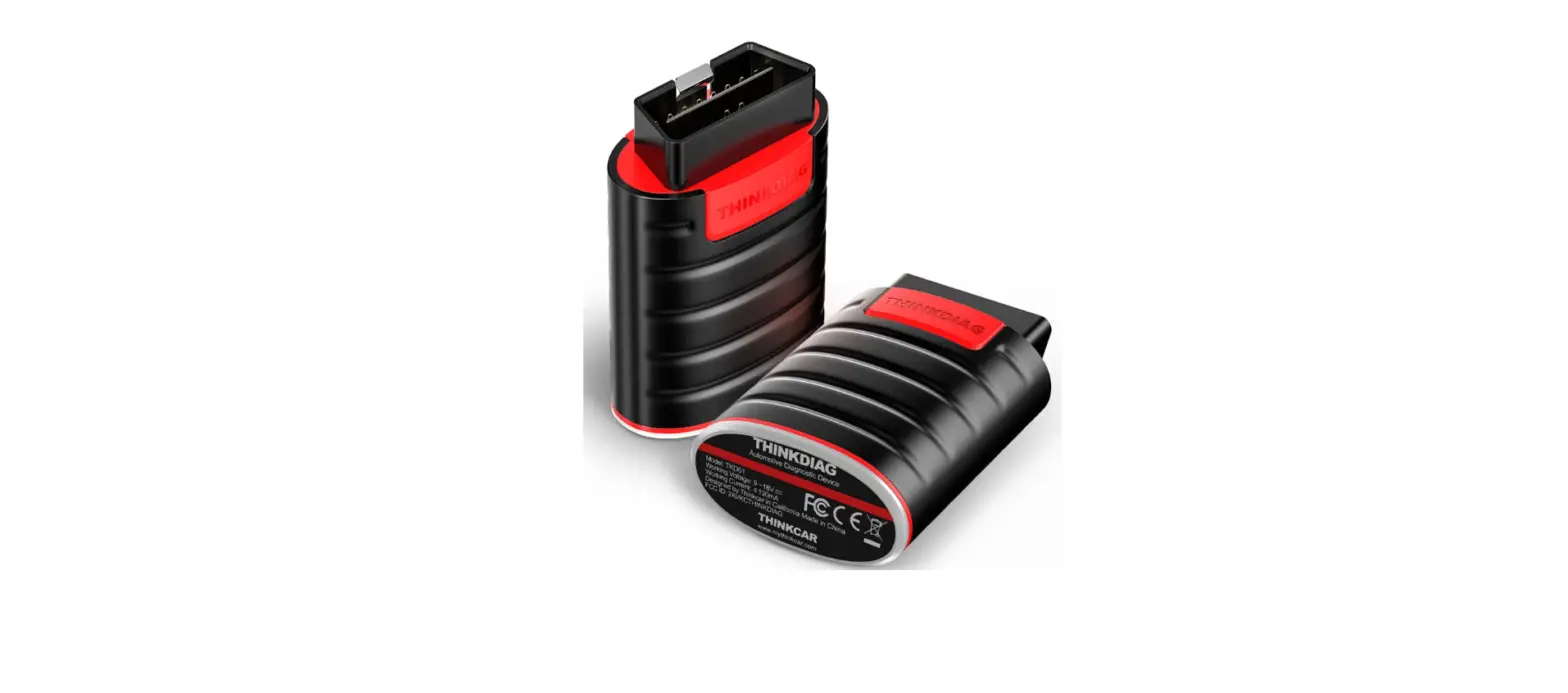
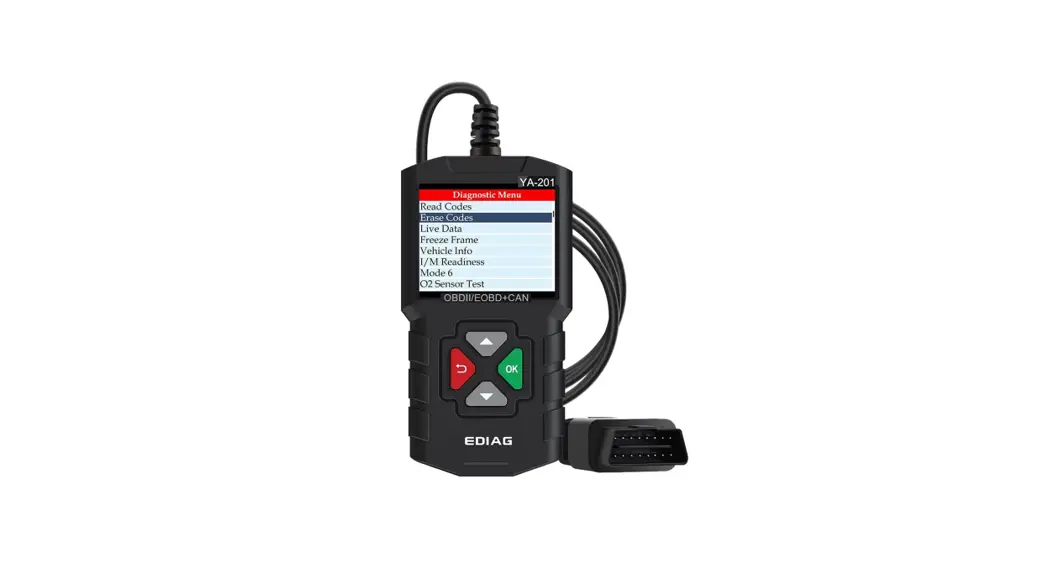
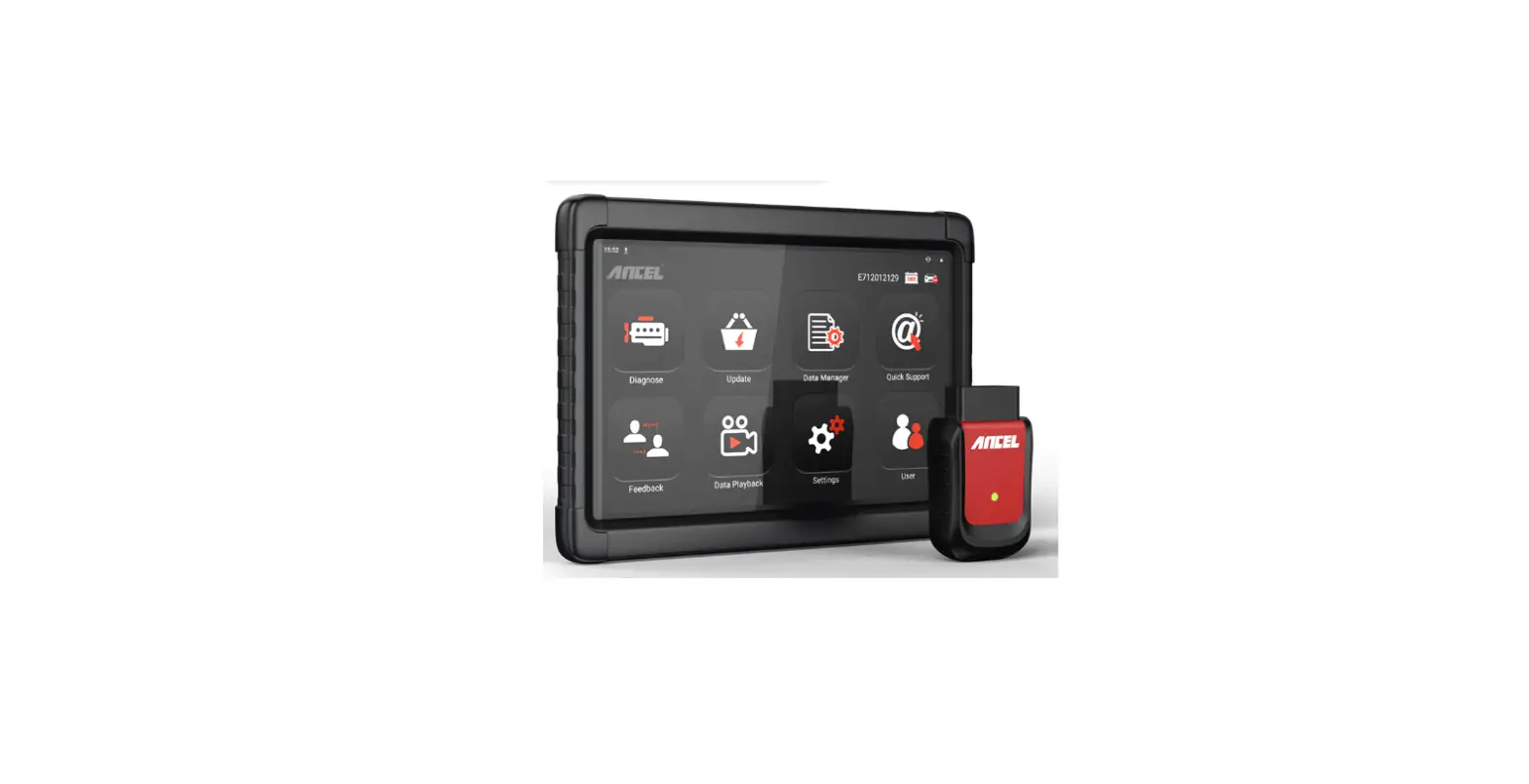
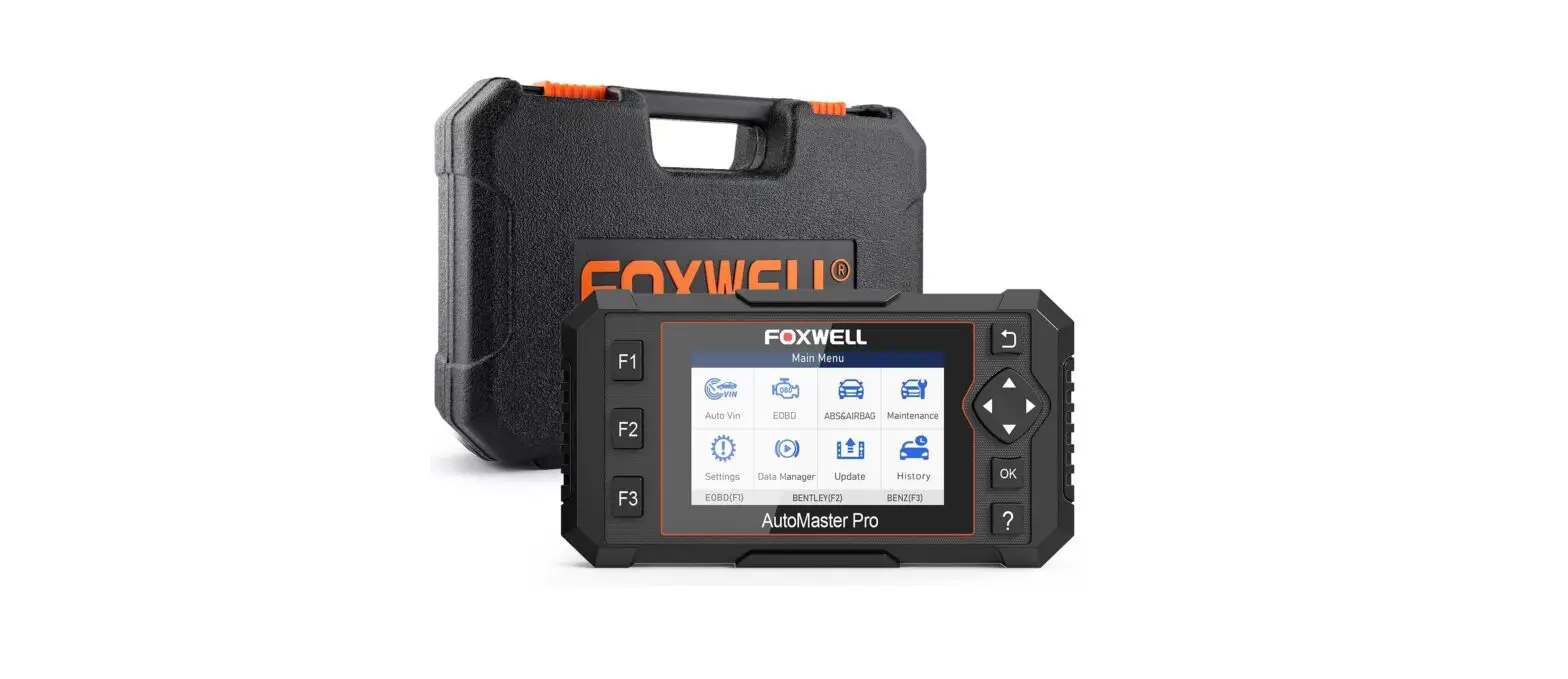
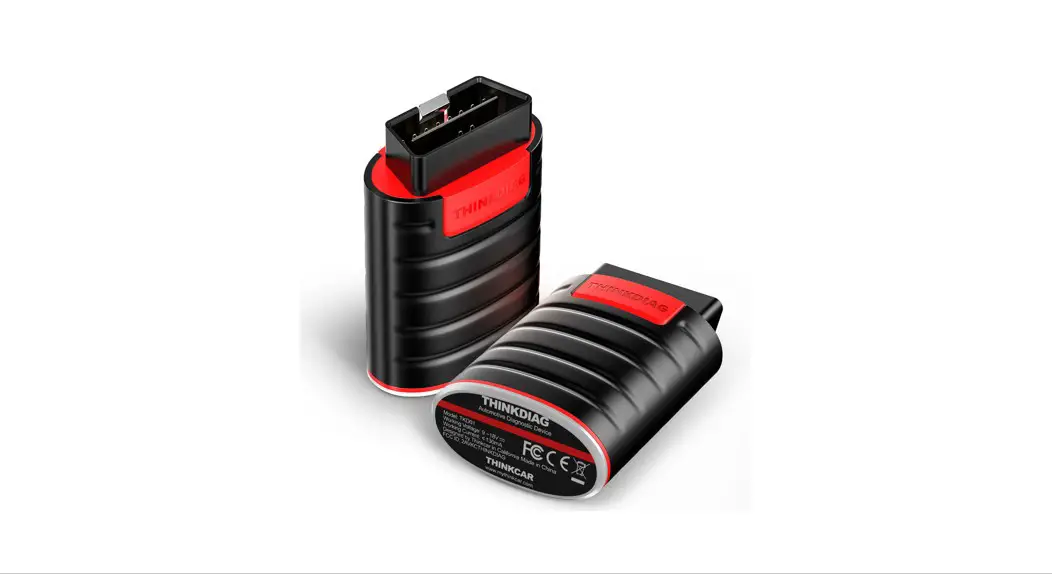
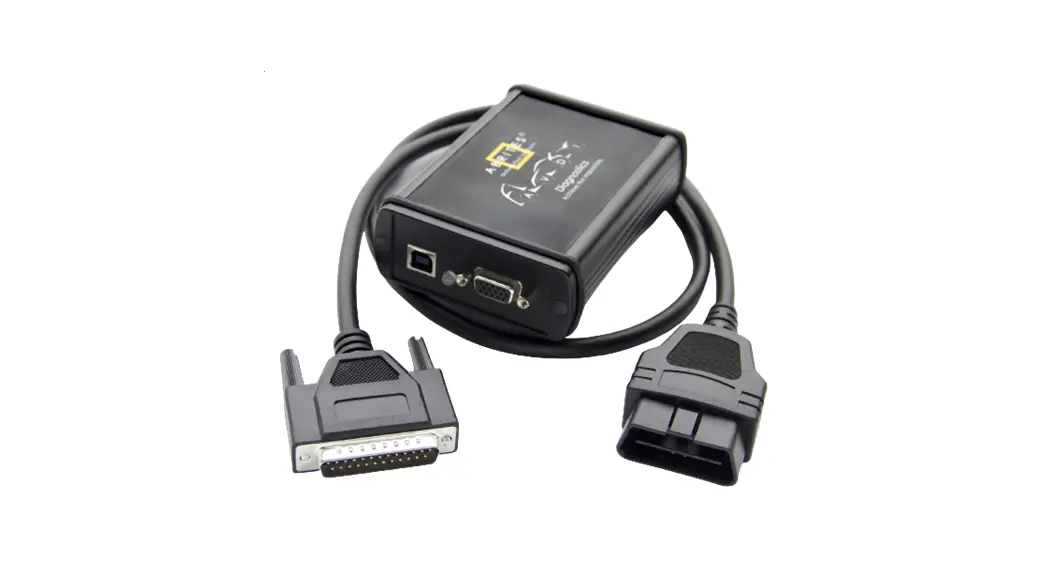
Ediag Automotive Diagnostic Device
Product Information
Product Name: Ediag Automotive Diagnostic
Device
Language: English (EN)
IC Warning: The device complies with Part 15 of
the FCC Rules and is subject to certain conditions to prevent
interference.
FCC Warning: The device must not cause harmful
interference and must accept any interference received, including
interference that may cause undesired operation.
RF Exposure Requirement: The device has been
evaluated to meet general RF exposure requirements and can be used
in portable exposure conditions without restriction.
Product Usage Instructions
Downloading the Ediag App
- Search for “Ediag” in the App Store or Google Play Store.
- Download the Ediag App for free.
Activating an Ediag Device
- Click on “Activate” to open the activation page in the Ediag
App. - Input the serial number and a 6-digit activation code from the
Quick Start Guide to complete the activation process and bind your
Ediag device to your account.
Locating the OBDII Port
The OBDII port is usually located under the dashboard, above the
pedal on the driver’s side. Here are the 5 common positions for the
OBDII port (as shown in the figure):
Bluetooth Connection
To establish a Bluetooth connection between your Ediag device
and your smartphone:
- Ensure that the Ediag device is powered on (indicated by a
green light). - Open the Bluetooth settings on your smartphone.
- Select the Ediag device from the list of available
devices. - Follow the on-screen prompts to complete the pairing
process.
Note: For any changes or modifications to the device, consult
the dealer or an experienced radio/TV technician for assistance.
Unauthorized modifications may void the authority to operate the
equipment.
Ediag
Automotive Diagnostic Device
EN
IC Warning
“This device complies with Industry Canada’s license-exempt RSSs Operation is subject to the folk>wmg rNo conditions (1)This device may not cause interference; and (2)This device must accept any interference, including interference that may cause undesied operation of the device” «Le present appare1I est conforme aux CNR d’lndustrie Canada applicables aux appare1ls radio exempts de licence L’explolion est autone aux deux cond1t1ons suivantes : (1) l’appare ne do1t pas produire de brouillage, et (2) l’ut1hsateu de l’appa11 do,t accepte tout brou,llage radioelectnque sub1, meme s1le brouillage est susceptible d’en compromettre le fonct,onnement. »
FCC Warning This device complies with Part 15 of the FCC Rules. Operation 1s subJect to the following t,,,o conditions (1) This device may not cause harmful mterfeence, and (2) this device must accept any interference received, 1nclud1ng interference that may cause undesired operation
NOTE 1: This equipment has been tested and found to comply with the l1m1ts for a Class B d1g1tal device, pursuant to part 15 of the FCC Rules These limits are designed to provide easonable protection against harmful interference in a residential installation This equipment geneates, uses and can radiate radio frequency energy and, if not installed and used 1n accordance with the instructions, may cause harmful inter!ence to radio communications. Howeve, there is no guarantee that interference IMII not occur in a particular 1nstallat1on If this equipment does cause hamful interference to adio or television reception, which can be determined by turning the equipment off and on, the user is encouaged to try to correct the interference by one or moe of the following measures
– Reorient or elocate the receiving antenna – Increase the separation between the equipment and receiver – Connect the equipment into an outlet on a c,cu,t diffeent from that to
which the receiver is connected – Consult the dealer or an experienced rad,orTV technician for help
NOTE 2: Any changes or modifications to this unit not expessly appoved by the party espons1ble fo compliance could void the use(s authority to operate the equipment The device has been evaluated to meet general RF exposure requirement The device can be used in portable exposure condition without restnction
Download the Ediag App
Search for “Ed,ag” ,n the App Store or ,n GooglePlay Store.The Ed1ag App is FREE to download. (as sh=n in the figure below)
Q. Ed,ag
cao,el
**5
{,OS)
E .l g
*d * a * 5
(And,d)
Sign In or Sign Up
,10 0. :
If you already have a Ediag account, please sign in with your credentials If you do not have an account, please sign up as explained in the following paagraph. How lo Sign Up fo an Account Open the Ediag App, click on “Sign Up’·. Input your username, email, and verification code (which will be sent to the email you input), then create your o,vn pass,vord. Click on”Sign Up”to finish your registration
Ediag
Welcome to Ediag “C,m”.,.,”,..-.,.,,”m,h”””‘””=’°'””‘””·'”,n,
.,
”””” CR
,;,.”.,.,
“‘ “,”‘·'”‘
Activate a Ediag Device
Click on “Activate’to open the act,vat,on page. You need to input the serial number and an B-dig,t activaton code, to complete the process of actrvation and account binding fo your Ediag device. Activation code 1s on the first page of the Quick Start Guide
,M,.,_,AcCT·-,IVA..T=IO·N·····=·=d
0-
Usually, the OBDII port IS located under the dashboard, above the pedal on the driver’s side. Here are the 5 ccmmon positions for the OBDII port (as shown ,n the figure right) Insert the Ediag device, there will be a green light which indicates the device is powered on
Bluetooth Connection
Open the Ed1ag App, 1t will automatically search for actrvated devices Select you device and connect to it via Bluetooth ,n the App.Note Please do not diectly connect the device to you phone v,a Bluetoolh settings in your phone OS. Make sure to pair your device within the App follo·o,ng the instruction
“‘”””°'”c1ti,
All SYSTEMS DIAGNOSTIC ,,”.”.’.”..”..”.·””.,m·”r’n”””””r’n ‘po,<m,'”m””‘”””- “‘C”
“”‘”‘·
9708601333
Download Diagnostics Software
In the “Diagnostics” interface of the App, you will need to download the corresponding diagnostics software when first time perform “All System Diagnostic” and “OBD Functions” And there is no need to download again next time
VDI’e, moI 2t-<6
AV]L’TO71H’-‘R
“”” fl,IVLIIV…..
V1R0EtSoEl1WCI S
RESETB
., …
“””
v,RE ITllBA. He “(10IIOI109.5 RE5ETDPF
Start to Use Your Ediag Device
After the bluetooth connect,on, you can use all the functions of your Ed1ag device. such as:AII Systems D1agnost1cs, Maintenance & Service Functions, OBDII Diagnostics
DPF
OBD FUNCTIONS Op= nxrtraao,r-t ‘ll·ctomlss,ooreolod””‘
FAQ
Q A
What There
do the different lights on are three different lights
oEnd1Eagd1aingdicate?
Continuous Red Light: Ed1ag device 1s powered on
Continuous Blue Light Bluetooth is connected
Flashing Blue Light Bluetooth 1s in communication
Q . Why do I need to dov.’llload the diagnostics softwae after
downloading the App?
A Due to a variety of vehicle manufacturers on the market, different
vehicle manufactuers equ1e corresponding diagnostics software
Thereto Ed1ag willrecognize the vehicle manufacture first while
diagnosing, then it will dnload the corresponding diagnostics
software to work
Q What vehicles can Ed1ag diagnose?
A Ediag is compatible with all vehes supporting OBDII/EOBD
protocols after 1996
Note: Depending on your vehicle, the diagnostics software size
varies and download speed is different as well. When first
downloading the diagnostics soflv,are, it might require a good
ne\vork connection
Q What ae the special functions of Ediag?
A Ediag supports 15 special functions. including. AFS RESET,
Elec.Throttle RLRN, lmmobze/Keys, INJECTOR, RESET BRAKE,
RESET OIL, RESET SAS, RESETBLEED, RESETBMS, RESETBOX, RESETDPF, RESETEGR, RESETTPMS, SUNROOF, RESET SUS. According to different vehicle manufacturers’ d1agnost1cs software, there will be moe special functions to come Q: Does Ed1ag need firmware upgrade? A: Yes, it does. When the Ed1ag device is oonnected via Bluetooth to your smartphone, ii will aulomat1cally check 11 the fimwae on your device is the latest version If it’s not, ii will upgrade automatically Q·What smartphones can download Ed1ag App? A: Ed1ag App supports smartphones withd01d 50 and above. IOS 9.0 and above. It cannot be used on PC with WINDOWS system Q: Can the same App account bind with multiple devices? A Yes,you can set them up in the App
Warranty Card
1 In addn to the legal withdrawal right, you benefit from a 30-day money back guaranteeThe device 1s also guaranteed for a period of one year
2 Before replacement, please ensure complete packaging, Before replacement/repair, please call the service number to get the shipping address
3 Product waranty starting date 1s based on the payment date Service Line 0755-23445106 Customer Service Email: [email protected] cial Website: www.kingbolen.com Youtube Kingbolen auto scanner center Facebook: @kingbolen.fans lnstagam: @kingbolen.fans
 Car Diagnostic Tool OBD2 Scanner Diagnostic Auto - Kingbolen.com