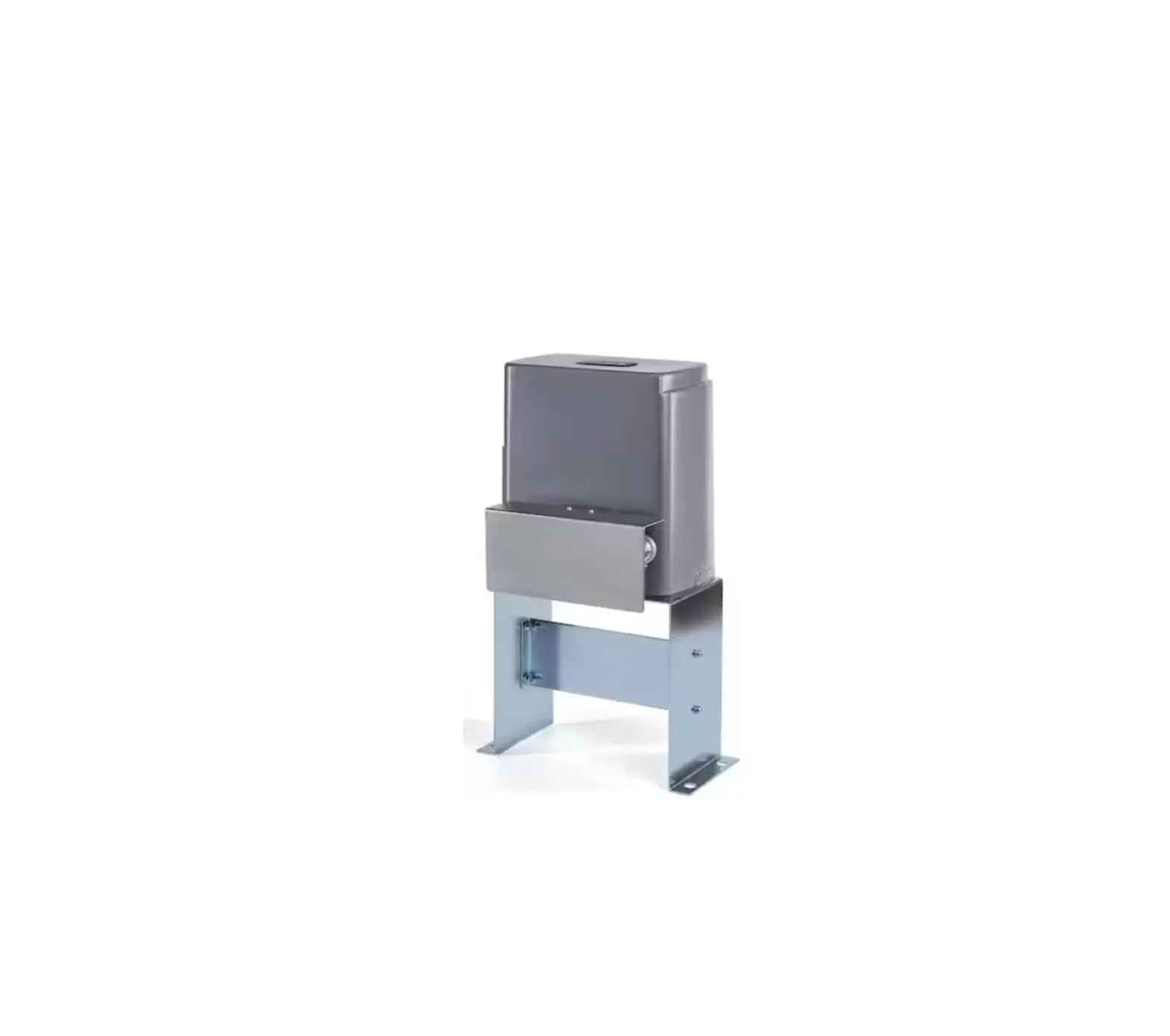
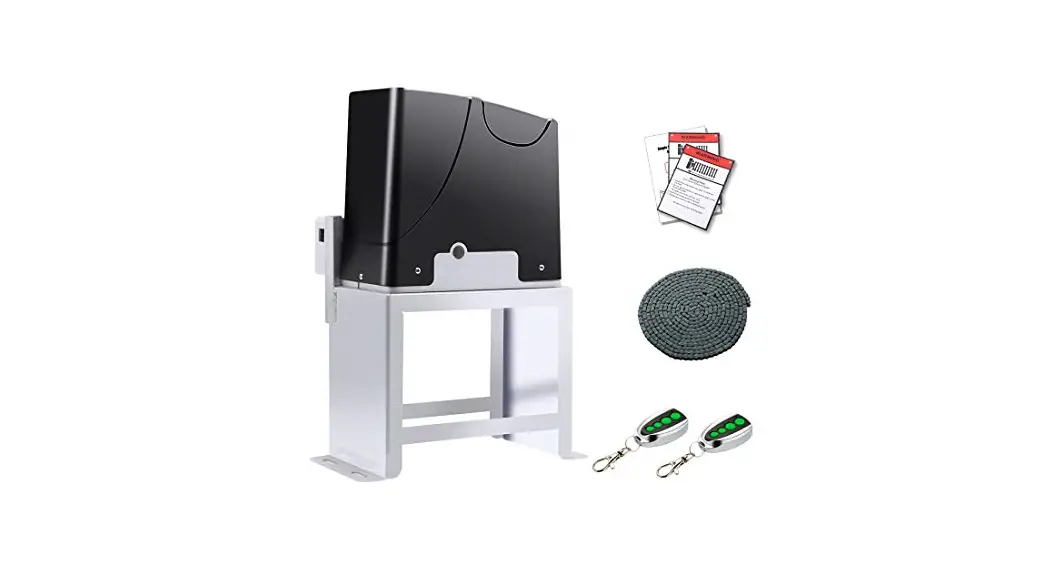
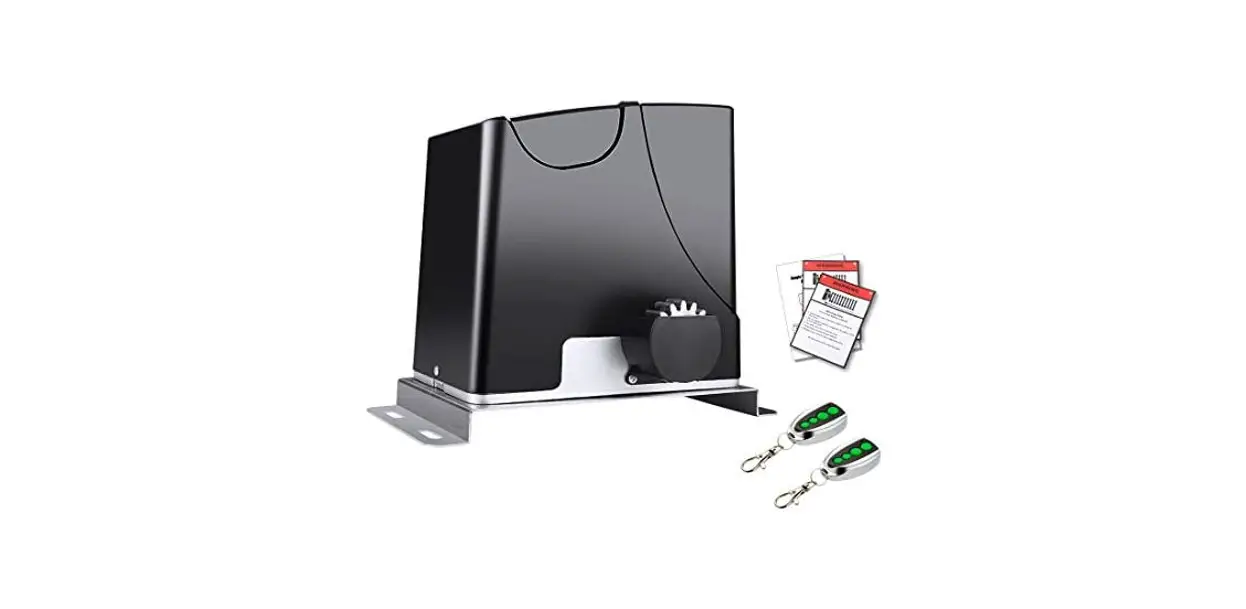
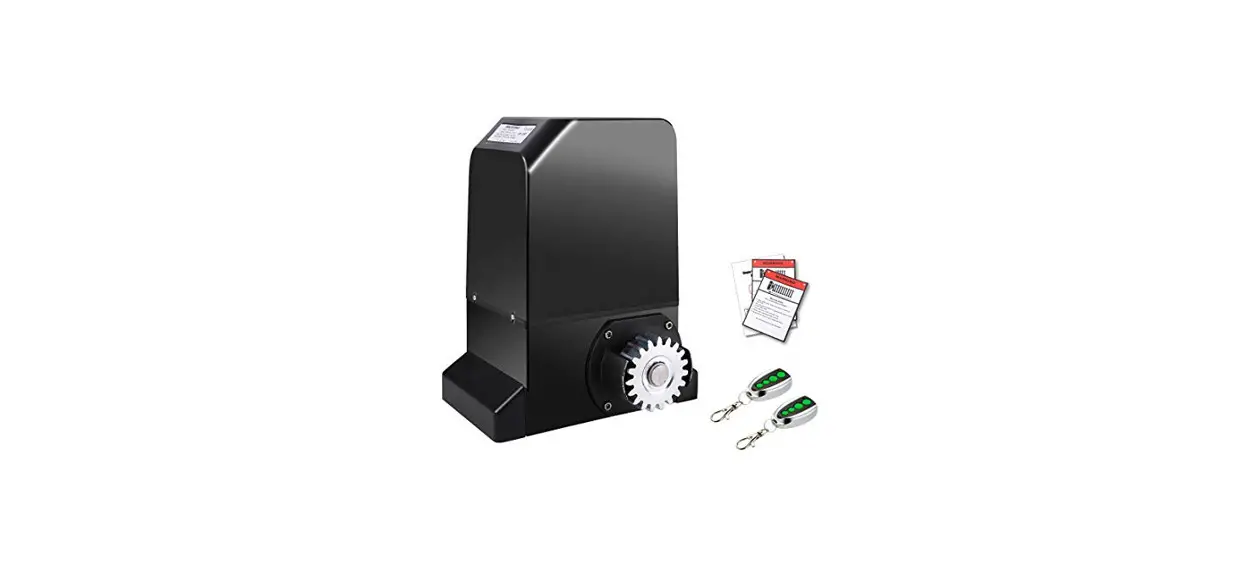
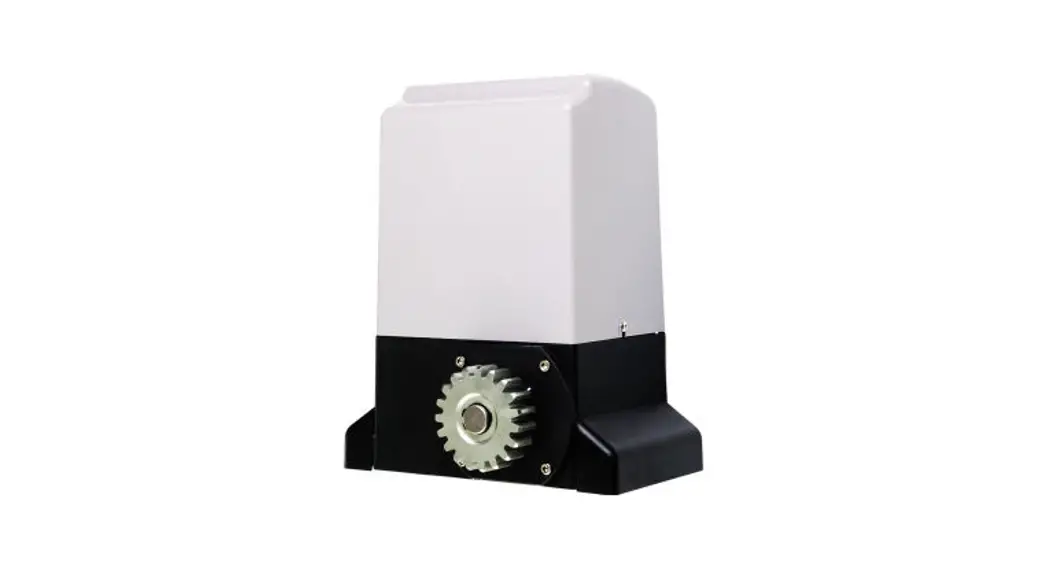
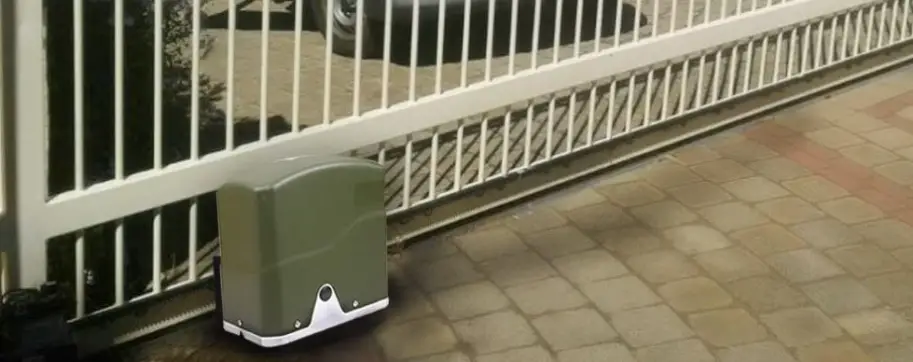
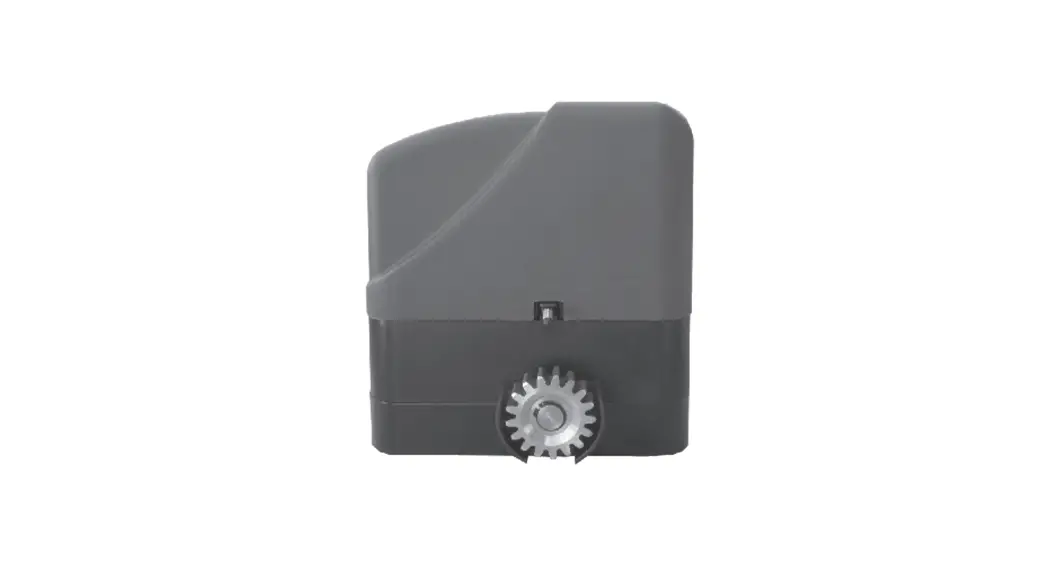
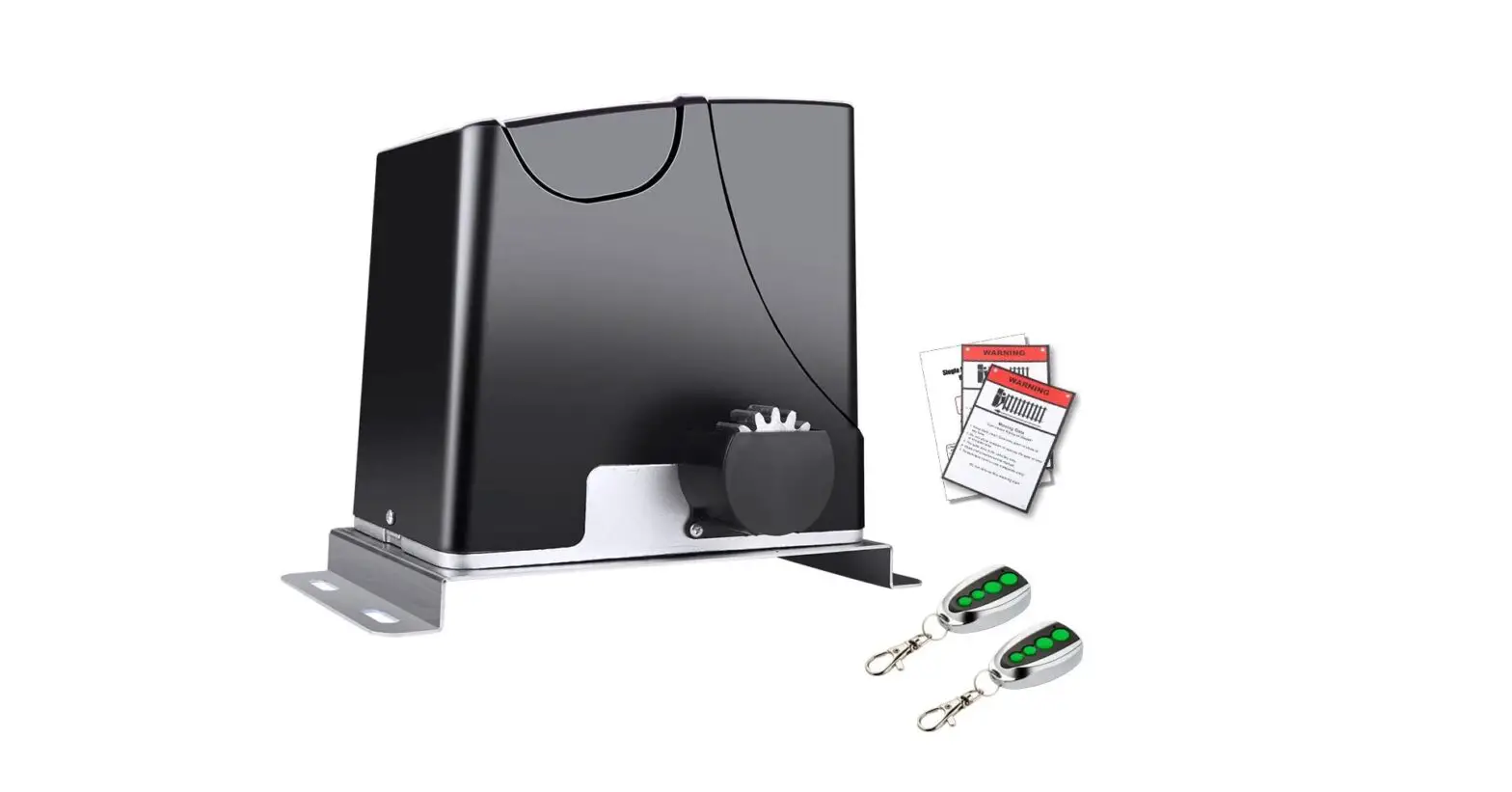
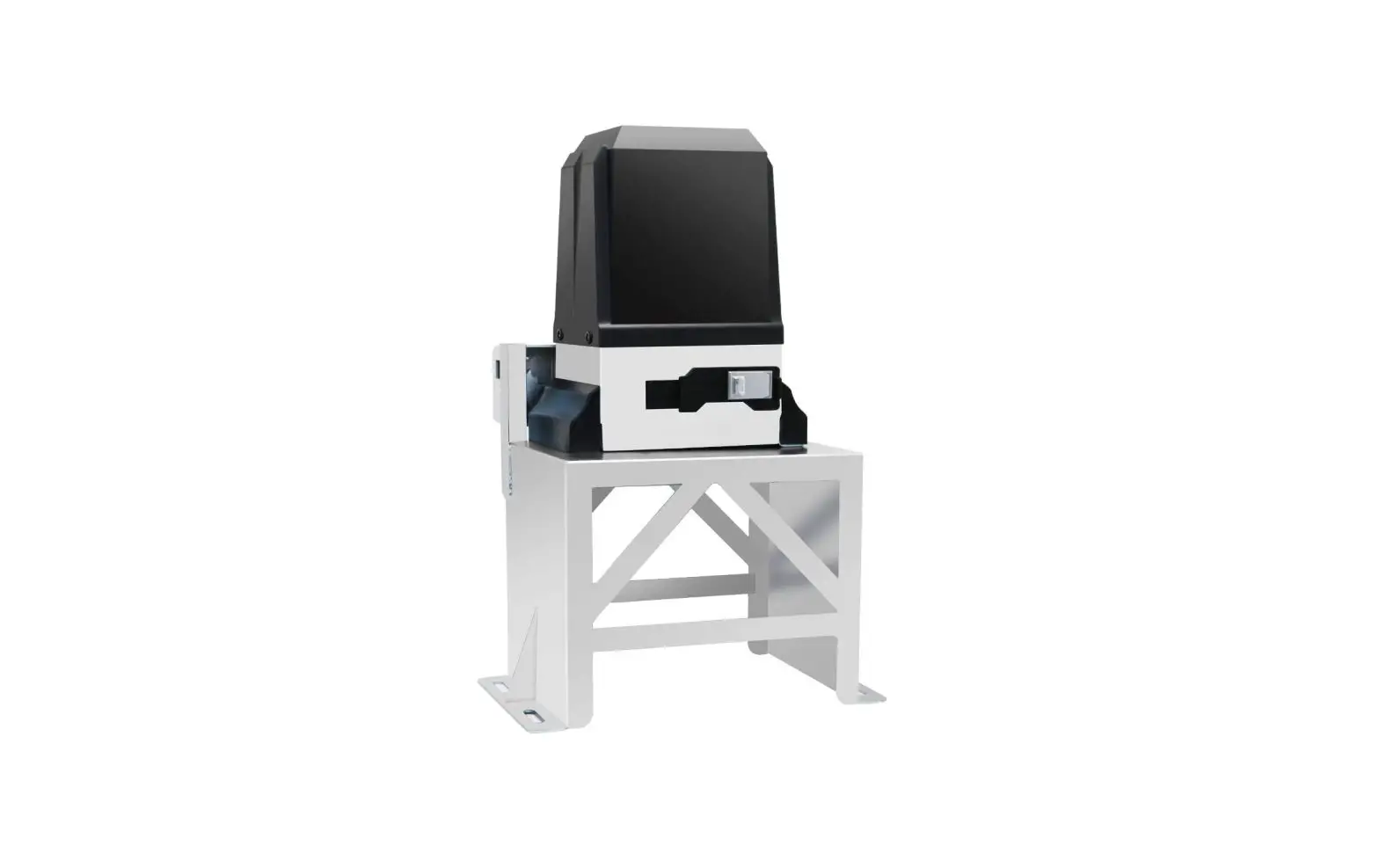
SGO-0000-02-BNHD-1 Sliding Gate Opener Remote Control
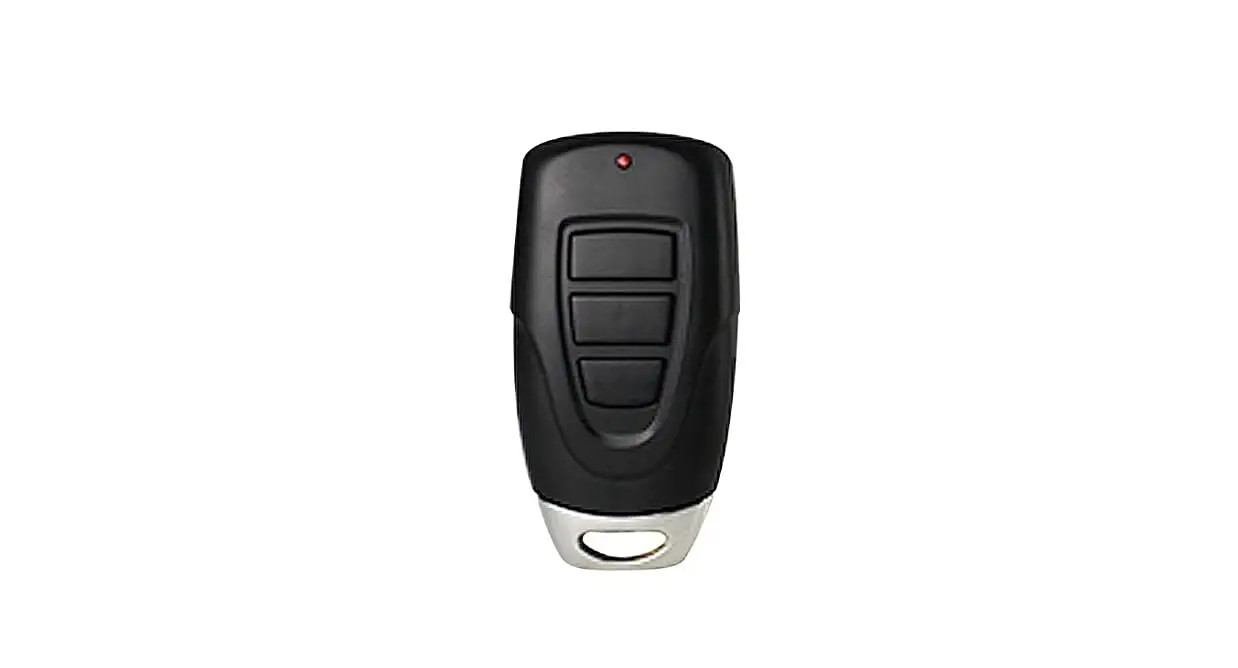
433.92 MHz Sliding Gate Opener Remote Control
The 433.92 MHz Sliding Gate Opener Remote Control is designed
for use with sliding gate openers that have a 433.92 MHz reception
frequency. It uses a single-button mode and has four buttons, each
of which can be matched to one control board. Each button should
control one gate and needs to be matched to its control board
before use.
Product Usage Instructions:
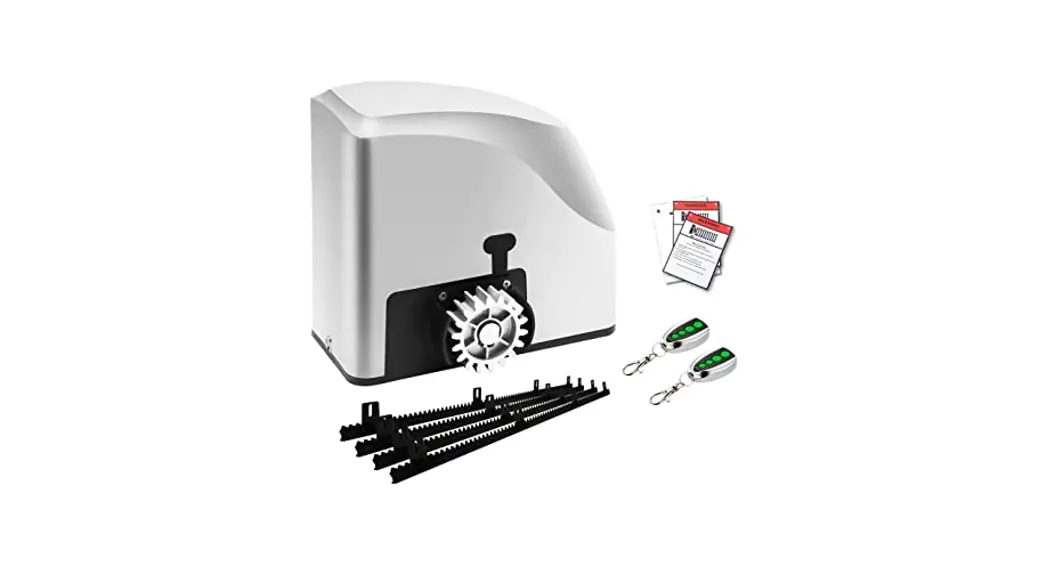
- Before starting, ensure that all items that come with the set
are accounted for. - REMOTE CONTROL MATCHING:
- Remove the control board cover of the gate opener and place it
nearby. - Press the button AN1 on the control board. The indicator light
LED2 will flash once and then go out. - Press one unmatched button on the remote control twice. The
LED2 indicator light will flash repeatedly.
- Remove the control board cover of the gate opener and place it
- REMOTE CONTROL RESETTING:
- Remove the control board cover of the gate opener and place it
nearby. - Press the button AN1 until the LED2 indicator light comes on
and then goes out. This indicates all remote control matching has
been deleted from the circuit board. - Repeat the remote control matching steps above to match another
unused button to the control board. - Replace the control board cover.
- Remove the control board cover of the gate opener and place it
- For other gate openers using the 433.92 MHz frequency, consult
their separate manual for pairing instructions.
If you have any questions or comments regarding the product,
please contact us at [email protected] and we will resolve
your issue as soon as possible. For a .pdf copy of the latest
version of these instructions, scan the QR code to the right using
an appropriate app on your smartphone.
433.92 MHz Sliding Gate Opener Remote Control Instructions
Before starting work, please be sure that all items that come with the set are accounted for.
V20221009
OPEN STOP CLOSE STOP
Designed for sliding gate openers with a 433.92 MHz reception frequency, this
remote control uses a single-button mode. There are 4 buttons on the remote
control, each of which is capable of being matched to one and only one control
board. Therefore, each button should control one and only one gate. Each
button needs to be separately matched to its control board before use.
Command Cycle for Each Button
REMOTE CONTROL MATCHING
For most CO-Z gate openers: 1. Remove the control board cover of the gate opener. Place it nearby. 2. Press the button AN1 on the control board. The indicator light LED2 will flash once and then go out. 3. Press one unmatched button on the remote control twice. The LED2 indicator light will flash repeatedly
and then go out. The button has been matched to this gate’s control board. 4. Replace the control board cover. Once the setup process is complete, pressing this matched button will cycle the gate among the actions OPEN STOP CLOSE STOP. The remote should work within a range of 100 ft. (30 m) from the gate opener. Test and ensure that the gate opens, closes, and stops on command. Repeat the steps above so that the rest of the buttons can be used for other gate openers. If you find yourself needing to reset a button, use the following process:
REMOTE CONTROL RESETTING
1. Remove the control board cover of the gate opener. Place it nearby. 2. Press the button AN1 until the LED2 indicator light comes on and then goes out. This indicates all remote
control matching has been deleted from the circuit board 3. Repeat the remote control matching steps above to match another unused button to the control board. 4. Replace the control board cover. For other gate openers using the 433.92 MHz frequency, consult their separate manual for pairing instructions.
CONTACT US
Thank you for choosing our products! If you have any questions or comments, contact us at [email protected] and we’ll resolve your issue ASAP! For a .pdf copy of the latest version of these instructions, use the appropriate app on your smartphone to scan the QR code to the right.
SGO-0000-02 SGO-0000-2D Rev. 9 Oct. 2022