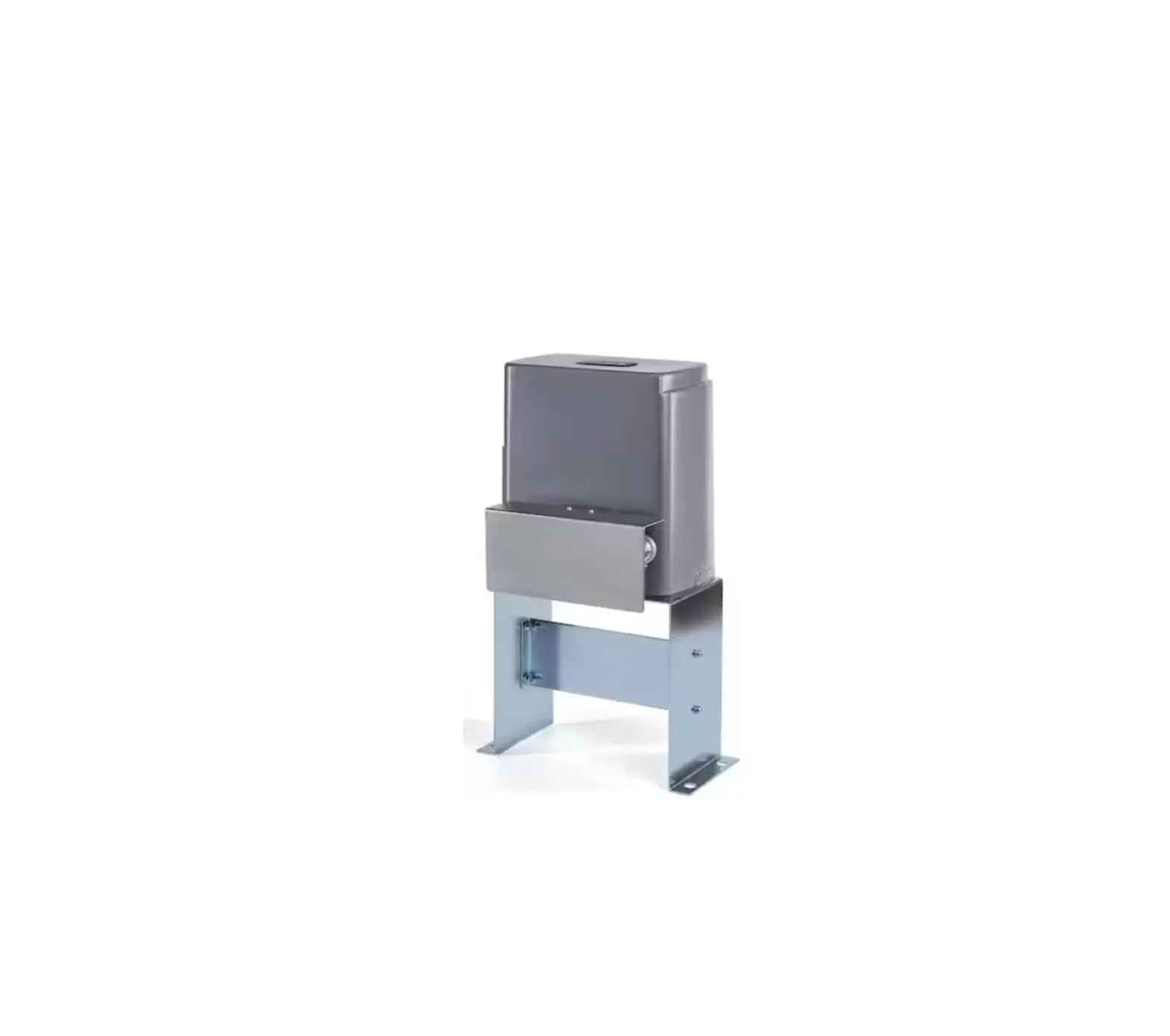
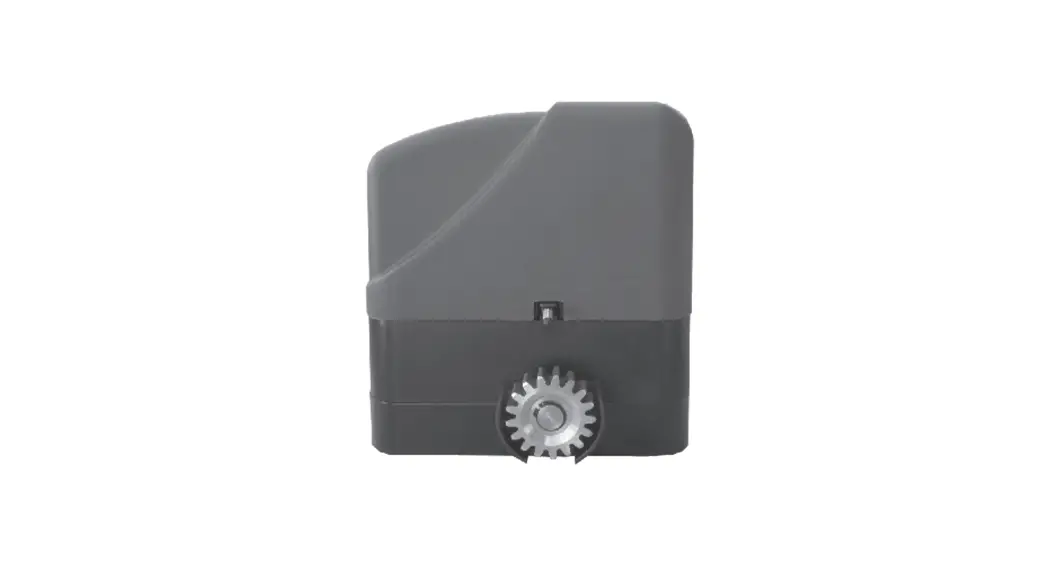
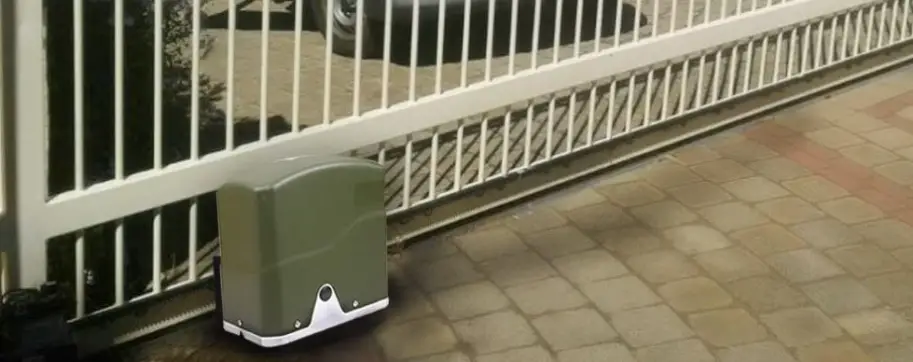
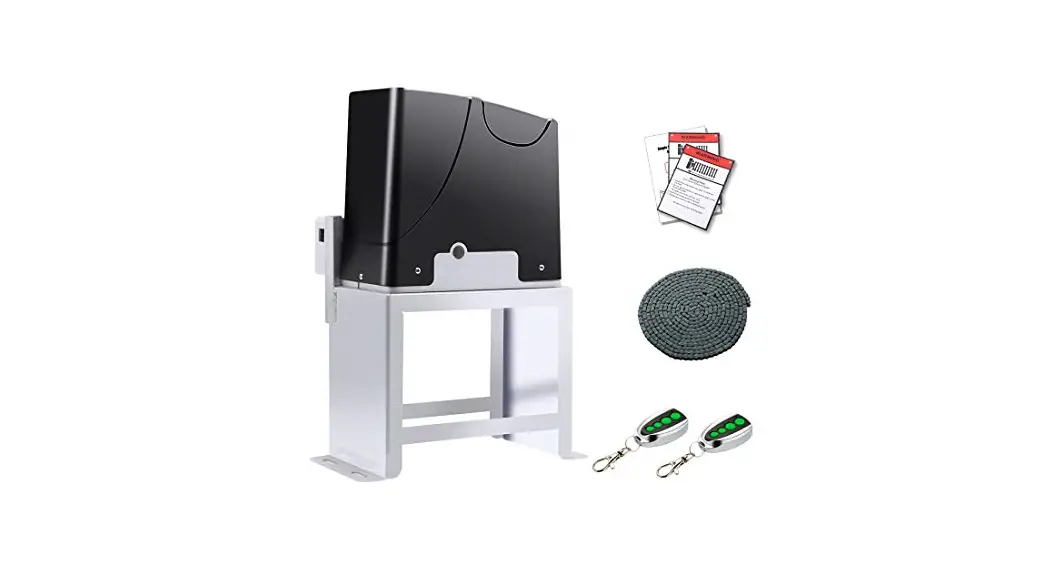
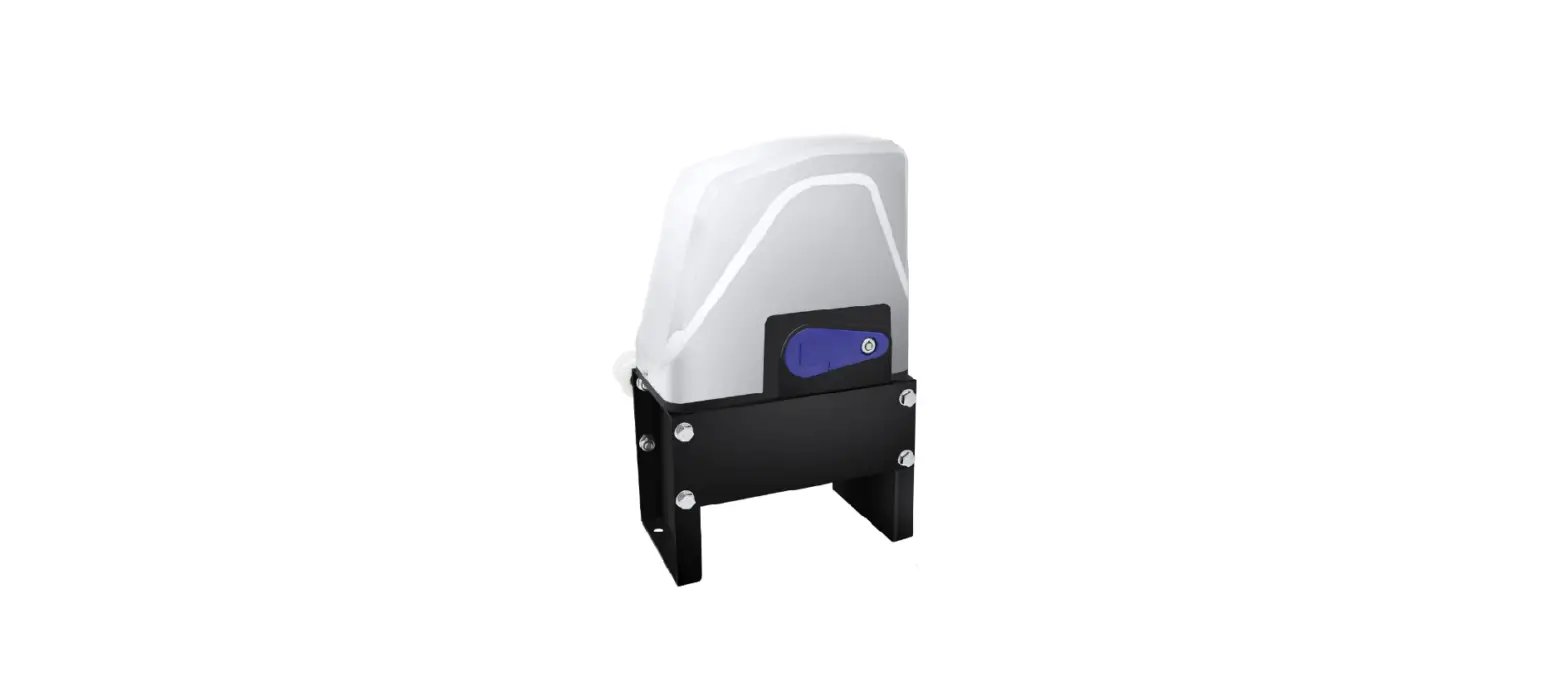
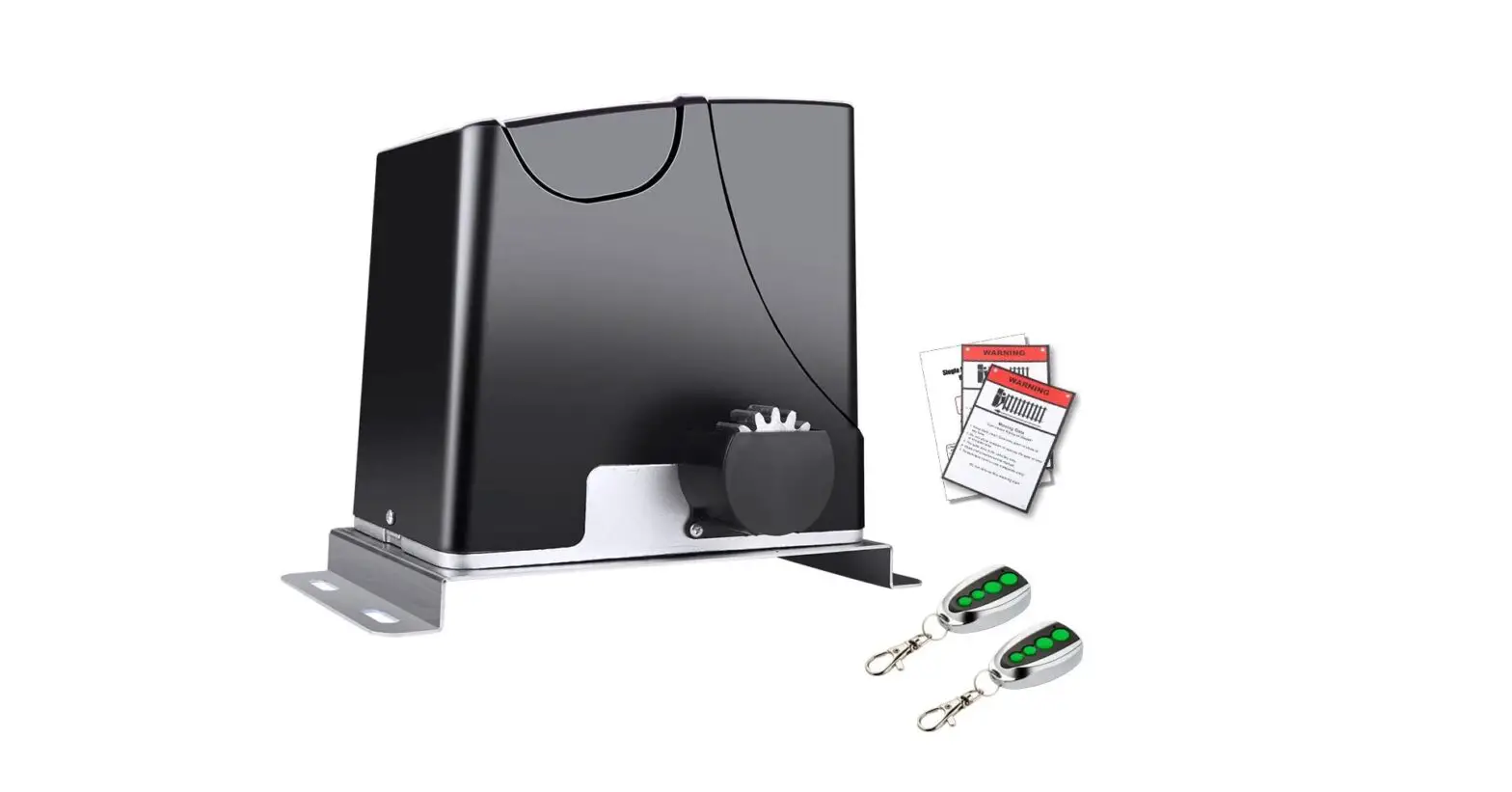
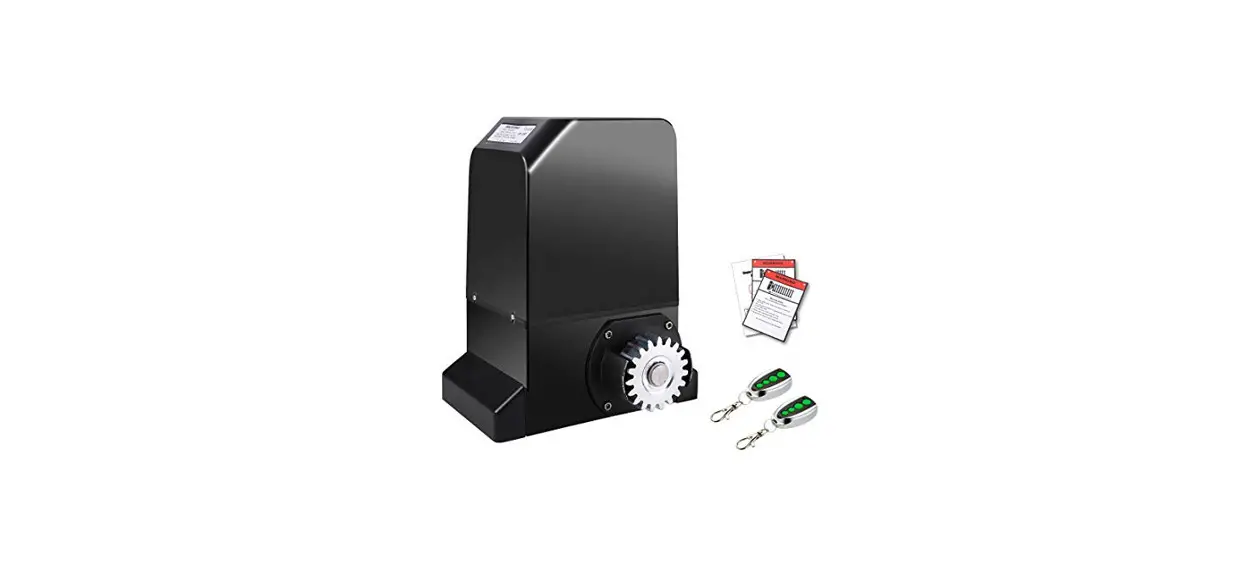
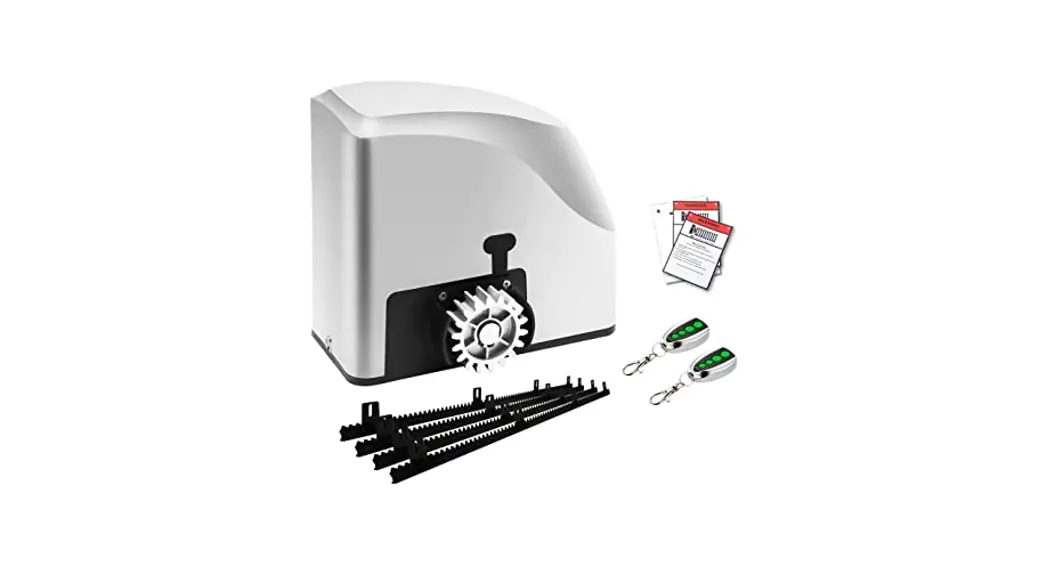
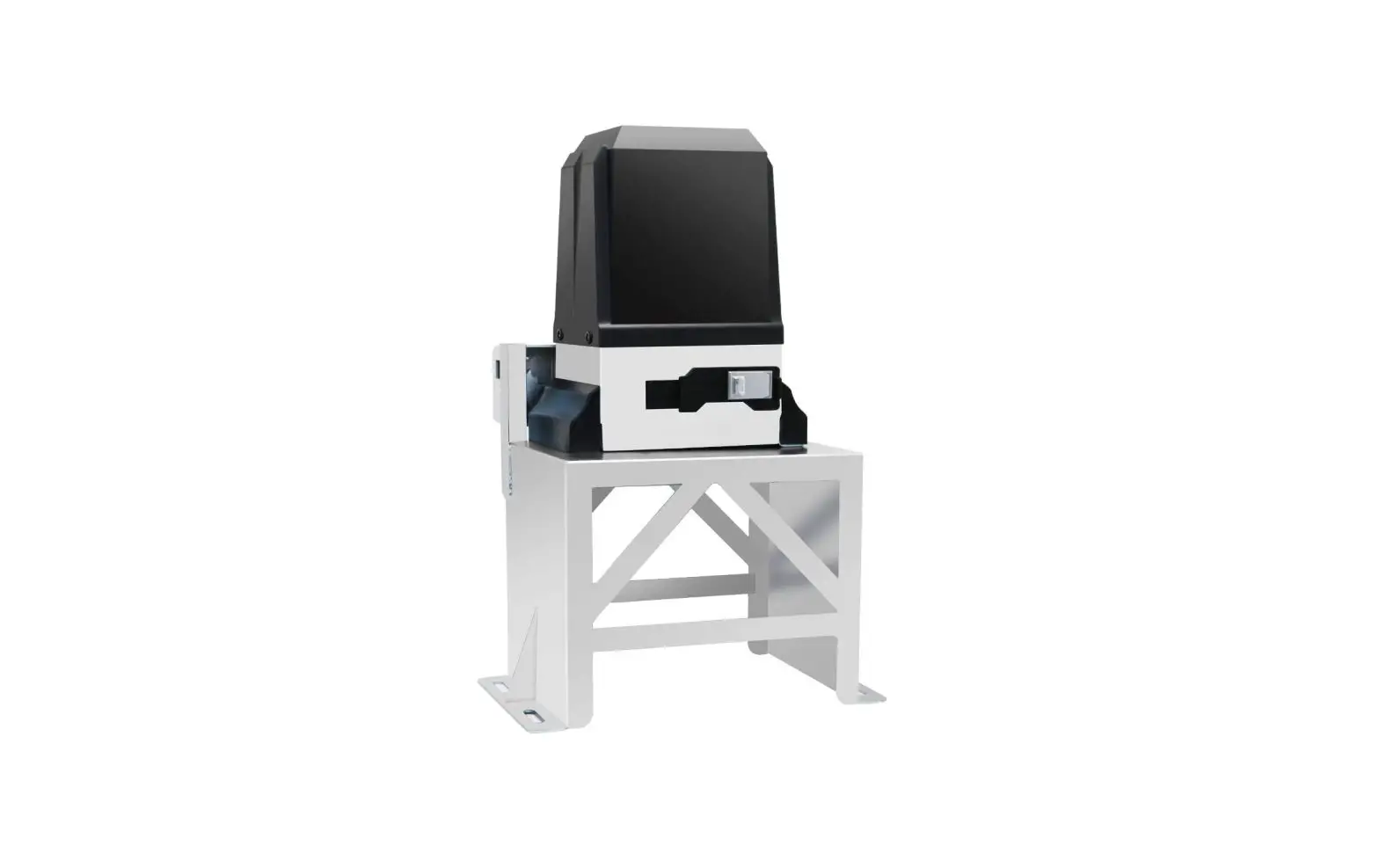
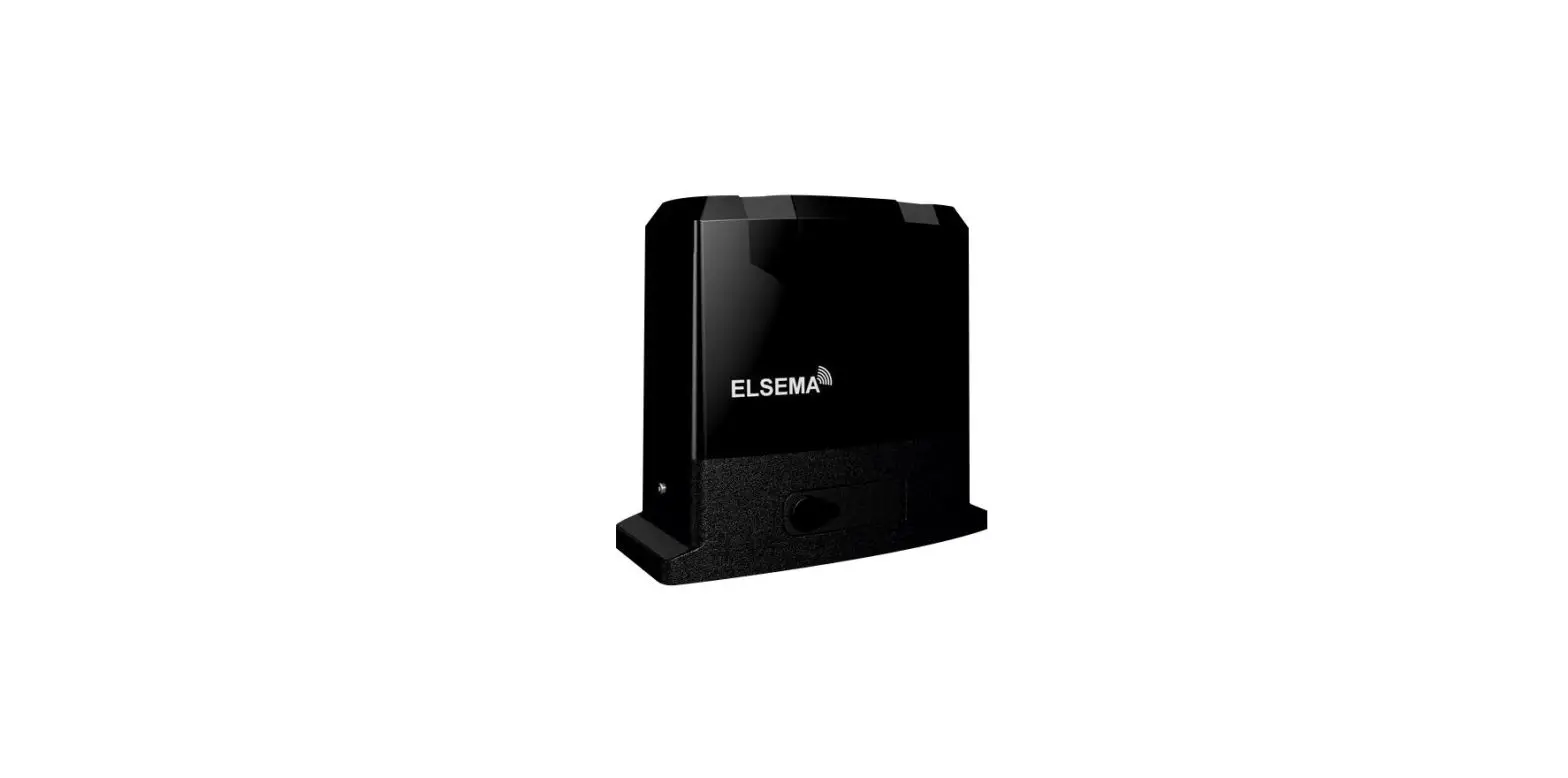
SGO-SL05-DC-BNHD-1 Slide Single Automatic Gate Opener Kit
Product Information
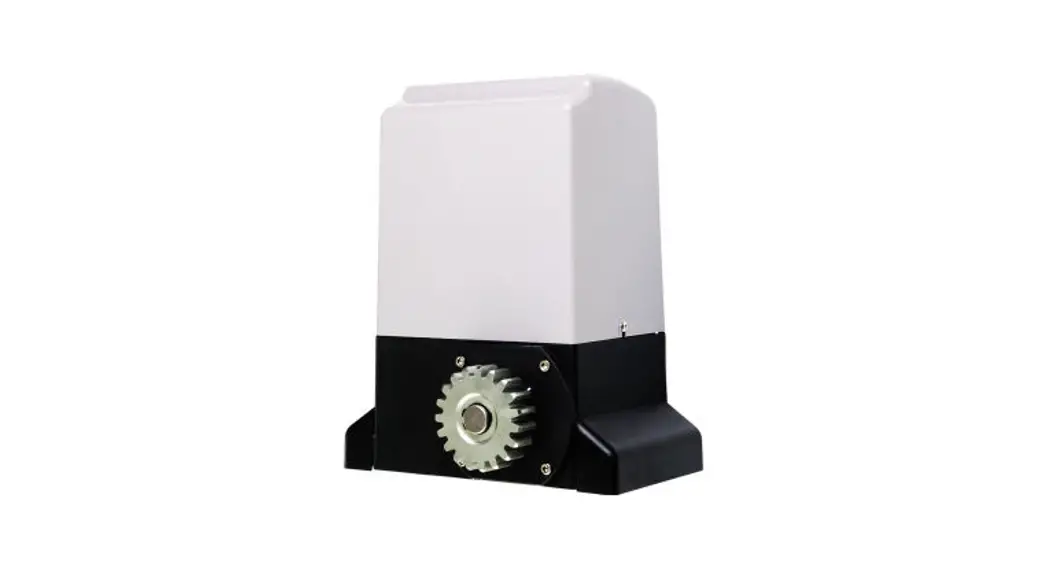
Product Name: Sliding Gate Opener
Model Number: V20221009
Specifications:
- Motor Power: 10 kg
- Power Supply: 1
- Gate Moving Speed: Not specified
- Max. Noise Level: Not specified
- Operating Temperature Range: Not
specified - Remote Control Range: Not specified
- Remote Control Frequency: Not specified
- Package Weight: Not specified
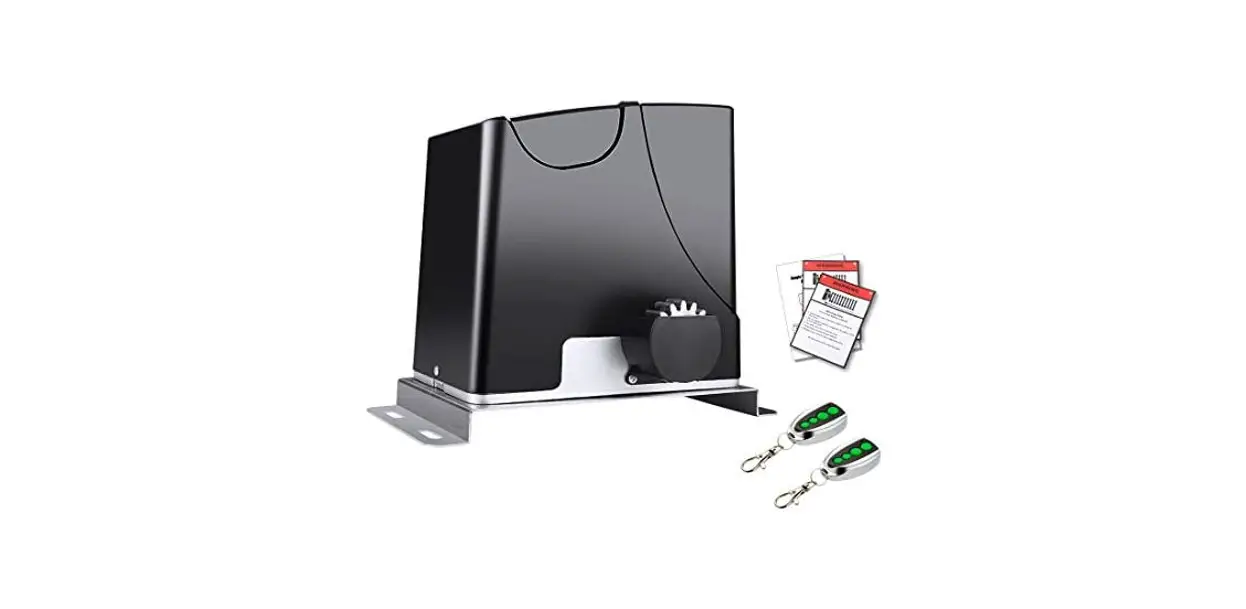
Packaging List:
| No. | Picture | Name | Quantity |
|---|---|---|---|
| A | Motor | 1 | |
| B | Manual Release Keys | 2 | |
| C | Remote Controls | 2 | |
| D | Accessories Box | 1 | |
| E | Sprocket Cover | 1 | |
| F | Chains | 2 | |
| G | Tie Rod | 2 | |
| H | Square Bolt | 4 | |
| I | Round Bolt | 4 | |
| J | Gate Brackets | 2 | |
| K | Horizontal Mounting Plate | 1 | |
| L | Vertical Mounting Plate | 2 | |
| M | M8 Foundation Bolts | 4 | |
| N | Magnet & Bracket | 1 | |
| O | Infrared System | 1 | |
| P | Hall Sensor | 2 | |
| Q | Strong Magnet | 1 |
Product Usage Instructions
Safety Information
Warning!
Installation
- Ensure that the gate does not exceed the maximum weight
specified previously. - Ensure that the gate does not exceed 39 ft. (12 m) in
length. - Ensure that the gate opener is located no less than 12 in. (30
cm) from the ends of the gate. - Ensure that there is sufficient room to install the gate opener
inside the property. - Ensure that the gate is properly installed and glides back and
forth smoothly through its entire range of motion. - Ensure that the ground below the gate opener is suitable for
anchoring it in place. - Install a ground circuit breaker at least 5 ft. (1.5 m) off the
ground, within sight of the gate.
Gate Opener Installation
- Prepare a trench and install your electrical conduit.
- Prepare a form box the size of the hole and insert it into the
hole. - Fill the form with concrete and place the four M8 foundation
bolts, and electric conduit according to Figure 4. Do not install
the mounting plate yet. - Wait for at least 24 hours for the concrete to set.
- Remove the form box, make sure the block is level, and fill the
hole around it with soil. - If you are not using the detachable foundation, fix the
mounting plate to the mounting bolts with their nuts and
washers.
Motor Installation
- Dismantle the motor’s plastic housing before installation and
keep relevant fasteners properly. - Prepare the power line for connection of the mounting plate and
the motor. - Mount the motor on the mounting plate, ensuring the power cord
is positioned into the end slot of the mounting plate in the
direction of the power point, making sure there are no pinch
points.
Chain Installation
- Close the gate.
- Install a gate bracket on the left and right side of the gate
at the same height as the two lower wheels on the motor, as shown
in Figure 9. Use the square bolt for square frames and the round
bolt for round frames. - Fasten the chain to the bracket furthest away from the motor
according to Figure 10.
V20221009
SLIDING GATE OPENER USER MANUAL
Read Carefully Before Use Keep for Future Reference
Safety Information
Warning!
· Design, installation, and use of gate opening systems pose unique risks to bystanders and users. Particular attention needs to be given to reduce public exposure to potential hazards as well as guarding all exposed pinch points present in the gate opening system.
· Prior to installation of the gate opening system, failure to verify this may lead to property damage. · The gate must be installed such that enough clearance exists between it and adjacent structures.
The range of motion of the gate should not overlap with public access areas. · The gate opener is ONLY intended for use on gates intended for vehicular traffic. Pedestrians
should be provided with a separate access point which ensures pedestrians do not come into contact with the moving vehicular gate. · DO NOT let children play on or around the gate and keep controls out of their reach at all times. · Individuals should not be in physical contact with the gate while it is mobile in order to avoid possible injury. · DO NOT install any device that operates the gate sensor within 6 ft. (1.8 m) of where an individual can reach over, under, around, or through the gate. · DO NOT pair one remote control button with two different control boards.
Specifications
Motor Power Power Supply Gate Moving Speed Max. Noise Level Operating Temperature Range Remote Control Range Remote Control Frequency Package Weight
150W 110120 V~ 60 Hz 5359 ft./min. 60 dB -4 to 158°F 98 ft. 433.93 MHz 22 lb.
1610 m/min.
-20 to 70°C 30 m
10 kg
1
Package List
No.
Picture
A
B
C
D
E
F
G
H
I
Name Motor Manual Release Keys Remote Controls Accessories Box Sprocket Cover Chains Tie Rod Square Bolt Round Bolt
2
Quantity 1 2 2 1 1 2 2 4 4
No.
Picture
Name
Quantity
J
Gate Brackets
2
K
Horizontal Mounting Plate
1
L
Vertical Mounting Plate
2
M
M8 Foundation Bolts
4
N
Magnet & Bracket
1
O
M6×10 Screws
4
P
M8×65 Hex Bolts
2
Q
M8×25 Hex Bolts
4
Ø6 Flat Washers
14
R
Ø8 Flat Washers
16
Ø6 Spring Washers
14
S
Ø8 Spring Washers
12
3
No.
Picture
Name
Quantity
T
Infrared System
1
U
Hall Sensor
2
V
Strong Magnet
1
Installation
Required Tools · Power Drill · Tape Measure · 14 &17 mm Open-Ended Wrenches or Adjustable Wrench · Wire Strippers · Small, Medium, & Large C-Clamps · Level · Hacksaw or Heavy-Duty Bolt Cutters · Phillips Screwdriver
4
Prior to installation, ensure that: 1. The gate does not exceed the maximum weight specified previously. 2. The gate does not exceed 39 ft. (12 m) in length. 3. The gate opener is located no less than 12 in. (30 cm) from the ends of the gate. 4. There is sufficient room to install the gate opener inside the property. 5. Ensure that the gate is properly installed and glides back and forth smoothly through its entire
range of motion. 6. The ground below the gate opener is suitable for anchoring it in place. 7. A ground circuit breaker must be installed at least 5 ft. (1.5 m) off the ground, within sight of the
gate.
12
3
4 56
78 9
0
Figure 1
Gate Opener Dimensions
1. Gate Opener 2. Wireless Keypad (Optional) 3. Gate 4. Infrared Sensor 5. Alarm Lamp 6. Safety Stop Block 7. Chain 8. Magnet 9. Remote Control
20 in. (51 cm)
9.2 in. (23.4 cm)
12.8 in. (32.4 cm)
Figure 2
5
Mounting Plate Dimensions
11.8 in. (30 cm)
3.3 in. (8.5 cm)
Figure 3
Gate Opener Installation
1. Dig a 19.7×11.8×9.8 in. (50×30×25 cm) hole to the side of the gate, make sure it’s at least 30 cm away from the end of the gate.
2. Prepare a trench and install your electrical conduit.
3. Prepare a form box the size of the hole and insert it into the hole.
4. Fill the form with concrete and place the four M8 foundation bolts, and electric conduit according to Figure 4. Do not install the mounting plate yet.
Mounting Plate
Concrete
Foundation Bolt
Power Line
Figure 4
5. Wait for at least 24 hours for the concrete to set.
6. Remove the form box, make sure the block is level, and fill the hole around it with soil.
7. If you are not using the detachable foundation, fix the mounting plate to the mounting bolts with their nuts and washers.
8. If you are using the detachable foundation, assemble it according to Figure 5 and then fix the motor to the base according to Figure 6. Make sure to use a 3-core power cable with a maximal cross-sectional area of 0.002 sq. in. (1.5 mm²).
Ø6 Flat Washer Ø6 Spring Washer M6 Nut
Horizontal Mounting Plate Vertical Mounting Plate
M6×20 Hex Bolt
M8 Nut Ø8 Spring Washer Ø8 Flat Washer M8×60 Bolt
Mounting Base
Figure 5
Figure 6 6
Motor Installation
1. Dismantle the motor’s plastic housing before installation and keep relevant fasteners properly.
2. Prepare the power line for connection of the mounting plate and the motor.
3. Insert the key and open the manual release bar by turning it 90° (Figure 7) to put the motor into manual mode. Check that the motor cog rotates freely by hand.
4. Mount the motor on the mounting plate, ensuring the power cord is positioned into the end slot of the mounting plate in the direction of the power point, making sure there are no pinch points.
Figure 7
Chain Installation
1. Close the gate.
2. Install a gate bracket on the left and right side of the gate at the same height as the two lower wheels on the motor, as shown in Figure 9. Use the square bolt for square frames and the round bolt for round frames.
3. Fasten the chain to the bracket furthest away from the motor according to Figure 10.
4. Thread the chain through the motor according to figure 11
5. Adjust the chain to the proper length and connect it to the bracket closest to the motor according to Figure 10.
Ø8 Flat Washer Ø8 Spring Washer
M8 Nut
M6 Nut Ø6 Flat Washer Ø6 Spring Washer
Tie Rod
Ø8 Flat Washer Ø8 Spring Washer
M8 Nut
M6 Nut Ø6 Flat Washer Ø6 Spring Washer
Tie Rod
Gate
Round Screw
Figure 9 7
Square Screw
Tie Rod
Chain
Chain Link
Figure 10
Figure 11
Limit Switch Installation
1. Use the release key to set the motor in manual mode.
2. The magnet should be installed at the middle of the gate. Open your gate manually till the middle of the gate is positioned behind the motor. Determine the installation spot according to Figure 12. Make sure to leave 0.4 in. (10 mm) between the magnet and the gate opener’s plastic housing and that the magnet is facing the direction sensor. Mark the installation spot.
3. Close the gate manually and install the limit switch at the determined spot. After installation, open the gate manually to ensure the magnet has been installed at the right distance from the motor.
Motor Magnet Magnet Holder
Chain Sprockets
Gate
0.4 in. (10 mm)
Motor Cover Magnet
Direction Sensor
13.7 in. (350 mm)
Figure 12 8
Control Board Wiring
Solar Panel 24V/20W
Direction Sensor
L0 L1 L2 L3 L4 L5
PR OG
SE T
Antenna
Infrared Receiver Infrared Emitter
Stop Button
Pedestrian Button O/S/C Button
V- V+ NO COM NC
V- V+
LAMP 12V GND IR OSC PE D STP COM GND ANT
+-
SO L
+-
+-
BA T
Solar Charge Controller
POWE R
Hall Sensor
SL500DC Control Board
Transformer Output: 22V AC
Fuse: 5A
Power Supply Input: 110V AC
110V AC Power
Alarm Lamp 12/24VDC Motor 24V DC
Control Board Installation
1. Move the gate manually, ensuring it runs smoothly without complications from its fully open position to its fully closed position.
2. Wire the control board and any compatible accessories to your gate opener according to the Control Board Wiring diagram above.
9
Remote Pairing
To enter remote pairing mode, hold + until L1 lights up. The remotes can be paired in singlebutton mode or three-button mode. Either mode can also be used in combination with a pedestrian access button. Use +/- to toggle between these options and SET to enter them. Different indicator lights will be lit depending on which option is selected.
Single-Button Mode
In this mode, a single remote control can control up to 4 gates with each button paired to a single gate. To pair gate openers in this mode, enter pairing mode as previously described, press SET, and press the button on the remote which you wish to pair to the gate. L1L5 will light up and your remote button will be paired. Press PROG to exit single-button pairing mode. This process can be repeated with different buttons for other gate openers.
Access
Hold +
L1 will light up
Press SET
L1 and L5 will flicker
Press the button to be paired on the remote
L1L5 will light up
Press PROG
The system will automatically save and exit
10
Three-Button Mode
Access
In this mode, a single remote can control different functions of a single gate. The top button will open the gate completely, the 2nd button will close it, the 3rd will pause either action, and the bottom button will partially open the gate to accommodate pedestrians. To pair gate openers in this mode, enter pairing mode as previously described, press +, and press SET. Press any button on the remote to pair the gate in three-button mode. L1L5 will light and your remote will be paired. In this mode, the remote’s buttons will function as shown in the above diagram. Press PROG to exit three-button pairing mode. This process can be repeated with other remotes on the same gate or on different gates.
Hold +
L1 will light up
Press +
L2 will light up
Press SET
L3 and L5 will flicker
Press any button
L1L5 will light up
Press PROG
The system will automatically save and exit
11
Pedestrian Access
In either mode, the bottom button can be used to provide partial access for pedestrian traffic, opening the gate 3.3 feet (1 m). This function is enabled by default in three-button mode. To toggle pedestrian access, enter this mode, enter pairing mode as previously described, press + twice, and press SET. Press + to enable pedestrian access or press to disable it. Press SET to save your setting and exit pedestrian access.
Hold +
L1 will light up
Press +
L3 will light up
Press SET
Press + or – : L1 on (enabled) L1 off (disabled)
Press +
L1L5 will light up
The system will automatically save and exit
Depairing Remotes
In this mode, paired remotes can be unpaired from the gate opener. To enter this mode, enter pairing mode as previously described, press + twice, and subsequently press SET. From here, press and hold SET until L5-L1 light up in sequence. All remotes have now been unpaired.
HoldH+old +
L1Lw1ilwl liilgl hligt hutpup
PPrreessss ++
L3Lw1ilwl liilgl hlitguhpt up
PrePssreSsEs TSET
L1L5 will light up
Hold SET
L5L1 will turn off
The system will automatically save and exit
12
Intelligent Pairing
Intelligent pairing allows for the pairing of a remote to the gate opener without needing to use the control board. This pairing type is intended for use when a remote is already paired to a gate but for which another button on the remote is to be paired to the same gate. To do this, press and hold the 3rd and 4th buttons on the remote within 6.6 ft. (2 m) of the gate opener for 3 seconds. Next, press any button on the remote which is to be paired to the gate opener. Pairing is complete and pairing mode has been exited.
Control Panel Diagram
L0 L1 L2 L3 L4 L5
+
PROG
SET
–
· L0L5: Indicator lights used throughout parameters settings. · Prog: Enters/exits the settings menu. · -/+: Adjusts parameters. · SET: Enters into selected menus and saves settings.
13
Setting Travel Limits
In this mode, a travel limit can be set for the gate. To set the travel limit, hold until the indicator lights flicker and subsequently press SET. From here, press use – to determine the closing limit of the gate. Once the gate is in the desired closing position, press SET to determine the opening position. Once in the desired position, press SET and the system will automatically save and exit.
Hold –
Release – after gate reaches the closing limit position
Press SET
Indicator lights will light up
Hold +
Release +
Press SET
L1L5 will light up
The system will automatically save and exit
During travel limit setting, errors may be encountered. Refer to the following table to interpret possible errors.
14
Setting Travel Speed
The rate at which the gates move towards their set open and close positions can be altered. To do this, enter into the settings menu by holding PROG until the indicator lights flicker and subsequently press SET once to enter into the travel speed settings submenu. From here, use +/- to increase or decrease the travel speed of the gate. Refer to the indicator lights to determine the travel speed. The more lights are on, the faster the rate of travel. Once the desired travel speed is selected, press SET and the system will automatically save and exit.
Hold PROG
L0 flicker once L1 will light up
Press SET
Press + or –
L1L5 will light up
Press SET
L1L5 will light up
The system will automatically save and exit
15
Setting Slow Stop Speed
The rate at which the gate approaches its set open or close distance can be adjusted. To do this, enter into the settings menu by holding PROG until the indicator lights flicker and subsequently press + once to enter into the slow stop speed setting submenu. From here, use +/- to adjust the slow stop speed. Refer to the indicator lights to determine the rate of slow stopping. The more are on, the faster the rate of deceleration. Once the desired slow stop speed in selected, press SET and the system will automatically save and exit.
Hold PROG
L0 flicker once L1 will light up
Press +
L3 will light up
Press SET
Press + or –
L1L5 will light up
Press +
L1L5 will light up
The system will automatically save and exit
Setting Slow Stop Distance
The distance at which the gate starts to halt its movement near its set closing or opening distances can be altered. To do this, enter into the settings menu by holding PROG until the indicator lights flicker and subsequently press + three times to enter into the slow speed setting submenu. From here, use +/- to adjust the slow stop distance. Refer to the indicator lights to determine the distance at which the slow stop kicks in. The more lights are on, the farther the distance. Once the desired slow stop distance is selected, press SET and the system will automatically save and exit.
Hold PROG
L0 flicker once L1 will light up
Press +
L4 will light up
Press SET
Press + or –
L1L5 will light up
Press + 16
L1L5 will light up
The system will automatically save and exit
Setting Collision Reversal Sensitivity
The sensitivity to collision detection and reversal can be altered. To do this, enter into the settings by holding PROG until the indicator lights flicker and subsequently press + twice to enter into the collision reversal sensitivity setting submenu. From here, use +/- to adjust the collision reversal sensitivity. Refer to the indicator lights to determine the sensitivity of the collision reversal feature. The more lights are on, the more sensitive to collisions the gate will be. Once the desired sensitivity is chosen, press SET and the system will automatically save and exit.
Hold PROG
L0 flicker once L1 will light up
Press +
L3 will light up
Press SET
Press + or –
L1L5 will light up
Press +
L1L5 will light up
The system will automatically save and exit
17
Setting Automatic Closing
The predetermined amount of time at which the gate will automatically close after a lack of activity can be altered. To do this, enter into the settings by holding PROG until the indictor lights flicker and subsequently press + four times and SET to enter into the automatic closing setting submenu. Use +/- to adjust the automatic closing time delay. Refer to the table below to determine the amount of time at which the automatic closing feature will kick in. Once the desired time is selected, press SET and the systemic will automatically save and exit.
Hold PROG
L0 flicker once L1 will light up
Press +
L5 will light up
Press SET
Press + or –
L1L5 will light up
Press +
L1L5 will light up
The system will automatically save and exit
18
Using Manual Control Mode
The gate opener can be operated manually in a continuous manner in order to pre-test the gate opening system. To do this, enter into the settings menu by pressing and holding SET until L1 lights up. Here, you can use +/- to continuously move the gate. Press PROG to exit manual control mode.
Hold SET
L3 will flicker
Press +
Press –
Press PROG
L3 will be off
The system will automatically exit
Checking Battery Level
To check the battery level, press SET once. The more indicator lights lite up, the higher the charge of the battery. Refer to the below table for approximates of battery charge.
19
Reset to Factory Settings
To reset the all parameters to factory default, press and hold PROG, +, & – simultaneously until all indicator lights are lit. Release all three buttons and press SET. Factort default settings have been restored & the system will automatically save and exit.
Hold PROG + and –
L1L5 will all light up
Press SET
L1L5 will go off, then will all light up
The system will automatically save and exit
Advanced Setting Operation Parameters
Setting Travel Acceleration
The rate at which the gate accelerates during travel can be adjusted. To do this, enter into the advanced settings menu by holding PROG until the indicator lights flicker and subsequently press + once and SET to enter into the travel acceleration setting submenu. Use +/- to adjust the gate travel acceleration. Refer to the indicator lights to determine the travel acceleration rate. The more lights are on, the faster the rate of travel. Once the desired rate is selected, press SET and the system will automatically save and exit.
Hold PROG
L0 flicker once L1 will light up
Hold PROG
L0 flickerr twice L1 will light up
Press +
L2 will light up
Press +
Press + or –
L1L3 will show the current acceleration
Press SET
L1L5 will light up
The system will automatically save and exit
20
Setting Start-Up Delay
The predetermined amount of time which the gate waits to respond to a signal after being in power saving mode can be altered. Making use of this mode is recommended as the gate will power up more quickly than accessory components (e.g. infrared sensors). In such, the gate may operate without key safety features. To adjust the start delay, enter into the advanced settings menu by holding PROG until the indicator lights flicker and subsequently press + twice and SET to enter into the start delay setting submenu. Use +/- to adjust the gate’s start delay time. Refer to the table below to determine the delay time. Once the desired delay is selected, press SET and the system will automatically save and exit.
Hold PROG
L0 flicker once L1 will light up
Hold PROG
L0 flickerr twice L1 will light up
Press +
L3 will light up
Press SET
Press + or –
L1L3 will show the current delay time
Press SET
L1L5 will light up
The system will automatically save and exit
21
Contact Us
Thank you for choosing our products! If you have any questions or comments, contact us at [email protected] and we’ll resolve your issue ASAP! For a .pdf copy of the latest version of these instructions, use the appropriate app on your smartphone to scan the QR code to the right.
22
SGO-SL05-DC Rev. 9 Oct. 2022