QT-Display-IM QT-Swicth Compatibility for AC-PRO-II or AC-PRO Trip Units
Product Information: QT-Display-IM
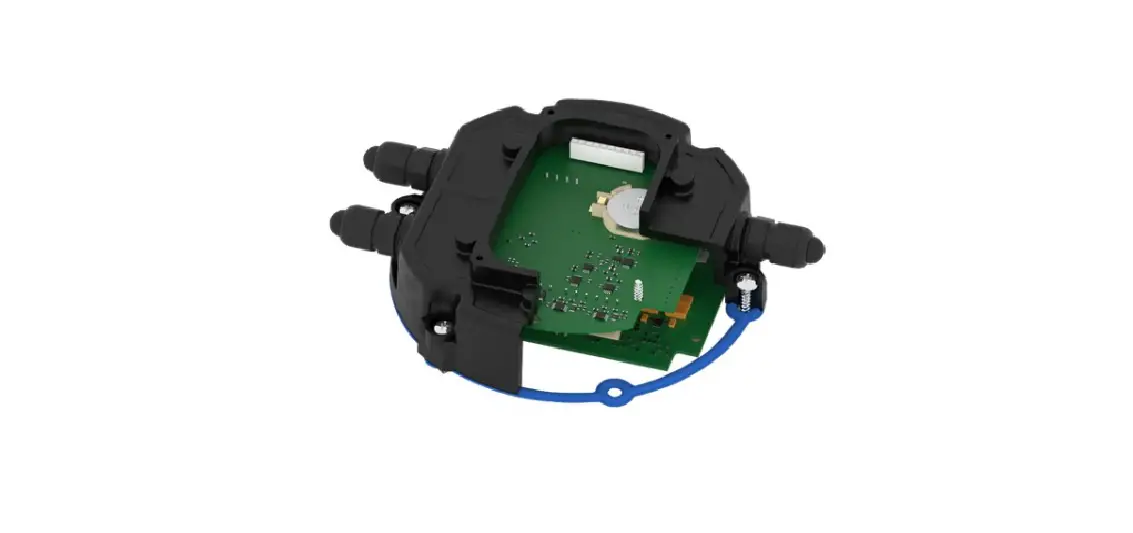
The QT-Display-IM (Quick-Trip Display Interface Module) is a
product that allows the URC door-mounted QT-Display and QT-Switch
products to be used with breakers equipped with either AC-PRO or
AC-PRO-II. The product is compatible with existing AC-PRO,
AC-PRO-II, QT-Display, or QT-Switch.
Table of Contents:
| Section | Page |
|---|---|
| 1.0 Introduction and Product Overview | 1 |
| 1.1 Existing Product Background | 1 |
| 2.0 General | 6 |
| 2.1 Items included in QT-Display-IM kit: | 6 |
| 3.0 QT-Display-IM Installation | 6 |
| 3.1 USB port installation | 7 |
| 4.0 QT-Display & Switch Installation | 7 |
| 5.0 QT-Display Operation with AC-PRO-II | 8 |
| 5.1 AC-PRO-II Readings on QT-Display | 8 |
| 5.2 AC-PRO-II Trip Data on QT-Display | 8 |
| 5.3 AC-PRO-II Settings on QT-Display | 8 |
| 5.4 AC-PRO-II Alarms/Errors on QT-Display | 8 |
| 5.5 AC-PRO-II Firmware | 8 |
| 5.6 Mini-USB port for AC-PRO-II | 8 |
| 5.7 QT-Display Screens with AC-PRO-II | 8 |
| 6.0 Operation With AC-PRO | 9 |
Product Usage Instructions:
- Install the QT-Display-IM kit according to the instructions
provided in Section 3.0. - If using with AC-PRO-II, install the USB port pigtail according
to the instructions provided in Section 3.1. - If using with AC-PRO, note that the USB port does not work with
AC-PRO. - The QT-Display will show the same information as the AC-PRO
when used with AC-PRO. - Refer to Sections 5.1-5.7 for information on using QT-Display
with AC-PRO-II. - The QT-Switch is pad-lockable and can be used as a part of the
QUICK-TRIP system for manually controlled arc flash hazard
reduction.
QT-Display-IM®
Instruction Manual Rev 1.0
www.utilityrelay.com
For latest version, visit: http://www.utilityrelay.com/Side_Bar/Instruction_Manuals.html
Manual Revision 1.0 January 2019
Table of Contents
Section:
Page
1.0 Introduction and Product Overview…………………….. 1
1.1 Existing Product Background ………………………. 1
2.0 General …………………………………………………………….. 6
2.1 Items included in QT-Display-IM kit:……………………. 6
3.0 QT-Display-IM Installation ………………………………….. 6
3.1 USB port installation ………………………………….. 7
4.0 QT-Display & Switch Installation ………………………… 7
5.0 QT-Display Operation with AC-PRO-II …………………. 8
5.1 AC-PRO-II Readings on QT-Display …………….. 8
5.2 AC-PRO-II Trip Data on QT-Display …………….. 8
5.3 AC-PRO-II Settings on QT-Display ………………. 8
5.4 AC-PRO-II Alarms/Errors on QT-Display ………. 8
5.5 AC-PRO-II Firmware………………………………….. 8
5.6 Mini-USB port for AC-PRO-II ………………………. 8
5.7 QT-Display Screens with AC-PRO-II…………….. 8
6.0 Operation With AC-PRO …………………………………….. 9
Table of Figures
Figure 1: QT-Display-IM with AC-PRO-II………………………2 Figure 2: QT-Display-IM with AC-PRO…………………………2 Figure 3: QT-Display-IM with AC-PRO-II & QT2-Switch…3 Figure 4: QT-Display-IM Front View…………………………….4 Figure 5: Additional product photos …………………………..5 Figure 6: QT-Display-IM Drilling………………………………….6 Figure 7: QT-Display-IM Section View …………………………6 Figure 8: USB Plate Drilling ……………………………………….7 Figure 9: USB Plate & Cable Installation……………………..7 Figure 10: QT-Display & QT-Switch drilling plan ………….7 Figure 11: QT-Display Mounting…………………………………7 Figure 12: Display screens with AC-PRO-II………………….8
1.0 Introduction and Product Overview
The QT-Display-IM (Quick-Trip Display Interface Module) mounts to the back of a cubicle door and allows the URC door-mounted QT-Display and QT-Switch products to be used with breakers equipped with either AC-PRO or AC-PRO-II. In addition, the QT-Display-IM can be used with the QT-Display and QT2-Switch, if already installed. See Figures 1, 2, and 3 for possible system configurations.
The QT-Display-IM is ideal for: · Cubicles where breakers with AC-PRO or AC-PRO-II could be racked in. · Cubicles where QT-Display is already installed. · Customers who want a basic cubicle door display for AC-PRO-II.
The QT-Display-IM is compatible with existing AC-PRO (units marked “with Quick-Trip”), AC-PRO-II**, QT-Display, or QT-Switch. **AC-PRO-II firmware v2.0 or later recommended but not required. See Section 4.5.
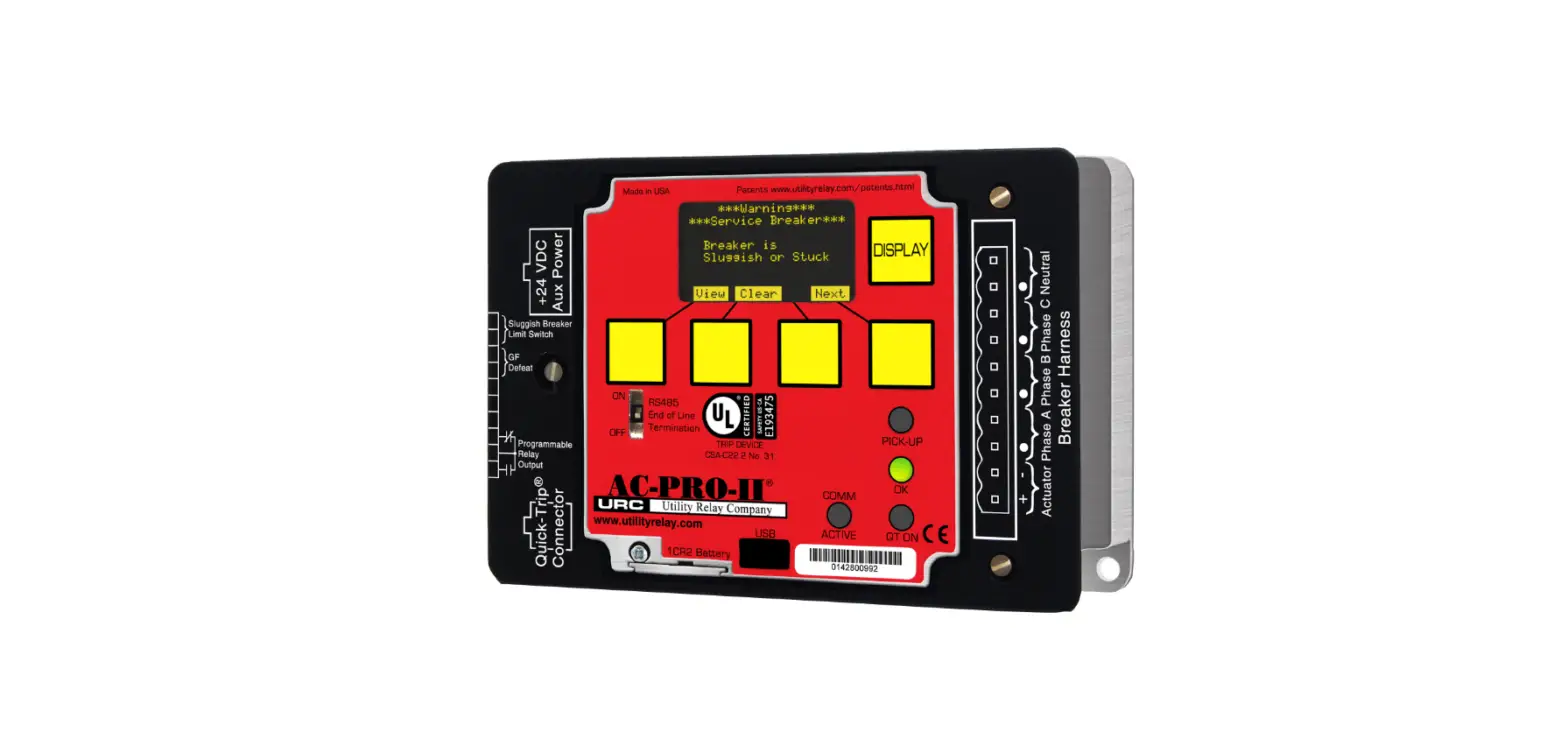
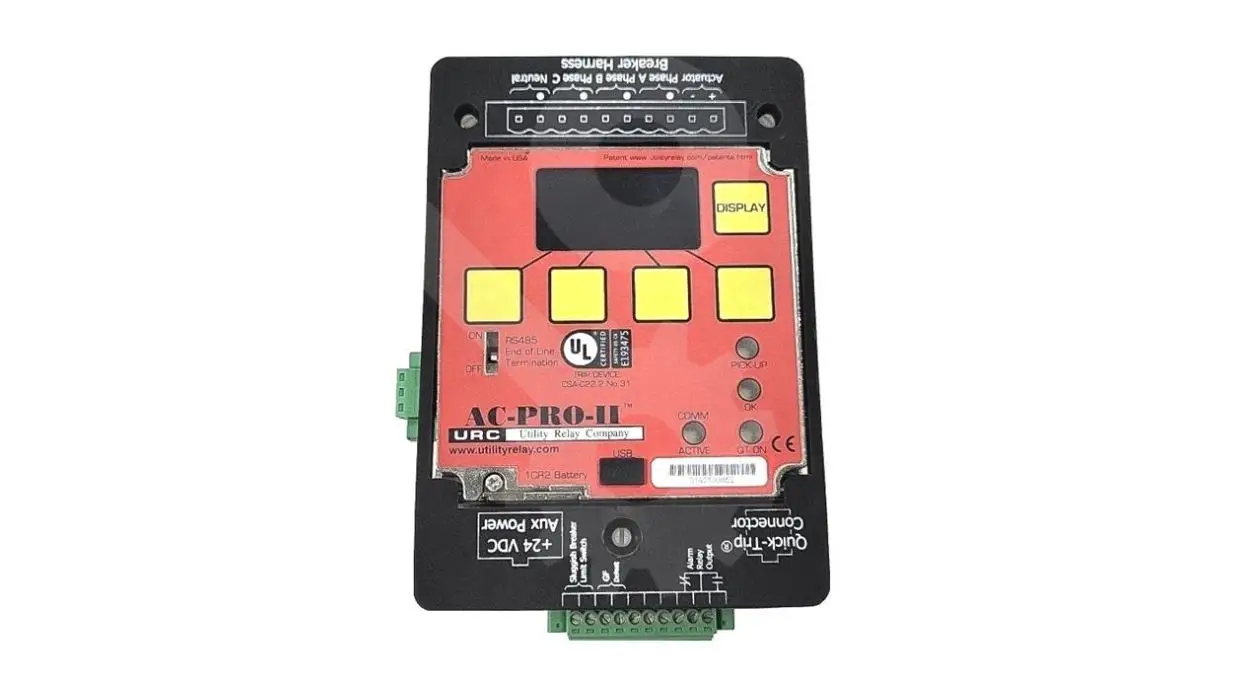
In addition, the QT-Display-IM includes a mini-USB port pigtail to allow all AC-PRO-II data to be accessed via a cubicle door USB port along with URC’s free InfoPro-AC software. The mini-USB port can also be used with the SAFE-T-TRIP hand held trip device.
When the QT-Display-IM is used with AC-PRO, the QT-Display will show the same information as the AC-PRO. Note: The USB port does not work with AC-PRO.
1.1 Existing Product Background
Before the QT-Display-IM was released, the QT-Display and QT-Switch products could only be used with AC-PRO trip units.
The door-mounted QT-Display and QT-Switch provide the URC Quick-Trip system for Arc Flash Reduction. The QT-Display also allows trip unit information to be viewed without opening the breaker cubicle door. The QT-Switch is pad-lockable.
The QT-Display includes: · 16 character LCD Display · Quick-Trip LED, a Pickup LED, and a Self-Test LED. · “REVIEW” button, which is used to sequence through trip unit data.
The QUICK-TRIP system is a manually controlled arc flash hazard reduction system. It can reduce trip times when turned on and allows selective coordination between circuit breakers when turned off.
If maintenance personnel must work on energized equipment, they will first turn the QUICK-TRIP system on at the upstream breaker feeding the equipment or breaker. If a fault now occurs, the upstream breaker will trip quickly based on the QUICK-TRIP settings reducing the Arc Flash Hazard to personnel.
When the maintenance work is finished, the QUICK-TRIP system is turned off and the original selective coordination is back in effect.
When QUICK-TRIP is on, the following settings are enabled: · Instantaneous QUICK-TRIP (I QT) · GF QUICK-TRIP (GF QT)
The “QUICK-TRIP ON LED” provides positive indication that the QUICK-TRIP settings are active if the LED is on.
**** IMPORTANT ****
A qualified engineer must determine the QUICK-TRIP settings, calculate the incident energy levels and determine the Hazard Risk Categories (HRC).
When the QT-Display-IM is used with AC-PRO-II, the QT-Display can show the following information:
· Currents: Phase, Neutral, & Ground Fault · Voltages, Power, & Energy
(AC-PRO-II with VDM required) · Settings (review) · Last Trip Data
Page 1
QT-Display-IM®
Instruction Manual Rev 1.0
www.utilityrelay.com
2/C cable
AC-PRO-II (trip unit on breaker) (shown with wire cover removed)
Mini-USB port pigtail
Control power by customer (required)
4/C (QT) + USB
8/C cable (RJ45)
QT-Display, QT-Switch, and USB port (front of cubicle door)
QT-Display-IM (back of cubicle door)
Figure 1: QT-Display-IM with AC-PRO-II
AC-PRO (trip unit on breaker)
2/C cable
not used with AC-PRO)
Control power by customer (required)
8/C cable (RJ45)
8/C cable (RJ45)
QT-Display, QT-Switch, and USB port (front of cubicle
QT-Display-IM (back of cubicle door)
Figure 2: QT-Display-IM with AC-PRO
Page 2
QT-Display-IM®
Instruction Manual Rev 1.0
www.utilityrelay.com
AC-PRO-II (trip unit on breaker) (shown with wire cover removed)
Mini-USB port pigtail
8/C cable (RJ45)
Control power by customer (required)
USB cable
4/C QT cable
QT-Display, QT2-Switch, and USB port (front of cubicle door)
QT-Display-IM (back of cubicle door)
Figure 3: QT-Display-IM with AC-PRO-II & QT2-Switch
Page 3
QT-Display-IM® D
F
Instruction Manual Rev 1.0 C
www.utilityrelay.com A
H
B E
G
Figure 4: QT-Display-IM Front View
Trip Unit Connection (only connect one (1) trip unit): A. AC-PRO-II Connectors 4/C connector and USB connector. Only use cable supplied by URC. B. AC-PRO-Connector (side) 8/C RJ45 connector Only use cable supplied by URC. (not included in QT-Display-IM kit)
QT-Display Connection: C. QT-Display Connector (top) 8/C RJ45 connector Only use cable supplied by URC.
Control Power Connection (required) (only connect one (1) source) D. 120VAC/125VDC Control Power Connector E. 24VDC Control Power Connector
Other items: F. USB (port) Extension Cable pigtail (side) (“port” mounts in cubicle door) 12″ length G. Control Power LED (ON when Control power is present) H. AC-PRO-II Cable retention clip for USB Cable ONLY.
Page 4
QT-Display-IM®
Instruction Manual Rev 1.0
www.utilityrelay.com
QT-Display connector
QT-Display-IM: with AC-PRO-II cable connected (cable clamp over USB cable ONLY)
Mounting holes
AC-PRO connector
QT-Display-IM: angled showing AC-PRO and QT-Display connectors
Back of QT-Display-IM
Cubicle door Mini-USB port (cover off) and legend plate
Cable: QT-Display-IM to AC-PRO-II (60″ length)
Cable: QT-Display-IM to QT-Display (12″ length)
Figure 5: Additional product photos
Page 5
QT-Display-IM®
Instruction Manual Rev 1.0
www.utilityrelay.com
2.0 General
2.1 Items included in QT-Display-IM kit:
· QT-Display-IM unit & mounting hardware · Cable for QT-Display 12″ length · Cable for AC-PRO-II 60″ length · USB legend plate & mounting hardware · Cable installation hardware · Instruction Manual
Note: The QT-Display and QT-Switch are NOT included in the QT-Display-IM kit and must be purchased separately.
3.0 QT-Display-IM Installation
Refer to Figures 6 and 7 for QT-Display-IM installation details.
1. Find a suitable location on the cubicle door and mark the location of the two (2) holes using the dimensions in Figure 6. Note that the mounting screw heads will be visible on the front of the cubicle door.
2. Drill two (2) 7/32″ mounting holes. 3. Attach the QT-DISPLAY-IM to the back of the cubicle
door using the two (2) supplied 8-32 x ½ Philips HD screws and lock washers. 4. Route the cables so they do not interfere with the opening or closing of the cubicle door or with the racking of the breaker between connect and disconnect positions. Use cable ties and holders to hold the cable in position. 5. Make the electrical connections shown in Figure 1, 2, or 3. 6. When connecting the AC-PRO-II cable, use the USB cable clip for the USB cable only. See photo in Figure 5. 7. Update AC-PRO-II firmware as required. See Section 4.5.
Refer to the AC-PRO Instruction manual for QT-Display installation instructions. http://www.utilityrelay.com/Side_Bar/Instruction_Manuals.html
Figure 7: QT-Display-IM Section View
Figure 6: QT-Display-IM Drilling
Page 6
QT-Display-IM®
Instruction Manual Rev 1.0
www.utilityrelay.com
3.1 USB port installation
2″
USB PORT
AC-PRO-II Trip Unit
Use for SAFE-T-TRIP and for InfoPro Data Access
USB legend plate Stainless steel Yellow w/ black text
Drill (2) 3/16″ holes through door or panel
3″
25/32″ 25/32″ 1-9/16″
Drill 1″ hole or use 3/4″ conduit punch through door or panel (D hole in legend plate ensures that USB port is oriented properly)
Figure 8: USB Plate Drilling
USB Legend Plate
Breaker Cubicle Door
(2) 8-32 Screws, lock washers & nuts
USB Water Tight Cover
USB Extension Cable
Figure 9: USB Plate & Cable Installation
To install the USB port/cable:
1. Find a suitable location on the cubicle door and mark the three (3) holes using the dimensions in Figure 8. IMPORTANT: The fixed USB “pigtail” is 12″ long. This must be considered before drilling.
2. Drill two (2) 3/16″ mounting holes. 3. For the center hole, cut a 1″ diameter hole using a hole
saw or alternately, use a 3/4″ conduit knockout punch. 4. Attach the USB legend plate to the front of the cubicle
door using the supplied two (2) 8-32 screws, nuts, and lock washers. 5. Route the cable so it does not interfere with the opening or closing of the cubical door or with the racking of the breaker between connect and disconnect positions. Use the supplied cable ties and holders to hold the cable in position. 6. Position the USB port through the 1″ opening and through the opening in the legend plate. Ensure one rubber washer is on the interior of the door / panel, and the threaded USB cover and rubber washer are on the exterior. 7. Thread the plastic nut onto the USB port connector, securing it to the door / panel.
4.0 QT-Display & Switch Installation
NOTE: The QT-Display and QT-Switch are not part of the QT-Display-IM kit and must be purchased separately. The QT-Display and QT-Switch are easy to install on the front of the breaker cubicle door. To install the QUICK-TRIP Display:
1. Find a suitable location on the cubicle door and mark the location of the three (3) holes using the dimensions in Figure 10.
2. Drill two (2) 13/64″ mounting holes. 3. For the center hole, cut a 1-11/16″ diameter hole using
a hole saw or alternately, use a 1-1/4″ conduit knockout punch. 4. Attach the QUICK-TRIP Display to the front of the cubicle door using two (2) 10-32 hex nuts, flat washers and lock washers.
Outline of QT-Display Drill (2) 13/64″ diameter holes
Use 22mm punch. Locate near QT-Display
Drill 1-11/16″ diameter hole or use 1-1/4″ conduit punch.
Figure 10: QT-Display & QT-Switch drilling plan
Breaker Cubicle Door
(2) 10-32 hex nuts, flat washers & lock washers
QT-Display R side view
Figure 11: QT-Display Mounting
Page 7
QT-Display-IM®
Instruction Manual Rev 1.0
www.utilityrelay.com
To install the QT-Switch:
1. Use a 22mm switch knock-out punch to make a hole in the cubicle door for the selector switch. The QT-Switch should be located near the QUICK-TRIP Display.
2. Attach the selector switch, padlock attachment and contact blocks to the cubicle door.
3. Plug the cable from the switch into the back of the QUICK-TRIP Display.
5.0 QT-Display Operation with AC-PRO-II
When the QT-Display-IM is used with AC-PRO-II, the QT-Display can show the following information:
· Currents: Phase, Neutral, & Ground Fault · Voltages, Power, & Energy
(AC-PRO-II with VDM required) · Settings (review) · Last Trip Data · LEDs: Self-Test OK, Pickup, Quick-Trip
The QT-DISPLAY “REVIEW” button is used to advance/step through information.
5.1 AC-PRO-II Readings on QT-Display
In normal operation, the QT-Display “Main Readings” routine will automatically scroll through the AC-PRO-II Current readings, as long as they are above 10% of the CT Rating. If all currents are below 10%, “LOW CURRENT” will be displayed. If some currents are below 10%, those readings will be skipped in the scroll routine. If the AC-PRO-II is equipped with a VDM (Voltage Divider Module), the readings routine will also include Voltage, Power, and Energy values.
5.2 AC-PRO-II Trip Data on QT-Display
QT-Display will show AC-PRO-II Last Trip data from the single most recent trip. This data can be accessed by pressing the “Review” button on the QT-Display.
5.3 AC-PRO-II Settings on QT-Display
QT-Display will show AC-PRO-II basic settings: CT Rating, Long Time, Short Time, Instantaneous, Ground Fault, Quick-Trip, and Communications. This data can be accessed by pressing the “Review” button on the QT-Display. Additional AC-PRO-II settings can be viewed on the AC-PRO-II screen or by using URC’s free InfoPro-AC software.
5.4 AC-PRO-II Alarms/Errors on QT-Display
If an AC-PRO-II error or alarm is present, a basic message will appear on the QT-Display screen. For some Alarm conditions, additional information will be available on the AC-PRO-II screen, or by using URC’s free InfoPro-AC software. Refer to the AC-PRO-II Instruction Manual for additional information. http://www.utilityrelay.com/Side_Bar/Instruction_Manuals.html
5.5 AC-PRO-II Firmware
All AC-PRO-II firmware versions are compatible with the QT-Display-IM. However, AC-PRO-II firmware version 2.0 or later is strongly recommended.
If the QT-Display detects “version 1” firmware, it will display: “AC-PRO-II NEEDS FW UPDATE”.
Note: when “Version 1” AC-PRO-II firmware is used with QT-Display-IM, the AC-PRO-II OLED display will be on continuously, which is not recommended.
The AC-PRO-II firmware version can be viewed on the AC-PRO-II screen by using the “MORE” menu, which is accessible from the main screen. See the AC-PRO-II Instruction Manual for additional information. http://www.utilityrelay.com/Side_Bar/Instruction_Manuals.html
5.6 Mini-USB port for AC-PRO-II
The QT-Display-IM includes a mini-USB “pigtail” / port (see Section 3.1 for installation in cubicle door), which allows USB connection to AC-PRO-II for InfoPro-AC software, or for the SAFE-T-TRIP hand-held trip device. This port is specifically for AC-PRO-II trip units. NOTE: This port is NOT for AC-PRO trip units. Refer to the AC-PRO-II Instruction Manual for additional information. http://www.utilityrelay.com/Side_Bar/Instruction_Manuals.html
5.7 QT-Display Screens with AC-PRO-II
Figure 12 below shows a basic flowchart of the sequence of Information displayed on the QT-Display, when it is connected to AC-PRO-II.
Note: Display will return to “Main (Readings) Routine” if the REVIEW button is not pressed for 30 seconds.
“Main (Readings) Routine”
Automatically scrolls through: Currents Phases, Neutral, Ground Fault [Voltages, Power, Energy if VDM unit]
Press REVIEW button
“Last Trip Data
Routine”
Automatically Scrolls through Last Trip Data: Last Trip Type, Date/Timestamp, Currents, [Voltages if VDM unit],
HOLD REVIEW button for 1 second
Press REVIEW button
“HOLD <REVIEW> TO VIEW TRIP COUNTS”
screen
Displays Trip
Counts. Press
REVIEW button to advance
“Trip Counts Routine”
through Trip
Counts
Press REVIEW button
Press REVIEW button “[SERIAL NUMBER]”
Press REVIEW button
“Settings Routine”
Displays AC-PRO-II Settings. Press REVIEW button to advance through Settings
Back to “Main (Readings)
routine”
Press REVIEW button
Figure 12: Display screens with AC-PRO-II Page 8
QT-Display-IM®
Instruction Manual Rev 1.0
6.0 Operation With AC-PRO
When the QT-Display-IM is used with AC-PRO, the QT-Display can show the following information:
· Currents: Phase & Ground Fault · Settings (review) · Last Trip Data · LEDs: Self-Test OK, Pickup, Quick-Trip
The information displayed on the QT-Display and the “Review” button performance directly match the AC-PRO display and “Review” button performance. Refer to the AC-PRO Instruction manual for information displayed. http://www.utilityrelay.com/Side_Bar/Instruction_Manuals.html
Note: The QT-Display-IM mini-USB port does not function with AC-PRO. InfoPro-AC software and SAFE-T-TRIP do not function with AC-PRO.
www.utilityrelay.com
Utility Relay Company 10100 Queens Way Chagrin Falls, OH 44023 www.utilityrelay.com Phone 888-289-2864 Fax: 440-708-1177
For the latest version of Instruction Manuals, visit: http://www.utilityrelay.com/Side_Bar/Instruction_Manuals.html
Page 9
 Utility Relay Company