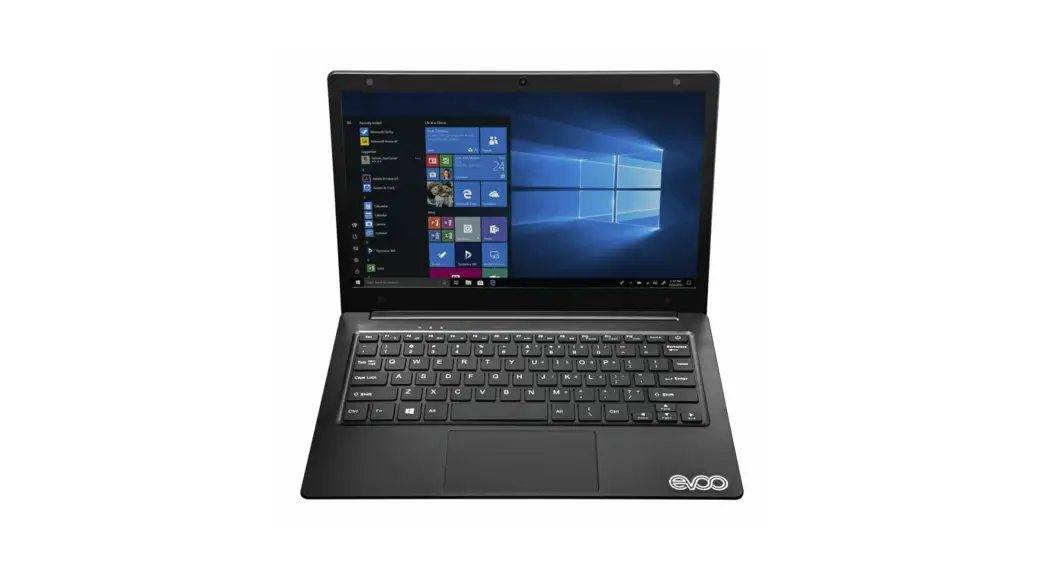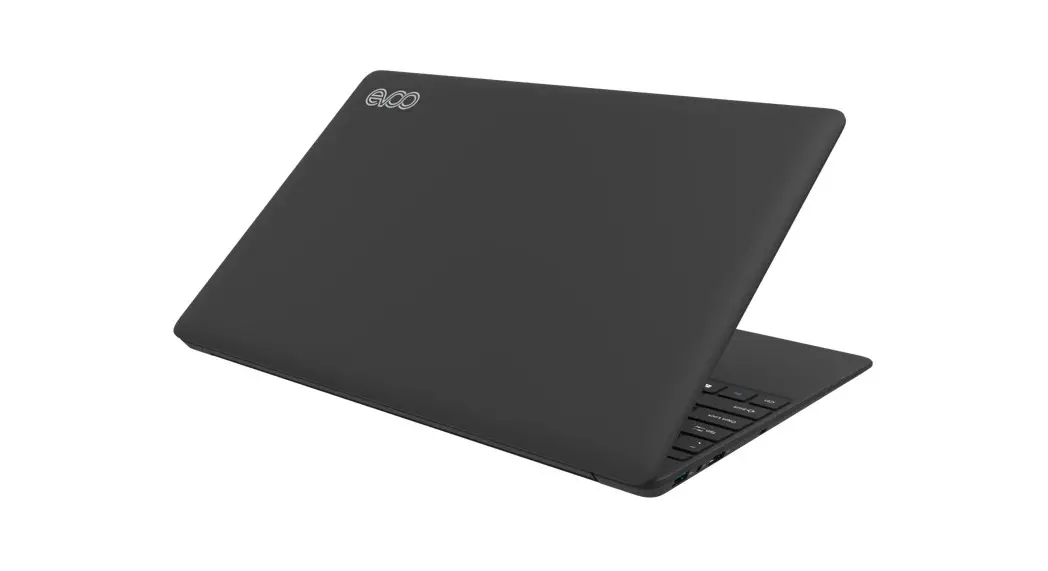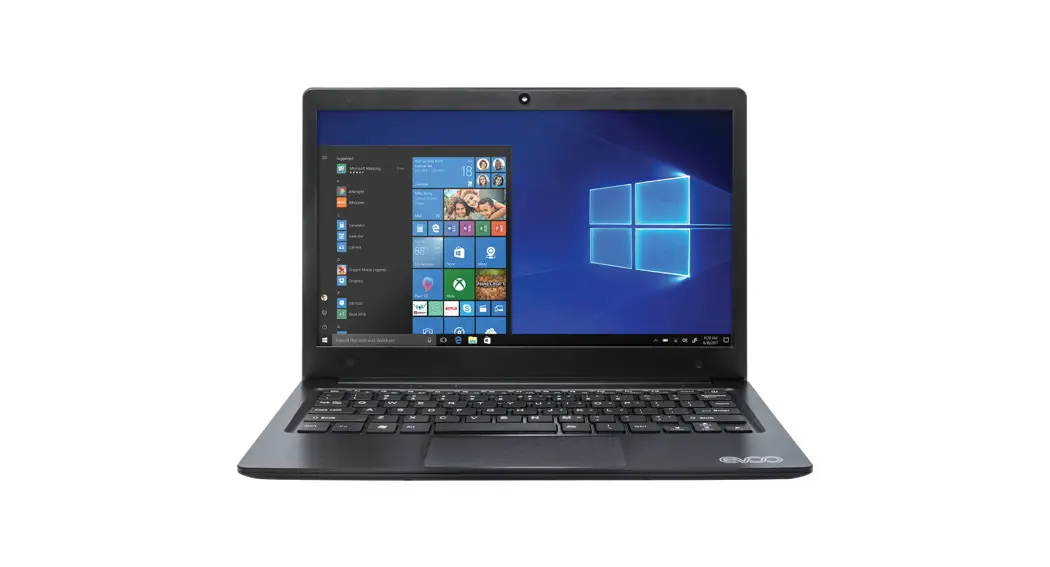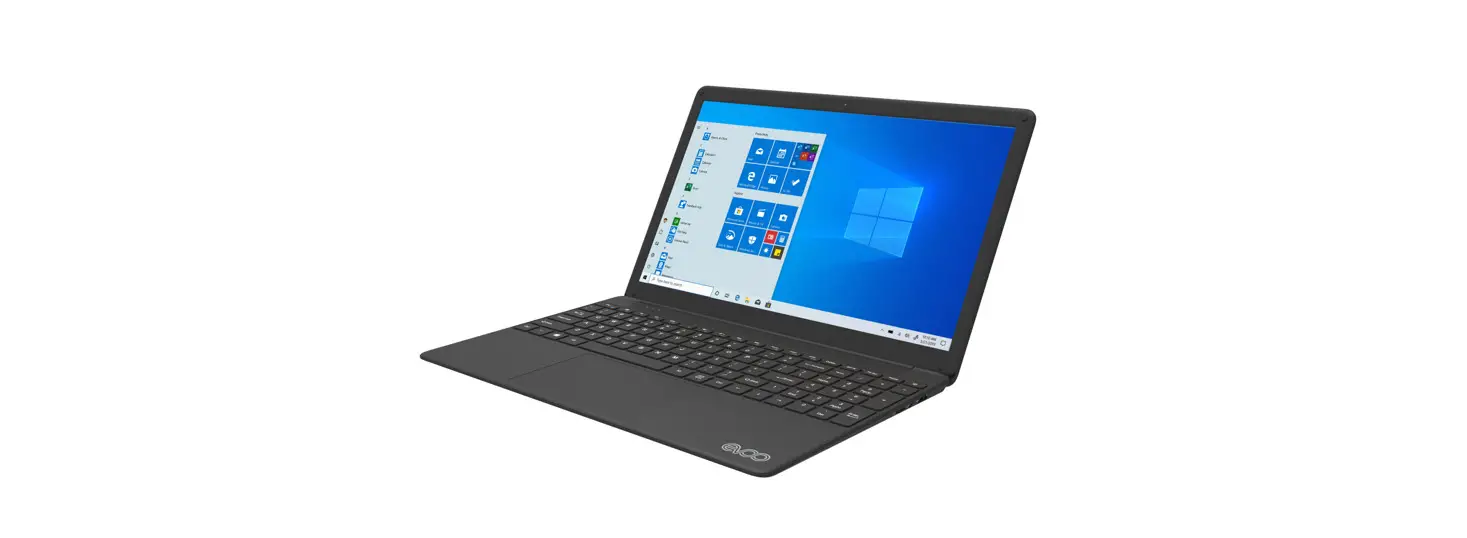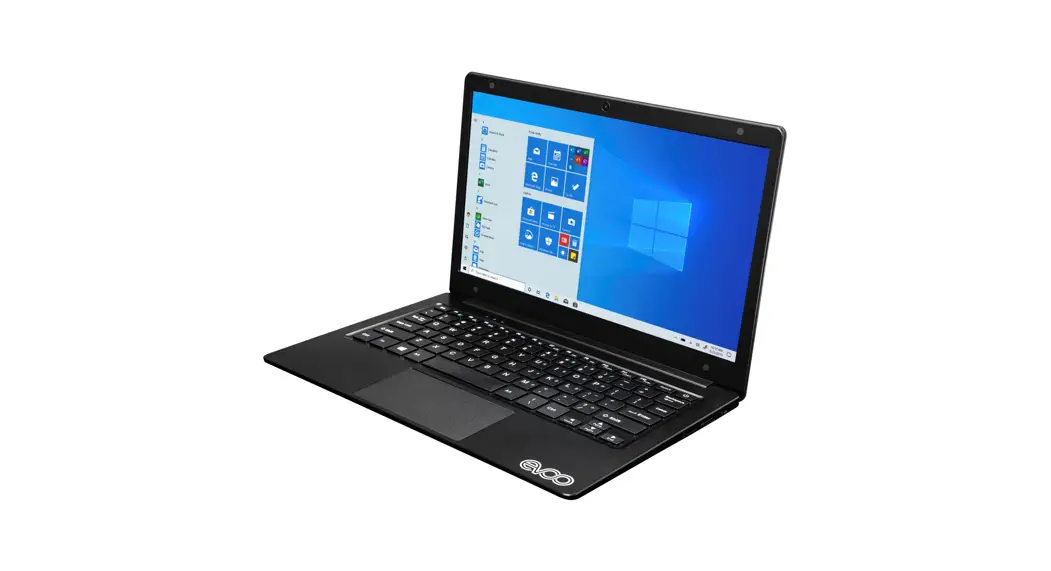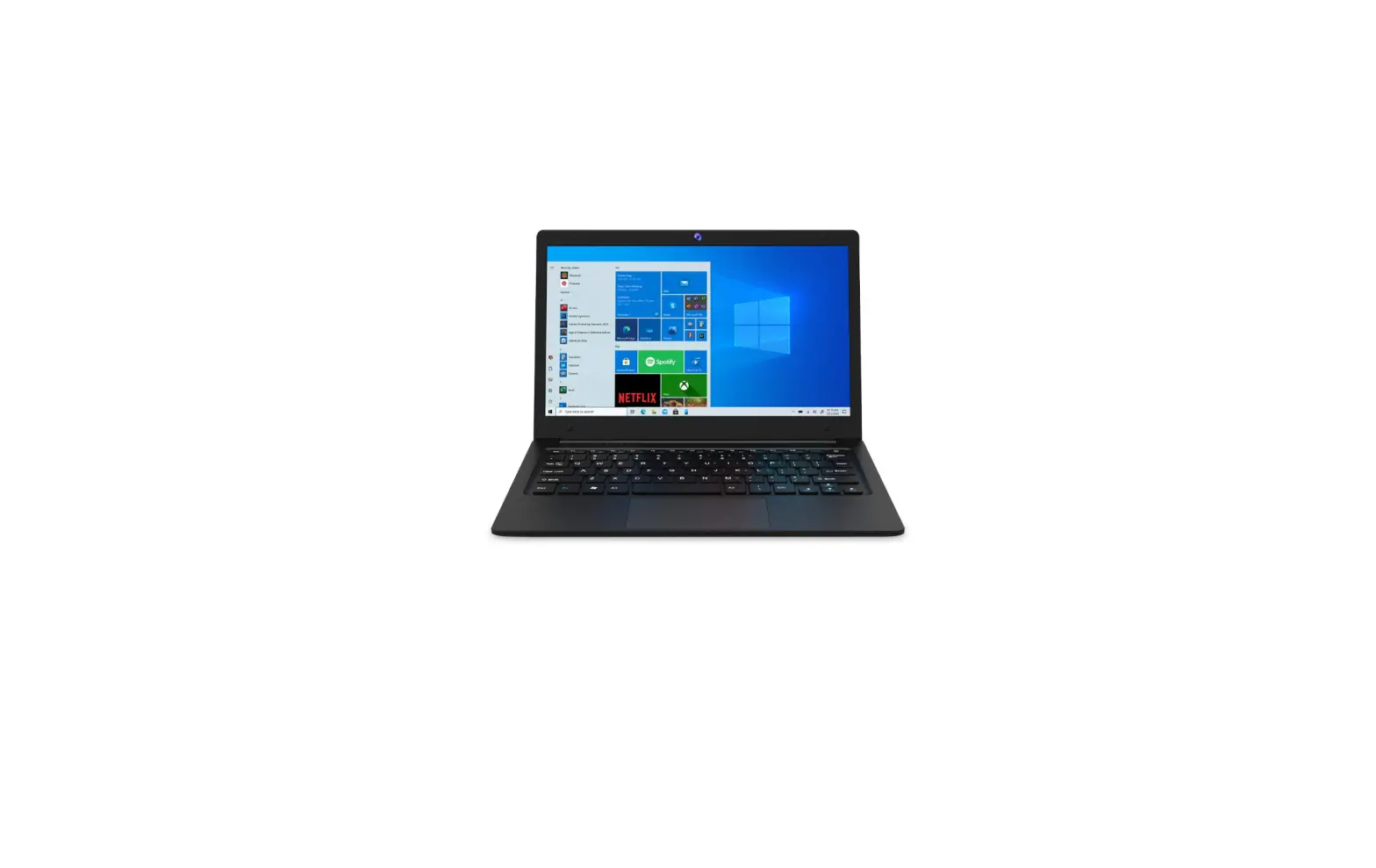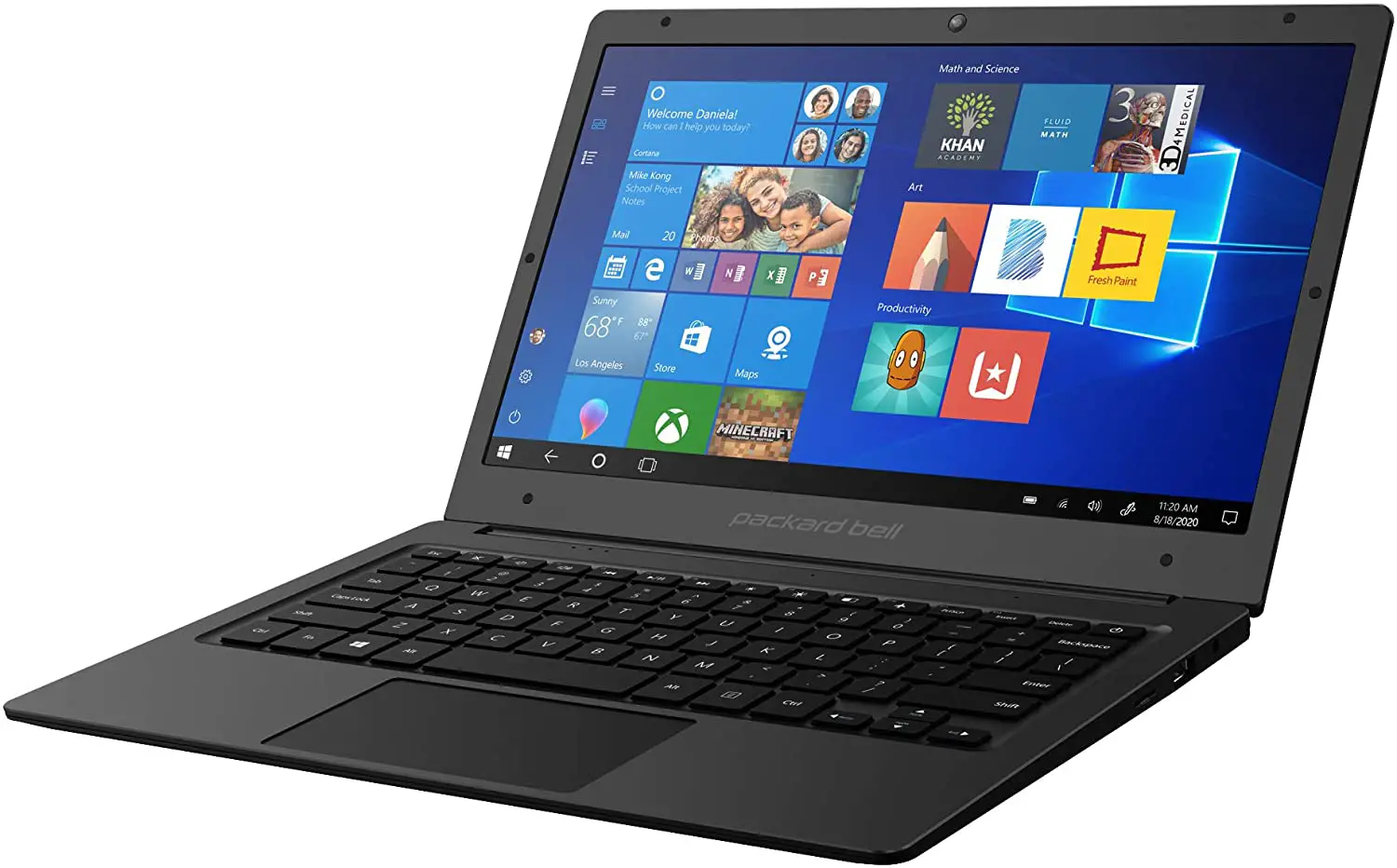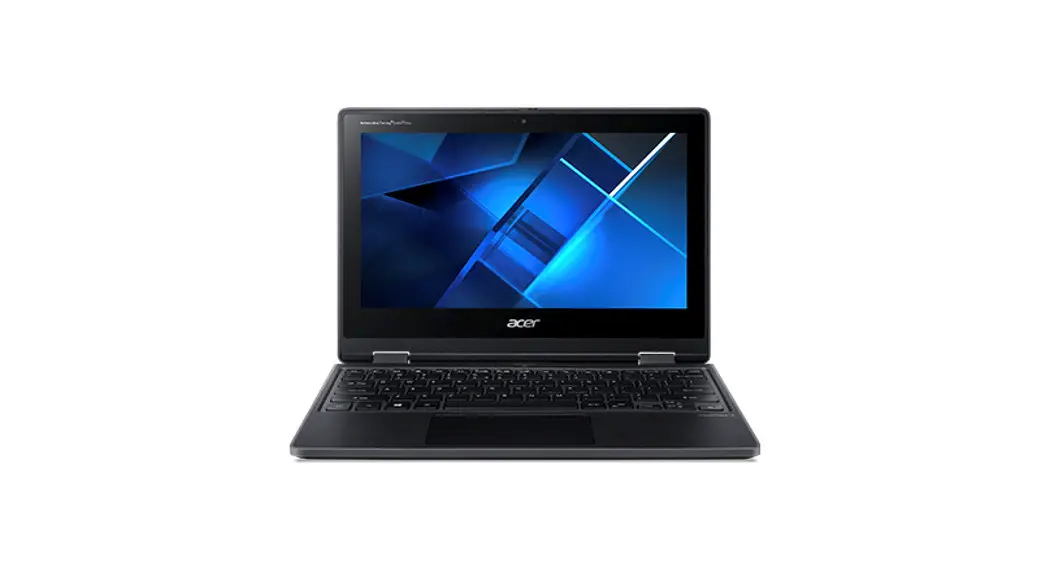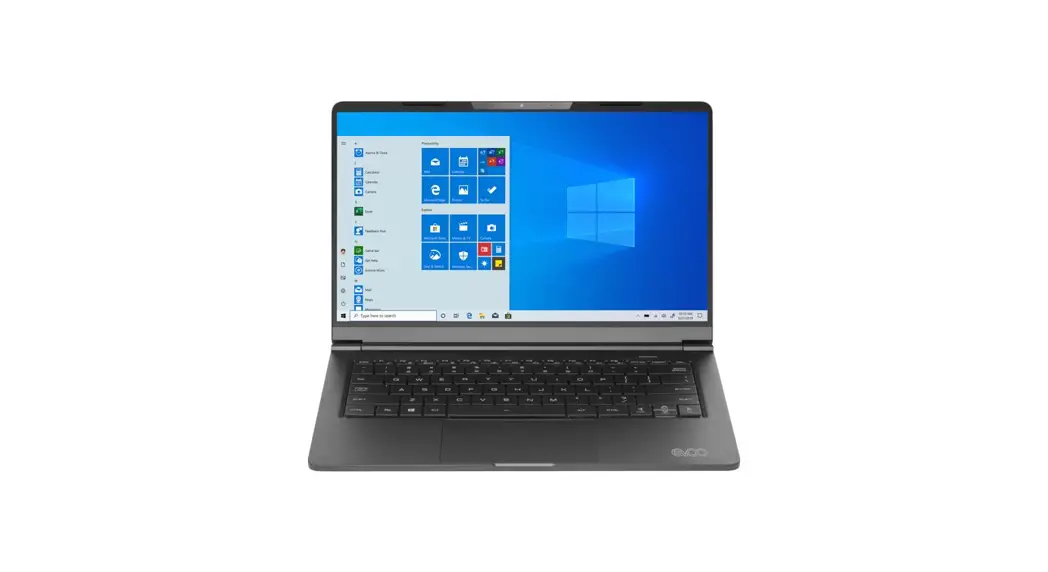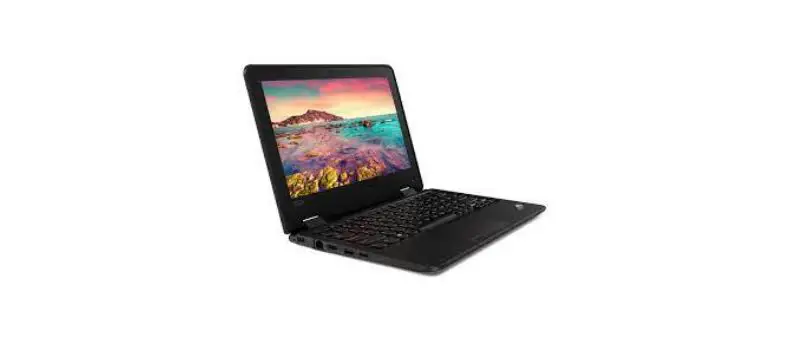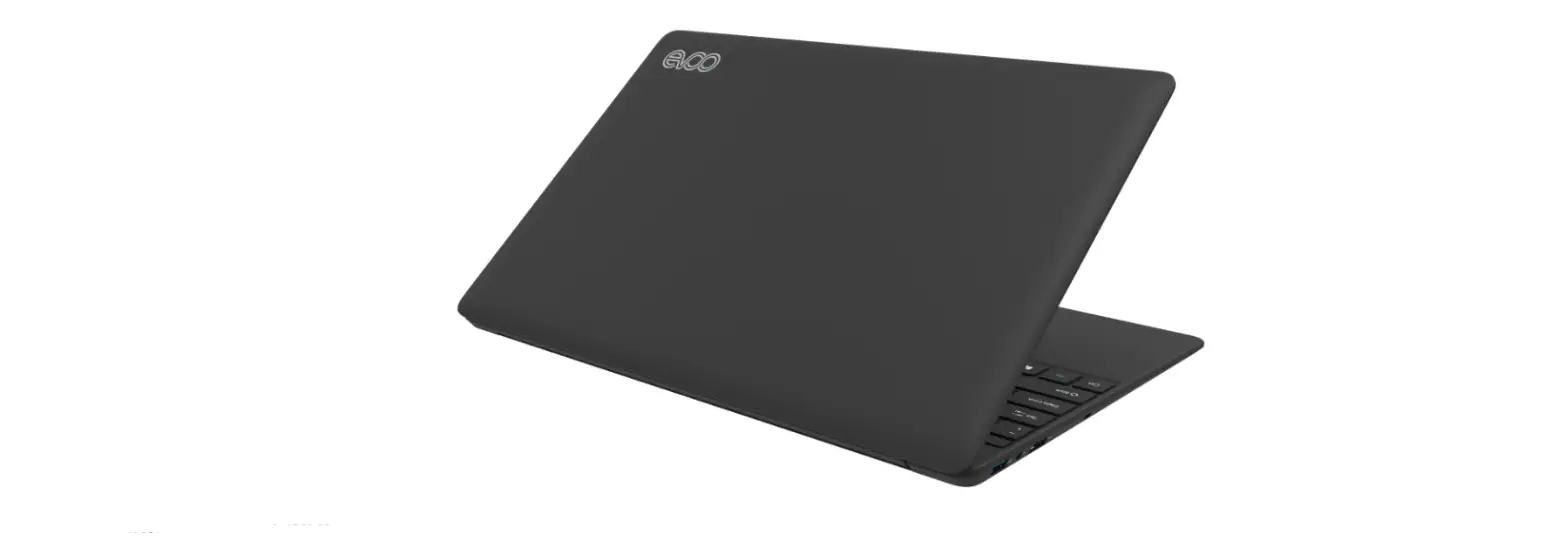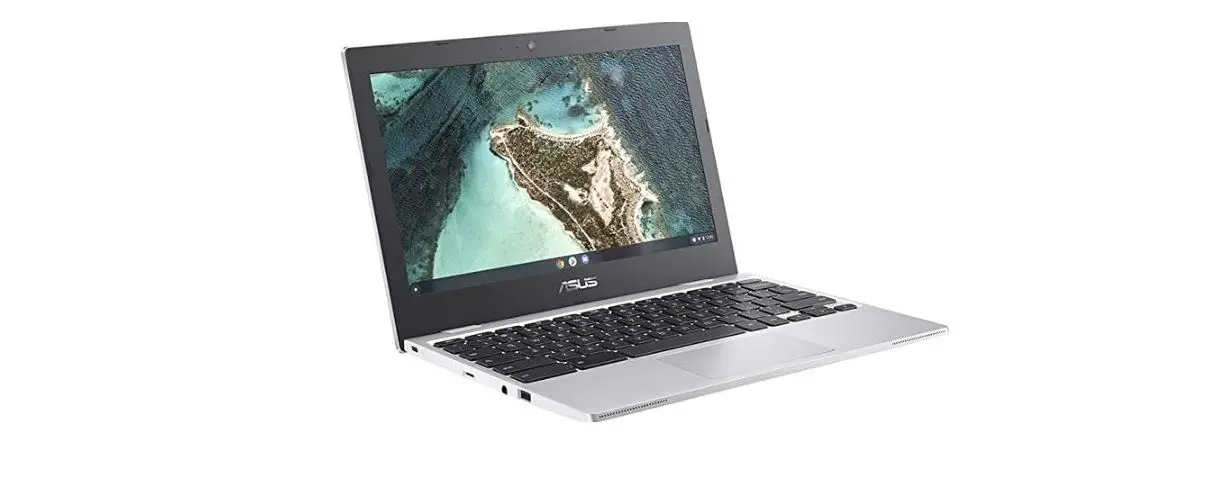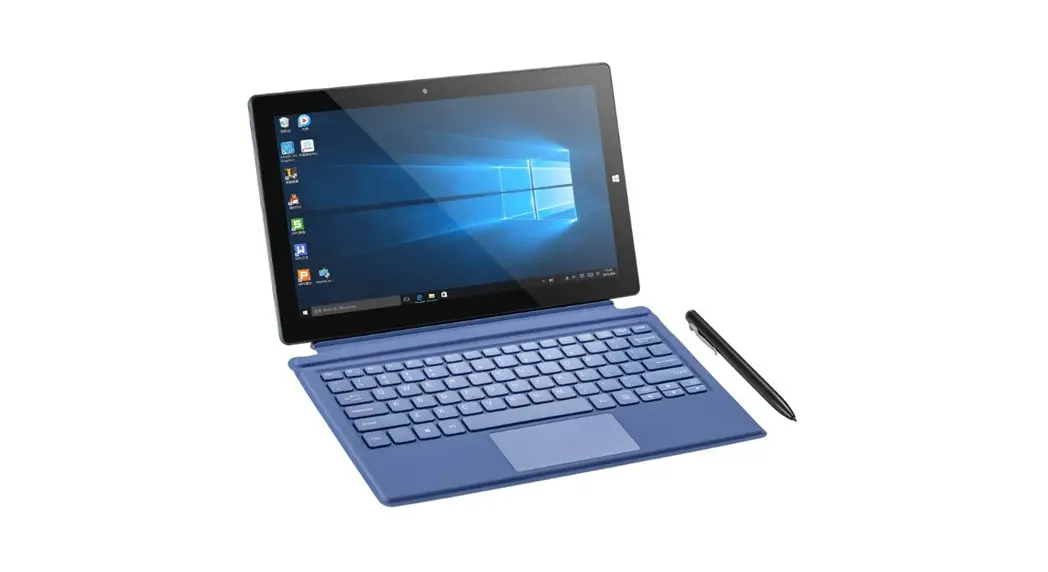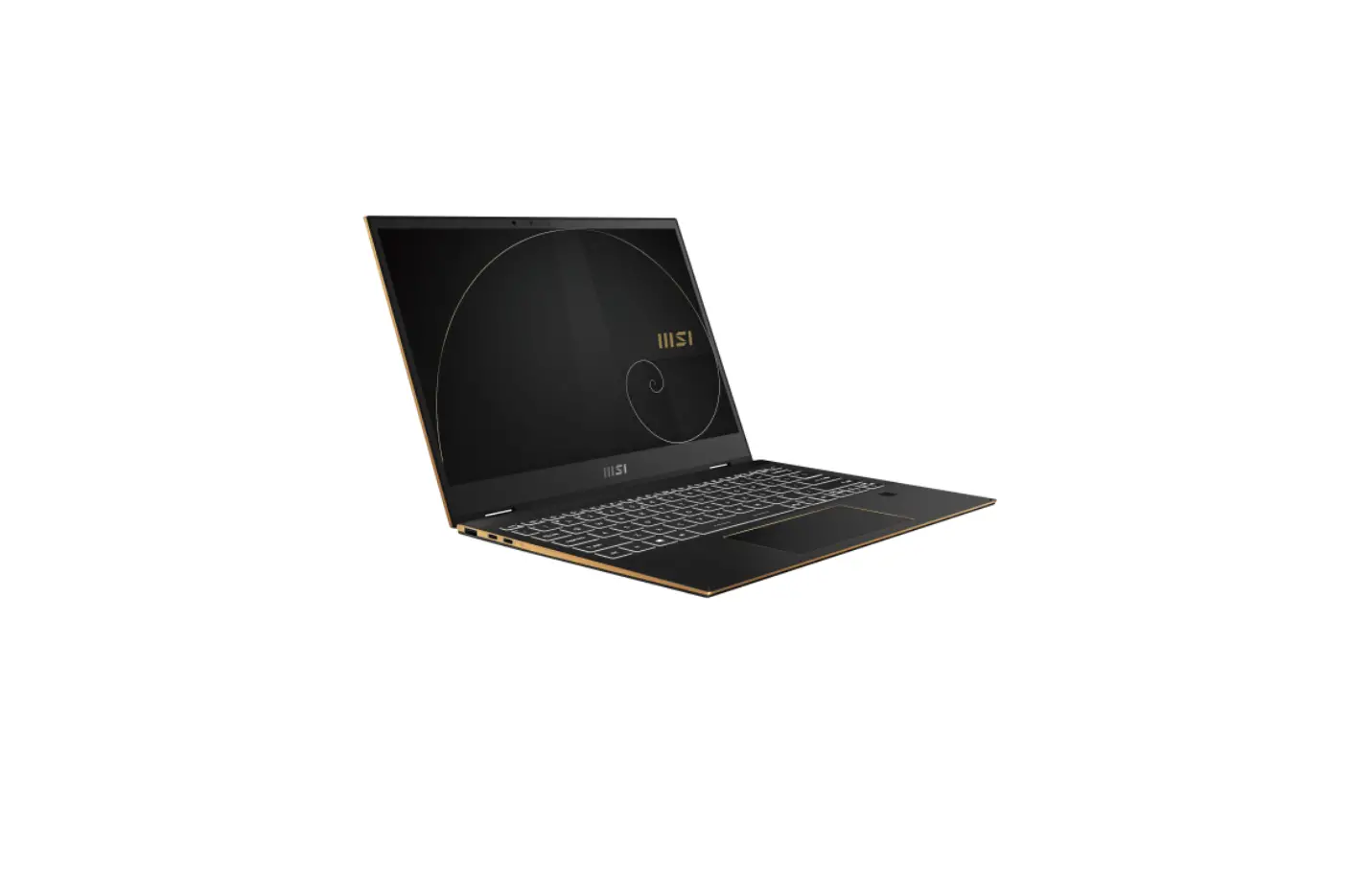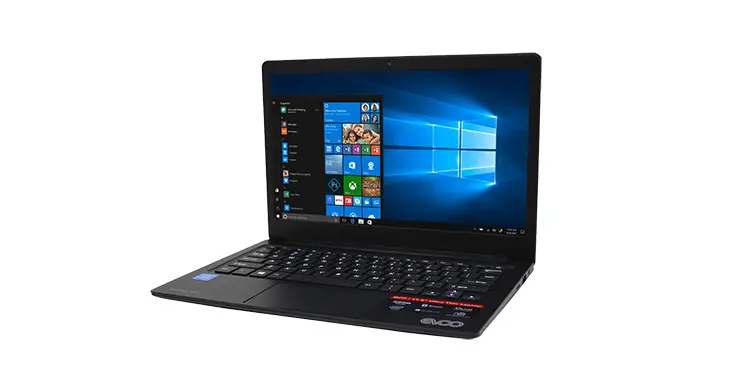

EV-C-116.1-BK
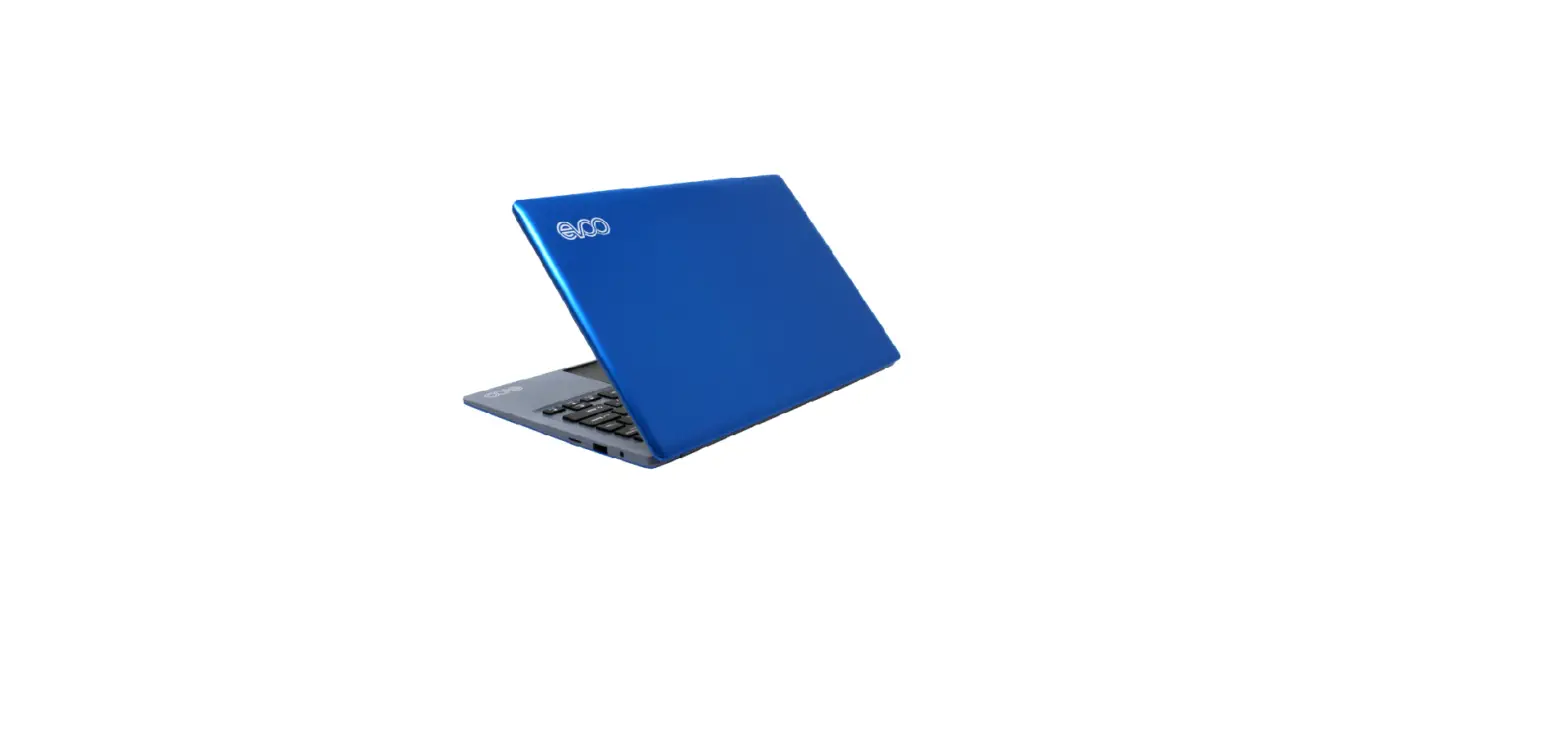
EV-C-116-1-BL
EV-C-116-1-PR
EVC-1161-+SL
USER GUIDE 11.6″
Ultra-Thin Laptop
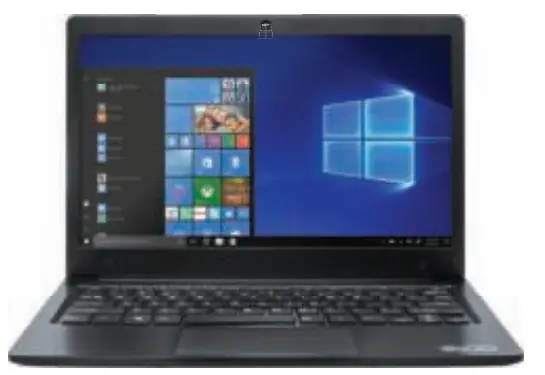
Review this manual before operating your EVOO laptop and keep it for future reference
INTRODUCTION
This User Manual is designed to guide Mu Veep the key Cocoons and features of mix new laptop Please read carefully to erase an optimal user experience and keep handy for Mire reference.
NOTE To choose from the English language prompts to Spanish tannage prompts, please go to ‘Control Panel.’ teen to ‘Peck. language and Hewn.” and Men to ‘Language’ to chance from ErgIsh le Spanish
Overview and Notes
OVERVIEW
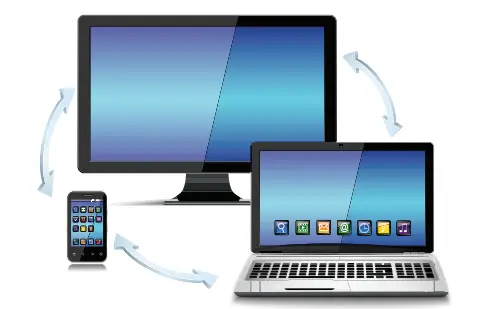
The new EV00 11.13′ Uwe Tho Laptop (EV-C-116-1) Itarwes ?embeds 10 w S rmite. 1920x 1080p Full HD resolution and toasts an Intel® Apdlo Lake N3350 with 2M8 Cache and up to 2.6 Gilt With the MO. in Bluetooth function you can seamlessly par ma Ultra Bin Laptop with arry Rudman compete® dunces.
Do the Wigs yes want with performance that lasts.
Wen Wutows 10 In S mode. you Cal search the web or stream mums with Mciosoll Edge, choose you own claw storage. and champs many of you start.is apps Wroons 10 m S mode works exclusively with apps from the Microsoft Store within Wradons and accessories that are apattle with Windows 10 m S me®? A one-way smith out of S mode an available. Learn mare at Windows.com/SmodeFAQ.
NOTES
- The Ultra-Thin Laptop is a high-density electronic product. DO NOT attempt to disassemble the device.
- Please do not drop or bang the device.
- Avoid using this product in the following environments: Extremely hot or cold places, high humidity, dusty areas, direct sunlight or long-term exposure to the sun.
- The product may be cleaned with a damp cotton cloth; the use of any chemical cleaning fluid is prohibited. Please keep the product away from water at all times.
- If you use headphones, DO NOT use them while crossing the street, riding a bicycle or driving a motorcycle.
- Please use the approved battery, battery charger, and accessories only. The use of any other type of product would be a breach of warranty and may be dangerous.
- If you have any questions regarding the use of this product, please contact your local dealer or contact EV00 customer service center directly at customerservice©evooproducts.com or call (888) 999-1682.
- EV00 will not be held responsible for any files lost due to product damage, repair or other causes. Please be sure to follow instructions in the User Guide and backup your files in a timely manner.
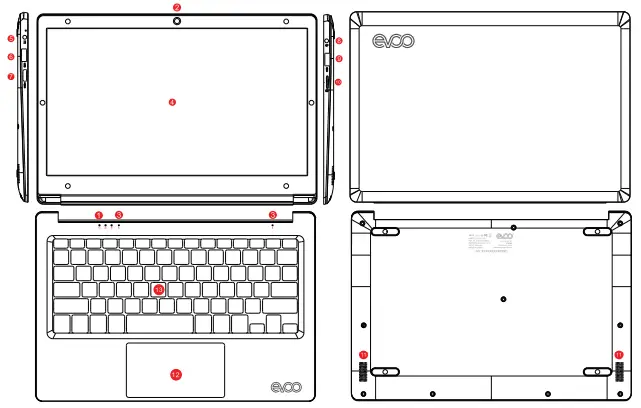
| 1. Power | 8. Earphone |
| 2. Camera | 9. USB 2 |
| 3. Microphone | 10. TF Card |
| 4. Screen | 11. Speaker |
| 5. DC IN | 12. Touchpad |
| 6. US8 3.0 | 13. Keyboard |
| 7. Mini HDMI |
Introduction to Desktop
INTRODUCTION TO THE DESKTOP
You must lag on to your Microsoft account before the start-up application can run.
WINDOWS START MENU Press the key  on the keyboard or dick the icon on the screen until you see the Start Menu. All applications/programs are displayed in the form of “magnets” listed on the screen. Click on any of the icons to open.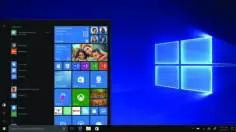
INTRODUCTION TO APP INTERFACE
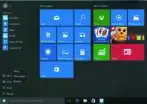
If you want to pin more application programs on the Start interface, press and hold the application program for about one second, and release the magnet until the pop-up option appears and select “Pin to Start” to fix to the start screen, or just press and move to the start screen. (Screen 1).
Introduction to Desktop(cont,d)
Screen 1
 Screen 2
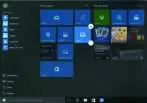
Conversely, if you want to cancel or delete a certain application in the Start screen, press and hold the application program magnet for about one second and click . You can also click to check more menu options, such as resizing the magnet you want. (Screen 2) Slide it to the left from the right side of the screen to start Action Center to check the laptop status: Rotation lock, Bluetooth, Brightness, etc.
Basic Operations
BASIC OPERATIONS
Sleep, Restart, and Shutdown Force Reset / Shutdown If the laptop freezes, you can press and hold the Power button for 8-12 seconds, then the laptop will shut down.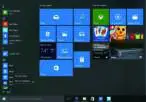
RECOVERY
Follow the steps below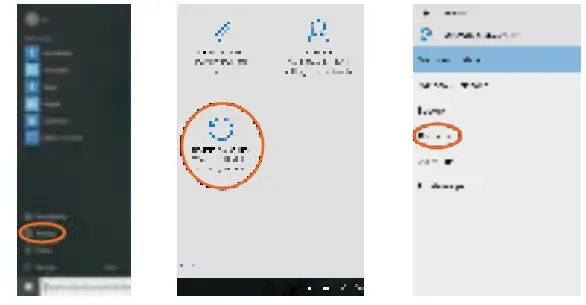
BLUETOOTH
- Click the
 button in the lower-left corner of the screen
 - Select “Settings”
- Select “Devices” click on“Bluetooth”
a) Make sure the Bluetooth switch is set to “On” After you turn on Bluetooth, the laptop will auto-search other devices you can pair with your device.
Send or Receive Files via Bluetooth
b) Send a File: Before sending files, you should open the window, “Select where to send your files”: Click the icon at lower right corner of desktop
  Send a File.
c) Receive a File: Before receiving the files, you should open the window “Waiting for a connection”: Click the icon at lower right corner of desktop Receive a File.
 at lower right corner of desktop
  Send a File.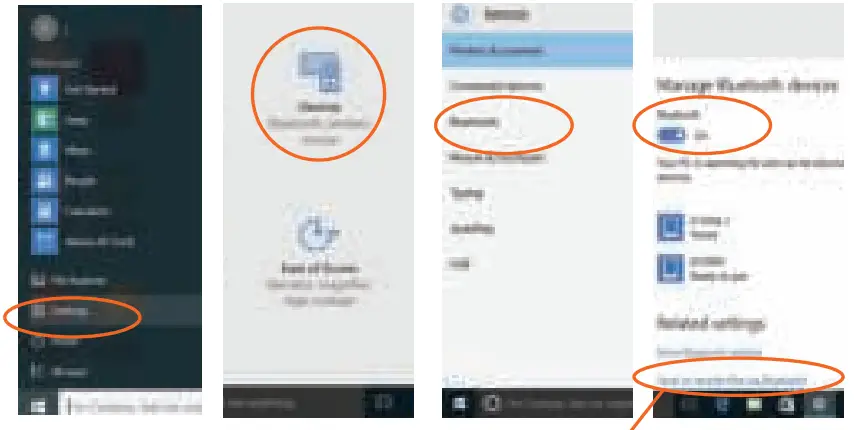
Send or Receive Files via Bluetooth.
 SECURITY MANAGEMENT
Method for quick setup: Click the button in the lower-left corner of the screen and select “Settings”. Select “Accounts” on the right and click “Create local account” in “Your account” on the right side. After creating a user name and a password for Windows Live ID Account, input username, password, confirm password, and password prompt.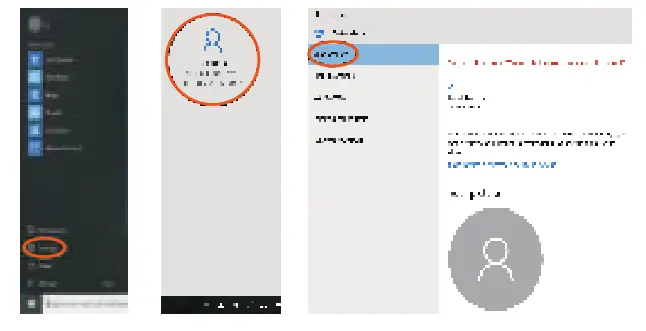
Specifications
| System Standard Configuration | ||
| Product Form | Form Factor | Clamshell |
| LCD | Screen Size | 11.6 |
| Screen Resolution | 1920’1080 IPS | |
| TP | Touch Module | G+G |
| Battery | Type | Lithium-ion polymer battery 7.4v |
| Capacity | 4600mAh | |
| Working Time | 6-8 hours | |
| System Hardware Configuration | ||
| CPU | Type | Apollo Lake N3350 |
| Speed | 1.16Hz-2.6Gliz | |
| Type | Intel HD Graphics 400 | |
| GPU | Capacity | LPDDR4 |
| Memory | Capacity | 32 GB |
| Storage | Front | 0.3 MP |
| Camara | Rear | N/A |
| Speaker | Built in | Built-in stereo speakers 80/1.0W*2 |
| G-Sensor | Built in | N/A |
| Network Connections | ||
| WIFI | WIFI Module | WIFI 802.11b/g/n+BT |
| Bluetooth | BT Module | Bluetooth 4.0 |
| Ethernet Network | External Dongle | Supportive |
| Interface | ||
| Memory Card slot | External Memory | lx Micro SD card up to 128GB |
| USB Interlace | Support Data Transfer | Support USB3.01+USB2.0*1 |
| Headphone Jack | Music Output | 3.5mm standard |
| HDMI Interface | Video Output | Micro HDMI |
| Keyboard | Input Device | Hard Keyboard |
| Main Accessories | ||
| Adapter | Standard Configuration | DC 12v2A |
| Software Configuration | ||
| OS | Windows | Windows 0 Home in S mode |
| Audio Format | MP3, OGG, AAC, M4A, MA4, | |
| Accessories | Charger | |
FCC Statement
15.19
1. This device complies with Part 15 of the FCC Rules. Operation is subject to the following two conditions:
(1) This device may not cause harmful interference.
(2) This device must accept any interference received, including interference that may cause undesired operation.
15.21
Note: The grantee is not responsible for any changes or modifications not expressly approved by the party responsible for compliance. Such modifications could void the user’s authority to operate the equipment.
15.105(b)
NOTE: This equipment has been tested and found to comply with the limits for a Class B digital device, pursuant to part 15 of the FCC Rules. These limits are designed to provide reasonable protection against harmful interference in a residential installation.
This equipment generates uses and can radiate radio frequency energy and, if not installed and used in accordance with the instructions, may cause harmful interference to radio communications. However, there is no guarantee that interference will not occur in a particular installation. If this equipment does cause harmful interference to radio or television reception, which can be determined by turning the equipment off and on, the user is encouraged to try to correct the interference by one or more of the following measures:
– Reorient or relocate the receiving antenna.
– Increase the separation between the equipment and receiver.
-Connect the equipment into an outlet on a circuit different from that to which the receiver is connected.
-Consult the dealer or an experienced radio/TV technician for help
RF Exposure Statement
The SAR limit of USA (FCC) is 1.6 W/kg averaged over one gram of tissue. Device types EVOO Notebook (FCC ID: 2APUQ-EV-C-116-1) has also been tested against this SAR limit. The highest SAR value reported under this standard during product certification when properly worn on the body is 0.307W/kg. This device was tested for typical body-worn operations with the back of the notebook kept 0mm from the body.