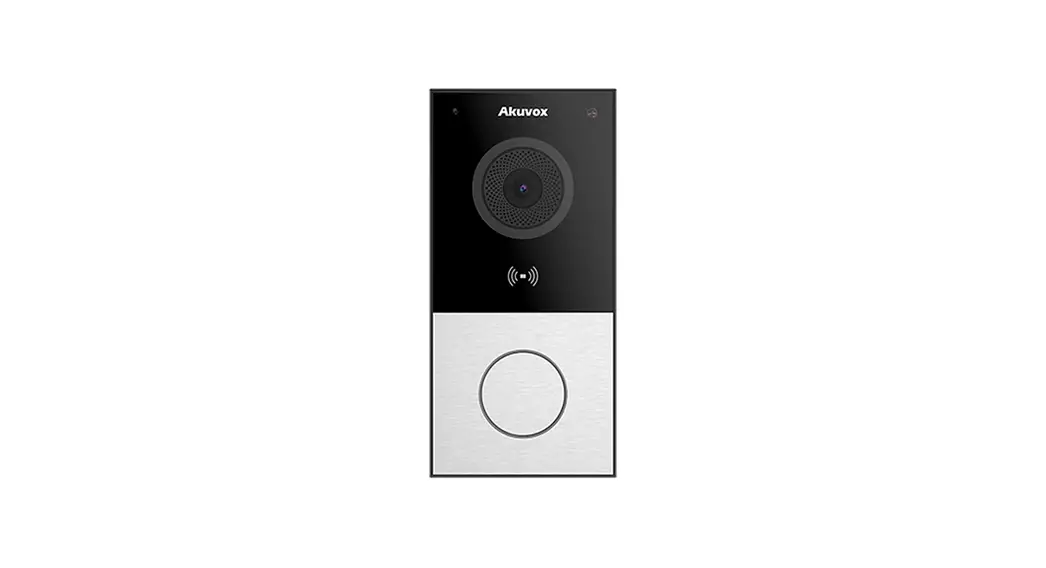
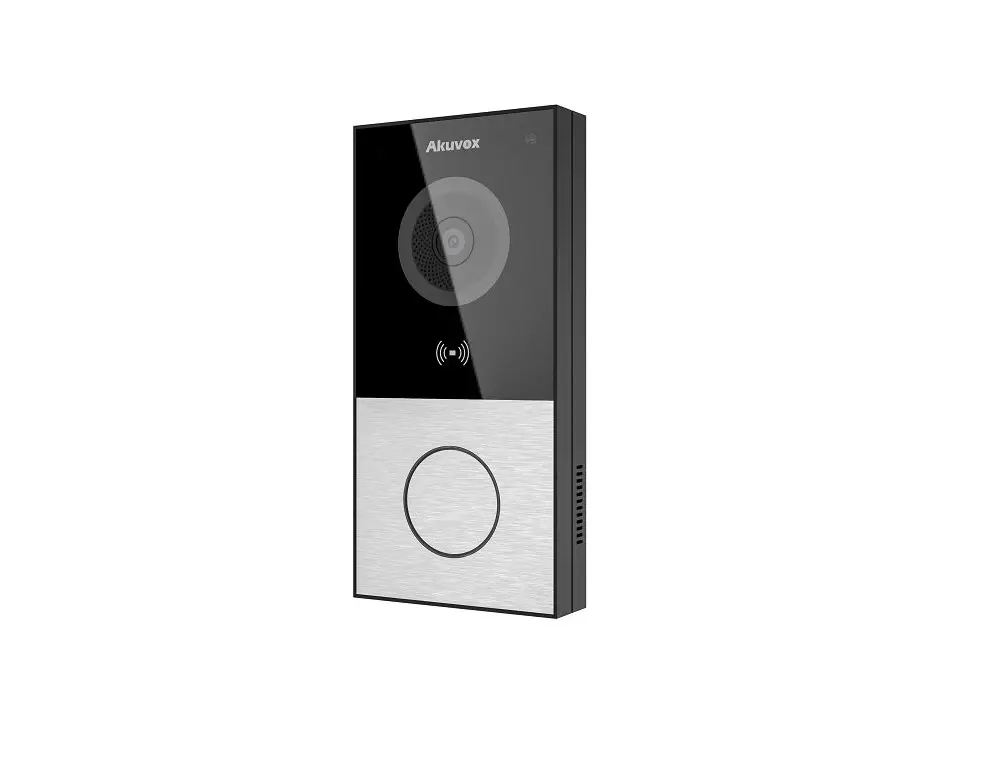
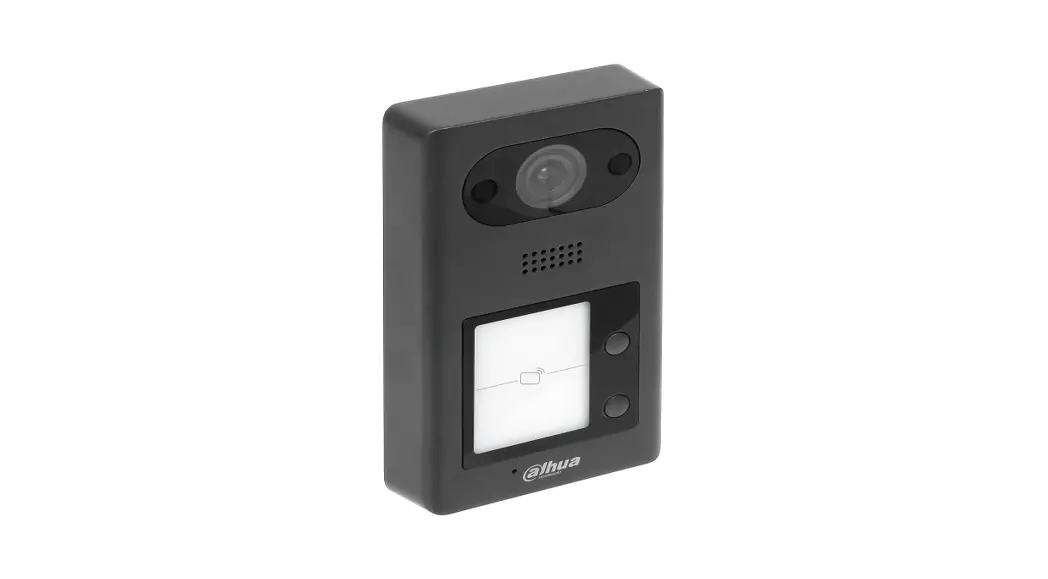
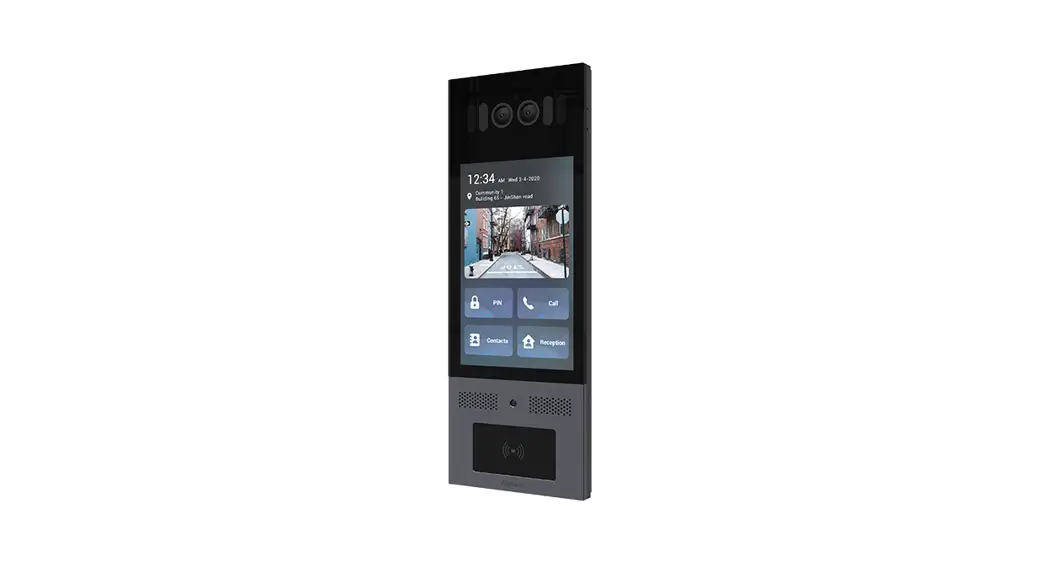
E12W SIP Video Intercom and RFID
Akuvox E12W User Manual
Product Information
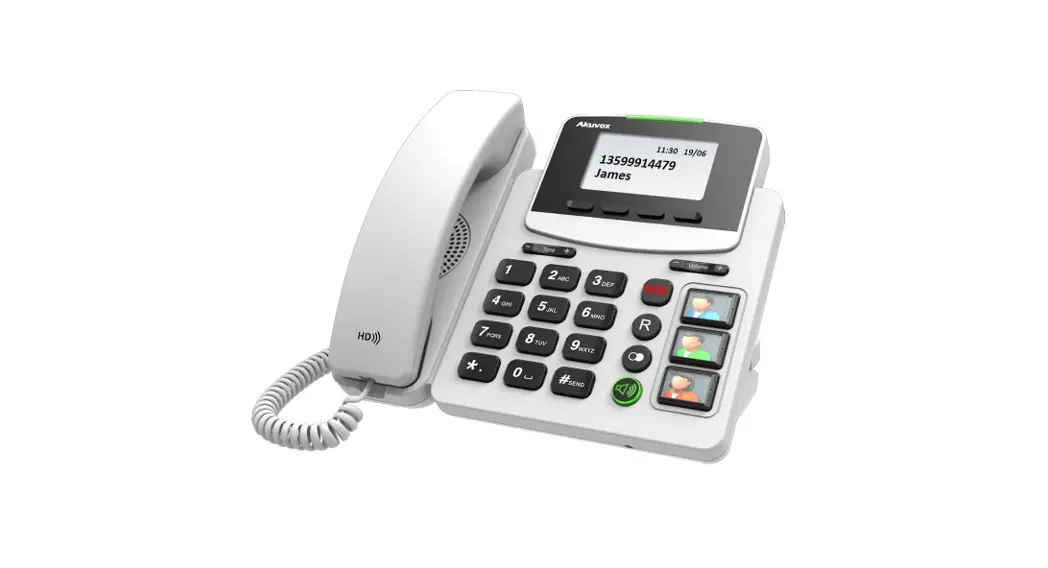
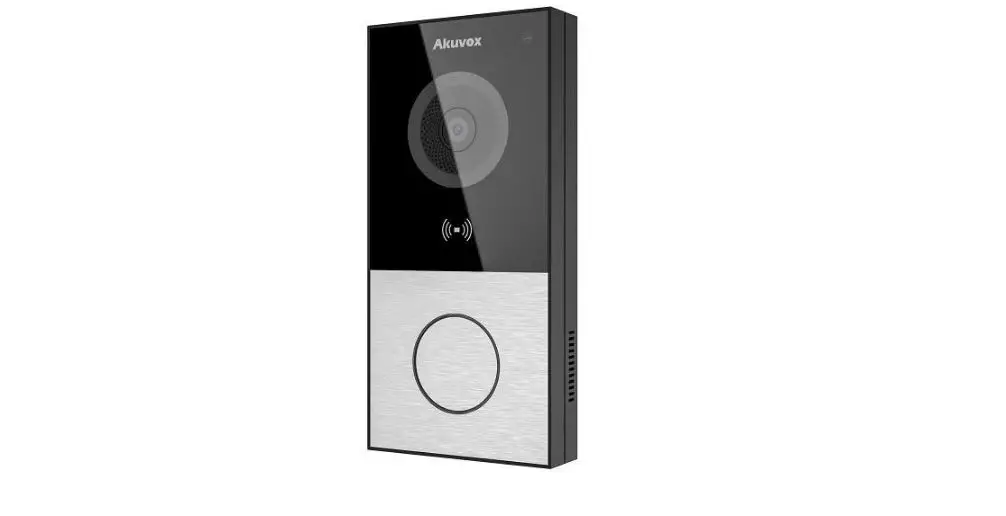
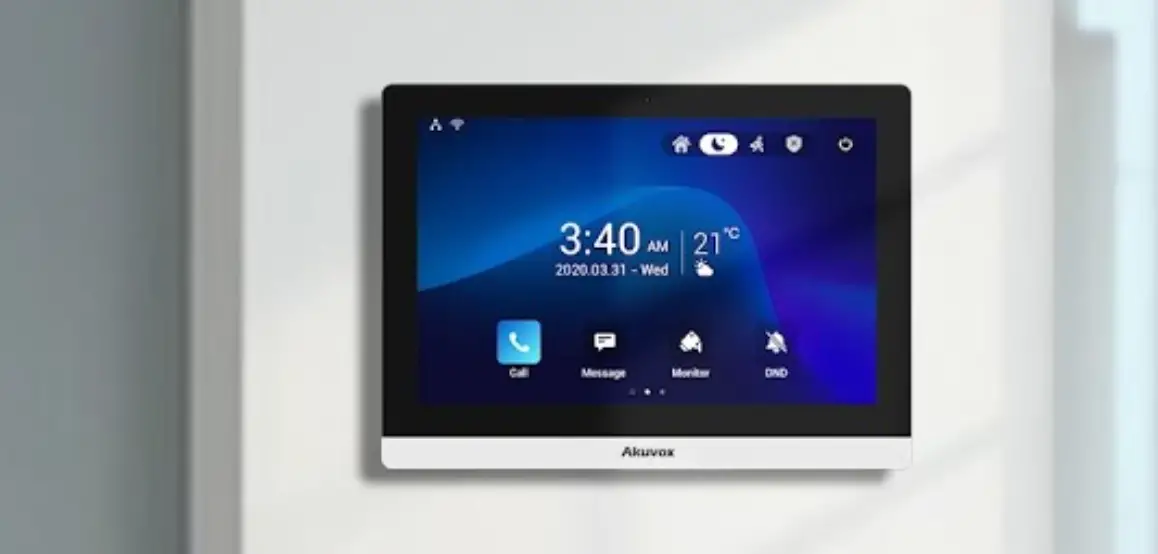
The Akuvox E12W is a doorbell that can be used in combination
with the Akuvox C313X indoor intercom unit. The doorbell has a web
interface which can be accessed through a computer’s browser. The
doorbell has separate passwords for different services such as
ONVIF, RTSP-stream, and HTTP API. The intercom function can be
configured by setting the call type to Group Call and entering the
IP address of the intercom unit(s). The doorbell can be added to
the Nx Witness system and audio can be enabled for it. An event
rule can be created for the push button on the doorbell.
Product Usage Instructions
Doorbell Configuration
- Logging into the web-interface
- Open a browser-window on your computer and enter the IP address
of the doorbell in your URL-bar. - Hold down the button on the doorbell for a few seconds, after
which it will recite the IP address to you. - Now log into the doorbell’s web-interface using the default
credentials. - Username: admin
- Password: admin
- After logging in for the first time, change the admin password
immediately.
- Open a browser-window on your computer and enter the IP address
- Changing the default credentials
- Change the credentials for ONVIF category under Surveillance
and then ONVIF. - Change the password of the RTSP-stream under Surveillance and
then RTSP. - Change the password for the HTTP API of the doorbell under
Security and then HTTP API.
- Change the credentials for ONVIF category under Surveillance
- Configuring the intercom
- Navigate to Intercom and then Basic.
- Set Call Type to Group Call.
- Enter 0.0.0.0 into the top-left most input field under Group
Call Numbers (Local). - If using an indoor intercom unit such as the Akuvox C313X,
enter the IP address of the intercom(s) instead.
- Logging into the web-interface
Nx Witness Configuration
- Adding the doorbell to the system
- Open the Nx Witness Desktop Client and right-click on a
server. - Click on Add Device…
- Either scan a subnet or enter the IP address of the
doorbell. - Enter the login credentials and add the device once found.
- Open the Nx Witness Desktop Client and right-click on a
- Creating a new user for the doorbell
- In the Nx Witness Desktop Client, go to System Administration
(CTRL + ALT + A), then go to the tab Users. - Click on New User… and create a local user for the
doorbell. - Give it a custom role and then make sure it only has access to
the doorbell under Cameras & Resources. - Make sure Digest Authentication is enabled for this user.
- In the Nx Witness Desktop Client, go to System Administration
- Enabling audio for the doorbell in Nx Witness
- In the Nx Witness Desktop Client, right-click the doorbell in
the overview and go to Camera Settings… - Make sure that Enable audio and Enable 2-way audio are
checked.
- In the Nx Witness Desktop Client, right-click the doorbell in
- Creating an event rule for the push button on the doorbell
- Right-click the doorbell in the overview and click on Camera
Rules…, then click on Add to add a new event rule. - Select Generic Event under Event > When.
- Enter a caption to filter on under Caption contains.
- In the web-interface of the doorbell, go to Intercom >
Basic. - Under Push Button Notification, check HTTP under Action To
Execute. - In the field labelled HTTP URL, enter the URL for the API
call.
- Right-click the doorbell in the overview and click on Camera
- Adding the doorbell to the system
Akuvox E12W
Table of Contents
1. Doorbell Configuration……………………………………………………………………………………………………………………………1 1.1 Logging into the web-interface …………………………………………………………………………………………………………1 1.2 Changing the default credentials ………………………………………………………………………………………………………1 1.3 Configuring the intercom…………………………………………………………………………………………………………………..2
2. Nx Witness Configuration ……………………………………………………………………………………………………………………….2 2.1 Adding the doorbell to the system …………………………………………………………………………………………………….2 2.2 Creating a new user for the doorbell …………………………………………………………………………………………………2 2.3 Enabling audio for the doorbell in Nx Witness…………………………………………………………………………………..2 2.4 Creating an event rule for the push button on the doorbell ………………………………………………………………3
3. Using the doorbell in combination with the Akuvox C313X…………………………………………………………………….3
1. Doorbell Configuration
1.1 Logging into the web-interface
Open a browser-window on your computer and enter the IP address of the doorbell in your URL-bar. Hold down the button on the doorbell for a few seconds, after which it will recite the IP address to you.
Now log into the doorbell’s web-interface using the default credentials.
Username Password
admin admin
After you’ve successfully logged in for the first time, you will be asked to change the admin password. We recommend doing this immediately.
1.2 Changing the default credentials
The doorbell has separate passwords for the different services that it uses, as such it is required to change the default credentials for each of these categories.
First, change the credentials for the ONVIF category, you may find this setting under Surveillance and then ONVIF.
Do the same for the password of the RTSP-stream, found under Surveillance and then RTSP. Finally, change the password for the HTTP API of the doorbell under Security and then HTTP API.
Akuvox E12W
1.3 Configuring the intercom
In order to make sure the intercom function works correctly, we have to configure its settings. Navigate to Intercom and then Basic. Make sure Call Type is set to Group Call and then enter 0.0.0.0 into the top-left most input field under Group Call Numbers (Local). If you use an indoor intercom unit such as the Akuvox C313X, please enter the IP address of the intercom(s) instead. You should enter additional IP addresses in the order as displayed in the example below.
2. Nx Witness Configuration
2.1 Adding the doorbell to the system
Open the Nx Witness Desktop Client and right-click on a server, then click on Add Device… Now either scan a subnet or enter the IP address of the doorbell, then enter the login credentials, then add the device once you’ve found it.
2.2 Creating a new user for the doorbell
In the Nx Witness Desktop Client, go to System Administration (CTRL + ALT + A), then go to the tab Users. Click on New User… and create a local user for the doorbell. Give it a custom role and then make sure it only has access to the doorbell under Cameras & Resources. Finally, make sure Digest Authentication is enabled for this user.
2.3 Enabling audio for the doorbell in Nx Witness
In the Nx Witness Desktop Client, right-click the doorbell in the overview and go to Camera Settings… Here, make sure that Enable audio and Enable 2-way audio are checked.
Akuvox E12W
2.4 Creating an event rule for the push button on the doorbell
Right-click the doorbell in the overview and click on Camera Rules…, then click on Add to add a new event rule. Here you’ll select Generic Event under Event > When. Under Caption contains, you may enter anything you’d like to filter on, though this will be important for future steps. In this example, we will be filtering on the caption “akuvox” and sending a mobile notification to a group of users.
Now go to the web-interface of the doorbell and go to Intercom > Basic. Under Push Button Notification, check the box that reads HTTP under Action To Execute. In the field labelled HTTP URL you will need to enter the URL for the API call.
The URL will need to be populated with specific information, as follows: https://<username>:<password>@<server-ip>:<server-port>/api/createEvent?caption=<caption> For example https://doorbell:[email protected]:7001/api/createEvent?caption=akuvox Once you’ve entered the URL, click on Submit to save the changes. Now when you press the button on the doorbell, a mobile notification would be sent to the selected group of users.
3. Using the doorbell in combination with the Akuvox C313X
If the steps under chapter 1.3 were correctly followed, and the doorbell is available in the same network, it should be picked up automatically and you can start using both immediately.