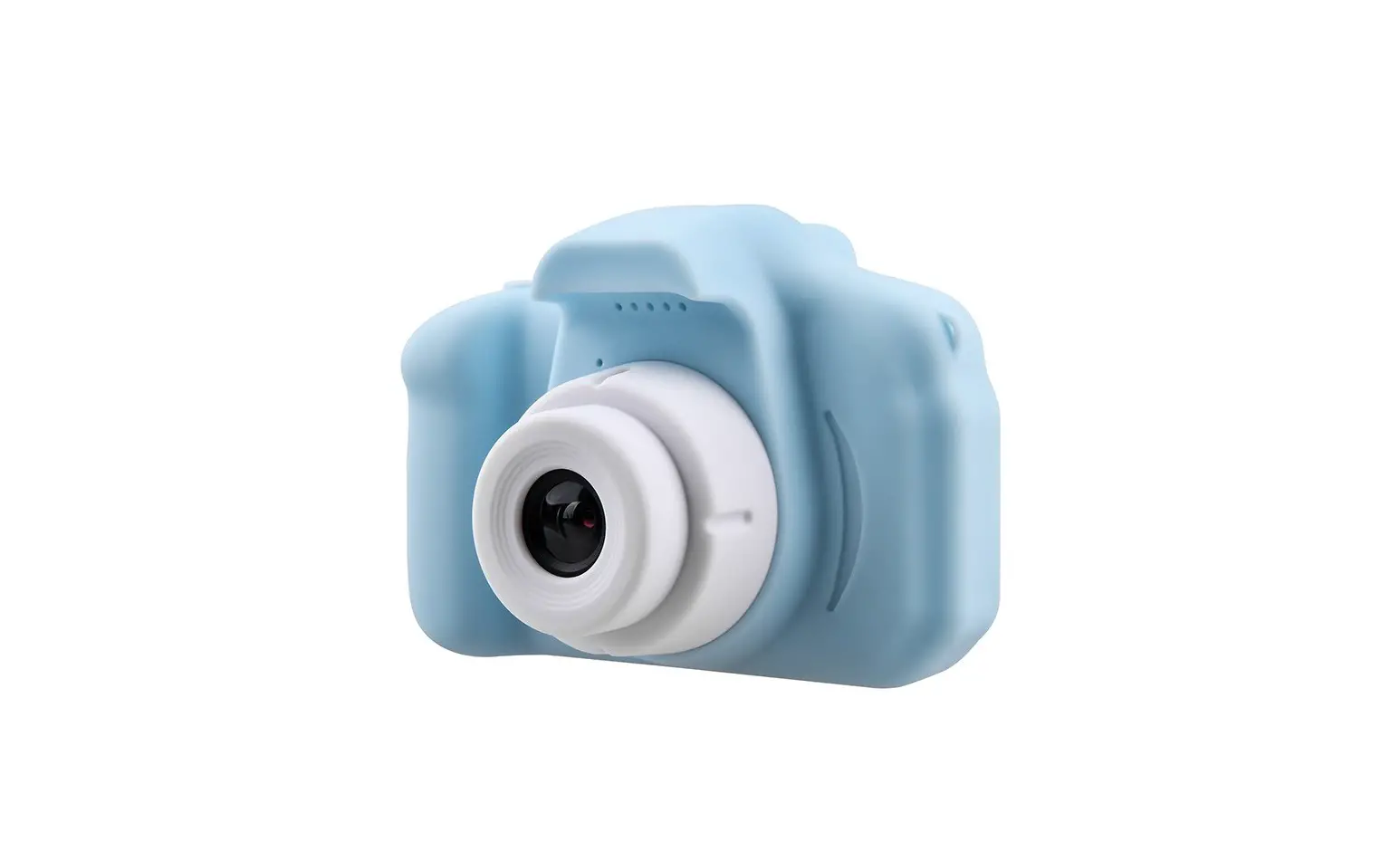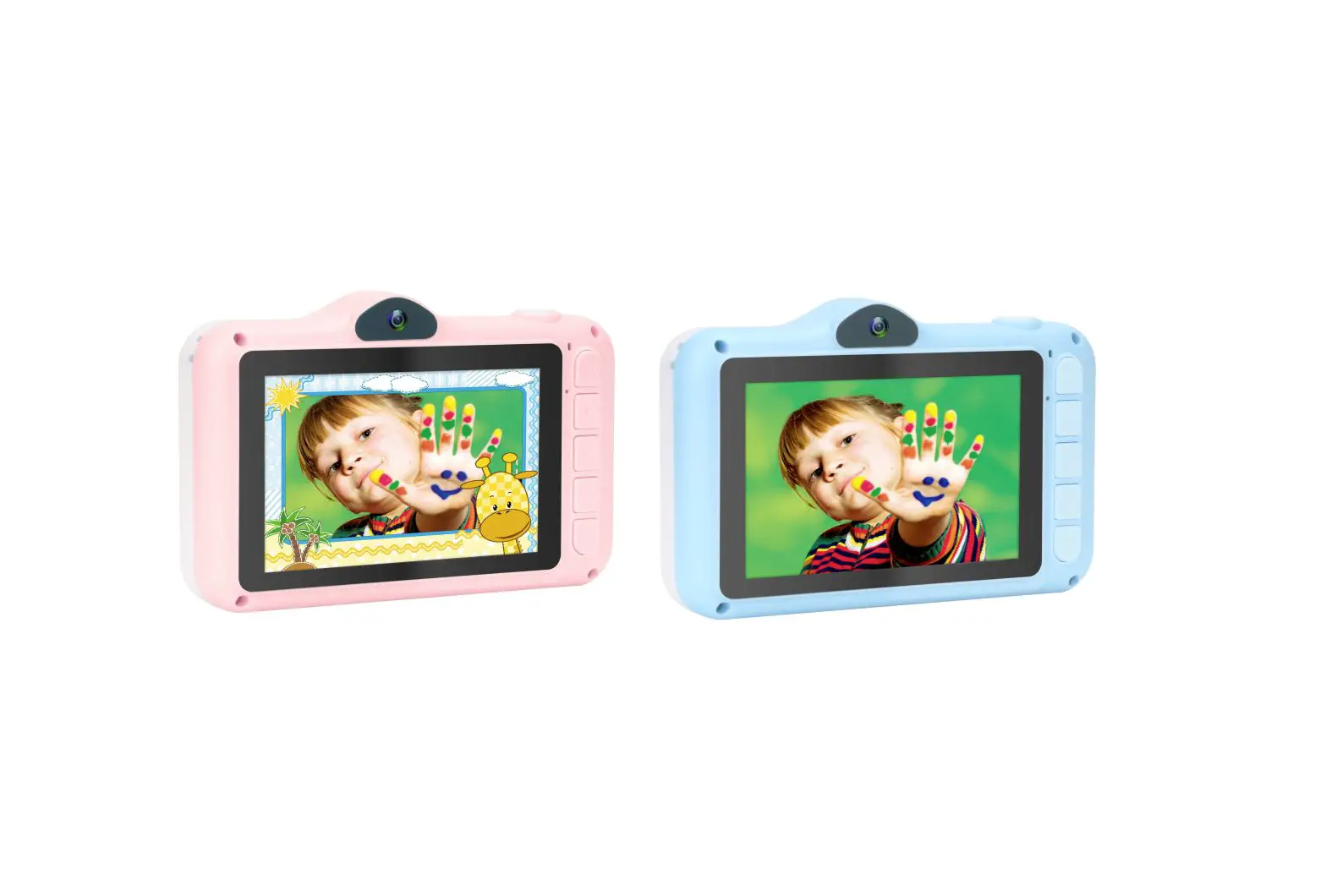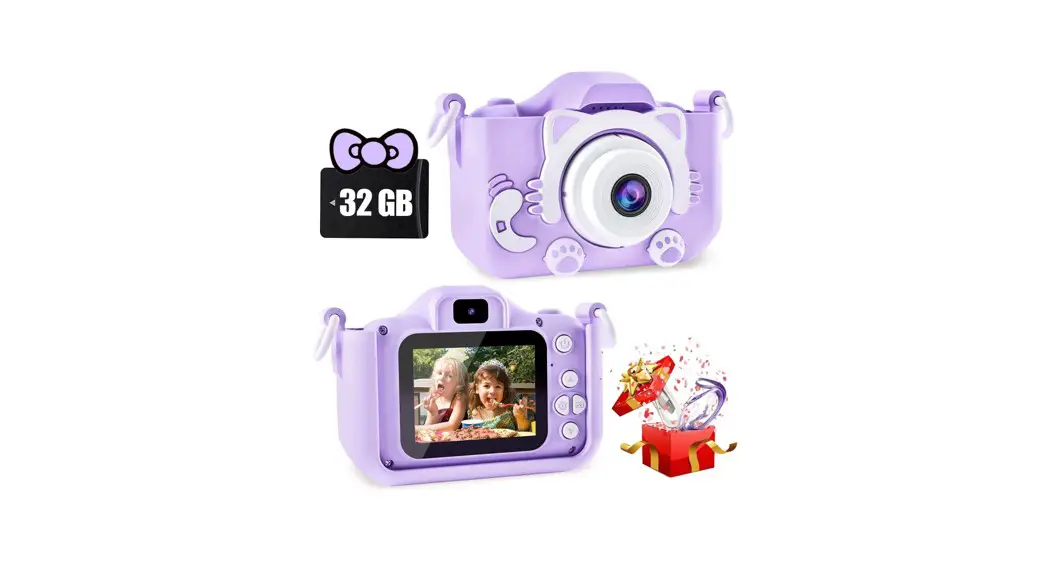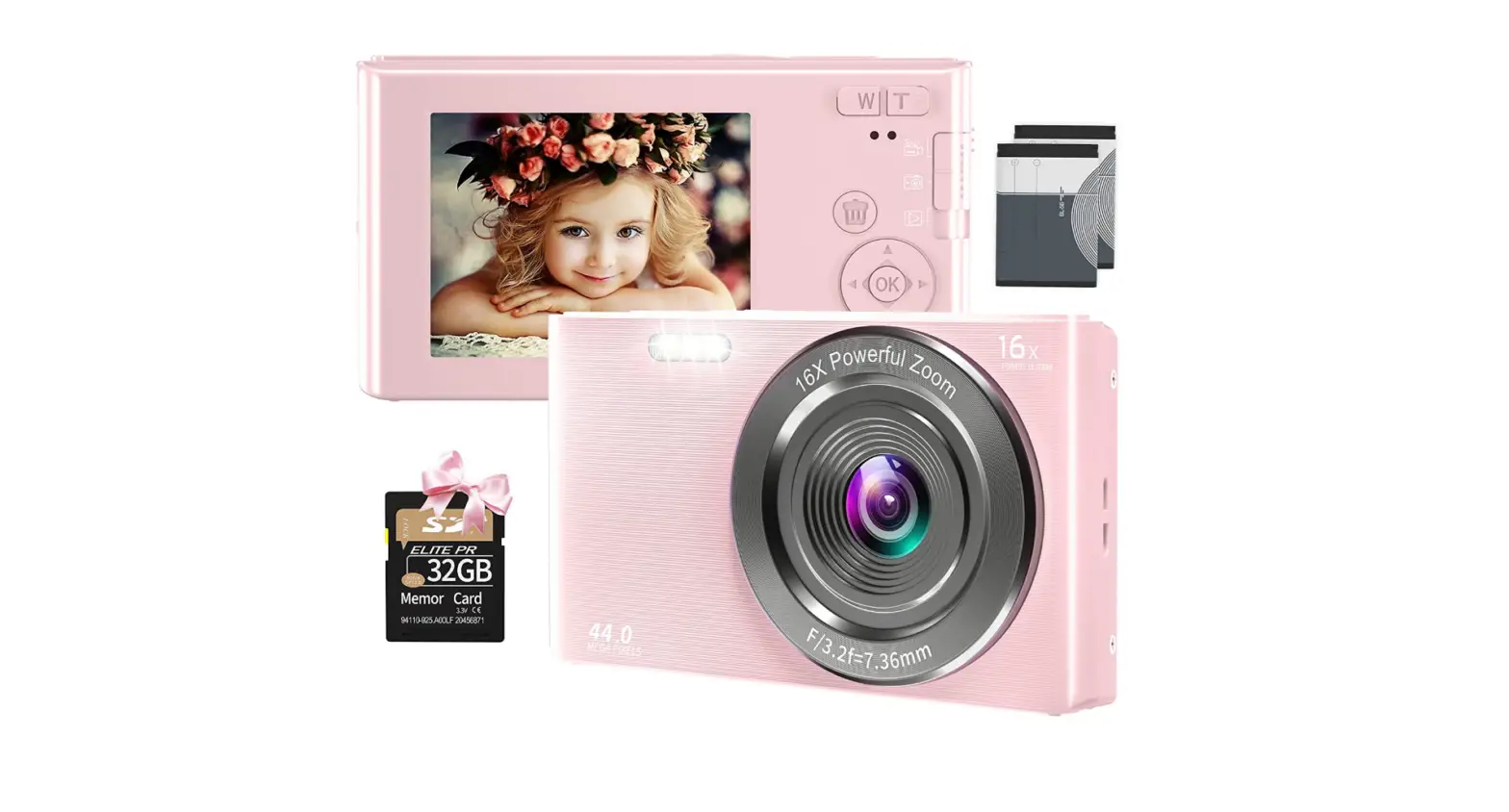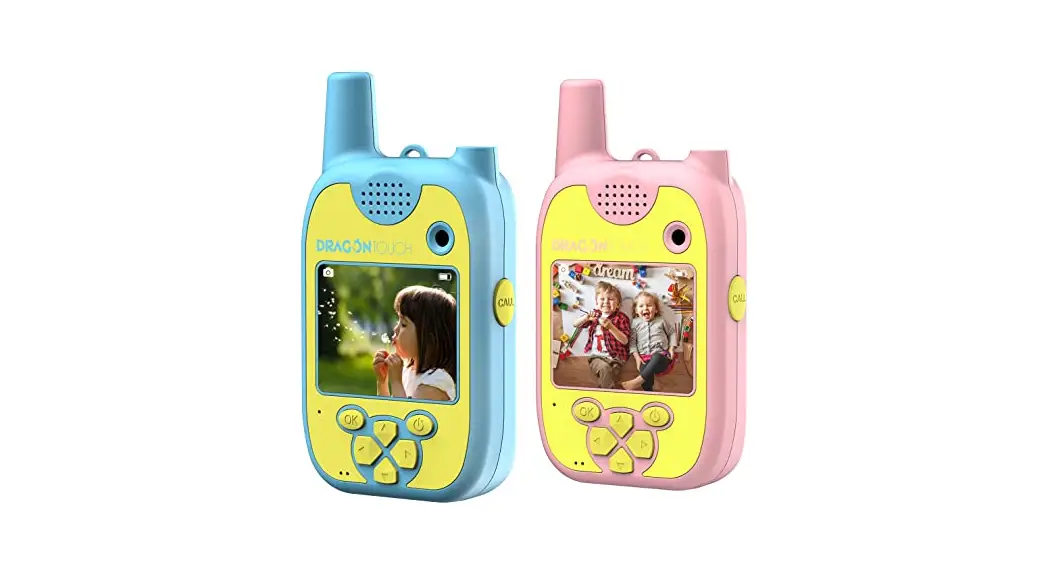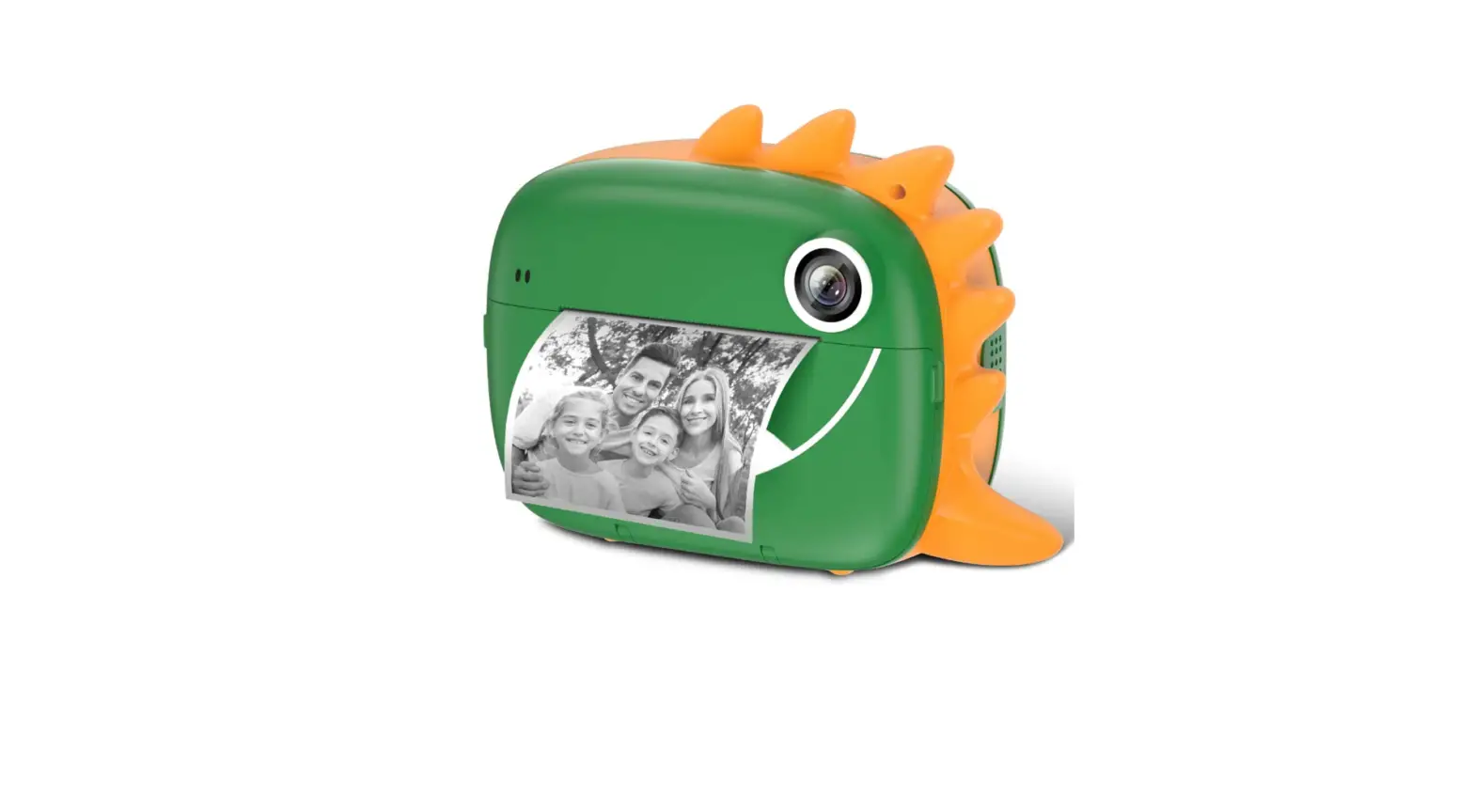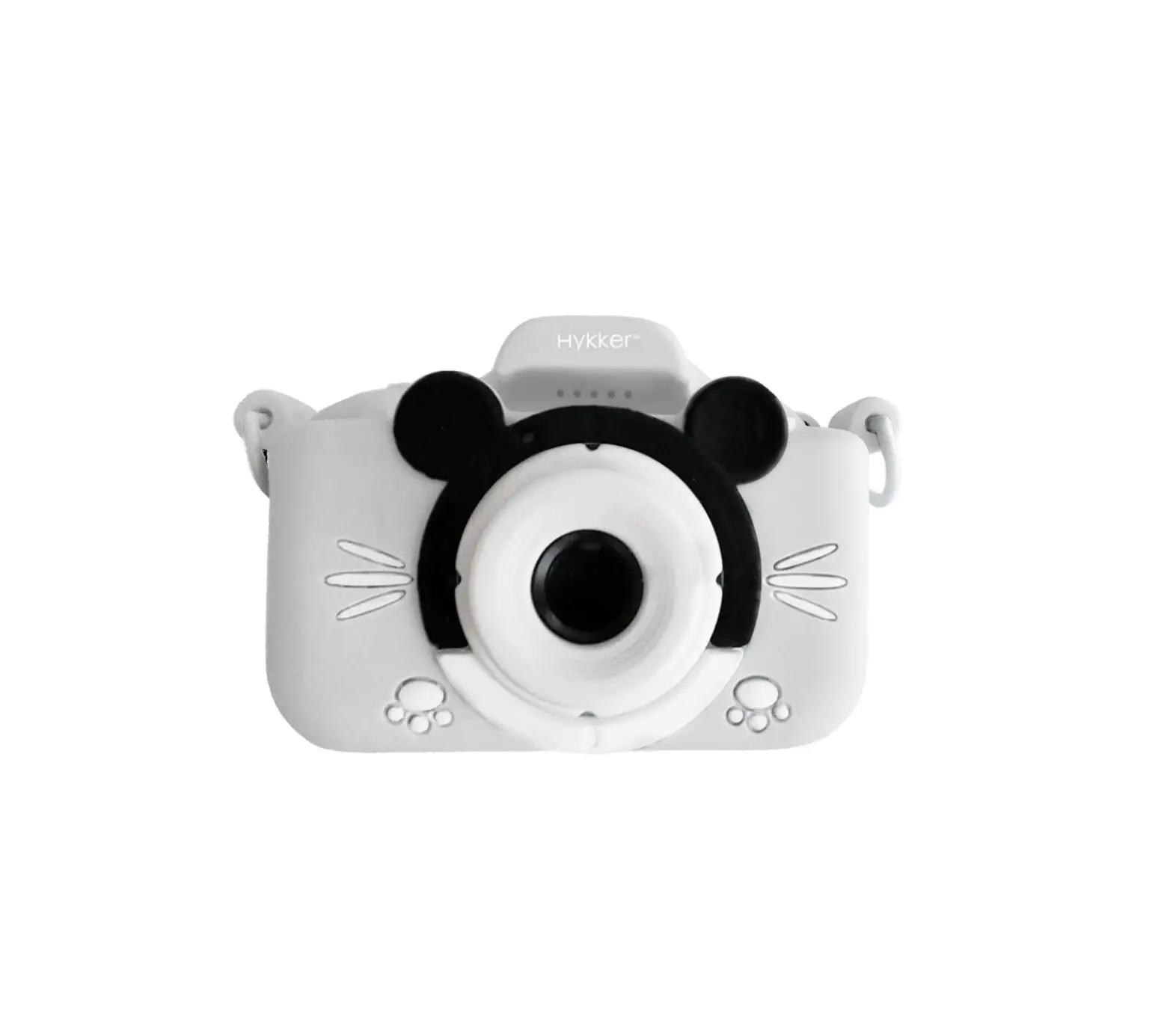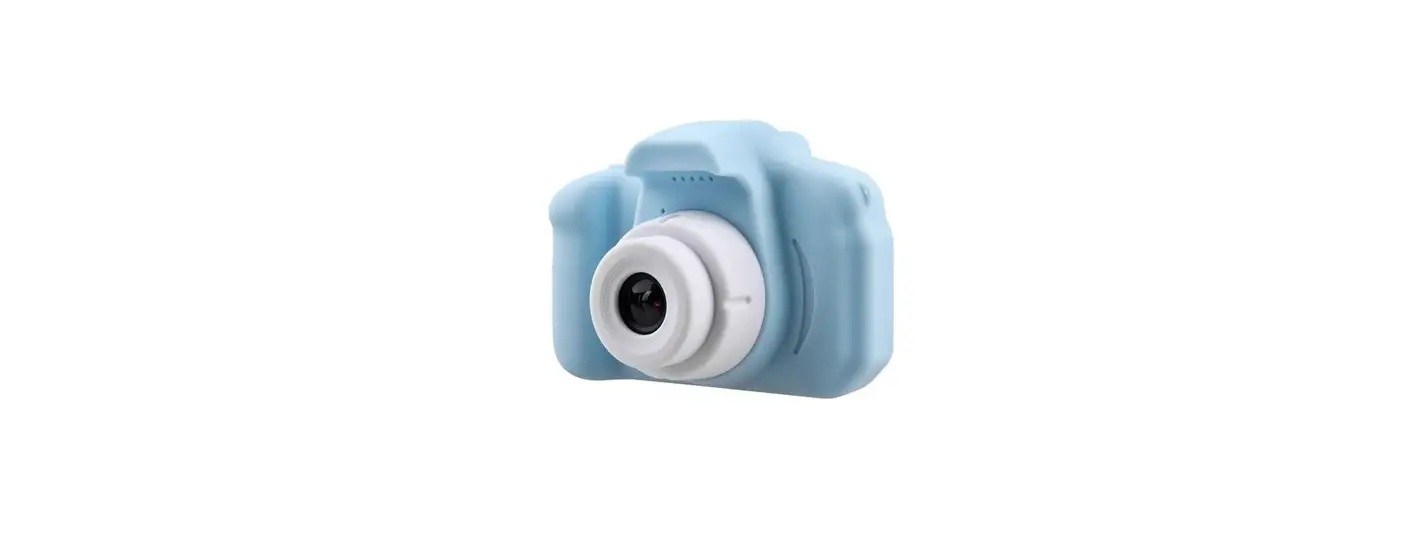

Eggy Children Camera
For any inquiries or comments concerning our products, please send an email to [email protected] , and we will respond to you as soon as possible.
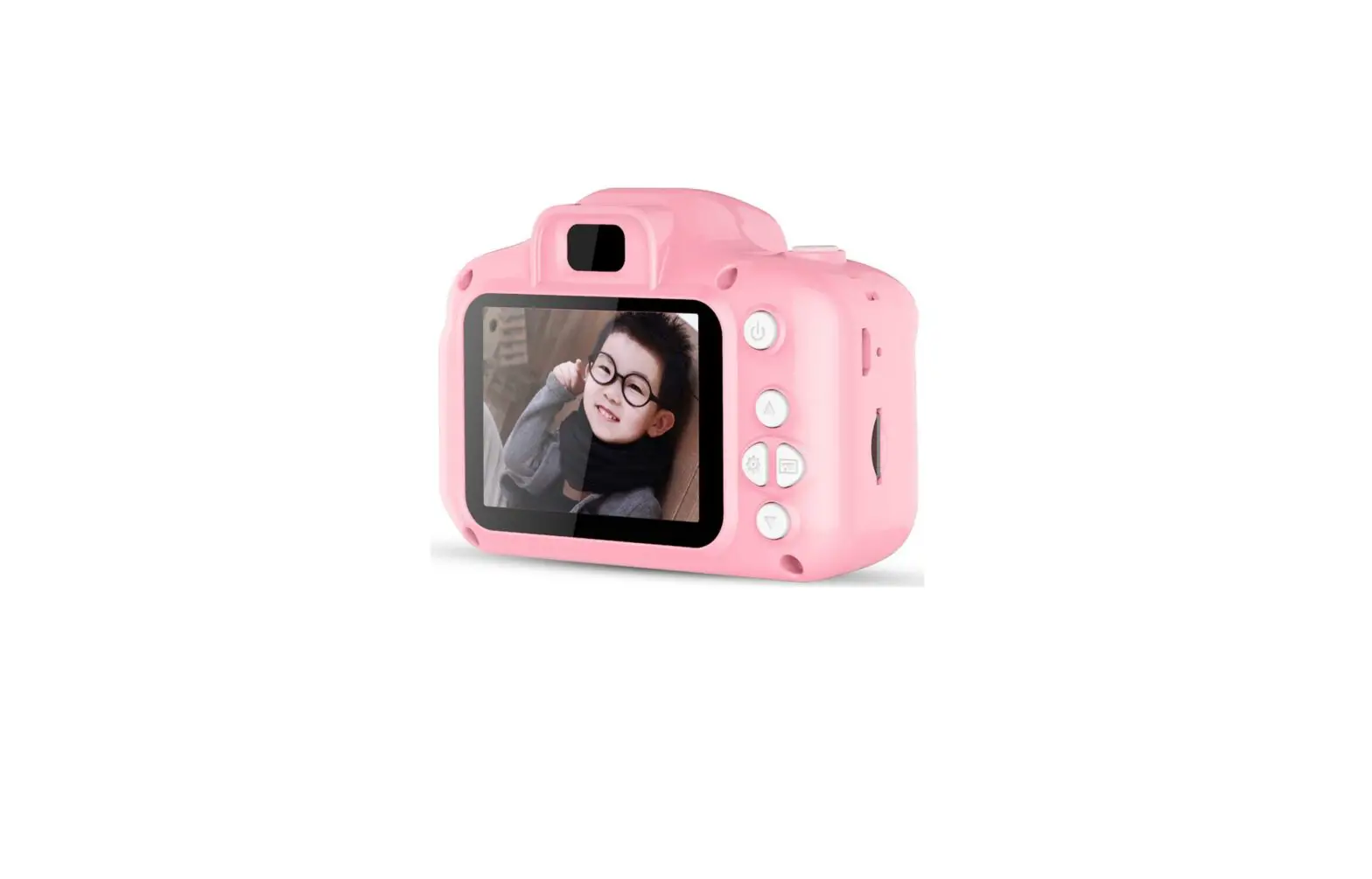
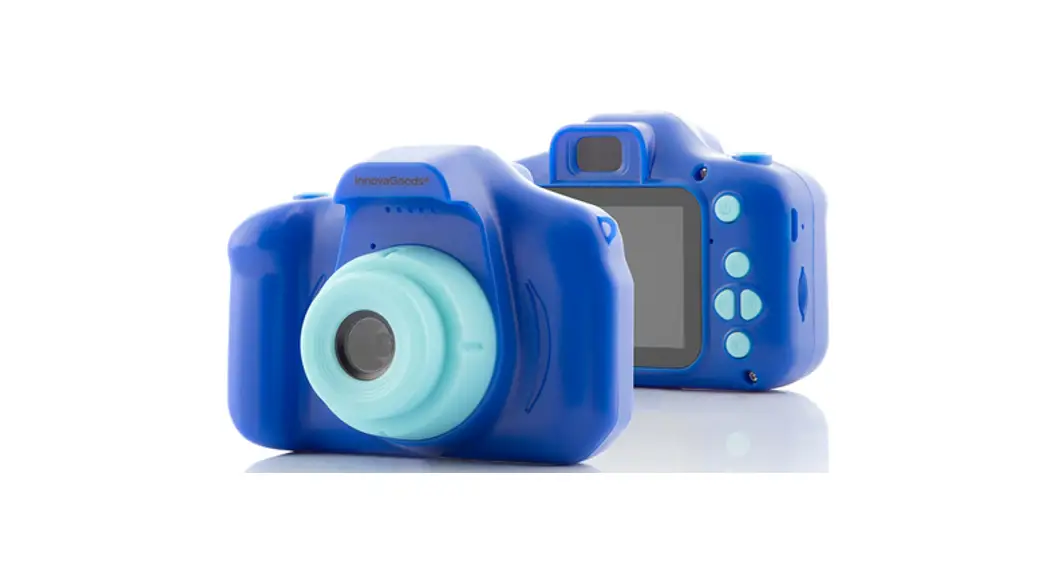
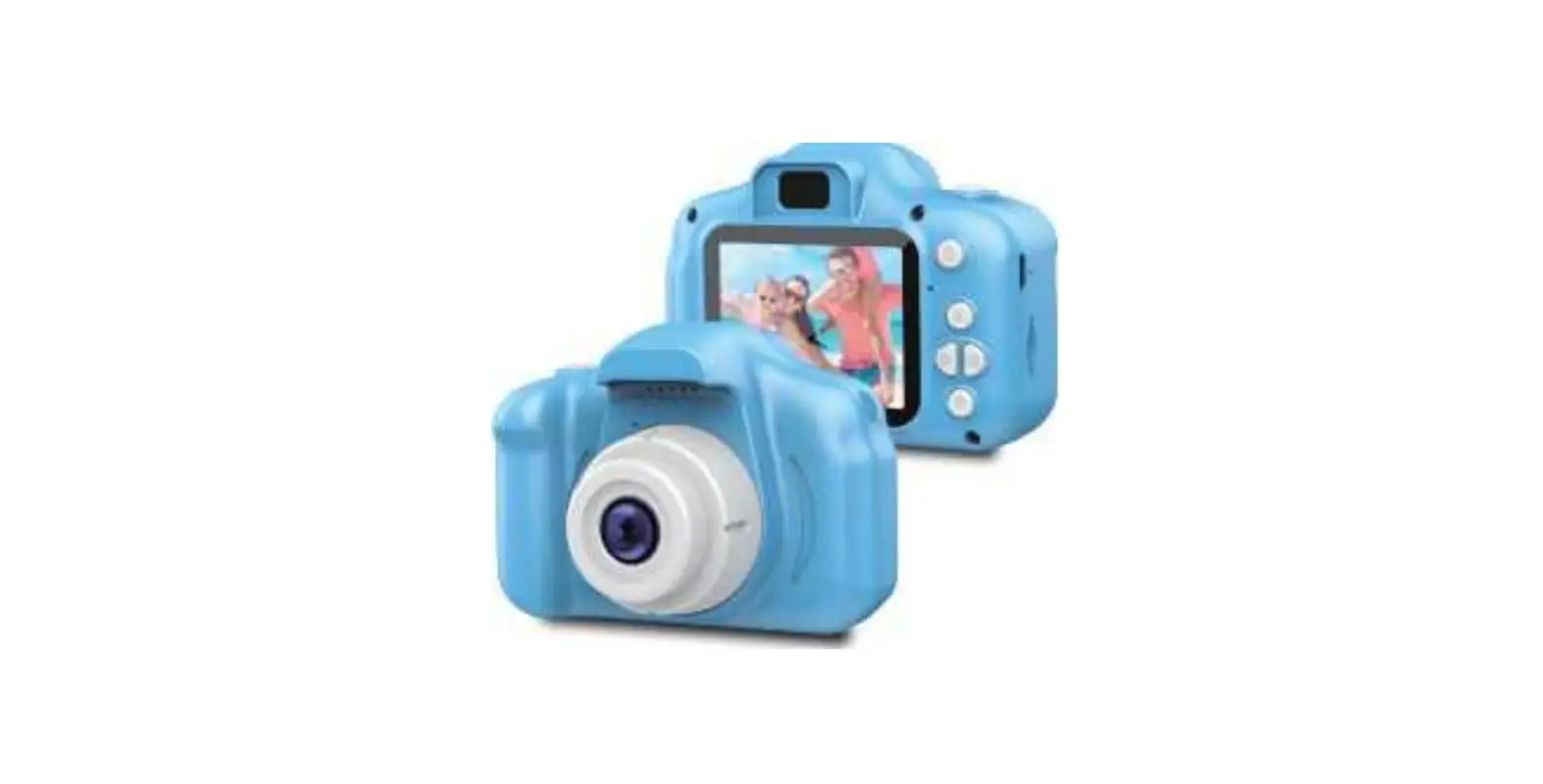
Product Structure
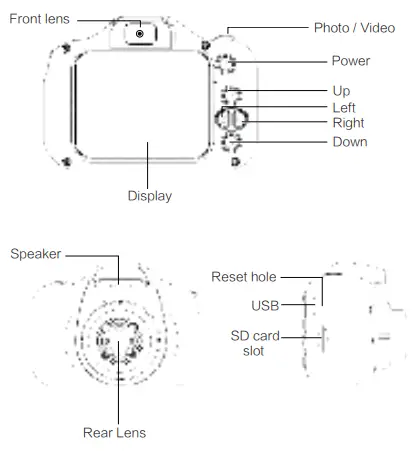
- Photo / Video
- In video mode, short press to start video recording, short press again to stop recording;
- In photo mode, short press to take a photo.
- Confirm button in menu mode.
- Power
- Power on / off
- Exit button in menu mode.
- Up
- Press to select the option upwards in the menu mode;
- Photo frame selection button in photo shooting mode;
- Delete a single file in file browsing mode
- Left
Press to select the option leftwards in the menu mode. - Right
- Press to select the option rightwards in the menu mode;
- Lens switching button in photo shooting mode and Video Recording Mode
- Down
- Press to select the option downwards in the menu mode;
- Photo frame selection button in photo shooting mode;
- Delete all files in file browsing mode
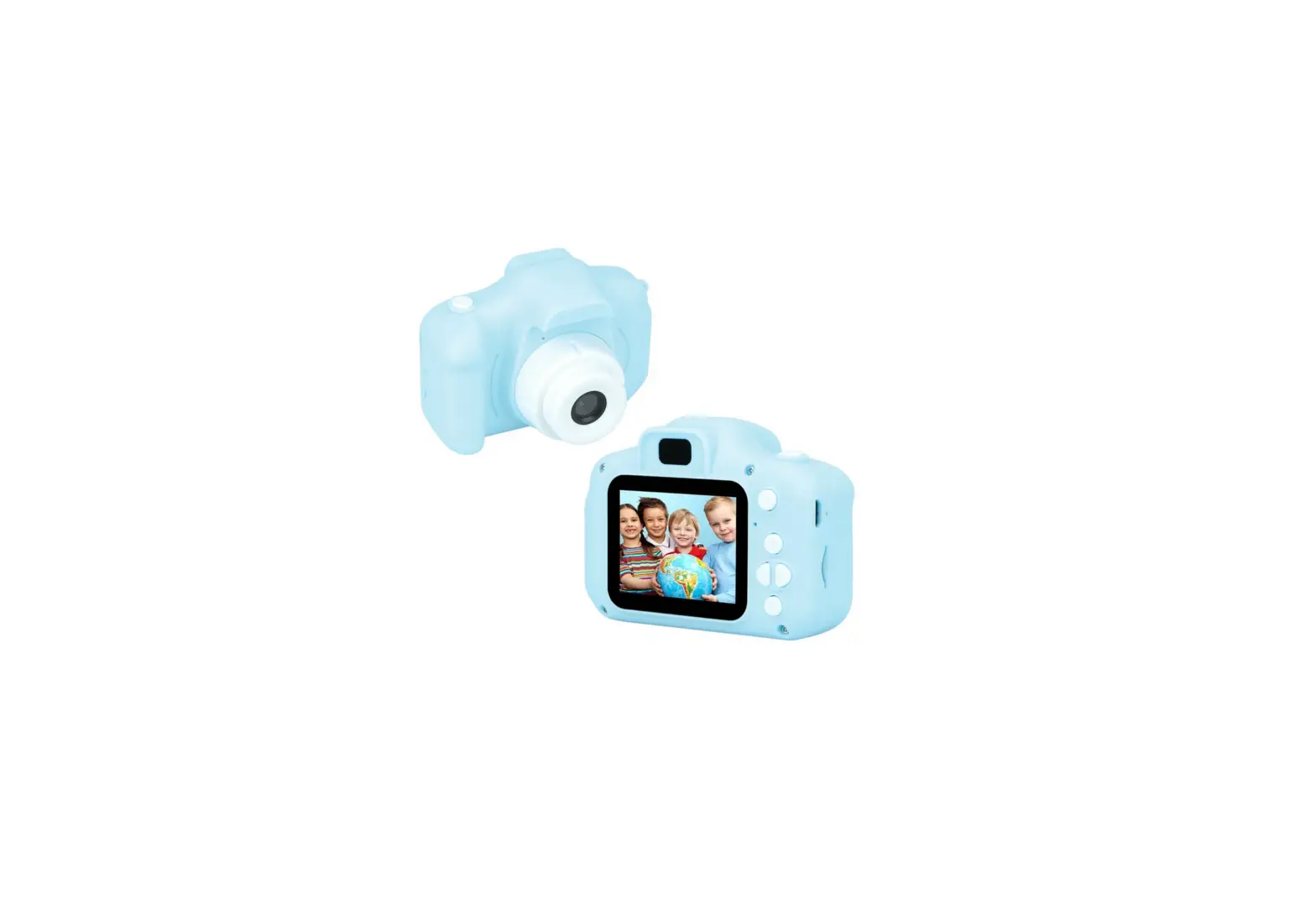
- Display
2 inches color display; - Speaker
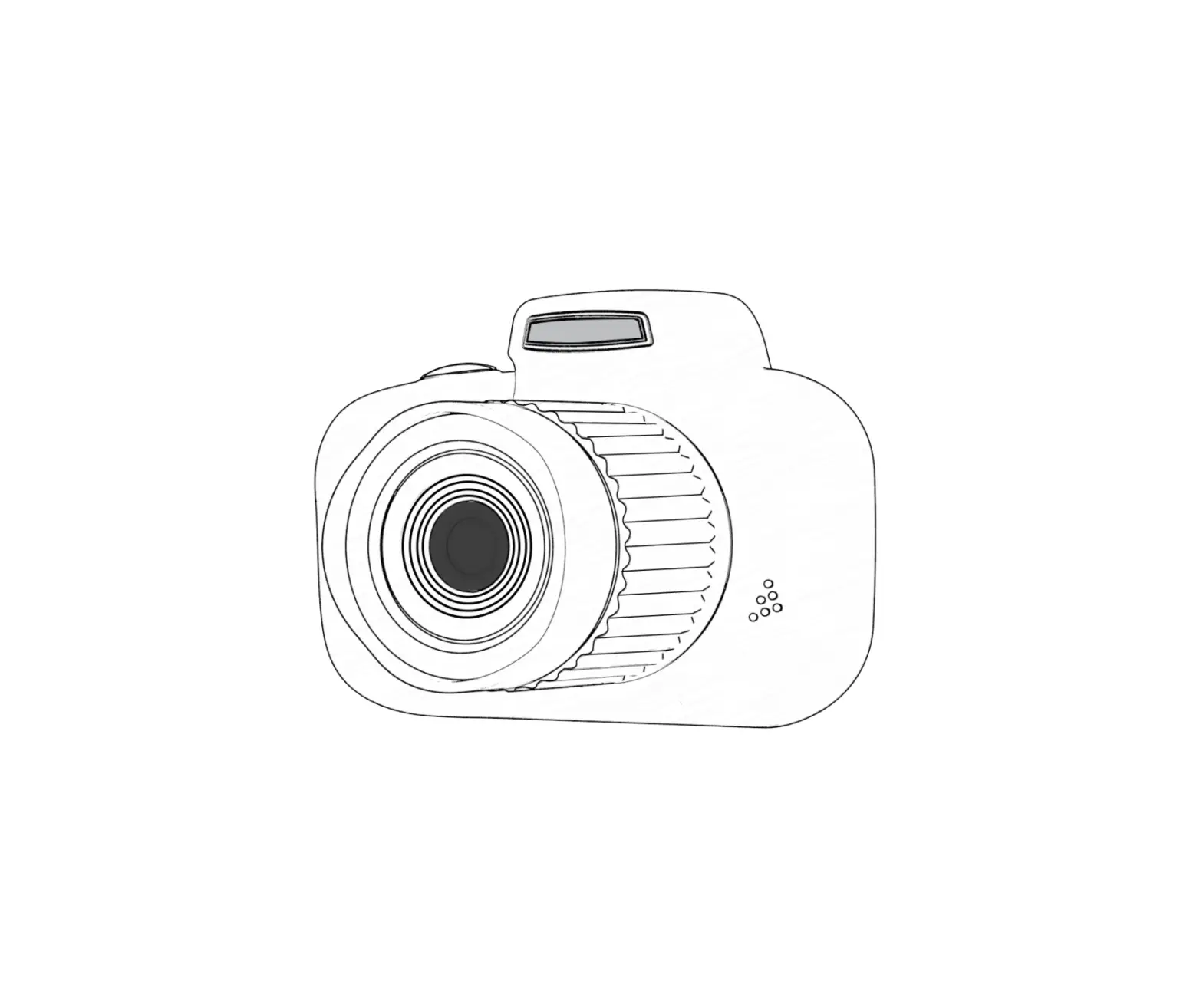
Play the sound of videos or audio files. - Lens
Viewfinder - USB
USB interface- for data transmission when connecting PC;
- for providing power or battery charging when connecting external power supply
- SD card slot
Slot for installing the SD card - Reset hole
If there is a white screen or a crash, take the fine needle into the reset hole can resume normal.
Basic Operation Instructions of Photo Shooting / Video Recording
- Power On / Off
Long press the power button to turn it on. The blue indicator will light up when turned on;
Long press the power button again to turn it off. The blue indicator will be off. - Mode Setting
Short press“ Up”,“ Down”,“ Left”,“ Right” to select the corresponding mode. Then short press the“ Photo / Video” button to enter. Short press the“ Power” button to exit - Video Recording Mode
Short press the“ Photo / Video” button to start video recording. The indicator starts to flash, indicating that the recording is in progress. - Photo Shooting Mode
Short press the“ Photo / Video” button to start taking a picture. The indicator flashes once when taking a picture, indicating that the photo is completed. - Storage mode
Connecting the camera to your computer via the USB cable will enter the storage mode, then you can view the photos or videos you have taken on your computer
 to turn it on. The blue indicator will light up when turned on;
Battery Usage
- Please refer to the following illustrations for battery status:

- There are three ways for battery charging. The charging indicator of the camera will be red when the battery is charging.
- Charging with the power adapter
- Charging with USB-cable to computer
- Charging with car power

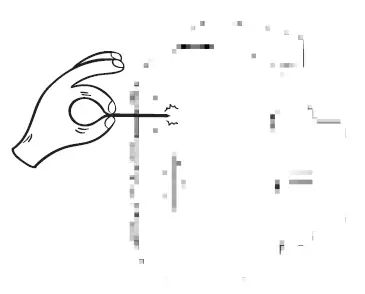
NOTE: If the device goes down due to improper operation, or have a white screen, flower screen, crash, etc problems. Take the fine needle into the reset hole of the camera (as the picture shows) or select “Sys. Reset” in the function settings, and then turn it on again. In this way, the problem can be solved
Specification
| Display | 2 inches color display |
| Lens | Fixed lens with 100°angle |
| Storage | Mini SD Card , Max 32G |
|
Language | Russian, English, Chinese (Simplified), Chinese (Traditional), Korean, Japanese, etc. |
| Resolution | 1080P, 720P, VGA |
| Time mark | On / Off |
| Capture timer | Off, 2s, 5s, 10s |
| Photo frame | Normal, Background |
| Delete | Delete one photo , Delete all |
| Formatting | Cancel / Confirm |
| Charging voltage | DC-5V |
| Battery capacity | 600mAh |
| Working time | 2-3H (about 2000 photographs) |
| Charging time | 2H |
| Supporting system | Windows me/2000/2003/ XP/vista/Win7; Mac OS; Linux |
| Frequency | 50HZ, 60HZ |
| System reset | Cancel / Confirm |
| Game | Snake,Tetris,Sokoban |
Troubleshooting
- The display does not respond to boot
Charge the camera for more than 1 hour before using - Device crash
Insert the fine needle into the reset hole of the camera to restore normal - The camera can not read the TF card when connected to the PC
- A. Reconnect the camera and PC
- B. Replace the data cable
Package Contents
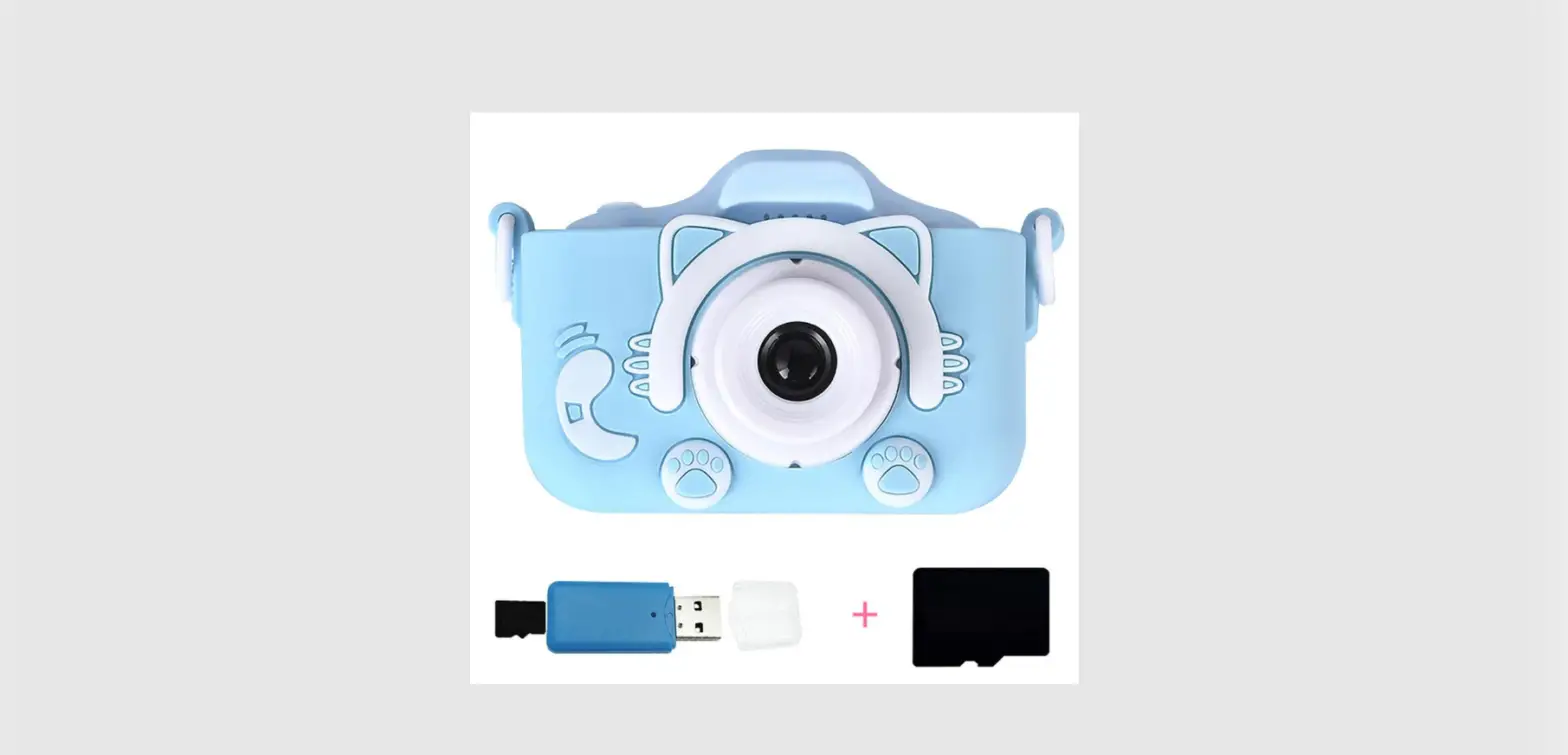
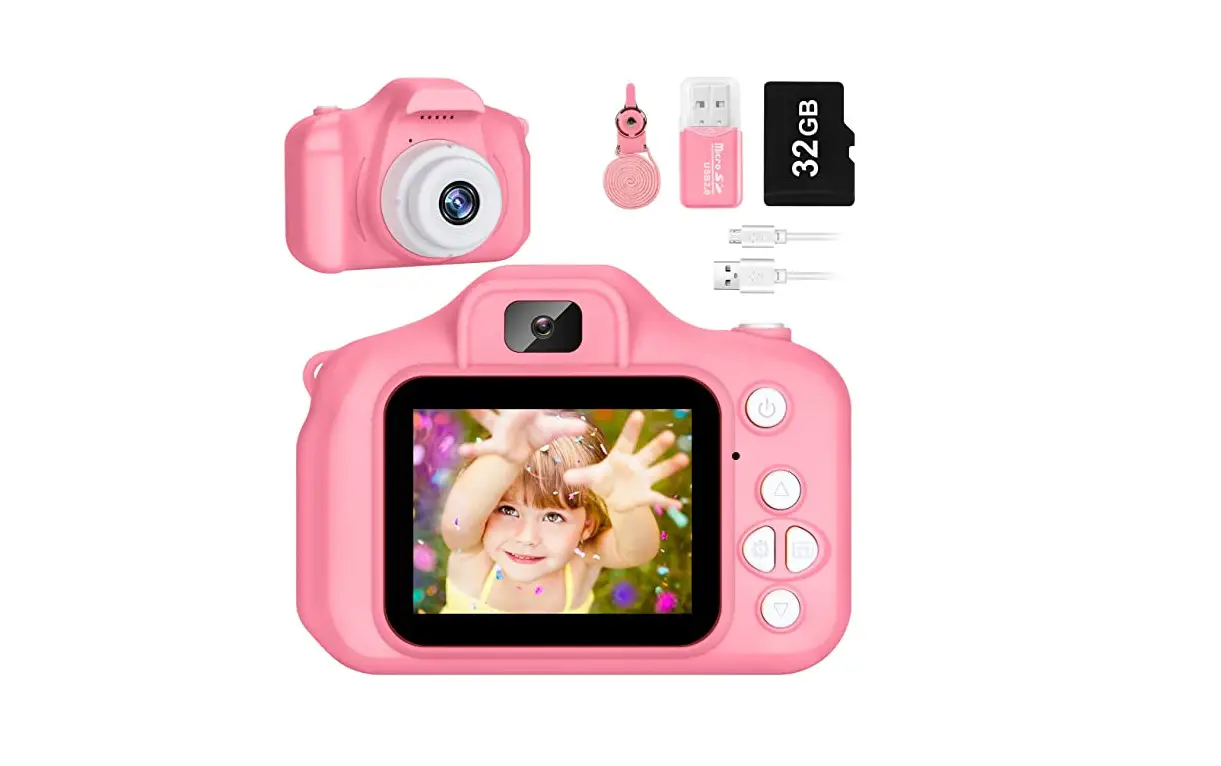
- 1 x Kids Cameras
- 1 x Lanyard
- 1 x Cartoon Case
- 1 x USB Charging Cable
- 1 x 16GB Memory Card
- 1 x User Manual
Contact Us
For any inquiries or comments concerning our products, please send an email to [email protected] , and we will respond to you as soon as possible.