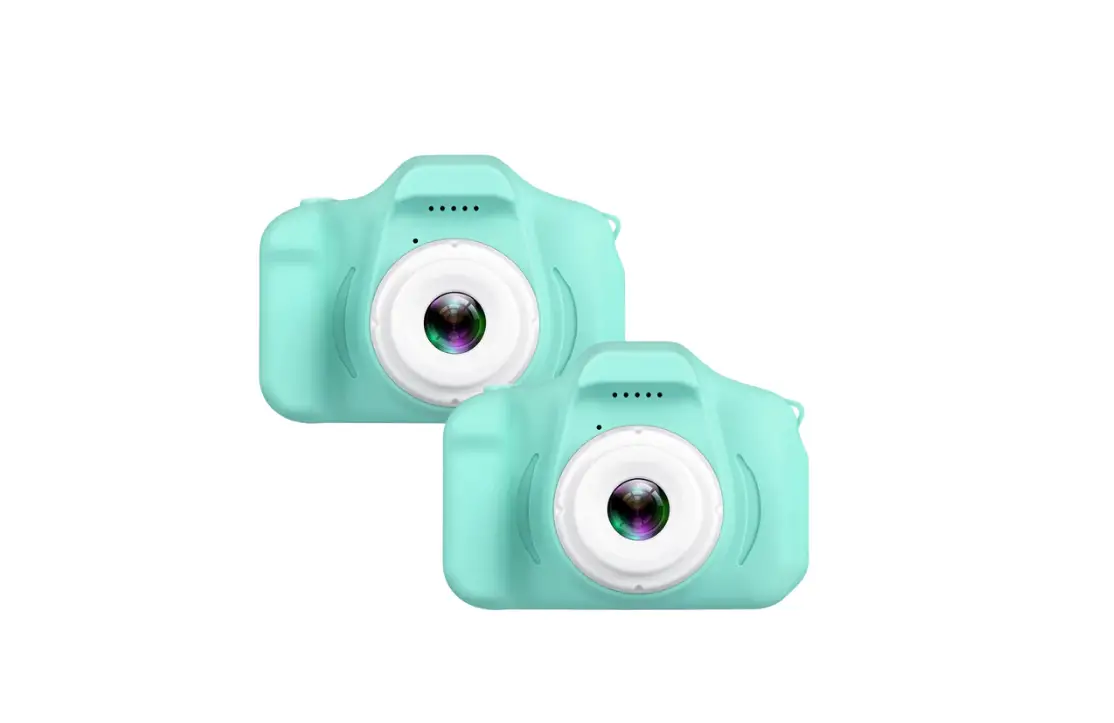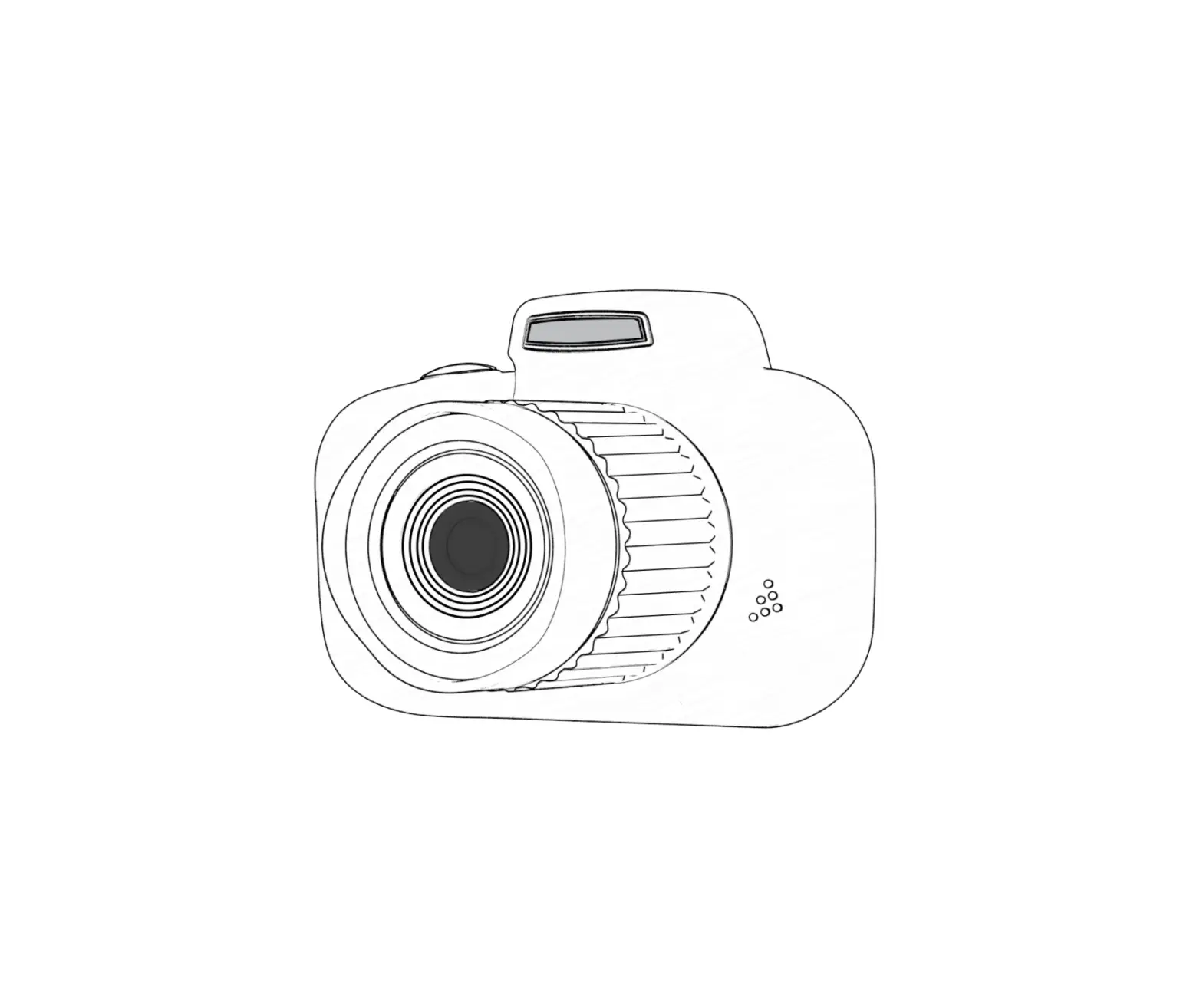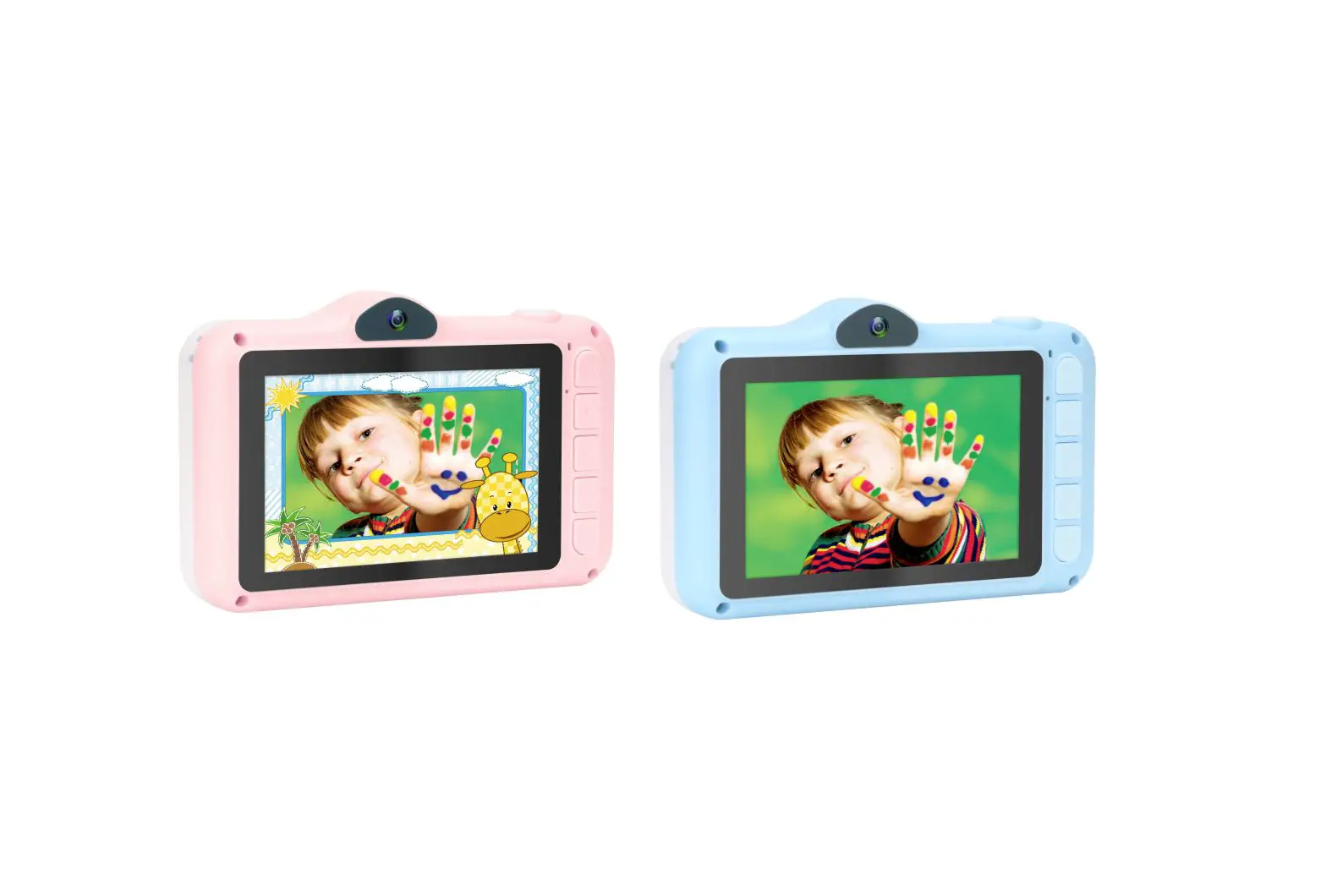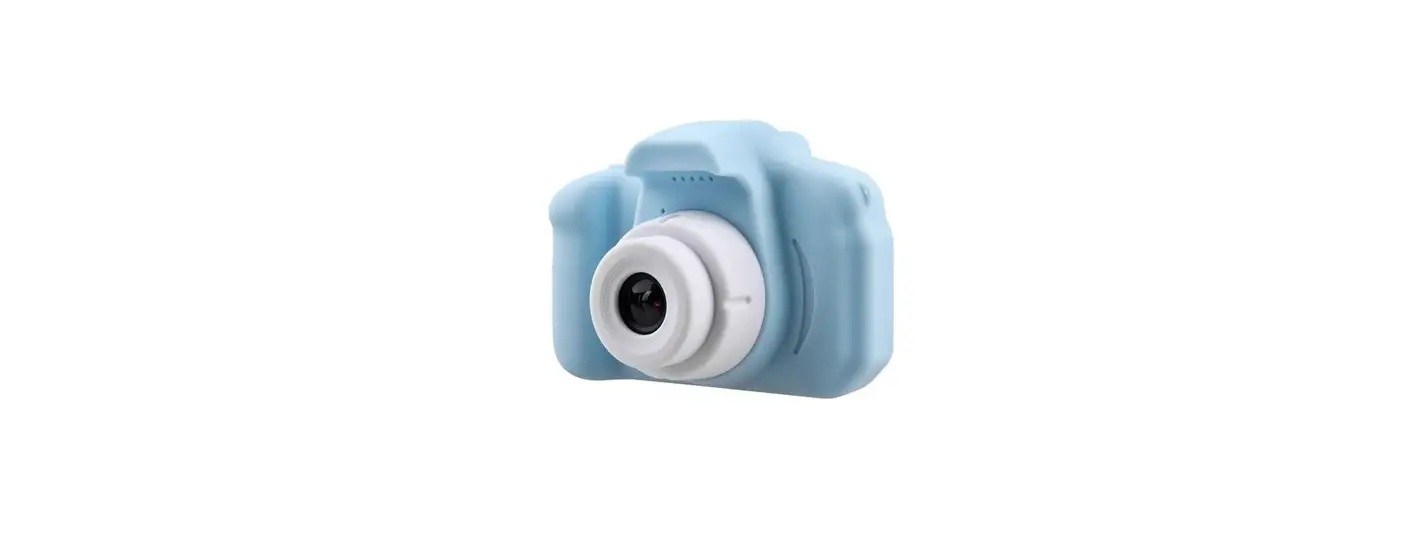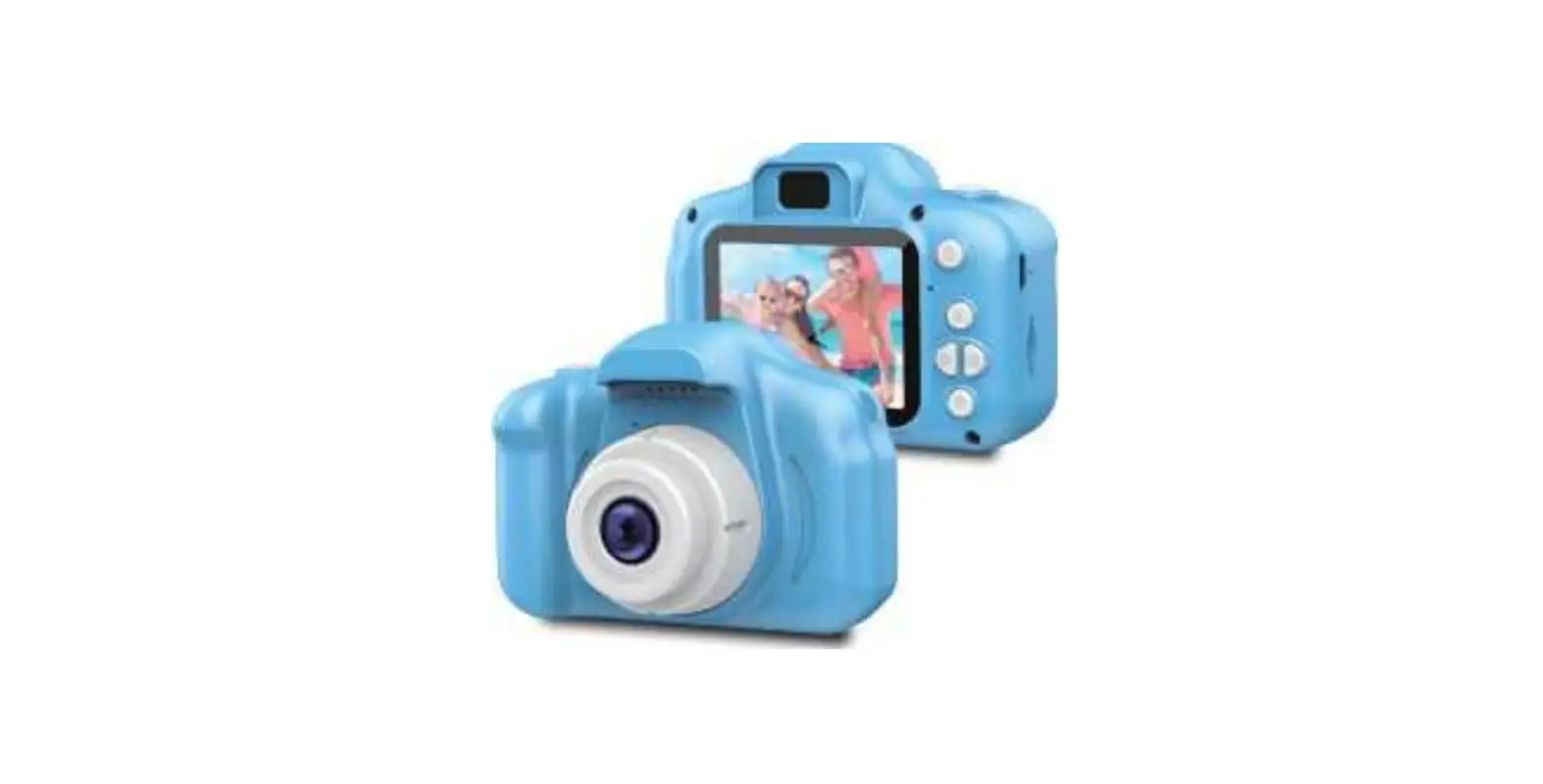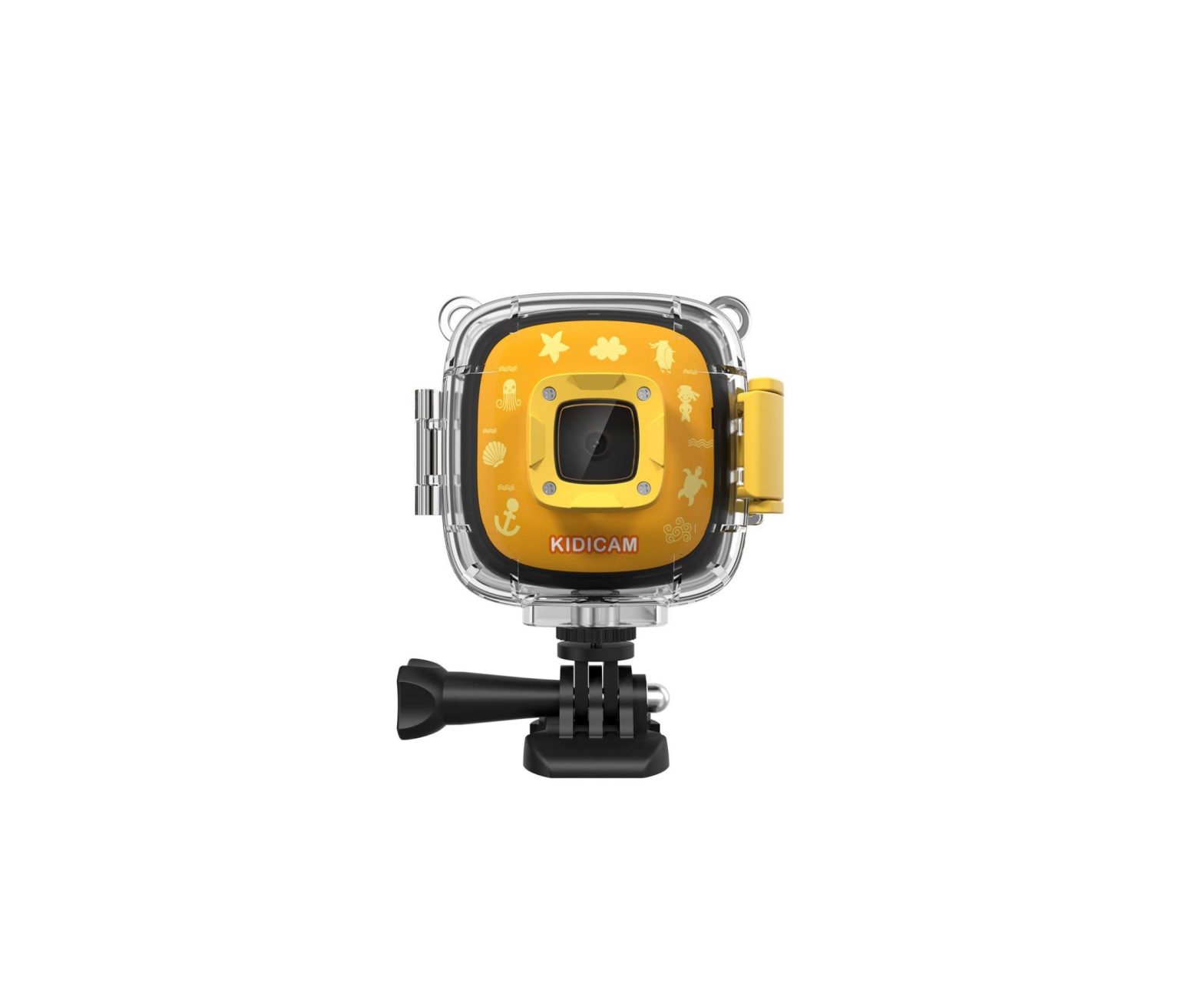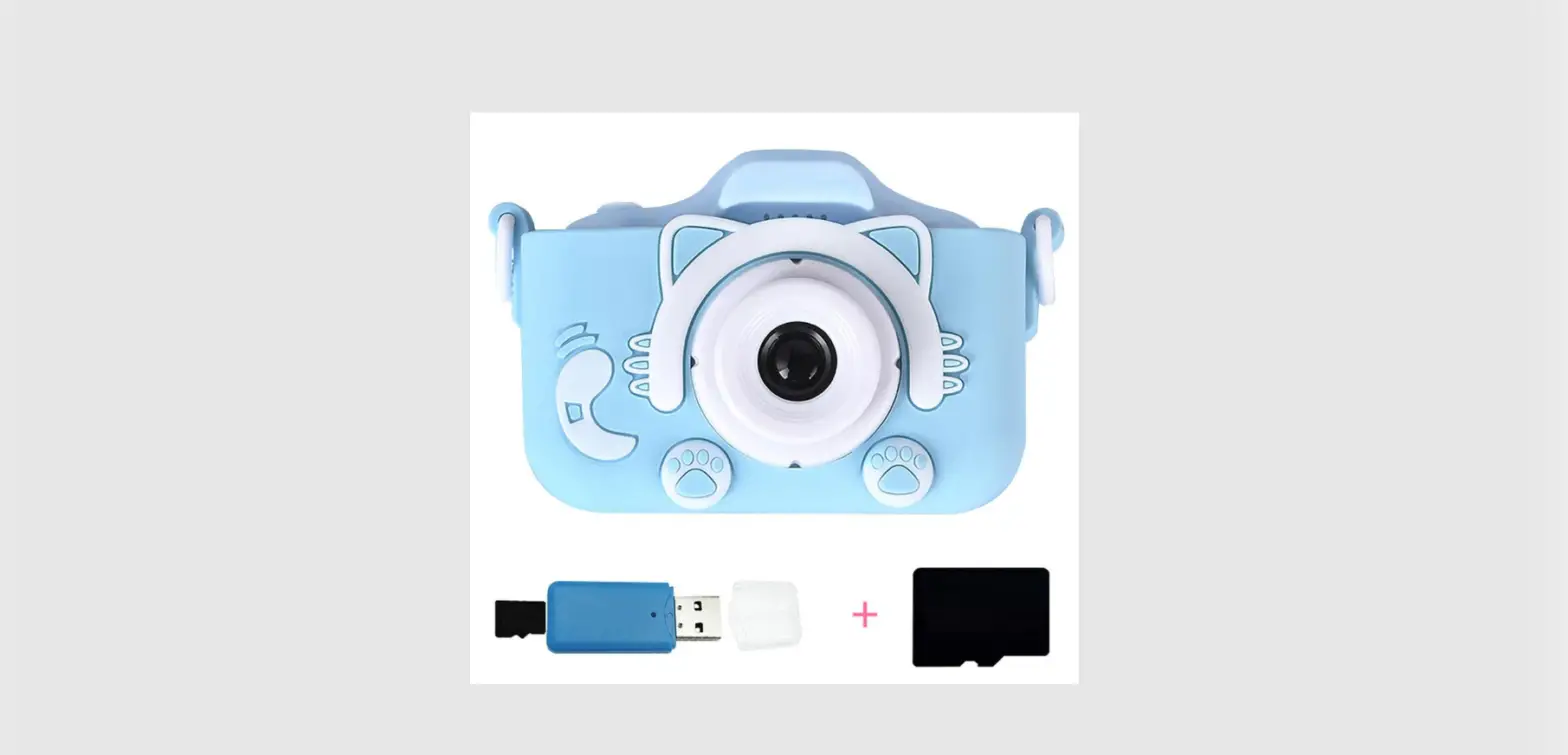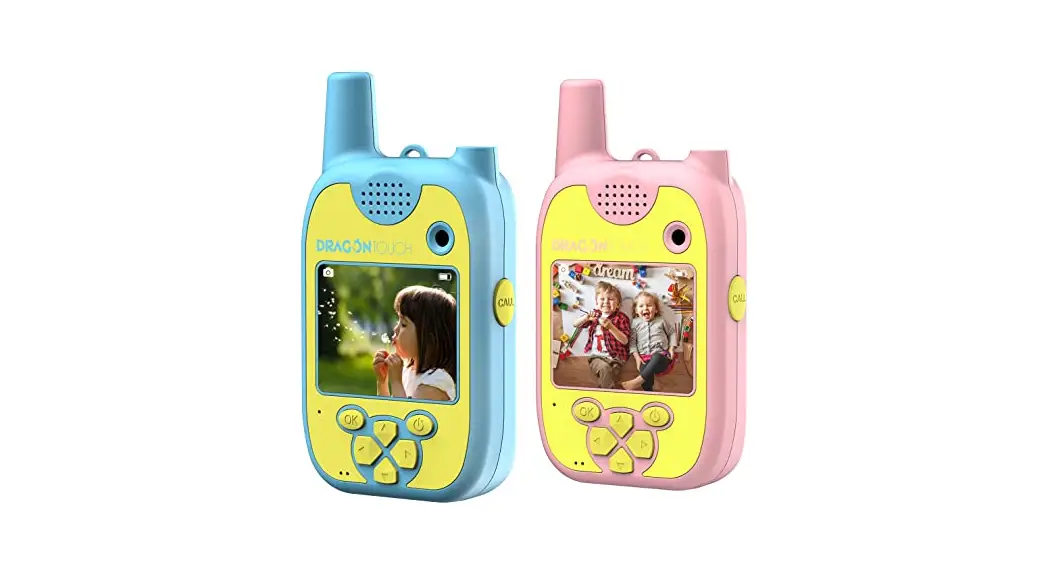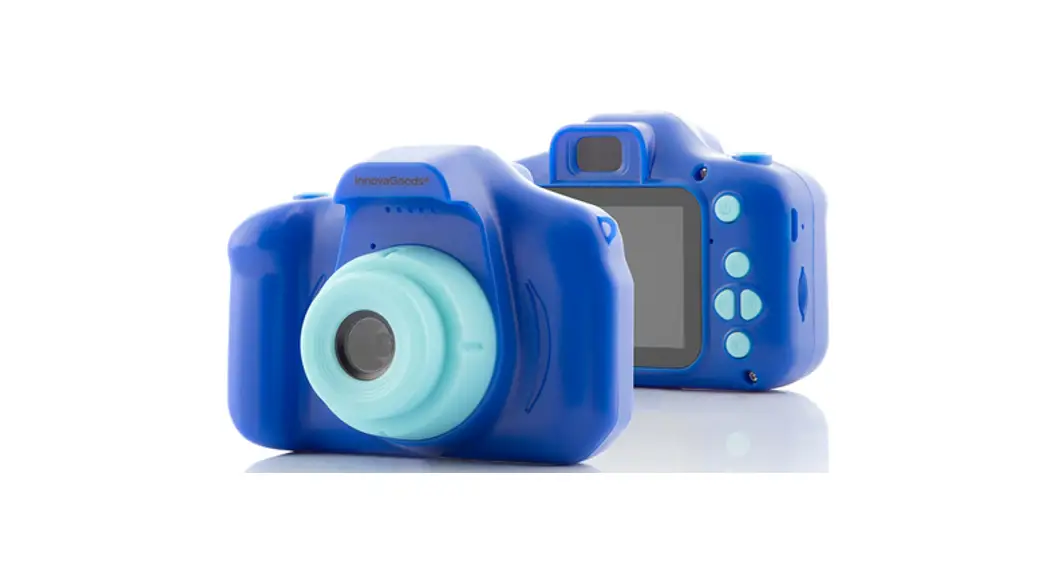

DARTWOOD KIDS Camcorder Camera
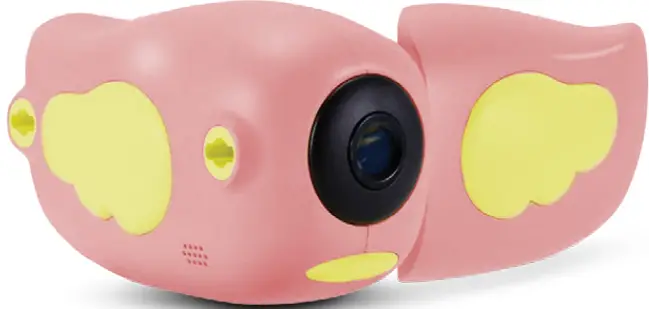
In the Box
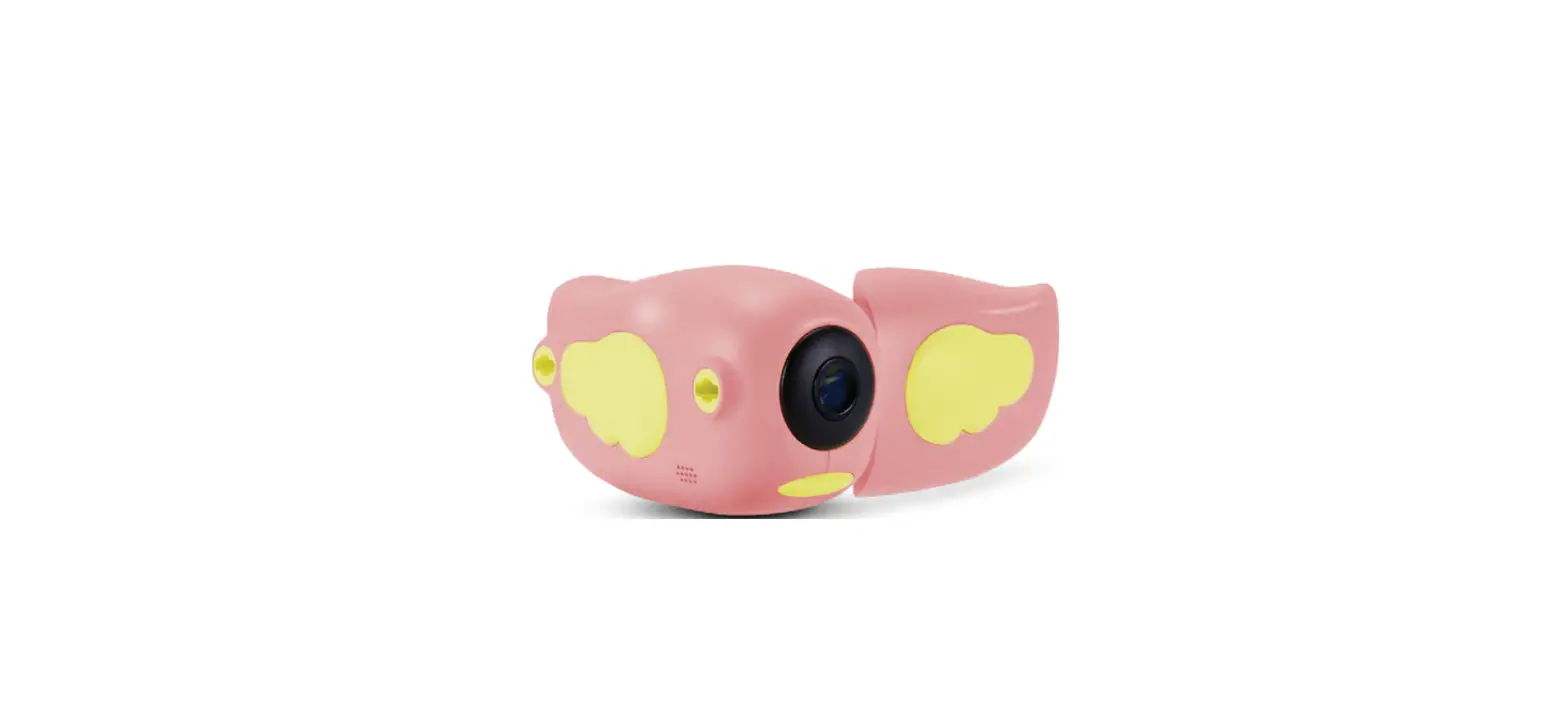
- 1x DV Camera
- 1x Handle Strap
- 1x USB Cable
- 1x Lanyard
- 1x Manual
- 1x 32GB SD card
Introduction to Parts
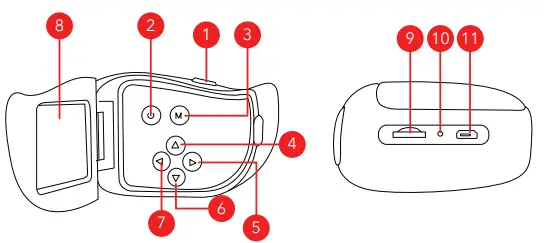
- Shutter Button
- Power Button
- Menu Button
- Up
- Right
- Down
- Left
- Display
- TF Card Slot
- Reset Button
- MicroUSB Port
Operation Instructions
Main menu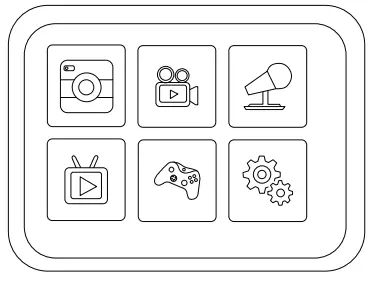
- Power On/Off
Long press the Power button to turn it on. Long press the Power button to turn it off. - Video Mode
Select from the main menu to switch to video mode. Press the shutter button to start recording a video. Press again to stop recording.
 - Photo Mode
Select from the main menu to switch to photo mode. Press the shutter button to take a picture. A light will flash once indicating that the photo is complete.
 - Recording Mode
Select the from the main menu to switch to recording mode. Press the shutter button to start recording. A flashing red dot will be flashing on the screen indicating the recording is working. Press the shutter button to stop recording.
 - Playback Mode
Select the to switch to playback mode. The playback icon will be displayed in the upper right corner of the screen. Press the up or down button to navigate. Press the shutter button to view or play the selected file. - Game Mode
Select the to switch to game mode. If you are done selecting a game, you can navigate with the directional buttons (up, down, left, right) and your action button is going to be the shutter button.
 - Settings Menu
Select the to switch to the setting menu. Press the up and down button to navigate. Select the settings you need to change by pressing the shutter button. Press the shutter button to confirm the changes. To exit, press the Menu button.
 from the main menu to switch to video mode. Press the shutter button to start recording a video. Press again to stop recording.
 from the main menu to switch to photo mode. Press the shutter button to take a picture. A light will flash once indicating that the photo is complete.
 the from the main menu to switch to recording mode. Press the shutter button to start recording. A flashing red dot will be flashing on the screen indicating the recording is working. Press the shutter button to stop recording.
 to switch to playback mode. The playback icon will be displayed in the upper right corner of the screen. Press the up or down button to navigate. Press the shutter button to view or play the selected file.
 to switch to game mode. If you are done selecting a game, you can navigate with the directional buttons (up, down, left, right) and your action button is going to be the shutter button.
 to switch to the setting menu. Press the up and down button to navigate. Select the settings you need to change by pressing the shutter button. Press the shutter button to confirm the changes. To exit, press the Menu button.
USB Mode
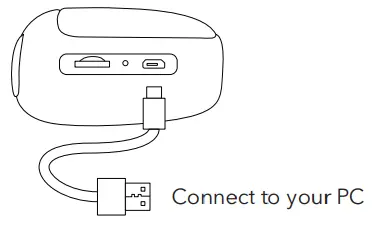
Connect the camera in to your PC to access the files on the camera.
Battery
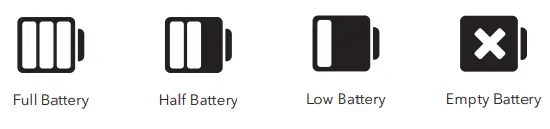
To charge the camera, use the USB cable supplied and connect to a power source, the blue charging indicator will flash while charging.
Specifications
- Image Sensor: GC0308
- Display: 2.0inch color display
- Camera Lens: Fixed lens, 100 degrees
- Storage: Mini SD card, 32G maximum
- Camera Format: JPEG
- Resolution: 720P: 1280×720
- TFT Display: 2.0-inch screen (720×320)
- Photo Resolution: 12m, 8m, 5m, 3m, 2m, 1.3m, VGA
- Charge Voltage: DC-5V
- Frequency: 50HZ, 60HZ
Get More Support
Scan the QR code below or, email us at:
[email protected]
For more information, please visit:
www.wasserstein-home.com
Made in China
 Fairway Independent Mortgage Corporation
 Thoughtful Smart Home Products — Wasserstein Home