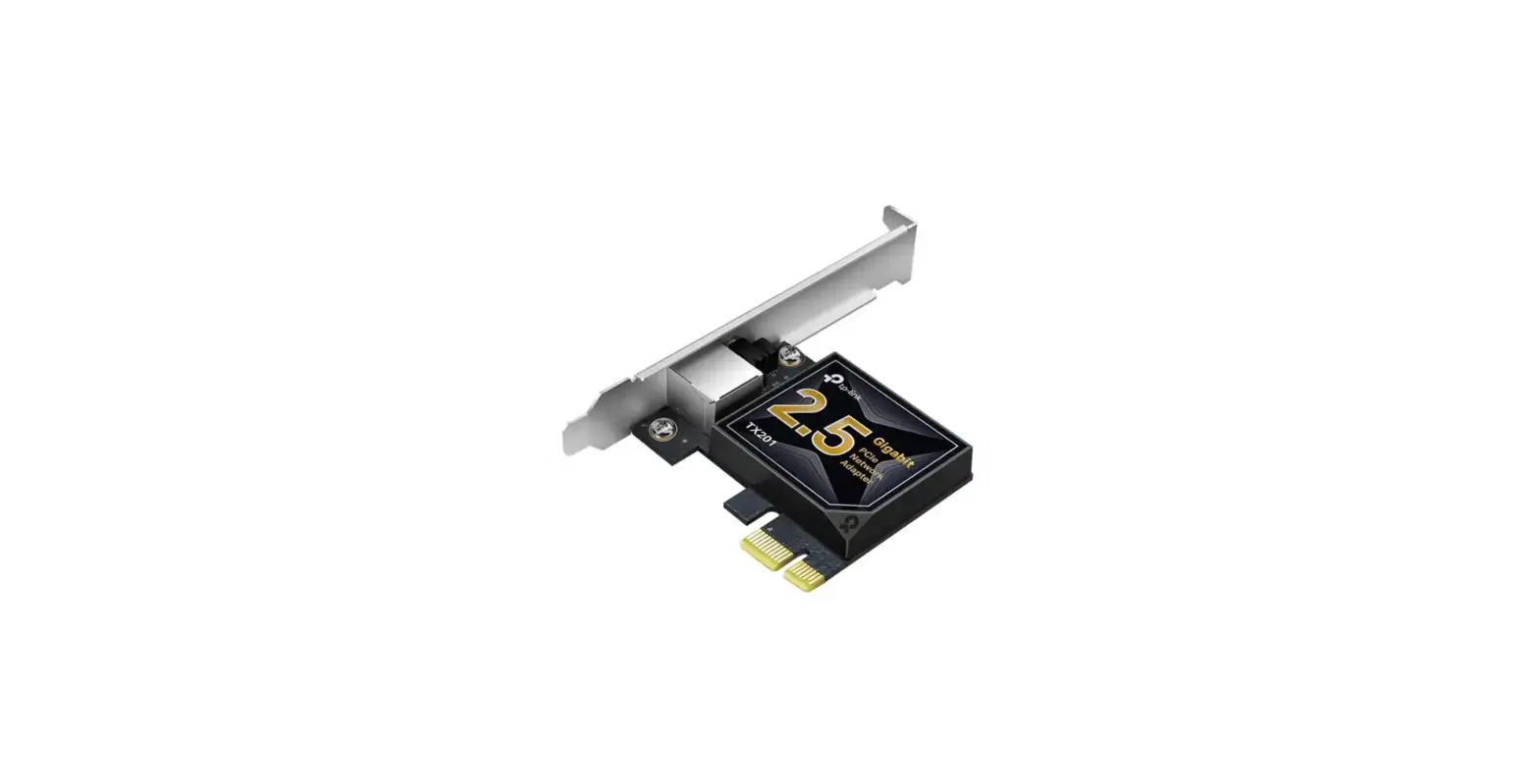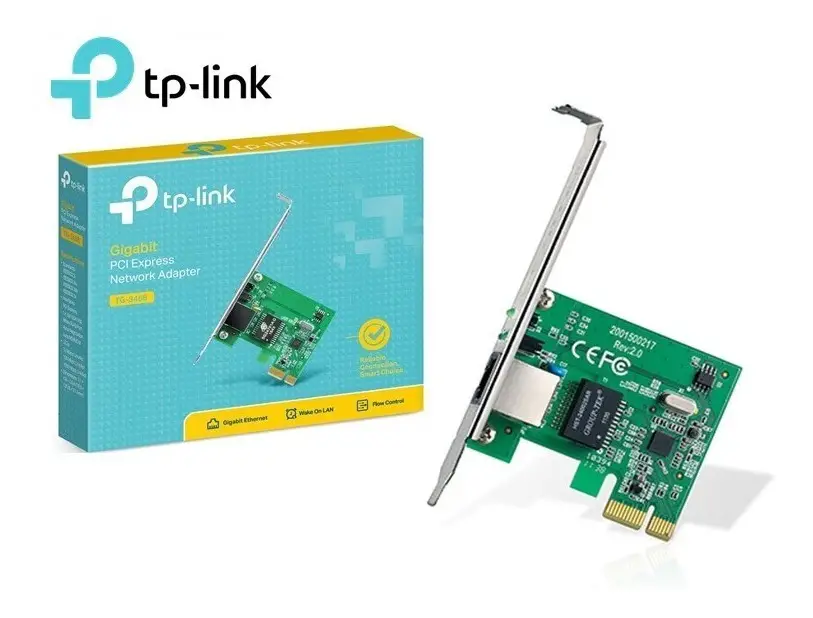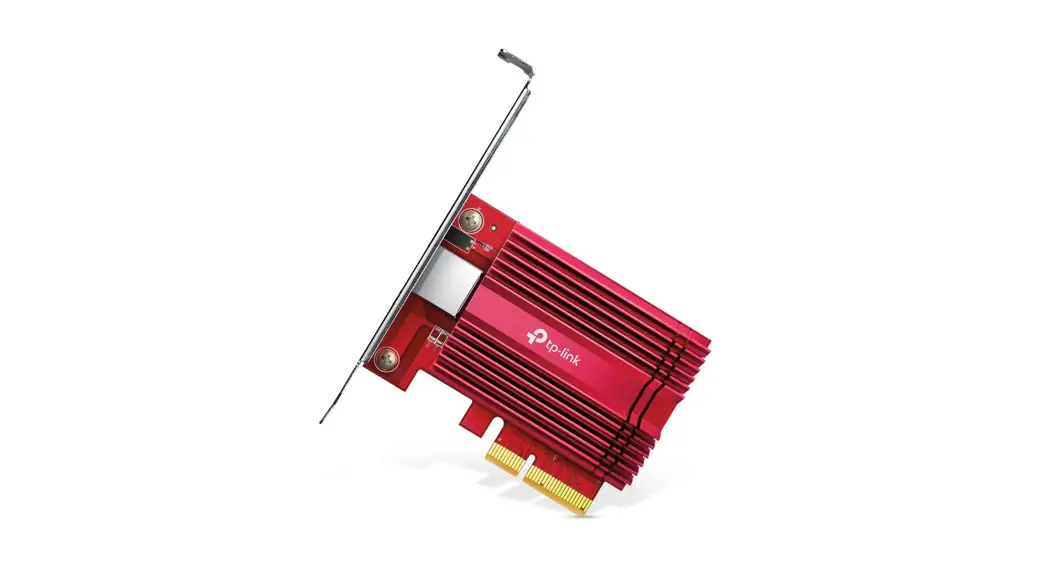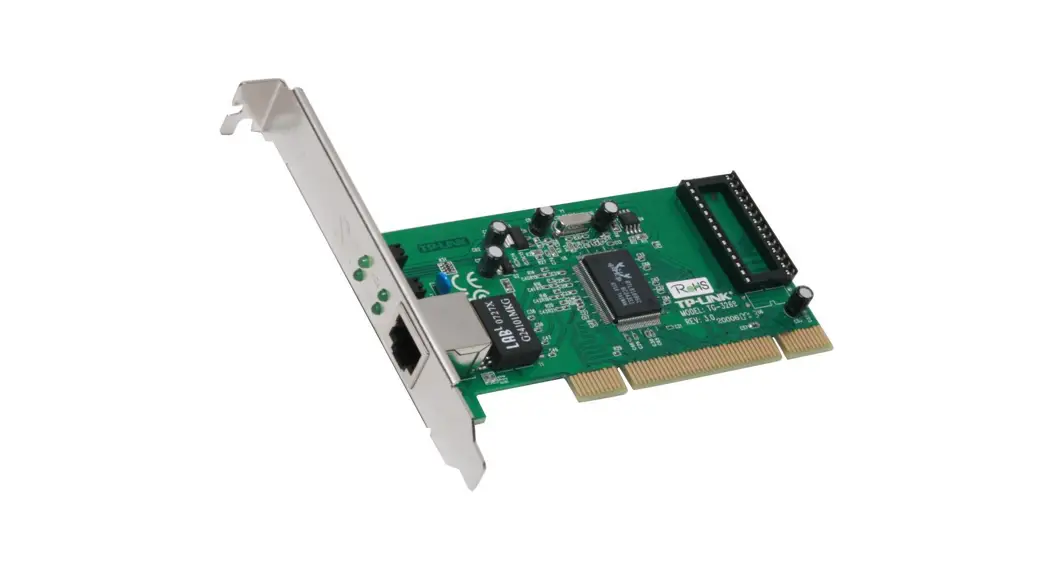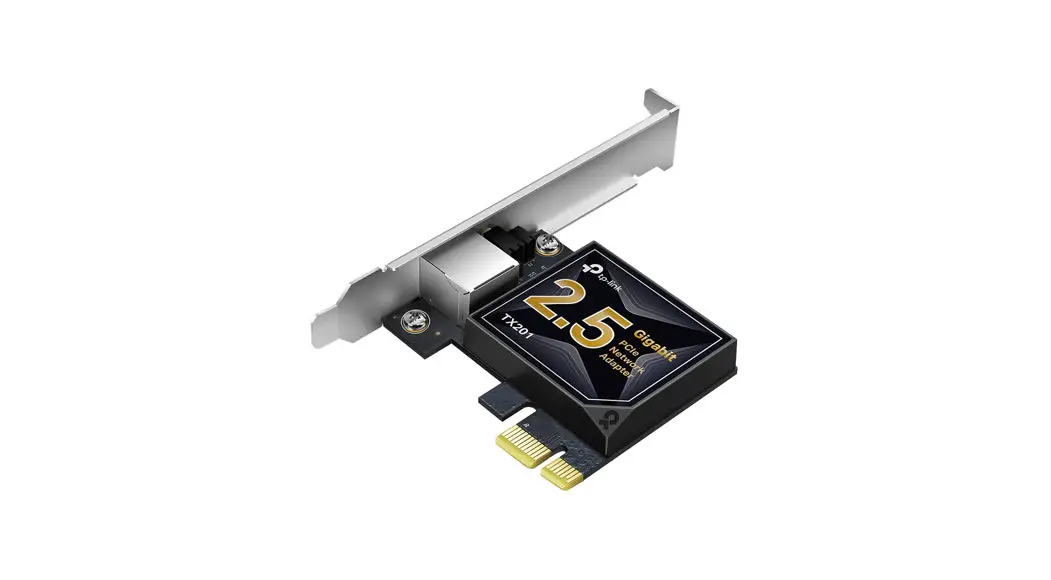

TX201 2.5 Gigabit PCI Express Network Adapter
Installation Guide
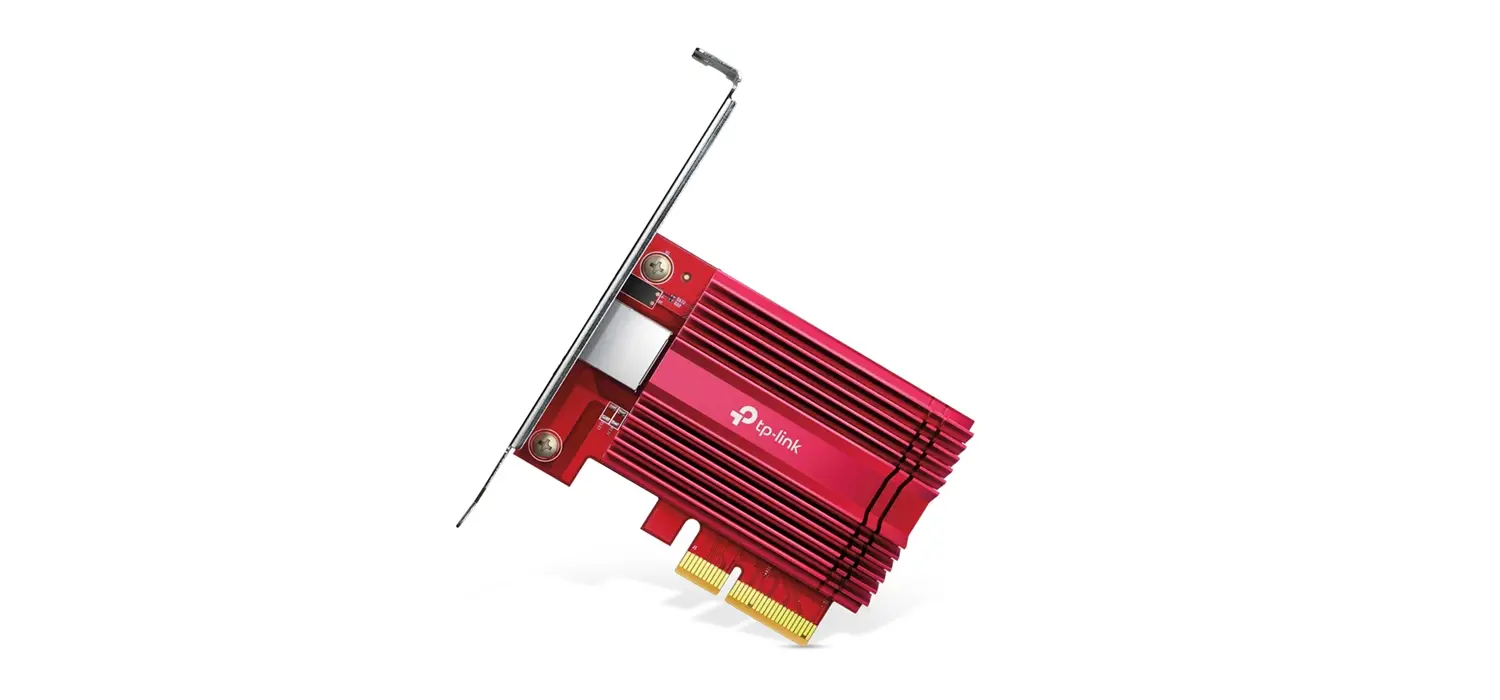
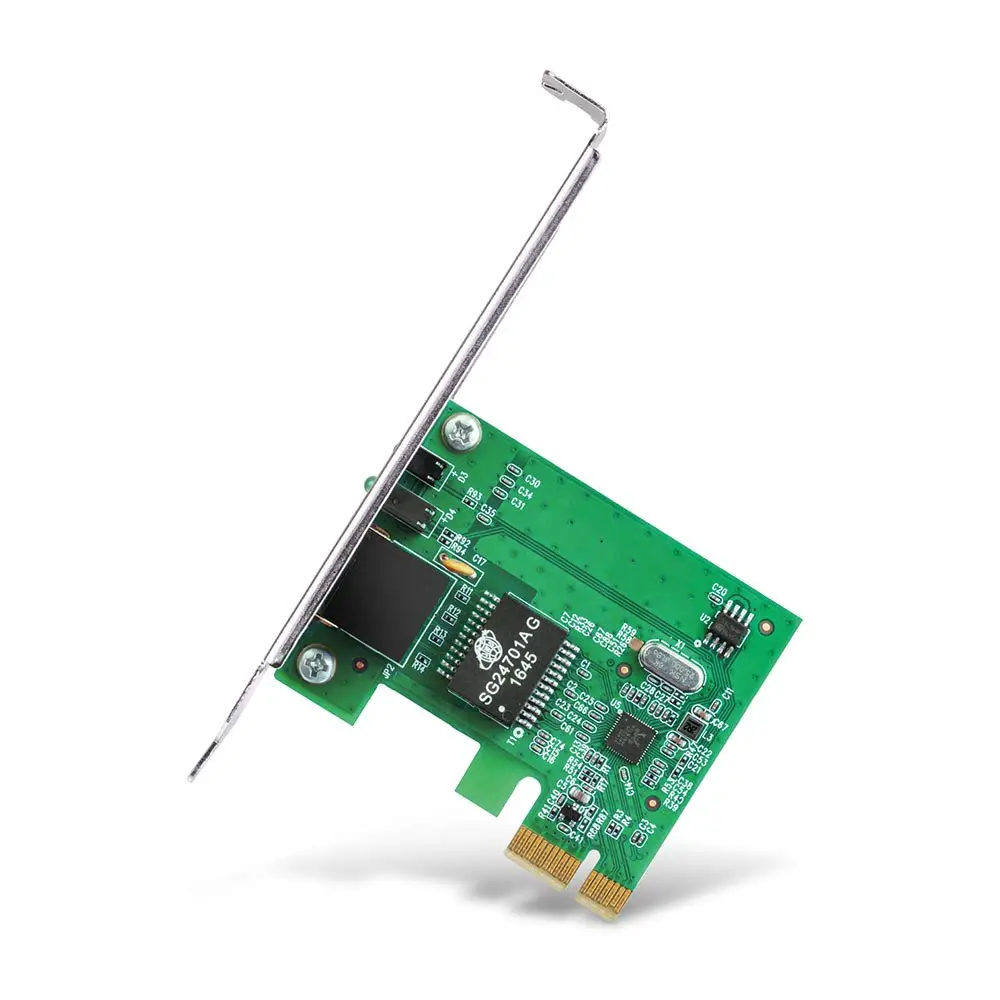
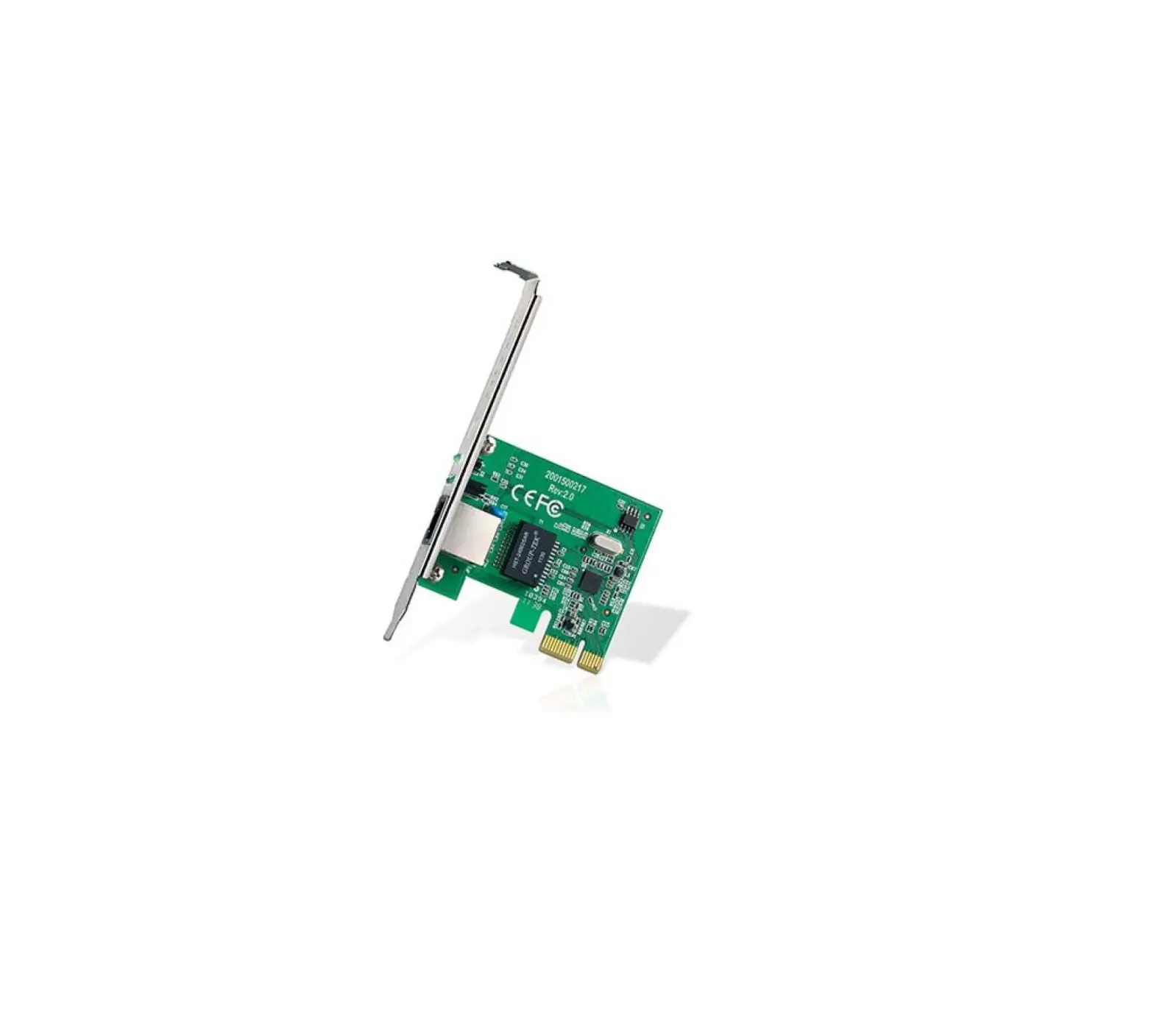
Images are for demonstration only.
Hardware Connection
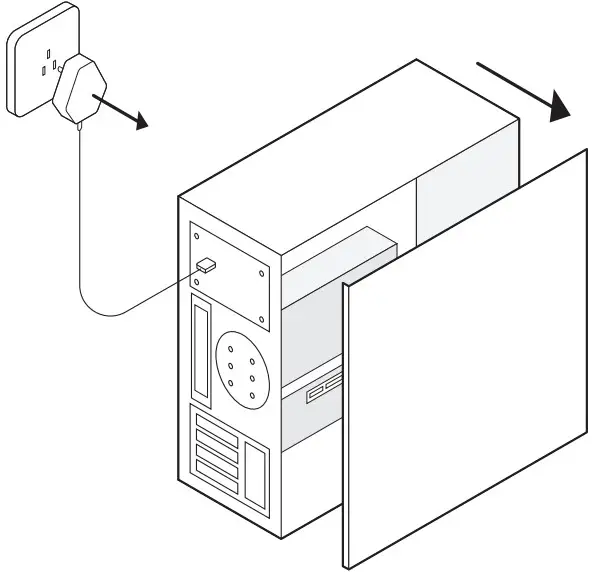
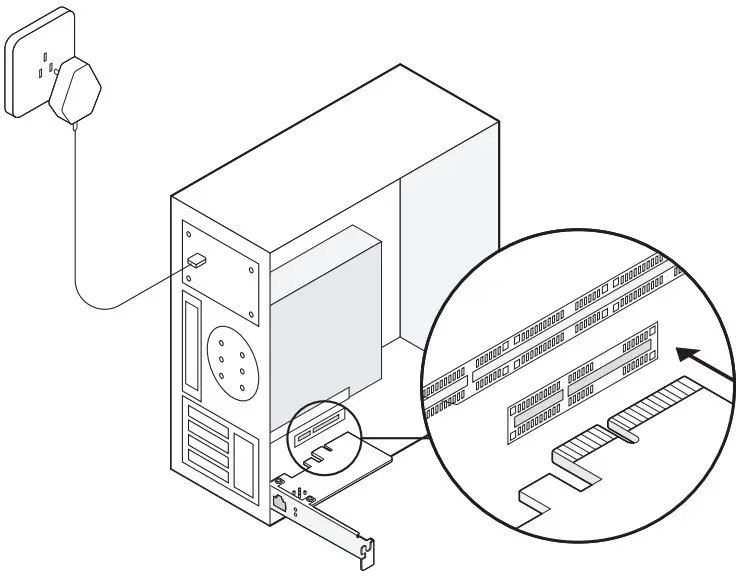
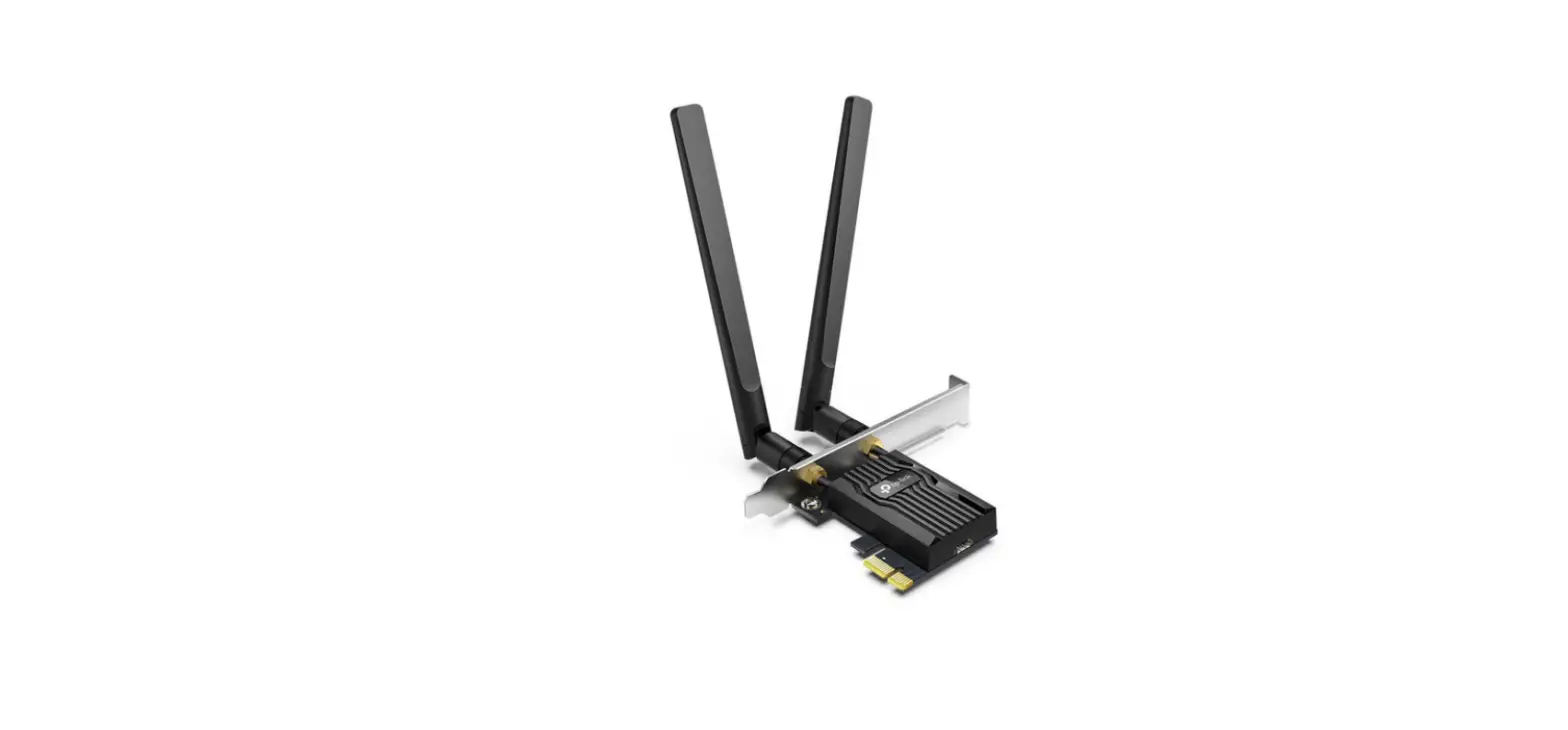
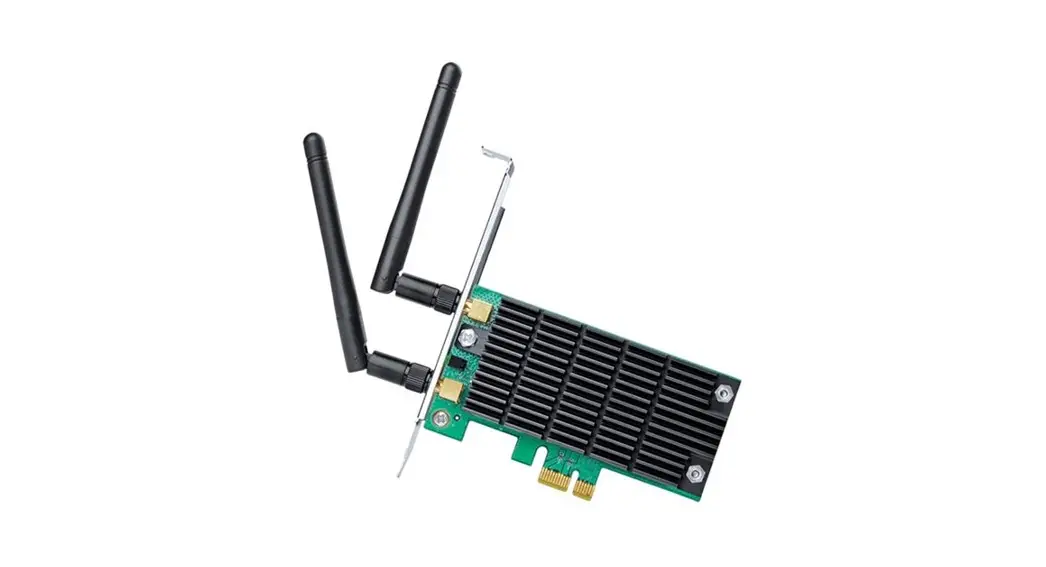
a. Turn off your computer, unplug the power cable and remove the case panel.b. Locate an available PCI-E slot and carefully insert the adapter.
Note:
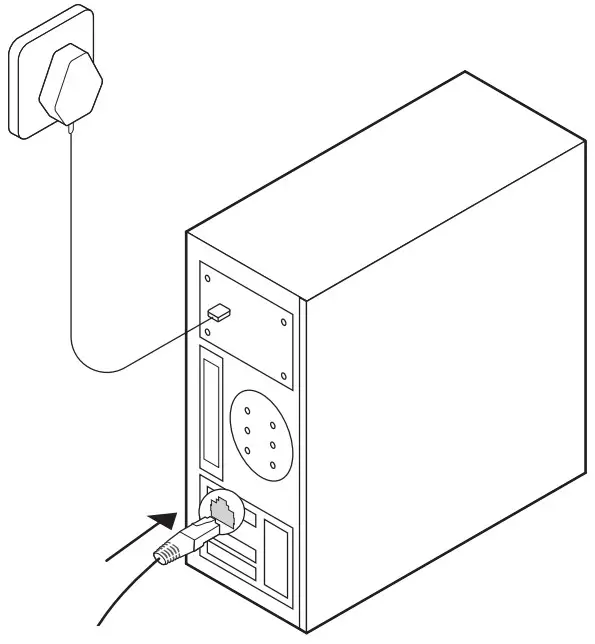
If the bracket is not suitable for your computer, detach it from the adapter’s board and replace it with the low-profile bracket.c. Replace the case panel, plug in the power cable and turn on your computer. Then connect the Ethernet cable to the adapter.
Driver Installation
a. Insert the CD and run the Autorun.exe.
Note:
- You can also download the driver or check the new release at https://www.tp-link.com/download-center
- To install driver on Linux, refer to https://www.tp-link.com/faq-2868.html
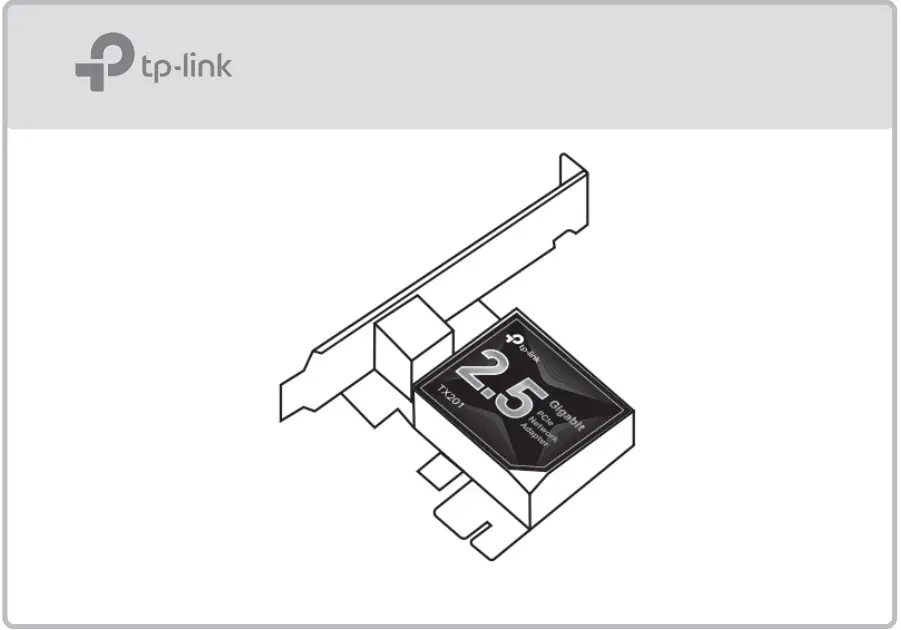
b. Select your adapter and follow the instructions to complete the installation.
Note:
If you can’t install the driver successfully, disable the antivirus software and firewall, then try again.
LED Indicator
| LED | Status |
| 100M/10M Link | On: The adapter speed is negotiated to 100 Mbps/10 Mbps, but no data transmission. Flashing: The adapter is working at 100 Mbps or 10 Mbps. Off: No link or the adapter is working at a different speed. |
| 1000M Link | On: The adapter speed is negotiated to 1 Gbps, but no data transmission. Flashing: The adapter is working at 1 Gbps. Off: No link or the adapter is working at a different speed. |
| 2.5G Link | On: The adapter speed is negotiated to 2.5 Gbps, but no data transmission. Flashing: The adapter is working at 2.5 Gbps. Off: No link or the adapter is working at a different speed. |
Note:
If neither LED flashes, check whether the adapter is detected by the computer or the driver is successfully installed.
Troubleshooting
– You can find and download the driver at https://www.tp-link.com/download-center
– The hardware version (Ver:X.Y) is printed on the product label on the package or the adapter. The number X is the hardware version of the adapter.
– For more detailed instructions, please visit https://www.tp-link.com/faq-46.html
– Restart your computer and try again.
– Power off the computer, then reinsert the adapter or try another PCI-E slot.
– If the problem persists, contact our Technical Support.
Support
For technical support, replacement services, user guides, and other information, please visit https://www.tp-link.com/support, or simply scan the QR code.

http://www.tp-link.com/support
- Do not attempt to disassemble, repair, or modify the device. If you need service, please contact us.
- Keep the device away from water, fire, humidity or hot environments.

©2022 TP-Link
7106509827
REV1.0.1
 Download Center | TP-Link