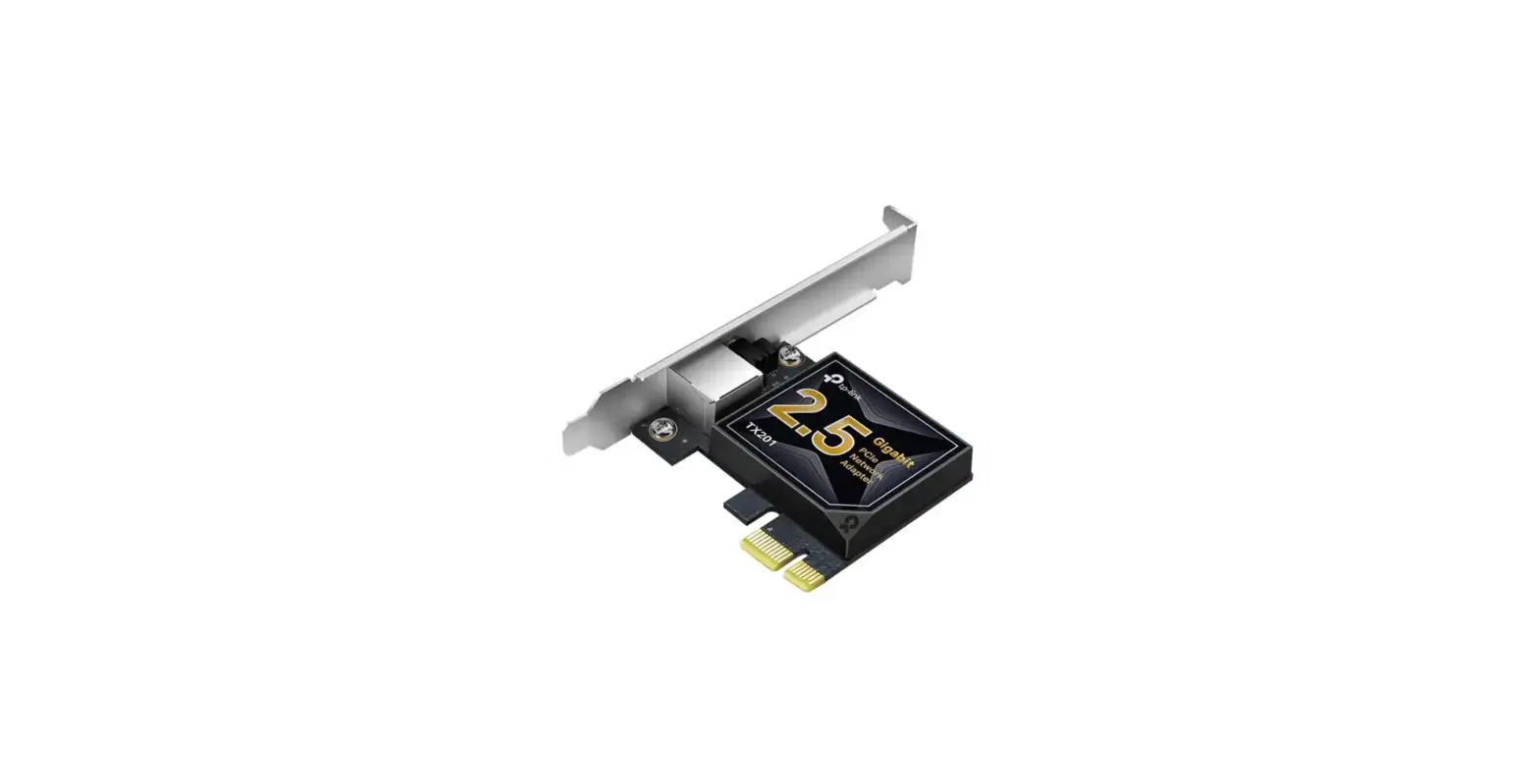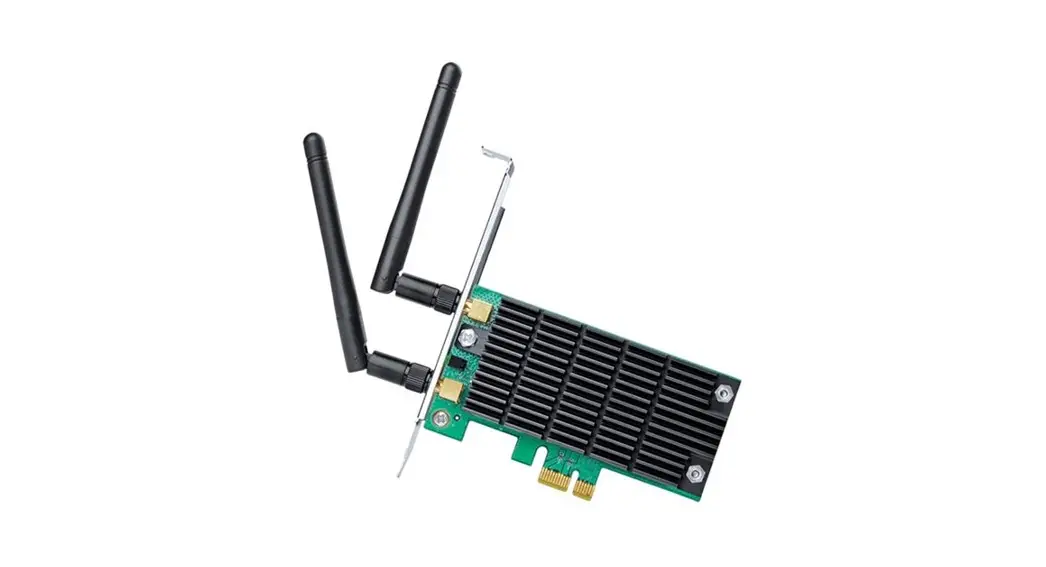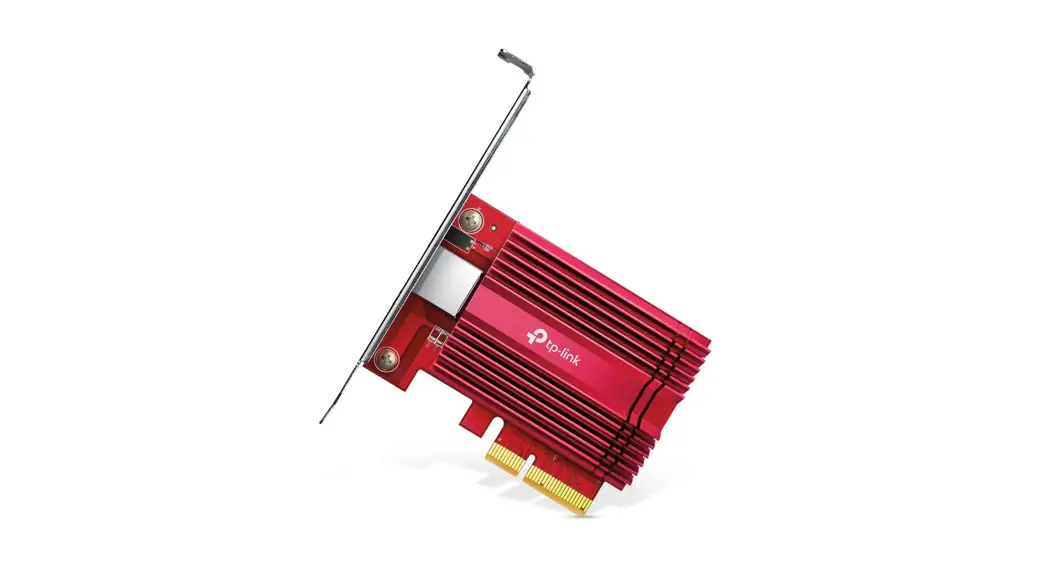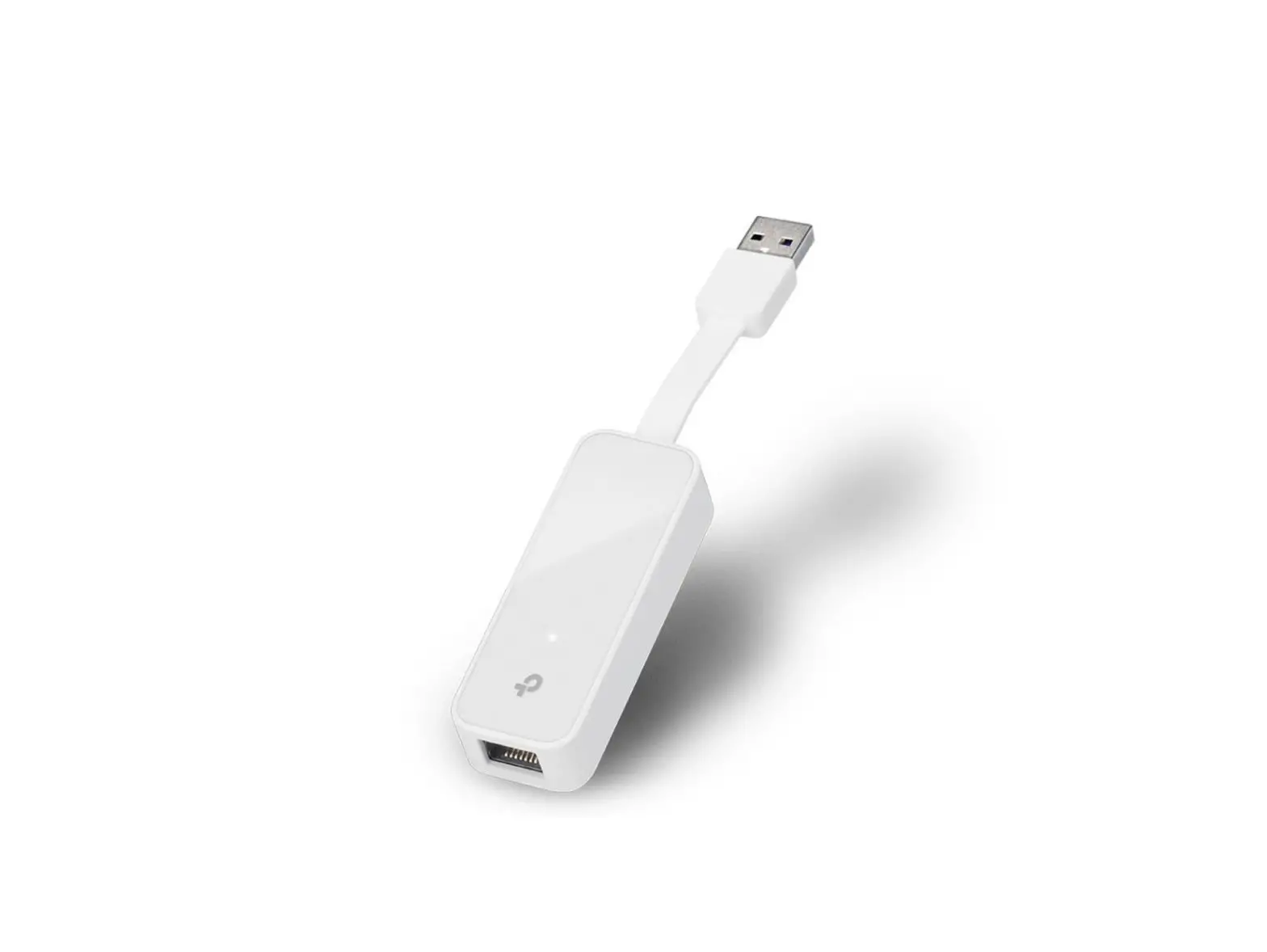

Quick Installation Guide
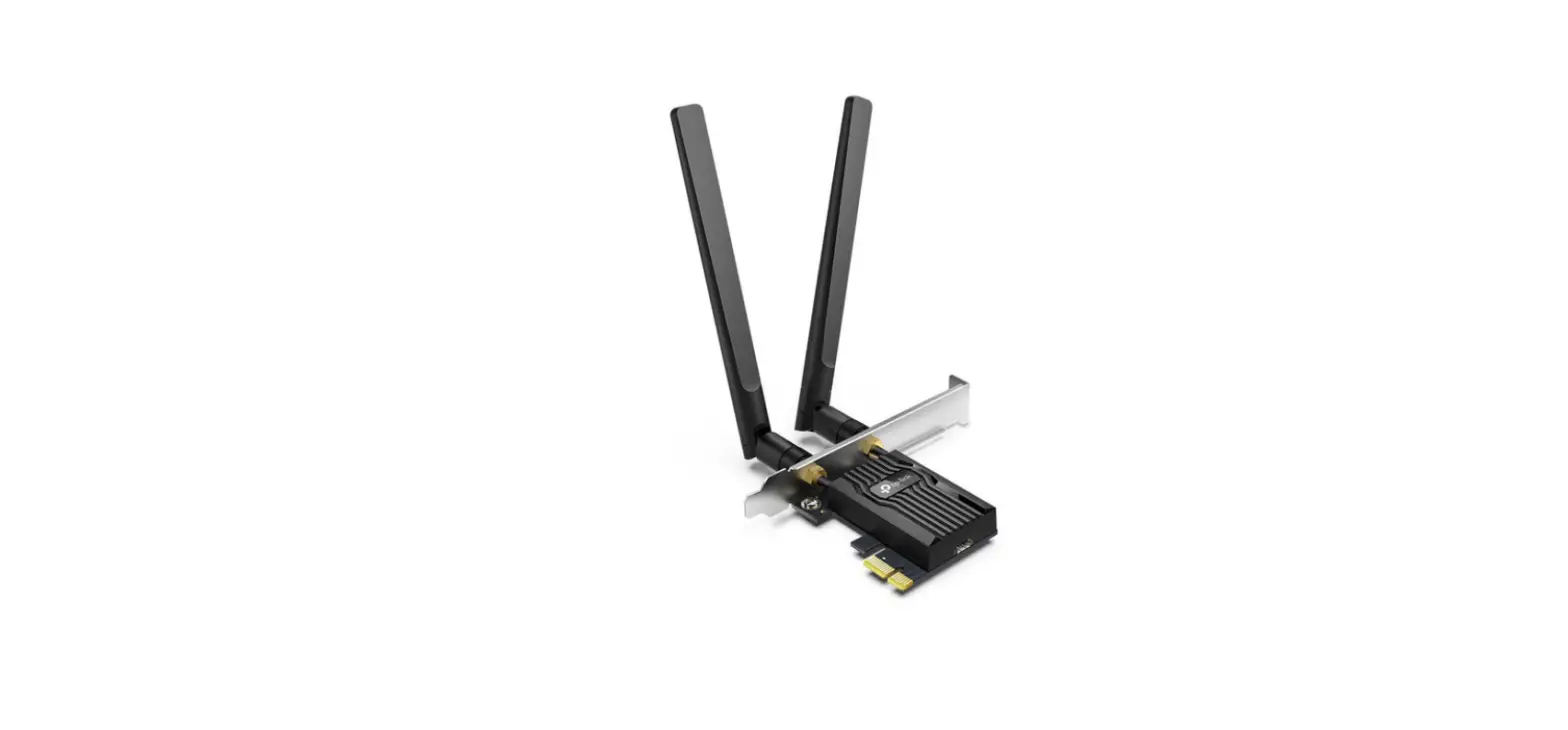
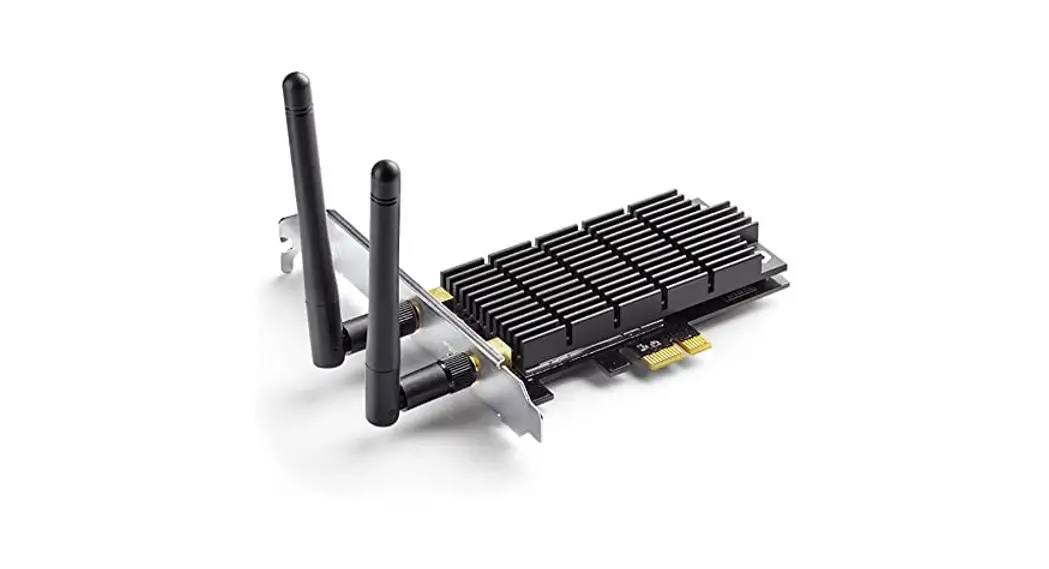
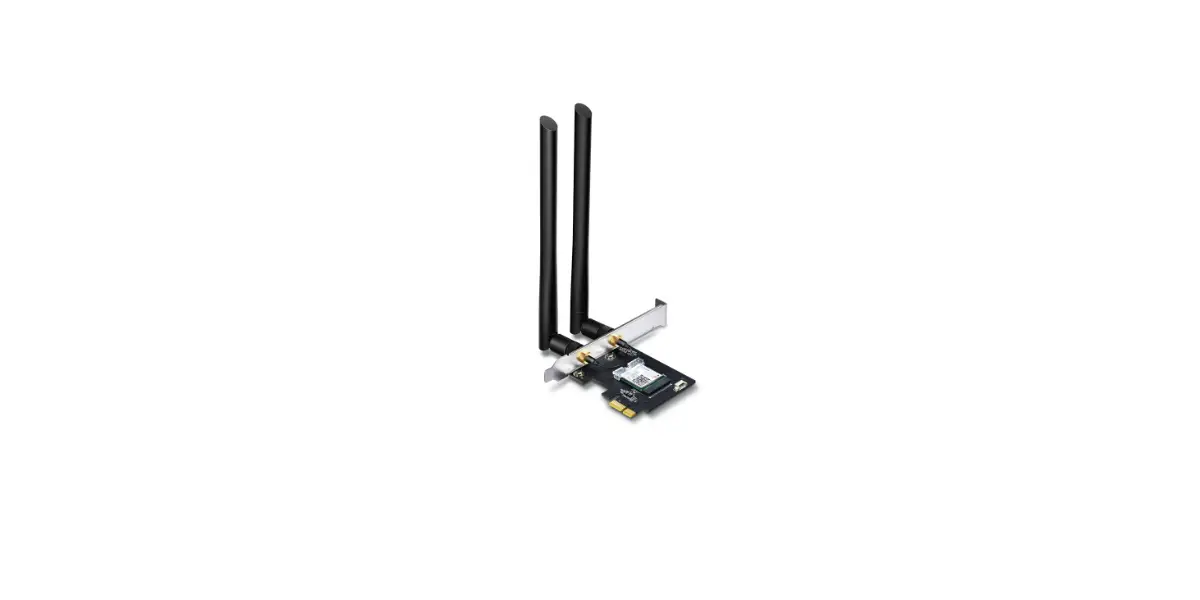
PCI/PCI Express Network Adapter
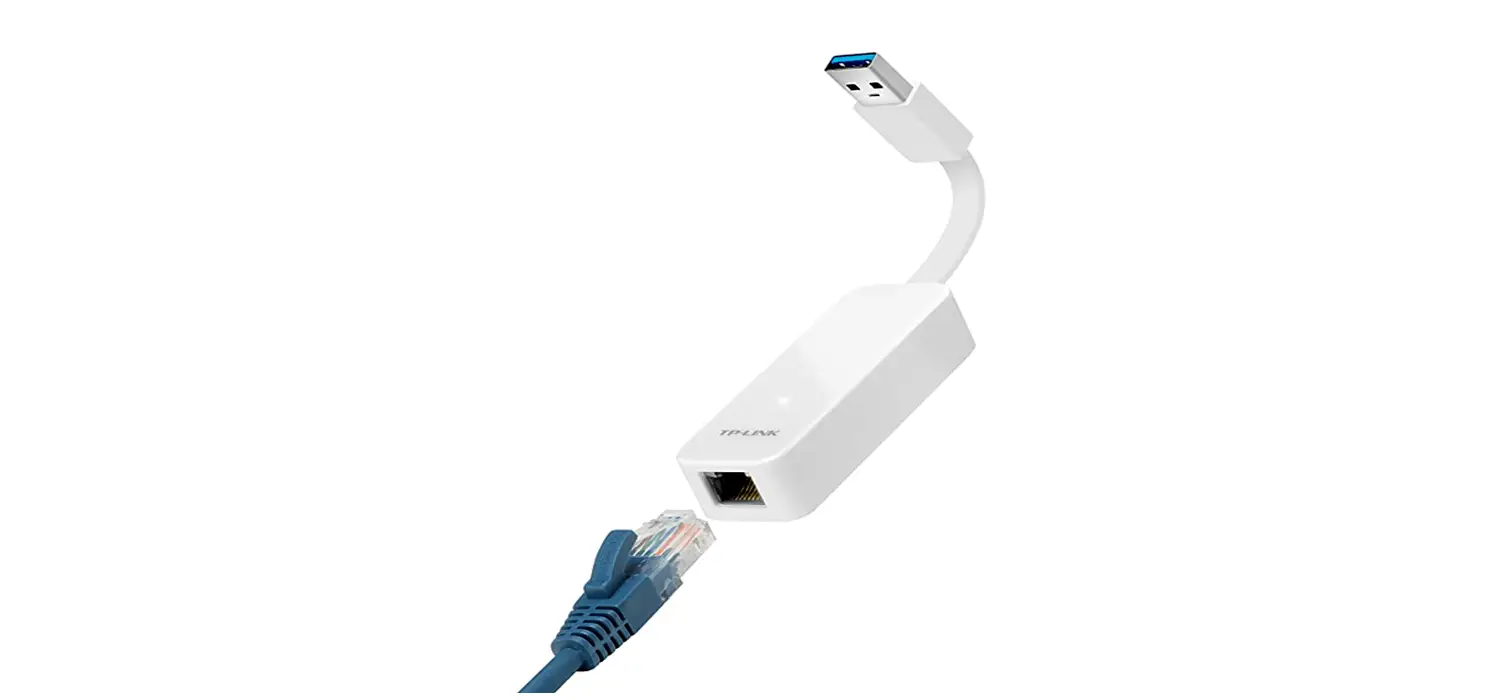
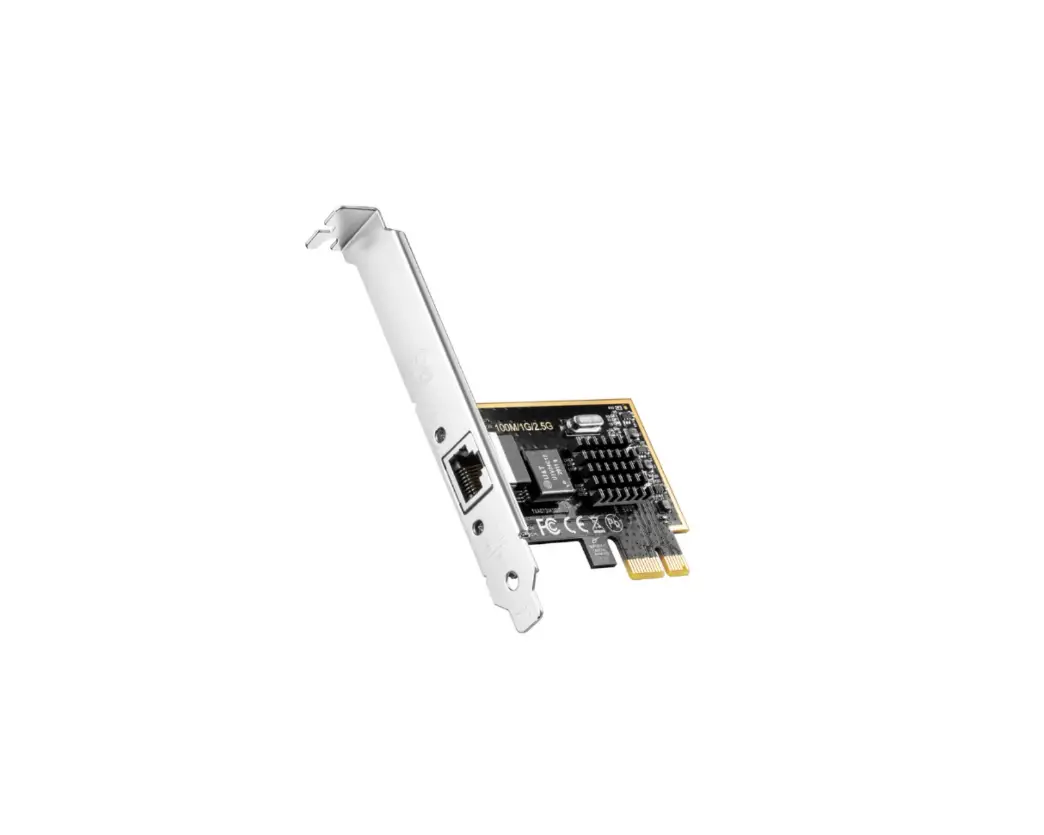
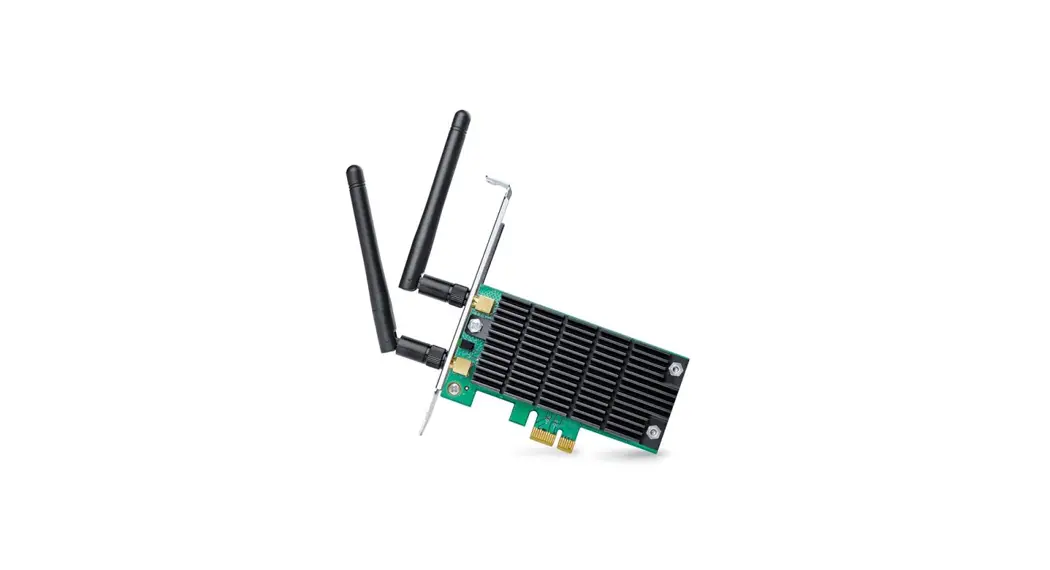
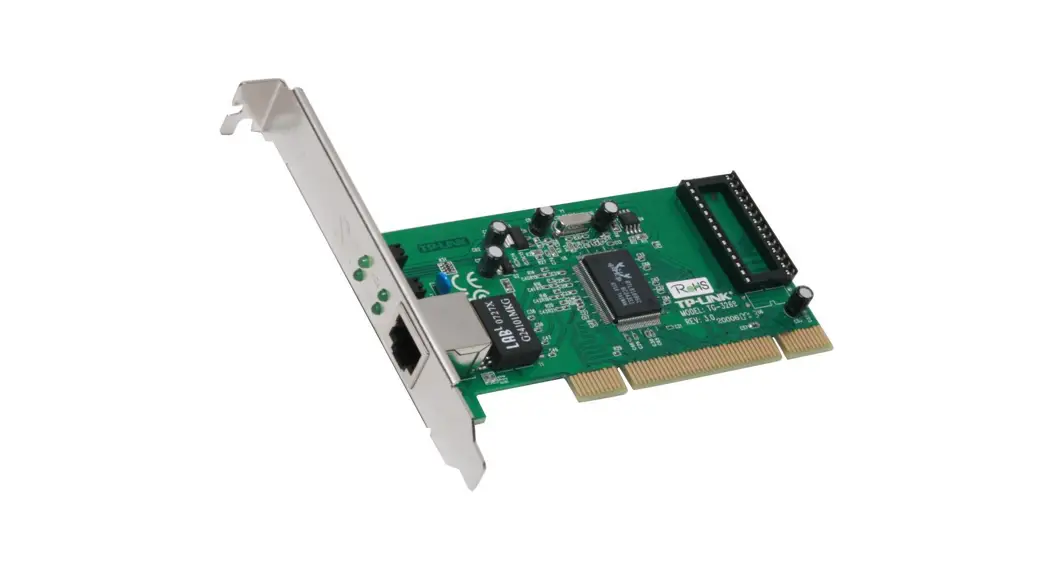
MODEL NO. TG-3269/ TG-3468/ TF-3200/ TF-3239DL
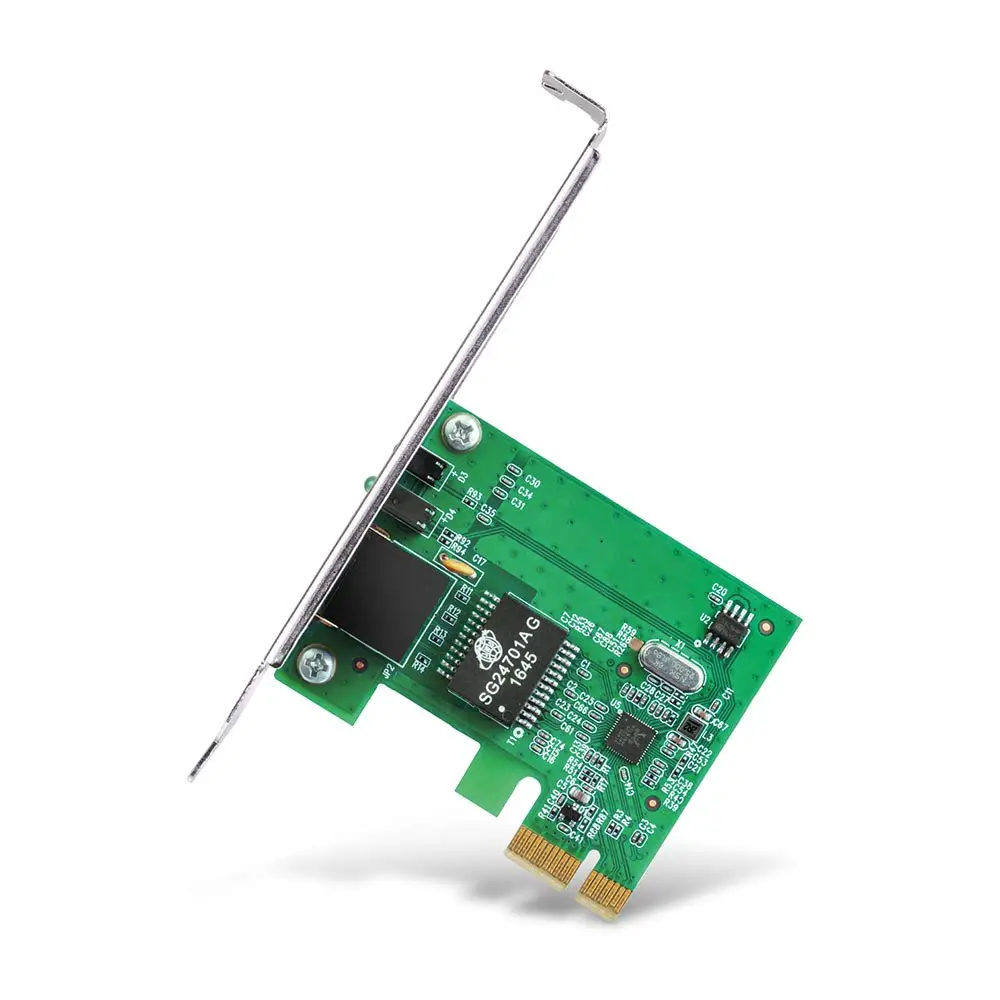
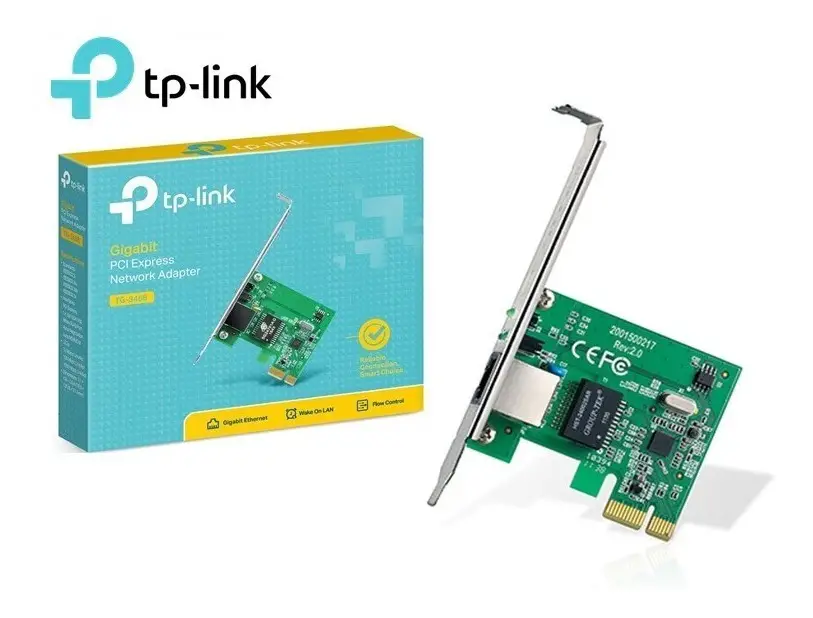
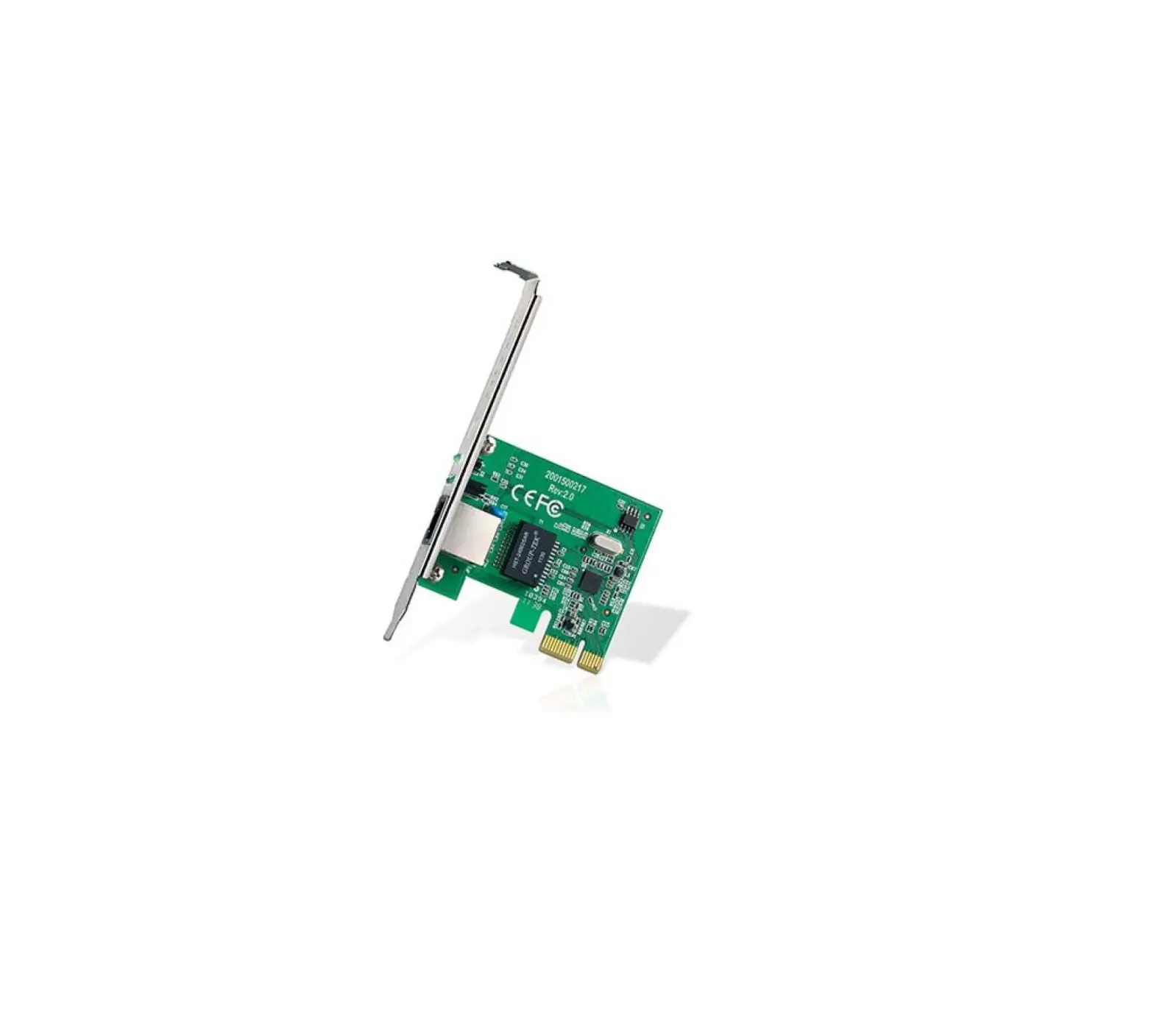
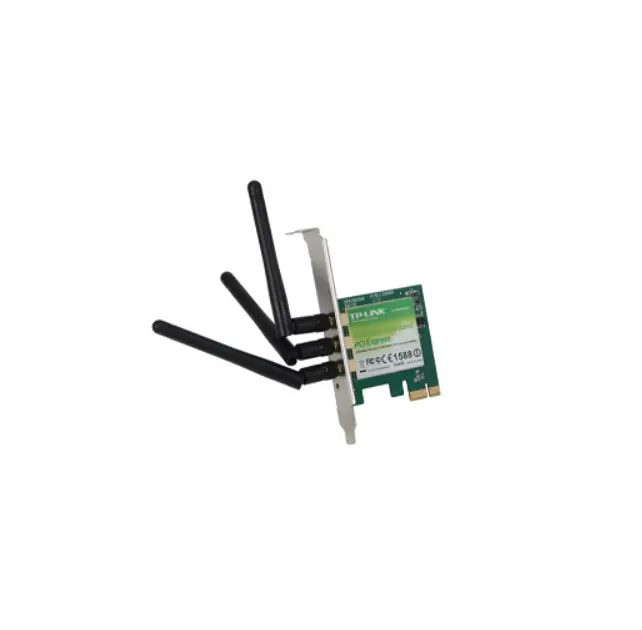
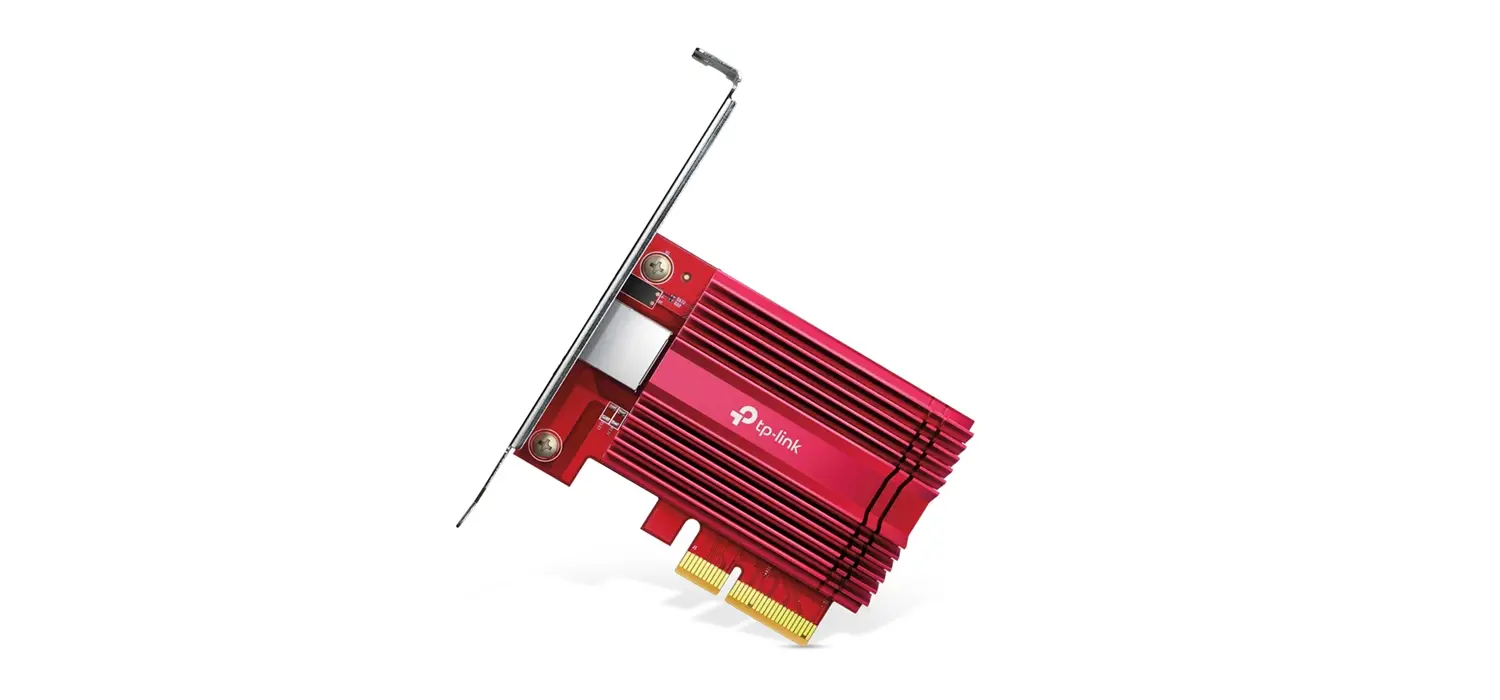
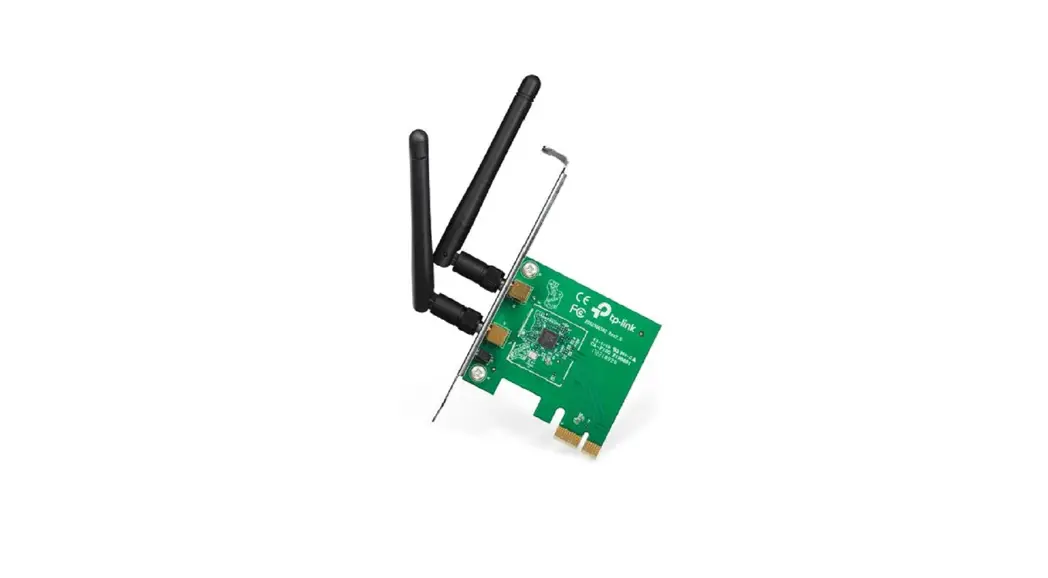
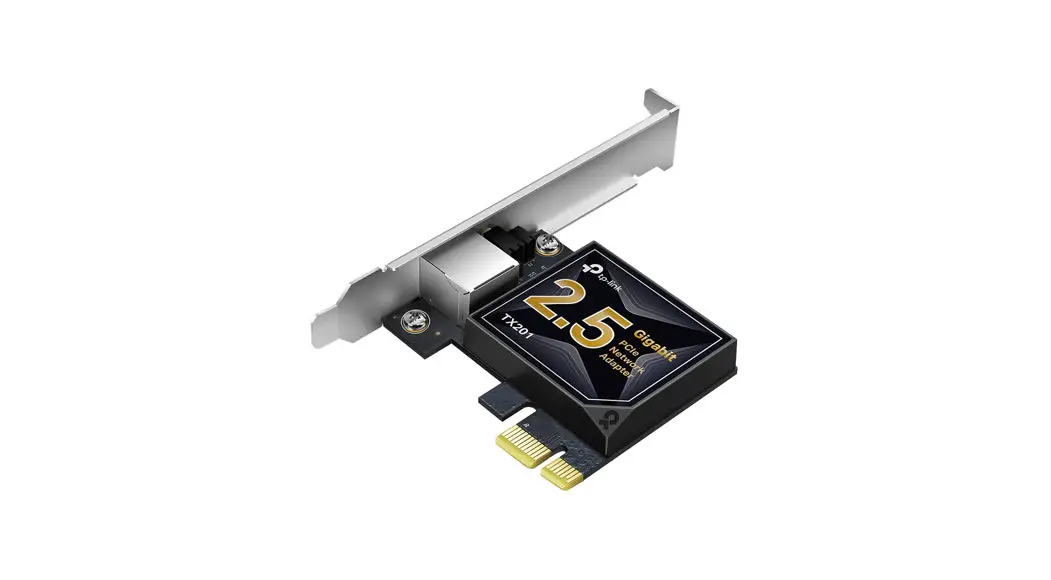
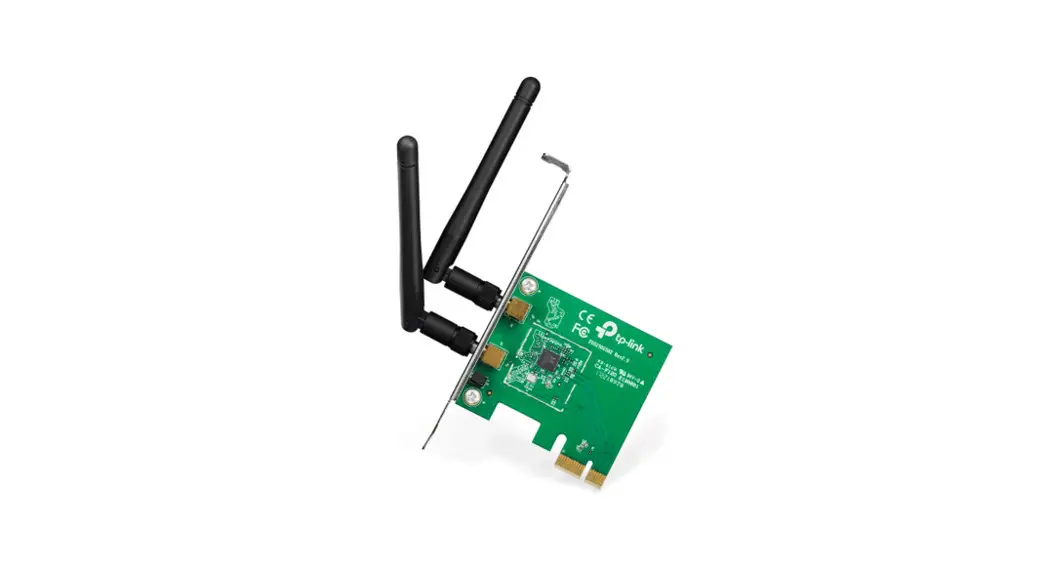
Package Contents
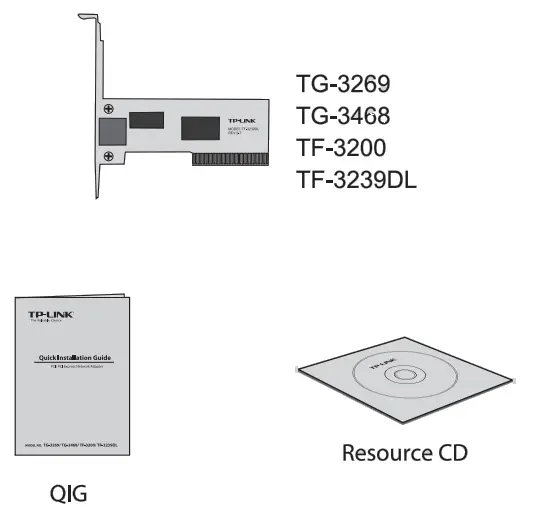
System Support
- Windows XP
- Windows 2000
- – Windows 7
- Windows 2003
- – Windows Vista
- ( TF-3200 only)
- » Linux
Hardware Connection
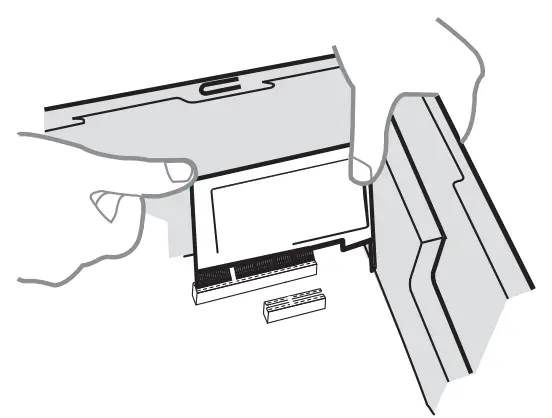
Steps:
- Turn off your computer and unplug the power cord from the computer.
- Open the case. Locate an available PCl/ PCI Express slot and remove its slot cover. Keep the screw.
- Insert the adapter into the PCl/ PCI Express slot as shown above.
- Secure the adapter with the screw removed in Step 2.
- Close the case and insert the power cord back into the computer.
- Turn on your computer.
For Windows XP
You may see the Found New Hardware Wizard when the adapter is plugged. Please click ‘Cancel’.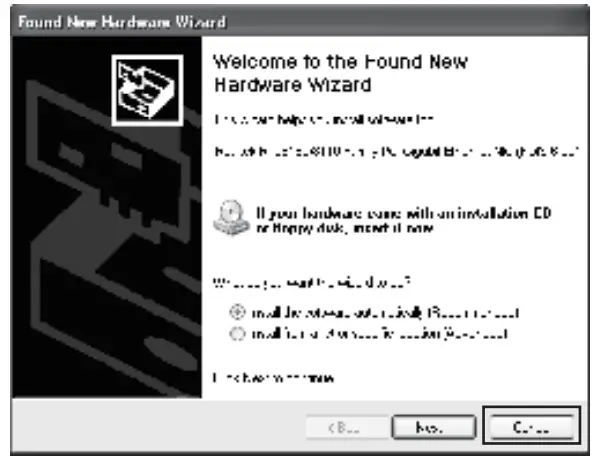
Software Installation
For Windows XP
(Please select the instructions according to your operating system. Here takes TG-3269 for example to illustrate the installation procedures.)
- Insert the TP-LINK Resource CD into the CD-ROD drive.

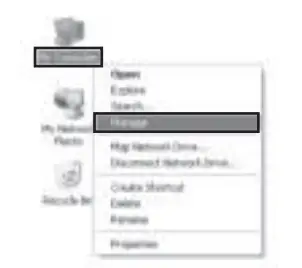
- Right-click My Computer, and then click Manage.

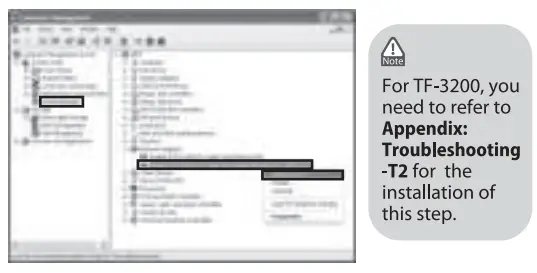
- Open Device Manager. Find your network adapter and right-click it; then click Update Driver..

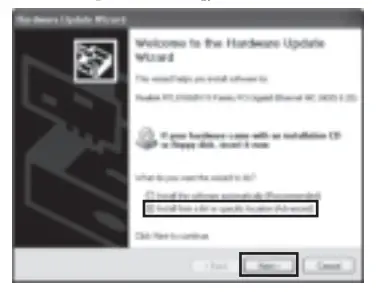
- Select Install from a list or specific location[Advanced], and click Next.

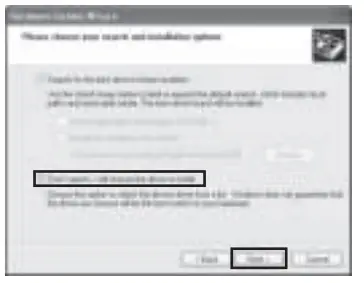
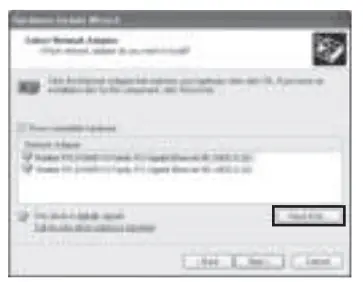
- Select Don’t Search. | will choose the driver to install, and click Next.

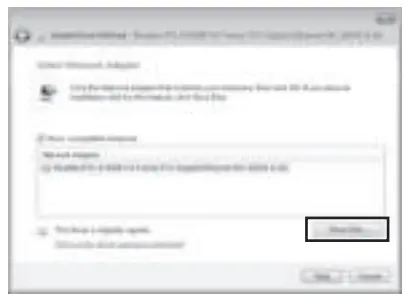
- Click Have Disk

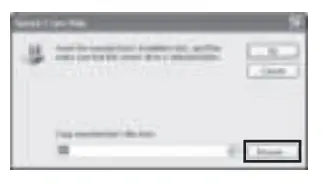
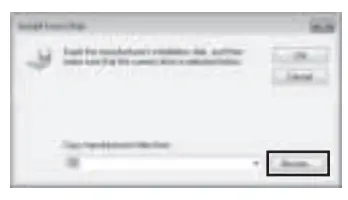
- Click Browse

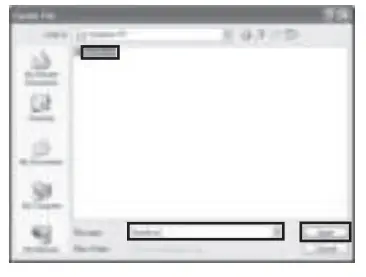
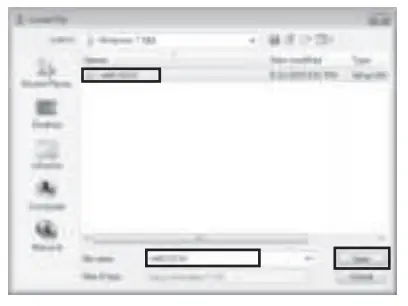
- Find the right product model and operating system in the resource CD directory, choose the .inf file, and then click Open.

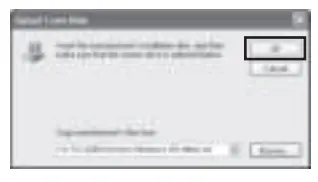
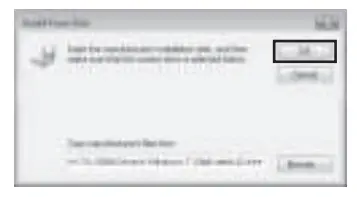
- Click ok

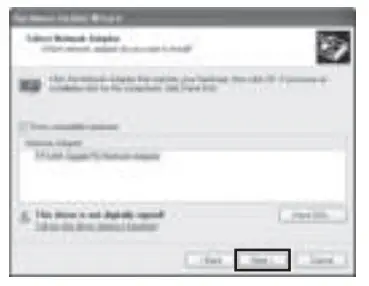
- Click Next.

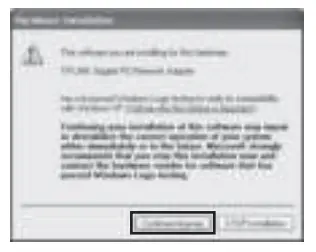
- Click Continues Anyway.

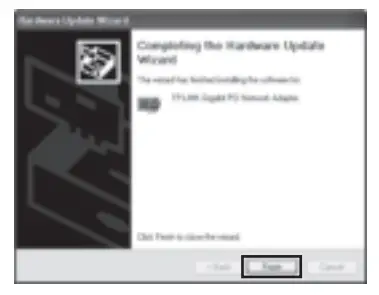
- Click Finish to complete the installation

For Windows 7
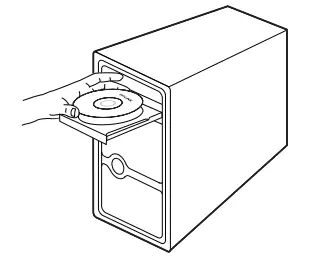
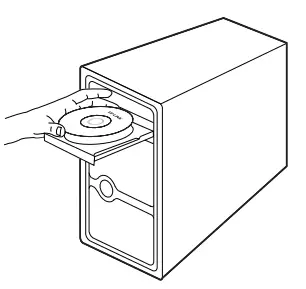
- Insert the TP-LINK Resource CD Into the CD-ROM drive.

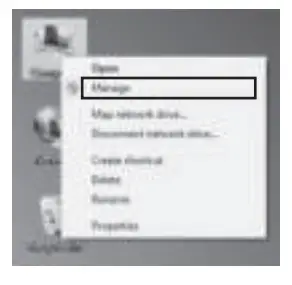
- Right-click Computer, and then click Manage.

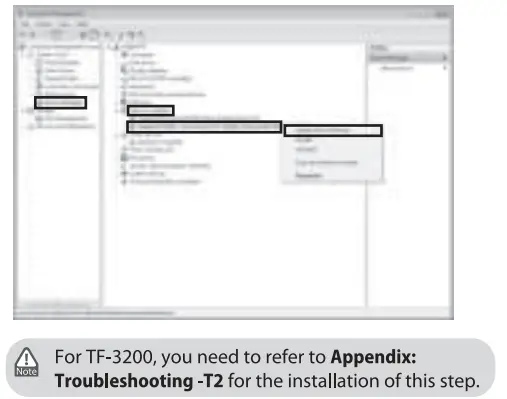
- Open Device Manager. Find the network adapter you’ve just installed under Network Adapter and right-click it; then click Update Driver Software….

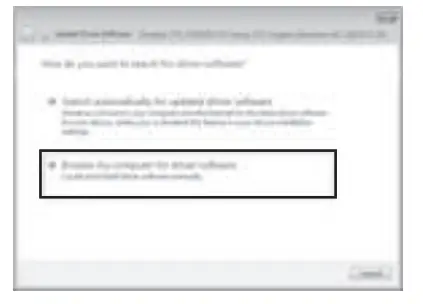
- Select Browse my computer for driver software.

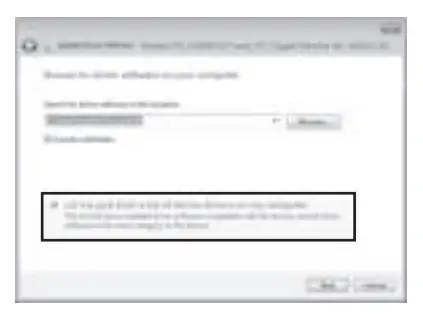
- Select Let me pick from a list of device drivers on my computer.

- Click Have Disk

- Click Browse

- Find the right product model and operating system in the resource CD directory, choose the int file, and then click Open.

- Click OK

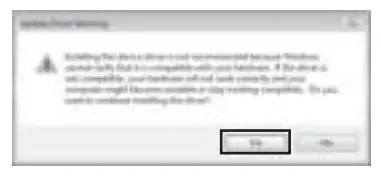
- Click Yes.

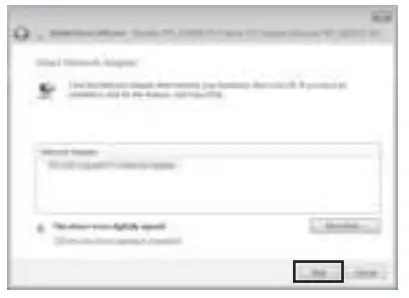
- Click Nest

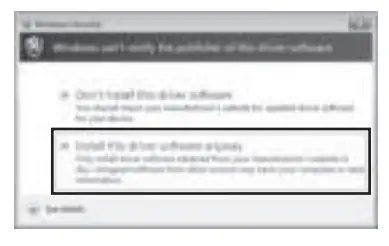
- Click Install this driver software anyway to continue the installation.

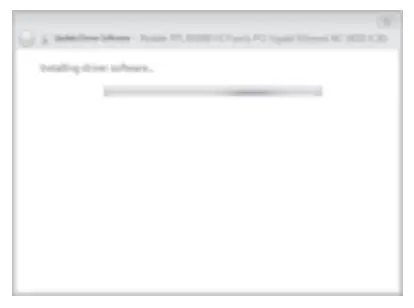
- Wait for a few seconds

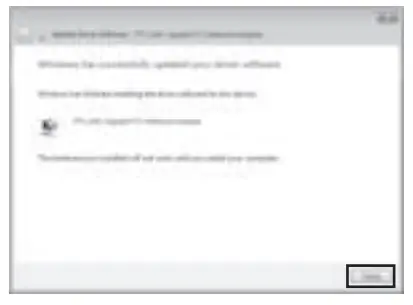
- Click close to finish the installation.

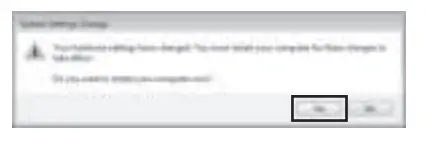
- Click yes to restart the computer so that the installation will take effect.
Appendix: Troubleshooting
T1. What should | do if the PC cannot find the new hardware?
Check to see if the network adapter is inserted in the PCI/ PCI Express slot properly; otherwise, please reinsert the adapter.
If the problem remains, please try to change to another PCI/ PCI Express slot.
T2. What should I do if the PC cannot identify the new hardware?
If you couldn’t find your newly-installed network adapter by going to “(My) Computer > Manager > Device Manager > Network Adapter >…”; please go to “(My) Computer > Manager > Device Manager > Other devices > Ethernet Controller’, and then follow rest of the software installation steps to update driver. 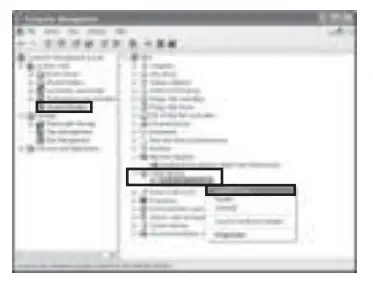 * If you need more information about the product, please refer to the User Guide on the resource CD.
Technical Support
- For more troubleshooting help, go to www.tp-link.com/support/faq.asp
- To download the latest Firmware, Driver, Utility and User Guide, go to www.tp-link.com/support/download.asp
- Forall other technical support, please contact us by using the following details:
| Global Tel: +86 755 26504400 E-mail: [email protected] Service time: 24hrs, 7days a week Singapore Tel: +65 62840493 E-mail: [email protected] Service time: 24hrs, 7days a week UK Tel: +44 (0) 845 147 0017 E-mail: [email protected] Service time: 24hrs, 7 days a week Malaysia Tel: 1300 88 875465 (1300 88TPLINK) E-mail: [email protected] Service time: 24 hrs a day, 7days a week USA/Canada Toll-Free: +1 866 225 8139 E-mail: [email protected] Service time: 24hrs, 7 days a week Turkey Tel: 444 19 25 (Turkish Service) E-mail: [email protected] Service time: 9:00 AM to 6:00 PM, 7 days a week Brazil lan(Portuguese Service) Toll-Free: 0800-770-4337 E-mail: [email protected] Service time: Monday to Saturday 08:00 AM to 08:00 PM Switzerland Tel: +41 (0)848 800998 (German service) E-mail: [email protected] Fee: 4-8 Rp/min, depending on rate of different time Service time: Monday to Friday 9:00 AM to 6:00 PM. GMT+1 or GMT+2 (Daylight Saving Time) | Italy Tel: +39 02 66987799 E-mail: [email protected] Service time: 9:00 AM to 6:00 PM, from Monday to Friday Ukrainian Tel: +380 (44) 590-51-14 E-mail: [email protected] Service time: Monday to Friday 14:00 PM to 22:00 PM Australia & New Zealand Tel: AU 1300 87 5465 NZ 0800 87 5465 E-mail: [email protected] Service time: 24hrs, 7 days a week Indonesia Tel: (+62) 021 6259 135 E-mail: [email protected] Service time: Monday to Friday 9:00 -12:00; 13:00 -18:00 *Except public holidays Russian Federation Tel: 8 (495) 223-55-60 8 (800) 250-55-60 (toll-free call from any RF region) E-mail: [email protected] Service time: From 10:00 to 18:00 (Moscow time) * Except weekends and holidays in Russian Federation German / Austria Tel: +49 1805 875465 (German Service) / +49 1805 PLINK E-mail: [email protected] Fee: 0.14 EUR/min from the German fixed phone network and up to 0.42 EUR/min from the mobile phone. Service Time: Monday to Friday 9:00 AM to 6:00 PM. GMT+1 or GMT+2 (Daylight Saving Time in Germany) * Except bank holidays in Hesse |
TP-LINK TECHNOLOGIES CO .,LTD
www.tp-link.com