 Quick Installation Guide
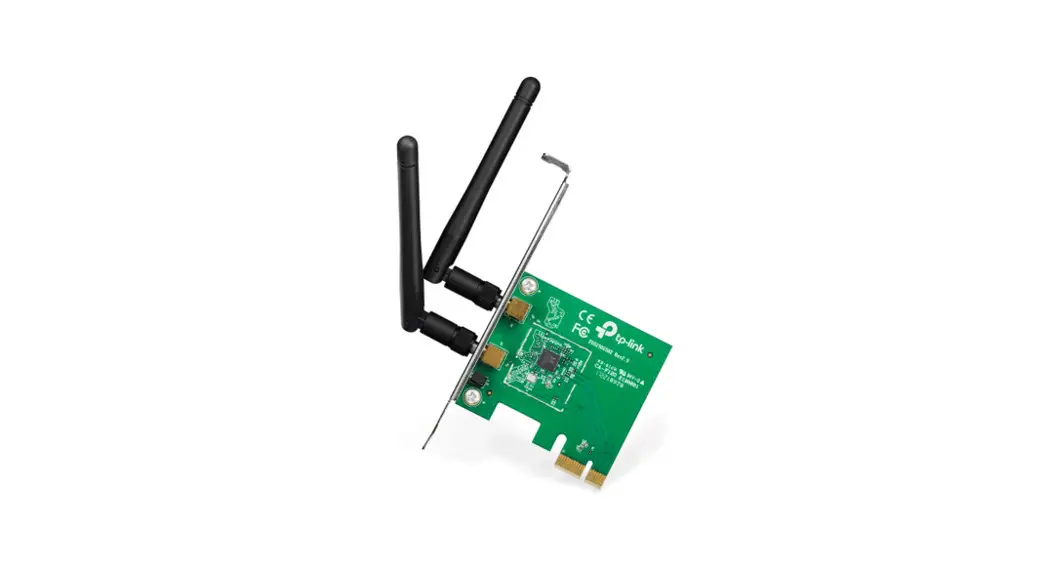
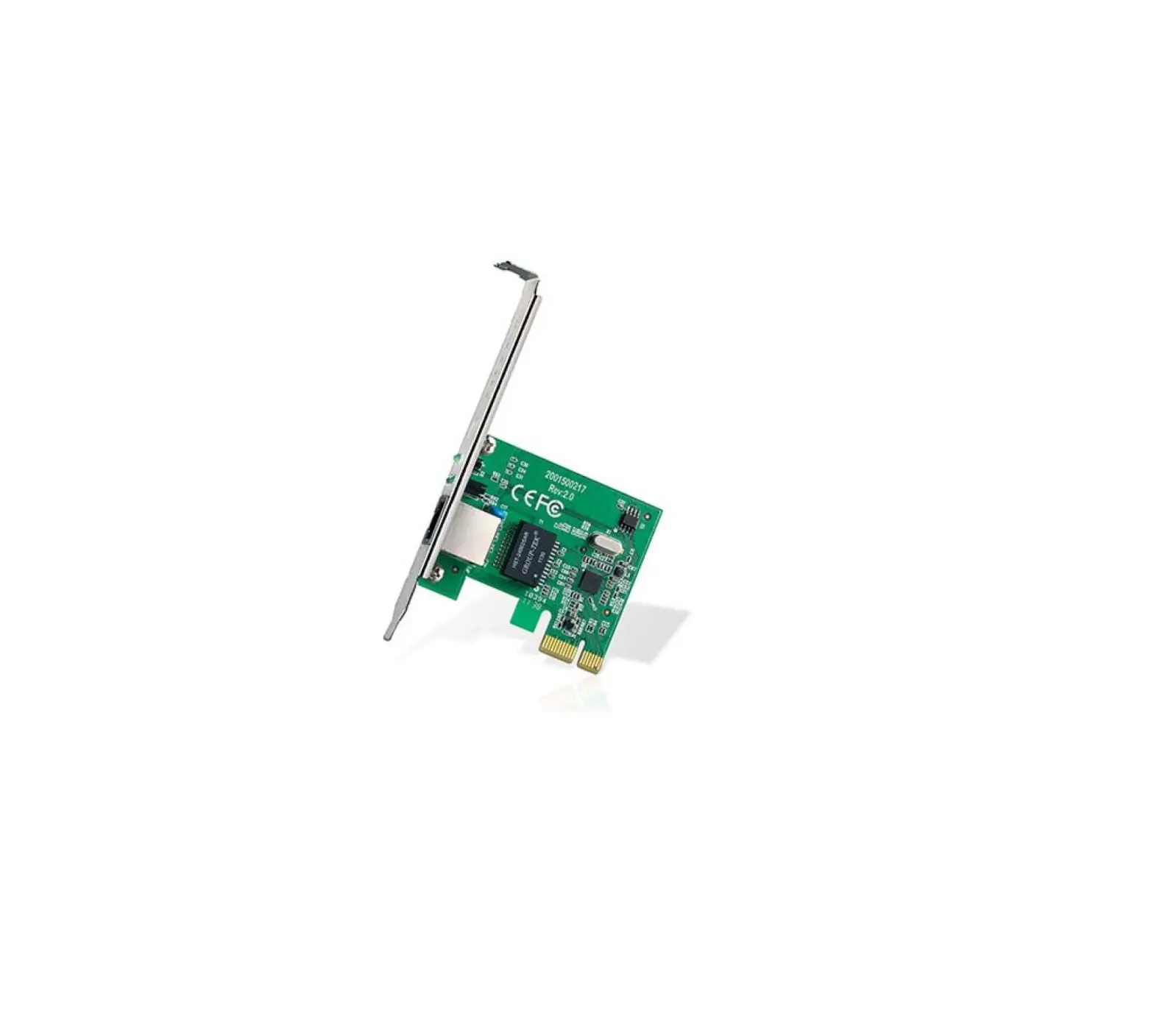
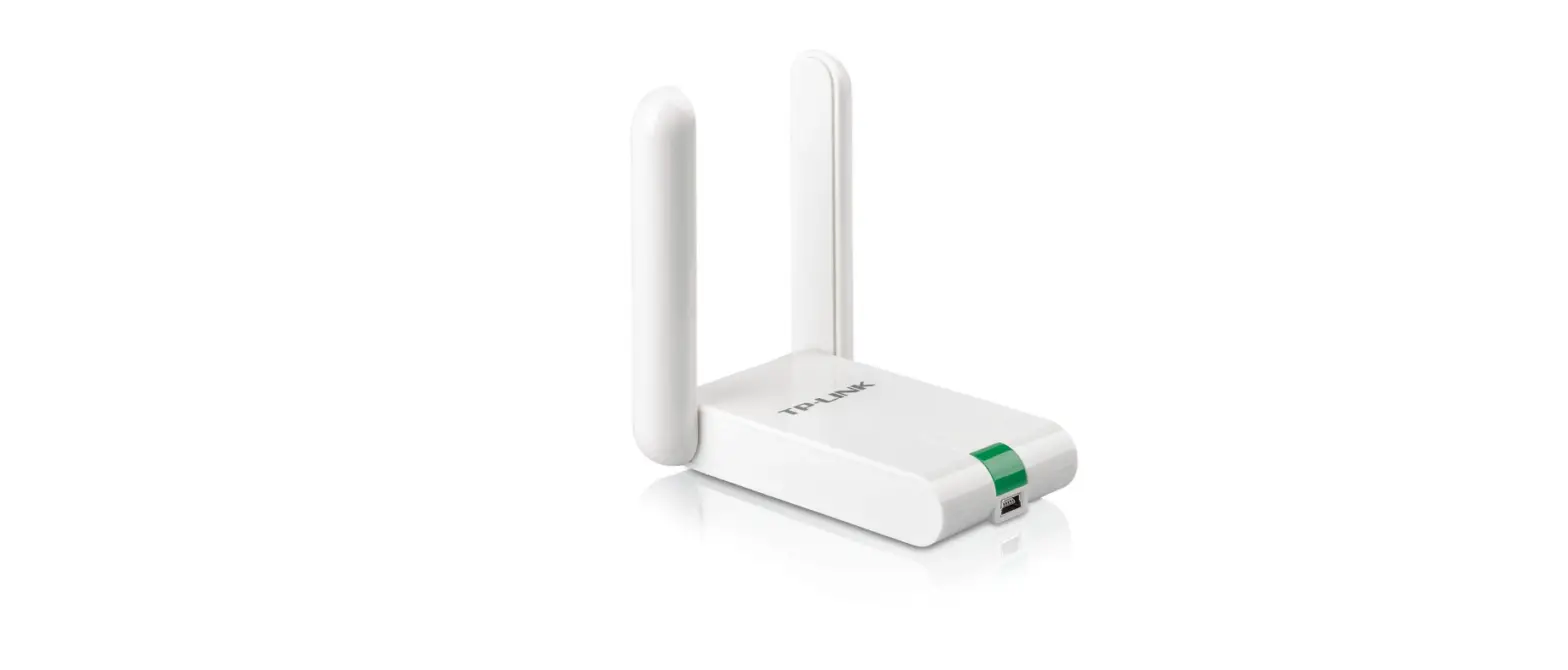
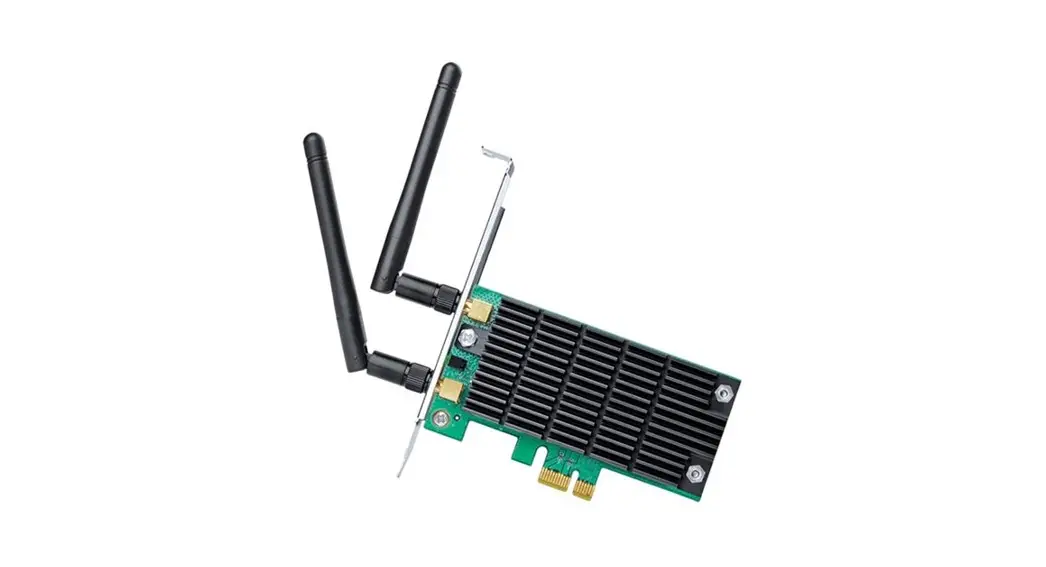
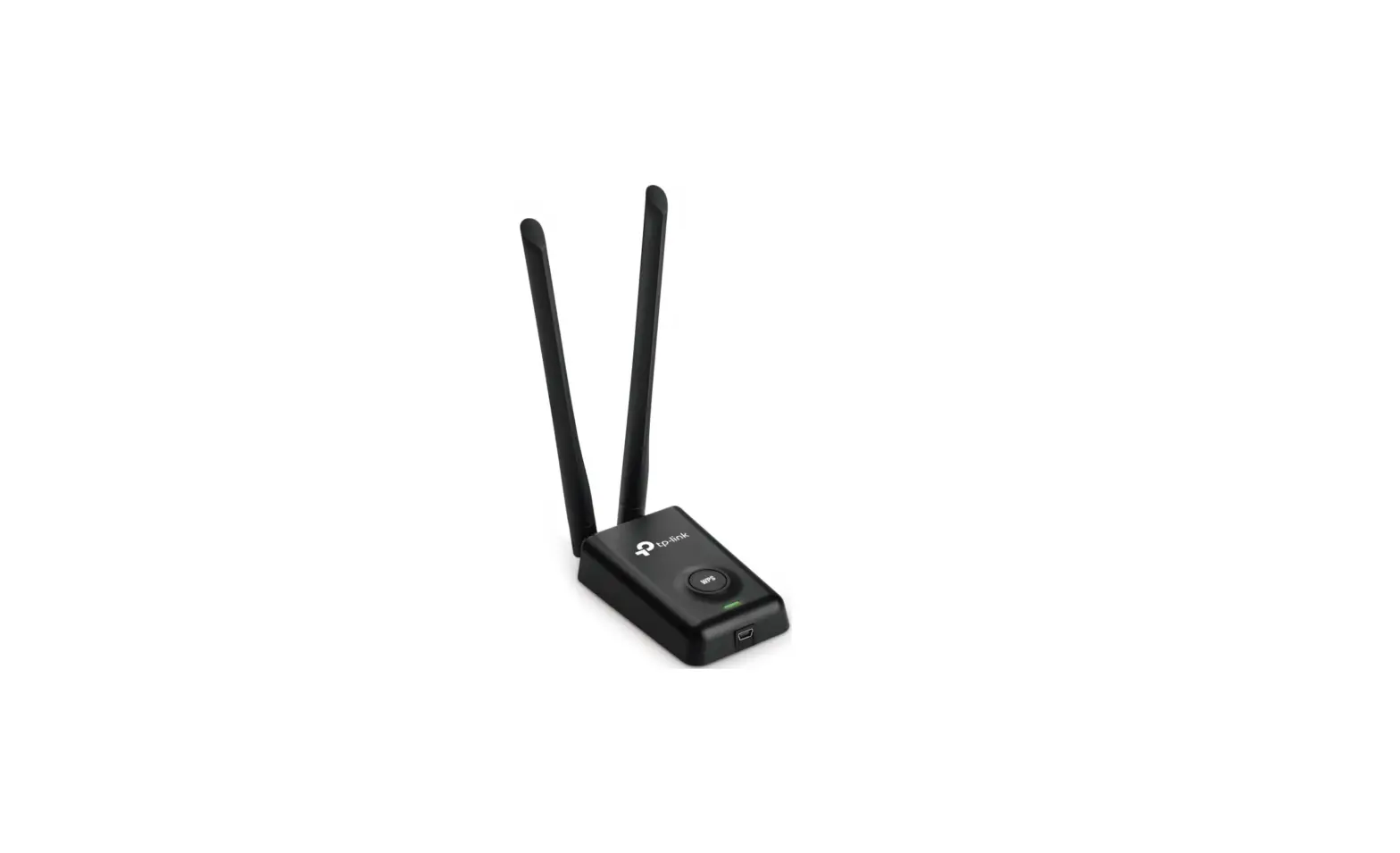
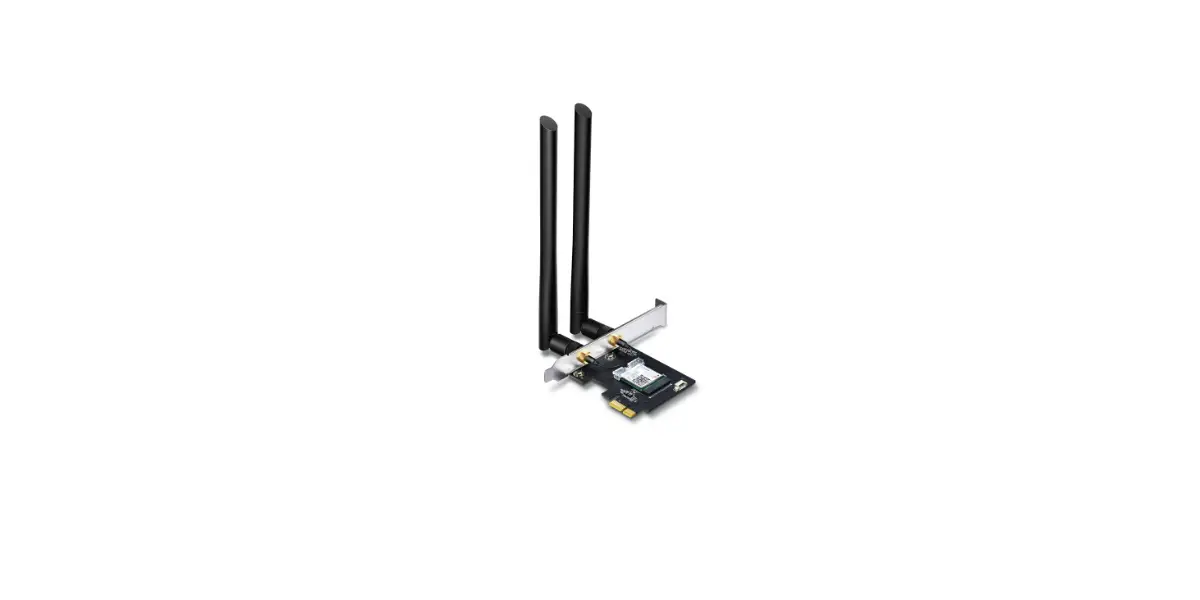
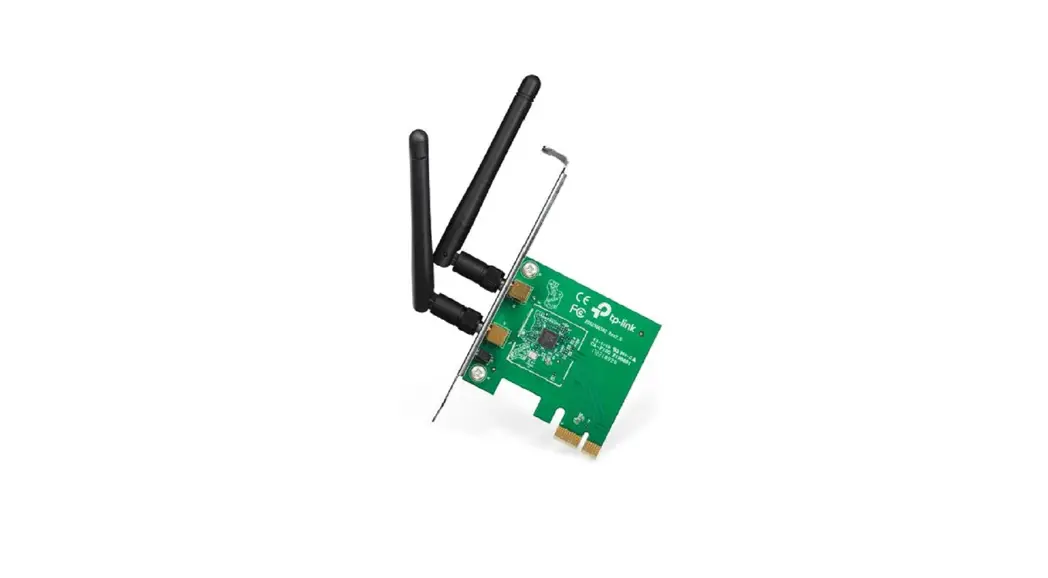
300Mbps Wireless N PCI Express Adapter
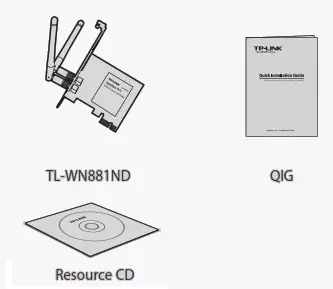
Package Contents
System Requirement
- Windows 7
- Windows Vista
- Windows XP
Hardware Connection
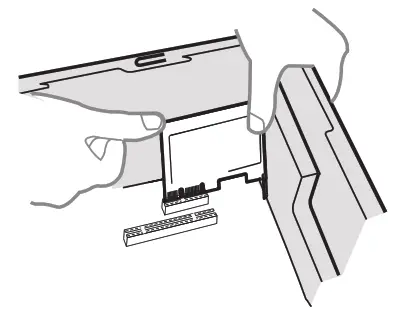
Steps:
- Turn off your computer and unplug the power cord from the computer.
- Open the case. Locate an available PCI Express slot and remove its slot cover. Keep the screw.
- Insert the adapter into the PCI Express slot as shown above.
- Secure the adapter with the screw removed in Step 2.
- Close the case and insert the power cord back into the computer.
- Turn on your computer.
You may see the Found New Hardware Wizard after the adapter has been inserted. Please click ‘Cancel’.
For Windows XP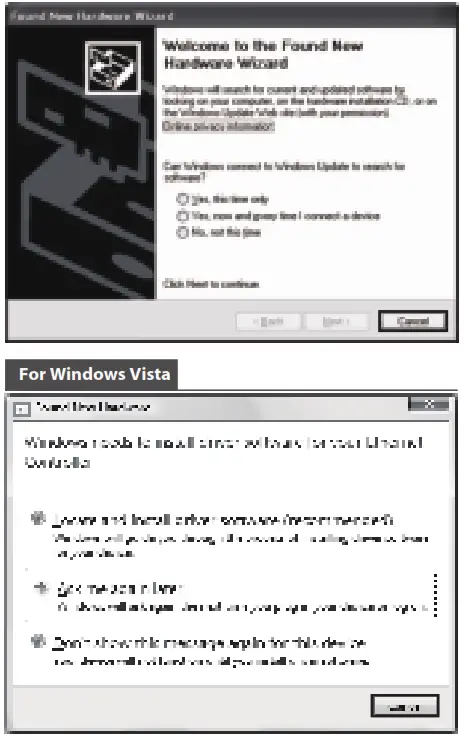
Software Installation
(The installation procedures in Windows 7/ Vista/ XP are similar. Here takes the procedures in Windows XP for example.)
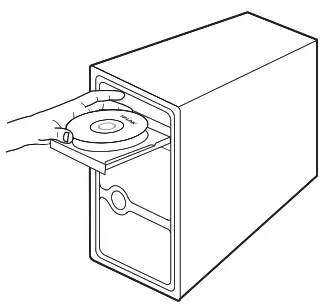
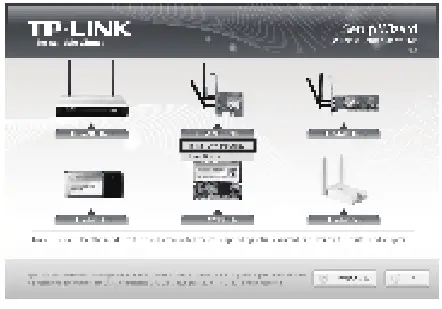
- Insert the TP-LINK Resource CD into the CD-ROM drive.

- Find the appropriate model and choose Install Driver Utility.

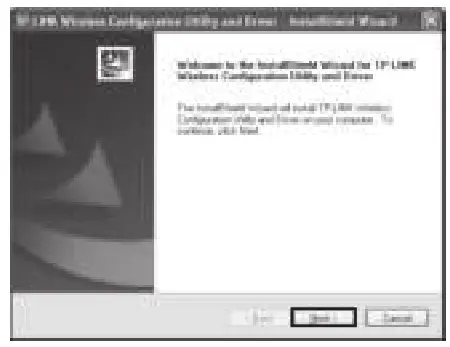
- The InstallShield Wizard window will appear. Click Next to continue.

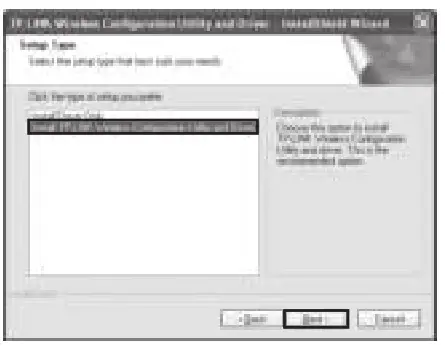
- Select Install TP-LINK Wireless Configuration Utility and Driver and then click Next.

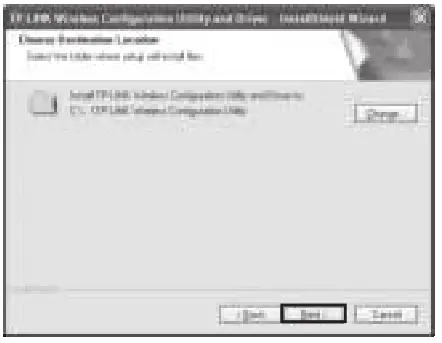
- Click Change to specify the destination location or you can leave it default. Click Next to continue.

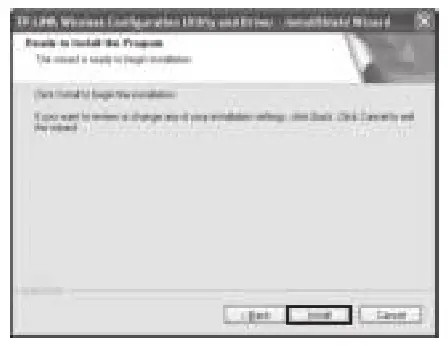
- Click Install to install the driver and utility for your adapter.

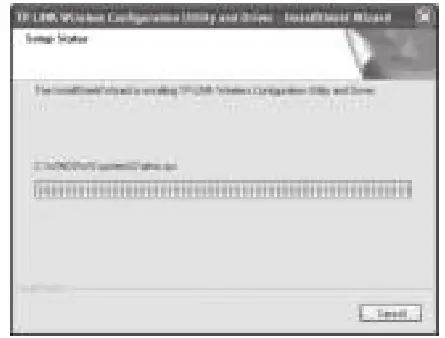
- The driver and utility will install. This may take 1~2 minutes.
 The following screen will then appear. Click Finish to complete the setup.
 The following screen will then appear. Click Finish to complete the setup.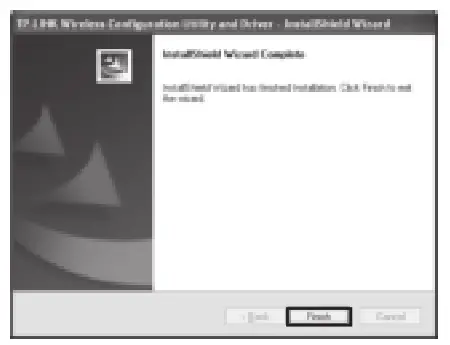
Connect to network
(You can skip to Appendix: Connect to Wireless Router by QSS to quickly connect to a network if your router or access point features QSS or WPS function.)
- After installation, the configuration page will pop up on your desktop.

 The icon will appear on your desktop. Double-clicking on the icon can start the utility.
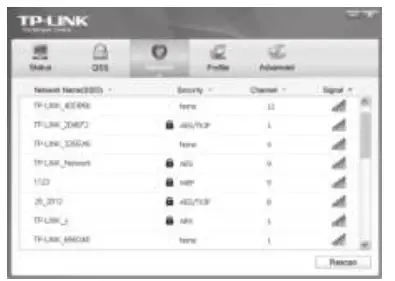
 - Click Network in the tools section to display a list of available wireless networks. Highlight the target network name (e.g. TP-LINK_Network) and then click Connect to build a connection.

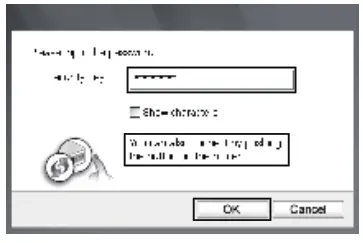
If the network is unsecured, you will directly connect to it. If it is security-enabled, there are two ways to connect to it.
Method One:
Input the security key into the field beside Security Key and click OK to continue.
Method Two:
Without entering a key, push the QSS (other brands may call it WPS) button on your router if prompted to You can also connect by pushing the button on the router as shown below. Then click OK to continue.
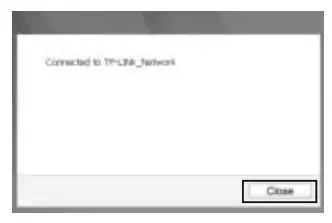
- The following screen indicates successful connectivity. Click Close to enjoy the Internet.

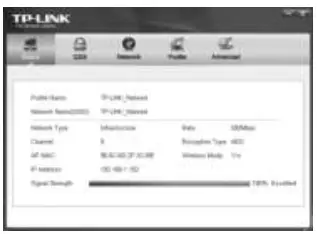
- To view more information about the network connected, click Status in the tools section.

 The icon will appear on your desktop. Double-clicking on the icon can start the utility.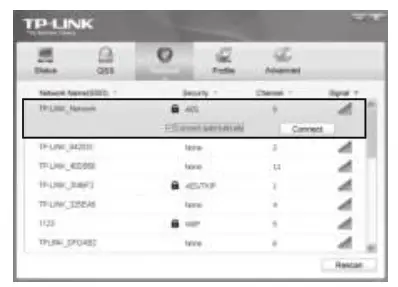
Appendix: Connect to Wireless Router by QSS
If your wireless router features the QSS function (other brands may call it WPS), you can also set up a wireless connection in this way.
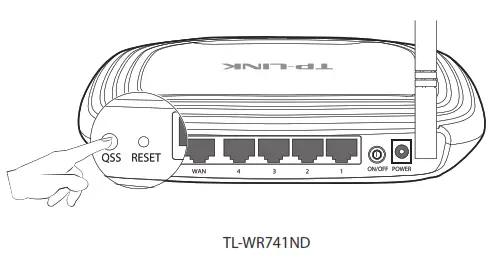
- Push the QSS button on the back panel of the Router. Here takes router TL-WR741ND for example.
 For more configuration methods of QSS, please refer to the User Guide on the Resource CD.
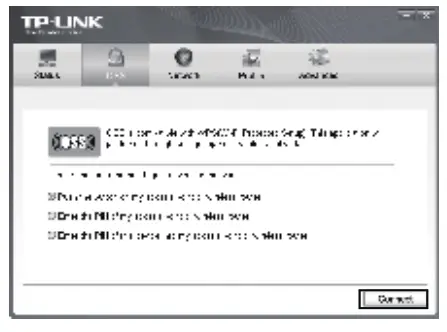
 - Launch the config utility and click QSS in the tools section. Select Push the button on my access point or wireless router and then click Connect.

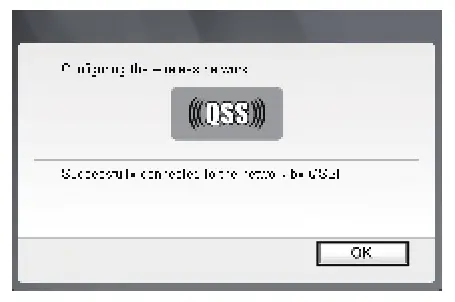
- Wait for the connection progress to be completed. The following screen indicates successful connectivity. Click OK to finish the QSS connection.

Technical Support
For more troubleshooting help, go to www.tp-link.com/support/faq.asp
To download the latest Firmware, Driver, Utility and User Guide, go to www.tp-link.com/support/download.asp
For all other technical support, please contact us by using the following details:
| Global Tel: +86 755 26504400 E-mail : [email protected] Service time: 24hrs, 7 days a week Singapore Tel: +65 62840493 E-mail: [email protected] Service time: 24hrs, 7 days a week UK Tel: +44 (0) 845 147 0017 E-mail: [email protected] Service time: 24hrs, 7 days a week USA/Canada Toll Free: +1 866 225 8139 E-mail: [email protected] Service time: 24hrs,7 days a week Malaysia Tel: 1300 88 875465 (1300 88TPLINK) E-mail: [email protected] Service time: 24 hrs a day, 7 days a week Switzerland Tel: +41 (0)848 800998 (German service) E-mail: [email protected] Fee: 4-8 Rp/min, depending on rate of different time Service time: Monday to Friday 9:00 AM to 6:00 PM. GMT+1 or GMT+2 (Daylight Saving Time) | Australia & New Zealand Tel: AU 1300 87 5465 NZ 0800 87 5465 E-mail: [email protected] Service time: 24hrs, 7 days a week Turkey Tel: 444 19 25(Turkish Service) E-mail: [email protected] Service time: 9:00 AM to 6:00 PM, 7 days a week Italy Tel: +39 02 66987799 E-mail: [email protected] Service time: 9:00 AM to 6:00 PM, Monday to Friday Indonesia Tel: (+62 ) 021 6259 135 E-mail: [email protected] Service time: Monday to Friday 9:00 -12:00 ; 13:00 -18:00 *Except public holidays Germany / Austria Tel: +49 1805 875465 (German Service) / +49 1805 TPLINK E-mail: [email protected] Fee: 0.14 EUR/min from the German fixed phone network and up to 0.42 EUR/min from mobile phone. Service Time: Monday to Friday 9:00 AM to 6:00 PM GMT+1 or GMT+2 (Daylight Saving Time in Germany) * Except bank holidays in Hesse |
TP-LINK TECHNOLOGIES CO., LTD.
www.tp-link.com
 Link: Simple, secure one-click payments
 Link | Power Forward | Accountants, Bookkeepers & More
 WiFi Networking Equipment for Home & Business | TP-Link