Contents hide
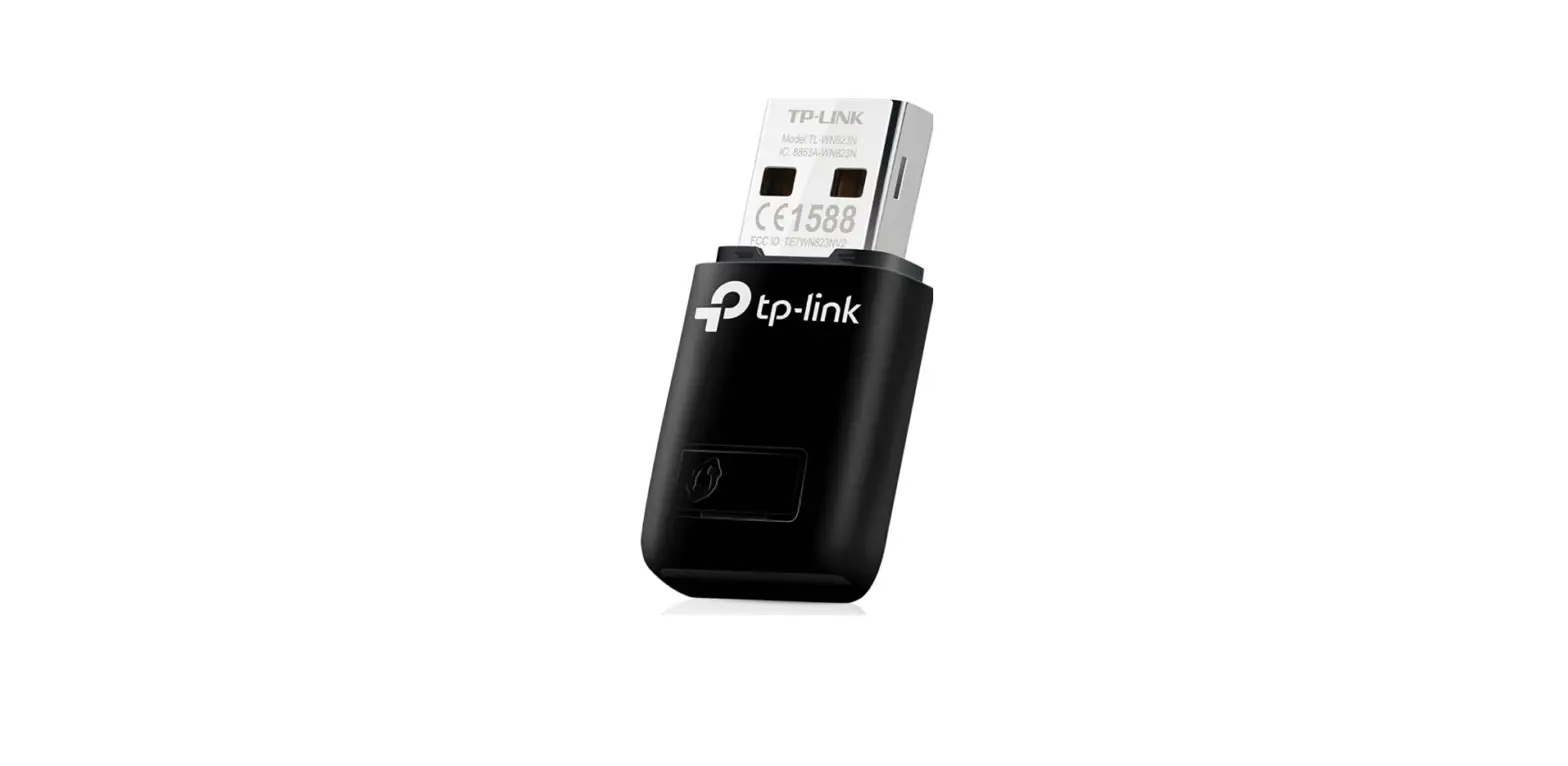
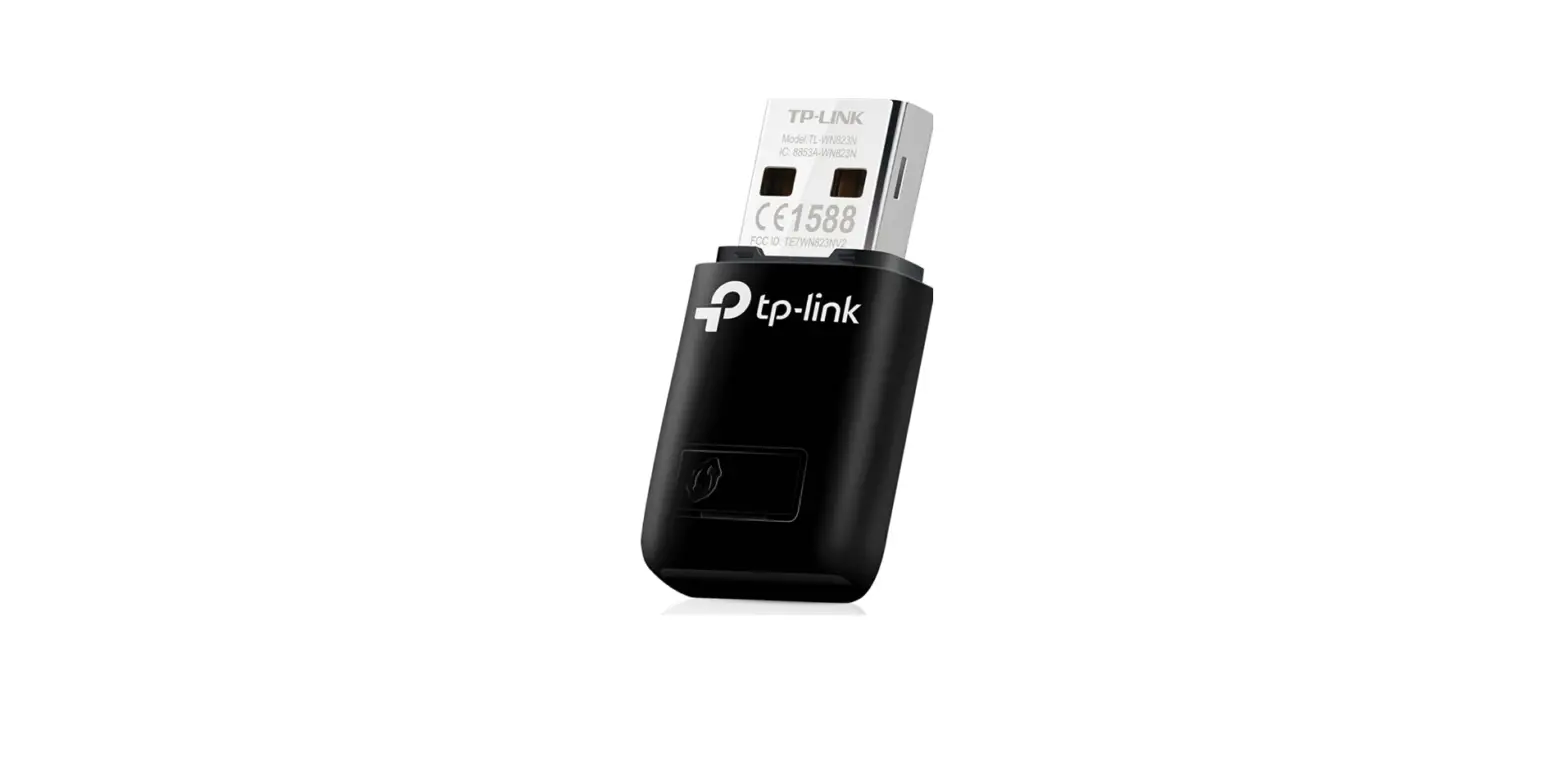
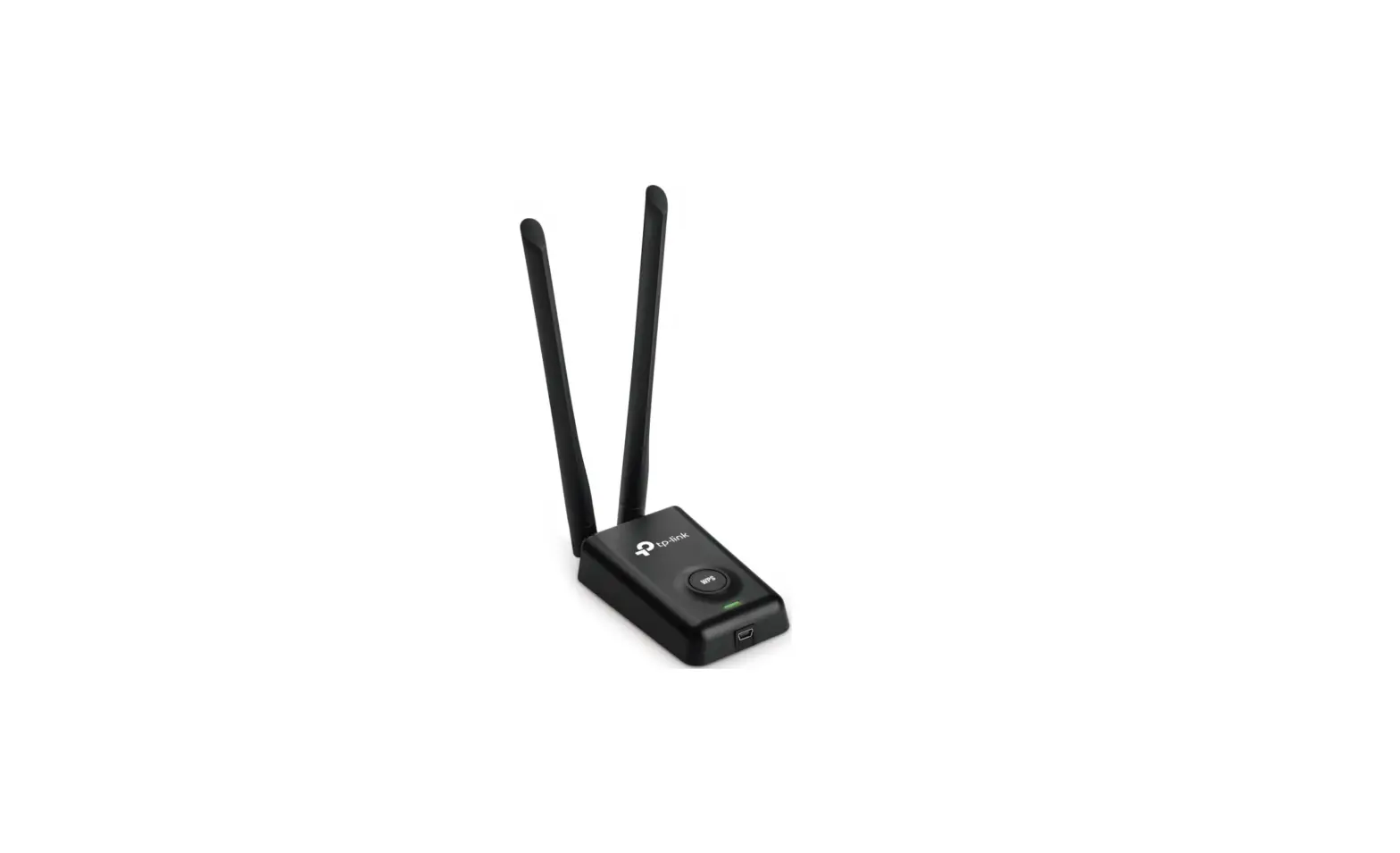
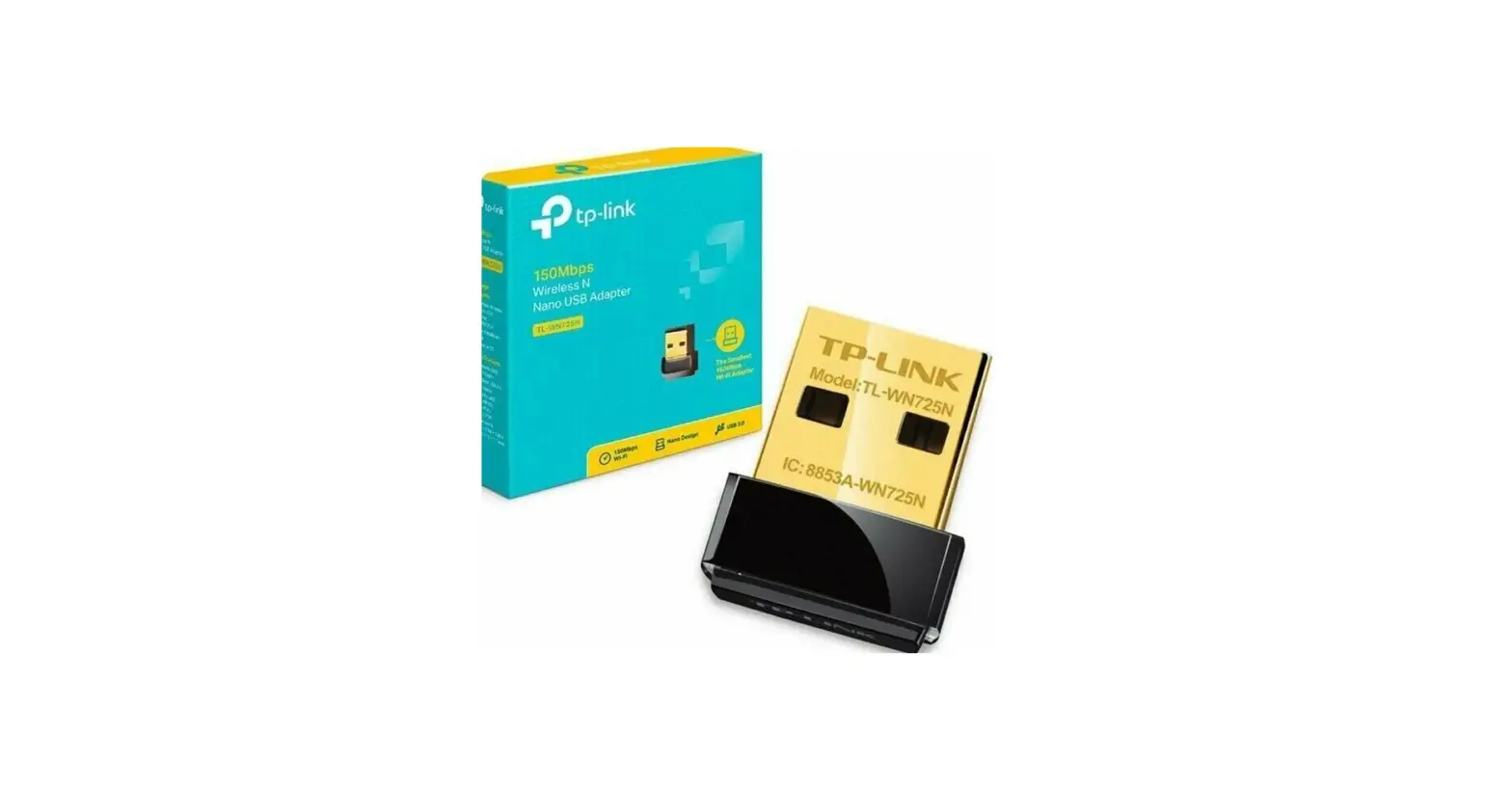
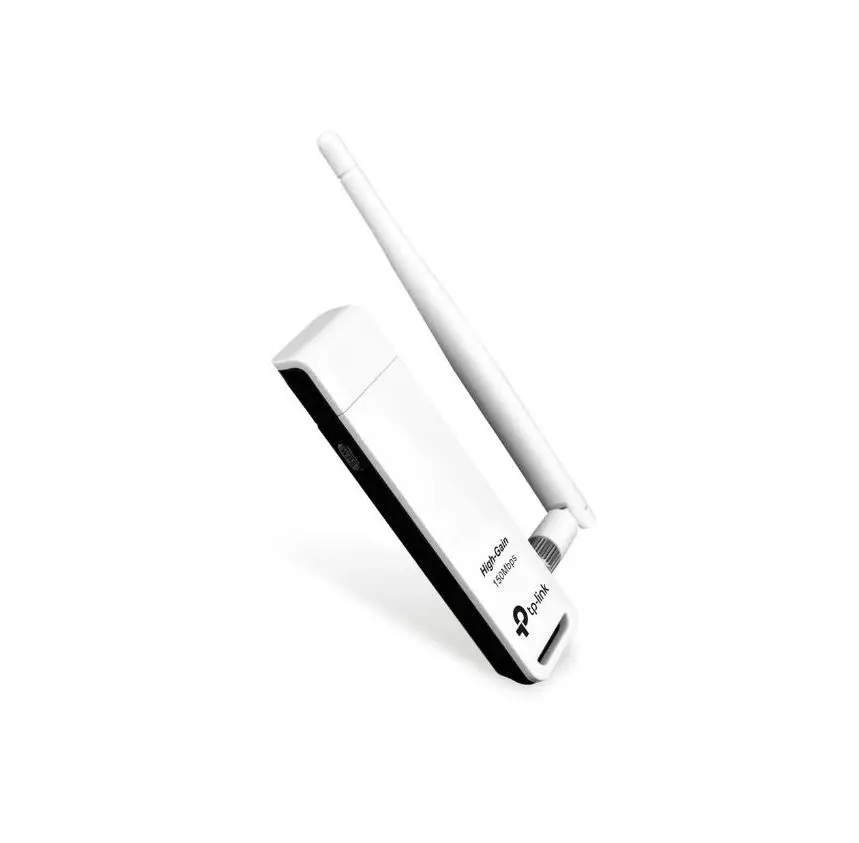
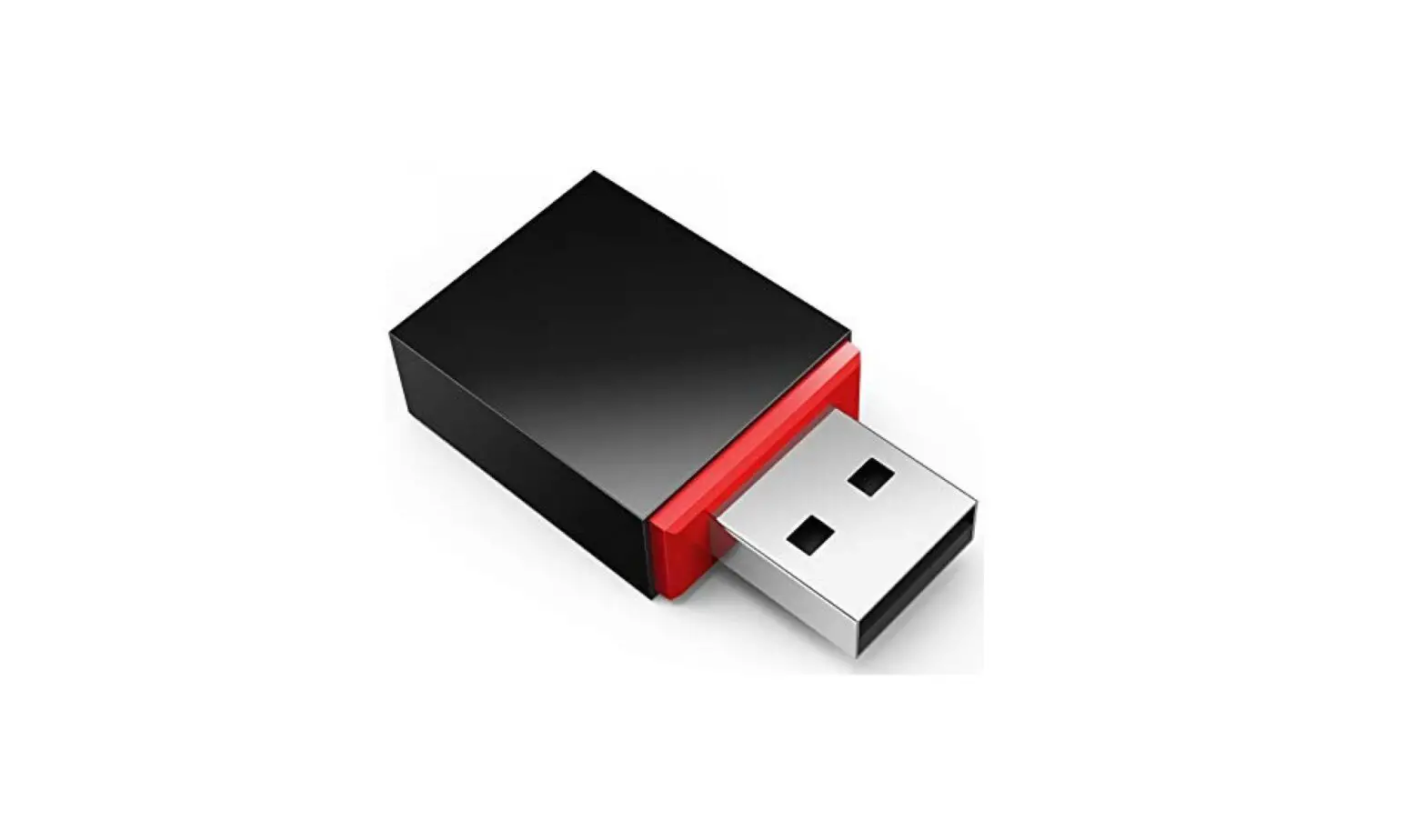
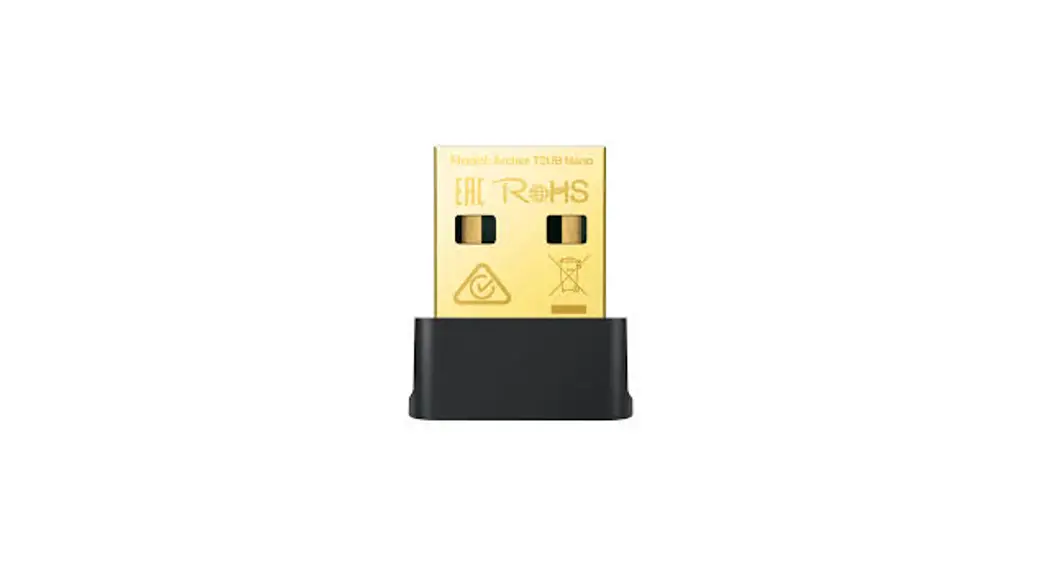
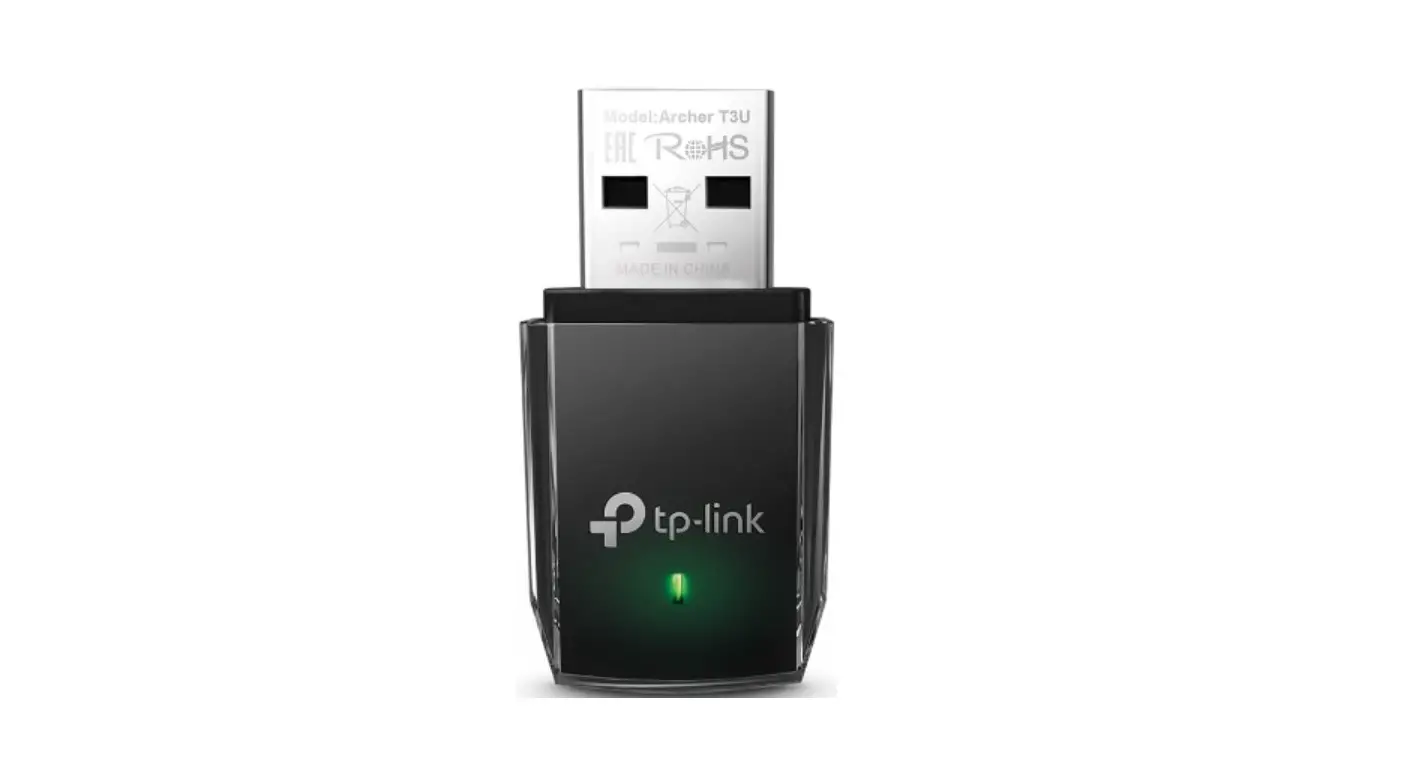
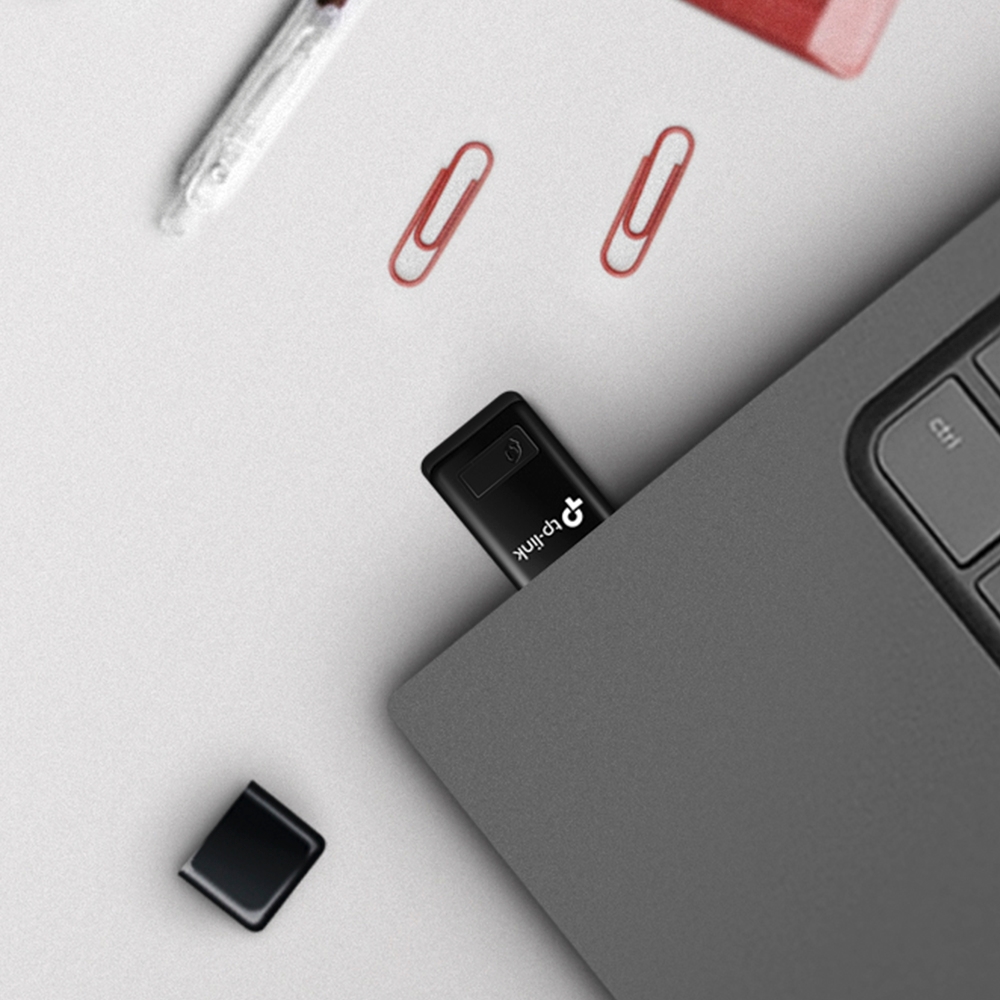
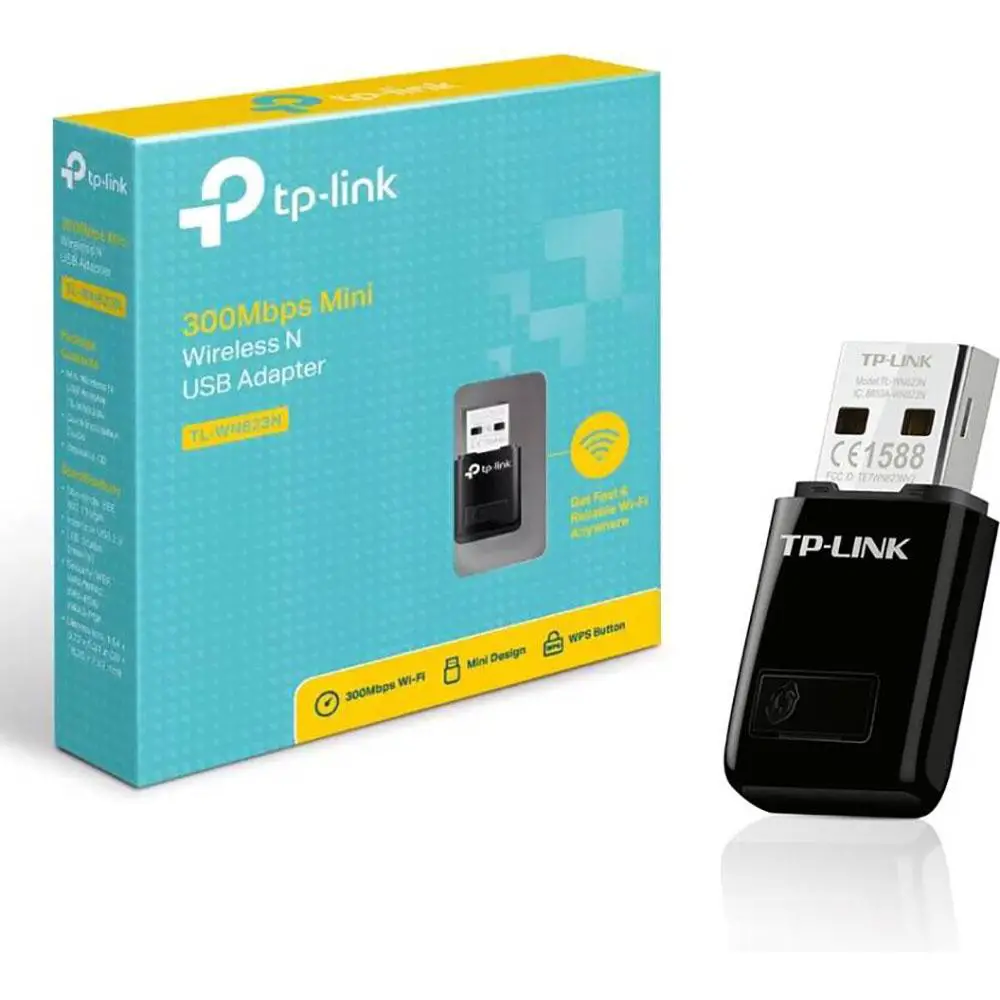
tp-link 300Mbps Mini Wireless N USB Adapter
For Mac OS X
Connect to a Computer
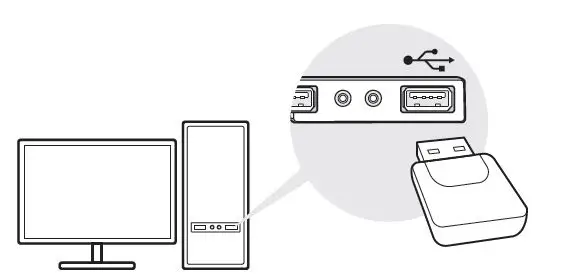
Insert the adapter into a USB port on your computer directly.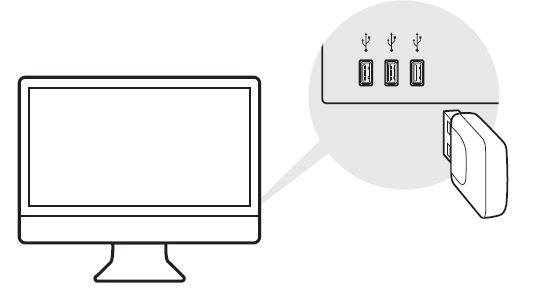
Install Driver and Utility
- Download the driver and utility from this product’s Support page at www.tp-link.com.
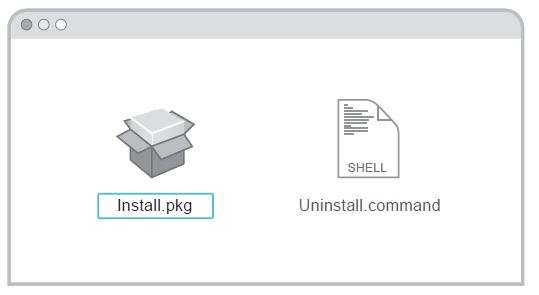
Note: If your computer has a CD drive, you can also run the included CD to install the driver and utility. - Unzip the downloaded folder and run the Install pkg.
- Follow the instructions to complete the installation.

Join a Wireless Network
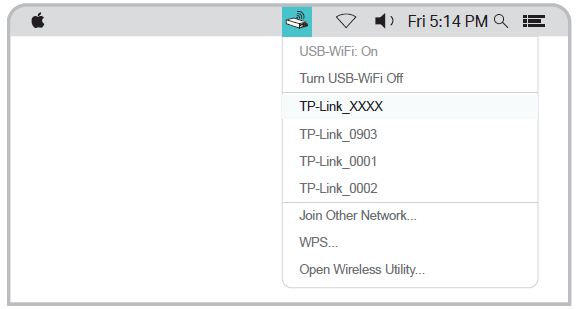
Option 1: Via TP-Link Utility
- a. Click (TP-Link Utility) on the menu bar.
- b. Select your Wi-Fi network and enter the Wi-Fi password when prompted.

Option 2: Via Wi-Fi Protected Setup (WPS)
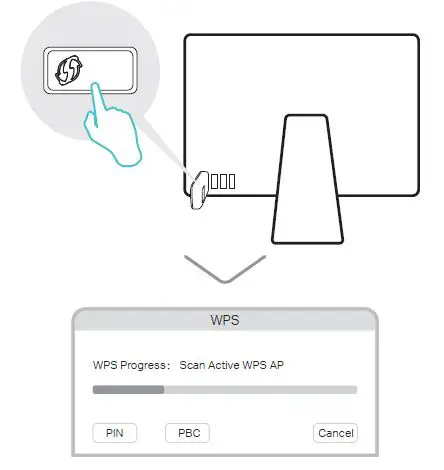
- a. Press the WPS button on your router.
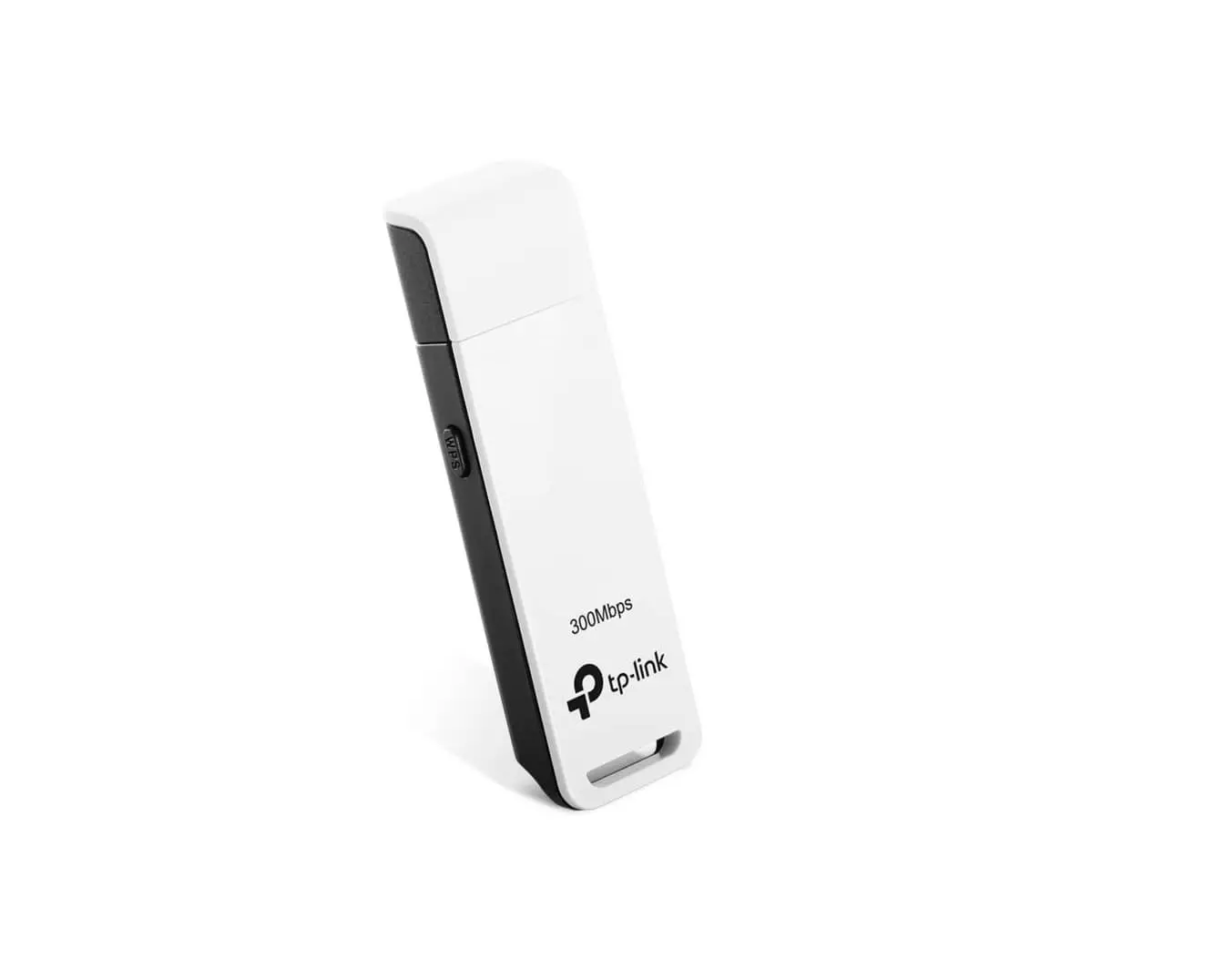
- b. Within 2 minutes, press and hold the WPS button on the adapter until the WPS progress window appears.

- c. When the “WPS Protocol Finished!!” message appears, click OK.
For Windows
Connect to a Computer
Insert the adapter into a USB port on your computer directly.
Note: In Windows XP, a Found New Hardware Wizard window will appear when the adapter is detected. Please click Cancel.
Install Driver and WPS Tool
- a. Insert the CD and run the Autorun.exe.
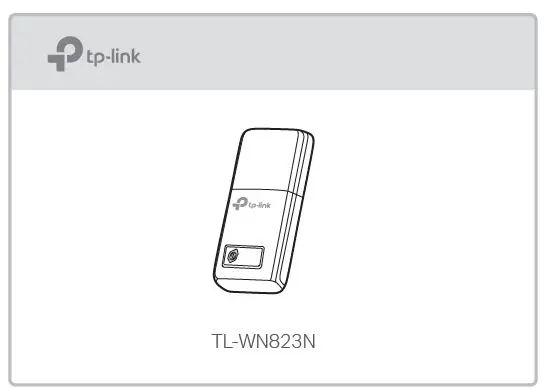
Note: You can also download the driver from this product’s Support page at www.tp-link.com. - Select TL-WN823N and follow the steps to install the driver and WPS Tool.
Note: If you can’t install the driver successfully, disable the antivirus software and firewall, then try again.
Join a Wireless Network
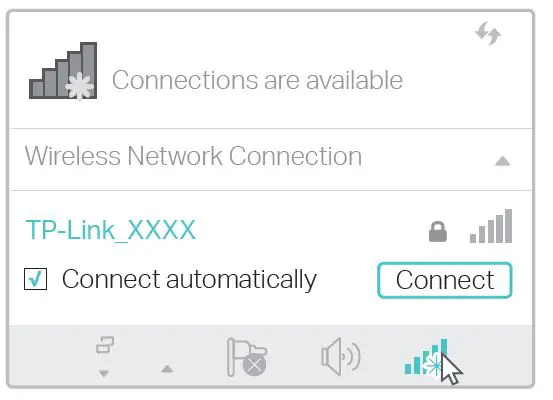
Option 1: Via Windows Wireless Utility
- Click the network icon ( or ) on the taskbar.
- Select your Wi-Fi network, click Connect and enter the password when prompted.

Option 2: Via WPS Tool
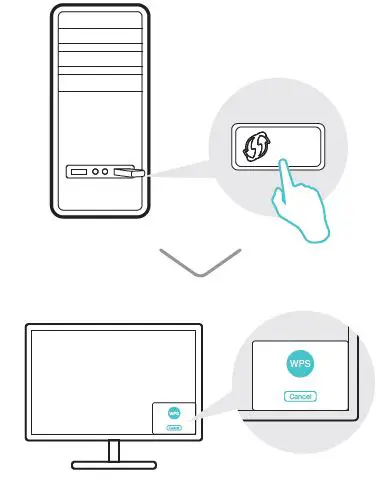
- a. Press the WPS button on your router.
- b. Within 2 minutes, press and hold the WPS button on the adapter until WPS Tool opens.

- c. When the “Success!” message appears, your computer is connected to Wi-Fi.
For detailed instructions, please refer to the User Manual from this product’s Support page at www.tp-link.com.
For technical support and other information, please visit http://www.tp-link.com/support, or simply scan the QR code.
 WiFi Networking Equipment for Home & Business | TP-Link