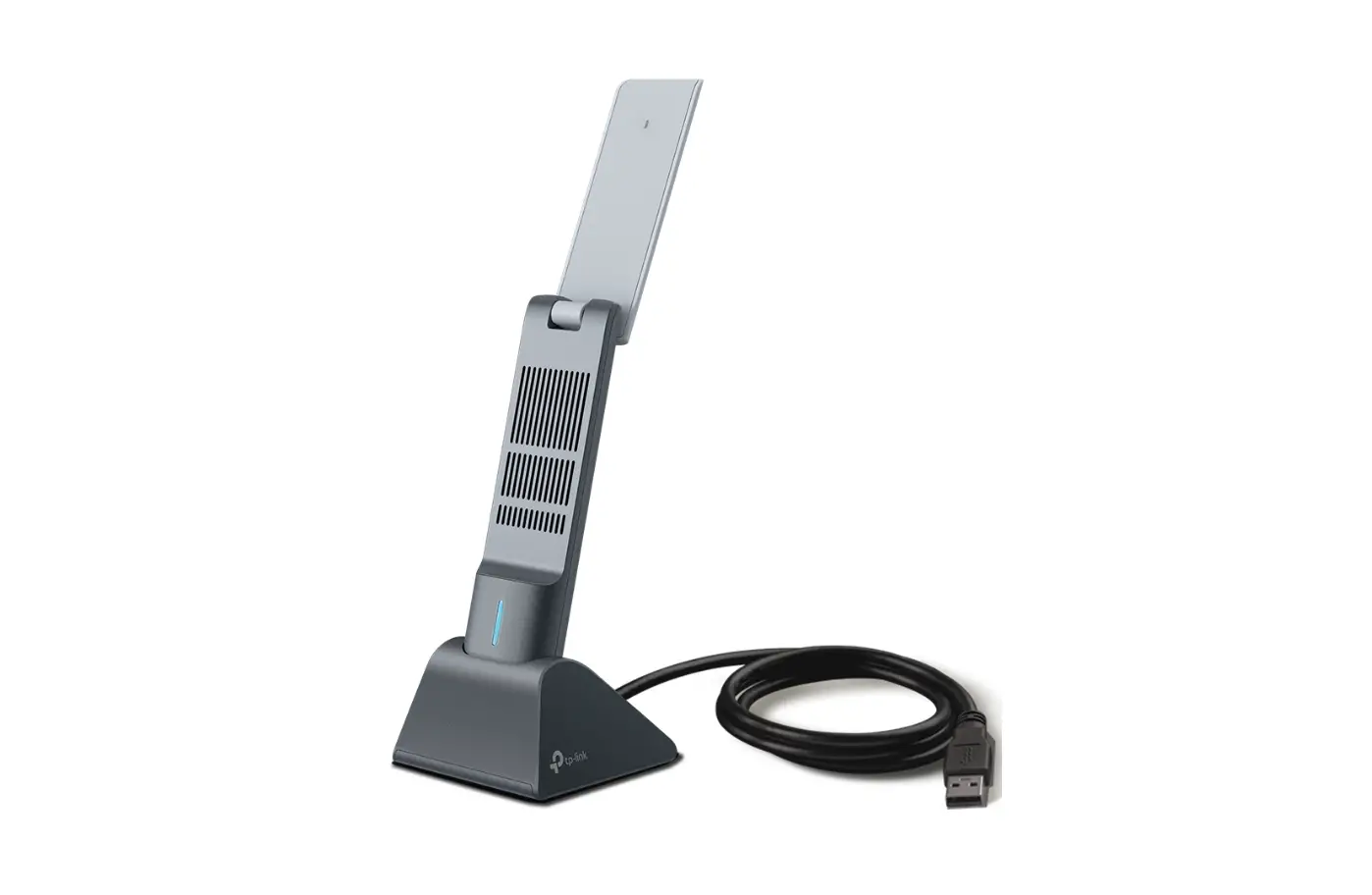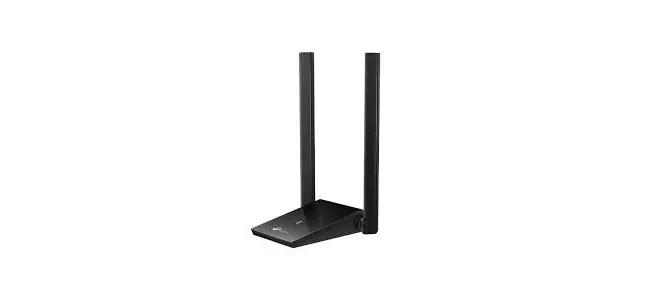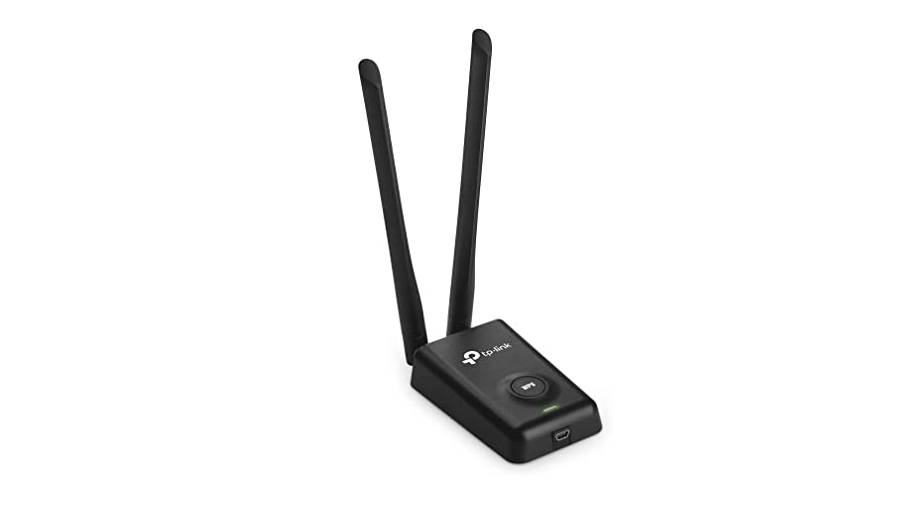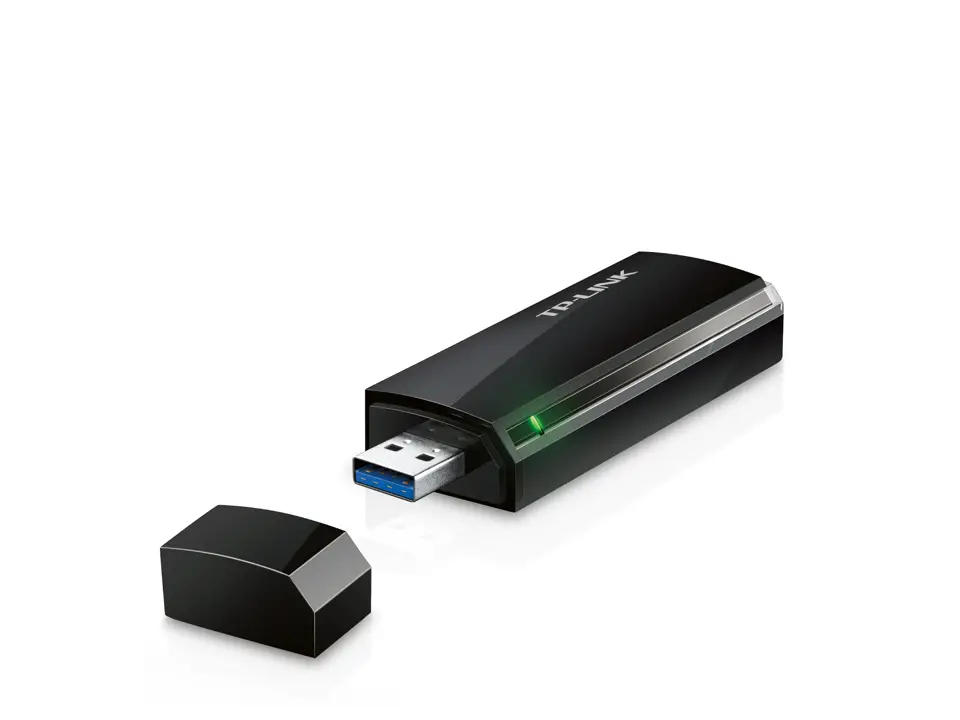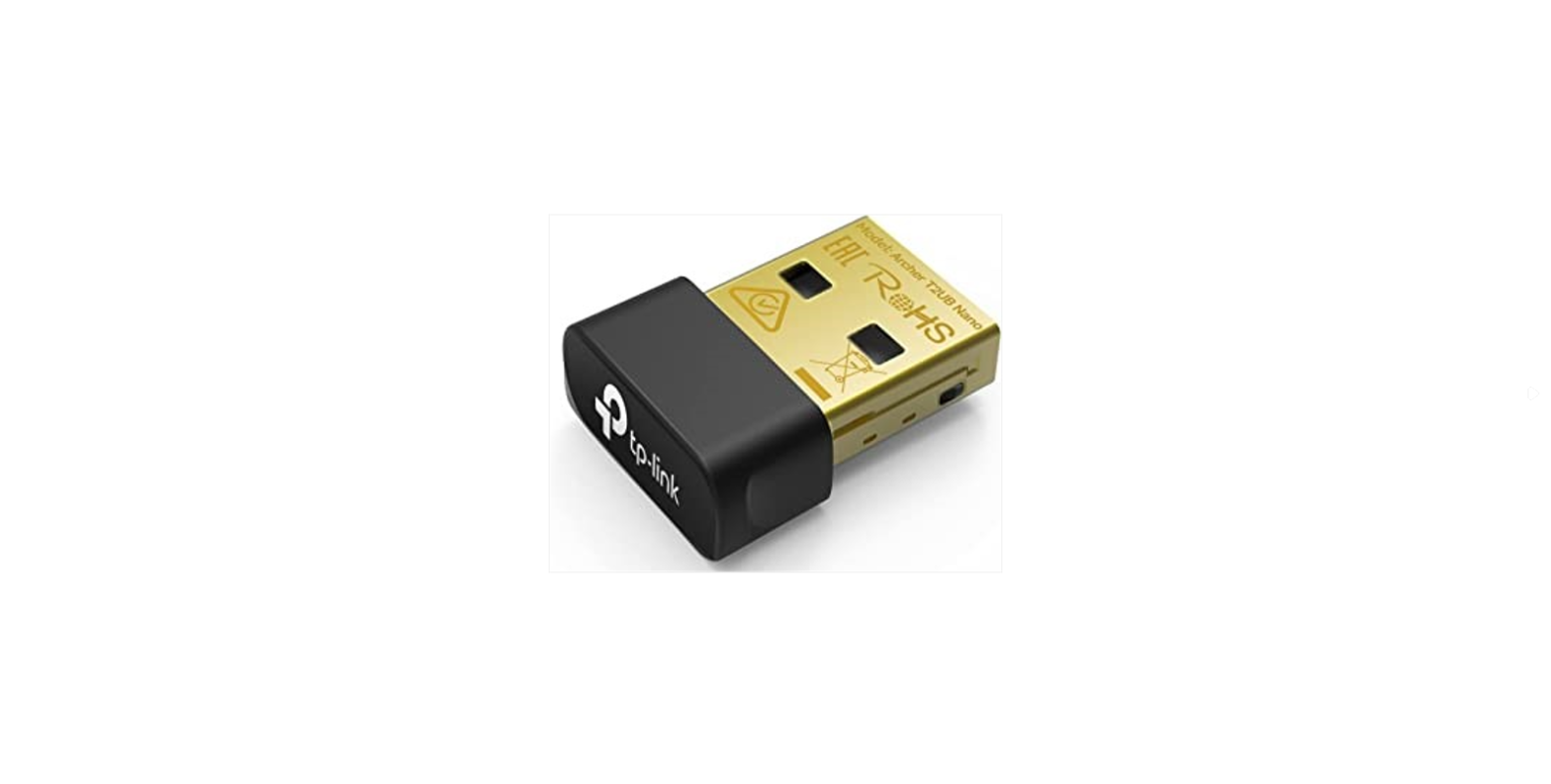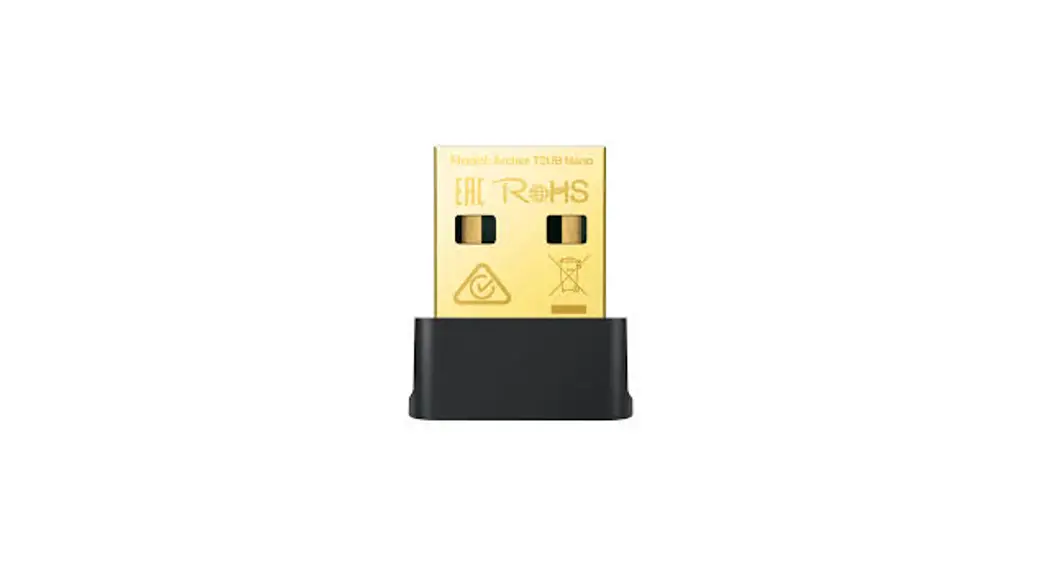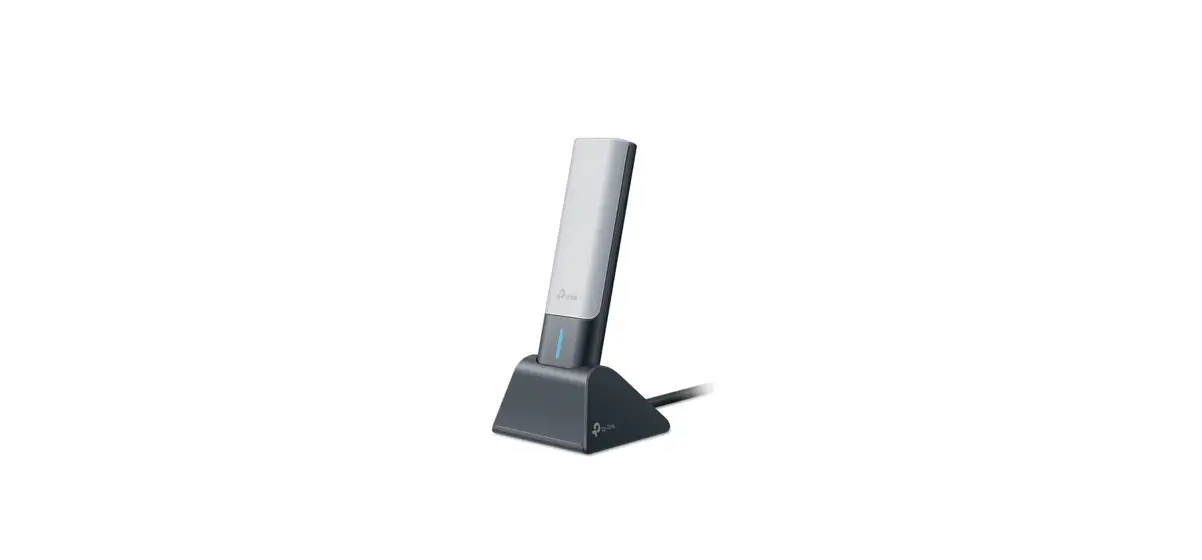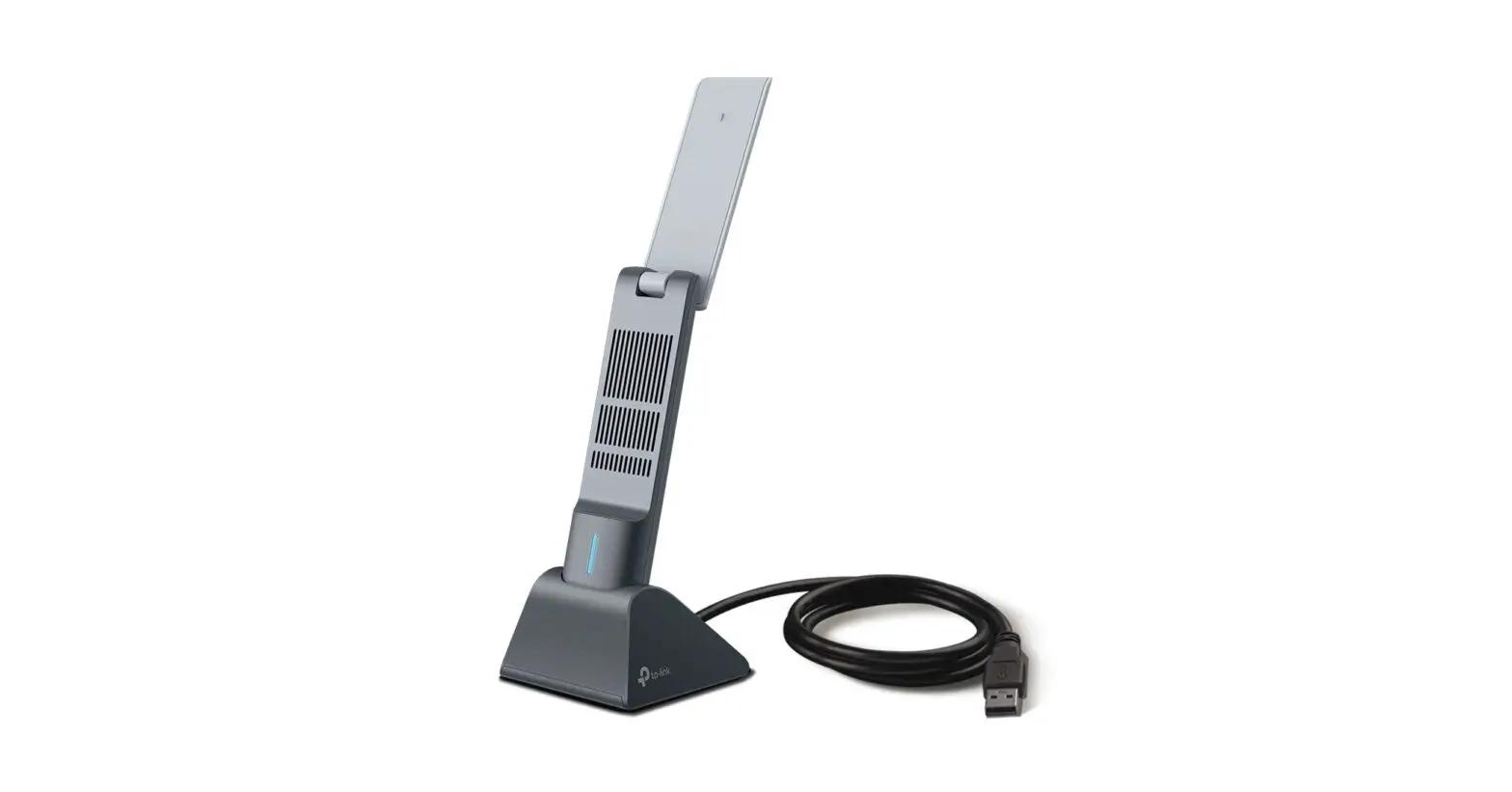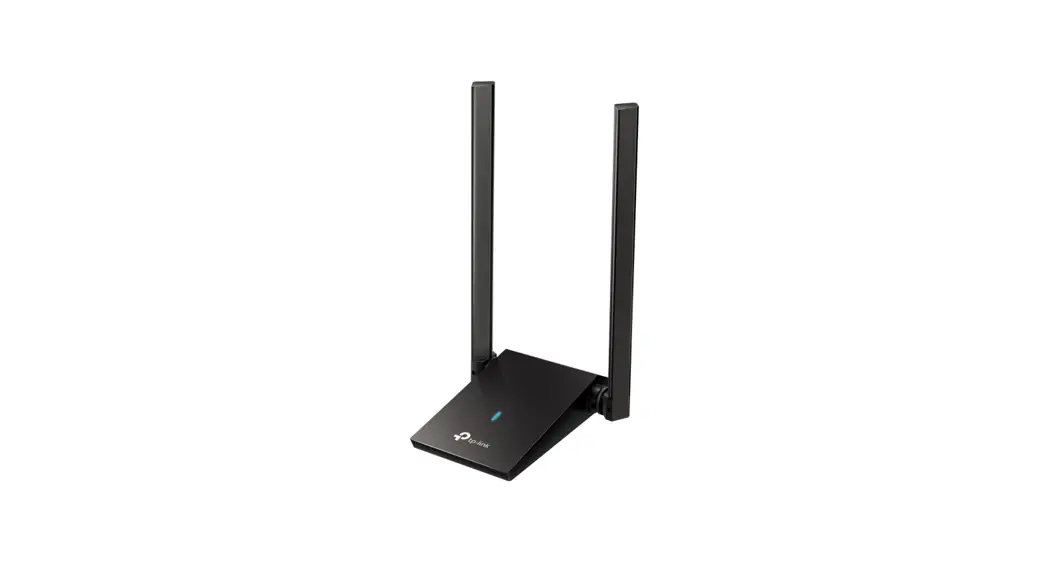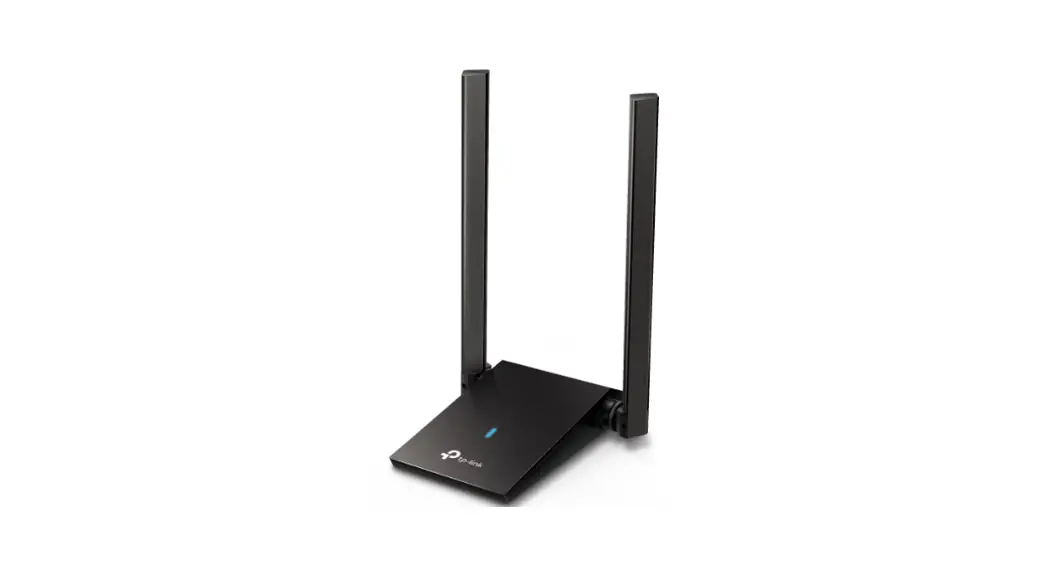
 Archer TX20U Wireless USB Adapter
Installation Guide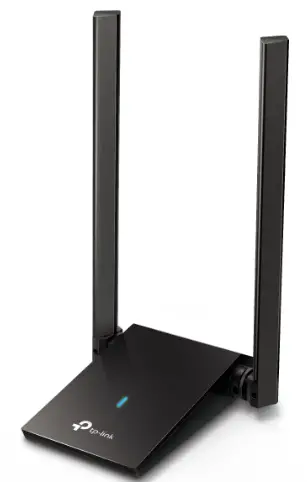 Wireless USB Adapter
Quick Installation Guide
Images are for demonstration only.
©2022 TP-Link 7106509642 REV1.1.0
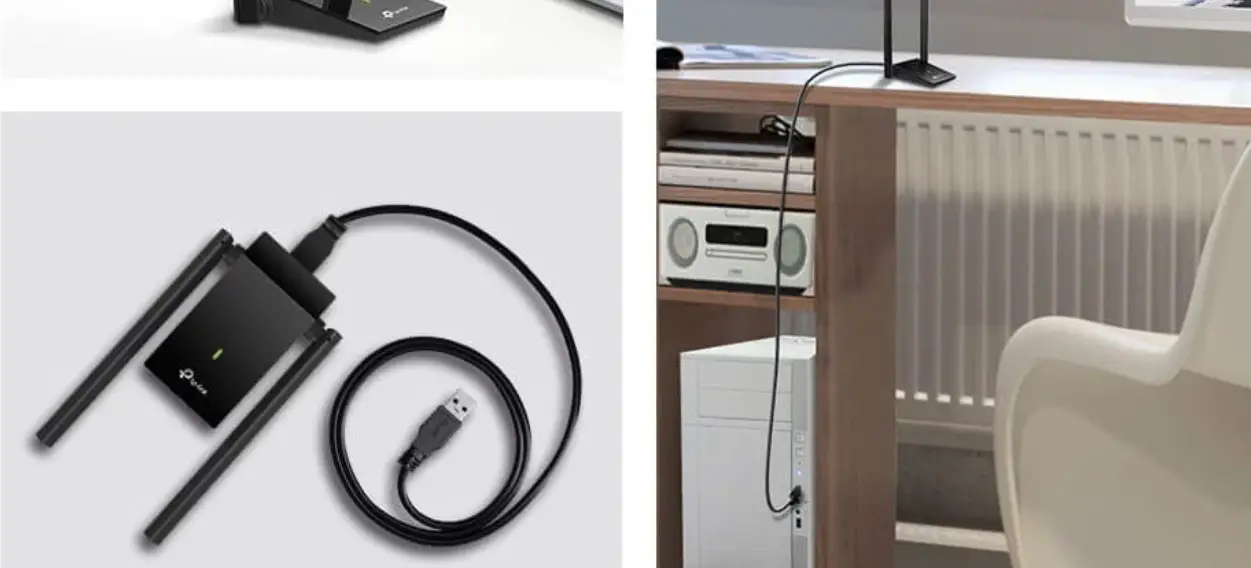
Connect to a Computer
Note: It is recommended to connect the adapter to a USB 3.0 (  ) port.
Option 1: Directly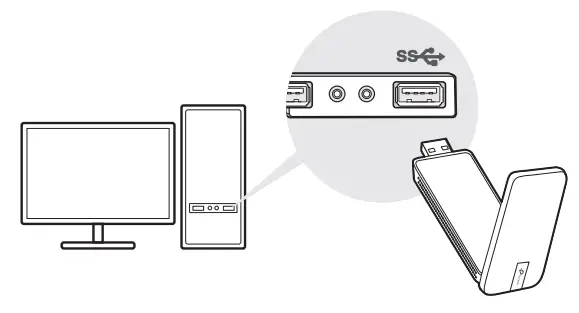
Option 2: Via the USB Extension Cable (if provided)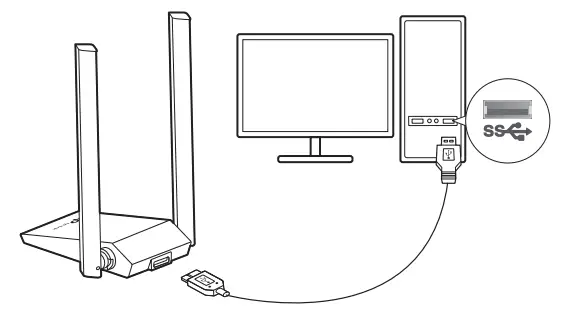
Install Driver
a. Go to My Computer or This PC.
b. Double click the TP-Link disk then run SetupInstall.exe to install driver.
Note:
- If you cannot find the setup program, please download the driver at www.tp-link.com/support.
- If an unknown publisher message pops up, select Yes to continue.
- If Windows User Account Control requires admin credentials, type user name and password of your Windows administrator account.
Join a Wireless Network
a. Click the network icon on the taskbar.
b. Select your Wi-Fi network, click Connect and enter the password when prompted.
Troubleshooting
If you have problems during the installation, please refer to the following online FAQs.
- Can’t find the hardware version of the adapter: https://www.tp-link.com/faq-46.html
- Can’t find or connect to the wireless networks: https://www.tp-link.com/faq-2253.html
- Can’t install the driver: https://www.tp-link.com/faq-2252.html
EU Declaration of Conformity
TP-Link hereby declares that the device is in compliance with the essential requirements and other relevant provisions of directives 2014/53/EU, 2011/65/EU and (EU)2015/863.
The original EU declaration of conformity may be found at https://www.tp-link.com/en/support/ce/.
Safety Information
- Keep the device away from water, fire, humidity or hot environments.
- Do not attempt to disassemble, repair, or modify the device. If you need service, please contact us.
- Do not use the device where wireless devices are not allowed.
- This product can be powered only by computers that comply with Power Source Class 2 ( PS2) or Limited Power Source(LPS) of IEC 62368-1.
Please read and follow the above safety information when operating the device. We cannot guarantee that no accidents or damage will occur due to improper use of the
device. Please use this product with care and operate at your own risk.
For TP-Link Branded Products Only. For the information about warranty period, policy and procedures, please visit https://www.tp-link.com/en/support
THIS WARRANTY GIVES YOU SPECIFIC LEGAL RIGHTS, AND YOU MAY HAVE OTHER RIGHTS THAT VARY FROM STATE TO STATE (OR BY COUNTRY OR PROVINCE).
TO THE EXTENT ALLOWED BY LOCAL LAW, THIS WARRANTY AND THE REMEDIES SET FORTH ARE EXCLUSIVE AND IN LIEU OF ALL OTHER WARRANTIES, REMEDIES AND CONDITIONS.
TP-Link warrants the TP-Link branded hardware product contained in the original packaging against defects in materials and workmanship when used normally in according
with TP-Link’ s guidelines for some period which depends on the local service from the date of original retail purchase by the end-user purchaser.
Support
For technical support, the user guide and other information, please visit https://www.tp-link.com/support, or simply scan the QR code. 
Images are for demonstration only.
©2022 TP-Link 7106509642 REV1.1.0
References
 Anatel — Agência Nacional de Telecomunicações
 TP-Link Product Support - Wireless Networking Equipment Support
-
Support | TP-Link
-
CE Regulatory Compliance | TP-Link
-
Support | TP-Link
-
Problems you may come across during the driver installation of the TP-Link wireless adapter
-
Why cannot I connect to my wireless network | TP-Link
-
How to find the hardware version on a TP-Link device
-
Support | TP-Link
-
Support | TP-Link
-
TP-Link Product Support - Wireless Networking Equipment Support
 Anatel — Agência Nacional de Telecomunicações
 TP-Link Product Support - Wireless Networking Equipment Support