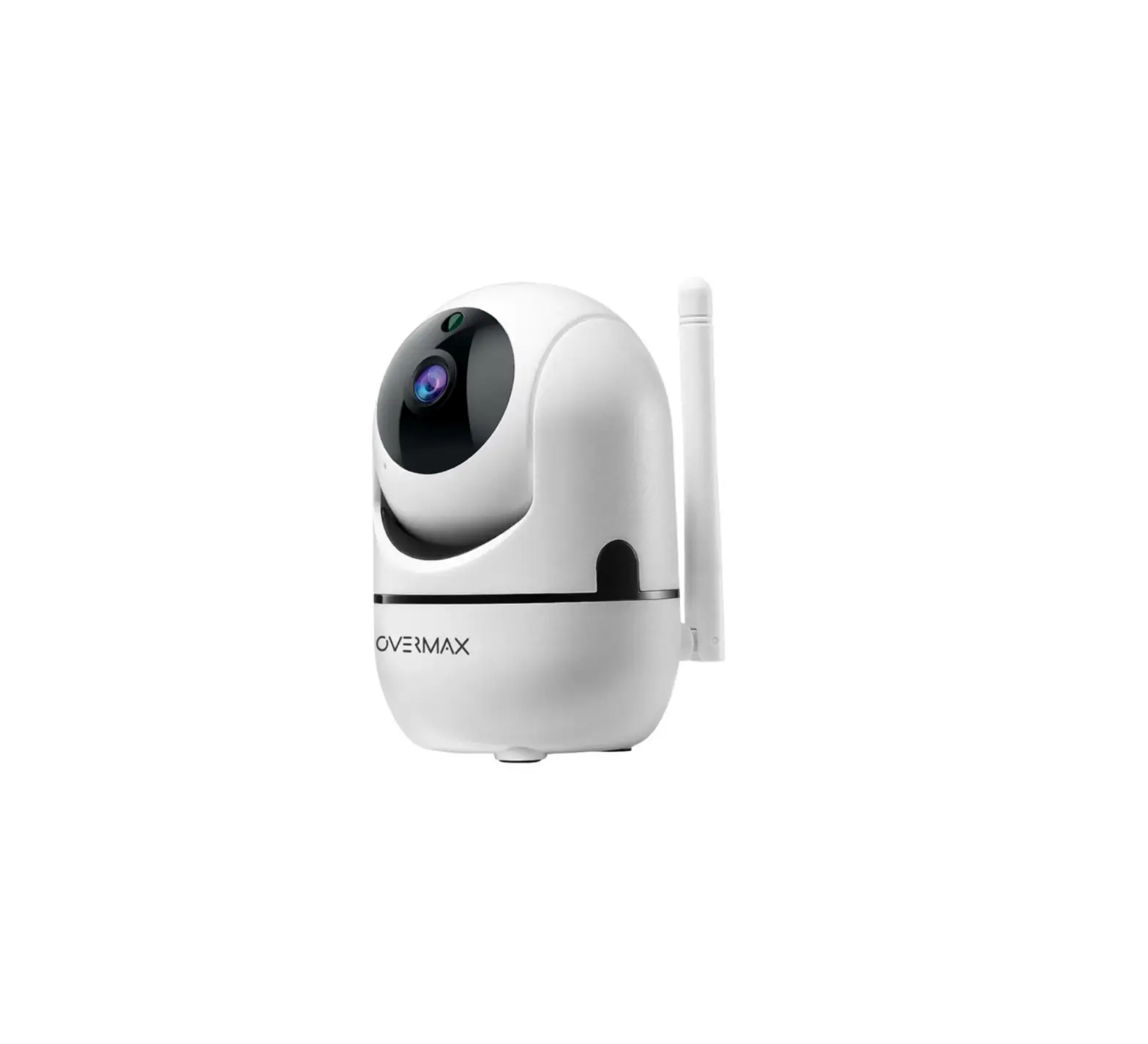
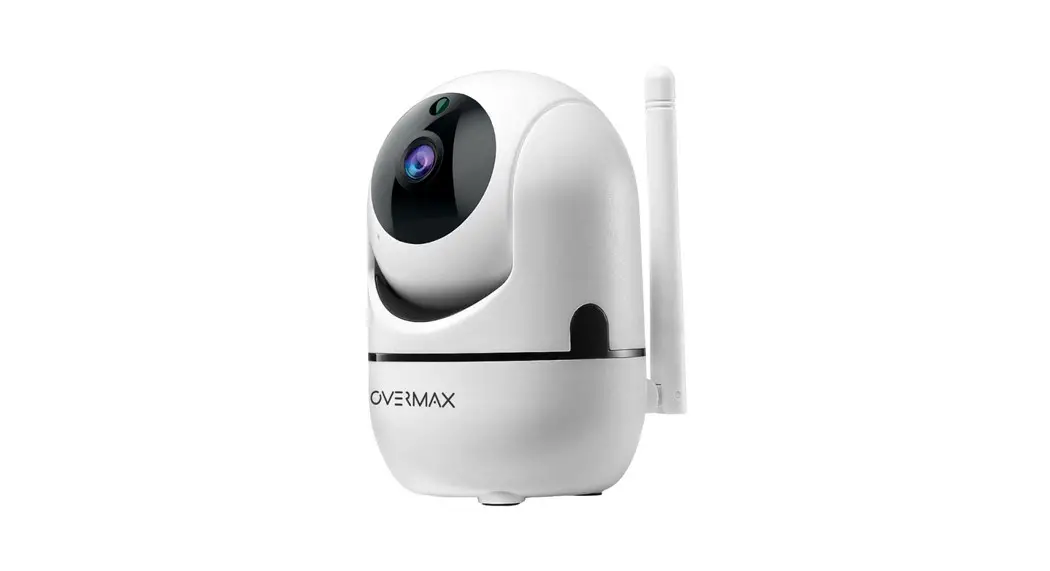
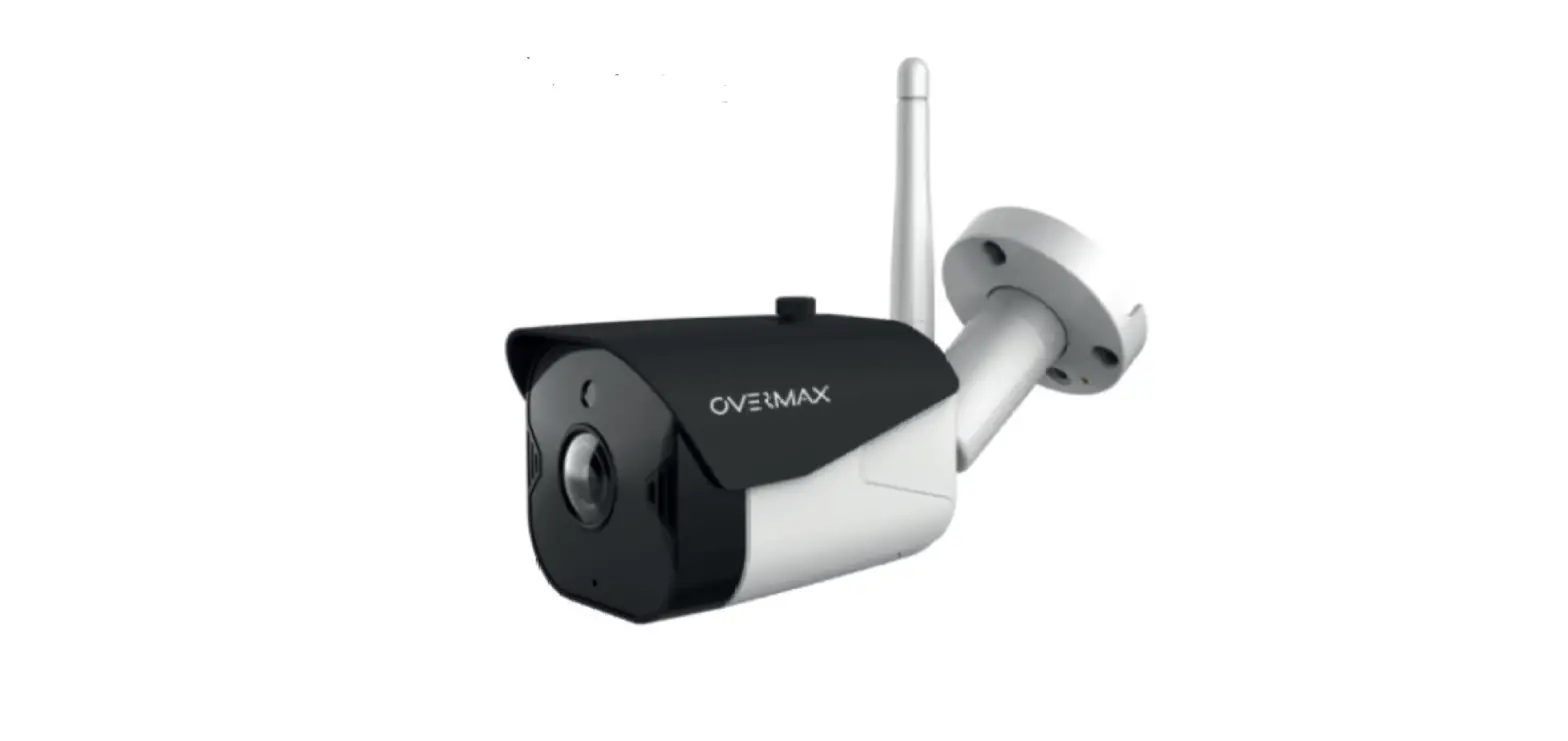
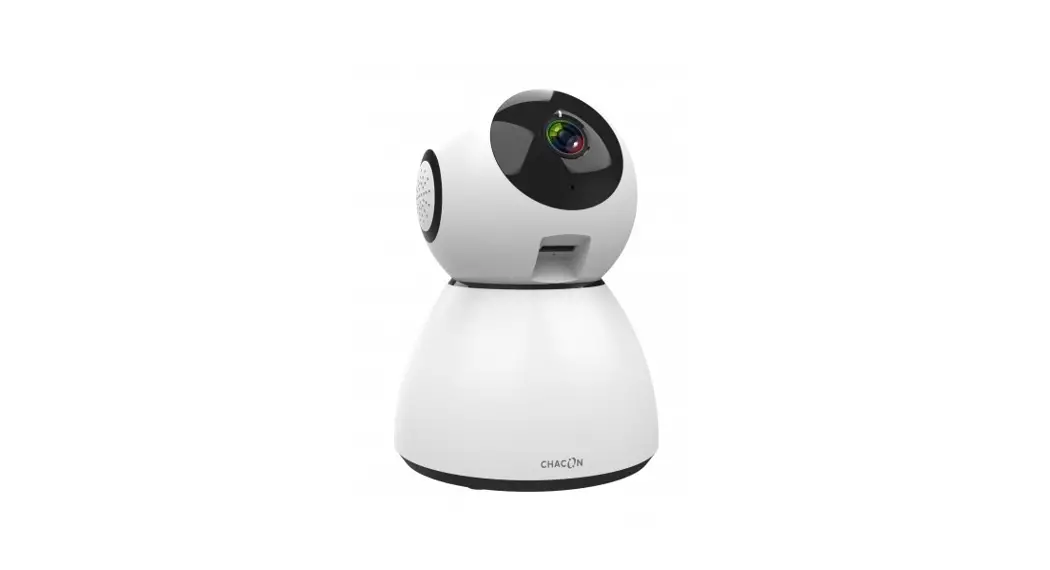
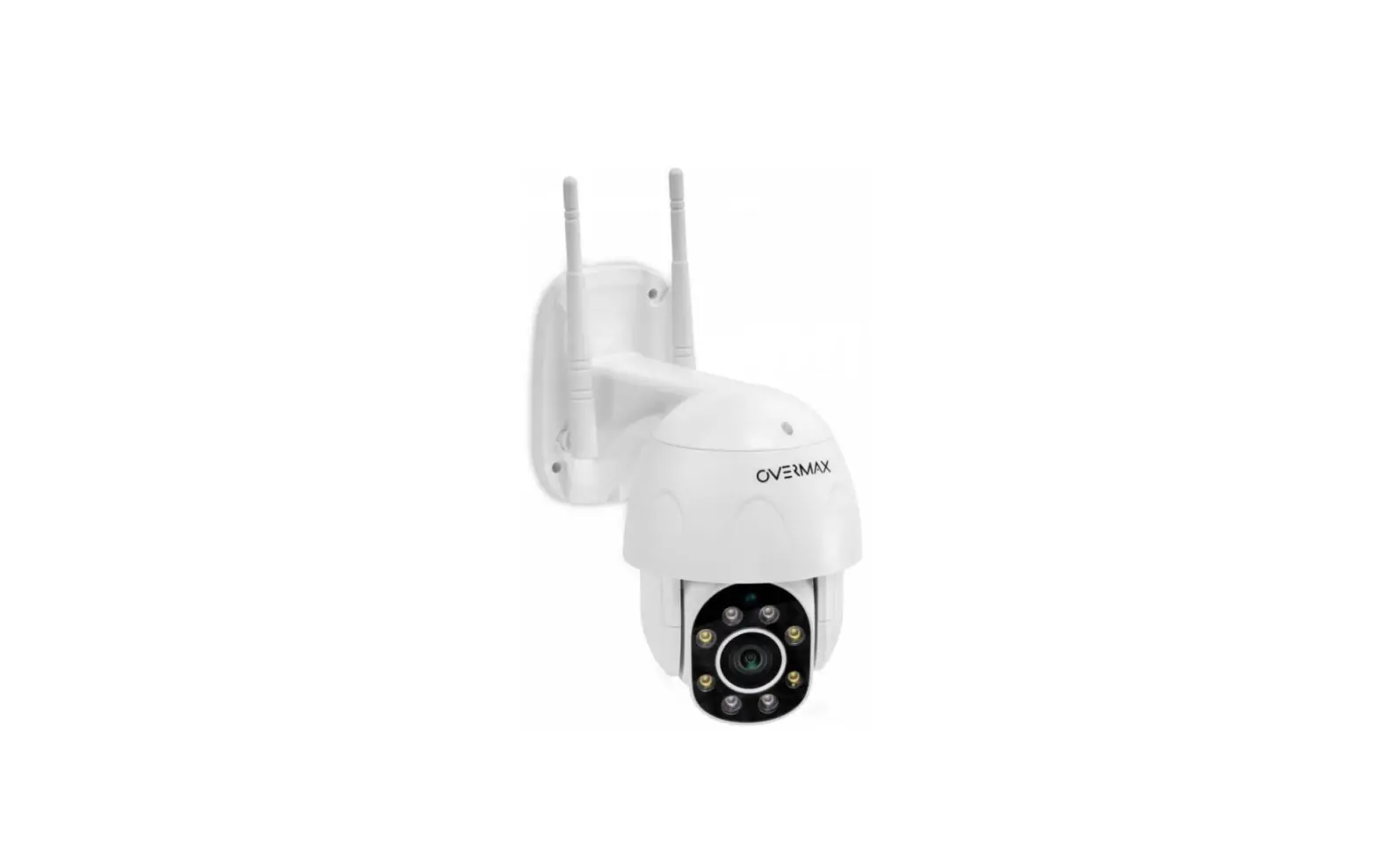
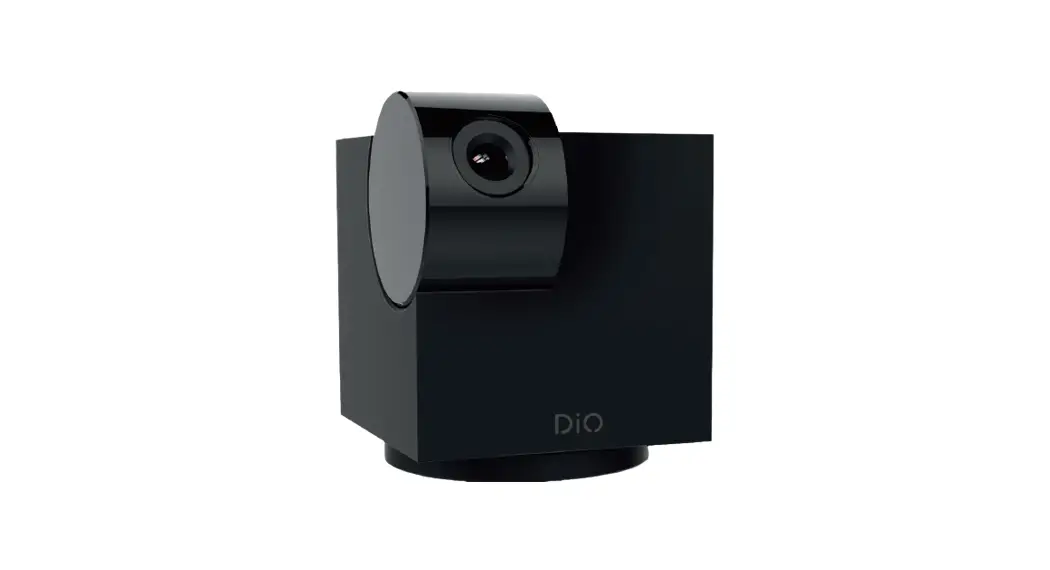
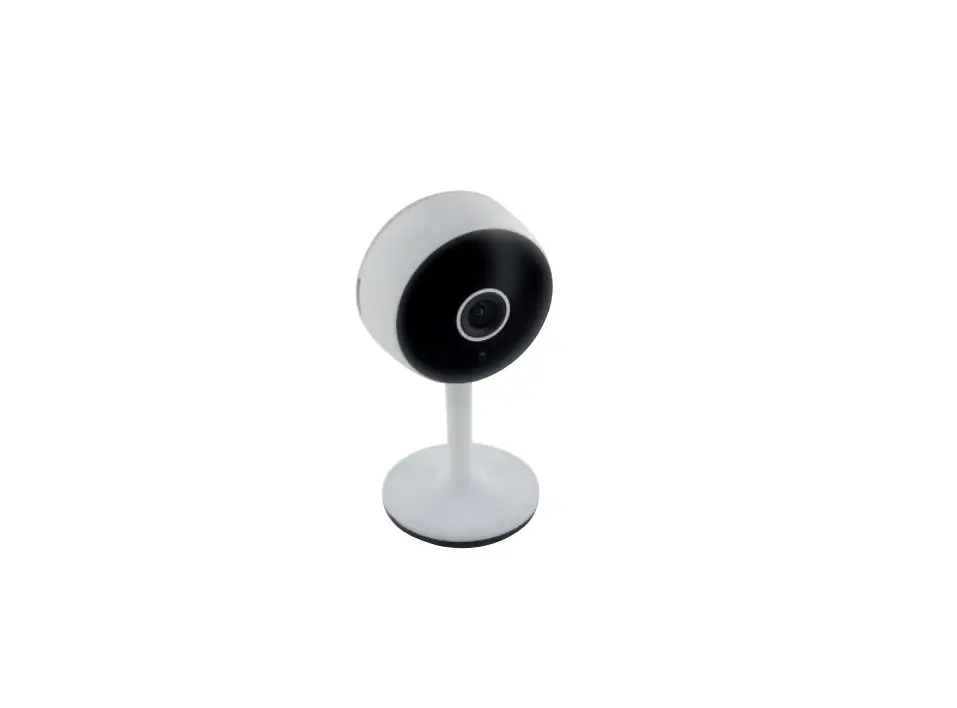
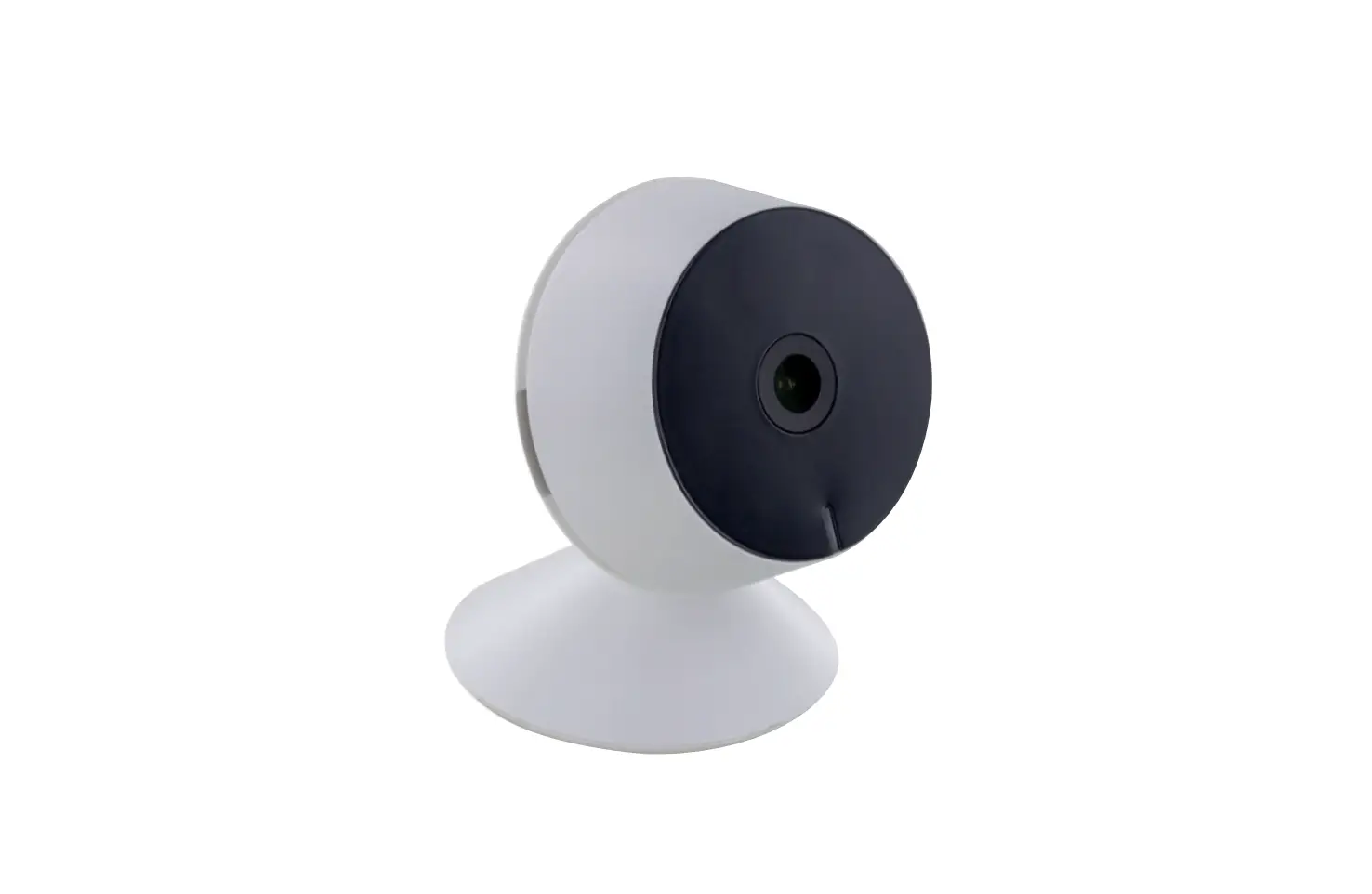
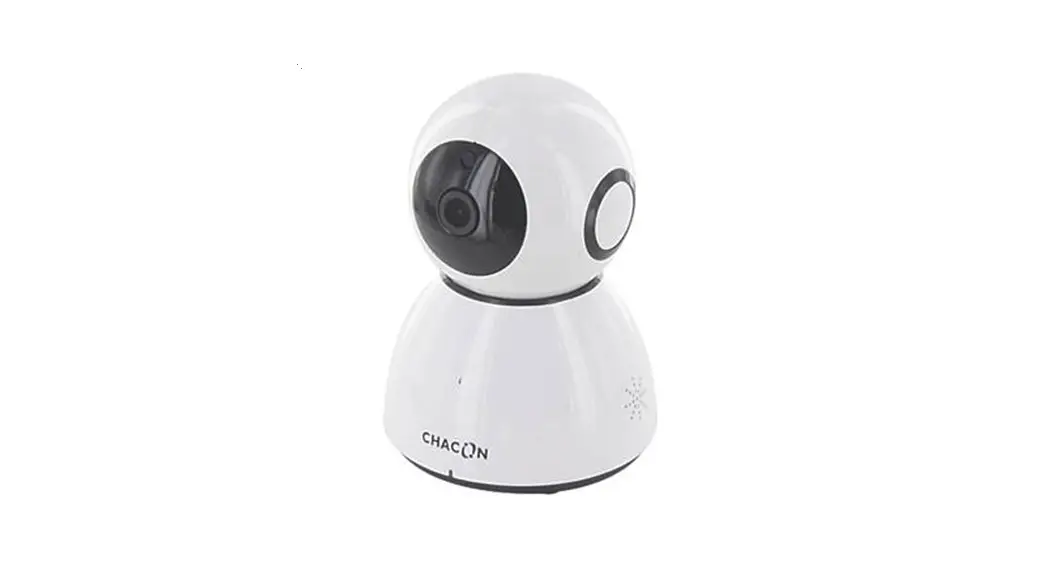
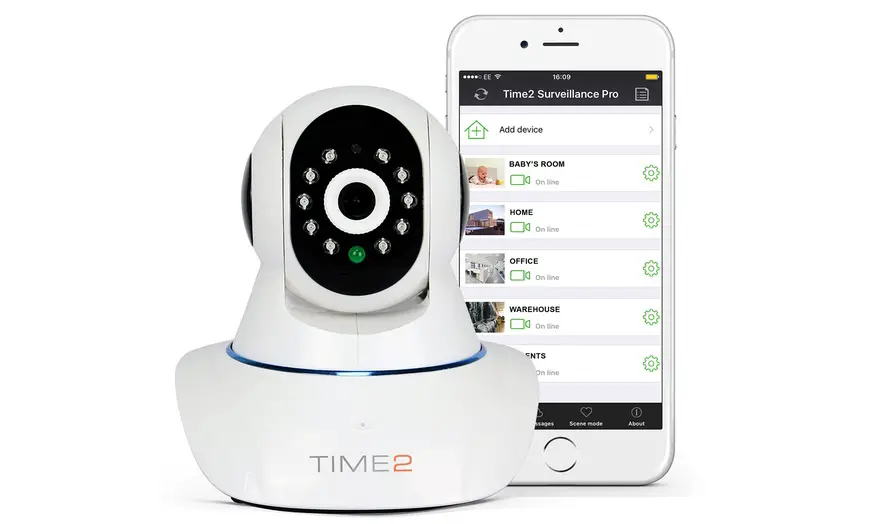
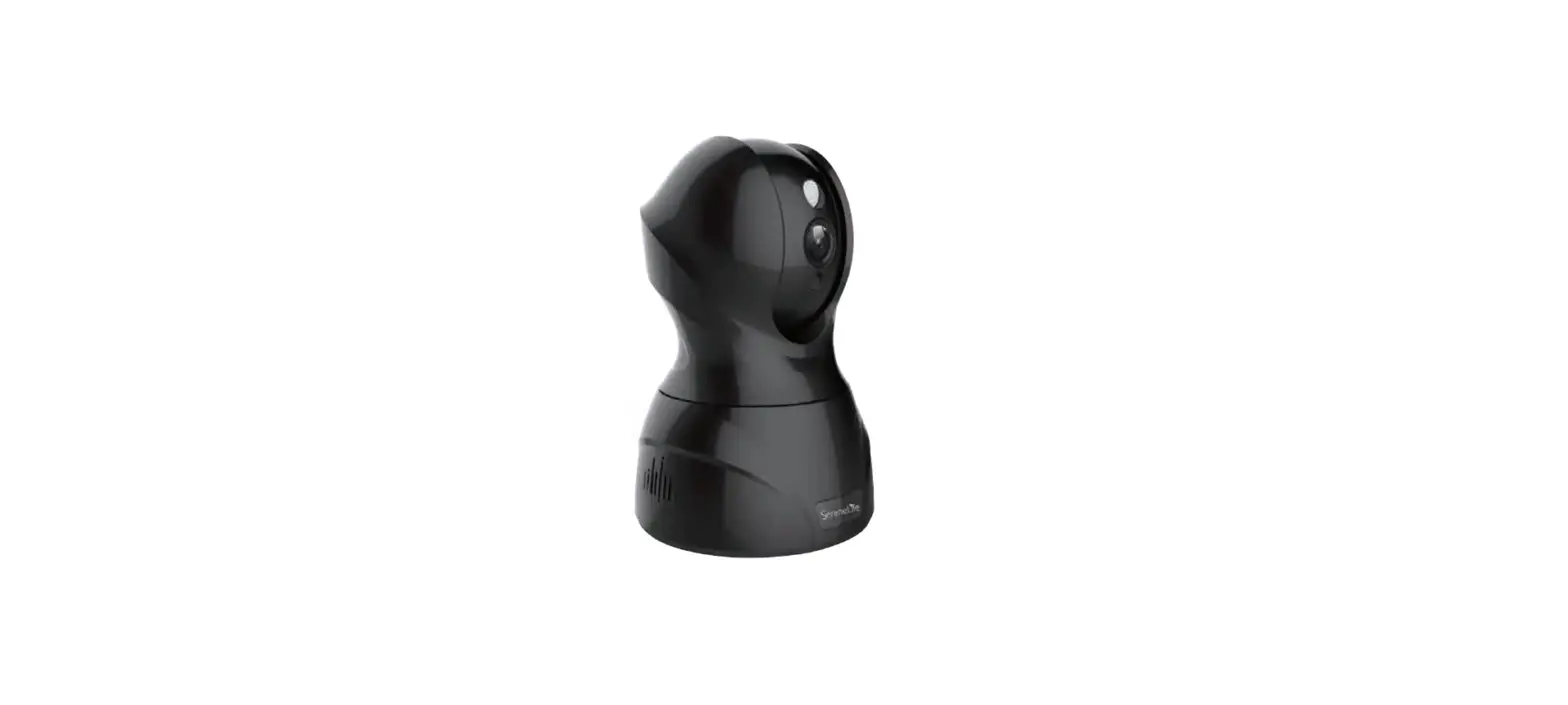
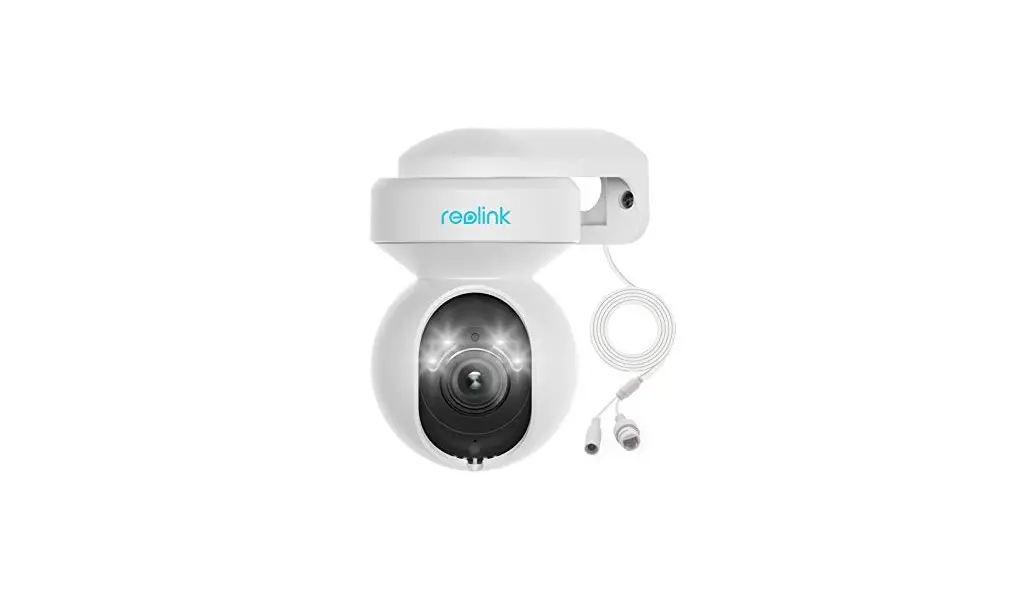
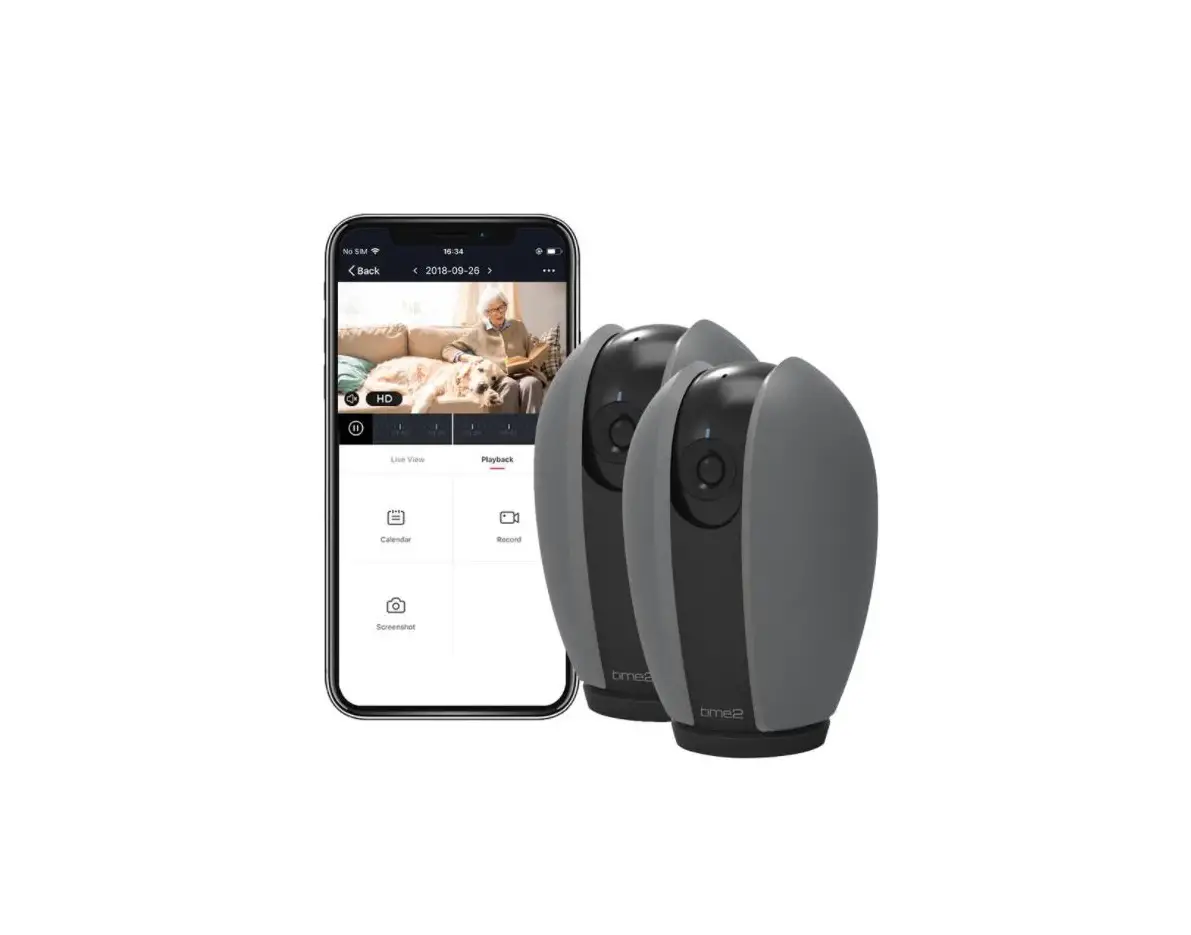
Camspot 3.7 Pro Indoor Rotating WiFi Ip Camera
Camspot 3.7 Pro
Product Information
The Camspot 3.7 Pro is a wireless indoor camera that operates at
a frequency of 2.412-2.472 GHz. It comes with a mount, screws, and
plugs for installation. The camera has a 5V DC 1.5A power supply
and a microSD card slot for storage. It also features a microphone,
lens, light sensor, infrared lights, and a reset button.
Product Usage Instructions
- Download the “Overmax Control” app from the iOS Store or Google
Play (Figure 1). - Register as a new user and accept the Privacy Policy (Figures 2
and 3). - Login to an existing account.
- Add the Camspot 3.7 Pro to the app manually (Figure 4). Wait
for the device to finish configuration. - Use the app to access functions such as live streaming,
recording, taking photos, turning on/off night vision mode, motion
tracking, sound detection, and more (Figure 6). - To access the camera through a web browser, open the “Overmax
Control” app, click “Add Device,” and scan the QR code displayed on
your computer’s browser.
Note: As per EU Directive 2012/19/EU, the Camspot 3.7 Pro should
not be disposed of with domestic waste, but rather handed over to
an electronics recycling center when no longer in use.
Camspot 3.7 Pro
PL
Instrukcja obslugi
EN
User Manual
Bedienungsanleitung
DE
Manuale d’uso
Manuel de l’Utilisateur
IT
Manual de usuario
FR
Handleiding
ES
Vartotojo vadovas
Korisnicki prirucnik
NL
UK
LT
HR
PL: Produkt zgodny z wymaganiami dyrektyw Unii Europejskiej. Zgodnie z Dyrektyw 2012/19/UE, niniejszy produkt podlega zbiórce selektywnej. Produktu nie naley wyrzuca wraz z odpadami komunalnymi, gdy moe stanowi on zagroenie dla rodowiska i zdrowia ludzi. Zuyty produkt naley odda do punktu recyklingu urzdze elektrycznych i elektronicznych.
EN: The product complies with requirements of EU directives. Pursuant to the Directive 2012/19/EU, this product is subject to selective collection. The product must not be disposed of along with domestic waste as it may pose a threat to the environment and human health. The worn-out product must be handed over to the electrics and electronics recycling center.
DE: Das Produkt stimmt mit den Richtlinien der Europäischen Union. Gemäß der Richtlinie 2012/19/UE unterliegt das Produkt einer getrennten Sammlung. Das Produkt darf man nicht zusammen mit kommunalen Abfällen entsorgen, weil das die Gefahr für die Umwelt und die Gesundheit der Menschen bilden kann. Das verbrauchte Produkt soll man in einem entsprechenden Rücknahmepunkt für Elektro- und Elektronik-Altgeräte zurückgeben.
IT: Prodotto conforme ai requisiti delle direttive dell’Unione Europea. In conformità alla direttiva 2012/19/UE, questo prodotto è soggetto a raccolta differenziata. Il prodotto non deve essere smaltito con i rifiuti domestici perché può costituire una minaccia per l’ambiente e la salute umana. Si prega di restituire il vecchio prodotto al punto di raccolta applicabile per il riciclaggio di apparecchiature elettriche ed elettroniche.
FR: Le produit est conforme aux exigences des directives de l’Union européenne. Conformément à la Directive 2012/19/UE, le présent produit est soumis à la collecte séparée. Il convient de ne pas jeter le produit avec les déchets ménagers, car il peut constituer un danger pour l’environnement et la sainte humaine. Le produit usé devrait être remis au point de recyclage des appareils électriques et électroniques.
ES: El producto cumple los requisitos de las directivas de la Unión Europea. De acuerdo con la Directiva 2012/19/UE, este producto está sujeto a recogida selectiva. El producto no debe eliminarse con los residuos municipales, ya que puede suponer una amenaza para el medio ambiente y la salud humana. Por favor, entrega el producto que ya no vayas a utilizar a un centro de reciclaje de dispositivos eléctricos y electrónicos.
NL: Product in overeenstemming met de eisen van de richtlijnen van de Europese Unie. In overeenstemming met Richtlijn 2012/19/EU moet dit product gescheiden worden ingezameld. Het product mag niet met het huisvuil worden weggegooid omdat het een bedreiging kan vormen voor het milieu en de volksgezondheid. Lever uw oude product in bij het daarvoor bestemde inzamelpunt voor recycling van elektrische en elektronische apparatuur.
UK: . 2012/19/ . , ‘ . .
LT: Produktas atitinka Europos Sjungos direktyv reikalavimus. Pagal 2012/19 / ES Direktyv sis produktas yra rsiuojamas. Produkto negalima ismesti su komunalinmis atliekomis, nes tai gali kelti grsm aplinkai ir zmoni sveikatai. Panaudot gamin reikia nugabenti elektros ir elektronins rangos perdirbimo punkt.
HR: Proizvod je sukladan propisima Direktive Europske Unije. Sukladno Direktivi 2012/19/UE ovaj proizvod spada u selektivno skupljanje. Proizvod se ne smije bacati skupa s drugim komunalnim otpadom, jer moze predstavljati prijetnju za okolis i ljudsko zdravlje. Potroseni proizvod je potrebno odnijeti u centar za zbrinjavanje elektricnih i elektronickih ureaja.
2
3
1
A
4
5
1
2
3
4
57 6
8
B
1
2 3
4 5
2
1
3
4
5
6
7
6
8
9
10
11
12
13
14
15
16
17
18
19
6
20
21
22
7 8
Wprowadzenie
Drogi Kliencie!
PL
Dzikujemy za obdarzenie nas zaufaniem i wybranie marki Overmax.
Dziki wykorzystaniu wysokiej jakoci materialów i nowoczesnych
rozwiza technologicznych oddajemy w Twoje rce produkt idealny
do codziennego uytkowania. Jestemy pewni, e dziki ogromnej
starannoci wykonania spelni on Twoje wymagania. Przed uyciem
produktu zapoznaj si dokladnie z ponisz instrukcj obslugi.
Jeli masz jakiekolwiek uwagi lub pytania do zakupionego produktu, skontaktuj si z nami: [email protected]
Informacje o urzdzeniu
Czstotliwo: 2.412-2.472 GHz Kamera do uytku wewntrznego Zasilacz: 5V DC 1.5A
Zestaw (rys. A)
1. Kamera 2. Uchwyt montaowy 3. ruby i kolki montaowe
4. Zasilacz 5. Przewód USB
Opis urzdzenia (rys. B)
1. Mikrofon
6. Reset
2. Obiektyw
7. Glonik
3. Czujnik wiatla
8. Gniazdo zasilania (5V DC
4. Diody na podczerwie
1.5A)
5. Gniazdo karty microSD
1. Pobieranie przez aplikacj (rys. 1)
Wyszukaj w iOS Store / Google Play aplikacj ,,Overmax Control” albo zeskanuj QR kod i cignij aplikacj. Moesz j cign na iOS i Android.
2. Rejestracja nowego uytkownika (rys. 2 i 3)
· W celu zarejestrowania si do aplikacji kliknij w pole
,,Zarejestruj” a nastpnie przeczytaj i zaakceptuj Polityk
PL
Prywatnoci.
· Wpisz adres e-mail w celu otrzymania kodu weryfikacyjnego.
· Wpisz kod weryfikacyjny w puste pole.
· Wpisz indywidualne haslo i wybierz ,,Zakocz”.
3. Logowanie do istniejcego konta
· W celu zalogowania si na istniejce konto, wybierz ,,Zaloguj si uywajc istniejcego konta” (rys. 2).
· Wybierz odpowiedni kraj/region. · Wpisz adres e-mail oraz haslo, a nastpnie zaloguj si.
4. Rczne dodawanie urzdzenia w aplikacji (rys. 4)
Produkt obsluguje tylko sie Wi-Fi 2.4 GHz, nie obsluguje natomiast sieci Wi-Fi 5 GHz. Przed skonfigurowaniem Wi-Fi, ustaw parametry routera. Haslo Wi-Fi nie powinno zawiera znaków specjalnych. · Upewnij si, e router i kamera s jak najbliej siebie, aby
umoliwi szybk konfiguracj urzdzenia. · Polcz urzdzenie mobilne z lokaln sieci Wi-Fi, do której
bdzie polczona kamera, nastpnie wybierz ,,Mój dom”. Wybierz ,,Dodaj urzdzenie” i “Dodaj rcznie”, a nastpnie wybierz urzdzenie ,,Camspot 3.7 Pro”. · Wybierz sie Wi-Fi i wpisz haslo. · Istnieje moliwo dodania urzdzenia za pomoc funkcji Auto skan, wybór której sprawi, e telefon automatycznie wyszuka znajdujce si w pobliu urzdzenia podlczone do sieci Wi-Fi. · Wcinij i przytrzymaj przez 5 sekund przycisk ,,Reset”, aby przywróci ustawienia fabryczne. Kliknij ,,Nastpny krok” i przejd dalej. · W celu sparowania kamery, zeskanuj QR kod z ekranu telefonu przez obiektyw kamery, trzymajc go w odlegloci 15-20 cm od siebie. W trakcie skanowania staraj si trzyma telefon komórkowy w stabilnej pozycji.
· Kiedy uslyszysz sygnal dwikowy, kliknij ,,Slyszalem dwik”.
Poczekaj, a urzdzenie zakoczy konfiguracj.
· Po dodaniu urzdzenia kliknij ,,Zakocz”, aby zakoczy
dodawanie urzdzenia (rys. 5).
PL
5. Opis funkcji aplikacji mobilnej (rys. 6)
Interfejs podgldu w czasie rzeczywistym: 1. HD/SD zmiana rozdzielczoci nagrywania FullHD / HD 2. Regulacja glonoci 3. Zoom 4. Pelny ekran 5. Zdjcie 6. Dwukierunkowa komunikacja audio 7. Nagrywanie wideo 8. Odtwórz (wymagana karta microSD FAT32, maks. 128 GB) 9. Galeria 10. Jasny/ciemny tryb aplikacji 11. Tryb prywatny (umoliwia ograniczenie transferu danych
wylczajc kamer) 12. Tryb nocny 13. ledzenie ruchu 14. Czujnik ruchu 15. Czujnik dwiku 16. Sterowanie 17. Lokalizacje 18. Chmura 19. Funkcje Smart 20. Funkcja patrolu 21. Alarm (wylcza si automatycznie po 10 sekundach) 22. Edycja Aby mie dostp po podgldu obrazu z kamery przez przegldark internetow, wlcz aplikacje ,,Overmax Control”, kliknij dodaj urzdzenie, nastpnie zeskanuj kod QR wywietlany w przegldarce Twojego komputera.
Podgld kamer na ywo pod linkiem: https://ipc-eu.ismartlife.me/login
PL Monta
· Umie kamer na plaskiej powierzchni biurka lub stolu (rys. 7). · Aby zamontowa kamer na cianie/suficie, uyj uchwytu
montaowego dolczonego do zestawu. Upewnij si, e powierzchnia jest czysta (rys. 8).
Funkcja Google Assistant/Alexa
· W przypadku chci korzystania z niniejszej funkcji, naley pobra aplikacj Tuya Smart.
· Aplikacja Tuya Smart jest bezplatna i dostpna dla urzdze Android (Google Play) oraz iOS (App Store).
Rozwizywanie problemów
Pytanie
Odpowied
Jak przywróci ustawienia fabryczne w urzdzeniu?
Usu kamer z listy urzdze w aplikacji lub wcinij i przytrzymaj przycisk reset przez 5 sekund, a uslyszysz komunikat dwikowy.
Po wybraniu sieci Wi-Fi 2.4GHz i wpisaniu poprawnego hasla kamera nadal nie moe si polczy.
Upewnij si, e telefon i kamera s podlczone do tej samej sieci. Upewnij si, e wlczony zostal protokól DHCP. Wcinij i przytrzymaj przycisk reset przez 8 sekund aby zresetowa urzdzenie. Upewnij si, e sila sygnalu Wi-Fi jest wysoka.
Jak mog zmieni router, do którego podlczona jest kamera?
Usu kamer z listy urzdze w aplikacji lub wcinij i przytrzymaj przycisk reset przez 8 sekund, a uslyszysz komunikat dwikowy. Nastpnie ponownie skonfiguruj urzdzenie.
Karta microSD nie jest Sprawd ustawienia kamery i upewnij rozpoznana przez urzdzenie. si, e umoliwione zostalo zapisywanie
materialów na karcie microSD.
PL Urzdzenie moe obslugiwa karty
o pojemnoci 128 GB. Upewnij si, e karta nie jest uszkodzona i obsluguje format FAT32.
Dlaczego nie otrzymuj Upewnij si, e telefon oraz aplikacja powiadomienia po wykryciu maj wlczone powiadomienia push. ruchu przez urzdzenie?
Ilustracje zamieszczone wylcznie w celach informacyjnych. Rzeczywisty wygld produktów moe róni si od przedstawionych na zdjciach.
Introduction
Dear customer! Thank you for placing trust in us and choosing Overmax.
EN Thanks to high-quality materials and modern solutions, we provide
you with a product perfect for everyday use. We are convinced that the product will satisfy your requirements as it has been manufactured with utmost care. Before you use the product, please read this manual carefully.
Should you have any remarks or questions concerning the product, please do not hesitate to contact us: [email protected]
Information about the device
Frequency: 2.412-2.472 GHz Indoor camera Power supply: 5V DC 1.5A
The set (fig. A)
1. Camera
4. Power supply
2. Mounting bracket
5. USB cable
3. Screws and mounting pins
Device description (fig. B)
1. Microphone
6.
2. Lens
7.
3. Light sensor
8.
4. Infrared diodes
5. MicroSD card slot
Reset Speaker Power supply socket (5V DC 1.5A)
1. Downloading by application (fig. 1)
Search for the “Overmax Control” app in the iOS Store / Google Play or scan the QR code and download the app. You can download it for iOS and Android.
2. Registering a new user (fig. 2 and 3)
EN
· To register for the application, click on the “Register” box and
then read and accept the Privacy Policy.
· Enter your email address to receive your verification code.
· Enter your verification code in the blank field.
· Enter your individual password and select “Finish”.
3. Logging in to an existing account
· In order to log in to an existing account, select “Log in using an existing account” (fig. 2).
· Select the appropriate country/region. · Enter your email address and password, then log in.
4. Manually adding the device in the application
(fig. 4)
The product only supports 2.4GHz Wi-Fi and does not support 5GHz Wi-Fi. Before setting up Wi-Fi, set your router parameters. The Wi-Fi password should not contain special characters. · Make sure the router and camera are as close together as
possible to allow for quick setup of the device. · Connect your mobile device to the local Wi-Fi network to which
the camera will be connected, then select “My home”. Select ,,Add device” and ,,Add manually”, then select the ,,Camspot 3.7 Pro” device. · Select your Wi-Fi network and enter your password. · You can add the device using Auto Scan, which allows your phone to automatically search for nearby Wi-Fi enabled devices. · Press and hold the “Reset” button for 5 seconds to restore the factory settings. Click ,,Next step” and continue.
·
·
EN ·
To pair the camera, scan the QR code from the phone screen through the camera lens, holding the camera 15-20cm away. Try to hold your mobile phone in a stable position while scanning. When you hear the sound signal, click “I heard the sound”. Wait for the device to complete the configuration. After adding the device, click ,,Finish” to finish adding the device (fig. 5).
5. Description of the mobile application functions
(fig. 6)
Real-time preview interface: 1. HD/SD change recording resolution FullHD / HD 2. Volume control 3. Zoom 4. Full screen 5. Photo 6. Two-way audio communication 7. Video recording 8. Play (microSD card FAT32 required, max. 128 GB) 9. Gallery 10. Bright/dark application mode 11. Private mode (allows you to limit data transfer by turning
off the camera) 12. Night mode 13. Motion tracking 14. Motion sensor 15. Sound sensor 16. Control 17. Locations 18. Cloud 19. Smart functions 20. Patrol function 21. Alarm (switches off automatically after 10 seconds) 22. Edition In order to access the camera view via a web browser, turn on the
“Overmax Control” application, click on add the device, then scan the QR code displayed in the browser of your computer. Live camera preview at: https://ipc-eu.ismartlife.me/login
Mounting · Place the camera on a flat surface of a desk or table (fig. 7). EN
· To mount the camera on a wall/ceiling, use the mounting bracket included in the set. Make sure the surface is clean (fig. 8).
Google Assistant/Alexa function
· If you wish to use this function, you will need to download the Tuya Smart app.
· The Tuya Smart app is free and available for Android (Google Play) and iOS (App Store) devices.
Troubleshooting
Question
Answer
How do I restore the factory settings on my device?
Remove the camera from the device list in the app or press and hold the reset button for 5 seconds until you hear the sound.
After selecting the 2.4GHz WiFi network and entering the correct password, the camera still cannot connect.
Make sure your phone and camera are connected to the same network. Make sure that the DHCP protocol is enabled. Press and hold the reset button for 8 seconds to reset the device. Make sure the Wi-Fi signal strength is high.
How can I change the router the camera is connected to?
Remove the camera from the device list in the app or press and hold the reset button for 8 seconds until you hear the sound. Then reconfigure the device.
The microSD card is not recognized by the device.
Check the camera settings and make sure you have enabled saving to a microSD card. The device can support up to 128GB cards. Make sure the card is not damaged and supports the FAT32 format.
EN Why am I not receiving Make sure your phone and app have push a notification when the device notifications enabled. detects movement?
Illustrations are provided for information purposes only. The actual appearance of the products may differ from the images shown.
Einführung
Sehr geehrter Kunde!
Wir möchten uns bei Ihnen bedanken, dass Sie uns vertraut und
die Marke Overmax gewählt haben.
Die Stoffe höchster Qualität und moderne technologische Lösungen
sorgen dafür, dass wir Ihnen das ideale Produkt für den täglichen Bedarf übergeben. Wir sind sicher, dass die sorgfältige Ausführung
DE
Ihre Anforderungen erfüllt. Bevor Sie das Produkt benutzen, lesen
Sie bitte genau die vorliegende Bedienungsanleitung.
Falls Sie Fragen oder Anmerkungen zu dem gekauften Produkt haben, setzen Sie sich mit uns in Verbindung: [email protected]
Gerätedaten
Frequenz: 2.412-2.472 GHz Kamera für den Innenbereich Netzteil: 5V DC 1.5A
Kamera-Set (Abb. A)
1. Kamera
4. Netzteil
2. Montagehalterung
5. USB-Kabel
3. Befestigungsschrauben
und Dübel
Gerätebeschreibung (Abb. B)
1. Mikrofon
6. Reset-Taste
2. Objektiv
7. Lautsprecher
3. Lichtsensor
8. Versorgungsanschluss (5V
4. Infrarot-LEDs
DC 1,5A)
5. MicroSD-
Speicherkartensteckplatz
1. Herunterladen durch die Applikation (Abb. 1)
Suchen Sie in iOS Store/Google Play die Applikation ,,Overmax Control” oder scannen Sie den QR-Code und laden Sie die Applikation herunter. Die Applikation ist für iOS und für Android zum Herunterladen erhältlich.
2. Registrierung des neuen Benutzers (Abb. 2 u. 3) DE · Um sich in der Applikation zu registrieren, betätigen Sie die
Schaltfläche ,,Registrieren” und lesen und akzeptieren Sie anschließend die Datenschutzerklärung. · Geben Sie Ihre E-Mail-Adresse ein, um den · Verifizierungscode zu erhalten. · Geben Sie den Verifizierungscode in das leere Feld ein. · Geben Sie Ihr individuelles Passwort ein und betätigen Sie die Schaltfläche ,,Fertigstellen”.
3. Anmelden mit bestehendem Konto
· Um sich mit einem bestehenden Konto anzumelden, wählen Sie die Schaltfläche ,,Mit einem bestehenden Konto anmelden” (Abb. 2).
· Wählen Sie bitte Ihr Land/Ihre Region aus. · Geben Sie Ihre E-Mail-Adresse und Ihr Passwort ein und melden
Sie sich anschließend an.
4. Manuelles Hinzufügen von Geräten in der Applikation (Abb. 4)
Das Produkt unterstützt nur das WiFi-Netzwerk von 2.4 GHz, nicht aber das WiFi-Netzwerk von 5 GHz. Vor der Konfiguration des WiFiNetzwerks stellen Sie die Parameter des Routers ein. Das WiFiPasswort soll keine Sonderzeichen enthalten. · Stellen Sie sicher, dass der Router und die Kamera möglichst
nahe beieinander positioniert sind, um eine schnelle Konfiguration des Geräts zu ermöglichen. · Verbinden Sie das Mobilgerät mit dem lokalen WiFi-Netzwerk,
mit dem die Kamera verbunden werden soll, und wählen Sie
dann die Schaltfläche ,,Mein Zuhause”. Betätigen Sie die
Schaltfläche ,,Gerät hinzufügen” und ,,Manuell Hinzufügen”,
und anschließend wählen Sie das Gerät ,,Camspot 3.7 Pro” aus.
· Wählen Sie das WiFi-Netzwerk aus und geben Sie das Passwort
ein.
· Es besteht auch die Möglichkeit, ein Gerät mit der Auto-Scan-
Funktion hinzuzufügen. Wird sie angewählt, so wird Ihr Telefon eine automatische Suche nach Geräten durchführen, die sich
DE
in der Nähe befinden und mit dem WiFi-Netzwerk verbunden
sind.
· Um das Gerät auf die Werkseinstellungen zurückzusetzen, die
Taste ,,Reset” drücken und 5s lang halten. Betätigen Sie die
Schaltfläche ,,Weiter”, um weiterzukommen.
· Um die Kamera zu koppeln, scannen Sie den QR-Code von
dem Bildschirm des
· Handys mit dem Objektiv der Kamera aus einer Entfernung
von 15-20 cm. Versuchen Sie, das Mobiltelefon beim Scannen
in einer stabilen Position zu halten.
· Wenn Sie ein Tonsignal hören, betätigen Sie die Schaltfläche
,,Ich habe das Tonsignal gehört”. Warten Sie ab, bis der
Konfigurationsvorgang abgeschlossen wird.
· Nach dem Hinzufügen des Geräts betätigen Sie die Schaltfläche
,,Fertigstellen”, um den Vorgang abzuschließen (Abb. 5).
5. Beschreibung der Funktionen der mobilen
Applikation (Abb. 6) Bedienoberfläche für die Echtzeit-Ansicht: 1. HD/SD änderung der Full HD / HD-Aufzeichnungsauflösung 2. Regulierung der Lautstärke 3. Zoom 4. Vollbild 5. Schnappschuss 6. Bidirektionale Audiokommunikation 7. Videoaufnahme
8. Wiedergabe (microSD-Speicherkarte FAT32, max. 128 GB
erforderlich)
9. Galerie
10. Hell-/Dunkel-Modus der Anwendung
11. Privater Modus (es ermöglicht, die Datenübertragung durch
Ausschalten der Kamera einzuschränken)
12. Nachtmodus
DE
13. 14.
Bewegungsverfolgung Bewegungserkennung
15. Geräuscherkennung
16. Steuerung
17. Site
18. Cloud
19. Smart-Funktionen
20. Patrouillenfunktion
21. Alarm (schaltet automatisch nach 10s ab)
22. Bearbeitung
Um über einen Webbrowser auf das Kamerabild zugreifen zu können,
rufen Sie die Anwendung ,,Overmax Control” auf, dann betätigen Sie
die Schaltfläche ,,Gerät hinzufügen” und scannen Sie anschließend
den im Browser Ihres Computers angezeigten QR-Code.
Live-Kameravorschau unter dem Link:
https://ipc-eu.ismartlife.me/login
Montage
· Stellen Sie die Kamera auf eine flache Oberfläche eines Schreibtisches oder Tisches (Abb. 7).
· Um die Kamera an einer Wand/Decke zu montieren, verwenden Sie die mitgelieferte Montagehalterung. Stellen Sie sicher, dass die Montagefläche sauber ist (Abb. 8).
· Funktion Google Assistant/Alexa · Wenn Sie diese Funktion nutzen möchten, laden Sie bitte die
Applikation Tuya Smart herunter. · Die Applikation Tuya Smart ist kostenlos und für Android
(Google Play) sowie für iOS (App Store) erhältlich.
Problembehebung
Problem
Abhilfe
Wie kann das Gerät auf die Werkseinstellungen zurückgesetzt werden?
Entfernen Sie die Kamera aus der Geräteliste in der Applikation oder halten Sie die Reset-Taste 5 Sekunden lang gedrückt, bis Sie einen Signalton hören.
DE Nach Auswahl des WiFi- Stellen Sie sicher, dass Ihr Telefon und
Netzwerks 2,4-GHz und Ihre Kamera mit demselben Netzwerk
E i n g a b e d e s ko r r e k t e n verbunden sind.
Passworts kann die Kamera Stellen Sie sicher, dass DHCP-Protokoll
immer noch keine Verbindung aktiviert ist.
herstellen.
Halten Sie die Reset-Taste 8 Sekunden lang
gedrückt, um das Gerät zurückzusetzen.
Stellen Sie sicher, dass das WiFi-Signal
stark ist.
Wie kann ich den Router ändern, mit dem die Kamera verbunden ist?
Entfernen Sie die Kamera aus der Geräteliste in der Applikation oder halten Sie die Reset-Taste 8 Sekunden lang gedrückt, bis Sie einen Signalton hören. Richten Sie das Gerät anschließend erneut ein.
Die microSD-Speicherkarte wird vom Gerät nicht erkannt.
Überprüfen Sie die Kameraeinstellungen und stellen Sie sicher, dass das Speichern von Bild- und Tonmaterial auf der microSD-Speicherkarte aktiviert ist. Das Gerät unterstützt Speicherkarten mit einer Kapazität von bis zu 128 GB. Stellen Sie sicher, dass die Speicherkarte nicht beschädigt ist und das FAT32-Format unterstützt.
Warum erhalte ich keine Stellen Sie sicher, dass in Ihrem Benachrichtigung, wenn das Telefon und in der Applikation PushGerät eine Bewegung erkennt? Benachrichtigungen aktiviert sind.
Die Abbildungen dienen lediglich zu Informationszwecken. Das tatsächliche Produkt kann von den Abbildungen abweichen.
Introduzione
Gentile Cliente!
Ringraziamo per aver riposto in noi la Vostra fiducia e aver scelto
prodotto di un marchio Overmax.
Grazie all’uso di materiali di alta qualità e soluzioni tecnologiche
moderne, vi diamo un prodotto ideale per l’uso quotidiano. Siamo
sicuri che, grazie alla grande cura posta nella sua fabbricazione,
IT
soddisferà le vostre esigenze. Prima di utilizzare il prodotto, leggere attentamente le seguenti istruzioni.
Se avete commenti o domande sul prodotto che avete acquistato, contattateci: [email protected]
Informazioni sul dispositivo
Frequenza: 2.412-2.472 GHz Telecamera per uso interno Alimentatore: 5V DC 1,5 A
Set (fig. A)
1. Telecamera 2. Staffa di montaggio 3. Viti e tasselli per il
montaggio
4. Alimentatore 5. Cavo USB
Descrizione del dispositivo (fig. B)
1. Microfono
6. Reset
2. Obiettivo
7. Altoparlante
3. Sensore di luce
8. Presa di alimentazione (5V
4. LED a infrarossi
DC 1.5A)
5. Slot per carta microSD
1. Download tramite l’applicazione (Fig. 1)
Nell’iOS Store / Google Play ricercare l’app ,,Overmax Control” o scansionare il codice QR e scaricare l’applicazione. L’applicazione può essere scaricata per iOS e Android.
2. Registrazione di nuovi utenti (fig. 2 e 3)
· Per registrarsi nell’applicazione, fare clic sul campo ,,Registrati”,
quindi leggere e accettare l’Informativa sulla privacy.
· Inserire il proprio indirizzo di posta elettronica per ricevere il
codice di verifica.
IT
· Digitare il codice di verifica nel campo vuoto.
· Digitare la password individuale e selezionare ,,Termina”.
3. Accesso a un account esistente
· Per accedere a un account esistente, selezionare ,,Accedi utilizzando un account esistente” (Fig. 2).
· Selezionare il paese o l’area geografica pertinente. · Inserire il proprio indirizzo di posta elettronica e la password,
quindi accedere.
4. Aggiunta manuale di un dispositivo nell’applicazione
(fig. 4)
Il prodotto supporta solo reti Wi-Fi a 2,4 GHz, non supporta reti WiFi a 5 GHz. Prima di configurare la Wi-Fi, impostare i parametri del router. La password della Wi-Fi non deve contenere caratteri speciali. · Assicurarsi che il router e la telecamera siano il più vicino
possibile l’uno all’altro, in modo da poter configurare rapidamente il dispositivo. · Collegare il dispositivo mobile alla rete Wi-Fi locale cui verrà collegata la telecamera, quindi selezionare ,,La mia casa”. Selezionare ,,Aggiungi dispositivo” e ,,Aggiungi manualmente”, quindi selezionare il dispositivo ,,Camspot 3.7 Pro”. · Scegliere la rete Wi-Fi e digitare la password.
·
· ·
IT
· ·
È possibile aggiungere un dispositivo utilizzando la funzione di scansione automatica, che consentirà al telefono di ricercare automaticamente i dispositivi connessi alla rete Wi-Fi presenti nelle vicinanze. Per eseguire un ripristino delle impostazioni di fabbrica, tenere premuto il pulsante ,,Reset” per 5 secondi. Fare clic su ,,Passaggio successivo” e andare avanti. Per accoppiare la telecamera, scansionare il codice QR presente sullo schermo del telefono mediante l’obiettivo della telecamera, tenendolo a 15-20 cm di distanza. Durante la scansione, cercare di tenere il telefono cellulare in una posizione stabile. Quando si sente un segnale acustico, fare clic su ,,Ho sentito il suono”. Attendere che il dispositivo completi la configurazione. Dopo aver aggiunto il dispositivo, fare clic su ,,Fine” per completare l’aggiunta del dispositivo (fig. 5).
5. Descrizione delle funzioni dell’applicazione
mobile (fig. 6)
Interfaccia di anteprima in tempo reale: 1. HD/SD modifica della risoluzione di registrazione FullHD / HD 2. Regolazione del volume 3. Zoom 4. Schermo intero 5. Foto 6. Comunicazione audio bidirezionale 7. Registrazione video 8. Riproduci (necessaria scheda microSD FAT32, max. 128 GB) 9. Immagini 10. Modalità chiaro/scuro dell’applicazione 11. Modalità privata (consente di limitare il trasferimento dei dati
spegnendo la telecamera) 12. Modalità notturna 13. Tracciamento del movimento 14. Sensore di movimento
15. Sensore sonoro
16. Sistema di comando
17. Luoghi
18. Cloud
19. Funzioni intelligenti
20. Funzione pattuglia
21. Allarme (si spegne automaticamente dopo 10 secondi)
22. Versione
Per poter accedere all’anteprima dalla telecamera tramite un
browser Web, attivare l’applicazione ,,Overmax Control”, fare clic su aggiungi dispositivo, quindi scansionare il codice QR visualizzato
IT
nel browser del tuo computer.
Anteprima delle telecamere dal vivo al link:
https://ipc-eu.ismartlife.me/login
Montaggio
· Posizionare la telecamera sulla superficie piana di una scrivania o un tavolo (fig. 7).
· Per montare la telecamera a parete/soffitto, utilizzare la staffa di montaggio inclusa nel kit. Assicurarsi che la superficie sia pulita (Fig. 8).
· Funzione Google Assistant/Alexa · Se si desidera utilizzare questa funzione, scaricare l’app Tuya
Smart. · L’app Tuya Smart è gratuita e disponibile per dispositivi Android
(Google Play) e iOS (App Store).
Risoluzione dei problemi
Domanda
Risposta
Come eseguire il ripristino delle impostazioni di fabbrica del dispositivo?
Rimuovere la telecamera dall’elenco dei dispositivi nell’app, oppure tenere premuto il pulsante di reset per 5 secondi finché non si sente un messaggio sonoro.
Dopo aver selezionato una rete Wi-Fi a 2,4 GHz e aver digitato la password corretta, la telecamera non è ancora in grado di connettersi.
Assicurarsi che il telefono e la telecamera siano connessi alla stessa rete. Assicurarsi che il protocollo DHCP sia abilitato. Per ripristinare il dispositivo, tenere premuto il pulsante reset per 8 secondi. Assicurarsi che la potenza del segnale della rete Wi-Fi sia elevata.
Come cambiare il router cui è Rimuovere la telecamera dall’elenco
collegata la telecamera?
IT
dei dispositivi nell’app oppure tenere premuto il pulsante di reset per 8
secondi finché non si sente un messaggio
sonoro. Quindi configurare nuovamente
il dispositivo.
La scheda microSD non viene riconosciuta dal dispositivo.
Controllare le impostazioni della telecamera e assicurarsi di essere in grado di salvare il contenuto su una scheda microSD. Il dispositivo può supportare schede con capacità 128 GB. Assicurarsi che la scheda non sia danneggiata e supporti il formato FAT32.
Perché non ricevo una notifica Assicurarsi che sul telefono e nell’app quando il mio dispositivo rileva siano state attivate le notifiche push. del movimento?
Illustrazioni inserite esclusivamente a scopo informativo. L’aspetto effettivo dei prodotti può differire da quello presentato nelle immagini.
Introduction
Cher client !
Merci de nous avoir fait confiance et d’avoir choisi la marque
Overmax.
Grâce à l’utilisation des matériaux de la meilleure qualité et des
solutions technologiques innovantes, nous vous donnons un produit
parfait à l’usage quotidien. Nous sommes sûrs que grâce à un grand
soin que nous avons pris pour fabriquer ce produit, il répondra à
toutes vos exigences. Avant d’utiliser le produit pour la première
fois, lisez attentivement ce mode d’emploi.
FR
Si vous avez des questions ou remarques relatives au produit acheté, n’hésitez pas à nous contacter à l’adresse : [email protected]
Informations sur l’appareil
Fréquence : 2.412-2.472 GHz Caméra pour usage interne Alimentation : 5V DC 1.5A
Ensemble (fig. A)
1. Caméra
4. Alimentation
2. Support de montage
5. Câble USB
3. Vis et bouchons de montage
Description du dispositif (fig. B)
1. Microphone
6. Réinitialisation
2. Objectif
7. Enceinte
3. Détecteur de lumière
8. Prise d’alimentation (5V
4. Diodes infrarouges
DC 1,5A)
5. Prise de carte microSD
1. Téléchargement par application (fig. 1)
Recherchez l’application « Overmax Control » sur iOS Store / Google Play ou scannez le code QR et téléchargez l’application. Vous pouvez le télécharger sur iOS et Android.
2. Enregistrement d’un nouvel utilisateur (fig. 2 et 3)
· Pour vous inscrire à l’application, choisissez la case « S’inscrire », puis lisez et acceptez la Politique de confidentialité.
· Saisissez votre adresse électronique pour recevoir votre code de vérification.
· Entrez le code de vérification dans le champ vide.
FR · Entrez votre mot de passe individuel et choisissez « terminer ».
3. Se connecter à un compte existant
· Pour vous connecter à un compte existant, sélectionnez « Se connecter en utilisant un compte existant » (fig. 2).
· Sélectionner votre pays/région. · Saisissez votre adresse électronique et votre mot de passe,
puis connectez-vous.
4. Ajout manuel d’un appareil dans l’application (fig. 4)
Le produit ne prend en charge que le Wi-Fi 2,4 GHz et non le Wi-Fi 5 GHz. Avant de mettre en place le Wi-Fi, réglez les paramètres de votre routeur. Le mot de passe Wi-Fi ne doit pas contenir de caractères spéciaux. · Assurez-vous que le routeur et la caméra sont aussi proches
que possible l’un de l’autre pour permettre une installation rapide de l’appareil. · Connectez votre appareil mobile au réseau Wi-Fi local auquel la caméra sera connectée, puis choisissez la case « Ma maison ». Sélectionnez « Ajouter un appareil » et « Ajouter manuellement », puis sélectionnez l’appareil « Camspot 3.7 Pro ». · Sélectionnez votre réseau Wi-Fi et saisissez votre mot de passe.
· Vous pouvez ajouter un appareil en utilisant la fonction de
balayage automatique, qui recherche automatiquement les
appareils Wi-Fi à proximité.
· Appuyez sur le bouton « Réinitialisation » et maintenez-le
enfoncé pendant 5 secondes pour rétablir les paramètres
d’usine. Appuyez sur « Étape suivante » et continuez.
· Pour jumeler la caméra, scannez le code QR de l’écran du
téléphone à travers l’objectif de la caméra, en le tenant à 15-
20 cm. Essayez de tenir votre téléphone mobile dans une
position stable pendant la numérisation.
· Lorsque vous entendez le bip, cliquez sur « J’ai entendu le son
·
». Attendez que l’appareil termine la configuration. Après avoir ajouté le dispositif, cliquez sur « Finir » pour
FR
terminer l’ajout du dispositif (fig. 5).
5. Description des fonctions de l’application mobile
(fig. 6)
Interface de prévisualisation en temps réel : 1. HD/SD changement de résolution d’enregistrement FullHD / HD 2. Réglage du volume 3. Zoom 4. Plein écran 5. Photo 6. Communication audio bidirectionnelle 7. Enregistrement vidéo 8. Lecture (carte microSD FAT32 requise, max. 128 GB) 9. Galerie 10. Mode d’application clair/foncé 11. Mode privé (permet de limiter le transfert de données en
mettant l’appareil photo hors tension) 12. Mode de nuit 13. Suivi de mouvement 14. Capteur de mouvement 15. Capteur de son
16. Contrôle
17. Localisations
18. Cloud
19. Fonctions Smart
20. Fonction de patrouille
21. Alarme (s’éteint automatiquement après 10 secondes)
22. Édition
Pour avoir accès à la visualisation des images de la caméra via un
navigateur Web, activez l’application « Overmax Control », cliquez
sur « Ajouter un appareil », puis scannez le code QR affiché dans
le navigateur de votre ordinateur.
FR
Aperçu de la caméra en direct sur le lien : https://ipc-eu.ismartlife.me/login
Installation
· Placez l’appareil sur la surface plane d’un bureau ou d’une table (fig. 7).
· Pour fixer la caméra sur un mur/plafond, utilisez le support de montage inclus dans le kit. Assurez-vous que la surface est propre (fig. 8).
· Fonction Google Assistant/Alexa · Si vous souhaitez utiliser cette fonction, vous devez télécharger
l’application Tuya Smart. · L’application Tuya Smart est gratuite et disponible pour les
appareils Android (Google Play) et iOS (App Store).
Résolution des problèmes
Question
Réponse
Comment restaurer les paramètres d’usine de mon appareil ?
Retirez la caméra de la liste des appareils dans l’application ou appuyez sur le bouton de réinitialisation pendant 5 secondes jusqu’à ce que vous entendiez un bip.
Après avoir sélectionné le réseau Wi-Fi 2,4GHz et saisi le mot de passe correct, l’appareil photo ne peut toujours pas se connecter.
Assurez-vous que votre téléphone et votre appareil photo sont connectés au même réseau. Assurez-vous que le protocole DHCP est activé. Appuyez sur le bouton de réinitialisation et maintenez-le enfoncé pendant 8 secondes pour réinitialiser l’appareil. Assurez-vous que la puissance du signal Wi-Fi est élevée.
Comment puis-je changer le Retirez la caméra de la liste des appareils
FR routeur auquel la caméra est dans l’application ou appuyez sur le
connectée ?
bouton de réinitialisation pendant 8
secondes jusqu’à ce que vous entendiez
un bip. Ensuite, reconfigurez l’appareil.
La carte microSD n’est pas reconnue par l’appareil.
Vérifiez les paramètres de la caméra et assurez-vous que vous avez activé l’enregistrement sur une carte microSD. L’appareil peut prendre en charge des cartes jusqu’à 128 Go. Assurez-vous que la carte n’est pas endommagée et qu’elle prend en charge le format FAT32.
Pourquoi ne reçois-je pas de Assurez-vous que les notifications push
notification lorsque l’appareil sont activées sur votre téléphone et votre
détecte un mouvement ?
application.
Illustrations sont fournies à titre d’information uniquement. L’apparence réelle des produits peut différer des images présentées.
Introducción
¡Estimado Cliente! Gracias por confiar en nosotros y elegir la marca Overmax. Gracias a la utilización de materiales de alta calidad y soluciones tecnológicas modernas te proporcionamos un producto ideal para el uso diario. Estamos seguros de que cumplirá tus expectativas gracias al gran cuidado puesto en su fabricación. Antes de utilizar el producto, lee atentamente las siguientes instrucciones de uso.
Si tienes algún comentario o pregunta sobre algún producto que hayas comprado, por favor contacta con nosotros:
ES [email protected]
Información del dispositivo
Frecuencia: 2.412-2.472 GHz Cámara para uso en interiores Fuente de alimentación: 5V DC 1.5A
Conjunto (fig. A)
1. Cámara
4. Fuente de alimentación
2. Soporte de montaje
5. Cable USB
3. Tornillos y pasadores de
montaje
Descripción del dispositivo (fig. B)
1. Micrófono
6. Reinicio
2. Lente
7. Altavoz
3. Sensor de luz
8. Toma de corriente (5V DC
4. LEDs infrarrojos
1.5A)
5. Ranura para tarjeta microSD
1. Descarga por la aplicación (fig. 1)
Busque en iOS Store / Google Play la aplicación «Overmax Control» o escanee el código QR y descargue la aplicación. Puede descargarlo en iOS y Android.
2. Registro de un nuevo usuario (figs. 2 y 3)
· Para registrarse en la aplicación, haga clic en el campo «Registrarse» y luego lea y acepte la Política de Privacidad.
· Introduzca su dirección de correo electrónico para recibir su código de verificación.
· Introduzca el código de verificación en el campo en blanco. · Introduzca una contraseña individual y seleccione «Finalizar».
3. Iniciar sesión en una cuenta existente
ES
· Para iniciar sesión en una cuenta existente, seleccione «Iniciar
sesión con una cuenta existente» (fig. 2).
· Seleccione el país/región apropiado.
· Introduzca su dirección de correo electrónico y contraseña,
luego inicie sesión.
4. Adición manual de un dispositivo en la aplicación
(fig. 4)
El producto solo admite una red wifi de 2,4 GHz, pero no admite una red wifi de 5 GHz. Antes de configurar wifi, establezca los parámetros del enrutador. La contraseña del wifi no debe contener caracteres especiales. · Asegúrese de que el enrutador y la cámara estén lo más cerca
posible entre sí para permitir una configuración rápida del dispositivo. · Conecte su dispositivo móvil a la red wifi local a la que se conectará la cámara y, a continuación, seleccione «Mi casa». Seleccione «Añadir dispositivo» y «Añadir manualmente», luego seleccione «Camspot 3.7 Pro». · Seleccione una red wifi e introduzca su contraseña.
· · ·
· ·
ES
Puede añadir un dispositivo con la función de Auto scan, que buscará automáticamente los dispositivos cercanos conectados a la red wifi. Pulse y mantenga pulsado el botón «Reinicio» durante 5 segundos para restaurar la configuración de fábrica. Haga clic en «Siguiente paso» y continúe. Para emparejar la cámara, escanee el código QR desde la pantalla del teléfono a través de la lente de la cámara, manteniéndolo a 15-20 cm de distancia. Mientras escanea, intente mantener su teléfono móvil en una posición estable. Cuando escuche un pitido, haga clic en «Escuché un sonido». Espere a que el dispositivo complete la configuración. Después de añadir el dispositivo, haga clic en «Finalizar» para terminar de añadir el dispositivo (fig. 5).
5. Descripción de las funciones de la aplicación
móvil (fig. 6)
Interfaz de visualización en tiempo real: 1. HD/SD cambio de resolución de grabación FullHD/HD 2. Control de volumen 3. Zoom 4. Pantalla completa 5. Foto 6. Comunicación de audio bidireccional 7. Grabación de vídeo 8. Reproducir (se requiere tarjeta microSD FAT32, máx. 128 GB) 9. Galería 10. Modo de aplicación claro / oscuro 11. Modo privado (permite reducir la transferencia de datos
apagando la cámara) 12. Modo nocturno 13. Seguimiento de movimiento 14. Sensor de movimiento 15. Sensor de audio 16. Control
17. Ubicaciones 18. Nube 19. Funciones Smart 20. Función de patrulla 21. Alarma (se apaga automáticamente después de 10 segundos) 22. Edición Para acceder a la imagen de la cámara a través de un navegador web, habilite la aplicación «Overmax Control», haga clic en añadir dispositivo y, a continuación, escanee el código QR que se muestra en el navegador de su ordenador.
Vista previa de la cámara en vivo en:
https://ipc-eu.ismartlife.me/login
Instalación
ES
· Coloque la cámara sobre una superficie plana del escritorio
o mesa (fig. 7).
· Para montar la cámara en la pared/techo, utilice el soporte de
montaje incluido. Asegúrese de que la superficie esté limpia
(fig. 8).
Función de Google Assistant/Alexa
· Si desea utilizar esta función, descargue la aplicación Tuya Smart.
· La aplicación Tuya Smart es gratuita y está disponible para dispositivos Android (Google Play) e iOS (App Store).
Solución de problemas
Pregunta
Respuesta
¿Cómo restablezco el dispositivo a la configuración de fábrica?
Retire la cámara de la lista de dispositivos de la aplicación o mantenga pulsado el botón de reinicio durante 5 segundos hasta que escuche un mensaje audio.
Después de seleccionar la red wifi de 2,4 GHz e introducir la contraseña correcta, la cámara sigue sin poder conectarse.
Asegúrese de que el teléfono y la cámara estén conectados a la misma red. Asegúrese de que el protocolo DHCP esté habilitado. Pulse y mantenga pulsado el botón de reinicio durante 8 segundos para reiniciar el dispositivo. Asegúrese de que la intensidad de la señal wifi sea alta.
¿Cómo cambio el enrutador al Retire la cámara de la lista de
que está conectada la cámara? dispositivos de la aplicación o mantenga
pulsado el botón de reinicio durante 8
segundos hasta que escuche un mensaje
audio. A continuación, reconfigure el
dispositivo.
ES
El dispositivo no reconoce la Compruebe la configuración de la cámara
tarjeta microSD.
y asegúrese de que pueda guardar
contenidos en la tarjeta microSD. El
dispositivo puede admitir tarjetas de
128 GB. Asegúrese de que la tarjeta no
esté dañada y admita el formato FAT32.
¿Por qué no recibo una Asegúrese de que el teléfono y la aplicación notificación cuando el dispositivo tengan activadas las notificaciones push. detecta movimiento?
Ilustraciones solo para referencia. El aspecto real de los productos puede diferir de los que se muestran en las fotos.
Inleiding
Beste klant! Dank u voor uw vertrouwen in ons en voor uw keuze voor het merk Overmax. Dankzij het gebruik van hoogwaardige materialen en moderne technologische oplossingen geven wij u een product in handen dat ideaal is voor dagelijks gebruik. We zijn er zeker van dat het dankzij de grote zorgvuldigheid van de productie aan uw eisen zal voldoen. Lees de volgende gebruikershandleiding zorgvuldig door voordat u het product gebruikt.
Als u opmerkingen of vragen heeft over het aangeschafte product, neem dan contact met ons op: [email protected]
Informatie over het apparaat
NL
Frequentie: 2.412-2.472 GHz
Camera voor binnenshuis gebruik
Netadapter: 5V DC 1.5A
Set (afb. A)
1. Camera 2. Montagebeugel 3. Schroeven en
montagepennen
4. Netadapter 5. USB kabel
Omschrijving van het apparaat (afb. B)
1. Microfoon
6. Reset
2. Lens
7. Luidspreker
3. Lichtsensor
8. Stroomvoorziening (5V DC
4. Infrarode LED’s
1.5A)
5. MicroSD-poort
1. Via app downloaden (afb. 1)
Zoek naar ,,Overmax Control” app in de iOS Store / Google Play of scan de QR code en download de app. Je kunt het voor iOS en Android downloaden.
2. Nieuwe gebruiker registreren (afb. 2 en 3)
· Om voor de app te registreren, op het vakje ,,Registreren” klikken en vervolgens het Privacybeleid lezen en aanvaarden.
· Voer jouw e-mailadres in om verificatiecode te ontvangen. · Voer de verificatiecode in het lege veld in. · Voer jouw individuele wachtwoord in en selecteer ,,Voltooien”.
3. Met een bestaand account inloggen
· Om op een bestaand account in te loggen, selecteer ,,Log in met een bestaand account”. (afb. 2).
NL · Selecteer de juiste land/regio.
· Geef jouw emailadres en wachtwoord, en log dan in.
4. Handmatig een apparaat in de app toevoegen (afb. 4)
Het product ondersteunt alleen de 2,4 GHz Wi-Fi netwerk en geen 5 GHz Wi-Fi. Voordat Wi-Fi wordt ingesteld, moeten de parameters van de router worden ingesteld. Het wachtwoord voor Wi-Fi hoeft geen speciale tekens te bevatten. · Zorg ervoor dat de router en de camera zich het dichtst bij
elkaar bevinden om een snelle configuratie van het apparaat mogelijk te maken. · Verbind je mobiele apparaat met het lokale Wi-Fi netwerk waarmee de camera zal worden verbonden, selecteer vervolgens ,,Mijn huis”. Selecteer ,,Apparaat toevoegen” en ,,Handmatig toevoegen”, selecteer vervolgens het ,,Camspot 3.7 Pro” apparaat. · Selecteer jouw Wi-Fi netwerk en voer je wachtwoord in.
· Het is mogelijk om een apparaat met de Auto Scan functie toe te voegen, waarmee automatisch naar Wi-Fi apparaten in de buurt wordt gezocht.
· Houd de ,,Reset” knop gedurende 5 seconden ingedrukt om de fabrieksinstellingen te herstellen. Klik op ,,Volgende stap” en ga verder.
· Om de camera te koppelen, scan de QR-code van het scherm van je telefoon door de lens van de camera terwijl je de camera op 15-20 cm afstand houdt. Probeer uw mobiele telefoon tijdens het scannen stabiel te houden.
· Als je de piep hoort, klik je op ,,Ik hoorde de piep”. Wacht tot het apparaat de configuratie heeft voltooid.
· Nadat je het apparaat hebt toegevoegd, klik je op ,,Voltooien” om het toevoegen van het apparaat te voltooien (afb. 5).
5. Beschrijving van de functies van de mobiele app (afb. 6)
NL
Real-time interface:
1. HD/SD verandering in FullHD / HD-opnameresolutie
2. Volumeregeling
3. Zoom
4. Volledig scherm
5. Foto
6. Tweeweg audiocommunicatie
7. Video opname
8. Afspelen (microSD-kaart FAT32 vereist, max. 128 GB)
9. Galerij
10. Helder/donker app-modus
11. Privé-modus (hiermee kan je de gegevensoverdracht beperken
door de camera uit te schakelen)
12. Nachtmodus
13. Bewegingsopsporing
14. Bewegingsdetector
15. Geluidssensor
16. Aansturing 17. Locaties 18. Cloud 19. Smart functies 20. Bewakingsfunctie 21. Alarm (schakelt automatisch na 10 seconden uit) 22. Bewerking Om toegang tot de cameraweergave via een webbrowser te krijgen, schakel de ,,Overmax Control” app in, klik op een apparaat toevoegen en scan vervolgens de QR-code die in de browser van jouw computer wordt weergegeven.
Live camerabeeld langs de link: https://ipc-eu.ismartlife.me/login
Montage
· Plaats de camera op een plat oppervlak van een bureau of
NL ·
tafel (afb. 7). Om de camera aan een muur/plafond te bevestigen, moet de
meegeleverde montagebeugel worden gebruikt. Zorg ervoor
dat het oppervlak schoon is.
Google Assistant/Alexa
· Als je deze functie wilt gebruiken, moet je de Tuya Smart app downloaden.
· De Tuya Smart app is gratis en beschikbaar voor Android (Google Play) en iOS (App Store).
Oplossing van problemen
Vraag
Antwoord
Hoe kan je de fabrieksinstellingen van mijn apparaat herstellen?
Verwijder de camera uit de apparatenlijst in de app of houd de resetknop 5 seconden ingedrukt tot je de piep hoort.
Nadat 2,4GHz Wi-Fi-netwerk is geselecteerd en het juiste wachtwoord ingevoerd, kan de camera nog steeds geen verbinding maken.
Zorg ervoor dat uw telefoon en camera op hetzelfde netwerk zijn aangesloten. Zorg ervoor dat het DHCP-protocol is ingeschakeld. Houd de reset-knop gedurende 8 seconden ingedrukt om het apparaat te resetten. Zorg ervoor dat de Wi-Fi-signaalsterkte goed is.
Hoe kan ik de router veranderen waarmee de camera is verbonden?
Verwijder de camera uit de apparatenlijst in de app of houd de resetknop 8 seconden ingedrukt tot je de piep hoort. Configureer het apparaat dan opnieuw.
De microSD-kaart wordt niet Controleer de camera-instellingen herkend door het apparaat. en zorg ervoor dat de functie voor
het opslaan op een microSD-kaart is
NL ingeschakeld. Het apparaat kan kaarten
tot 128 GB ondersteunen. Controleer of de kaart niet beschadigd is en de FAT32 – formaat ondersteunt.
Waarom krijg ik geen melding Zorg ervoor dat op uw telefoon en app als het apparaat beweging pushmeldingen zijn ingeschakeld. detecteert?
Afbeeldingen dienen uitsluitend ter illustratie Het uiterlijk van het product kan afwijken van de getoonde afbeeldingen
! i Overmax. , , . , . .
– , , ‘ : [email protected]
: 2.412-2.472
UK
: 5 DC 1,5A
(. A)
1.
4.
2.
5. USB
3. i
(. B)
1.
6.
2. ‘
7.
3.
8.
4.
5. microSD
«Reset» (5 DC 1,5A)
1. (. 1)
iOS Store / Google Play Overmax Control QR- . iOS Android.
2. (. 2 3)
· ,
«Register» (),
. · ,
. · . · «Finish» ().
3.
· «Login
through existing account» (
) (. 2).
· /.
UK
· ,
.
4.
(. 4)
Wi-Fi 2,4 , Wi-Fi 5 . Wi-Fi . Wi-Fi . ·
. · Wi-Fi,
, «My home» ( ). «Add device» ( ) «Add manually» ( ), «Camspot 3.7 Pro». · Wi-Fi .
· , «Auto Scan», Wi-Fi , .
· «Reset» 5 , . «Next step» (« ») .
· , ‘ QR-, , 15-20 . .
· , «I heard the sound» ( (-) ). , .
· «Finish» (), (. 5).
UK
5. (. 6)
:
1. HD/SD FullHD / HD
2.
3.
4.
5.
6. ‘
7.
8. ( microSD FAT32,
128 )
9.
10. /
11. ( ,
)
12.
13.
14.
15. 16. 17. 18. 19. «Smart» 20. 21. ( 10 ) 22.
-, Overmax Control,
«Add device» ( ), QR-,
– ‘.
–
: https://ipc-eu.ismartlife.me/login
· (. 7).
· /,
, , (. 8).
.
UK
Google Assistant/Alexa
· ,
Tuya Smart. · Tuya Smart
Android (Google Play) iOS (App Store).
?
«Reset» 5 , .
WiFi 2,4 .
, . , DHCP. «Reset» 8 , . , Wi-Fi .
, ?
«Reset» 8 , . .
microSD.
,
UK
microSD
.
128
. ,
FAT32.
, ?
, push-.
.
.
vadas
Gerbiamas Kliente! Dkojame, kad pasitikjote mumis ir pasirinkote preks zenkl ,,Overmax”. Dl aukstos kokybs medziag panaudojimo ir moderni technologini sprendim mes silome Jums produkt, kuris idealiai tinka kasdieniam naudojimui. Esame tikri, kad dl kruopstaus pagaminimo, jis puikiai atitiks Js reikalavimus. Pries naudodami gamin, atidziai perskaitykite sias instrukcijas.
Jei turite komentar ar klausim apie sigyt produkt, susisiekite su mumis: [email protected]
Informacija apie rengin
Daznis: 2.412-2.472 GHz Kamera skirta naudoti patalpose Maitinimo saltinis: 5V DC 1.5A
Rinkinys (A pav.)
1. Kamera
kaisciai
LT
2. Montavimo laikiklis
4. Maitinimo saltinis
3. Montavimo varztai ir 5. USB kabelis
renginio aprasymas (B pav.)
1. Mikrofonas
5. microSD kortels lizdas
2. Objektyvas
6. Nustatymas is naujo
3. Sviesos jutiklis
7. Garsiakalbis
4. Infraraudonj spinduli 8. Maitinimo lizdas (5V DC
diodai
1.5A)
1. Parsiuntimas per program (1 pav.)
Ieskokite ,,iOS Store” / ,,Google Play” programos ,,Overmax Control” arba nuskenuokite QR kod ir atsisiskite aplikacij. J galite atsisisti ,,iOS” ir ,,Android”.
2. Naujo vartotojo registracija (2 ir 3 pav.)
· Nordami uzsiregistruoti programoje, spustelkite laukel ,,Registruotis”, tada perskaitykite ir sutikite su Privatumo politika.
· veskite savo el. pasto adres, kad gaut patvirtinimo kod. · tusci lauk veskite patvirtinimo kod. · veskite asmenin slaptazod ir pasirinkite ,,Baigti”.
3. Prisijungimas prie esamos paskyros
· Nordami prisijungti prie esamos paskyros, pasirinkite ,,Prisijungti prie esamos paskyros” (2 pav.).
· Pasirinkite tinkam sal / region. · veskite savo el. pasto adres ir slaptazod, tada prisijunkite.
4. Rankinis renginio pridjimas programoje (4 pav.)
Produktas palaiko tik 2,4 GHz ,,Wi-Fi” tinkl, o ne 5 GHz. Pries
konfigruodami ,,Wi-Fi”, nustatykite marsrutizatoriaus parametrus.
,,Wi-Fi” slaptazodyje neturt bti specialij simboli.
· sitikinkite, kad marsrutizatorius ir kamera yra kuo arciau
LT
vienas kito, kad galtumte greitai sukonfigruoti rengin.
· Prijunkite mobilj rengin prie vietinio ,,Wi-Fi” tinklo, prie
kurio bus prijungta kamera, tada pasirinkite ,,Mano namai”.
Pasirinkite ,,Pridti rengin” ir ,,Pridti rankiniu bdu”, tada
pasirinkite ,,Camspot 3.7 Pro” rengin.
· Pasirinkite ,,Wi-Fi” tinkl ir veskite slaptazod.
· rengin galite pridti naudodami automatinio nuskaitymo
funkcij, kuri pasirink telefonas automatiskai ieskos
netoliese esanci rengini, prijungt prie Wi-Fi tinklo.
· Nordami atkurti gamyklinius nustatymus, paspauskite
ir 5 sekundes palaikykite mygtuk ,,Nustatymas is naujo”.
Spustelkite ,,Kitas zingsnis” ir zenkite toliau.
· Nordami suporuoti kamer, nuskaitykite QR kod is telefono
ekrano per kameros objektyv, laikykite j 1520 cm atstumu
vienas nuo kito. Nuskaitymo metu stenkits islaikyti mobilj
telefon stabilioje padtyje.
· Kai isgirsite signal, spustelkite ,,As girdjau signal”. Palaukite, kol renginys uzbaigs konfigracij.
· Pridj rengin spustelkite ,,Baigti”, kad uzbaigt renginio pridjim (5 pav.).
5. Mobiliosios programos funkcij aprasymas (6 pav.)
Perziros ssaja realiuoju laiku:
1. HD/SD FullHD / HD rasymo raiskos keitimas
2. Garsumo valdymas
3. ,,Zoom”
4. Visas ekranas
5. Nuotrauka
6. Dvipusis garso rysys
7. Vaizdo rasymas
8. Paleisti (reikalinga microSD kortelFAT32, maks. 128 GB)
9. Galerija
10. Sviesus / tamsus programos rezimas
11. Privatus rezimas (leidzia apriboti duomen perdavim dl
kameros isjungimo)
12. Naktinis rezimas 13. Judesio sekimas
LT
14. Judesio jutiklis
15. Garso jutiklis
16. Valdymas
17. Buvimo vietos
18. Debesija
19. ,,Smart” funkcijos
20. Patruliavimo funkcija
21. Signalas (automatiskai issijungia po 10 sekundzi)
22. Redagavimas
Nordami gauti prieig vaizd is kameros per interneto narsykl,
junkite program ,,Overmax Control”, spustelkite ,,Pridti rengin”
ir tada nuskaitykite kompiuterio narsyklje rodom QR kod.
Tiesioginis vaizdas is kamer: https://ipc-eu.ismartlife.me/login
Montavimas
· Padkite kamer ant lygaus stalo pavirsiaus (7 pav.). · Nordami pritvirtinti kamer prie sienos / lub, naudokite
pridedam montavimo laikikl. sitikinkite, kad pavirsius yra svarus (8 pav.).
,,Google Assistant”/,,Alexa” funkcija
· Jei norite naudoti si funkcij, atsisiskite ,,Tuya Smart” program.
· ,,Tuya Smart” programa yra nemokama ir prieinama ,,Android” (,,Google Play”) ir ,,iOS” (,,App Store”) renginiams.
Problem sprendimas
Klausimas
Atsakymas
Kaip atkurti gamyklinius Pasalinkite kamer is rengini
renginio nustatymus?
sraso programoje arba paspauskite
ir 5 sekundes palaikykite nuspaud
nustatymo is naujo mygtuk, kol isgirsite
signal.
LT Pasirinkus 2,4 GHz ,,Wi- sitikinkite, kad telefonas ir kamera
Fi” tinkl ir vedus teising prijungti prie to paties tinklo
slaptazod, kamera vis tiek sitikinkite, kad DHCP protokolas
negali prisijungti.
jungtas.
Nordami is naujo nustatyti rengin,
paspauskite ir 8 sekundes palaikykite
nustatymo is naujo mygtuk.
sitikinkite, kad ,,Wi-Fi” signalo
stiprumas yra aukstas.
Kaip pakeisti marsrutizatori, prie kurio prijungta kamera?
Pasalinkite kamer is rengini sraso programoje arba paspauskite ir 8 sekundes palaikykite nuspaud nustatymo is naujo mygtuk, kol isgirsite signal. Tada vl sukonfigruokite rengin.
renginys neatpazsta microSD kortels.
Patikrinkite kameros nustatymus ir sitikinkite, kad jungtas medziag rasymas microSD kortelje. renginys gali palaikyti 128 GB talpos korteles. sitikinkite, kad kortel nepazeista ir palaiko FAT32 format.
Kodl negaunu pranesimo, kai sitikinkite, kad js telefone ir
renginys aptinka judes?
programoje jungti ,,push” pranesimai.
Iliustracijos tik informaciniais tikslais. Reali produkt isvaizda gali skirtis nuo pavaizduotos nuotraukose.
LT
Uvod
Postovani! Zahvaljujemo na Vasem povjerenju i sto ste odabrali brend Overmax. Zahvaljujui koristenju materijala visoke kvalitete i modernih tehnoloskih rjesenja dajemo u Tvoje ruke proizvod savrsen za svakodnevno koristenje. Sigurni smo da zahvaljujui visokoj kvaliteti izrade ispunit e on Tvoja ocekivanja. Prije koristenja proizvoda procitaj pazljivo niza uputstva.
Ukoliko imas bilo kakve primjedbe ili pitanja u vezi kupljenog proizvoda, kontaktiraj nas: [email protected]
Podaci o ureaju
Frekvencija: 2.412-2.472 GHz Kamera za unutarnju upotrebu Adapter za napajanje: 5V DC 1.5A
Set (sl. A)
1. Kamera
HR
2. 3.
Montazni nosac Vijci i plasticne glave
4. Adapter za napajanje 5. USB kabel
Opis ureaja (sl. B)
1. Mikrofon 2. Objektiv 3. Senzor svjetla 4. Infracrvene LED diode
5. Utor za microSD karticu 6. Resetiranje 7. Zvucnik 8. Uticnica (5V DC 1.5A)
1. Preuzmite aplikacijom (sl. 1)
Potrazite u iOS Store / Google Play aplikaciju ,,Overmax Control” ili skenirajte QR kod i preuzmite aplikaciju. Mozete ga preuzeti na iOS i Android.
2. Registracija novog korisnika (sl. 2 i 3)
· Da biste se registrirali na aplikaciju, kliknite na polje ,,Registracija”, a zatim procitajte i prihvatite Pravila privatnosti.
· Unesite svoju e-mail adresu kako biste primili kontrolni kod. · Unesite kontrolni kod u prazno polje. · Unesite individualnu lozinku i odaberite ,,Zavrsi”.
3. Prijava na postojei racun
· Za prijavu na postojei racun odaberite ,,Prijava pomou postojeeg racuna” (sl. 2).
· Odaberite odgovarajuu zemlju/regiju. · Unesite svoju adresu e-poste i lozinku, a zatim se prijavite.
4. Rucno dodavanje ureaja u aplikaciju (sl. 4)
Proizvod podrzava iskljucivo Wi-Fi mrezu od 2,4 GHz, a ne Wi-Fi
mreze od 5 GHz. Prije konfiguriranja Wi-Fi-ja, postavite parametre
usmjerivaca. Lozinka za Wi-Fi ne smije sadrzavati posebne znakove.
· Provjerite jesu li usmjerivac i kamera sto blize jedan drugom
radi brzog postavljanja ureaja.
· Spojite mobilni ureaj na lokalnu Wi-Fi mrezu na koju e se
kamera povezati, a zatim odaberite ,,Moj dom”. Odaberite
,,Dodaj ureaj” i ,,Dodaj rucno”, a zatim odaberite ,,Camspot 3.7 Pro” ureaj.
HR
· Odaberite Wi-Fi mrezu i unesite lozinku.
· Mozete dodati ureaj pomou funkcije Auto Scan, odabirom
koje e telefon automatski traziti ureaje u blizini spojenih
na Wi-Fi mrezu.
· Pritisnite i drzite tipku ,,Reset” 5 sekundi za vraanje tvornickih
postavki. Kliknite na ,,Sljedei korak” i idite dalje.
· Za uparivanje kamere skenirajte QR kod na zaslonu telefona
kroz leu kamere, drzei ga na udaljenosti od 15-20 cm.
Pokusajte drzati mobitel u stabilnom polozaju tijekom
skeniranja.
· Kada cujete zvucni signal, kliknite ,,Cuo sam zvuk”. Pricekajte
da ureaj dovrsi postavljanje.
· Nakon dodavanja ureaja, kliknite ,,Zavrsi” za zavrsetak dodavanja ureaja (slika 5).
5. Opis funkcija mobilne aplikacije (slika 6)
Sucelje za pregled u stvarnom vremenu: 1. HD/SD Promjena rezolucije FullHD / HD snimanja 2. Kontrola glasnoe 3. Zumiranje 4. Cijeli zaslon 5. Fotografija 6. Dvosmjerna audio komunikacija 7. Snimanje video 8. Reproduciranje (zahtijeva FAT32 microSD karticu, maks. 128
GB) 9. Galerija 10. Svjetlo / tamno nacin rada aplikacije 11. Privatni nacin rada (omoguuje vam da ogranicite prijenos
podataka iskljucivanjem kamere) 12. Noni nacin rada 13. Praenje kretanja 14. Senzor pokreta 15. Senzor zvuka
HR 16. Upravljanje
17. Lokacije 18. Oblak 19. Funkcije Smart 20. Funkcija patrole 21. Alarm (iskljucuje se automatski nakon 10 sekundi) 22. Ureivanje Za pristup slici kamere putem web preglednika, pokrenite aplikaciju ,,Overmax Control”, kliknite dodaj ureaj, a zatim skenirajte QR kod prikazan u pregledniku vaseg racunala. Pregled kamera uzivo na linku: https://ipc-eu.ismartlife.me/login
Montaza
· Postavite kameru na ravnu povrsinu radnog stola ili stola (slika 7).
· Za montiranje kamere na zid/strop koristite isporuceni drzac za montazu. Provjerite je li povrsina cista (sl. 8).
Funkcija Google Assistant/Alexa
· Ako zelite koristiti ovu funkciju, preuzmite aplikaciju Tuya Smart.
· Aplikacija Tuya Smart besplatna je i dostupna za Android (Google Play) i iOS (App Store) ureaje.
Rjesavanje problema
Pitanje
Odgovor
Kako mogu vratiti svoj ureaj na tvornicke postavke?
Uklonite kameru s popisa ureaja u aplikaciji ili pritisnite i drzite gumb za resetiranje 5 sekundi dok ne cujete zvucni signal.
Nakon odabira 2,4GHz Wi- Provjerite jesu li vas telefon i kamera
Fi mreze i unosa ispravne povezani na istu mrezu.
HR lozinke, kamera se i dalje ne Provjerite je li DHCP omoguen.
moze povezati.
Pritisnite i drzite gumb za resetiranje 8
sekundi za resetiranje ureaja.
Provjerite je li jacina Wi-Fi signala visoka.
Kako mogu promijeniti ruter na koji je kamera povezana?
Uklonite kameru s popisa ureaja u aplikaciji ili pritisnite i drzite gumb za resetiranje 8 sekundi dok ne cujete zvucni signal. Zatim ponovno postavite ureaj.
Ureaj ne prepoznaje microSD karticu.
Provjerite postavke fotoaparata i provjerite je li spremanje materijala na microSD karticu omogueno. Ureaj podrzava kartice kapaciteta 128 GB. Provjerite da kartica nije osteena i da podrzava format FAT32.
Zasto ne primam obavijest Provjerite imaju li vas telefon i aplikacija kada moj ureaj otkrije pokret? omoguene push obavijesti. Ilustracije samo za referencu. Stvarni izgled proizvoda moze se razlikovati
od prikazanog na fotografijama.
HR
 ipc-eu.ismartlife.me/login