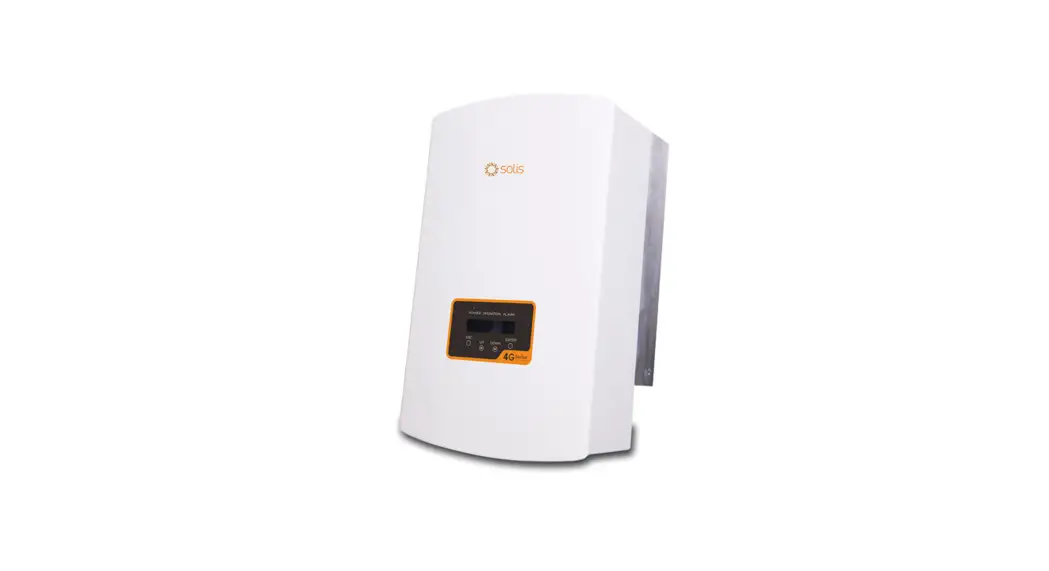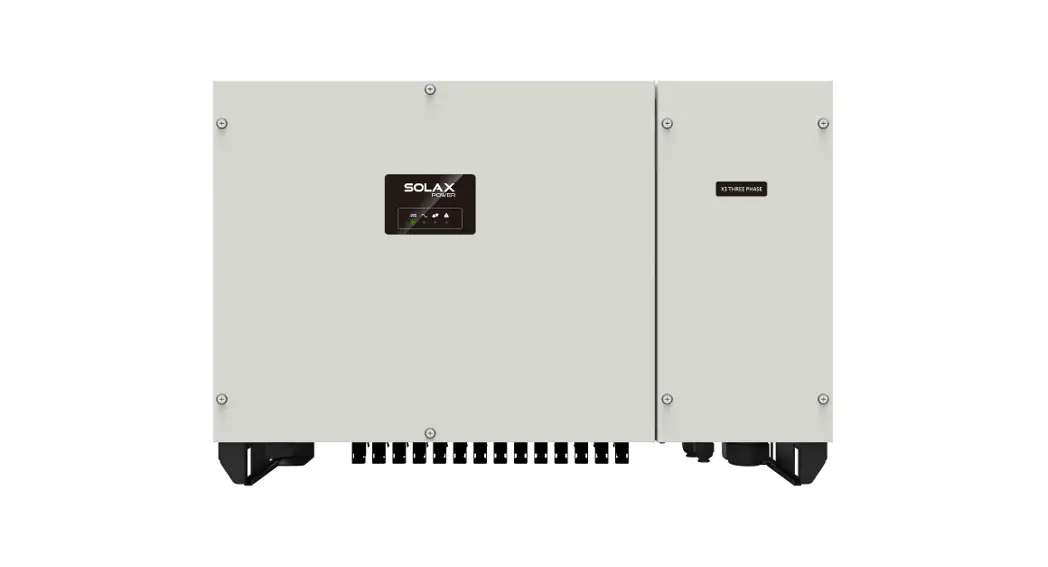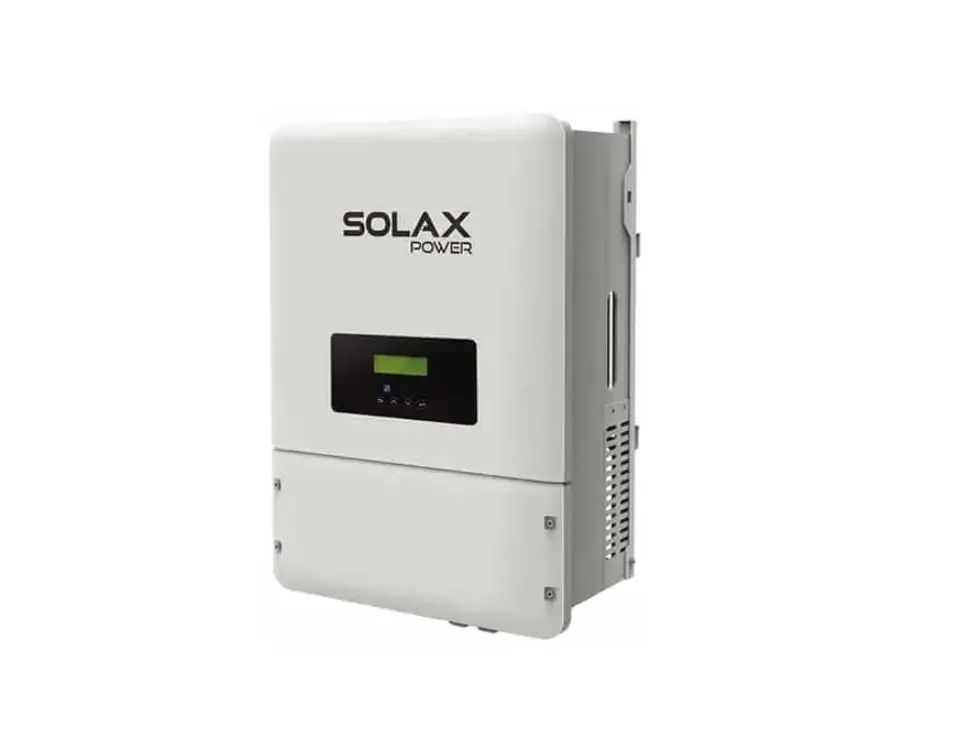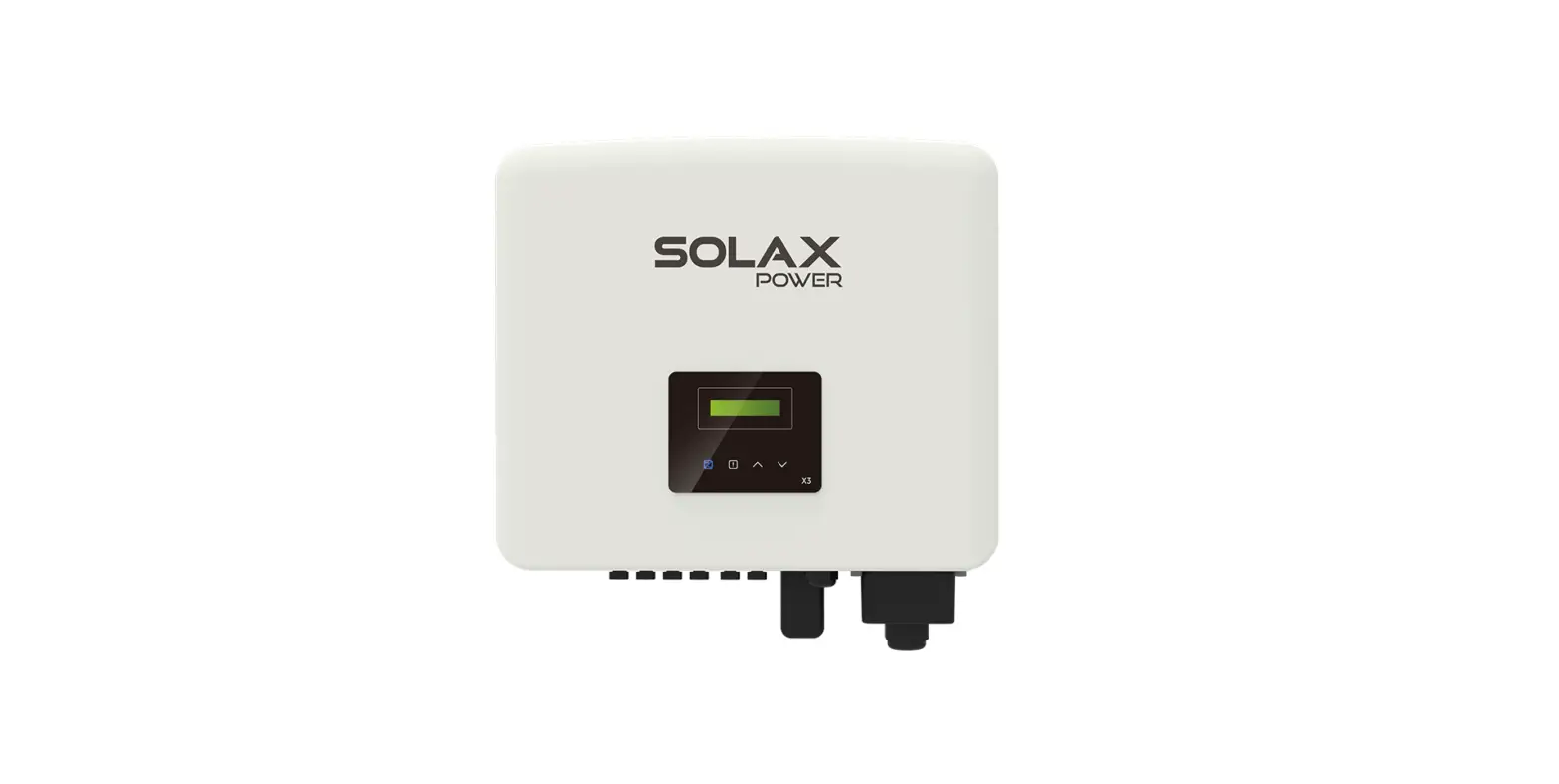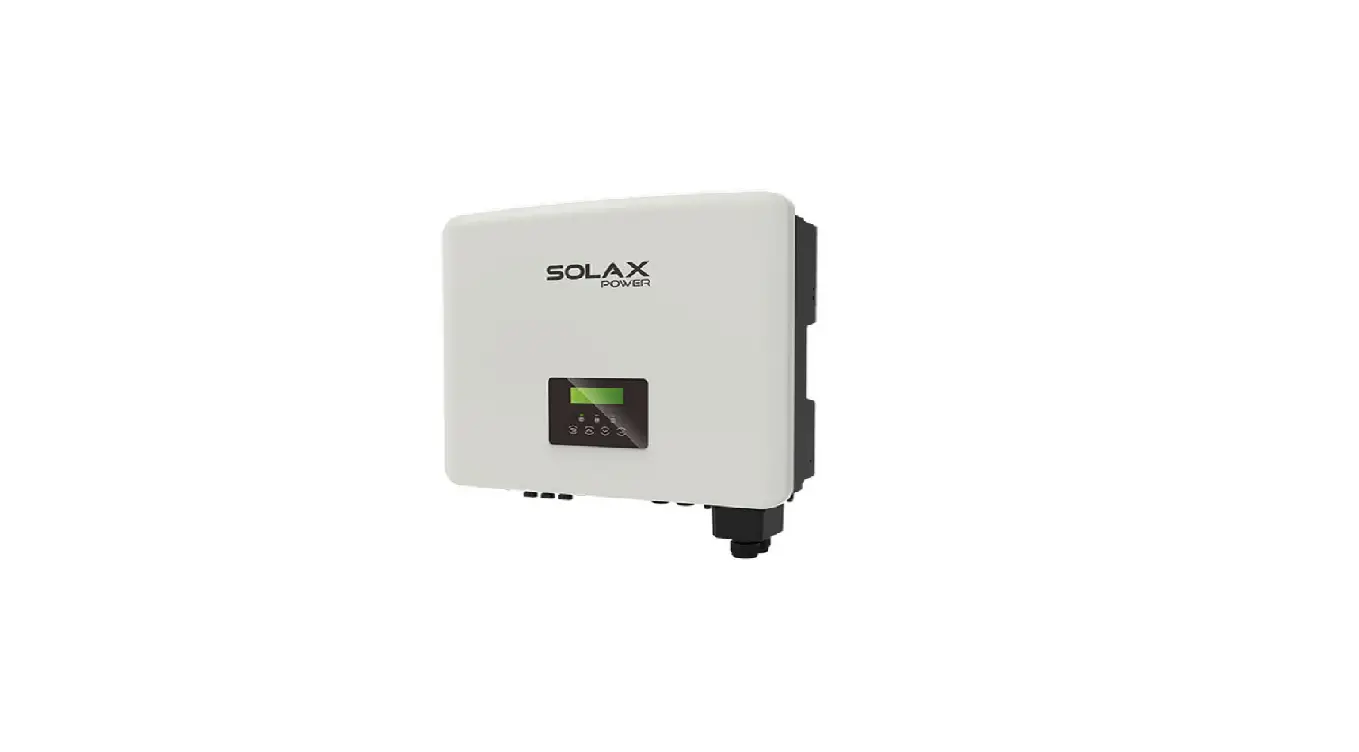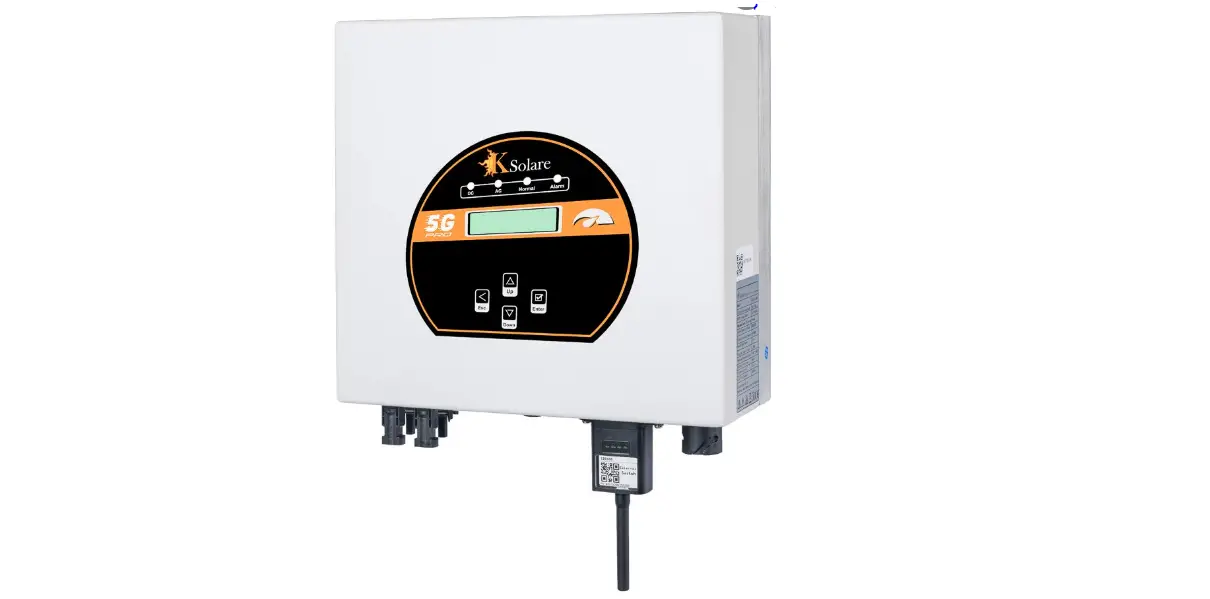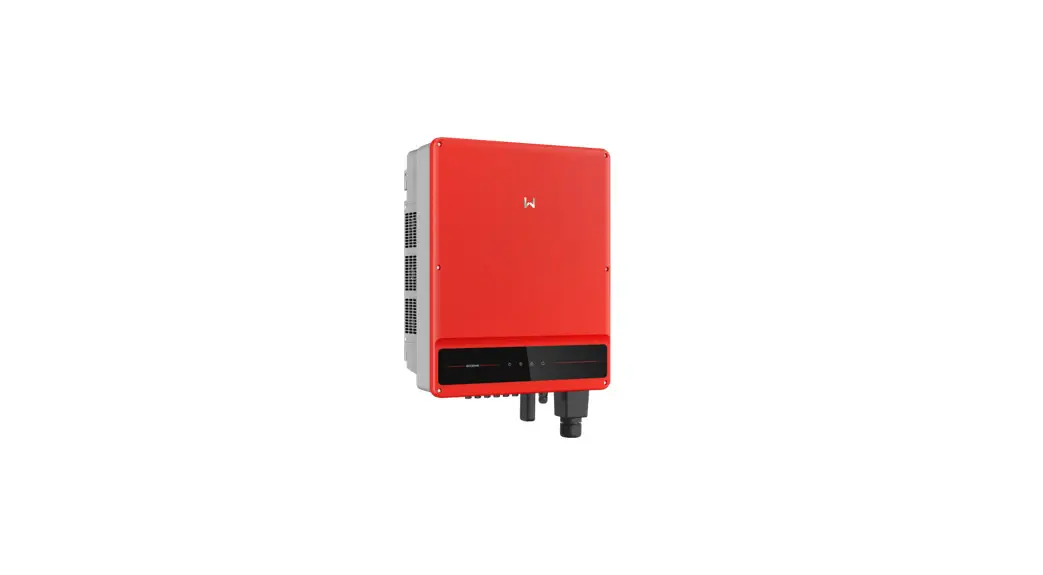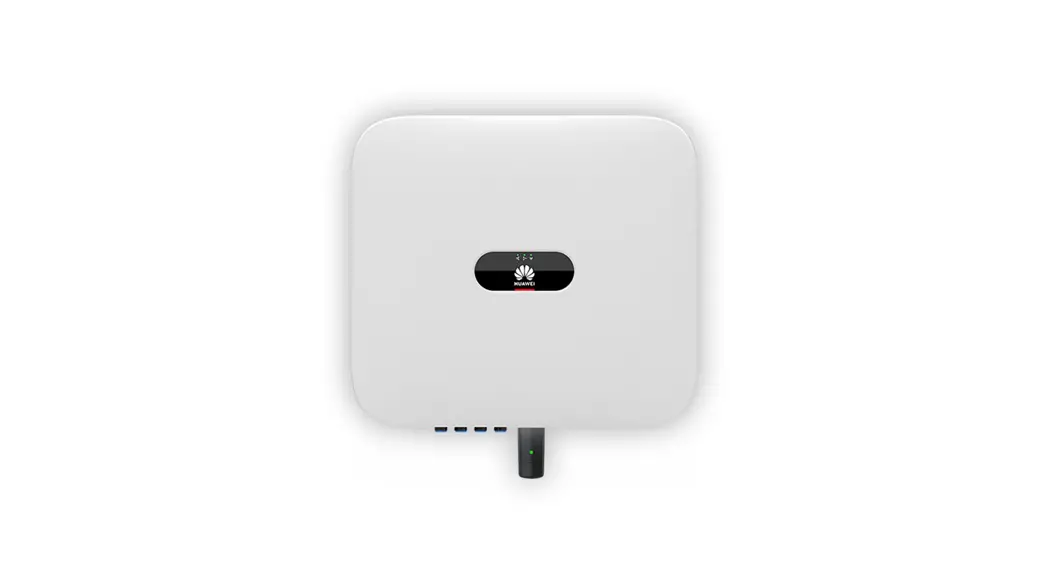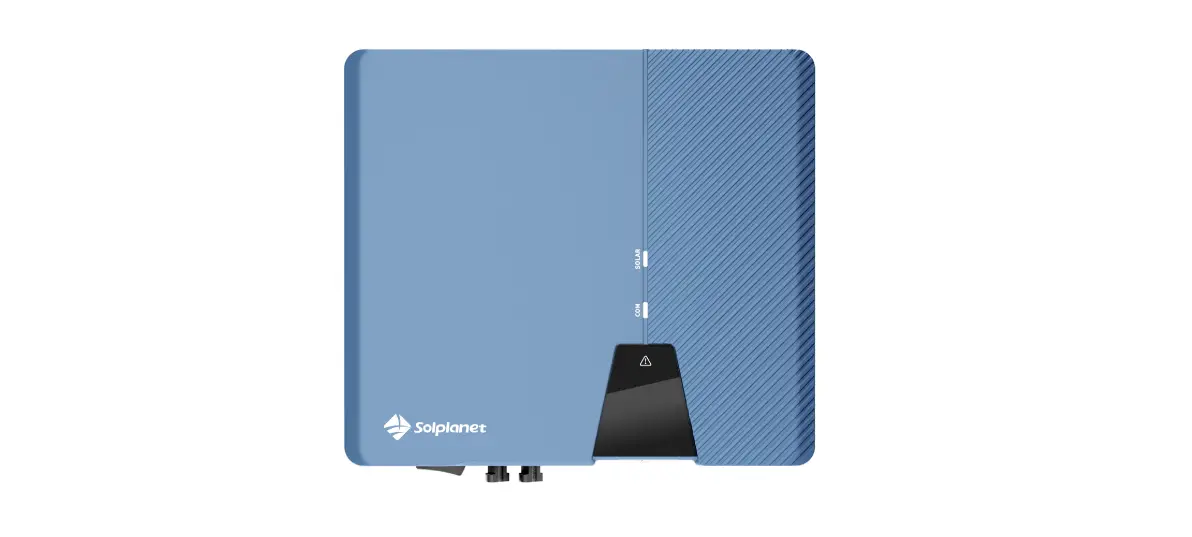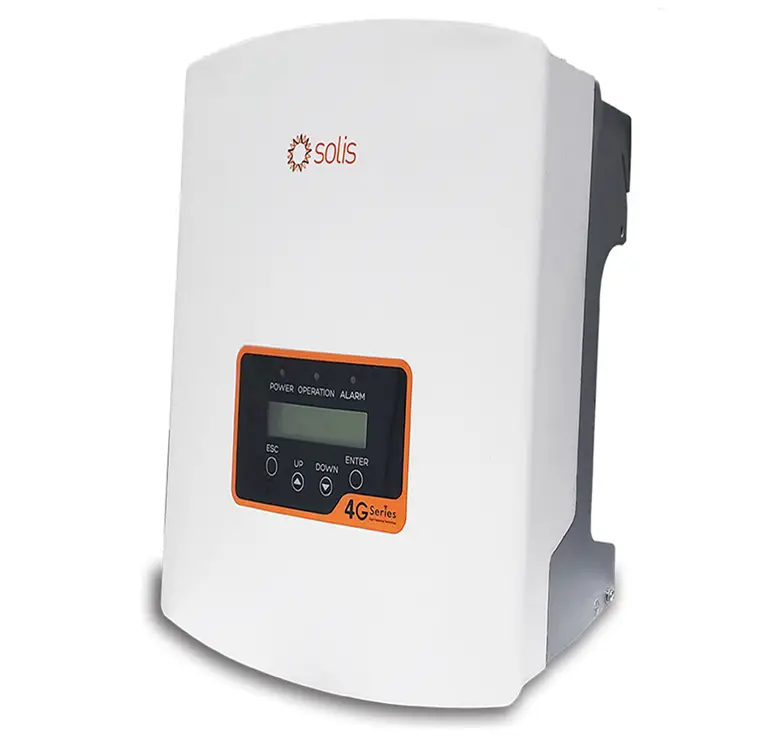

Solis 3P12K 4G 12 kW Solis 3P 4G Three Phase Inverter
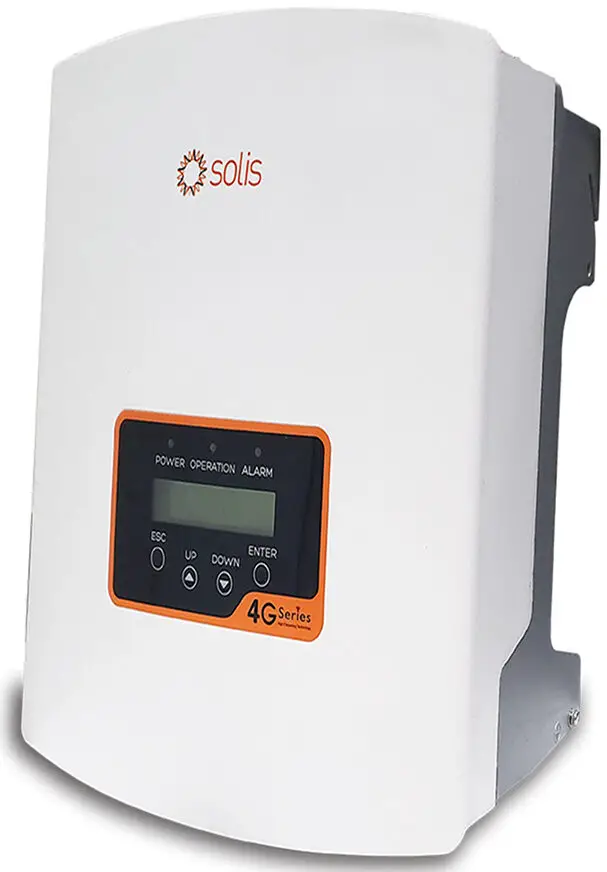
NOTE: The following steps are for iPhone as well as Android. (Shown images are of an iPhone but the same steps can be followed on Android).
CONNECTING SOLIS WI-FI DONGLE
- STEP 1:
- Make sure you have the details of your home Wi-Fi network (name and password).
- Make sure your Wi-Fi password does not contain any symbols or special characters like: < . , ! ? @ # $ % “ ‘ – _ > etc.
- Your Wi-Fi router should operate on 2.4GHz frequency.
- Take your phone close to the inverter.
- STEP 2:
- Turn OFF your Mobile Data.
(iPhone: Go to Settings<Mobile<Mobile Data<Off)
(Android: Go to Settings<Connections<Data Usage<Mobile Data<Off)
- Turn OFF your Mobile Data.
- STEP 3:
- Forget your home Wi-Fi connection. (make sure you know the password before going forward with this step)
(Go to Settings<Wi-Fi<Select your home Wi-Fi<Choose Forget)
There will be two options available, disconnect or forget, make sure you select FORGET this network.
- Forget your home Wi-Fi connection. (make sure you know the password before going forward with this step)
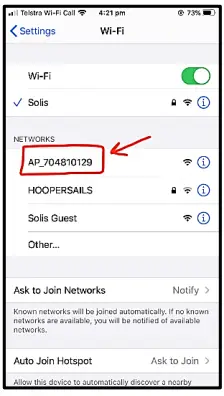
- STEP 4: The Wi-Fi dongle will show up as a Wi-Fi network (AP_XXXXXXXXX) in your available network list, in the Wi-Fi settings. The number-XXXXXXXXX will be same as the Serial Number of your Wi-Fi dongle.

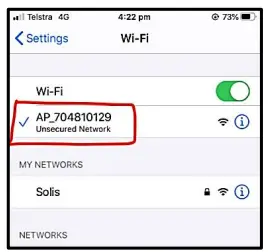
NOTE: The number shown here is just an example, you will have a different number that will be same as your Wi-Fi dongle Serial Number (AP_XXXXXXXXX). - STEP 5: Click and join the AP_XXXXXXXXX network.

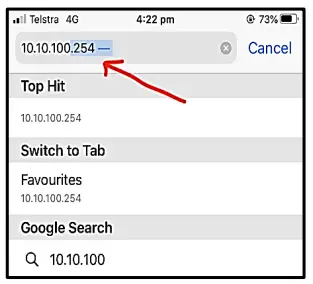
NOTE: It will appear as “Unsecured Network” or “No Internet Access”. - STEP 6: Open Safari or Google Chrome Browser and type IP address 10.10.100.254 on the search bar. Then Press Go.

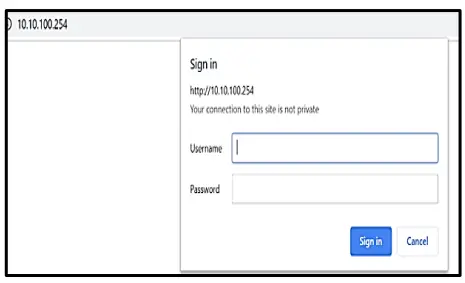
- STEP 7: You should get a screen prompt asking for username and password. Username: admin
Password: admin
Then Press Sign in.
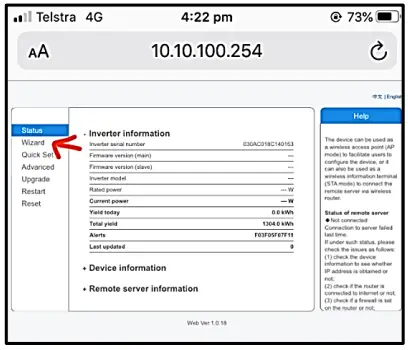
- STEP 8: You will see a screen as shown below. From the top left corner, press WIZARD (second option).

- STEP 9: You will see a table containing Wi-Fi names.
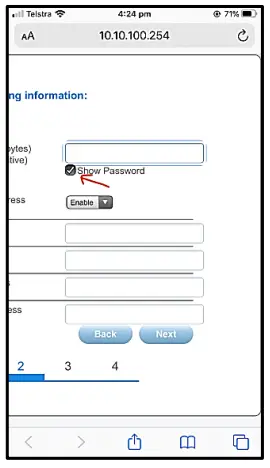
Select your Wi-Fi name and ensure that the RSSI (3rd column in the table) is more than 30%. Click Next once you have selected your network. - STEP 10: Enter your home Wi-Fi’s password. This password should be of your home Wi-Fi network you selected in the previous step. To verify, click Show Password as shown. You do not need to change anything else, apart from the password in this step. Then Click Next.

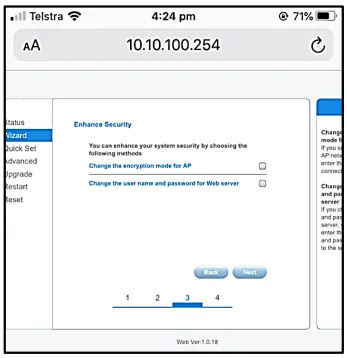
- STEP 11: Once you have entered the password, you will see a ‘Enhance Security’ screen as shown below. You do not need to change anything here. Click Next.

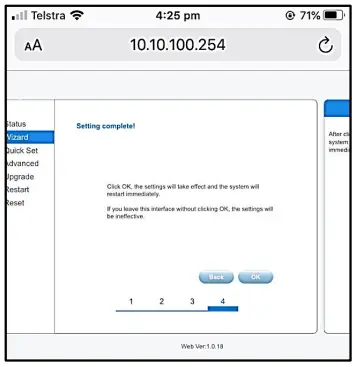
- STEP 12: If all the steps done above are correct, you will be redirected to ‘Setting Complete’ page. Click Ok option.
(It is necessary to click OK since without that the whole process will be incomplete.) After you have pressed OK, wait 10-20 seconds.
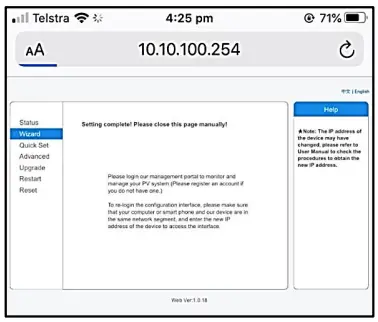
- STEP 13: After 10-20 seconds, you should get a message ‘’Settings complete! Please close this page manually!”

- To close this page manually you will need to the following:
- Click on this symbol for iPhone and then click cross symbol.
- Click on this symbol for Google Chrome and then click on cross symbol.
- STEP 14: Open your Wi-Fi networks and Switch Off the Wi-Fi on your phone for 3-5 min.NOTE: After 5 min:
- Turn ON the Wifi on your phone.
- Check if you are still connected to AP_XXXXXXXXX or is AP_XXXXXXXXX still visible.
(Also, you should NOT be connected to your home network.) - If you can see/connected to the AP_XXXXXXXXX network, the setup was NOT done properly. Confirm your home Wi-Fi password and ensure that you are using 2.4 GHz internet. Repeat all the steps again.
- STEP 15: Refer to the ‘SolisCloud Customer Monitoring Account Setup’ PDF shared with you to create an account on the web portal after completing all the steps. OR use the Soliscloud app to register an account and build a plant.
W: www.solisinverters.com.au
Ph: 03 8518 5737 | 03 8518 5735
E: [email protected]
 Solis Australasia – Solis inverters are designed to last longer!