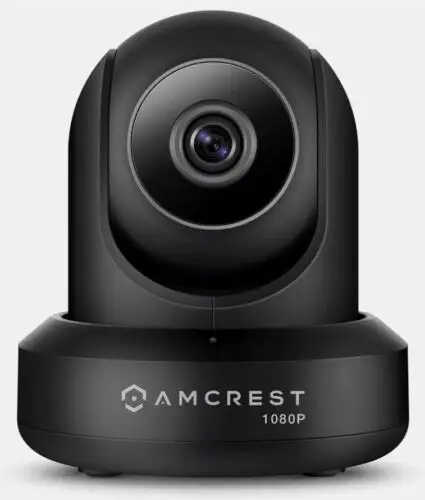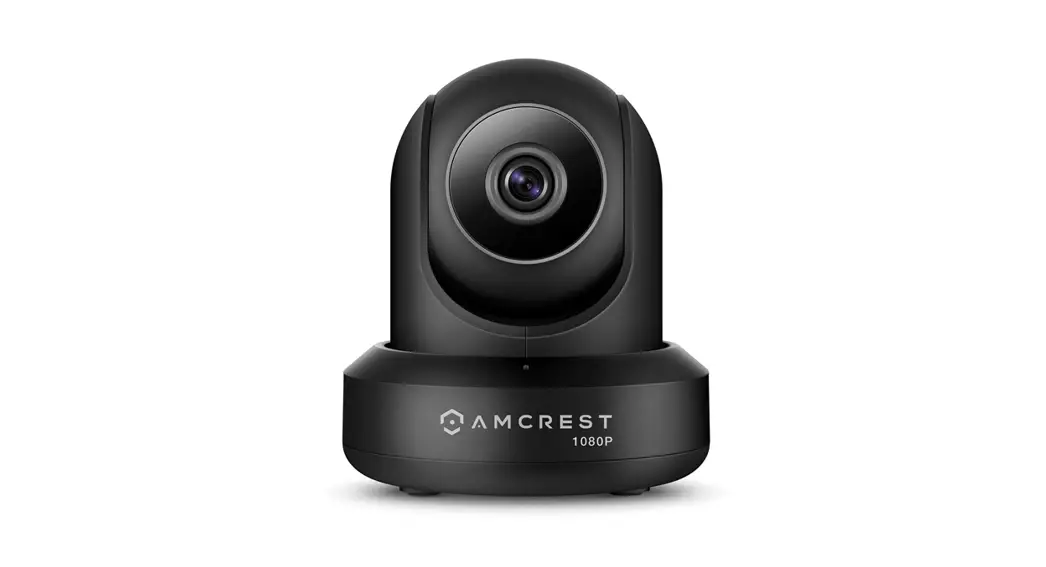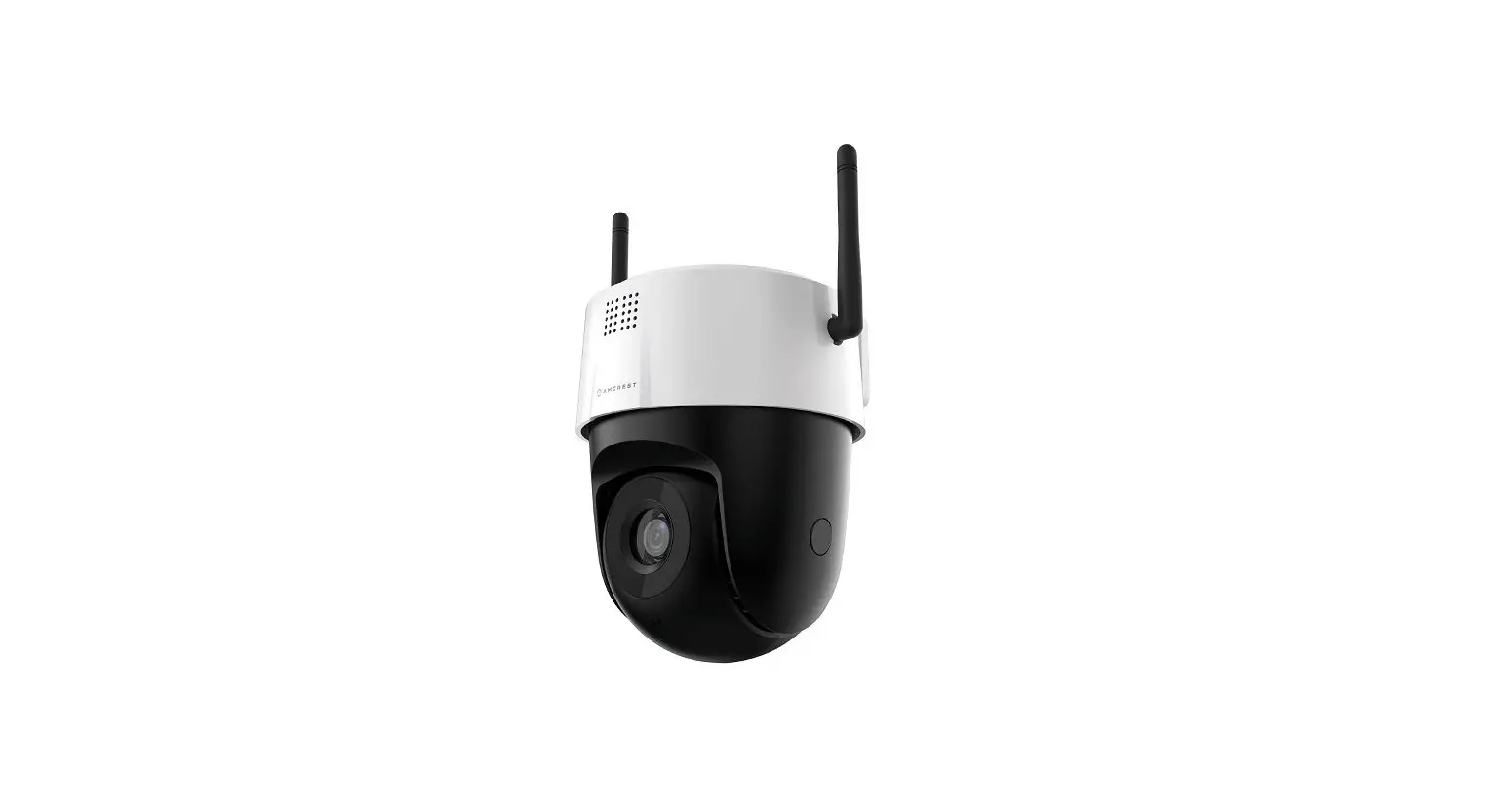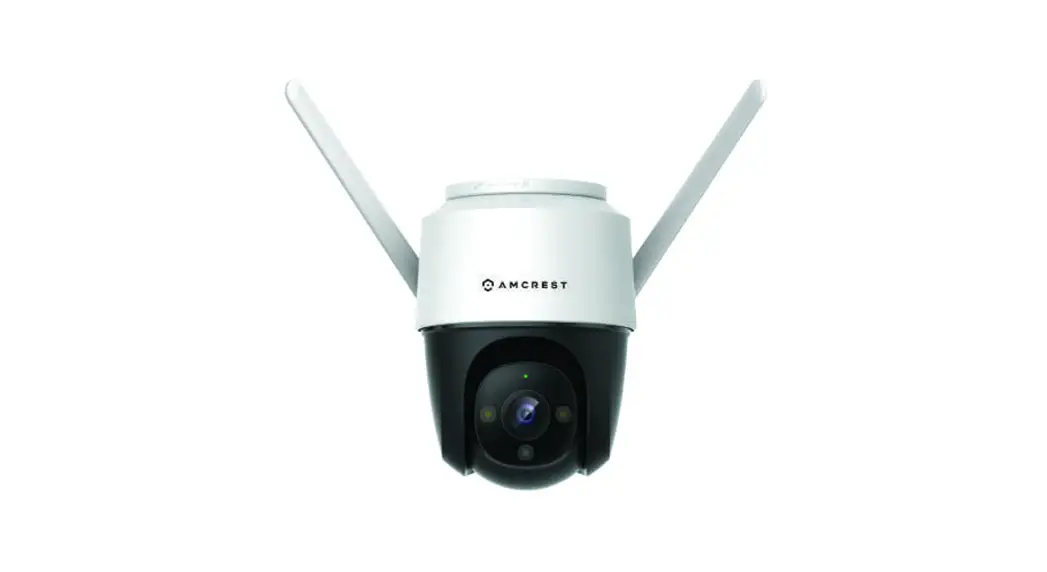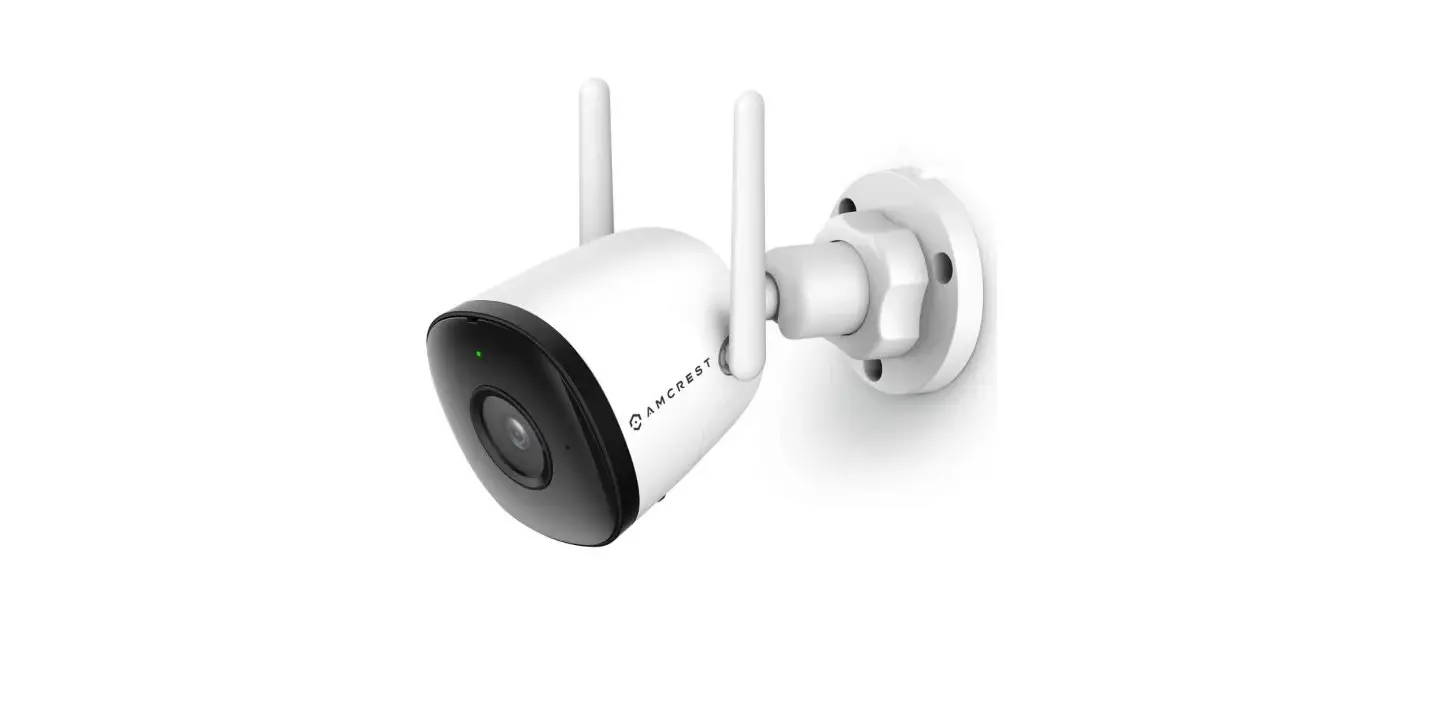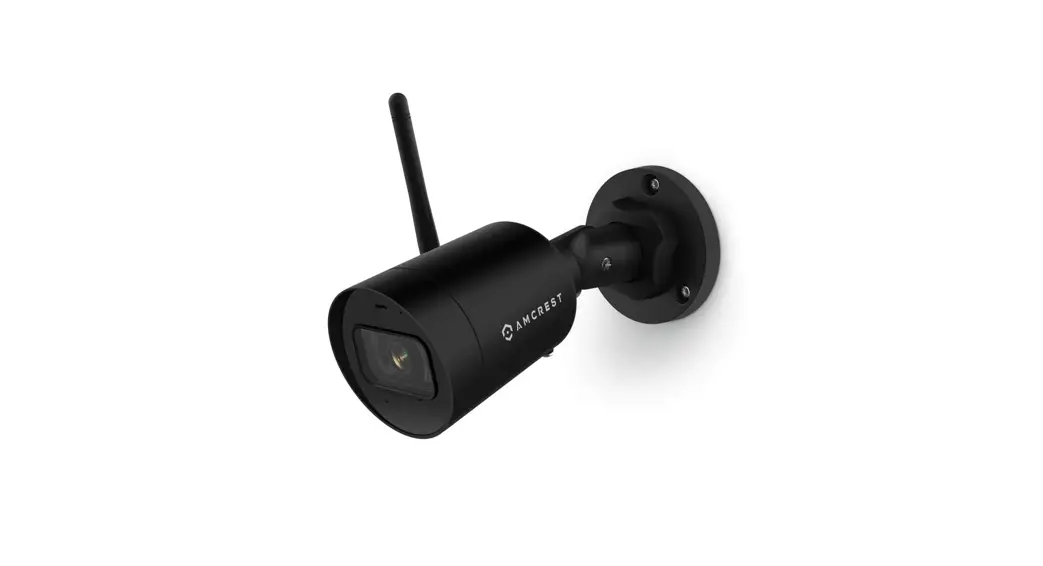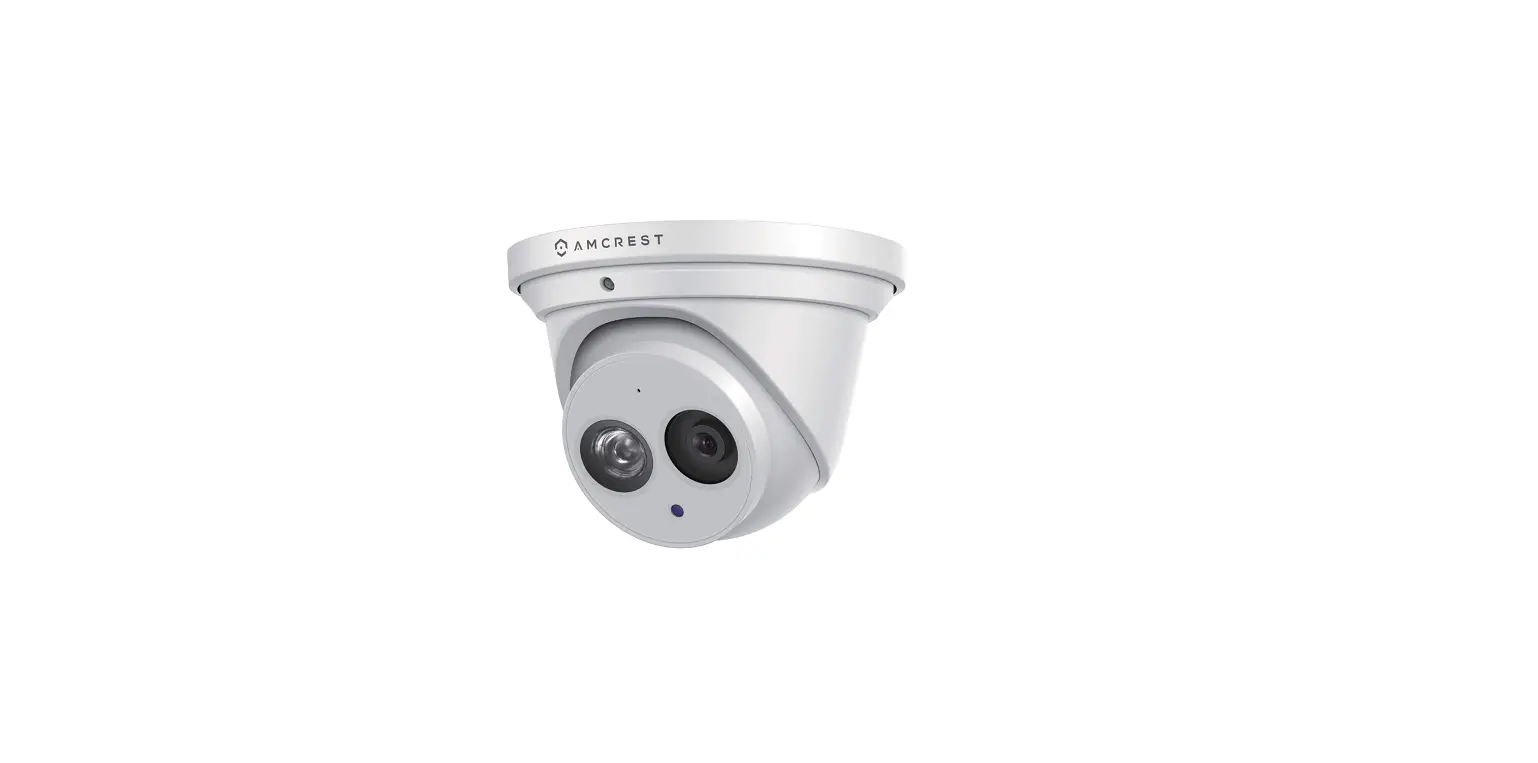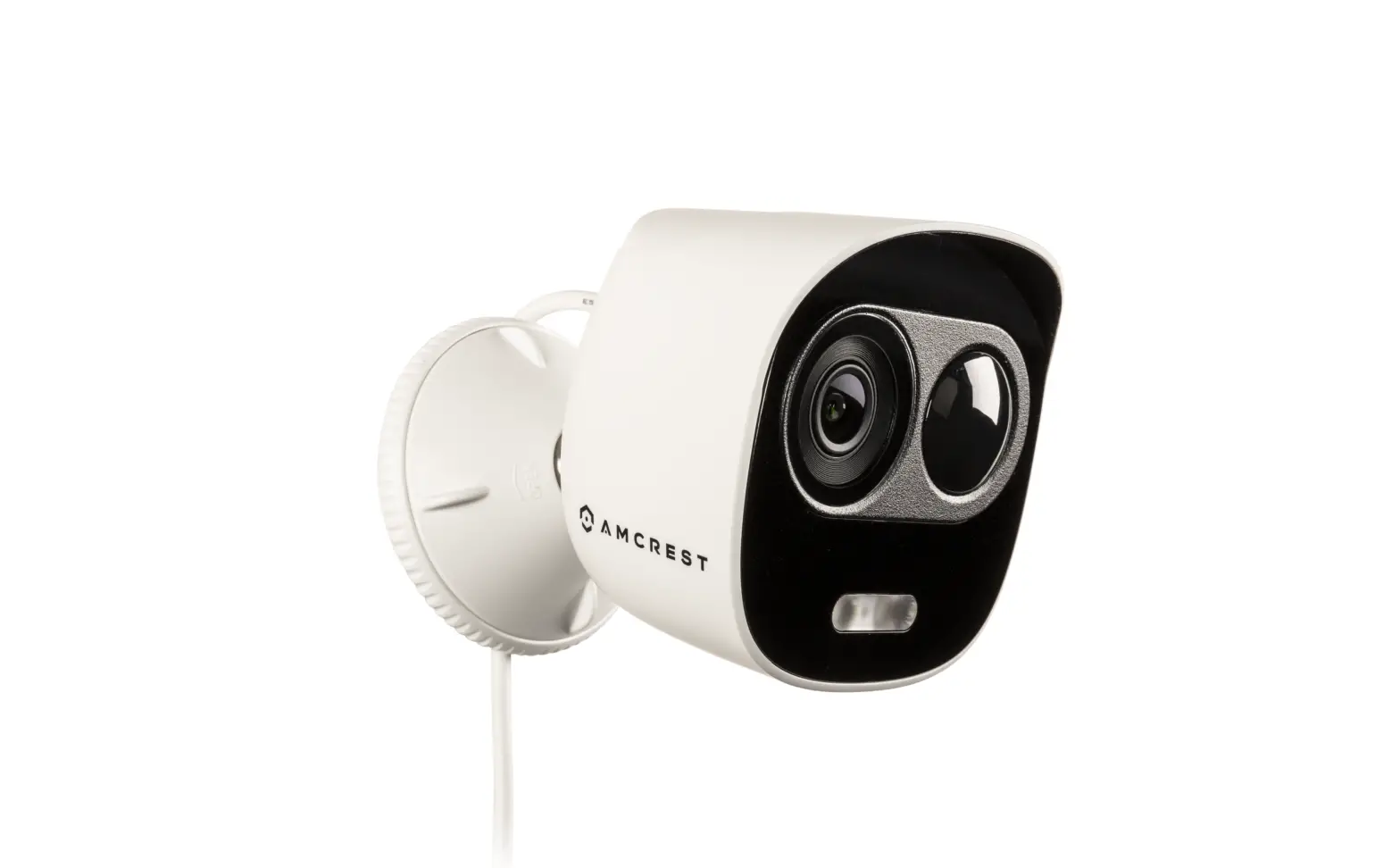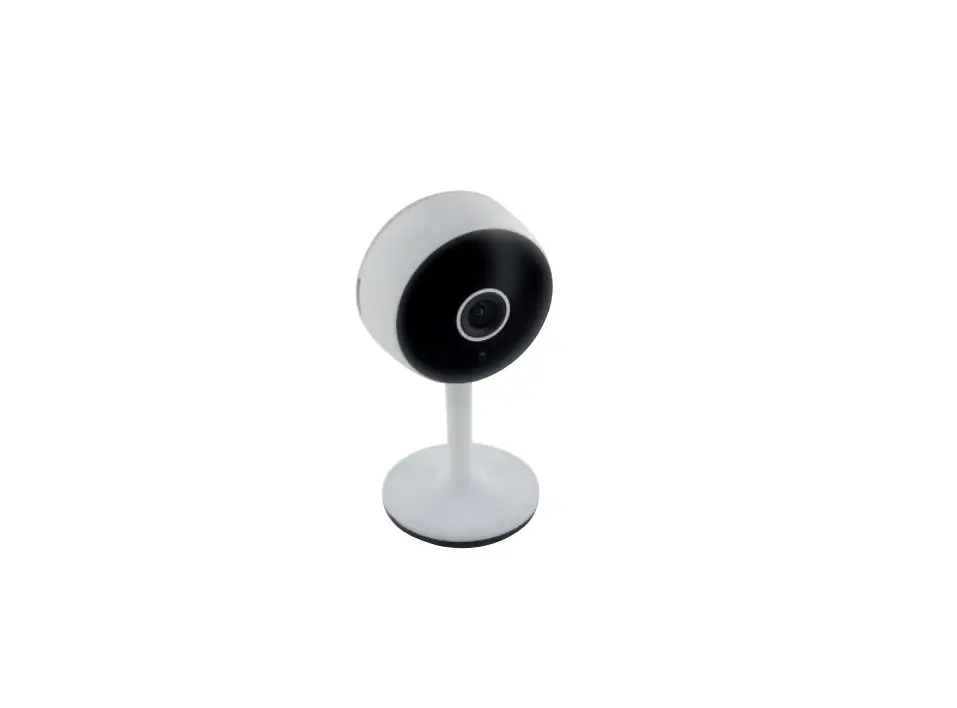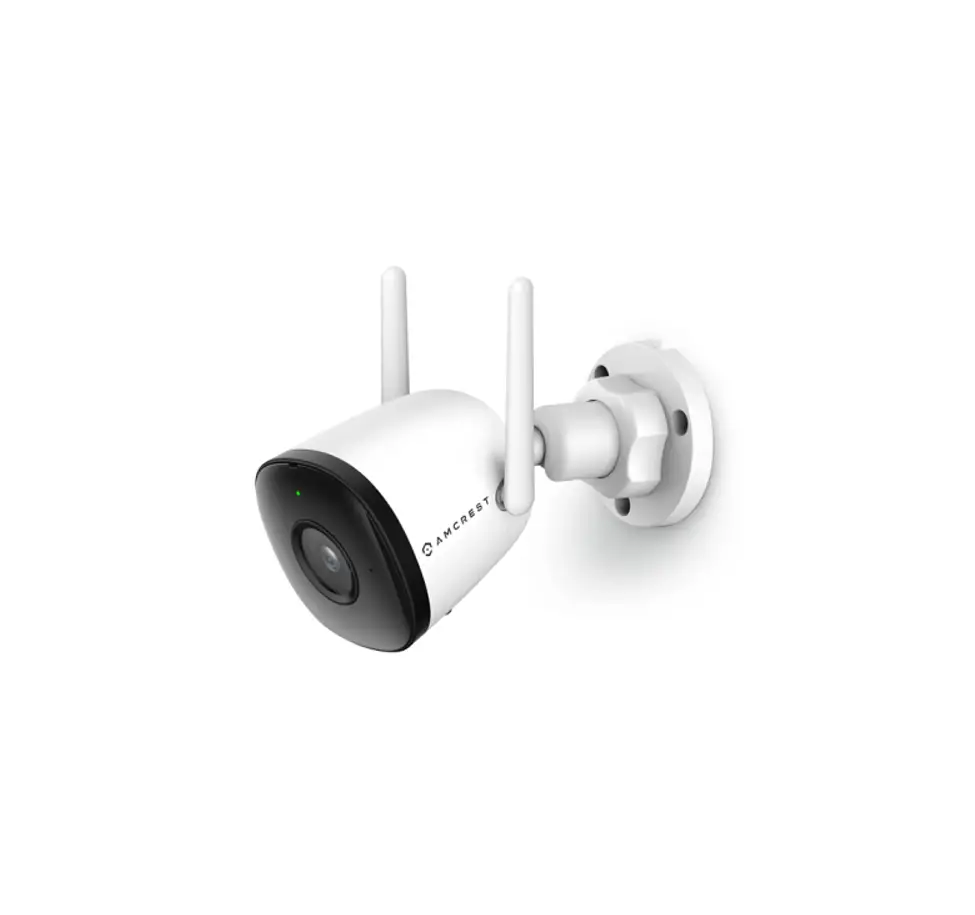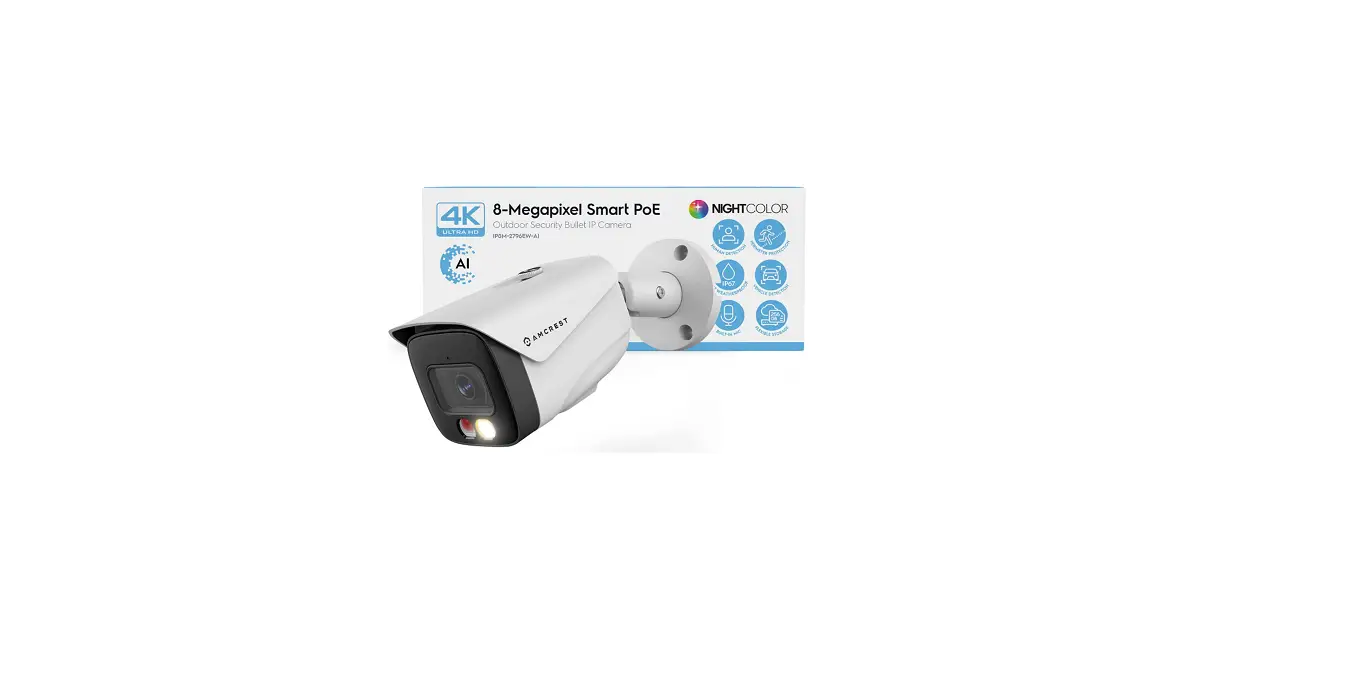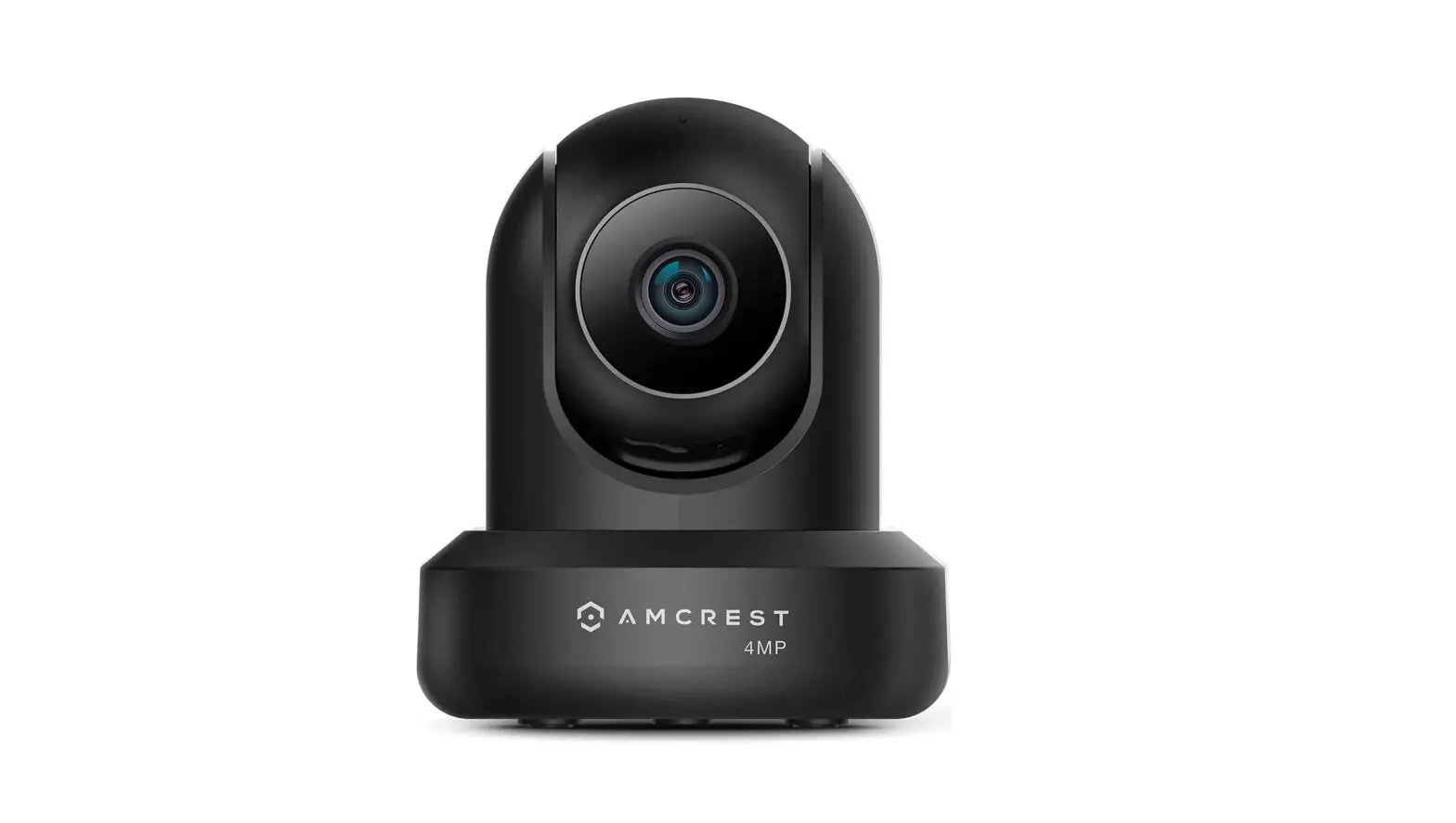
IP4M-1041 Wi-Fi Camera
LET US KNOW
WHAT YOU THINK
 We sincerely thank you for your business and are committed to ensuring your full satisfaction. If you are not entirely satisfied for whatever reason, please reach out to us and we will do all within our power to make it right.
As a young and growing company, It would mean the wirld to us if you could leave an honest online review about our product and service.
If your experience has been something less than amaxing, please drop us an email at [email protected] or give us a ring at 1-888-212-7538
facebook.com/amcrest
twitter.com/amcrestsecurity
Instagram.com/amcresttechnologies
amcrest.com/videos
amcrest.com/support
A M C R E S T
Simple. Reliable. Secure.
Welcome to the Amcrest Family!
QUICK START GUIDE
WI-FI CAMERA INITIAL SETUP
For the most recent version of this Quick Start Guide visit:
amcrest.com/quickstartwifi
www.amcrest.com
Contact our customer service team
[email protected]
USA Toll Free: (888) 212-7538
USA Direct: 713-893-8956
Canada: 437-888-0177
3 69-2757
nal Callers: +1-713-893-8956
Amcrest Cloud App
To download the Amcrest Cloud app for
Android, visit amerest.com/androidcloud
To download the Amerest Cloud app for
iOS, visit amerest.com/ioscloud
Amcrest View Pro App
To download the Amecrest View Pro app for
Android, visit amerest.com/androidviewpro
To download the Amerest View Pro app for
iOS, visit amerest.com/iosviewpro
Product Support
To download the User Manual for your camera, amerest.com/support
To view our product support videos visit amerest.com/videos
To view articles based on a specific product visit amerest.com/support
Amcrest Cloud Features
To help guide you through the features
of the Amcrest Cloud app, visit amerest.com/eloudwalkthrough
Amcrest View Pro App Features
To help guide you through the features of the
Amcrest View Pro App, please refer to the user
manual or visit: amecrest.com/appwalkthrough
Amcrest Cloud
Amcrest View Pro
|
| |
| VIDEO STORAGE | Secure off-site daud Storage | MicroSD card (most models) |
| MULTI-VIEW CAMERA DVORENCE | View unlimited cameras simultaneously | View up to 16 Cameras |
| EXTRA RATUNES | + Alesa Support + Email Alerts + Push Notifications + Camera Health Check + Motion Detection + Direct Video Download | + Push Notifications + Motion Detection + Email Alerts +Two-Way Audio + MOD Recording + NVR Recording |
| PRICING | Free Plan – Unlimited Live Viewing (No Storage) Premium plans strat $6/Camera/Month as  | FOREVER FREE  |
 Amcrest Cloud
AMCREST CLOUDE
MOBILE SETUP
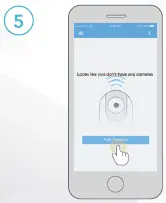
Tap on Add Camera
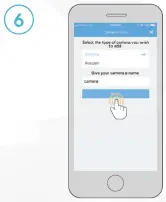
Give the camera a name (Ex, Garage, Kitchen, Living Room, Kitchen, etc) and Tap Next to continue.
To locate an SSID, during Wifi setup on the Amcrest Cloud app, tap on Sean in the Ethernet WiFi Setup menu. A dialog box will appear prompting you to enable location permissions. Tap on OK to enable this feature and allow the app to scan for your WiFi network Your SSID will appear. Select the WiFi network you would like to connect with and enter the Wifi password for your network
If you are using the Amcrest View Pro app, you must enable location permissions to configure the SSID to your app. When you have enabled location permissions the SSID will show (greyed out) in the WiFi configuration menu where you can enter the Wifi password for your network For more information on how to locate an SSID on your mobile device visit amcrest.com/android
I’VE LOCKED MYSELF OUT OF THE CAMERA ACCIDENTALLY.
As a security precaution, your Amcrest camera will lock out any user who tries to log in with the wrong password after a handful of consecutive attempts. If you find that you have accidentally locked yourself out you can wait 5 minutes to log back in or you can power cxdle the camera bry unplugging and replugging the camera’s power cable. If you have forgotten your password entirely, you can hard factory reset the camera by pressing and holding the reset button down for 45 seconds. The reset button will either be on the back or on the internals of the camera. For more information on hard factory reset procedures for your device visit amcrest.com/support
ALTHERNATIVE
ACCESS METHODS
For additional access methods, refer to the alternative access
methods provided below.
Cloud Desktop Setup
This setup method will be used for setting up your camera on the cloud via a web browser on a PC or laptop. For more information on cloud desktop setup visit: amerest.com/cloudwebsetup
ADDING ALREADY SETUP CAMERAS
The P2P setup method will be used for setting up already connected devices to the Amcrest View Pro app. For more information on P2P setup, visit: amecrest.com/p2psetup
The Domain/DDNS SETUP
The IP/Domain/DDNS Setup method will be used to establish a direct connection without using P2P. For more information on IP/Domain/DDNS setup, visit: amcrest.com/ipdomainddnssetup
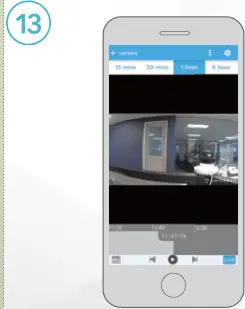
Your camera has now been successfully added to your Amcrest Cloud account.
For more information on how to set up your camera on Amcrest Cloud using a web browser on Windows or Mac visit amcrest.com/amcrestcloudwebsetup