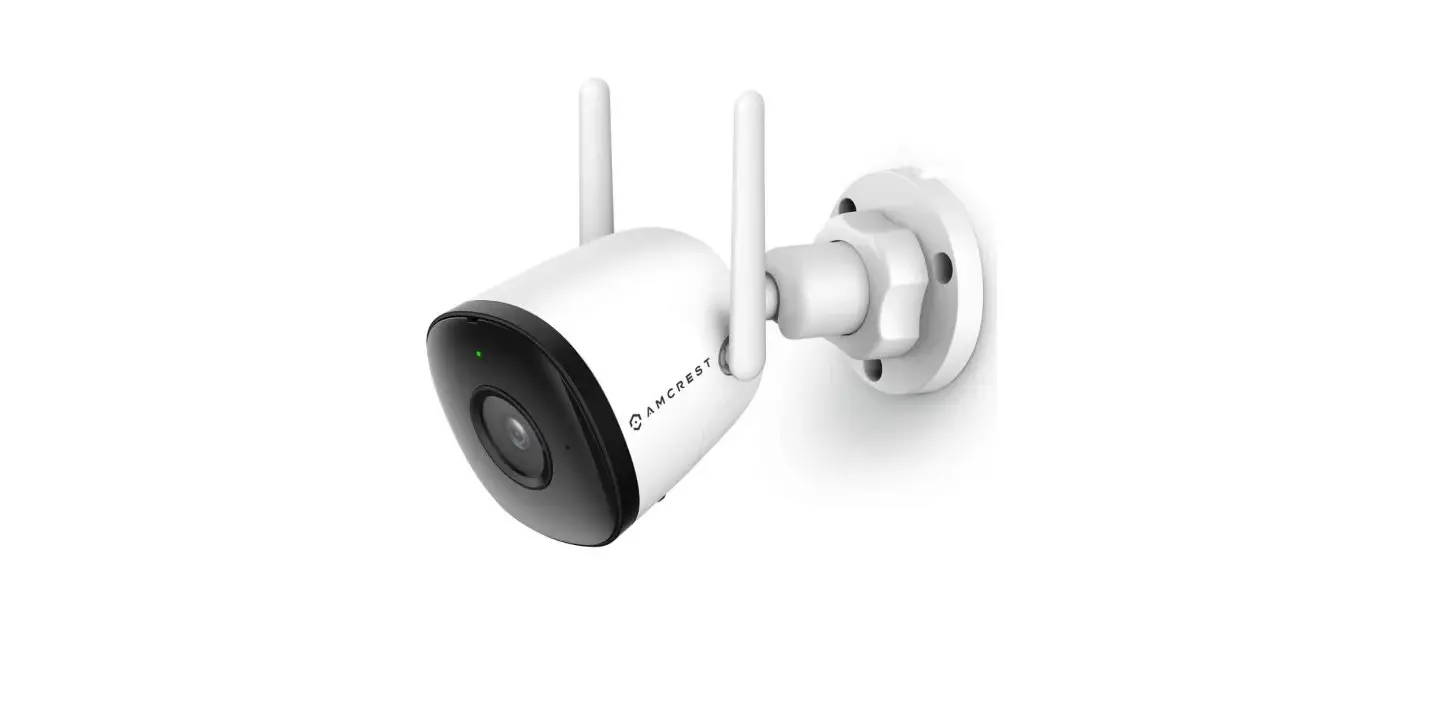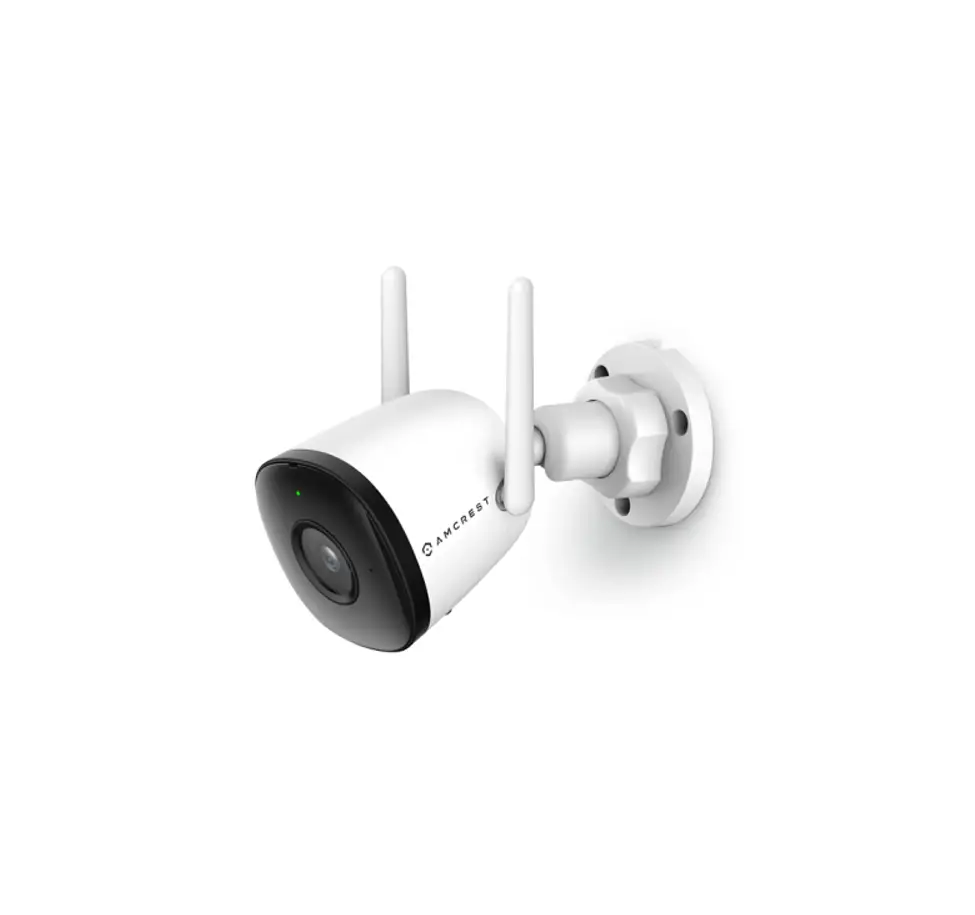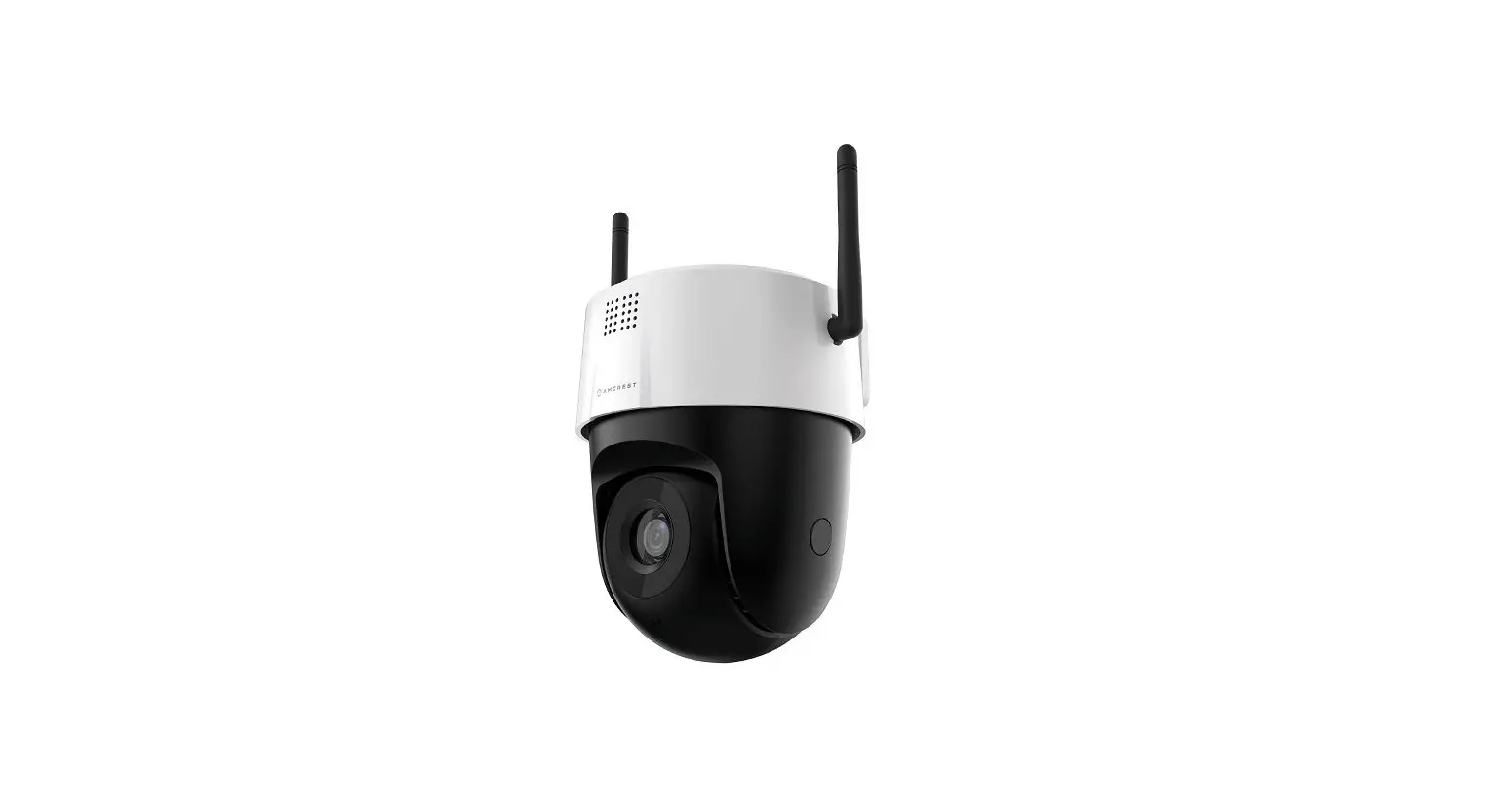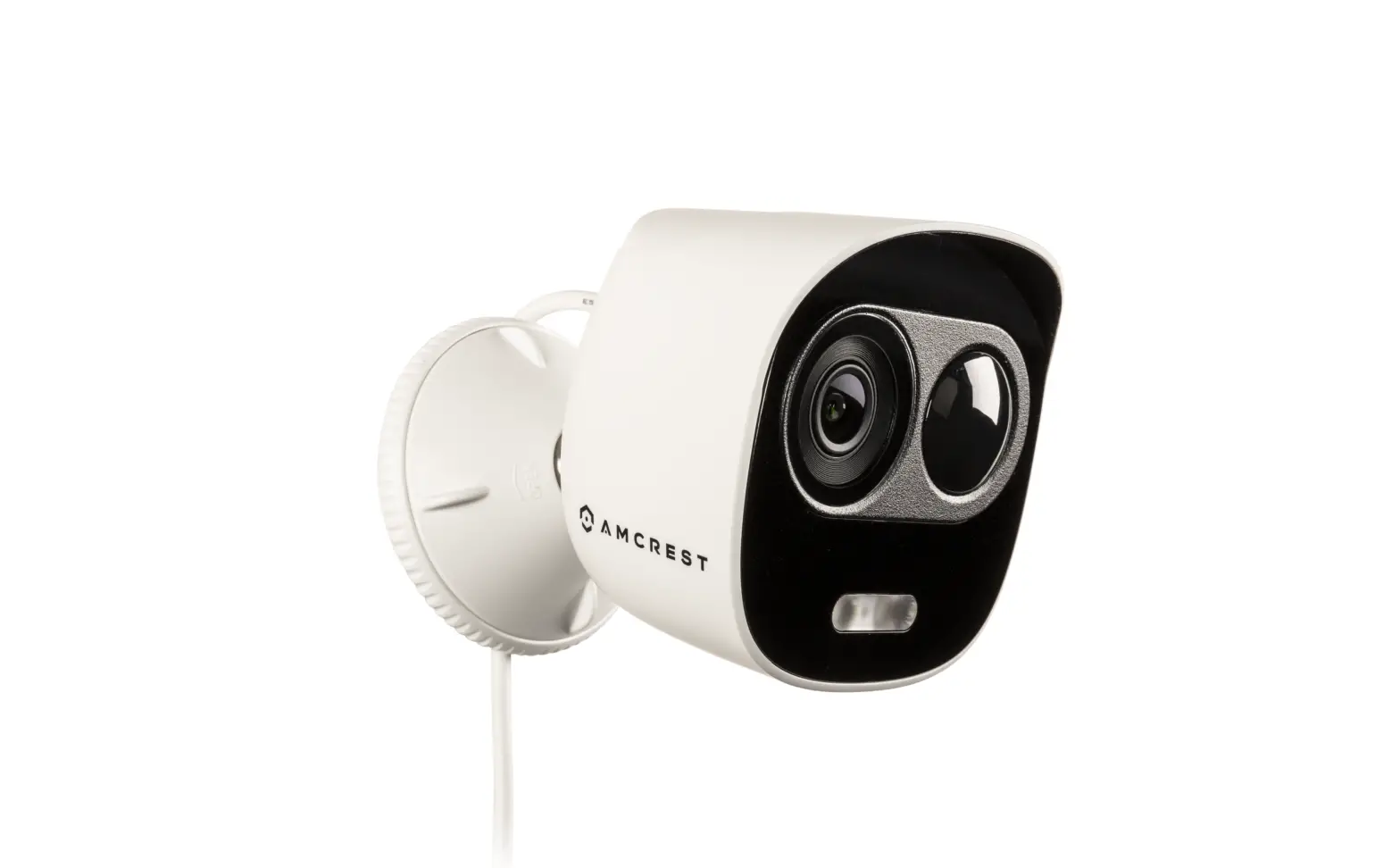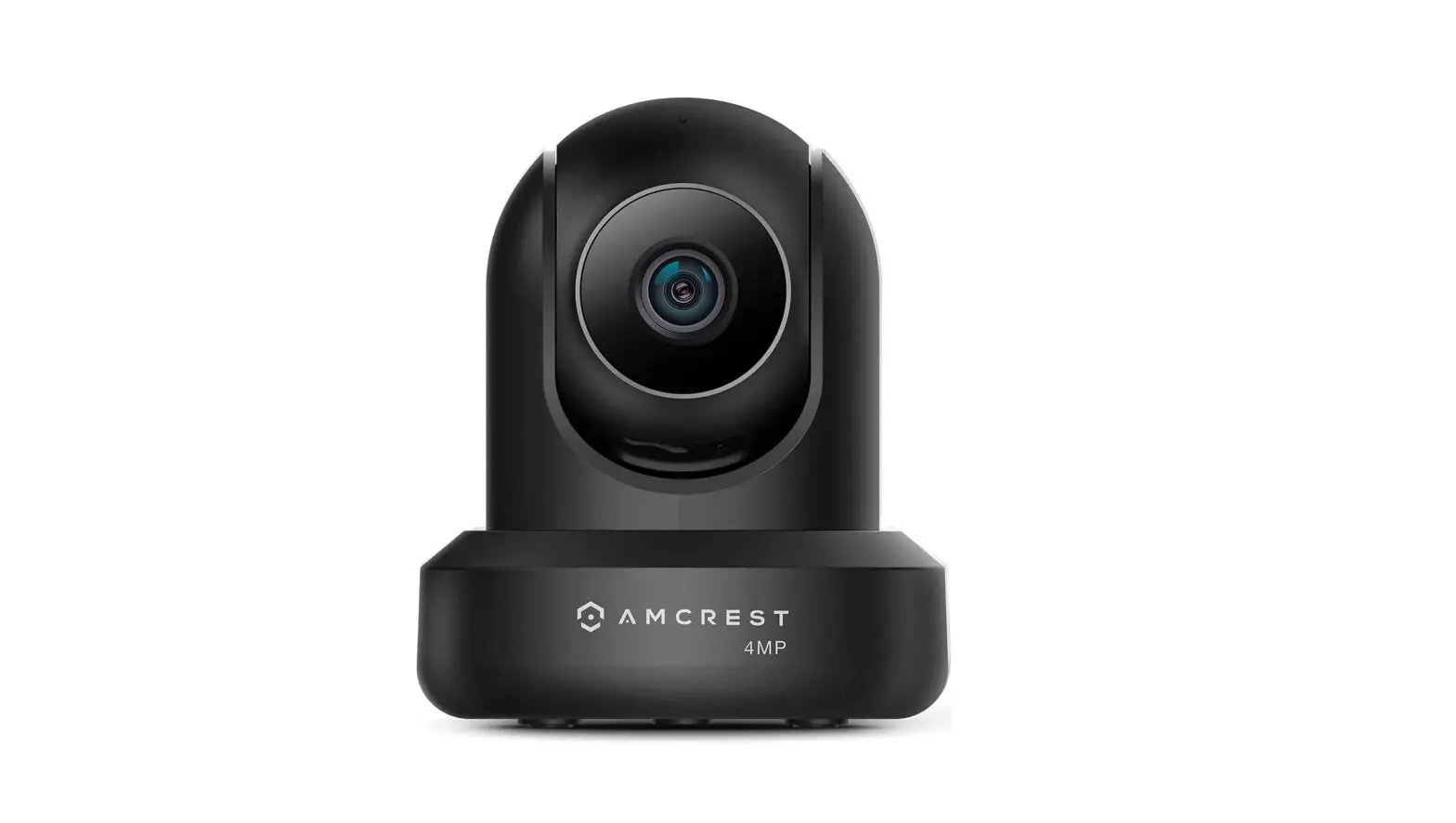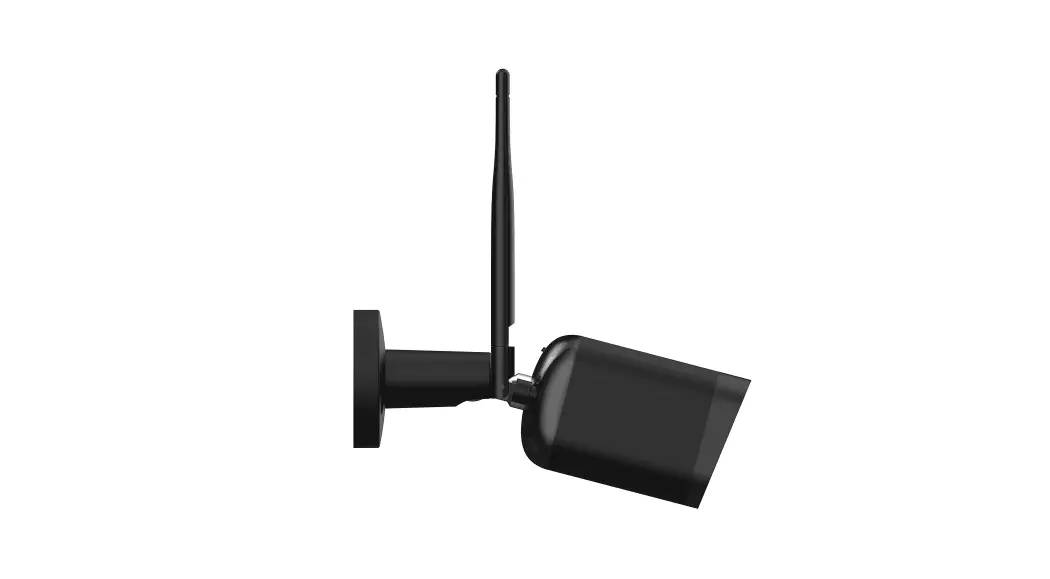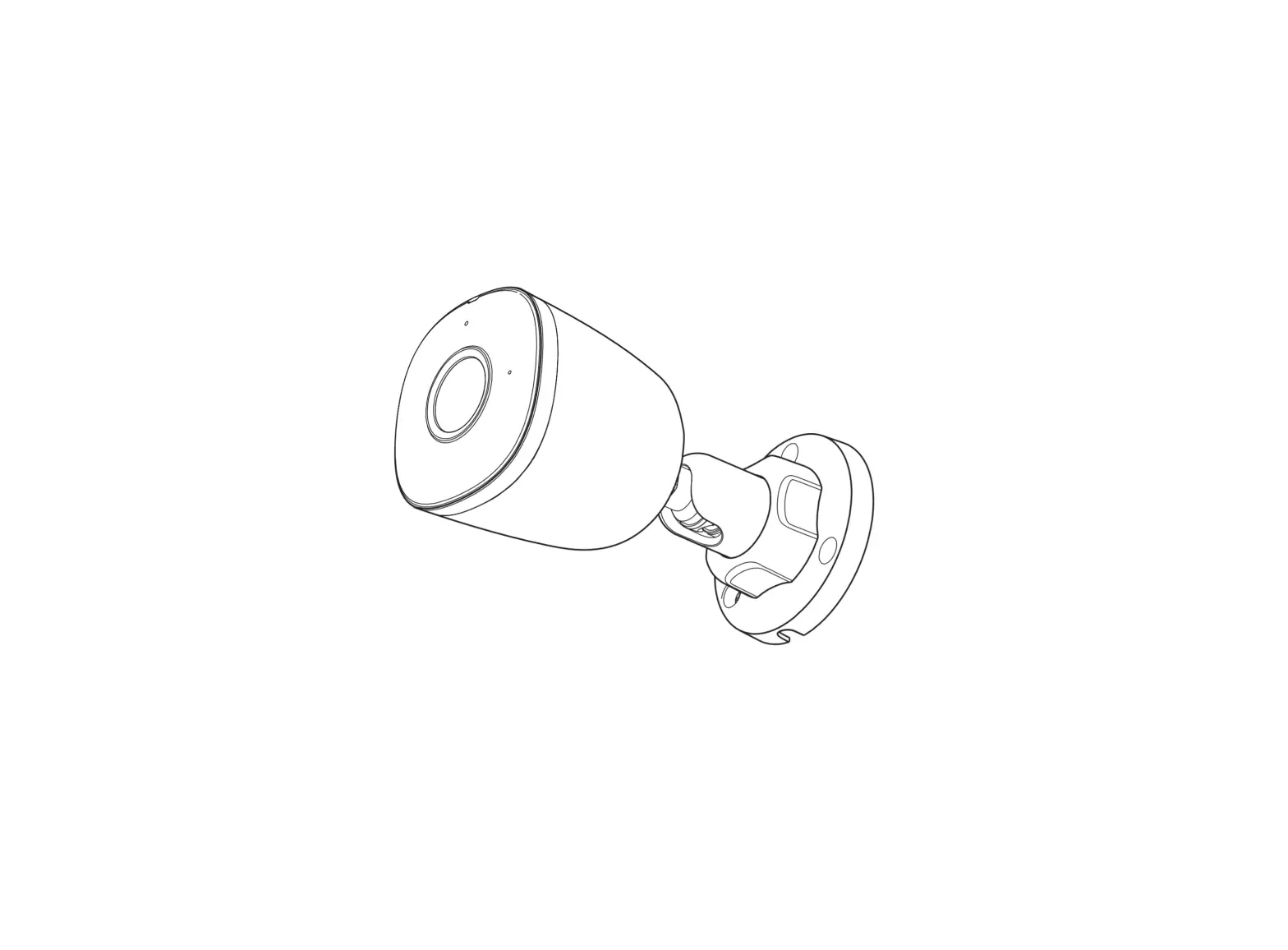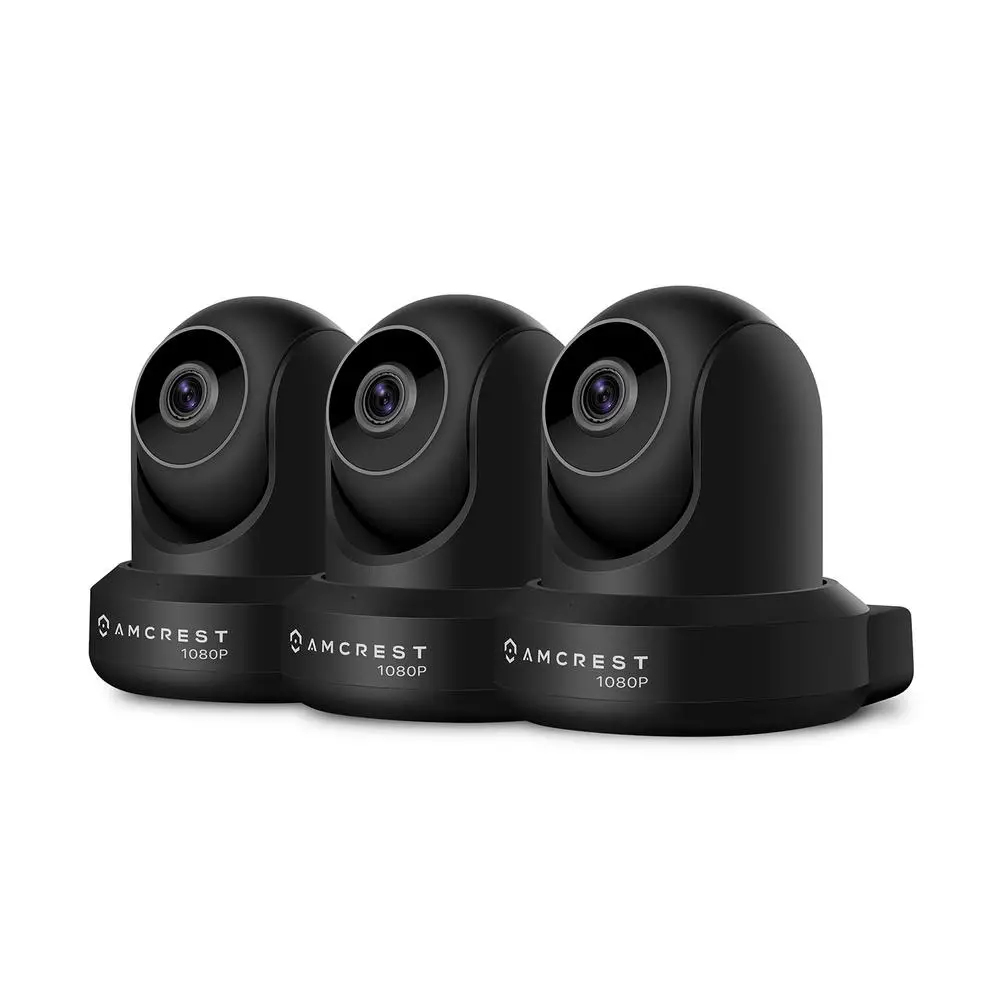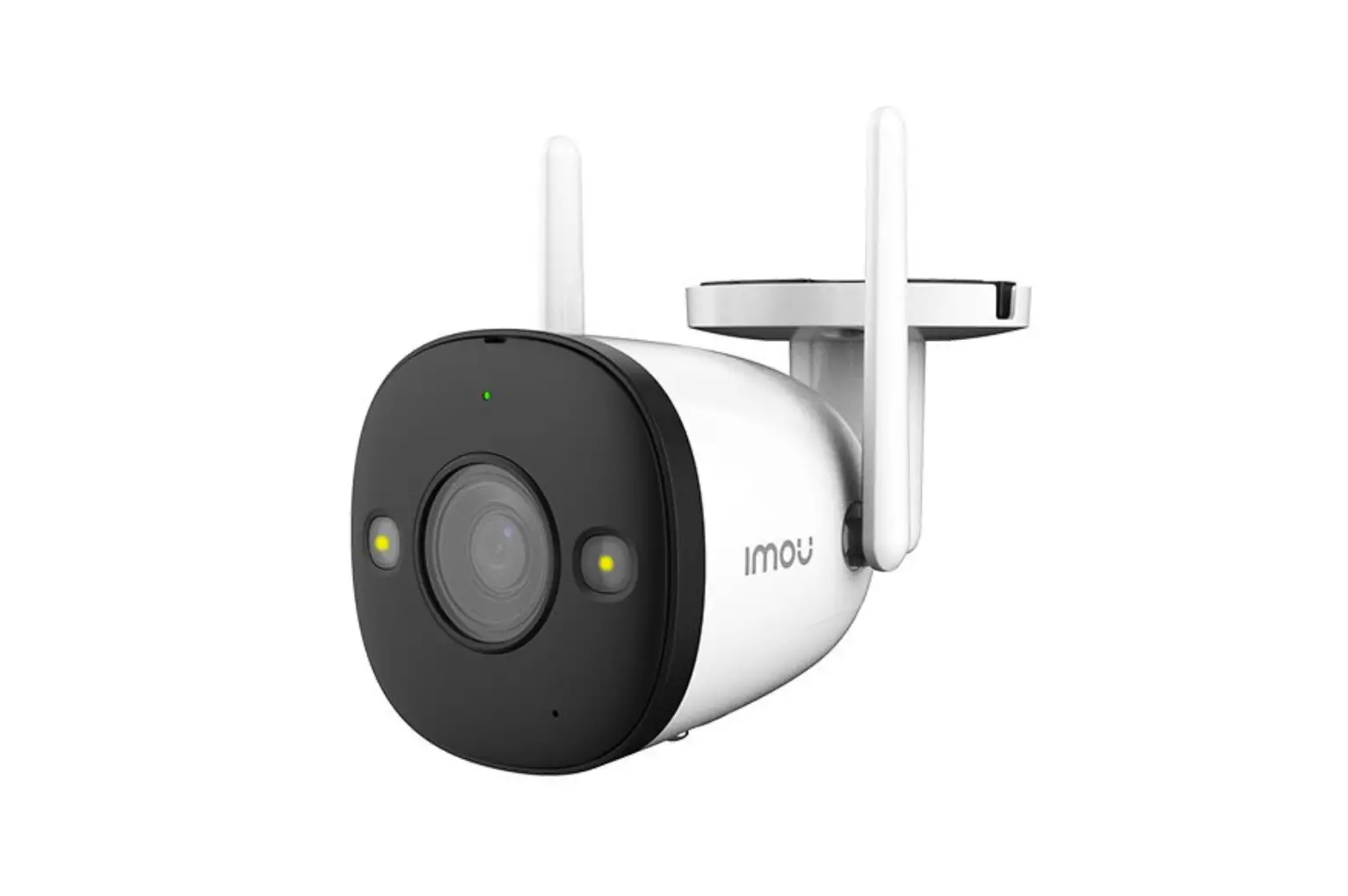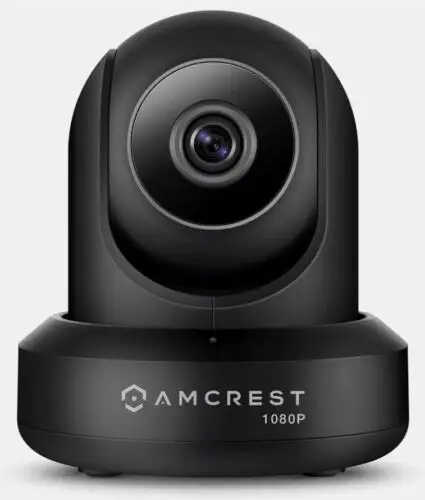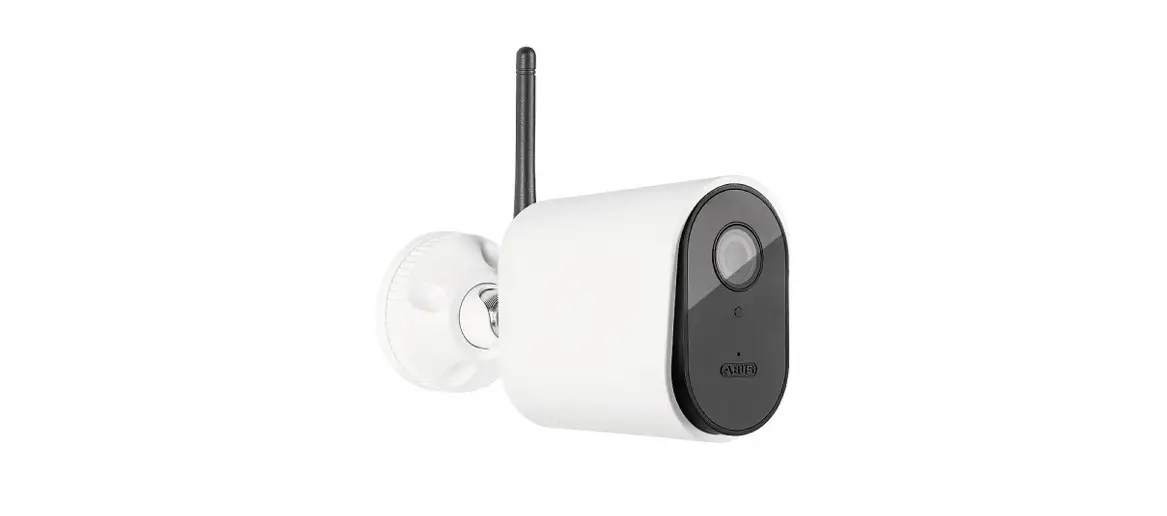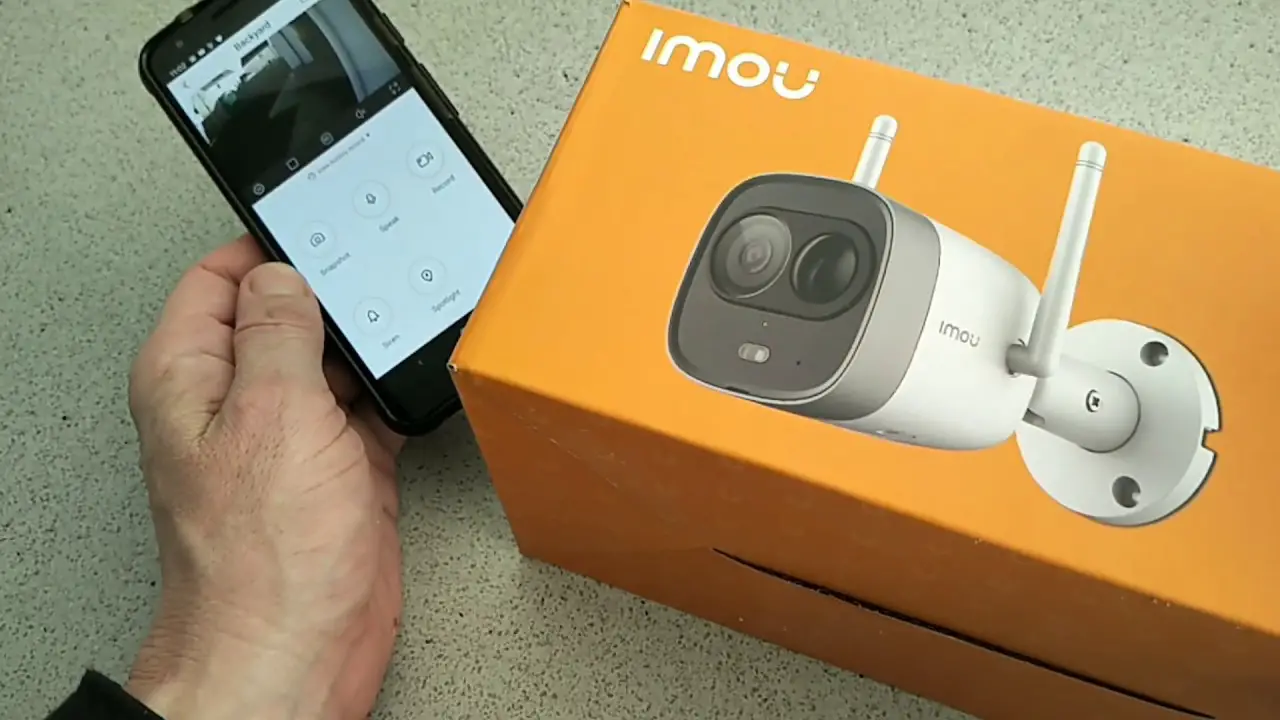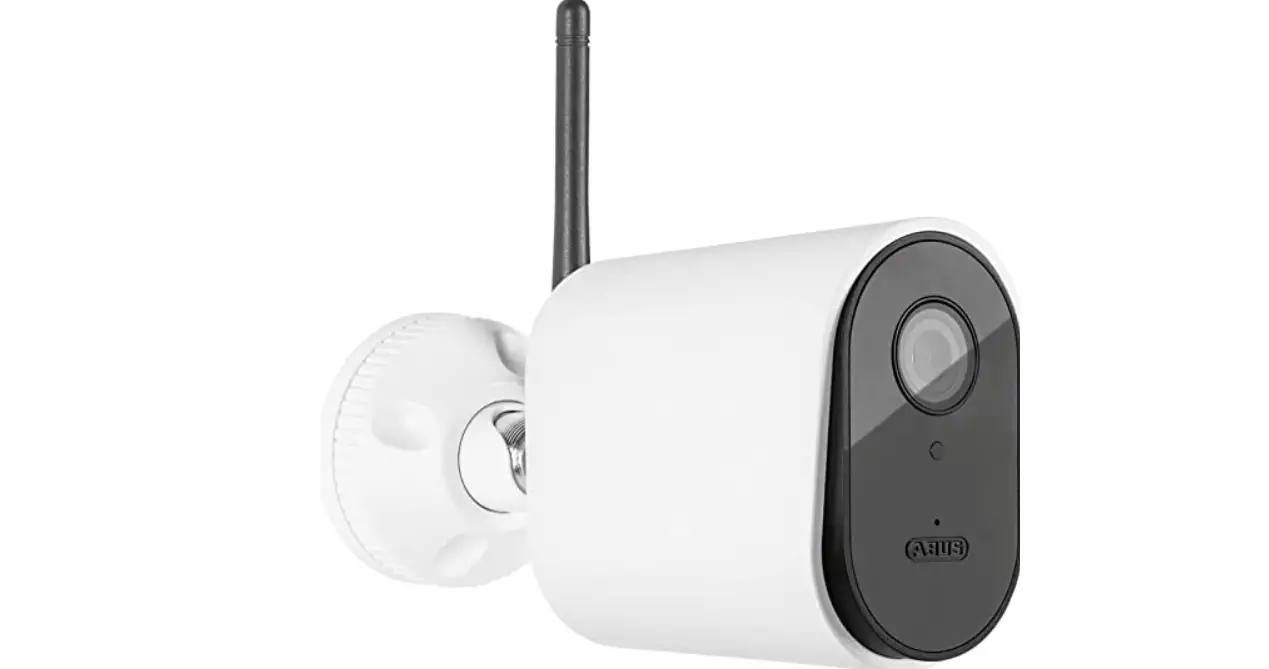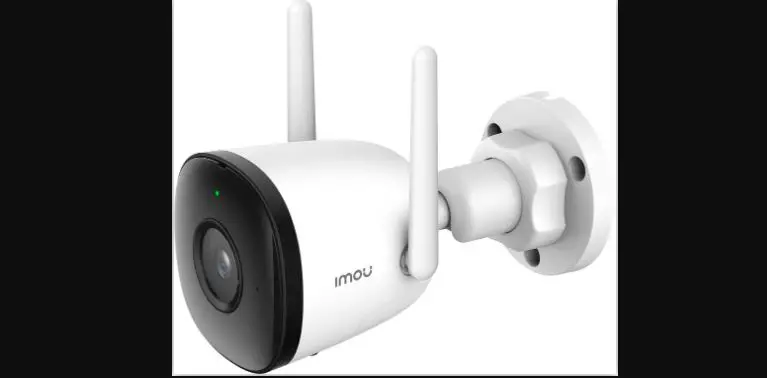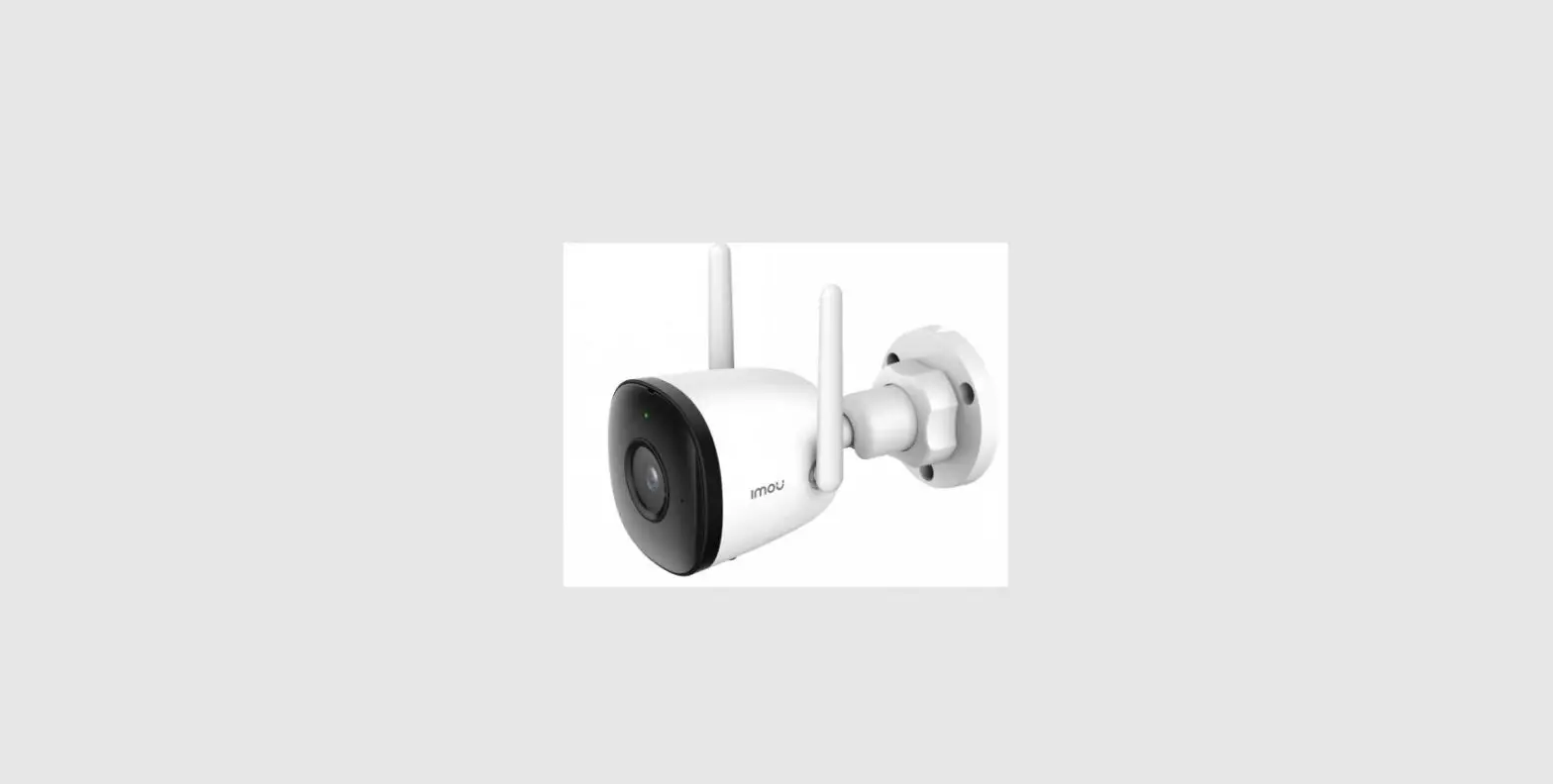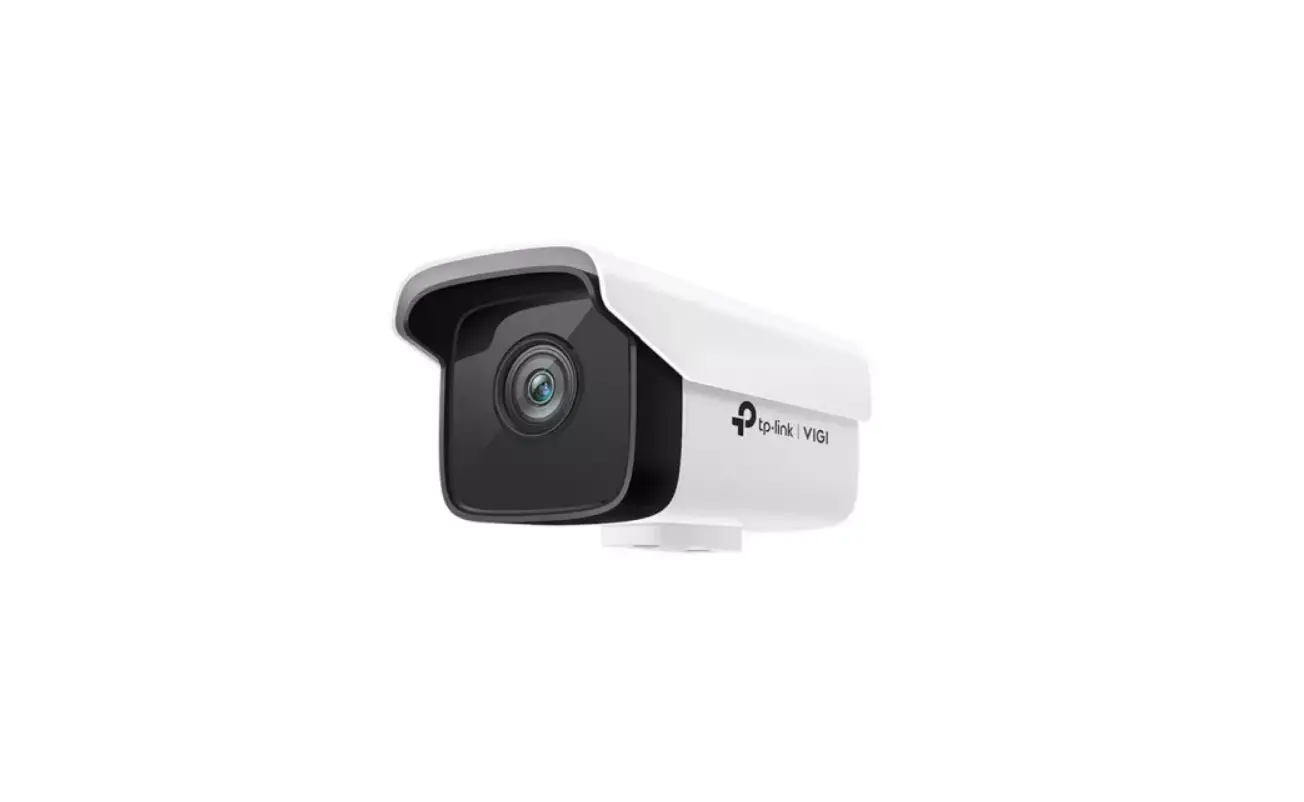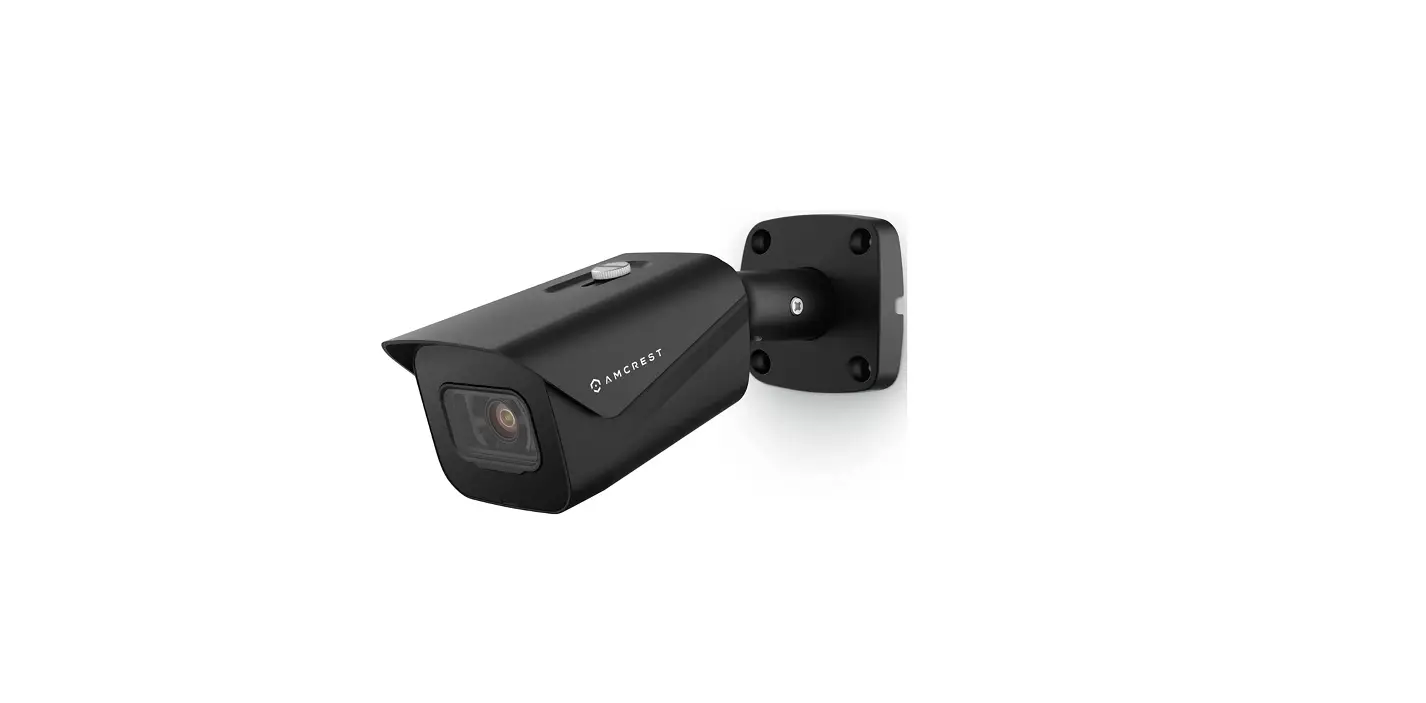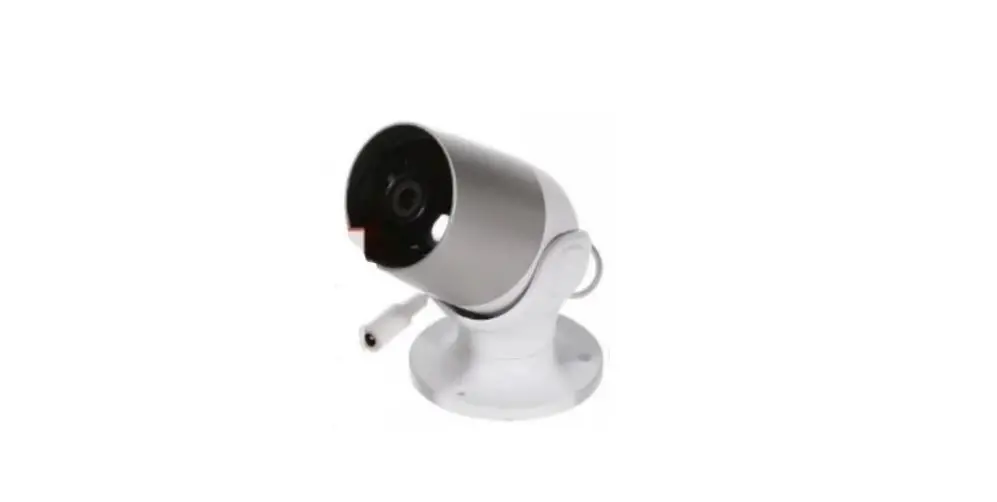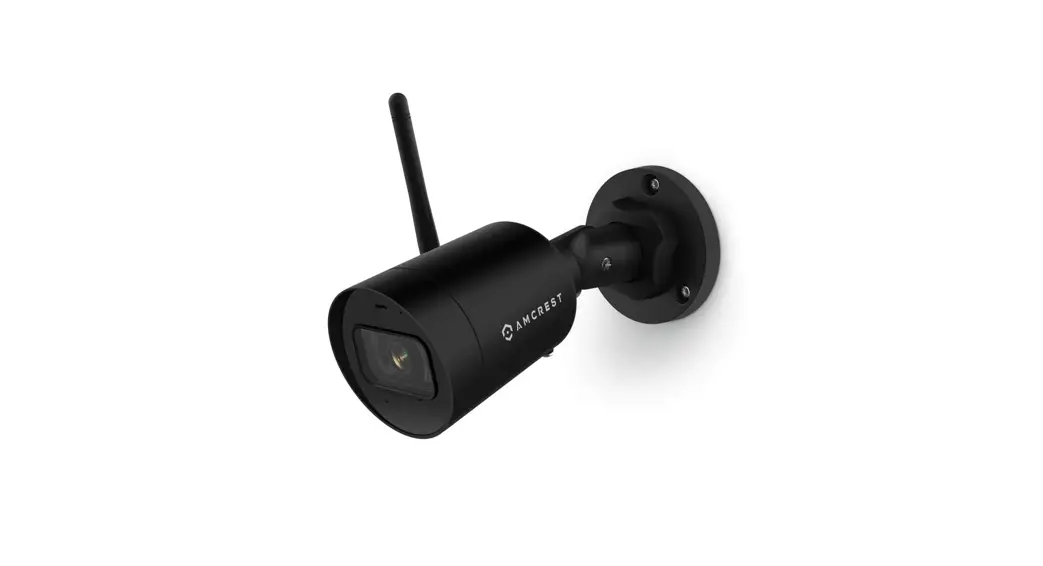
 ASH43-W 4MP WIFI Bullet Outdoor Camera
User Guide
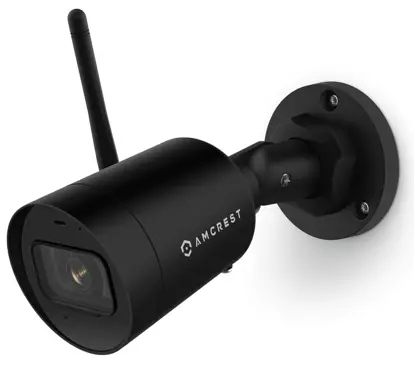
ASH43-W 4MP WIFI Bullet Outdoor Camera
Quick Setup Guide
4MP Wi-Fi Bullet Outdoor Camera.
Model: ASH43-W

How can we help?
We are dedicated to providing the highest quality support to our customers and are available 7 days a week.
Online Video Tutorial & Quick Start Guide
amcrest.com/support
Need help?
omcrest.com/contoctus
1-888-212-7538
Setting Up the Camera
The Am crest Smart Home app connects your Am crest camera to your Android or IOS mobile device, ensuring you ore always connected to what matters most.
To get the app, search for Amcrest Smart Home in the Google Ploy or App Store Note. To odd yo device urn to the Amowst View Pro = app you must complete setup on the Am crest Smart Home app leg For more information.
Please Visit: amcrest.com/support
Connecting to the Smartphone app
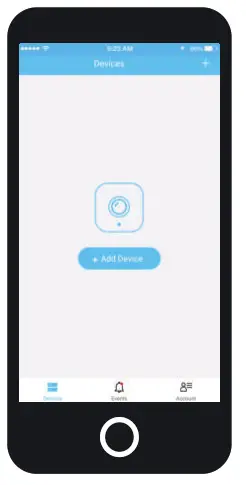
Important: Please complete the entire initials setup in close proximity to your WIFI router to ensure a stable connection. Ensure your device Is powered using the included power supply and open the Am crest Smart Home app. Top on ‘Register to register on account. Alter registering on account, log into the app and top ‘Add Device”.You will need to allow all notification and location permissions to allow the camera to connect to your mobile device.
Scan the QR Code or Manually Enter the S/N
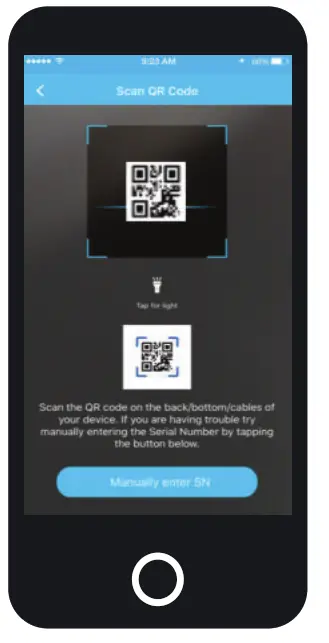
Scan the OR code located on the bottom of your Camera. If you are unable to scan the OR code you con manually enter the Sedol number by topping “Manually enter SN.
Choose Your Setup Method
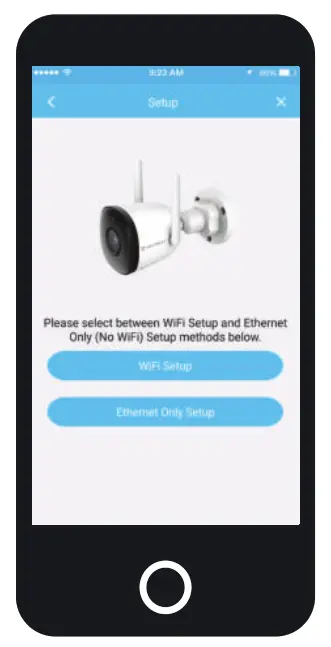
Choose between WI-FI and Ethernet Only Setup. Please note, the camera can only function on either a Wi-Fi or Ethernet connection, the camera connote connect to both.
This method allows you to connect the device to your network via WI-El using the camera’s built-in Wi-Fi hotspot.
This method uses on Ethernet only connection to connect to your device to the network.
Follow the in pop instructions to complete setup. Note: You camera must be on the some network CSS your made device during either setup method.
Camera Features
The main screen on the Am crest Smart Home app will be your Devices menu. This menu displays all of your added devices.
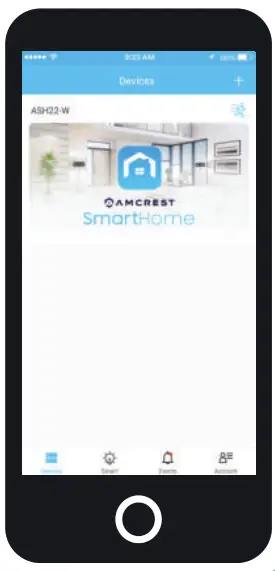
 Devices: Displays added devices in the app.
 Events: Provides quick access to motion events and alerts.
 Account Manage account settings and information.
 Built-in Microphone
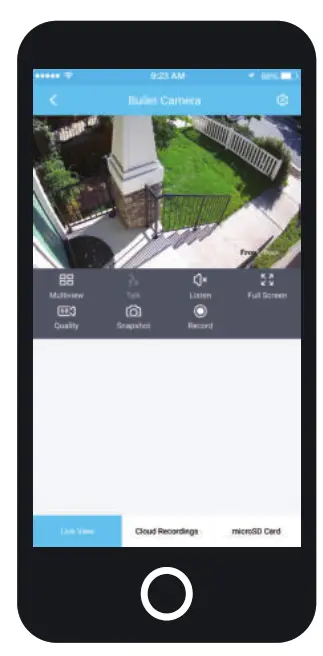
Use the built-in microphone feature to listen to what matters most, anytime, anywhere. Smartphone Cloud Storage
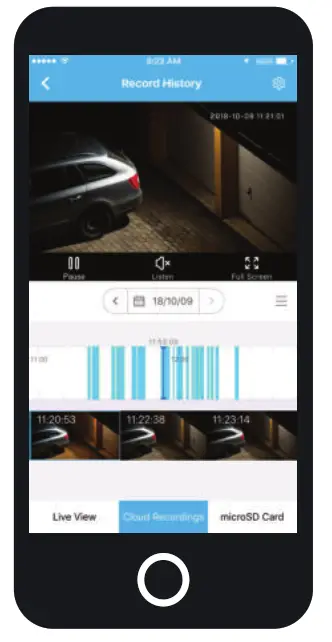
Use the Am crest Smart Home premium cloud service to view, record and playback events from o secure, off-site location. MicroSD Card Storage
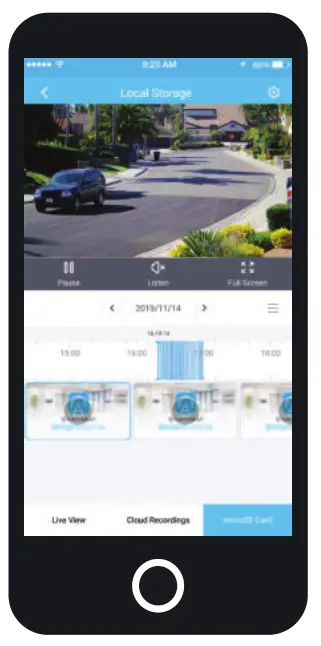
A MicroSD card can also be used to record and playback events locally. Note: ‘d The MicroSD cord must be class 10 or higher and formatted to FAT32.
Motion and Human Detection
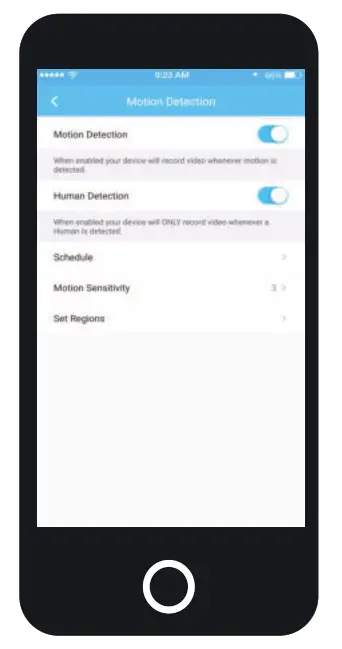
Motion Detection allows you to receive alerts and automatically record anytime your camera detects motion. Enable Human Detection to only receive alerts when a humon figure is detected. Push Notifications
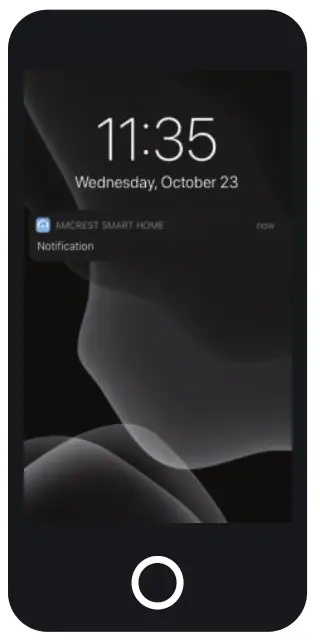
Receive push notifications directly to your smartphone when motion is detected. Note: To learn more visit: amcrest.com/support